
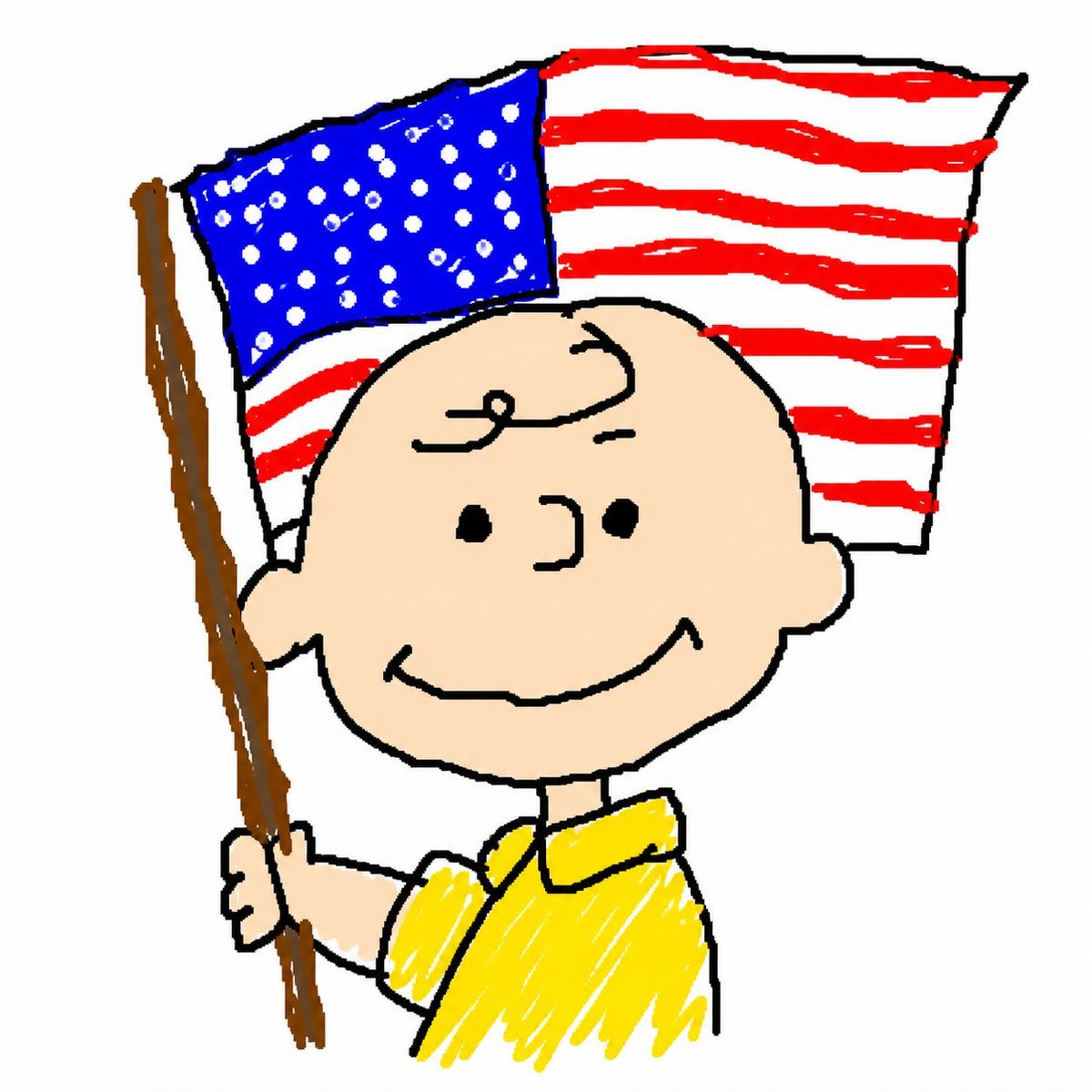
MS Paint Charlie Brown Flag Doodle
Generates a crude MS Paint-style cartoon of Charlie Brown smiling while holding an American flag, useful for playful meme or nostalgic doodle imagery.
- Prompt included
- Model and format preset
- Free template
The prompt behind this image
Copy the exact prompt behind MS Paint Charlie Brown Flag Doodle, or open it in the studio and make it yours.
Create a deliberately crude Microsoft Paint style cartoon illustration on a plain white background, with thick uneven black outlines, wobbly hand-drawn shapes, scribbly brush fills, and a childlike digital doodle look. The single subject is {argument name="character name" default="Charlie Brown"}, shown from the waist up, smiling calmly at the viewer with a round peach-colored bald head, one small curl of hair on the forehead, dot eyes, simple curved nose, round ears, and a wide curved grin. He wears a bright {argument name="shirt color" default="yellow"} short-sleeve collared shirt filled with messy scribble strokes. His left hand grips a tall brown wooden flagpole angled slightly upward along the left side of the image. Behind his head is a waving {argument name="flag type" default="American flag"} with a blue canton full of many irregular white dots for stars and red-and-white horizontal stripes drawn as rough uneven bands; the flag is outlined in black and appears attached to the pole. Use a square composition, centered character, playful nostalgic Peanuts-like proportions, intentionally imperfect MS Paint brush texture, no text, no shadows, no realistic rendering.
How to use MS Paint Charlie Brown Flag Doodle in 3 steps
- 1Upload ImagePNG, JPG or paste
Add your photo
Upload the photo the template builds on. The prompt, model and format are already set.
- 2…a portrait of your subject in softgolden-hour light, 85mm…
Personalize
Edit the subject and creative details for your destination.
- 3Generate
Generate
Press Generate — your image is created in PicX Studio, so you can compare it with the original and refine one variable at a time.
More like this
Templates with the same subject, style or setup. Open one to see its prompt.
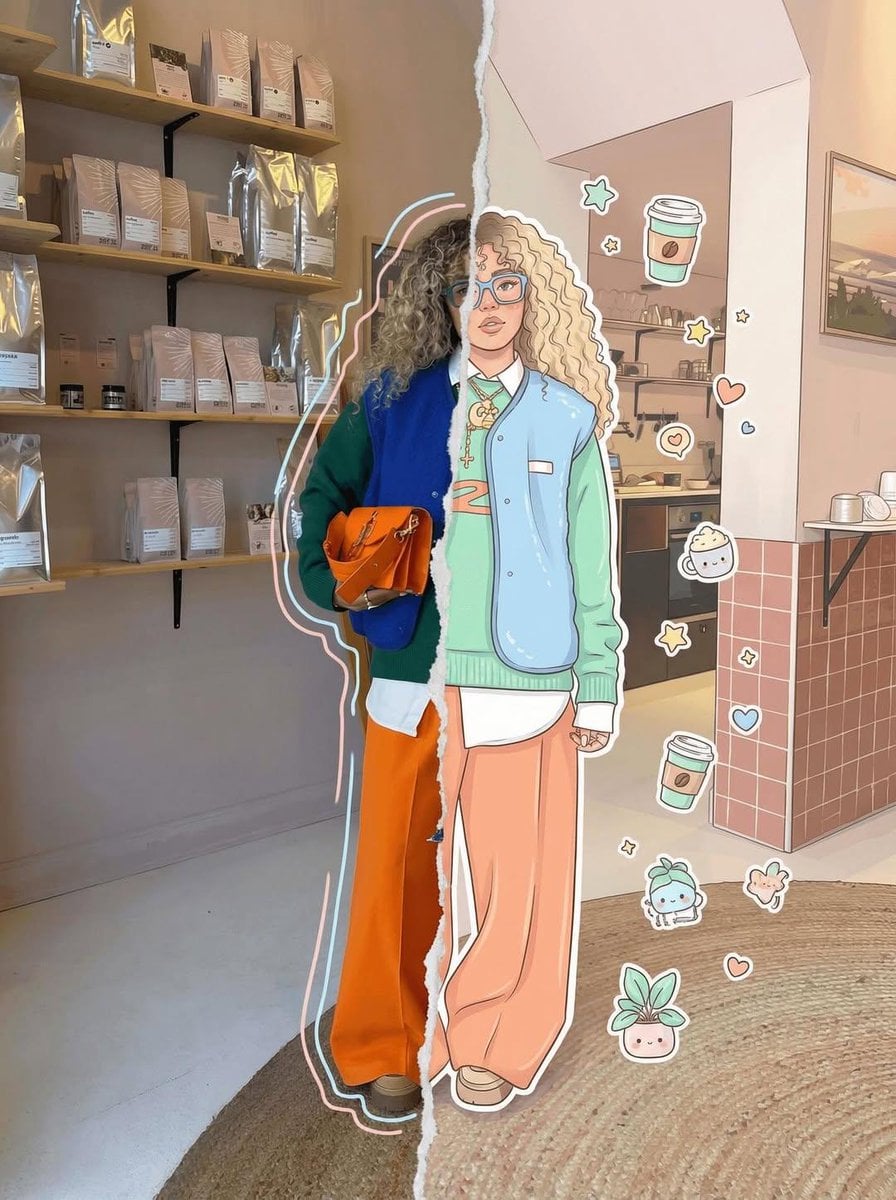
Real Illustration Split Portrait Transition
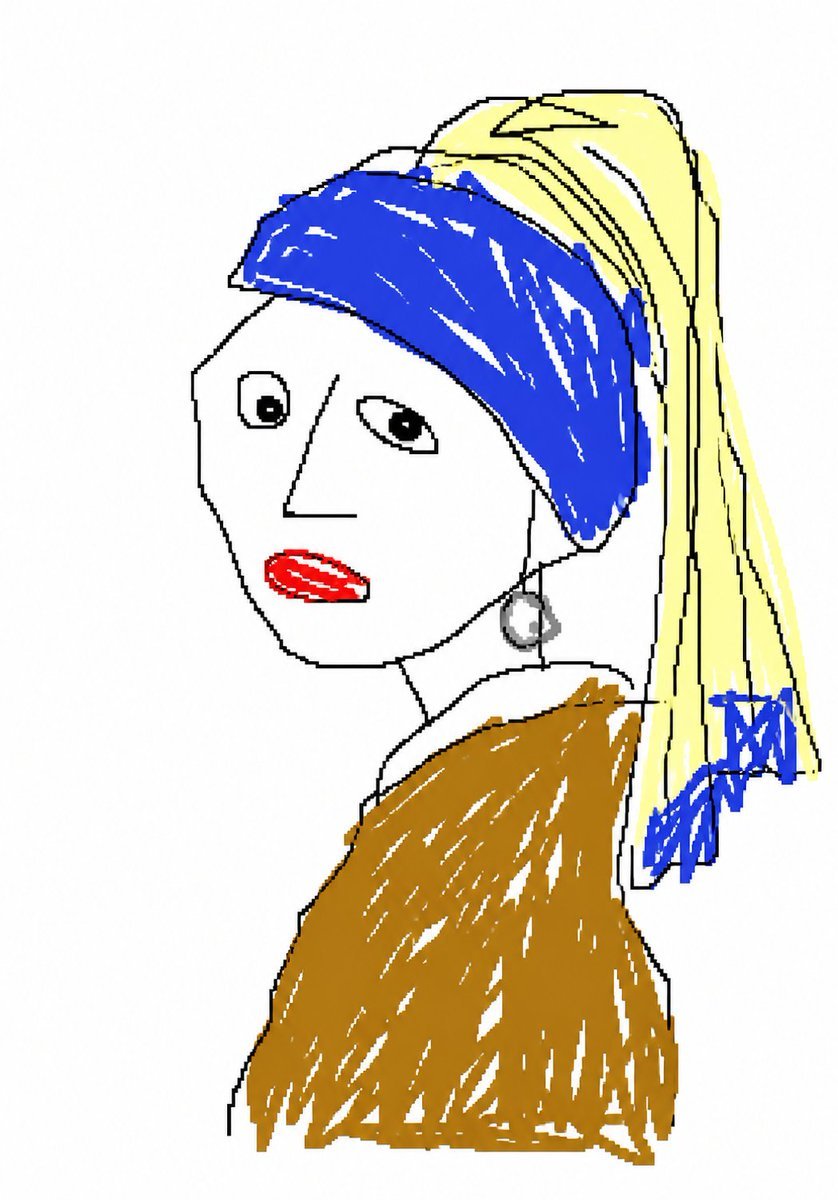
MS Paint Doodle Remake

Ultra-Realistic - India Patriotic Portrait
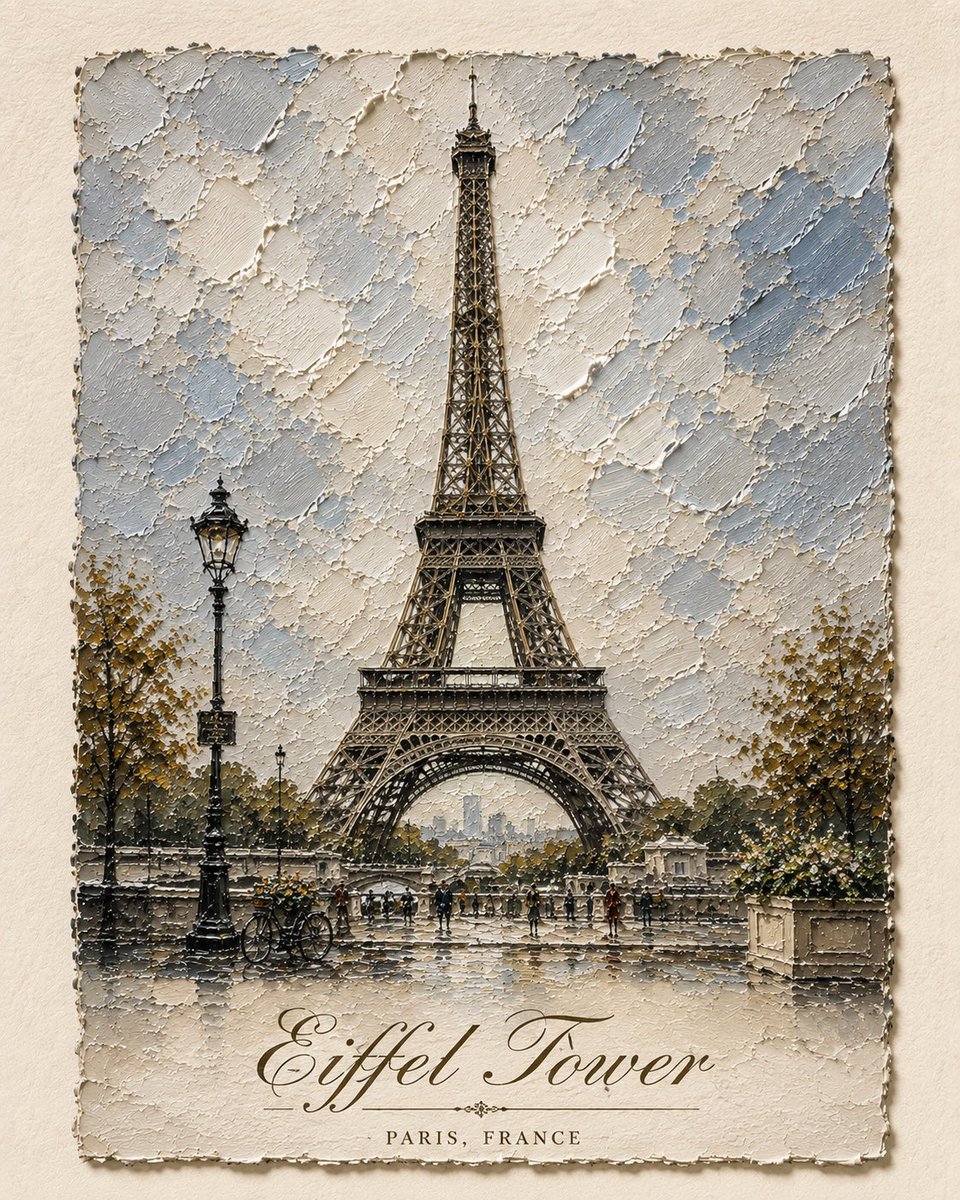
Impasto Oil Architectural Painting
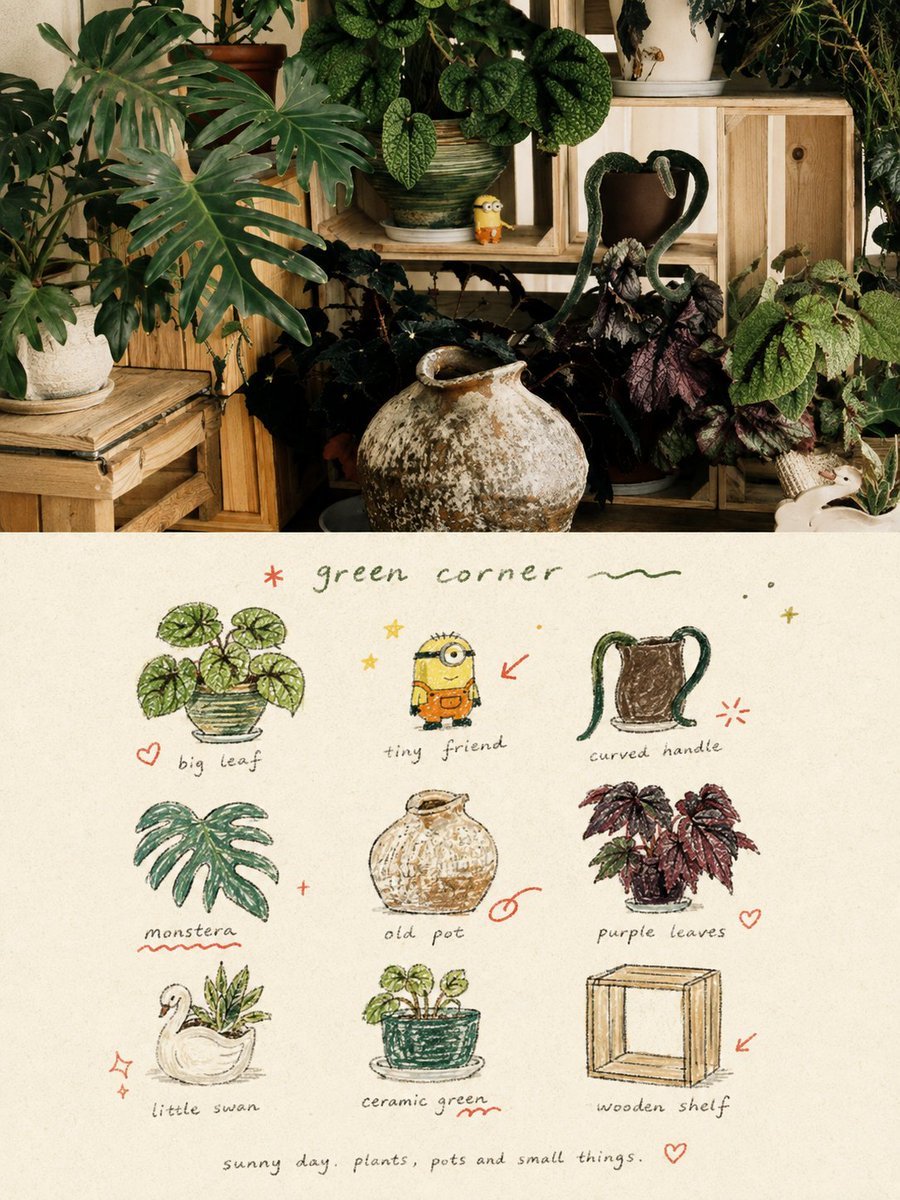
Hand-Drawn Doodle Grid Poster
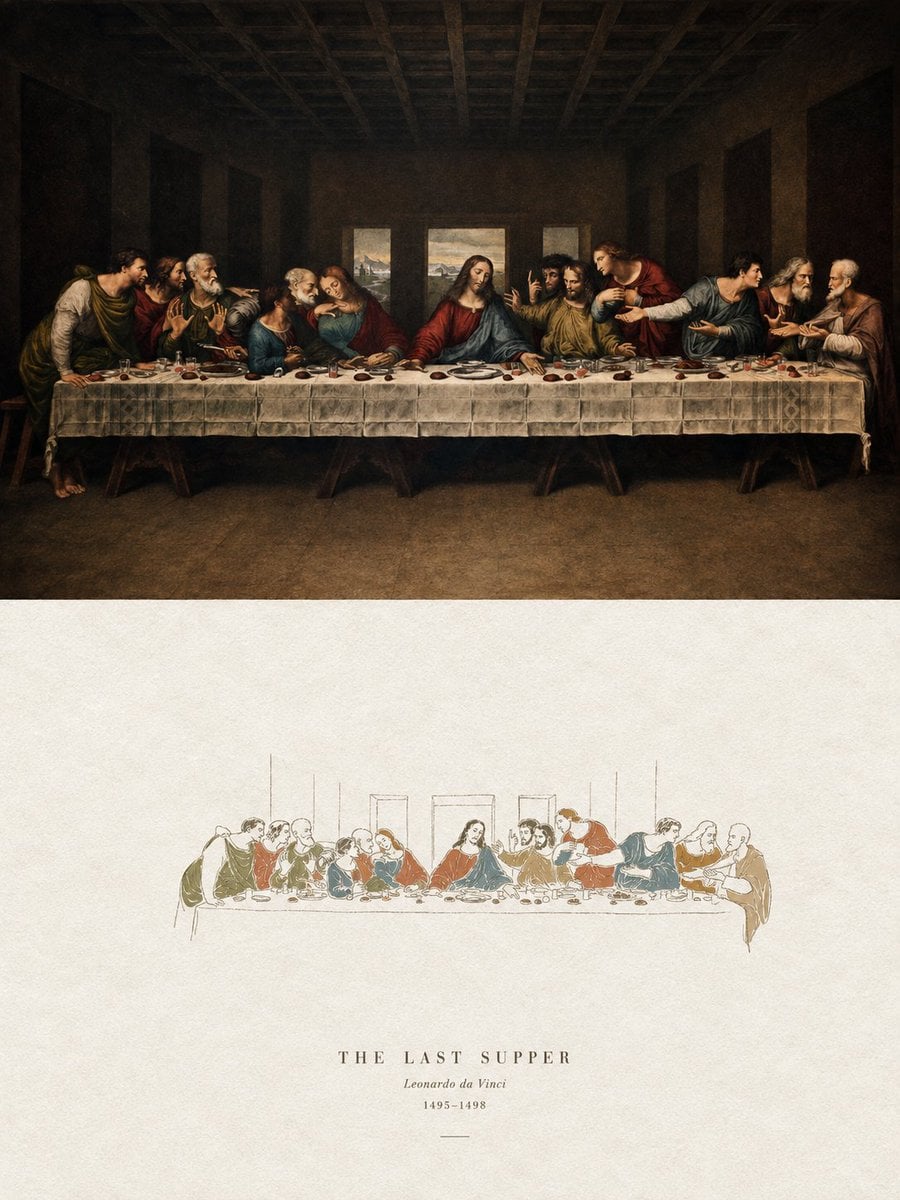
Acrylic Hand-Painted Style Poster Design
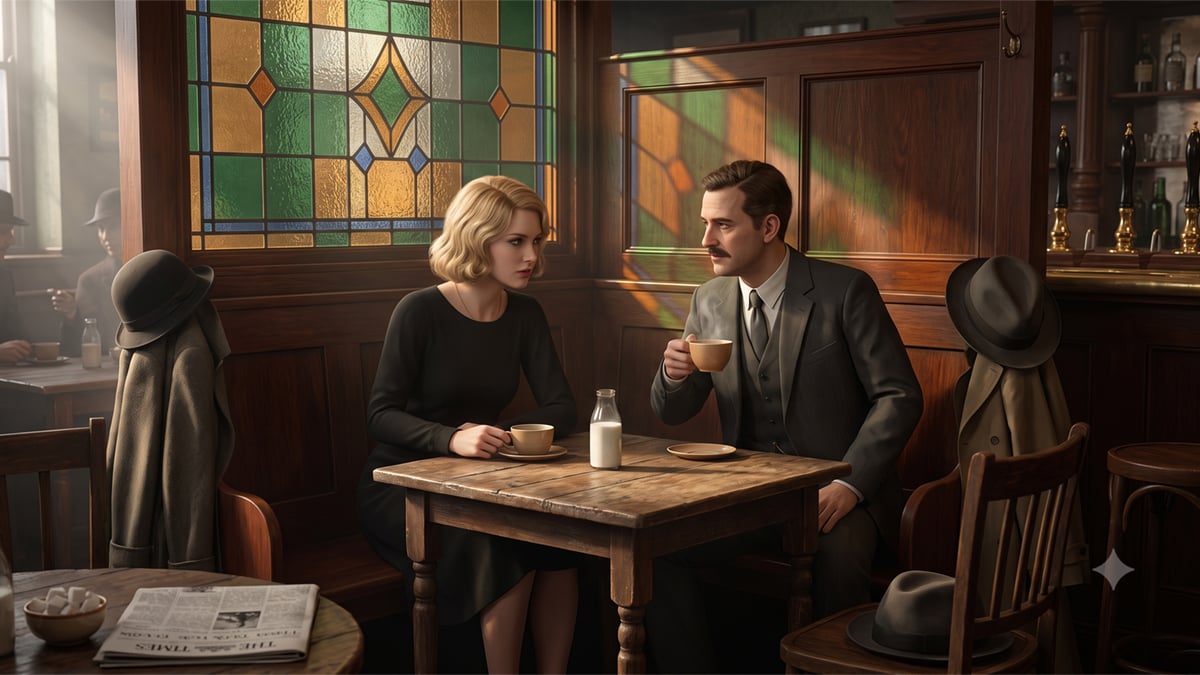
Inspector Brown Pub Conversation
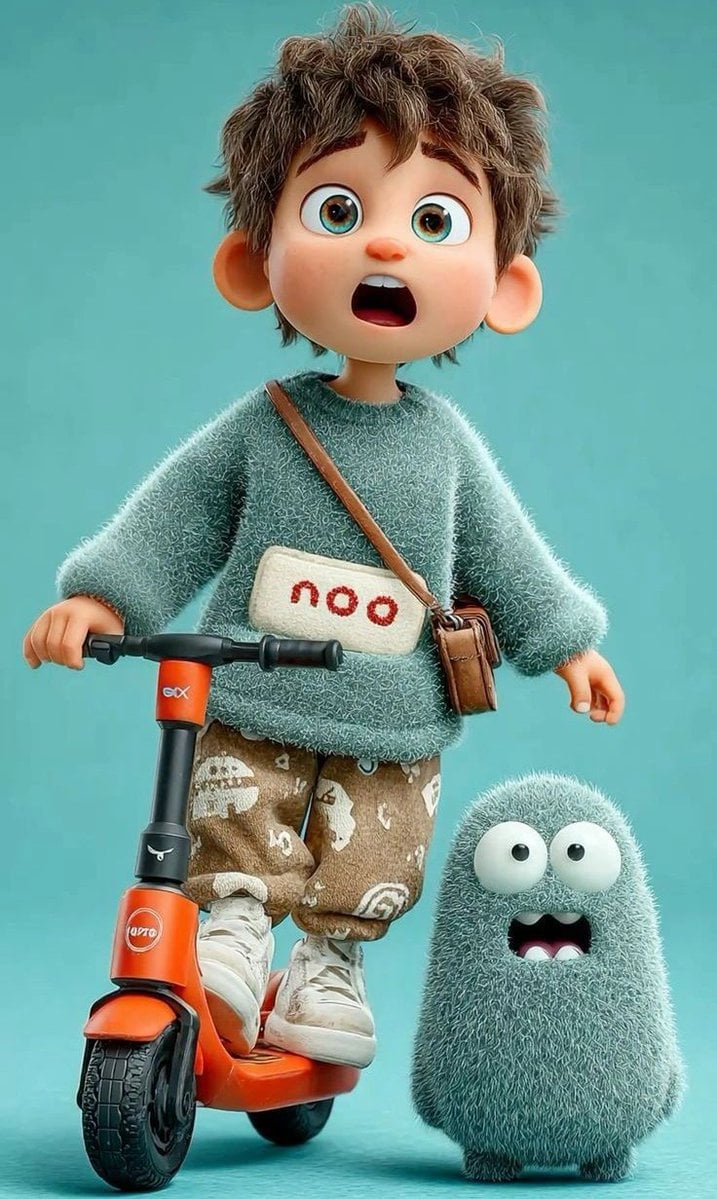
3D Pixar-style animated child character, cute young boy with messy brown
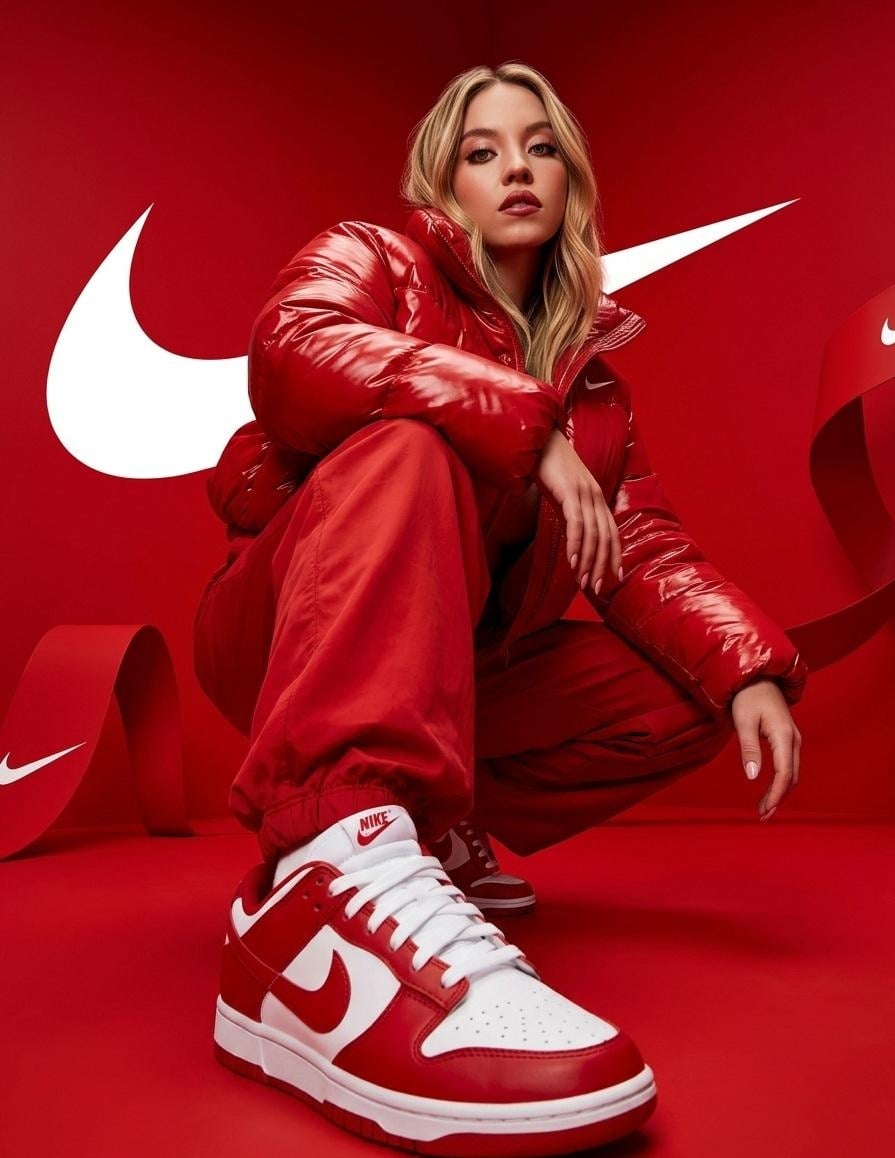
Person from the reference image, with a fade haircut, brown eyes
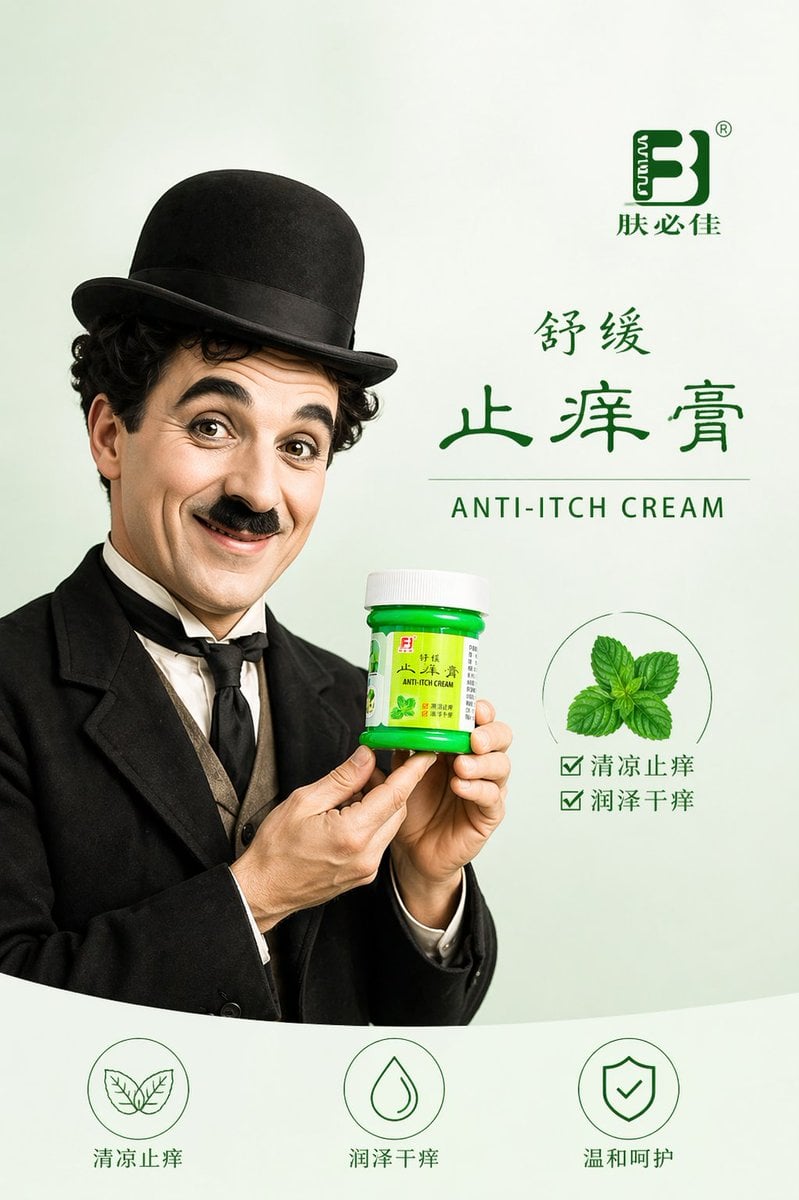
Charlie Chaplin Product Poster
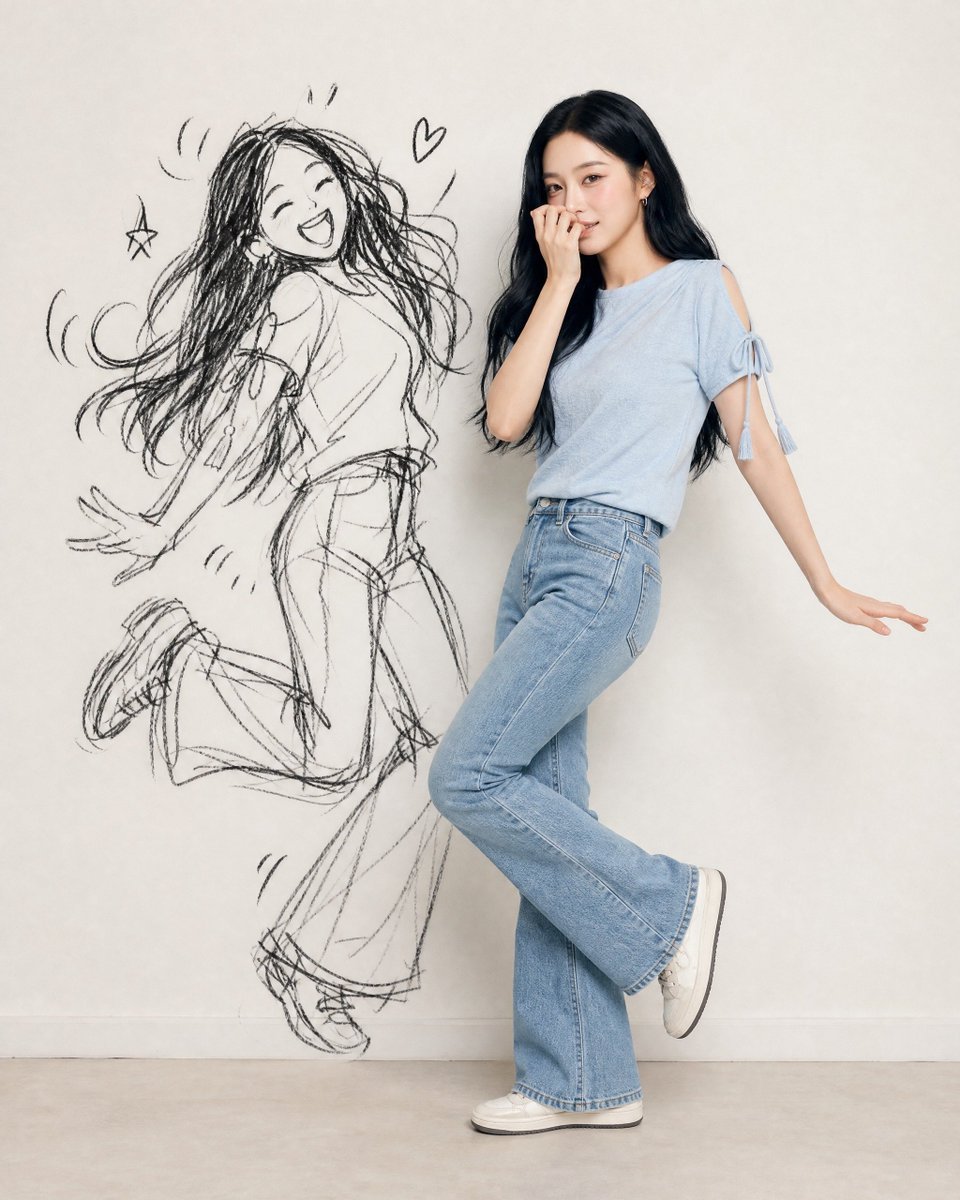
Ink-Twin Doodle Stylization
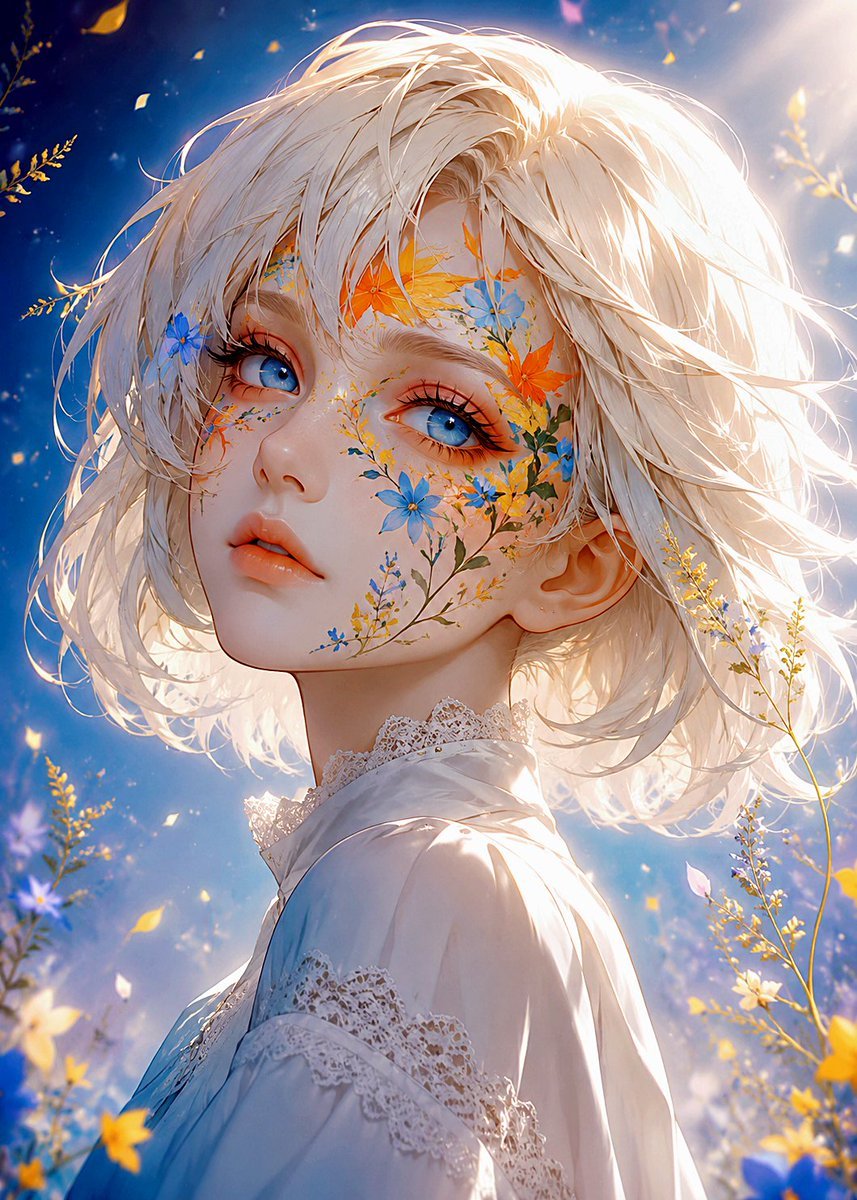
Floral Face Paint Anime Portrait
Make it yours
MS Paint Charlie Brown Flag Doodle works as-is. These are the safest ways to change it without losing the look.
Change one field
Copy a single group, rewrite it, and generate again so you can see what that field is doing.
Keep the frame, change the subject
Hold the composition and light of MS Paint Charlie Brown Flag Doodle, then swap wardrobe, props or the person for a new take.
| If the result… | Why | Fix |
|---|---|---|
| The result drifts from the preview | Too many fields changed at once. | Reuse MS Paint Charlie Brown Flag Doodle as-is first, then change one group — subject, light, or setting. |
| The model over-stylizes the scene | The prose prompt leaves finish and camera underspecified. | Add one camera or lighting sentence and stay on GPT Image 2. |
More GPT Image 2 templates
Other prompts made for GPT Image 2.

Six VTuber Japanese Logo Sheet

Realistic Portrait of Woman and Deer

The Vista Modular Condo Poster

AI Model Routing Comparison Infographic

2.5D Anime Art Board

Isometric Productivity Desk Scene

New York Double Exposure Poster

Four-Panel AI Landscape Comparison

Japanese Tatami Lifestyle Magazine Cover

NESCAFÉ Coffee Map Poster
More image prompts
Fresh picks from across the catalog.
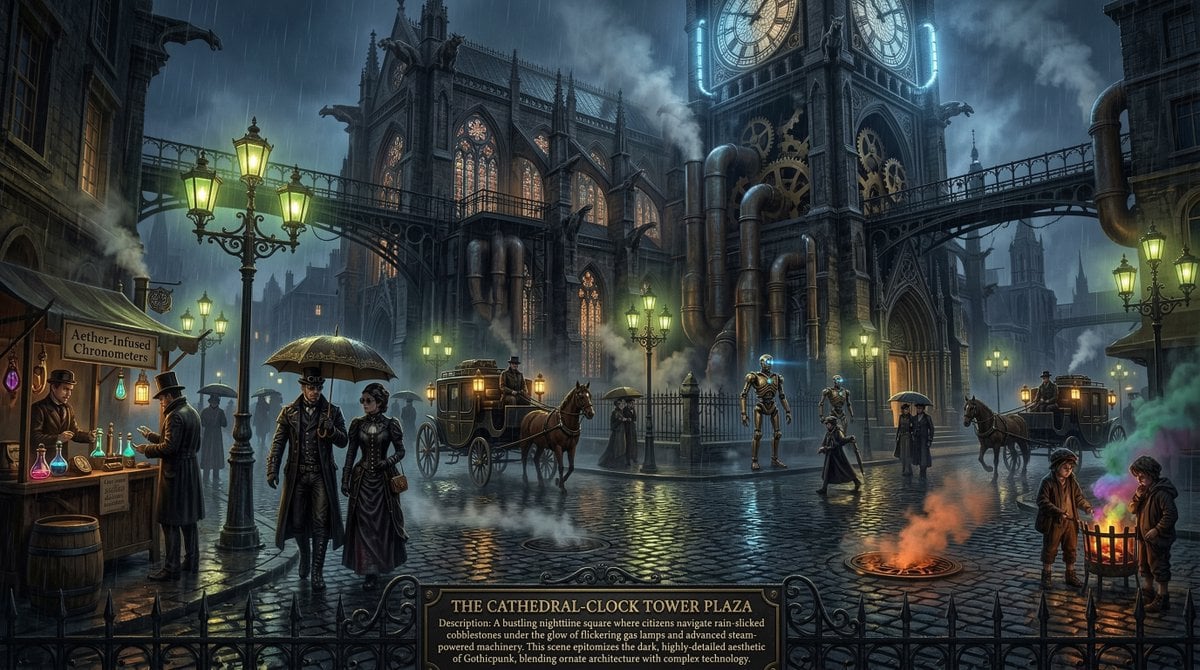
Universal Mono Punk Scene Generator
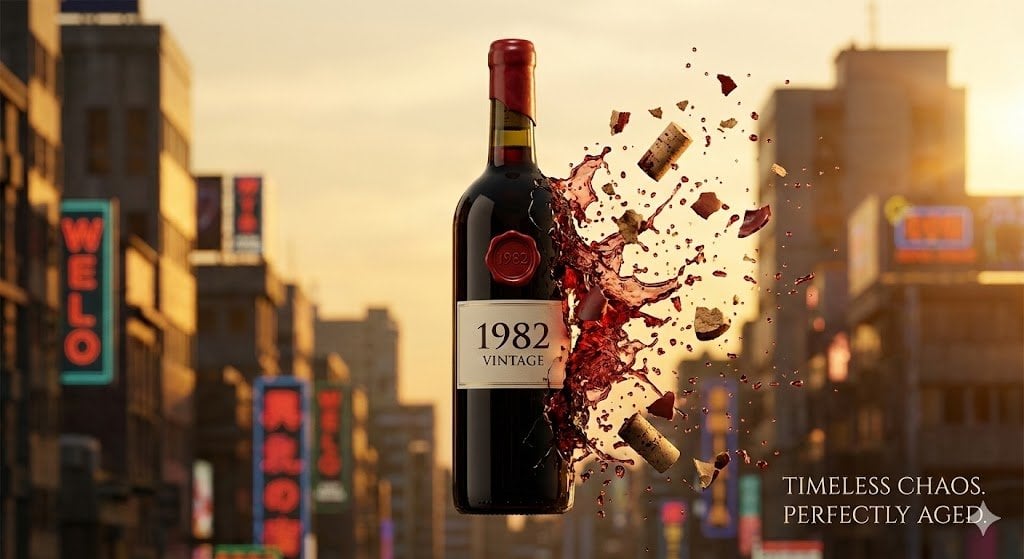
Advertising Visual Prompt: Wine Bottle Product Shot
Seedance - Romantic Comedy Scene
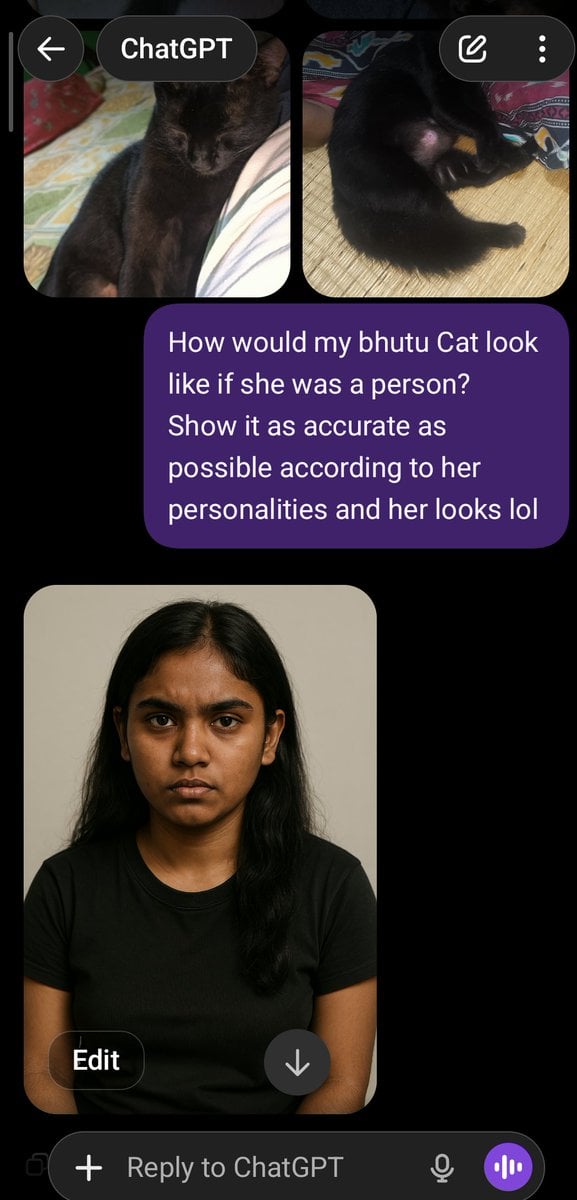
Cat to Person Character Visualization
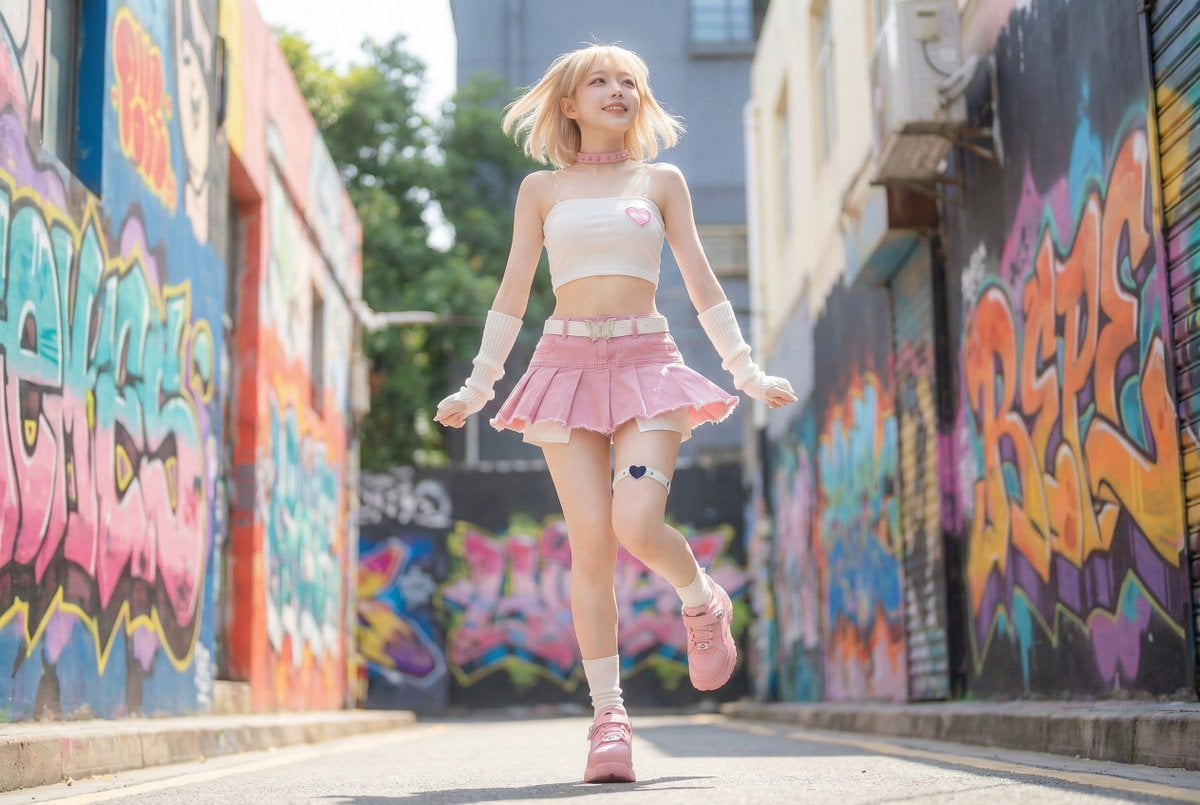
Dynamic Pop Art Video Sequence
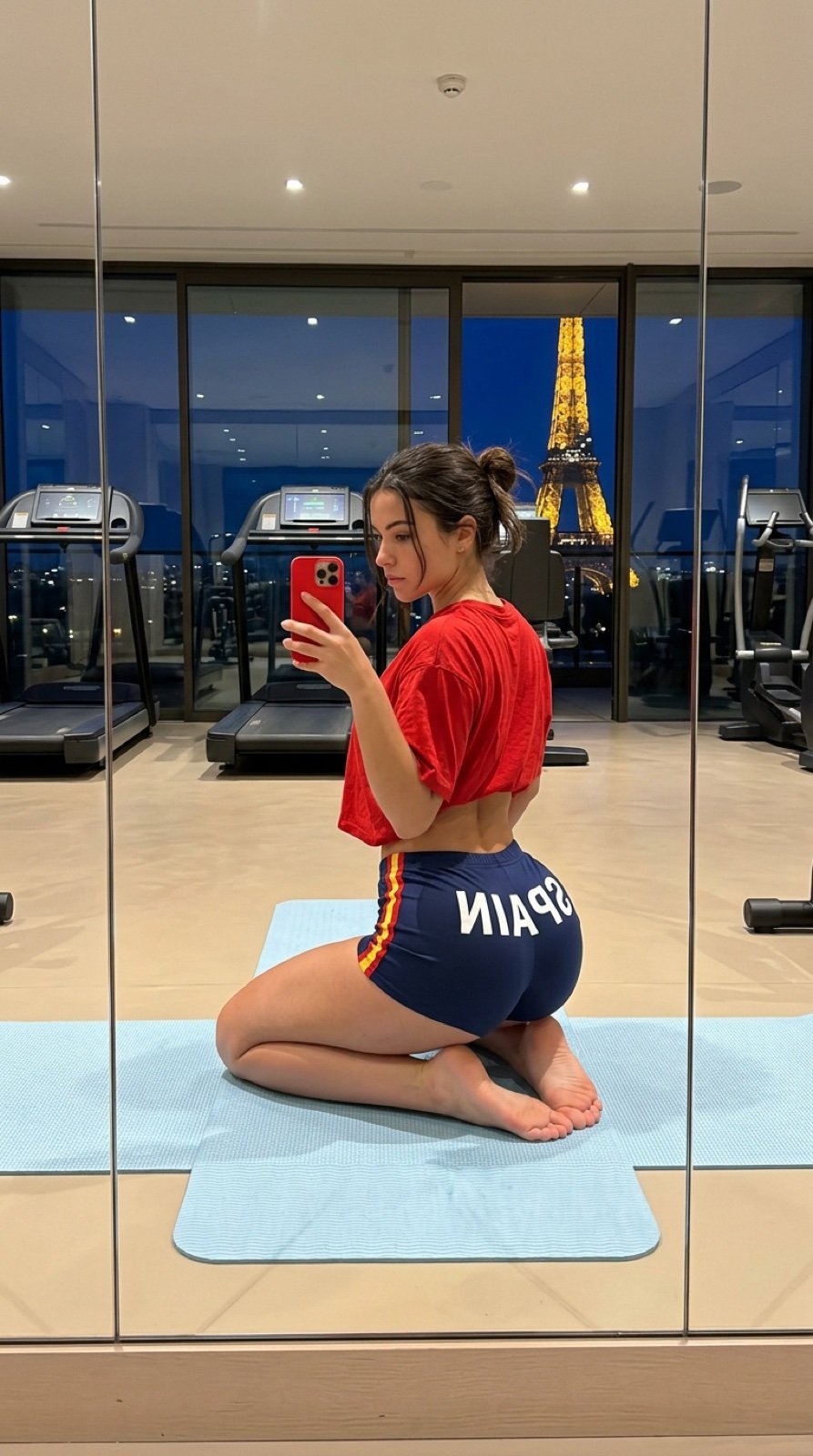
Gym Mirror Selfie with Eiffel Tower View
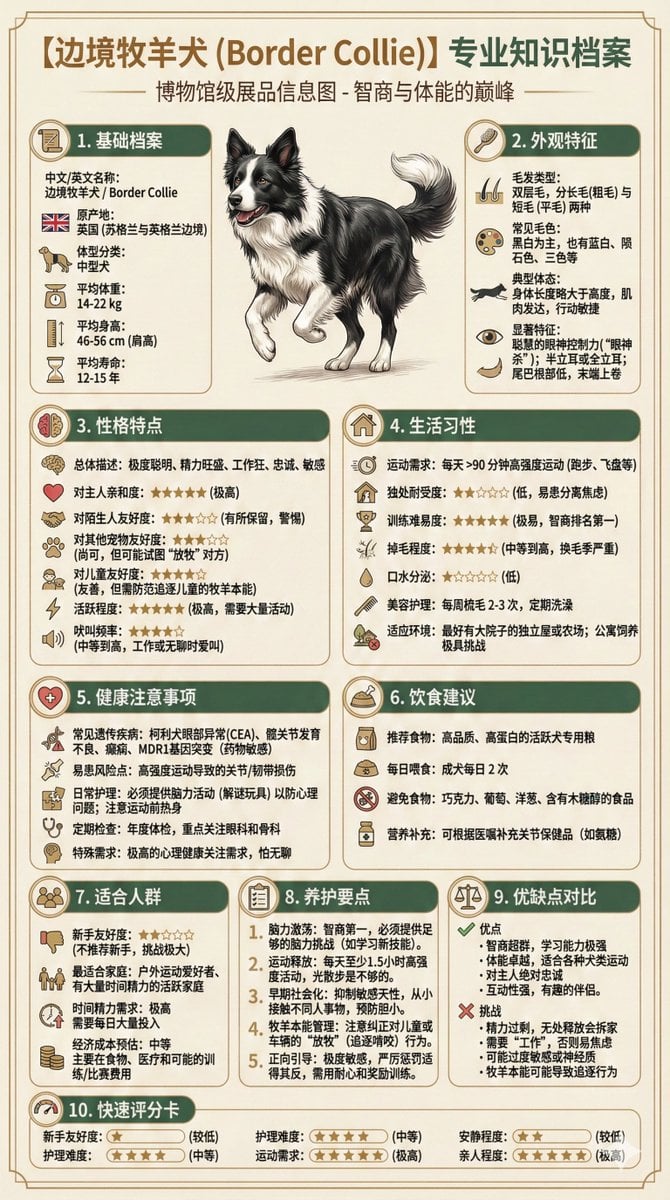
Universal Pet Feeding Guide Generator
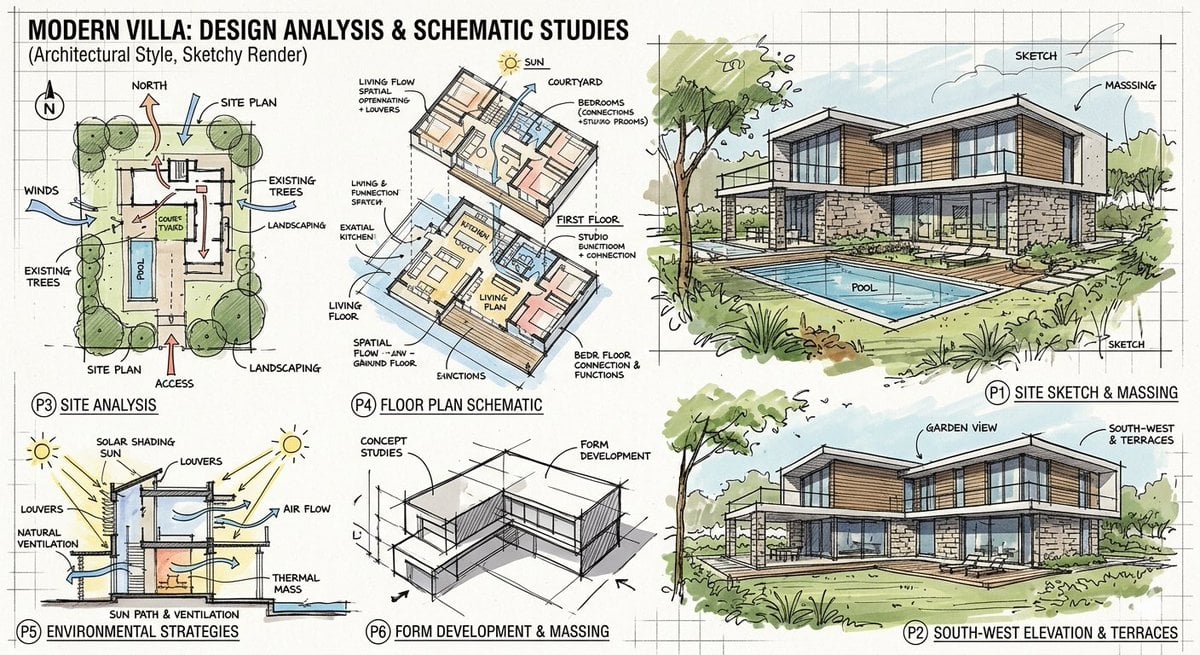
Prompt for a modern villa layout
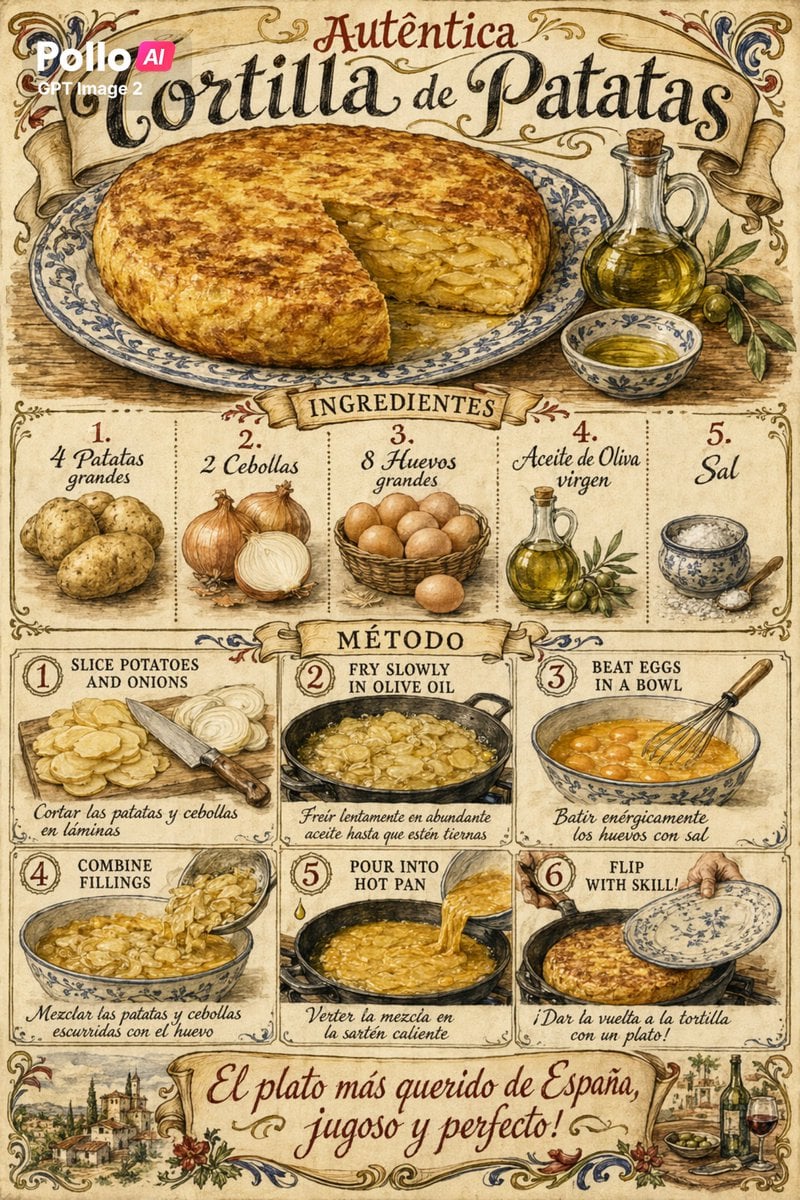
Vintage Spanish Tortilla Recipe Poster
Cinematic Luxury Portrait of Woman Adjusting Cufflinks
Browse template categories
MS Paint Charlie Brown Flag Doodle questions
How do I use the MS Paint Charlie Brown Flag Doodle template?
Add your photo if the template asks for one, edit the prompt if you like — the template's model and format are already selected — and press Generate. Your version opens in PicX Studio.
Can I customize the MS Paint Charlie Brown Flag Doodle template?
Yes. You can change the subject, setting, lighting, mood, format, and available model controls before creating your image.
Is the MS Paint Charlie Brown Flag Doodle template free?
Opening and editing this template is free. Generating uses credits, shown on the Generate button when you are signed in.
Which AI model should I use?
Start with GPT Image 2, which is the model associated with this template. You can compare another compatible model for a different finish.
Looking for something else? Browse all templates.

Your photo, any look
Thousands of ready templates for every top image and video model, from one credit balance.