
Minimal AI Lock-In Comparison Slide
This prompt generates a polished Chinese presentation slide comparing closed versus open AI memory lock-in, suitable for keynote decks, product strategy talks, and premium infographic PPTs.
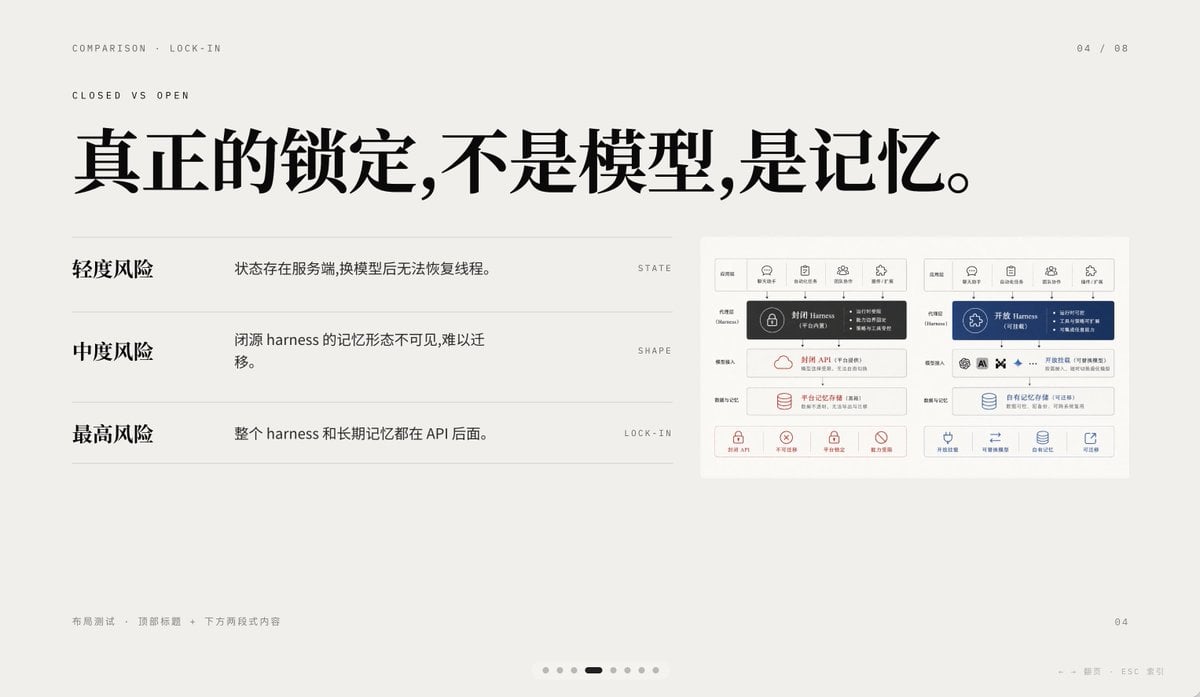
- Prompt included
- Model and format preset
- Free template
The prompt behind this image
Copy the exact prompt behind Minimal AI Lock-In Comparison Slide, or open it in the studio and make it yours.
A minimalist editorial presentation slide in 16:9 format with a warm light-gray paper background, lots of negative space, refined Swiss-style grid layout, and high-end PPT/keynote design aesthetics. The slide is a comparison page about lock-in, using elegant Chinese typography mixed with tiny English navigation text. At the top left, place two small uppercase English breadcrumb lines: “COMPARISON · LOCK-IN” and below it “CLOSED VS OPEN”, in a thin sans-serif with wide tracking. At the top right, place the page indicator “04 / 08”. Center-left across the upper half, add a very large bold black Chinese headline: “真正的锁定,不是模型,是记忆。” On the left half below the headline, create a three-row comparison list separated by thin horizontal gray rules. Row 1 has the bold Chinese label “轻度风险” on the left, with the explanatory sentence “状态存在服务端,换模型后无法恢复线程。” to its right, and a tiny uppercase English keyword aligned far right: “STATE”. Row 2 has the bold label “中度风险”, with the sentence “闭源 harness 的记忆形态不可见,难以迁移。” and the far-right keyword “SHAPE”. Row 3 has the bold label “最高风险”, with the sentence “整个 harness 和长期记忆都在 API 后面。” and the far-right keyword “LOCK-IN”. On the right side of the slide, place a small inset comparison diagram card with a white background and subtle border, containing 2 side-by-side system architecture panels. The left panel represents a closed system in dark gray and muted red accents; the right panel represents an open system in deep blue accents. Each panel should have 5 small top icon tabs, a central highlighted harness block, several stacked rounded rectangular modules below, and a bottom row of 4 small capability icons with short Chinese labels. Keep the inset detailed but small, so it reads as a supporting visual rather than the main focus. At the bottom left, add tiny light-gray Chinese footer text: “布局测试 · 顶部标题 + 下方两段式内容”. At the bottom right, place a small page number “04”. Centered near the bottom edge, add a carousel indicator with exactly 7 small dots, where the 4th dot is a short dark rounded pill indicating the active slide and the other 6 dots are pale gray circles. Also add tiny faint navigation hints at the lower right edge reading “← → 翻页 ESC 关闭”. Use crisp vector text rendering, understated contrast, elegant spacing, and a calm premium infographic style suitable for a business presentation about AI platform comparison and API memory lock-in.
How to use Minimal AI Lock-In Comparison Slide in 3 steps
- 1Upload ImagePNG, JPG or paste
Add your photo
Upload the photo the template builds on. The prompt, model and format are already set.
- 2…a portrait of your subject in softgolden-hour light, 85mm…
Personalize
Edit the subject and creative details for your destination.
- 3Generate
Generate
Press Generate — your image is created in PicX Studio, so you can compare it with the original and refine one variable at a time.
More like this
Templates with the same subject, style or setup. Open one to see its prompt.
AI Bubblegum Style Comparison Slide

Japanese Architectural Concrete Studio Fashion Campaign

Quiet Luxury Black and White Fashion Editorial Portrait
Premium Editorial Branding Poster Charcoal Green

Premium Vintage Travel Poster Landscape

Japanese Café Sketch Duo Illustration
Delicate Japanese Café Lifestyle Illustration
Soft Shadow Studio Minimalist Product Shot
Minimalist Skincare Product Water Stone Still
Botanical Skincare Minimal Product Advertising
Luxury Sliced Wordmark Player Poster

Legendary Player Fragmented Editorial Poster
Make it yours
Minimal AI Lock-In Comparison Slide works as-is. These are the safest ways to change it without losing the look.
Change one field
Copy a single group, rewrite it, and generate again so you can see what that field is doing.
Keep the frame, change the subject
Hold the composition and light of Minimal AI Lock-In Comparison Slide, then swap wardrobe, props or the person for a new take.
| If the result… | Why | Fix |
|---|---|---|
| The result drifts from the preview | Too many fields changed at once. | Reuse Minimal AI Lock-In Comparison Slide as-is first, then change one group — subject, light, or setting. |
| The model over-stylizes the scene | The prose prompt leaves finish and camera underspecified. | Add one camera or lighting sentence and stay on GPT Image 2. |
More GPT Image 2 templates
Other prompts made for GPT Image 2.

Six VTuber Japanese Logo Sheet

Realistic Portrait of Woman and Deer

The Vista Modular Condo Poster

AI Model Routing Comparison Infographic

2.5D Anime Art Board

Isometric Productivity Desk Scene

New York Double Exposure Poster

Four-Panel AI Landscape Comparison

Japanese Tatami Lifestyle Magazine Cover

NESCAFÉ Coffee Map Poster
More image prompts
Fresh picks from across the catalog.

Surreal Cinematic Portrait: Glamorous Warrior of Music in Brass Catacombs
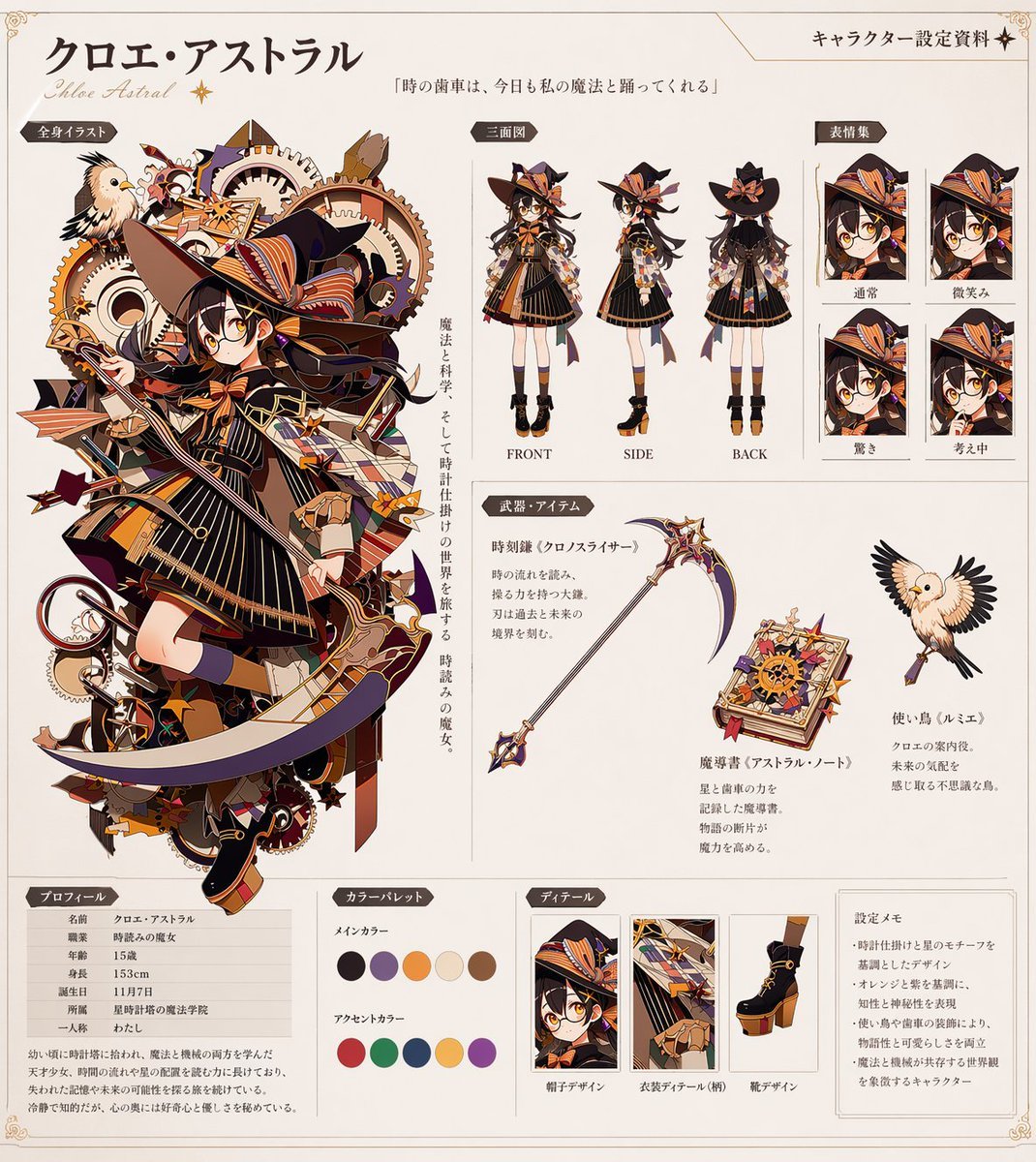
Anime Character Reference Sheet Generator
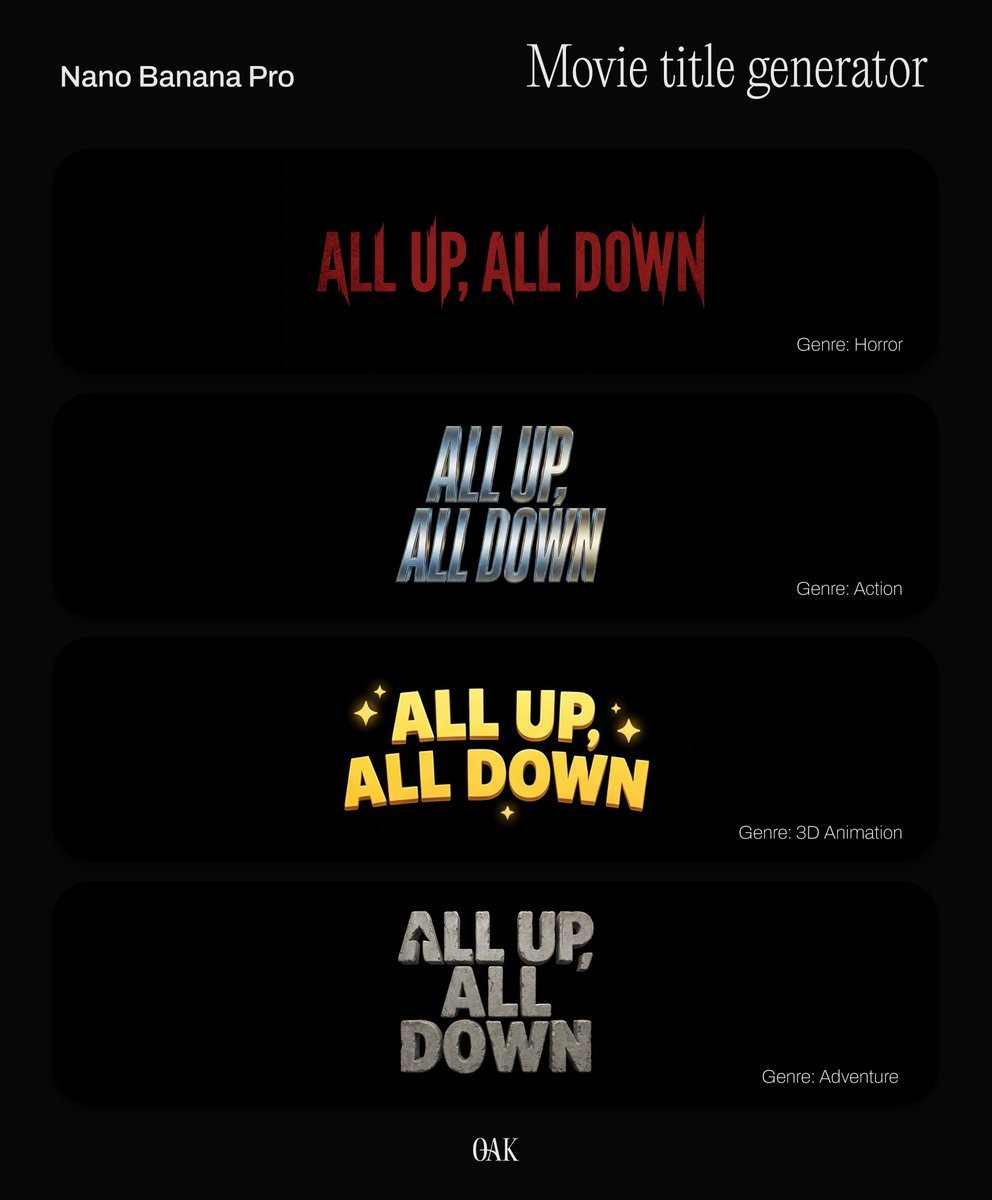
Movie Title Generator Prompt

Hyper-Realistic Fire Sneaker Advertisement

Photorealistic Street Photo Prompt: Vintage Fashion Girl in Shibuya

Elf Knight Victory Parade

Grok Video Prompt: Skateboarding in a Sushi Restaurant
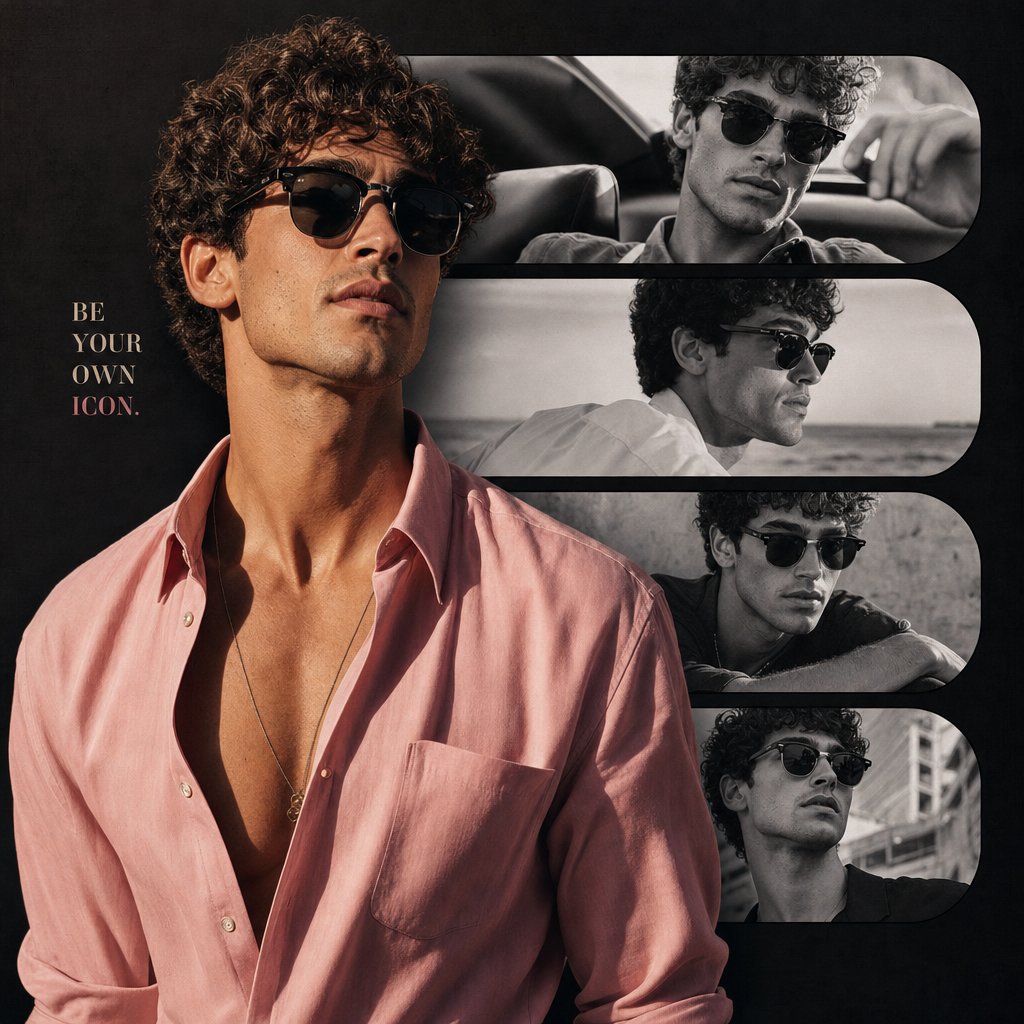
Fashion Portrait Collage Poster
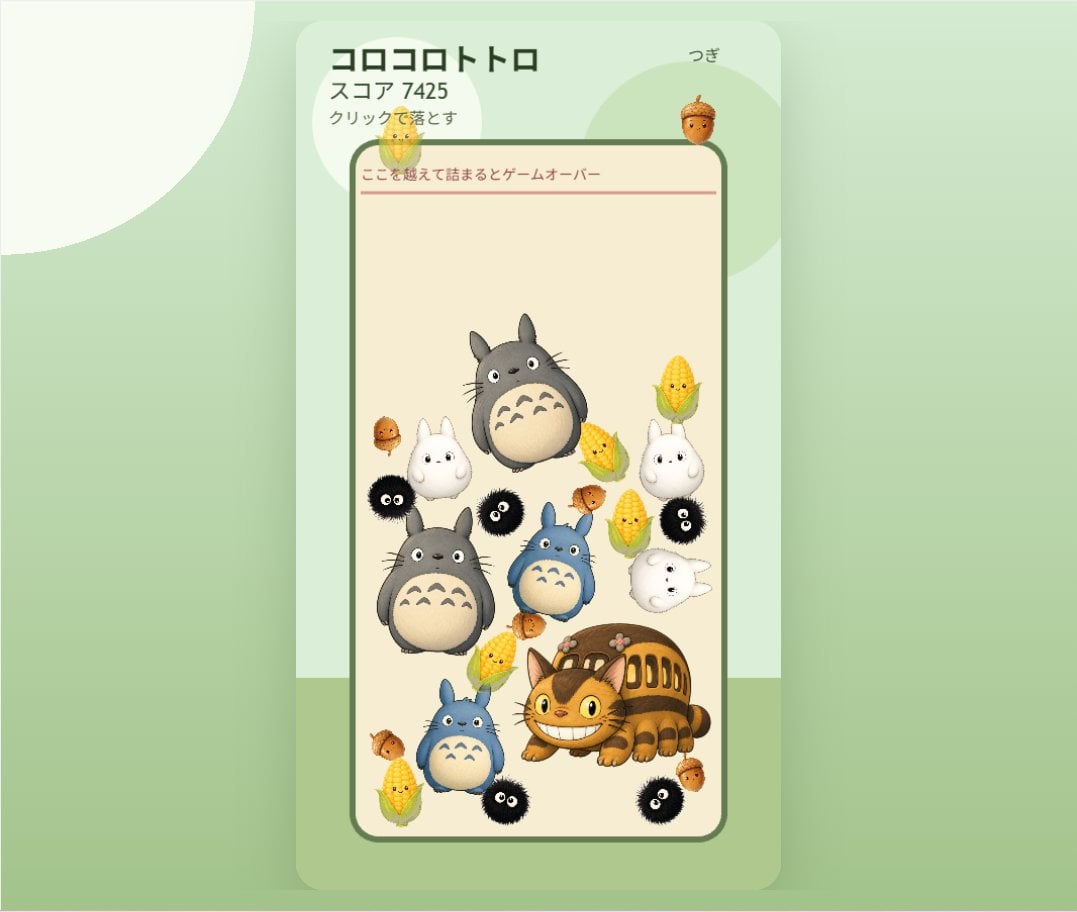
Cute Totoro Puzzle Game UI

Nightlife Editorial Portrait Prompt
Browse template categories
Minimal AI Lock-In Comparison Slide questions
How do I use the Minimal AI Lock-In Comparison Slide template?
Add your photo if the template asks for one, edit the prompt if you like — the template's model and format are already selected — and press Generate. Your version opens in PicX Studio.
Can I customize the Minimal AI Lock-In Comparison Slide template?
Yes. You can change the subject, setting, lighting, mood, format, and available model controls before creating your image.
Is the Minimal AI Lock-In Comparison Slide template free?
Opening and editing this template is free. Generating uses credits, shown on the Generate button when you are signed in.
Which AI model should I use?
Start with GPT Image 2, which is the model associated with this template. You can compare another compatible model for a different finish.
Looking for something else? Browse all templates.

Your photo, any look
Thousands of ready templates for every top image and video model, from one credit balance.