
Creative Doodled Image Overlay
An image editing prompt that adds artistic, hand-drawn doodles and humorous notes over a realistic photograph while preserving the original subject.
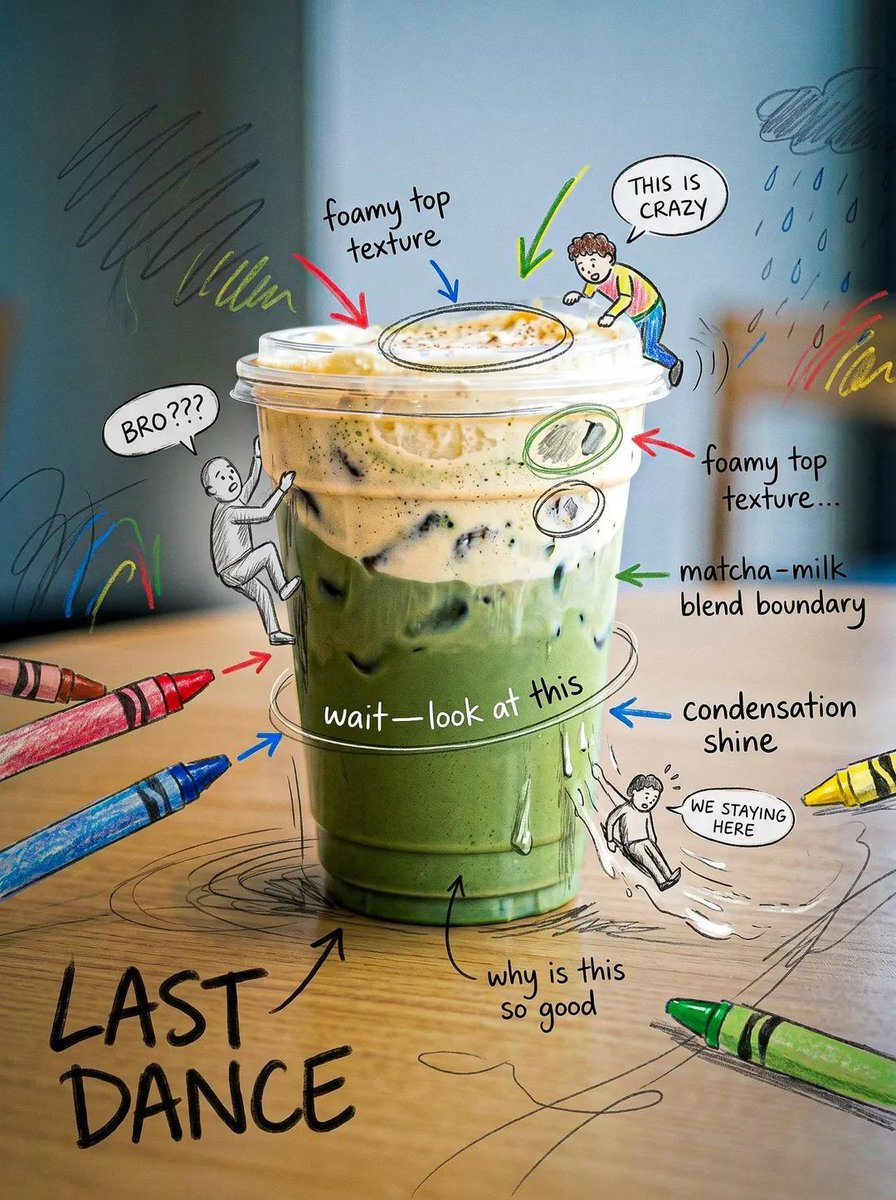
- Prompt included
- Model and format preset
- Free template
The prompt behind this image
Copy the exact prompt behind Creative Doodled Image Overlay, or open it in the studio and make it yours.
Edit this image while STRICTLY preserving the original subject, composition, background, lighting, and perspective. Do not replace or alter the environment — the real-world setting must remain fully intact and realistic. Slightly enhance the overall mood to feel more cinematic and calm — subtly deepen shadows, soften highlights, and introduce a gentle moody or rainy atmosphere while keeping it natural. Now transform the image by adding a highly expressive, hand-drawn overlay that creates a sense of a “living micro world” around the product. Use a {argument name="art style" default="crayon + marker + pencil sketch style"} that feels playful, slightly messy, but intentional and artistic — not overly chaotic, but rich and layered. Add controlled chaos elements: Hand-drawn arrows pointing to key product details (texture, shine, layers), Scribble circles and highlight marks to guide attention, Energetic lines, swirls, and sketch marks that enhance focus (not random placement). Introduce tiny doodle characters interacting with the product: Small illustrated figures climbing, sitting, sliding, or reacting to the product. Keep them minimal but expressive. Add small speech bubbles with playful reactions like “BRO???”, “THIS IS CRAZY”, or “WE STAYING HERE”. Ensure all doodles feel integrated into the scene and follow the product’s shape and perspective. Create a strong emotional contrast: Background remains calm, soft, and slightly moody; Overlays are lively, bright, and energetic. Add layered handwritten notes in a natural human style (not clean fonts), such as: “this part tho…”, “wait—look at this”, “why is this so good”. Optionally include a bold handwritten phrase like: “{argument name="slogan" default="LAST DANCE"}” as a statement element. The final result should feel like a real photograph infused with imagination — a quiet scene brought to life by chaotic, playful thoughts.
How to use Creative Doodled Image Overlay in 3 steps
- 1Upload ImagePNG, JPG or paste
Add your photo
Upload the photo the template builds on. The prompt, model and format are already set.
- 2…a portrait of your subject in softgolden-hour light, 85mm…
Personalize
Edit the subject and creative details for your destination.
- 3Generate
Generate
Press Generate — your image is created in PicX Studio, so you can compare it with the original and refine one variable at a time.
More like this
Templates with the same subject, style or setup. Open one to see its prompt.
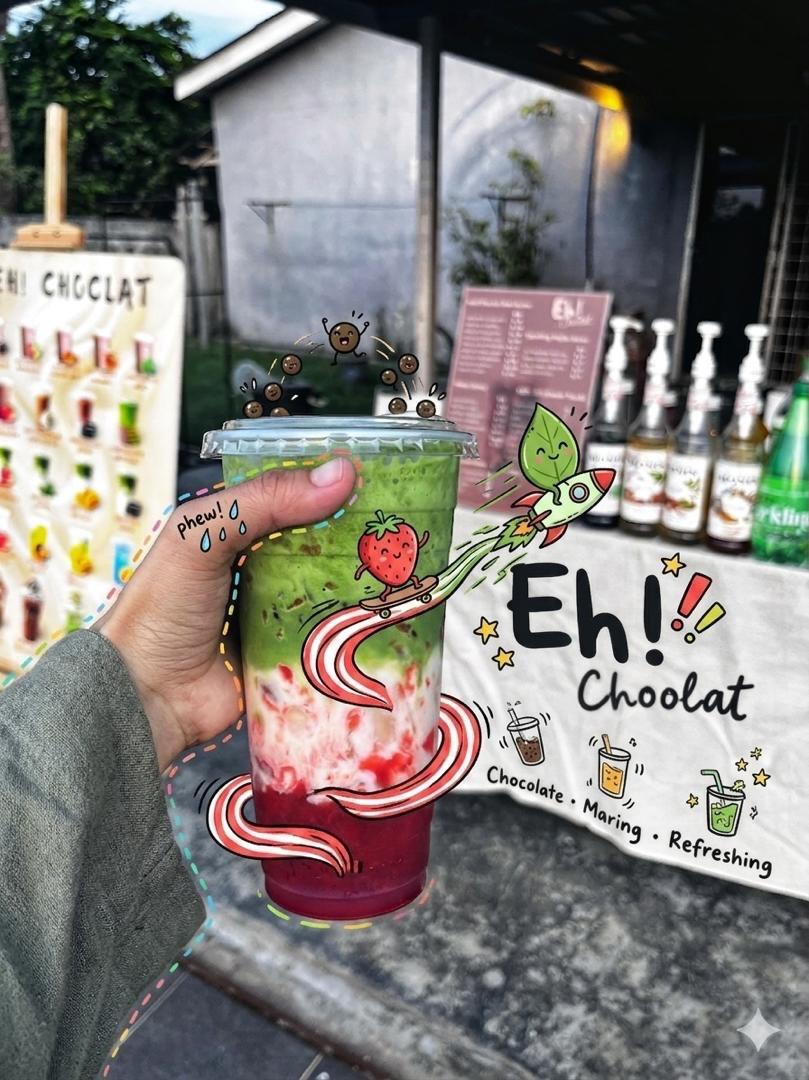
Doodled Strawberry Matcha Drink Photo
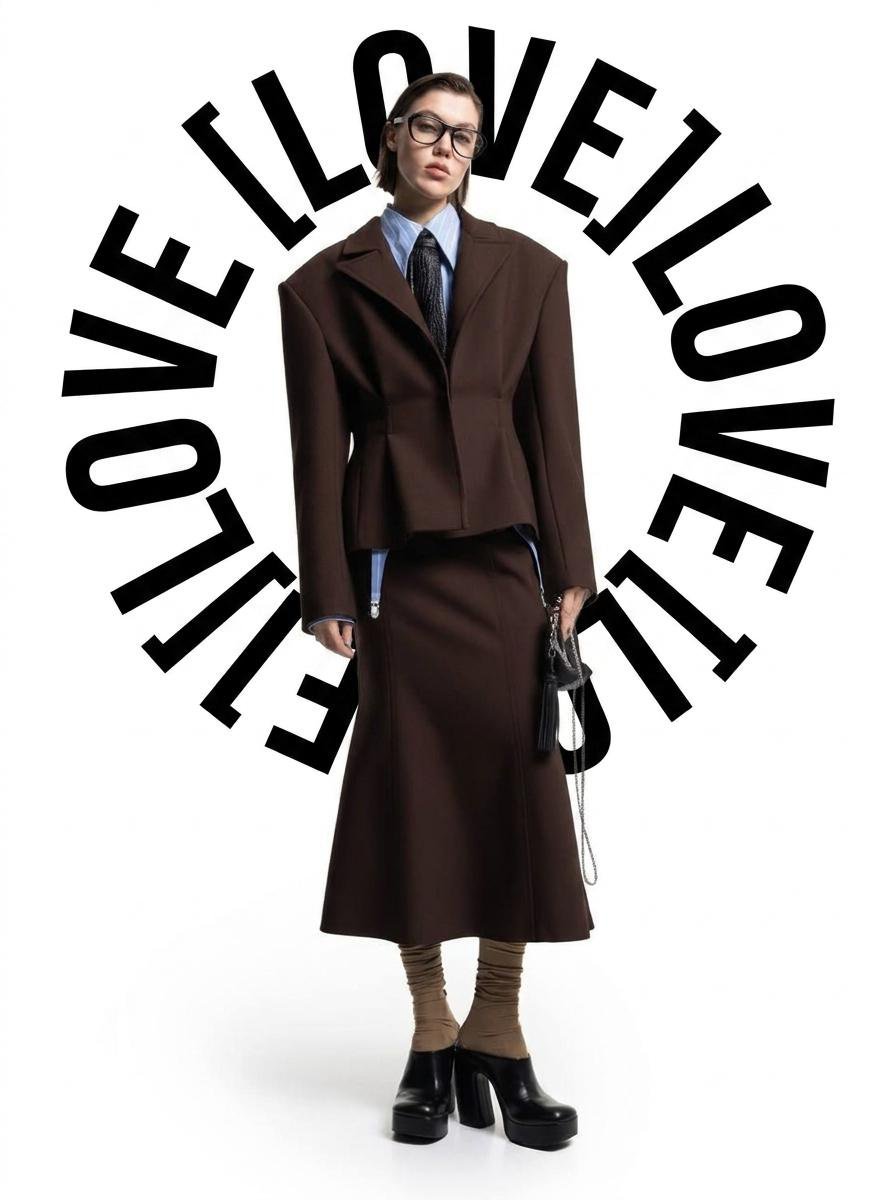
Circular Halo Text Overlay
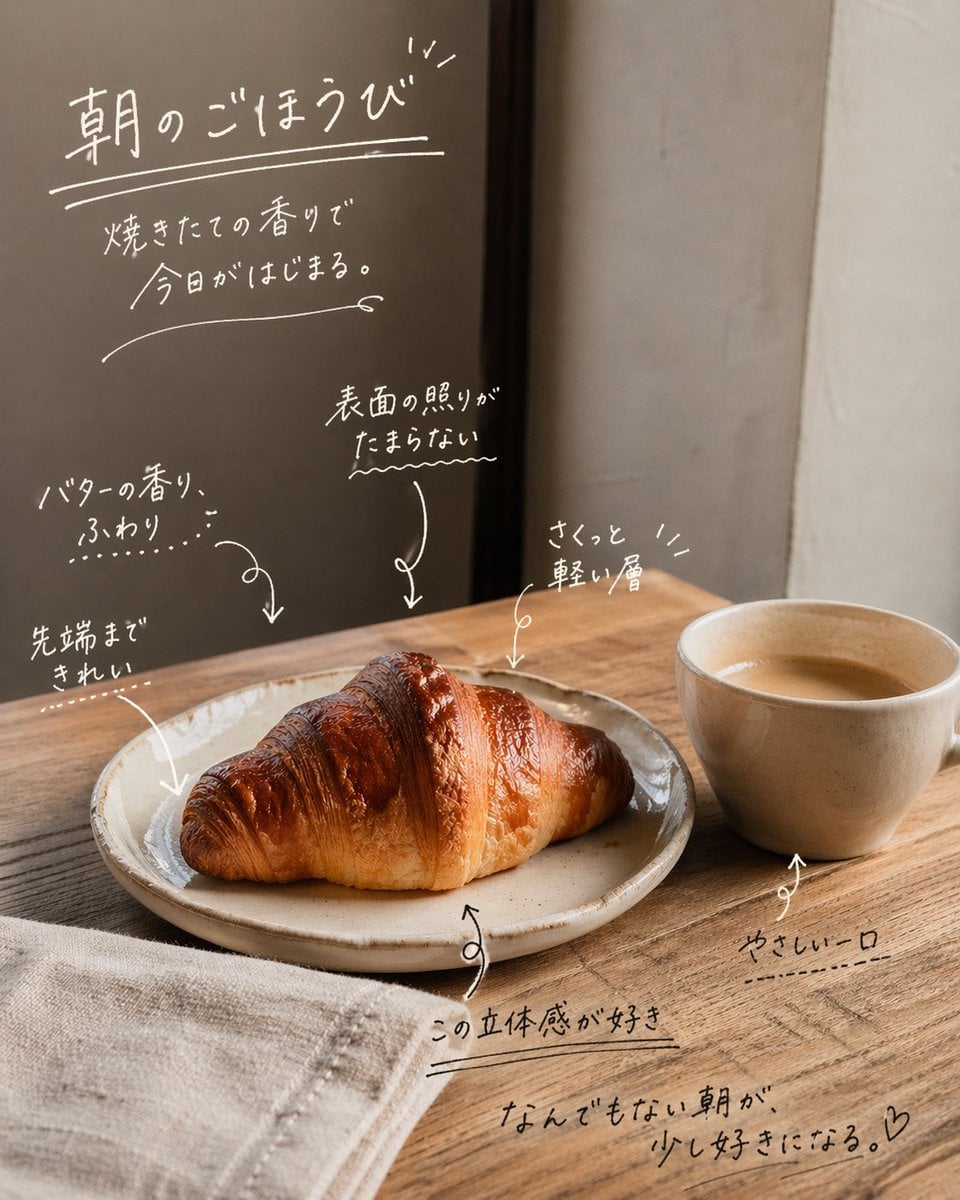
Handwritten Japanese Cafe Photo Overlay
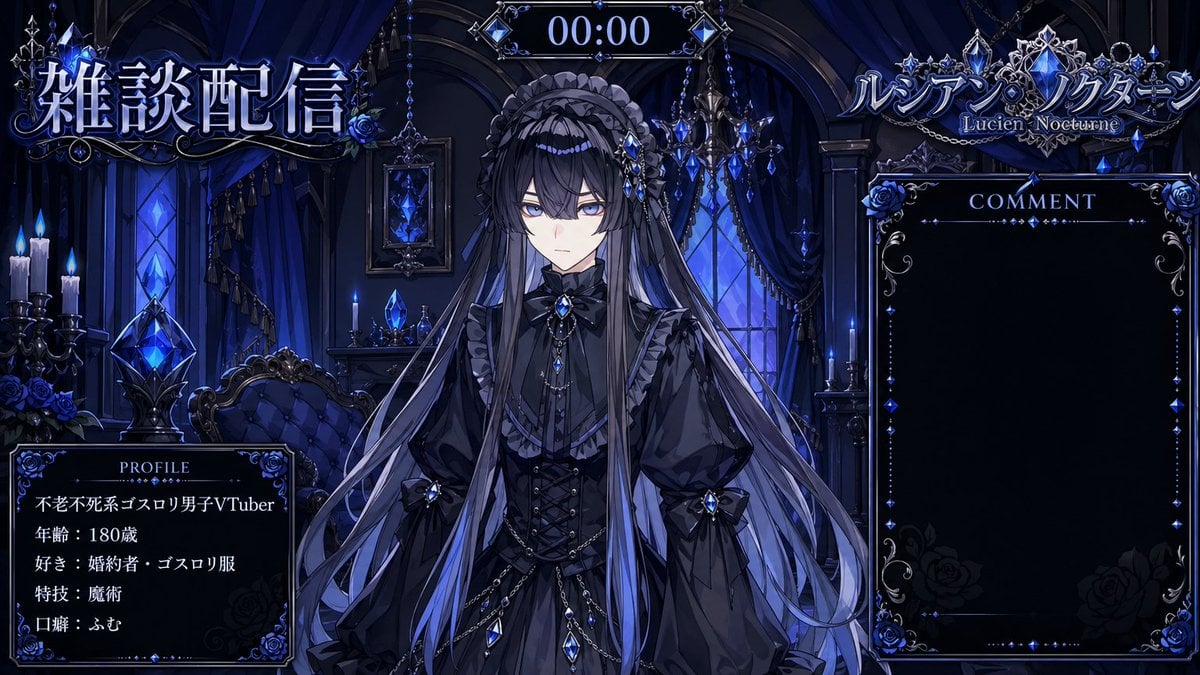
VTuber Streaming Overlay Layout
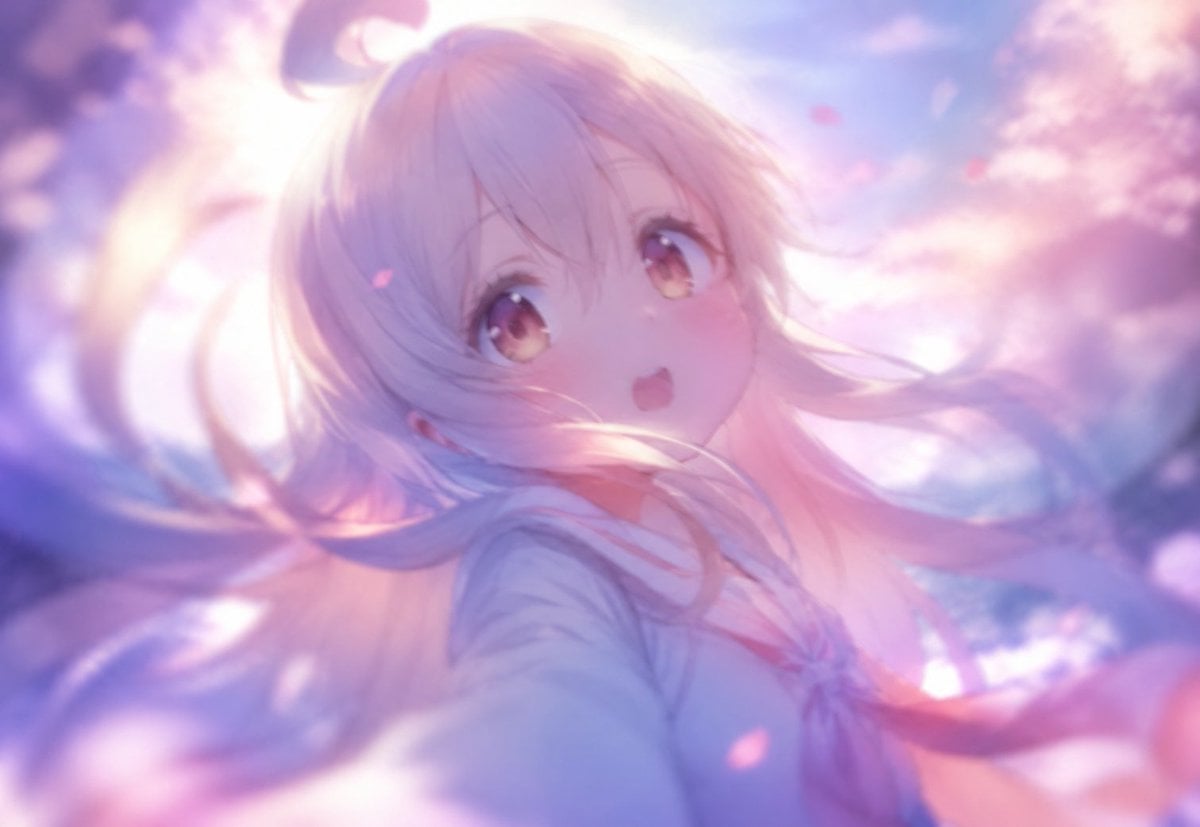
Dreamy Anime Selfie With Face Overlay
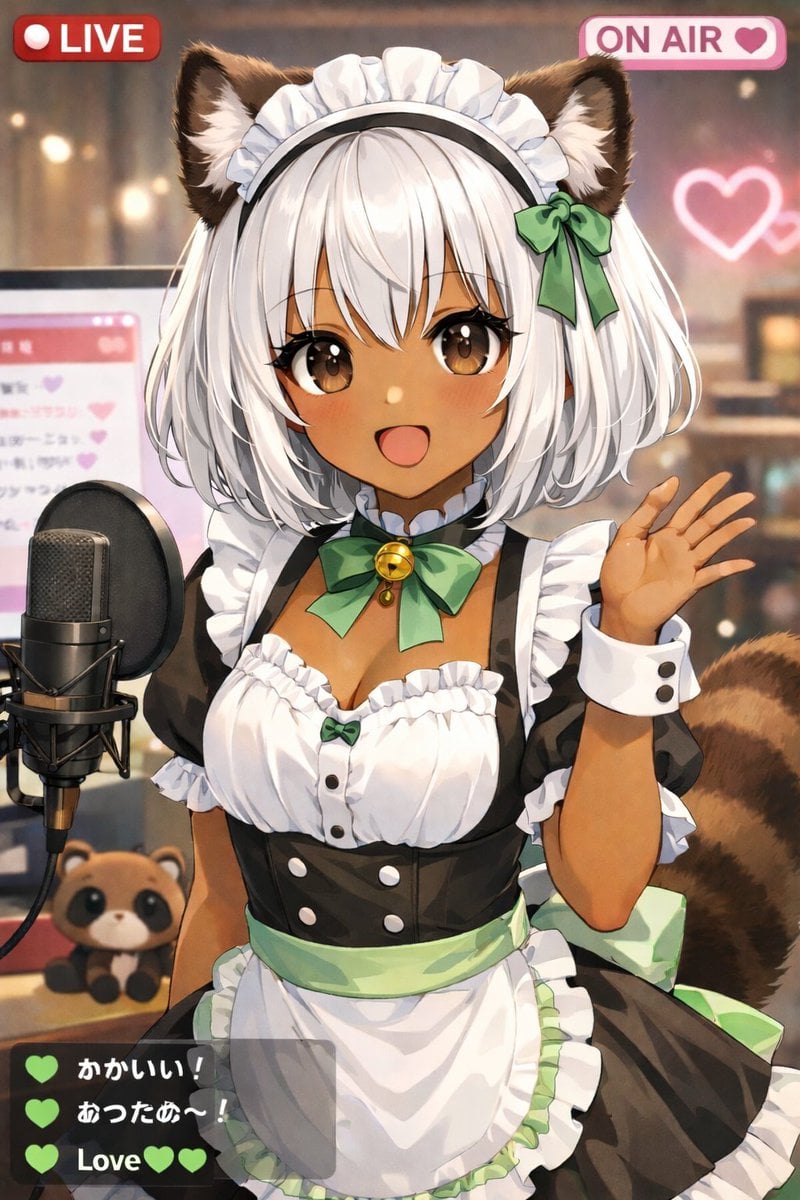
Anime VTuber Live Stream Overlay
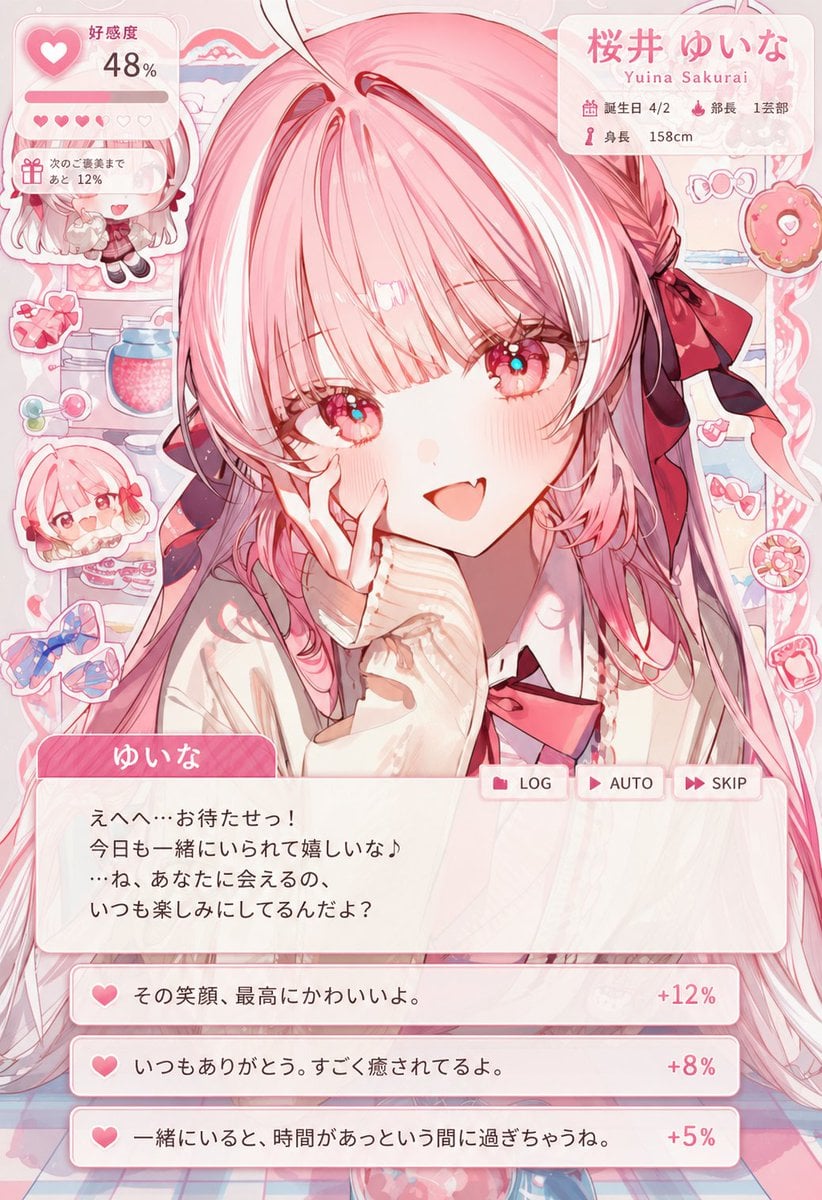
Dating Sim UI Overlay Prompt
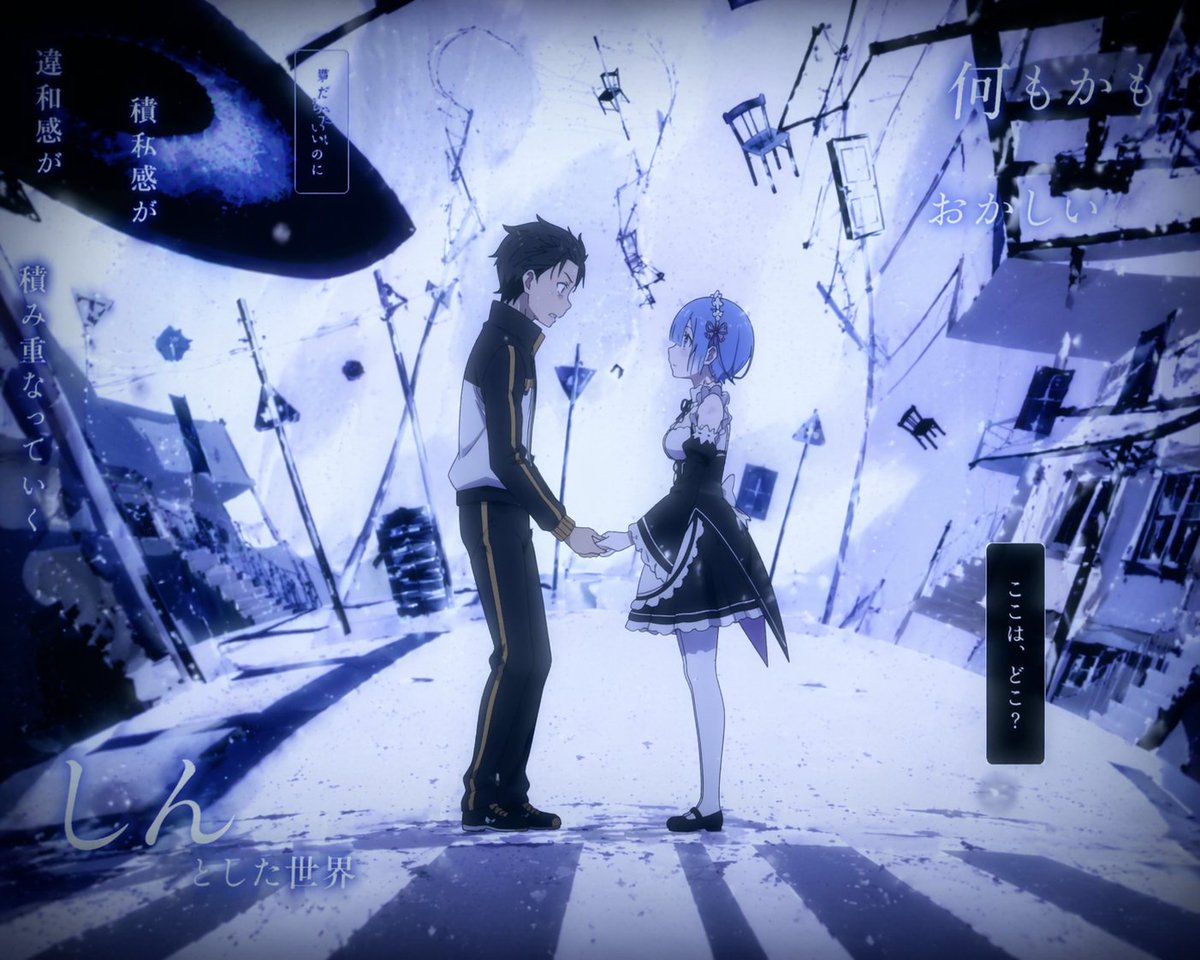
Surreal Anime Couple Illustration with Text Overlays
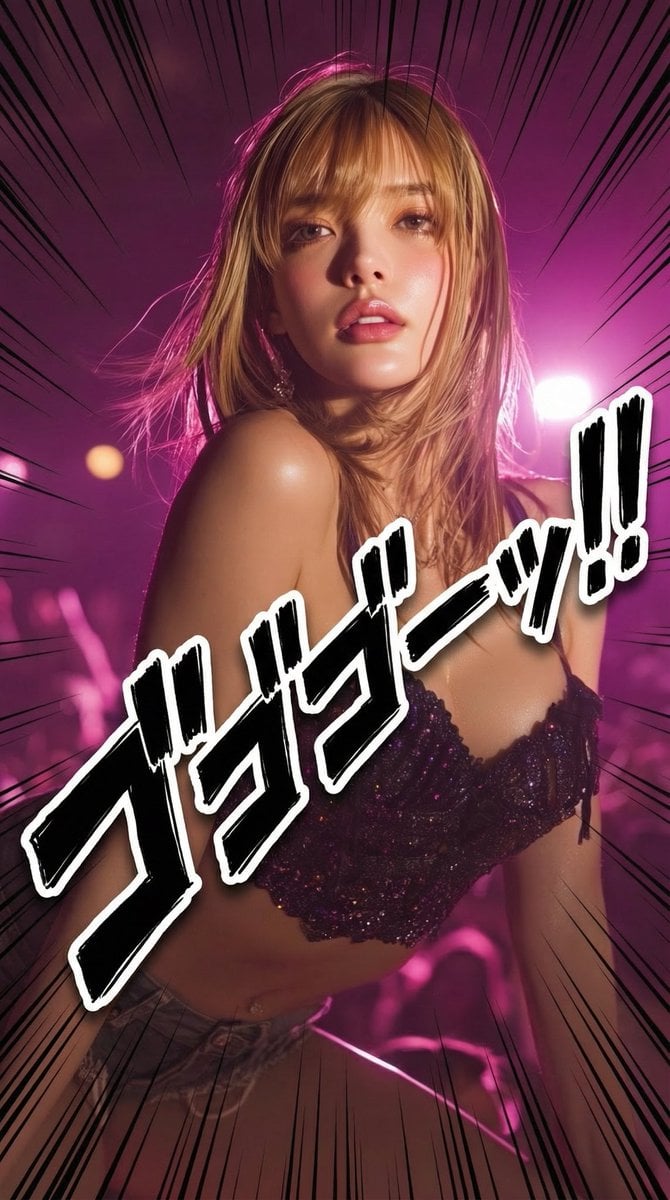
Manga-style Japanese onomatopoeia overlay
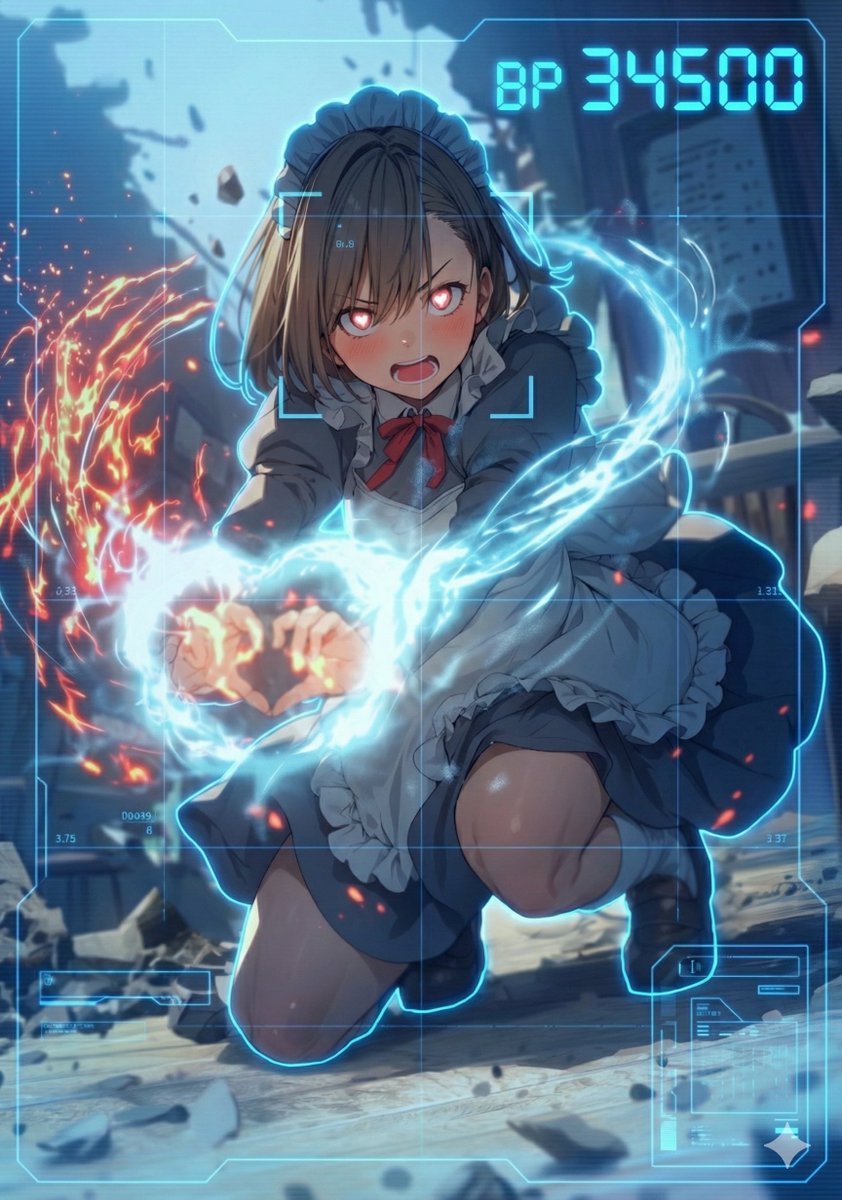
HUD battle power overlay for any character image
Thumbnail text overlay based on attachment
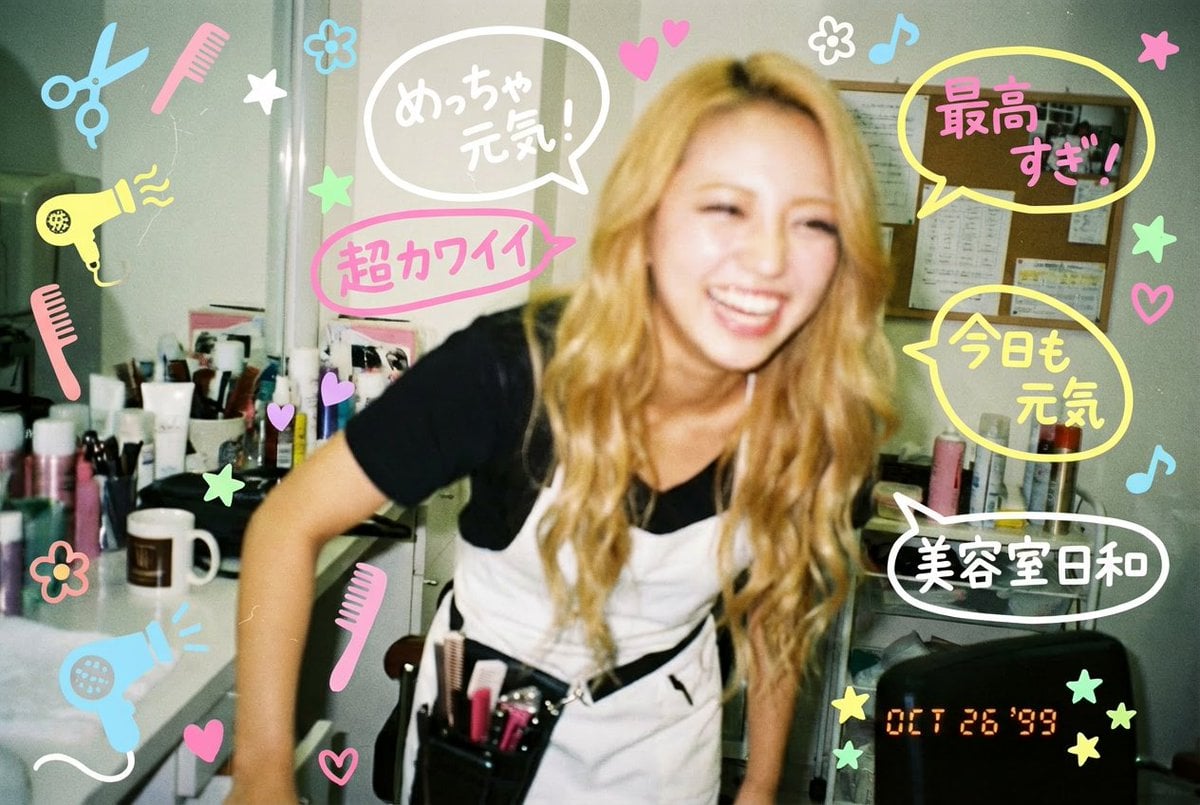
Y2K-style handwritten gal postcard overlay prompt
Make it yours
Creative Doodled Image Overlay works as-is. These are the safest ways to change it without losing the look.
Change one field
Copy a single group, rewrite it, and generate again so you can see what that field is doing.
Keep the frame, change the subject
Hold the composition and light of Creative Doodled Image Overlay, then swap wardrobe, props or the person for a new take.
| If the result… | Why | Fix |
|---|---|---|
| The result drifts from the preview | Too many fields changed at once. | Reuse Creative Doodled Image Overlay as-is first, then change one group — subject, light, or setting. |
| The model over-stylizes the scene | The prose prompt leaves finish and camera underspecified. | Add one camera or lighting sentence and stay on GPT Image 2. |
More GPT Image 2 templates
Other prompts made for GPT Image 2.

Six VTuber Japanese Logo Sheet

Realistic Portrait of Woman and Deer

The Vista Modular Condo Poster

AI Model Routing Comparison Infographic

2.5D Anime Art Board

Isometric Productivity Desk Scene

New York Double Exposure Poster

Four-Panel AI Landscape Comparison

Japanese Tatami Lifestyle Magazine Cover

NESCAFÉ Coffee Map Poster
More image prompts
Fresh picks from across the catalog.
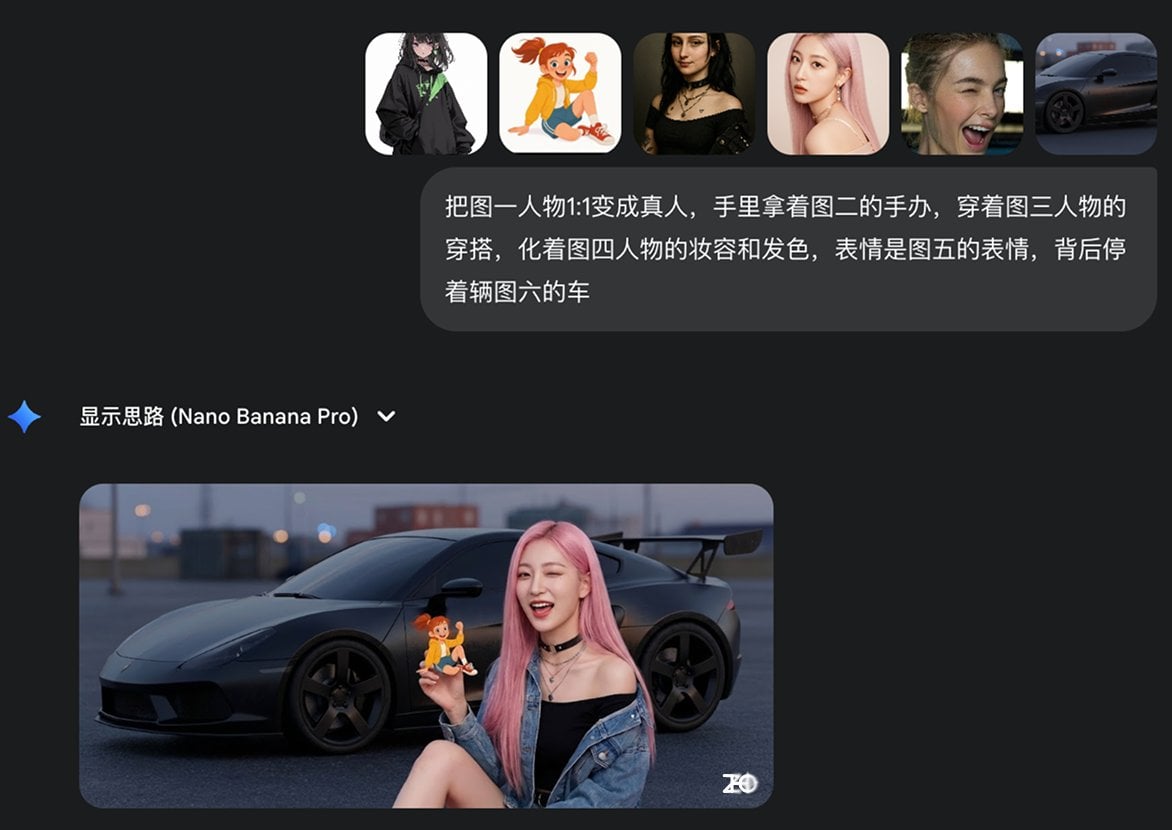
Multi-image fusion character transformation
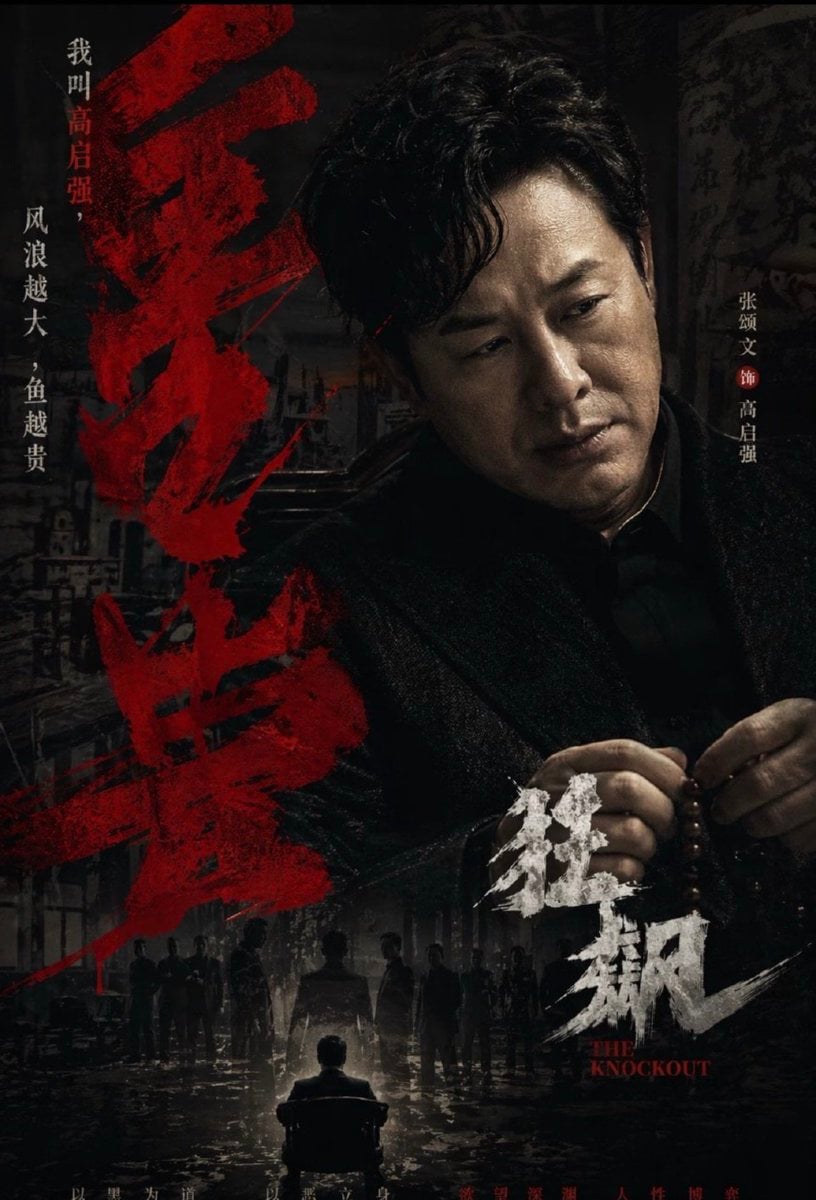
Dark Chinese Crime Drama Poster
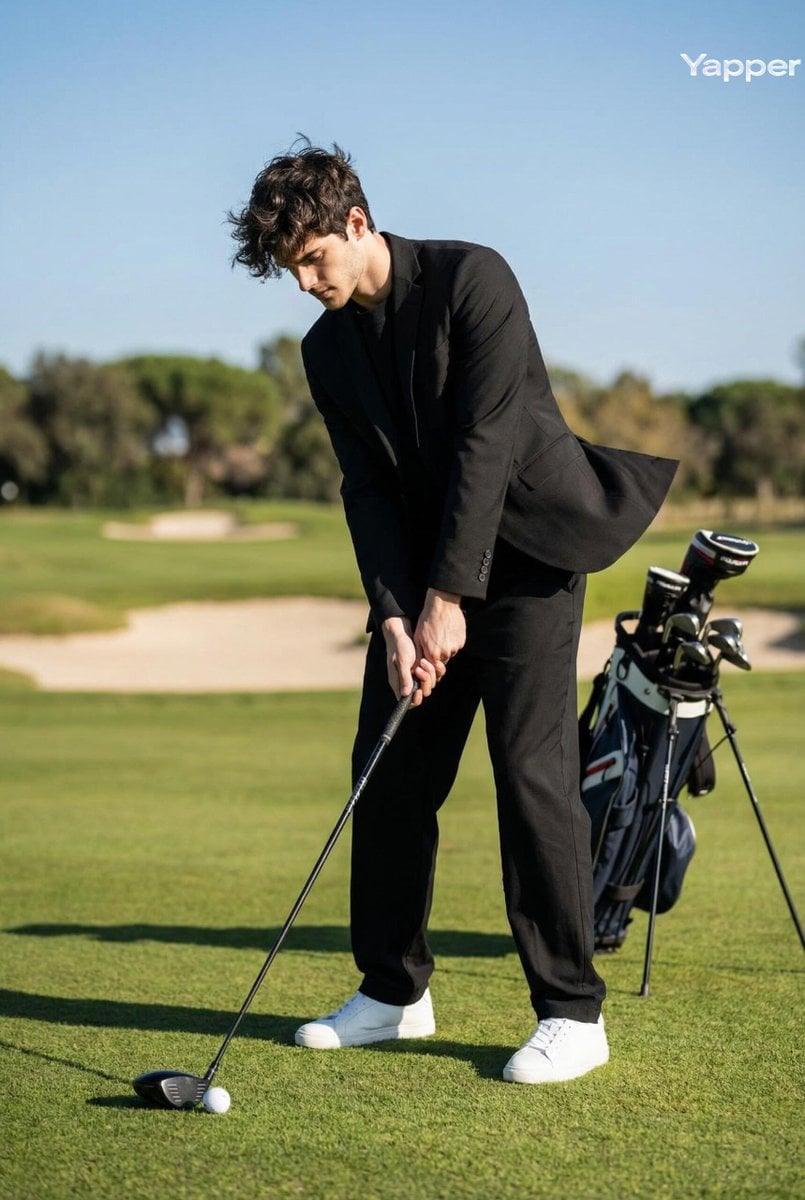
Cinematic Portrait of a Golfer
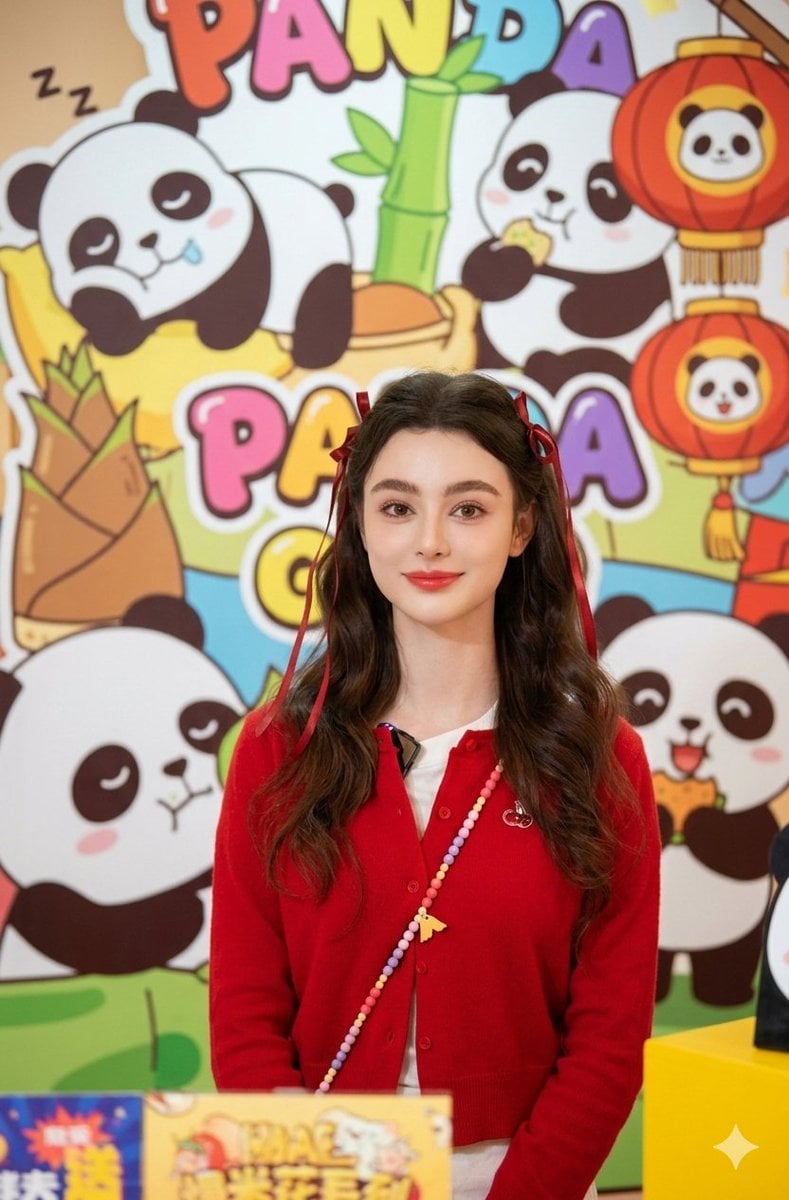
Portrait of Dasha Taran in Kawaii Fashion
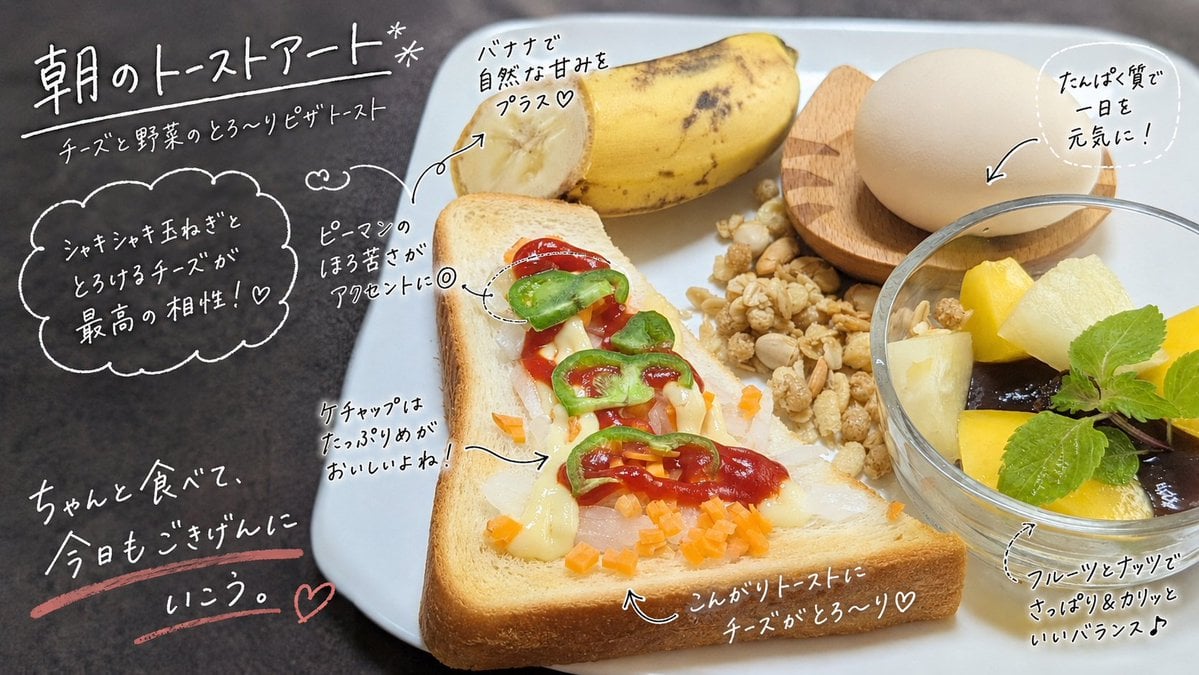
Handwritten Breakfast Photo Annotations
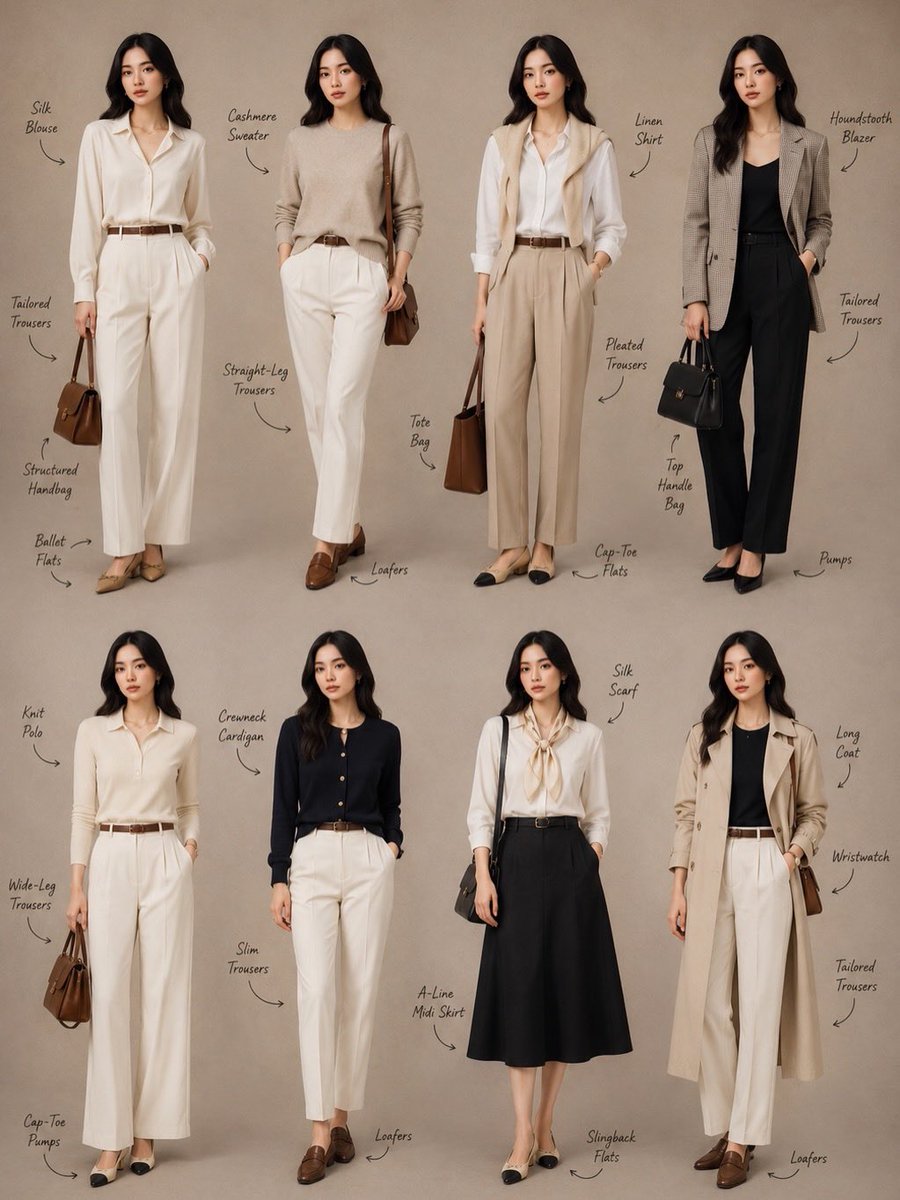
Minimalist Fashion Lookbook Collage
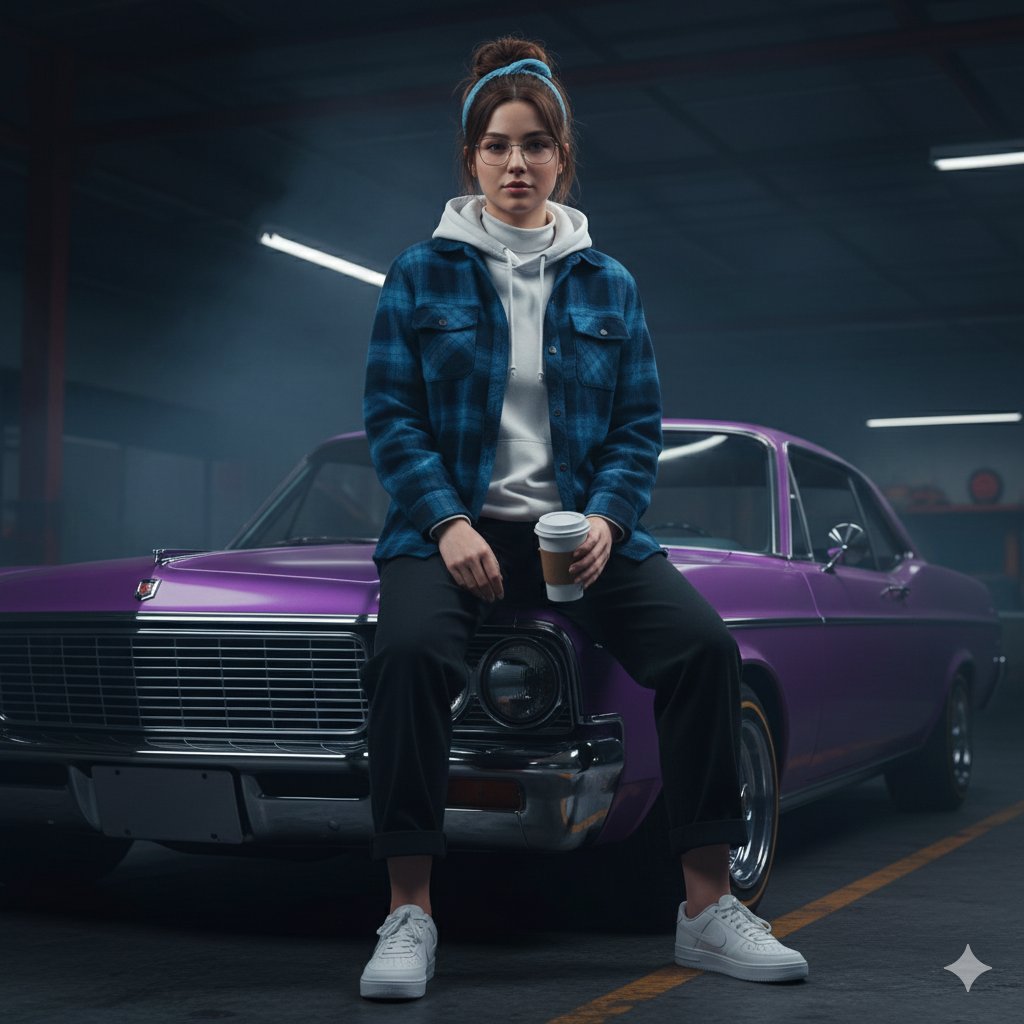
Urban Rebel Cinematic Portrait Prompt (Identity Locked)
Stunning Photo Prompt for Gemini Nano Banana
Character on a High Mountain Peak with Text in Clouds
Oriental Fantasy Female Pianist 3D CG
Browse template categories
Creative Doodled Image Overlay questions
How do I use the Creative Doodled Image Overlay template?
Add your photo if the template asks for one, edit the prompt if you like — the template's model and format are already selected — and press Generate. Your version opens in PicX Studio.
Can I customize the Creative Doodled Image Overlay template?
Yes. You can change the subject, setting, lighting, mood, format, and available model controls before creating your image.
Is the Creative Doodled Image Overlay template free?
Opening and editing this template is free. Generating uses credits, shown on the Generate button when you are signed in.
Which AI model should I use?
Start with GPT Image 2, which is the model associated with this template. You can compare another compatible model for a different finish.
Looking for something else? Browse all templates.

Your photo, any look
Thousands of ready templates for every top image and video model, from one credit balance.