How do I use the LEGO Parts List Inventory Page template?
Choose the primary action to open PicX Studio with the available template settings. Review the model and format, personalize the creative direction, and generate when ready.
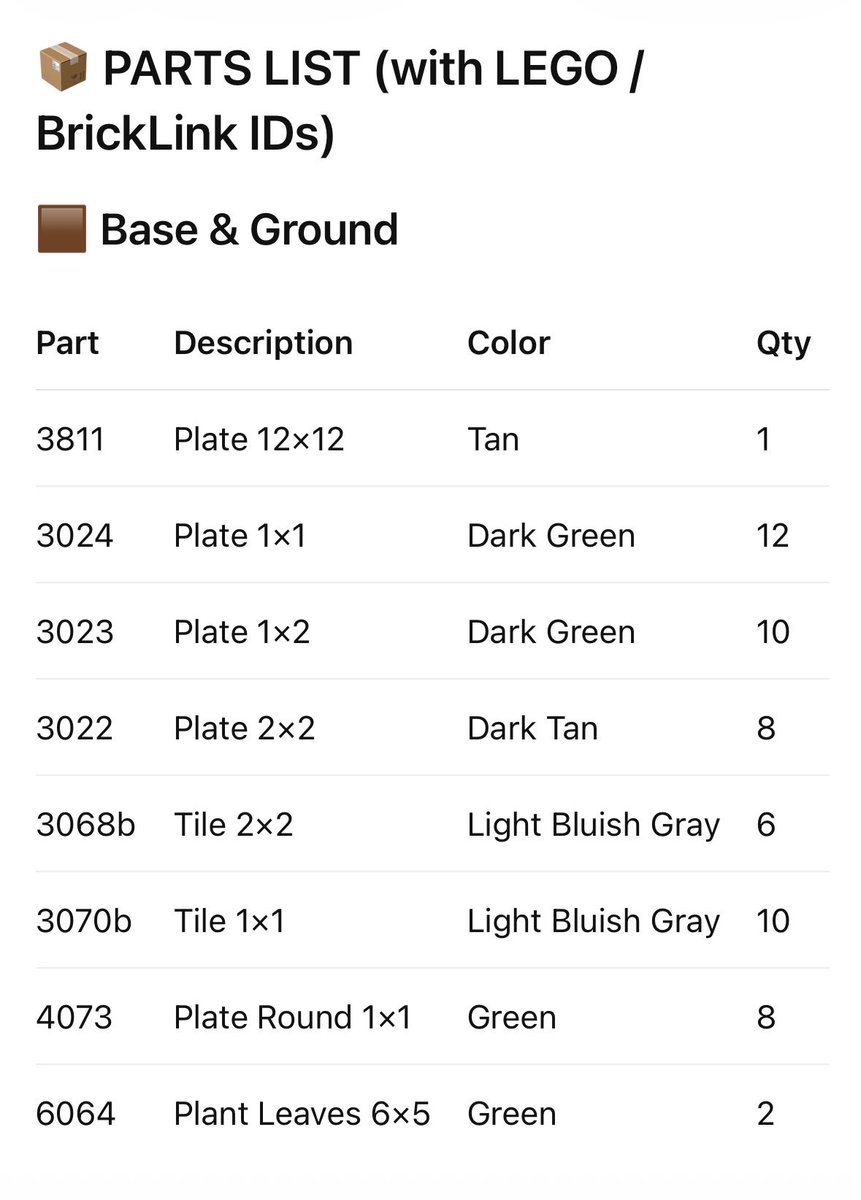
This prompt generates a clean LEGO-style parts inventory sheet with BrickLink IDs, useful for instruction booklets, build guides, or printable custom set documentation. (free to use) — Free AI image template on PicX Studio.
{"type":"LEGO parts list infographic page","subject":"clean printed inventory sheet for a custom LEGO build","style":"minimalist instruction-manual graphic, flat white background, crisp black sans-serif typography, subtle light gray row dividers, editorial layout","page":{"orientation":"portrait","background":"white","margin":"generous"},"header":{"icon_count":2,"icons":["small cardboard package emoji/icon at top left","small brown square color swatch icon before section title"],"title":"PARTS LIST (with LEGO / BrickLink IDs)","section_title":"{argument name=\"section title\" default=\"Base & Ground\"}"},"table":{"columns":["Part","Description","Color","Qty"],"row_count":8,"rows":[{"Part":"3811","Description":"Plate 12×12","Color":"Tan","Qty":"1"},{"Part":"3024","Description":"Plate 1×1","Color":"Dark Green","Qty":"12"},{"Part":"3023","Description":"Plate 1×2","Color":"Dark Green","Qty":"10"},{"Part":"3022","Description":"Plate 2×2","Color":"Dark Tan","Qty":"8"},{"Part":"3068b","Description":"Tile 2×2","Color":"Light Bluish Gray","Qty":"6"},{"Part":"3070b","Description":"Tile 1×1","Color":"Light Bluish Gray","Qty":"10"},{"Part":"4073","Description":"Plate Round 1×1","Color":"Green","Qty":"8"},{"Part":"6064","Description":"Plant Leaves 6×5","Color":"Green","Qty":"2"}]},"customization":{"title":"{argument name=\"headline text\" default=\"PARTS LIST (with LEGO / BrickLink IDs)\"}","section":"{argument name=\"section title\" default=\"Base & Ground\"}","accent_color":"{argument name=\"accent color\" default=\"brown\"}","page_style":"{argument name=\"document style\" default=\"LEGO instruction manual inventory sheet\"}"},"composition":"title aligned upper left, section label directly below, large 4-column table centered below with evenly spaced rows, all text left-aligned except quantity column visually narrow at right","quality":"high-resolution print-ready mockup, sharp vector-like text rendering"}
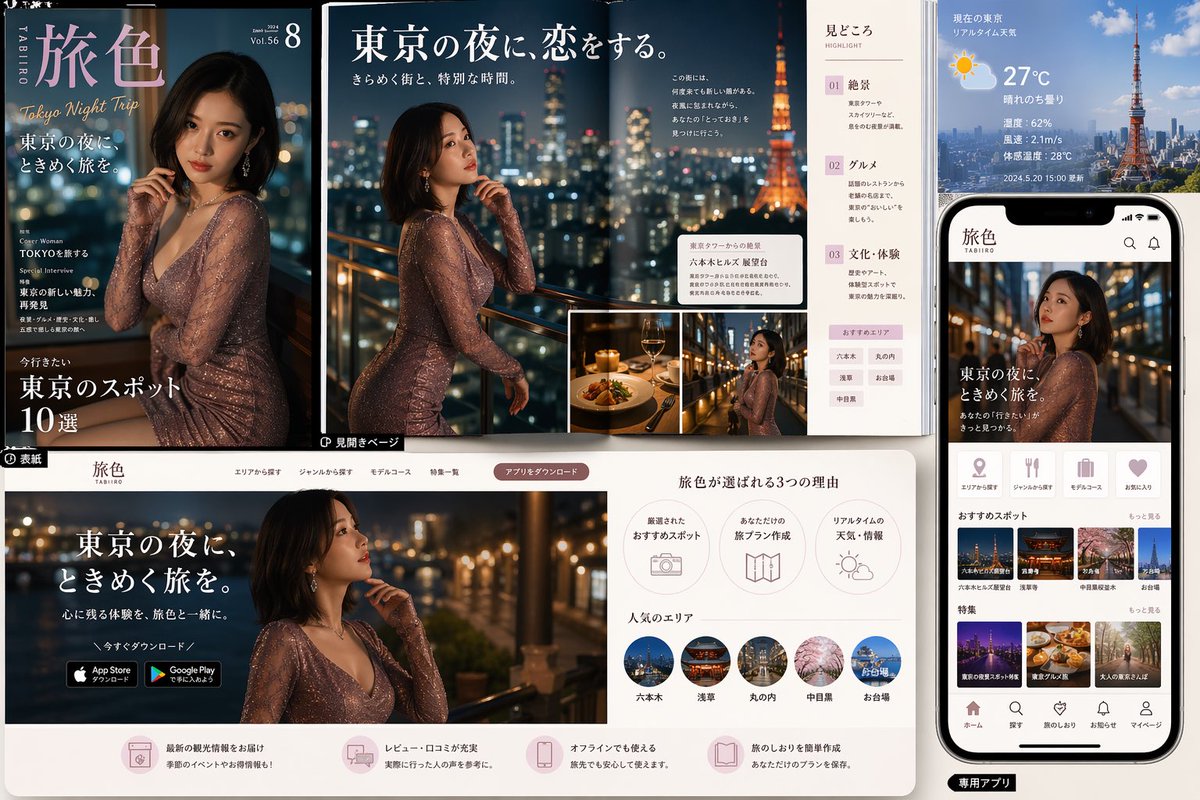
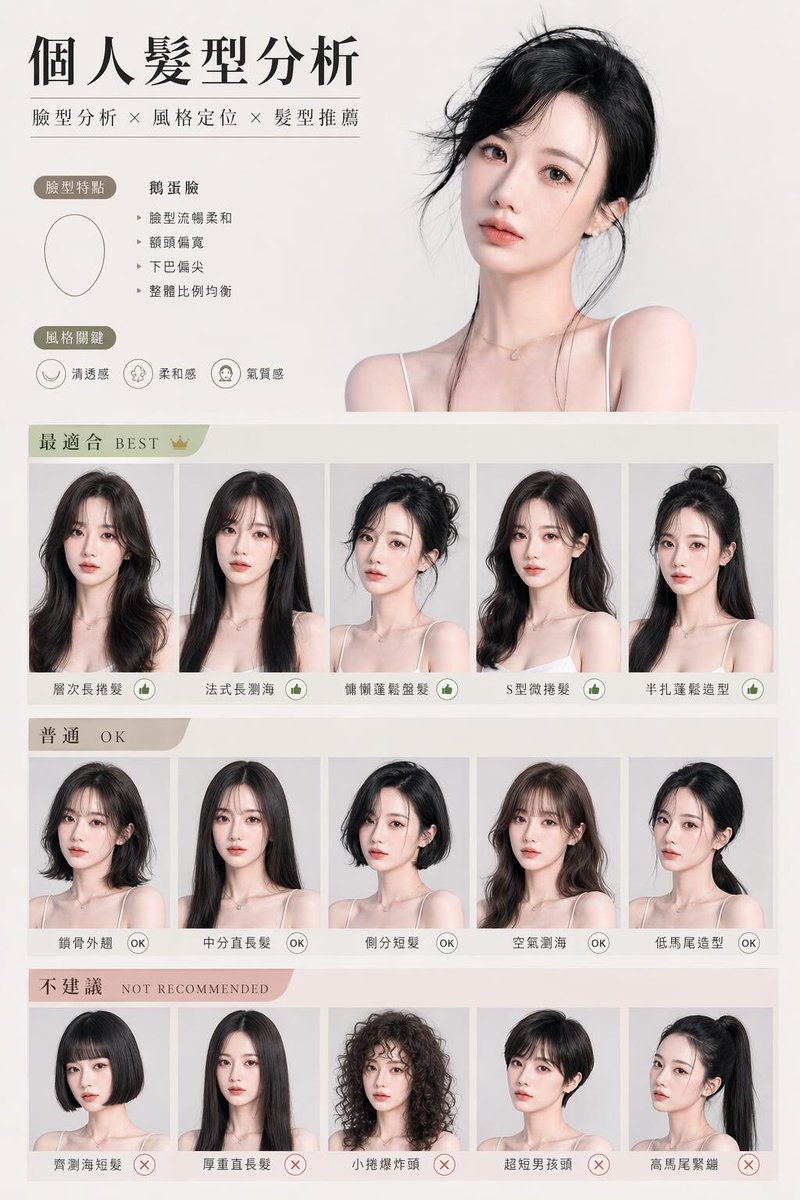
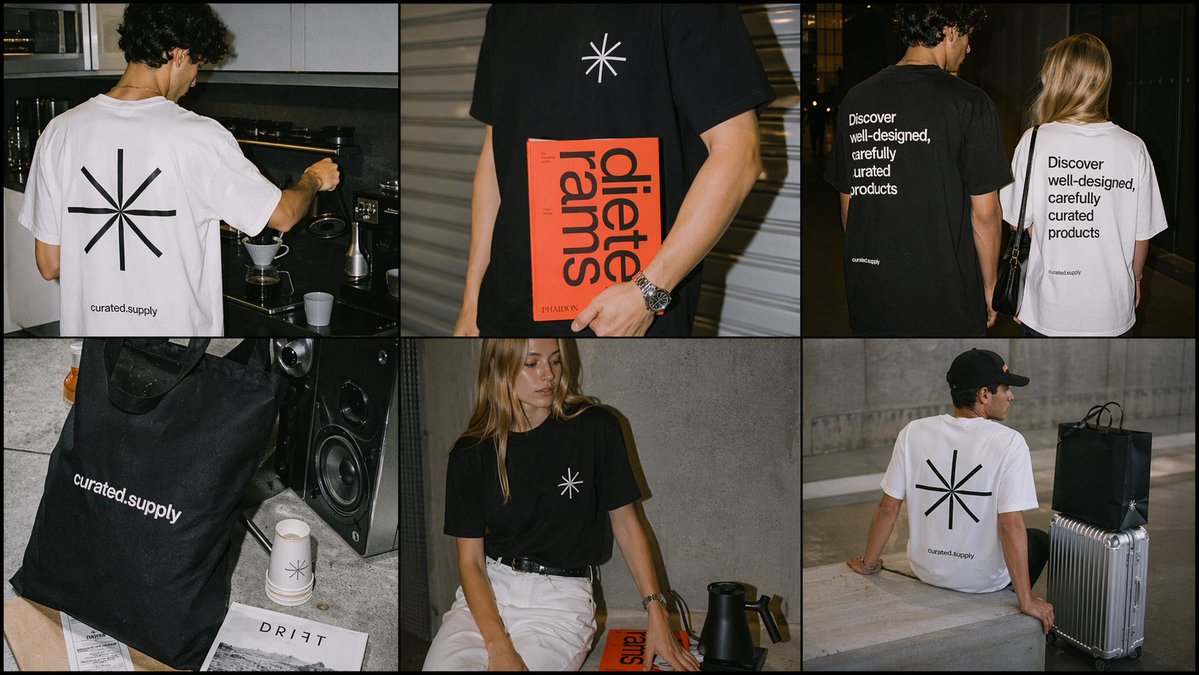
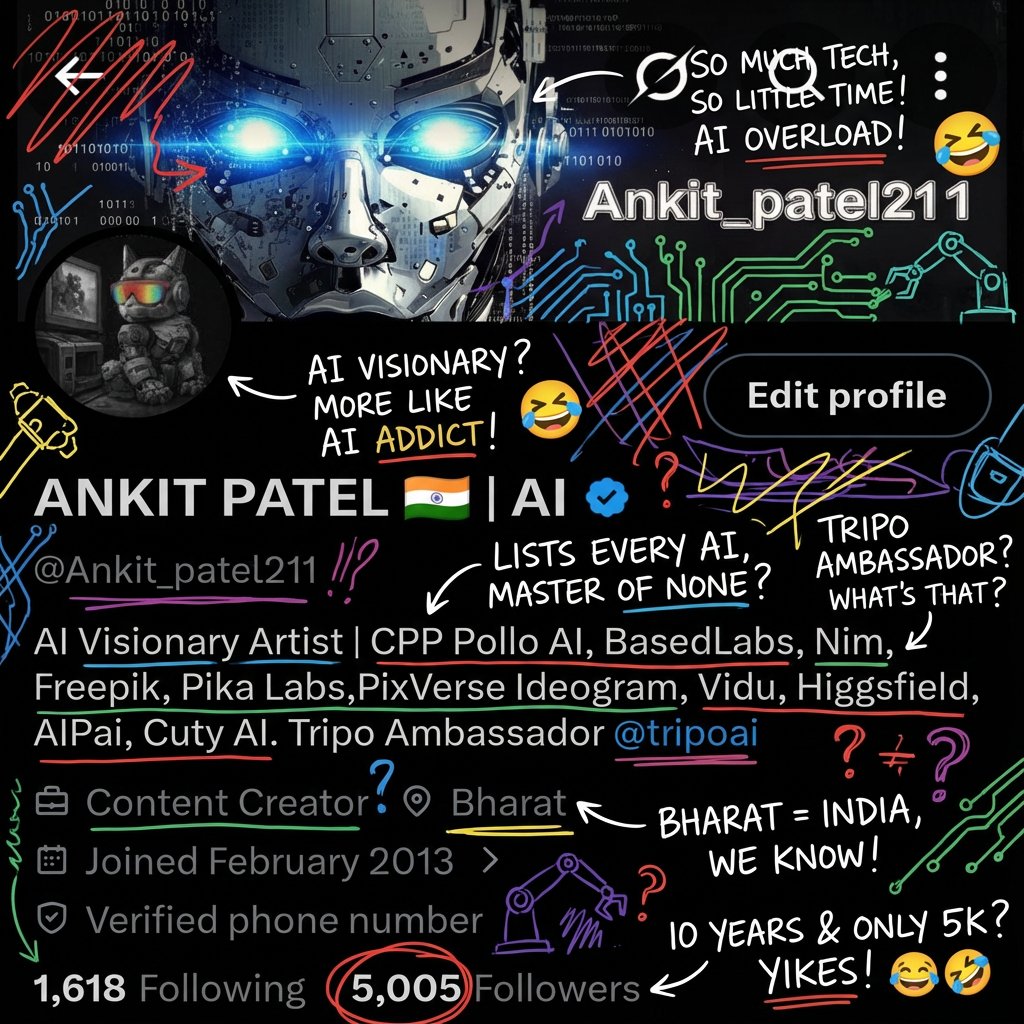
Use LEGO Parts List Inventory Page to plan an AI image around gpt-image-2 generation, themes such as en and gpt-image-2. Match the preview's composition first, then personalize the subject, setting, and mood for your own project.
Use the primary action to load the template settings in PicX Studio.
Adjust the subject and creative details for your destination.
Create the image, compare the result with the preview, and refine one variable at a time.
A continuous mix — similar concepts first, woven with same-model prompts and fresh picks from the catalog.
Choose the primary action to open PicX Studio with the available template settings. Review the model and format, personalize the creative direction, and generate when ready.
Yes. You can change the subject, setting, lighting, mood, format, and available model controls before creating your image.
This template is free to open and customize. Generation usage is shown in PicX Studio before you create.
Start with gpt-image-2, which is the model associated with this template. You can compare another compatible model for a different finish.
Follow a topic to a crawlable collection of related PicX Studio templates.
39,157 public templates available. Verified via the PicX Studio public templates API; refreshed hourly.
A continuous mix — similar concepts first, woven with same-model prompts and fresh picks from the catalog.