How do I use the Censored Studio Portrait template?
Choose the primary action to open PicX Studio with the available template settings. Review the model and format, personalize the creative direction, and generate when ready.
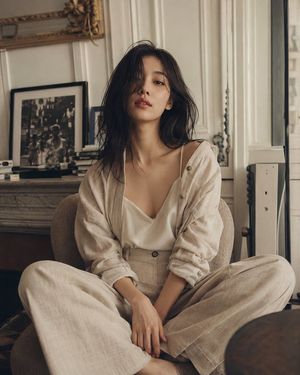
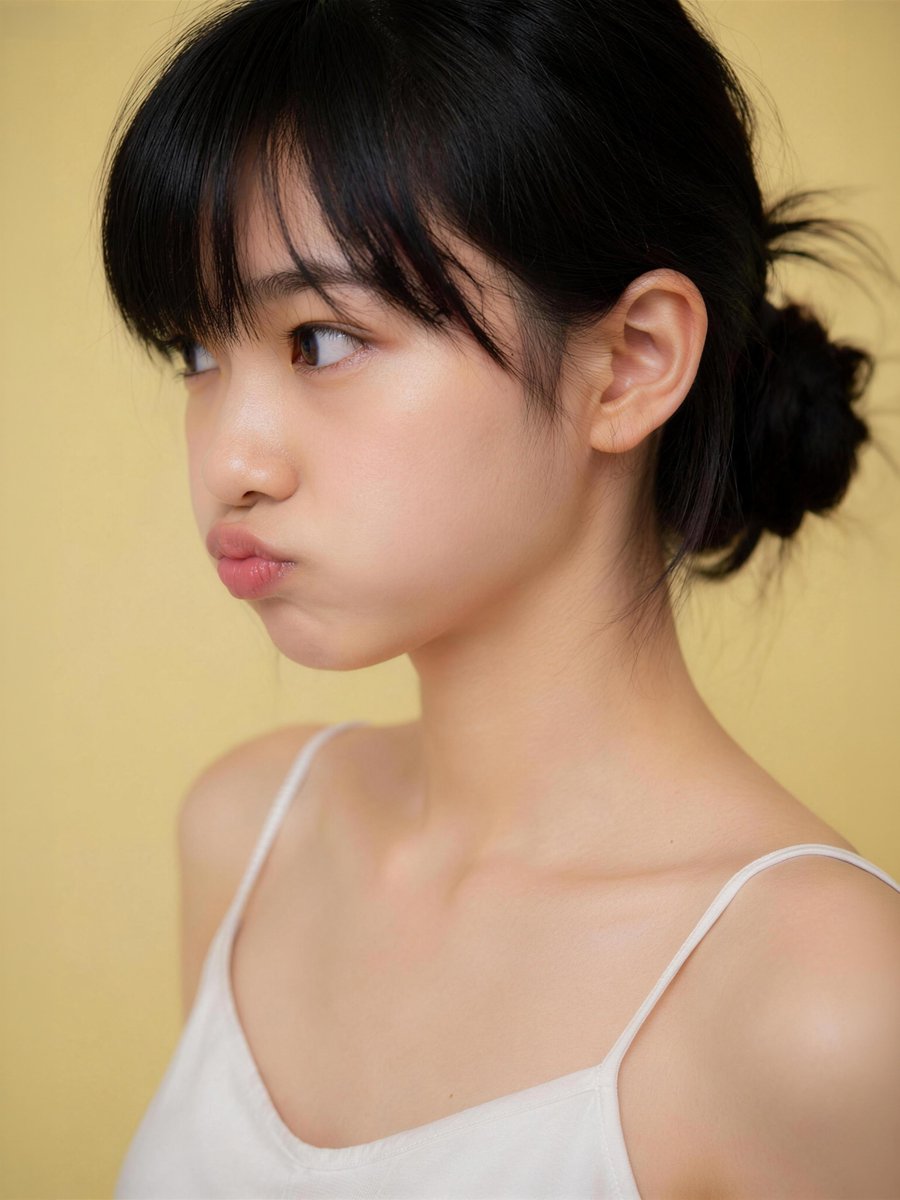
Generates a warm minimalist studio portrait of a young woman with a square privacy block over the face for anonymized profile or concept imagery. (free to use) — Free AI image template on PicX Studio.
Create a realistic studio portrait photograph of a young East Asian woman from the upper chest up, framed vertically in a 3:4 crop. She is turned slightly to the viewer’s left in a three-quarter pose, showing one visible ear and the side of her neck, with her face centered but intentionally covered by a large opaque square privacy block. She has {argument name="hair color" default="natural black"} hair styled in a loose low bun at the back, with soft bangs across the forehead area and a few wispy flyaway strands. She wears a simple {argument name="top color" default="white"} camisole with thin spaghetti straps, bare shoulders, natural skin texture, and soft collarbone highlights. Use a warm matte {argument name="background color" default="pale yellow"} seamless studio background. Lighting should be soft, flattering, and diffused, with gentle shadows, shallow depth of field, and a high-end AI photography look. Add exactly 1 censoring element: a large square block over the face, aligned vertically and horizontally over the central face area, filled with a smooth muted skin-tone vertical gradient from dark brown at the top to peach-beige at the bottom, with sharp edges and no text. Keep the composition clean and minimal, no jewelry, no props, no watermark, no extra text.
Use Censored Studio Portrait to plan an AI image around gpt-image-2 generation, themes such as en and gpt-image-2. Match the preview's composition first, then personalize the subject, setting, and mood for your own project.
Use the primary action to load the template settings in PicX Studio.
Adjust the subject and creative details for your destination.
Create the image, compare the result with the preview, and refine one variable at a time.
A continuous mix — similar concepts first, woven with same-model prompts and fresh picks from the catalog.
Choose the primary action to open PicX Studio with the available template settings. Review the model and format, personalize the creative direction, and generate when ready.
Yes. You can change the subject, setting, lighting, mood, format, and available model controls before creating your image.
This template is free to open and customize. Generation usage is shown in PicX Studio before you create.
Start with gpt-image-2, which is the model associated with this template. You can compare another compatible model for a different finish.
Follow a topic to a crawlable collection of related PicX Studio templates.
39,157 public templates available. Verified via the PicX Studio public templates API; refreshed hourly.
A continuous mix — similar concepts first, woven with same-model prompts and fresh picks from the catalog.