
Street Artist Mural Transformation
A cinematic prompt for transforming a photo into a large-scale street mural painted by an artist during the golden hour.
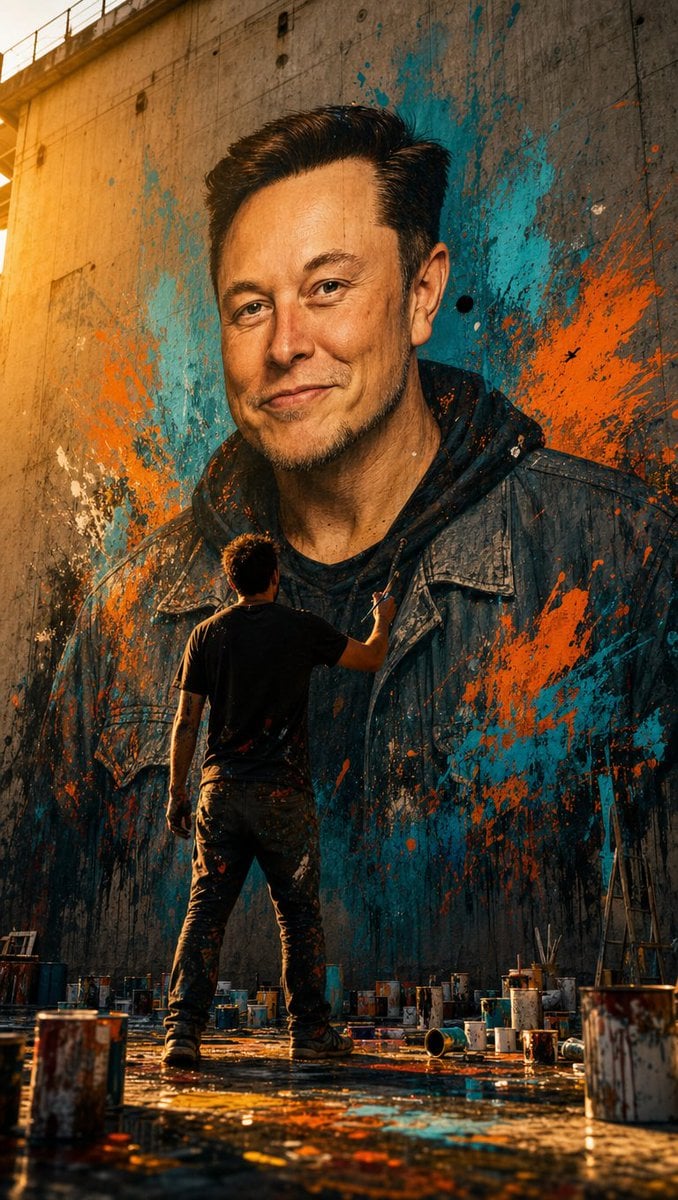
- Prompt included
- Model and format preset
- Free template
The prompt behind this image
Copy the exact prompt behind Street Artist Mural Transformation, or open it in the studio and make it yours.
Using the uploaded reference photo for the face, generate a sun-drenched, high-contrast candid shot captured on 35mm film. The image shows a street artist from a back-view perspective creating a grand masterpiece. The artist stands at the base of a towering concrete wall, adding brushstrokes to a massive, photorealistic mural of the woman from the reference image, keeping her face identical. The giant portrait is integrated into the wall, wearing a custom {argument name="clothing style" default="casual street wear"}. Vibrant explosions of {argument name="primary color" default="Color 1"} and {argument name="secondary color" default="Color 2"} paint splatters radiate across the textured canvas. The ground is cluttered with used paint cans and colorful spills. Natural, warm golden hour sunlight rakes across the wall, casting a soft rim light. Shallow depth of field, sharp focus, rich cinematic color grade.
How to use Street Artist Mural Transformation in 3 steps
- 1Upload ImagePNG, JPG or paste
Add your photo
Upload the photo the template builds on. The prompt, model and format are already set.
- 2…a portrait of your subject in softgolden-hour light, 85mm…
Personalize
Edit the subject and creative details for your destination.
- 3Generate
Generate
Press Generate — your image is created in PicX Studio, so you can compare it with the original and refine one variable at a time.
More like this
Templates with the same subject, style or setup. Open one to see its prompt.
Two Tickets, One Night
Meet Me When It Rains
Two Hearts. One Scooter.
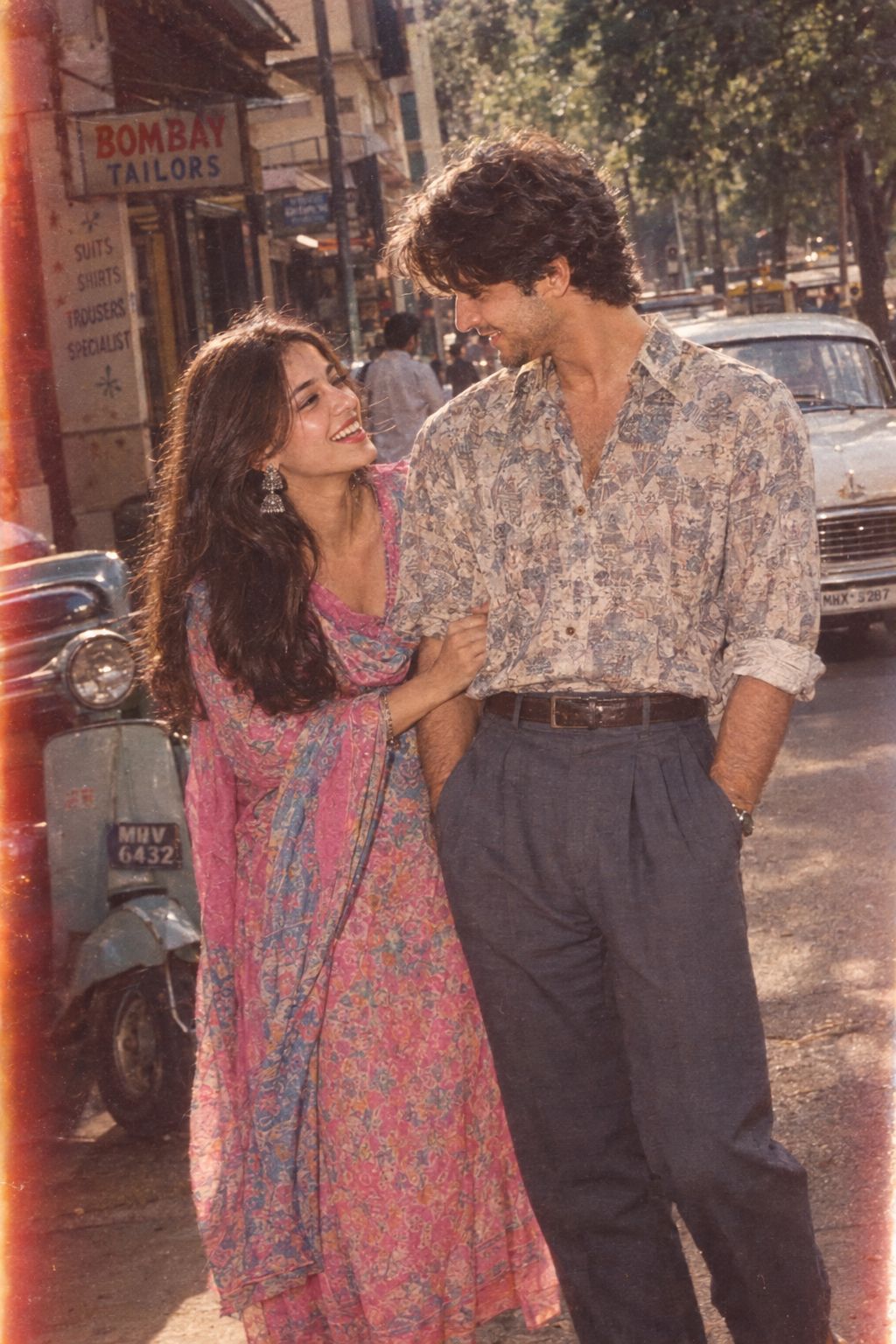
1986 Street Couple
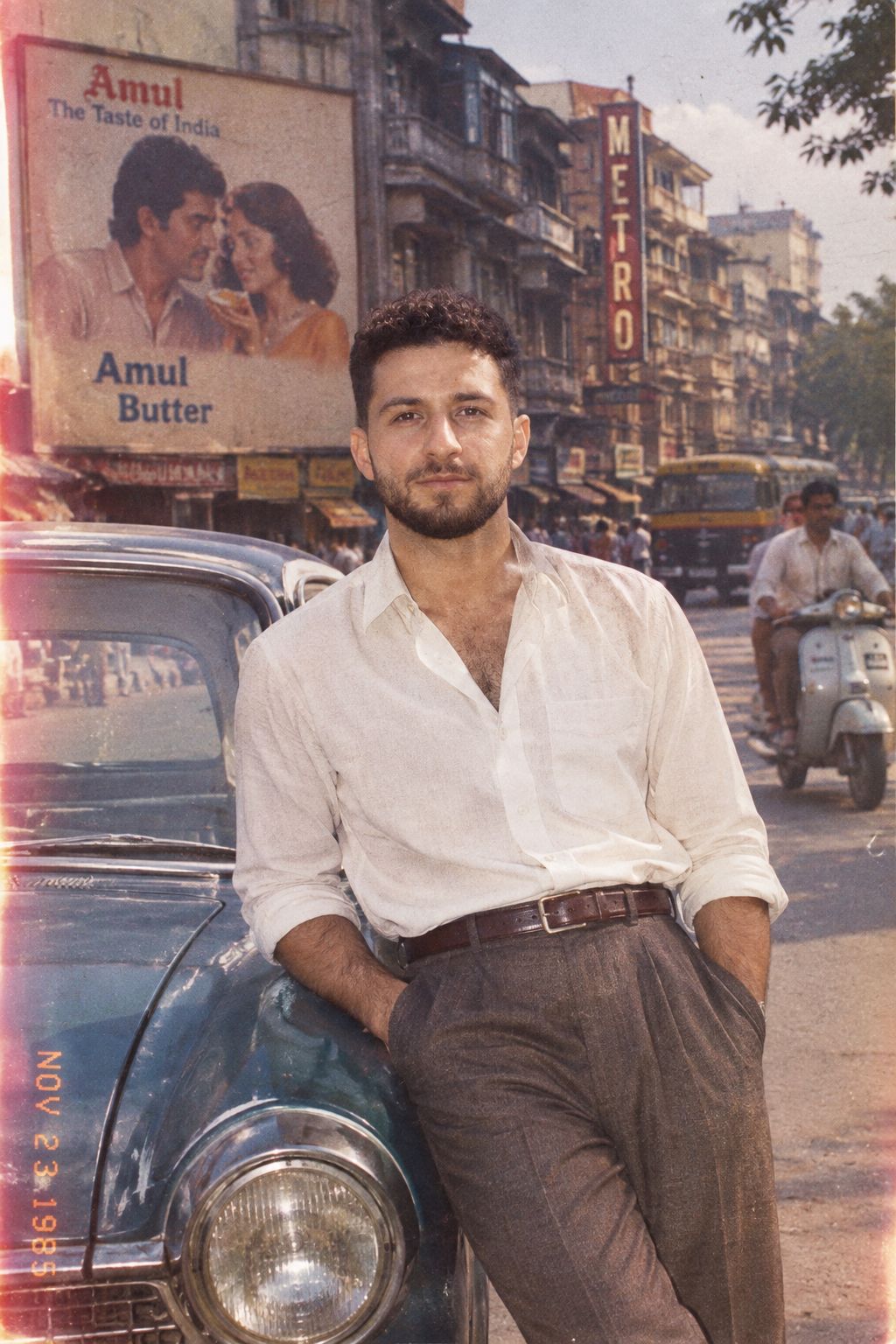
1985 Street Scene
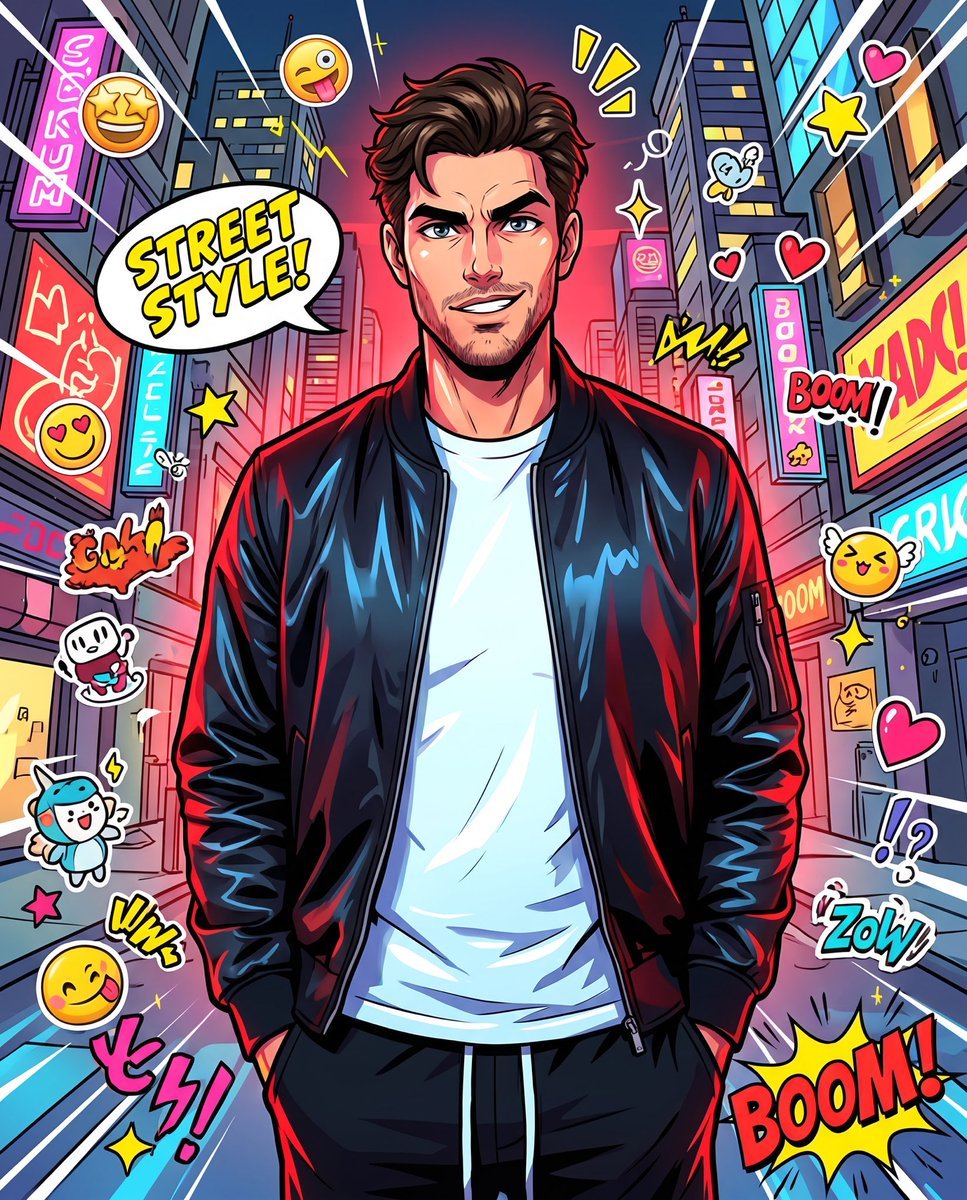
Anime Street Illustration Transformation
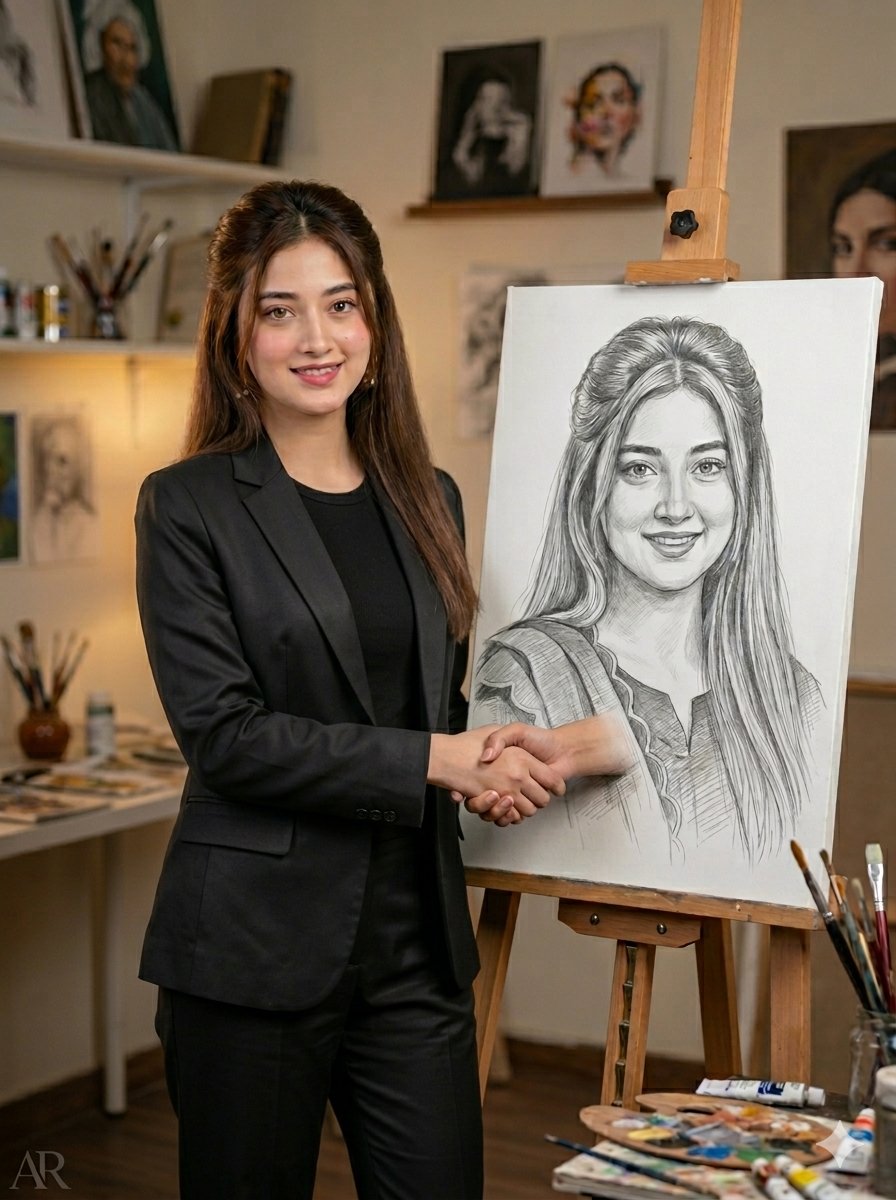
Artist Studio Portrait Transformation
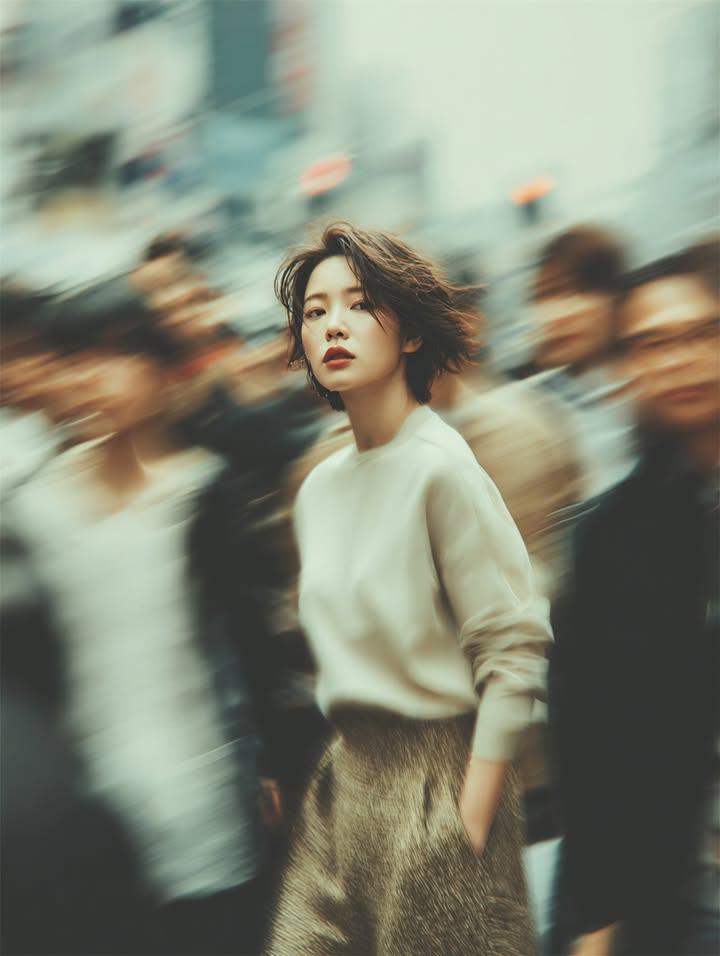
Cinematic Street Fashion Portrait Motion Blur Crowd
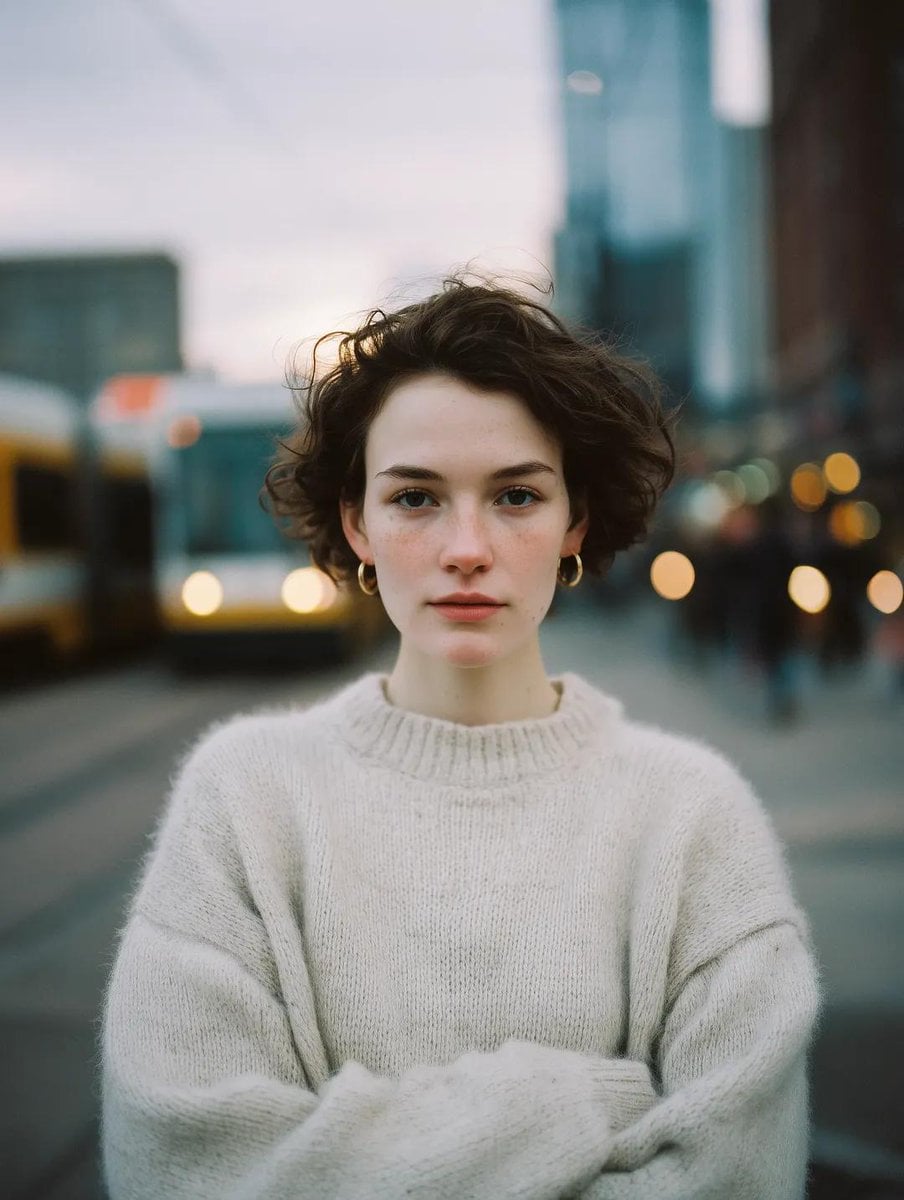
Blue Hour Editorial Fashion Portrait
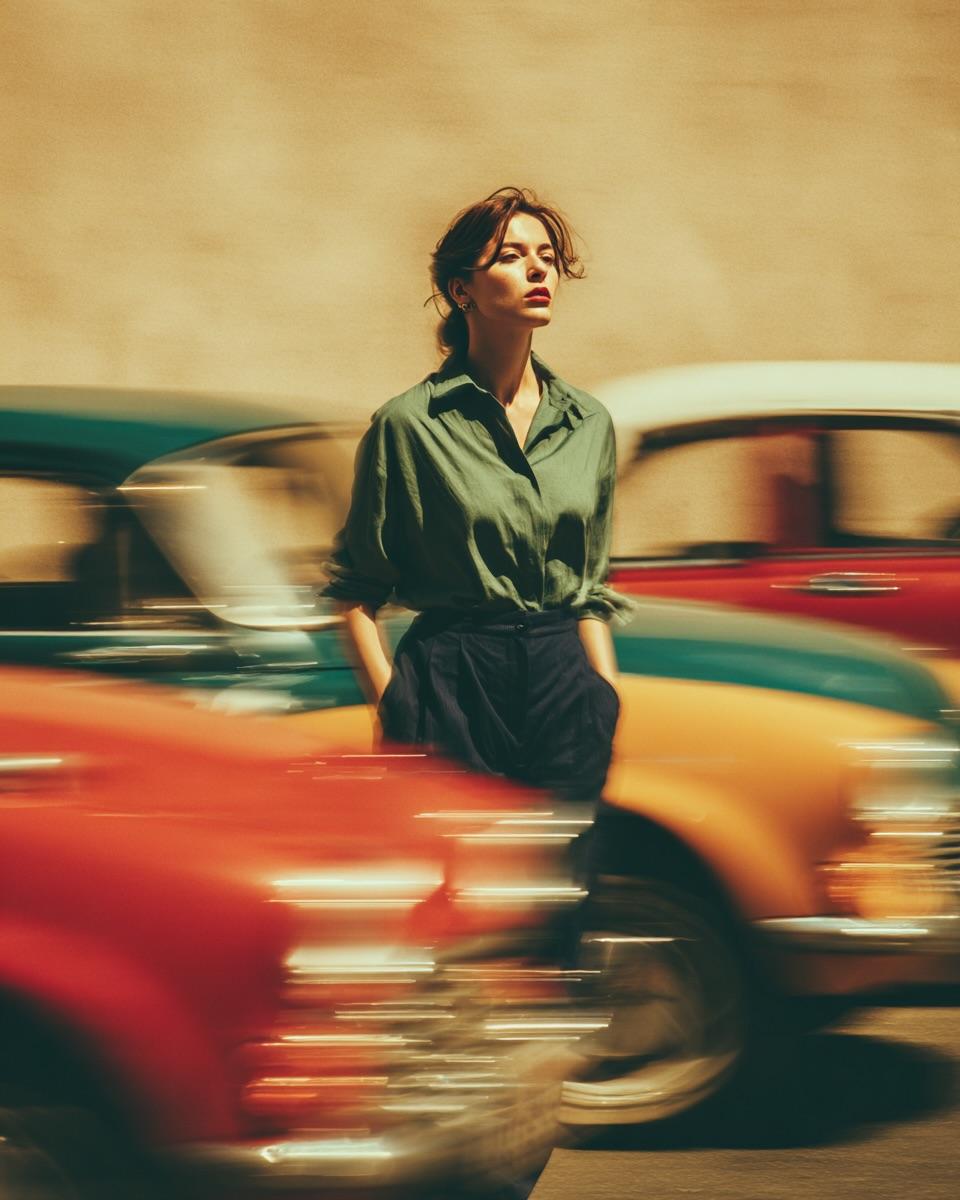
Golden Hour Street Motion Portrait
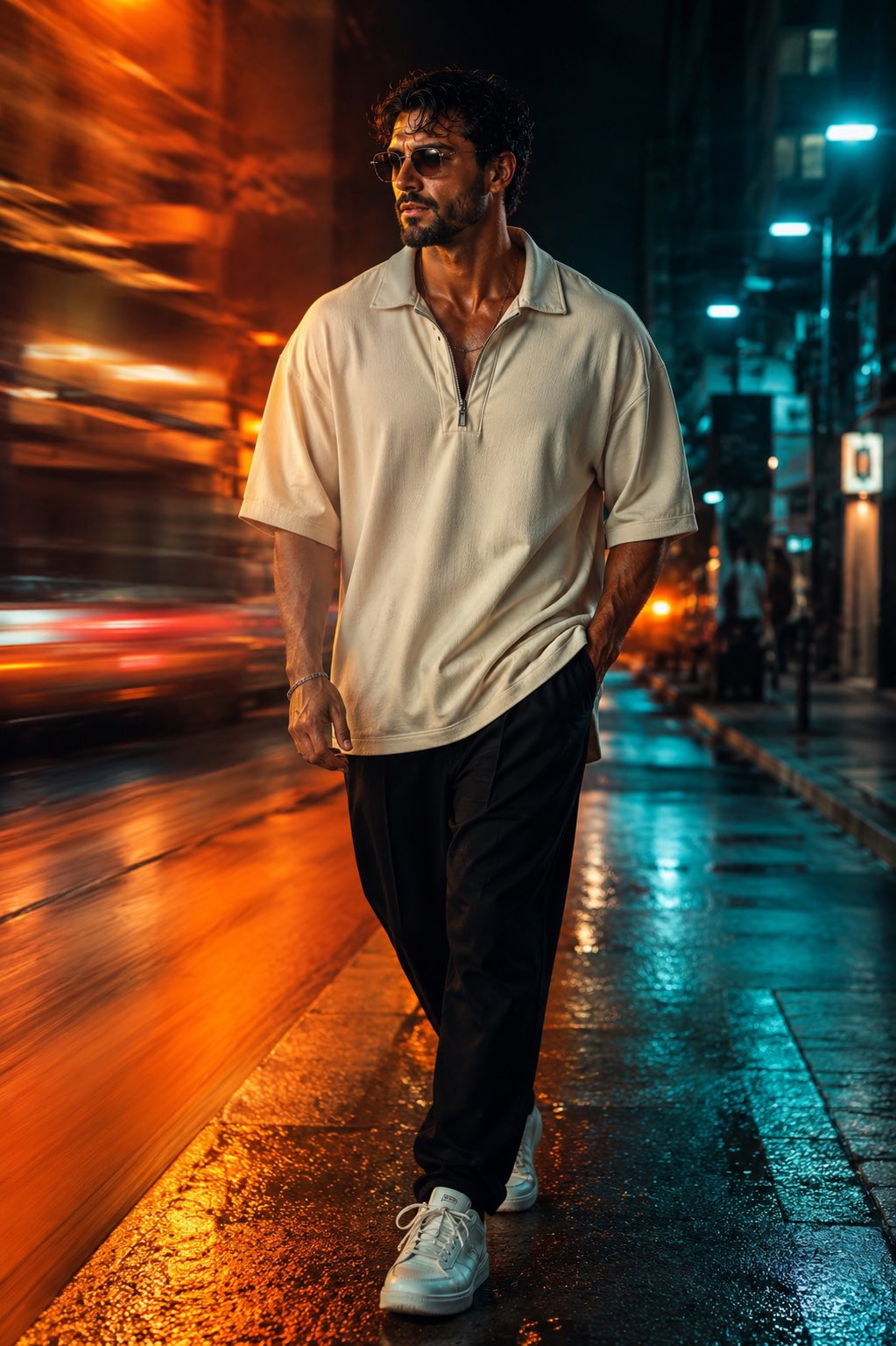
Face-Locked Cream Half-Zip Street Walk
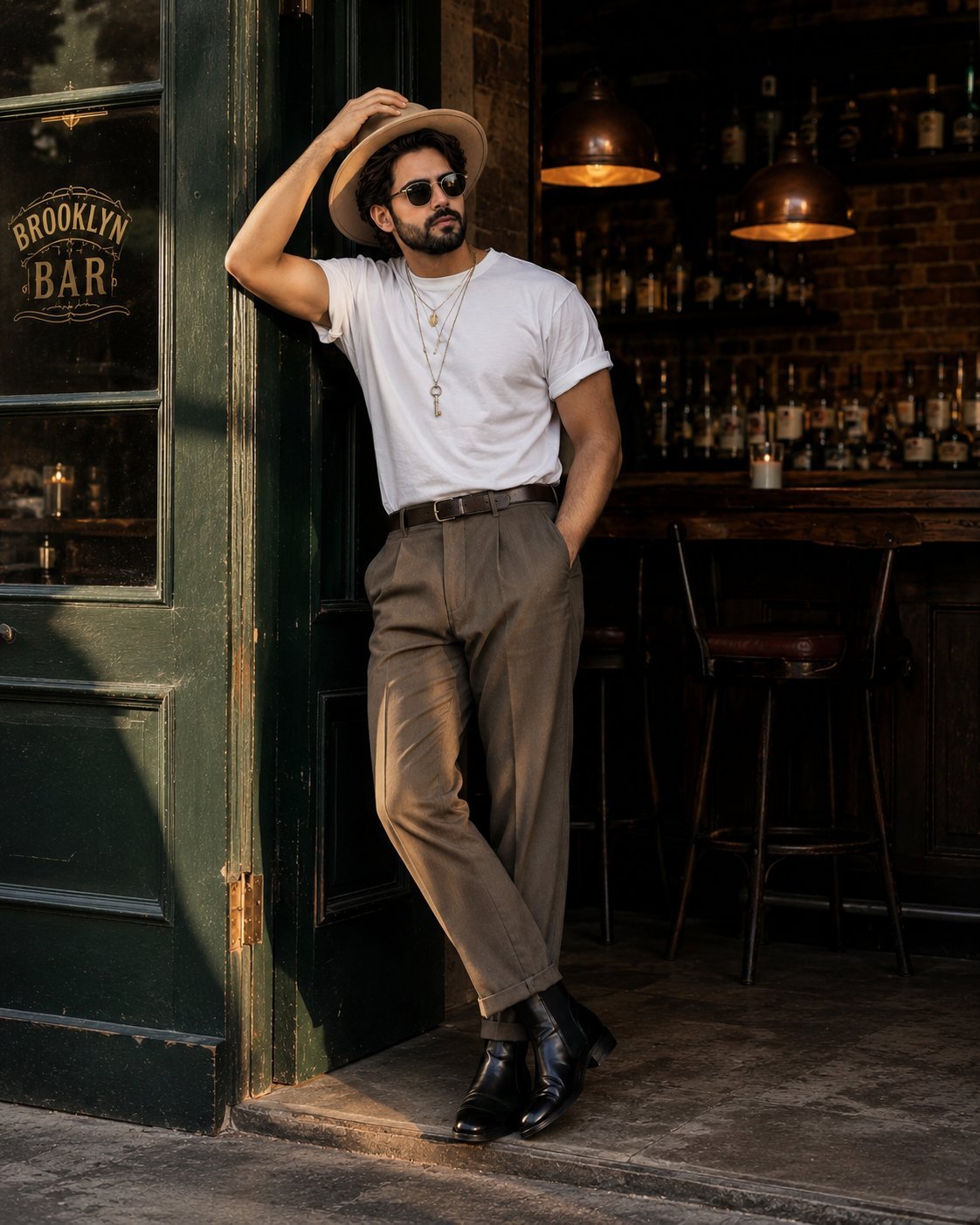
Golden Hour Fedora Bar Doorway Street Style
Make it yours
Street Artist Mural Transformation works as-is. These are the safest ways to change it without losing the look.
Change one field
Copy a single group, rewrite it, and generate again so you can see what that field is doing.
Keep the frame, change the subject
Hold the composition and light of Street Artist Mural Transformation, then swap wardrobe, props or the person for a new take.
| If the result… | Why | Fix |
|---|---|---|
| The result drifts from the preview | Too many fields changed at once. | Reuse Street Artist Mural Transformation as-is first, then change one group — subject, light, or setting. |
| The model over-stylizes the scene | The prose prompt leaves finish and camera underspecified. | Add one camera or lighting sentence and stay on GPT Image 2. |
More GPT Image 2 templates
Other prompts made for GPT Image 2.

Six VTuber Japanese Logo Sheet

Realistic Portrait of Woman and Deer

The Vista Modular Condo Poster

AI Model Routing Comparison Infographic

2.5D Anime Art Board

Isometric Productivity Desk Scene

New York Double Exposure Poster

Four-Panel AI Landscape Comparison

Japanese Tatami Lifestyle Magazine Cover

NESCAFÉ Coffee Map Poster
More image prompts
Fresh picks from across the catalog.
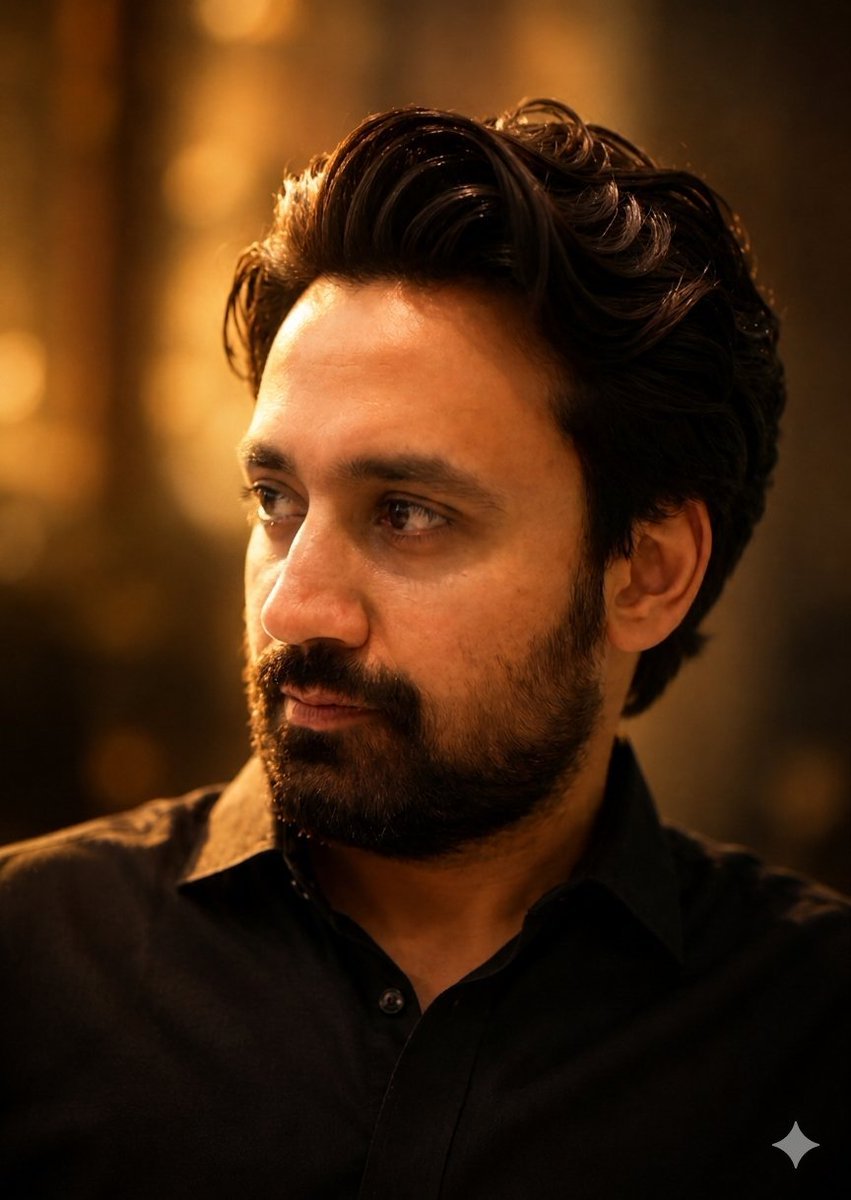
Golden Hour Contemplative Portrait
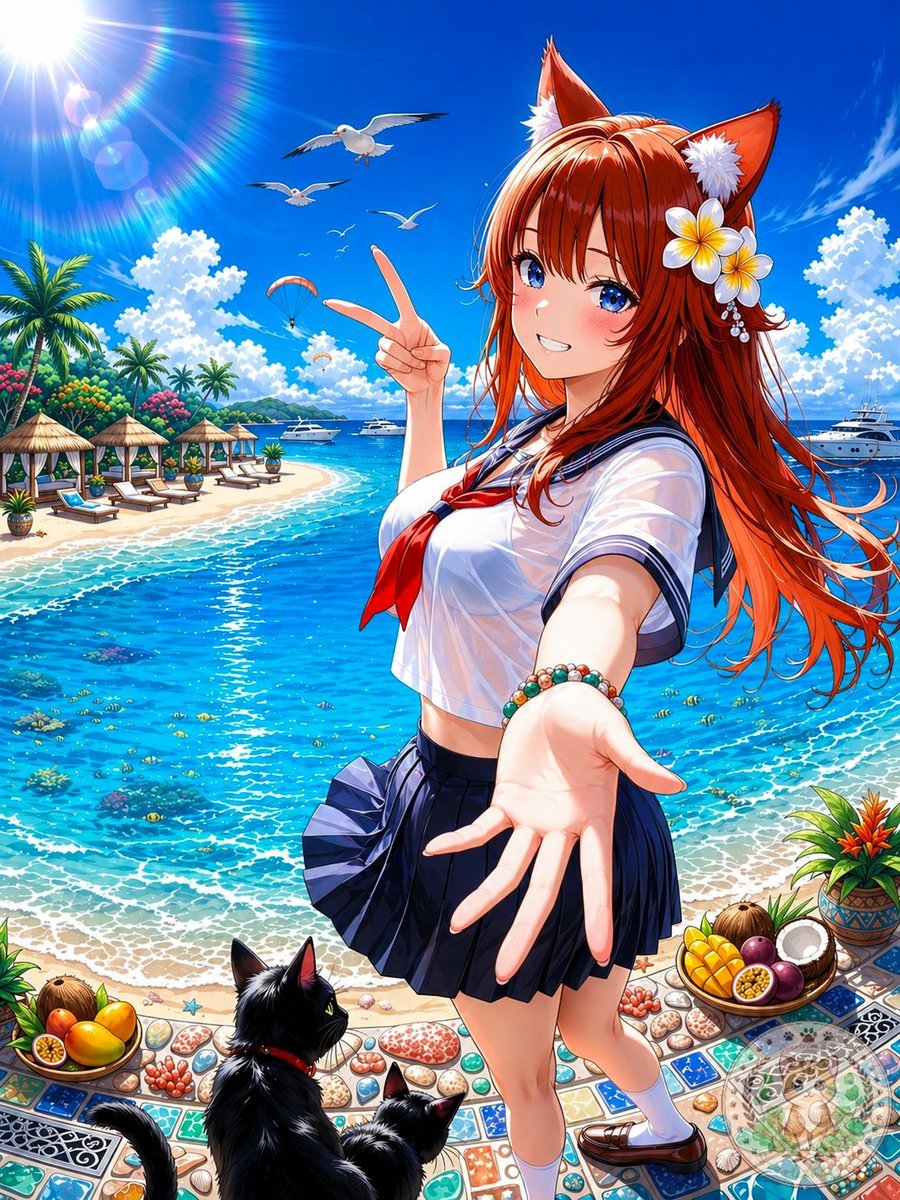
Anime Fox Girl at Tropical Beach
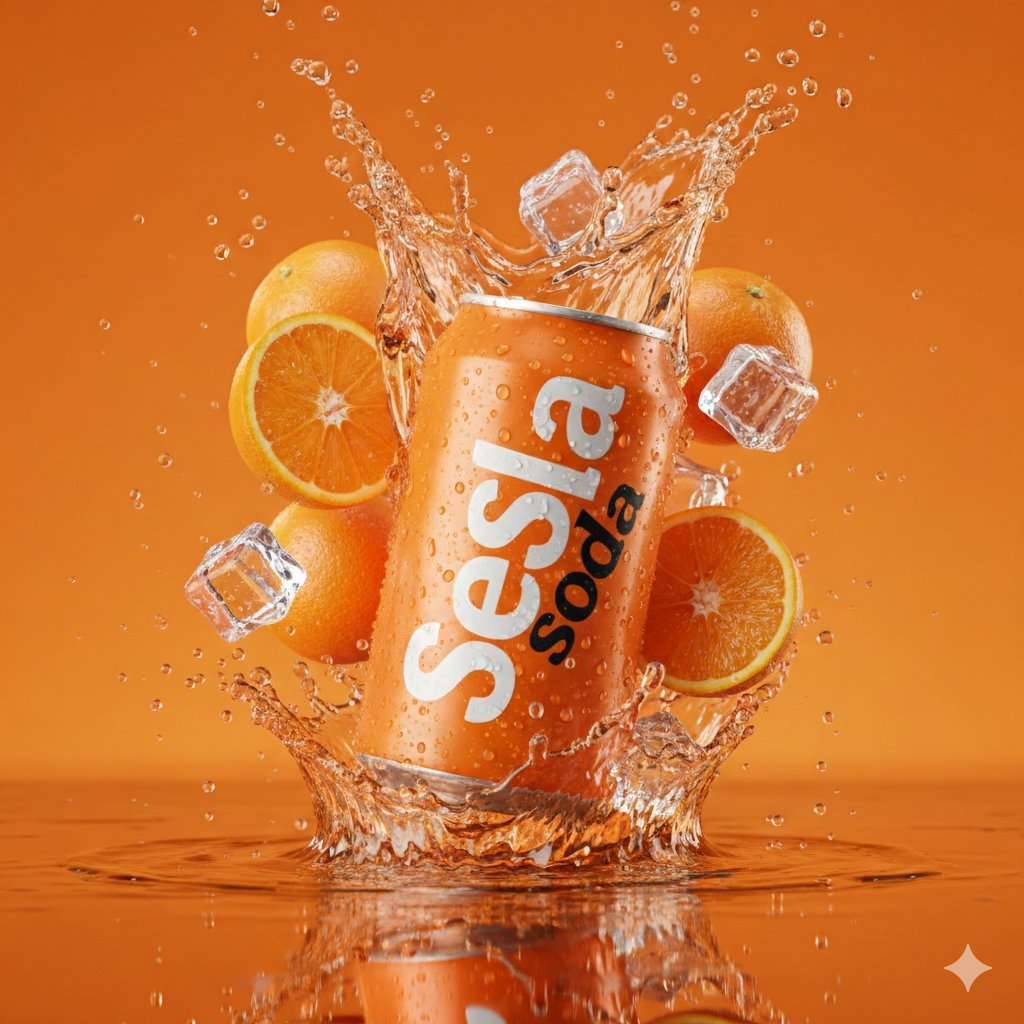
Hyper-Realistic Soda Can Splash Commercial Photo

Yokohama Pop Summer Poster
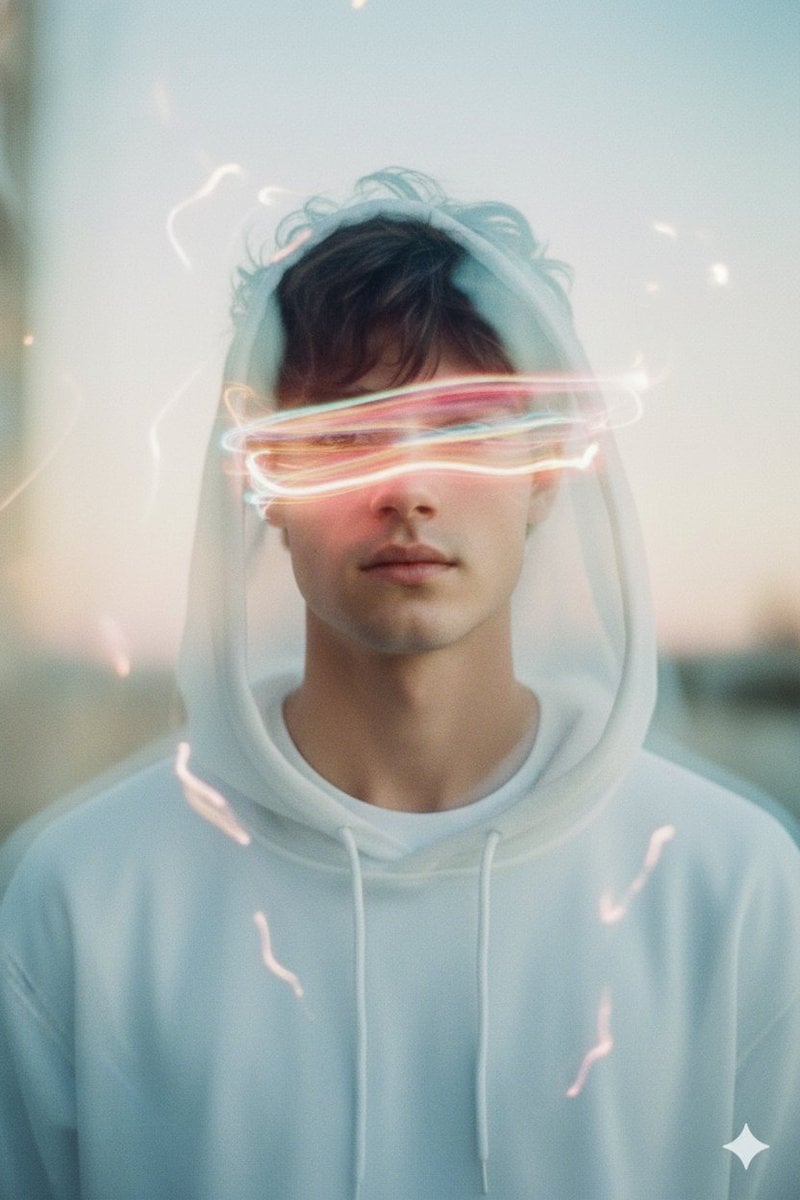
Long Exposure Light Trace Art Photography Portrait
Nano Banana Pro Prompt for Generating 'Viral Diagrams'
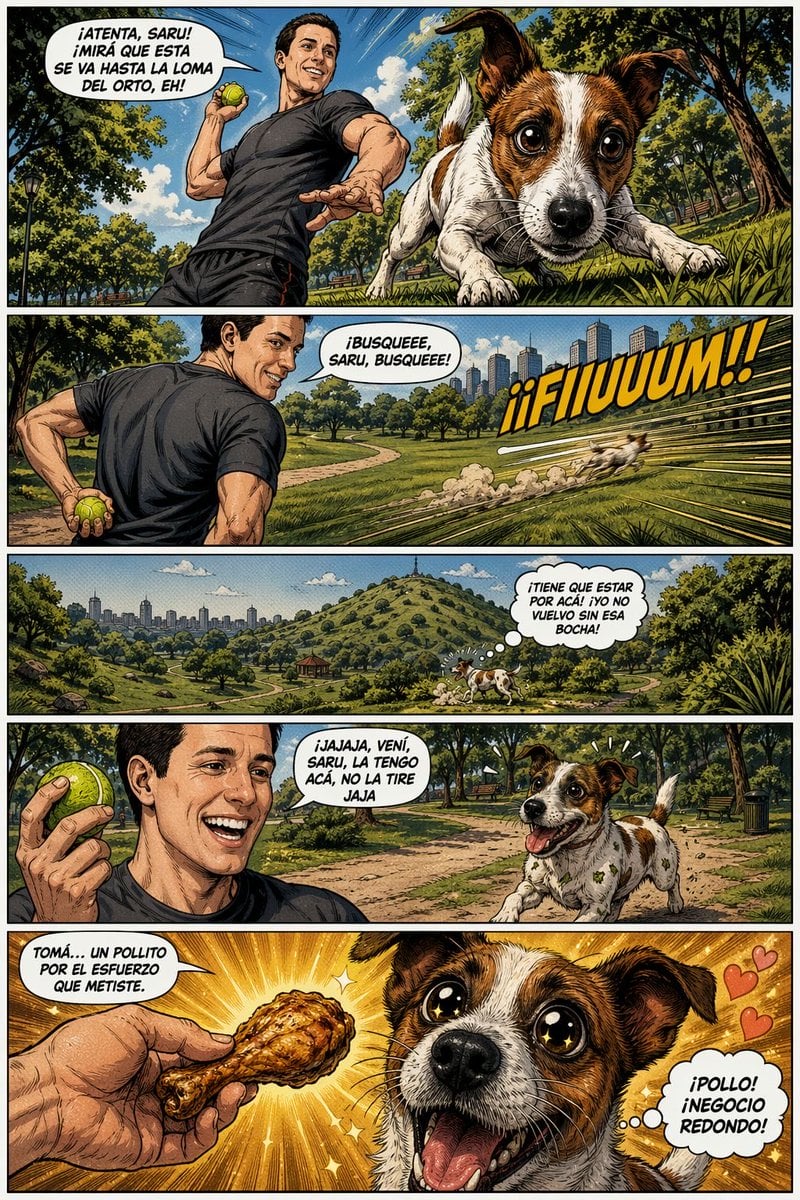
Funny Dog Park Comic Page
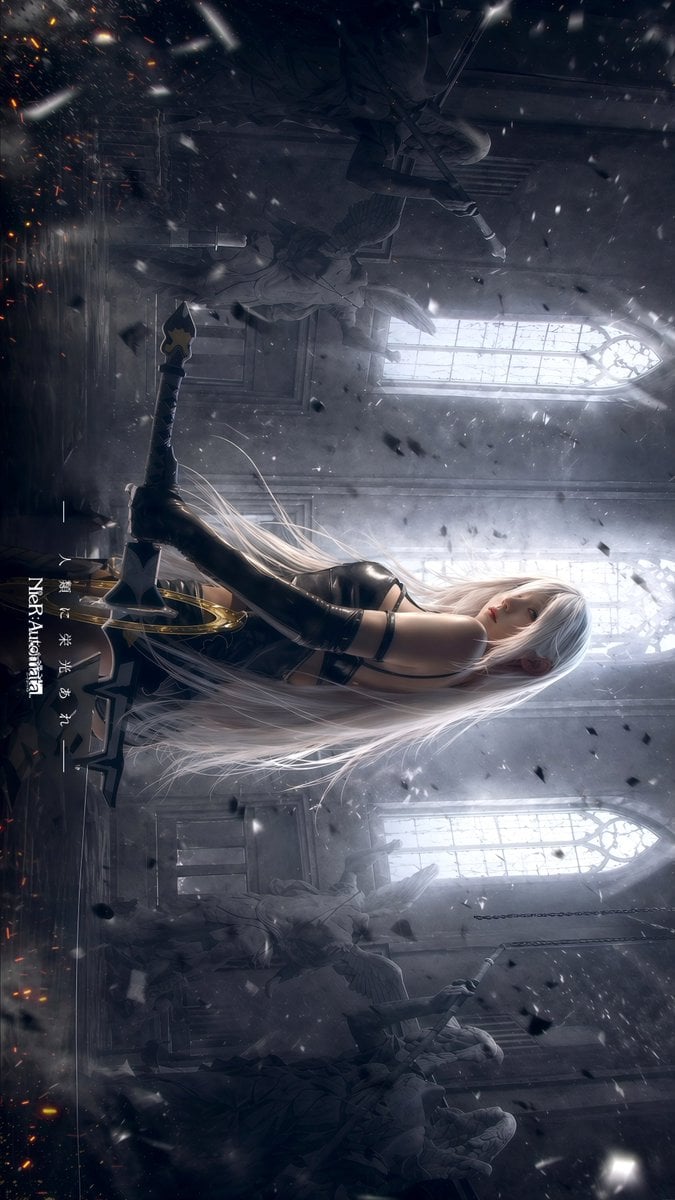
Gothic Android Warrior Cathedral Key Art
Minimalist Athletic Fashion Close-up
Office Fashion Magazine Cover
Browse template categories
Street Artist Mural Transformation questions
How do I use the Street Artist Mural Transformation template?
Add your photo if the template asks for one, edit the prompt if you like — the template's model and format are already selected — and press Generate. Your version opens in PicX Studio.
Can I customize the Street Artist Mural Transformation template?
Yes. You can change the subject, setting, lighting, mood, format, and available model controls before creating your image.
Is the Street Artist Mural Transformation template free?
Opening and editing this template is free. Generating uses credits, shown on the Generate button when you are signed in.
Which AI model should I use?
Start with GPT Image 2, which is the model associated with this template. You can compare another compatible model for a different finish.
Looking for something else? Browse all templates.

Your photo, any look
Thousands of ready templates for every top image and video model, from one credit balance.