
Japanese Kids Sports Class Flyer
Generates a colorful Japanese promotional flyer for an elementary school sports class with four physical performance check sections and sponsor branding.
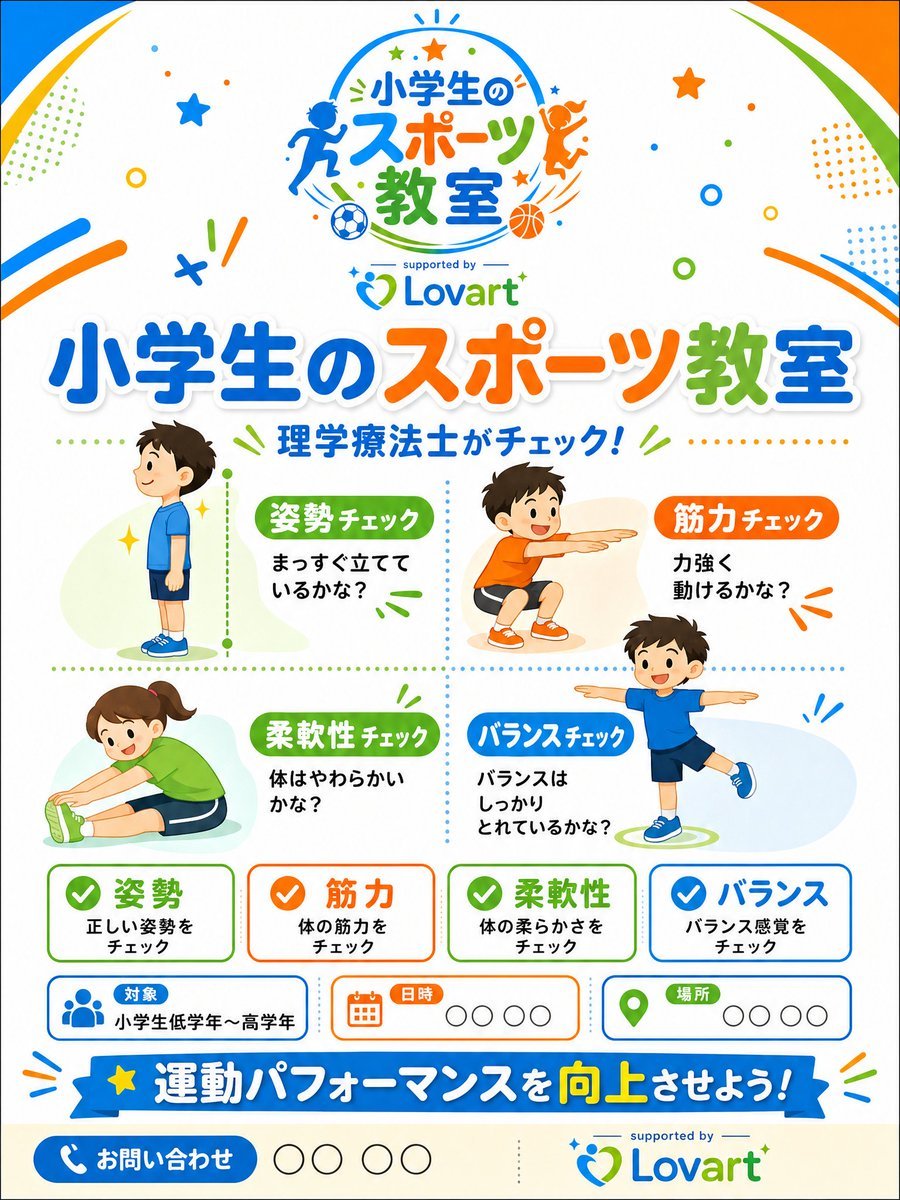
- Prompt included
- Model and format preset
- Premium template
The prompt behind this image
Copy the exact prompt behind Japanese Kids Sports Class Flyer, or open it in the studio and make it yours.
Goal: Create a bright, professional Japanese promotional flyer for a sponsor-supported elementary school sports class, using a cheerful children’s sports-clinic theme. Canvas: Vertical A4 flyer, 3:4 aspect ratio, white background with rounded colorful corner swooshes in blue, orange, and green. Add playful confetti, stars, dots, circles, motion lines, and small sports icons throughout. Keep the design clean, print-ready, and family friendly. Main branding: At the top center, place a circular sports-class logo with running and jumping child silhouettes, soccer ball and basketball icons, and the Japanese logo text {argument name="event logo text" default="小学生のスポーツ教室"}. Under it, add small text “supported by” and the Lovart logo in blue and green. Use the Lovart logo again near the bottom right with “supported by” above it. Headline area: Large bold Japanese headline across the upper middle: {argument name="main headline text" default="小学生のスポーツ教室"}. Use thick rounded lettering with white outline and soft shadow; color the words blue, orange, and green. Beneath it, add the subheadline {argument name="subheadline text" default="理学療法士がチェック!"} in blue with small green accent lines. Main layout: Divide the central area into a 2-by-2 dotted grid containing exactly 4 illustrated child activity check sections: 1. Posture check, upper left: a boy in blue sportswear standing in side profile, with a green label {argument name="posture label" default="姿勢チェック"} and text “まっすぐ立てているかな?” Add a vertical green dotted measuring line beside him. 2. Strength check, upper right: a smiling boy in orange shirt and shorts doing a squat or reaching pose, orange label “筋力チェック,” and text “力強く動けるかな?” 3. Flexibility check, lower left: a smiling girl in green shirt stretching forward while seated, green label “柔軟性チェック,” and text “体はやわらかいかな?” 4. Balance check, lower right: a smiling boy in blue shirt balancing on one leg with arms out, blue label “バランスチェック,” and text “バランスはしっかりとれているかな?” Use soft pastel oval background shapes behind each child and a colorful flat vector illustration style. Bottom information cards: Below the activity grid, place exactly 4 rounded rectangular summary cards in a row, each with a colored checkmark icon and bold Japanese title: 1. Green card: “姿勢,” smaller text “正しい姿勢をチェック.” 2. Orange card: “筋力,” smaller text “体の筋力をチェック.” 3. Green card: “柔軟性,” smaller text “体の柔らかさをチェック.” 4. Blue card: “バランス,” smaller text “バランス感覚をチェック.” Event info row: Add exactly 3 rounded information boxes beneath the summary cards: 1. Blue people icon, label “対象,” value “小学生低学年〜高学年.” 2. Orange calendar icon, label “日時,” followed by four empty circle placeholders. 3. Green map-pin icon, label “場所,” followed by four empty circle placeholders. Bottom CTA: Add a wide blue ribbon banner with a yellow star on the left and the Japanese slogan {argument name="bottom slogan text" default="運動パフォーマンスを向上させよう!"}; emphasize “向上” in yellow. At the very bottom left, add a blue rounded contact button with a white phone icon and “お問い合わせ,” followed by four empty circle placeholders. Visual style: Modern Japanese children’s event flyer, high-quality vector graphics, vibrant blue/orange/green palette, rounded typography, crisp spacing, light shadows, playful but organized. Avoid photorealism, avoid clutter, no extra people beyond the 4 children in the activity grid, no extra cards beyond the specified counts.
How to use Japanese Kids Sports Class Flyer in 3 steps
- 1Upload ImagePNG, JPG or paste
Add your photo
Upload the photo the template builds on. The prompt, model and format are already set.
- 2…a portrait of your subject in softgolden-hour light, 85mm…
Personalize
Edit the subject and creative details for your destination.
- 3Generate
Generate
Press Generate — your image is created in PicX Studio, so you can compare it with the original and refine one variable at a time.
More like this
Templates with the same subject, style or setup. Open one to see its prompt.
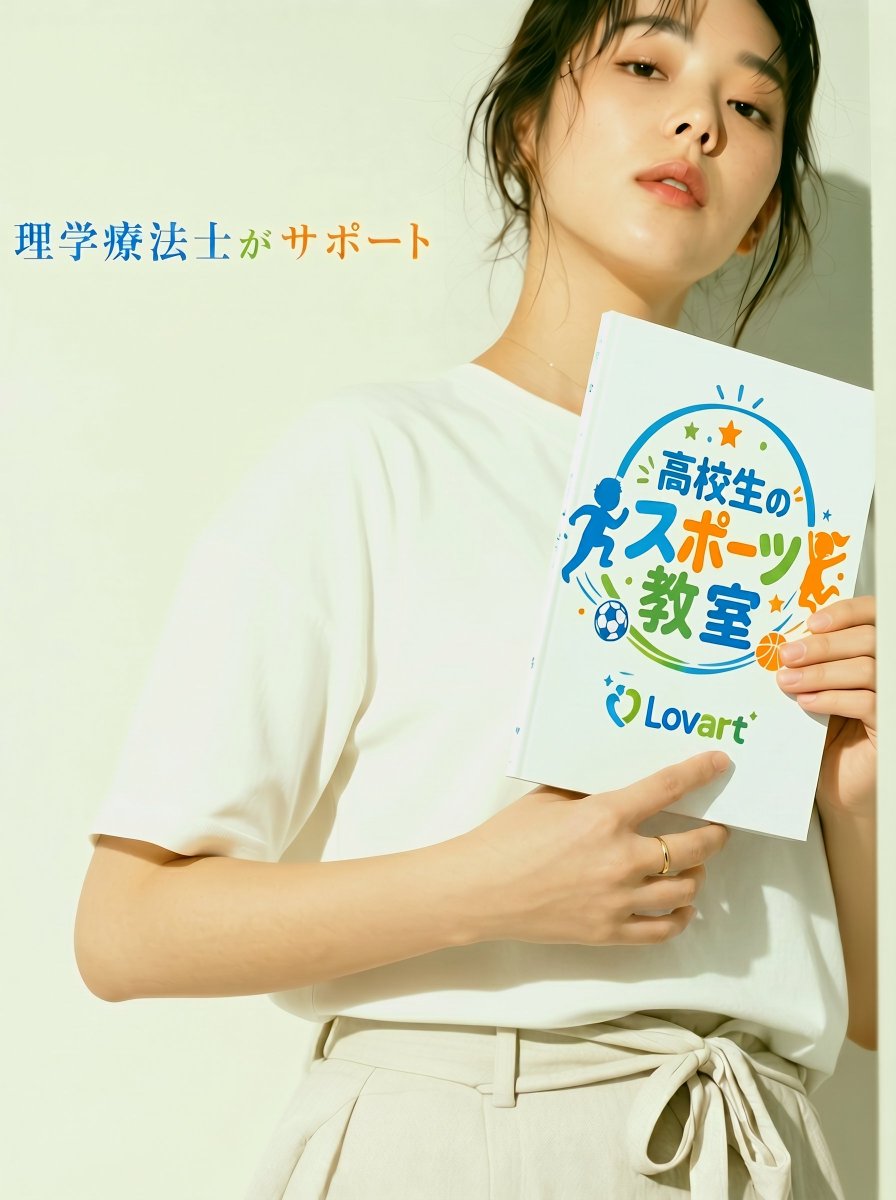
Japanese Sports School Flyer Photo
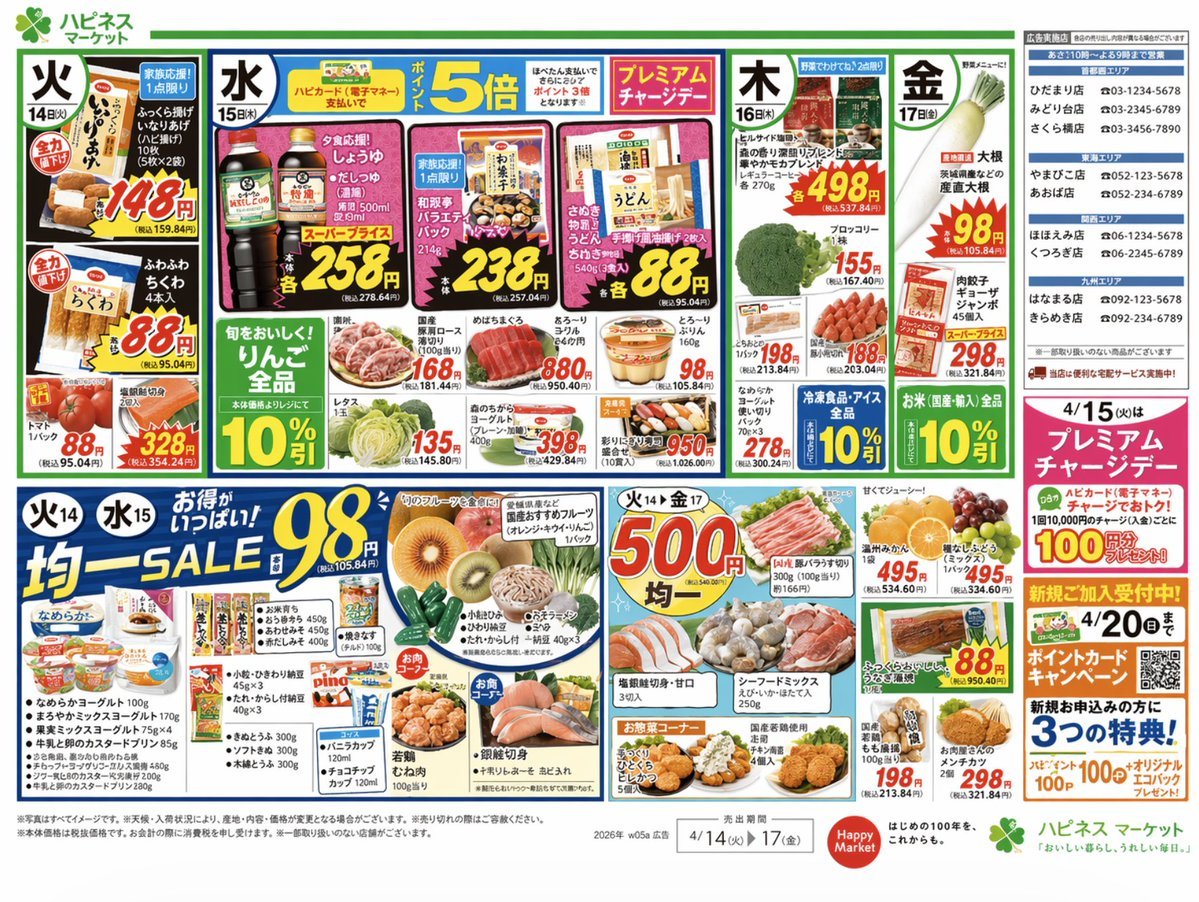
Japanese Supermarket Promotional Flyer
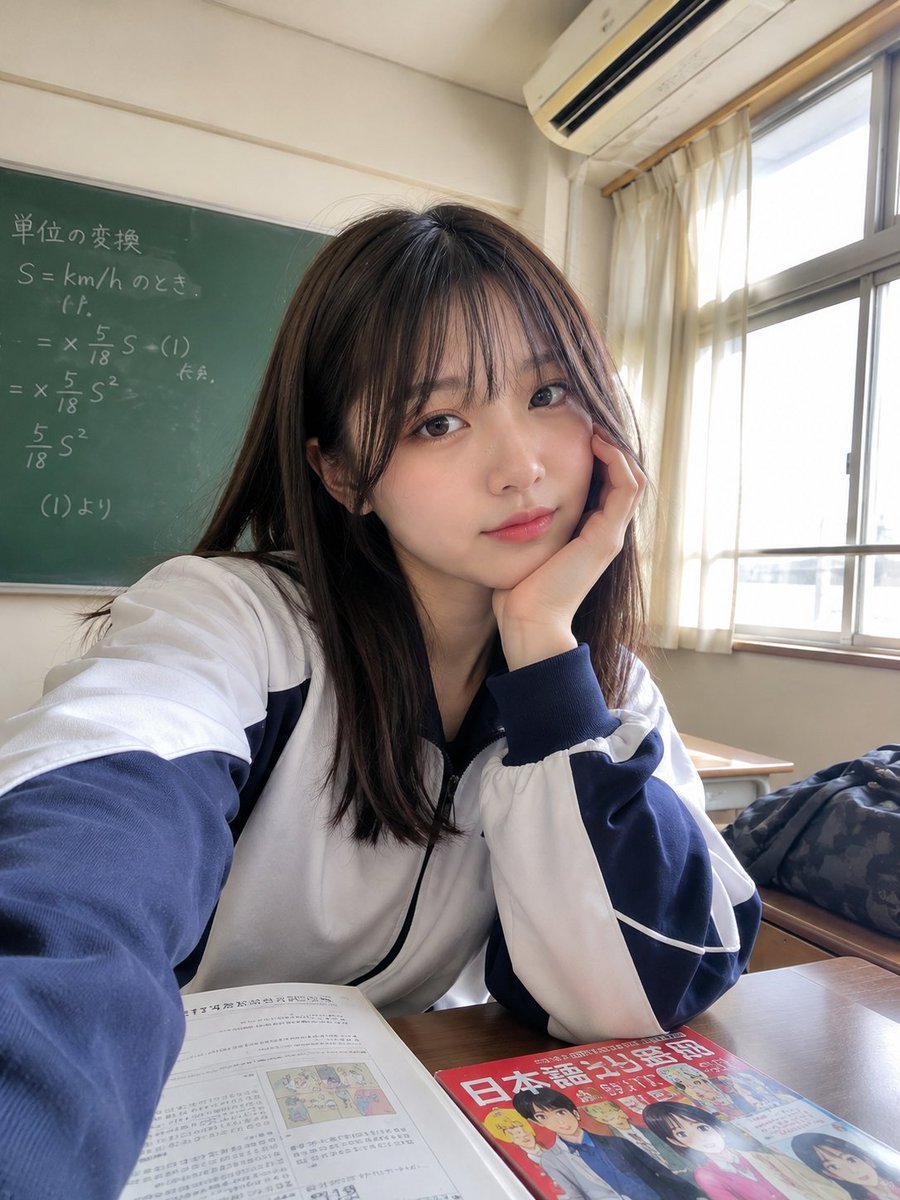
Realistic Japanese Classroom Selfie

Minecraft Japanese Research Lab Exploration
Japanese Sports Drink Ad Poster
Japanese Pediatric Clinic Name Change Flyer
Japanese Luxury Condo Sales Flyer

Japanese Architectural Concrete Studio Fashion Campaign

Japanese Minimalist Concrete Studio Fashion Editorial

Blue Backdrop Luxury Fashion Portrait Campaign

Legendary Player Fragmented Editorial Poster
Goalmaster Youth Sports Poster
Make it yours
Japanese Kids Sports Class Flyer works as-is. These are the safest ways to change it without losing the look.
Change one field
Copy a single group, rewrite it, and generate again so you can see what that field is doing.
Keep the frame, change the subject
Hold the composition and light of Japanese Kids Sports Class Flyer, then swap wardrobe, props or the person for a new take.
| If the result… | Why | Fix |
|---|---|---|
| The result drifts from the preview | Too many fields changed at once. | Reuse Japanese Kids Sports Class Flyer as-is first, then change one group — subject, light, or setting. |
| The model over-stylizes the scene | The prose prompt leaves finish and camera underspecified. | Add one camera or lighting sentence and stay on GPT Image 2. |
More GPT Image 2 templates
Other prompts made for GPT Image 2.

Six VTuber Japanese Logo Sheet

Realistic Portrait of Woman and Deer

The Vista Modular Condo Poster

AI Model Routing Comparison Infographic

2.5D Anime Art Board

Isometric Productivity Desk Scene

New York Double Exposure Poster

Four-Panel AI Landscape Comparison

Japanese Tatami Lifestyle Magazine Cover

NESCAFÉ Coffee Map Poster
More image prompts
Fresh picks from across the catalog.
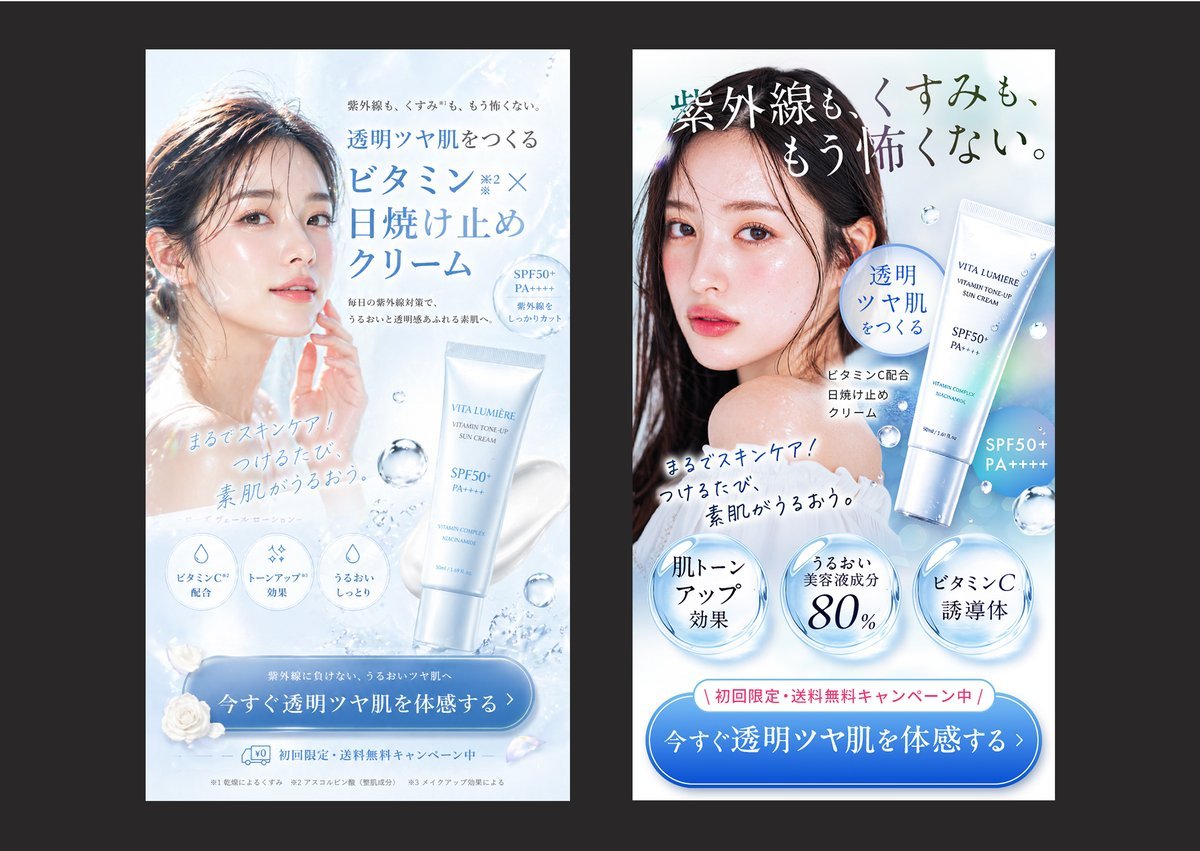
Japanese Skincare Ad Comparison
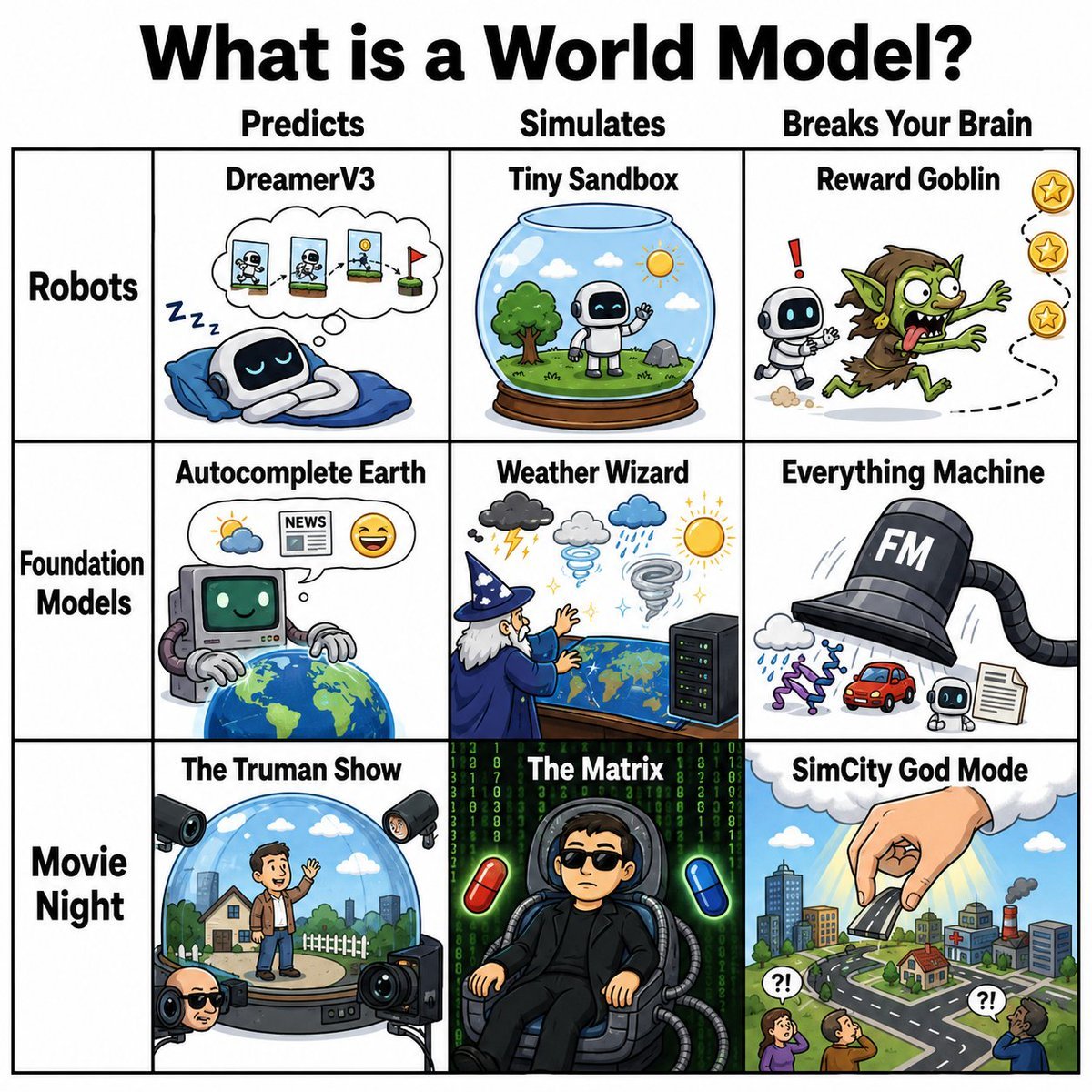
World Model Meme Grid
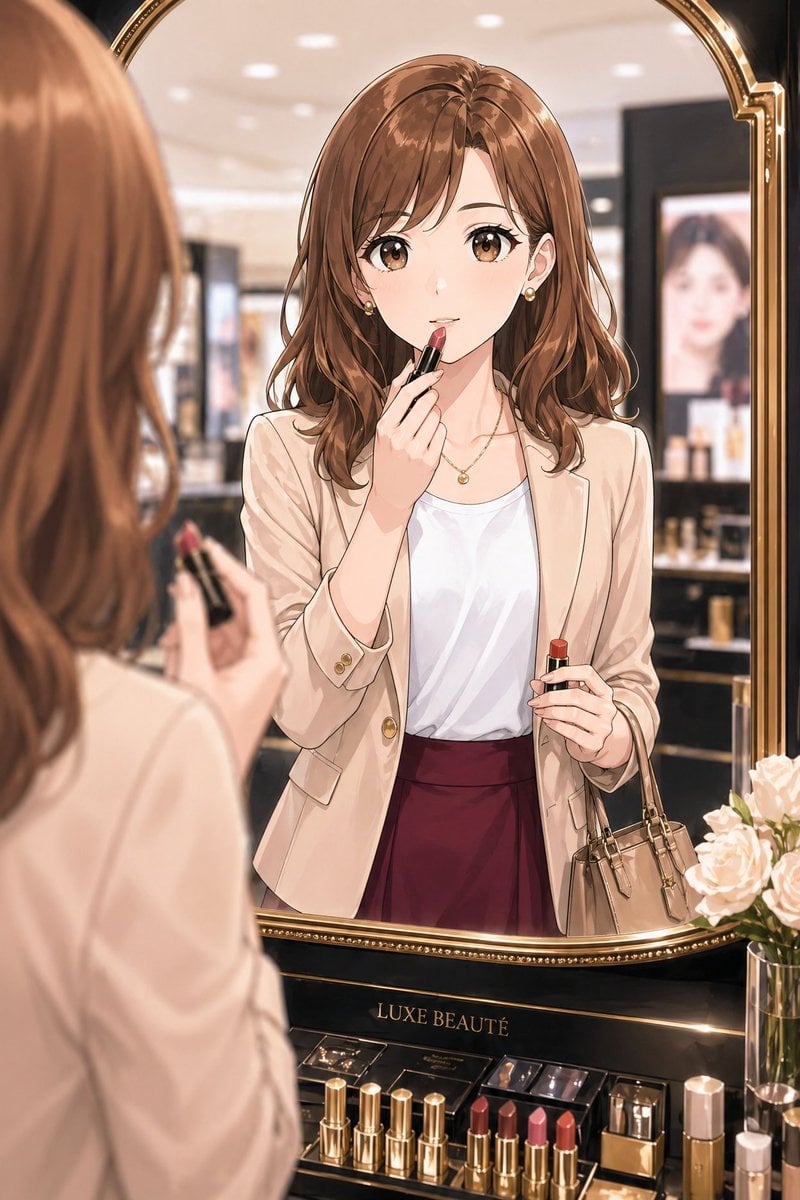
Elegant Office Lady at Beauty Counter

3D Football Player Portrait
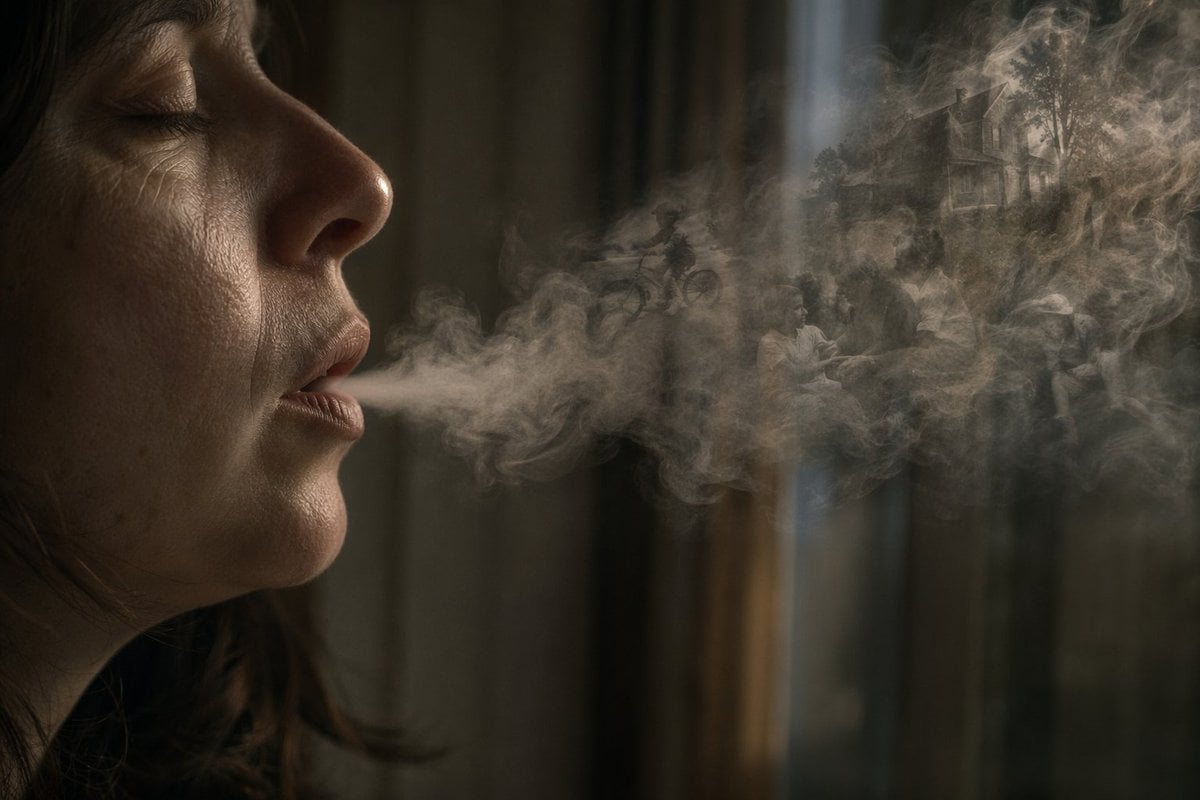
Smoke Memory Portrait
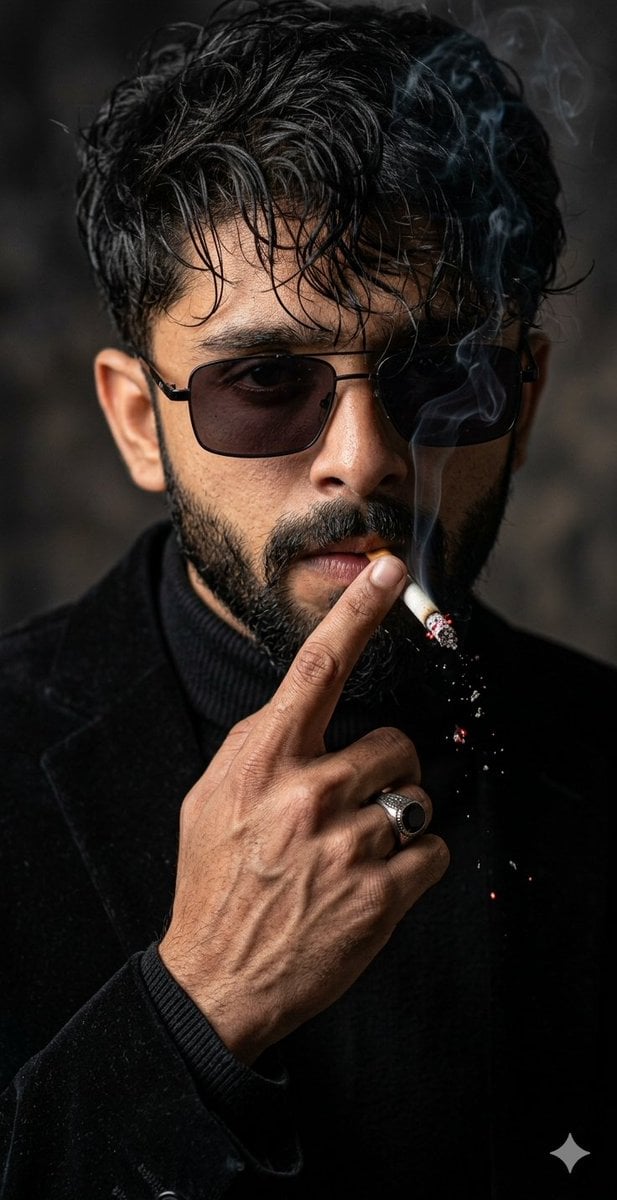
Cinematic Face-Locked Portrait with Cigarette

Nano Banana Pro Prompt for Character and Background Change

Stunning Photo Prompt for Gemini Nano Banana Creation
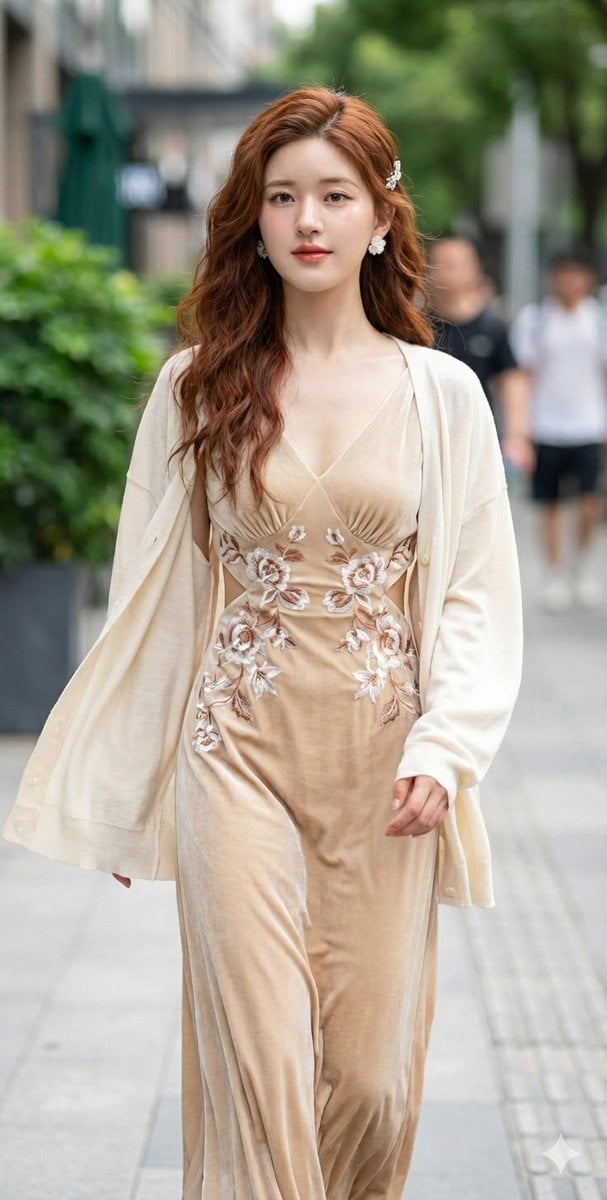
JSON Prompt for Cinematic Portrait of Zhao Lusi
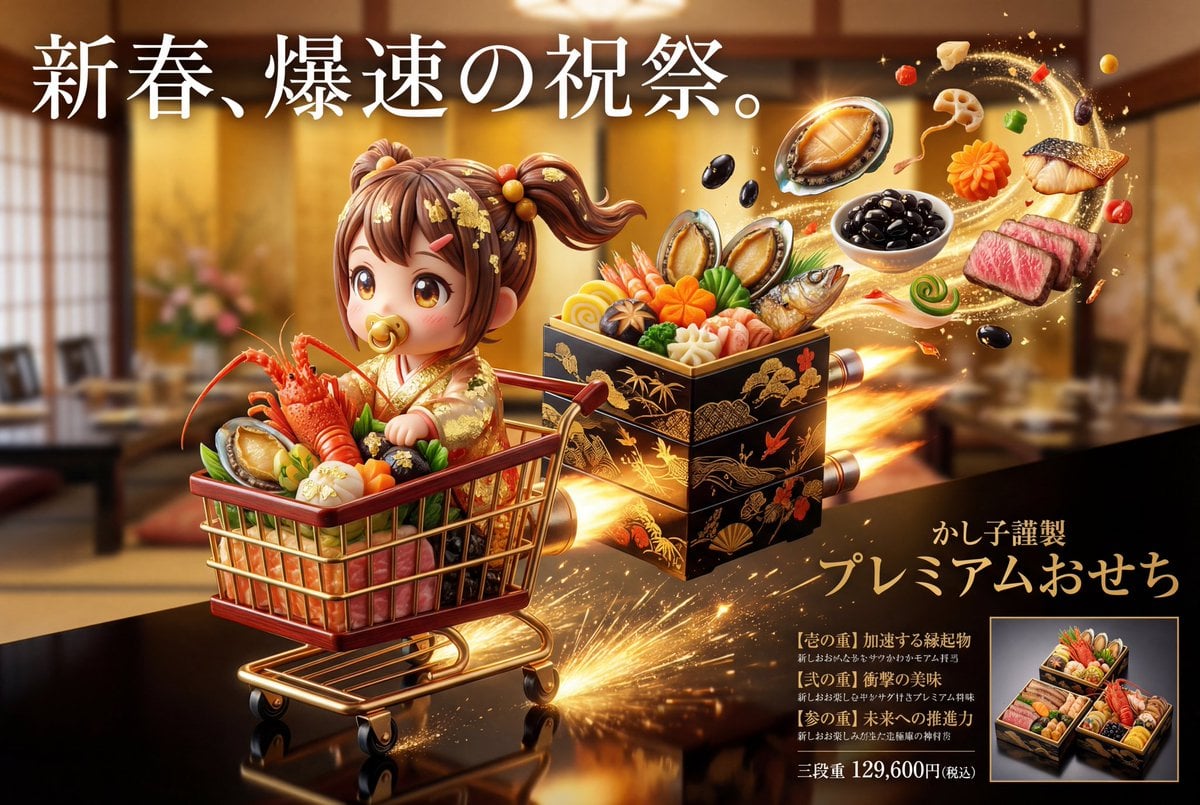
Luxury Osechi (New Year's Food) Key Visual Generation Prompt
Browse template categories
Japanese Kids Sports Class Flyer questions
How do I use the Japanese Kids Sports Class Flyer template?
Add your photo if the template asks for one, edit the prompt if you like — the template's model and format are already selected — and press Generate. Your version opens in PicX Studio.
Can I customize the Japanese Kids Sports Class Flyer template?
Yes. You can change the subject, setting, lighting, mood, format, and available model controls before creating your image.
Is the Japanese Kids Sports Class Flyer template free?
Opening and editing this template is free. Generating uses credits, shown on the Generate button when you are signed in.
Which AI model should I use?
Start with GPT Image 2, which is the model associated with this template. You can compare another compatible model for a different finish.
Looking for something else? Browse all templates.

Your photo, any look
Thousands of ready templates for every top image and video model, from one credit balance.