
AI Mechanism Infographic
Generates a structured, multi-panel educational infographic explaining complex concepts with flowcharts, icons, and a summary character.
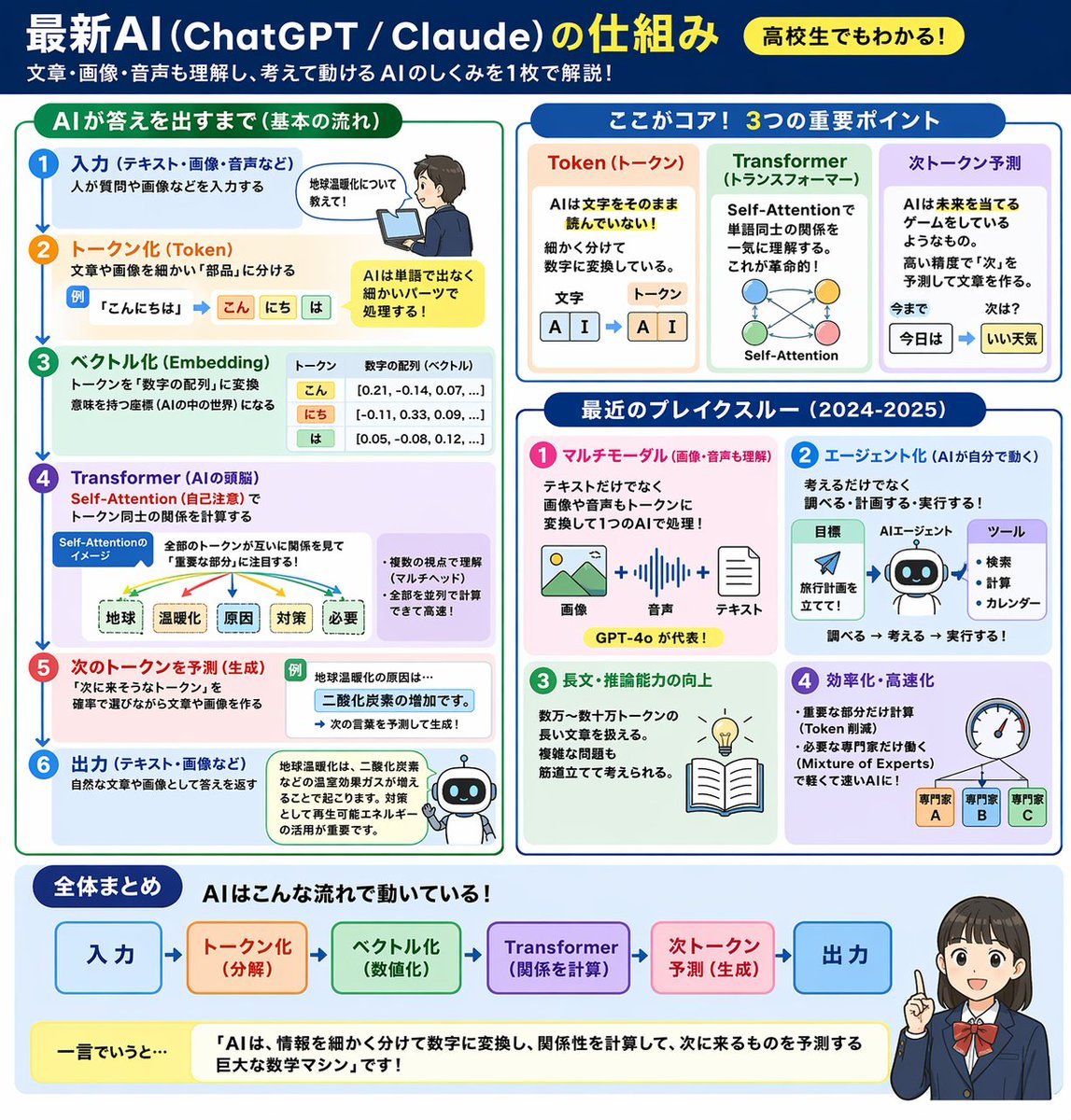
- Prompt included
- Model and format preset
- Free template
The prompt behind this image
Copy the exact prompt behind AI Mechanism Infographic, or open it in the studio and make it yours.
- Type
- educational infographic
- Header › Title
- {argument name="main title" default="最新AI (ChatGPT / Claude) の仕組み"}
- Header › Badge
- {argument name="target audience badge" default="高校生でもわかる!"}
- Header › Subtitle
- {argument name="subtitle" default="文章・画像・音声も理解し、考えて動けるAIのしくみを1枚で解説!"}
- Layout › Style
- clean, flat design, structured grid, Japanese text
- Layout › Sections › 0 › Title
- AIが答えを出すまで(基本の流れ)
- Layout › Sections › 0 › Position
- left column
- Layout › Sections › 0 › Count
- 6
- Layout › Sections › 0 › Labels
- 入力, トークン化 (Token), ベクトル化 (Embedding), Transformer (AIの頭脳), 次のトークンを予測 (生成), 出力
- Layout › Sections › 0 › Visuals
- vertical flow with arrows, boy using laptop, token splitting diagram, vector number arrays, self-attention tree, robot icon
- Layout › Sections › 1 › Title
- ここがコア! 3つの重要ポイント
- Layout › Sections › 1 › Position
- top right
- Layout › Sections › 1 › Count
- 3
- Layout › Sections › 1 › Labels
- Token (トークン), Transformer (トランスフォーマー), 次トークン予測
- Layout › Sections › 1 › Visuals
- tokenization blocks, self-attention node network, word prediction sequence
- Layout › Sections › 2 › Title
- 最近のブレイクスルー (2024-2025)
- Layout › Sections › 2 › Position
- middle right
- Layout › Sections › 2 › Count
- 4
- Layout › Sections › 2 › Labels
- マルチモーダル, エージェント化, 長文・推論能力の向上, 効率化・高速化
- Layout › Sections › 2 › Visuals
- image/audio/text icons, robot agent flowchart, lightbulb and book, speedometer with 3 expert nodes
- Layout › Sections › 3 › Title
- 全体まとめ
- Layout › Sections › 3 › Position
- bottom full width
- Layout › Sections › 3 › Elements
- horizontal 6-step flowchart, yellow summary box with text: {argument name="summary text" default="「AIは、情報を細かく分けて数字に変換し、関係性を計算して、次に来るものを予測する巨大な数学マシン」です!"}, {argument name="character style" default="anime-style female student pointing and smiling"}
Raw JSON
{
  "type": "educational infographic",
  "header": {
    "title": "{argument name=\"main title\" default=\"最新AI (ChatGPT / Claude) の仕組み\"}",
    "badge": "{argument name=\"target audience badge\" default=\"高校生でもわかる!\"}",
    "subtitle": "{argument name=\"subtitle\" default=\"文章・画像・音声も理解し、考えて動けるAIのしくみを1枚で解説!\"}"
  },
  "layout": {
    "style": "clean, flat design, structured grid, Japanese text",
    "sections": [
      {
        "title": "AIが答えを出すまで(基本の流れ)",
        "position": "left column",
        "count": 6,
        "labels": ["入力", "トークン化 (Token)", "ベクトル化 (Embedding)", "Transformer (AIの頭脳)", "次のトークンを予測 (生成)", "出力"],
        "visuals": "vertical flow with arrows, boy using laptop, token splitting diagram, vector number arrays, self-attention tree, robot icon"
      },
      {
        "title": "ここがコア! 3つの重要ポイント",
        "position": "top right",
        "count": 3,
        "labels": ["Token (トークン)", "Transformer (トランスフォーマー)", "次トークン予測"],
        "visuals": "tokenization blocks, self-attention node network, word prediction sequence"
      },
      {
        "title": "最近のブレイクスルー (2024-2025)",
        "position": "middle right",
        "count": 4,
        "labels": ["マルチモーダル", "エージェント化", "長文・推論能力の向上", "効率化・高速化"],
        "visuals": "image/audio/text icons, robot agent flowchart, lightbulb and book, speedometer with 3 expert nodes"
      },
      {
        "title": "全体まとめ",
        "position": "bottom full width",
        "elements": [
          "horizontal 6-step flowchart",
          "yellow summary box with text: {argument name=\"summary text\" default=\"「AIは、情報を細かく分けて数字に変換し、関係性を計算して、次に来るものを予測する巨大な数学マシン」です!\"}",
          "{argument name=\"character style\" default=\"anime-style female student pointing and smiling\"}"
        ]
      }
    ]
  }
}How to use AI Mechanism Infographic in 3 steps
- 1Upload ImagePNG, JPG or paste
Add your photo
Upload the photo the template builds on. The prompt, model and format are already set.
- 2…a portrait of your subject in softgolden-hour light, 85mm…
Personalize
Edit the subject and creative details for your destination.
- 3Generate
Generate
Press Generate — your image is created in PicX Studio, so you can compare it with the original and refine one variable at a time.
More like this
Templates with the same subject, style or setup. Open one to see its prompt.

Japan Travel Brochure Poster

Isometric Process Educational Diorama

Isometric Vehicle Teardown Infographic Template

Gpt2 E Commerce Main Image Earbuds E Commerce Infographic
Gpt2 Infographic Edu Visual Alishan One Day Travel Poster

Gpt2 Infographic Edu Visual Ethnographic Plate for Tibetan Ceremonial Hat
Gpt2 Infographic Edu Visual Earth Signs Zodiac Character Poster
Gpt2 Infographic Edu Visual Water Signs Zodiac Character Poster
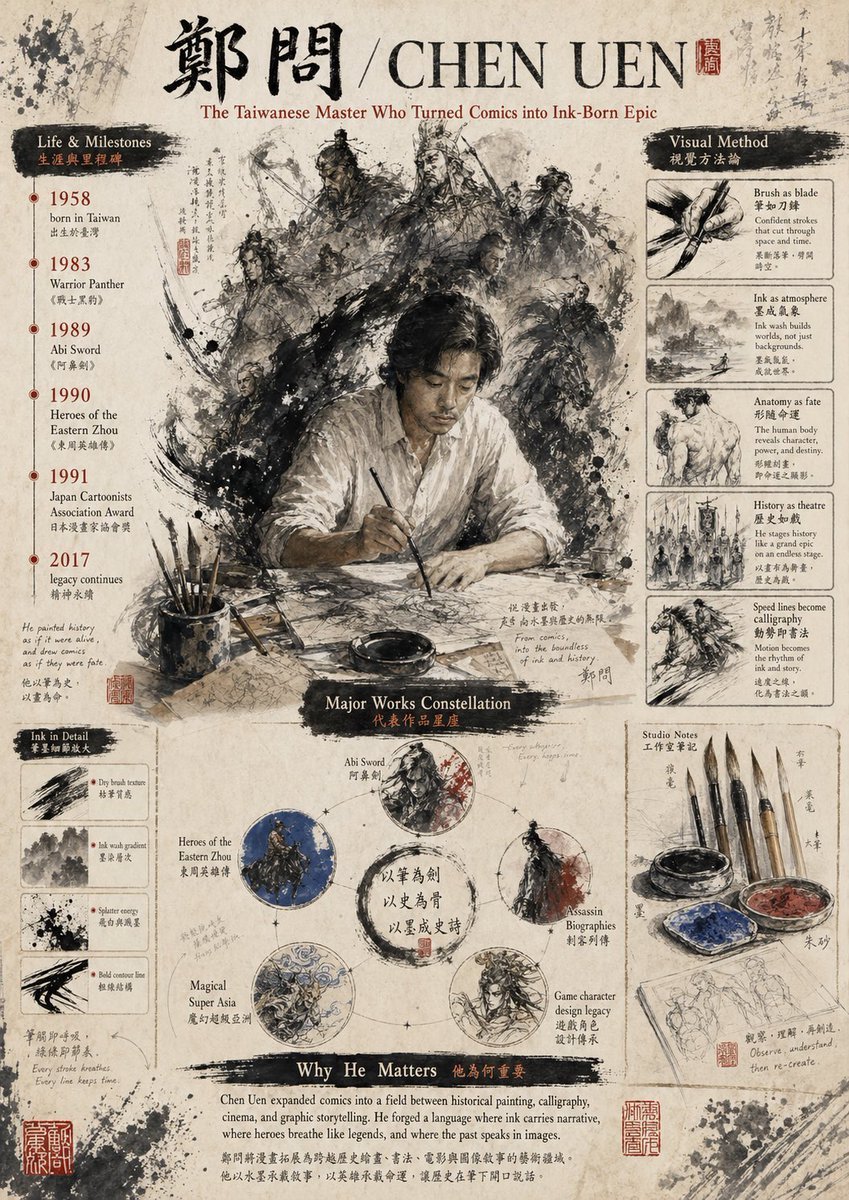
Gpt2 Infographic Edu Visual Ink Wash Tribute Poster for Chen Uen
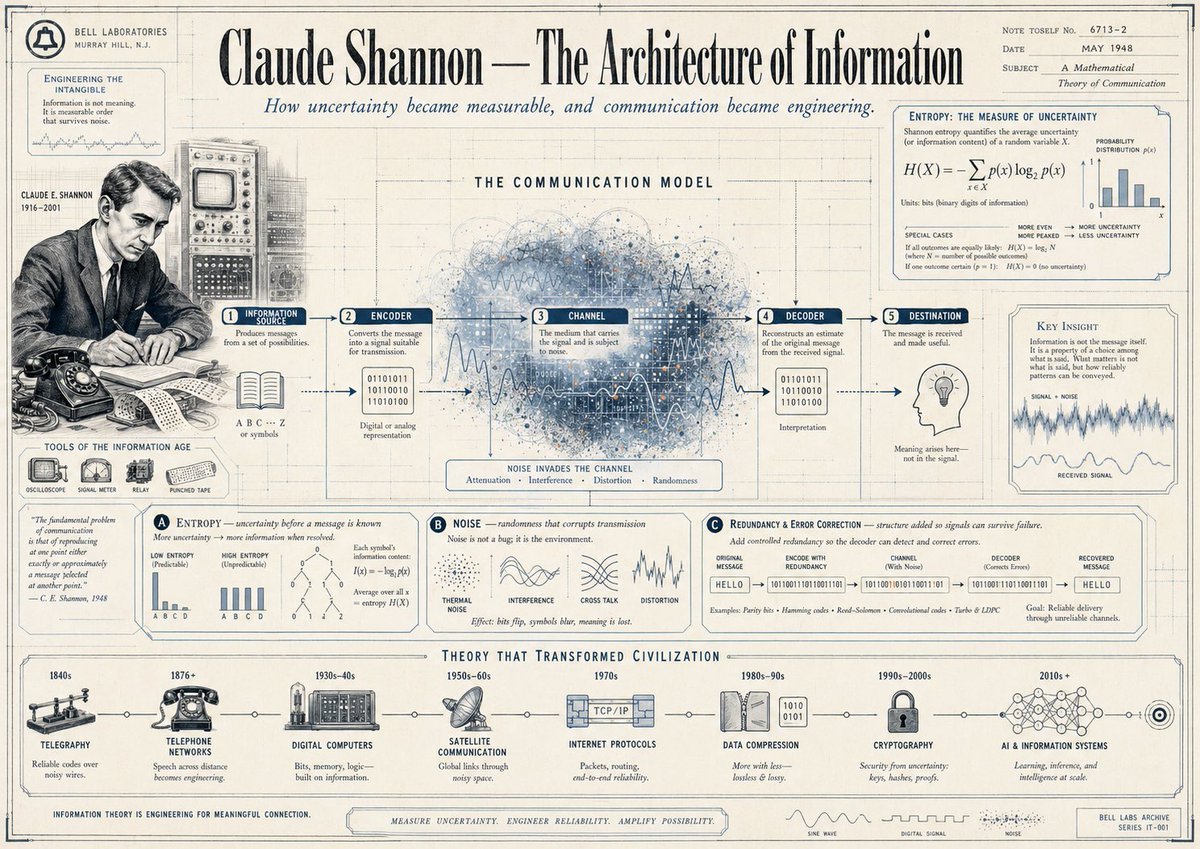
Gpt2 Infographic Edu Visual Vintage Claude Shannon Infographic Poster
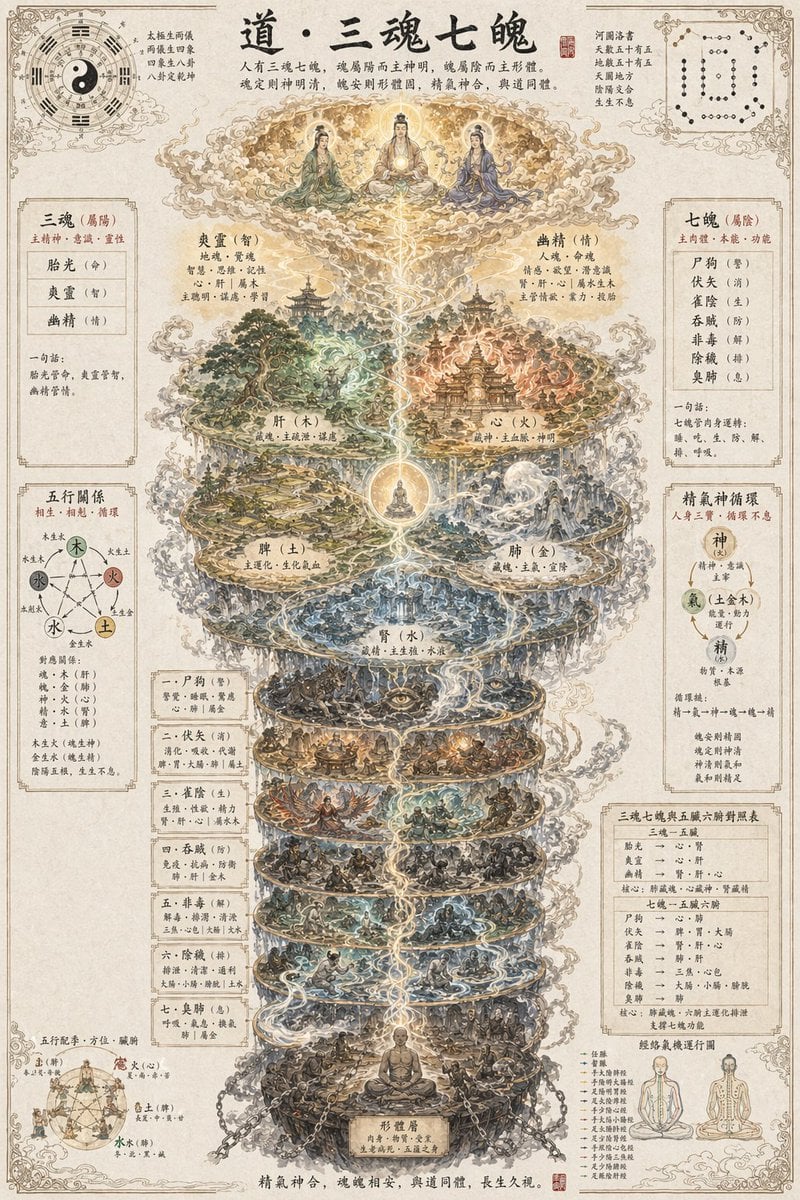
Gpt2 Infographic Edu Visual Taoist Three Souls Seven Po Poster
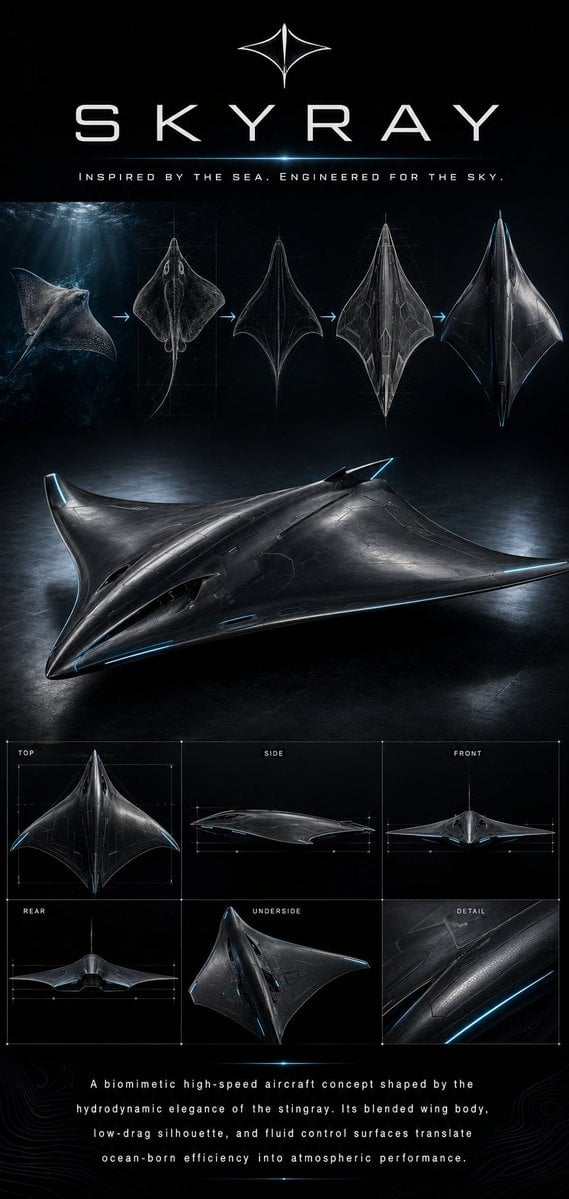
Gpt2 Infographic Edu Visual Biomimetic Skyray Aircraft Poster
Make it yours
AI Mechanism Infographic works as-is. These are the safest ways to change it without losing the look.
Change one field
Copy a single group, rewrite it, and generate again so you can see what that field is doing.
Keep the frame, change the subject
Hold the composition and light of AI Mechanism Infographic, then swap wardrobe, props or the person for a new take.
| If the result… | Why | Fix |
|---|---|---|
| The result drifts from the preview | Too many fields changed at once. | Reuse AI Mechanism Infographic as-is first, then change one group — subject, light, or setting. |
| GPT Image 2 ignores part of the JSON | Some models flatten or skip nested keys. | Keep the same values and paste them as a short paragraph instead. |
More GPT Image 2 templates
Other prompts made for GPT Image 2.

Six VTuber Japanese Logo Sheet

Realistic Portrait of Woman and Deer

The Vista Modular Condo Poster

AI Model Routing Comparison Infographic

2.5D Anime Art Board

Isometric Productivity Desk Scene

New York Double Exposure Poster

Four-Panel AI Landscape Comparison

Japanese Tatami Lifestyle Magazine Cover

NESCAFÉ Coffee Map Poster
More image prompts
Fresh picks from across the catalog.
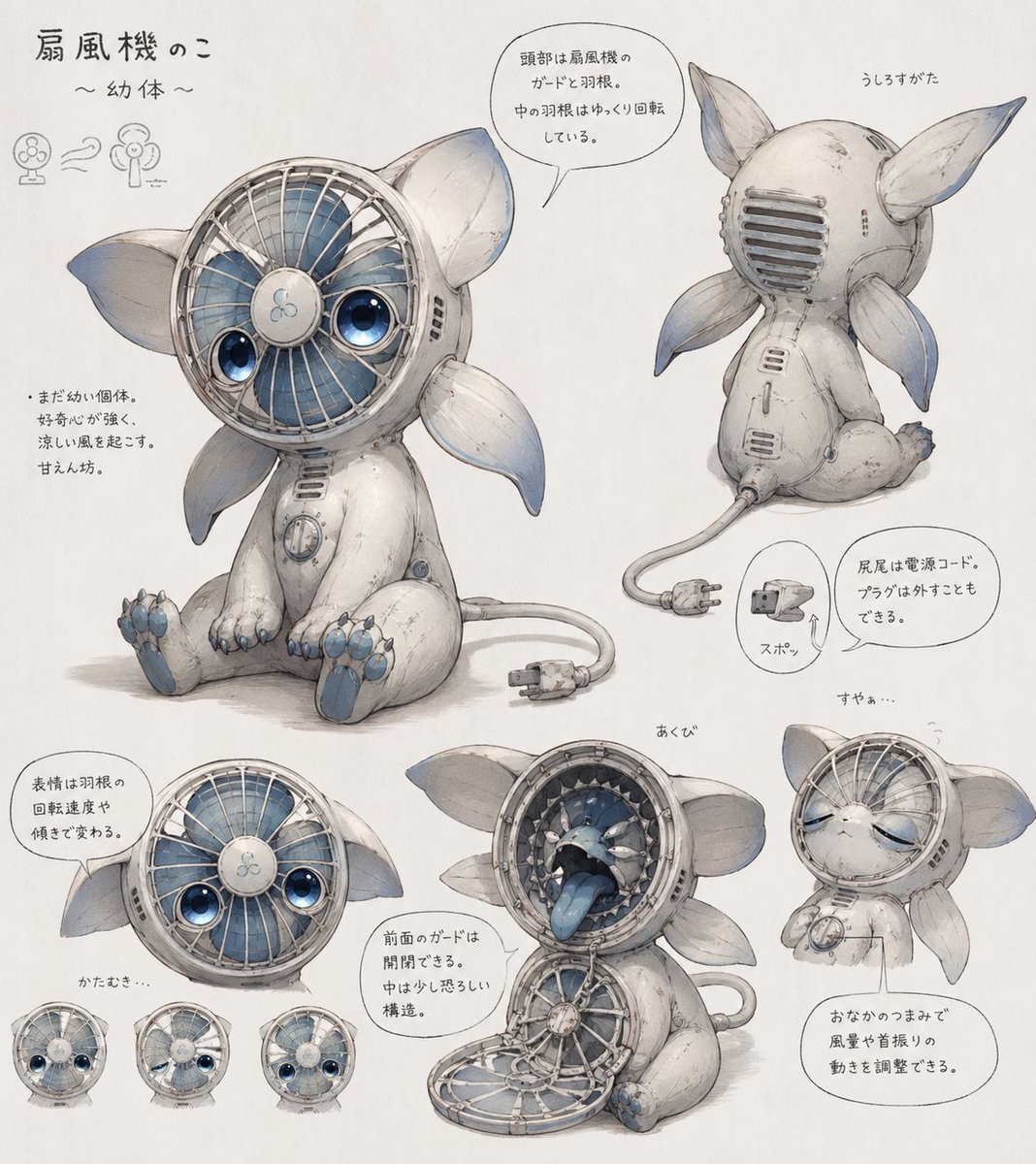
Fan Creature Concept Sheet
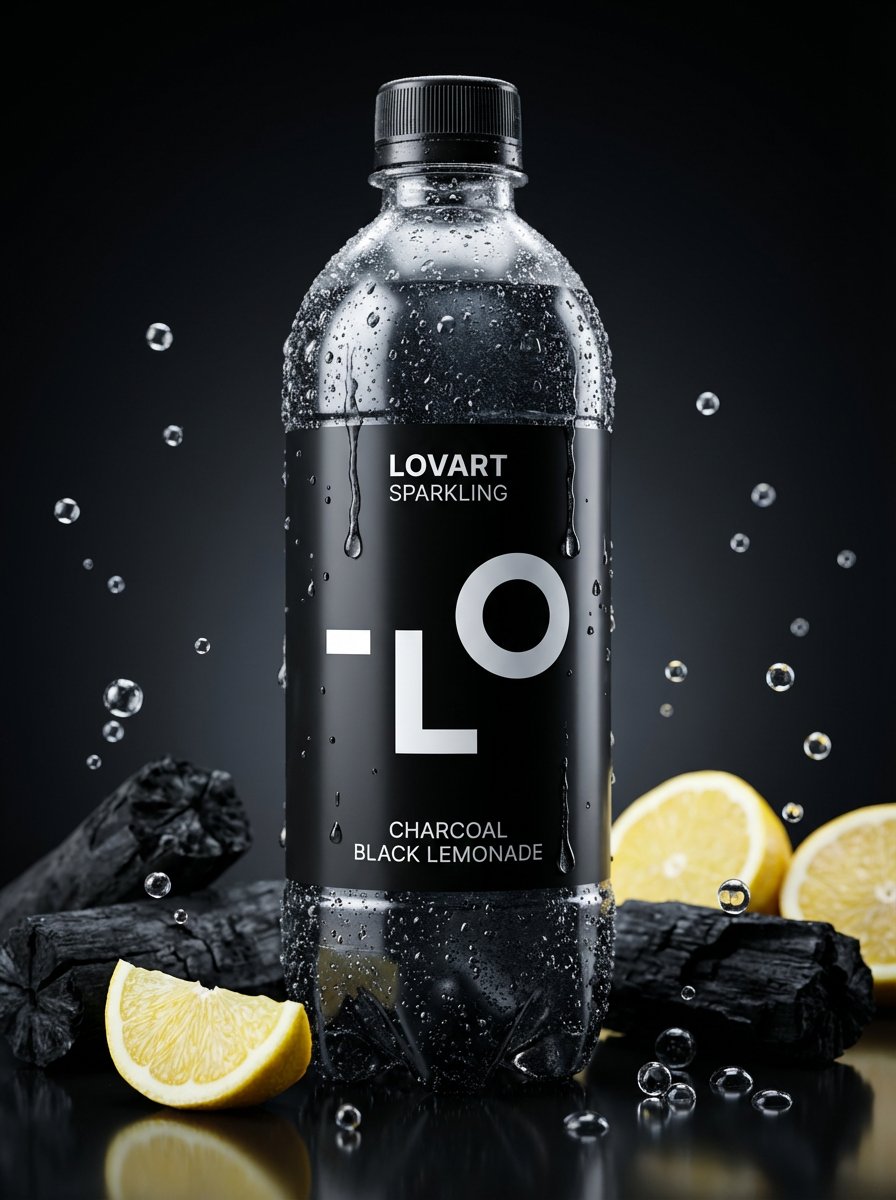
Image-to-Beverage Mockup Conversion
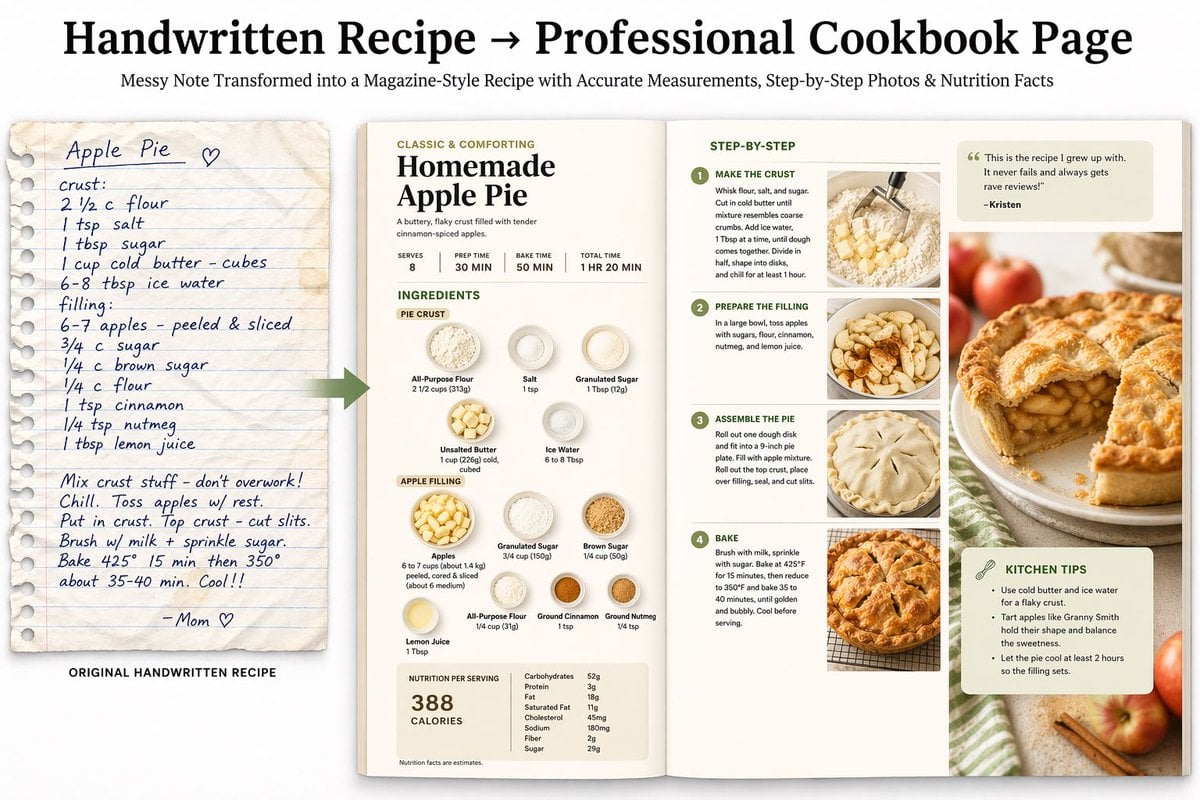
Professional Cookbook Layout Generator
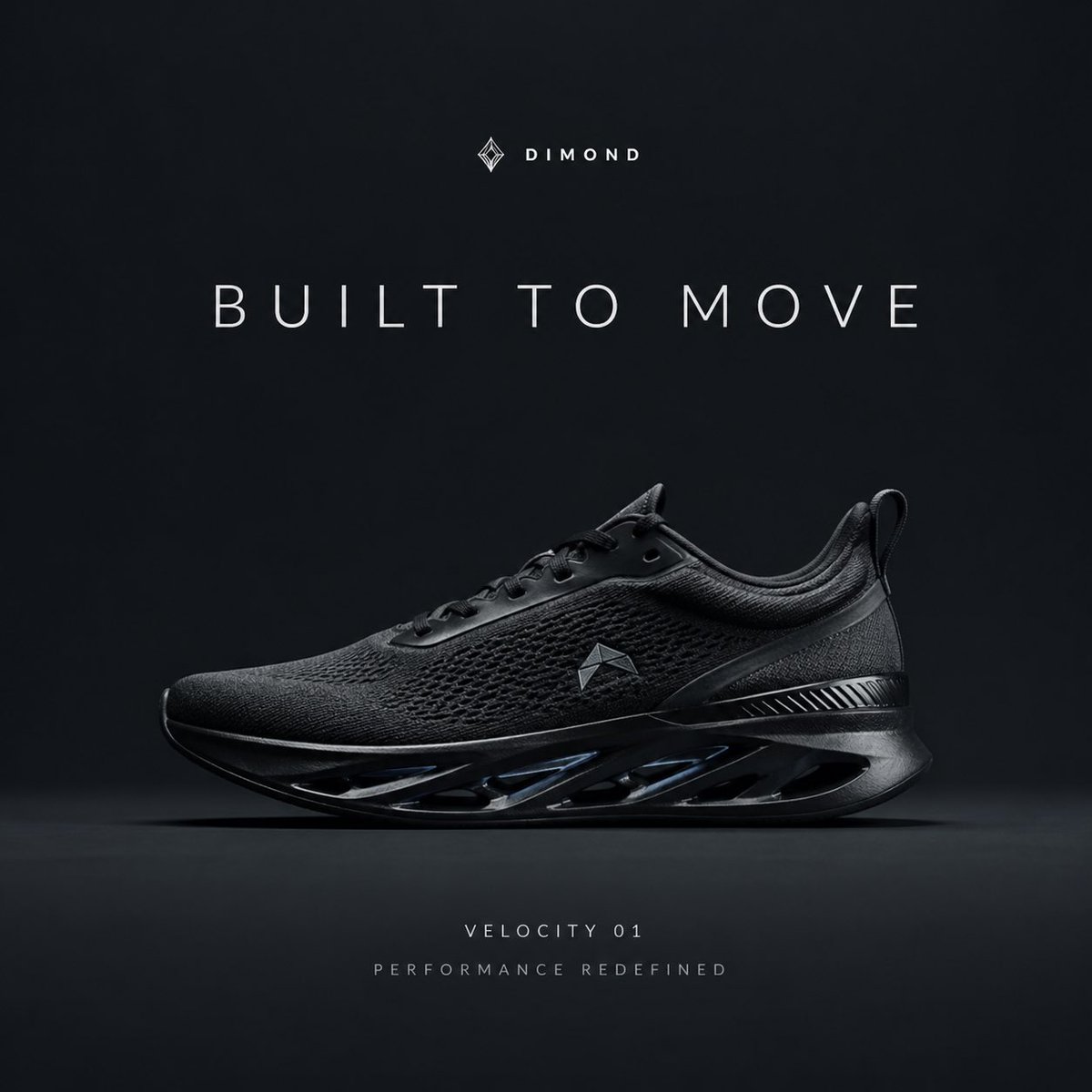
Premium Sportswear Campaign Poster Prompt
Cyberpunk Future Cat Neon Poster

Miniature Diorama Prompt (Tilt-Shift)

E-commerce Tech Infographic

Playful Shaving Cream Mirror Selfie Prompt

make me a cowboy poster
Seedance - Romantic Comedy Scene
Browse template categories
AI Mechanism Infographic questions
How do I use the AI Mechanism Infographic template?
Add your photo if the template asks for one, edit the prompt if you like — the template's model and format are already selected — and press Generate. Your version opens in PicX Studio.
Can I customize the AI Mechanism Infographic template?
Yes. You can change the subject, setting, lighting, mood, format, and available model controls before creating your image.
Is the AI Mechanism Infographic template free?
Opening and editing this template is free. Generating uses credits, shown on the Generate button when you are signed in.
Which AI model should I use?
Start with GPT Image 2, which is the model associated with this template. You can compare another compatible model for a different finish.
Looking for something else? Browse all templates.

Your photo, any look
Thousands of ready templates for every top image and video model, from one credit balance.