
Oil Pastel Fashion Illustration Style
A stylistic prompt that converts a reference photo into a bold, textured fashion illustration using oil pastels or wax crayons.
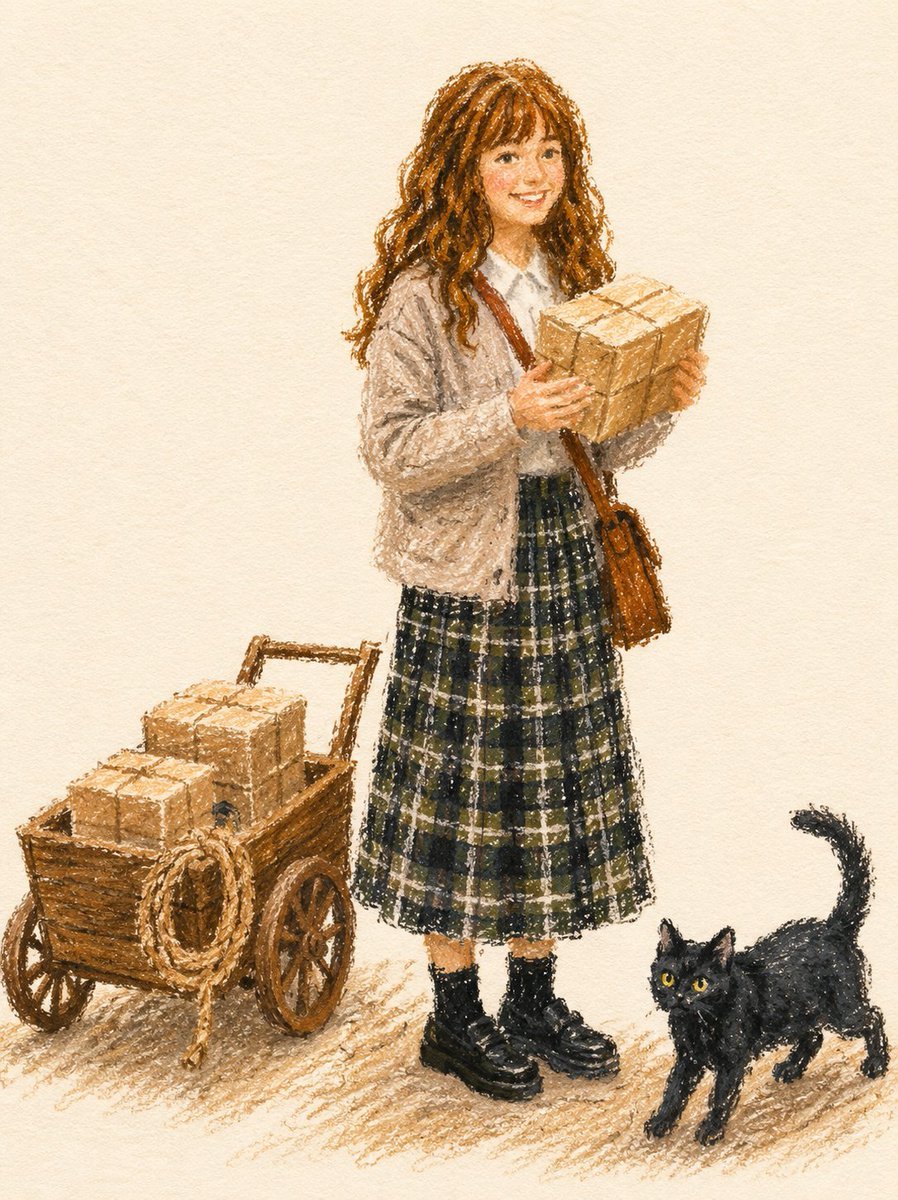
- Prompt included
- Model and format preset
- Free template
The prompt behind this image
Copy the exact prompt behind Oil Pastel Fashion Illustration Style, or open it in the studio and make it yours.
Transform the subject from the uploaded photo into a fashion illustration created with {argument name="medium" default="thick oil pastels or wax crayons"} on {argument name="surface" default="textured paper"}. Fashion Illustration Style: Editorial and stylish, focusing on the subject’s outfit and overall look rather than background elements. Reminiscent of fashion magazine sketches. Medium & Tools: Rendered with bold, chunky pastel strokes. Marks are grainy, textured, and uneven, leaving visible gaps and overlaps. No digital smoothness. Linework: No black outlines or contour lines. Shapes are defined by overlapping pastel blocks of color. Coloring: Flat matte fills in vibrant but muted tones. Slightly imperfect coverage, with paper texture peeking through. Minimal shading using broad pastel hatching, not gradients. Details: Preserve the subject’s hairstyle, clothing, accessories, pose, and expression exactly, but simplify them into bold pastel forms. Logos or numbers should appear as painterly pastel marks, not sharp text. Background: Solid, off-white sketchbook paper. Only a light scribbled ground shadow to anchor the figure. Overall Tone: Chic, modern fashion sketch aesthetic — stylish, minimal, and editorial. Negative Prompt: No outlines, no contour ink. No gradients, no digital airbrush, no vector-smooth shapes.
How to use Oil Pastel Fashion Illustration Style in 3 steps
- 1Upload ImagePNG, JPG or paste
Add your photo
Upload the photo the template builds on. The prompt, model and format are already set.
- 2…a portrait of your subject in softgolden-hour light, 85mm…
Personalize
Edit the subject and creative details for your destination.
- 3Generate
Generate
Press Generate — your image is created in PicX Studio, so you can compare it with the original and refine one variable at a time.
More like this
Templates with the same subject, style or setup. Open one to see its prompt.
Beach Sunset Double Exposure Wireframe Portrait
Mixed Media Editorial Woman Illustration
Layered Paper Cut Illustration Template
80s College Gate
1988 Mall Style
80s Polka Dot Saree
Pastel Squid Maid Bedroom Illustration
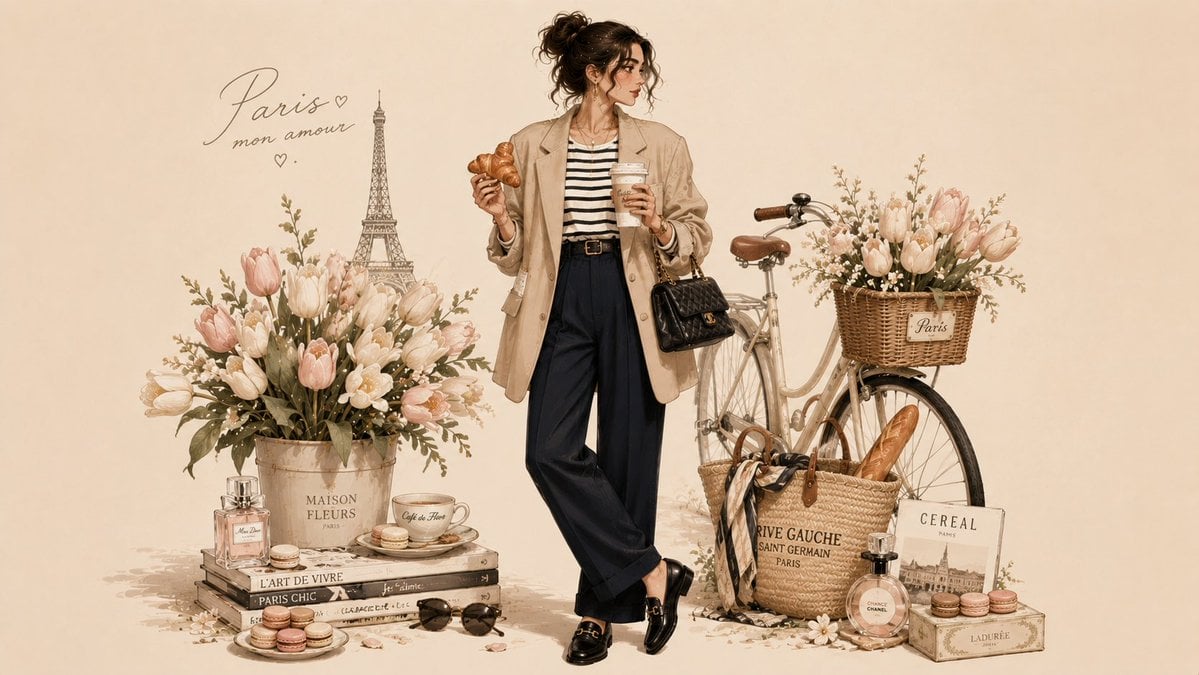
Parisian Fashion Lifestyle Illustration
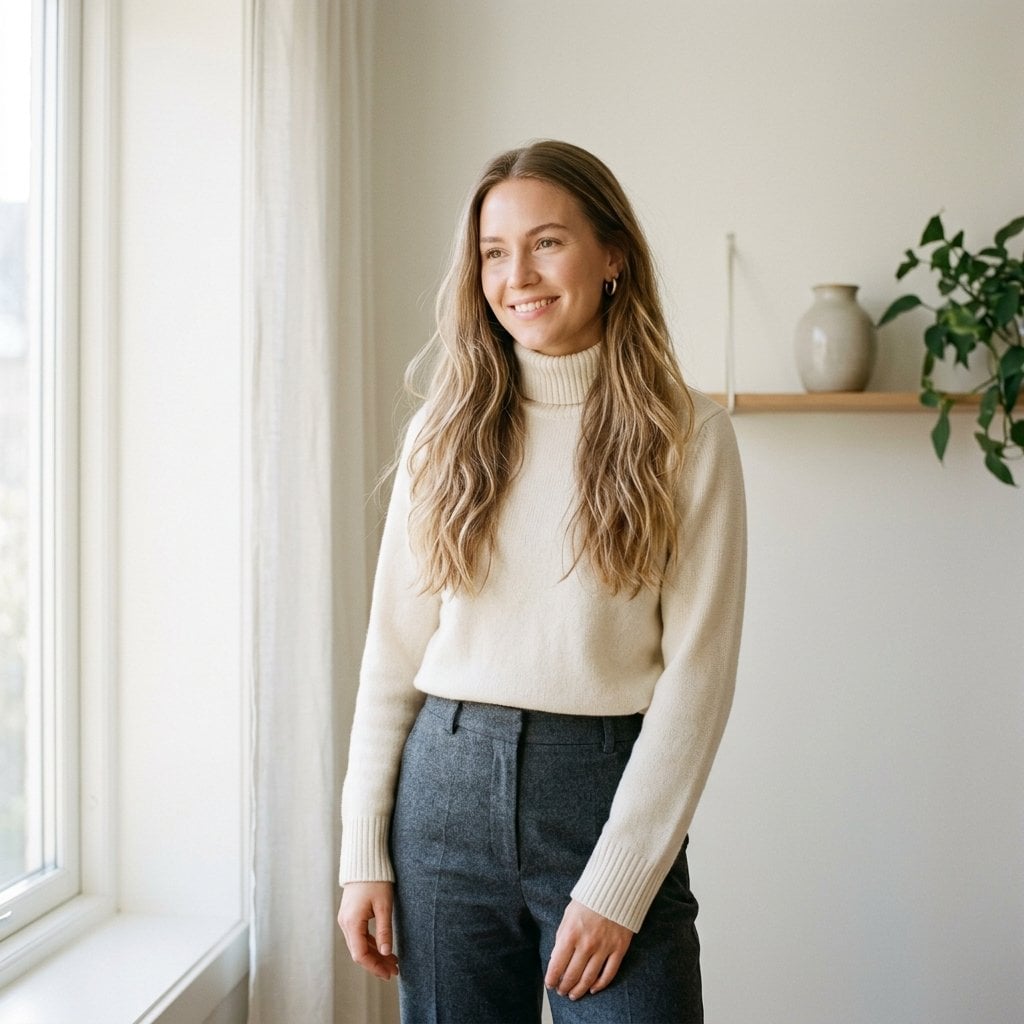
Fashion Oil Painting Aesthetic
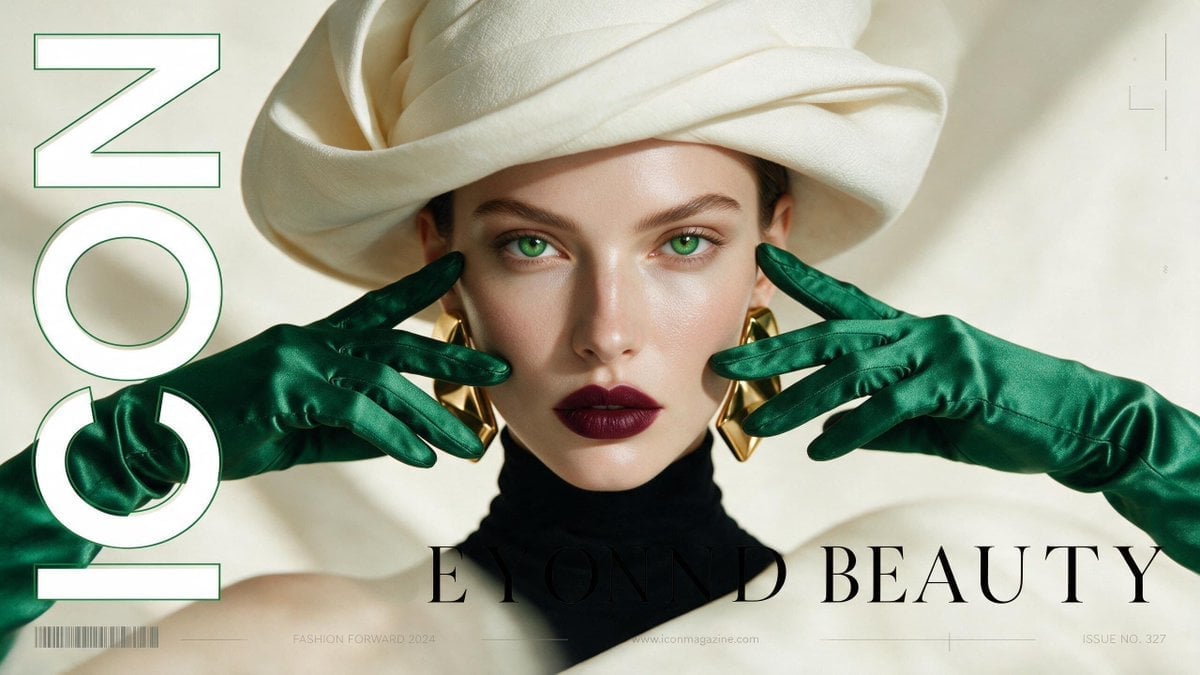
High-Fashion Editorial Magazine Cover ICON
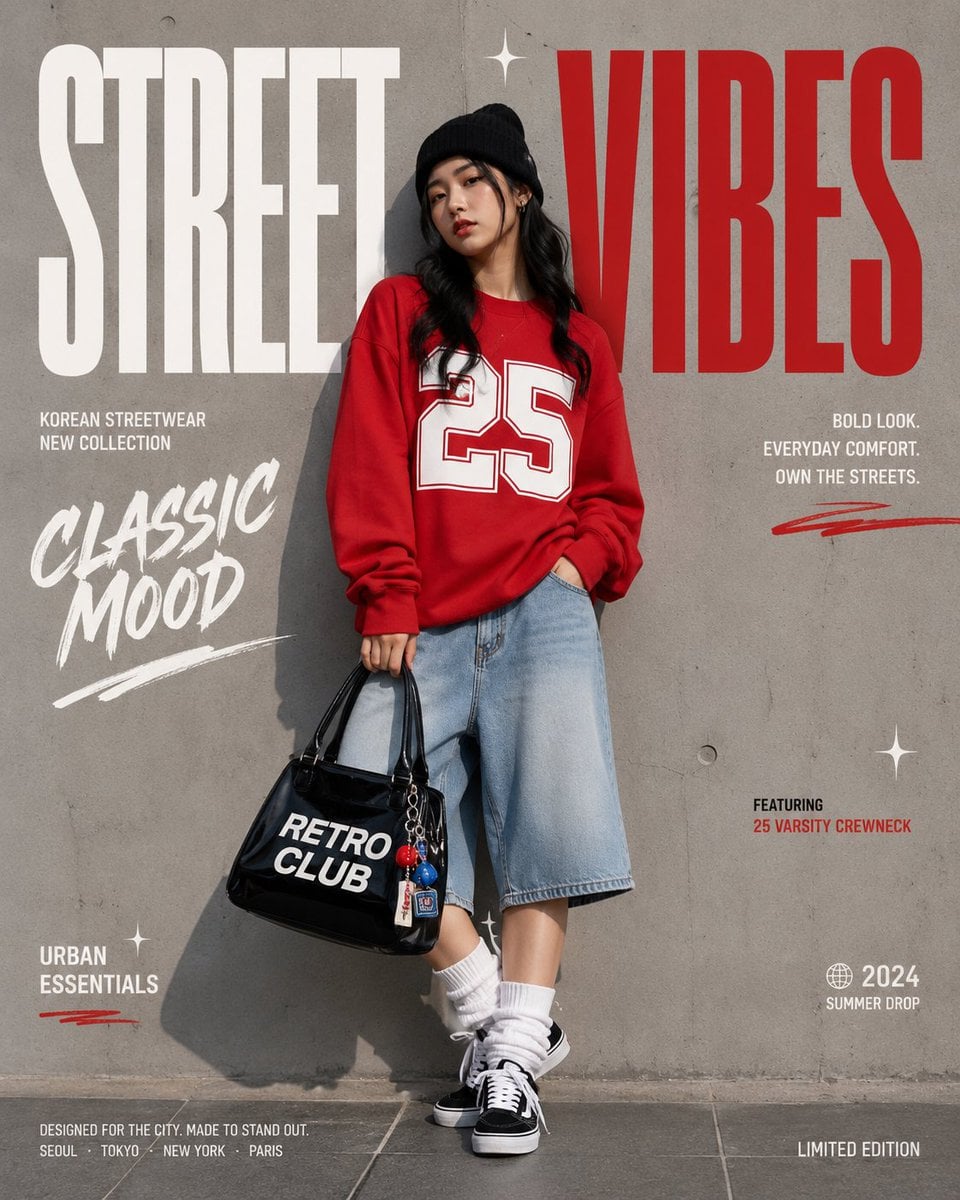
Korean Streetwear Minimalist Campaign Portrait
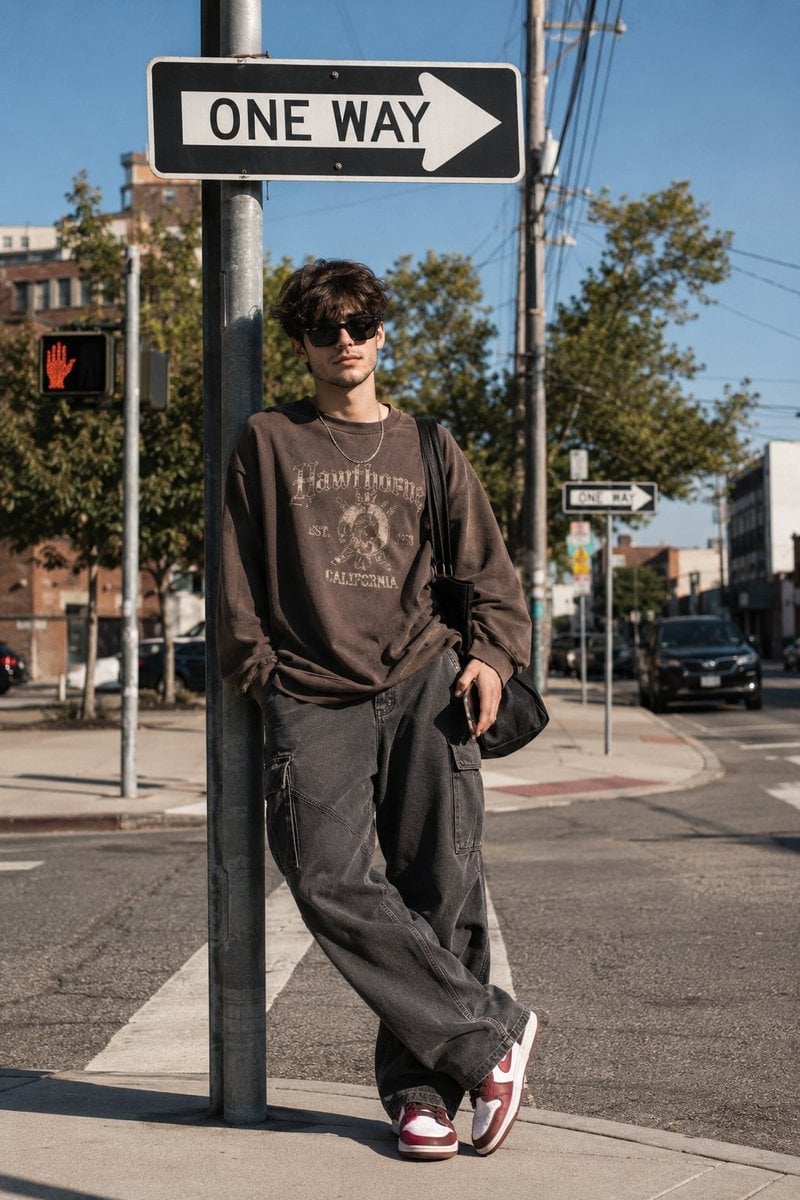
Cinematic Korean Streetwear Street Portrait
Make it yours
Oil Pastel Fashion Illustration Style works as-is. These are the safest ways to change it without losing the look.
Change one field
Copy a single group, rewrite it, and generate again so you can see what that field is doing.
Keep the frame, change the subject
Hold the composition and light of Oil Pastel Fashion Illustration Style, then swap wardrobe, props or the person for a new take.
| If the result… | Why | Fix |
|---|---|---|
| The result drifts from the preview | Too many fields changed at once. | Reuse Oil Pastel Fashion Illustration Style as-is first, then change one group — subject, light, or setting. |
| The model over-stylizes the scene | The prose prompt leaves finish and camera underspecified. | Add one camera or lighting sentence and stay on GPT Image 2. |
More GPT Image 2 templates
Other prompts made for GPT Image 2.

Six VTuber Japanese Logo Sheet

Realistic Portrait of Woman and Deer

The Vista Modular Condo Poster

AI Model Routing Comparison Infographic

2.5D Anime Art Board

Isometric Productivity Desk Scene

New York Double Exposure Poster

Four-Panel AI Landscape Comparison

Japanese Tatami Lifestyle Magazine Cover

NESCAFÉ Coffee Map Poster
More image prompts
Fresh picks from across the catalog.

Minimalistic contemplative pier scene prompt for Nano Banana Pro
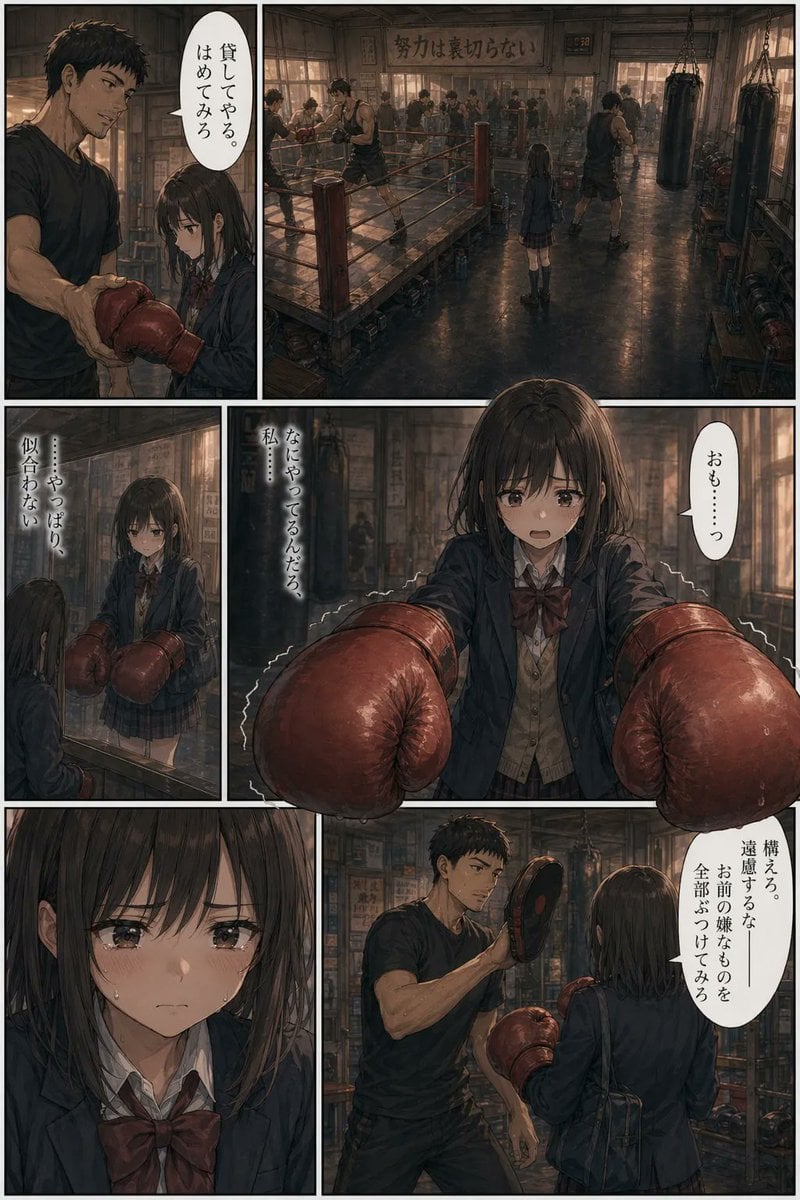
Seinen Boxing Gym Manga Page
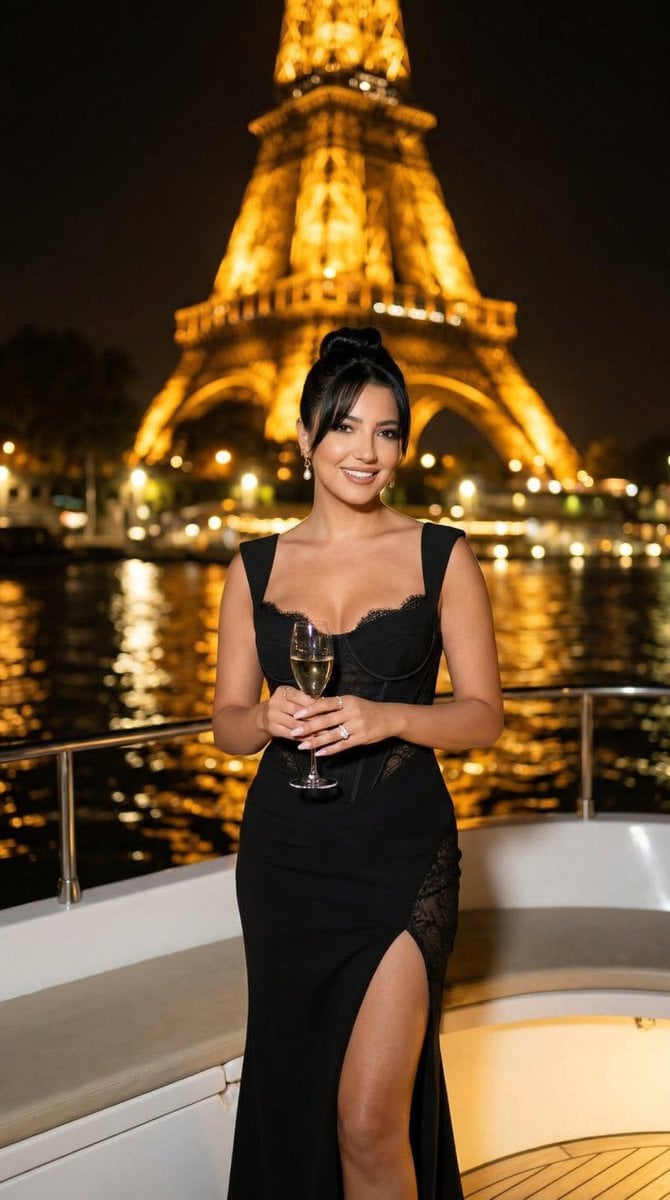
Nano Banana - Paris Cafe Editorial
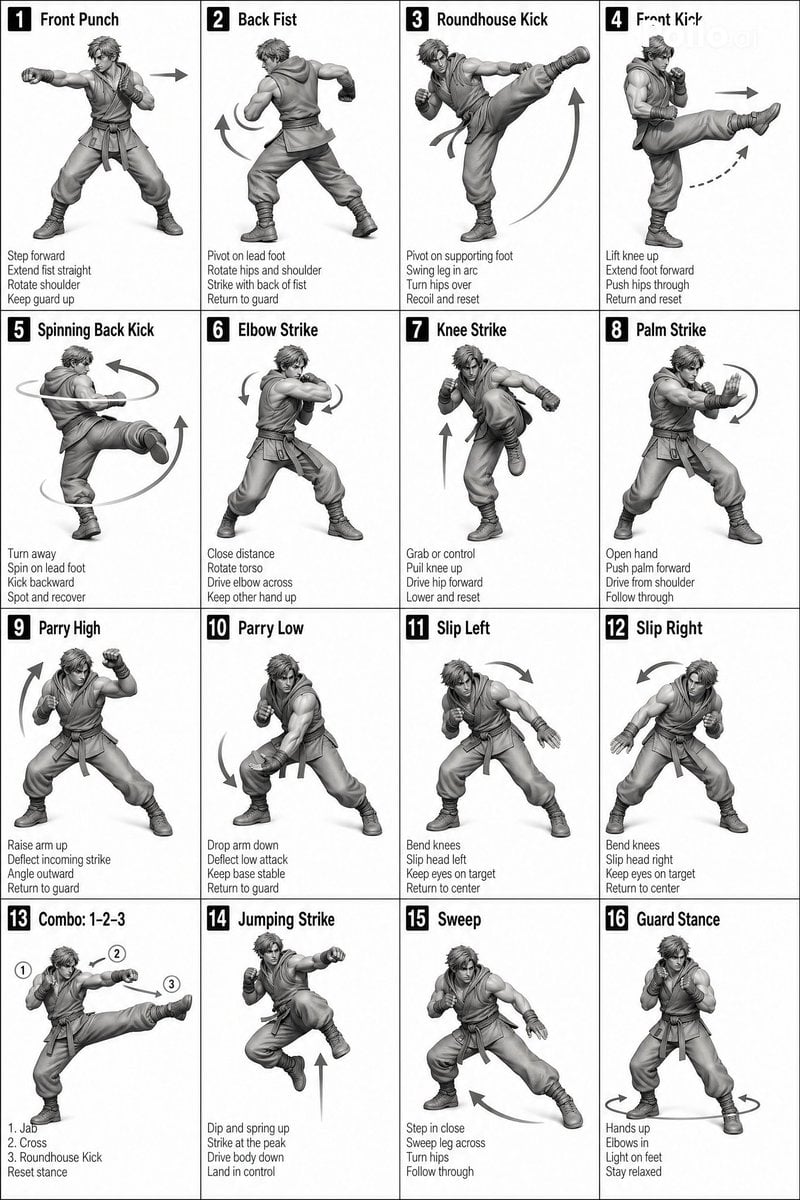
Instructional Martial Arts Movement Sheet
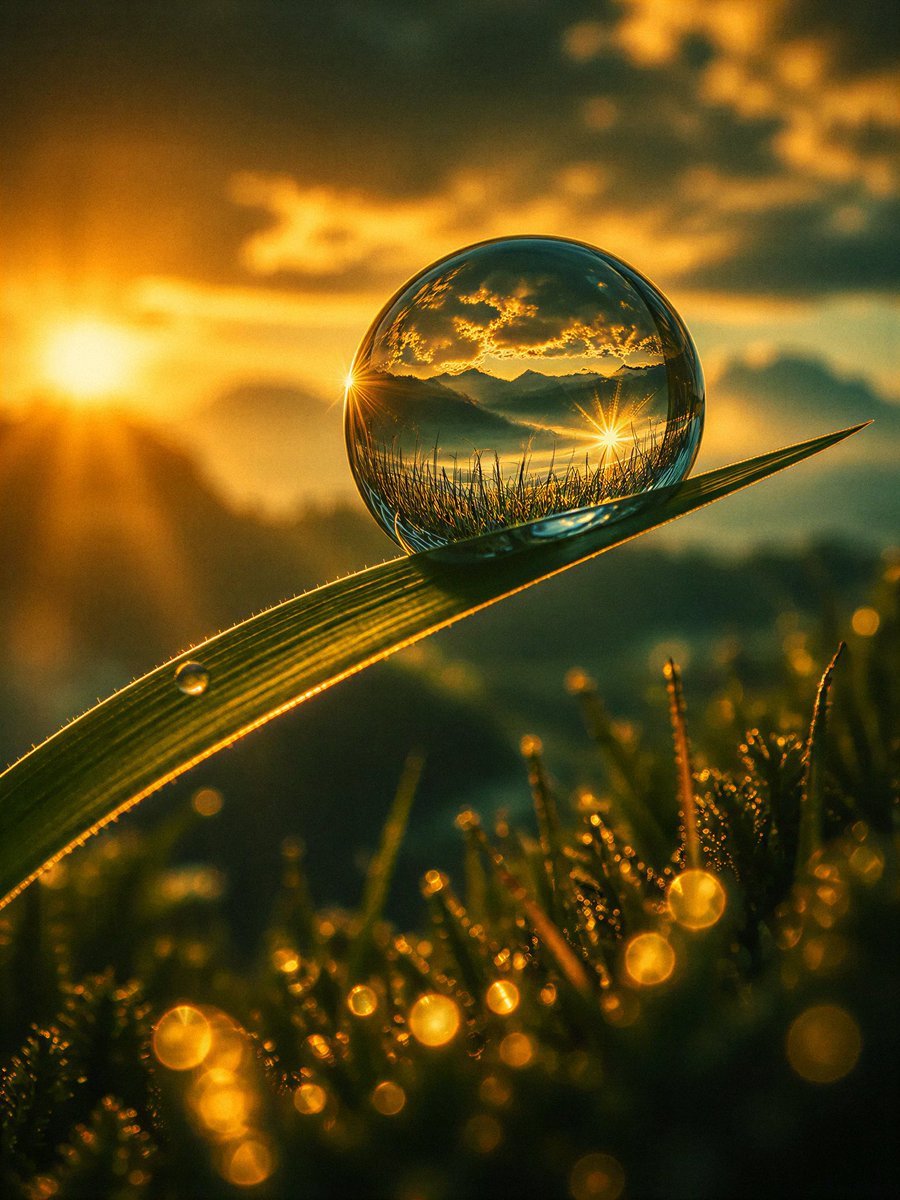
Macro Photography Prompt Template
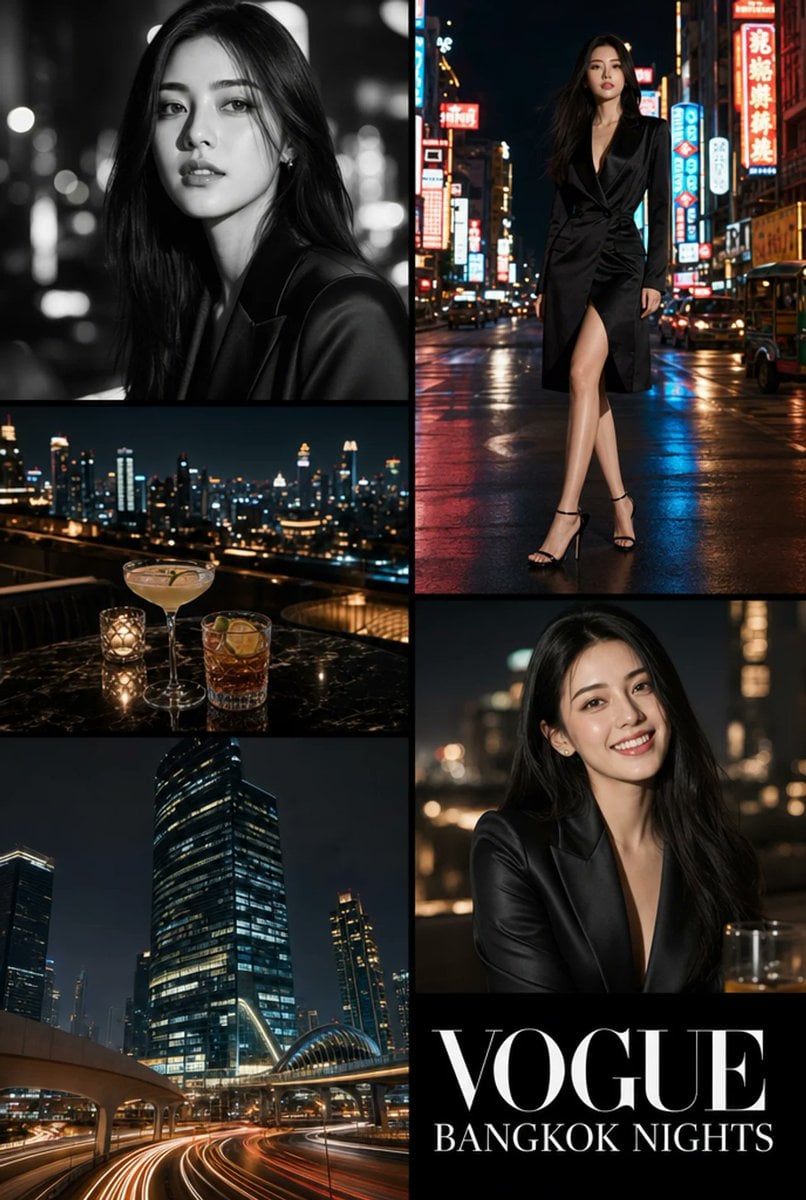
Vogue Bangkok Nights Collage
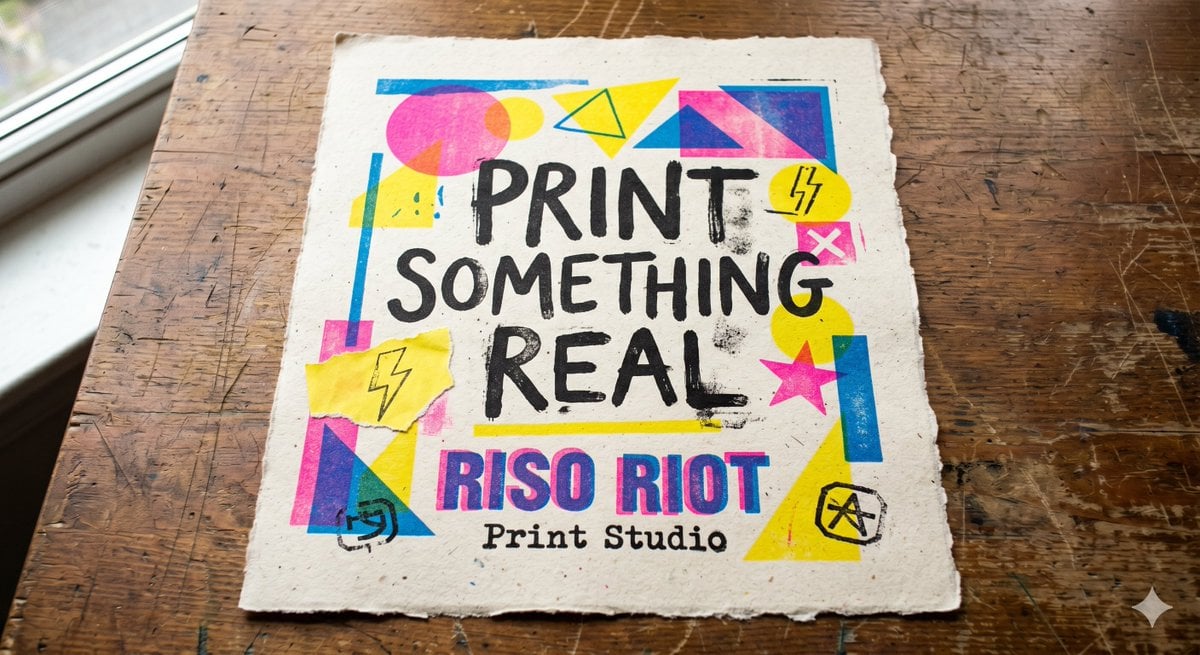
Tactile Risograph Studio Poster
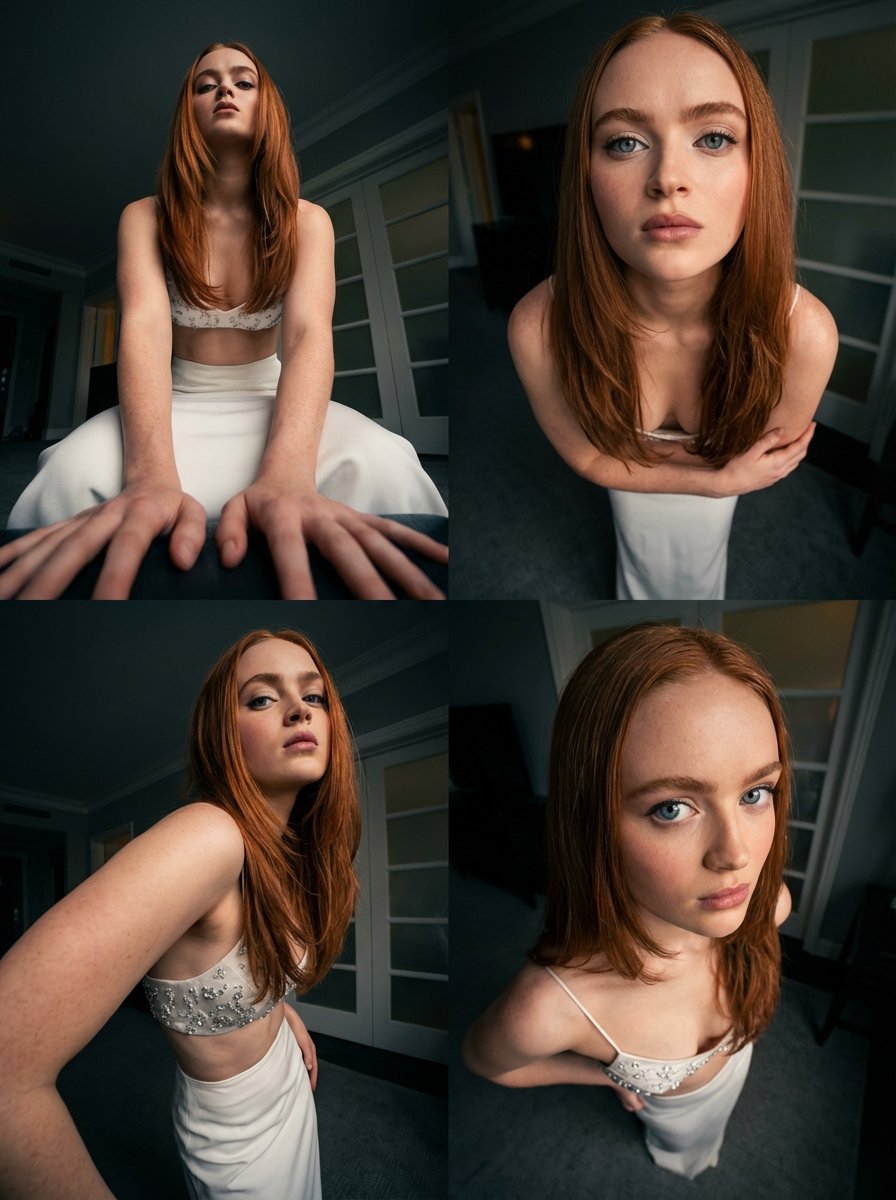
Dynamic Multi-Angle Portrait Grid Generation
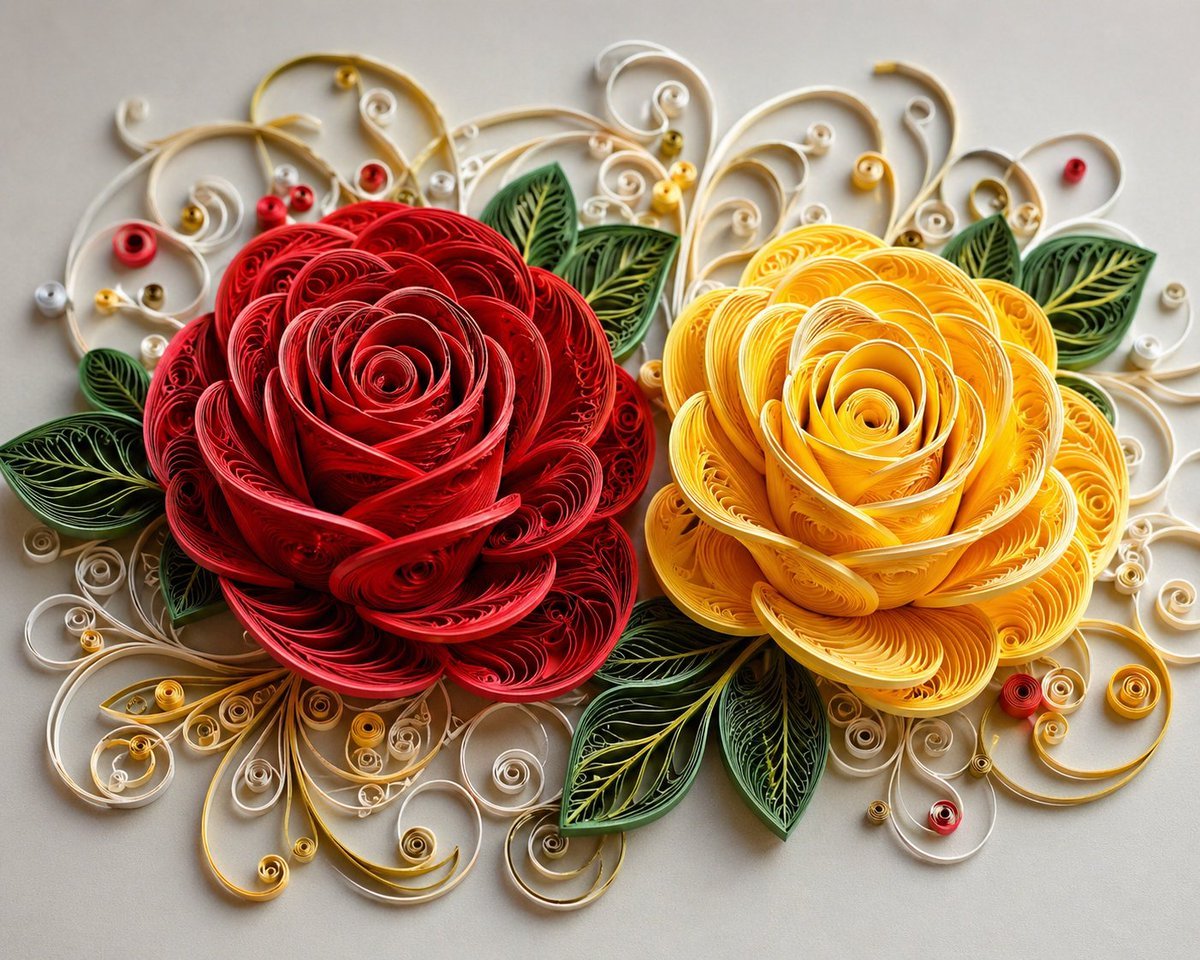
3D Paper Quilling Floral Art
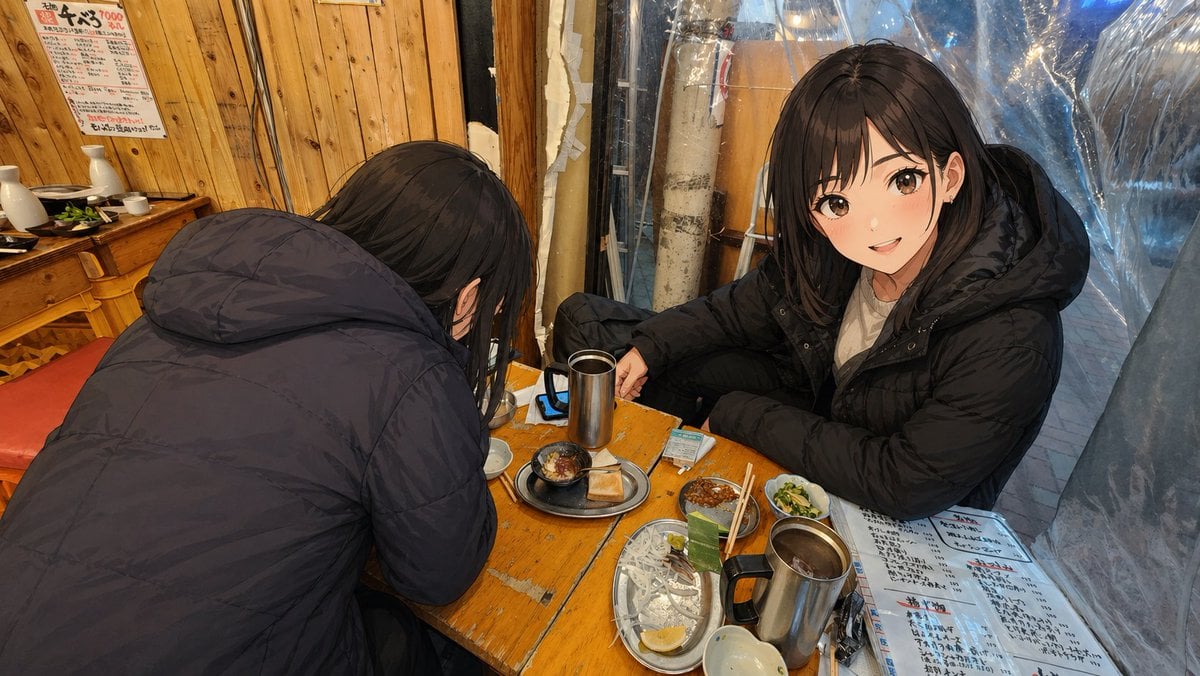
Anime Characters in Real Izakaya Photo
Browse template categories
Oil Pastel Fashion Illustration Style questions
How do I use the Oil Pastel Fashion Illustration Style template?
Add your photo if the template asks for one, edit the prompt if you like — the template's model and format are already selected — and press Generate. Your version opens in PicX Studio.
Can I customize the Oil Pastel Fashion Illustration Style template?
Yes. You can change the subject, setting, lighting, mood, format, and available model controls before creating your image.
Is the Oil Pastel Fashion Illustration Style template free?
Opening and editing this template is free. Generating uses credits, shown on the Generate button when you are signed in.
Which AI model should I use?
Start with GPT Image 2, which is the model associated with this template. You can compare another compatible model for a different finish.
Looking for something else? Browse all templates.

Your photo, any look
Thousands of ready templates for every top image and video model, from one credit balance.