
Artemis II Mission Journal Diorama
A complex, structured prompt for Nano Banana using Python-like class definitions to generate a hyper-detailed diorama visualization of an astronaut's mission-planning journal for the Artemis II mission, focusing on the…

- Prompt included
- Model and format preset
- Free template
The prompt behind this image
Copy the exact prompt behind Artemis II Mission Journal Diorama, or open it in the studio and make it yours.
do this for Artemis II mission: class Artemis_Journal_Diorama: def __init__(self, subject="Artemis II Mission"): # AI infers the correct materials, textures, and desk environment self.stage = "AI‑inferred astronaut’s mission‑planning journal lying open on an AI‑inferred technical workstation." self. lighting = "AI‑inferred mixed illumination: task‑lamp warmth + cool instrument‑panel spill." def semantic_2D_to_3D_growth(self): # AI infers what '2D mission sketches' look like for this subject page_texture = ( f"AI‑inferred handwritten notes, trajectory arcs, module schematics, " f"and mission annotations related to {self.subject}, rendered as precise 2D graphite diagrams." ) # AI infers what physical 3D elements should emerge from those sketches diorama_pop = ( f"2D mission diagrams transition into physical 3D miniatures: " f"AI‑inferred spacecraft components, crew figures, lunar geometry, " f"and mission‑specific hardware rising seamlessly from the paper." ) return [page_texture, diorama_pop] def scatter_ephemera(self): # AI infers mission‑relevant desk objects without hard‑coding categories return infer_aerospace_ephemera(self.subject) # Examples (AI‑inferred, not fixed): mission patches, navigation tools, # micro‑scale lunar models, printed telemetry, procedural checklists, # archival headlines, engineering pencils, etc. render(Artemis_Journal_Diorama())
How to use Artemis II Mission Journal Diorama in 3 steps
- 1
Open
The prompt is already in the box next to the preview, with the template's model and format selected.
- 2…a portrait of your subject in softgolden-hour light, 85mm…
Personalize
Edit the subject and creative details for your destination.
- 3Generate
Generate
Press Generate — your image is created in PicX Studio, so you can compare it with the original and refine one variable at a time.
More like this
Templates with the same subject, style or setup. Open one to see its prompt.
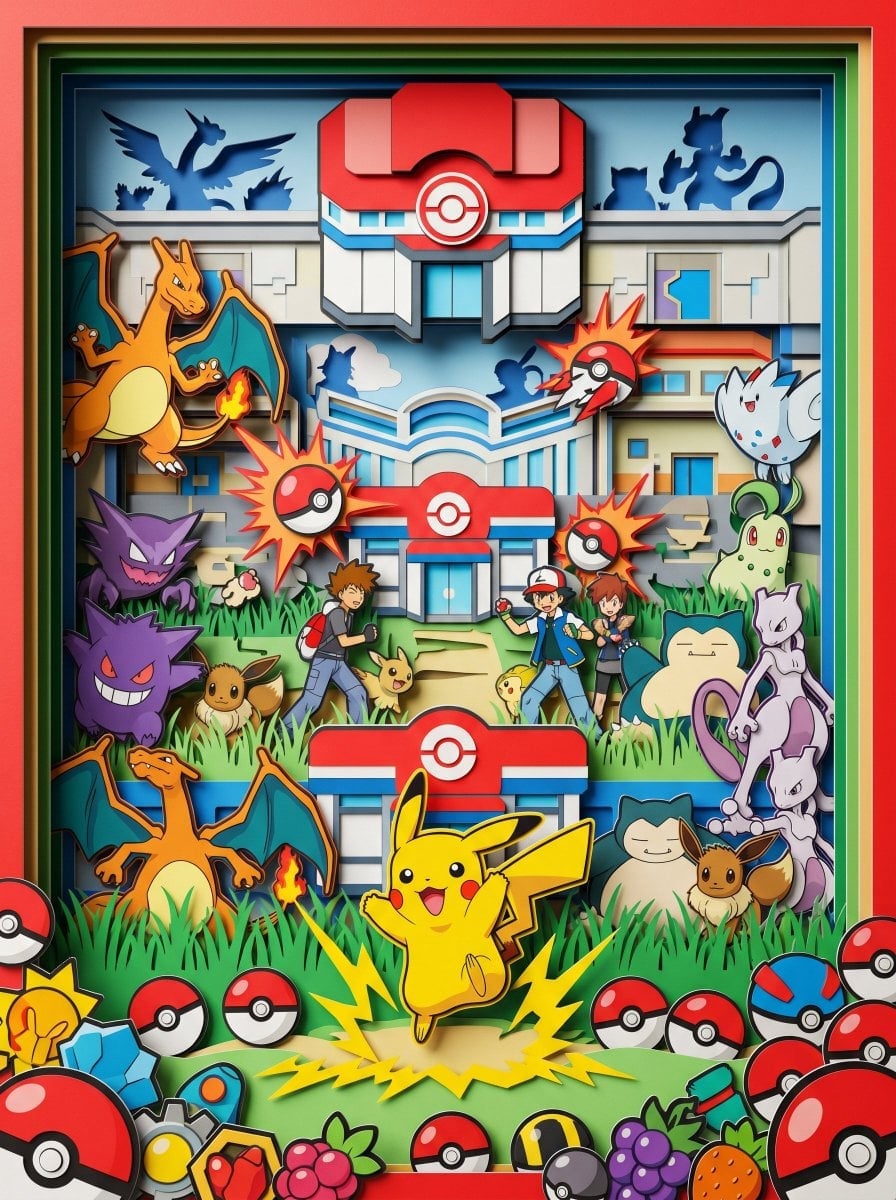
Layered Paper Cut Forest Diorama
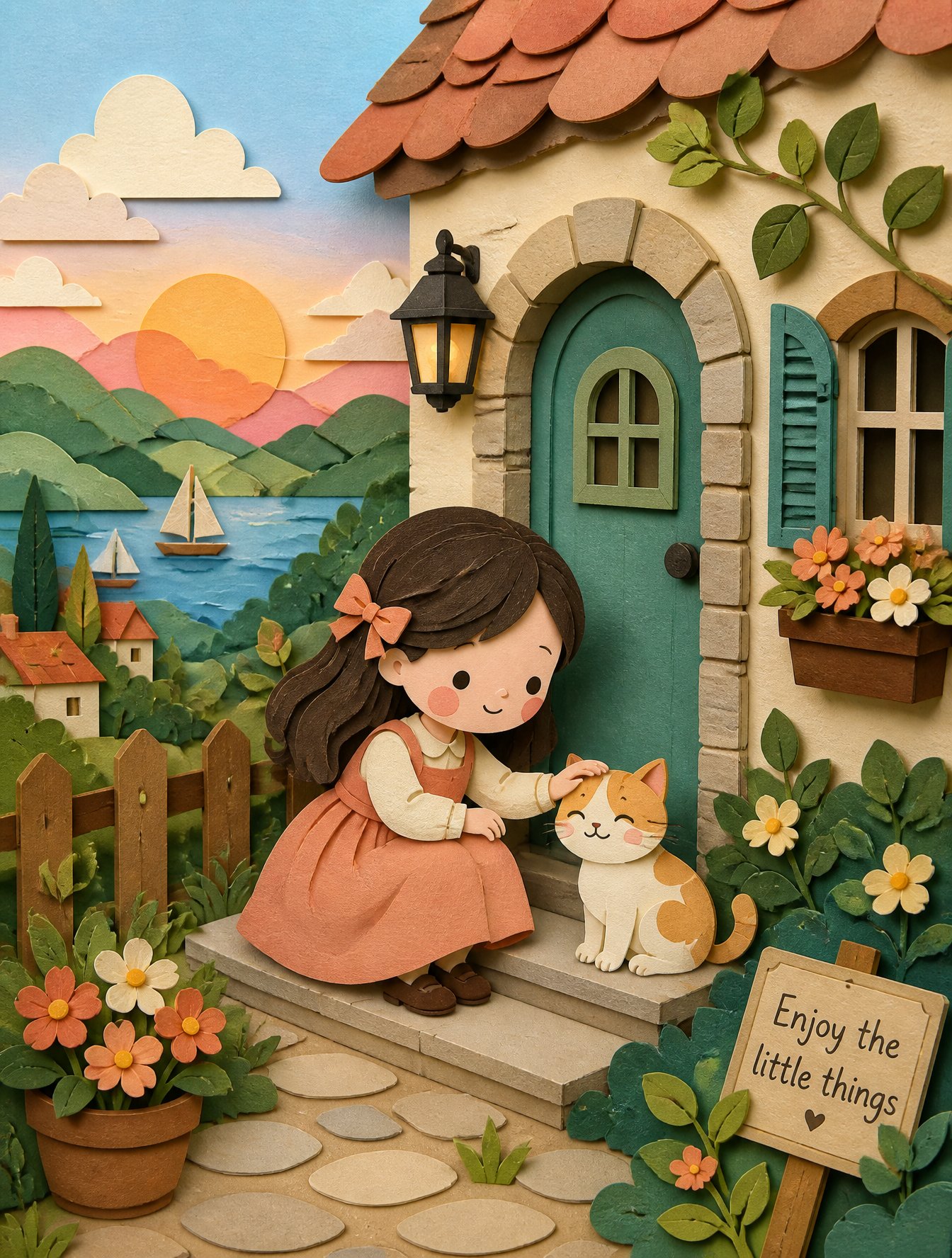
Soft Handcrafted Paper-Cut Layered Illustration

Isometric Process Educational Diorama
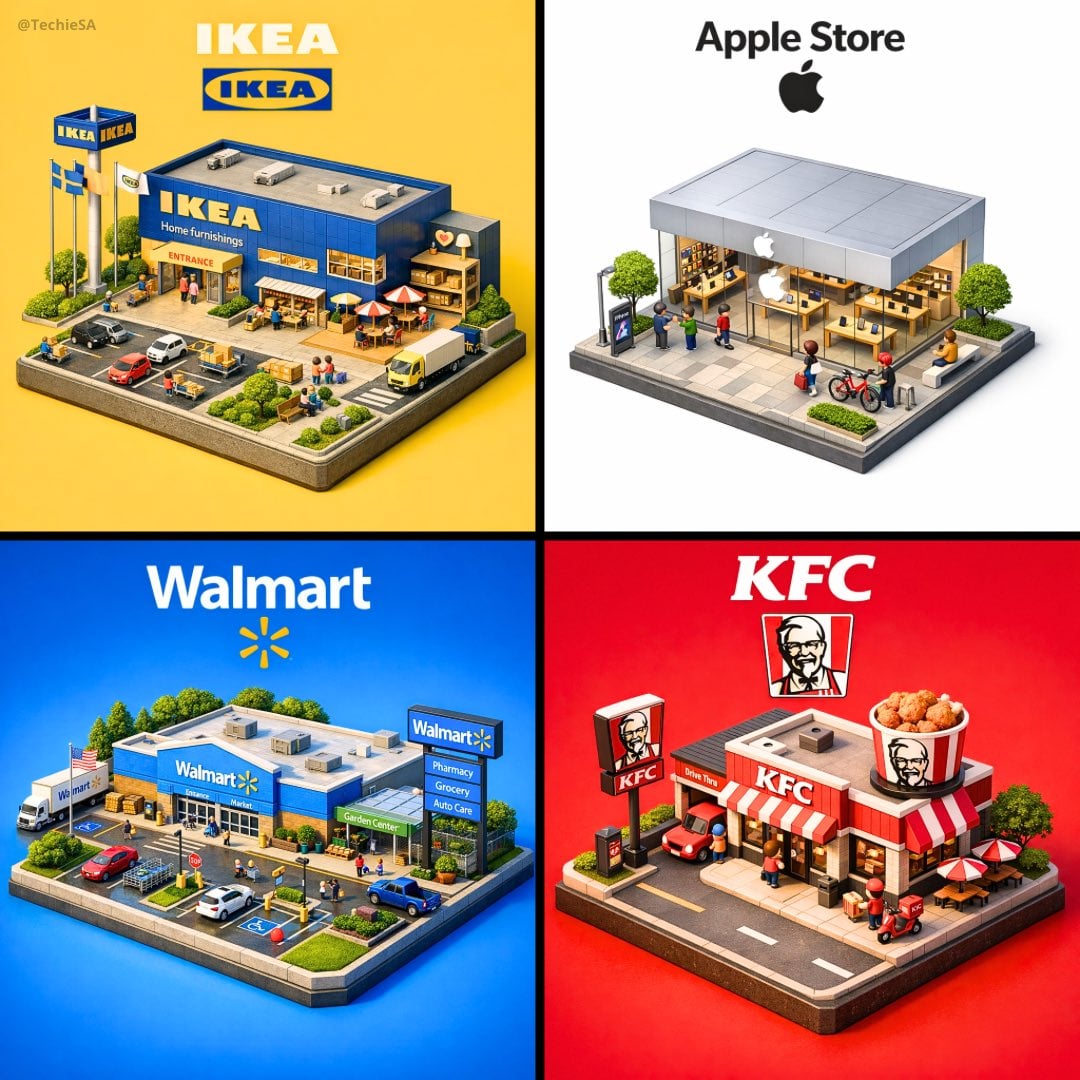
Isometric Brand Store Diorama
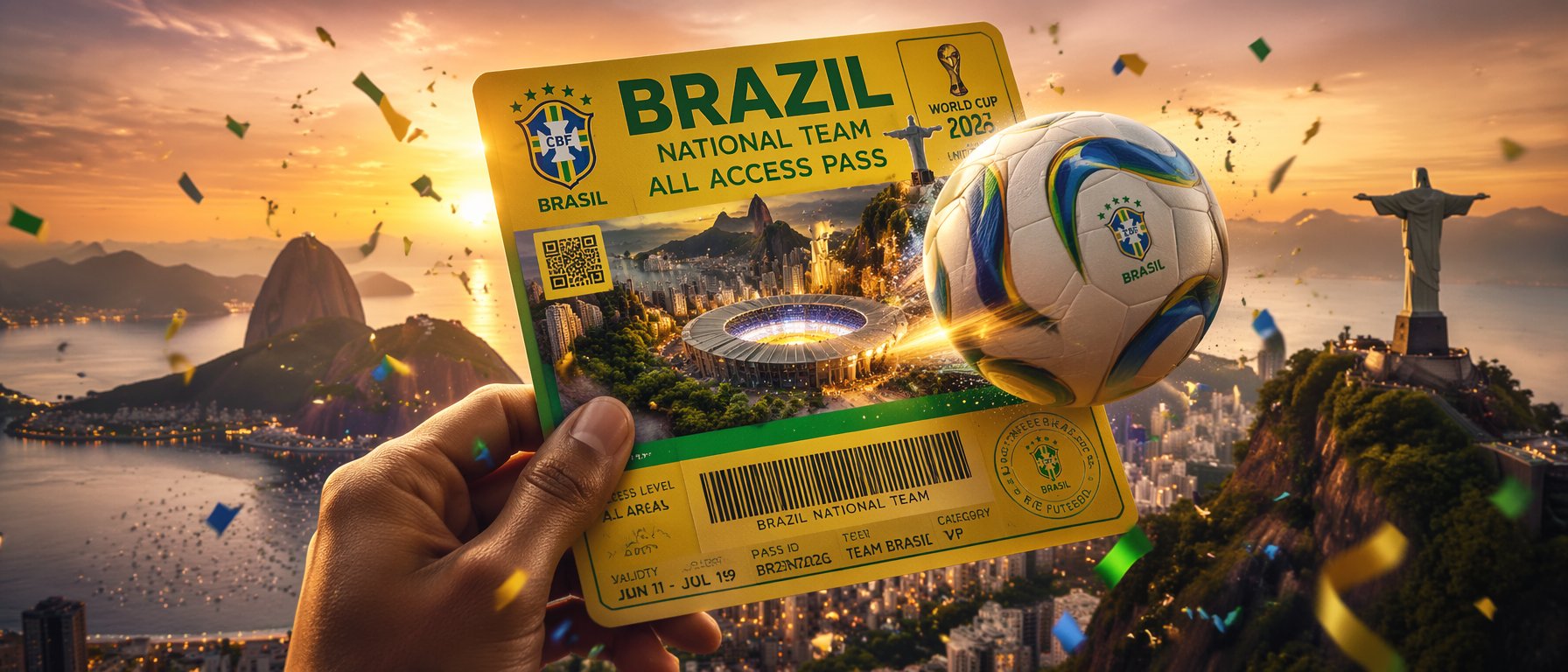
FIFA World Cup — Brazil National Pass Diorama
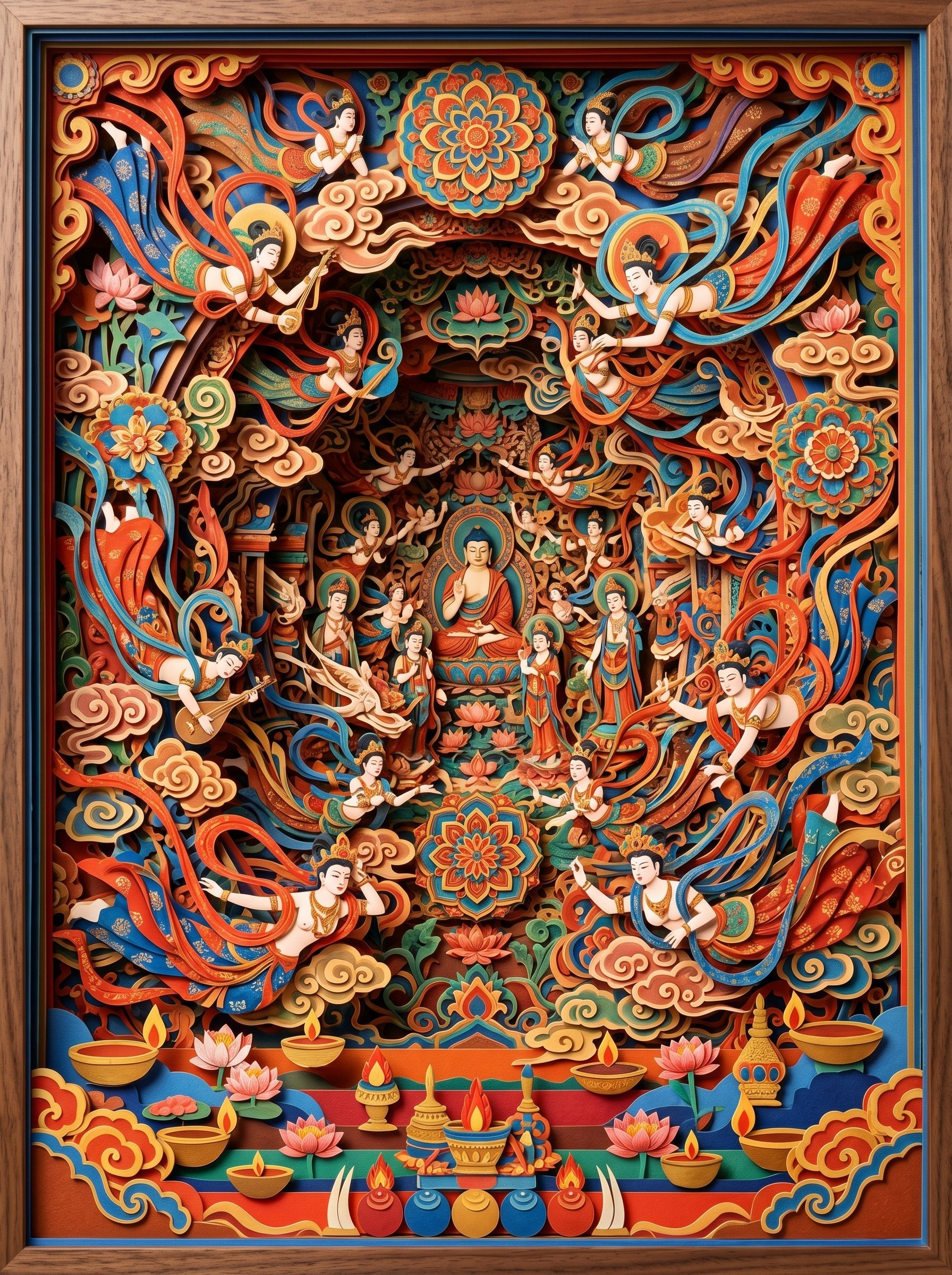
敦煌纸雕飞天 — 3D Layered Paper Cutout
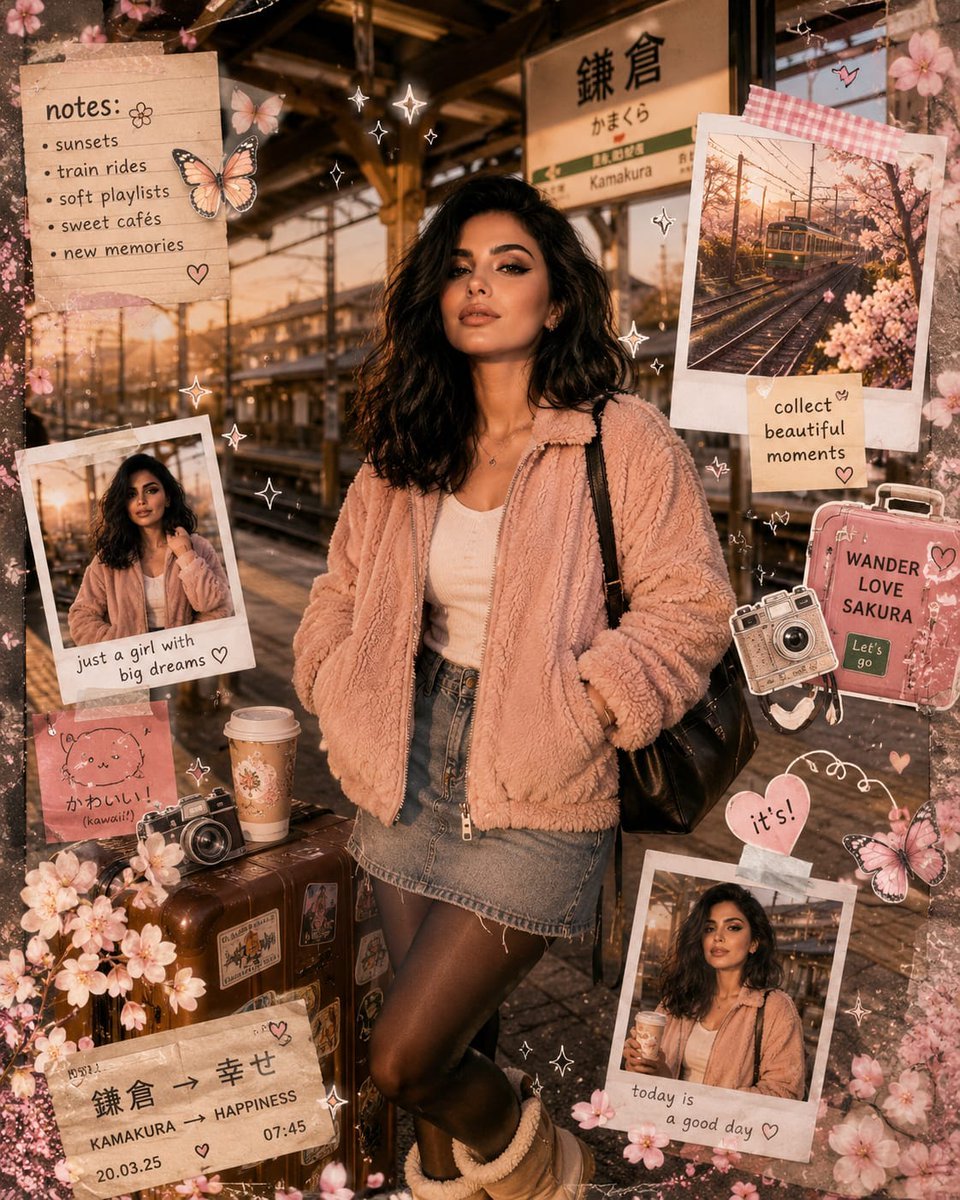
Kawaii Journal and Miniature Diorama Styles
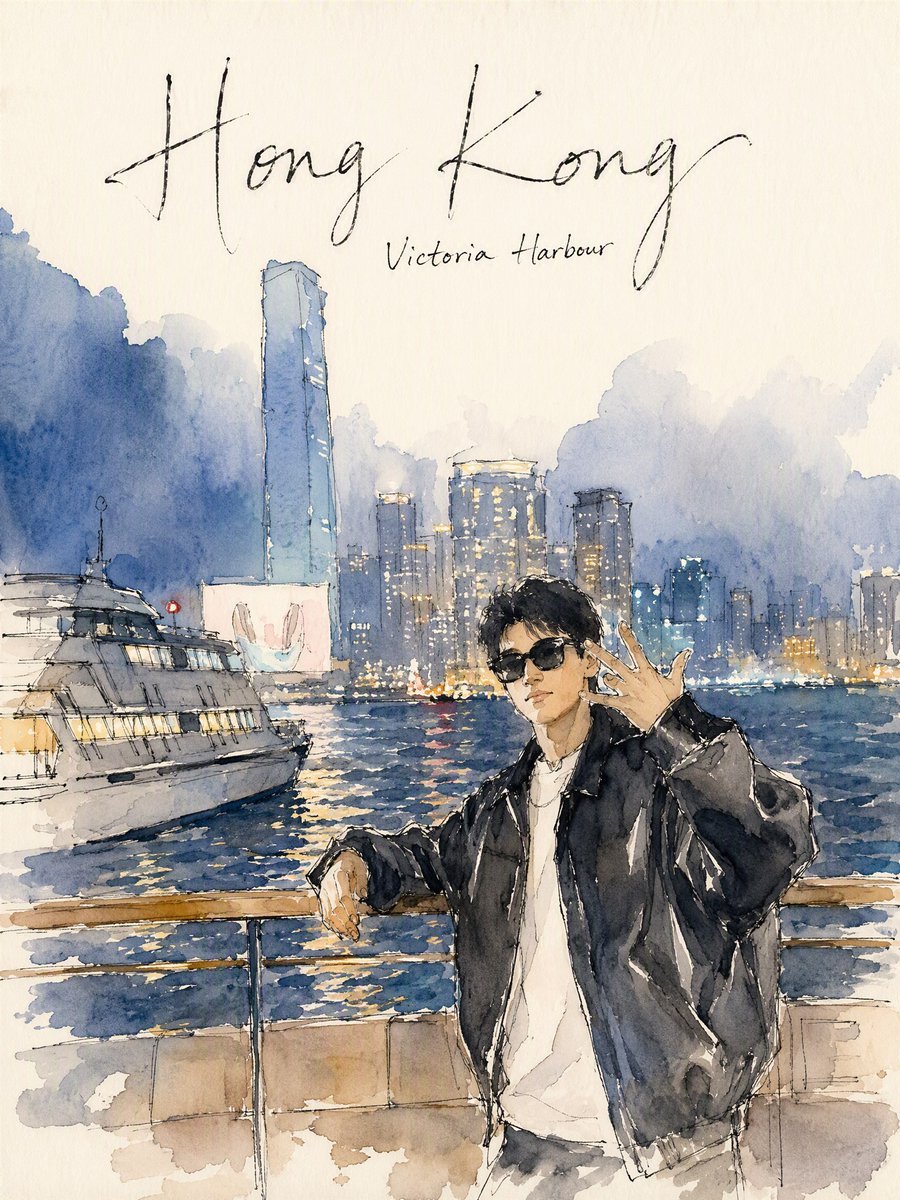
Hong Kong Watercolor Travel Journal
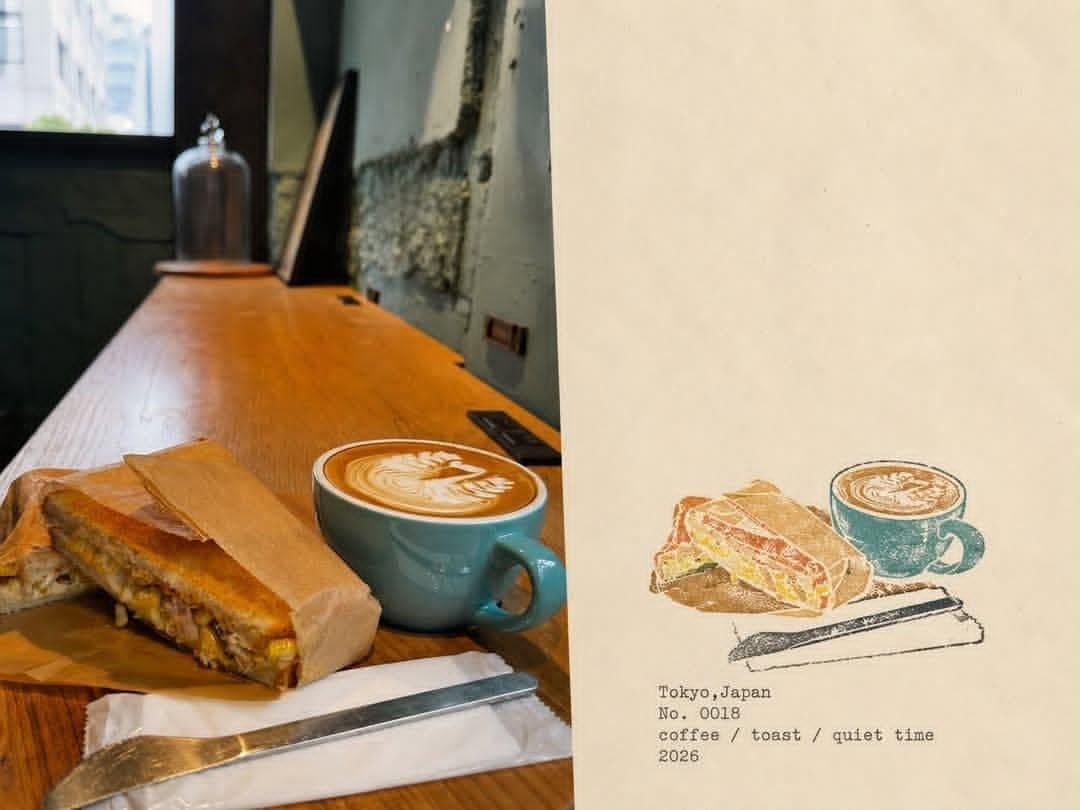
Japanese Cafe Memory Journal Design
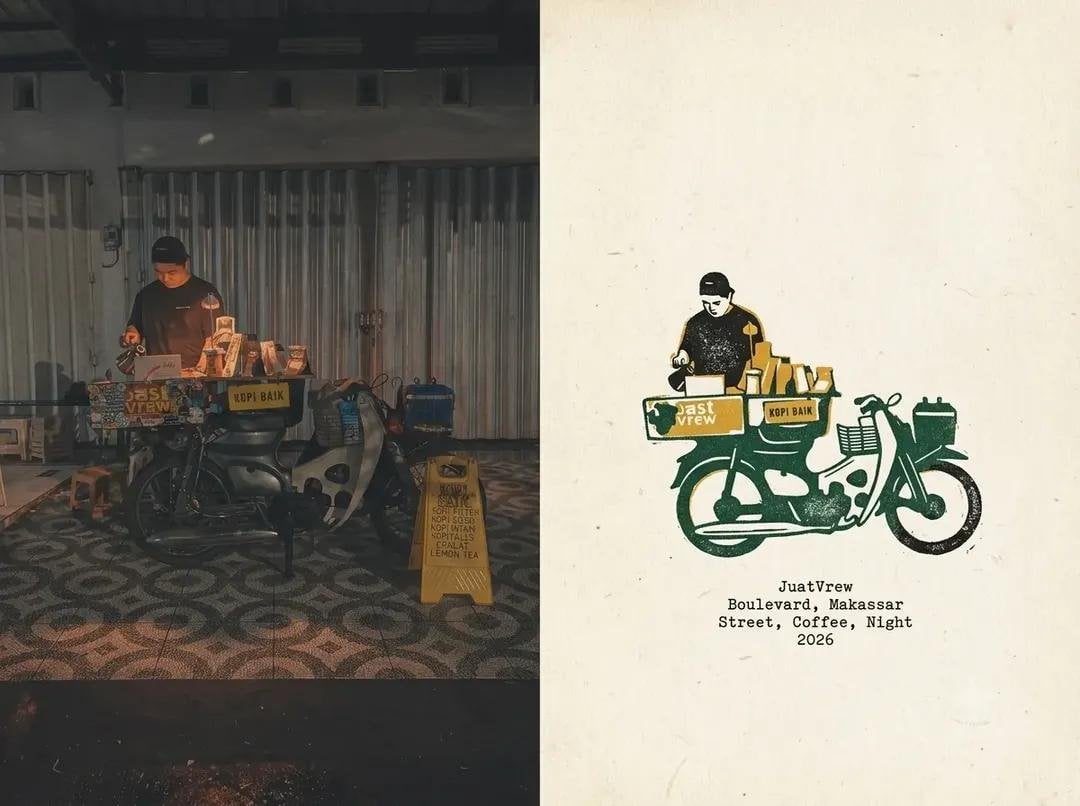
Coffee Shop Journal Diptych
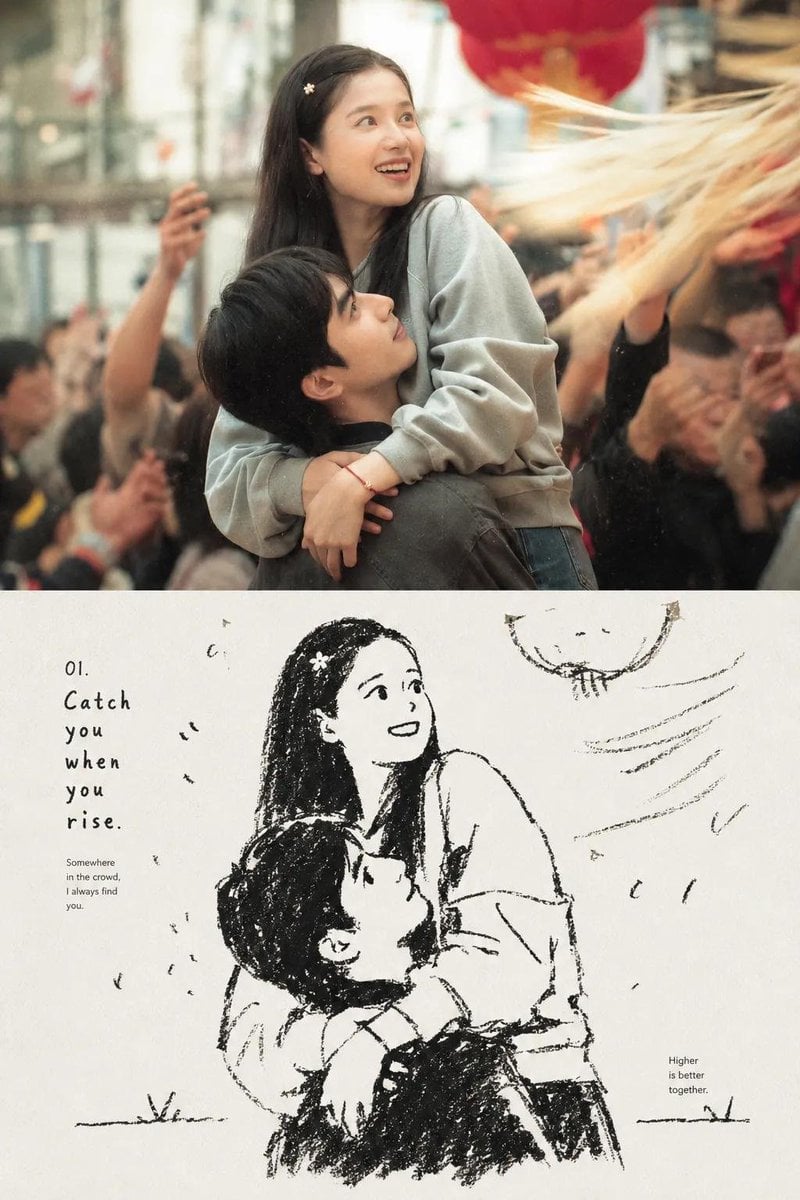
Photo-to-Sketch Editorial Journal
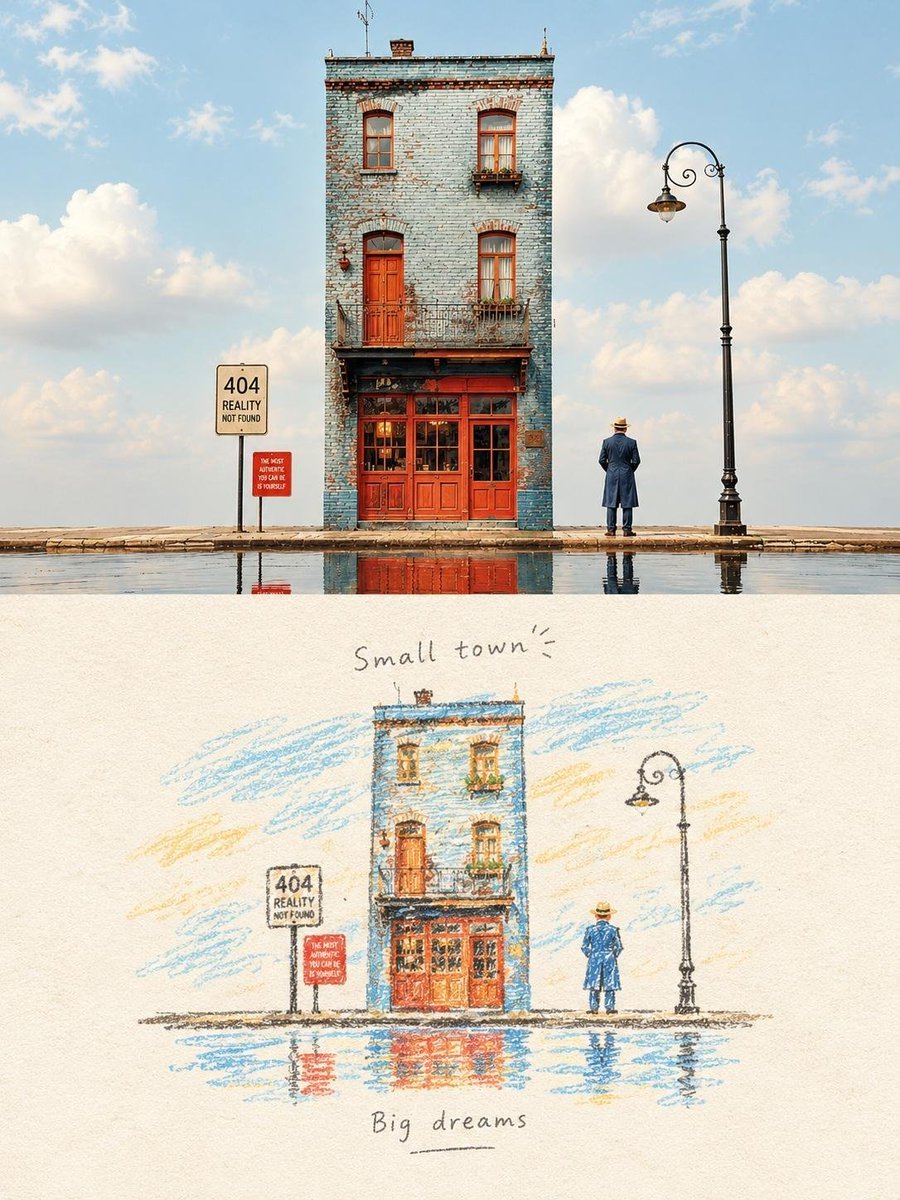
Hand-Drawn Travel Journal Illustration
Make it yours
Artemis II Mission Journal Diorama works as-is. These are the safest ways to change it without losing the look.
Change one field
Copy a single group, rewrite it, and generate again so you can see what that field is doing.
Keep the frame, change the subject
Hold the composition and light of Artemis II Mission Journal Diorama, then swap wardrobe, props or the person for a new take.
| If the result… | Why | Fix |
|---|---|---|
| The result drifts from the preview | Too many fields changed at once. | Reuse Artemis II Mission Journal Diorama as-is first, then change one group — subject, light, or setting. |
| The model over-stylizes the scene | The prose prompt leaves finish and camera underspecified. | Add one camera or lighting sentence and stay on Nano Banana 2. |
More Nano Banana 2 templates
Other prompts made for Nano Banana 2.

Photorealistic Leaf Shaped Like a Dragon

K-Pop Idol Portrait Grid for Rapid Selection

Poetic Rain Forest Portrait During Golden Hour

Urban Street Portrait with Cartoon Inner Self Duo

Candid Nighttime Photo with Cat Prompt

High-Concept 3D Diorama Generation Prompt

Cinematic Futuristic Studio Portrait Template

Skincare Editorial Photography Collage Prompt

Hyper-Realistic Commercial Product Photography (Splash Effect)

Hyper-Realistic Nightclub Portrait Prompt
More image prompts
Fresh picks from across the catalog.
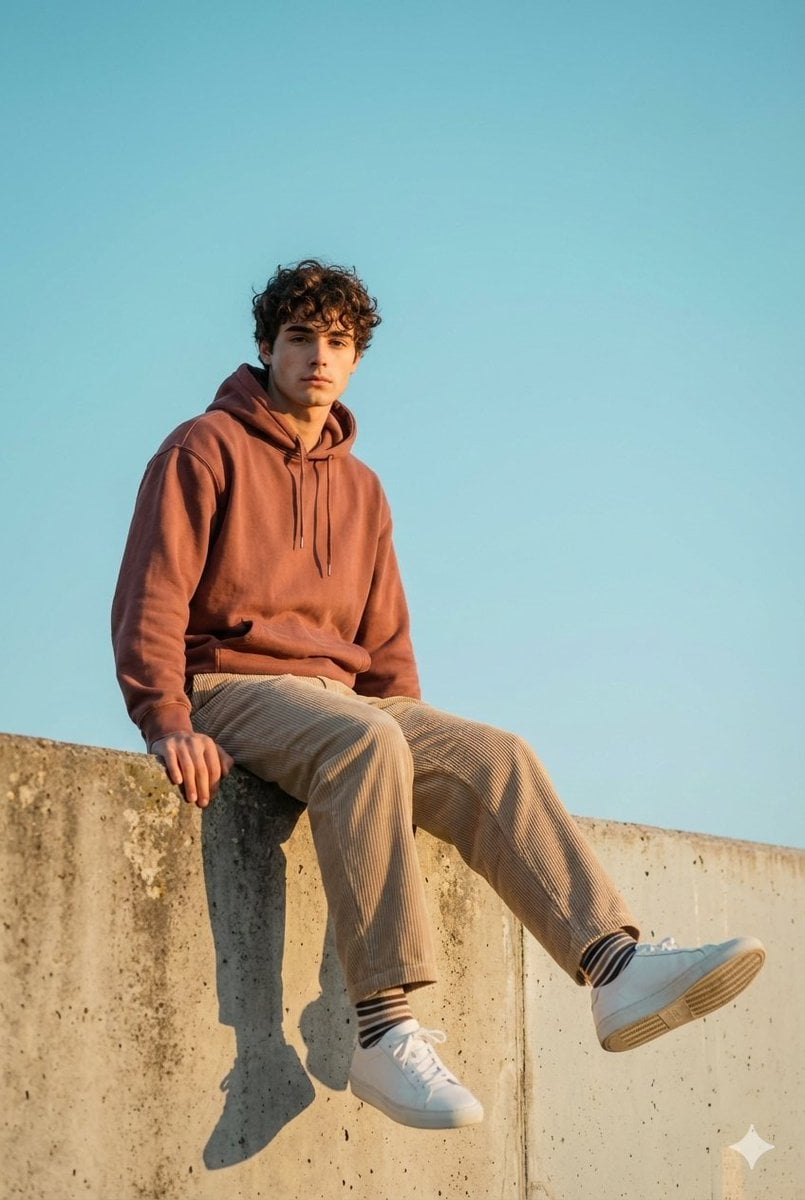
Cinematic Outdoor Portrait in Streetwear at Golden Hour
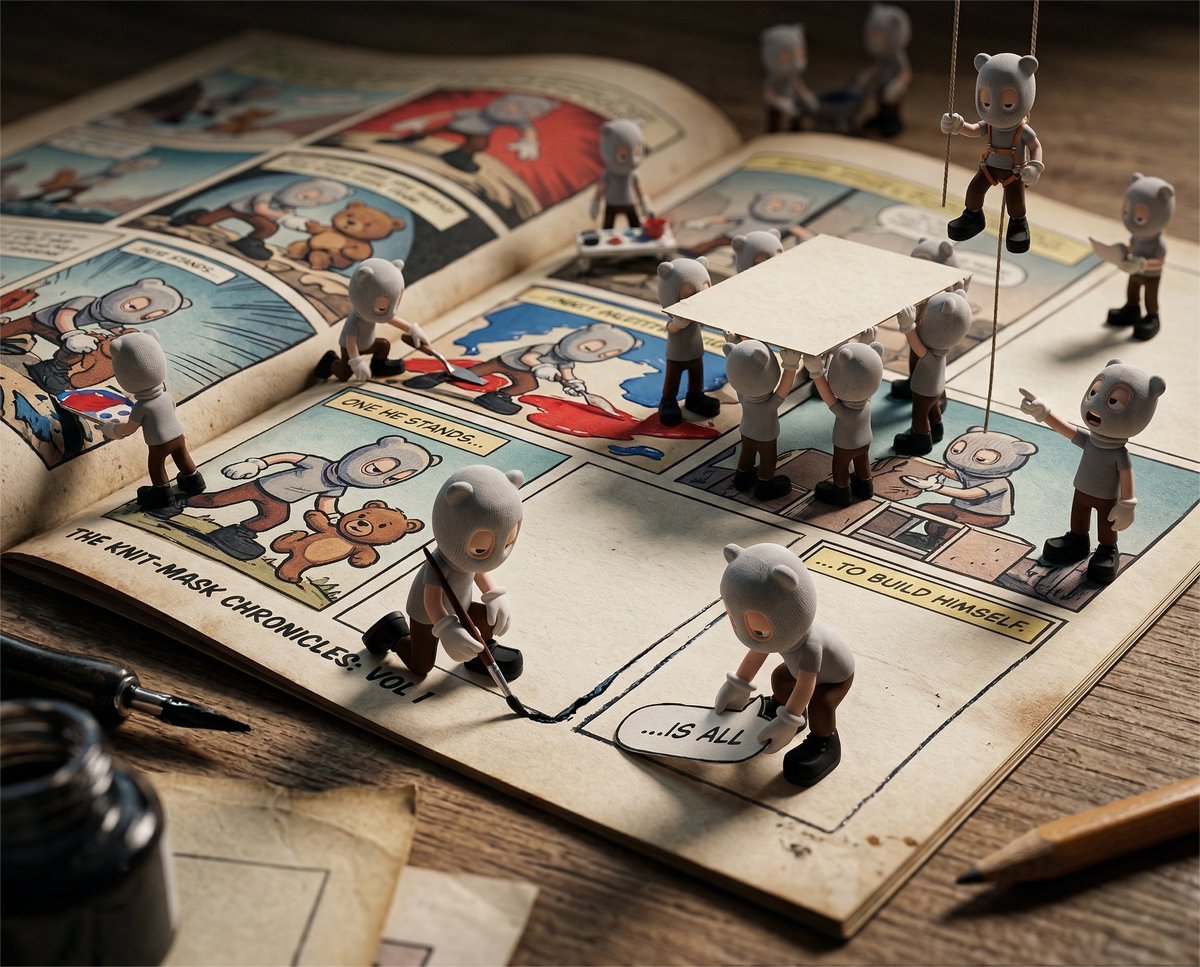
Cinematic Macro Toy-Photography of Mini Beasts
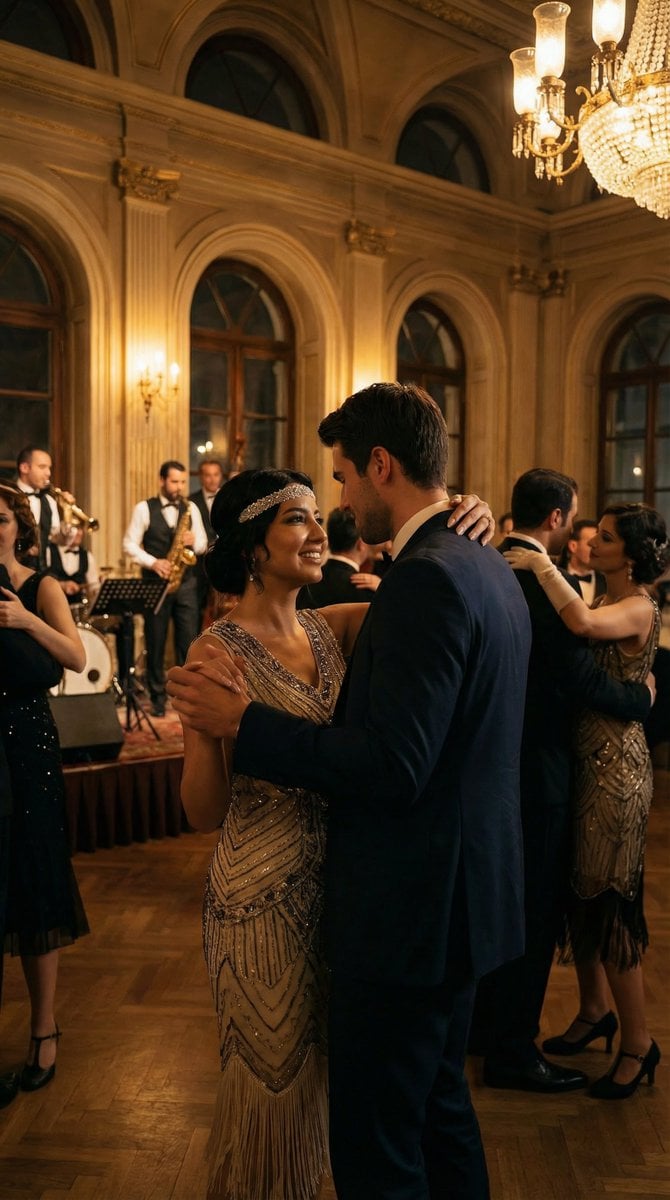
Historical romantic editorial of a couple dancing in 1920s Istanbul
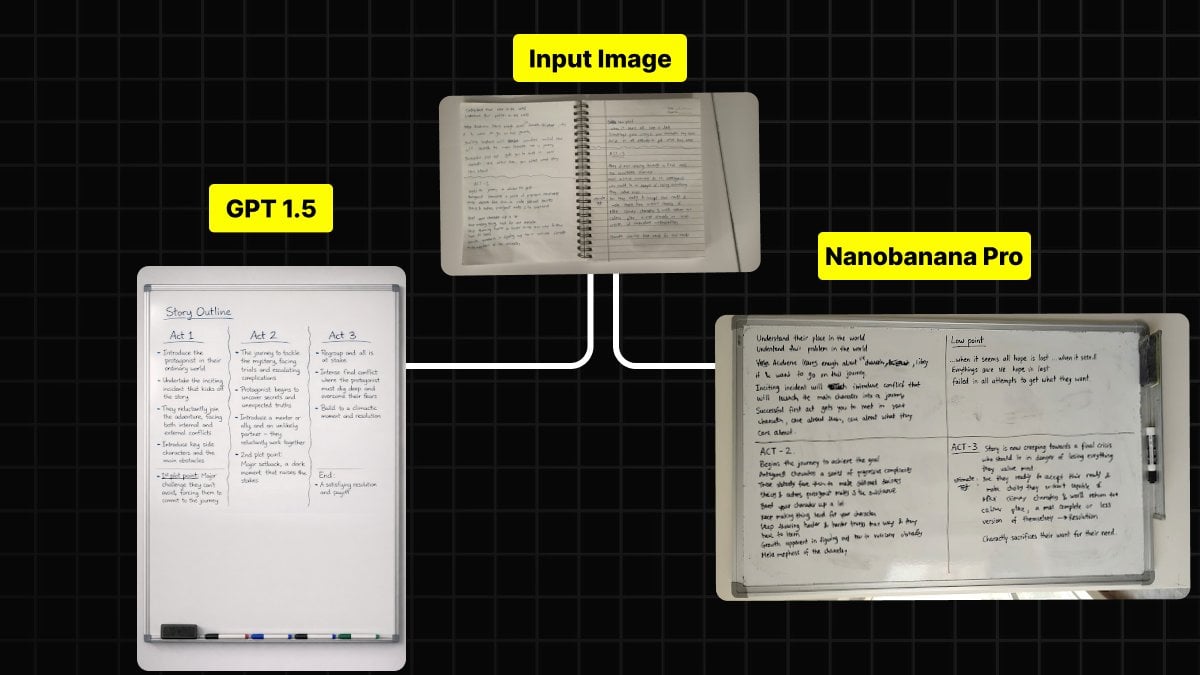
Handwritten Notes to Whiteboard Conversion Prompt
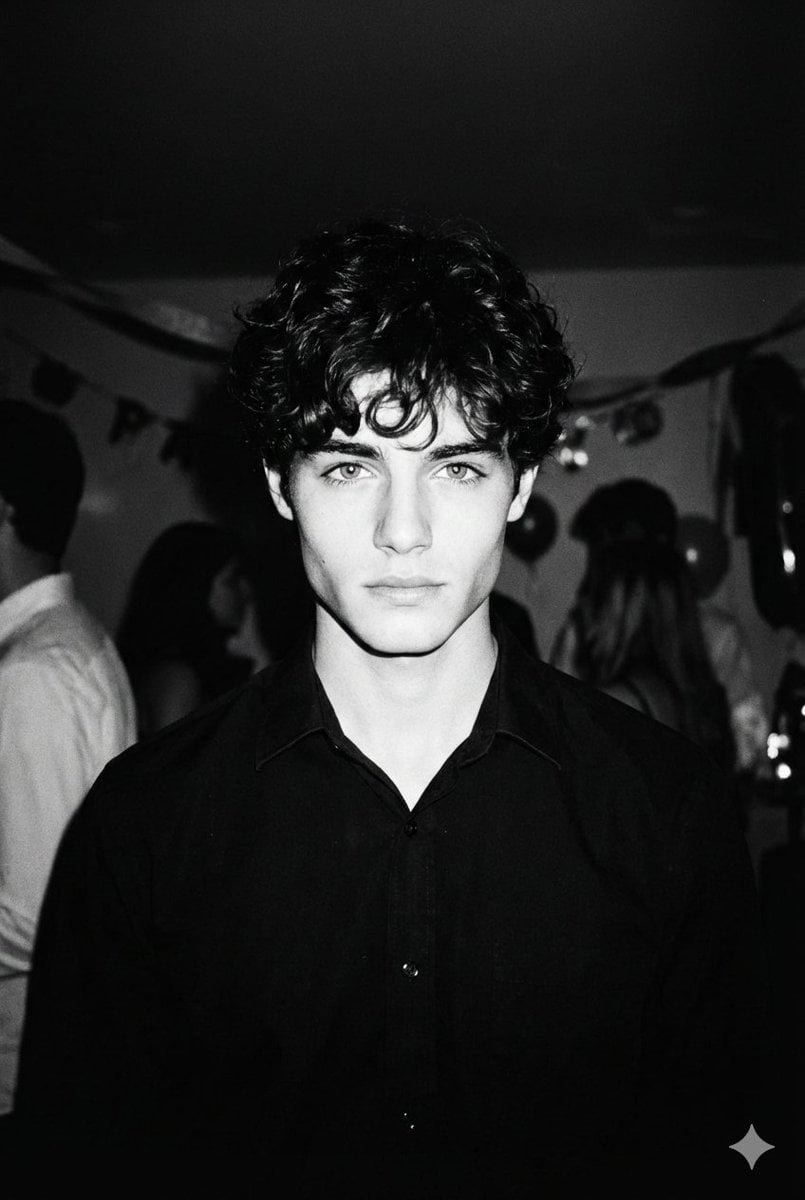
High-Contrast 90s Disposable Camera Portrait
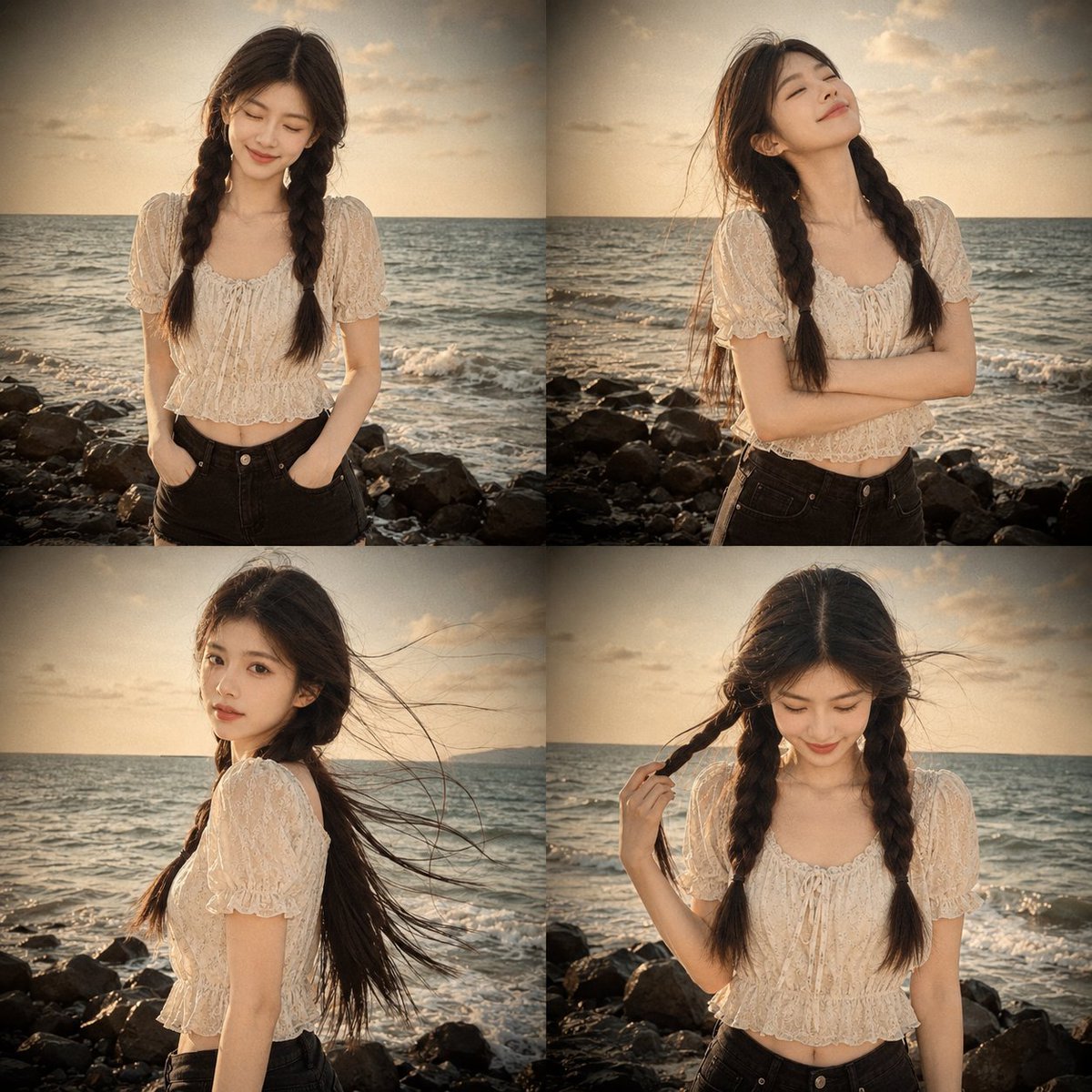
Prompt: Use my uploaded portrait photo only as th
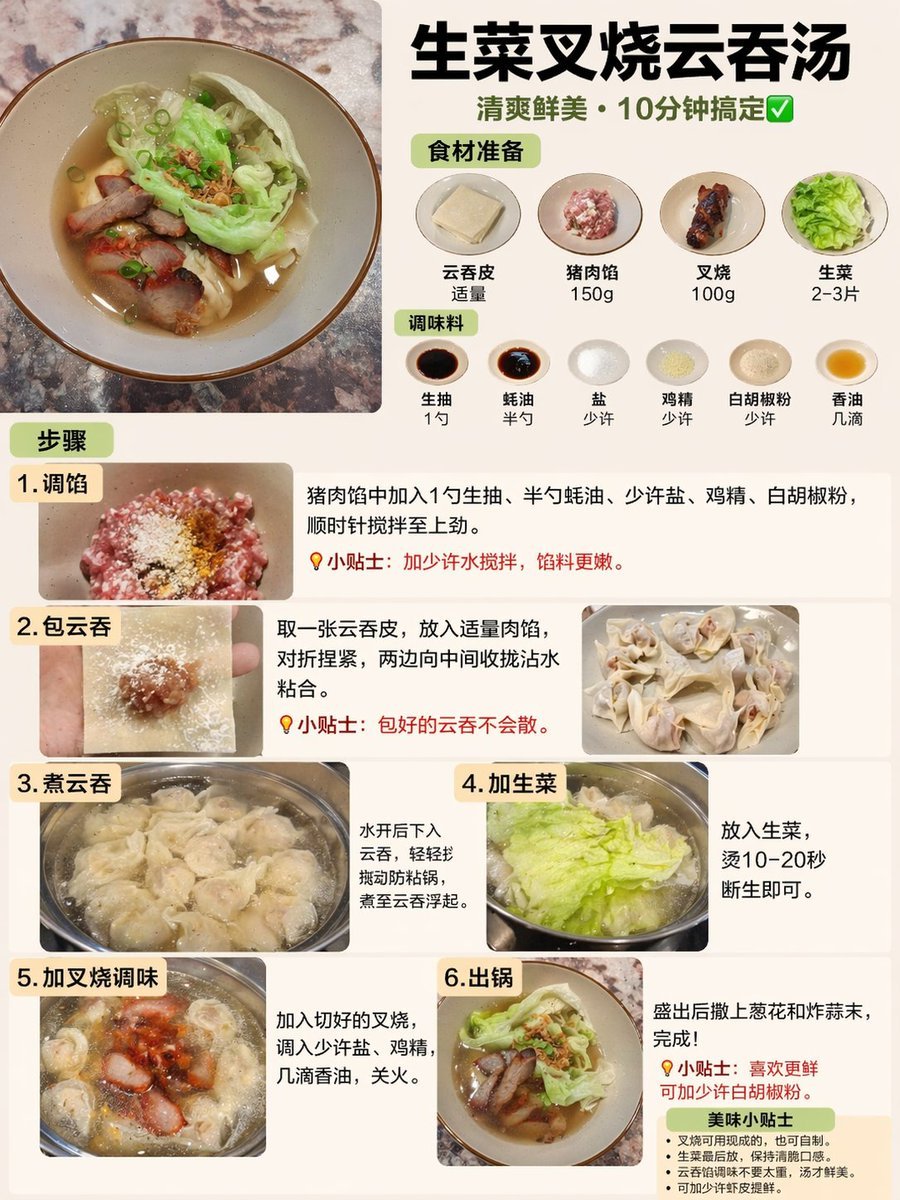
Educational Textbook Cover Design
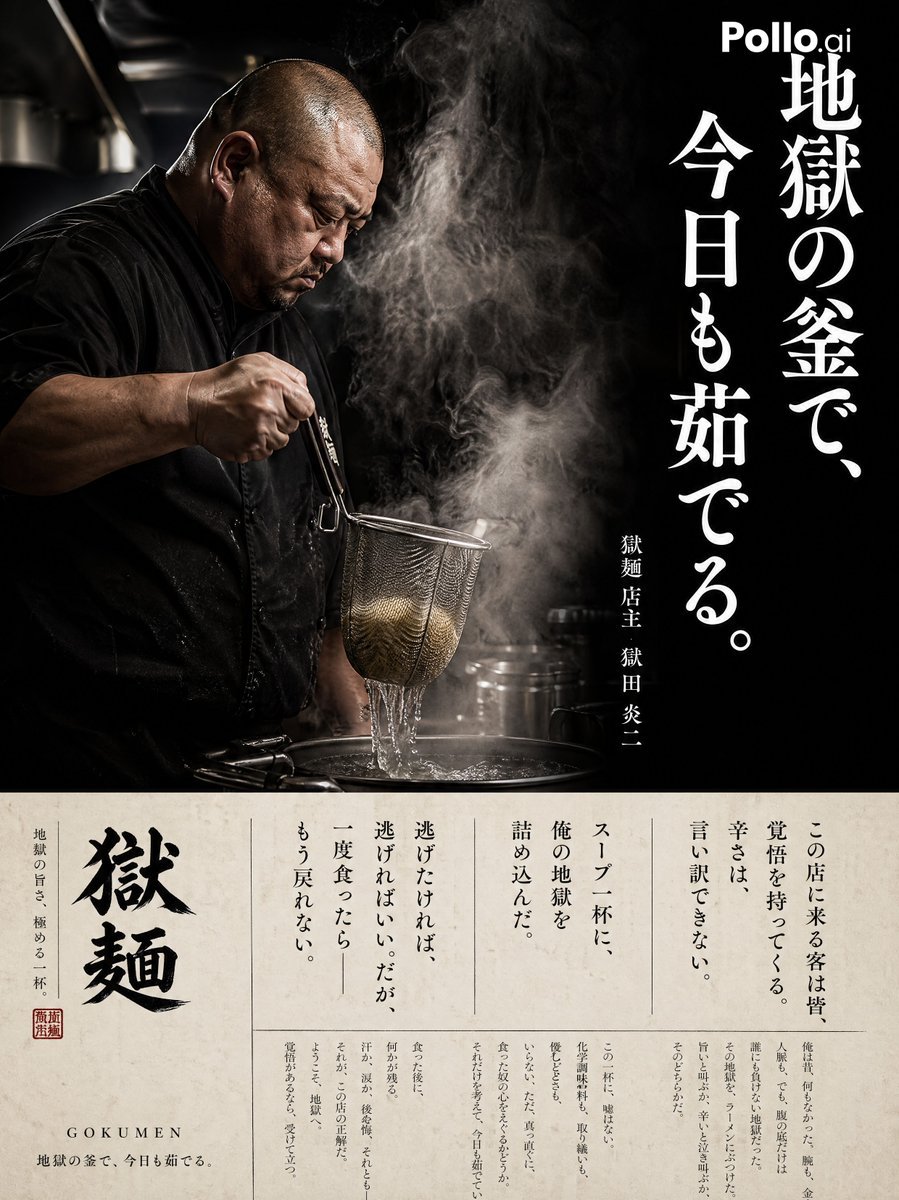
Cinematic Ramen Shop Commercial Poster
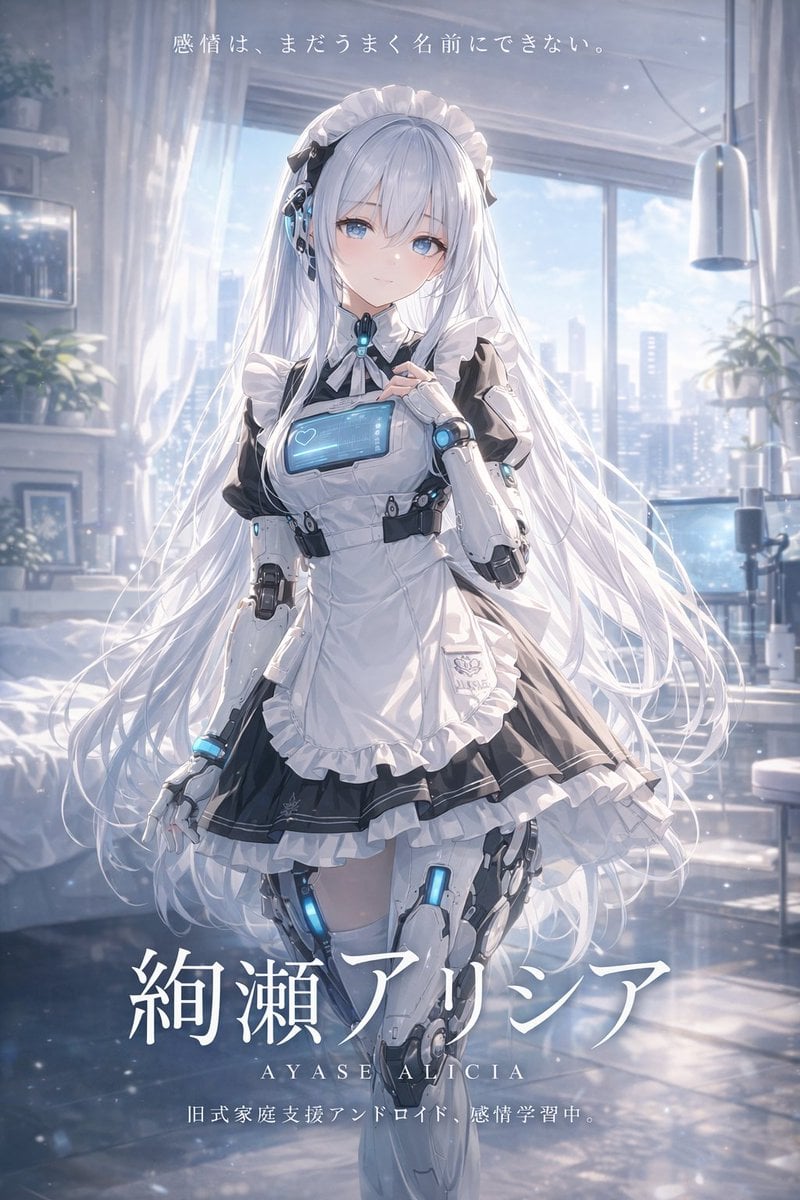
Sci-Fi Android Maid Light Novel Cover
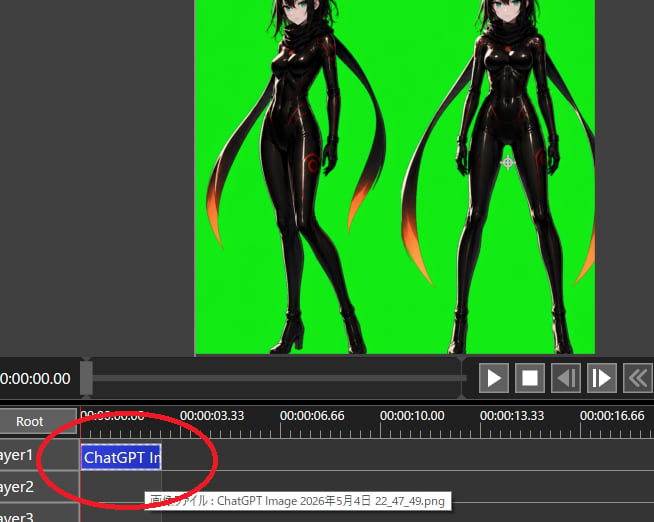
Chroma Key Video Editor Screenshot
Browse template categories
Artemis II Mission Journal Diorama questions
How do I use the Artemis II Mission Journal Diorama template?
Add your photo if the template asks for one, edit the prompt if you like — the template's model and format are already selected — and press Generate. Your version opens in PicX Studio.
Can I customize the Artemis II Mission Journal Diorama template?
Yes. You can change the subject, setting, lighting, mood, format, and available model controls before creating your image.
Is the Artemis II Mission Journal Diorama template free?
Opening and editing this template is free. Generating uses credits, shown on the Generate button when you are signed in.
Which AI model should I use?
Start with Nano Banana 2, which is the model associated with this template. You can compare another compatible model for a different finish.
Looking for something else? Browse all templates.

Your photo, any look
Thousands of ready templates for every top image and video model, from one credit balance.