
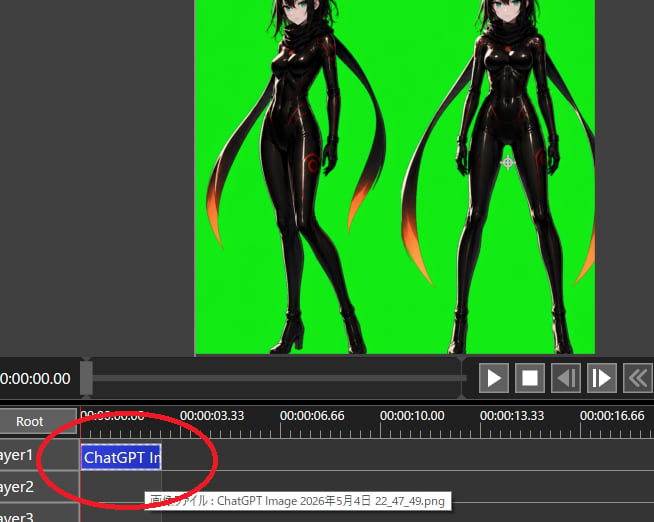
Chroma Key Video Editor Screenshot
Creates a dark video editing interface screenshot showing two anime characters on a green screen with a circled timeline clip for transparency workflow tutorials.
- Prompt included
- Model and format preset
- Premium template
The prompt behind this image
Copy the exact prompt behind Chroma Key Video Editor Screenshot, or open it in the studio and make it yours.
Goal: Create a screenshot-style image of a video editing/compositing workspace demonstrating chroma-key preparation for transparency. Canvas: 654×522 pixel landscape screenshot, dark gray software interface, no browser chrome or desktop frame. The main preview occupies the upper half, timeline occupies the lower half. Preview area: Center a bright pure green chroma-key background rectangle. On it, place exactly 2 full-body anime cyber-ninja women as imported image artwork: the left figure is a three-quarter pose with one leg crossed forward, the right figure is front-facing with legs apart. Both have {argument name="hair color" default="black"} hair, pale skin, teal eyes, glossy black bodysuits with subtle red/orange glowing seams, black gloves, high-heeled boots, and long black scarf/ribbon shapes trailing behind them with orange-red glowing tips. Crop the top of both heads slightly at the top edge of the preview, matching a real editor viewport. Leave dark gray margins outside the green preview. Interface layout: Below the preview, show a playback bar and transport controls. Include exactly 6 visible transport buttons on the right: play triangle, stop square, step/back button, step/forward button, double-chevron rewind, and a partially visible extra control at the far right. At the left of the time display, show white timecode text {argument name="current timecode" default="0:00:00.00"}. Use small white UI text and gray panels. Timeline: Show a ruler with time labels exactly 5 visible labels: 0:00:00.00, 0:00:03.33, 0:00:06.66, 0:00:10.00, and 0:00:13.33, plus a partially visible 0:00:16.66 at the far right. Show exactly 3 layer rows labeled Layer1, Layer2, and Layer3, with a Root row above them. Add a red vertical playhead at the start near 0:00:00.00. On Layer1, place one blue selected clip beginning at the start, labeled {argument name="clip label" default="ChatGPT Im"}. Draw a thick hand-drawn red oval/circle around the Layer1 clip and the beginning of the timeline, as if annotating where to click. Show a small tooltip near Layer2 with Japanese text beginning with {argument name="tooltip text" default="画像ファイル : ChatGPT Image 2026年5月4日 22_47_49.png"}. Visual style: Realistic low-resolution software screenshot, crisp UI elements, slight aliasing, functional dark theme, no decorative framing. The anime artwork should look like polished AI-generated character art embedded in the editor rather than a flat icon. Constraints: Keep the chroma-key green solid and vivid. Do not add extra characters, extra clips, or extra annotation circles. Do not include watermarks. Preserve the screenshot crop so the right-side controls and far-right time label are partially cut off.
How to use Chroma Key Video Editor Screenshot in 3 steps
- 1Upload ImagePNG, JPG or paste
Add your photo
Upload the photo the template builds on. The prompt, model and format are already set.
- 2…a portrait of your subject in softgolden-hour light, 85mm…
Personalize
Edit the subject and creative details for your destination.
- 3Generate
Generate
Press Generate — your image is created in PicX Studio, so you can compare it with the original and refine one variable at a time.
More like this
Templates with the same subject, style or setup. Open one to see its prompt.

Minecraft Next-Gen Voxel World Screenshot
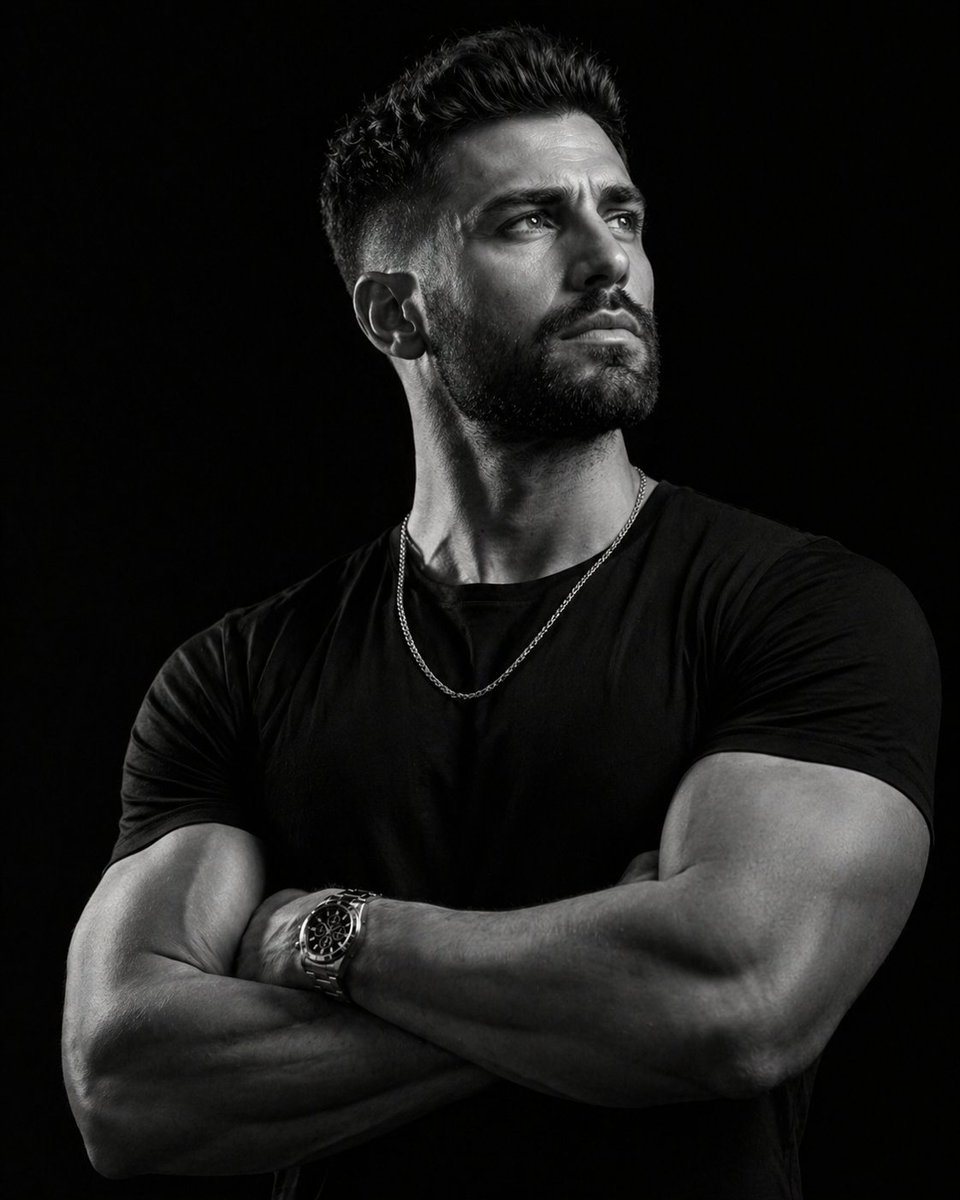
Low-key monochrome editorial portrait

Beverage Campaign Key Visual
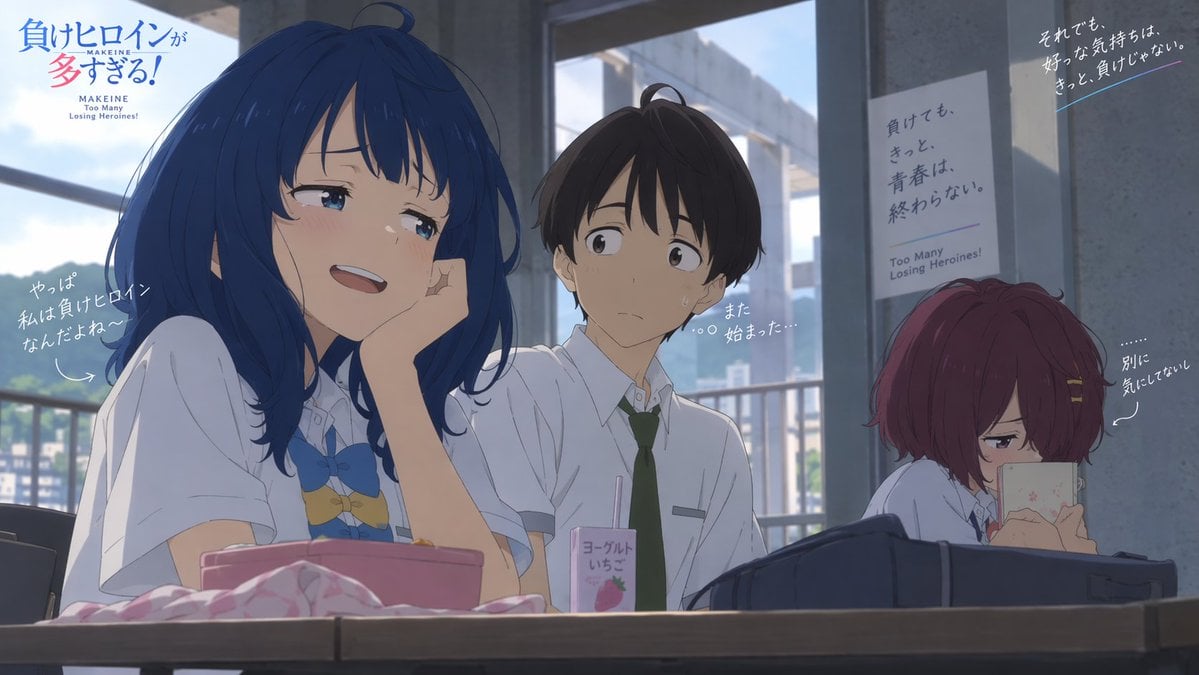
Anime Classroom Losing Heroines Key Visual
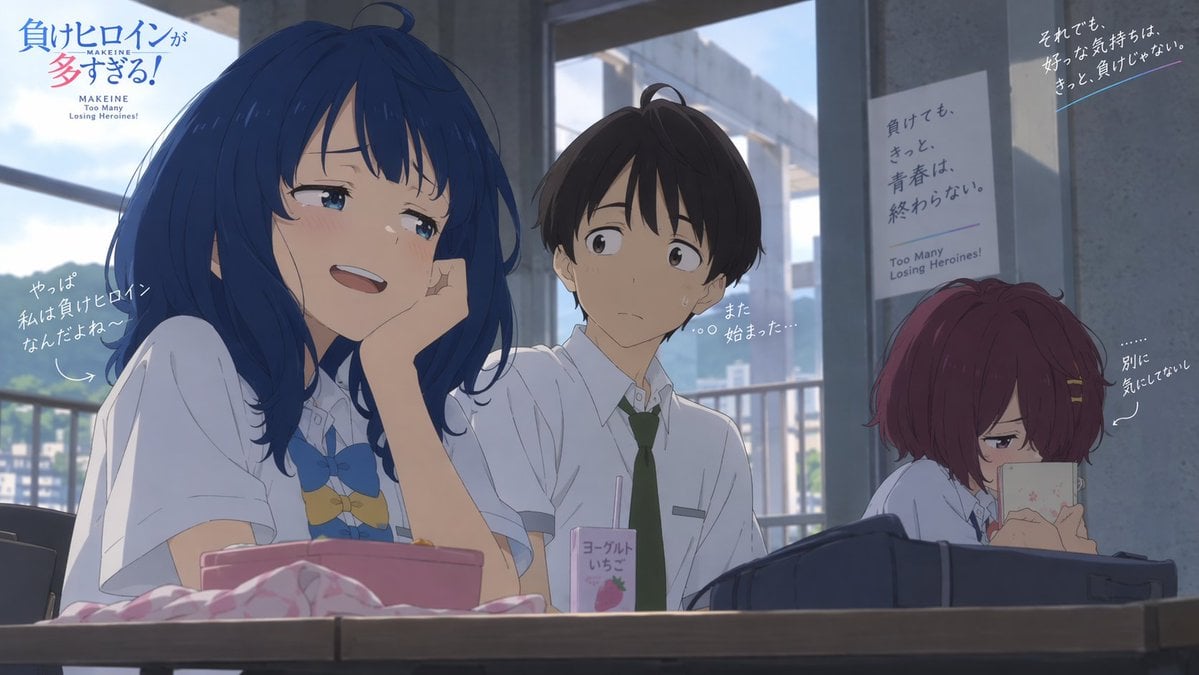
Anime Losing Heroines Classroom Key Visual
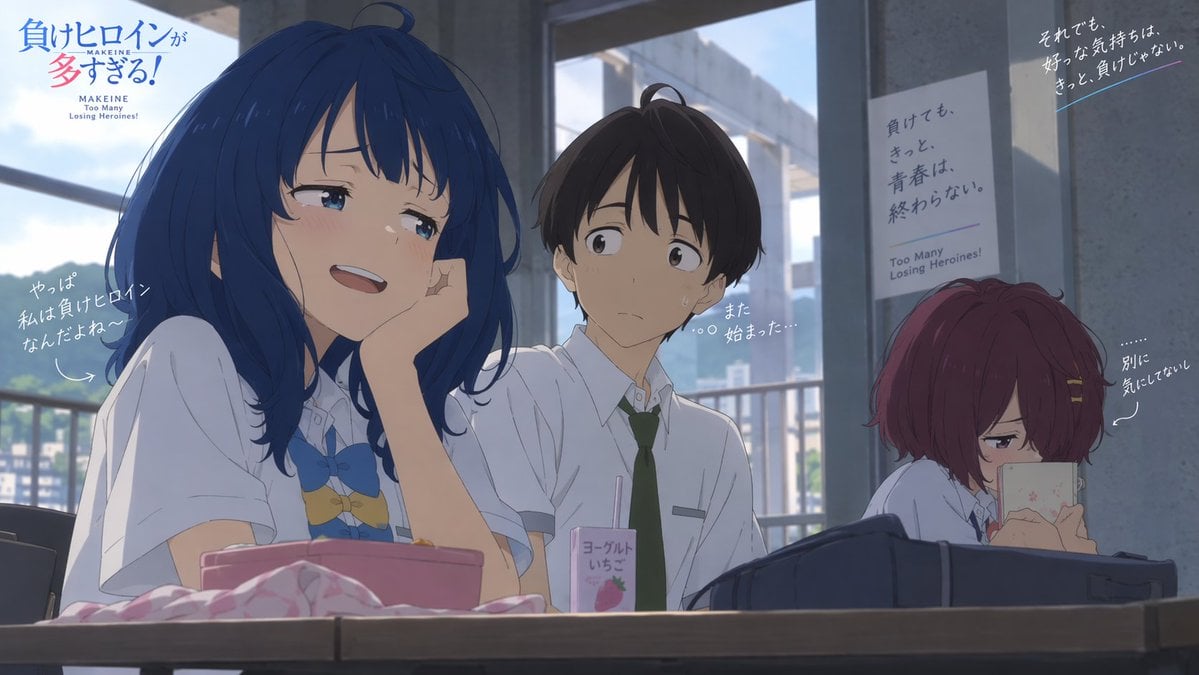
Anime School Rom-Com Key Visual
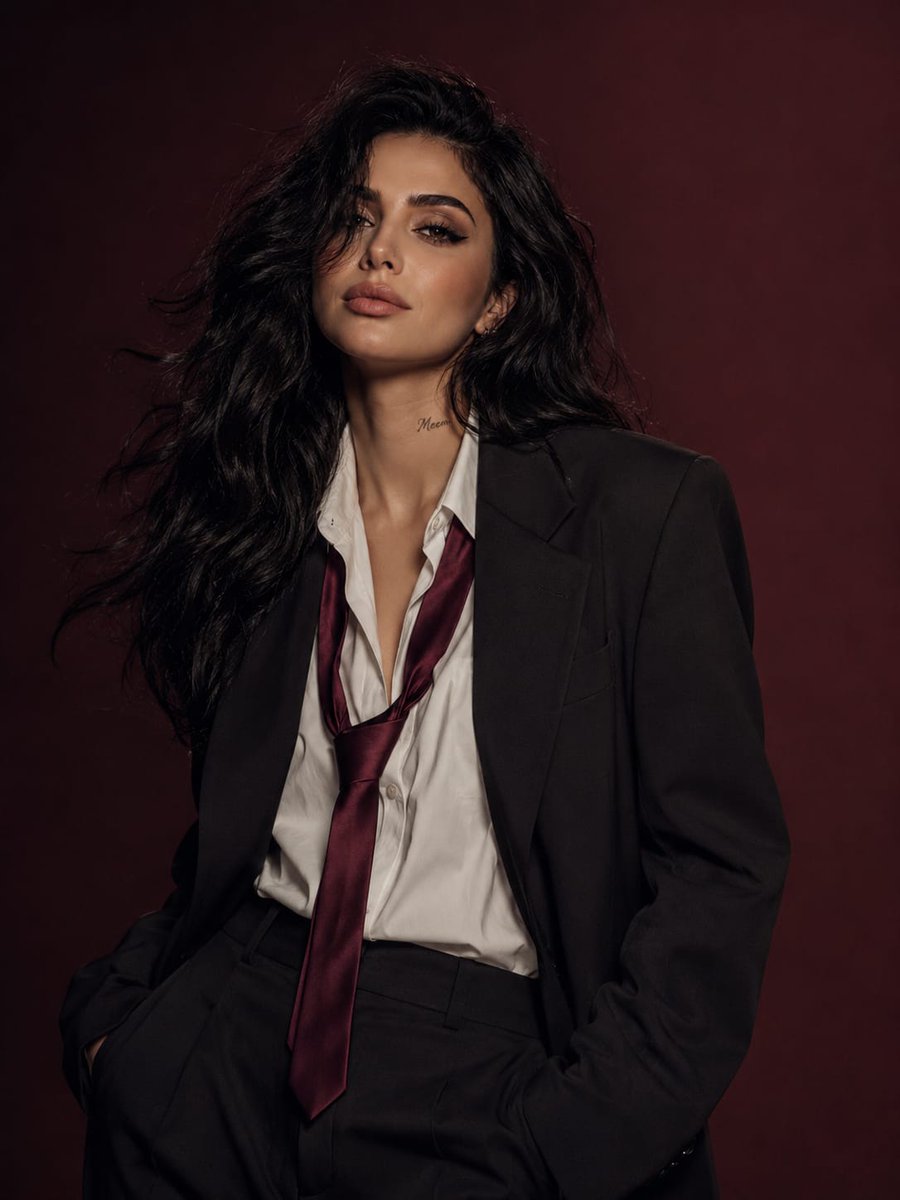
Power Suit Luxury Editorial
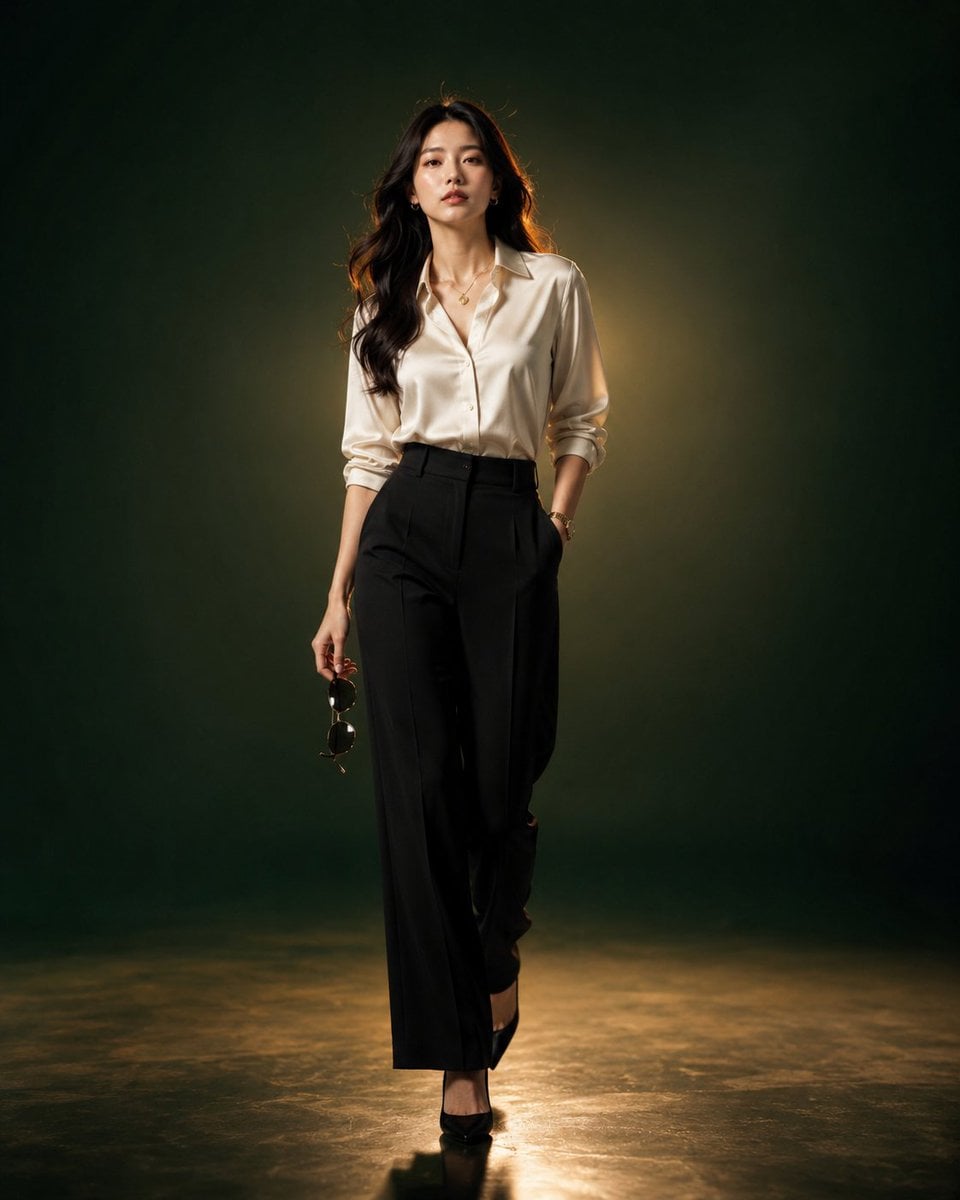
Luxury Fashion Editorial Portrait
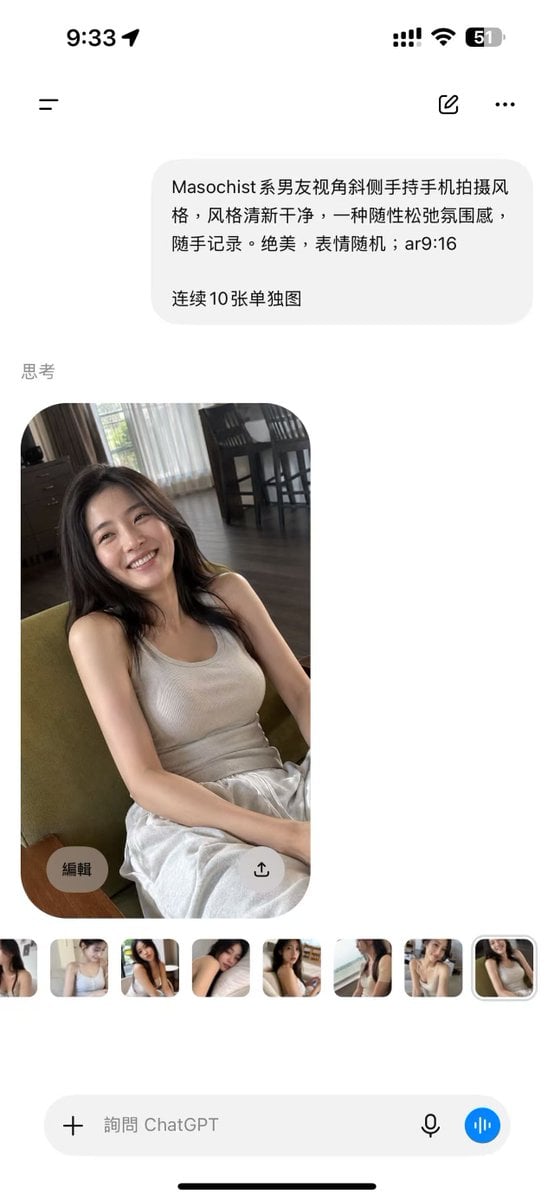
ChatGPT Mobile Photo Carousel Screenshot

ChatGPT Bonus Banner Screenshot
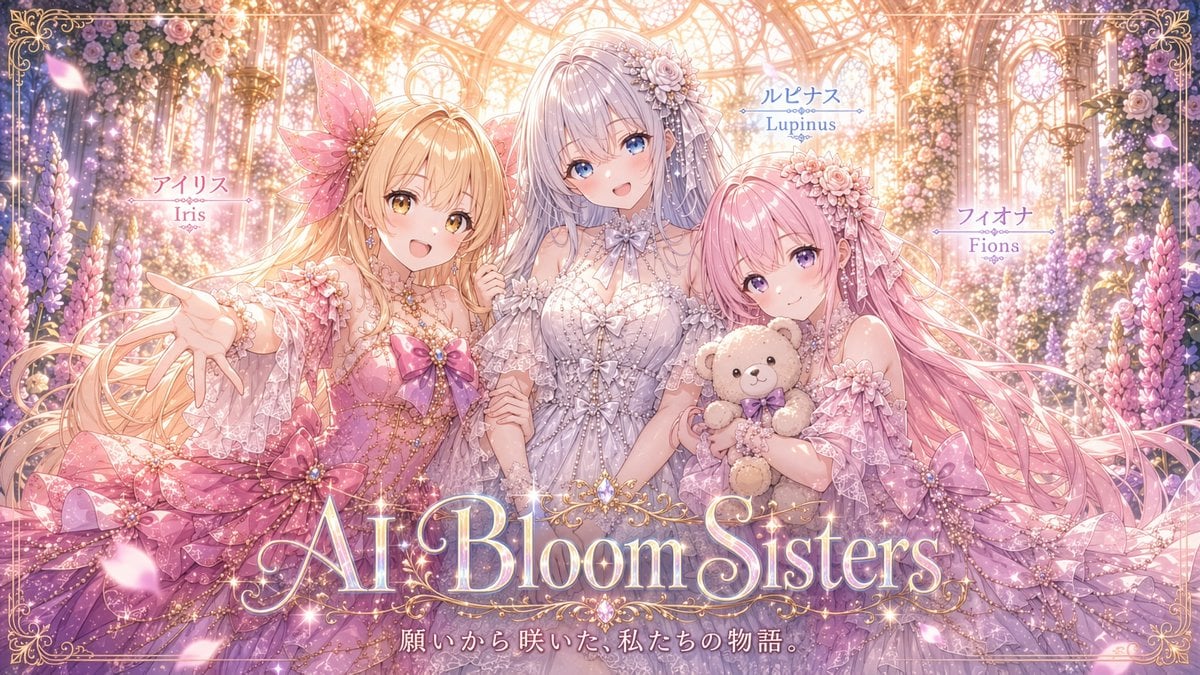
AI Bloom Sisters Anime Key Visual
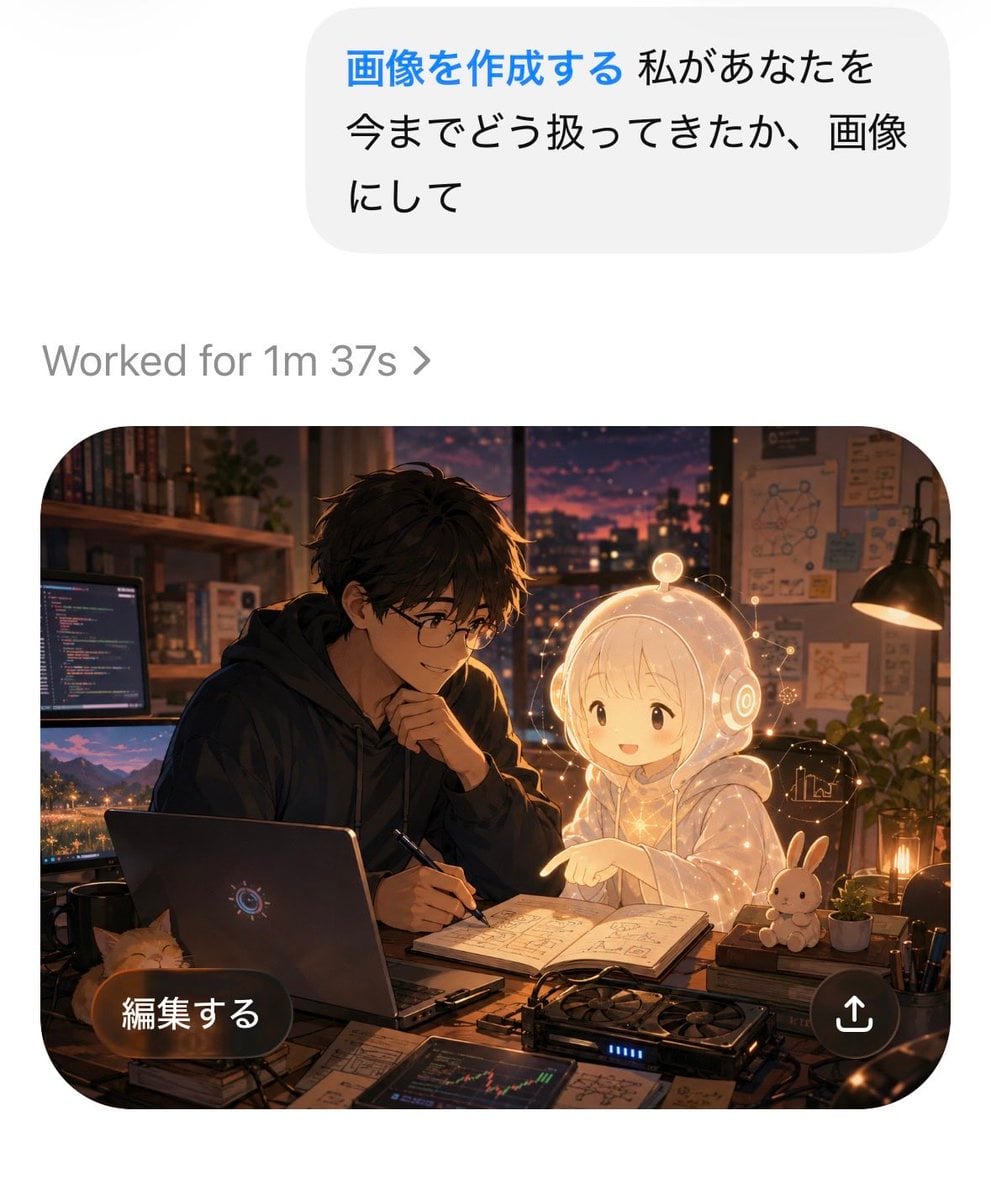
AI Chat Image Generation Screenshot
Make it yours
Chroma Key Video Editor Screenshot works as-is. These are the safest ways to change it without losing the look.
Change one field
Copy a single group, rewrite it, and generate again so you can see what that field is doing.
Keep the frame, change the subject
Hold the composition and light of Chroma Key Video Editor Screenshot, then swap wardrobe, props or the person for a new take.
| If the result… | Why | Fix |
|---|---|---|
| The result drifts from the preview | Too many fields changed at once. | Reuse Chroma Key Video Editor Screenshot as-is first, then change one group — subject, light, or setting. |
| The model over-stylizes the scene | The prose prompt leaves finish and camera underspecified. | Add one camera or lighting sentence and stay on GPT Image 2. |
More GPT Image 2 templates
Other prompts made for GPT Image 2.

Six VTuber Japanese Logo Sheet

Realistic Portrait of Woman and Deer

The Vista Modular Condo Poster

AI Model Routing Comparison Infographic

2.5D Anime Art Board

Isometric Productivity Desk Scene

New York Double Exposure Poster

Four-Panel AI Landscape Comparison

Japanese Tatami Lifestyle Magazine Cover

NESCAFÉ Coffee Map Poster
More image prompts
Fresh picks from across the catalog.
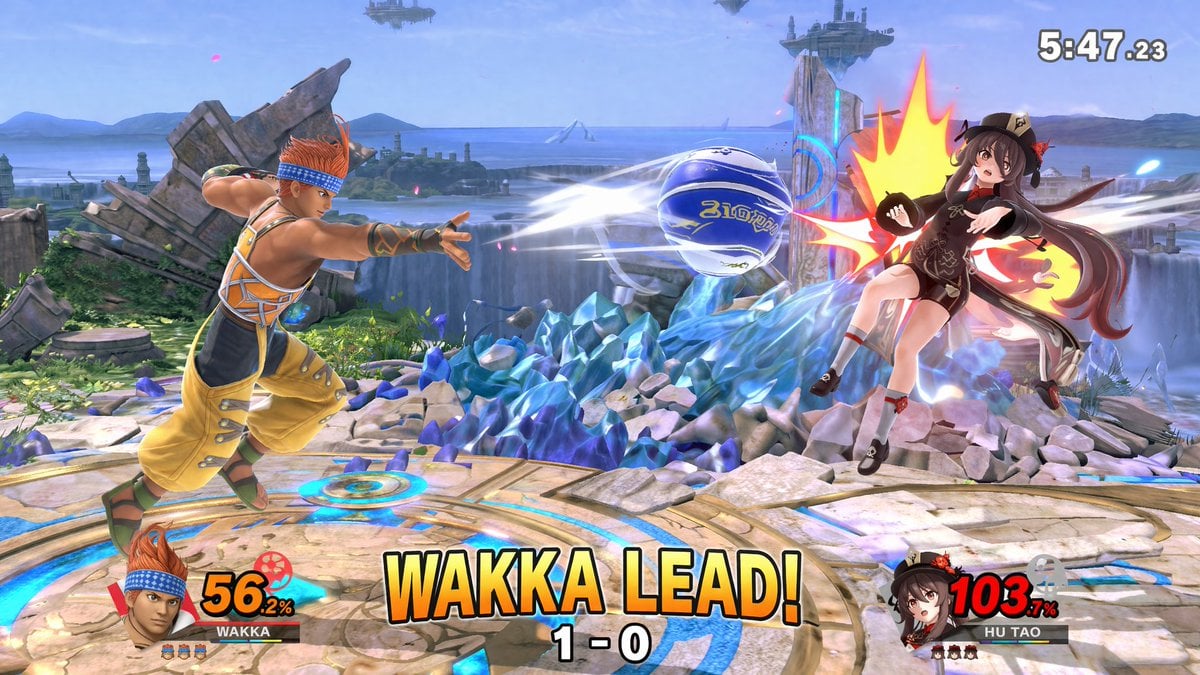
Crossover Platform Fighter Screenshot
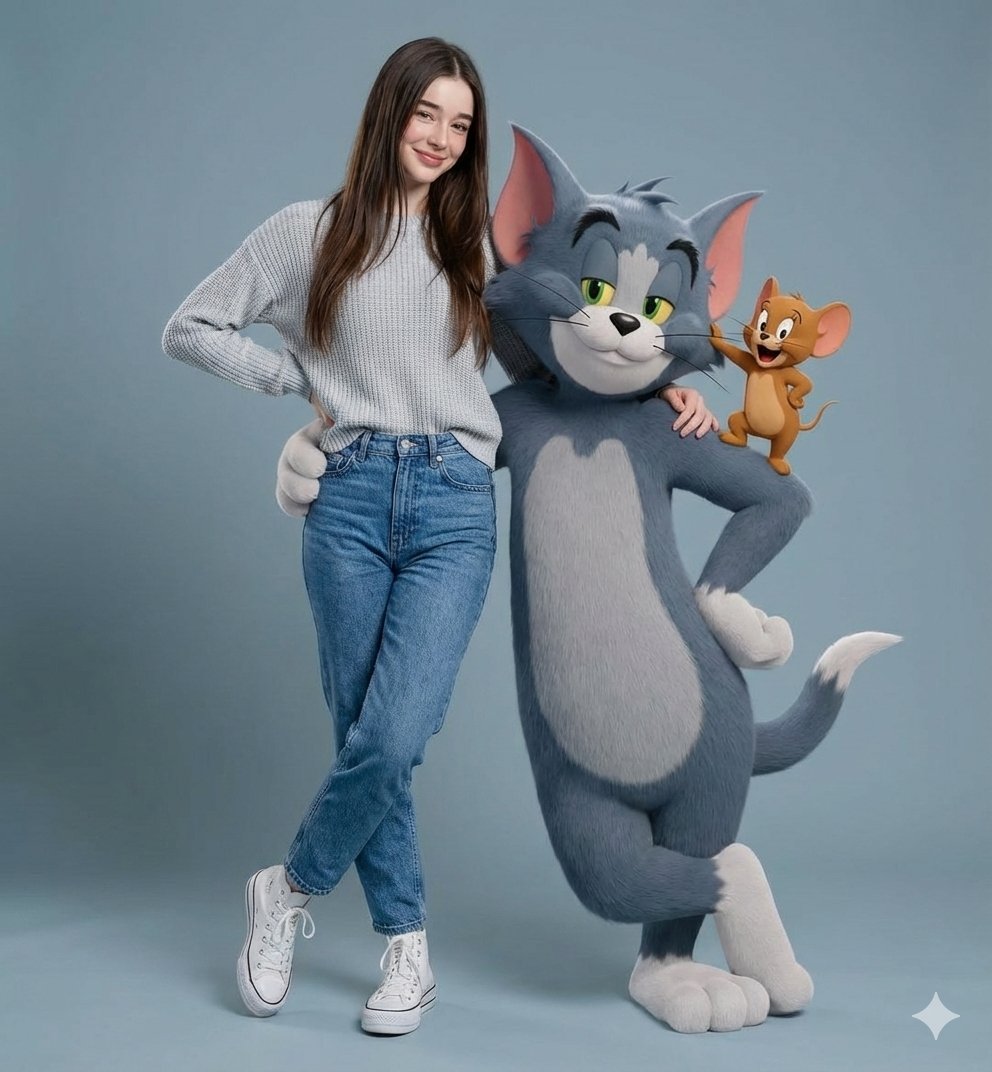
Hyper-realistic Portrait with Tom & Jerry 3D Characters
Surreal Fashion Portrait in a Textile Dye Workshop
Cute Google Fonts Tutorial Infographic
Pixar-Style Chibi Sticker Sheet
Ultra Analog Film Candid Romance Scene
Realistic Phone Photo with Horror Twist
Museum Style Infographic Breakdown
Premium Editorial Branding Poster Template
Ultra-high fashion editorial portrait in faux-fur coat
Browse template categories
Chroma Key Video Editor Screenshot questions
How do I use the Chroma Key Video Editor Screenshot template?
Add your photo if the template asks for one, edit the prompt if you like — the template's model and format are already selected — and press Generate. Your version opens in PicX Studio.
Can I customize the Chroma Key Video Editor Screenshot template?
Yes. You can change the subject, setting, lighting, mood, format, and available model controls before creating your image.
Is the Chroma Key Video Editor Screenshot template free?
Opening and editing this template is free. Generating uses credits, shown on the Generate button when you are signed in.
Which AI model should I use?
Start with GPT Image 2, which is the model associated with this template. You can compare another compatible model for a different finish.
Looking for something else? Browse all templates.

Your photo, any look
Thousands of ready templates for every top image and video model, from one credit balance.