
Japanese Beverage Ad Poster
Generates a refreshing Japanese-style beverage advertisement featuring a model, product shot, and stylized typography.
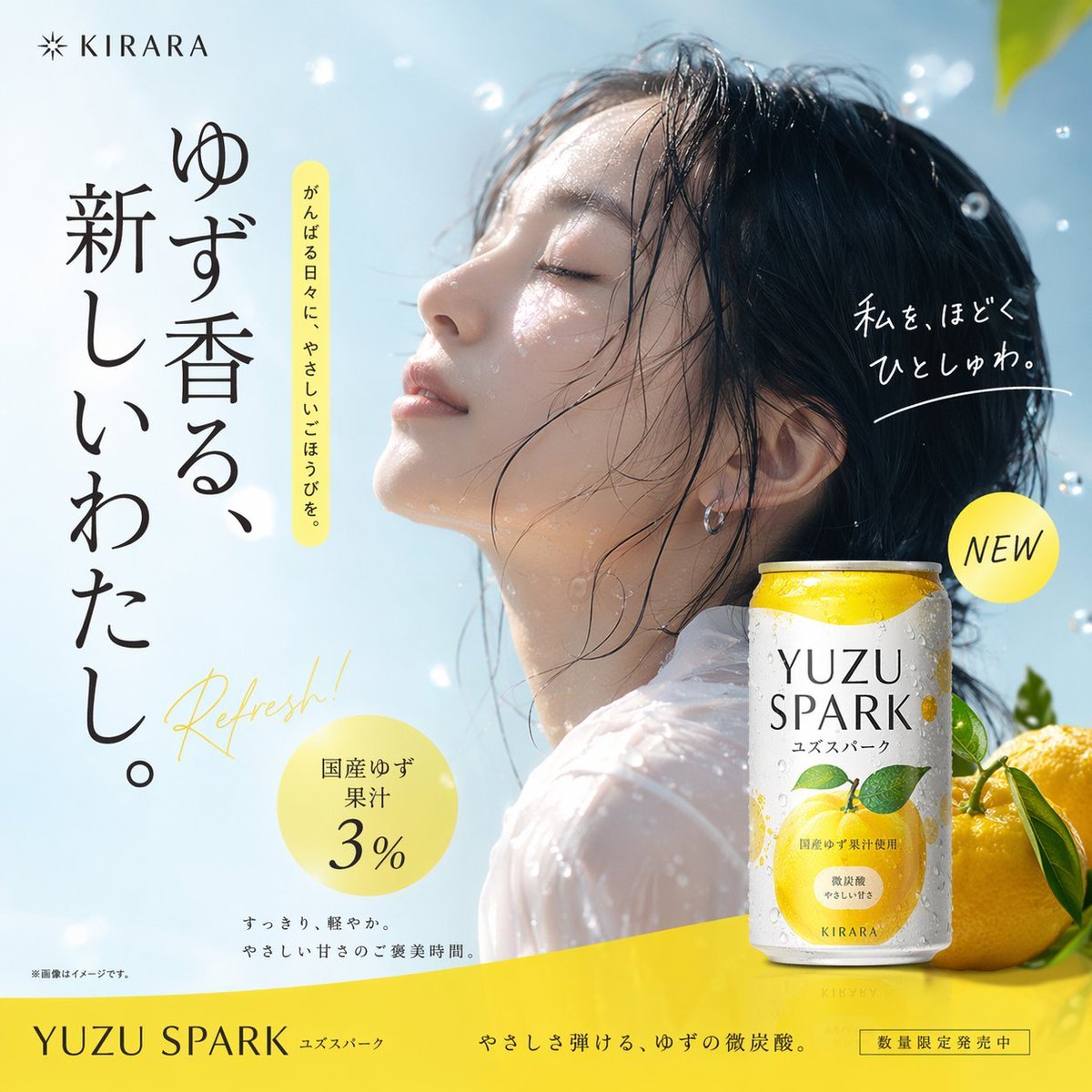
- Prompt included
- Model and format preset
- Premium template
The prompt behind this image
Copy the exact prompt behind Japanese Beverage Ad Poster, or open it in the studio and make it yours.
- Type
- Japanese beverage advertisement poster
- Subject › Description
- young Asian woman, profile view, {argument name="subject vibe" default="eyes closed, looking up, feeling refreshed"}
- Subject › Appearance
- wet hair, wet skin, sheer white top
- Subject › Environment
- floating water droplets, bright blue sky, sunny lighting
- Product › Type
- aluminum beverage can
- Product › Placement
- bottom right
- Product › Design
- white and yellow gradient, condensation drops
- Product › Branding
- {argument name="product name" default="YUZU SPARK"} in large serif font, 'ユズスパーク' below
- Product › Illustration
- yellow {argument name="flavor fruit" default="yuzu"} fruit with green leaves
- Product › Props
- 2 whole yellow yuzu fruits with green leaves behind the can
- Layout › Top Left
- Logo with starburst icon and 'KIRARA'
- Layout › Main Copy Left
- large vertical black text: {argument name="main headline" default="ゆず香る、新しいわたし。"}
- Layout › Sub Copy Left
- vertical black text in yellow pill: 'がんばる日々に、やさしいごほうびを。'
- Layout › Script Text
- yellow cursive text: 'Refresh!'
- Layout › Right Copy
- white handwritten text with underline: '私を、ほどくひとしゅわ。'
- Layout › Badges › 0 › Position
- bottom left
- Layout › Badges › 0 › Style
- yellow circle
- Layout › Badges › 0 › Text
- {argument name="badge text" default="国産ゆず果汁3%"}
- Layout › Badges › 1 › Position
- mid right
- Layout › Badges › 1 › Style
- yellow circle
- Layout › Badges › 1 › Text
- NEW
- Layout › Bottom Text
- small black text: 'すっきり、軽やか。やさしい甘さのご褒美時間。'
- Layout › Footer
- solid yellow horizontal bar containing product name, tagline 'やさしさ弾ける、ゆずの微炭酸。', and boxed text '数量限定発売中'
Raw JSON
{
  "type": "Japanese beverage advertisement poster",
  "subject": {
    "description": "young Asian woman, profile view, {argument name=\"subject vibe\" default=\"eyes closed, looking up, feeling refreshed\"}",
    "appearance": "wet hair, wet skin, sheer white top",
    "environment": "floating water droplets, bright blue sky, sunny lighting"
  },
  "product": {
    "type": "aluminum beverage can",
    "placement": "bottom right",
    "design": "white and yellow gradient, condensation drops",
    "branding": "{argument name=\"product name\" default=\"YUZU SPARK\"} in large serif font, 'ユズスパーク' below",
    "illustration": "yellow {argument name=\"flavor fruit\" default=\"yuzu\"} fruit with green leaves",
    "props": "2 whole yellow yuzu fruits with green leaves behind the can"
  },
  "layout": {
    "top_left": "Logo with starburst icon and 'KIRARA'",
    "main_copy_left": "large vertical black text: {argument name=\"main headline\" default=\"ゆず香る、新しいわたし。\"}",
    "sub_copy_left": "vertical black text in yellow pill: 'がんばる日々に、やさしいごほうびを。'",
    "script_text": "yellow cursive text: 'Refresh!'",
    "right_copy": "white handwritten text with underline: '私を、ほどくひとしゅわ。'",
    "badges": [
      { "position": "bottom left", "style": "yellow circle", "text": "{argument name=\"badge text\" default=\"国産ゆず果汁3%\"}" },
      { "position": "mid right", "style": "yellow circle", "text": "NEW" }
    ],
    "bottom_text": "small black text: 'すっきり、軽やか。やさしい甘さのご褒美時間。'",
    "footer": "solid yellow horizontal bar containing product name, tagline 'やさしさ弾ける、ゆずの微炭酸。', and boxed text '数量限定発売中'"
  }
}Reference images included
Japanese Beverage Ad Poster needs input media to work. They load alongside the prompt when you open it in the studio.
How to use Japanese Beverage Ad Poster in 3 steps
- 1Upload ImagePNG, JPG or paste
Add your photo
Upload the photo the template builds on. The prompt, model and format are already set.
- 2…a portrait of your subject in softgolden-hour light, 85mm…
Personalize
Edit the subject and creative details for your destination.
- 3Generate
Generate
Press Generate — your image is created in PicX Studio, so you can compare it with the original and refine one variable at a time.
More like this
Templates with the same subject, style or setup. Open one to see its prompt.

Minecraft Japanese Research Lab Exploration

Japan Travel Brochure Poster
Cartoon TV Show Poster Pack
Trendy Cafe Drink Promo Poster
Urban Fashion Editorial Collage Streetwear Poster

Japanese Architectural Concrete Studio Fashion Campaign
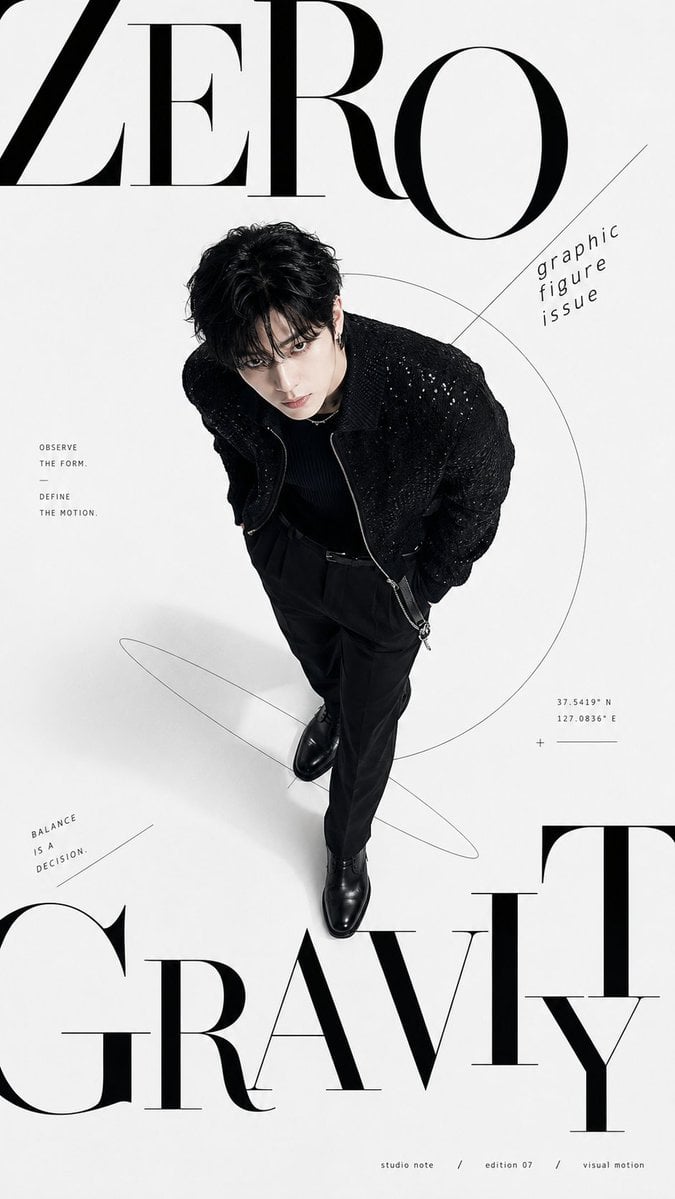
Premium Fashion Editorial Cover Layout System
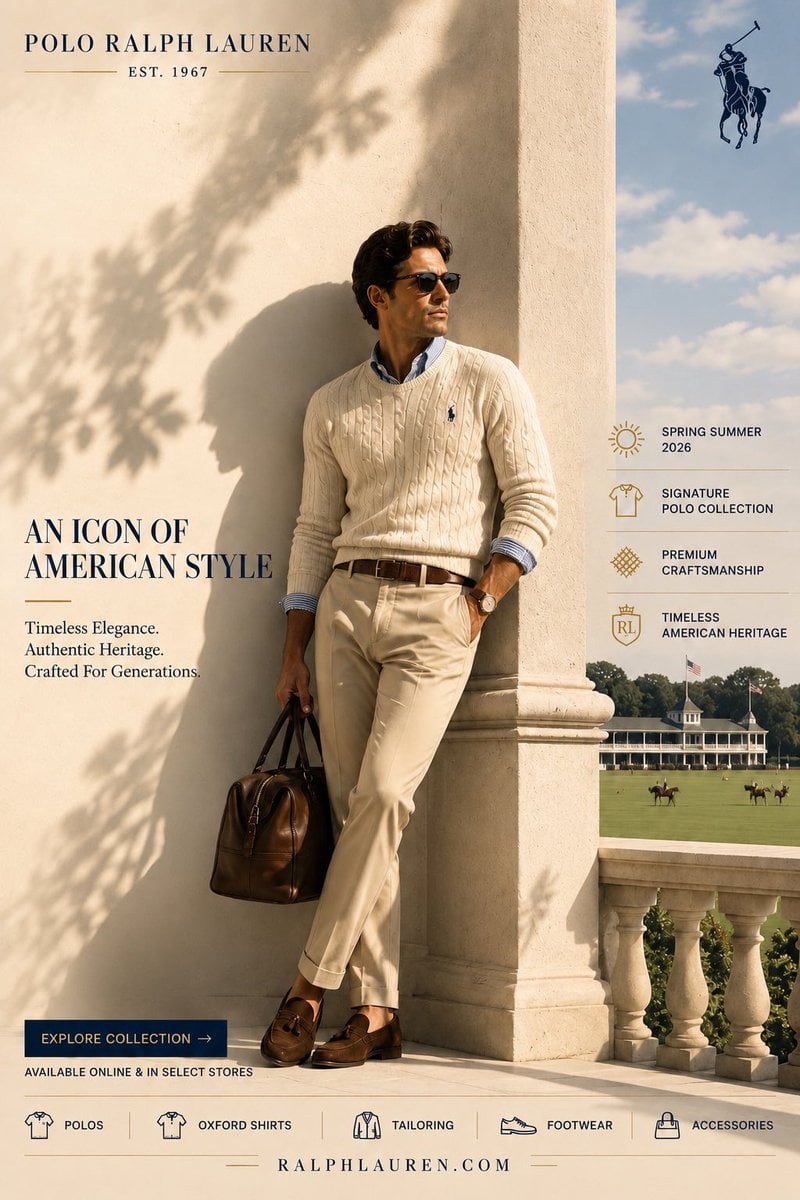
Polo Ralph Lauren Luxury American Heritage Fashion Campaign
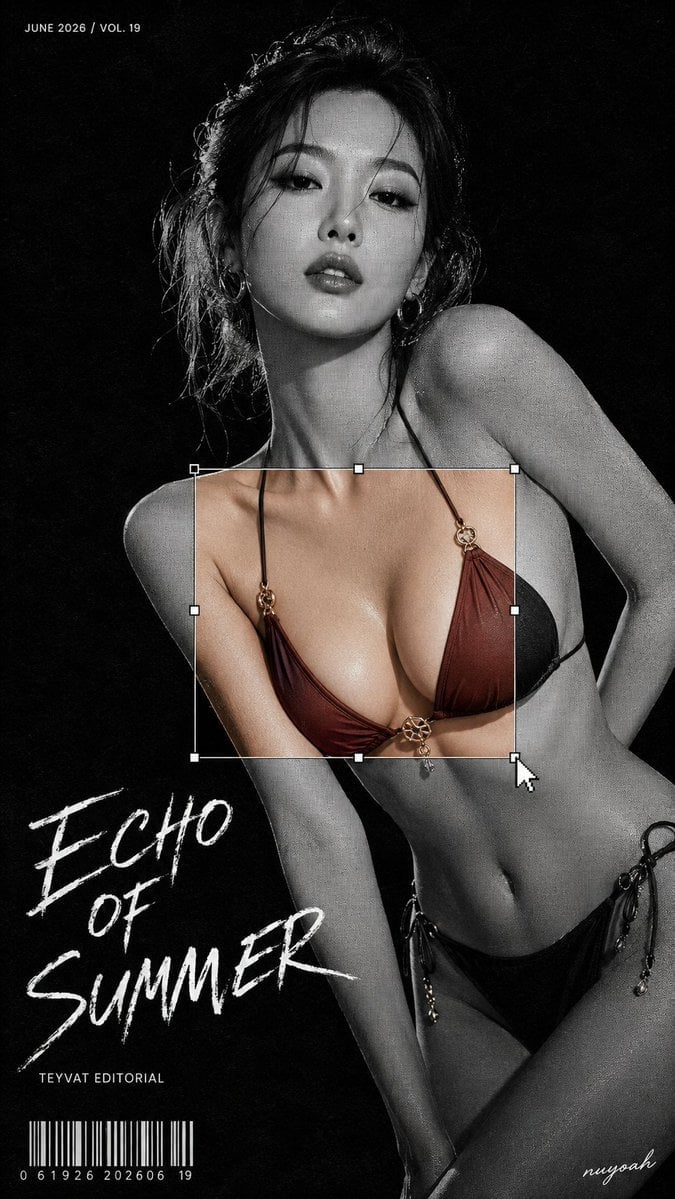
Monochrome Halftone Editorial Fashion Poster
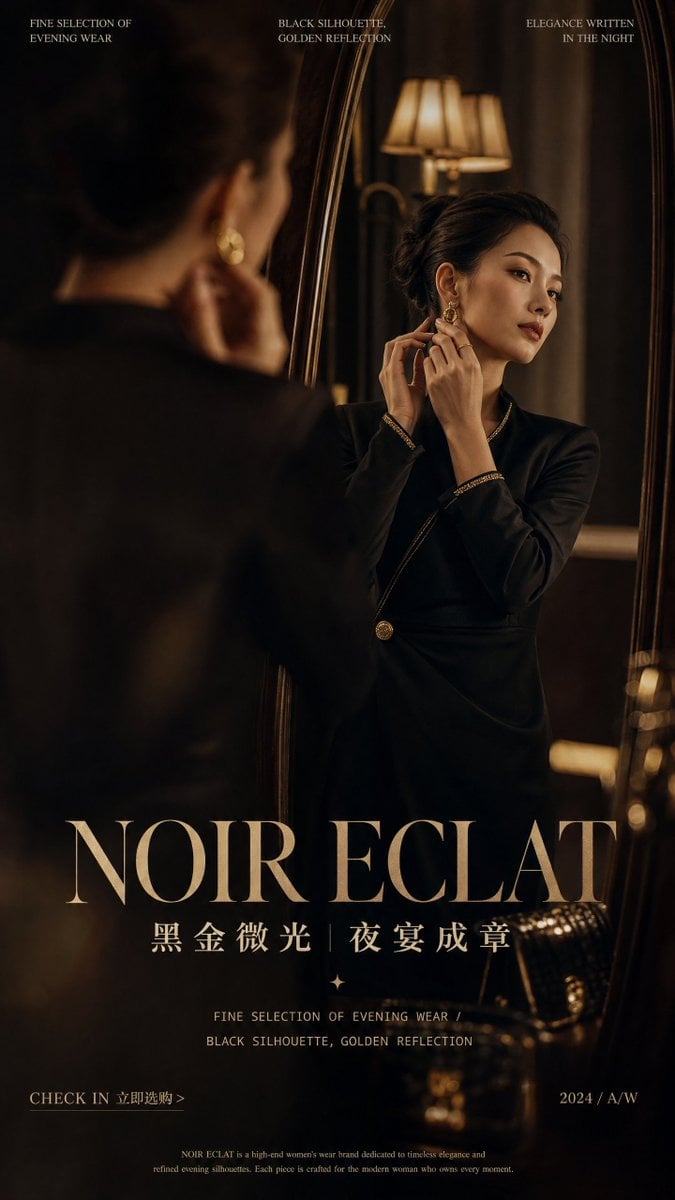
Retro Mirror Luxury Fashion Campaign Poster
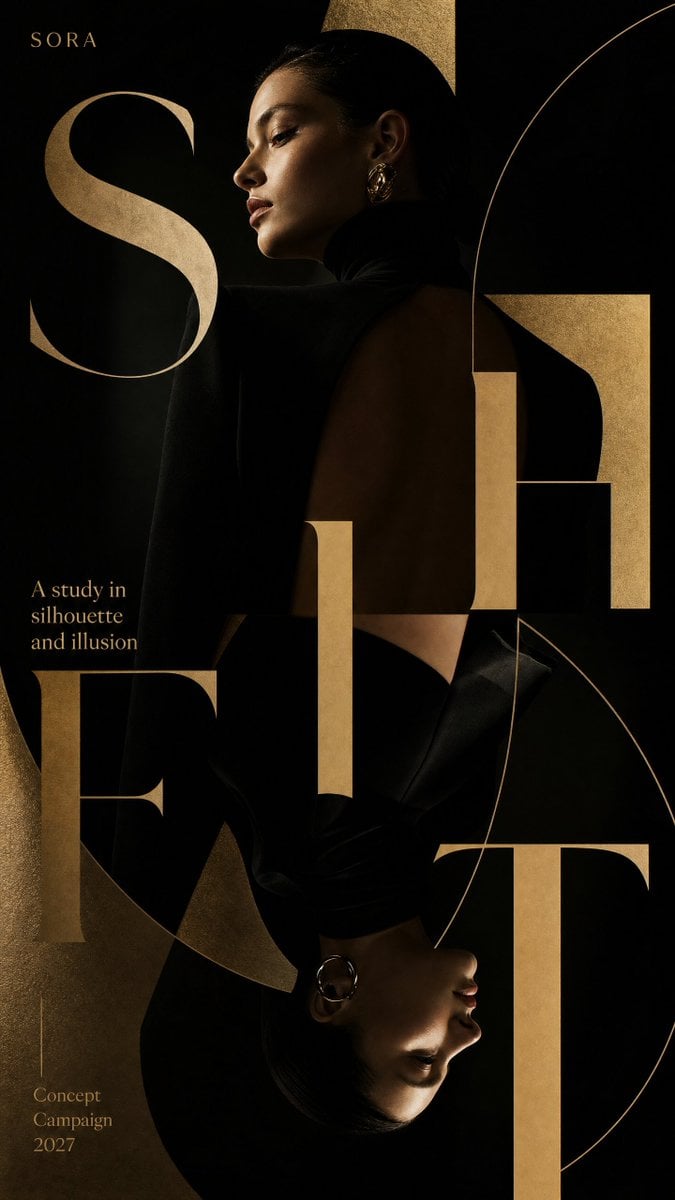
Luxury Fashion Campaign Typography Poster System
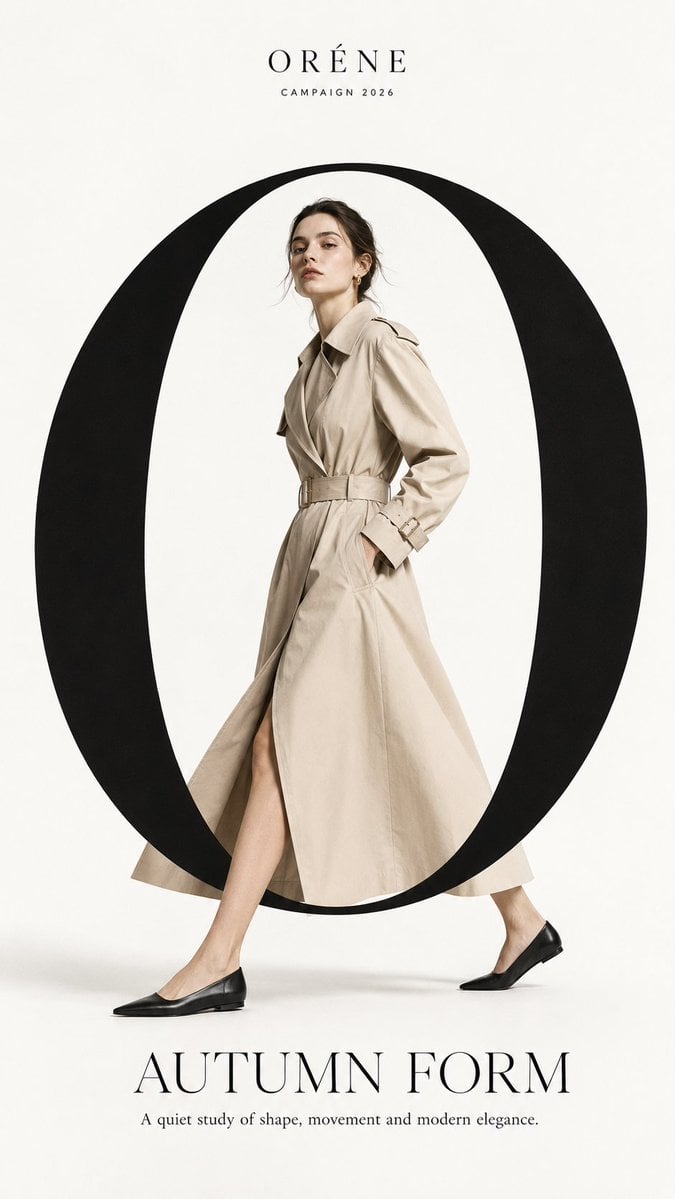
Premium Fashion Editorial Campaign Poster System
Make it yours
Japanese Beverage Ad Poster works as-is. These are the safest ways to change it without losing the look.
Swap the setting
Keep the rest of the prompt and replace the location block. The current setting is “floating water droplets, bright blue sky, sunny lighting”.
Change one field
Copy a single group, rewrite it, and generate again so you can see what that field is doing.
Keep the frame, change the subject
Hold the composition and light of Japanese Beverage Ad Poster, then swap wardrobe, props or the person for a new take.
| If the result… | Why | Fix |
|---|---|---|
| The result drifts from the preview | Too many fields changed at once. | Reuse Japanese Beverage Ad Poster as-is first, then change one group — subject, light, or setting. |
| GPT Image 2 ignores part of the JSON | Some models flatten or skip nested keys. | Keep the same values and paste them as a short paragraph instead. |
More GPT Image 2 templates
Other prompts made for GPT Image 2.

Six VTuber Japanese Logo Sheet

Realistic Portrait of Woman and Deer

The Vista Modular Condo Poster

AI Model Routing Comparison Infographic

2.5D Anime Art Board

Isometric Productivity Desk Scene

New York Double Exposure Poster

Four-Panel AI Landscape Comparison

Japanese Tatami Lifestyle Magazine Cover

NESCAFÉ Coffee Map Poster
More image prompts
Fresh picks from across the catalog.
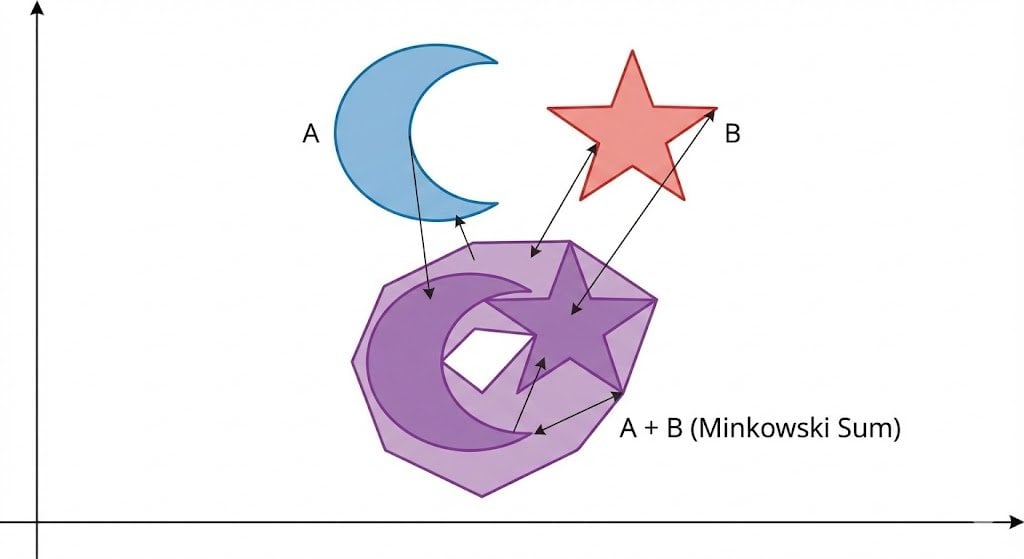
Minkowski sum of two non-convex sets
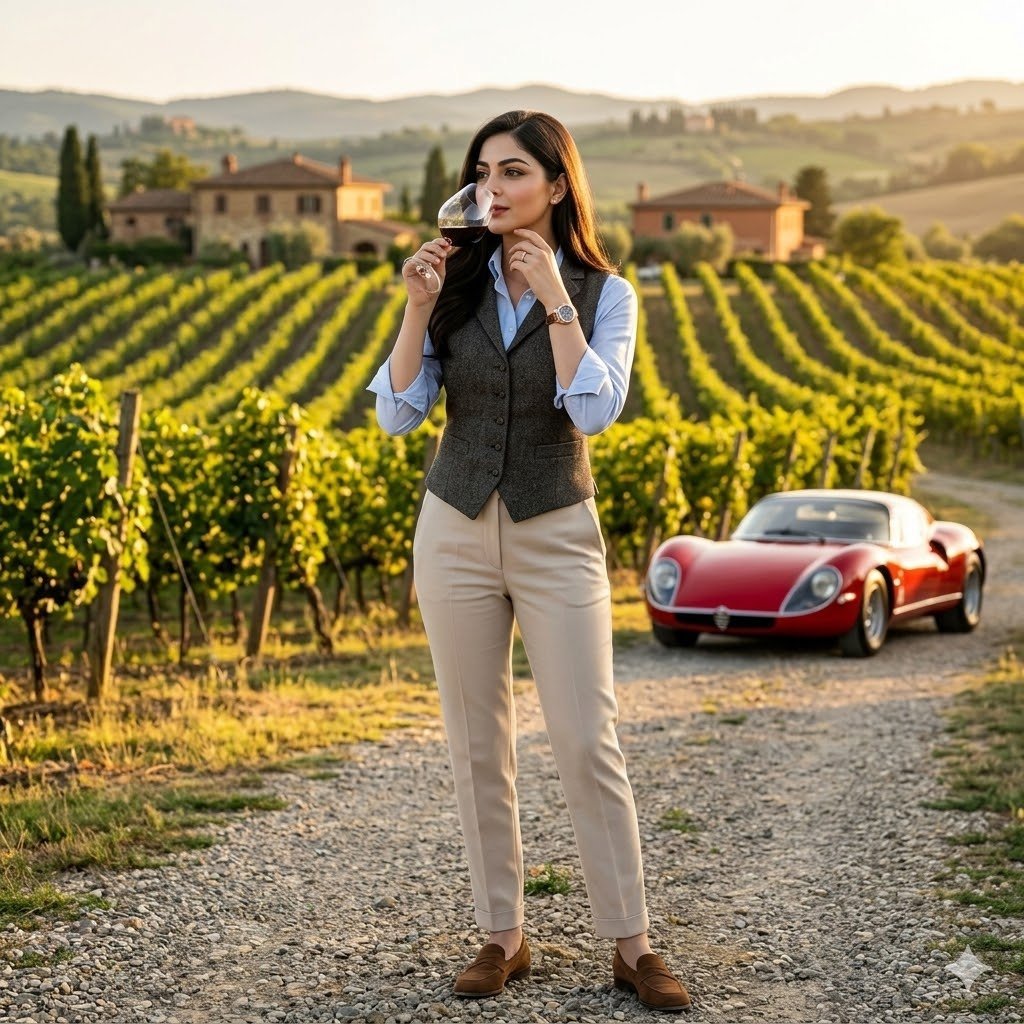
European Luxury Vineyard Portrait
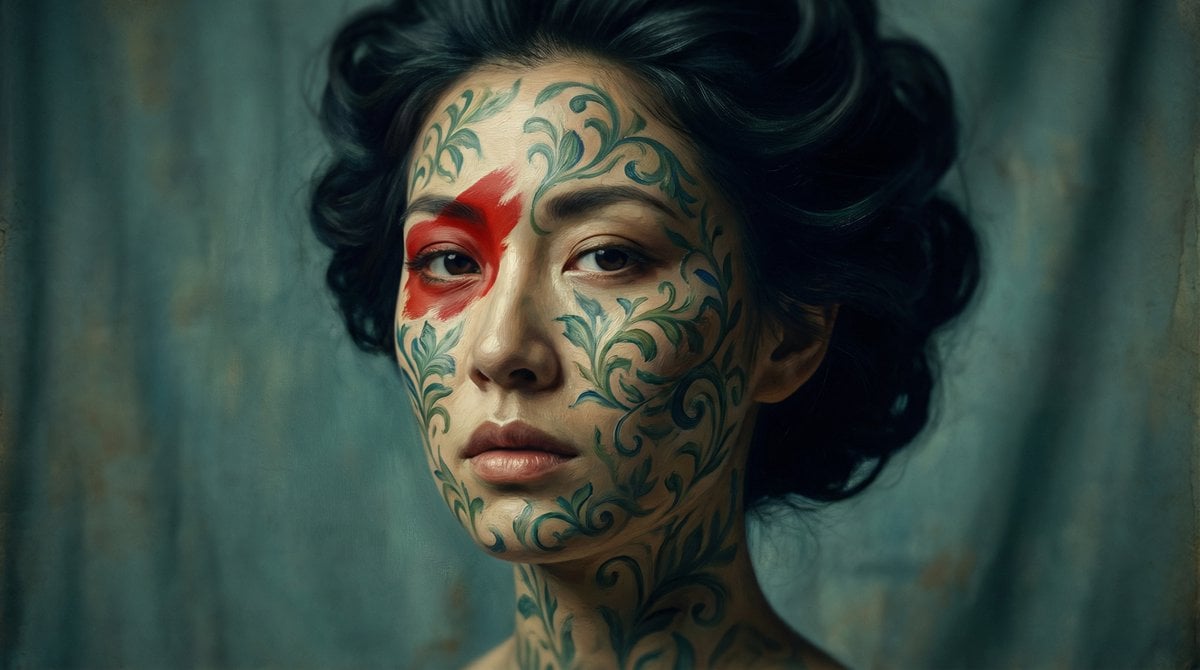
Cinematic Portrait with Botanical Skin Patterns
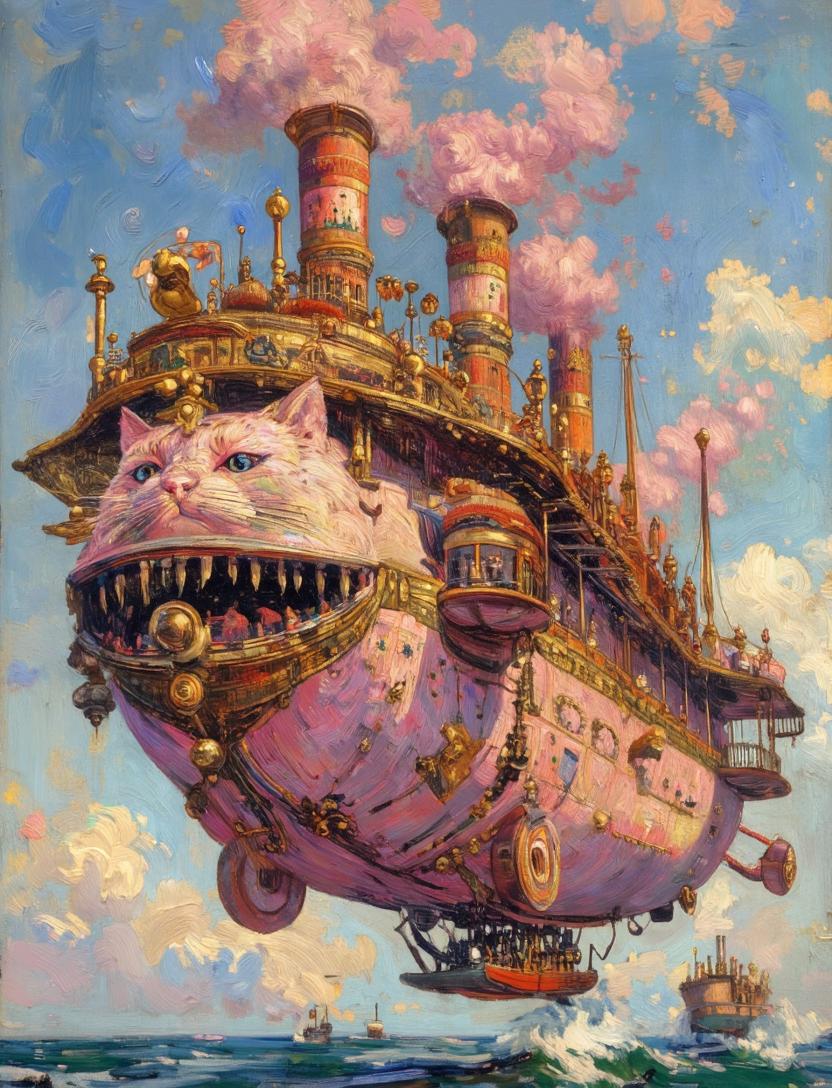
Steampunk Cat Airship Over the Sea
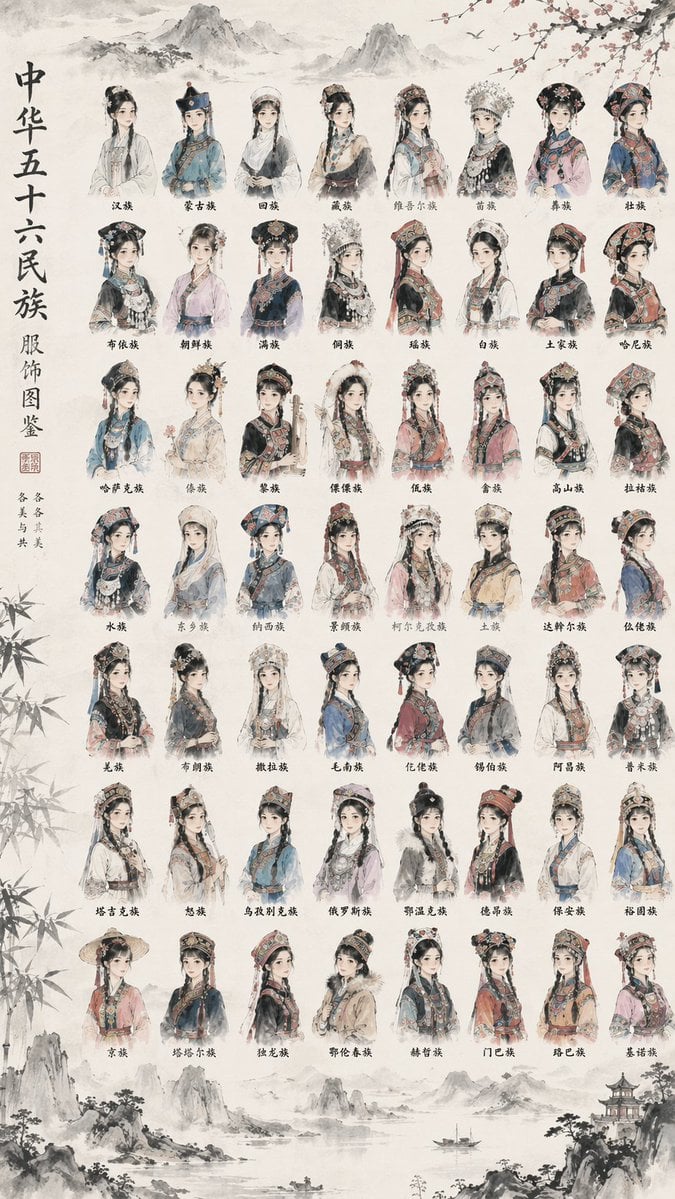
56 Chinese Ethnic Groups Clothing Chart
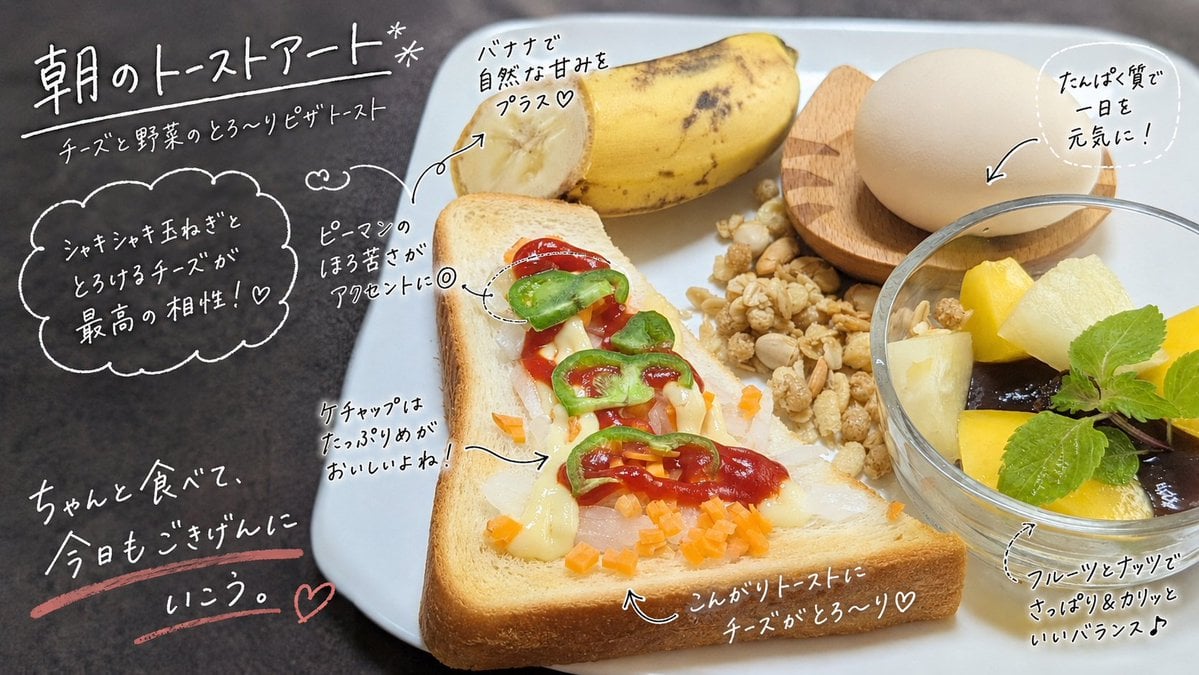
Handwritten Breakfast Photo Annotations
Child Three-View Clothing Reference
Hyper-realistic Mirror Selfie Portrait
Standalone Anime Character Portrait
Photorealistic Highland Lake Selfie
Browse template categories
Japanese Beverage Ad Poster questions
How do I use the Japanese Beverage Ad Poster template?
Add your photo if the template asks for one, edit the prompt if you like — the template's model and format are already selected — and press Generate. Your version opens in PicX Studio.
Can I customize the Japanese Beverage Ad Poster template?
Yes. You can change the subject, setting, lighting, mood, format, and available model controls before creating your image.
Is the Japanese Beverage Ad Poster template free?
Opening and editing this template is free. Generating uses credits, shown on the Generate button when you are signed in.
Which AI model should I use?
Start with GPT Image 2, which is the model associated with this template. You can compare another compatible model for a different finish.
Looking for something else? Browse all templates.

Your photo, any look
Thousands of ready templates for every top image and video model, from one credit balance.