
Local Web App Annotation Demo
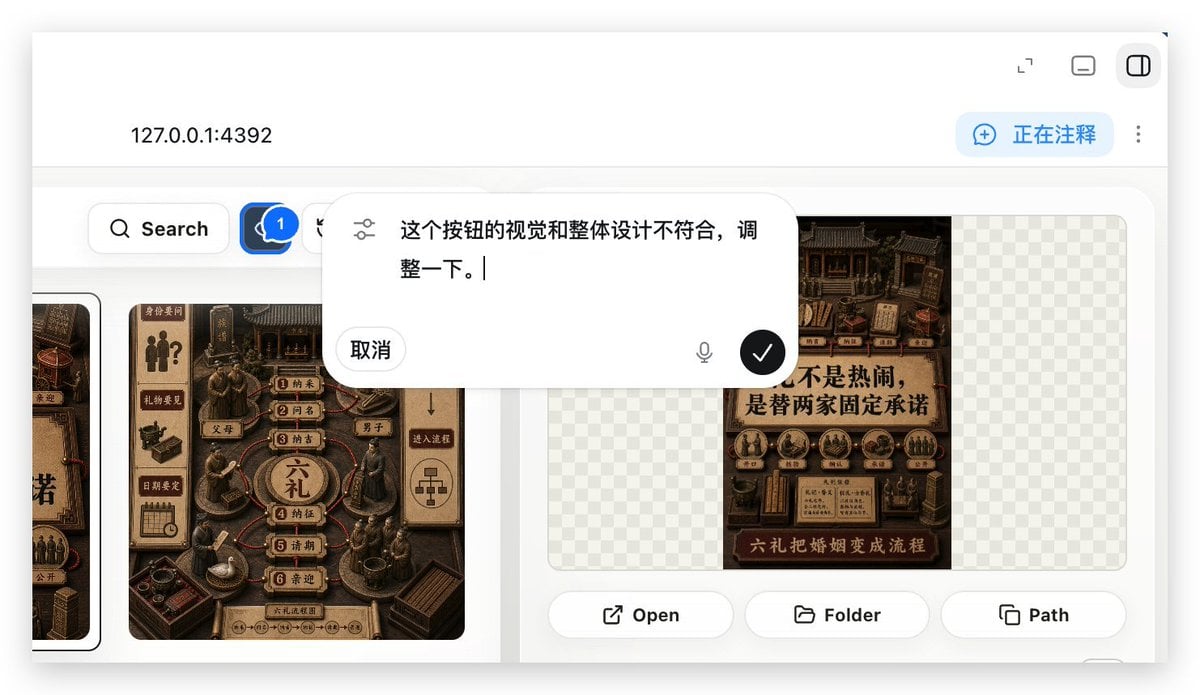
Generates a realistic localhost web app preview showing an annotation overlay used to request UI adjustments in a Build Web Apps workflow.
- Prompt included
- Model and format preset
- Free template
The prompt behind this image
Copy the exact prompt behind Local Web App Annotation Demo, or open it in the studio and make it yours.
Using REFERENCE_0 as the context, create a follow-up screenshot that shows the selected “Build Web Apps” tool in action as a local web app preview. Replace the plugin list view with a browser-like localhost workspace at {argument name="local address" default="127.0.0.1:4392"}, clean white UI, soft shadows, and rounded panels. Main change: show an app-building/annotation interface rather than the original plugin directory. Add a top bar with the local address on the left and exactly 3 small window/control icons on the right. Add a blue annotation status pill on the upper right with the text {argument name="annotation status" default="正在注释"} and a vertical three-dot menu beside it. Content area: create a gallery-style UI with Chinese poster/card designs inside rounded white panels. Include a left toolbar row with a Search button and a blue comment/annotation button carrying a badge labeled “1”. Show at least two visible poster/card thumbnails, using dark brown traditional Chinese visual styling, while leaving some checkerboard transparent-placeholder areas in the right panel. Overlay: place a large floating rounded annotation input bubble centered near the top-middle of the content. It should look like an inline AI comment editor, with a sliders/settings icon on the left, Chinese instruction text {argument name="comment text" default="这个按钮的视觉和整体设计不符合,调整一下。"}, a “取消” cancel button, a small microphone icon, and a black circular confirm button with a white checkmark. Bottom of the right preview panel: add exactly 3 action buttons labeled “Open”, “Folder”, and “Path”, each with a simple line icon. Keep the screenshot realistic, like a product demo of using Build Web Apps plus built-in HTML annotation to request UI refinements.
Reference images included
Local Web App Annotation Demo needs input media to work. They load alongside the prompt when you open it in the studio.
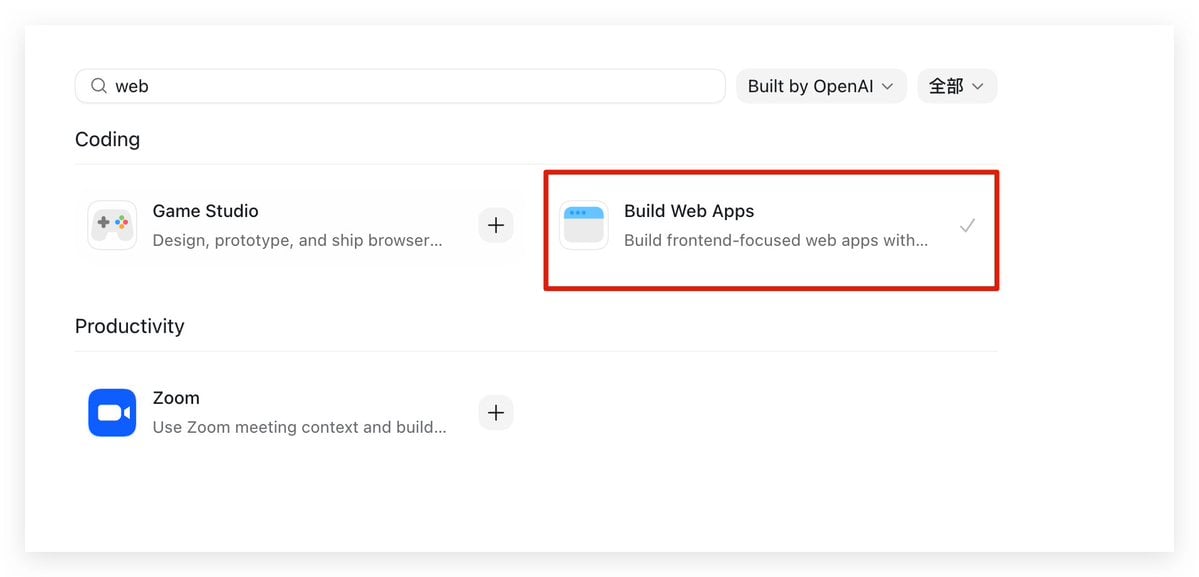
How to use Local Web App Annotation Demo in 3 steps
- 1Upload ImagePNG, JPG or paste
Add your photo
Upload the photo the template builds on. The prompt, model and format are already set.
- 2…a portrait of your subject in softgolden-hour light, 85mm…
Personalize
Edit the subject and creative details for your destination.
- 3Generate
Generate
Press Generate — your image is created in PicX Studio, so you can compare it with the original and refine one variable at a time.
More like this
Templates with the same subject, style or setup. Open one to see its prompt.

Local Edit: Rotate Laptop and Add Logo

Local Edit: Mascot Robot Replacement
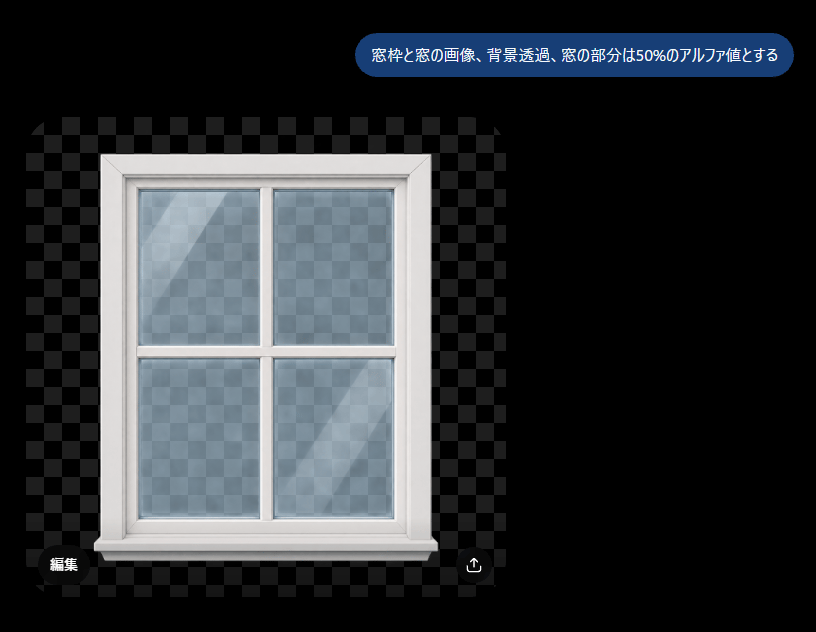
Transparent Window Alpha Demo

Web Design Course Promotional Banner
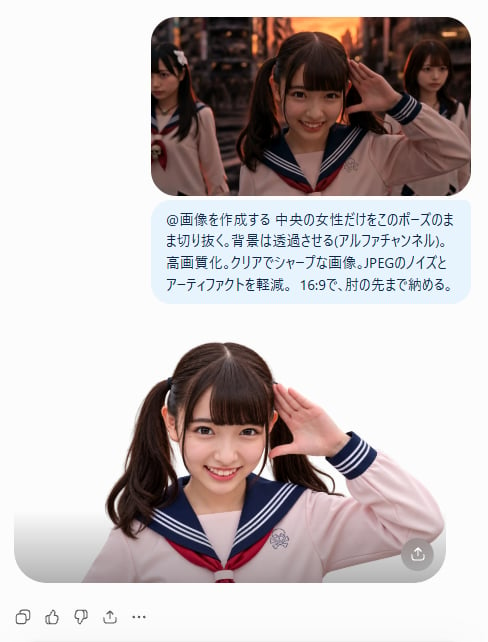
AI Cutout Demo Screenshot

Character Eating Parfait with Annotations
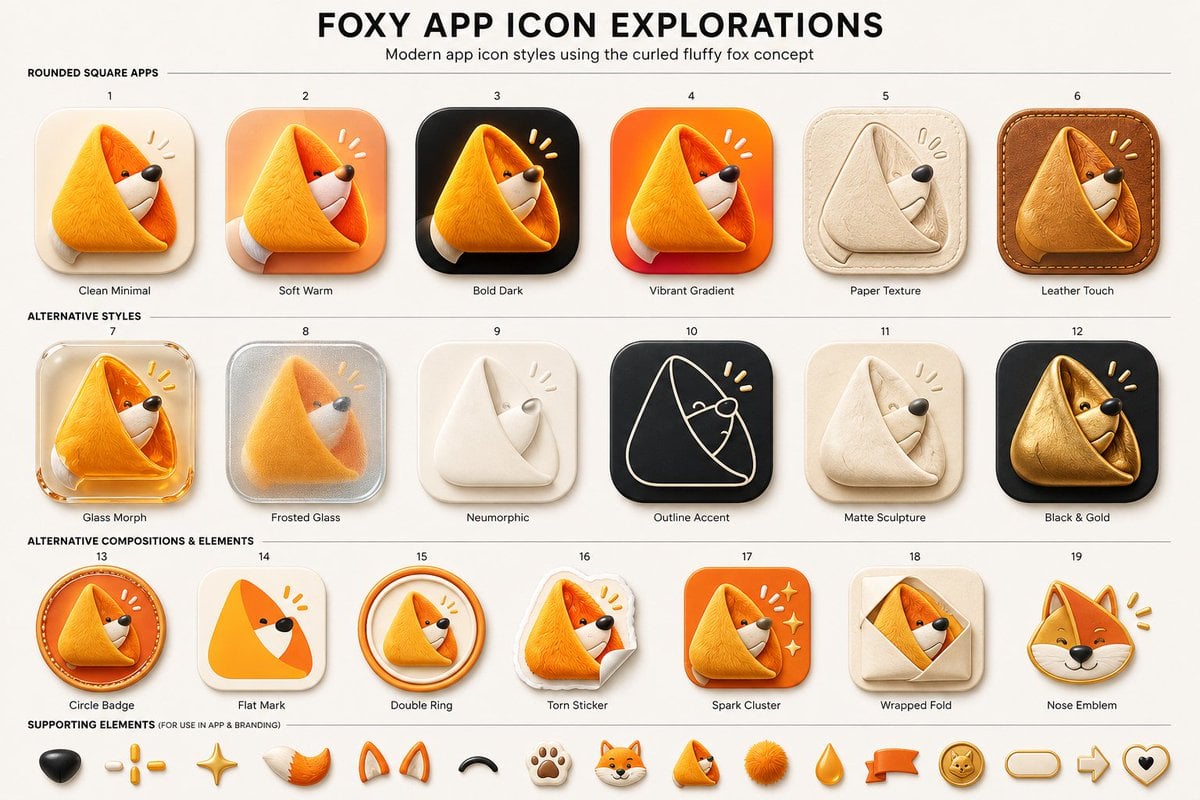
Foxy App Icon Exploration Board

Cinematic Product Advertisement with Spider Web

A cinematic silhouette shot of local fishermen lining the Galata Bridge

Hand-drawn scribble and annotation style
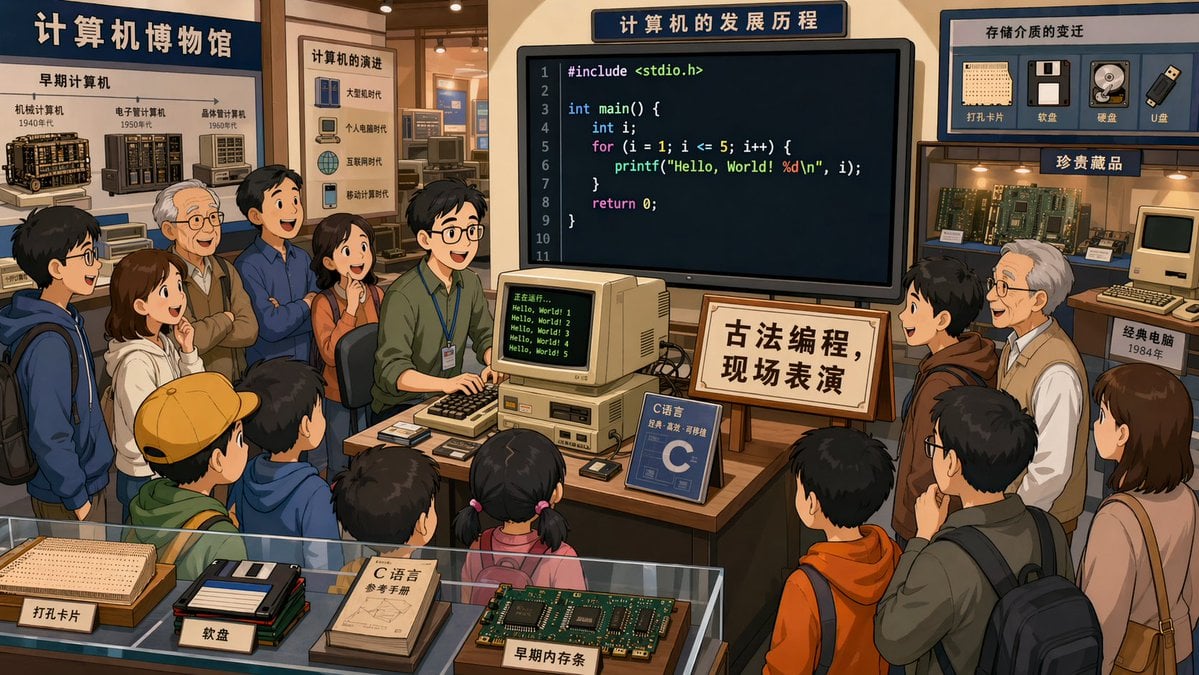
Computer Museum Coding Demo
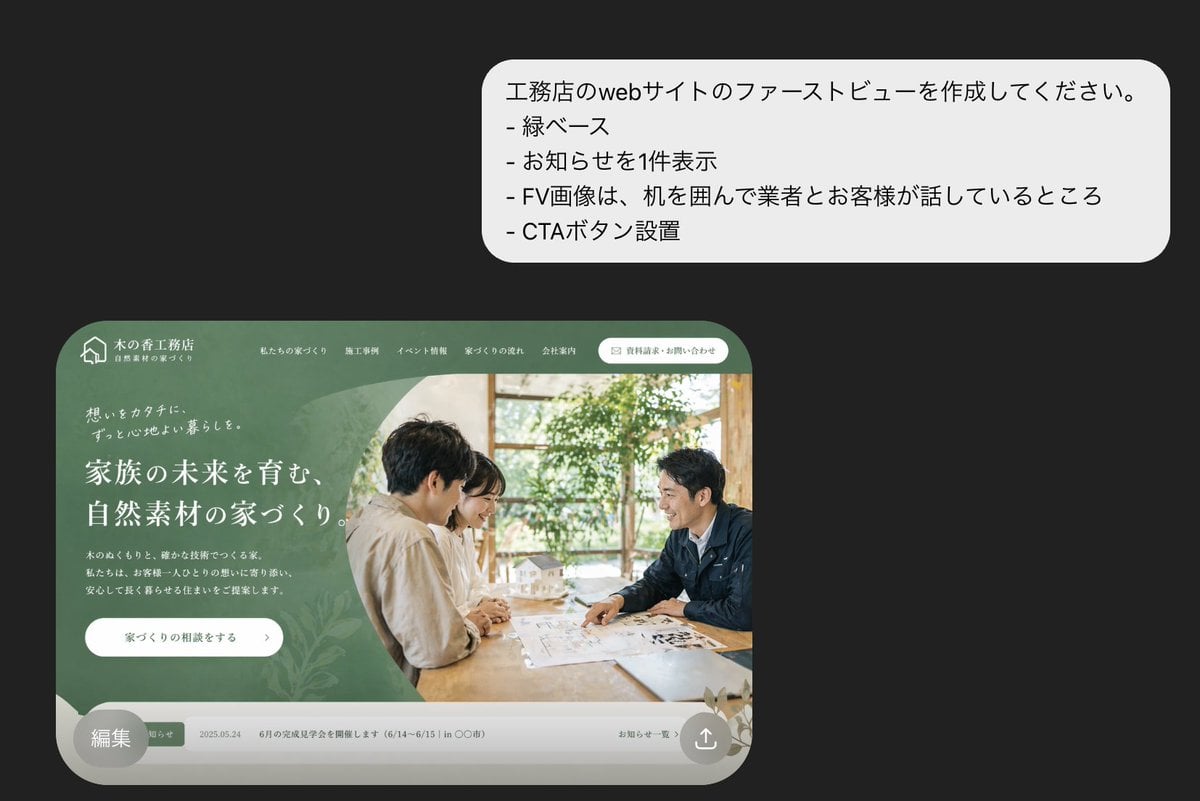
Japanese Builder Website Hero Mockup
Make it yours
Local Web App Annotation Demo works as-is. These are the safest ways to change it without losing the look.
Change one field
Copy a single group, rewrite it, and generate again so you can see what that field is doing.
Keep the frame, change the subject
Hold the composition and light of Local Web App Annotation Demo, then swap wardrobe, props or the person for a new take.
| If the result… | Why | Fix |
|---|---|---|
| The result drifts from the preview | Too many fields changed at once. | Reuse Local Web App Annotation Demo as-is first, then change one group — subject, light, or setting. |
| The model over-stylizes the scene | The prose prompt leaves finish and camera underspecified. | Add one camera or lighting sentence and stay on GPT Image 2. |
More GPT Image 2 templates
Other prompts made for GPT Image 2.

Six VTuber Japanese Logo Sheet

Realistic Portrait of Woman and Deer

The Vista Modular Condo Poster

AI Model Routing Comparison Infographic

2.5D Anime Art Board

Isometric Productivity Desk Scene

New York Double Exposure Poster

Four-Panel AI Landscape Comparison

Japanese Tatami Lifestyle Magazine Cover

NESCAFÉ Coffee Map Poster
More image prompts
Fresh picks from across the catalog.

Surreal Giant Clog Advertisement
Nano Banana Pro: Artist and Neon Styles

Candid Travel Portrait in Seoul

Minimalist Startup Presentation Cover Visual Prompt

Cinematic Portrait of Couple in Intimate Embrace

Boy Chasing Airplane Contrail
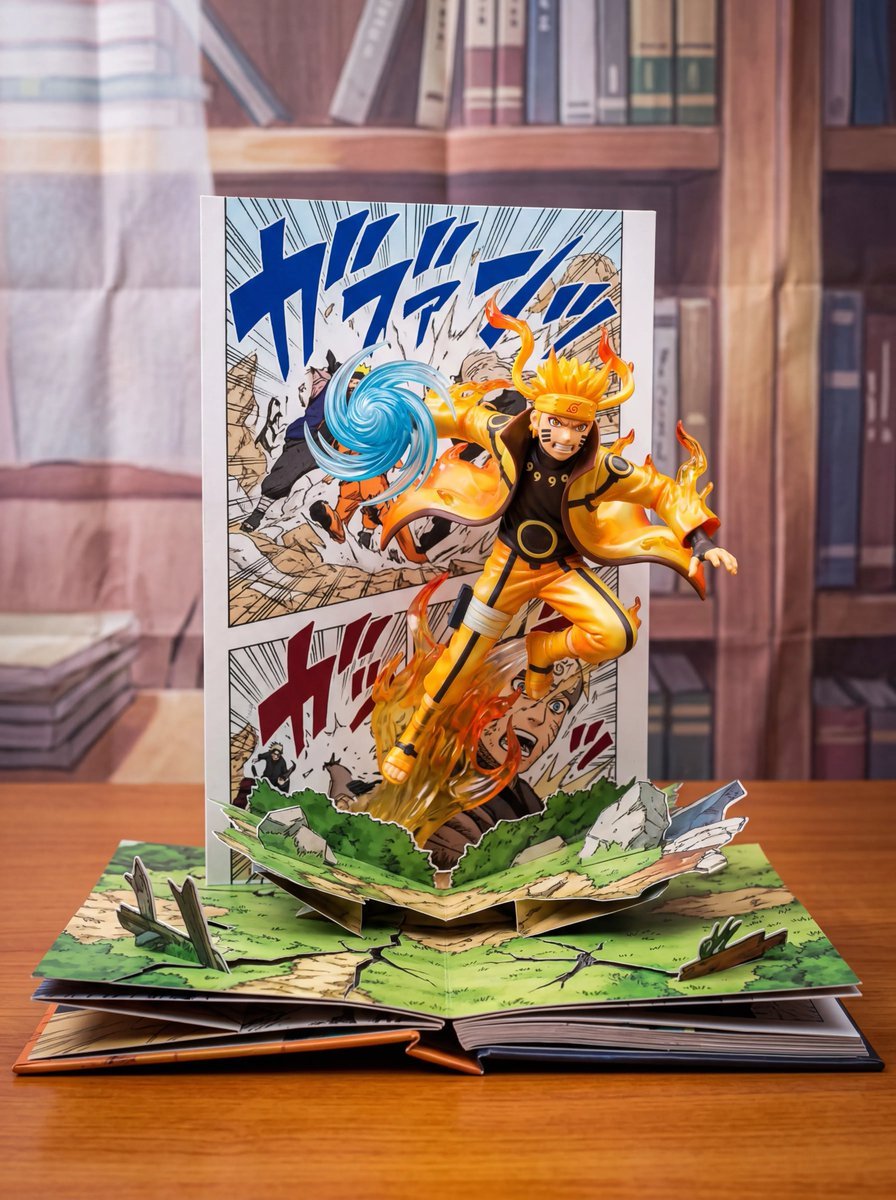
Uzumaki Naruto Pop-Up Book Prompt
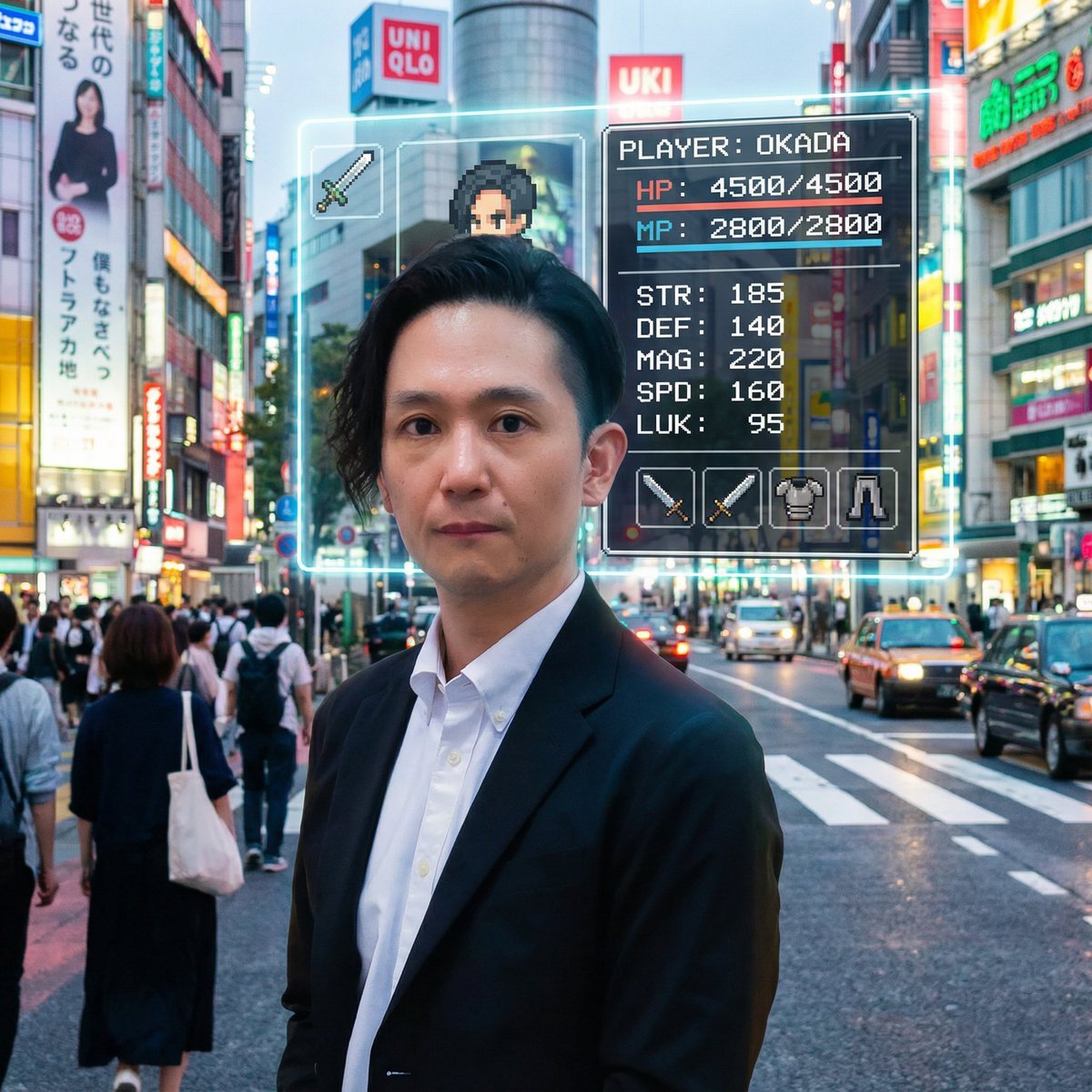
RPG Status Screen Overlay
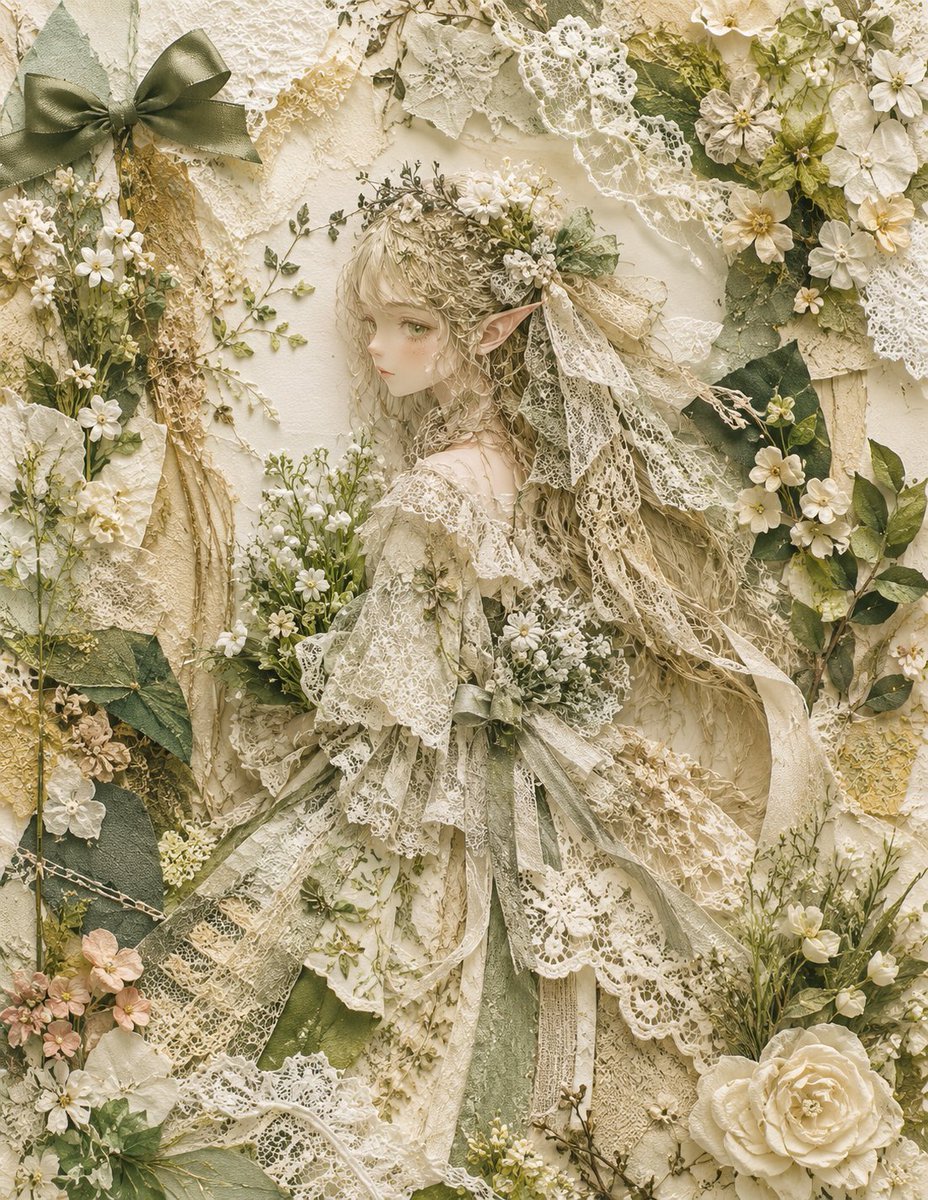
Textile Collage Elf Maiden

Epic Fantasy Sorceress Action Scene
Browse template categories
Local Web App Annotation Demo questions
How do I use the Local Web App Annotation Demo template?
Add your photo if the template asks for one, edit the prompt if you like — the template's model and format are already selected — and press Generate. Your version opens in PicX Studio.
Can I customize the Local Web App Annotation Demo template?
Yes. You can change the subject, setting, lighting, mood, format, and available model controls before creating your image.
Is the Local Web App Annotation Demo template free?
Opening and editing this template is free. Generating uses credits, shown on the Generate button when you are signed in.
Which AI model should I use?
Start with GPT Image 2, which is the model associated with this template. You can compare another compatible model for a different finish.
Looking for something else? Browse all templates.

Your photo, any look
Thousands of ready templates for every top image and video model, from one credit balance.