
Transparent Window Alpha Demo
Generates a UI-style demonstration image of a white window frame over a checkerboard transparency background with partially transparent glass panes.
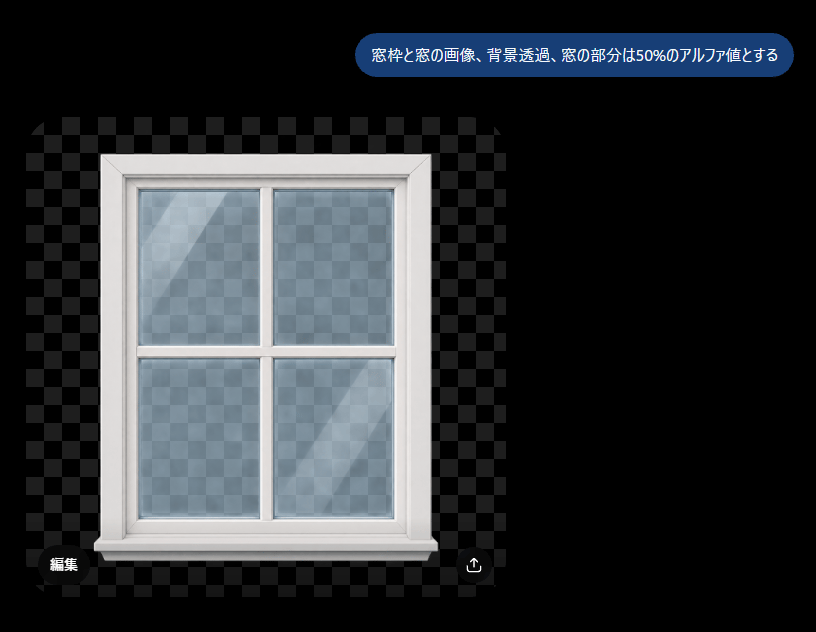
- Prompt included
- Model and format preset
- Free template
The prompt behind this image
Copy the exact prompt behind Transparent Window Alpha Demo, or open it in the studio and make it yours.
Create a clean demonstration image on a black canvas showing a white-framed four-pane window graphic with transparency effects. The main subject is a realistic front-facing window centered slightly left, with a thick glossy white frame, beveled edges, a horizontal and vertical crossbar dividing the glass into exactly 4 rectangular panes, and a small sill at the bottom. Behind and through the window is a gray checkerboard transparency pattern, and the glass panes should show the checkerboard faintly with about 50% alpha, plus subtle bluish tint, soft reflections, and two diagonal light streaks. Around the window, include a larger semi-transparent checkerboard rectangle with alternating dark gray squares on the black background to clearly indicate transparency. At the top right, add one rounded blue speech-bubble label containing the Japanese text {argument name="instruction text" default="窓枠と窓の画像、背景透過、窓の部分は50%のアルファ値とする"} in white sans-serif type. At the bottom left of the checkerboard area, add one small dark rounded button labeled 「編集」, and at the bottom right add one small circular dark button with a white upload/share arrow icon. Keep the composition minimal, with no extra objects, no watermark, and crisp UI-like presentation.
How to use Transparent Window Alpha Demo in 3 steps
- 1Upload ImagePNG, JPG or paste
Add your photo
Upload the photo the template builds on. The prompt, model and format are already set.
- 2…a portrait of your subject in softgolden-hour light, 85mm…
Personalize
Edit the subject and creative details for your destination.
- 3Generate
Generate
Press Generate — your image is created in PicX Studio, so you can compare it with the original and refine one variable at a time.
More like this
Templates with the same subject, style or setup. Open one to see its prompt.
Rainy Café Window Moody Portrait
Nano Banana - Window Wine Red Dress

Transparent Bear Character Cutout
Transparent Earbuds on Stone Pedestal
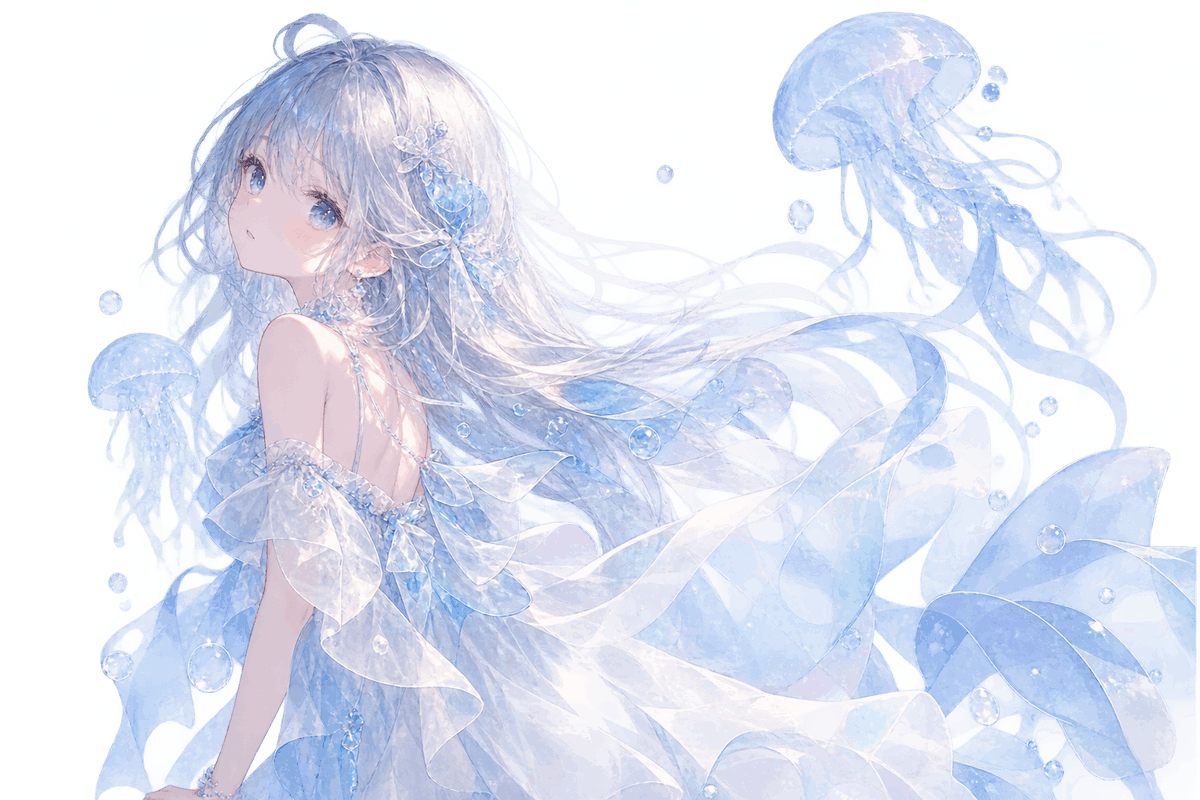
Transparent Jellyfish Princess
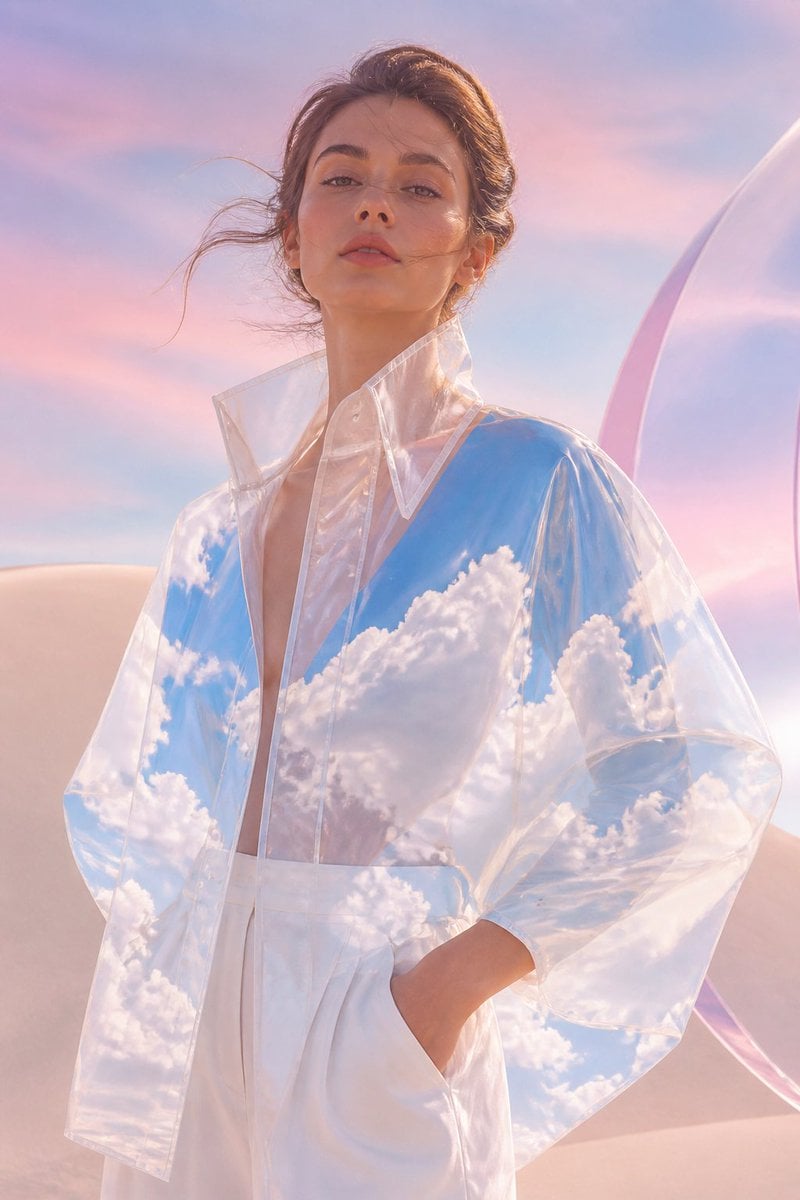
Transparent Sky Jacket Fashion
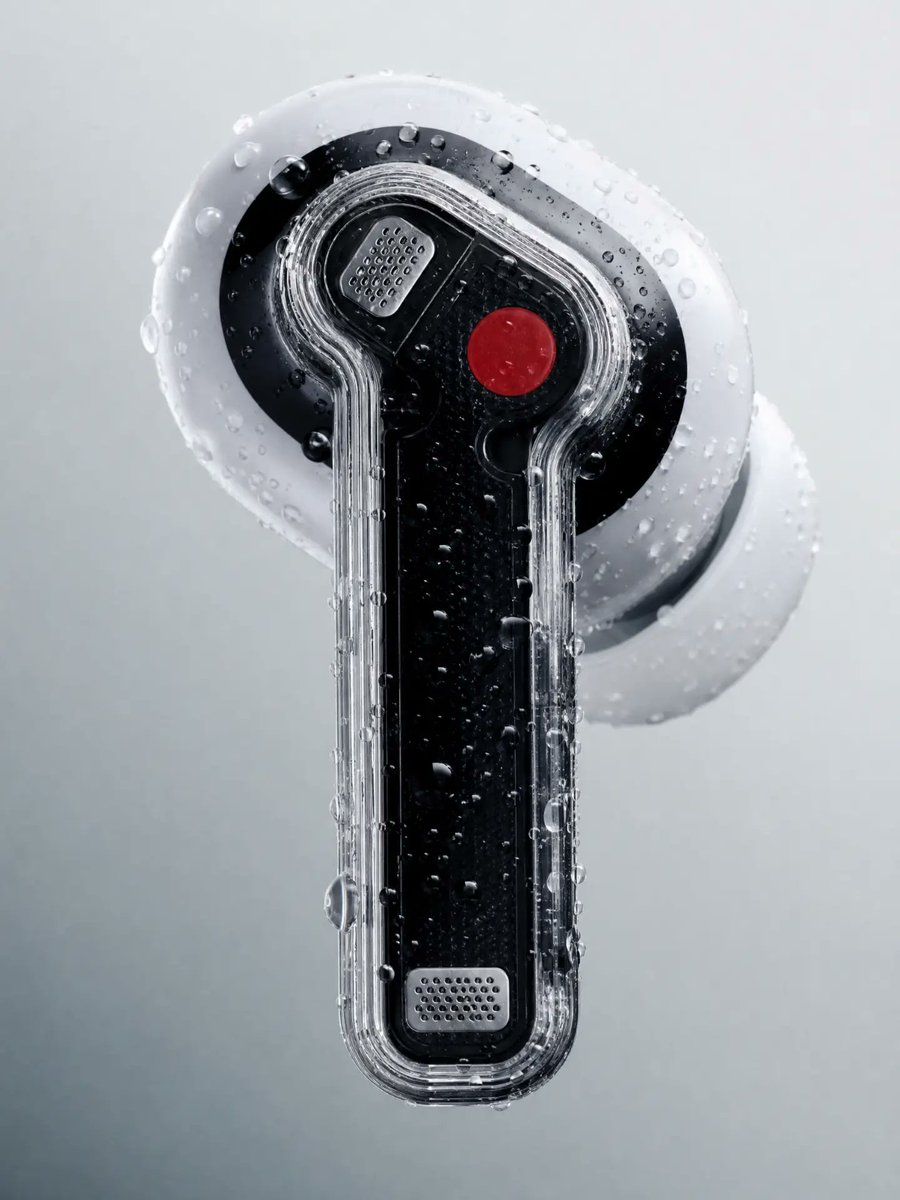
Wet Transparent Earbud Macro
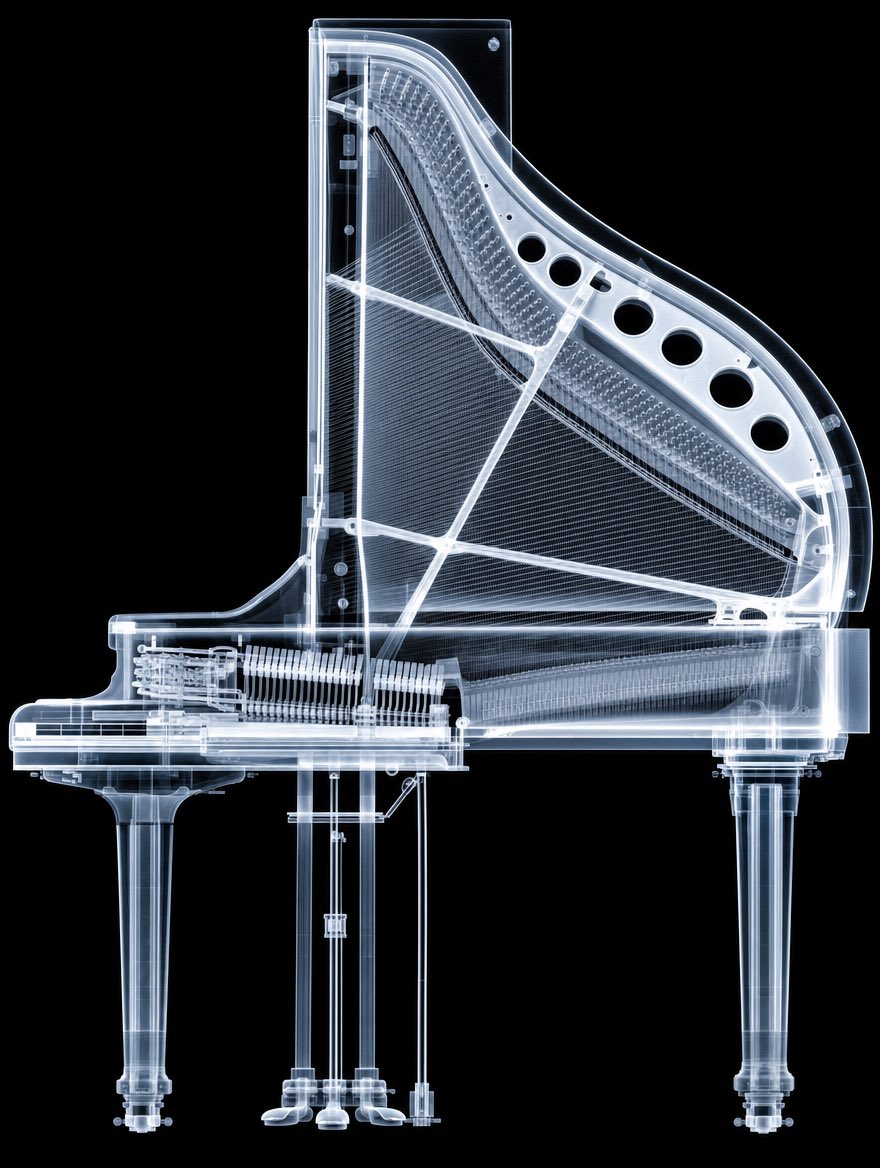
X-Ray Transparent Grand Piano
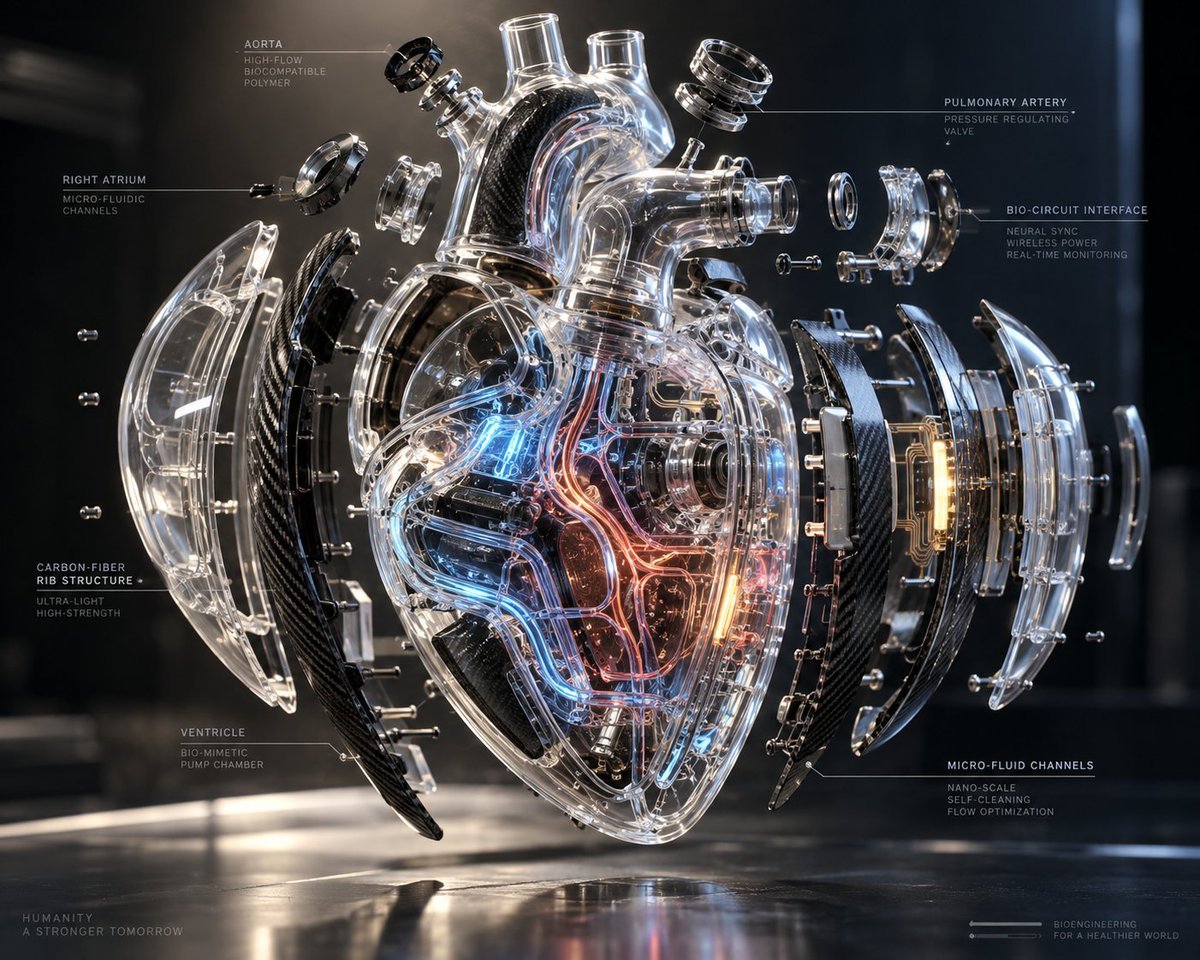
Exploded Transparent Artificial Heart

Transparent background soccer player
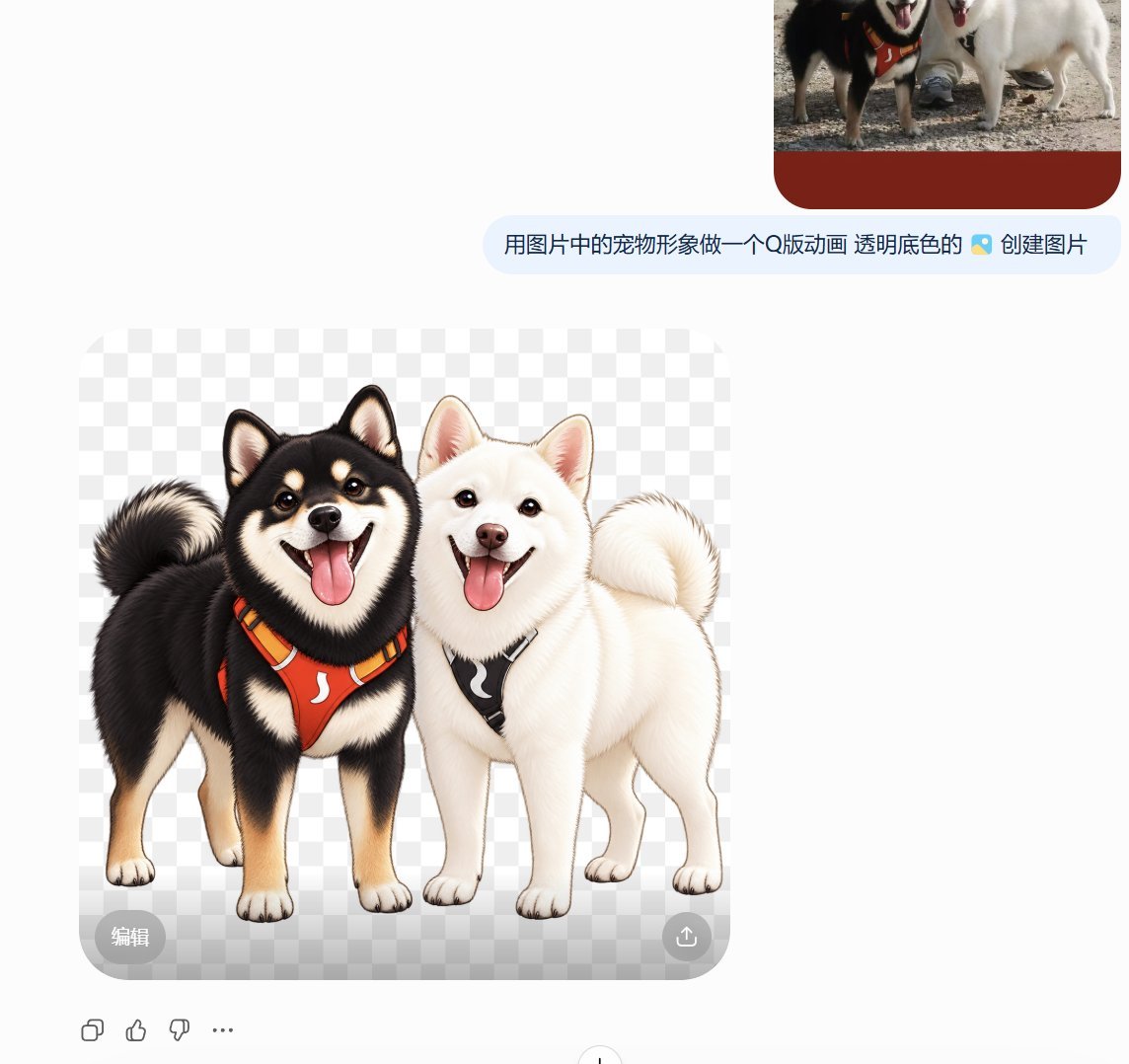
Transparent Chibi Shiba Duo
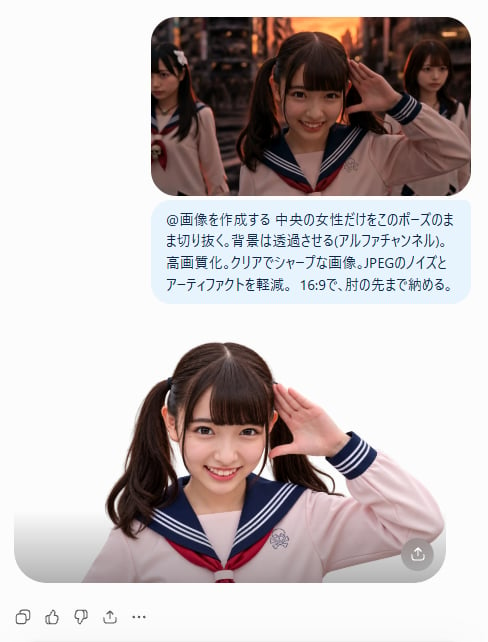
AI Cutout Demo Screenshot
Make it yours
Transparent Window Alpha Demo works as-is. These are the safest ways to change it without losing the look.
Change one field
Copy a single group, rewrite it, and generate again so you can see what that field is doing.
Keep the frame, change the subject
Hold the composition and light of Transparent Window Alpha Demo, then swap wardrobe, props or the person for a new take.
| If the result… | Why | Fix |
|---|---|---|
| The result drifts from the preview | Too many fields changed at once. | Reuse Transparent Window Alpha Demo as-is first, then change one group — subject, light, or setting. |
| The model over-stylizes the scene | The prose prompt leaves finish and camera underspecified. | Add one camera or lighting sentence and stay on GPT Image 2. |
More GPT Image 2 templates
Other prompts made for GPT Image 2.

Six VTuber Japanese Logo Sheet

Realistic Portrait of Woman and Deer

The Vista Modular Condo Poster

AI Model Routing Comparison Infographic

2.5D Anime Art Board

Isometric Productivity Desk Scene

New York Double Exposure Poster

Four-Panel AI Landscape Comparison

Japanese Tatami Lifestyle Magazine Cover

NESCAFÉ Coffee Map Poster
More image prompts
Fresh picks from across the catalog.
Mixed Media Fashion Film - Seedance 2.0
newspaper
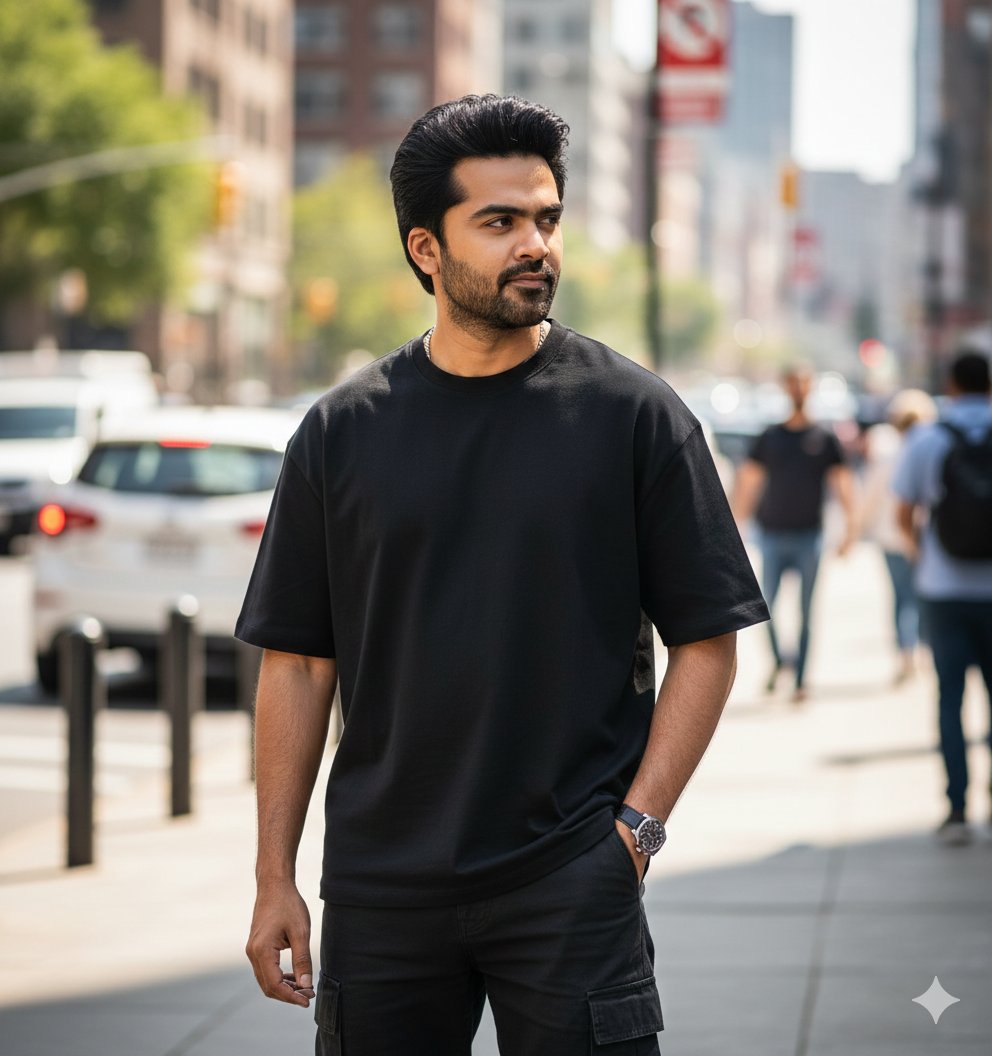
Ultra-Realistic Street Portrait with Identity Lock
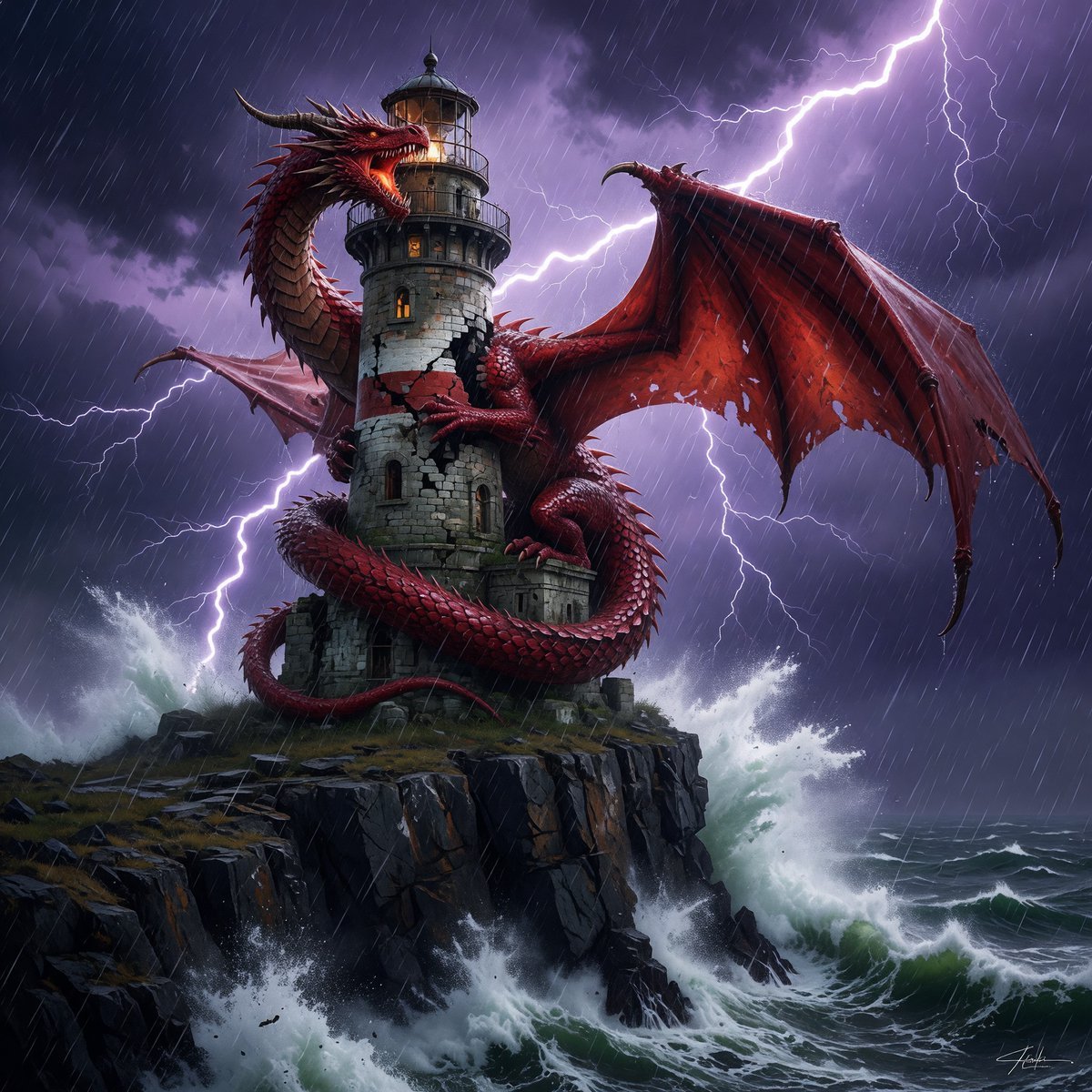
Dragon-Coiled Lighthouse Storm
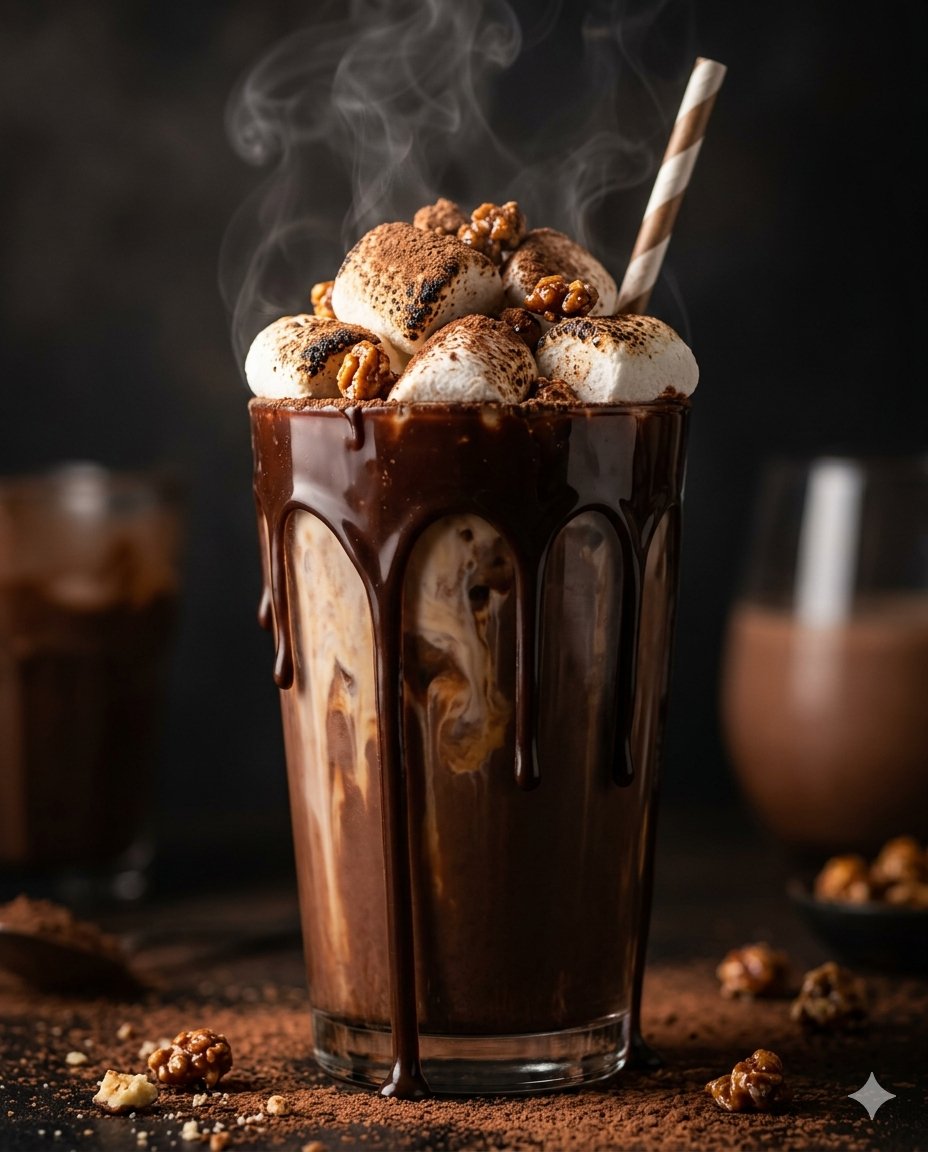
Editorial Food Photography of Chocolate Brownie Stack
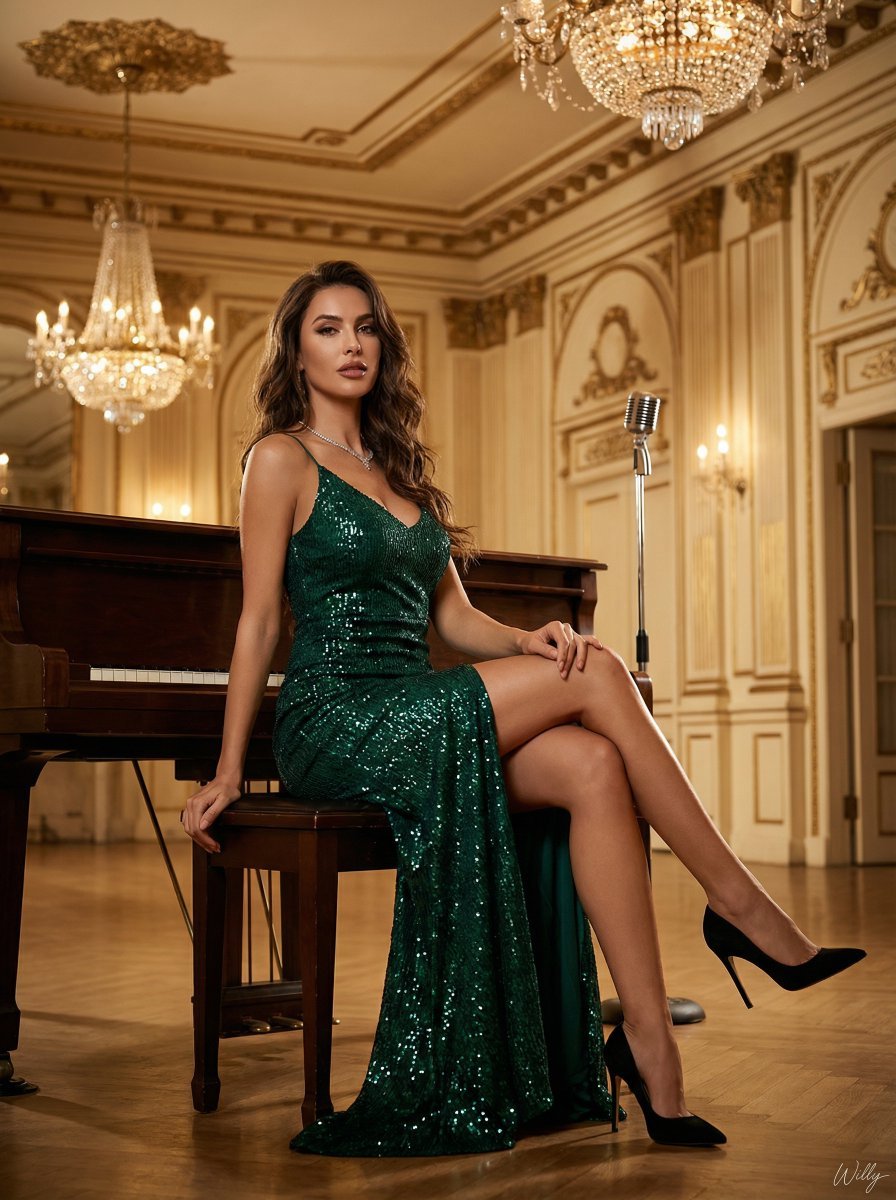
Ultra-Luxury Art Deco Fashion Editorial Prompt
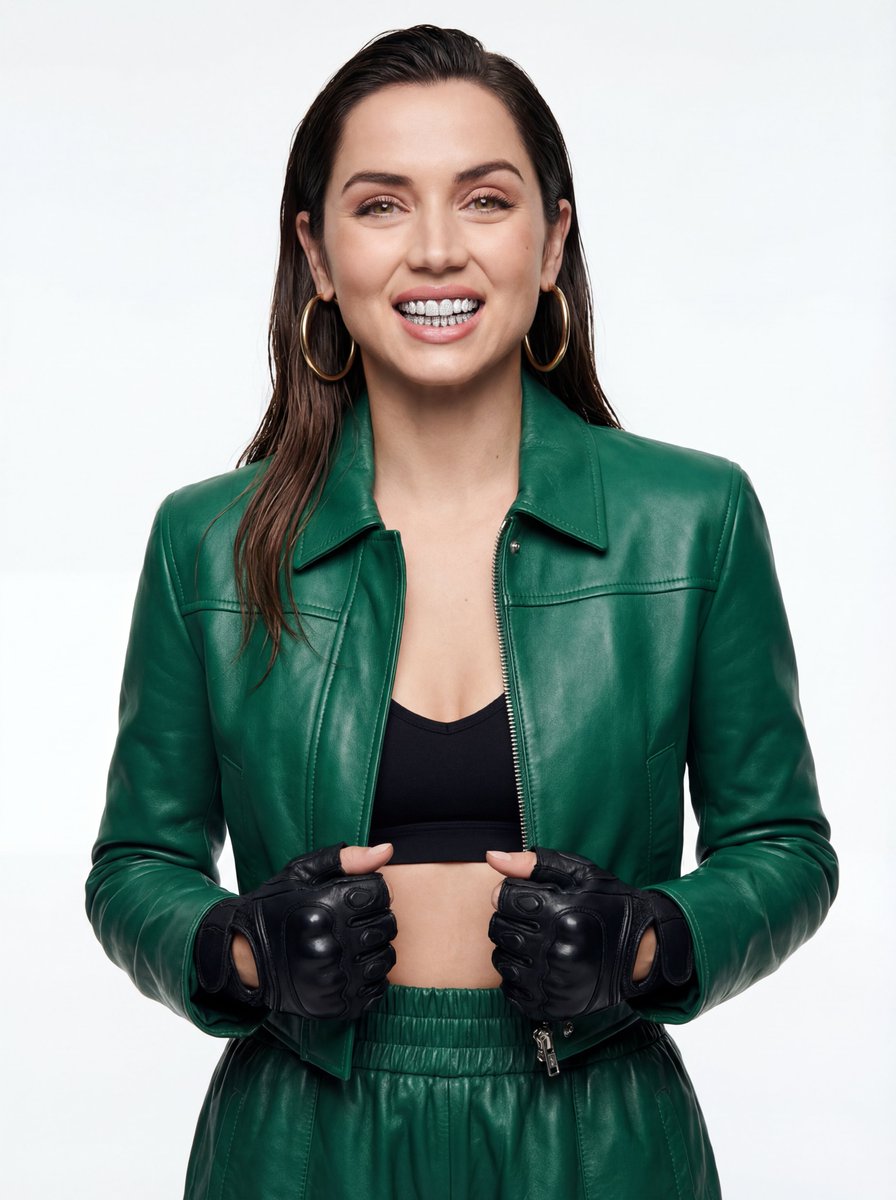
High-Fashion Urban Editorial Portrait with Grillz
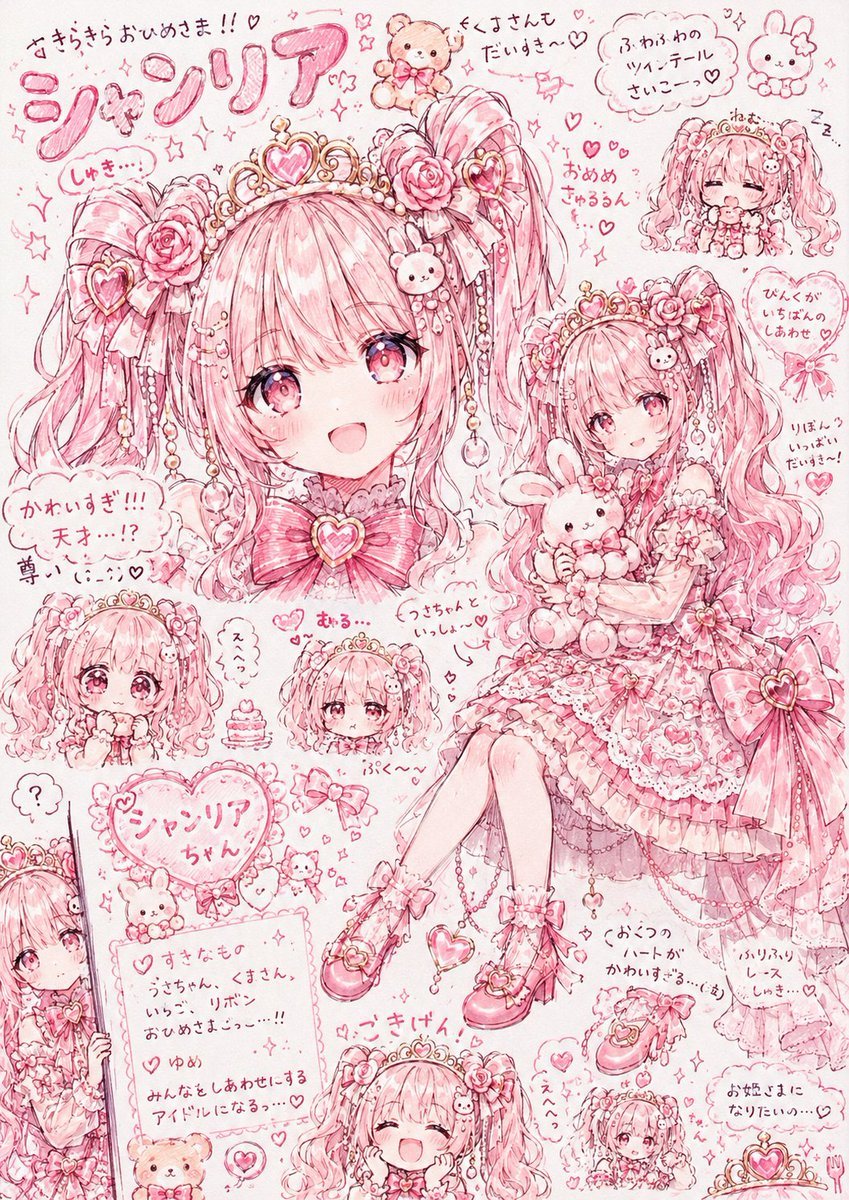
Pink Princess Idol Character Collage
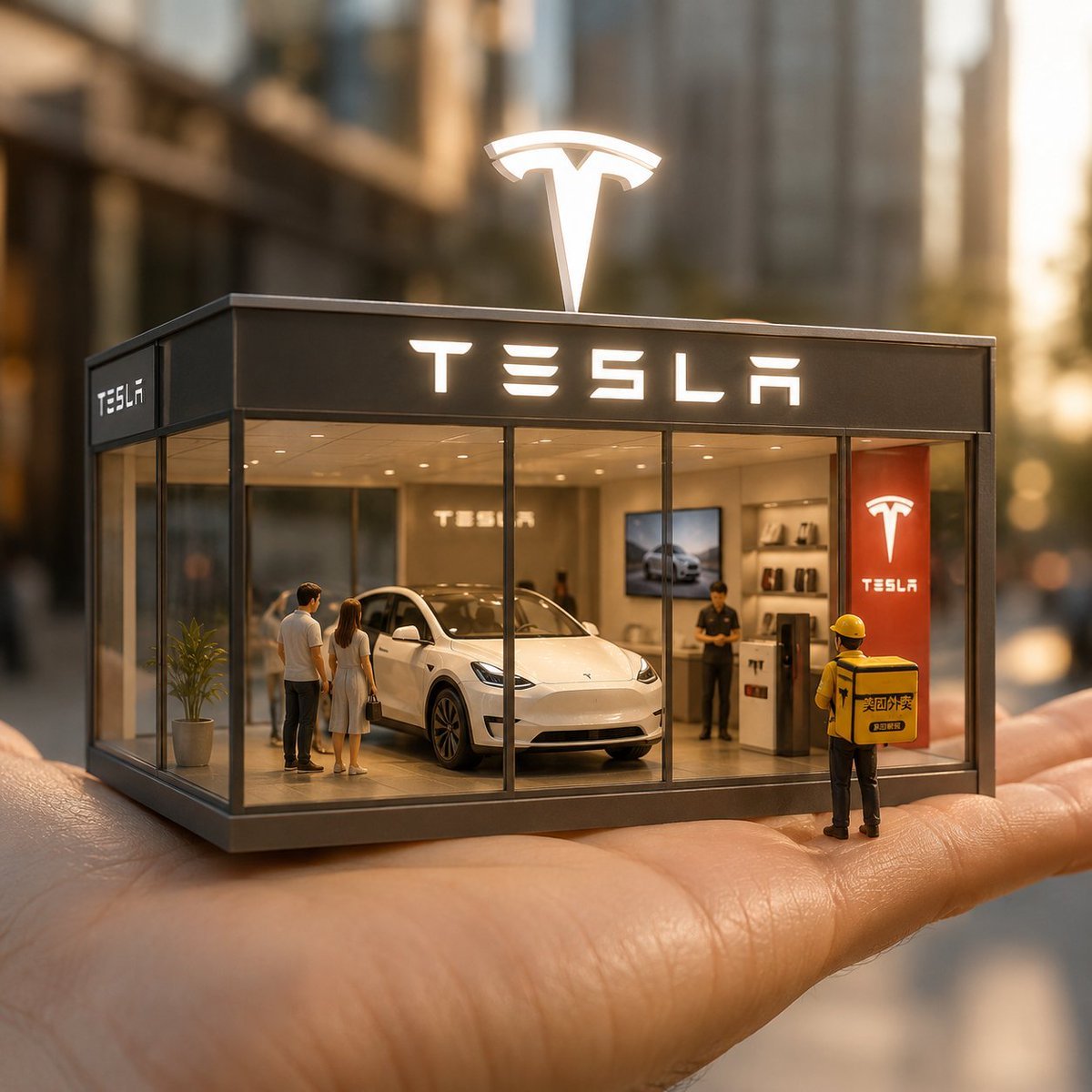
Surreal Miniature Tesla Showroom
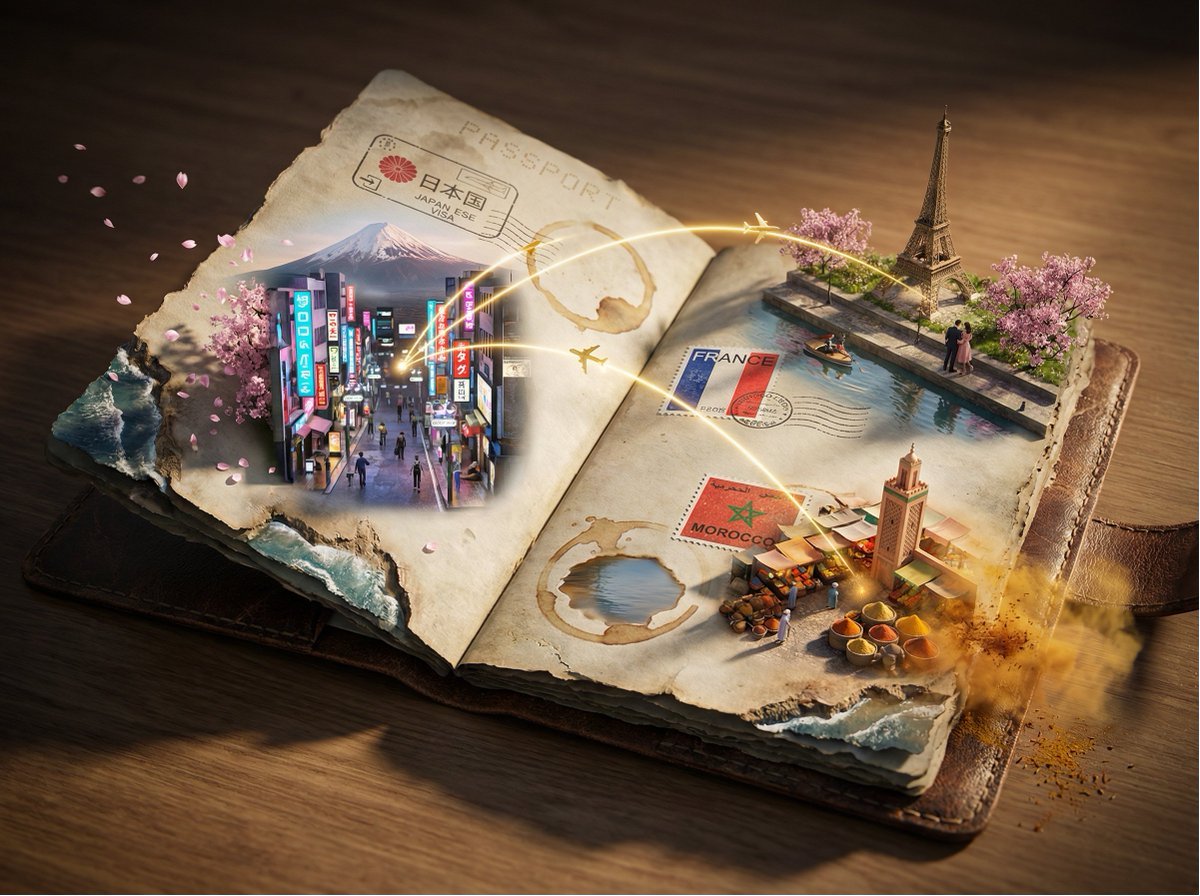
Passport Journey 3D Atlas
Browse template categories
Transparent Window Alpha Demo questions
How do I use the Transparent Window Alpha Demo template?
Add your photo if the template asks for one, edit the prompt if you like — the template's model and format are already selected — and press Generate. Your version opens in PicX Studio.
Can I customize the Transparent Window Alpha Demo template?
Yes. You can change the subject, setting, lighting, mood, format, and available model controls before creating your image.
Is the Transparent Window Alpha Demo template free?
Opening and editing this template is free. Generating uses credits, shown on the Generate button when you are signed in.
Which AI model should I use?
Start with GPT Image 2, which is the model associated with this template. You can compare another compatible model for a different finish.
Looking for something else? Browse all templates.

Your photo, any look
Thousands of ready templates for every top image and video model, from one credit balance.