
AI Cutout Demo Screenshot
A vertical mobile UI mockup showing a photorealistic schoolgirl background-removal before-and-after result for thumbnail creation.
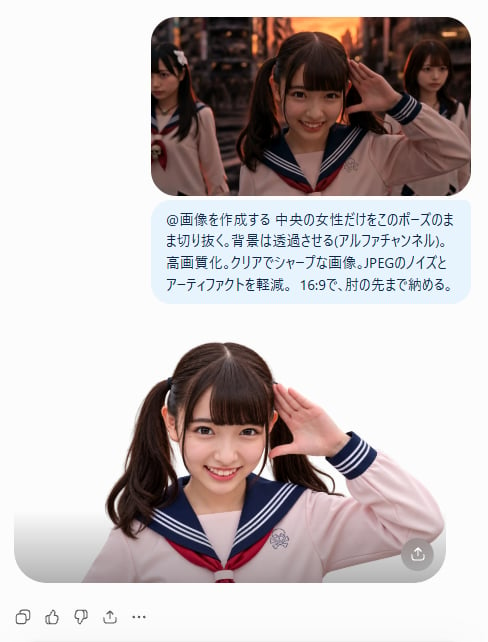
- Prompt included
- Model and format preset
- Free template
The prompt behind this image
Copy the exact prompt behind AI Cutout Demo Screenshot, or open it in the studio and make it yours.
Goal: Create a clean mobile-style social media screenshot demonstrating an AI background-removal result for a thumbnail image. Canvas: Vertical 488×641 px composition on a pure white background, with generous margins and a centered content column. Layout: At the top, place one rounded-corner rectangular photo, about 318 px wide, showing three Japanese schoolgirls in sailor-style uniforms in a warm sunset urban street scene. The central girl is closest to camera, smiling brightly and raising her right hand beside her face in a salute-like pose; the two other girls are behind her, one on the left partly cropped and looking serious, one on the right in the background. Use cinematic dusk lighting with orange highlights and shallow depth of field. Prompt bubble: Directly below the top photo, add one pale light-blue rounded speech bubble containing Japanese text in dark navy. Preserve the text exactly as: 「@画像を作成する 中央の女性だけをそのポーズのまま切り抜く。背景は透過させる(アルファチャンネル)。高画質化。クリアでシャープな画像。JPEGのノイズとアーティファクトを軽減。16:9で、肘の先まで納める。」 The bubble should be aligned under the image and look like a chat prompt. Result image: Below the bubble, show one large cut-out portrait of only the central girl from the top image, isolated against a white/transparent-looking background. She remains in the same salute pose, smiling, with twin ponytails, straight bangs, a pale pink sailor uniform, navy sailor collar with white stripes, and a red necktie. Re-light her cleanly and evenly so the face is sharper and brighter than in the top photo. Crop from upper torso to just past the raised elbow, with a soft rounded gray bottom container edge like an image preview. Add one small circular gray share/download button at the bottom-right corner of the result preview. Bottom UI: Along the lower left margin, draw exactly five small gray interaction icons in a row: copy/duplicate, thumbs up, thumbs down, share/upload arrow, and ellipsis menu. Customizable subject details: The main cutout subject is {argument name="character description" default="a smiling Japanese teenage schoolgirl with twin ponytails and straight bangs"}; the uniform is {argument name="outfit" default="pale pink sailor-style school uniform with navy collar, white stripes, and red necktie"}; the top background is {argument name="background scene" default="warm sunset urban street with cinematic bokeh"}; the chat bubble text is {argument name="prompt text" default="@画像を作成する 中央の女性だけをそのポーズのまま切り抜く。背景は透過させる(アルファチャンネル)。高画質化。クリアでシャープな画像。JPEGのノイズとアーティファクトを軽減。16:9で、肘の先まで納める。"}. Visual style: Photorealistic portraits embedded in a minimal app interface, crisp shadows, rounded corners, clean white UI, high-resolution thumbnail demonstration. Avoid extra people beyond the three in the top image and the single isolated cutout below; avoid watermarks or additional text.
How to use AI Cutout Demo Screenshot in 3 steps
- 1Upload ImagePNG, JPG or paste
Add your photo
Upload the photo the template builds on. The prompt, model and format are already set.
- 2…a portrait of your subject in softgolden-hour light, 85mm…
Personalize
Edit the subject and creative details for your destination.
- 3Generate
Generate
Press Generate — your image is created in PicX Studio, so you can compare it with the original and refine one variable at a time.
More like this
Templates with the same subject, style or setup. Open one to see its prompt.

Minecraft Next-Gen Voxel World Screenshot
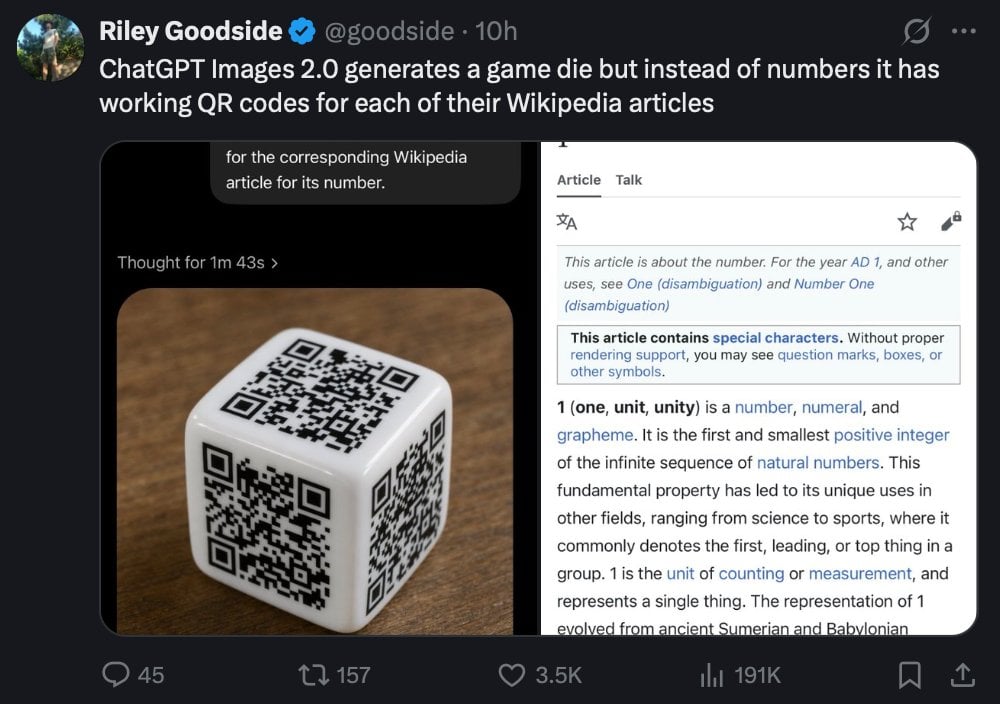
Tweet Screenshot of QR Code Dice Demo

Transparent Bear Character Cutout
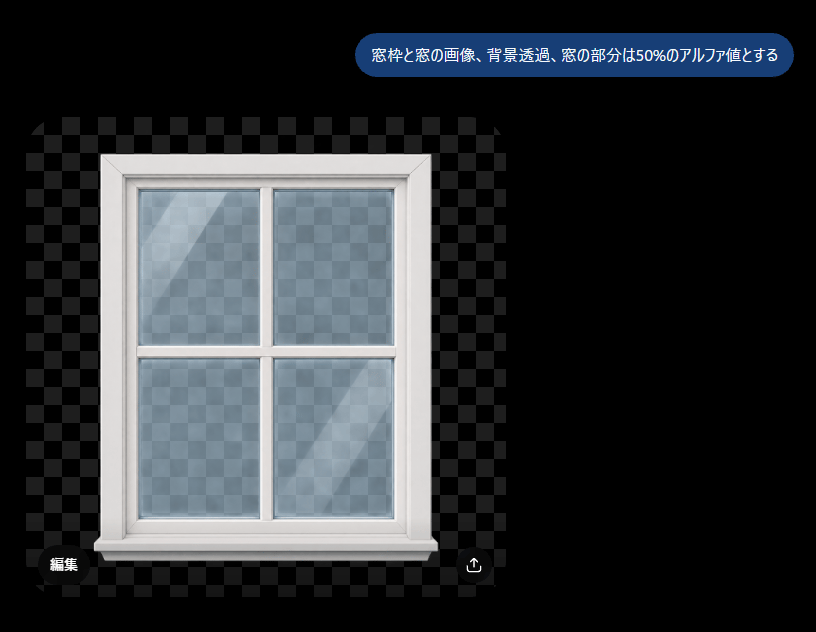
Transparent Window Alpha Demo
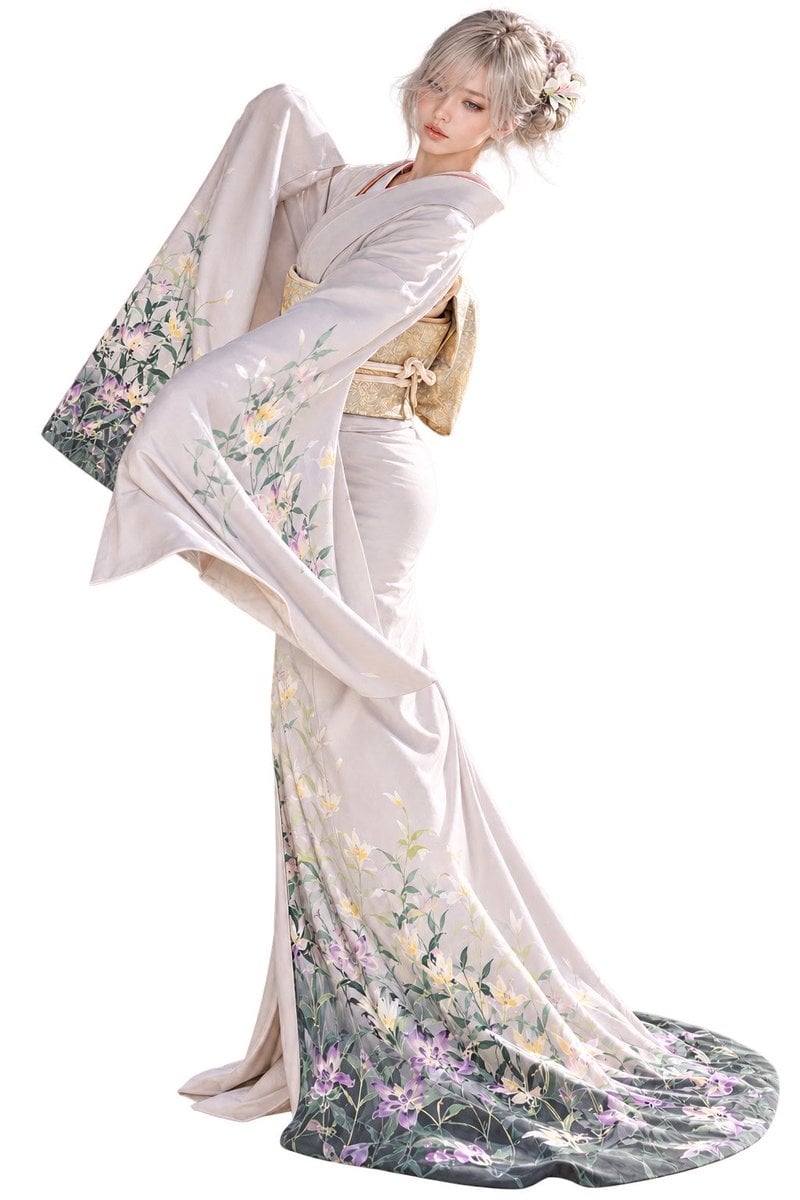
Elegant Furisode Character Cutout
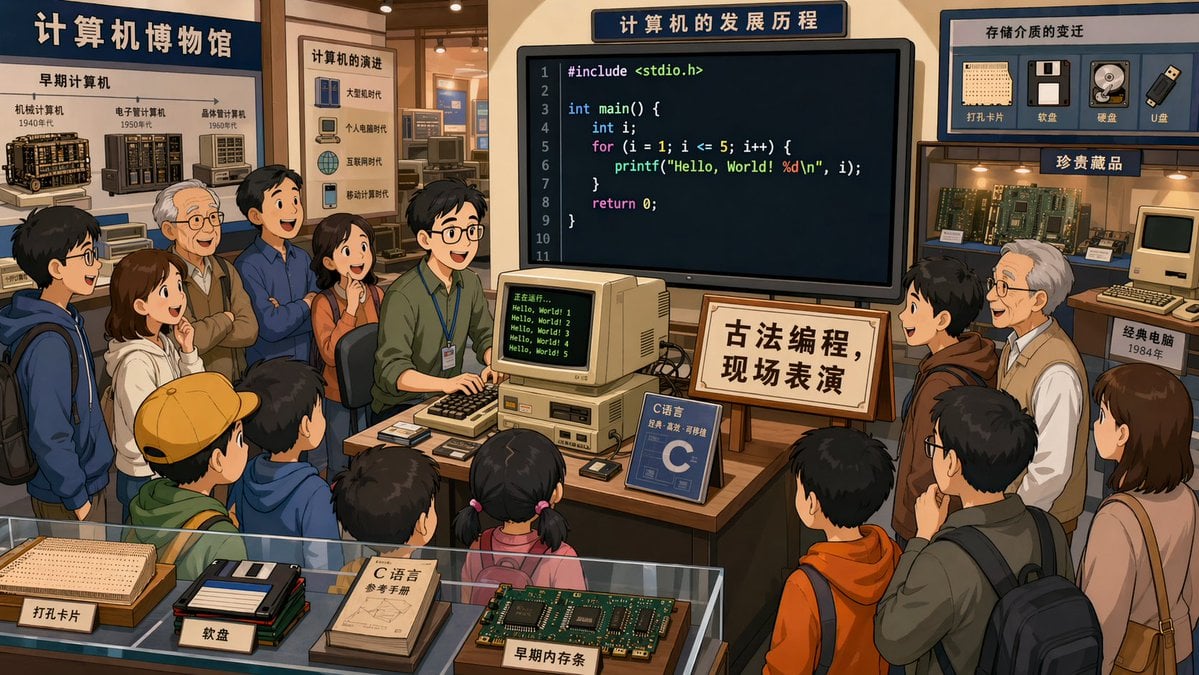
Computer Museum Coding Demo
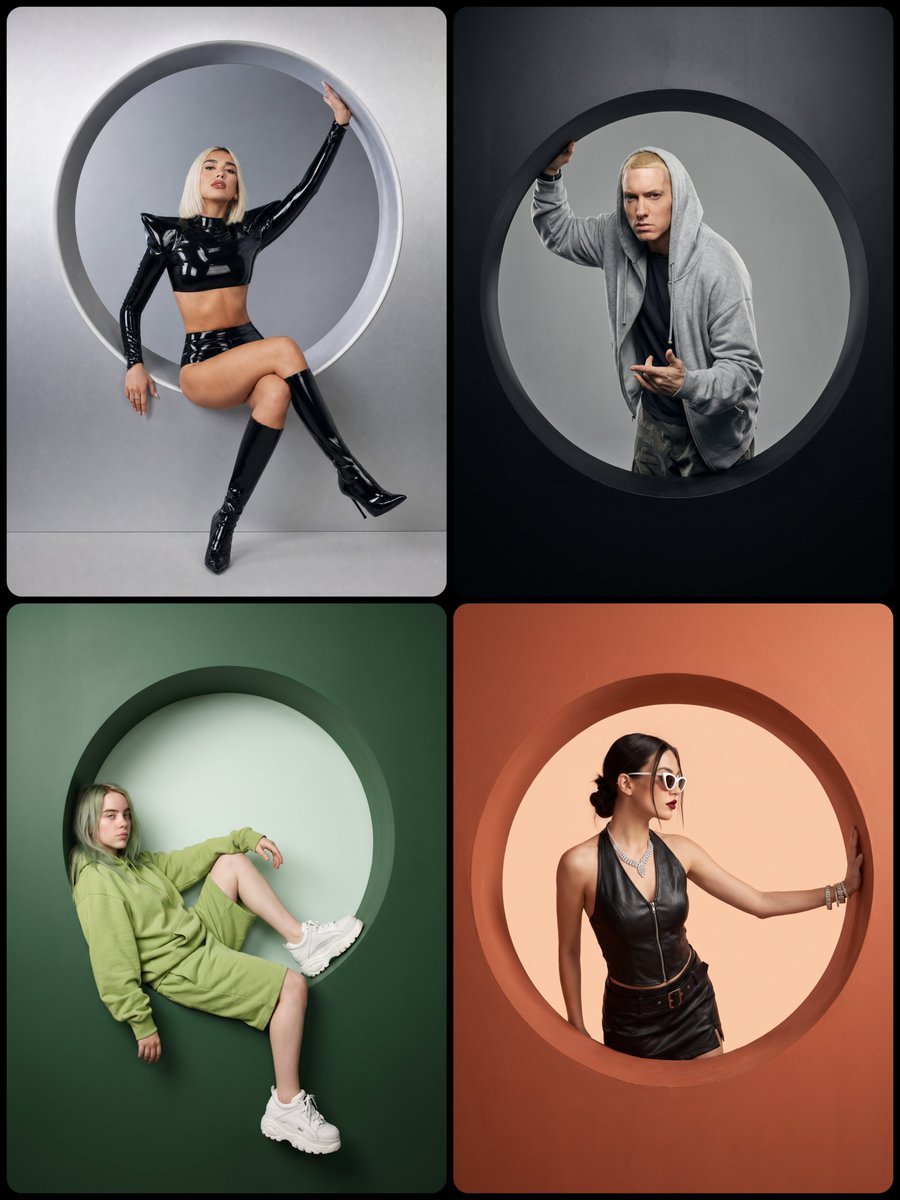
Studio Portrait with Circular Cutout
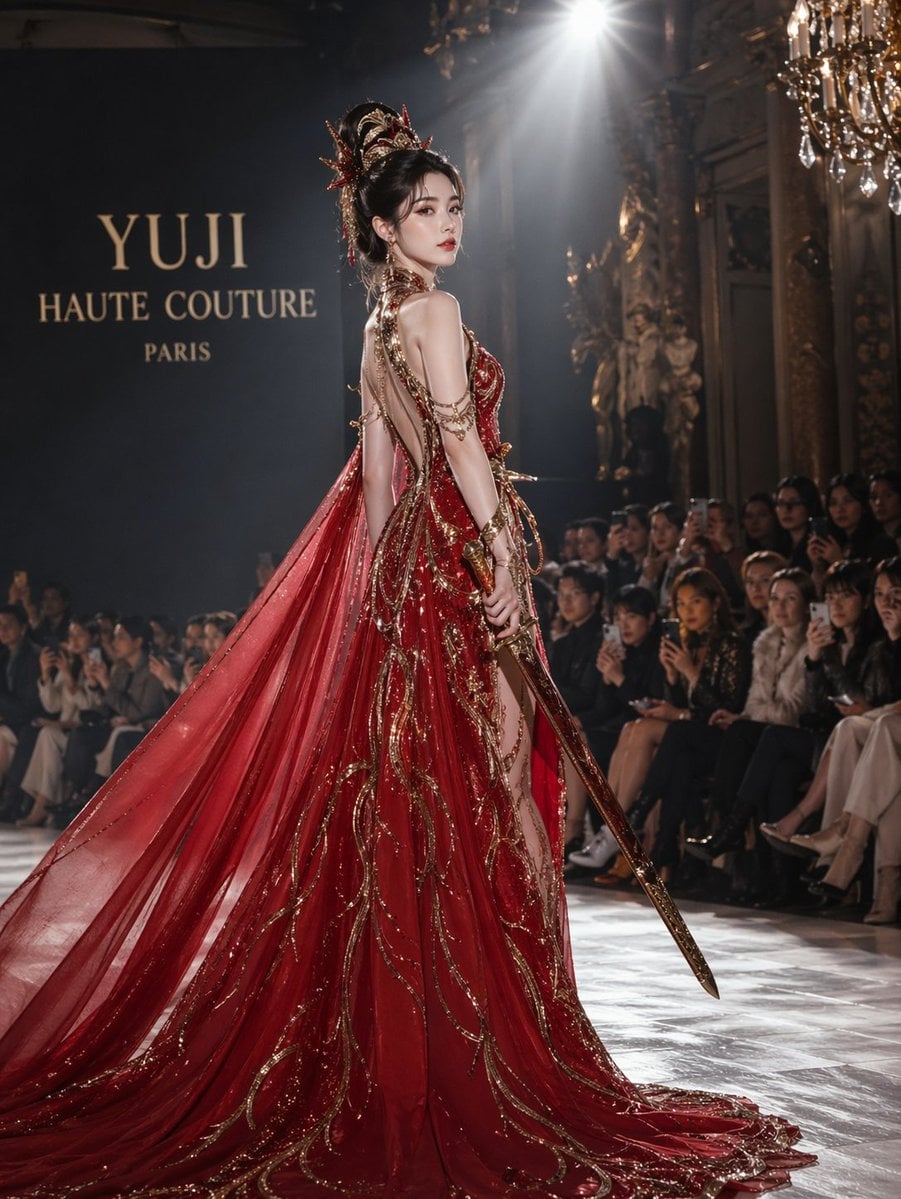
High-Fashion Bauhaus Geometric Cutout Editorial
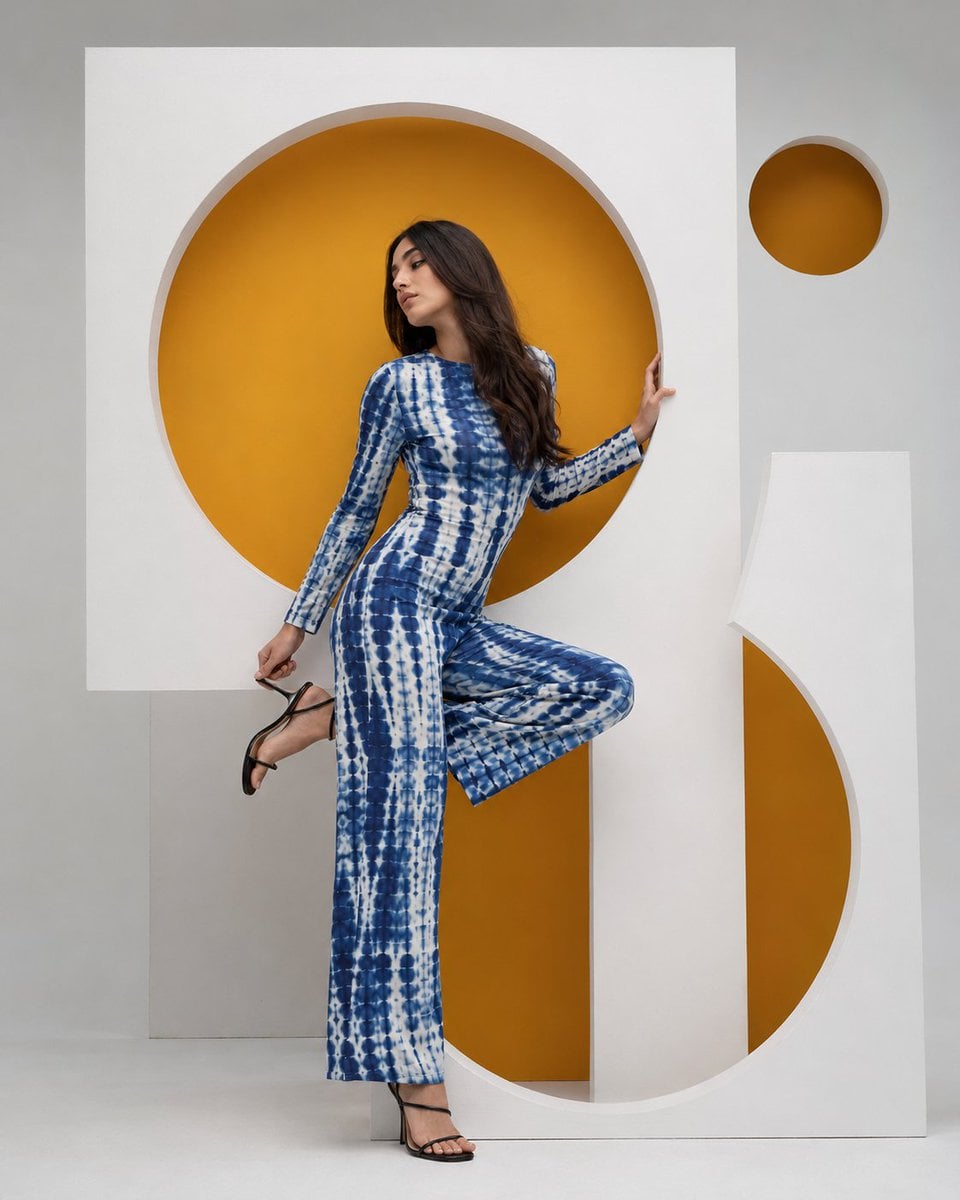
High-Fashion Bauhaus Geometric Cutout Editorial
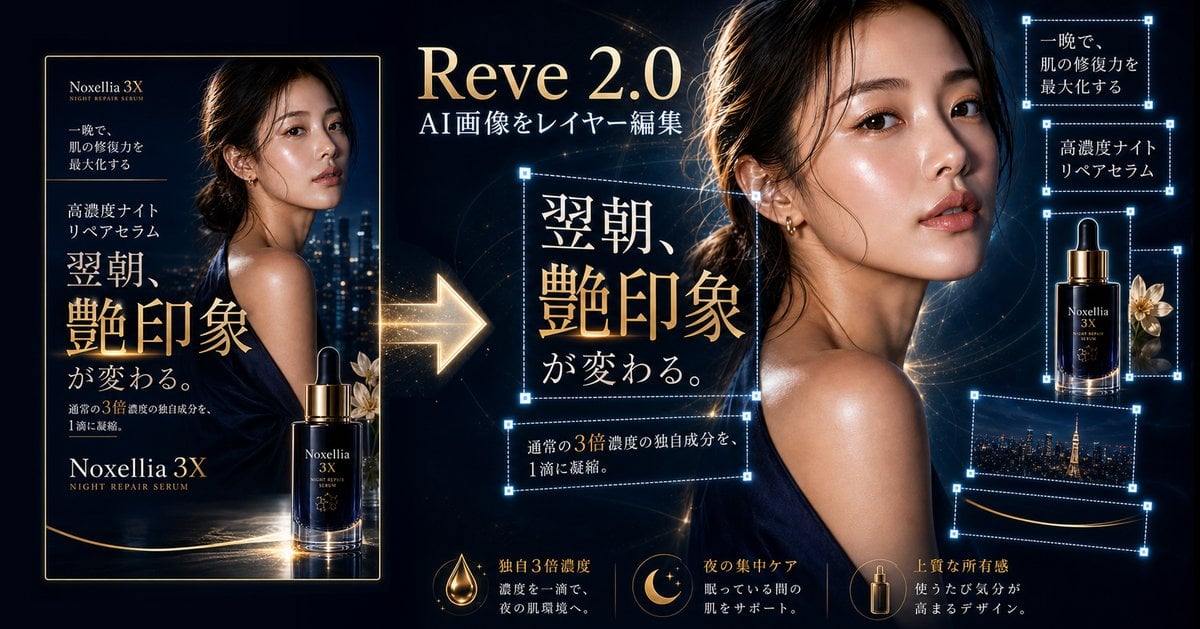
Luxury Serum Layer Editing Demo
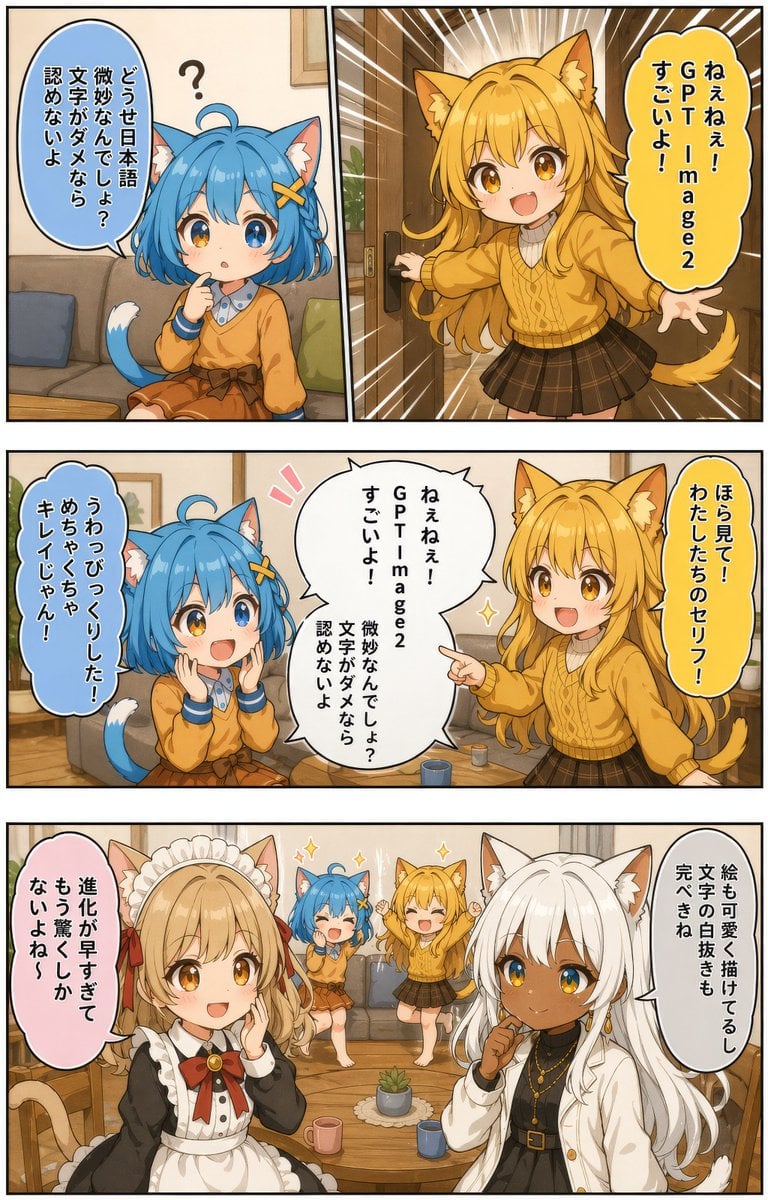
Japanese AI Manga Demo Page
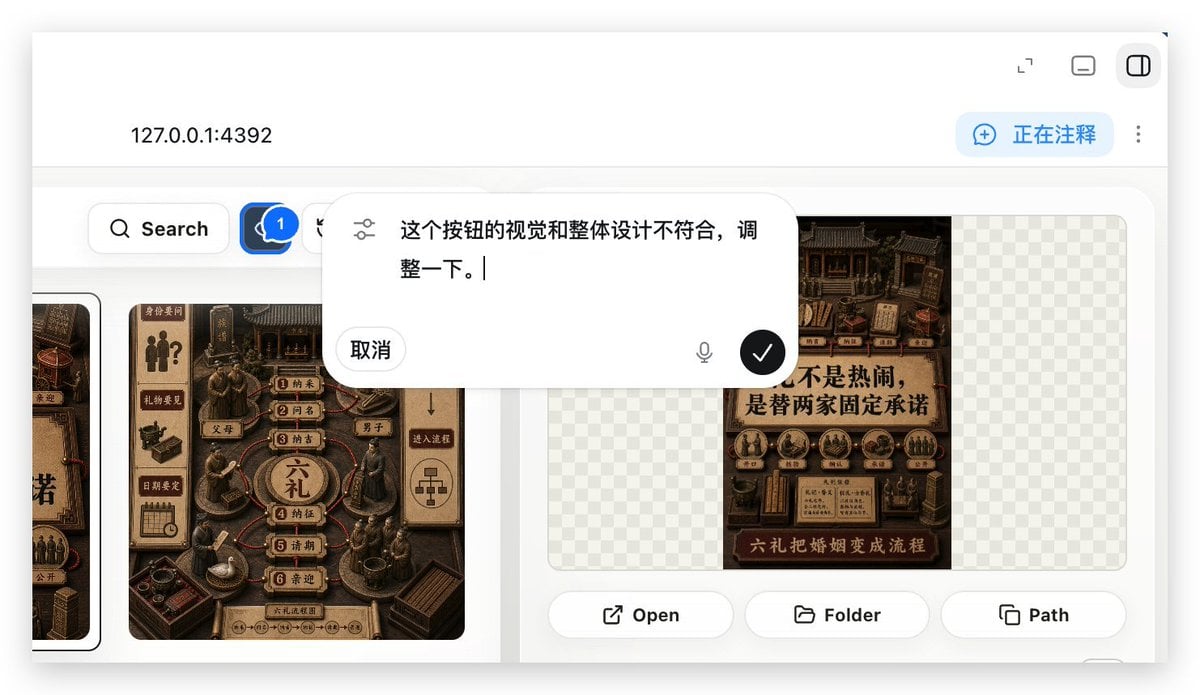
Local Web App Annotation Demo
Make it yours
AI Cutout Demo Screenshot works as-is. These are the safest ways to change it without losing the look.
Change one field
Copy a single group, rewrite it, and generate again so you can see what that field is doing.
Keep the frame, change the subject
Hold the composition and light of AI Cutout Demo Screenshot, then swap wardrobe, props or the person for a new take.
| If the result… | Why | Fix |
|---|---|---|
| The result drifts from the preview | Too many fields changed at once. | Reuse AI Cutout Demo Screenshot as-is first, then change one group — subject, light, or setting. |
| The model over-stylizes the scene | The prose prompt leaves finish and camera underspecified. | Add one camera or lighting sentence and stay on GPT Image 2. |
More GPT Image 2 templates
Other prompts made for GPT Image 2.

Six VTuber Japanese Logo Sheet

Realistic Portrait of Woman and Deer

The Vista Modular Condo Poster

AI Model Routing Comparison Infographic

2.5D Anime Art Board

Isometric Productivity Desk Scene

New York Double Exposure Poster

Four-Panel AI Landscape Comparison

Japanese Tatami Lifestyle Magazine Cover

NESCAFÉ Coffee Map Poster
More image prompts
Fresh picks from across the catalog.
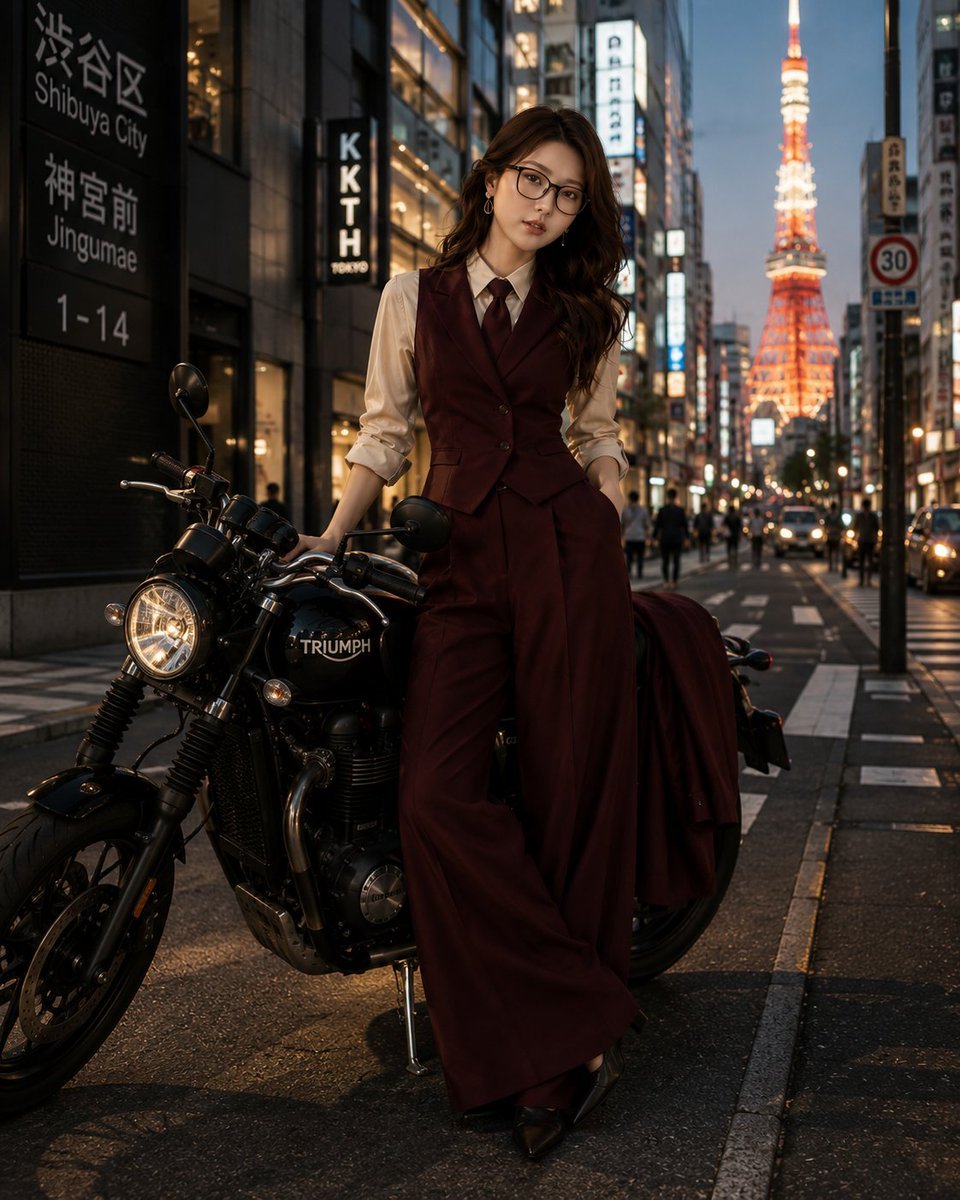
Tokyo Blue Hour Motorcycle Editorial
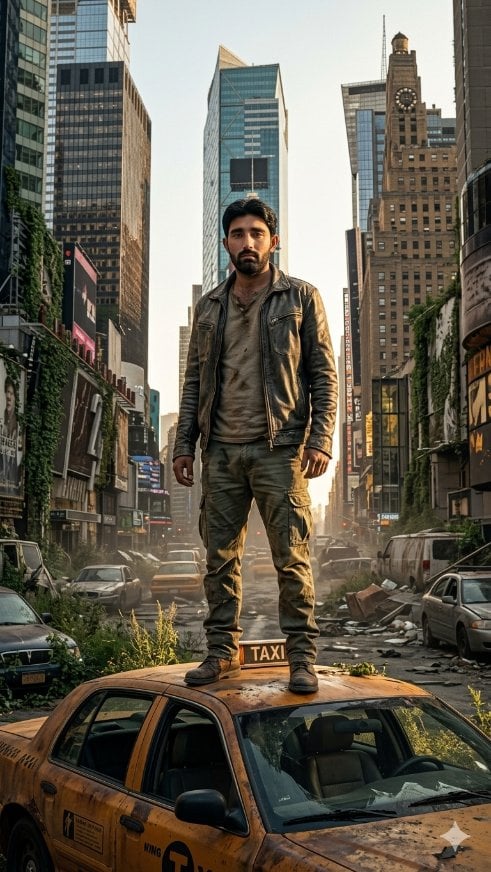
Post-Apocalyptic Taxi Survivor
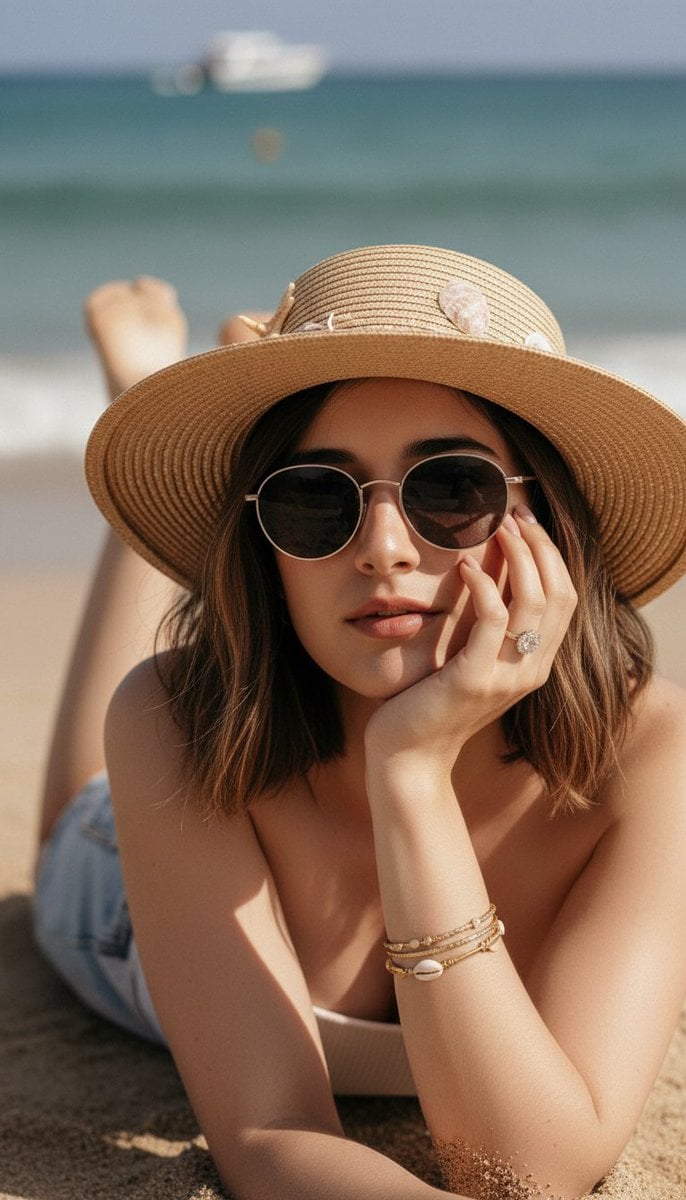
Ultra-Realistic Beach Portrait with Identity Lock
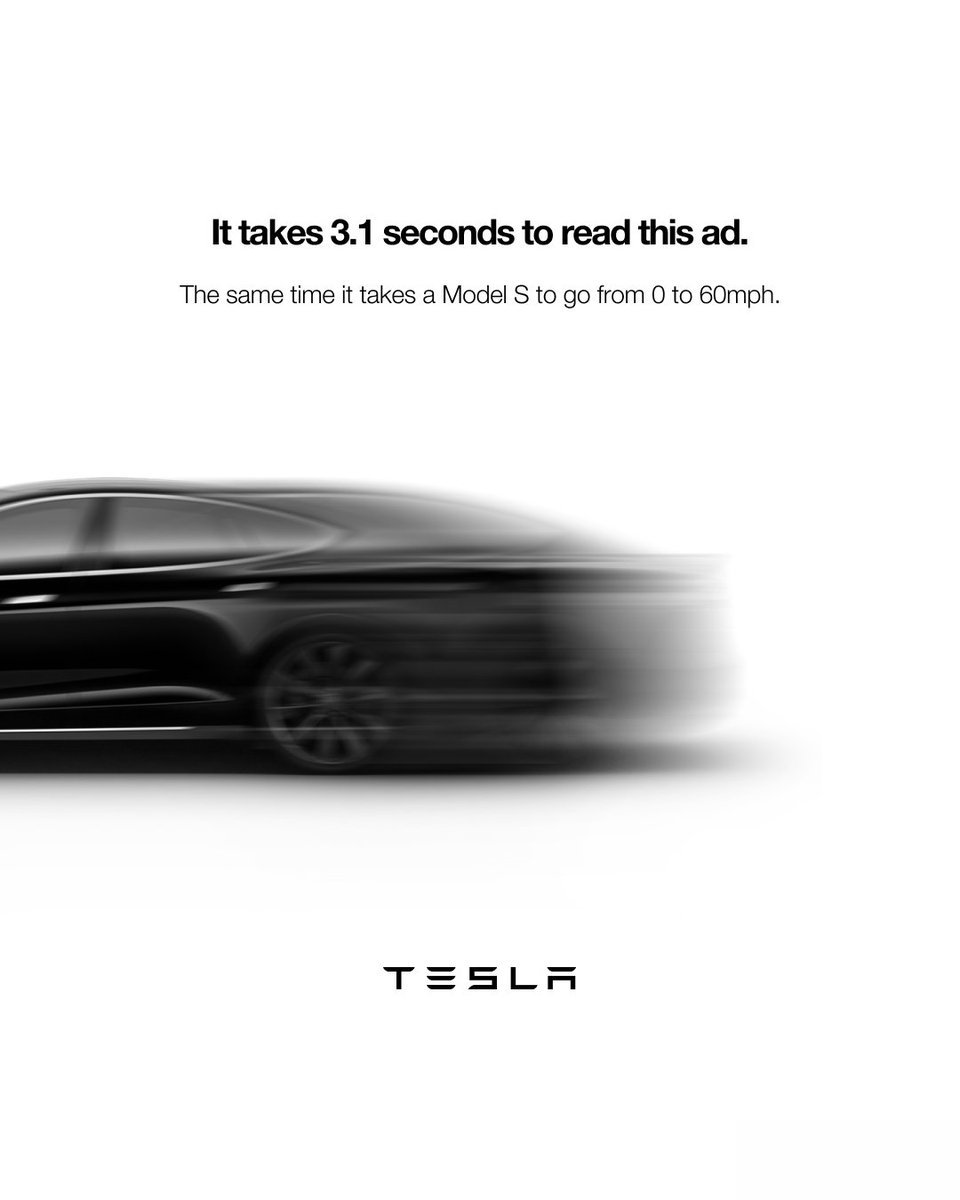
Turn photo into a Lamborghini ad
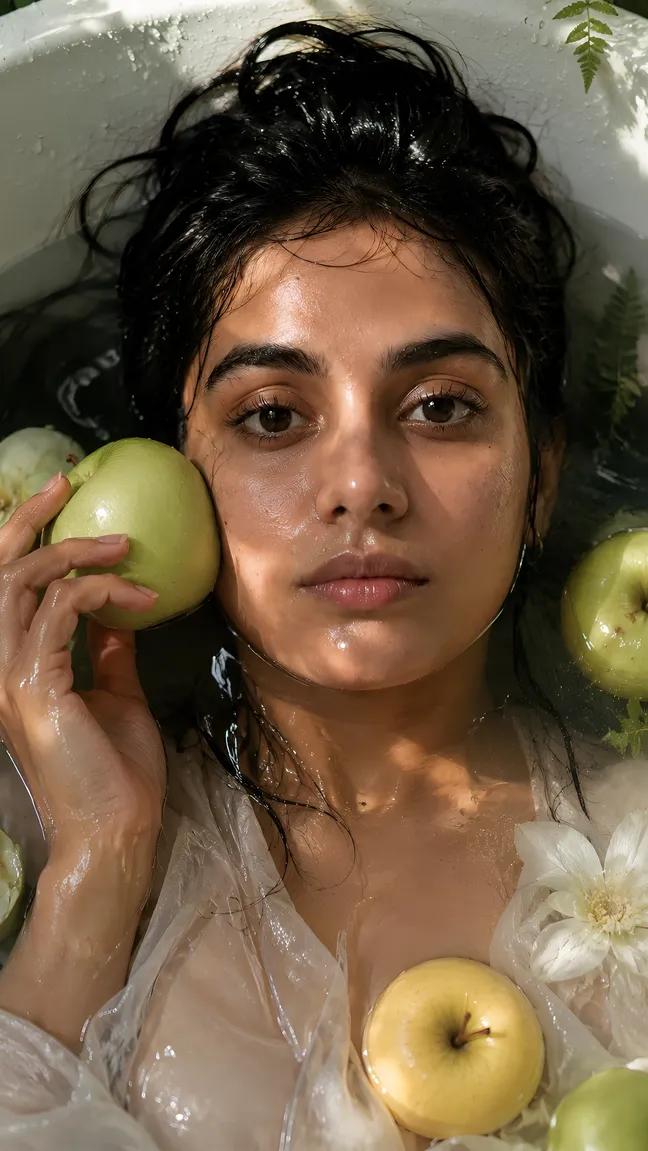
Cinematic Fashion Portrait in Tropical Greenhouse
Futuristic Fashion Editorial with Identity Preservation
Image Generation Prompt: Nishimura Mizuki Fishing Leviathan
Viral YouTube Thumbnail Template
Ultra-Realistic Restaurant Table Selfie
High Fashion Editorial Poster
Browse template categories
AI Cutout Demo Screenshot questions
How do I use the AI Cutout Demo Screenshot template?
Add your photo if the template asks for one, edit the prompt if you like — the template's model and format are already selected — and press Generate. Your version opens in PicX Studio.
Can I customize the AI Cutout Demo Screenshot template?
Yes. You can change the subject, setting, lighting, mood, format, and available model controls before creating your image.
Is the AI Cutout Demo Screenshot template free?
Opening and editing this template is free. Generating uses credits, shown on the Generate button when you are signed in.
Which AI model should I use?
Start with GPT Image 2, which is the model associated with this template. You can compare another compatible model for a different finish.
Looking for something else? Browse all templates.

Your photo, any look
Thousands of ready templates for every top image and video model, from one credit balance.