
Three-Image Fusion and Integration
A multi-reference prompt that merges a background image, a character design, and an outfit reference into a single cohesive scene with realistic lighting and grounding.
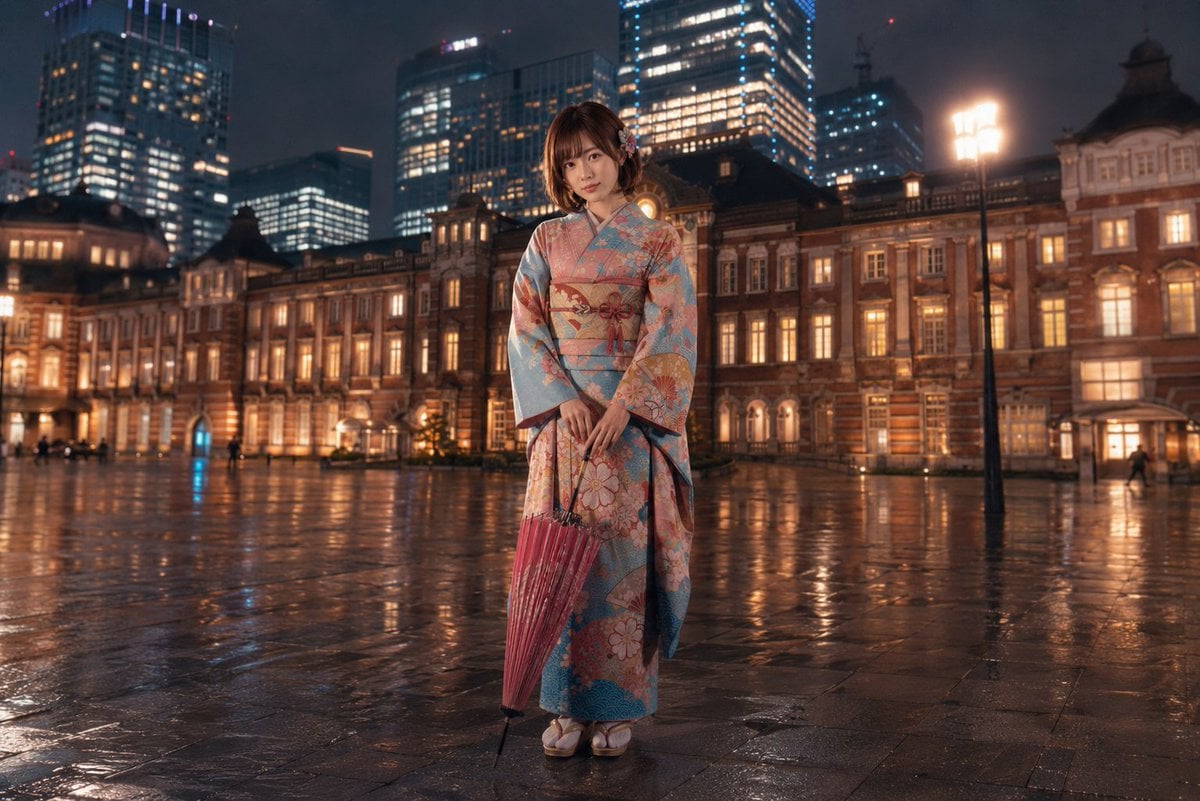
- Prompt included
- Model and format preset
- Free template
The prompt behind this image
Copy the exact prompt behind Three-Image Fusion and Integration, or open it in the studio and make it yours.
Use {argument name="background image" default="reference image 1"} as the main background environment. Use {argument name="character image" default="reference image 2"} as the character design reference, including face, body balance, hairstyle, and overall impression. Use {argument name="outfit image" default="reference image 3"} as the outfit design reference. Create one full-body character standing upright in the scene. Keep the character naturally integrated into the background, with matching perspective, lighting direction, shadow, color temperature, and atmosphere. Do not change the character’s identity, body proportions, facial impression, or outfit structure. The character should stand calmly and clearly, with a natural straight posture, both feet on the ground, and a stable body balance. Make the result look like one unified finished image, not a collage. High-quality, clean, detailed, polished image generation. Avoid extra limbs, broken fingers, distorted hands, missing body parts, ghosting, duplicated faces, unnatural anatomy, messy clothing, and visual noise.
How to use Three-Image Fusion and Integration in 3 steps
- 1Upload ImagePNG, JPG or paste
Add your photo
Upload the photo the template builds on. The prompt, model and format are already set.
- 2…a portrait of your subject in softgolden-hour light, 85mm…
Personalize
Edit the subject and creative details for your destination.
- 3Generate
Generate
Press Generate — your image is created in PicX Studio, so you can compare it with the original and refine one variable at a time.
More like this
Templates with the same subject, style or setup. Open one to see its prompt.
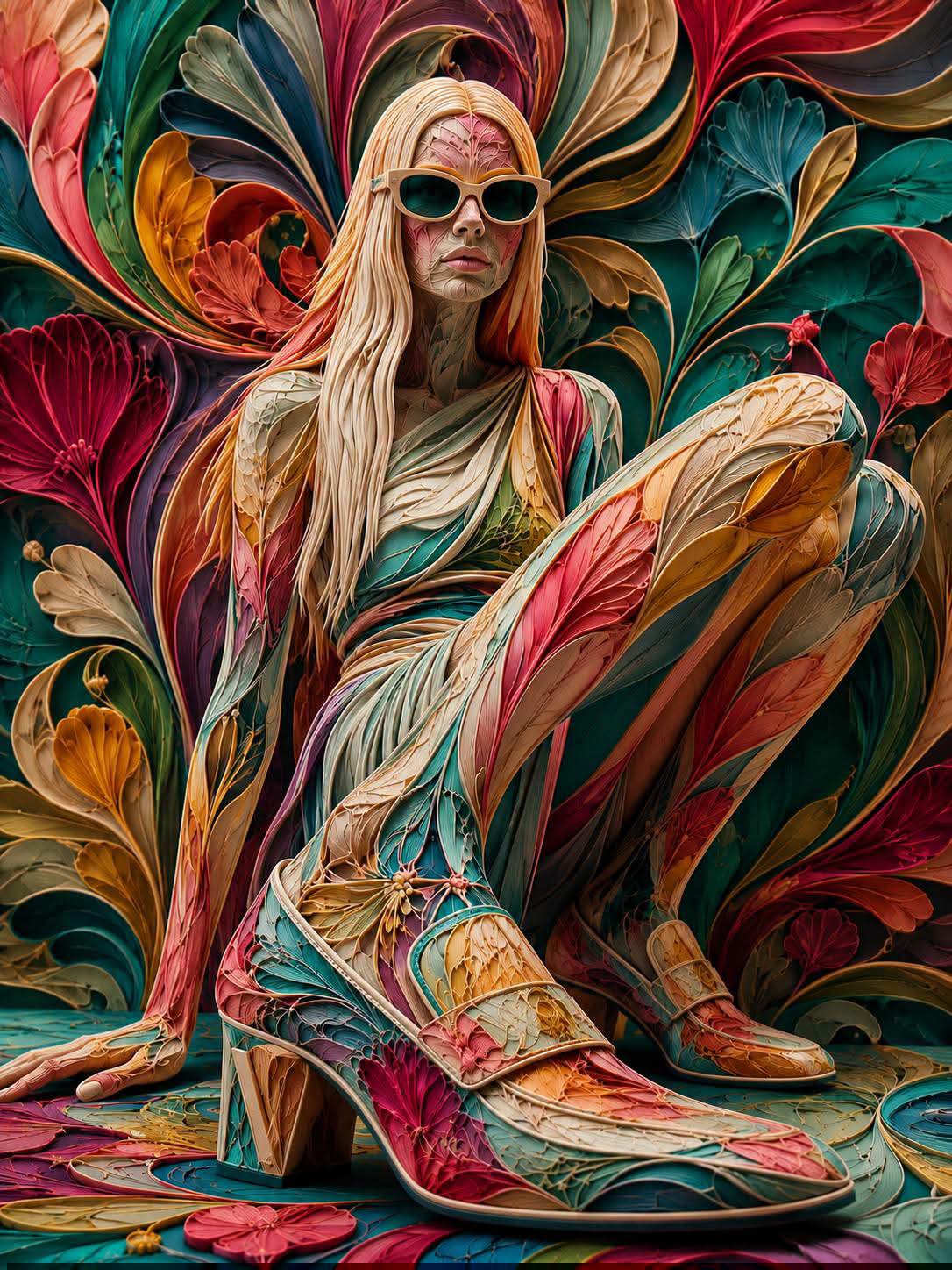
FLORAVERSE BOTANICAL FUSION

Three Character Asset Comparison Board
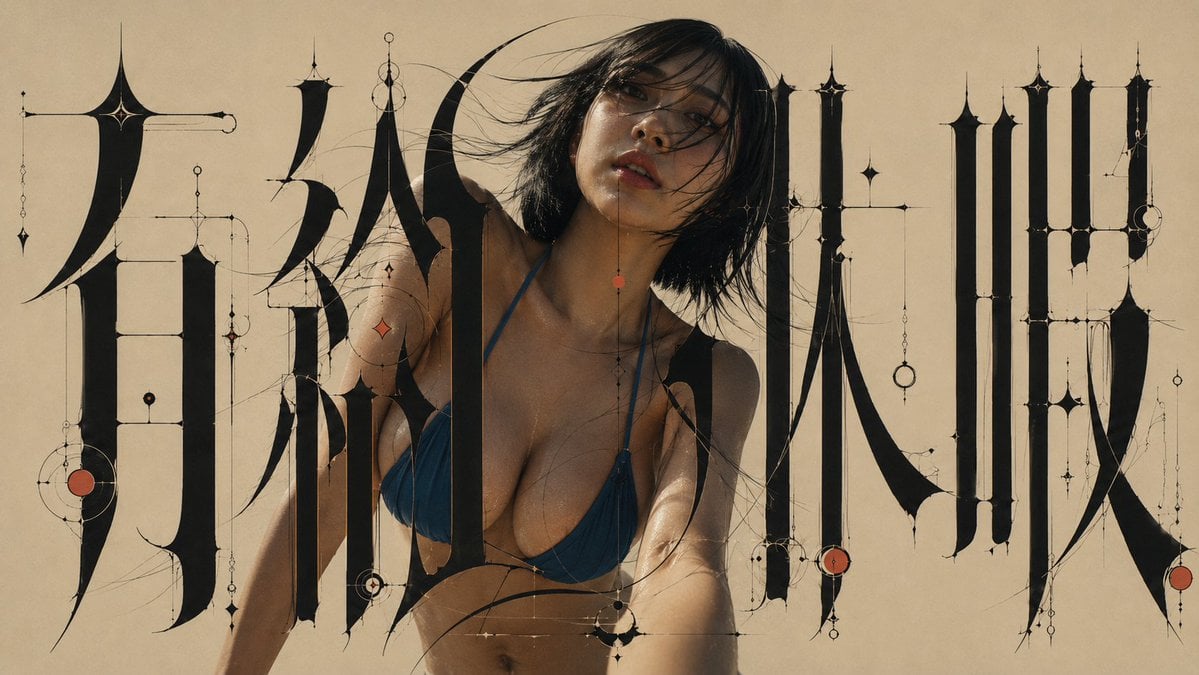
Architectural Typographic Portrait Fusion
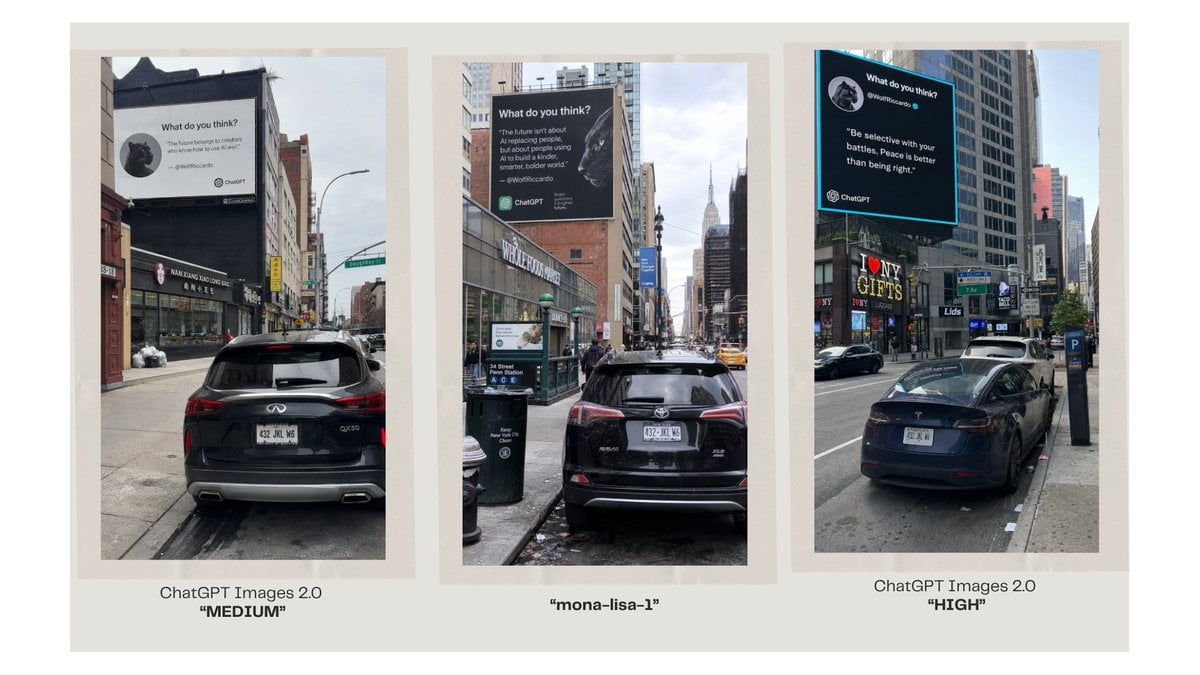
Three-Panel AI Billboard Comparison
Fantasy Realism and Art Nouveau Fusion
A luxury brand advertisement featuring three stylish arranged
Yokohama Three Men Splash Art
Floraverse Botanical Filament Fusion
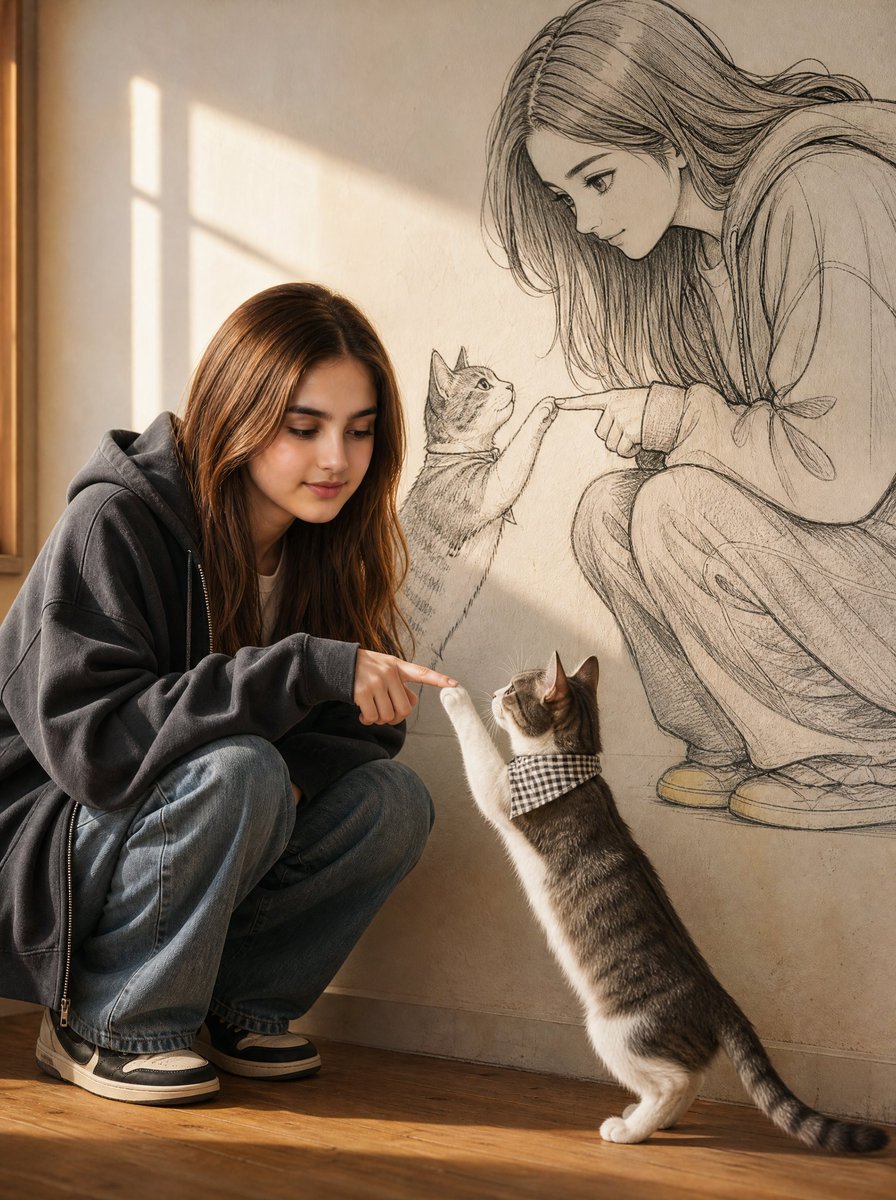
Reality and Manga Mural Fusion
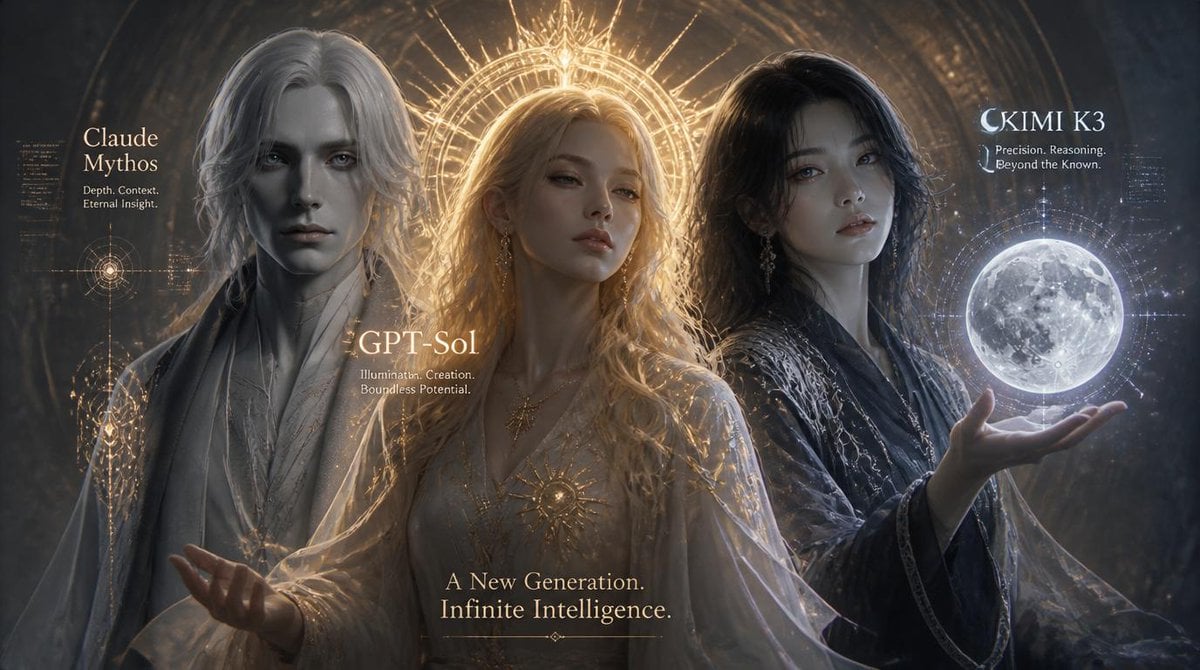
Three AI Deities Fantasy Poster
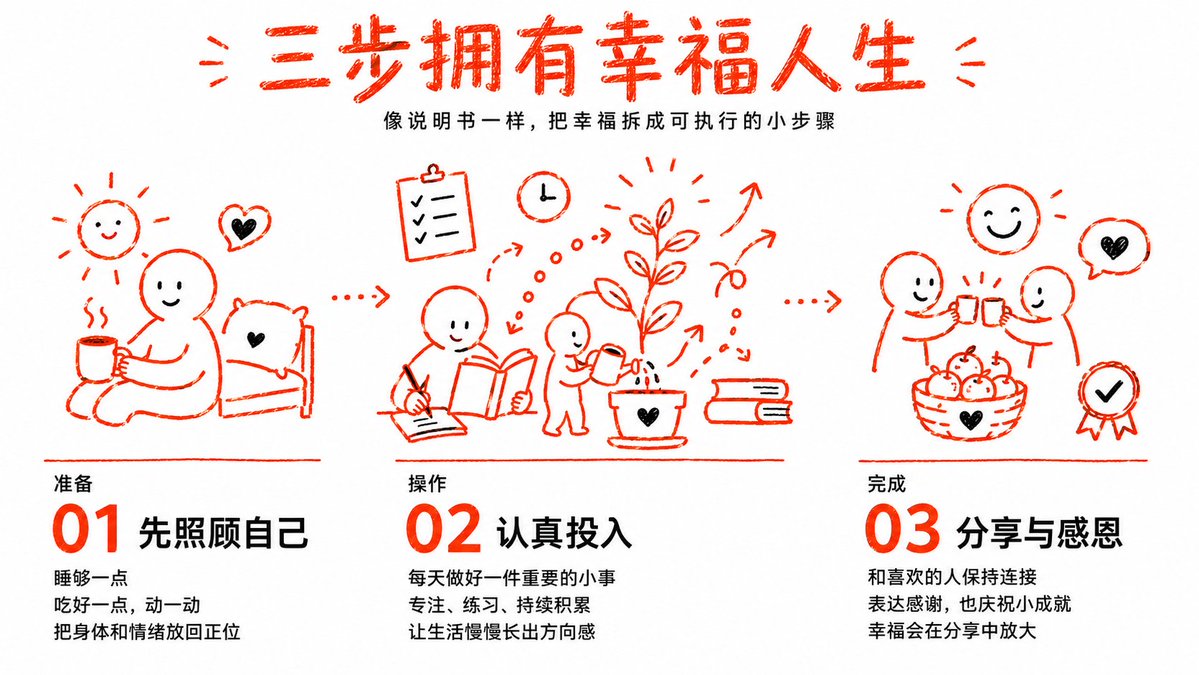
Three Steps to a Happy Life Infographic
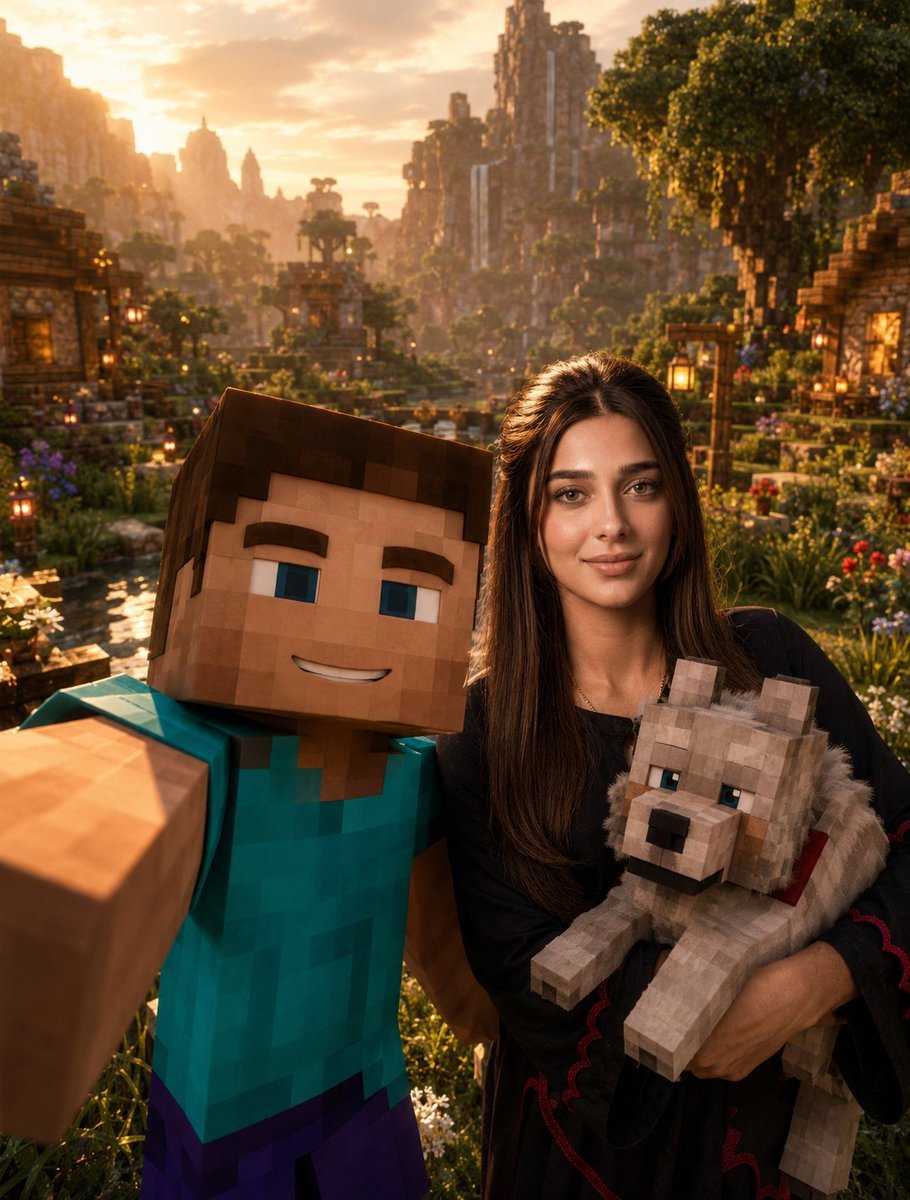
Minecraft Selfie Photo Integration
Make it yours
Three-Image Fusion and Integration works as-is. These are the safest ways to change it without losing the look.
Change one field
Copy a single group, rewrite it, and generate again so you can see what that field is doing.
Keep the frame, change the subject
Hold the composition and light of Three-Image Fusion and Integration, then swap wardrobe, props or the person for a new take.
| If the result… | Why | Fix |
|---|---|---|
| The result drifts from the preview | Too many fields changed at once. | Reuse Three-Image Fusion and Integration as-is first, then change one group — subject, light, or setting. |
| The model over-stylizes the scene | The prose prompt leaves finish and camera underspecified. | Add one camera or lighting sentence and stay on GPT Image 2. |
More GPT Image 2 templates
Other prompts made for GPT Image 2.

Six VTuber Japanese Logo Sheet

Realistic Portrait of Woman and Deer

The Vista Modular Condo Poster

AI Model Routing Comparison Infographic

2.5D Anime Art Board

Isometric Productivity Desk Scene

New York Double Exposure Poster

Four-Panel AI Landscape Comparison

Japanese Tatami Lifestyle Magazine Cover

NESCAFÉ Coffee Map Poster
More image prompts
Fresh picks from across the catalog.
Surreal Einstein Paper Sculpture Photography Prompt
Universal Mono Punk Scene Generator
Realistic Cheerleader Portrait
Ultra-Realistic Gym Mirror Selfie
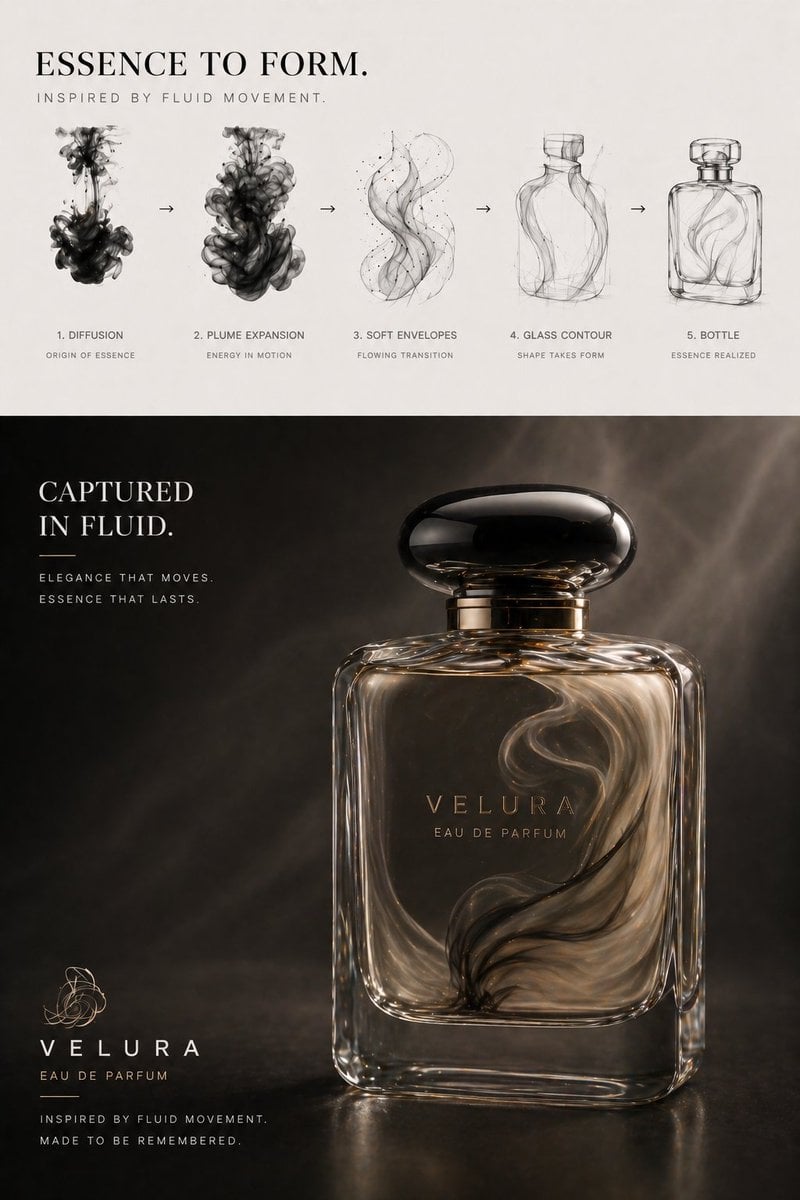
Perfume Design Evolution Poster
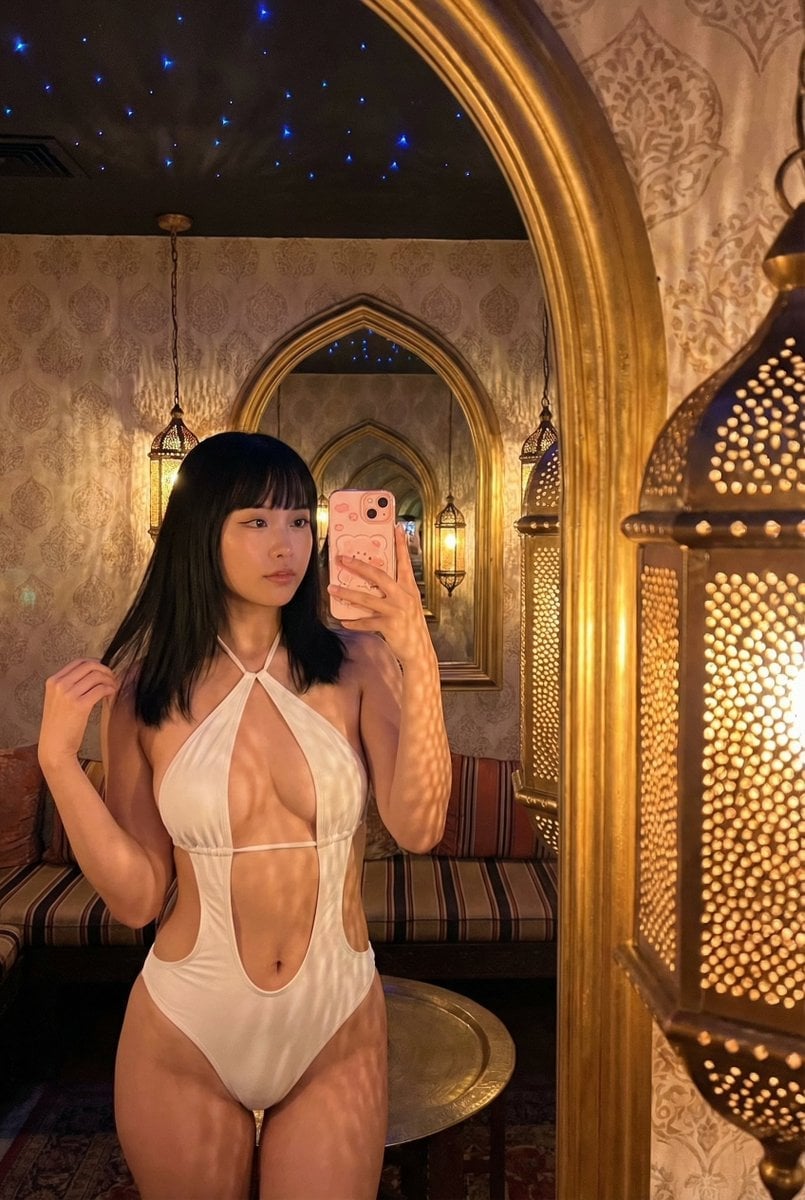
Mirror Selfie in Ornate Lounge
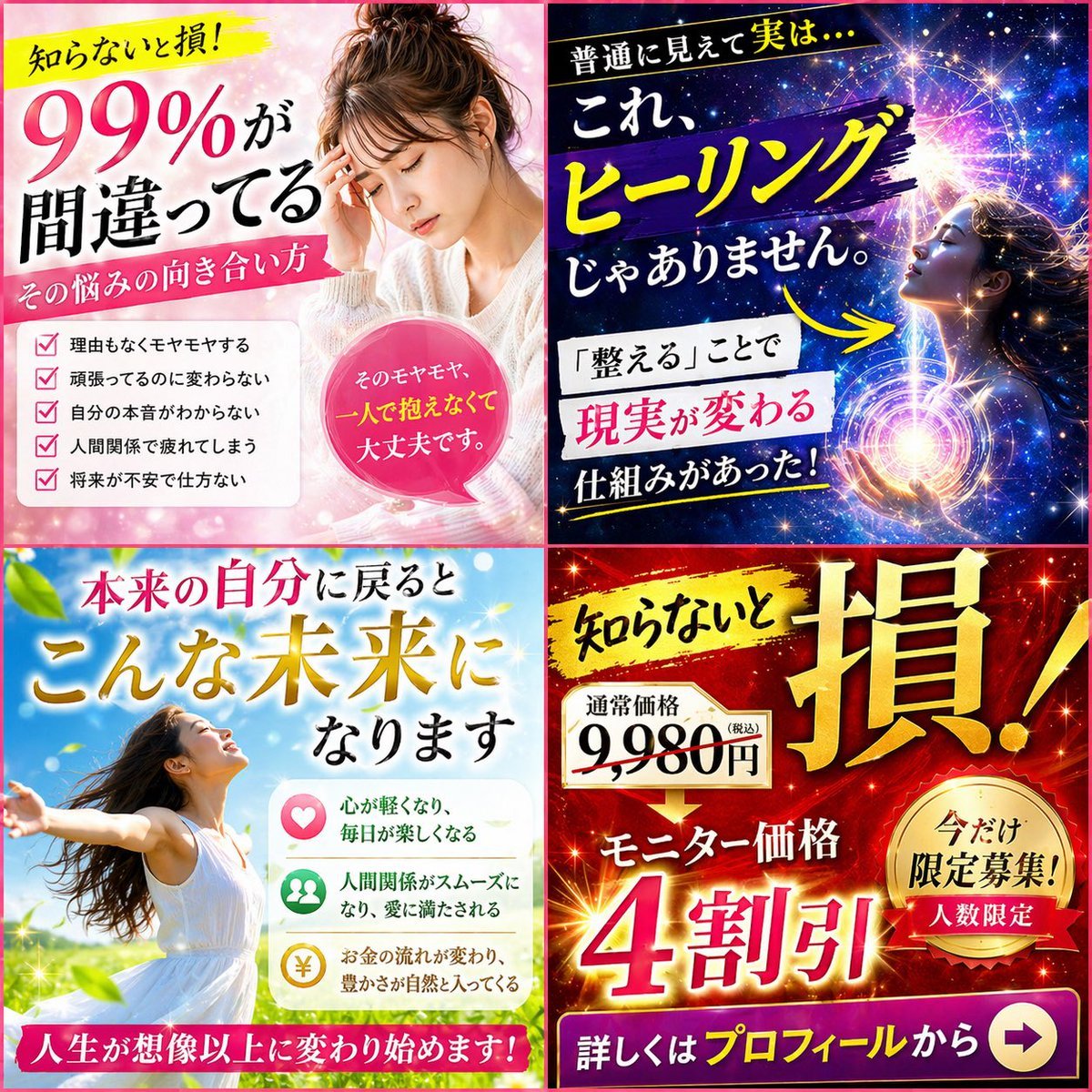
Japanese Four-Panel Healing Ad Collage
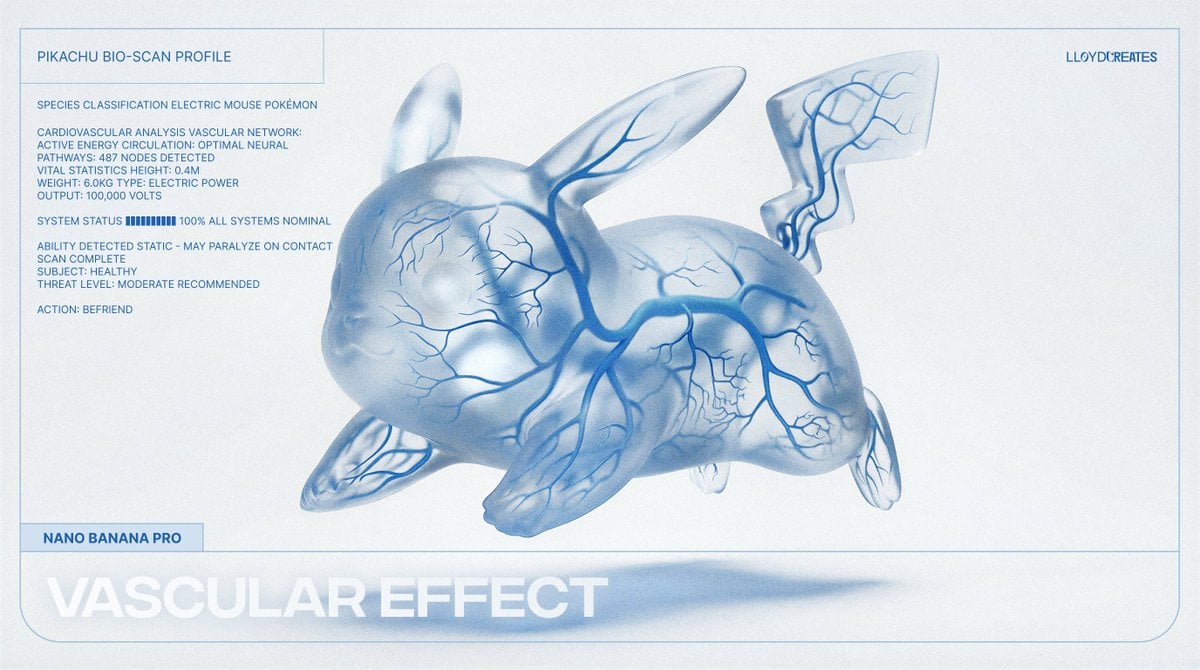
Vascular Effect Object Prompt
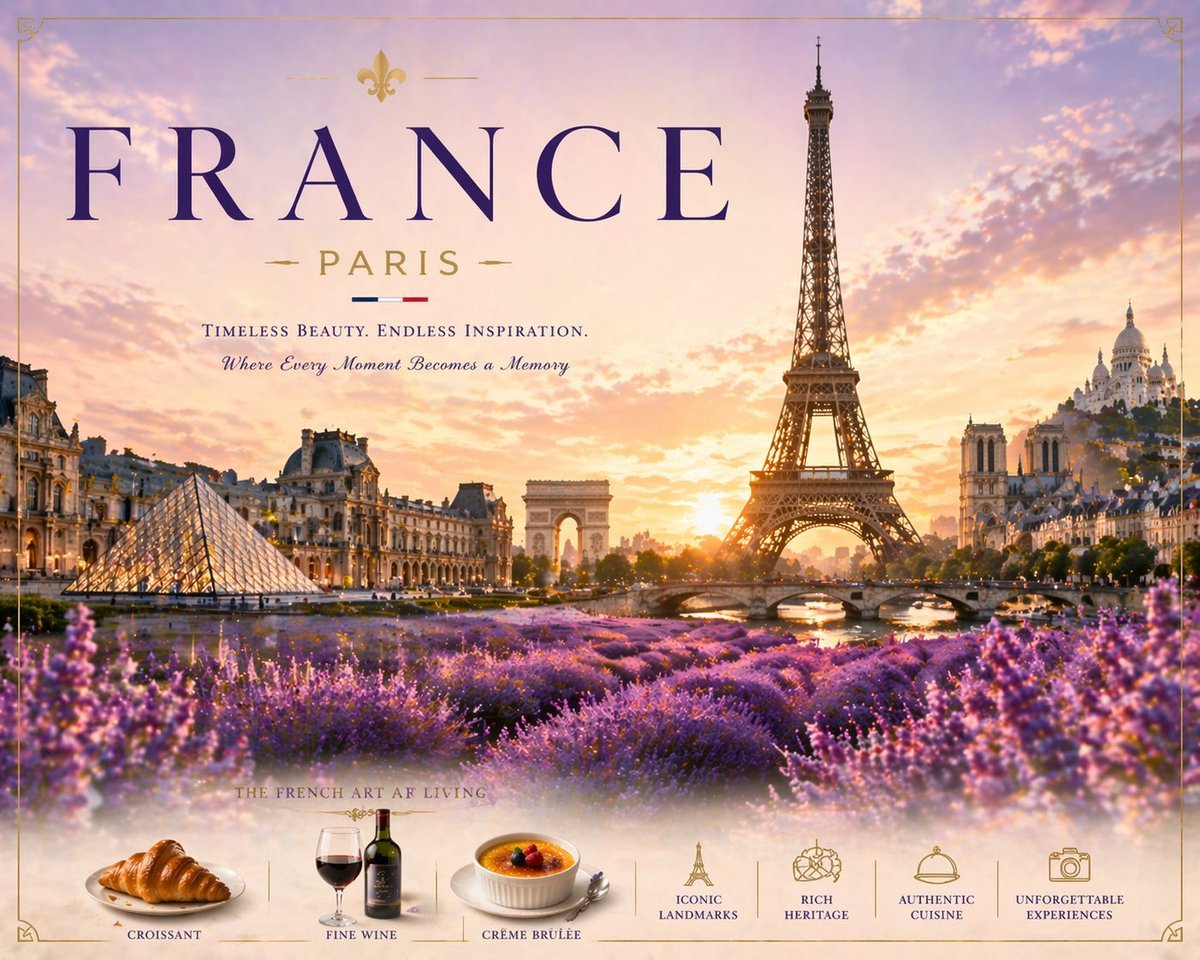
Romantic Paris Travel Poster
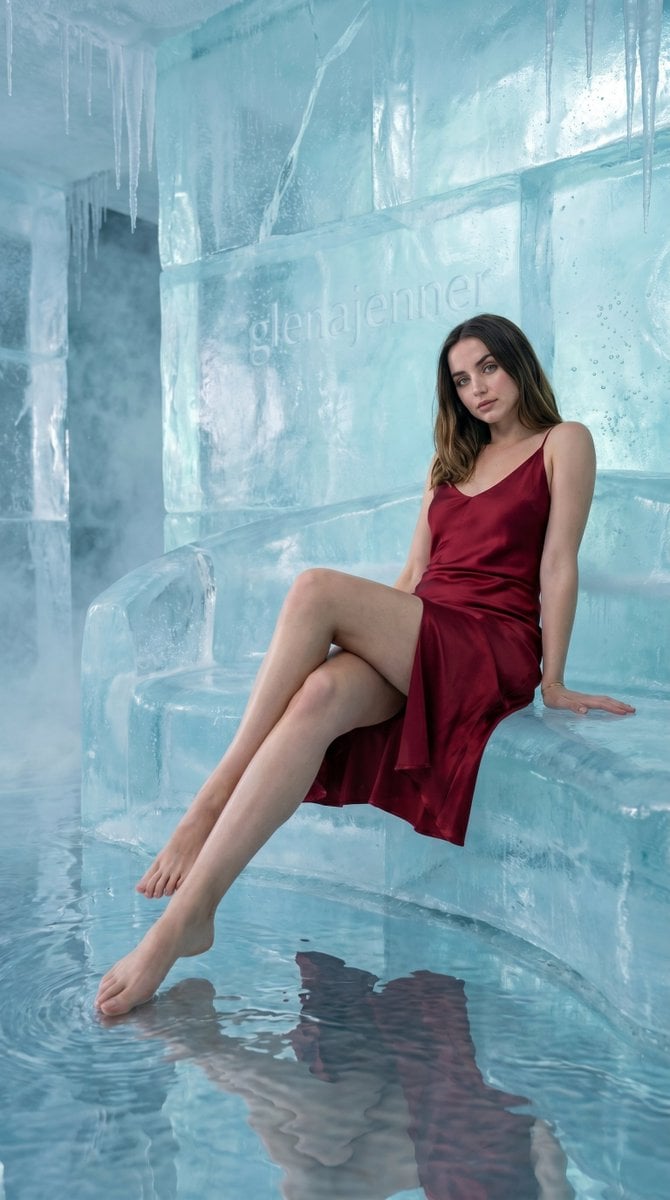
Luxury Ice Couch Portrait
Browse template categories
Three-Image Fusion and Integration questions
How do I use the Three-Image Fusion and Integration template?
Add your photo if the template asks for one, edit the prompt if you like — the template's model and format are already selected — and press Generate. Your version opens in PicX Studio.
Can I customize the Three-Image Fusion and Integration template?
Yes. You can change the subject, setting, lighting, mood, format, and available model controls before creating your image.
Is the Three-Image Fusion and Integration template free?
Opening and editing this template is free. Generating uses credits, shown on the Generate button when you are signed in.
Which AI model should I use?
Start with GPT Image 2, which is the model associated with this template. You can compare another compatible model for a different finish.
Looking for something else? Browse all templates.

Your photo, any look
Thousands of ready templates for every top image and video model, from one credit balance.