
Minecraft Selfie Photo Integration
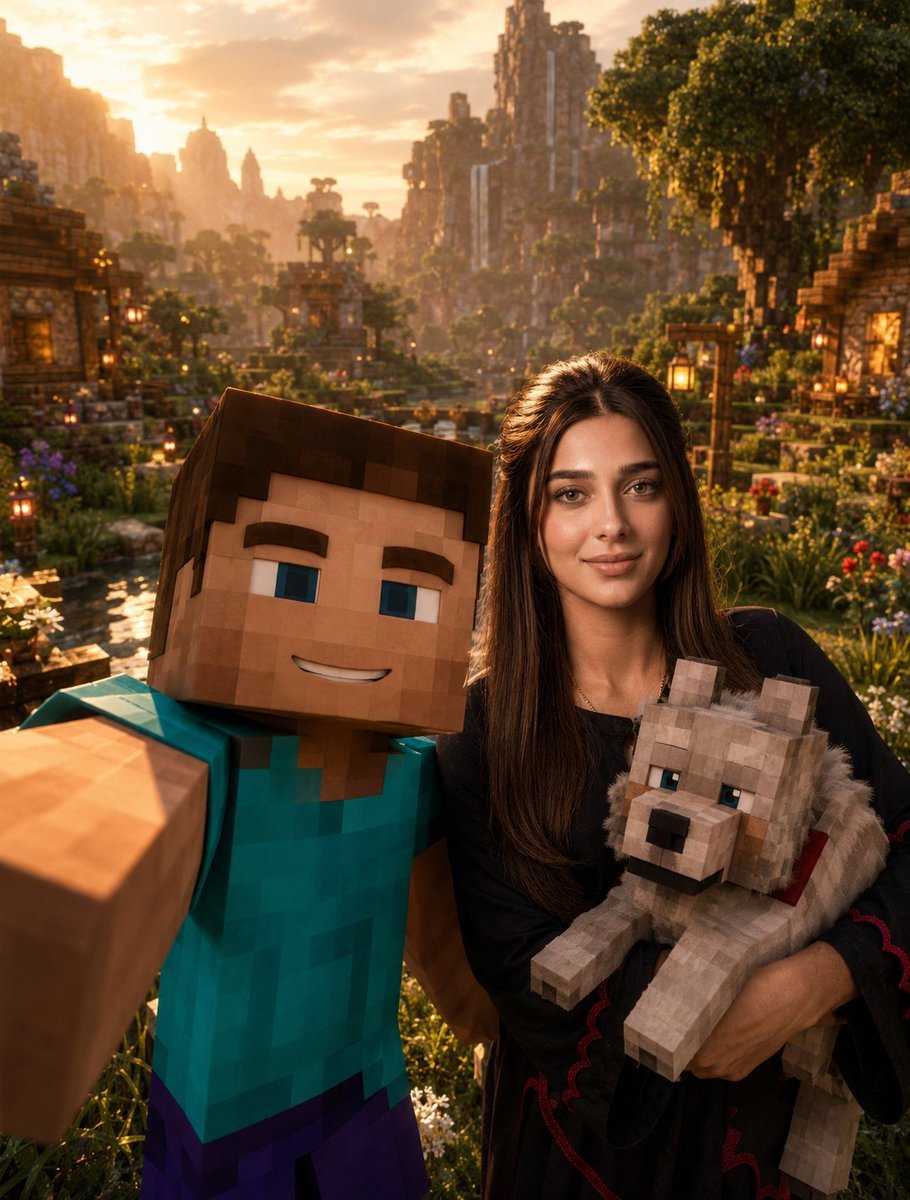
A cinematic prompt that integrates a specific person's likeness into a photorealistic Minecraft movie scene as a smartphone selfie.
- Prompt included
- Model and format preset
- Premium template
The prompt behind this image
Copy the exact prompt behind Minecraft Selfie Photo Integration, or open it in the studio and make it yours.
Use the provided {argument name="person name" default="Rafa Franco"} reference photo as the highest-priority facial reference. Preserve {argument name="person name" default="Rafa Franco"}’s facial identity exactly. The viewer must instantly recognize {argument name="person name" default="Rafa Franco"}. Preserve his exact hairstyle, facial proportions, beard shadow, eyebrows, eye shape, nose, lips, jawline, skin texture, and all unique facial characteristics. {argument name="person name" default="Rafa Franco"} must remain fully photorealistic. Vertical composition — 1080×1350. Create an ultra-cinematic Minecraft-inspired selfie scene. The selfie is being taken by Steve from Minecraft, who occupies the foreground and holds the camera with one arm fully extended toward the viewer, creating the exact perspective of a real smartphone selfie. Steve smiles directly at the camera with a fun, friendly, and adventurous expression. Behind Steve stands {argument name="person name" default="Rafa Franco"}, fully photorealistic and naturally integrated into the Minecraft universe through realistic lighting, atmosphere, and cinematic color grading. {argument name="person name" default="Rafa Franco"} smiles naturally while holding a Minecraft wolf comfortably in his arms. The wolf appears relaxed, friendly, and secure, creating a wholesome and memorable moment. The scene takes place in a breathtaking Minecraft valley during golden hour sunset. The environment is rich with detail, featuring lush green grass, beautiful rivers, wooden Minecraft houses, hanging lanterns, charming bridges, colorful flowers, giant trees, distant mountains, waterfalls, and a peaceful village atmosphere. The camera angle must feel exactly like a real group selfie. Steve dominates the foreground because he is holding the camera, while {argument name="person name" default="Rafa Franco"} appears slightly behind him but remains clearly visible, recognizable, and well-lit. The wolf becomes an important secondary focal point, positioned naturally within {argument name="person name" default="Rafa Franco"}’s arms. Warm golden sunset light bathes the entire scene. Beautiful volumetric god rays pass through the trees and mountains. Floating fireflies, subtle voxel particles, atmospheric dust, and soft environmental haze add life, depth, and realism. The image should feel joyful, adventurous, cinematic, and authentic, like a behind-the-scenes photograph taken during an epic Minecraft movie adventure. The environment must feel alive and immersive rather than resembling a gameplay screenshot. Visual style: Minecraft Movie × Pixar-level storytelling × Unreal Engine 5 cinematic lighting × AAA game promotional artwork. Ultra-realistic photography, masterpiece composition, cinematic depth of field, ray tracing, global illumination, volumetric lighting, realistic skin texture, realistic clothing folds, atmospheric perspective, highly detailed Minecraft environment, blockbuster movie quality, 8K resolution, ultra-sharp focus, visually unforgettable, premium Instagram cover quality.
How to use Minecraft Selfie Photo Integration in 3 steps
- 1Upload ImagePNG, JPG or paste
Add your photo
Upload the photo the template builds on. The prompt, model and format are already set.
- 2…a portrait of your subject in softgolden-hour light, 85mm…
Personalize
Edit the subject and creative details for your destination.
- 3Generate
Generate
Press Generate — your image is created in PicX Studio, so you can compare it with the original and refine one variable at a time.
More like this
Templates with the same subject, style or setup. Open one to see its prompt.
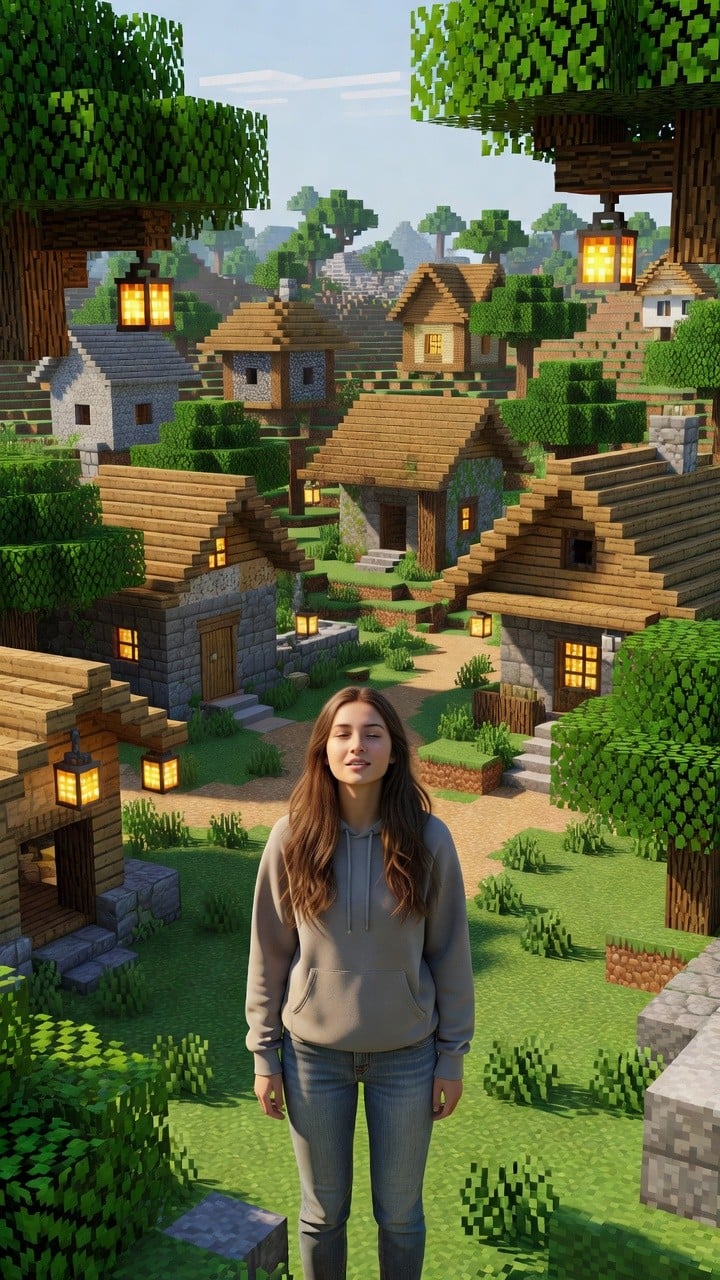
Photoreal Village Lanterns Minecraft Scene
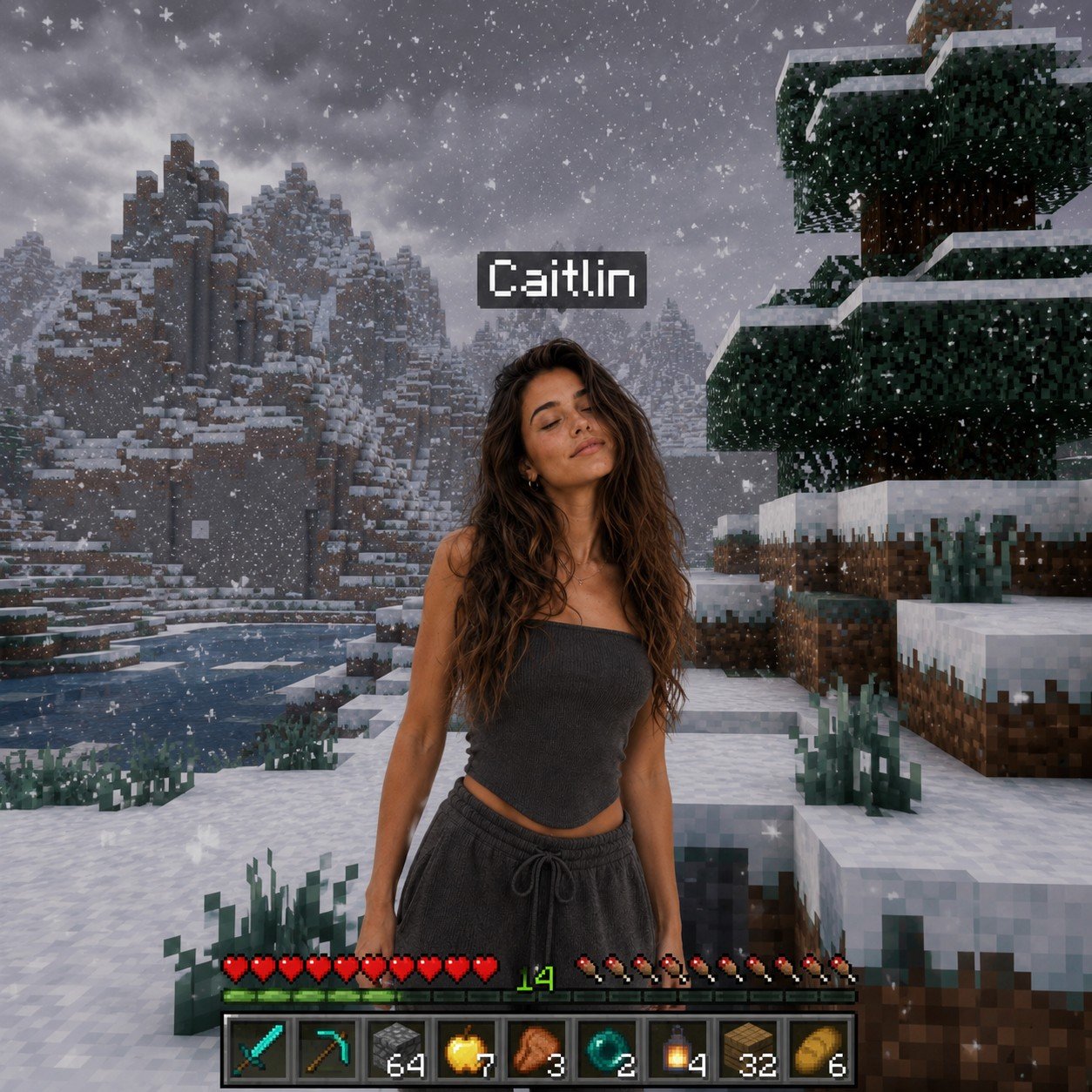
Photoreal Snow Biome Name Tag UI
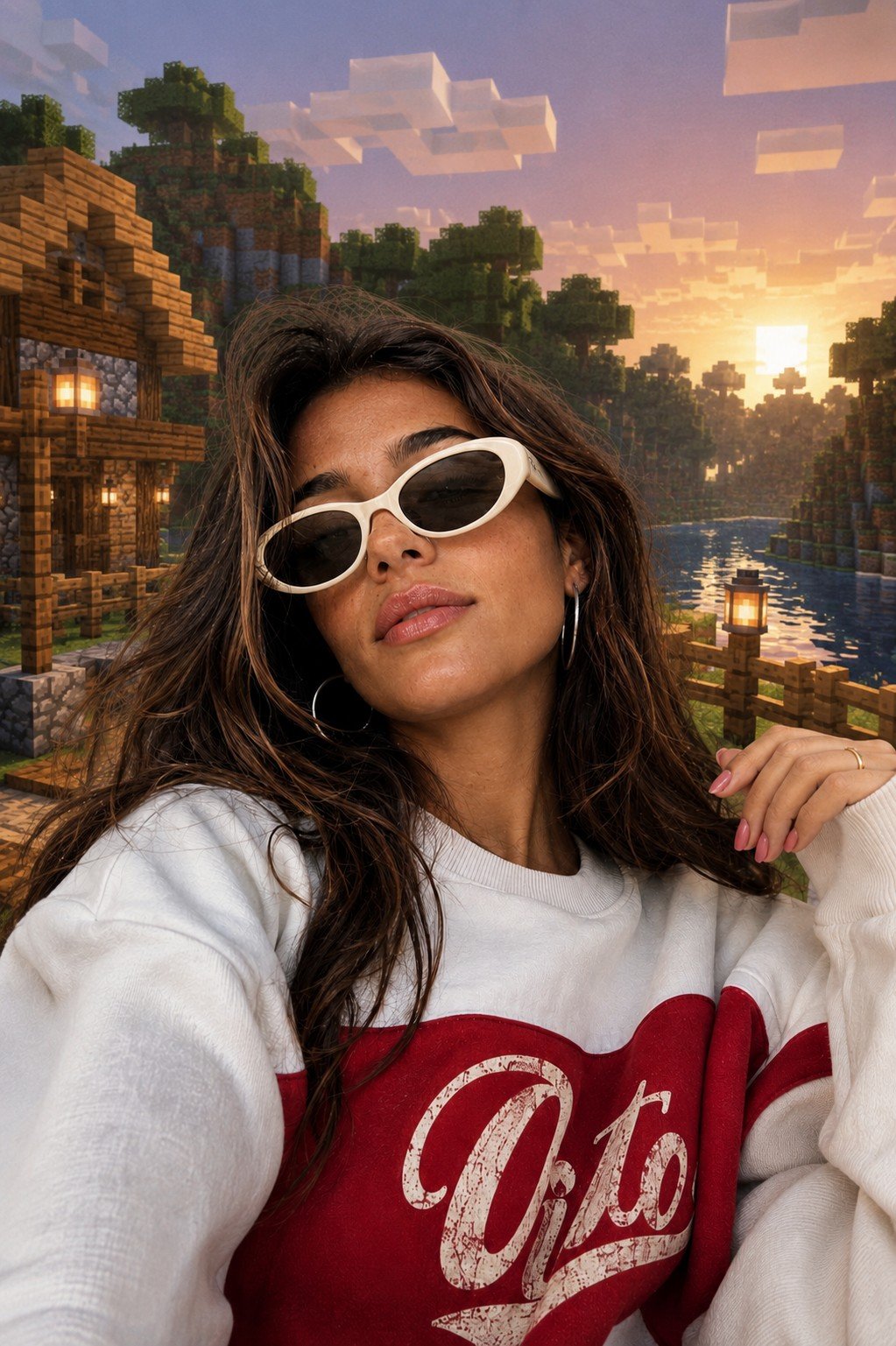
Photoreal Selfie Minecraft Block World
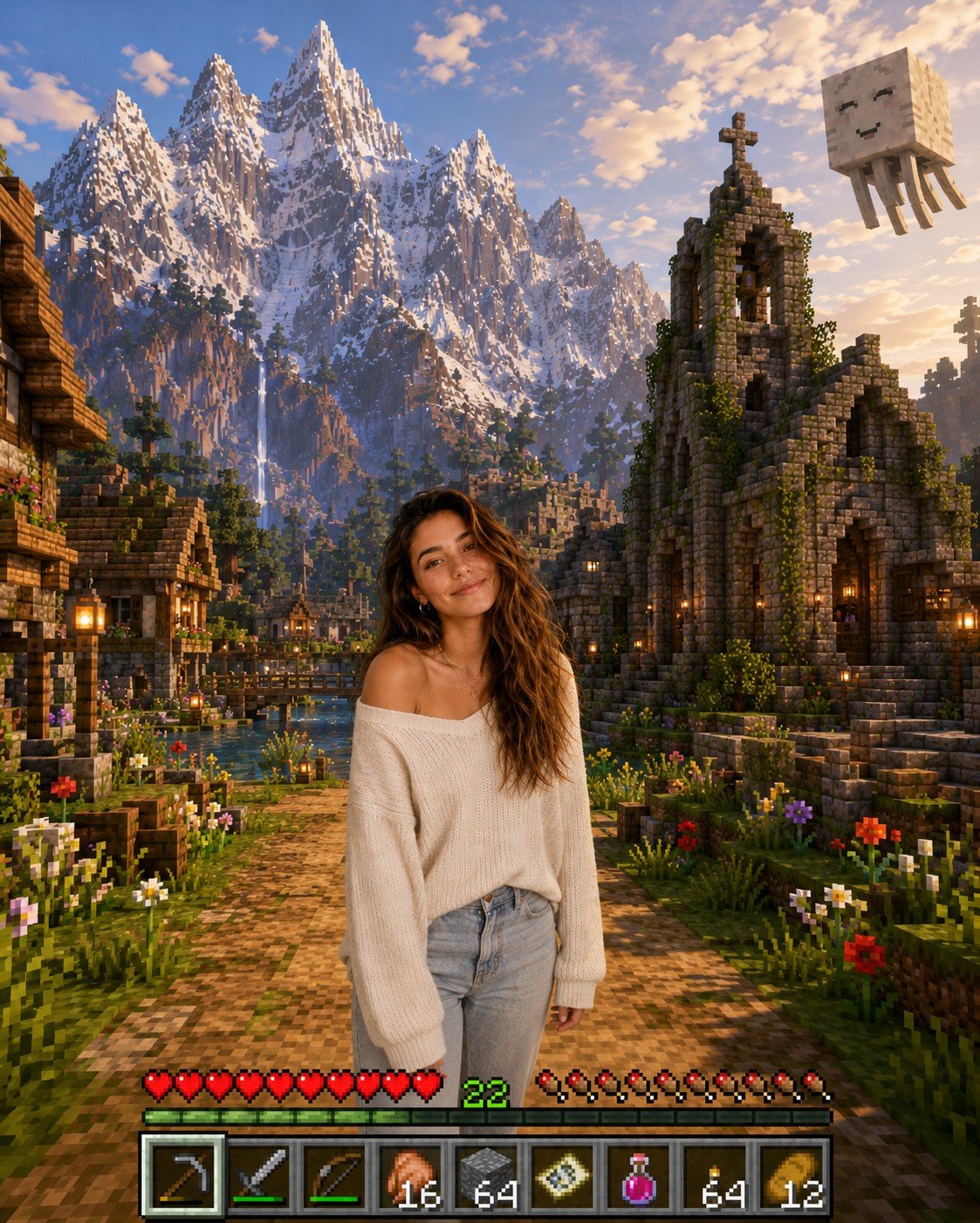
Photoreal Selfie Minecraft Village Ghast UI
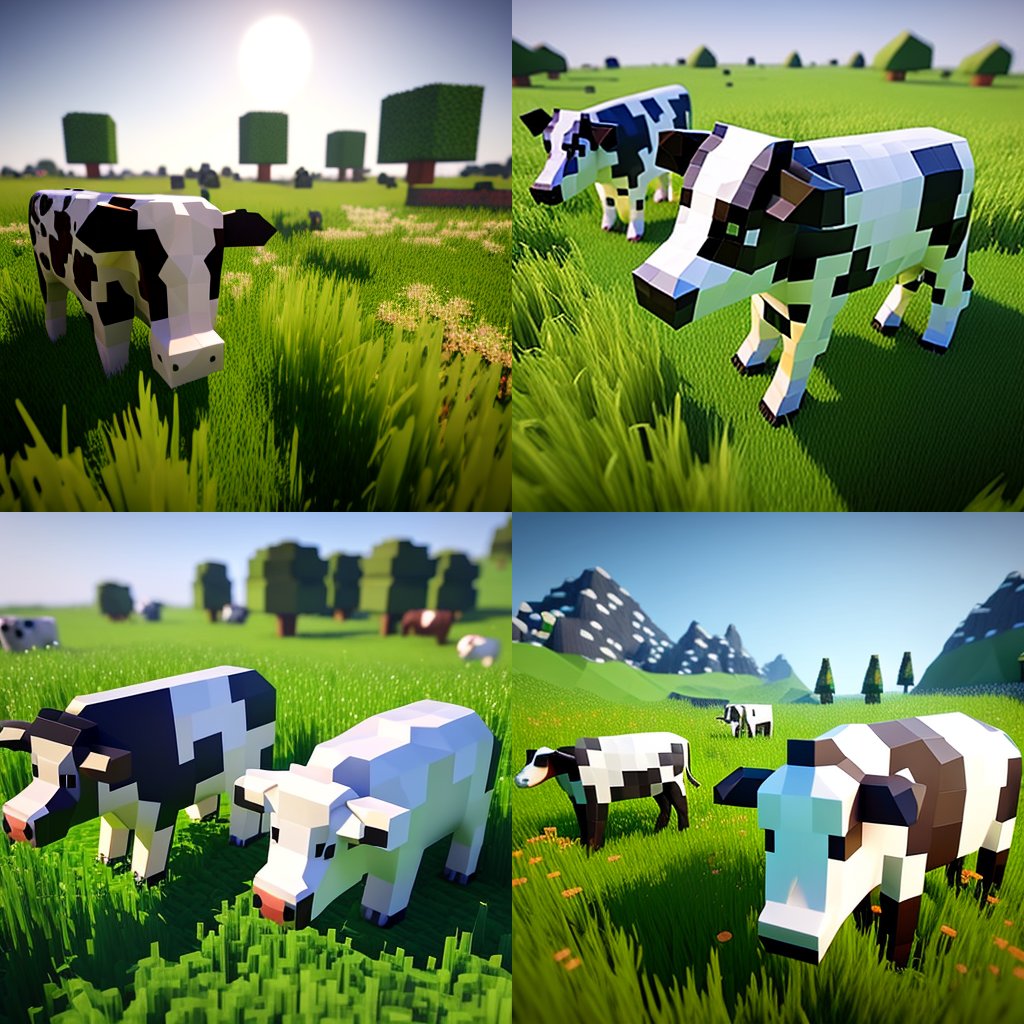
Hyper-Realistic Minecraft Cows Grazing

Hyper-Realistic Minecraft POV Portrait
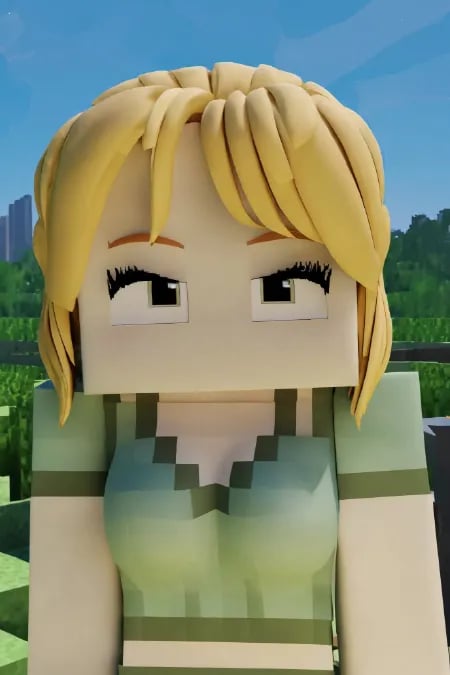
Minecraft Homage Illustrious Style
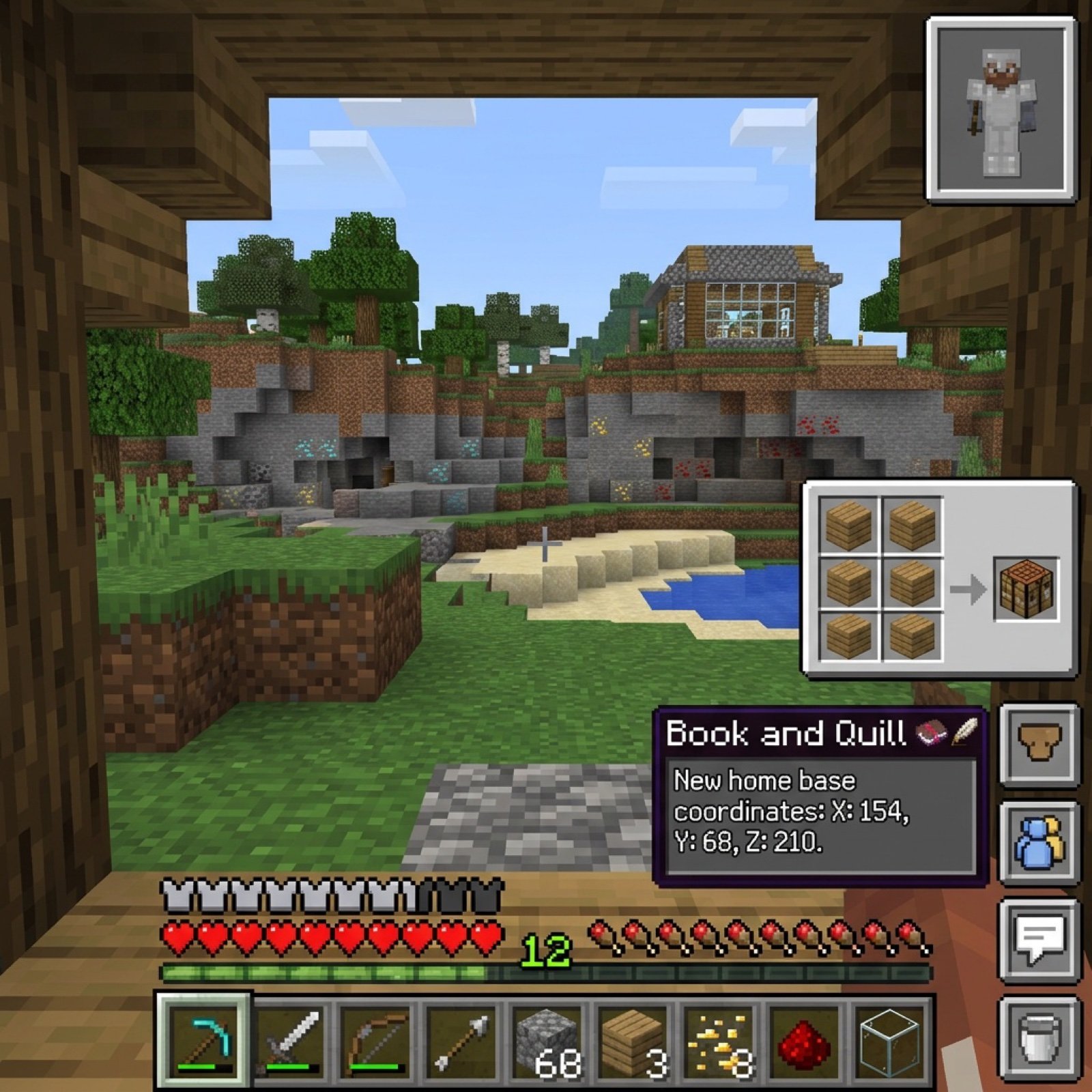
Minecraft Voxel Pixel Art Aesthetic System

Minecraft Next-Gen Voxel World Screenshot

Minecraft Japanese Research Lab Exploration
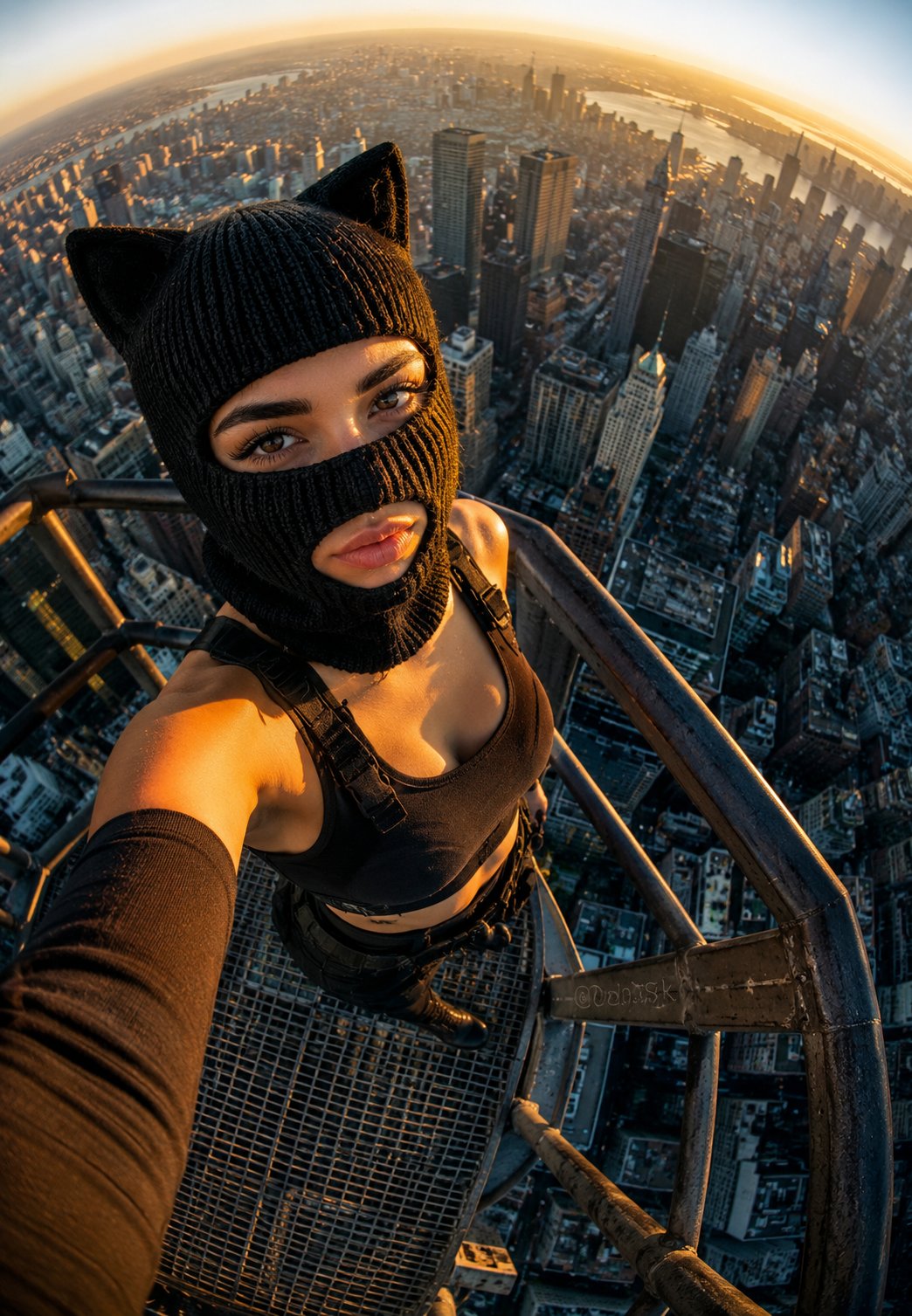
Rooftop Fisheye — Cat-Ear Balaclava at Golden Hour
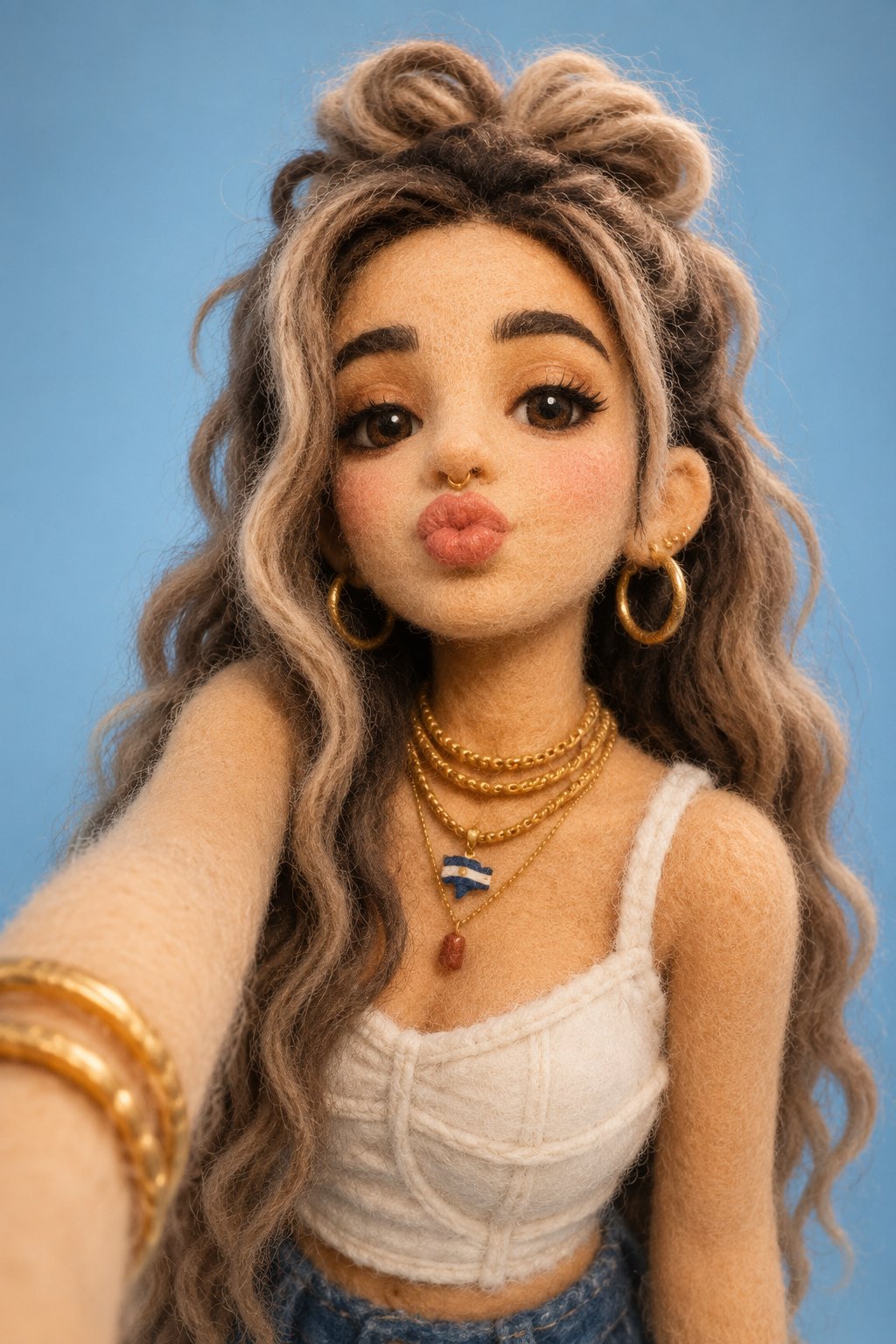
Felt & Knit 3D Character — Photo-Exact Face, Pixar-Quality Plush Figurine
Make it yours
Minecraft Selfie Photo Integration works as-is. These are the safest ways to change it without losing the look.
Change one field
Copy a single group, rewrite it, and generate again so you can see what that field is doing.
Keep the frame, change the subject
Hold the composition and light of Minecraft Selfie Photo Integration, then swap wardrobe, props or the person for a new take.
| If the result… | Why | Fix |
|---|---|---|
| The result drifts from the preview | Too many fields changed at once. | Reuse Minecraft Selfie Photo Integration as-is first, then change one group — subject, light, or setting. |
| The model over-stylizes the scene | The prose prompt leaves finish and camera underspecified. | Add one camera or lighting sentence and stay on GPT Image 2. |
More GPT Image 2 templates
Other prompts made for GPT Image 2.

Six VTuber Japanese Logo Sheet

Realistic Portrait of Woman and Deer

The Vista Modular Condo Poster

AI Model Routing Comparison Infographic

2.5D Anime Art Board

Isometric Productivity Desk Scene

New York Double Exposure Poster

Four-Panel AI Landscape Comparison

Japanese Tatami Lifestyle Magazine Cover

NESCAFÉ Coffee Map Poster
More image prompts
Fresh picks from across the catalog.
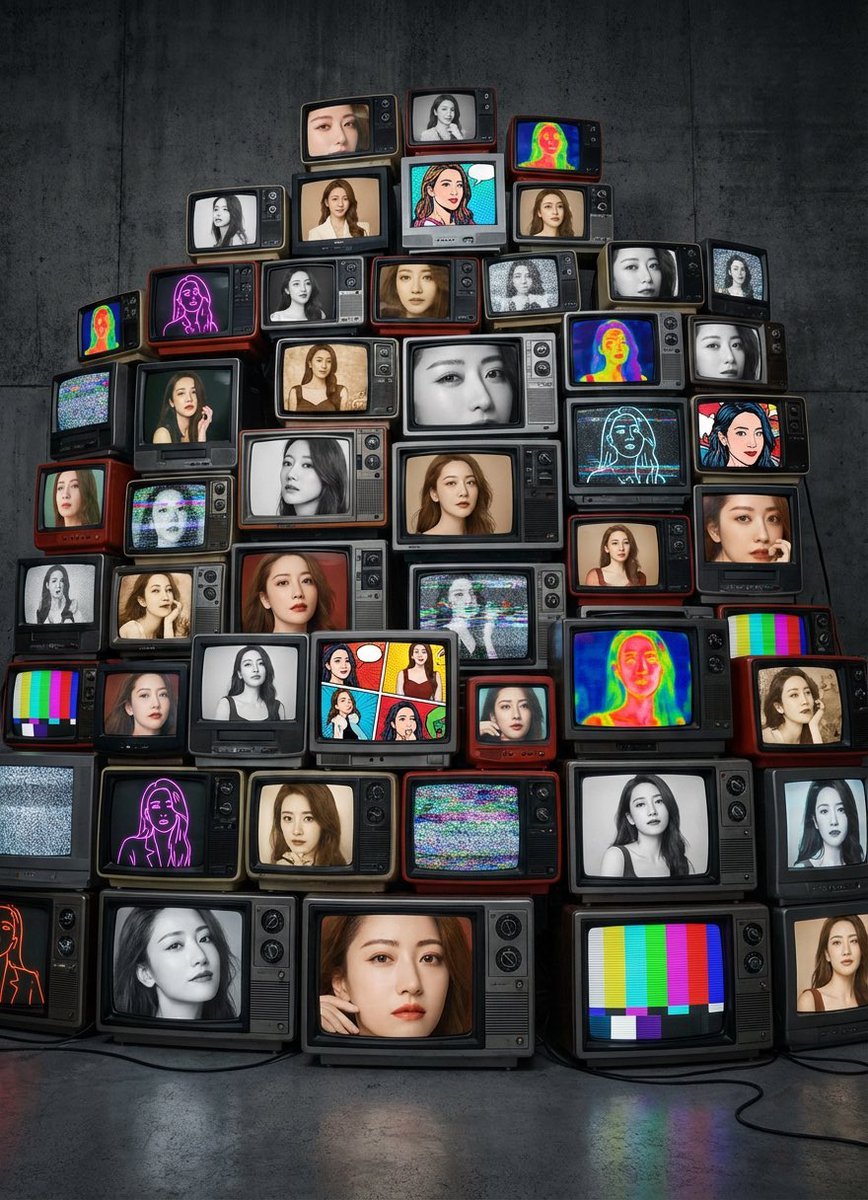
Girlfriend Portrait on Vintage CRT TV Wall
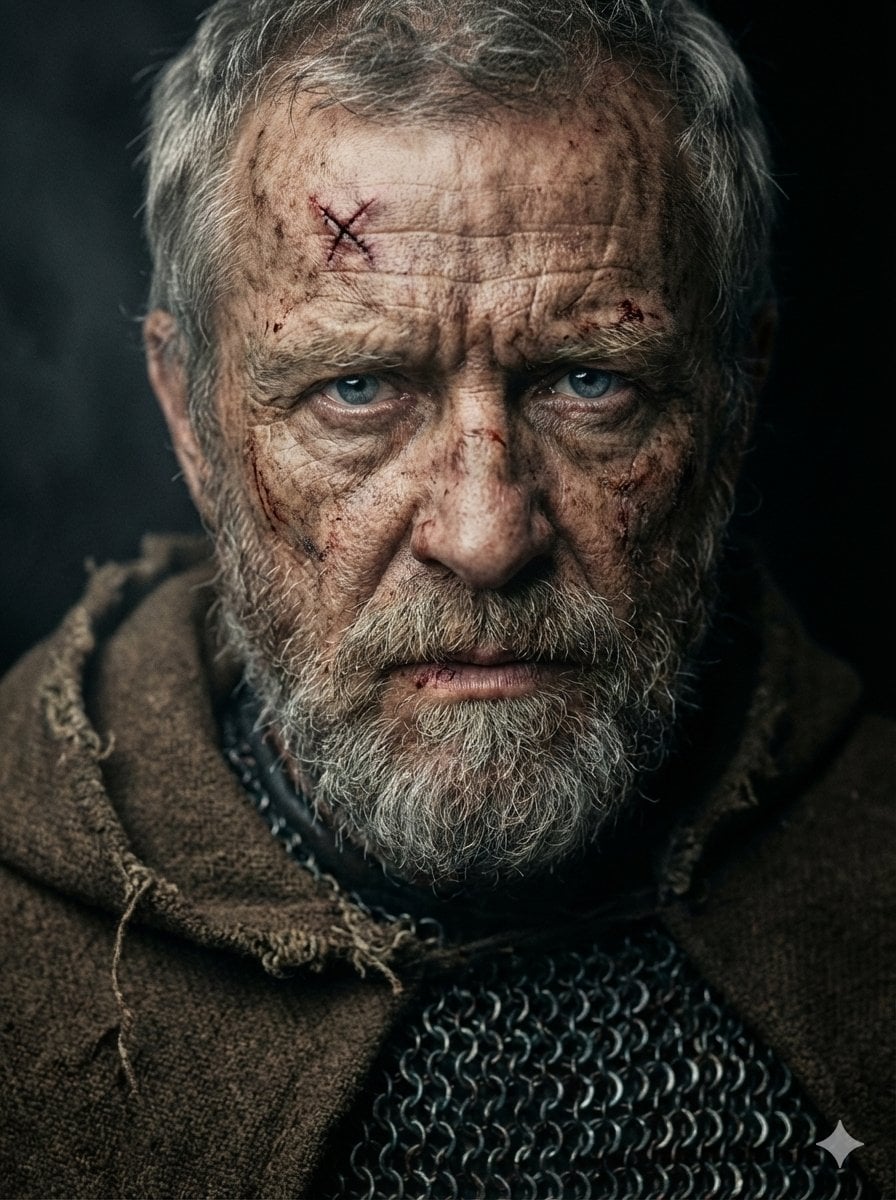
Battle-Hardened Medieval Warrior Cinematic Portrait
Panel Yoga Instructional Storyboard
1x3 Grid Phone Motion Edit JSON Prompt
Mediterranean Lifestyle Travel Portrait
Whimsical Folk Art Transformation
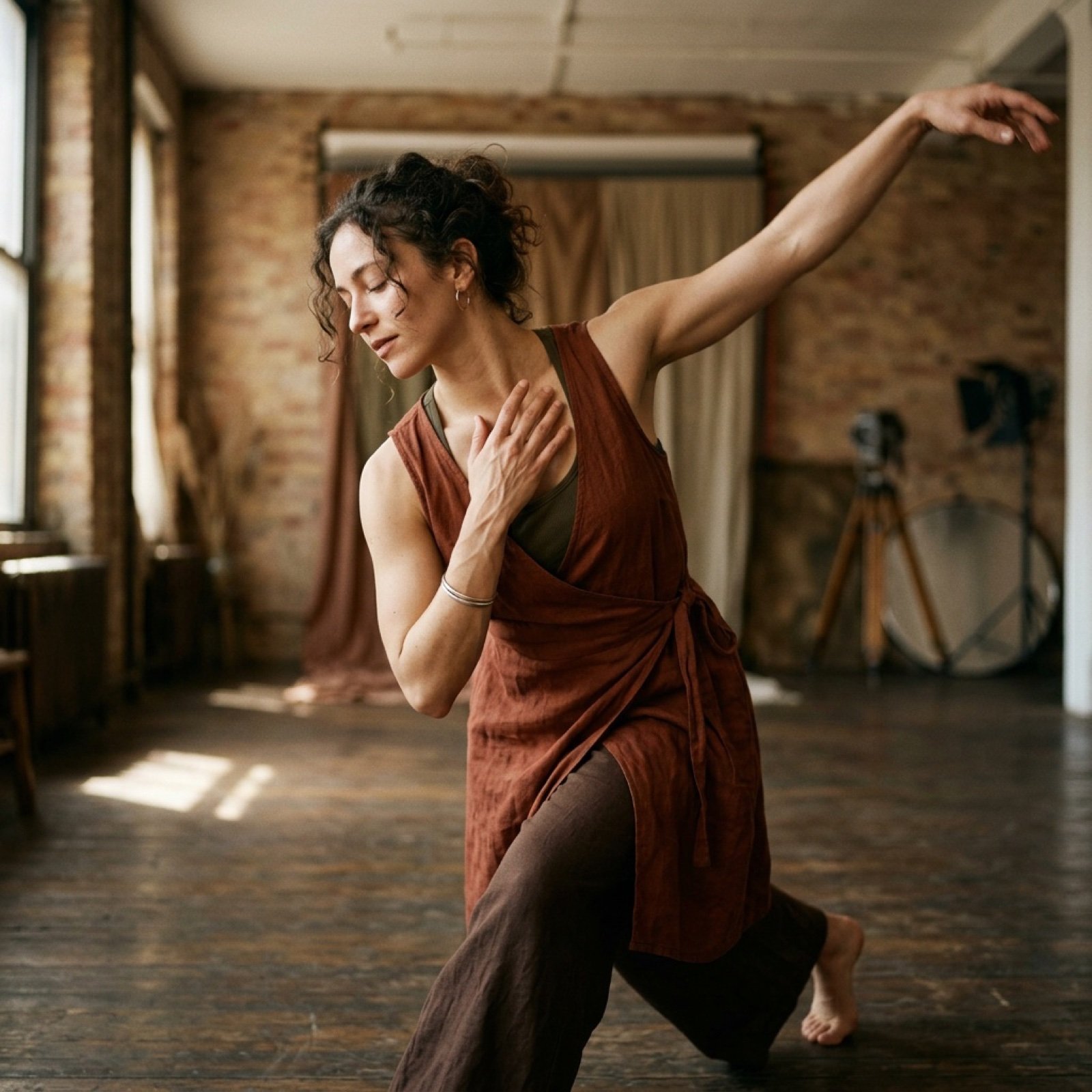
Cinematic Dance Video Prompt (Image and Video Generation)
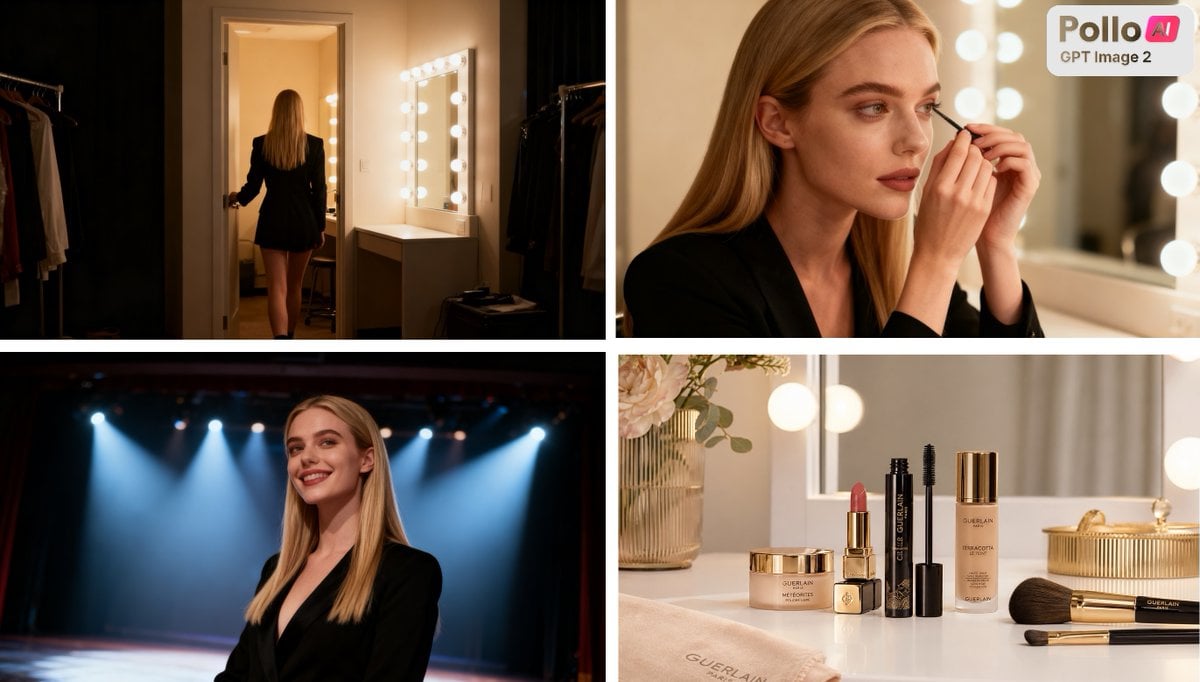
Luxury Beauty Ad Storyboard

3x3 Grid Collage of Emotions in 3D Cartoon Style
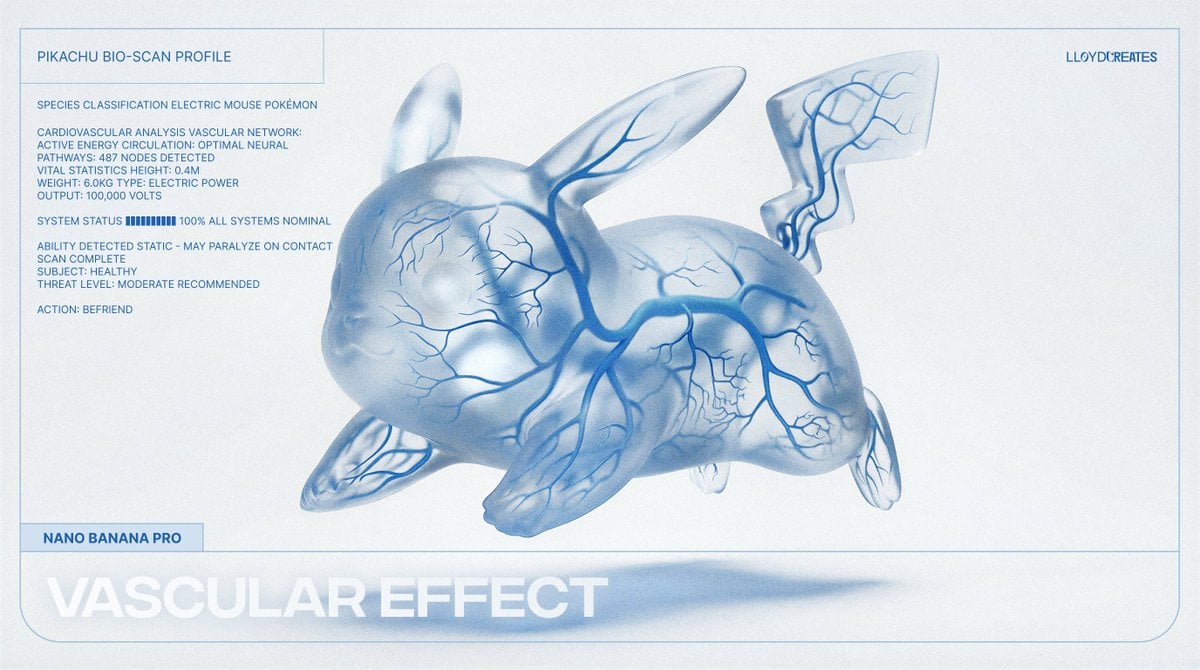
Vascular Effect Object Prompt
Featured in prompt roundups
Hand-picked collections that include this template.
Browse template categories
Minecraft Selfie Photo Integration questions
How do I use the Minecraft Selfie Photo Integration template?
Add your photo if the template asks for one, edit the prompt if you like — the template's model and format are already selected — and press Generate. Your version opens in PicX Studio.
Can I customize the Minecraft Selfie Photo Integration template?
Yes. You can change the subject, setting, lighting, mood, format, and available model controls before creating your image.
Is the Minecraft Selfie Photo Integration template free?
Opening and editing this template is free. Generating uses credits, shown on the Generate button when you are signed in.
Which AI model should I use?
Start with GPT Image 2, which is the model associated with this template. You can compare another compatible model for a different finish.
Looking for something else? Browse all templates.

Your photo, any look
Thousands of ready templates for every top image and video model, from one credit balance.