
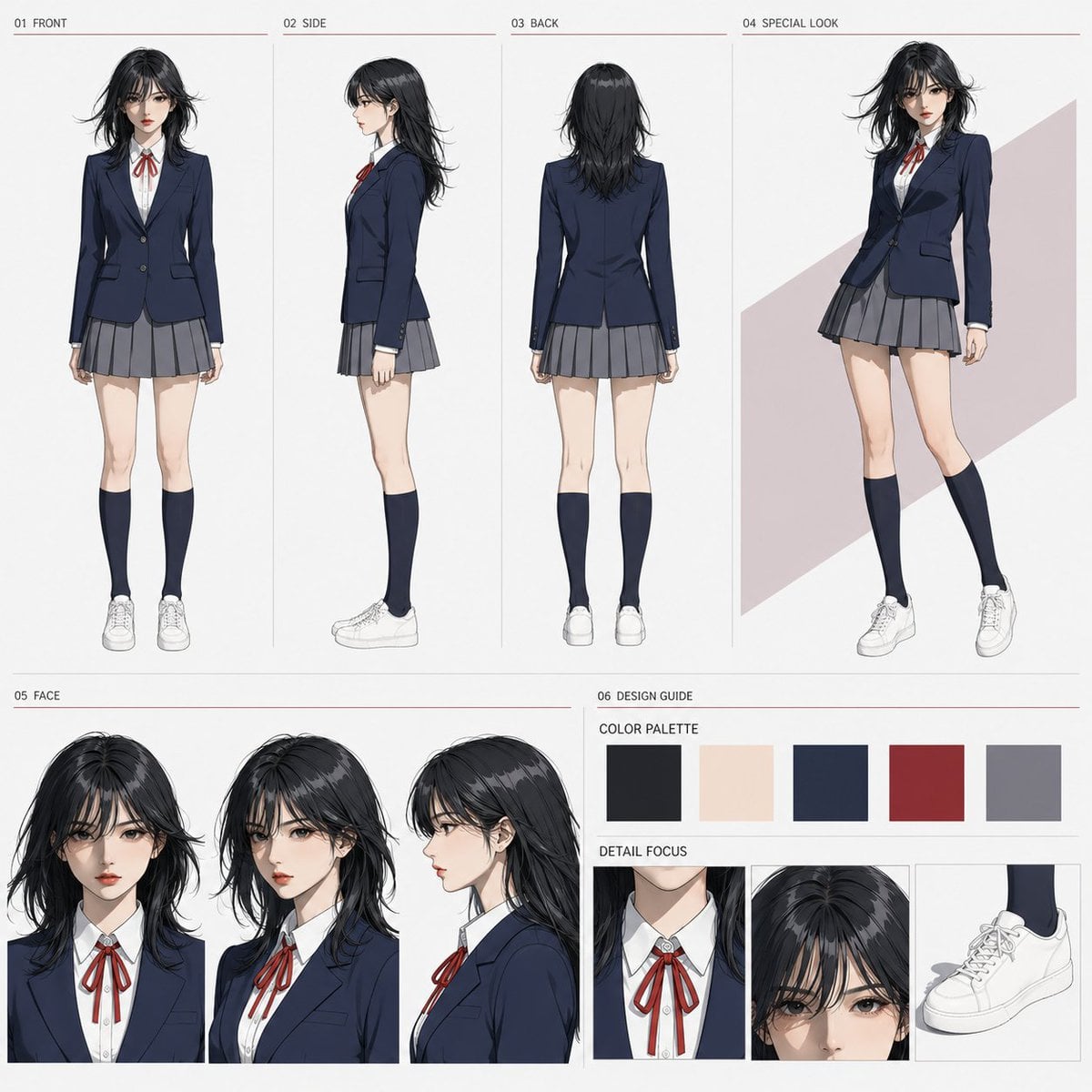
Anime Three-View Character Sheet
Generates a Japanese anime-style character design sheet with front, side, back views and detailed costume close-up panels.
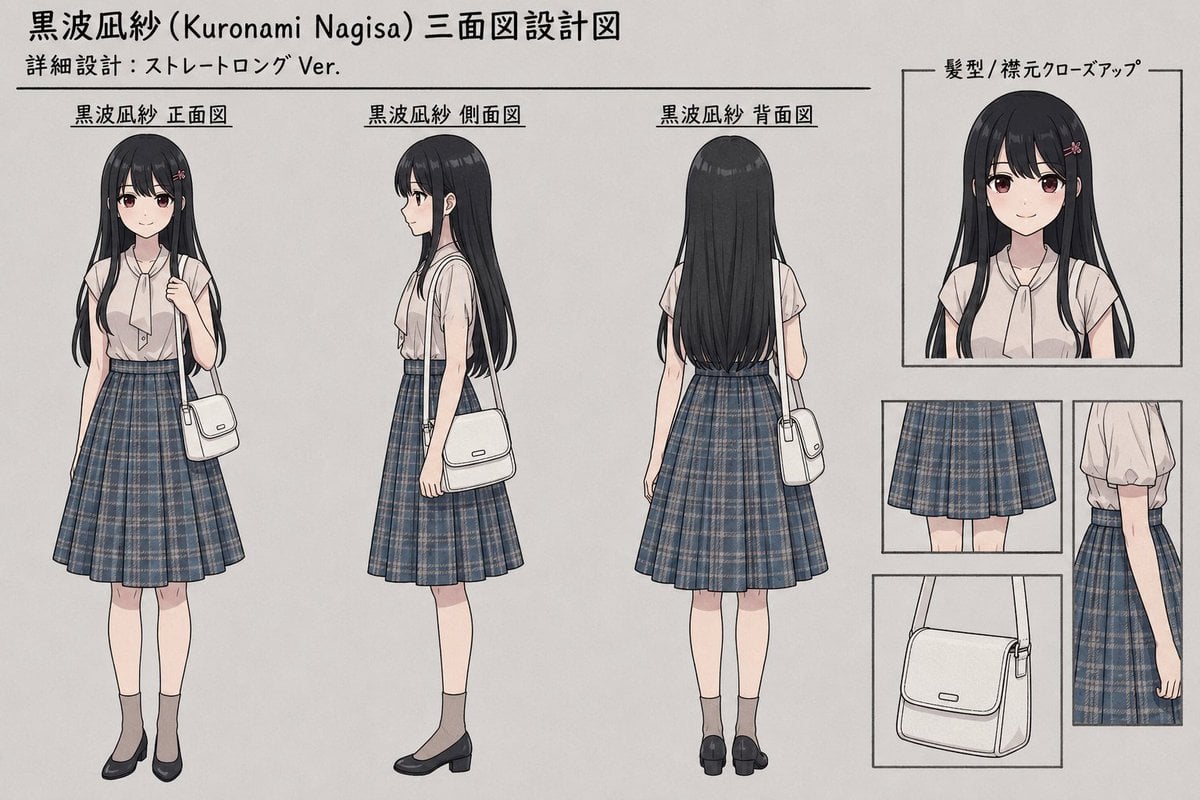
- Prompt included
- Model and format preset
- Free template
The prompt behind this image
Copy the exact prompt behind Anime Three-View Character Sheet, or open it in the studio and make it yours.
Goal: Create a clean anime character model sheet / three-view design sheet for {argument name="character name" default="黒波凪紗 (Kuronami Nagisa)"}, showing a straight long-hair version in a neat school-uniform-inspired outfit. Canvas: Horizontal 16:9 illustration on an off-white paper background with thin black drafting lines, light gray shadows, and a professional character-design reference layout. Use a muted, delicate anime style with soft watercolor-like shading and crisp ink outlines. Header text: At the top left, write “黒波凪紗 (Kuronami Nagisa) 三面図設計図”. Beneath it, write “詳細設計:ストレートロング Ver.” Draw a long horizontal divider line under the subtitle. Main layout: Place exactly 3 full-body character views across the left and center of the sheet, each with a Japanese label above it: 1) “黒波凪紗 正面図” front view, 2) “黒波凪紗 側面図” side view, 3) “黒波凪紗 背面図” back view. The character’s face should be softly blurred/obscured with a neutral oval blur in every view, while the hair and clothing remain detailed. Character details: A slim teenage girl with very long straight {argument name="hair color" default="black"} hair reaching below the waist, long bangs framing the face, subtle glossy highlights, and a small pink flower hairpin on the right side. She wears a pale blush short-sleeve blouse with a loose neck-tie ribbon, a high-waisted knee-length pleated plaid skirt in {argument name="skirt pattern" default="dark blue-gray tartan plaid with thin beige lines"}, gray ankle socks, and black low-heeled Mary Jane shoes. She carries a small structured white shoulder bag with a flap, thin strap, side hardware, and a tiny rectangular logo plate. Full-body views: The front view shows her standing straight, one hand lightly holding the bag strap, bag hanging at her side. The side view shows her profile facing left, with the bag strap over the shoulder and the bag at hip level. The back view shows the full fall of the long hair over the blouse, the flared pleated skirt from behind, both legs visible, and the bag hanging on one side. Right-side detail panels: Include exactly 4 boxed close-up reference panels arranged in a neat column/grid on the right. Panel 1, largest top panel, label “髪型 / 襟元クローズアップ”, showing a bust close-up of the hair, face blur, collar, neck tie, and pink hairpin. Panel 2, middle-left small panel, shows the pleated plaid skirt close-up from the front. Panel 3, middle-right tall panel, shows the blouse sleeve, waistline, arm, and skirt side detail. Panel 4, bottom-left panel, shows a close-up of the white shoulder bag with strap, flap, seams, buckle hardware, and logo plate. Constraints: Keep the sheet tidy and symmetrical, with no extra characters and no extra panels beyond the 3 full-body views and 4 close-up panels. Preserve the Japanese labels exactly as specified. Avoid photorealism; maintain a refined anime design-sheet look.
How to use Anime Three-View Character Sheet in 3 steps
- 1Upload ImagePNG, JPG or paste
Add your photo
Upload the photo the template builds on. The prompt, model and format are already set.
- 2…a portrait of your subject in softgolden-hour light, 85mm…
Personalize
Edit the subject and creative details for your destination.
- 3Generate
Generate
Press Generate — your image is created in PicX Studio, so you can compare it with the original and refine one variable at a time.
More like this
Templates with the same subject, style or setup. Open one to see its prompt.
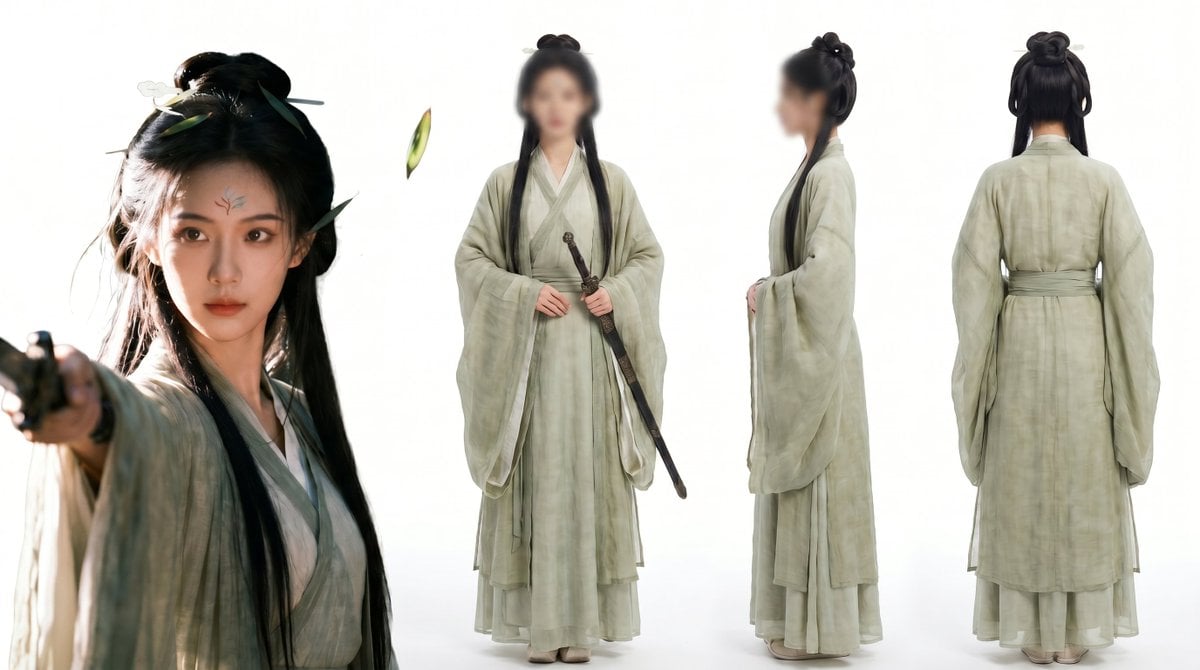
Consistent Three-View Character Sheet
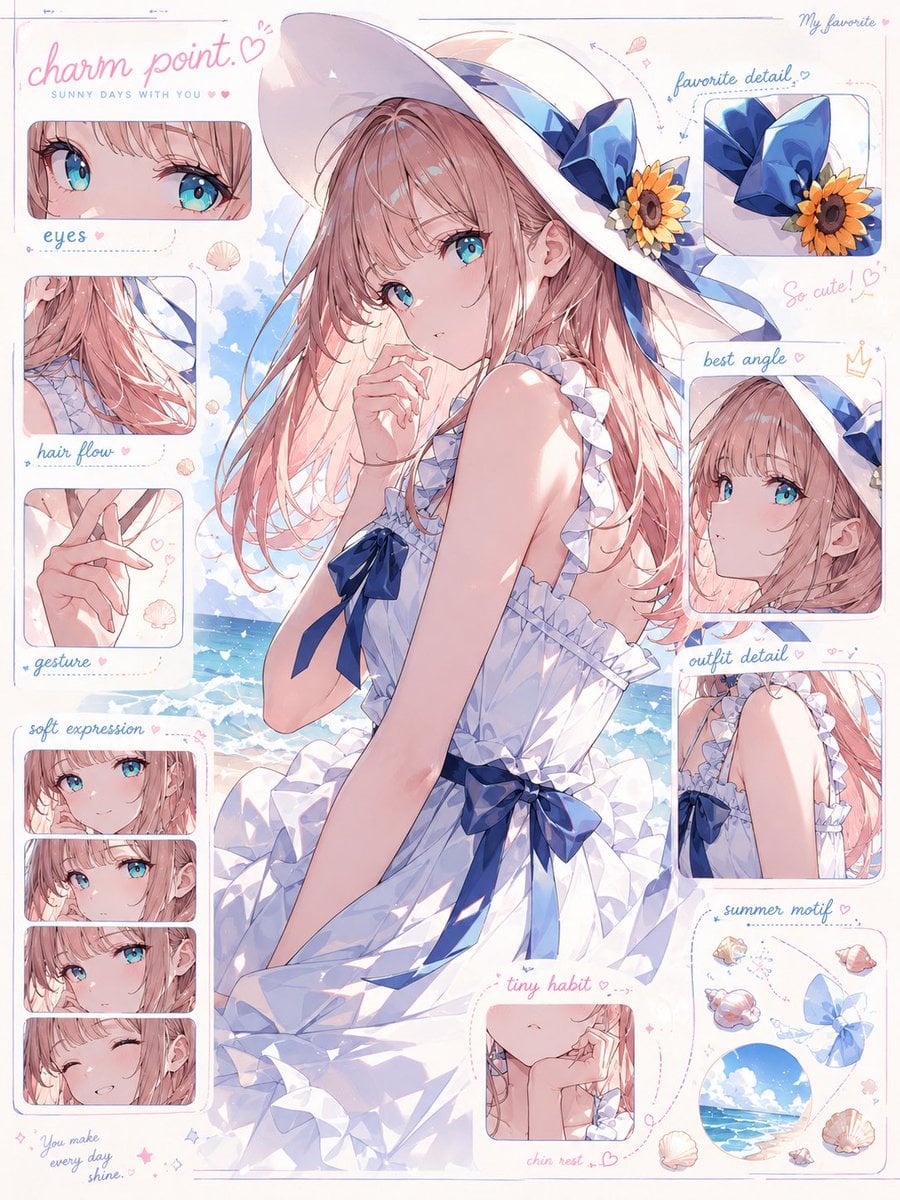
Anime Character Charm Analysis Sheet
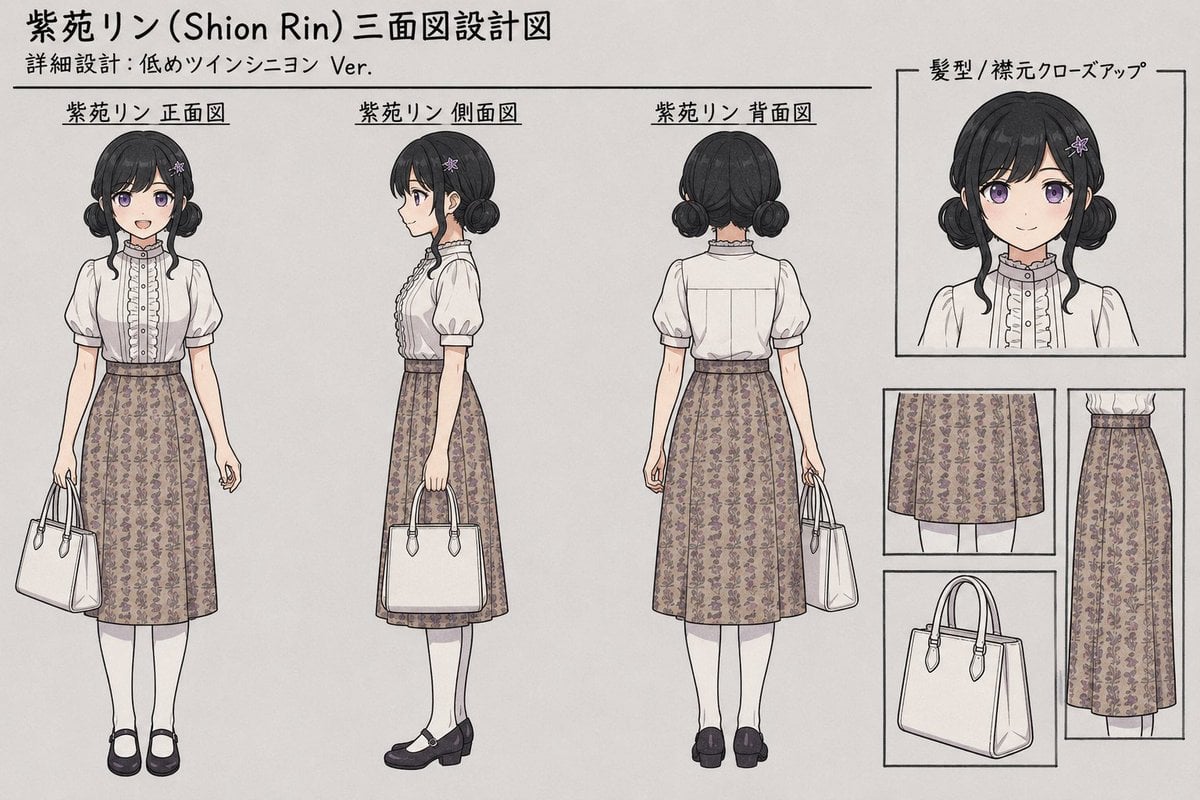
Shion Rin Three-View Design Sheet
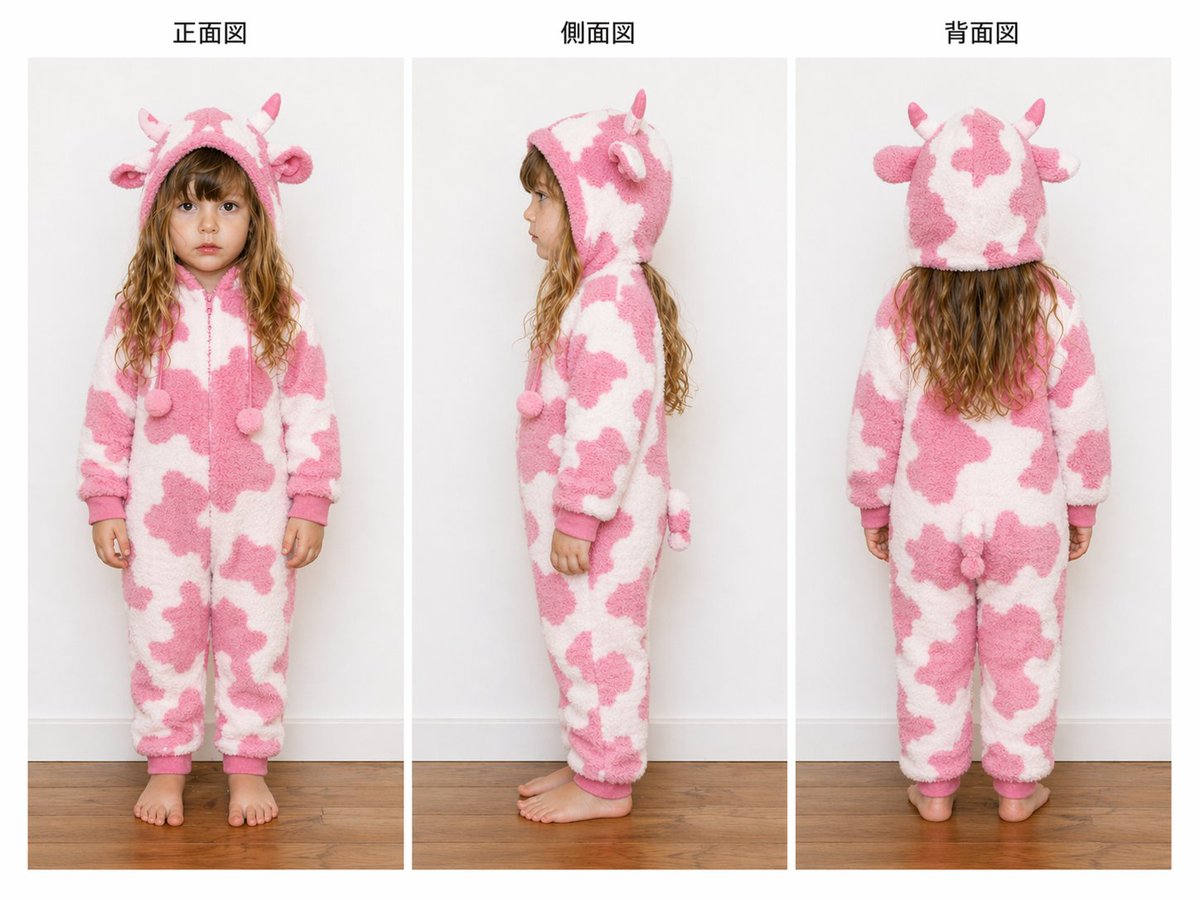
Child Cow Onesie Three-View Sheet
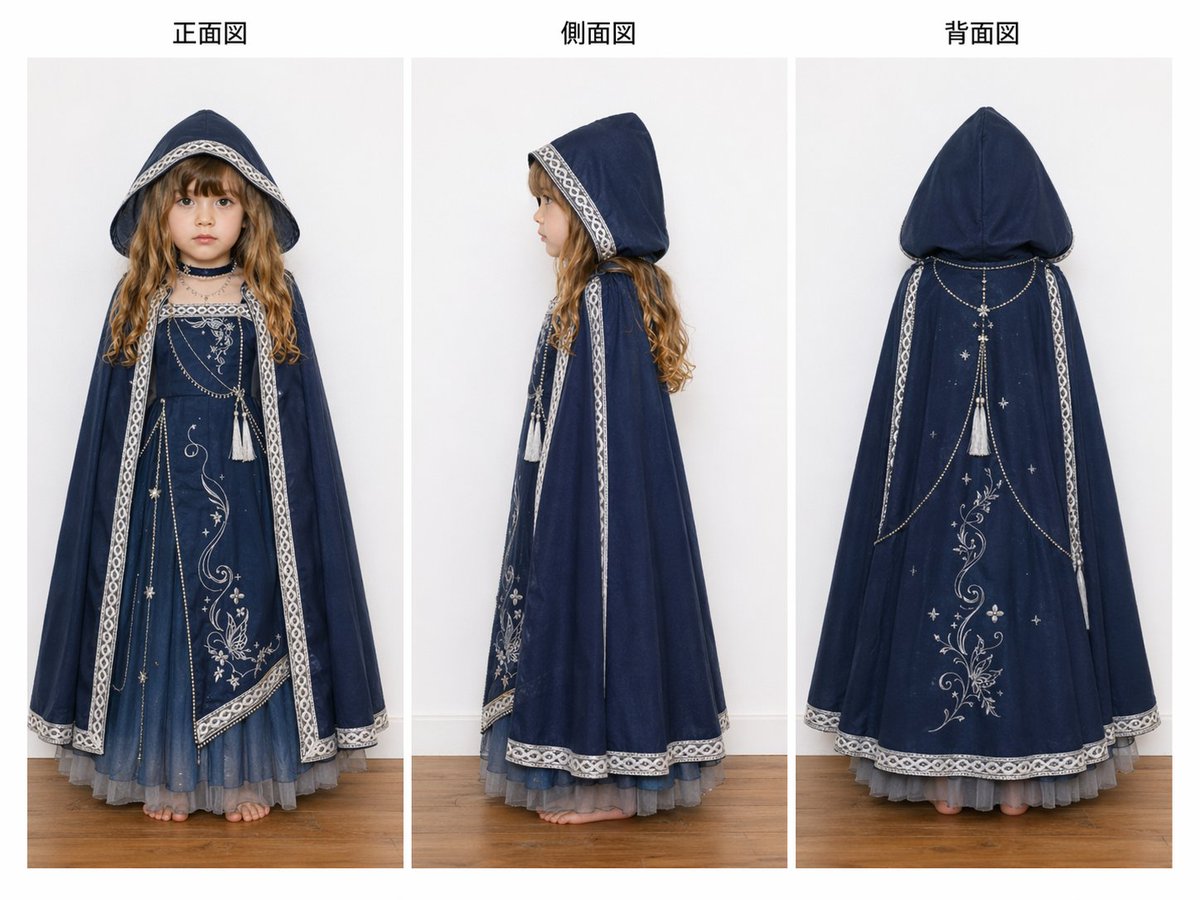
Three-View Hooded Fantasy Dress Sheet
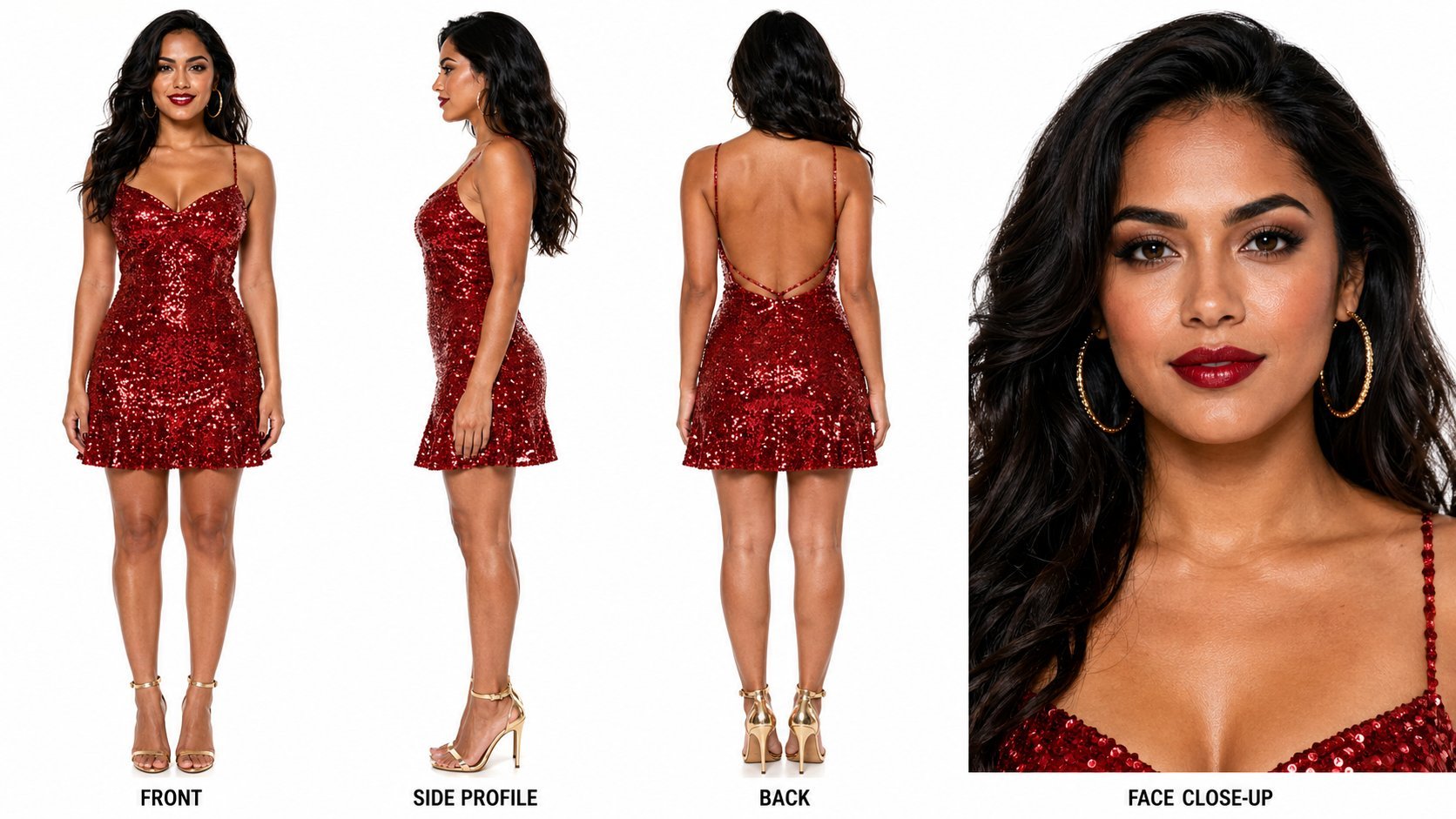
Dancer Character - Four View Reference Sheet
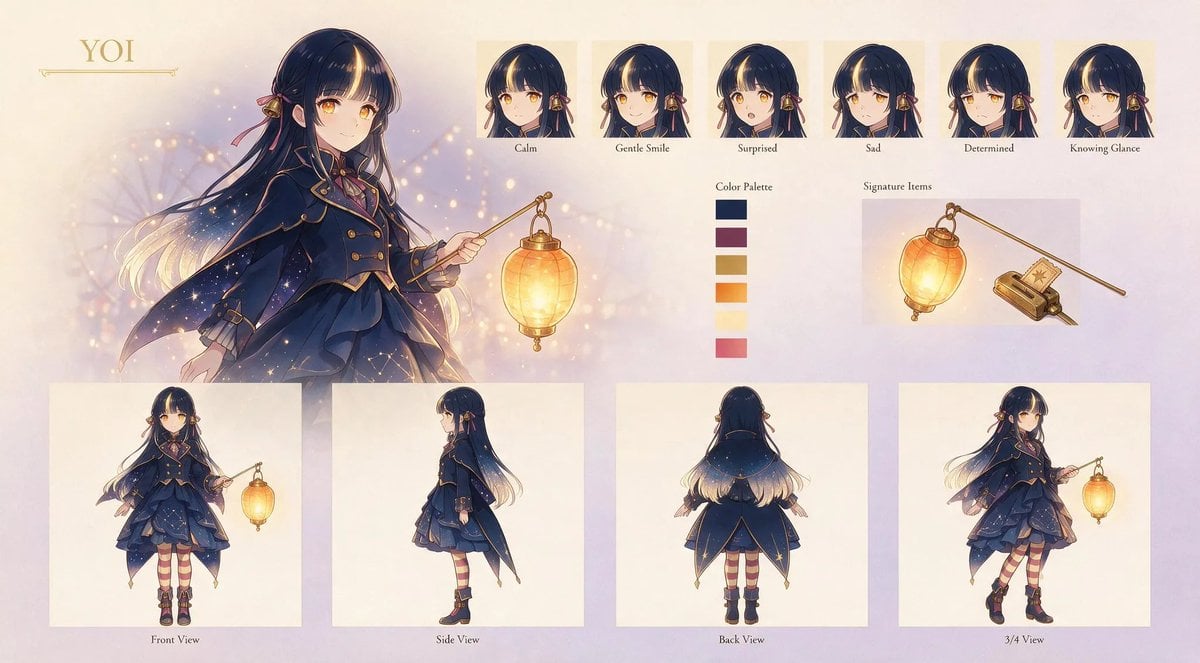
Anime Lantern Girl Character Sheet
Anime Character Sheet Reference Prompt
Cel 2D Finale Fireworks
Cel 2D Garden Maze
Cel 2D Rooftop Concert
Cel 2D Bicycle Coast
Make it yours
Anime Three-View Character Sheet works as-is. These are the safest ways to change it without losing the look.
Change one field
Copy a single group, rewrite it, and generate again so you can see what that field is doing.
Keep the frame, change the subject
Hold the composition and light of Anime Three-View Character Sheet, then swap wardrobe, props or the person for a new take.
| If the result… | Why | Fix |
|---|---|---|
| The result drifts from the preview | Too many fields changed at once. | Reuse Anime Three-View Character Sheet as-is first, then change one group — subject, light, or setting. |
| The model over-stylizes the scene | The prose prompt leaves finish and camera underspecified. | Add one camera or lighting sentence and stay on GPT Image 2. |
More GPT Image 2 templates
Other prompts made for GPT Image 2.

Six VTuber Japanese Logo Sheet

Realistic Portrait of Woman and Deer

The Vista Modular Condo Poster

AI Model Routing Comparison Infographic

2.5D Anime Art Board

Isometric Productivity Desk Scene

New York Double Exposure Poster

Four-Panel AI Landscape Comparison

Japanese Tatami Lifestyle Magazine Cover

NESCAFÉ Coffee Map Poster
More image prompts
Fresh picks from across the catalog.
Stylized Urban 3D Skater Character
Portal Scene Generation Prompt
Urban Streetwear Hoodie Mockup
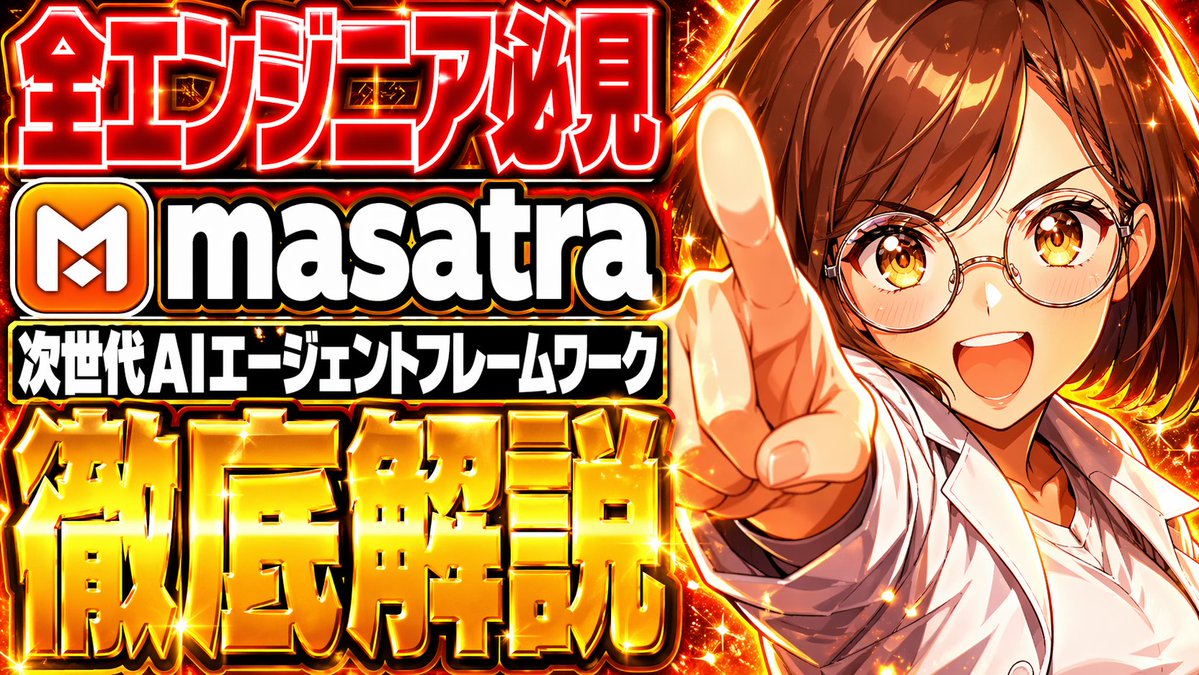
Flashy Japanese AI Thumbnail
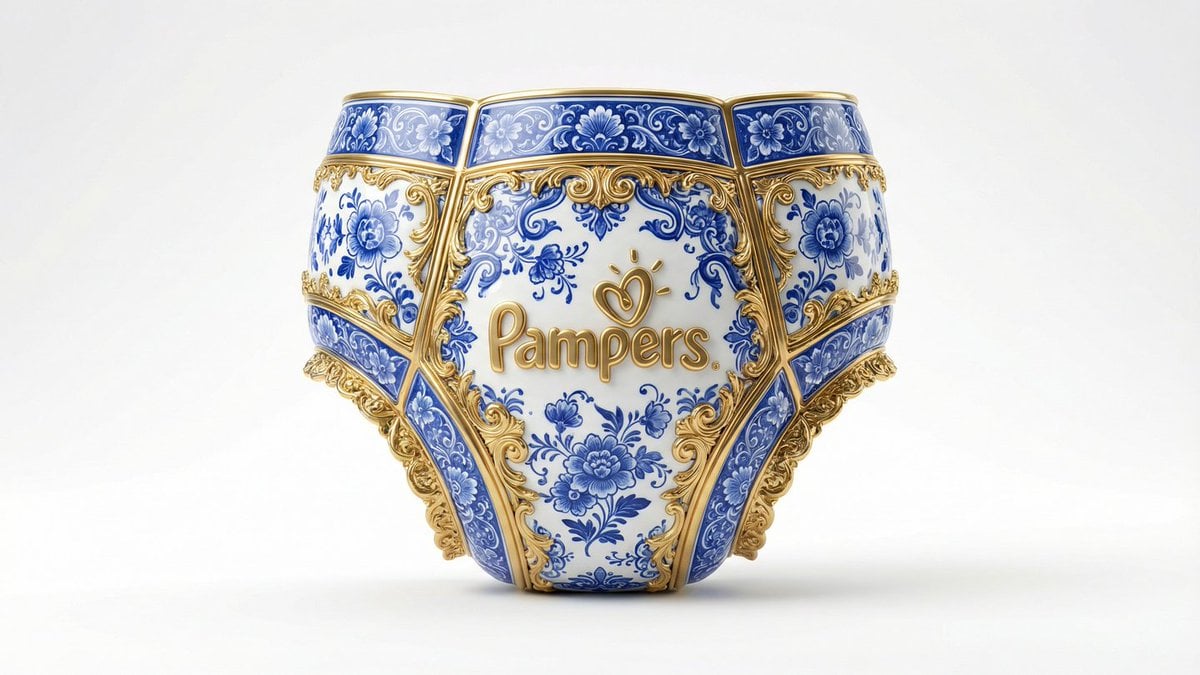
Gilded Delftware Product Signature Prompt
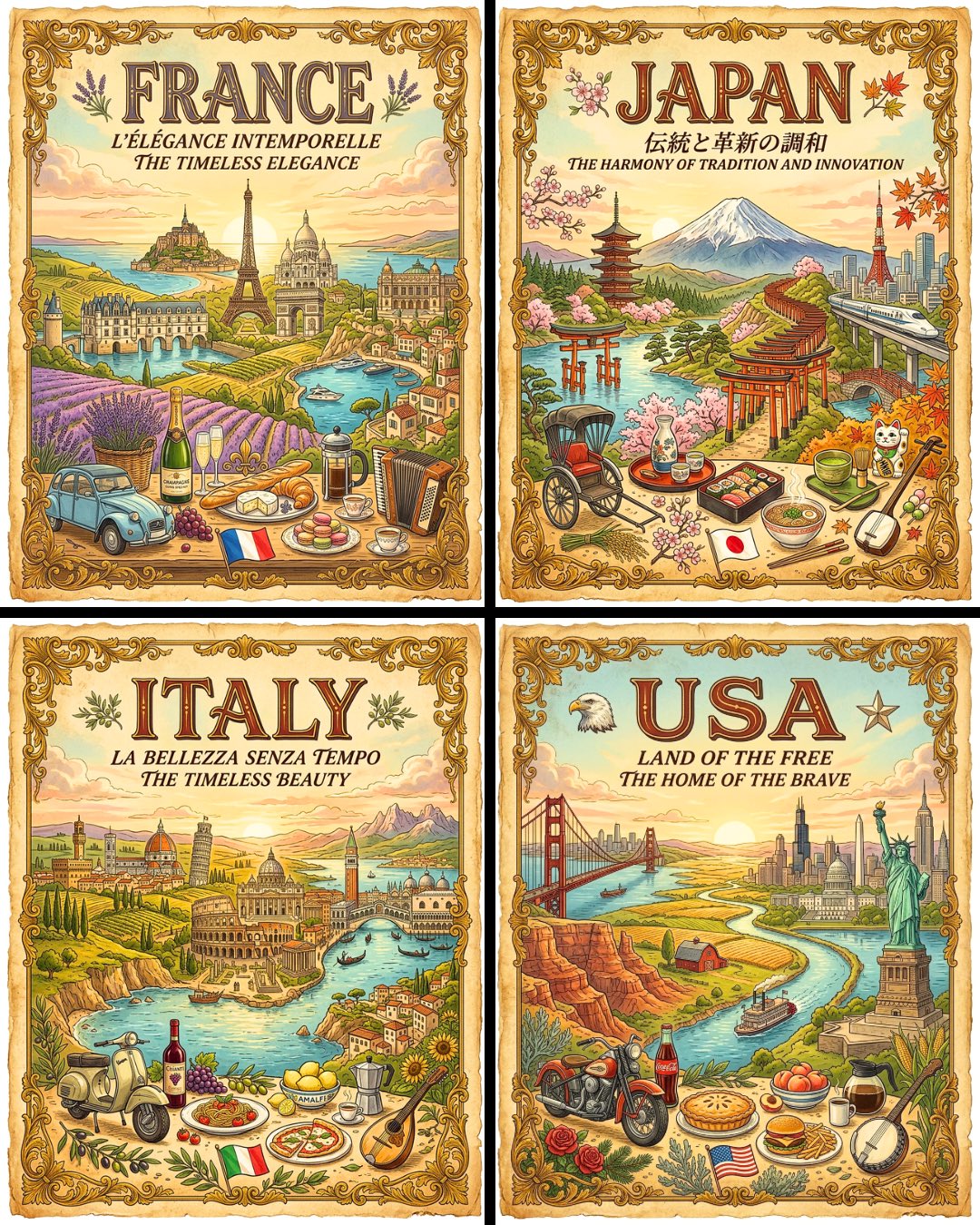
Vintage Travel Posters by Nano Banana 2
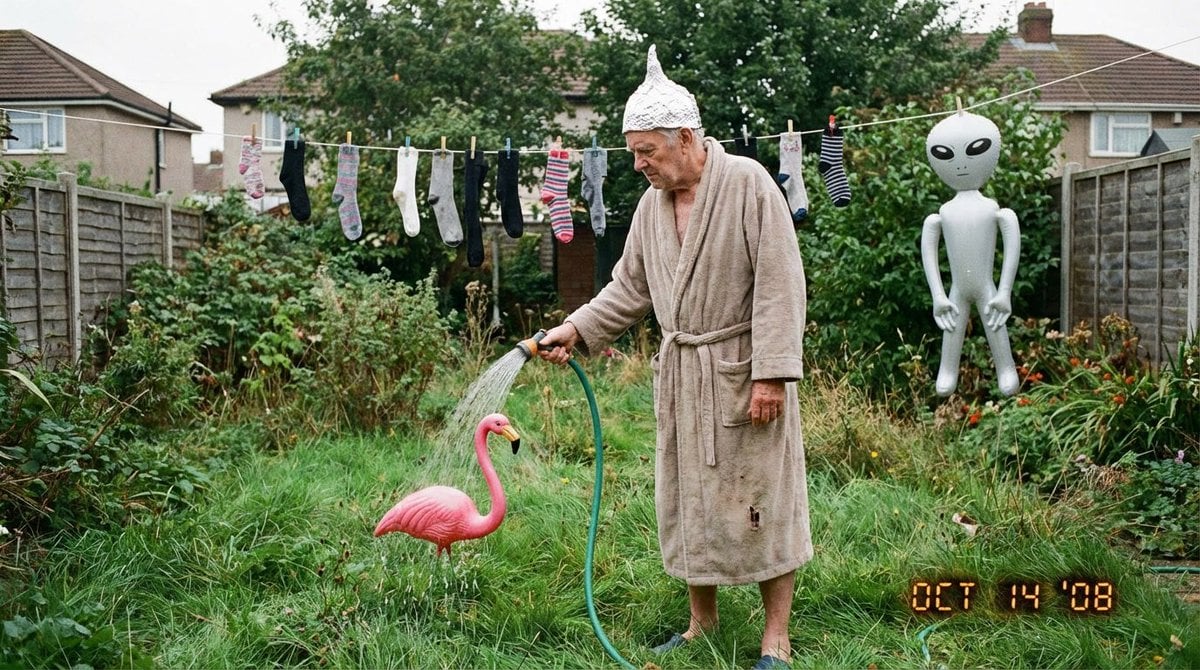
Weird mundane photo (LeonardoAI)
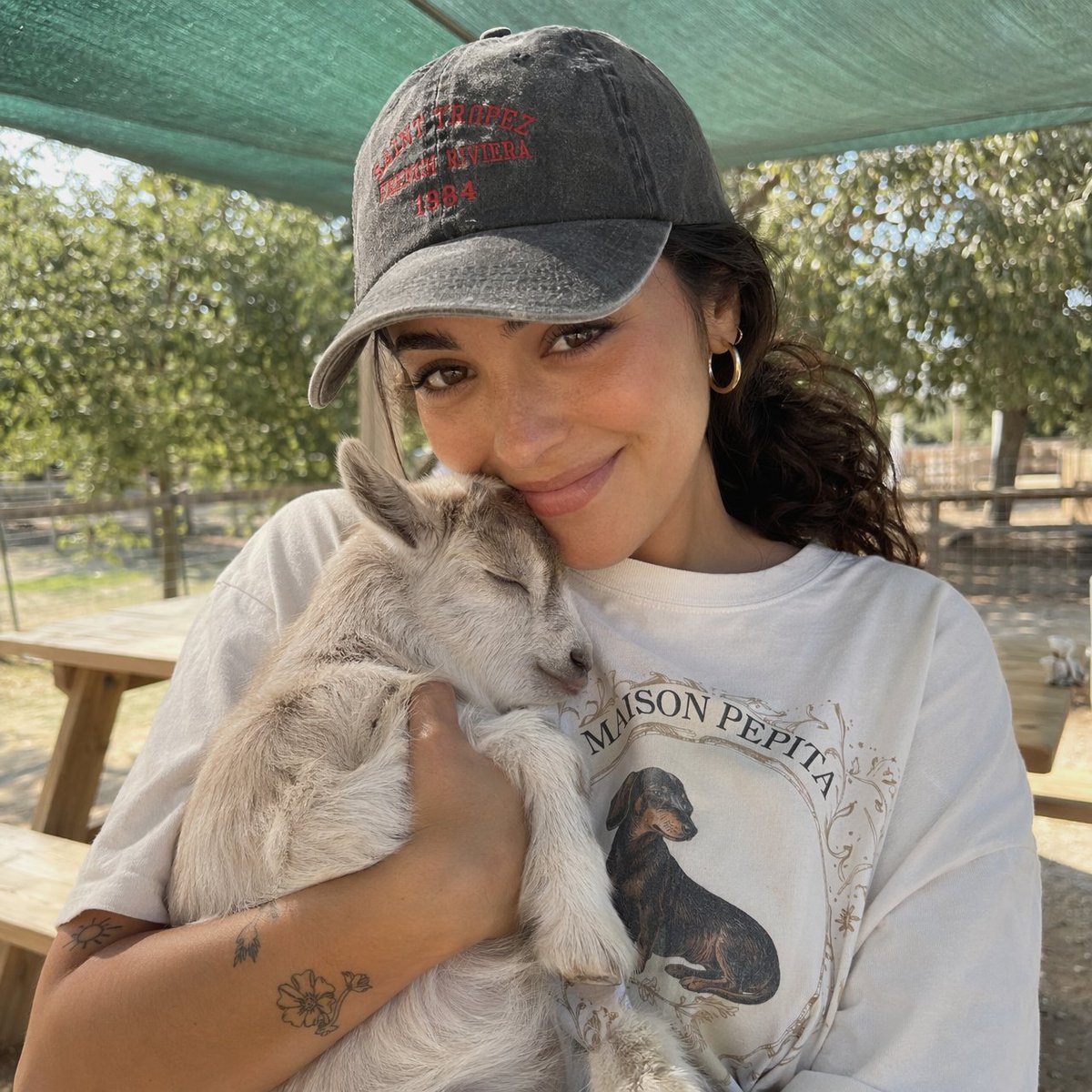
Girl with Baby Goat Candid Portrait
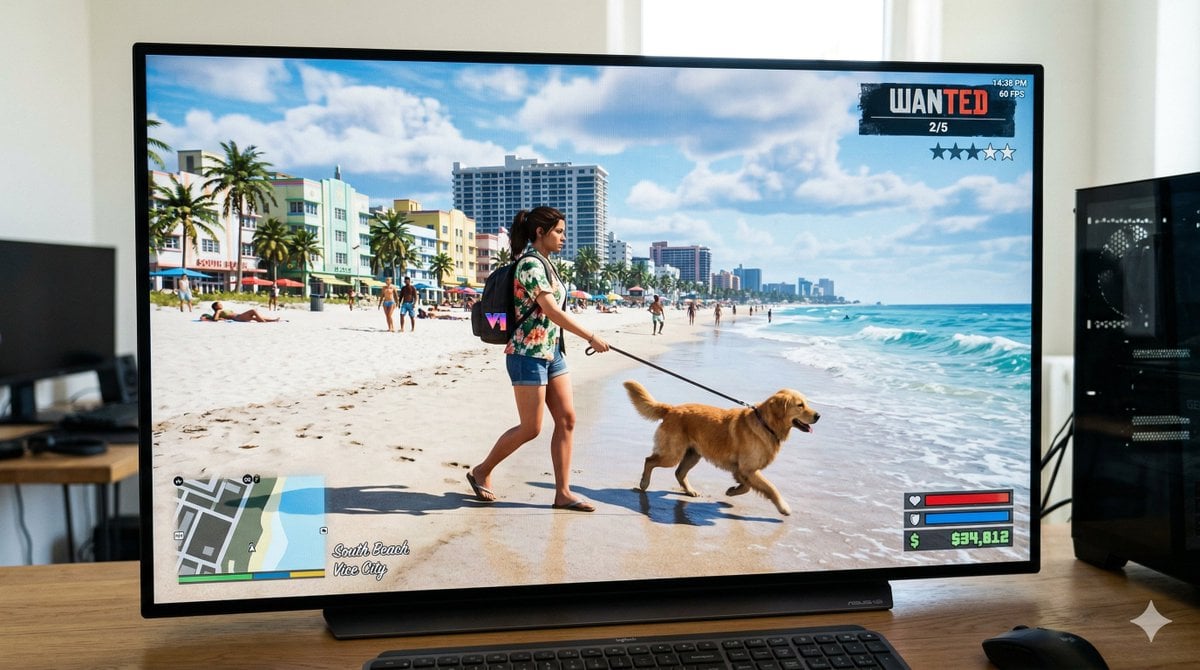
GTA 6 In-Game Footage Test Prompt
Cozy Bedroom High-Angle Selfie
Featured in prompt roundups
Hand-picked collections that include this template.
Browse template categories
Anime Three-View Character Sheet questions
How do I use the Anime Three-View Character Sheet template?
Add your photo if the template asks for one, edit the prompt if you like — the template's model and format are already selected — and press Generate. Your version opens in PicX Studio.
Can I customize the Anime Three-View Character Sheet template?
Yes. You can change the subject, setting, lighting, mood, format, and available model controls before creating your image.
Is the Anime Three-View Character Sheet template free?
Opening and editing this template is free. Generating uses credits, shown on the Generate button when you are signed in.
Which AI model should I use?
Start with GPT Image 2, which is the model associated with this template. You can compare another compatible model for a different finish.
Looking for something else? Browse all templates.

Your photo, any look
Thousands of ready templates for every top image and video model, from one credit balance.