
Portal Scene Generation Prompt
A detailed Japanese prompt for Nano Banana Pro that generates a scene where a character passes through a glowing oval portal, separating a 'real world' scene from an 'inner portal' scene.
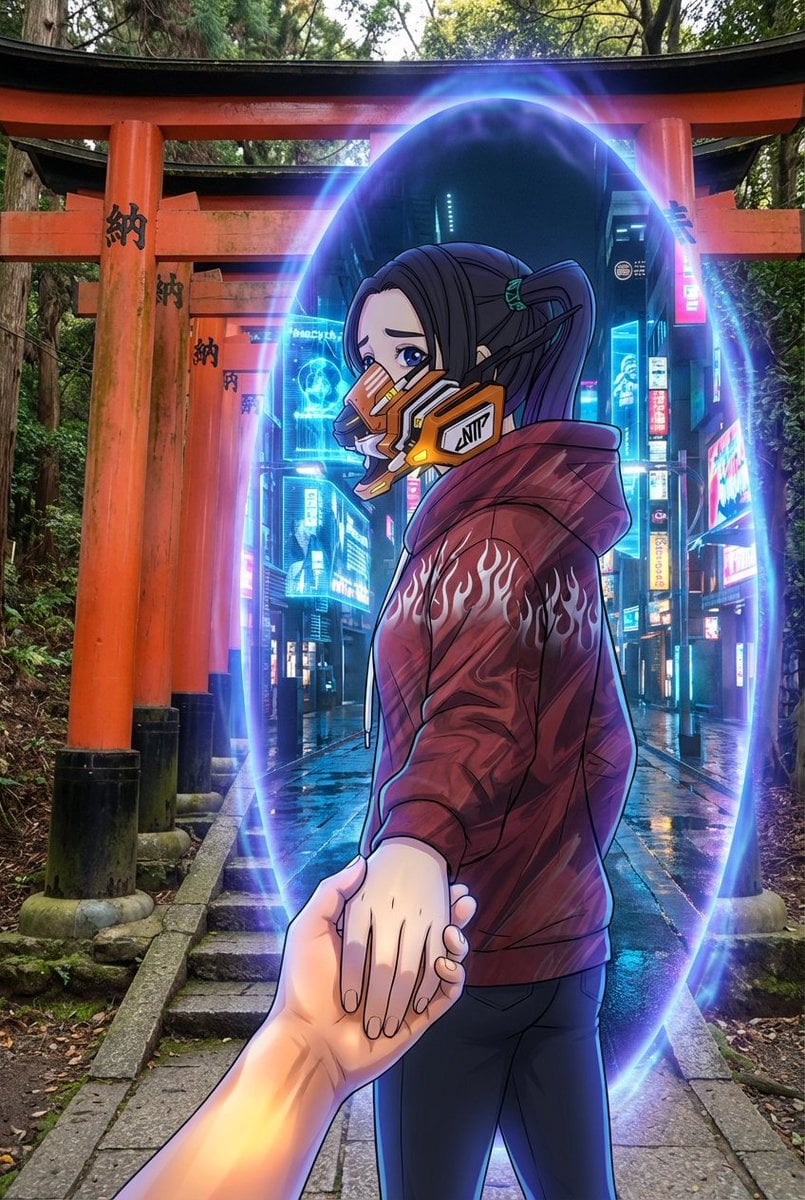
- Prompt included
- Model and format preset
- Free template
The prompt behind this image
Copy the exact prompt behind Portal Scene Generation Prompt, or open it in the studio and make it yours.
A glowing oval portal exists between {argument name="real-world scene" default="伏見稲荷大社 (Fushimi Inari Shrine)"} and {argument name="scene inside the portal" default="A live-action-style, photorealistic futuristic city street lit by blue holograms and refracting neon, with a cinematic sense of realism."}. Outside the portal spreads {argument name="real-world scene" default="伏見稲荷大社 (Fushimi Inari Shrine)"}, drawn with realistic texture, a grounded atmosphere, and a tone that conveys roughness and naturalness. Inside the portal exists {argument name="scene inside the portal" default="A live-action-style, photorealistic futuristic city street lit by blue holograms and refracting neon, with a cinematic sense of realism."}, rendered fully photorealistically, in a live-action style, with cinematic expression. Regardless of the type of reference image the user attaches, the world inside the portal must always maintain a live-action, realistic expression. {argument name="character inside the portal" default="Fully based on the image attached by the user, without changing its media characteristics, mode of expression, or texture in any way."} is passing through the portal while gently leading the viewer's hand. While moving forward, they look back, gazing at the viewer with a slightly sorrowful, reserved expression. In that gaze, a faint sadness, hesitation, and an inexpressible emotion are quietly shown. The character's appearance, art style, texture, rendering method, and media characteristics must fully preserve the taste of the image the user attached. ・If the reference image is an illustration, the character should remain in illustration form ・If the reference image is anime-style, the character should remain anime-style ・If the reference image is a photo, the character should remain in photographic (photorealistic) form Under no circumstances should the character's expressive style be converted into a different form of expression. The portal emits a mysterious blue-purple light. The portal functions as the visual boundary connecting the two worlds, but it must not affect the character's own expressive style. The treatment of the light and edges should blend in a way that respects the character's original drawing/photographic style. Optional overall visual style: {argument name="art style" default="A deliberate contrast between the character expression derived from the attached image and the live-action world."} Camera angle: third-person perspective. A composition that clearly shows the viewer's hand being pulled into the new world. No blur. The character and the environment should each be rendered sharply, each keeping its own expressive characteristics. Aspect ratio: 2:3.
How to use Portal Scene Generation Prompt in 3 steps
- 1Upload ImagePNG, JPG or paste
Add your photo
Upload the photo the template builds on. The prompt, model and format are already set.
- 2…a portrait of your subject in softgolden-hour light, 85mm…
Personalize
Edit the subject and creative details for your destination.
- 3Generate
Generate
Press Generate — your image is created in PicX Studio, so you can compare it with the original and refine one variable at a time.
More like this
Templates with the same subject, style or setup. Open one to see its prompt.
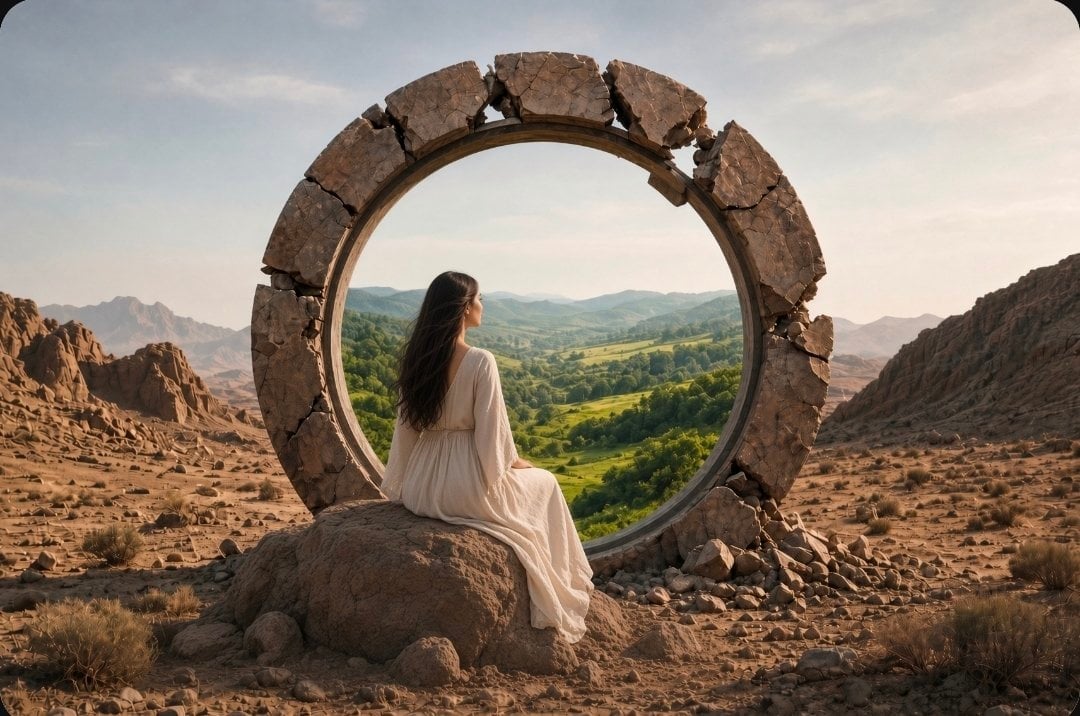
Fantasy Desert Portal Scene
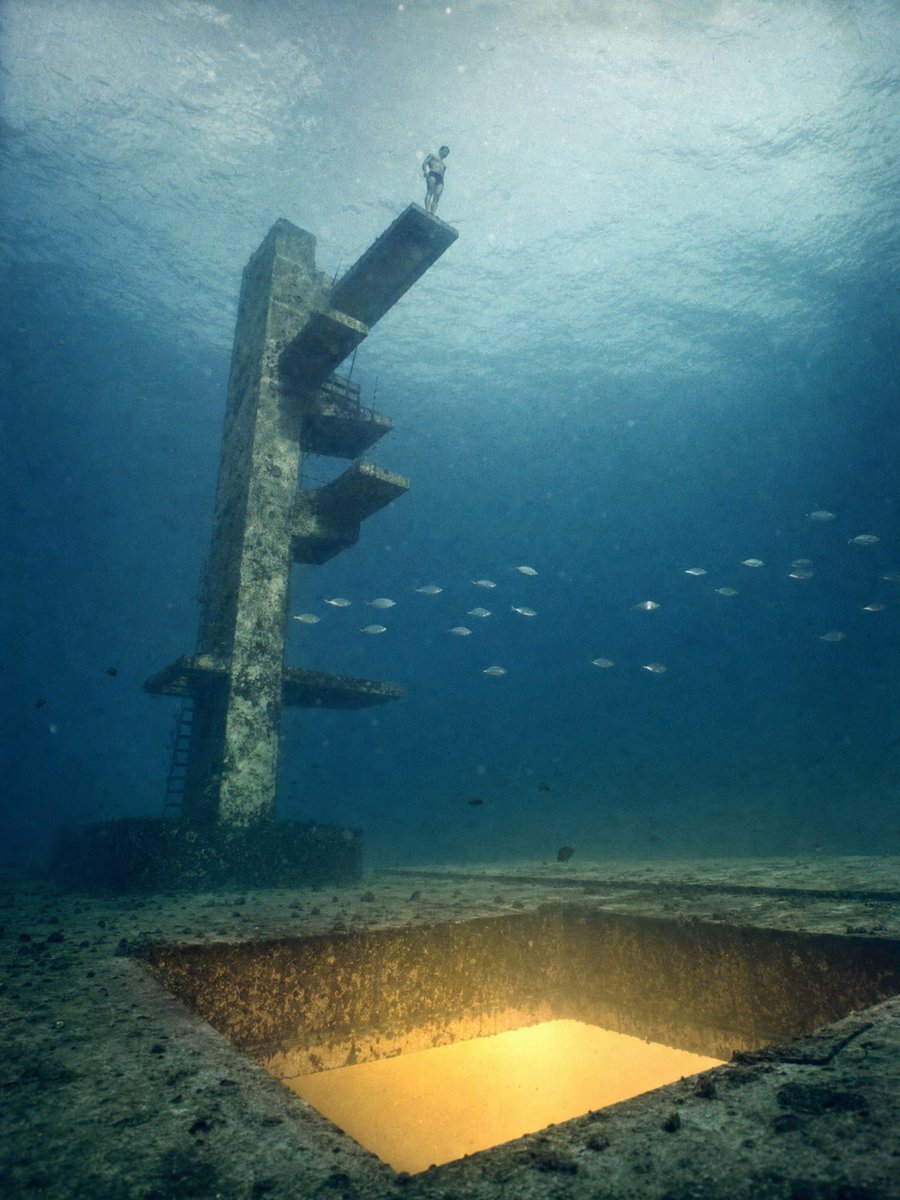
Underwater Diving Tower Portal
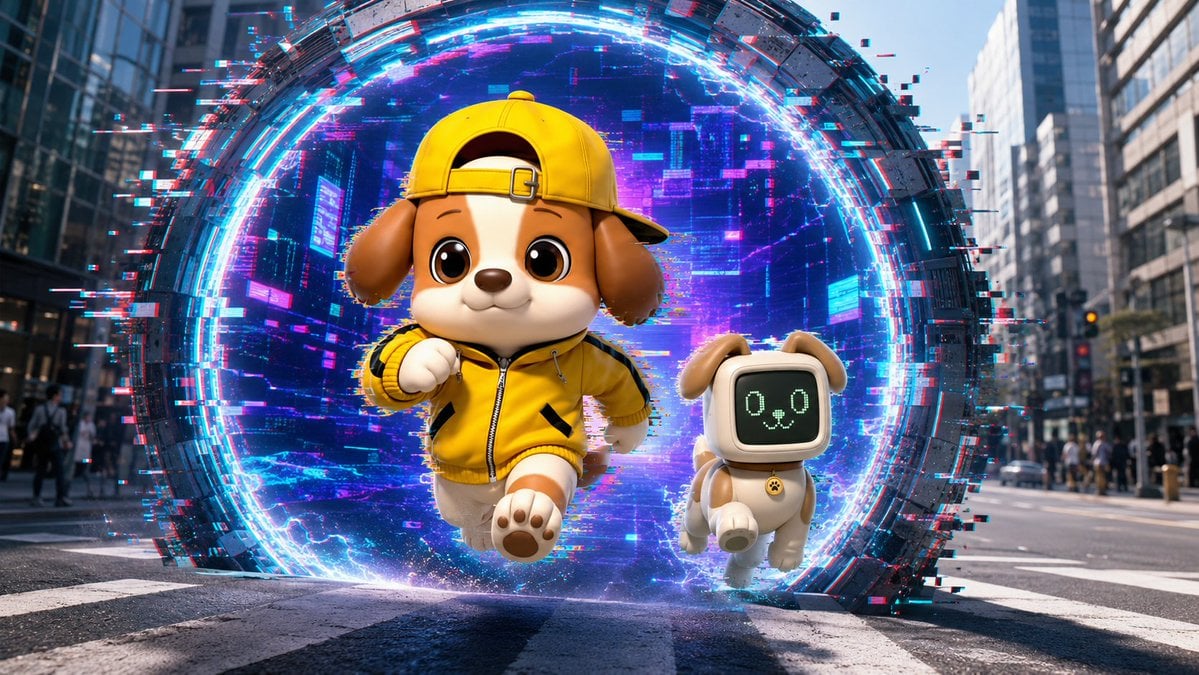
Puppy and Robot Dog Cyber Portal
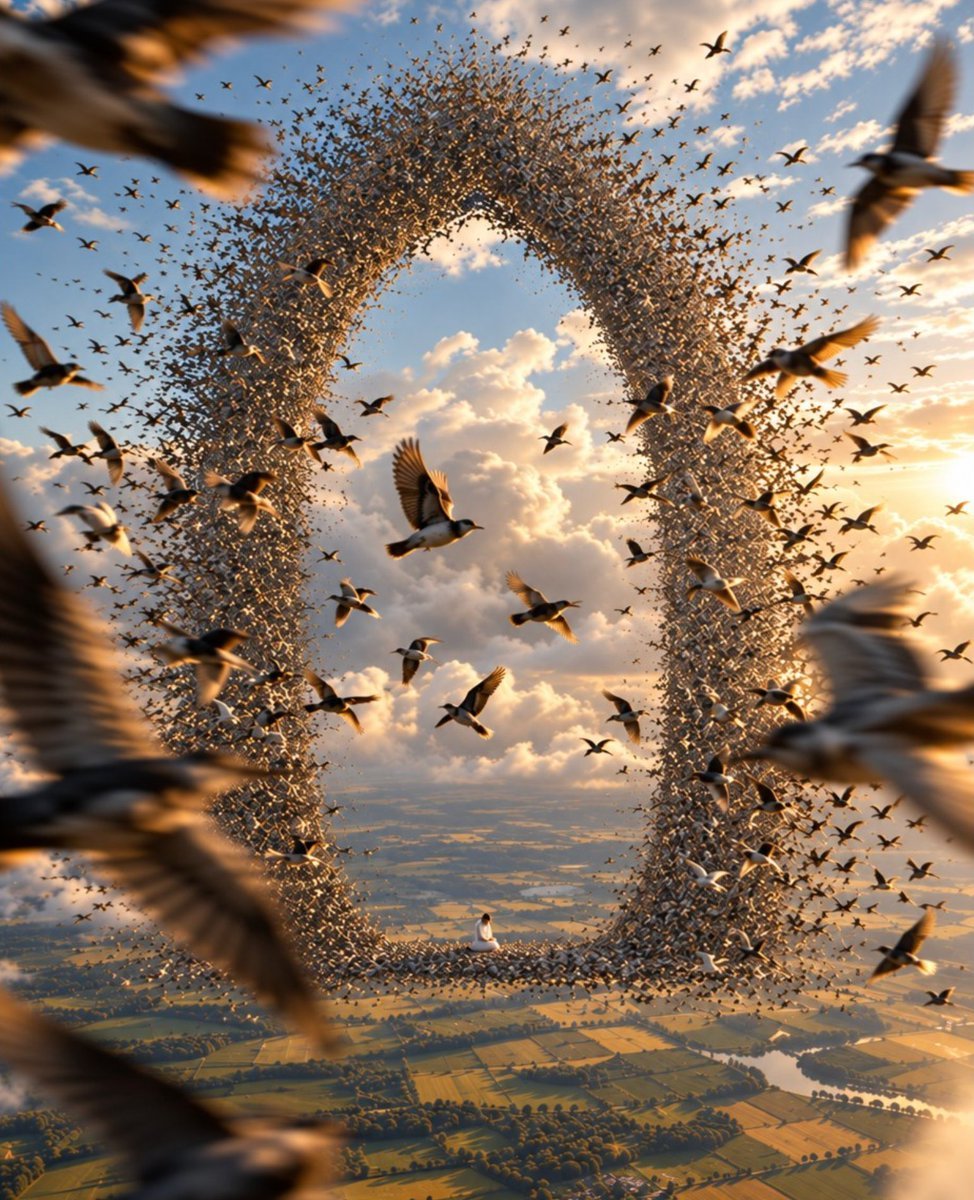
Giant Bird Portal in the Sky
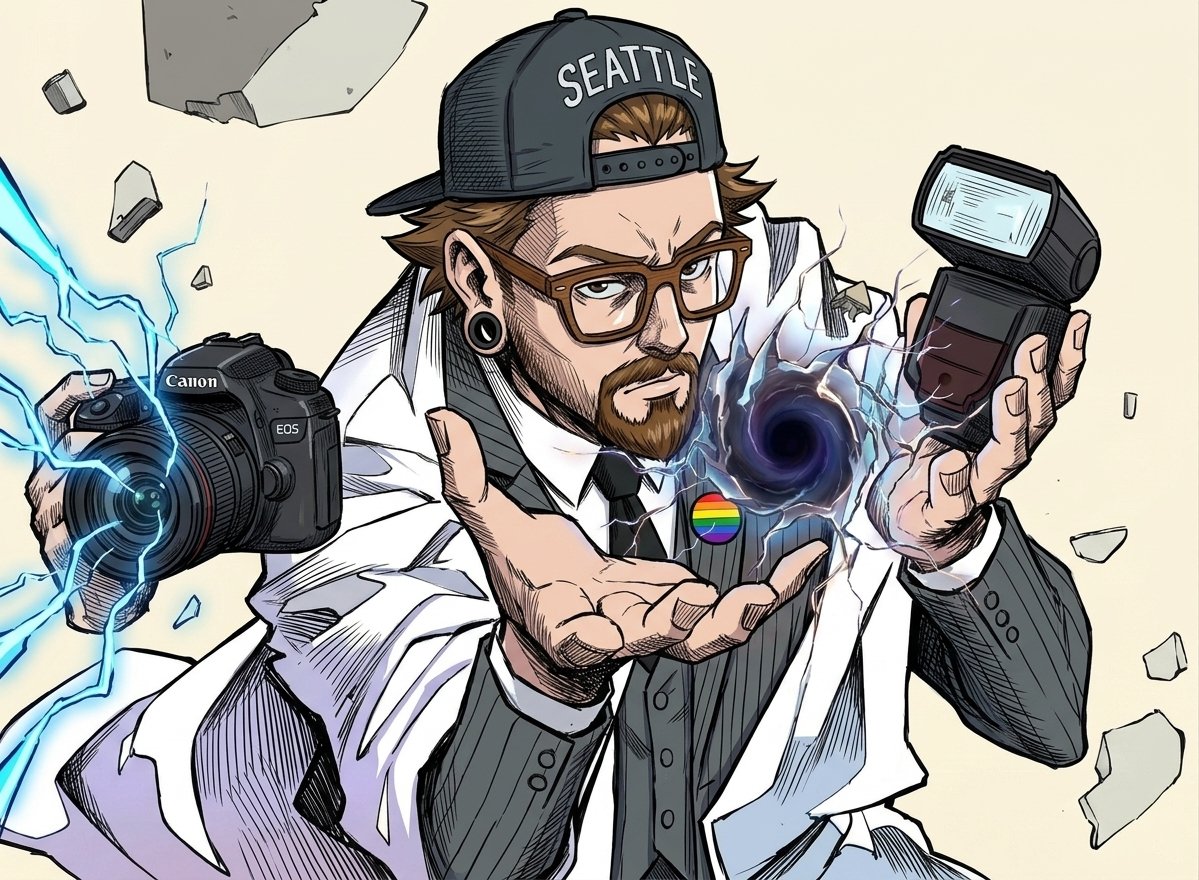
Comic Photographer Portal Action Scene
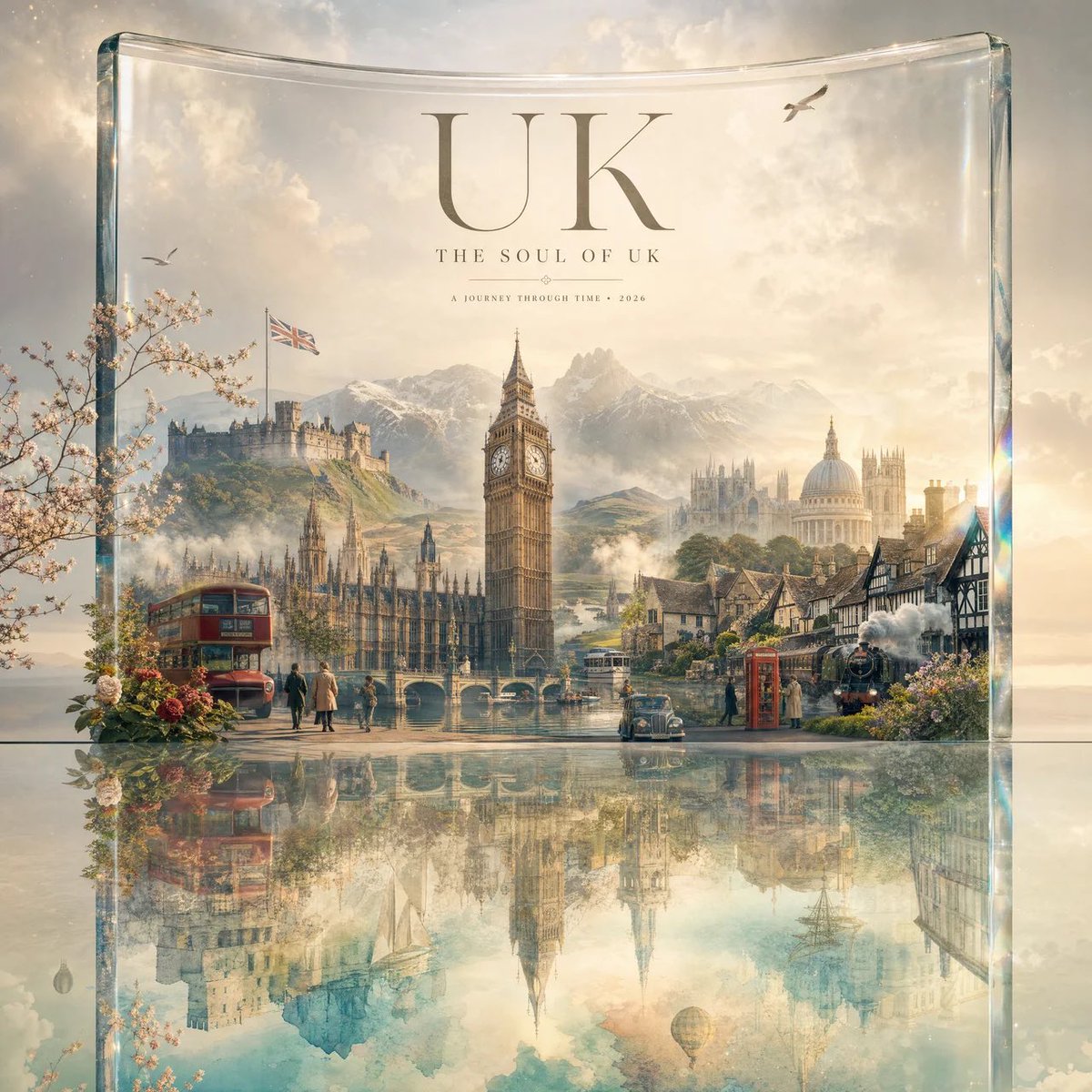
Luxury Travel Glass Portal Poster
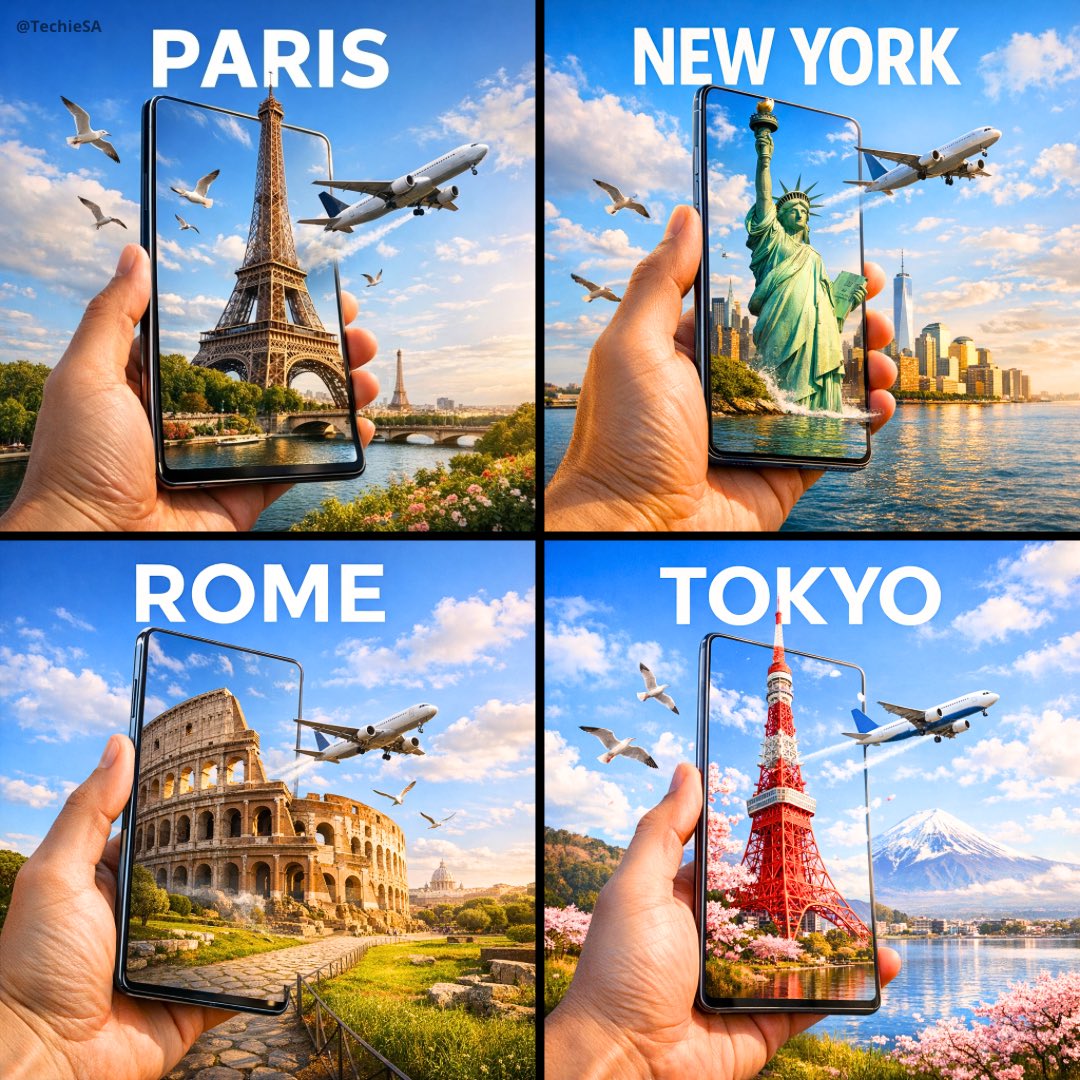
Travel Ad Phone Portal 3D Effect
Cyberpunk Vinyl Character Summoning Portal
Surreal Marble Gallery Portals
Cyberpunk Portal Mascot Poster
Digital Doodle Portal Transition
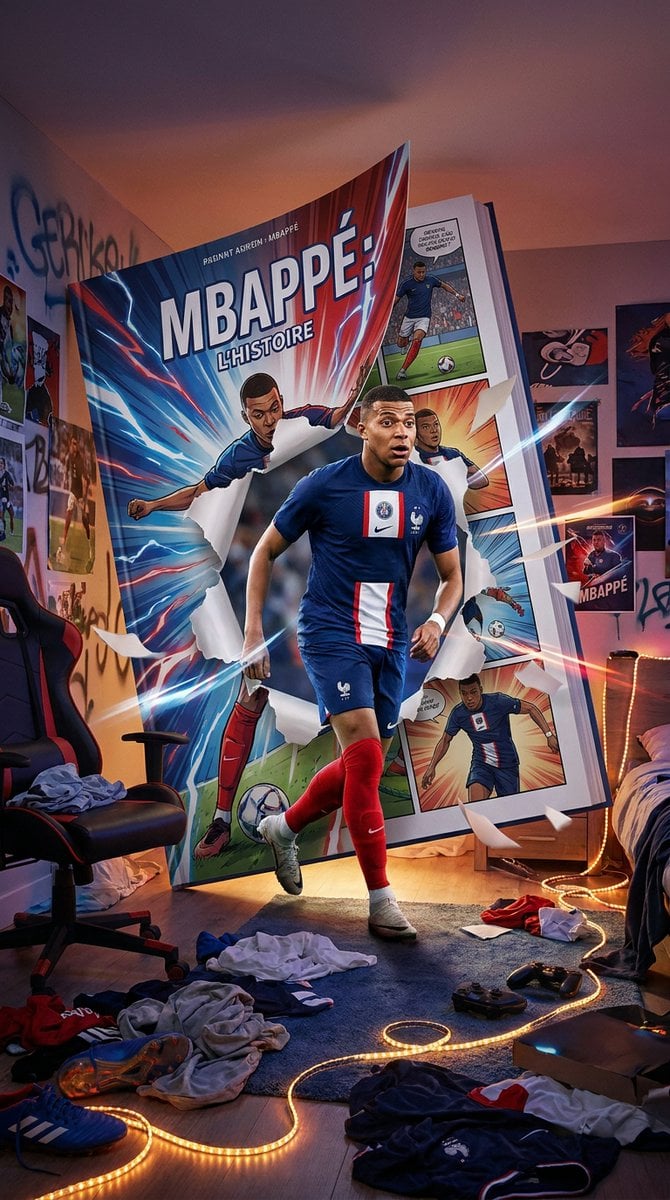
Mbappé Comic Book Bedroom Portal
Make it yours
Portal Scene Generation Prompt works as-is. These are the safest ways to change it without losing the look.
Change one field
Copy a single group, rewrite it, and generate again so you can see what that field is doing.
Keep the frame, change the subject
Hold the composition and light of Portal Scene Generation Prompt, then swap wardrobe, props or the person for a new take.
| If the result… | Why | Fix |
|---|---|---|
| The result drifts from the preview | Too many fields changed at once. | Reuse Portal Scene Generation Prompt as-is first, then change one group — subject, light, or setting. |
| The model over-stylizes the scene | The prose prompt leaves finish and camera underspecified. | Add one camera or lighting sentence and stay on Nano Banana 2. |
More Nano Banana 2 templates
Other prompts made for Nano Banana 2.

Photorealistic Leaf Shaped Like a Dragon

K-Pop Idol Portrait Grid for Rapid Selection

Poetic Rain Forest Portrait During Golden Hour

Urban Street Portrait with Cartoon Inner Self Duo

Candid Nighttime Photo with Cat Prompt

High-Concept 3D Diorama Generation Prompt

Cinematic Futuristic Studio Portrait Template

Skincare Editorial Photography Collage Prompt

Hyper-Realistic Commercial Product Photography (Splash Effect)

Hyper-Realistic Nightclub Portrait Prompt
More image prompts
Fresh picks from across the catalog.
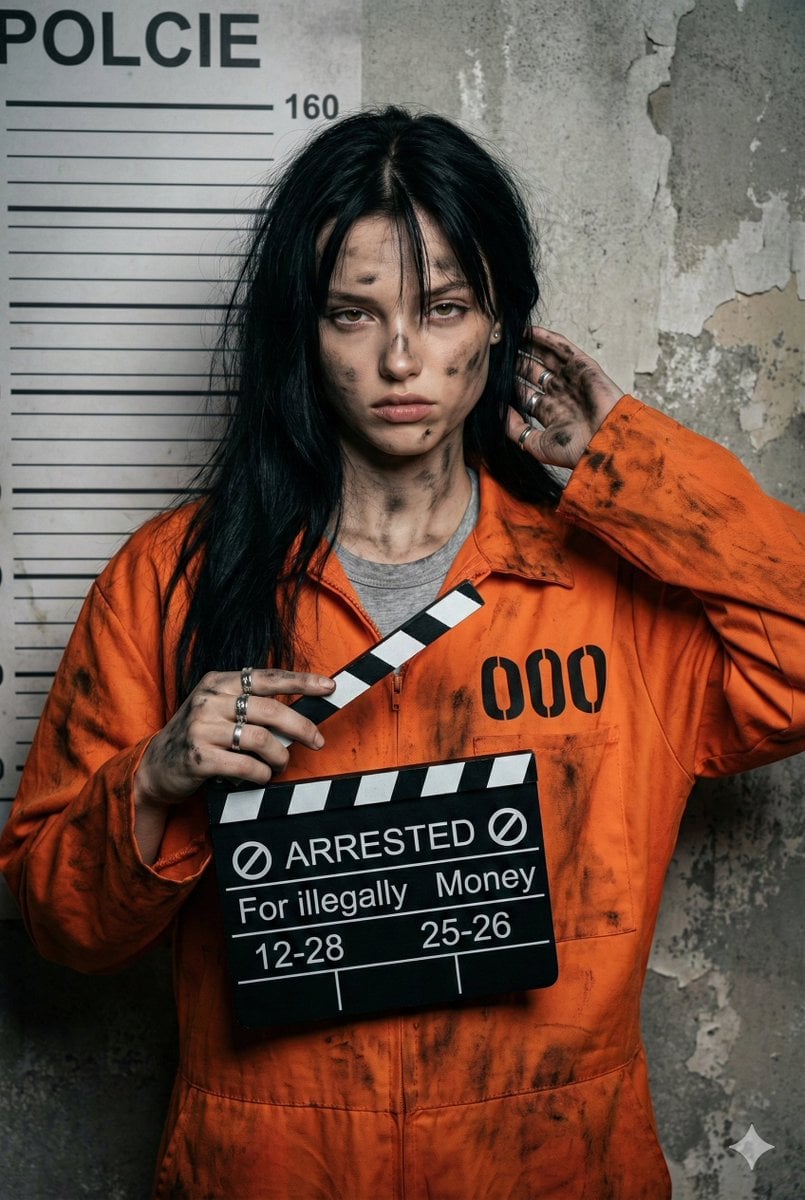
Gritty Prisoner Mugshot Portrait Prompt
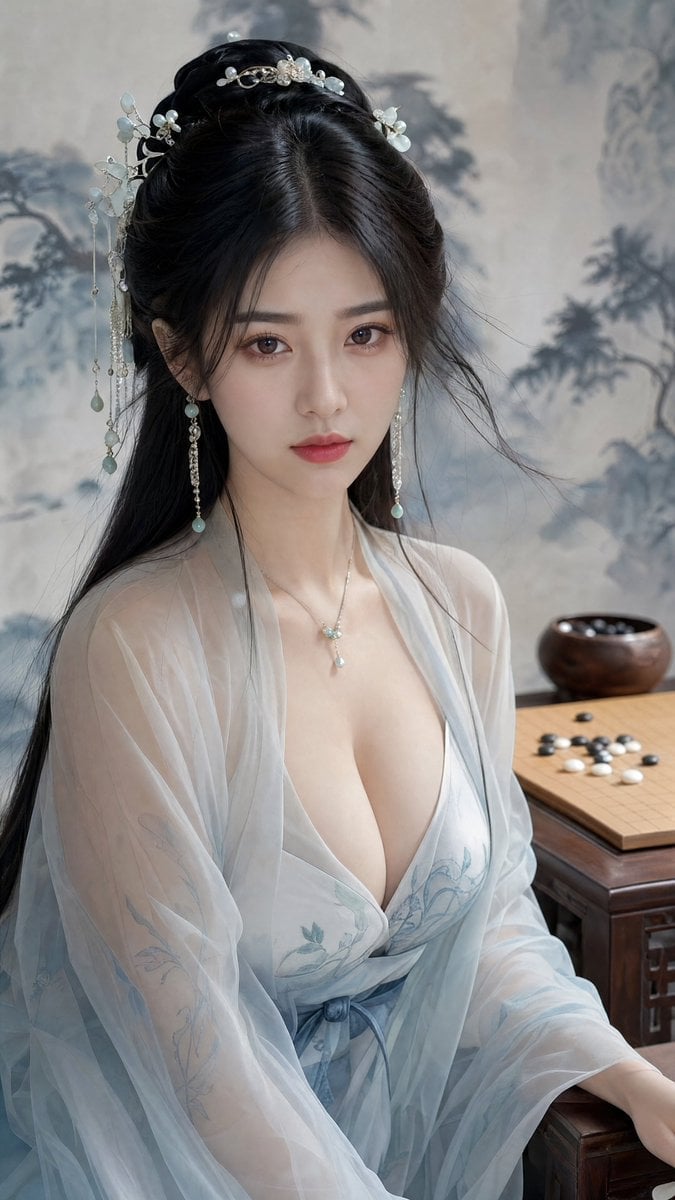
Classical Chinese Go Portrait
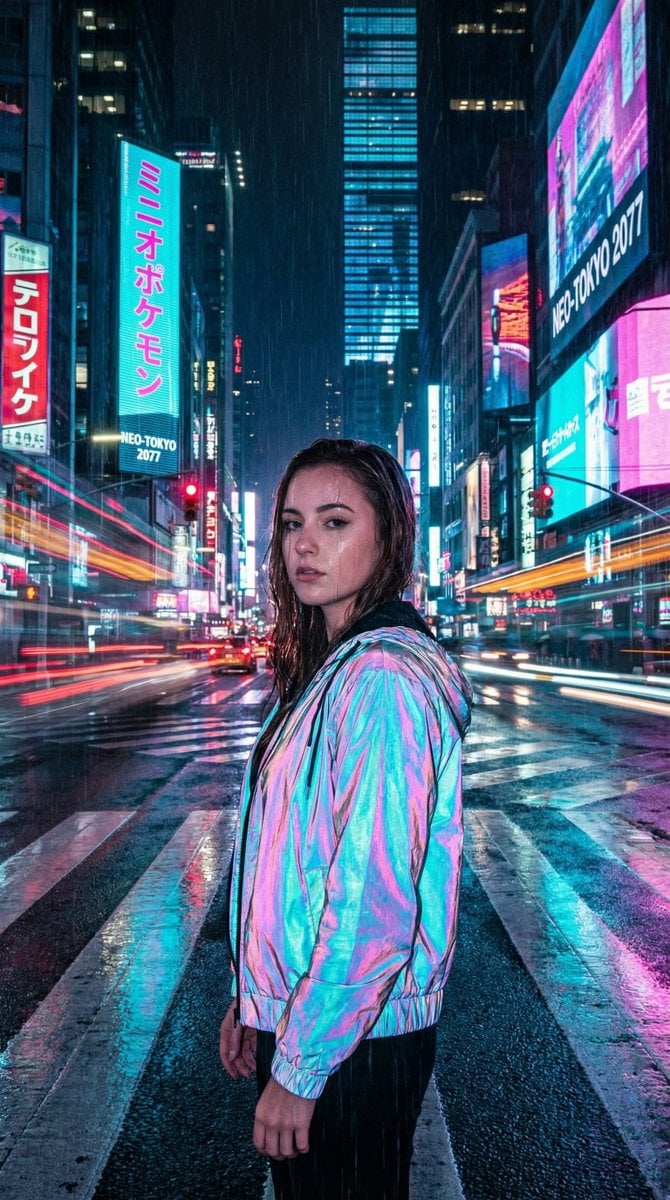
Cyberpunk City Night Scene
Fantasy GPT Image Skills Banner
X Meng Dagg695 Gpt Image 2 on Socialsight
Japanese Classroom Chalkboard Notes
Glowing Cat Profile Portrait

Cookie Cutter Visualization Prompt
Blindfolded Sorcerer Victory Pose

Sheep Good-Luck Charm Poster
Browse template categories
Portal Scene Generation Prompt questions
How do I use the Portal Scene Generation Prompt template?
Add your photo if the template asks for one, edit the prompt if you like — the template's model and format are already selected — and press Generate. Your version opens in PicX Studio.
Can I customize the Portal Scene Generation Prompt template?
Yes. You can change the subject, setting, lighting, mood, format, and available model controls before creating your image.
Is the Portal Scene Generation Prompt template free?
Opening and editing this template is free. Generating uses credits, shown on the Generate button when you are signed in.
Which AI model should I use?
Start with Nano Banana 2, which is the model associated with this template. You can compare another compatible model for a different finish.
Looking for something else? Browse all templates.

Your photo, any look
Thousands of ready templates for every top image and video model, from one credit balance.