
Retro Super Famicom RPG Ad
A faux 1990s Japanese Super Famicom advertisement for a fantasy RPG, useful for recreating nostalgic game box art or magazine promo layouts.
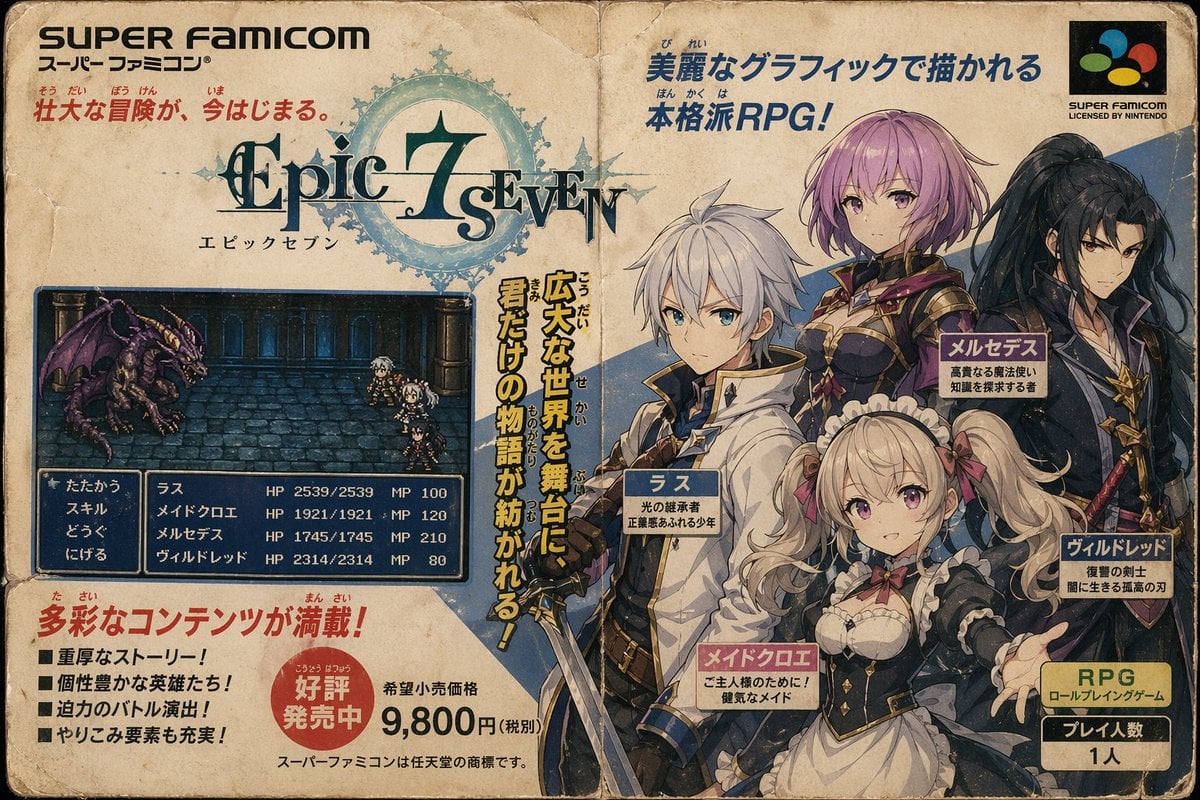
- Prompt included
- Model and format preset
- Free template
The prompt behind this image
Copy the exact prompt behind Retro Super Famicom RPG Ad, or open it in the studio and make it yours.
Create a full-page vintage Japanese Super Famicom game box advertisement designed like a worn 1990s magazine spread or game package front, on aged yellowed paper with creases, stains, frayed corners, fold marks, and slight print fading. The layout should feel authentically retro and densely composed, with bold Japanese promotional copy, a fake fantasy RPG logo, a character lineup on the right, a gameplay screenshot on the left, and pricing and feature callouts near the bottom. At the top left, place a large black “SUPER FAMICOM” header with smaller Japanese subtitle text beneath it, and nearby a red Japanese slogan line. At the top right, include a small Super Famicom style logo badge in a black rectangle with the English text “SUPER FAMICOM LICENSED BY NINTENDO” underneath. In the upper center, feature the game title logo “Epic 7 Seven” in ornate fantasy typography, dark teal and black, layered over a circular magical crest or sigil in pale blue. Under the logo, add small Japanese katakana subtitle text. On the right half, show 4 anime fantasy party members in a polished JRPG promotional illustration style: 1 white-haired young male hero in a white cloak and blue-black outfit holding a sword, 1 pink-haired female knight or mage in dark armor with gold trim, 1 tall long-black-haired swordsman in dark layered robes, and 1 blonde twin-tailed maid girl in a black-and-white frilled dress reaching one hand forward. Their faces should be generic and soft-featured, front-facing or three-quarter view, grouped in a heroic composition. Add 4 dark blue nameplates with Japanese character names and short class descriptions near each character. Place a tall vertical yellow Japanese slogan with black outline between the screenshot and the character group. On the left lower-middle, include 1 in-game battle screenshot framed in a dark blue rounded rectangle: a pixel-art dungeon battle scene showing 1 purple dragon monster facing a 4-character party in a stone corridor. At the bottom of the battle screen, show a classic RPG interface with 4 command options in Japanese and a party status list with character names, HP, and MP values. In the lower left, add a red Japanese headline followed by 4 black square bullet points of Japanese feature text. Near the bottom center, place a red circular burst sticker with white Japanese text indicating strong sales, beside a large printed price reading “9,800円” with smaller surrounding Japanese retail text. At the bottom right, include 1 yellow information box labeled “RPG” with additional Japanese text and a separate dark box below for player count reading “1人”. Use a muted retro print palette of cream, dark blue, teal, red, gold, black, and faded pastel character colors. The whole image should resemble a highly convincing fictional Super Famicom advertisement for a classic fantasy RPG titled {argument name="game title" default="Epic 7 Seven"}, with visible Japanese text, nostalgic print imperfections, and authentic 1990s console game marketing design.
How to use Retro Super Famicom RPG Ad in 3 steps
- 1Upload ImagePNG, JPG or paste
Add your photo
Upload the photo the template builds on. The prompt, model and format are already set.
- 2…a portrait of your subject in softgolden-hour light, 85mm…
Personalize
Edit the subject and creative details for your destination.
- 3Generate
Generate
Press Generate — your image is created in PicX Studio, so you can compare it with the original and refine one variable at a time.
More like this
Templates with the same subject, style or setup. Open one to see its prompt.


Make it yours
Retro Super Famicom RPG Ad works as-is. These are the safest ways to change it without losing the look.
Change one field
Copy a single group, rewrite it, and generate again so you can see what that field is doing.
Keep the frame, change the subject
Hold the composition and light of Retro Super Famicom RPG Ad, then swap wardrobe, props or the person for a new take.
| If the result… | Why | Fix |
|---|---|---|
| The result drifts from the preview | Too many fields changed at once. | Reuse Retro Super Famicom RPG Ad as-is first, then change one group — subject, light, or setting. |
| The model over-stylizes the scene | The prose prompt leaves finish and camera underspecified. | Add one camera or lighting sentence and stay on GPT Image 2. |
More GPT Image 2 templates
Other prompts made for GPT Image 2.

Six VTuber Japanese Logo Sheet

Realistic Portrait of Woman and Deer

The Vista Modular Condo Poster

AI Model Routing Comparison Infographic

2.5D Anime Art Board

Isometric Productivity Desk Scene

New York Double Exposure Poster

Four-Panel AI Landscape Comparison

Japanese Tatami Lifestyle Magazine Cover

NESCAFÉ Coffee Map Poster
More image prompts
Fresh picks from across the catalog.
Anime Character to 3DCG Figure Prompt
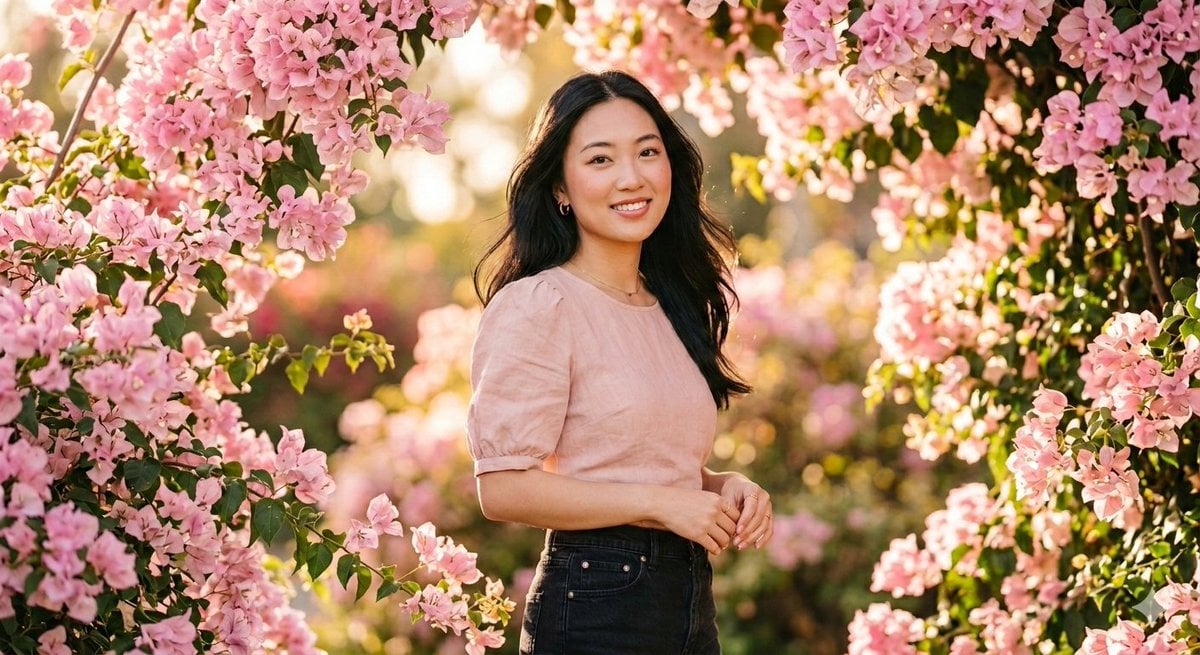
Ethereal 8K Portrait with Bougainvillea Blossoms Prompt
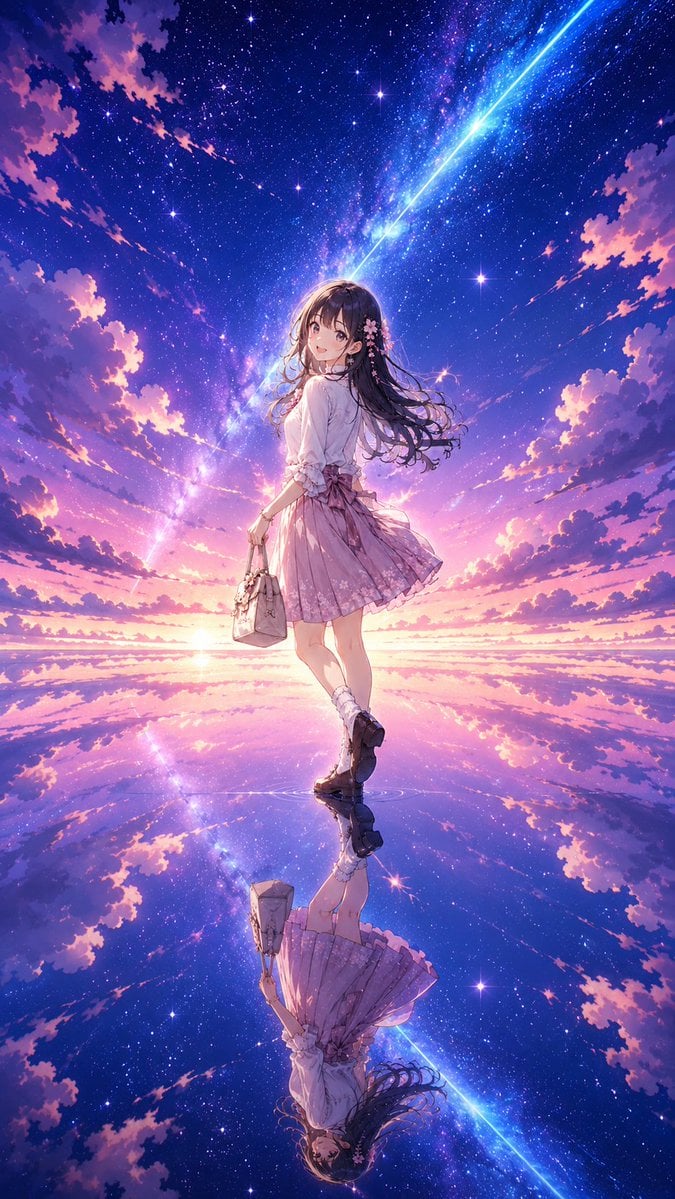
Fantasy Sky Mirror Illustration

Christmas Photo Prompt for Gemini Nano Banana
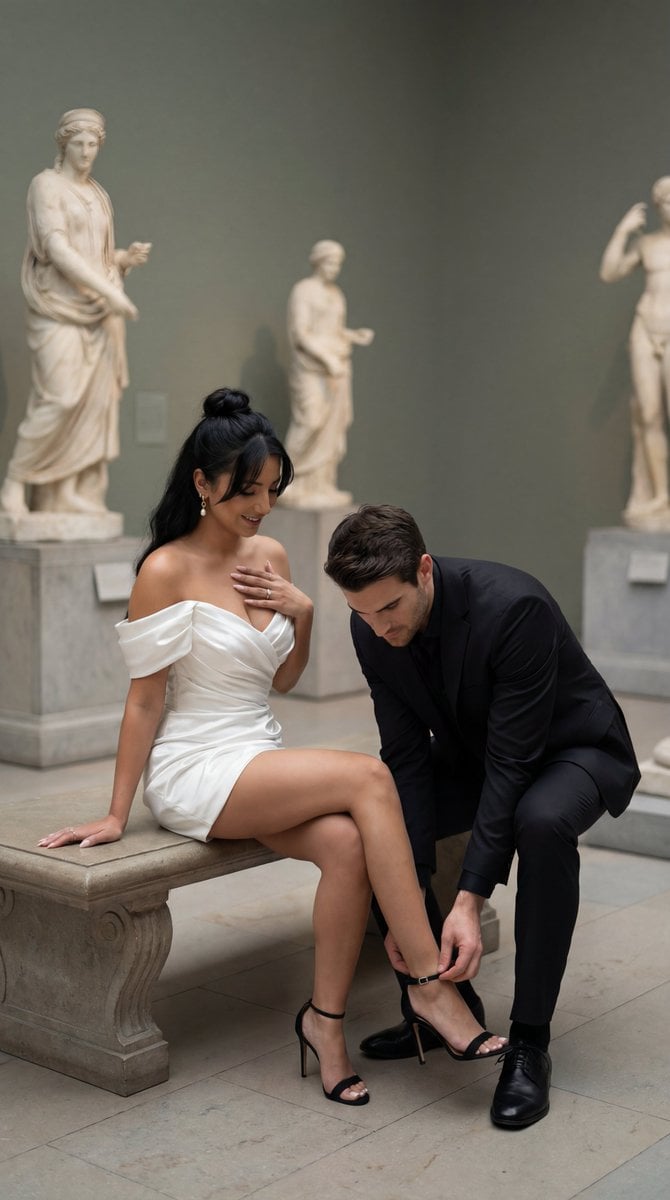
High-Fashion Editorial Couple in Museum Prompt
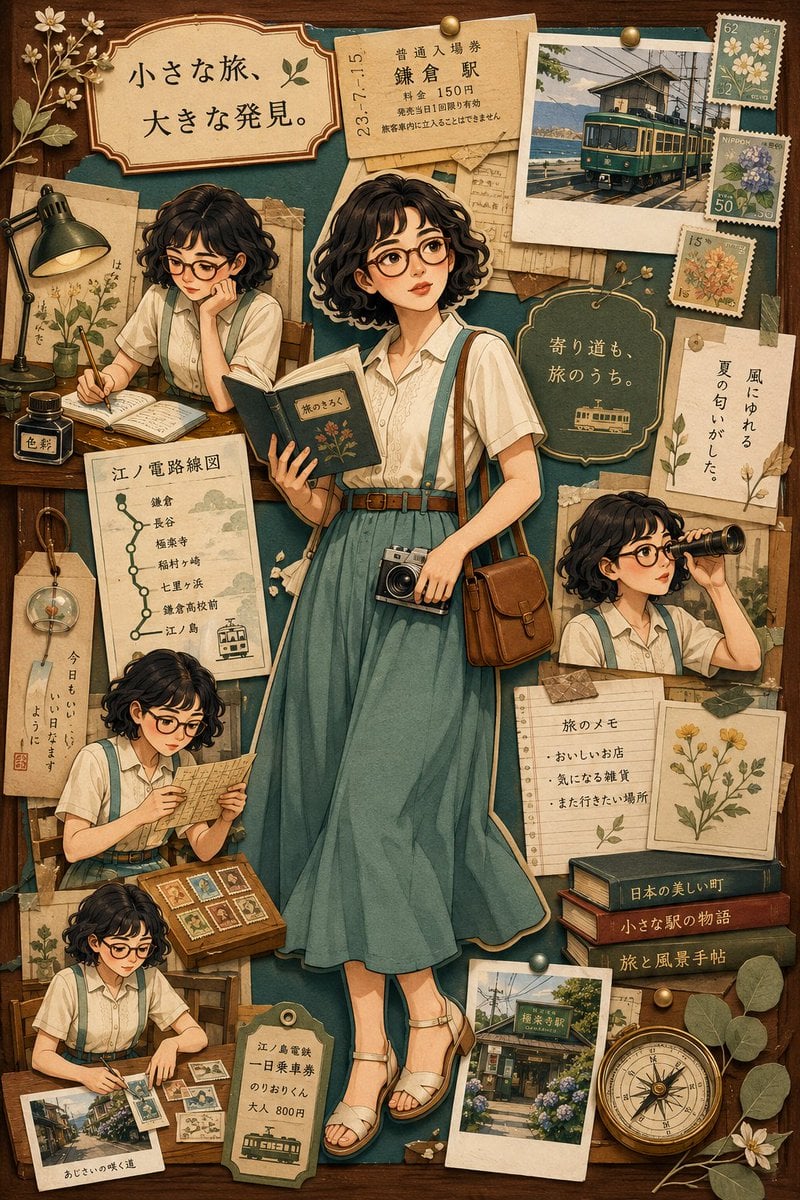
Nostalgic Travel Collage Scrapbook
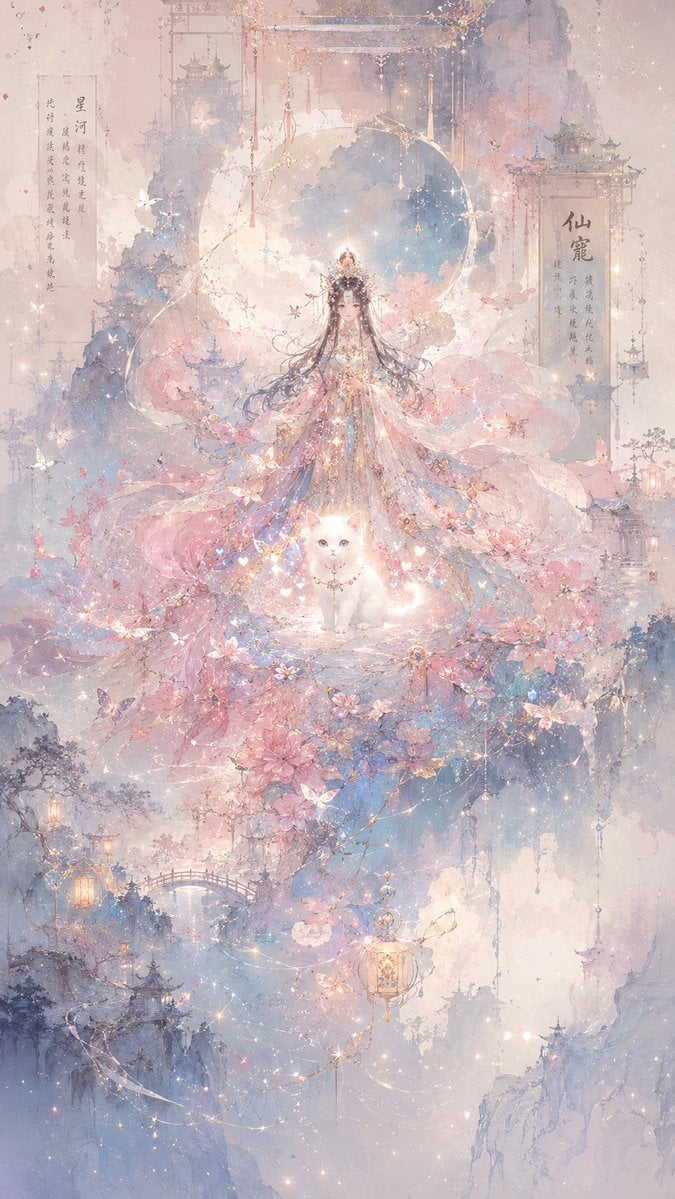
Celestial Xianxia Fairy Palace
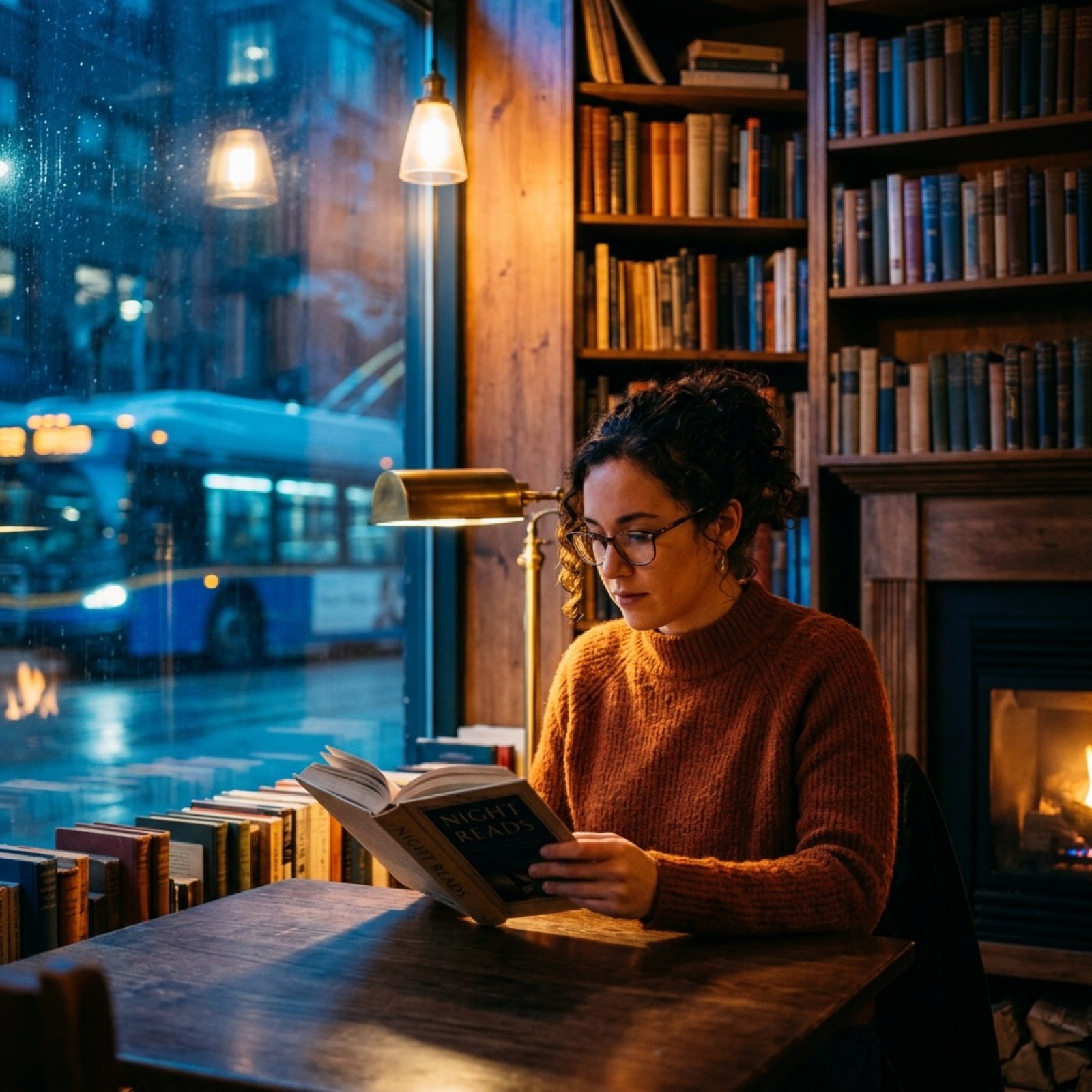
cinematography style warm amber and cool blue colo... (IMAGE-NANO_BANANA)
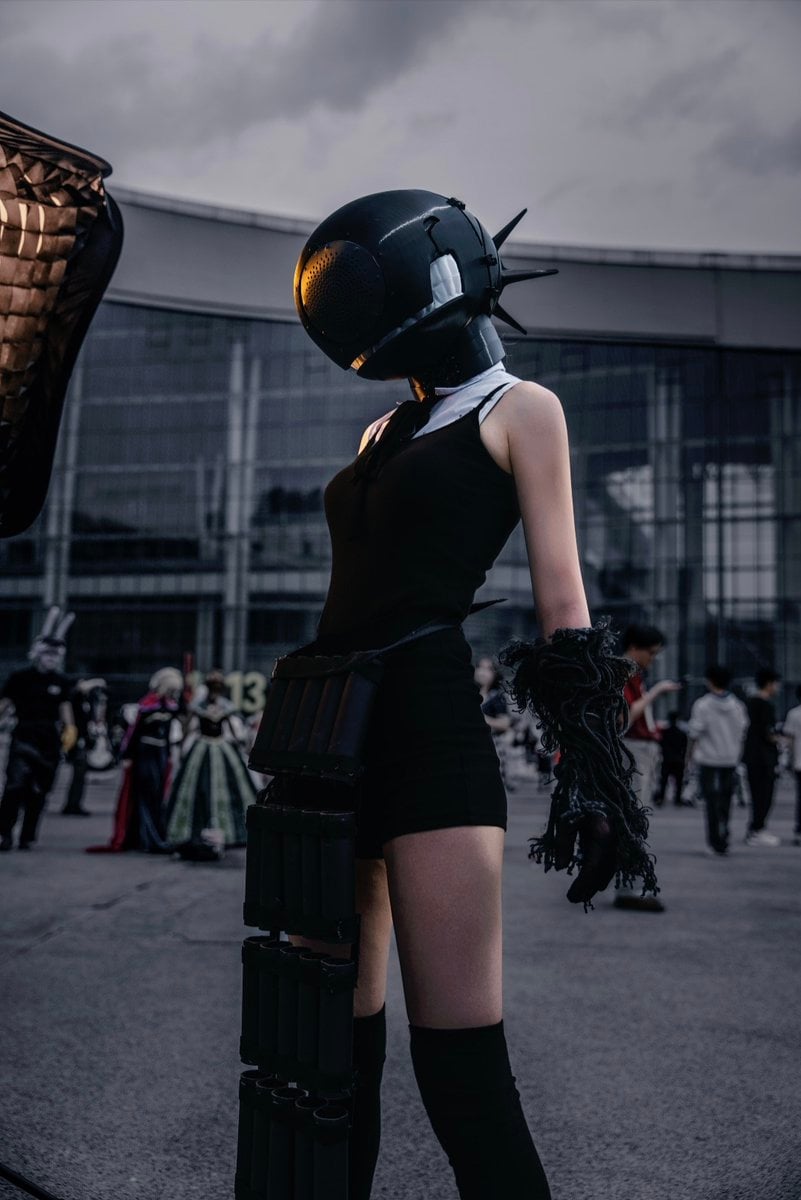
Cyberpunk Cinematic Photo Edit
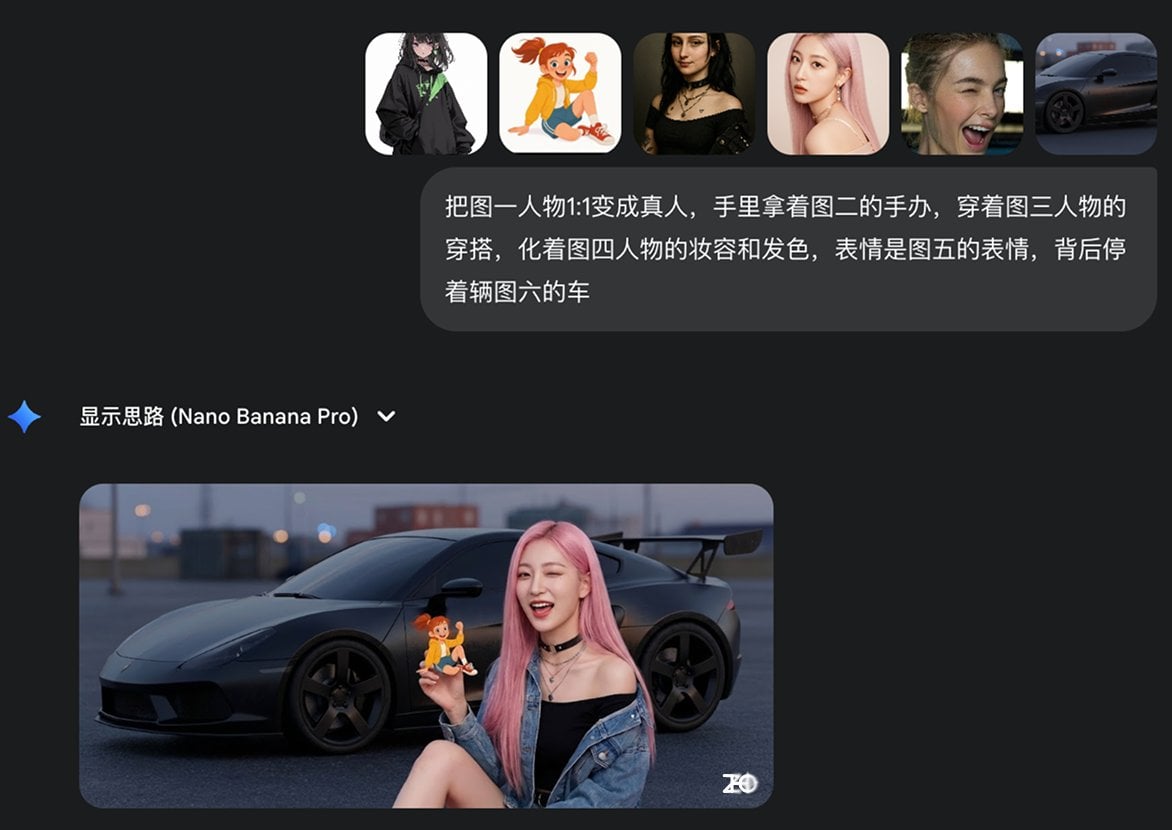
Multi-image fusion character transformation
Browse template categories
Retro Super Famicom RPG Ad questions
How do I use the Retro Super Famicom RPG Ad template?
Add your photo if the template asks for one, edit the prompt if you like — the template's model and format are already selected — and press Generate. Your version opens in PicX Studio.
Can I customize the Retro Super Famicom RPG Ad template?
Yes. You can change the subject, setting, lighting, mood, format, and available model controls before creating your image.
Is the Retro Super Famicom RPG Ad template free?
Opening and editing this template is free. Generating uses credits, shown on the Generate button when you are signed in.
Which AI model should I use?
Start with GPT Image 2, which is the model associated with this template. You can compare another compatible model for a different finish.
Looking for something else? Browse all templates.

Your photo, any look
Thousands of ready templates for every top image and video model, from one credit balance.