
Futuristic Nanchatte-Machine Hangar
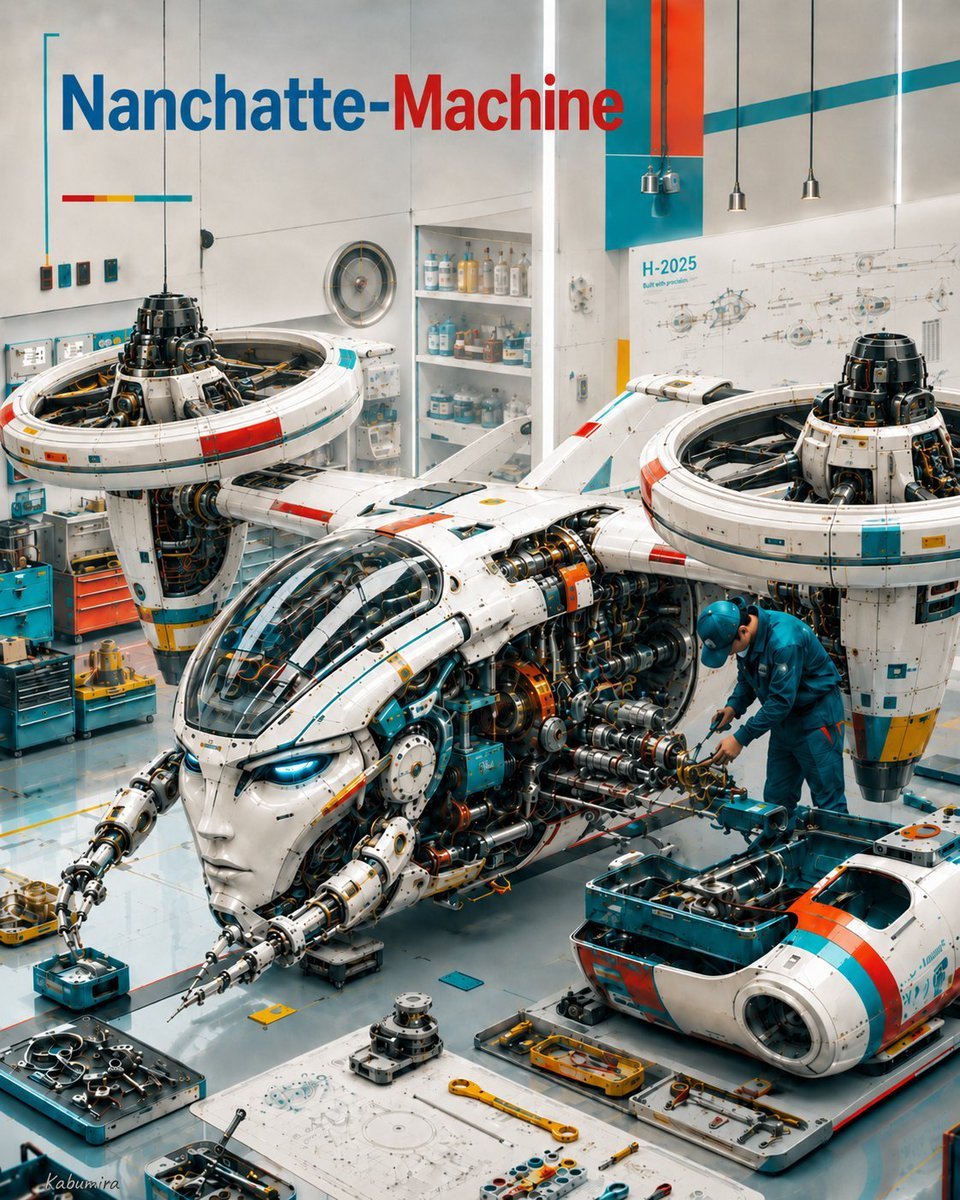
Generates a detailed sci-fi maintenance hangar scene featuring a humanoid VTOL flying robot aircraft with workshop tools, technician, and wall branding.
- Prompt included
- Model and format preset
- Free template
The prompt behind this image
Copy the exact prompt behind Futuristic Nanchatte-Machine Hangar, or open it in the studio and make it yours.
Goal: Create a highly detailed futuristic maintenance-bay scene for a fictional flying robot aircraft branded {argument name="machine name" default="Nanchatte-Machine"}, combining clean Japanese sci-fi design, industrial realism, and playful “fake future tech” charm. Canvas: Vertical 3:4 composition, high-resolution cinematic concept art, slightly elevated wide-angle view looking down into a bright laboratory hangar. Use crisp focus across the whole image, photorealistic rendering with intricate mechanical detail. Main subject: A large white humanoid-faced VTOL air robot parked diagonally from lower left to upper right. It has a sleek transparent cockpit canopy on the top-front, an elegant pale android face integrated into the nose, two thin articulated robotic arms extending forward, and exposed internal machinery along the side. The body is mostly glossy white with turquoise, orange, yellow, black, and red accent panels, fine panel seams, rivets, labels, cables, pistons, vents, and engine components. Discrete major elements: Include exactly 1 main flying robot aircraft, exactly 2 huge circular ducted-fan rotor pods mounted left and right above the fuselage, exactly 1 detached rounded cockpit or pod module on the lower right, exactly 1 human technician, exactly 1 wall blueprint poster labeled “H-2025”, exactly 1 large title on the wall, and exactly 4 hanging pendant lights near the ceiling. Human technician: A single mechanic wearing a teal-blue work uniform and matching hard hat stands on the right side of the main aircraft, leaning forward while using tools on the exposed engine area. Scale the person small compared with the machine to emphasize the aircraft’s size. Workshop environment: Clean futuristic aerospace workshop with white walls, glossy pale floor, ceiling-hung cables, cabinets, shelves full of bottles and parts, teal tool chests, orange drawers, small electronics boxes, metal trays, scattered maintenance panels, bolts, wires, wrenches, screwdrivers, calipers, rulers, and technical drawings on the floor. Arrange the foreground like an active repair scene with open blue tool bins and organized parts trays. Text content: Put the large wall headline in the upper left reading “{argument name="headline text" default="Nanchatte-Machine"}”, with “Nanchatte-” in blue and “Machine” in red. Add a thin cyan bracket-like graphic line to the left of the headline and a short red-yellow-cyan color bar beneath it. On the back wall, include a technical schematic poster reading “H-2025” with small blueprint drawings. Color and lighting: Bright clean studio lighting with soft shadows and glossy reflections on the floor. Dominant palette is white, teal, cyan, orange, red, yellow, metallic gray, and black. Add a bold diagonal teal stripe and orange vertical architectural panel high on the back wall. Style constraints: Ultra-detailed futuristic industrial concept art, realistic materials, no cartoon styling, no extra people, no extra aircraft, no watermark, no illegible gibberish text except tiny technical markings, keep the machine name clearly readable.
How to use Futuristic Nanchatte-Machine Hangar in 3 steps
- 1Upload ImagePNG, JPG or paste
Add your photo
Upload the photo the template builds on. The prompt, model and format are already set.
- 2…a portrait of your subject in softgolden-hour light, 85mm…
Personalize
Edit the subject and creative details for your destination.
- 3Generate
Generate
Press Generate — your image is created in PicX Studio, so you can compare it with the original and refine one variable at a time.
More like this
Templates with the same subject, style or setup. Open one to see its prompt.
Futuristic Chrome Helmet Fashion Portrait
Futuristic Studio Neon Ring Minimalist Portrait
Futuristic Chrome Helmet Fashion Portrait
Futuristic Studio Neon Ring Minimalist Portrait
Black Liquid Cyberpunk Portrait Poster

Cyberpunk Neon Brazil World Cup Poster
Playful Futuristic Brand Kit Board
Futuristic Product Launch Poster
Pepsi Vending Machine Ad
Anime Girl at Claw Machine
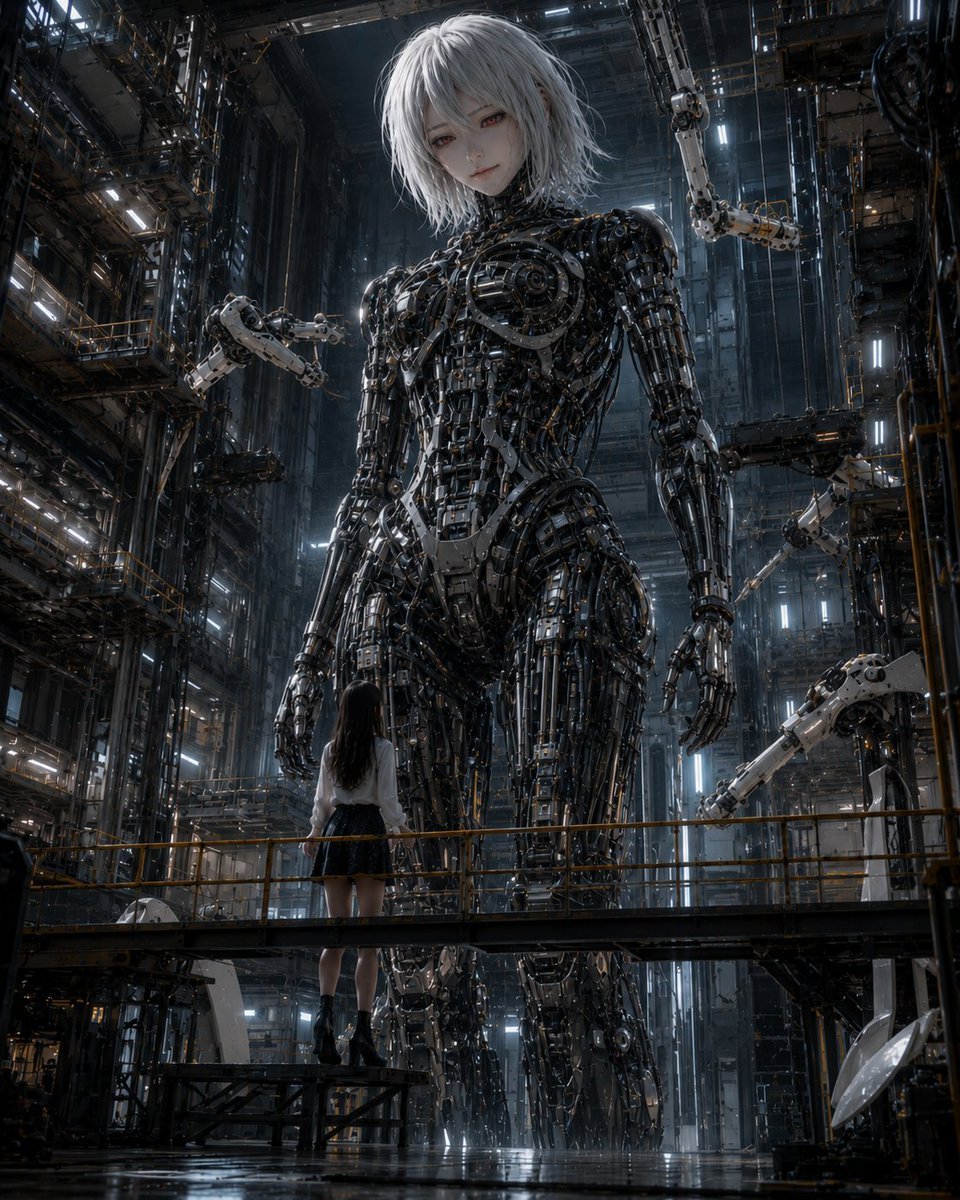
Giant Android and Pilot in Hangar

Futuristic AI 2026 Tech Poster
Make it yours
Futuristic Nanchatte-Machine Hangar works as-is. These are the safest ways to change it without losing the look.
Change one field
Copy a single group, rewrite it, and generate again so you can see what that field is doing.
Keep the frame, change the subject
Hold the composition and light of Futuristic Nanchatte-Machine Hangar, then swap wardrobe, props or the person for a new take.
| If the result… | Why | Fix |
|---|---|---|
| The result drifts from the preview | Too many fields changed at once. | Reuse Futuristic Nanchatte-Machine Hangar as-is first, then change one group — subject, light, or setting. |
| The model over-stylizes the scene | The prose prompt leaves finish and camera underspecified. | Add one camera or lighting sentence and stay on GPT Image 2. |
More GPT Image 2 templates
Other prompts made for GPT Image 2.

Six VTuber Japanese Logo Sheet

Realistic Portrait of Woman and Deer

The Vista Modular Condo Poster

AI Model Routing Comparison Infographic

2.5D Anime Art Board

Isometric Productivity Desk Scene

New York Double Exposure Poster

Four-Panel AI Landscape Comparison

Japanese Tatami Lifestyle Magazine Cover

NESCAFÉ Coffee Map Poster
More image prompts
Fresh picks from across the catalog.
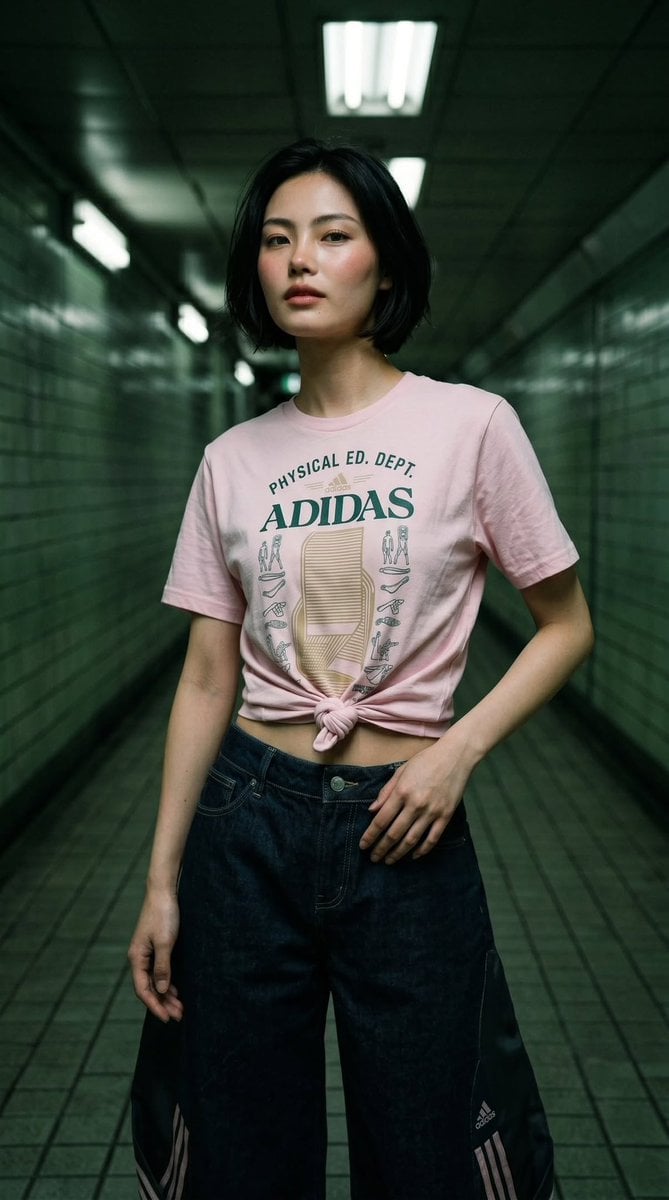
Cyber-Urban Subway Fashion Shot

Exploded View Product Photography
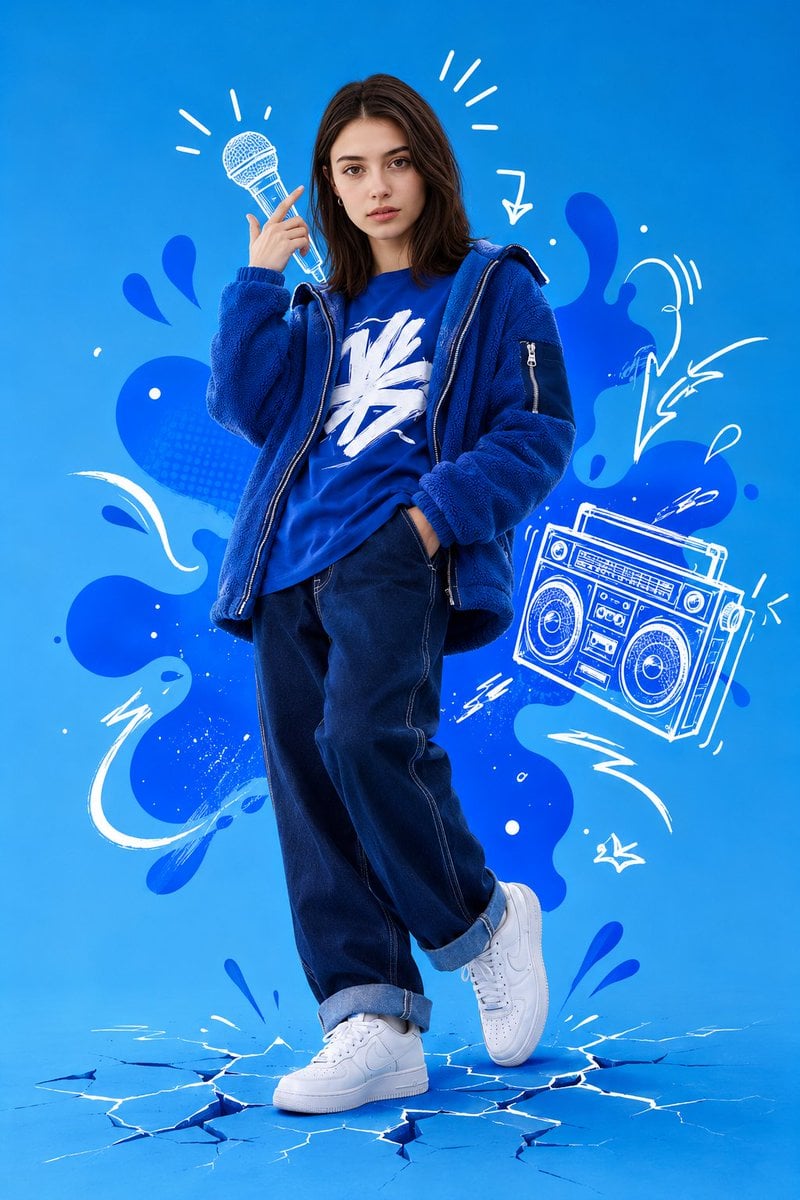
Mixed Media Street Art Portrait

Summer Drink Food Photography Prompt
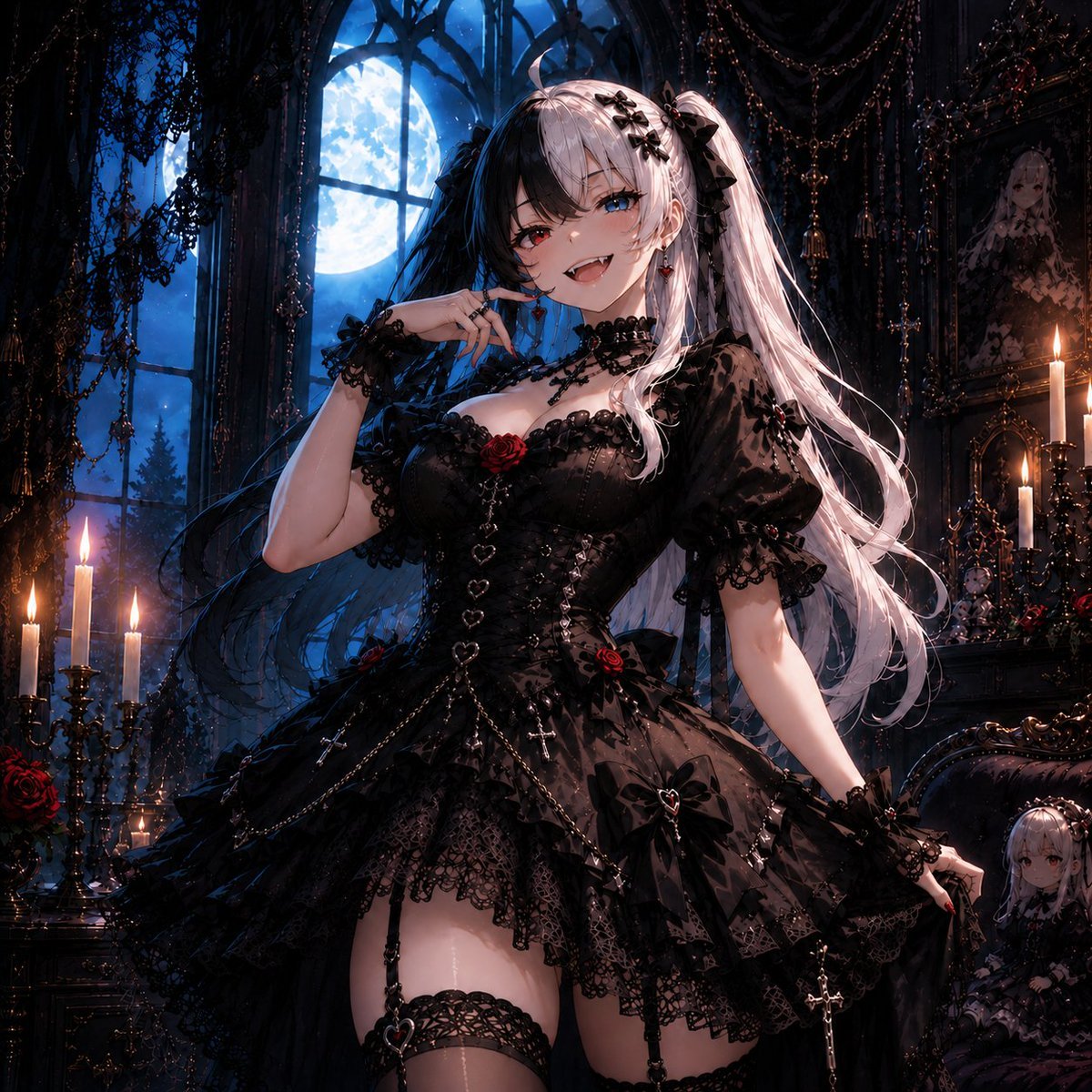
Feisty Gothic Lolita Girl
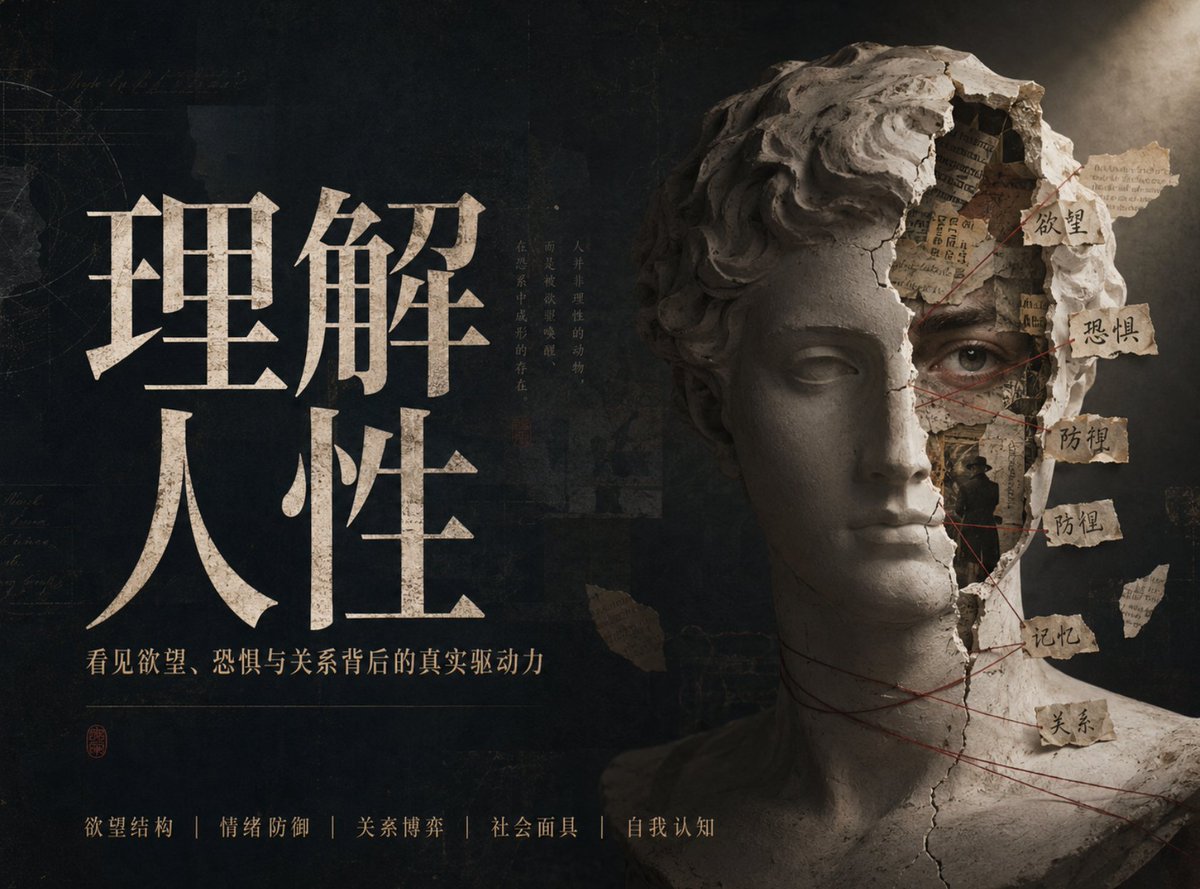
Chinese Conceptual Poster Generator
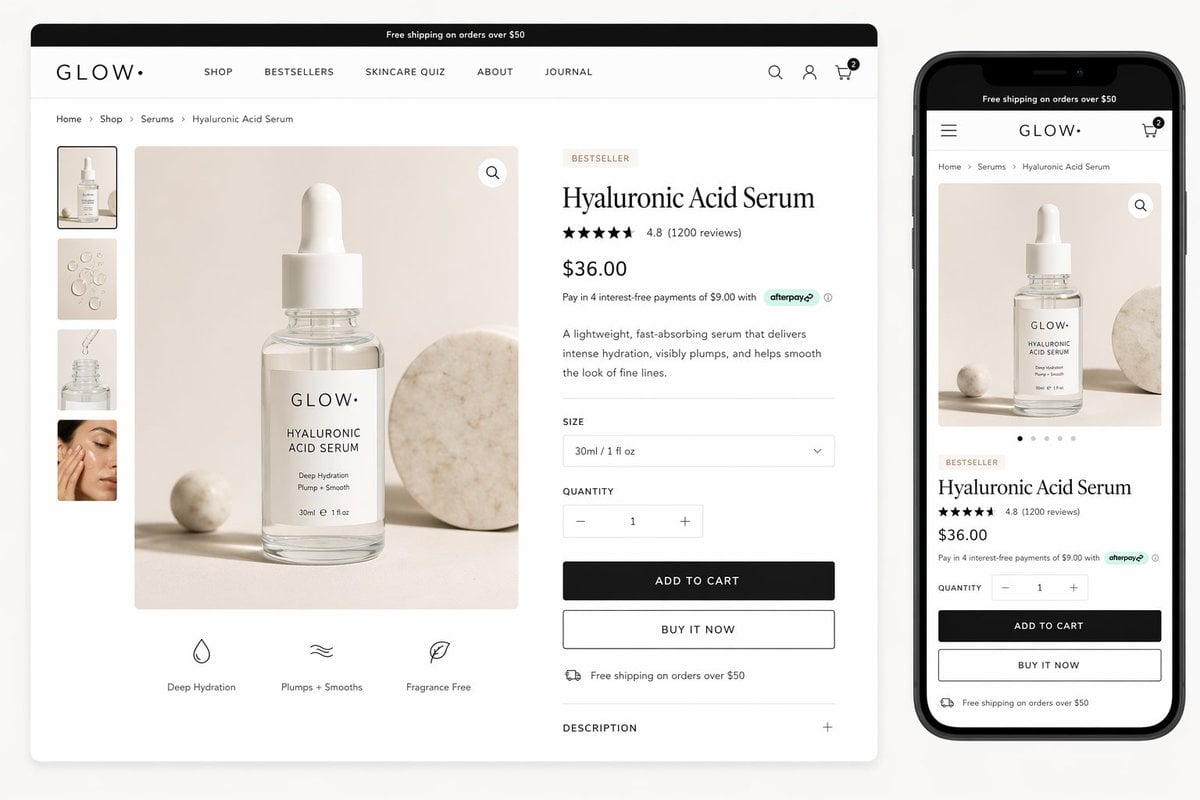
Luxury Skincare Product Page Mockup
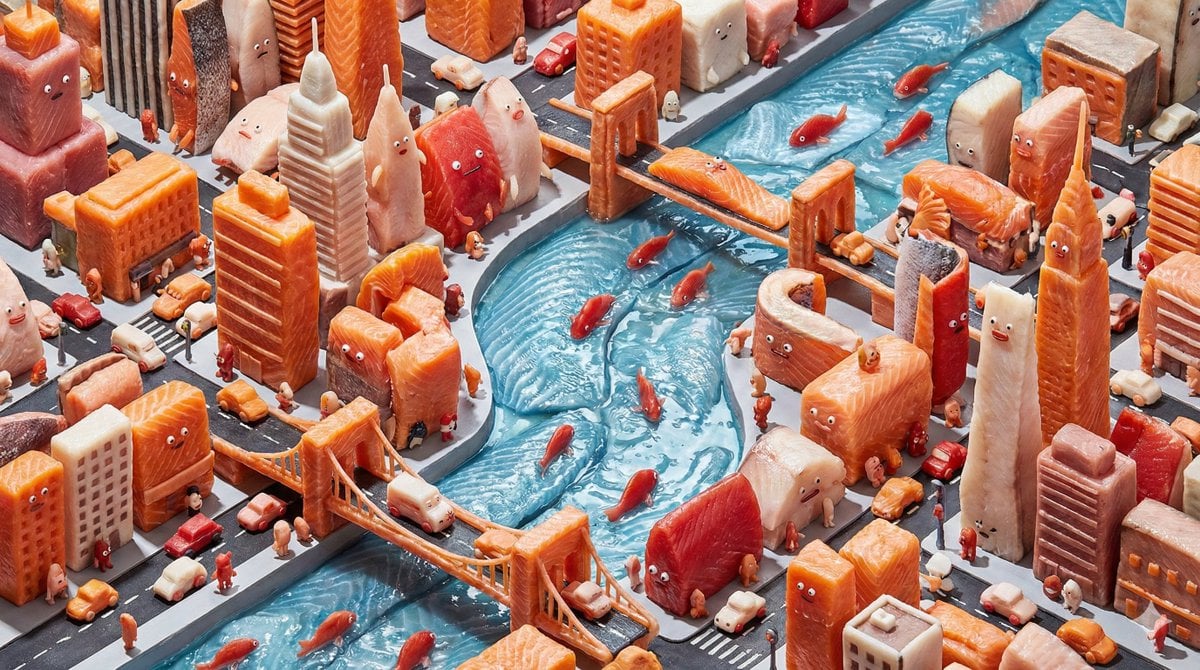
Surreal Hyperrealistic Salmon Fillet World Prompt

Chocolate Cinematic Ad Prompt
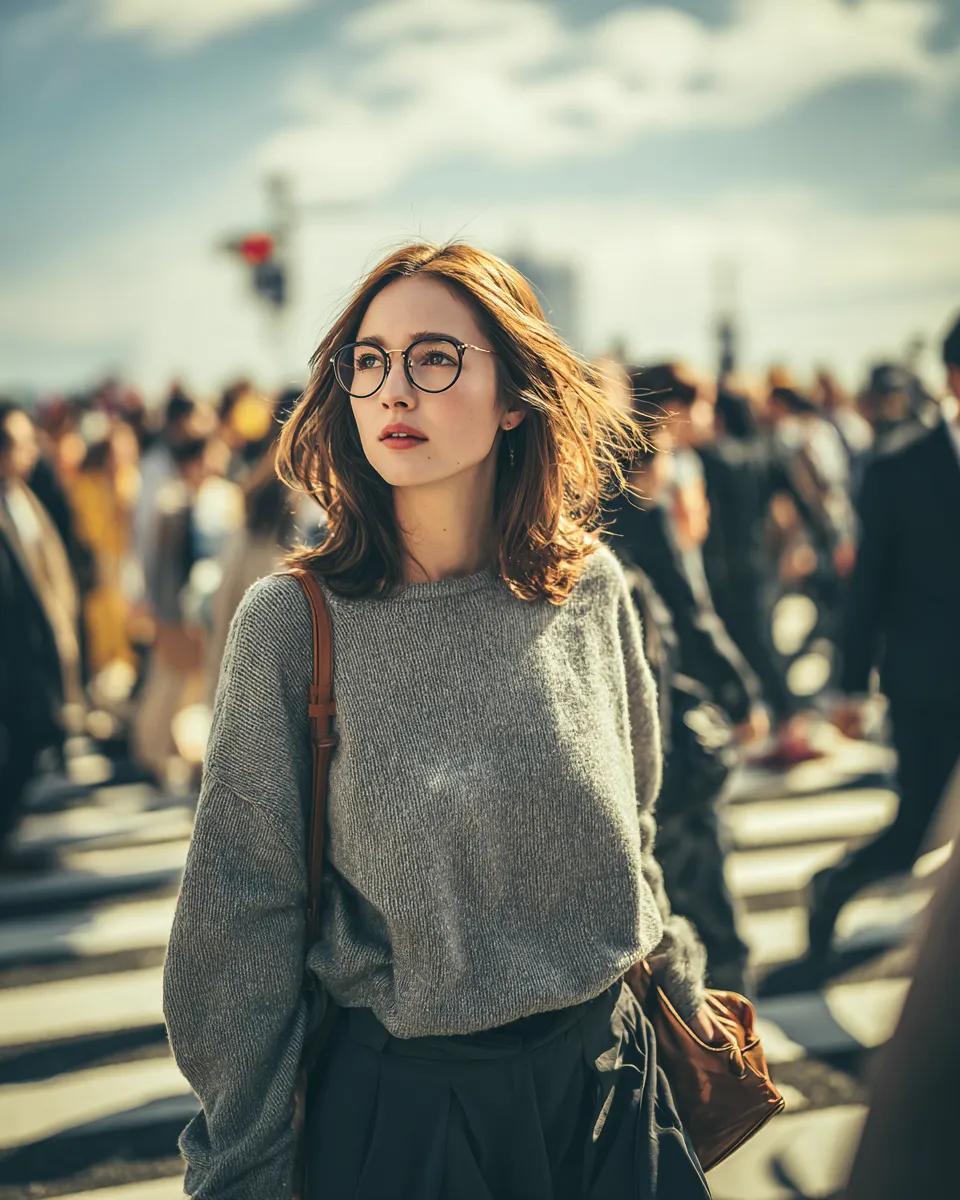
Cinematic Golden Hour Portrait in a City Crosswalk
Browse template categories
Futuristic Nanchatte-Machine Hangar questions
How do I use the Futuristic Nanchatte-Machine Hangar template?
Add your photo if the template asks for one, edit the prompt if you like — the template's model and format are already selected — and press Generate. Your version opens in PicX Studio.
Can I customize the Futuristic Nanchatte-Machine Hangar template?
Yes. You can change the subject, setting, lighting, mood, format, and available model controls before creating your image.
Is the Futuristic Nanchatte-Machine Hangar template free?
Opening and editing this template is free. Generating uses credits, shown on the Generate button when you are signed in.
Which AI model should I use?
Start with GPT Image 2, which is the model associated with this template. You can compare another compatible model for a different finish.
Looking for something else? Browse all templates.

Your photo, any look
Thousands of ready templates for every top image and video model, from one credit balance.