
Eleven Net Print Instruction Sheet
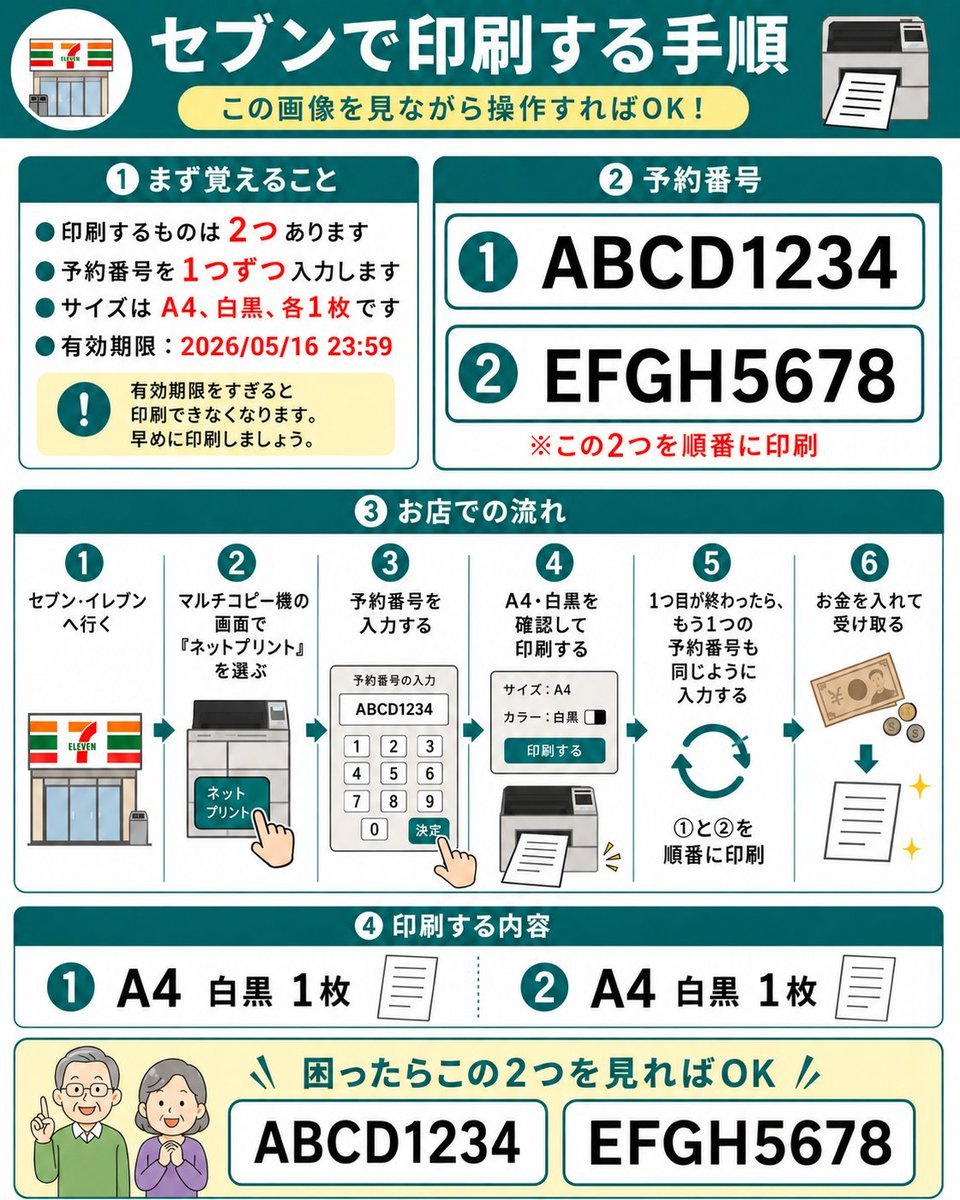
A square Japanese infographic that explains how to print two reserved documents at a 7-Eleven net-print copier using reservation numbers.
- Prompt included
- Model and format preset
- Free template
The prompt behind this image
Copy the exact prompt behind Eleven Net Print Instruction Sheet, or open it in the studio and make it yours.
Goal: Create a friendly Japanese step-by-step instruction sheet for printing two reserved net-print documents at a 7-Eleven multifunction copier, designed so an elderly parent can understand it just by looking. Canvas: Square 1:1 infographic, white background with teal borders and rounded cards, bold teal section headers, red emphasis text, simple flat vector icons. Overall style is clean, high-contrast, large readable Japanese typography, like a laminated how-to guide. Main header: At the top, a dark teal banner with a circular 7-Eleven storefront icon on the left and a printer icon on the right. Center the large white headline {argument name="headline text" default="セブンで印刷する手順"}. Under it place a pale yellow rounded pill subtitle {argument name="subtitle text" default="この画像を見ながら操作すればOK!"}. Section 1, top left card, title {argument name="section one title" default="① まず覚えること"}: Include exactly 4 teal bullet points and 1 yellow warning box. The bullets say, in Japanese, that there are 2 things to print, enter reservation numbers one at a time, the size is A4 black-and-white one copy each, and the expiration deadline is 2026/05/16 23:59. Emphasize the numbers 2, 1, A4, black-and-white, one copy each, and the date in red. The warning box contains a teal exclamation icon and text warning that printing becomes unavailable after the expiration date, so print early. Section 2, top right card, title {argument name="section two title" default="② 予約番号"}: Show exactly 2 large reservation-number rows with teal circled numbers: row 1 is {argument name="first reservation number" default="ABCD1234"}, row 2 is {argument name="second reservation number" default="EFGH5678"}. Each row is inside a white rounded rectangle with teal outline. Add a red note below: print these two in order. Section 3, middle full-width card, title in Japanese meaning store workflow: Show exactly 6 numbered vertical steps separated by thin teal lines, each with a teal circle number at the top. Step 1: go to 7-Eleven, with storefront icon. Step 2: on the multifunction copier screen choose “Net Print,” with copier touchscreen icon and pointing hand. Step 3: enter the reservation number, with keypad screen showing ABCD1234 and a pointing hand pressing confirm. Step 4: confirm A4 black-and-white and print, with settings panel and printer output icon. Step 5: after the first one finishes, enter the second reservation number the same way, with circular repeat arrows and text indicating print 1 then 2 in order. Step 6: insert money and receive the printout, with banknote, coins, downward arrow, paper sheet, and sparkle icons. Section 4, lower card, title in Japanese meaning print contents: Show exactly 2 contents items. Item 1: teal circled 1, large text “A4 black-and-white 1 copy,” small paper icon. Item 2: teal circled 2, large text “A4 black-and-white 1 copy,” small paper icon. Separate the two items with a dotted teal divider. Bottom help strip: Pale yellow rounded rectangle with two friendly elderly people icons on the left, faces intentionally blurred or simplified. Add a teal headline saying that if they are confused, they only need to look at these two numbers. Show exactly 2 large bordered boxes containing ABCD1234 and EFGH5678. Constraints: Use exactly 4 major numbered sections plus the bottom help strip, exactly 2 reservation numbers, exactly 6 workflow steps, exactly 2 print-content items, exactly 4 bullet points in Section 1, and no extra logos except the simplified 7-Eleven storefront motif. Keep all Japanese text large, readable, and neatly aligned.
How to use Eleven Net Print Instruction Sheet in 3 steps
- 1Upload ImagePNG, JPG or paste
Add your photo
Upload the photo the template builds on. The prompt, model and format are already set.
- 2…a portrait of your subject in softgolden-hour light, 85mm…
Personalize
Edit the subject and creative details for your destination.
- 3Generate
Generate
Press Generate — your image is created in PicX Studio, so you can compare it with the original and refine one variable at a time.
More like this
Templates with the same subject, style or setup. Open one to see its prompt.
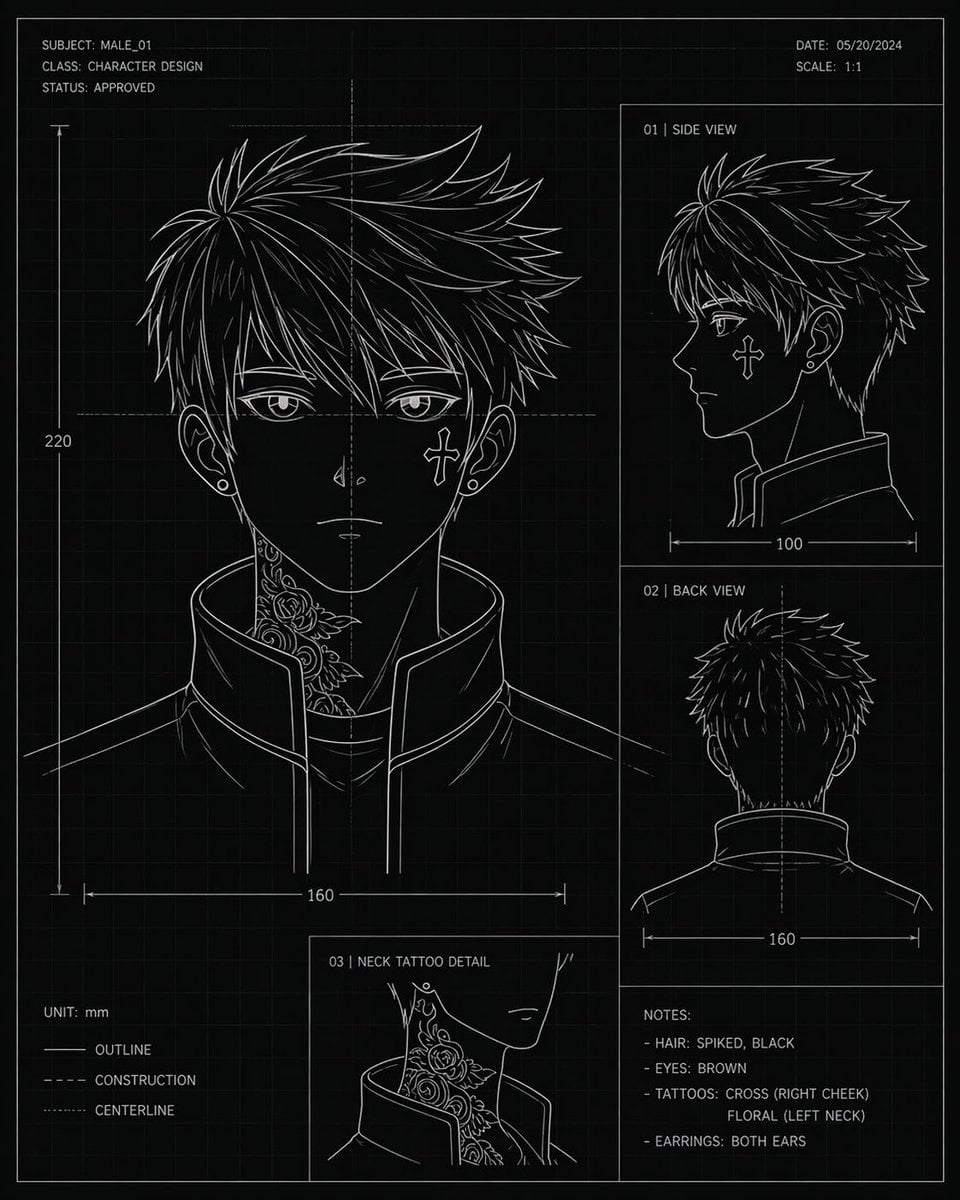
Anime Character Blueprint Sheet
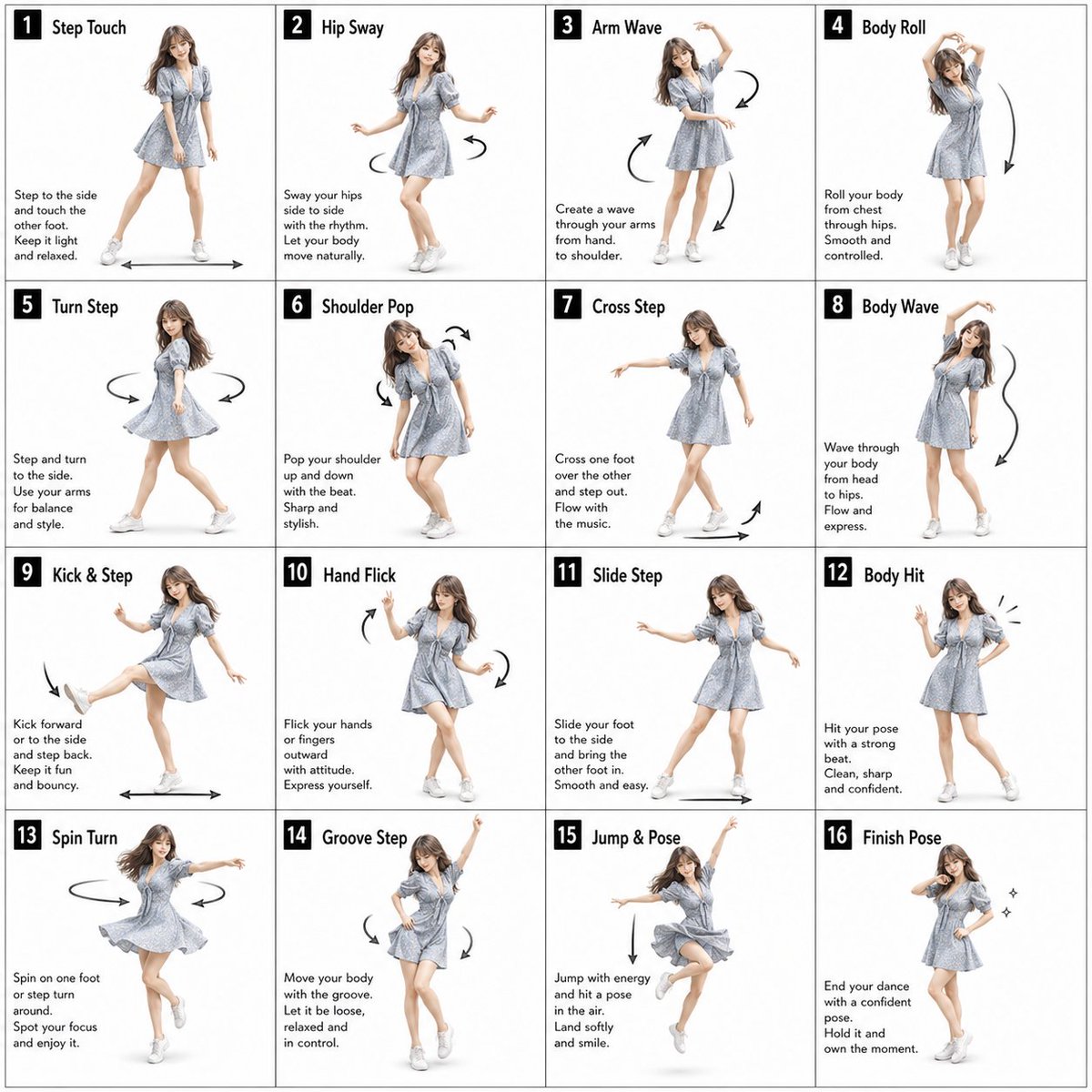
Pose Dance Instruction Sheet
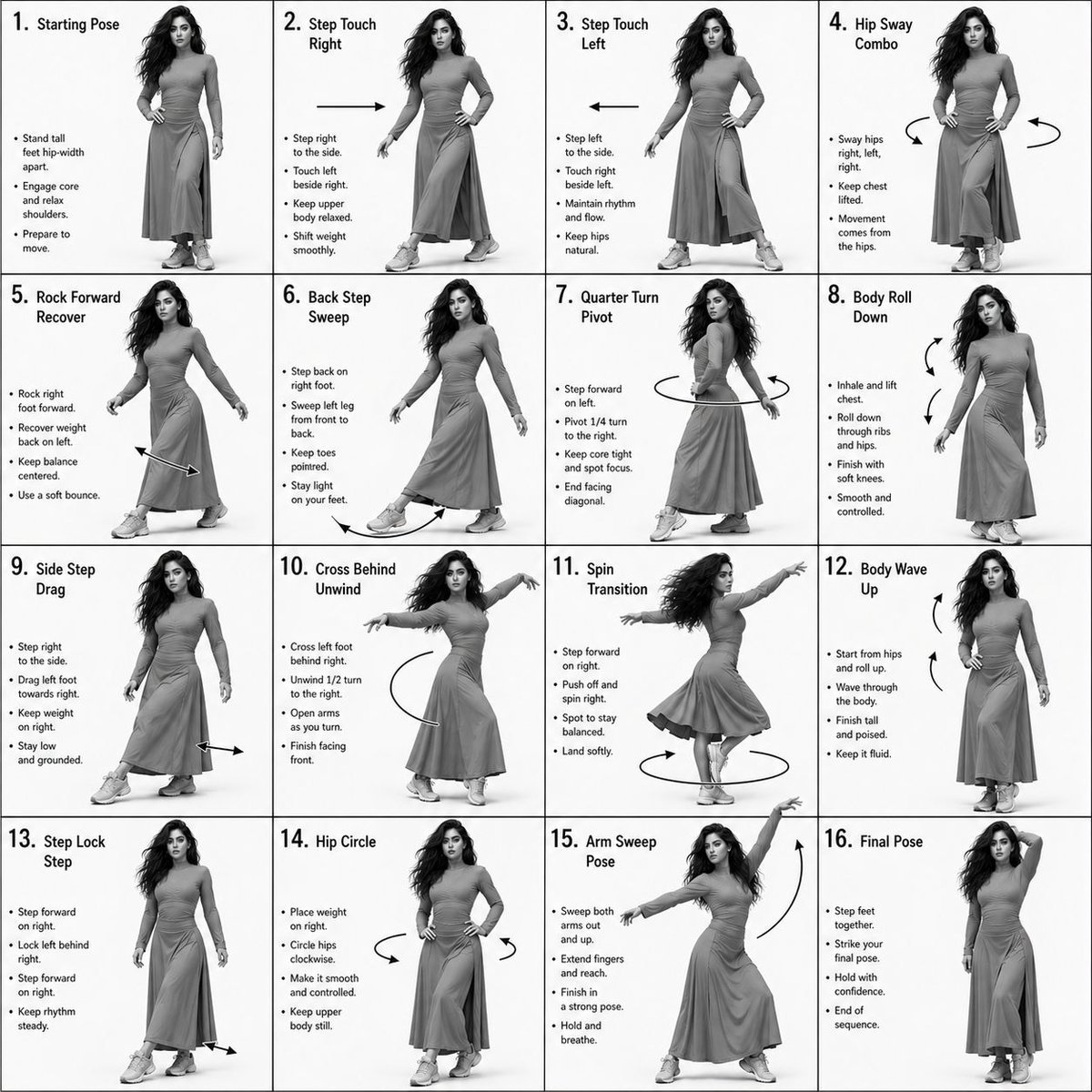
Choreography Instruction Sheet Generator
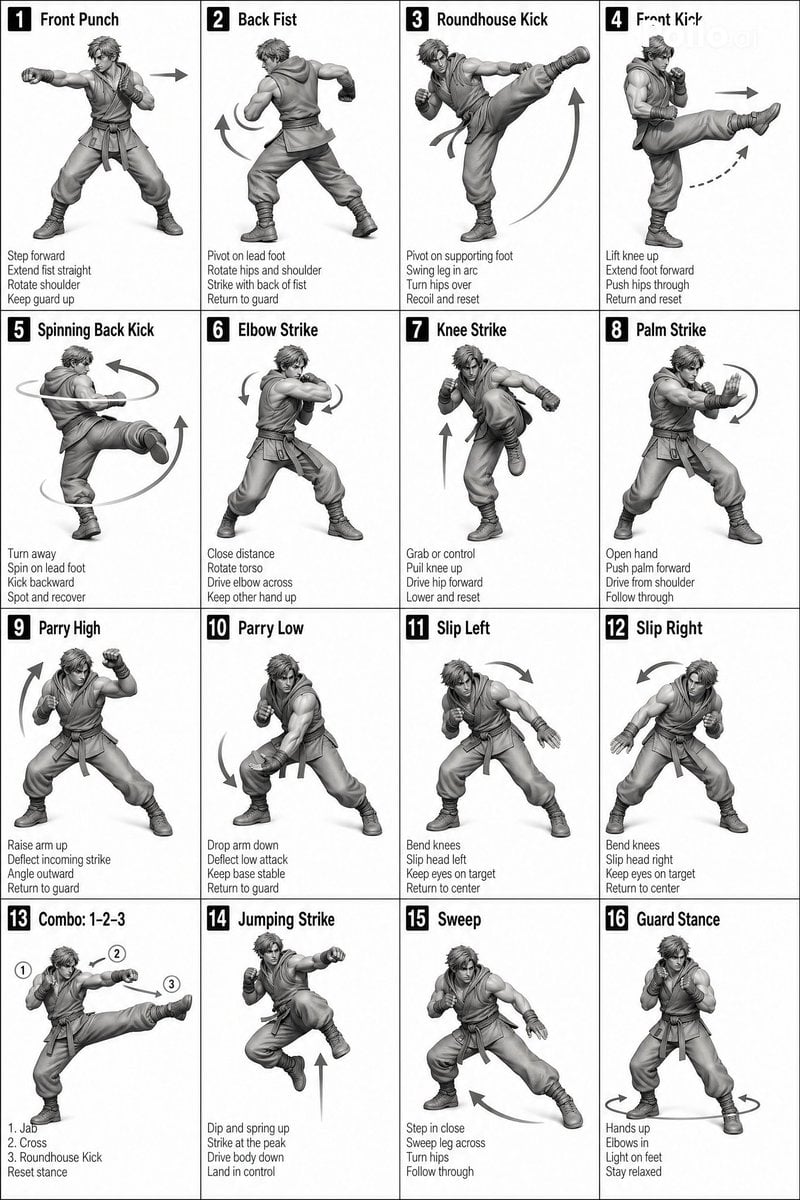
Instructional Martial Arts Movement Sheet
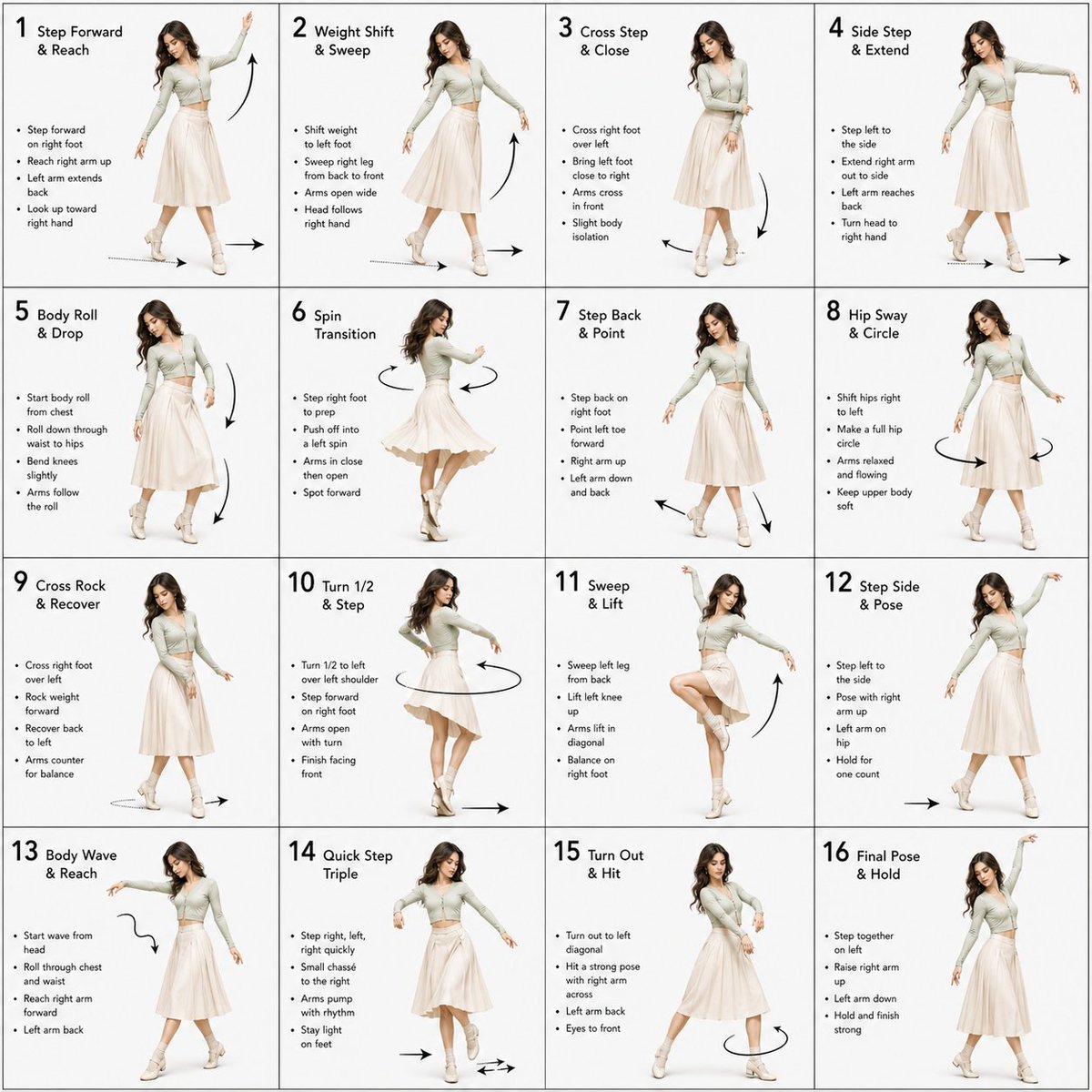
Dance Choreography Instruction Sheet Prompt
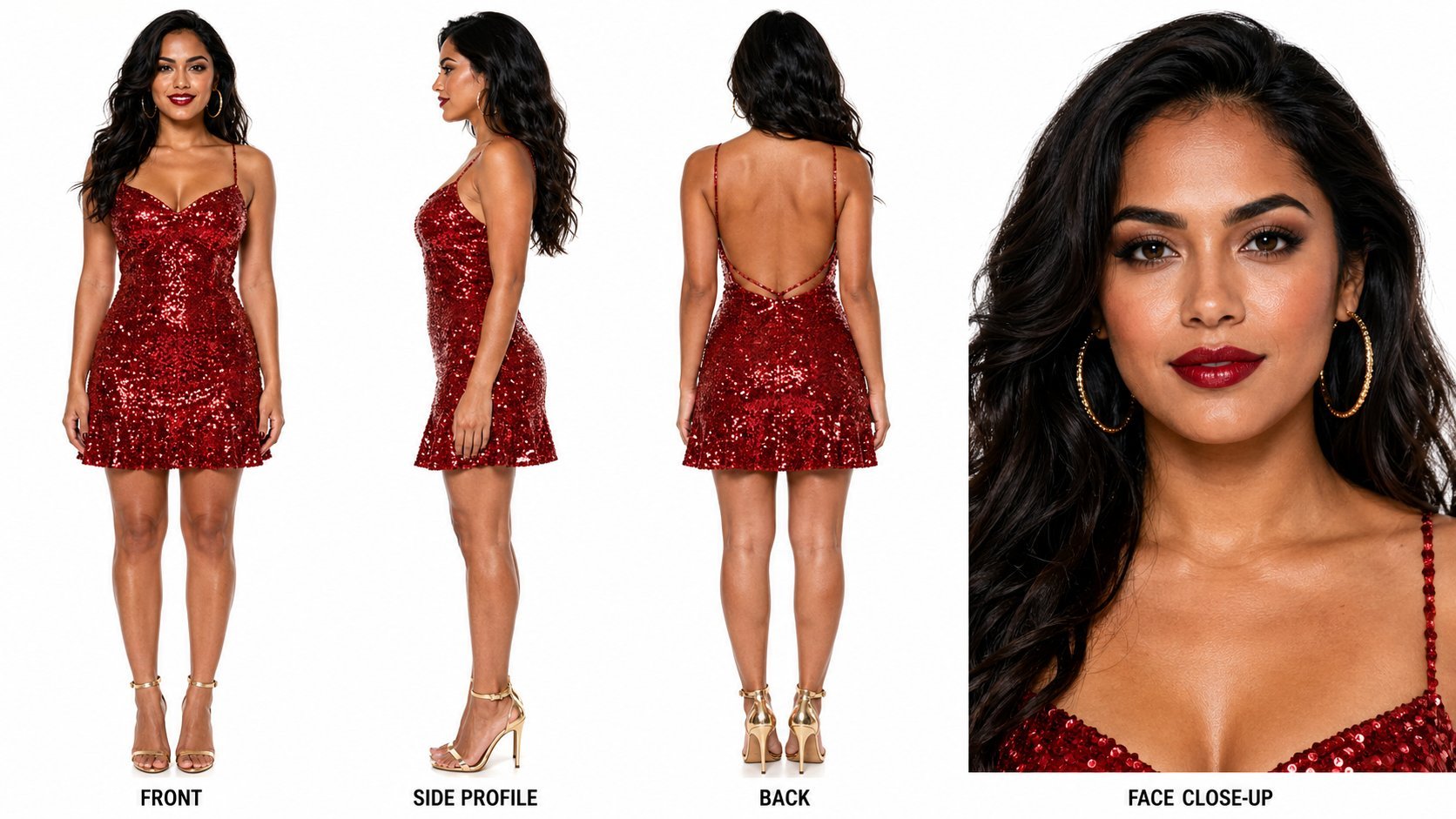
Dancer Character - Four View Reference Sheet
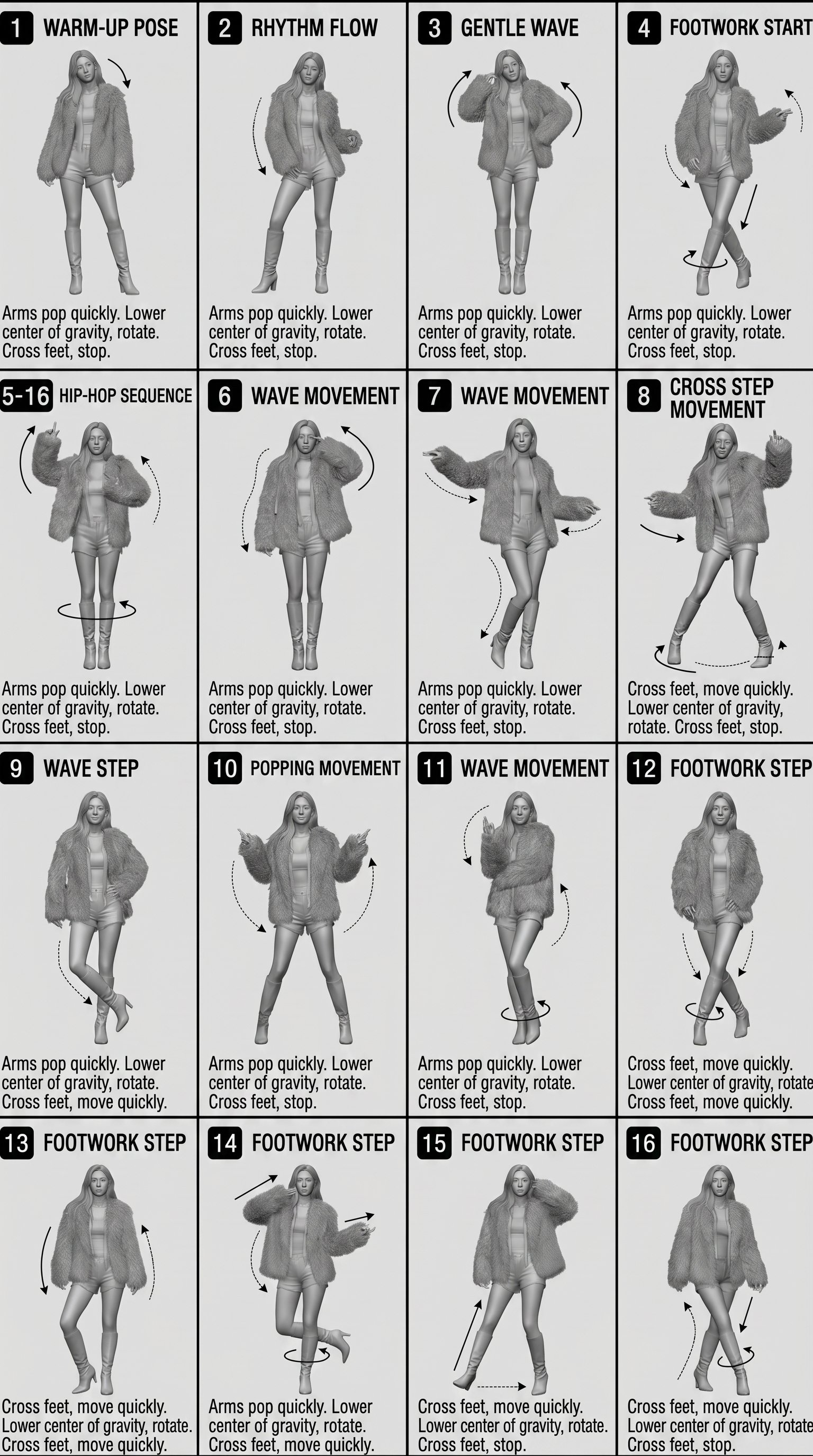
Movement Sheet - Dance Reference (Seedance 2.0)

3D printed Corinthian netrunner helmet
Print-Ready Tech Stack Sticker Sheet Prompt
Fantasy Sky Train Attendant Instruction
Split-Screen Surreal Printmaking Design

Six VTuber Japanese Logo Sheet
Make it yours
Eleven Net Print Instruction Sheet works as-is. These are the safest ways to change it without losing the look.
Change one field
Copy a single group, rewrite it, and generate again so you can see what that field is doing.
Keep the frame, change the subject
Hold the composition and light of 7-Eleven Net Print Instruction Sheet, then swap wardrobe, props or the person for a new take.
| If the result… | Why | Fix |
|---|---|---|
| The result drifts from the preview | Too many fields changed at once. | Reuse 7-Eleven Net Print Instruction Sheet as-is first, then change one group — subject, light, or setting. |
| The model over-stylizes the scene | The prose prompt leaves finish and camera underspecified. | Add one camera or lighting sentence and stay on GPT Image 2. |
More GPT Image 2 templates
Other prompts made for GPT Image 2.

Realistic Portrait of Woman and Deer

The Vista Modular Condo Poster

AI Model Routing Comparison Infographic

2.5D Anime Art Board

Isometric Productivity Desk Scene

New York Double Exposure Poster

Four-Panel AI Landscape Comparison

Japanese Tatami Lifestyle Magazine Cover

NESCAFÉ Coffee Map Poster

Brutalist Cogito Chinese Typography Poster
More image prompts
Fresh picks from across the catalog.
High-Fashion Editorial of Woman on Grand Staircase
Neo-Noir Fashion Portrait with High Contrast

Cinematic Portrait Transformation
Cinematic Studio Portrait with Floating Feathers
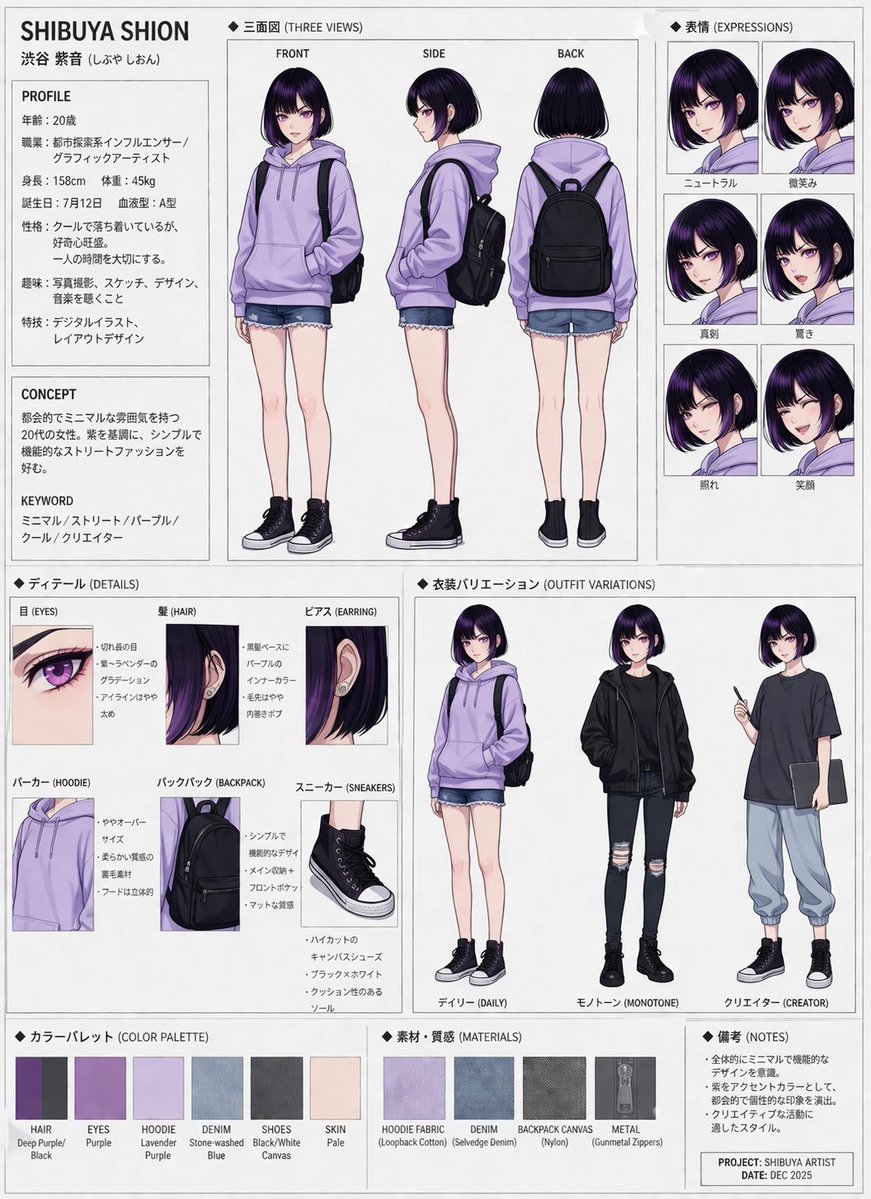
Comprehensive Character Design Sheet
High-Fashion Penthouse Portrait Prompt
Layered Photo Print Figure
Kids Bath Product Advertisement Poster
Red Toyota GR Supra Motorsport Poster
Panel Anime Romance Comic Strip
Browse template categories
Eleven Net Print Instruction Sheet questions
How do I use the 7-Eleven Net Print Instruction Sheet template?
Add your photo if the template asks for one, edit the prompt if you like — the template's model and format are already selected — and press Generate. Your version opens in PicX Studio.
Can I customize the 7-Eleven Net Print Instruction Sheet template?
Yes. You can change the subject, setting, lighting, mood, format, and available model controls before creating your image.
Is the 7-Eleven Net Print Instruction Sheet template free?
Opening and editing this template is free. Generating uses credits, shown on the Generate button when you are signed in.
Which AI model should I use?
Start with GPT Image 2, which is the model associated with this template. You can compare another compatible model for a different finish.
Looking for something else? Browse all templates.

Your photo, any look
Thousands of ready templates for every top image and video model, from one credit balance.