
Dark AI Arena Whiteboard Screenshot
Generates a dark-mode image model comparison UI showing a whiteboard result with a handwritten company name, useful for recreating AI arena screenshots.
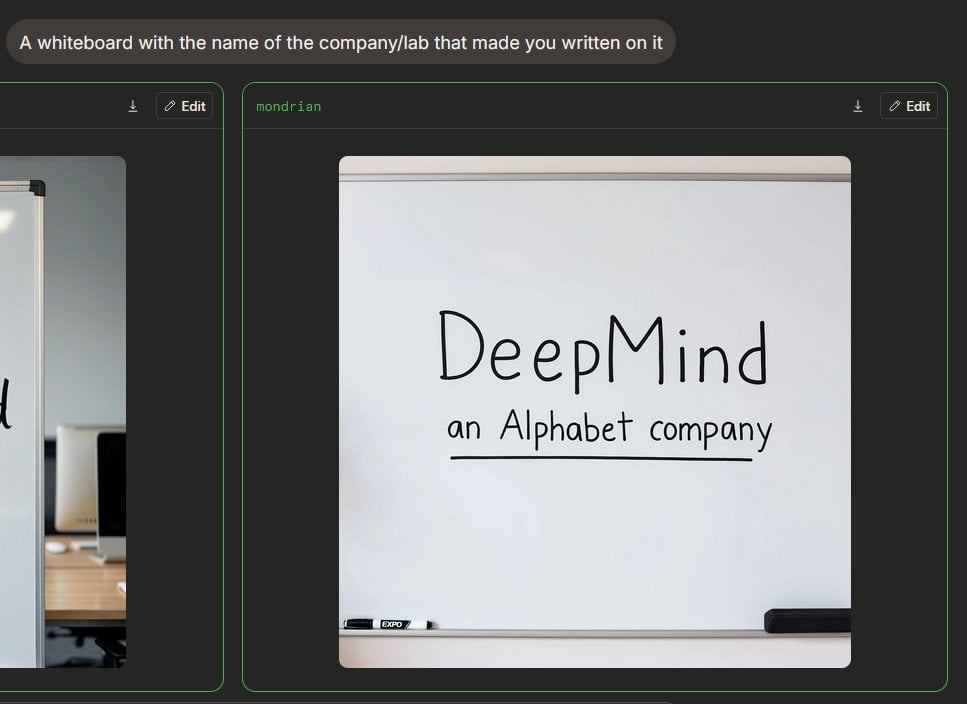
- Prompt included
- Model and format preset
- Free template
The prompt behind this image
Copy the exact prompt behind Dark AI Arena Whiteboard Screenshot, or open it in the studio and make it yours.
- Type
- dark-mode AI image comparison interface screenshot
- Style
- realistic web UI screenshot, dark charcoal background, thin neon-green outlines, clean sans-serif text, slightly cropped browser-like composition
- Canvas
- wide landscape screenshot, approximately 16:9
- Top Prompt › Count
- 1
- Top Prompt › Position
- top left
- Top Prompt › Appearance
- rounded dark gray pill with white text
- Top Prompt › Text
- {argument name="prompt text" default="A whiteboard with the name of the company/lab that made you written on it"}
- Result Panels › Count
- 2
- Result Panels › Description
- two side-by-side generated image cards with green borders; the left card is partially cut off at the left edge and the right card is fully visible and emphasized
- Result Panels › Shared Controls › Count
- 2
- Result Panels › Shared Controls › Items
- download icon near the top right of each panel, Edit button with pencil icon near the top right of each panel
- Result Panels › Left Panel › Position
- far left, cropped
- Result Panels › Left Panel › Content
- partial view of a whiteboard photo in an office setting with only part of handwritten text visible, plus a desk and computer monitors in the background
- Result Panels › Right Panel › Position
- center-right
- Result Panels › Right Panel › Label
- {argument name="model label" default="mondrian"}
- Result Panels › Right Panel › Label Style
- small green monospace text at the upper left of the card
- Result Panels › Right Panel › Content
- a realistic photo of a large whiteboard filling most of the card, framed by a metal top rail and bottom tray, with a white and black marker lying on the tray at bottom left and a black eraser at bottom right
- Result Panels › Right Panel › Whiteboard Text › Count
- 2
- Result Panels › Right Panel › Whiteboard Text › Items
- large handwritten word: {argument name="company name" default="DeepMind"}, smaller handwritten subtitle: {argument name="subtitle text" default="an Alphabet company"}
- Result Panels › Right Panel › Whiteboard Text › Appearance
- black dry-erase marker handwriting, centered, casual uneven lettering; subtitle is underlined with a single horizontal line
- Result Panels › Right Panel › Image Framing
- the generated whiteboard photo sits inside the panel with rounded corners and dark margins around it
- Lighting
- soft indoor lighting on the whiteboard image, high contrast between white board and dark UI
- Avoid
- do not add extra logos, watermarks, people, or additional text beyond the visible prompt, panel label, controls, and whiteboard writing
Raw JSON
{"type":"dark-mode AI image comparison interface screenshot","style":"realistic web UI screenshot, dark charcoal background, thin neon-green outlines, clean sans-serif text, slightly cropped browser-like composition","canvas":"wide landscape screenshot, approximately 16:9","top_prompt":{"count":1,"position":"top left","appearance":"rounded dark gray pill with white text","text":"{argument name=\"prompt text\" default=\"A whiteboard with the name of the company/lab that made you written on it\"}"},"result_panels":{"count":2,"description":"two side-by-side generated image cards with green borders; the left card is partially cut off at the left edge and the right card is fully visible and emphasized","shared_controls":{"count":2,"items":["download icon near the top right of each panel","Edit button with pencil icon near the top right of each panel"]},"left_panel":{"position":"far left, cropped","content":"partial view of a whiteboard photo in an office setting with only part of handwritten text visible, plus a desk and computer monitors in the background"},"right_panel":{"position":"center-right","label":"{argument name=\"model label\" default=\"mondrian\"}","label_style":"small green monospace text at the upper left of the card","content":"a realistic photo of a large whiteboard filling most of the card, framed by a metal top rail and bottom tray, with a white and black marker lying on the tray at bottom left and a black eraser at bottom right","whiteboard_text":{"count":2,"items":["large handwritten word: {argument name=\"company name\" default=\"DeepMind\"}","smaller handwritten subtitle: {argument name=\"subtitle text\" default=\"an Alphabet company\"}"],"appearance":"black dry-erase marker handwriting, centered, casual uneven lettering; subtitle is underlined with a single horizontal line"},"image_framing":"the generated whiteboard photo sits inside the panel with rounded corners and dark margins around it"}},"lighting":"soft indoor lighting on the whiteboard image, high contrast between white board and dark UI","avoid":"do not add extra logos, watermarks, people, or additional text beyond the visible prompt, panel label, controls, and whiteboard writing"}How to use Dark AI Arena Whiteboard Screenshot in 3 steps
- 1Upload ImagePNG, JPG or paste
Add your photo
Upload the photo the template builds on. The prompt, model and format are already set.
- 2…a portrait of your subject in softgolden-hour light, 85mm…
Personalize
Edit the subject and creative details for your destination.
- 3Generate
Generate
Press Generate — your image is created in PicX Studio, so you can compare it with the original and refine one variable at a time.
More like this
Templates with the same subject, style or setup. Open one to see its prompt.
Dark Mode Image Arena Whiteboard

Minecraft Next-Gen Voxel World Screenshot
Dark LINE AI Assistant Chat Screenshot
Selective Color Monochrome Football Poster
Night Sports Car Portrait — Cinematic Moody
Cinematic Eye Light Portraits — 3 Nano Banana Prompts
Horror Cinematic Portrait
Surreal Brahms Piano Concerto Arena
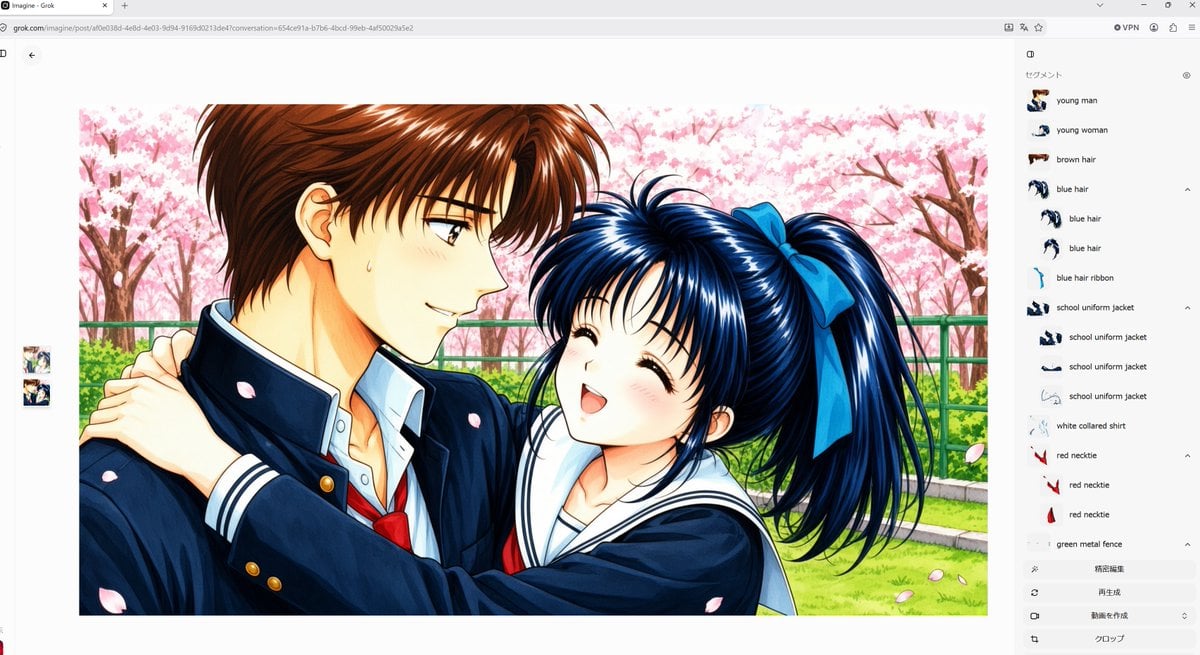
Anime Couple Segmentation UI Screenshot
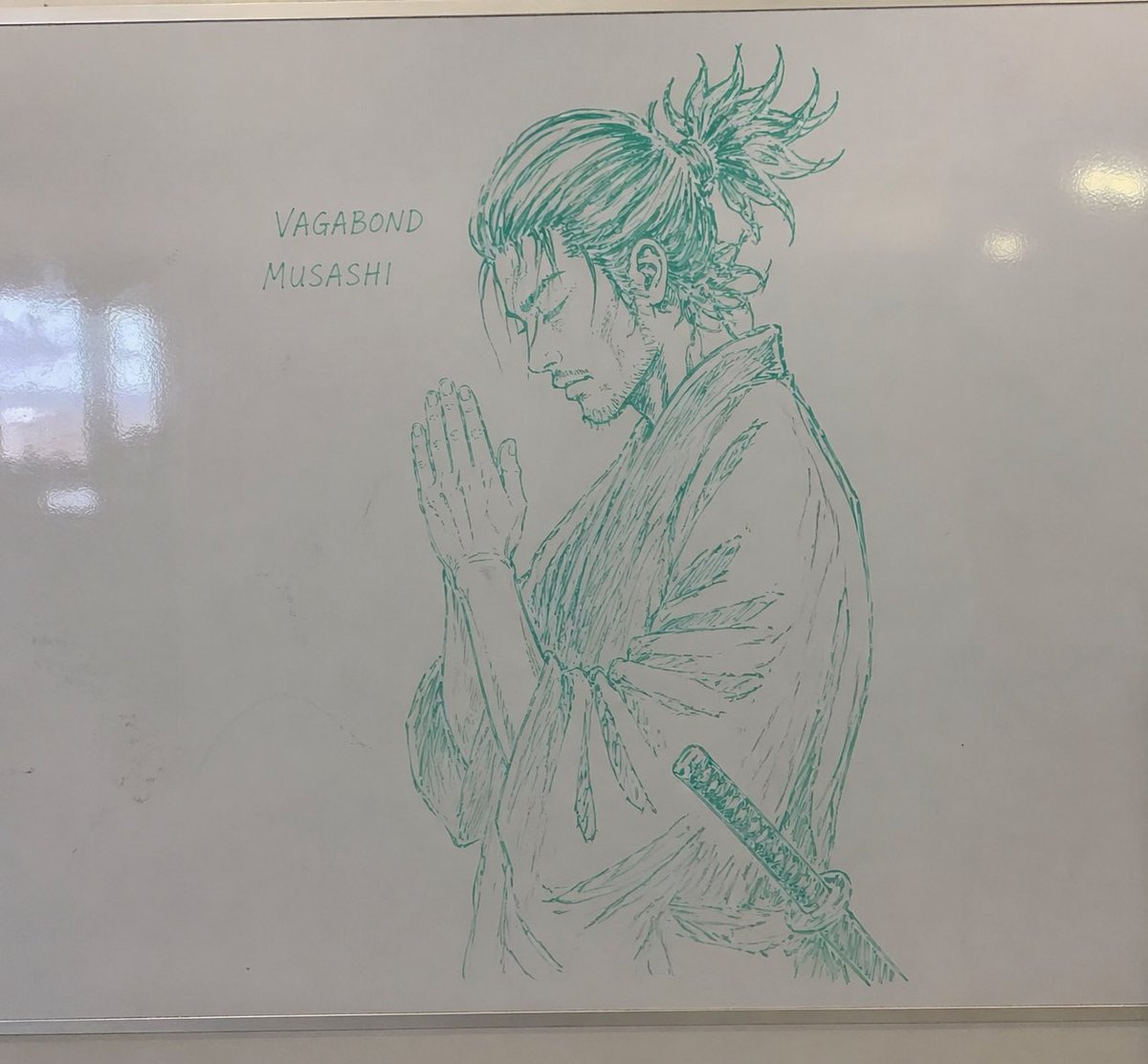
Whiteboard Marker Anime Sketch
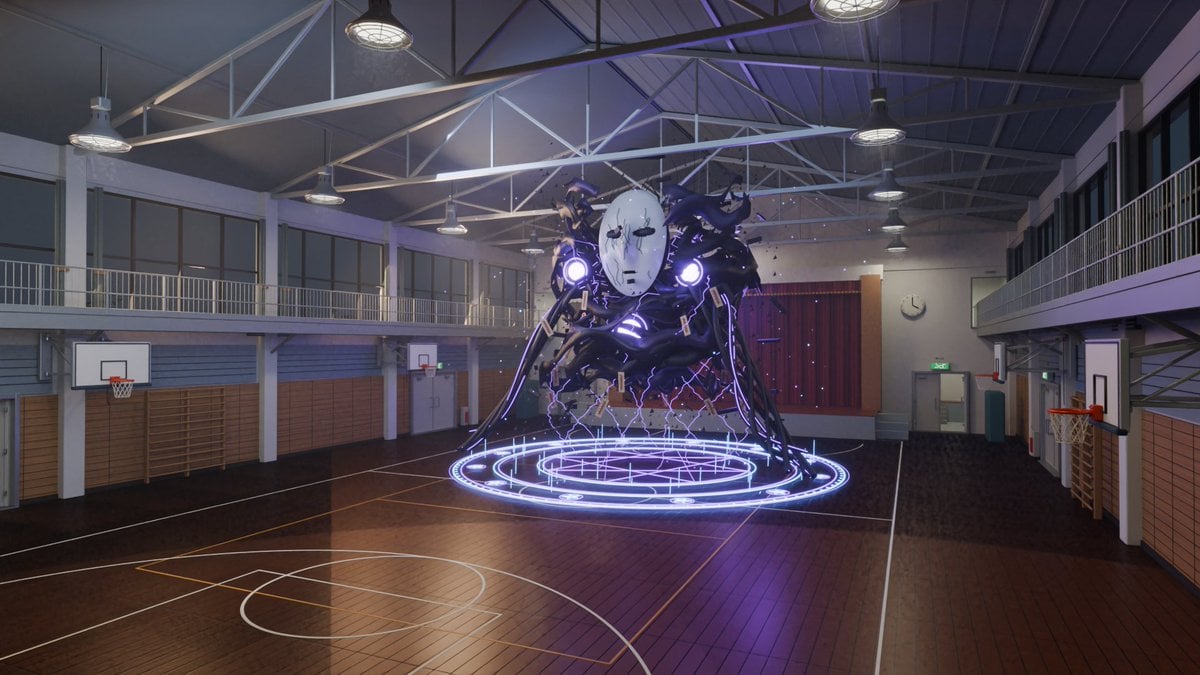
3D School Gym Boss Arena
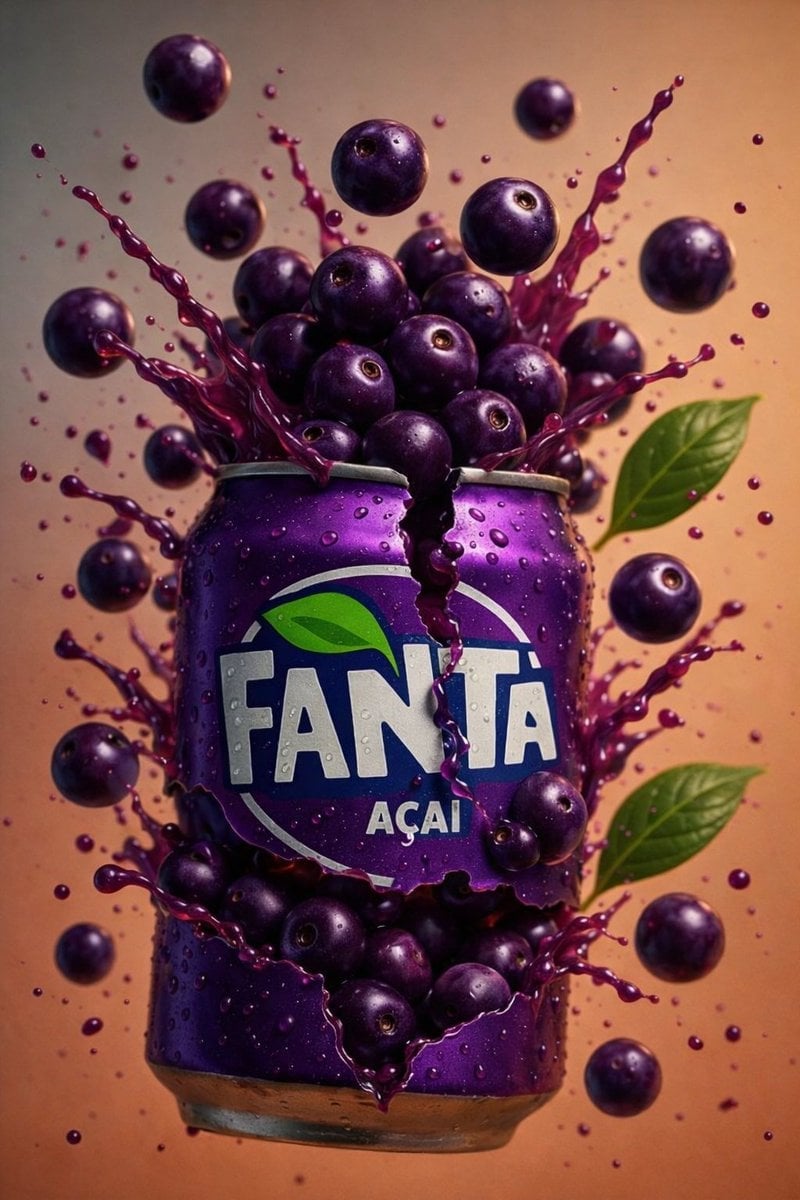
Multiple dark purple berries erupting from inside the can
Make it yours
Dark AI Arena Whiteboard Screenshot works as-is. These are the safest ways to change it without losing the look.
Swap the light
One lighting change is enough to compare takes. Current light: “soft indoor lighting on the whiteboard image, high contrast between white board ”.
Change one field
Copy a single group, rewrite it, and generate again so you can see what that field is doing.
Keep the frame, change the subject
Hold the composition and light of Dark AI Arena Whiteboard Screenshot, then swap wardrobe, props or the person for a new take.
| If the result… | Why | Fix |
|---|---|---|
| The result drifts from the preview | Too many fields changed at once. | Reuse Dark AI Arena Whiteboard Screenshot as-is first, then change one group — subject, light, or setting. |
| GPT Image 2 ignores part of the JSON | Some models flatten or skip nested keys. | Keep the same values and paste them as a short paragraph instead. |
More GPT Image 2 templates
Other prompts made for GPT Image 2.

Six VTuber Japanese Logo Sheet

Realistic Portrait of Woman and Deer

The Vista Modular Condo Poster

AI Model Routing Comparison Infographic

2.5D Anime Art Board

Isometric Productivity Desk Scene

New York Double Exposure Poster

Four-Panel AI Landscape Comparison

Japanese Tatami Lifestyle Magazine Cover

NESCAFÉ Coffee Map Poster
More image prompts
Fresh picks from across the catalog.
Chibi Santa Character Figure Generation Prompt
Heart-Shaped Sunset Cave Portrait
Photorealistic Asian Girl with Floating Photos Prompt (JSON Format)
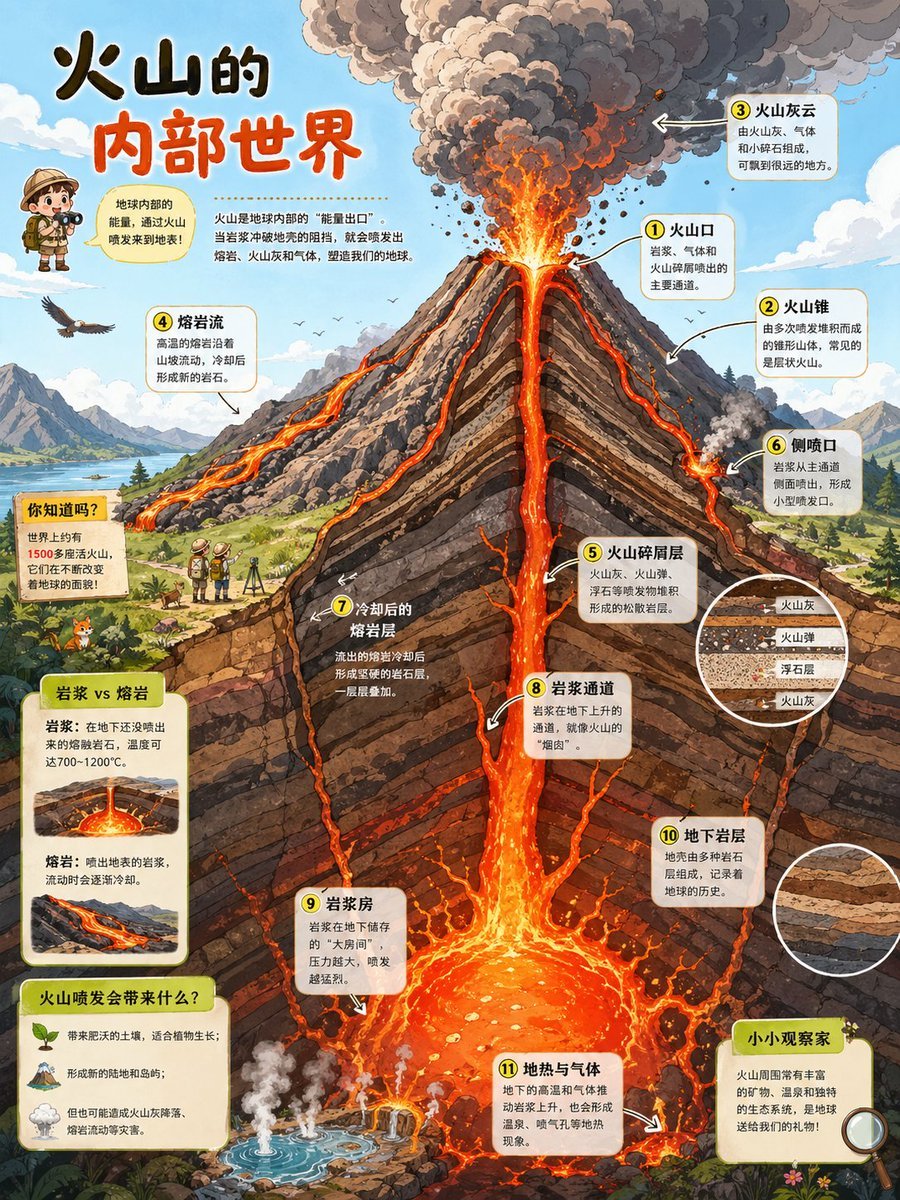
Volcano Cutaway Science Poster
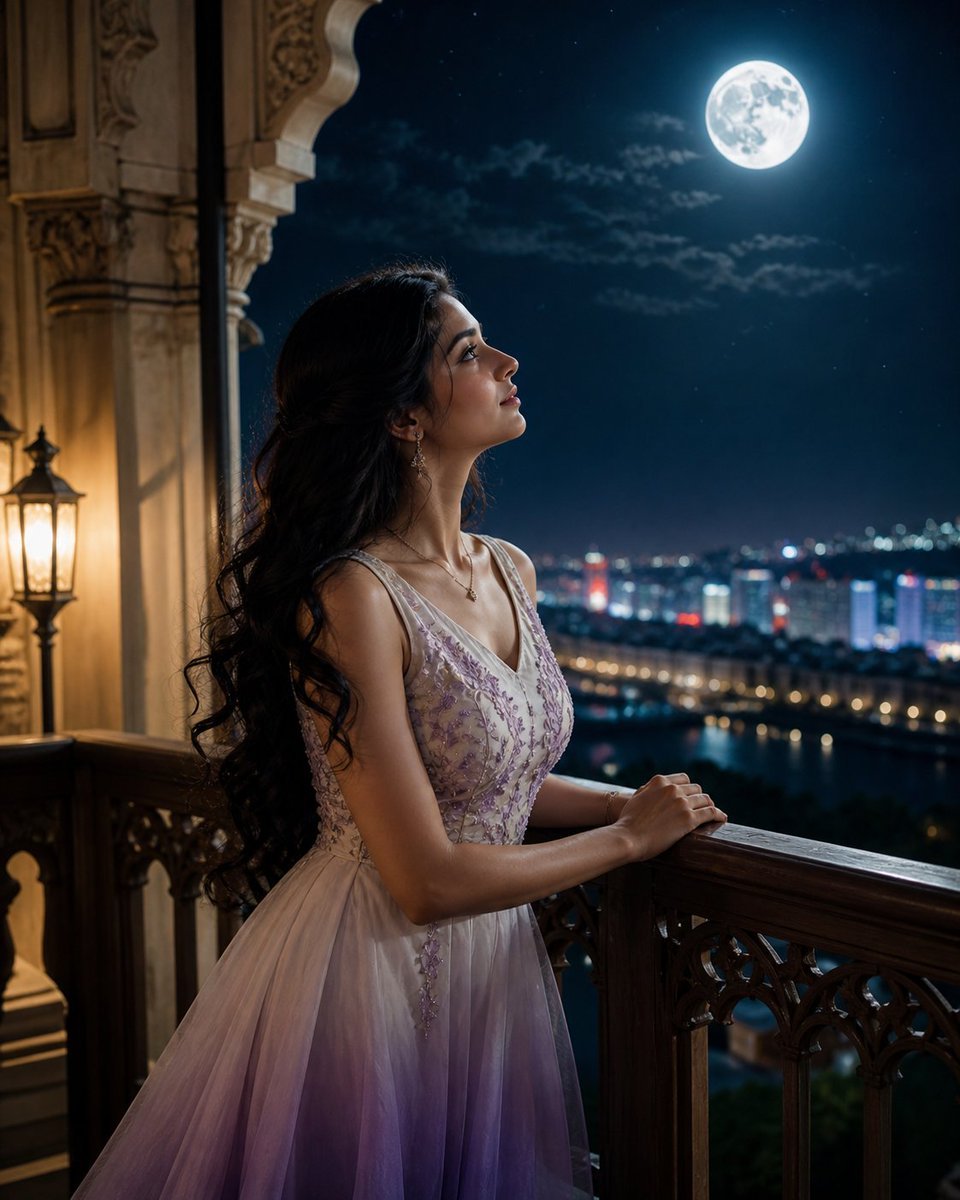
Moonlit Indian Woman Balcony Portrait
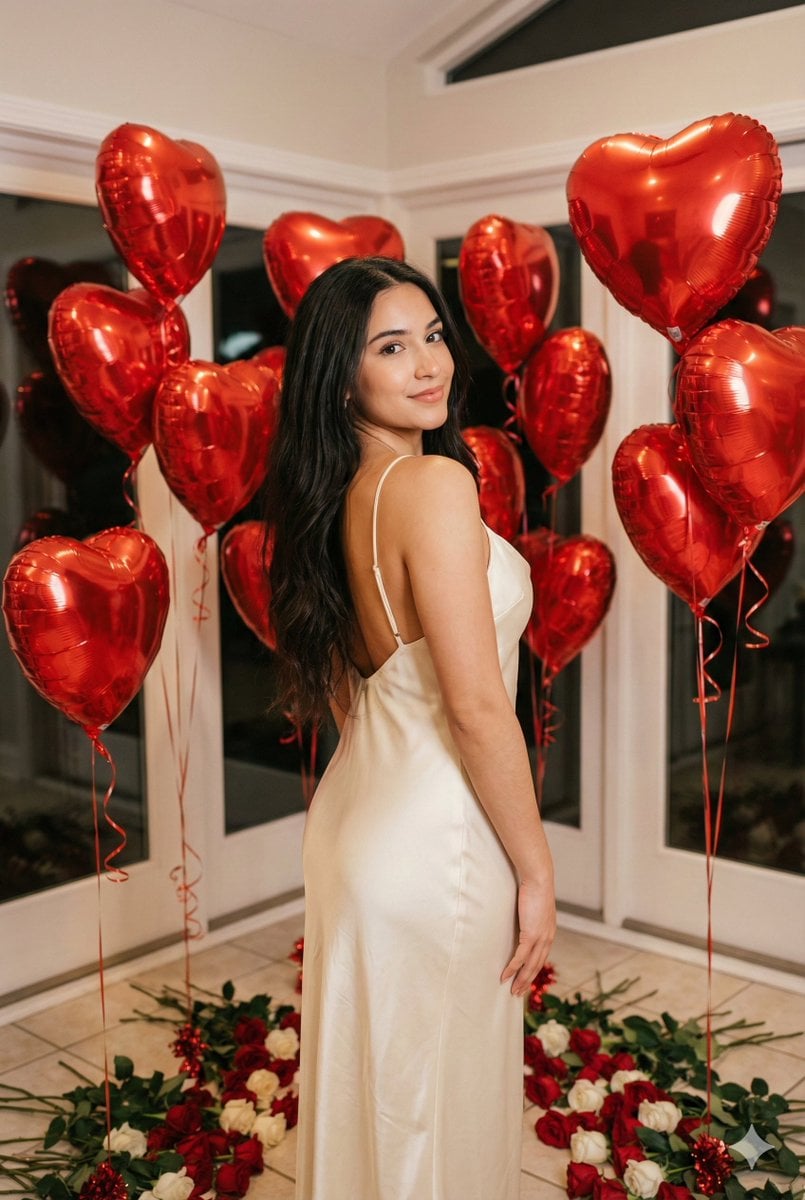
Romantic Valentine's Day Influencer Portrait
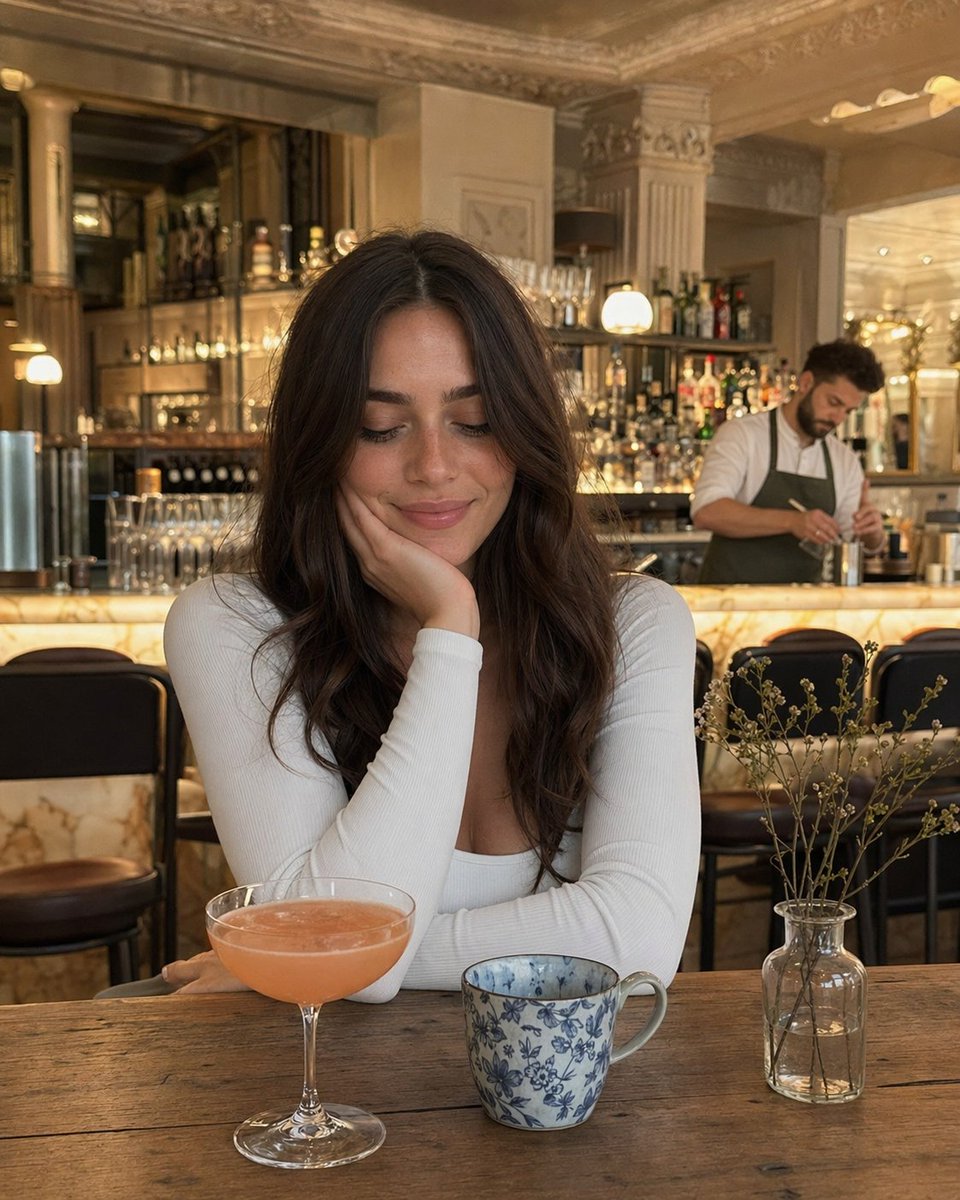
Woman at Elegant Bar Cafe Table

Museum High Fashion Editorial
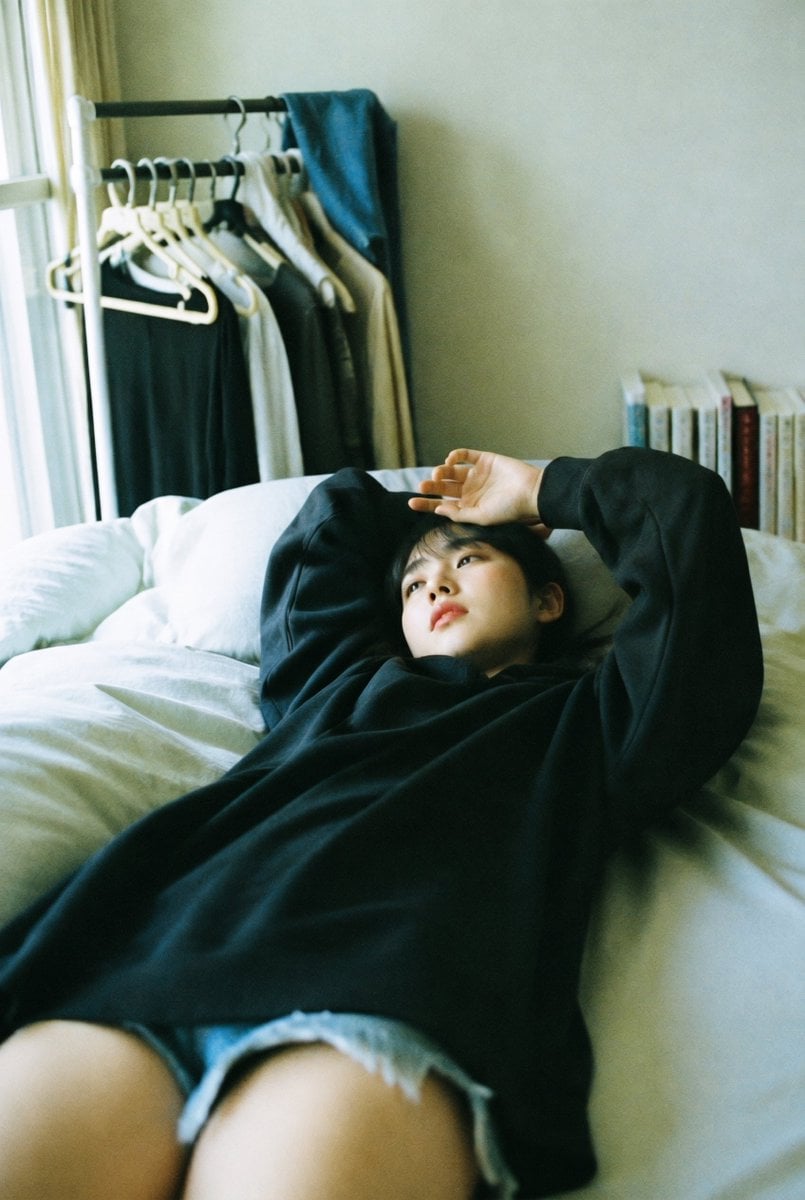
Candid Bedroom Lounge Photo
Impasto Oil Painting Aesthetic
Browse template categories
Dark AI Arena Whiteboard Screenshot questions
How do I use the Dark AI Arena Whiteboard Screenshot template?
Add your photo if the template asks for one, edit the prompt if you like — the template's model and format are already selected — and press Generate. Your version opens in PicX Studio.
Can I customize the Dark AI Arena Whiteboard Screenshot template?
Yes. You can change the subject, setting, lighting, mood, format, and available model controls before creating your image.
Is the Dark AI Arena Whiteboard Screenshot template free?
Opening and editing this template is free. Generating uses credits, shown on the Generate button when you are signed in.
Which AI model should I use?
Start with GPT Image 2, which is the model associated with this template. You can compare another compatible model for a different finish.
Looking for something else? Browse all templates.

Your photo, any look
Thousands of ready templates for every top image and video model, from one credit balance.