How do I use the Scrapbook Music Visual template?
Edit the prompt in the box under the preview — the template's model and format are already selected — and press Generate. Your version appears right on this page.
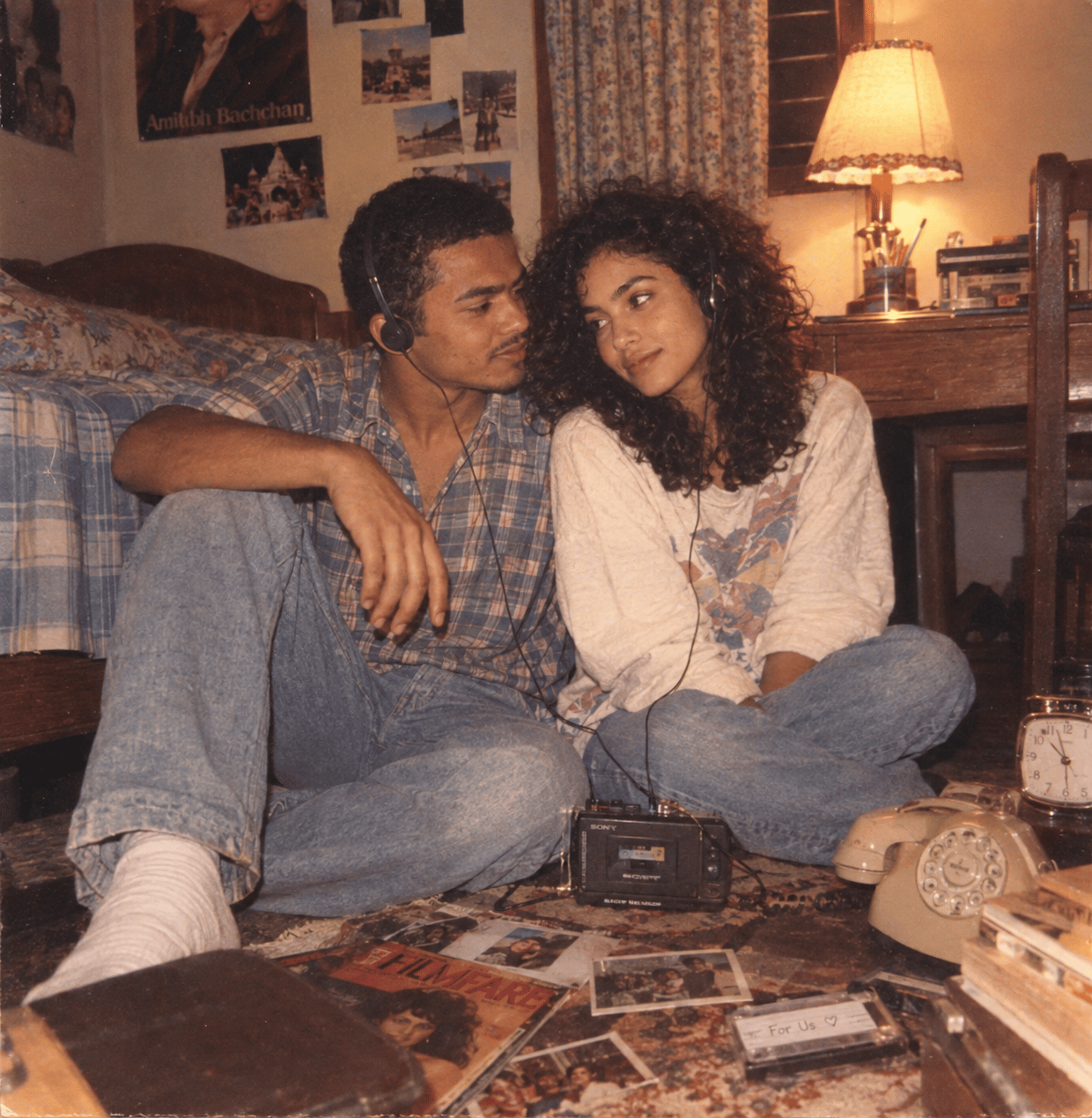
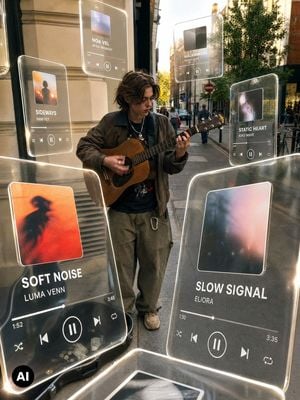
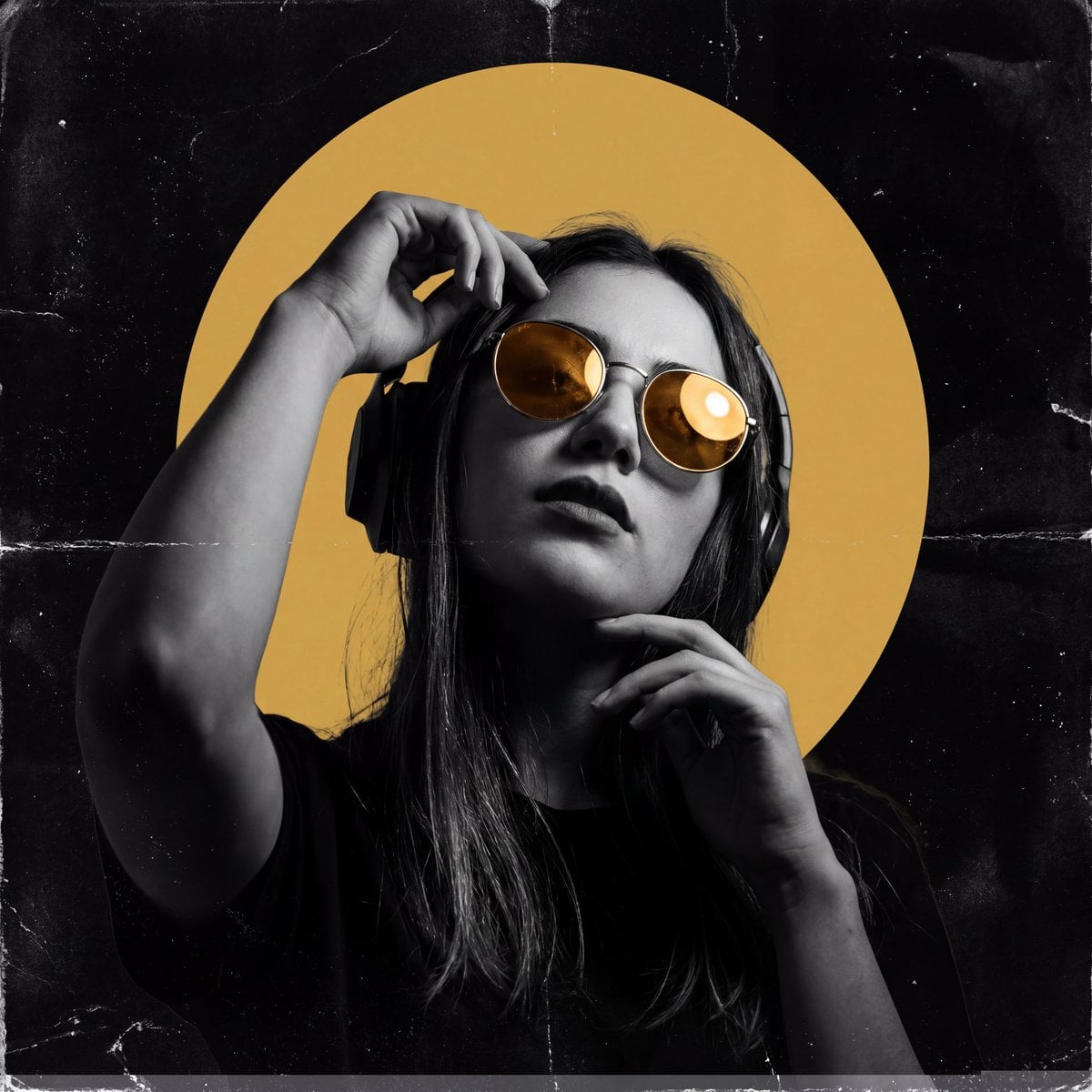
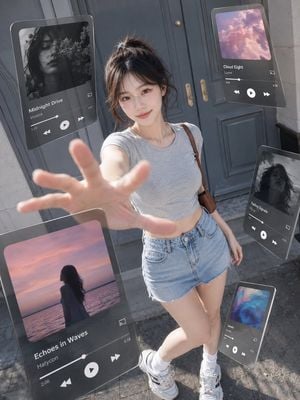
Creates a cinematic scrapbook-style music visual with multiple layered panels from a reference photo, while keeping the subject's identity.

This template uses your photo — add one with the + button.
Transform the uploaded reference photo into a {argument name="style" default="cinematic scrapbook-style"} music visual composition. Preserve the subject’s identity accurately while arranging the image into {argument name="layout" default="multiple layered photo panels"} with {argument name="crops" default="different close-up crops"} of the same person.
Transform the uploaded reference photo into a {argument name="style" default="cinematic scrapbook-style"} music visual composition. Preserve the subject’s identity accurately while arranging the image into {argument name="layout" default="multiple layered photo panels"} with {argument name="crops" default="different close-up crops"} of the same person.
Edit the prompt in the box under the preview — the template's model and format are already selected — and press Generate. Your version appears right on this page.
Yes. You can change the subject, setting, lighting, mood, format, and available model controls before creating your image.
Opening and editing this template is free. Generating uses credits, shown on the Generate button when you are signed in.
Start with GPT Image 2, which is the model associated with this template. You can compare another compatible model for a different finish.
Follow a topic to a crawlable collection of related PicX Studio templates.