How do I use the Scenic Wall Calendar Page template?
Edit the prompt in the box under the preview — the template's model and format are already selected — and press Generate. Your version appears right on this page.
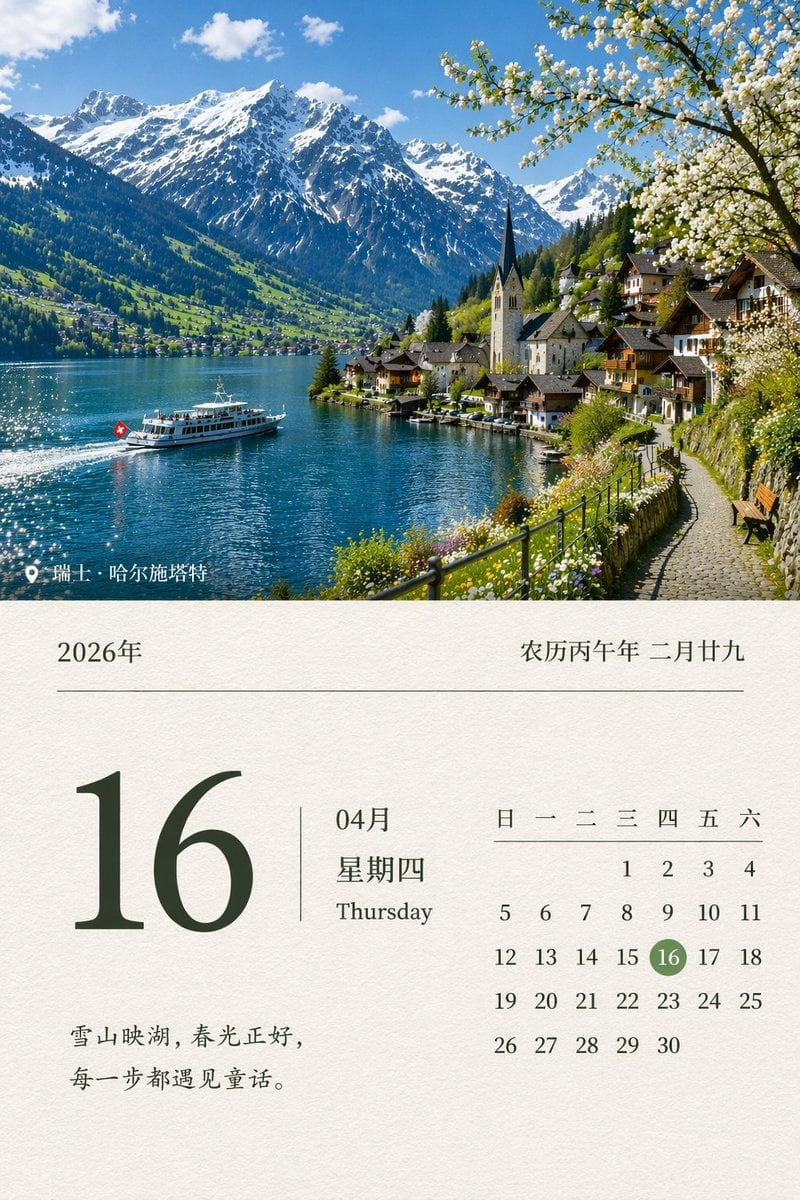
Generates a realistic wall calendar page featuring a customizable scenic photograph on top and a detailed monthly grid below.

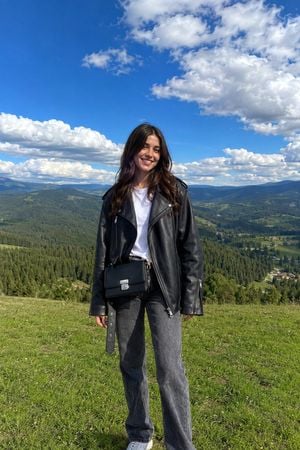
This template uses your photo — add one with the + button.
{ "type": "wall calendar page", "presentation": "physical paper calendar hanging on a white wall with a subtle drop shadow", "layout": { "top_half": { "type": "scenic photograph", "subject": "{argument name=\"scenic location\" default=\"Mount Fuji with cherry blossoms and a lake\"}", "details": "snow-capped mountain, calm blue lake reflection, small wooden boat with two people, pink cherry blossoms framing the top left and right shores, pink flowers on the bottom right shore", "text_overlays": [ { "position": "top right", "text": "{argument name=\"year and month\" default=\"2026 APRIL\"}", "style": "white serif font" }, { "position": "bottom center", "text": "4 / {argument name=\"highlighted date\" default=\"16\"} / {argument name=\"day of week\" default=\"TUESDAY\"}", "style": "large white serif font with drop shadow" } ] }, "bottom_half": { "type": "calendar grid", "header": { "text": "April 2026", "style": "red cursive script font, centered" }, "grid_structure": { "columns": 7, "rows": 5, "column_headers": ["SUN", "MON", "TUE", "WED", "THU", "FRI", "SAT"] }, "grid_content": { "highlighted_cell": { "date": "{argument name=\"highlighted date\" default=\"16\"}", "style": "solid red square background, white text" }, "number_colors": "Sundays in red, Saturdays in blue, weekdays in black, previous month dates in light gray", "notable_features": "AI generation artifact where the number 5 appears twice (end of row 1, start of row 2)" }, "footer": { "text": "{argument name=\"holidays\" default=\"Earth Day (22) Showa Day (29)\"}", "position": "bottom left", "style": "red serif font" } } } }
Edit the prompt in the box under the preview — the template's model and format are already selected — and press Generate. Your version appears right on this page.
Yes. You can change the subject, setting, lighting, mood, format, and available model controls before creating your image.
Opening and editing this template is free. Generating uses credits, shown on the Generate button when you are signed in.
Start with GPT Image 2, which is the model associated with this template. You can compare another compatible model for a different finish.
Follow a topic to a crawlable collection of related PicX Studio templates.