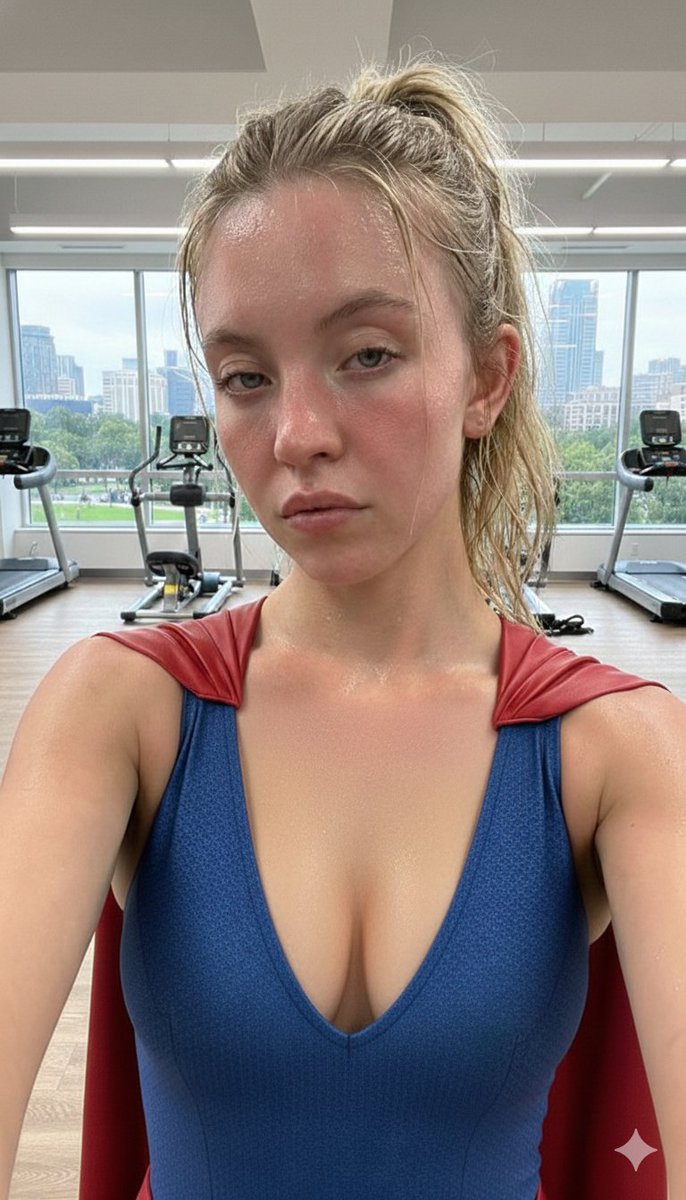
How do I use the Synthetic iPhone Photos Metadata Screenshot template?
Choose the primary action to open PicX Studio with the available template settings. Review the model and format, personalize the creative direction, and generate when ready.
Creates a realistic rebuilt iPhone Photos details screen from a reference screenshot, preserving metadata, map UI, and controls while subtly regenerating the image content. Change the subject, setting, or lighting one variable at a time.
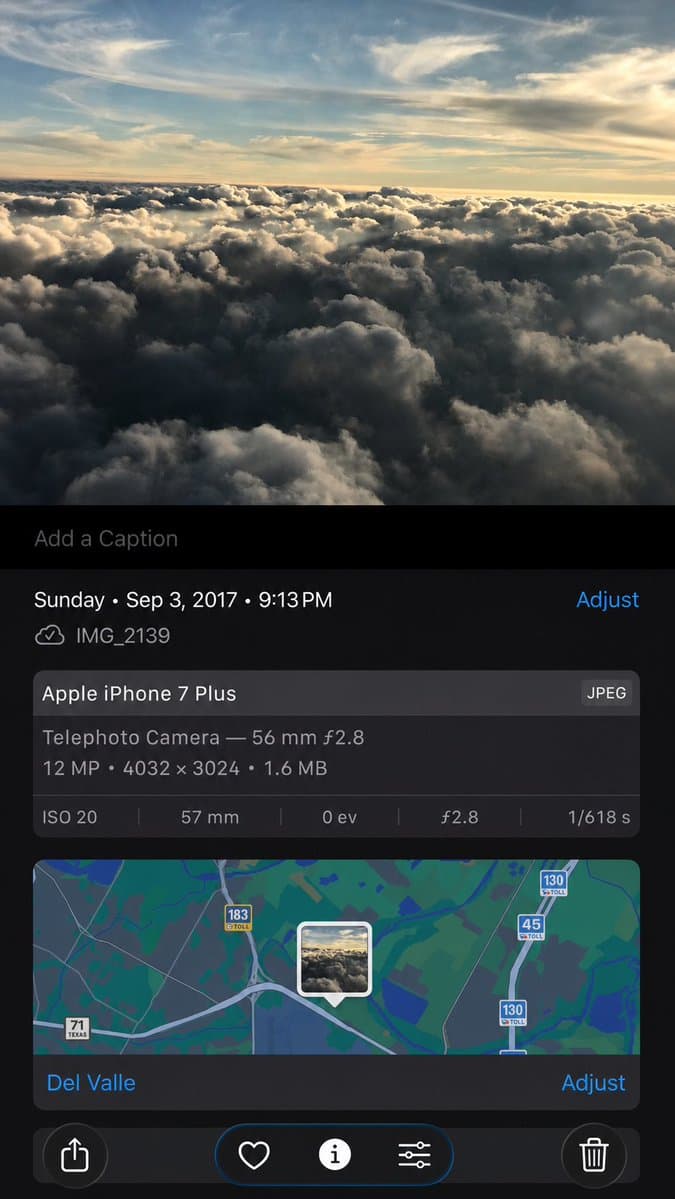
Using the provided iPhone Photos screenshot as the reference, recreate it as a cleaner, high-fidelity synthetic screenshot while preserving the same overall content: the cloud photo, the Photos app metadata panel, the map, date/time, filename, camera details, and bottom controls. Subtly rebuild the cloud image rather than copying it exactly, with a slightly wider-feeling crop, sharper modern rendering, and a more polished dark iOS interface. Keep the visible text and metadata unchanged, including {argument name="date and time" default="Sunday • Sep 3, 2017 • 9:13 PM"}, {argument name="filename" default="IMG_2139"}, {argument name="device name" default="Apple iPhone 7 Plus"}, {argument name="location" default="Del Valle"}, and {argument name="photo specs" default="Telephoto Camera — 56 mm ƒ2.8; 12 MP • 4032 × 3024 • 1.6 MB; ISO 20; 57 mm; 0 ev; ƒ2.8; 1/618 s"}. Include exactly 5 bottom toolbar icons: share, heart, information, adjustment sliders, and trash. Keep the map section with the centered photo-pin thumbnail and the visible road shields 71 Texas, 183 toll, 45 toll, and 130 toll.
Synthetic iPhone Photos Metadata Screenshot needs input media to work. Open it in the studio and these load alongside the prompt — pick whichever ones your chosen model can take.
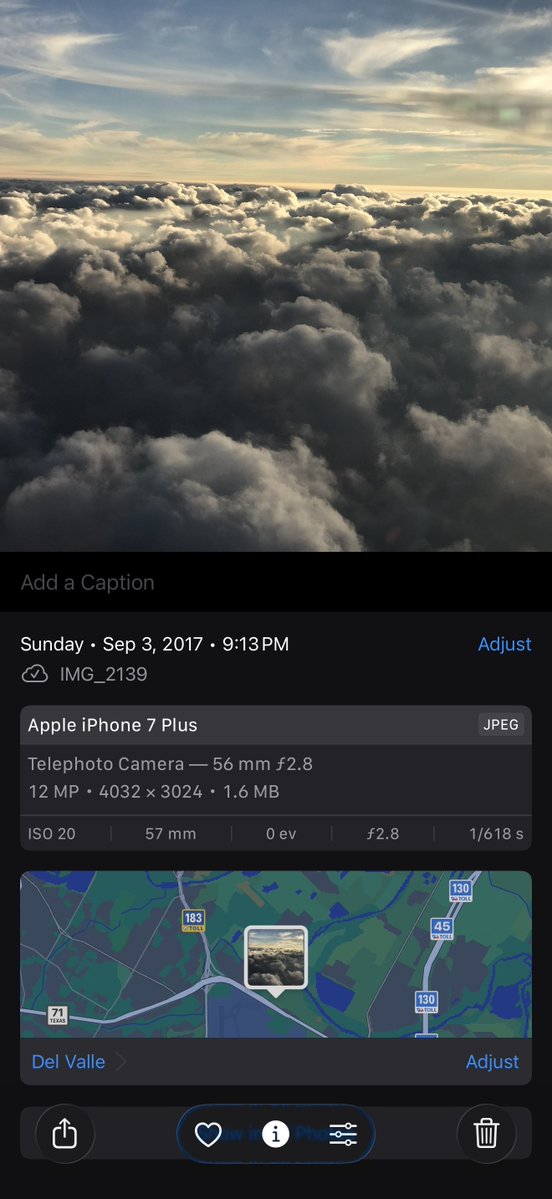
Choose the primary action to open PicX Studio with the available template settings. Review the model and format, personalize the creative direction, and generate when ready.
Yes. You can change the subject, setting, lighting, mood, format, and available model controls before creating your image.
This template is free to open and customize. Generation usage is shown in PicX Studio before you create.
Start with GPT Image 2, which is the model associated with this template. You can compare another compatible model for a different finish.
© 2026 PicX Studio. All rights reserved.

Follow a topic to a crawlable collection of related PicX Studio templates.
43,474 public templates available. Verified via the PicX Studio public templates API; refreshed hourly.


















![Minimalist Flat Vector Travel Poster — Premium minimalist flat-vector travel poster for {argument name="city name" default="[CITY_NAME]"}, 3:4 vertical format.](https://cms-assets.youmind.com/media/1787917359711_3ug846_HQX205cbMAA6F6S-300x400.jpg)



















![Surreal Social Adaptation Character Prompt — キャラクター名:[ ]
ユーザー追加アイデア:[ ]
------------------------
ユーザーが入力した、
・場所
・シチュエーション
・ネタ
・媒体形式
・世界観
・セリフ
・演出案
などは最優先で採用](https://cms-assets.youmind.com/media/1778490964595_lfn19p_HH7NxJ7a0AAoLfA.jpg)




![Macro Product Photography for Floating Food — [Food] Premium food advertising, white seamless background, high key studio lighting, floating stacked composition](https://pbs.twimg.com/media/G-6l3LuXwAAcPza.jpg)


![Realistic Top-Down Portrait of Woman with Strawberry — [인물] 이미지 1, 이미지 2, 비율 {argument name="비율" default="2:3"}, 리얼리스틱
[인물의 포즈 및 표정]
고전적인 패턴의 소파(Sofa) 위에서 옆으로](https://cms-assets.youmind.com/media/1780564654382_w7rxfs_HJcra8RaIAArTtx.jpg)






![Ultra-Realistic Top-Down Flat Lay Photo of a Custom Conference Table — 超広角で撮影した、超リアルなトップダウンのフラットレイ写真です。中心に据えられているのは、[{argument name="テーブルの形" default="X字型"}]の形に精](https://pbs.twimg.com/media/HBCQ89RbgAASdEj.jpg)