
Photoreal Character Reference Sheet
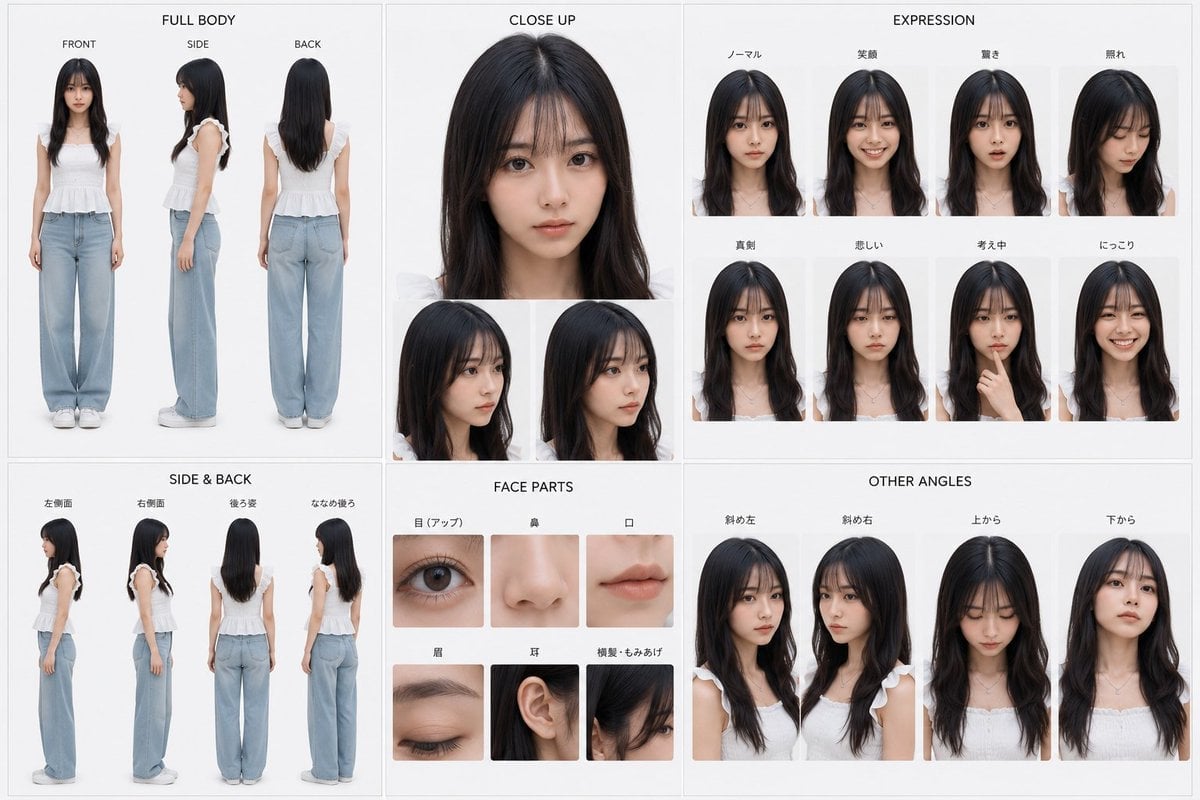
A structured prompt for generating a photorealistic character sheet with full-body views, expressions, face-part details, and alternate angles for identity consistency.
- Prompt included
- Model and format preset
- Premium template
The prompt behind this image
Copy the exact prompt behind Photoreal Character Reference Sheet, or open it in the studio and make it yours.
Goal: Create a clean photorealistic character reference sheet for {argument name="character name" default="a young Japanese woman"}, designed to keep the same face and outfit consistent across future image generation. Canvas: Wide 3:2 landscape sheet, white background, thin light-gray grid lines dividing the page into six panels. Minimal studio lighting, sharp realistic photography, neutral shadows, all panels aligned like a professional model sheet. Subject details: The same young woman appears throughout, with {argument name="hair color" default="long straight black hair with soft bangs"}, fair skin, natural makeup, large dark eyes, delicate nose and lips, slim build, and a calm youthful appearance. She wears {argument name="outfit" default="a white sleeveless ruffled blouse, pale blue wide-leg jeans, and white sneakers"} in all body-view panels. Keep her face, hairstyle, proportions, and clothing identical in every view. Layout and section count: Use exactly 6 labeled sections: 1) FULL BODY, 2) CLOSE UP, 3) EXPRESSION, 4) SIDE & BACK, 5) FACE PARTS, 6) OTHER ANGLES. Section 1, FULL BODY: Top-left large panel. Show exactly 3 full-body standing views labeled FRONT, SIDE, and BACK. The model stands upright with arms relaxed, front view looking at camera, side view in profile, back view showing long hair and outfit from behind. Section 2, CLOSE UP: Top-middle panel. Show exactly 3 close-up portraits: 1 large frontal head-and-shoulders portrait at the top, and 2 smaller three-quarter face close-ups underneath, one angled left and one angled right. All cropped around the head and shoulders. Section 3, EXPRESSION: Top-right large panel. Show exactly 8 bust portraits in a 2-row by 4-column grid. Use the visible expression label set {argument name="expression labels" default="ノーマル, 笑顔, 驚き, 照れ, 真剣, 悲しい, 考え中, にっこり"}. The expressions are: neutral, smiling, surprised open mouth, shy/embarrassed looking down, serious, sad, thinking with finger near chin, and bright cheerful smile. Section 4, SIDE & BACK: Bottom-left panel. Show exactly 4 full-body standing views: left side profile, right side profile, rear view, and rear three-quarter view. Same outfit and shoes, clean white studio background, evenly spaced. Section 5, FACE PARTS: Bottom-middle panel. Show exactly 6 square detail crops in a 2-row by 3-column grid: eye close-up, nose close-up, mouth close-up, eyebrow/closed-eye detail, ear close-up, and hair texture with sideburn/bangs detail. Use small simple labels above each crop. Section 6, OTHER ANGLES: Bottom-right panel. Show exactly 4 bust portraits: diagonal left three-quarter angle, diagonal right three-quarter angle, view from above with eyes lowered, and view from below with chin slightly raised. Use the same lighting and realistic facial identity. Visual style: Photorealistic Japanese idol/model reference sheet, high-resolution studio photography, soft even light, white and pale gray palette, crisp thin dividers, black uppercase English section headings, small labels above each image. No watermark, no logos, no extra people, no decorative background, no inconsistent face changes.
How to use Photoreal Character Reference Sheet in 3 steps
- 1Upload ImagePNG, JPG or paste
Add your photo
Upload the photo the template builds on. The prompt, model and format are already set.
- 2…a portrait of your subject in softgolden-hour light, 85mm…
Personalize
Edit the subject and creative details for your destination.
- 3Generate
Generate
Press Generate — your image is created in PicX Studio, so you can compare it with the original and refine one variable at a time.
More like this
Templates with the same subject, style or setup. Open one to see its prompt.
Dancer Character - Four View Reference Sheet
Movement Sheet - Dance Reference (Seedance 2.0)
Gray Studio Character Reference Sheet
Anime Character Sheet Reference Prompt
Ciao Nova Character Reference Sheet
Photoreal Village Lanterns Minecraft Scene
Photoreal Snow Biome Name Tag UI
Photoreal Selfie Minecraft Block World
Photoreal Selfie Minecraft Village Ghast UI
Tactical Machine Gun Reference Sheet
Gupta Palace Environment Reference Sheet
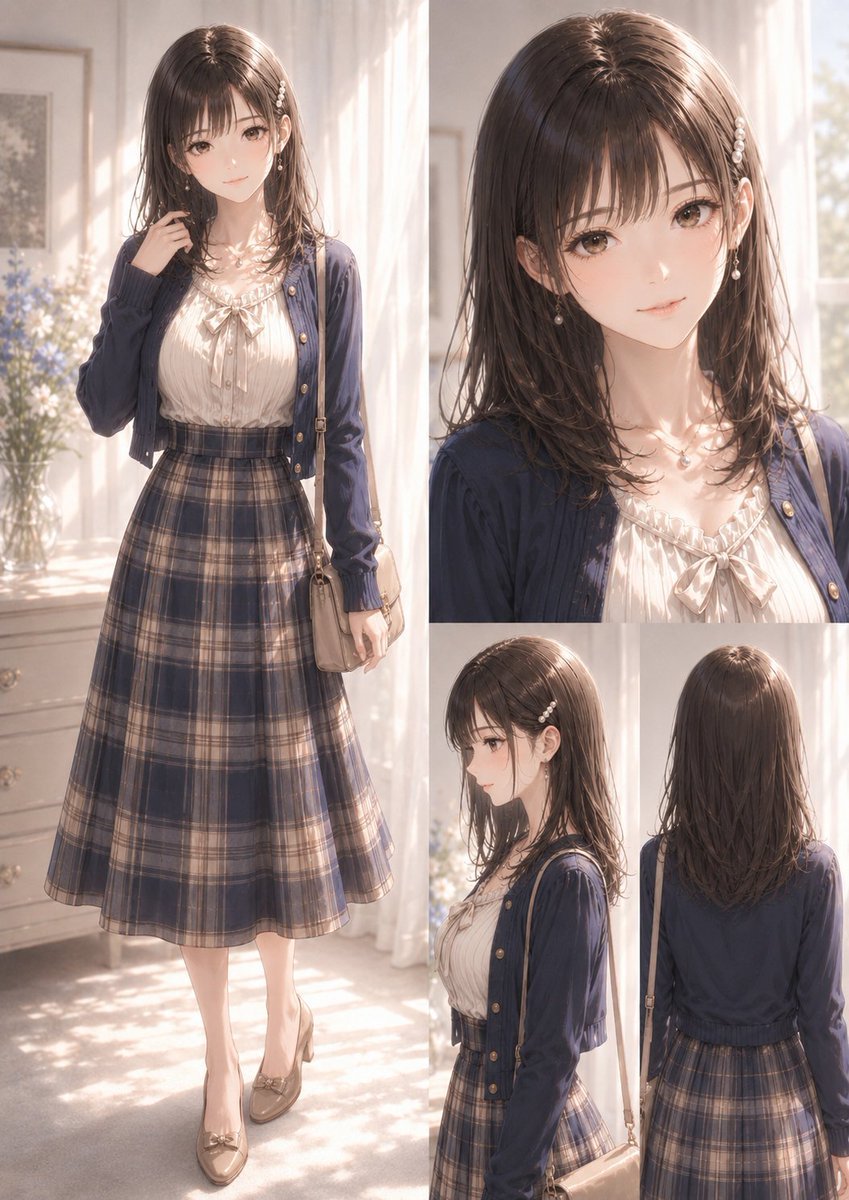
Elegant Anime Fashion Reference Sheet
Make it yours
Photoreal Character Reference Sheet works as-is. These are the safest ways to change it without losing the look.
Change one field
Copy a single group, rewrite it, and generate again so you can see what that field is doing.
Keep the frame, change the subject
Hold the composition and light of Photoreal Character Reference Sheet, then swap wardrobe, props or the person for a new take.
| If the result… | Why | Fix |
|---|---|---|
| The result drifts from the preview | Too many fields changed at once. | Reuse Photoreal Character Reference Sheet as-is first, then change one group — subject, light, or setting. |
| The model over-stylizes the scene | The prose prompt leaves finish and camera underspecified. | Add one camera or lighting sentence and stay on GPT Image 2. |
More GPT Image 2 templates
Other prompts made for GPT Image 2.

Realistic Portrait of Woman and Deer

The Vista Modular Condo Poster

AI Model Routing Comparison Infographic

2.5D Anime Art Board

Isometric Productivity Desk Scene

New York Double Exposure Poster

Four-Panel AI Landscape Comparison

Japanese Tatami Lifestyle Magazine Cover

NESCAFÉ Coffee Map Poster
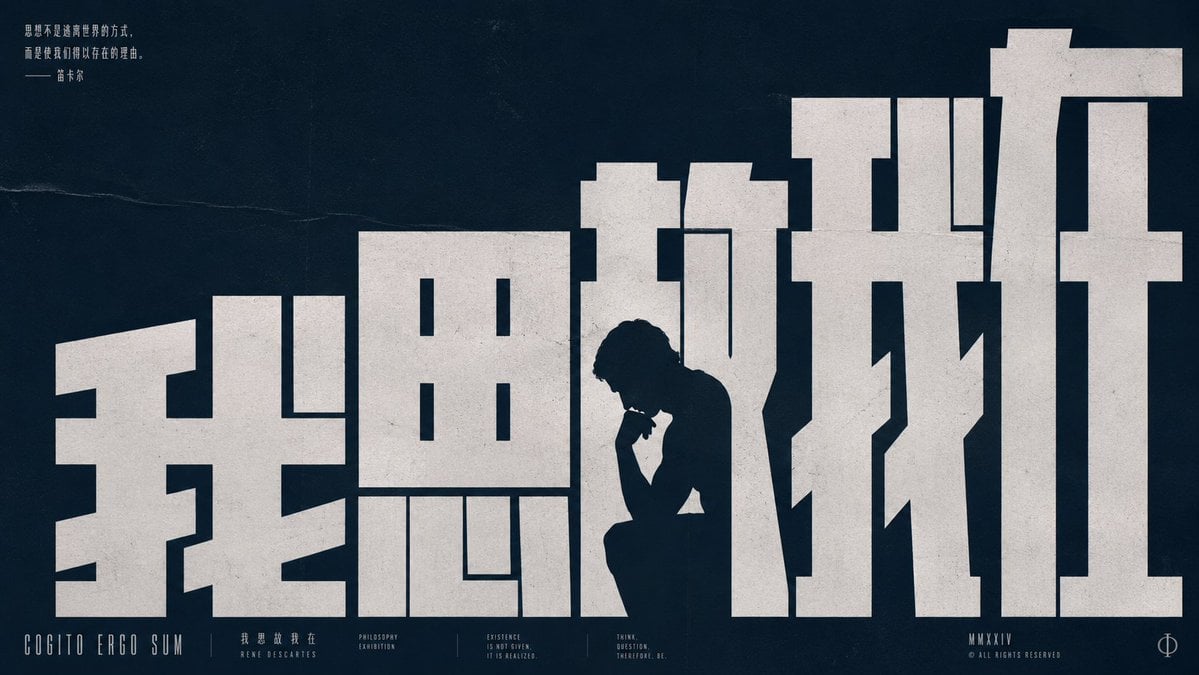
Brutalist Cogito Chinese Typography Poster
More image prompts
Fresh picks from across the catalog.
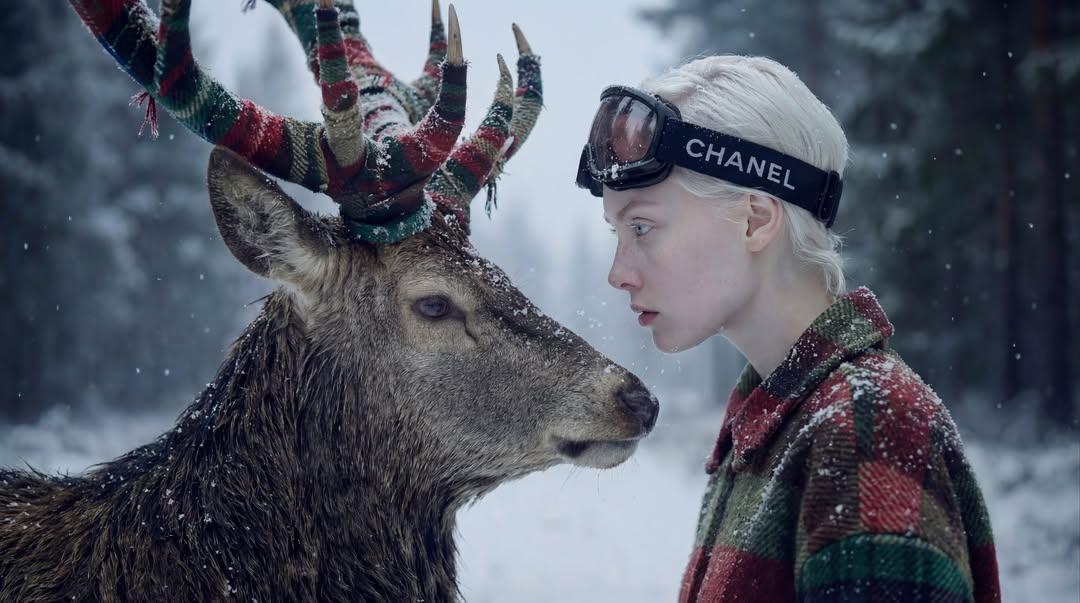
Hyper-Realistic Winter Fantasy Portrait Prompt
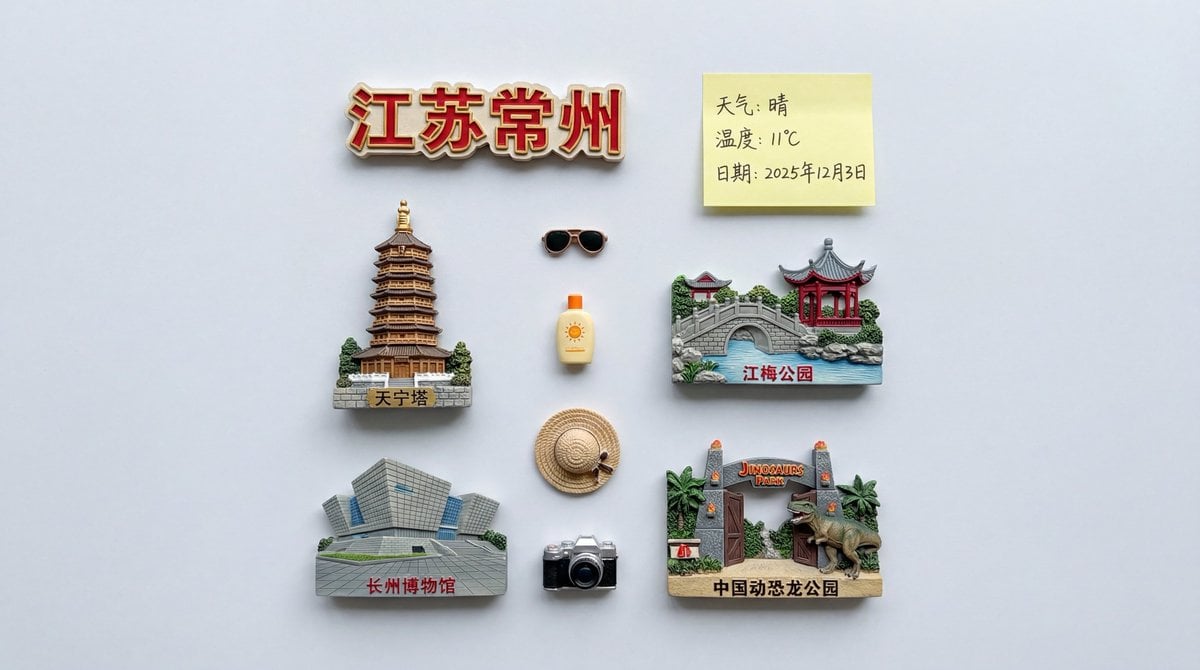
Nano Banana Pro Prompt for Nostalgic Scene
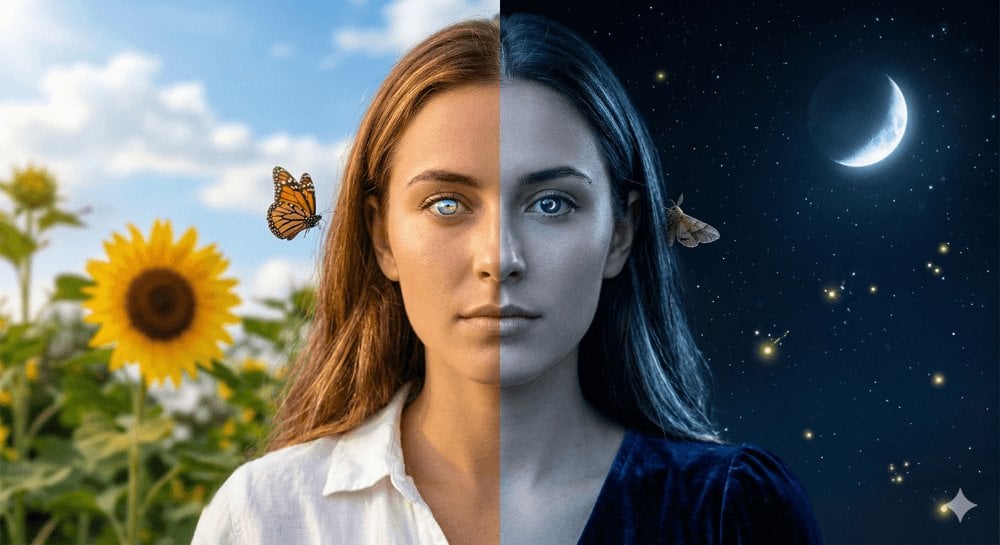
Day and Night Split Portrait Prompt for Nano Banana Pro
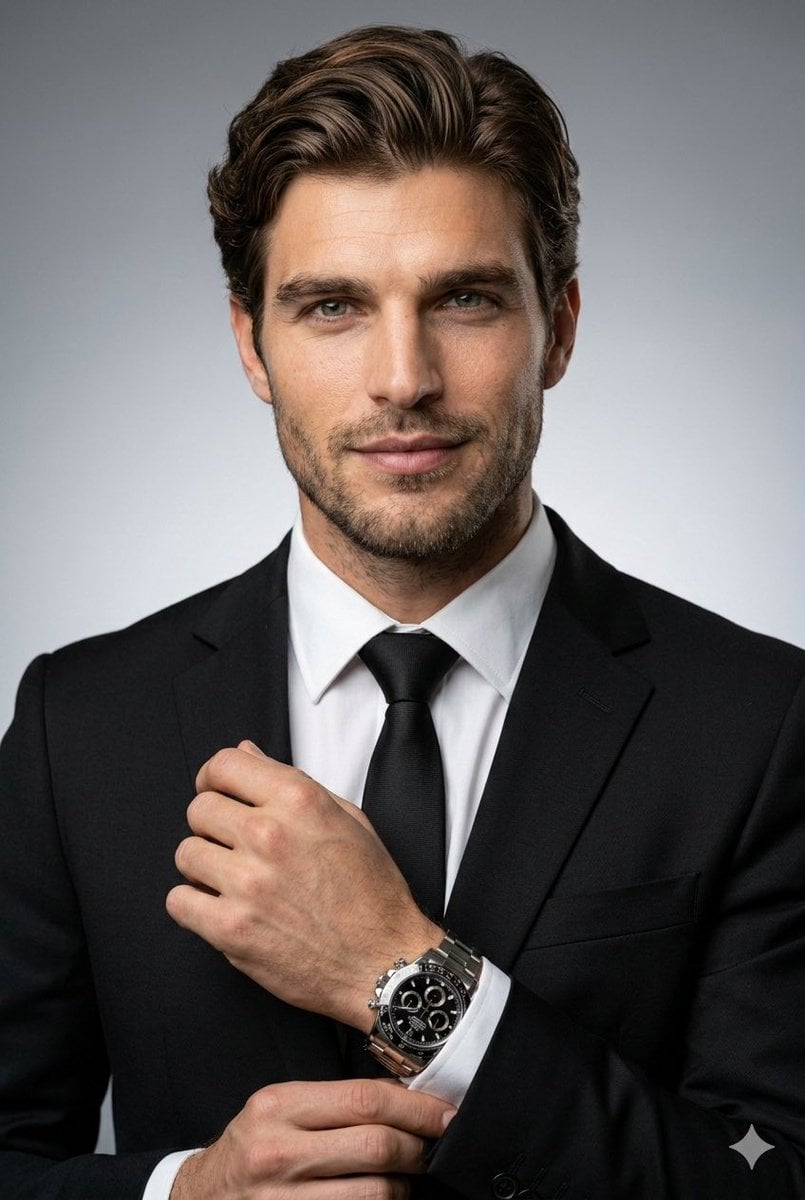
Ultra-Realistic Corporate Headshot
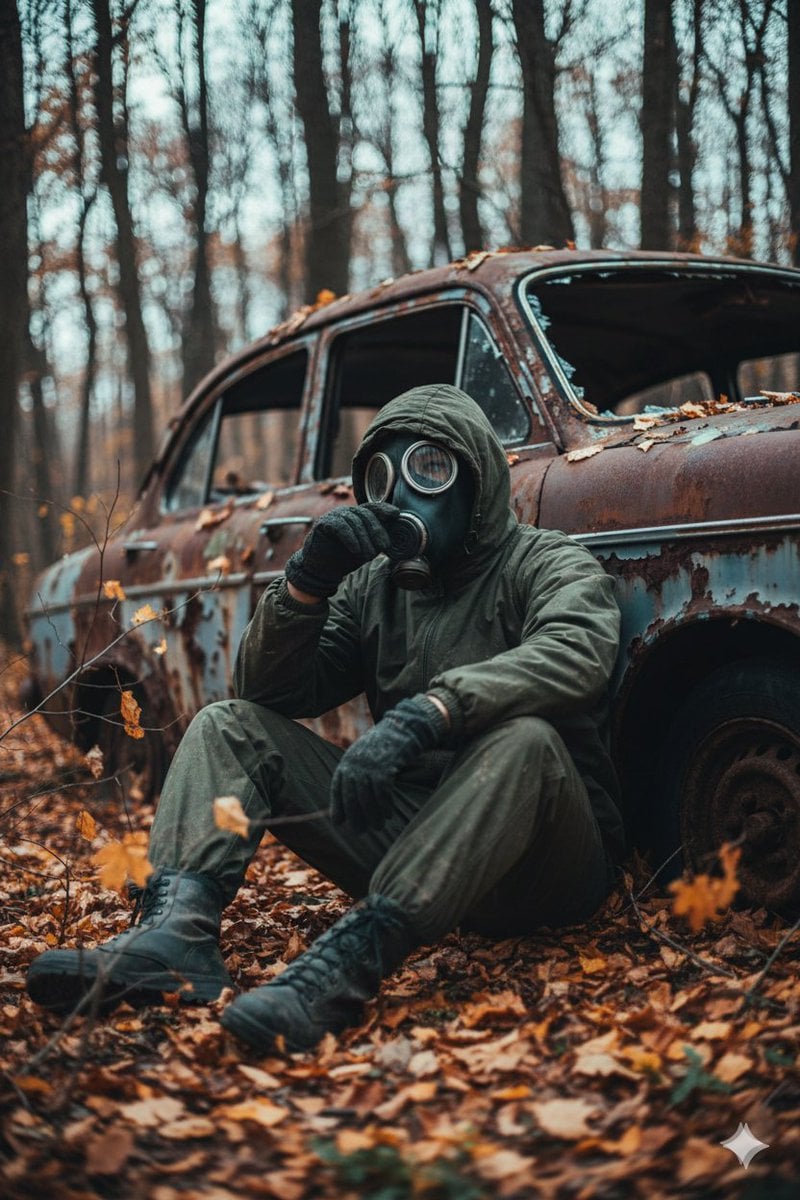
Cinematic Post-Apocalyptic Scene Generation Prompt
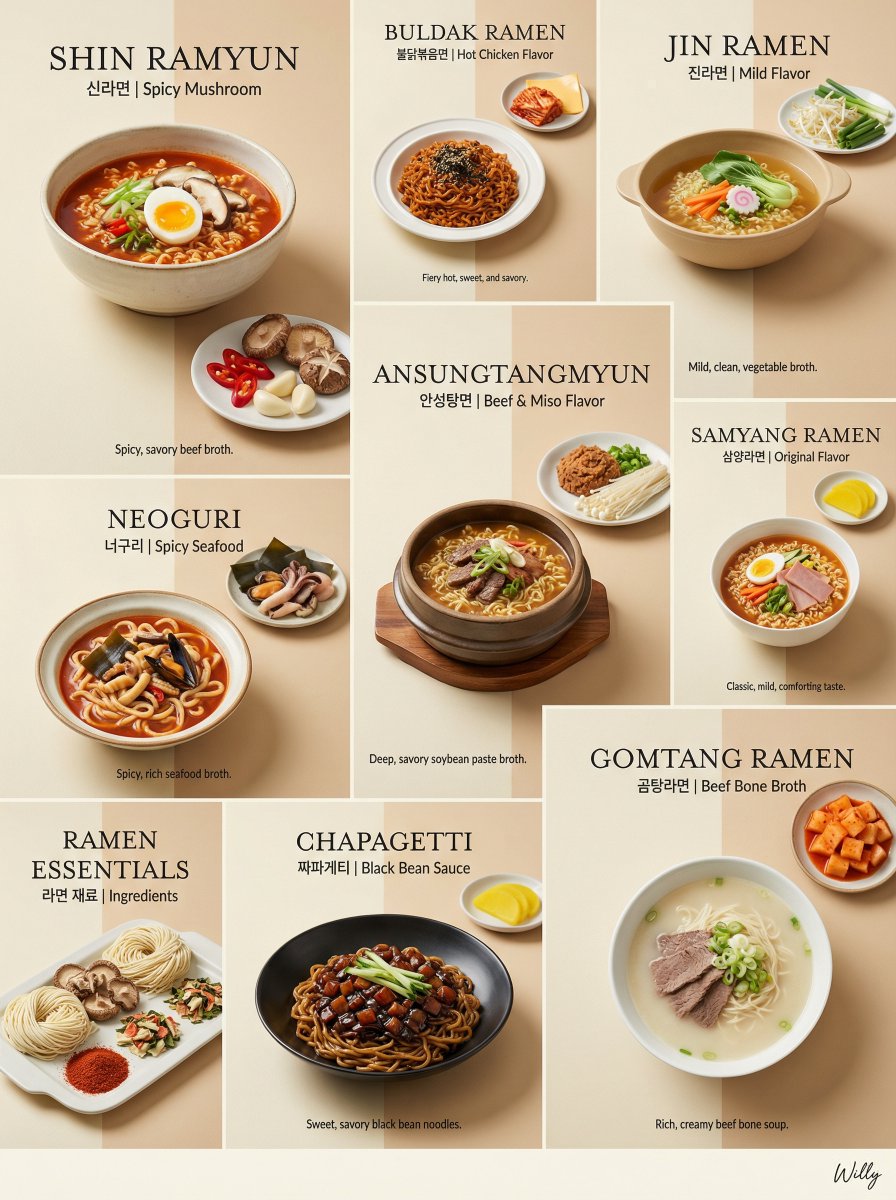
Luxury Minimalist Bento Grid of Korean Ramen Collection
Pixel Art Movie Poster Prompt
Dramatic Photorealistic Portrait with Lens Emphasis

2D to 3D Illustration Conversion Prompt
Cinematic Moody Street Photography Prompt
Browse template categories
Photoreal Character Reference Sheet questions
How do I use the Photoreal Character Reference Sheet template?
Add your photo if the template asks for one, edit the prompt if you like — the template's model and format are already selected — and press Generate. Your version opens in PicX Studio.
Can I customize the Photoreal Character Reference Sheet template?
Yes. You can change the subject, setting, lighting, mood, format, and available model controls before creating your image.
Is the Photoreal Character Reference Sheet template free?
Opening and editing this template is free. Generating uses credits, shown on the Generate button when you are signed in.
Which AI model should I use?
Start with GPT Image 2, which is the model associated with this template. You can compare another compatible model for a different finish.
Looking for something else? Browse all templates.

Your photo, any look
Thousands of ready templates for every top image and video model, from one credit balance.