
Voxel AI Website Building Infographic
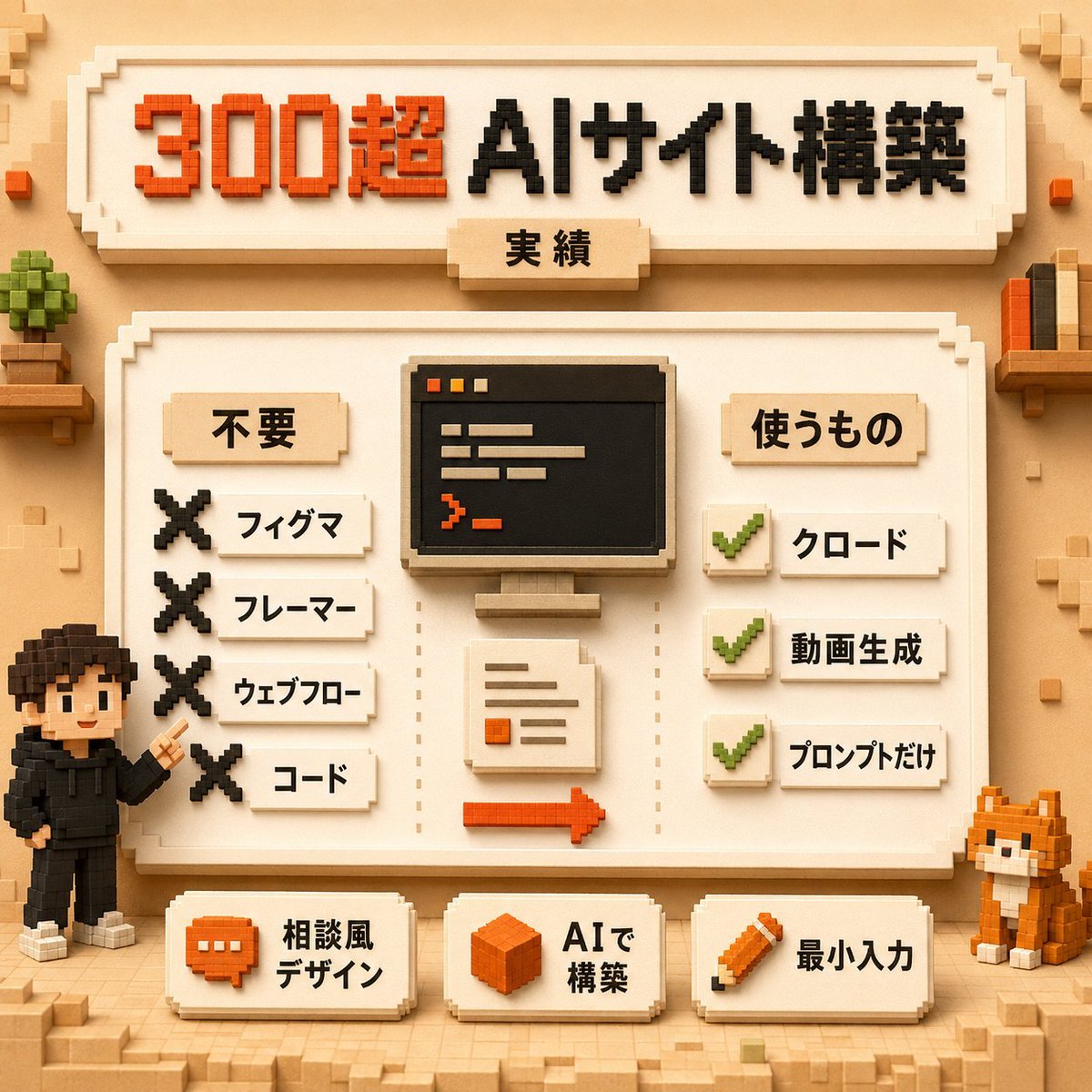
A square Japanese voxel-style infographic showing an AI website-building workflow with rejected tools, required tools, and minimal-input feature cards.
- Prompt included
- Model and format preset
- Premium template
The prompt behind this image
Copy the exact prompt behind Voxel AI Website Building Infographic, or open it in the studio and make it yours.
Goal: Create a square voxel-art Japanese infographic poster about building many AI websites with minimal tools, using a warm beige Minecraft-like block aesthetic. Canvas: 1:1 square composition, 768x768 style, soft studio lighting, tan paper-and-wood background, subtle voxel blocks in the corners, crisp isometric pixel/voxel edges, shallow shadows, no photorealism. Main headline area: At the top, place a large cream beveled signboard with blocky Japanese text reading {argument name="headline text" default="300超 AIサイト構築"}. Make “300超” bright orange-red and “AIサイト構築” black. Under the headline, attach a small centered beige tab label reading {argument name="subtitle text" default="実績"}. Use thick extruded voxel lettering. Central layout: Below the headline, create one large cream framed panel with a decorative stepped border. Inside it, divide the content into three vertical zones: left checklist, center workflow illustration, right checklist. Use dotted vertical divider lines between the zones. Left checklist: Title label reads {argument name="left section title" default="不要"}. Show exactly 4 rejected items, each with a large black voxel X icon on the left and a small cream label on the right. The 4 labels, top to bottom, are: 「フィグマ」, 「フレーマー」, 「ウェブフロー」, 「コード」. Center workflow illustration: Show exactly 3 main elements stacked vertically: 1) a black computer monitor with a simple code/editor window using orange and beige lines, 2) a cream document sheet with a few text lines and one orange square, 3) an orange right-pointing arrow along the bottom. Keep everything blocky and voxel-built. Right checklist: Title label reads {argument name="right section title" default="使うもの"}. Show exactly 3 approved items, each with a green voxel checkmark icon on a cream square and a small cream label to the right. The 3 labels, top to bottom, are: 「クロード」, 「動画生成」, 「プロンプトだけ」. Bottom row: Place exactly 3 separate cream beveled cards across the bottom of the main panel. Card 1 has an orange chat bubble icon and text 「相談風 デザイン」. Card 2 has an orange cube icon and text 「AIで 構築」. Card 3 has an orange pencil icon and text 「最小入力」. Characters and decorative objects: Add exactly 2 voxel characters/mascots: on the lower left, a small black-haired person in a black hoodie pointing upward toward the panel; on the lower right, an orange-and-white voxel cat sitting beside the panel. Add a small potted blocky plant on a shelf at upper left and a small shelf with upright books at upper right. Include scattered tiny beige and orange cubes for decoration, but keep the poster clean and readable. Visual style: High-quality 3D voxel diorama, blocky extruded Japanese typography, warm cream, tan, orange, black, and green palette, soft ambient occlusion, orthographic front view, friendly educational tech infographic, neatly aligned labels, crisp readable Japanese text. Constraints: Use exactly 4 X-mark rejected items, exactly 3 checkmark approved items, exactly 3 bottom feature cards, and exactly 2 mascot figures. Do not add extra sections, extra checklists, logos, watermarks, or English text.
How to use Voxel AI Website Building Infographic in 3 steps
- 1Upload ImagePNG, JPG or paste
Add your photo
Upload the photo the template builds on. The prompt, model and format are already set.
- 2…a portrait of your subject in softgolden-hour light, 85mm…
Personalize
Edit the subject and creative details for your destination.
- 3Generate
Generate
Press Generate — your image is created in PicX Studio, so you can compare it with the original and refine one variable at a time.
More like this
Templates with the same subject, style or setup. Open one to see its prompt.
Hyper-Realistic Minecraft Cows Grazing

Hyper-Realistic Minecraft POV Portrait
Minecraft Homage Illustrious Style
Minecraft Voxel Pixel Art Aesthetic System

Minecraft Next-Gen Voxel World Screenshot

Minecraft Japanese Research Lab Exploration

Japan Travel Brochure Poster
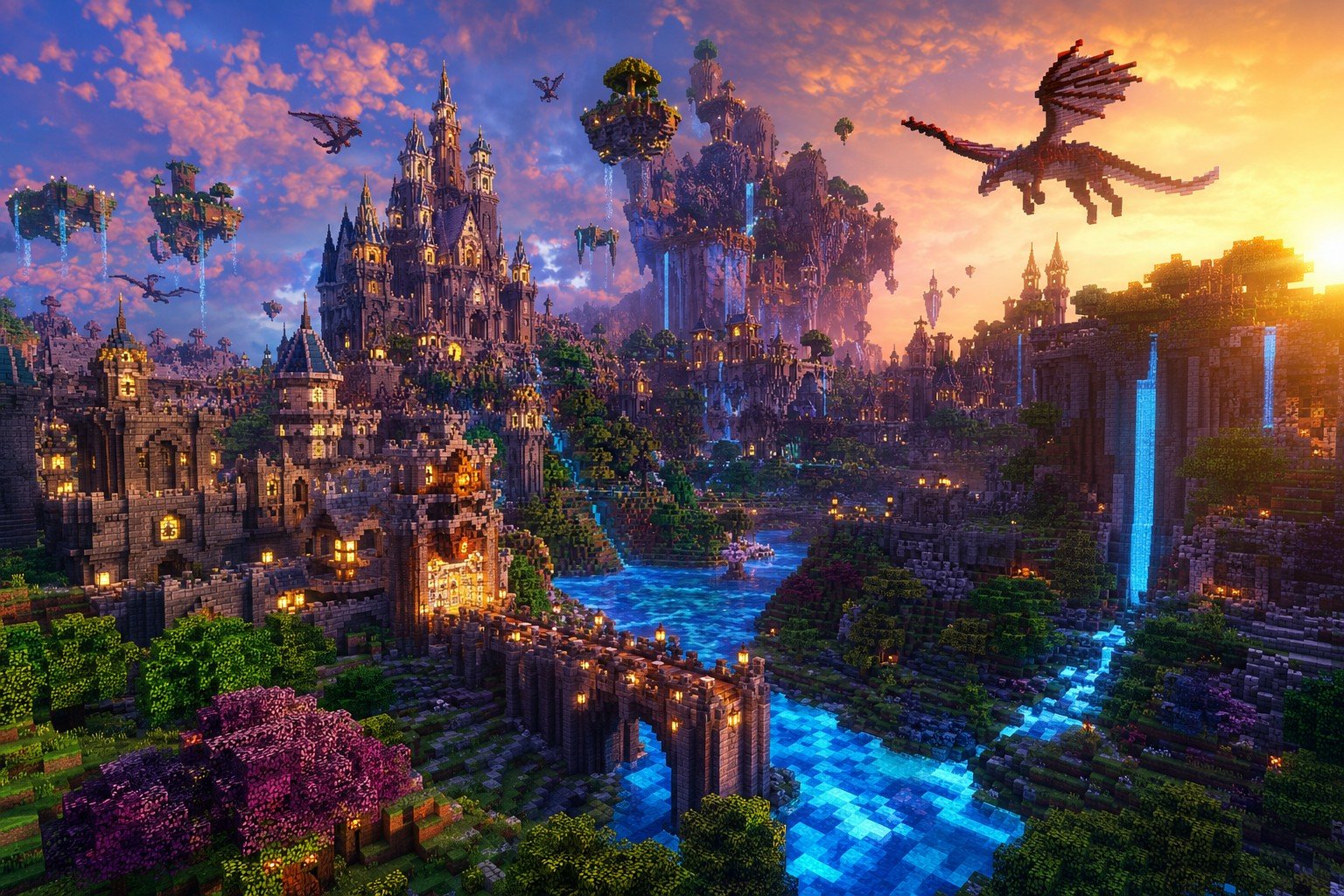
Minecraft Fantasy Kingdom Voxel Landscape

Minecraft Voxel Character Village Portrait

Isometric Process Educational Diorama

Isometric Vehicle Teardown Infographic Template
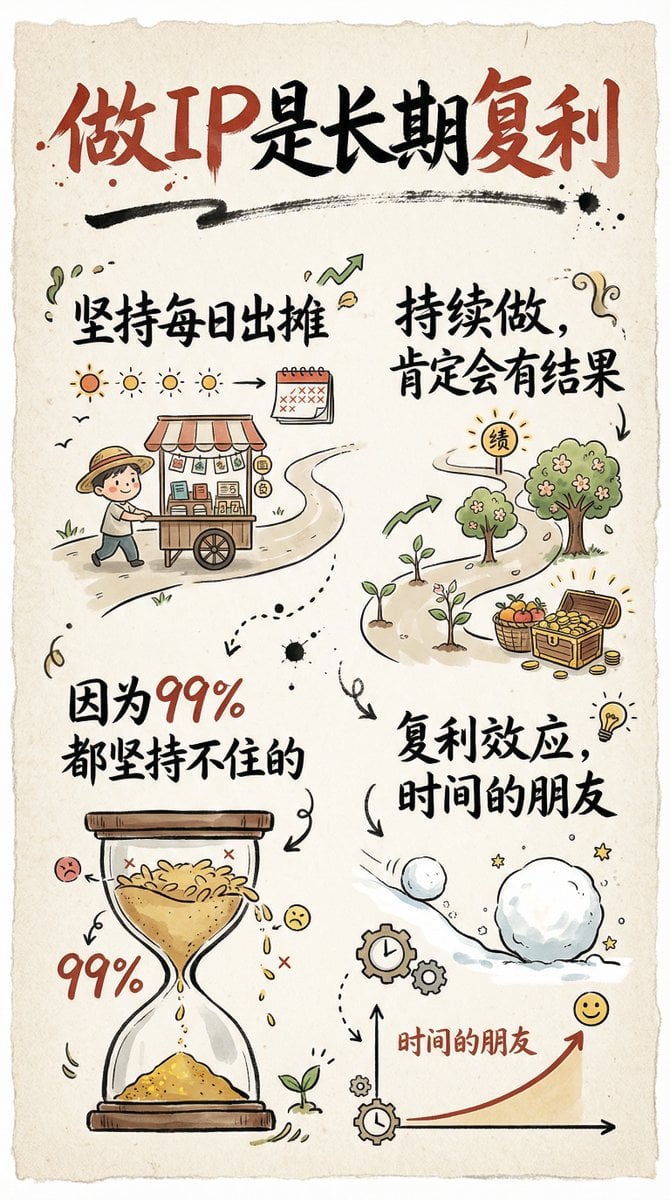
Hand-drawn infographic card about long-term IP building
Make it yours
Voxel AI Website Building Infographic works as-is. These are the safest ways to change it without losing the look.
Change one field
Copy a single group, rewrite it, and generate again so you can see what that field is doing.
Keep the frame, change the subject
Hold the composition and light of Voxel AI Website Building Infographic, then swap wardrobe, props or the person for a new take.
| If the result… | Why | Fix |
|---|---|---|
| The result drifts from the preview | Too many fields changed at once. | Reuse Voxel AI Website Building Infographic as-is first, then change one group — subject, light, or setting. |
| The model over-stylizes the scene | The prose prompt leaves finish and camera underspecified. | Add one camera or lighting sentence and stay on GPT Image 2. |
More GPT Image 2 templates
Other prompts made for GPT Image 2.

Six VTuber Japanese Logo Sheet

Realistic Portrait of Woman and Deer

The Vista Modular Condo Poster

AI Model Routing Comparison Infographic

2.5D Anime Art Board

Isometric Productivity Desk Scene

New York Double Exposure Poster

Four-Panel AI Landscape Comparison

Japanese Tatami Lifestyle Magazine Cover

NESCAFÉ Coffee Map Poster
More image prompts
Fresh picks from across the catalog.

Chubby Woman Mirror Selfie in Christmas Pajamas
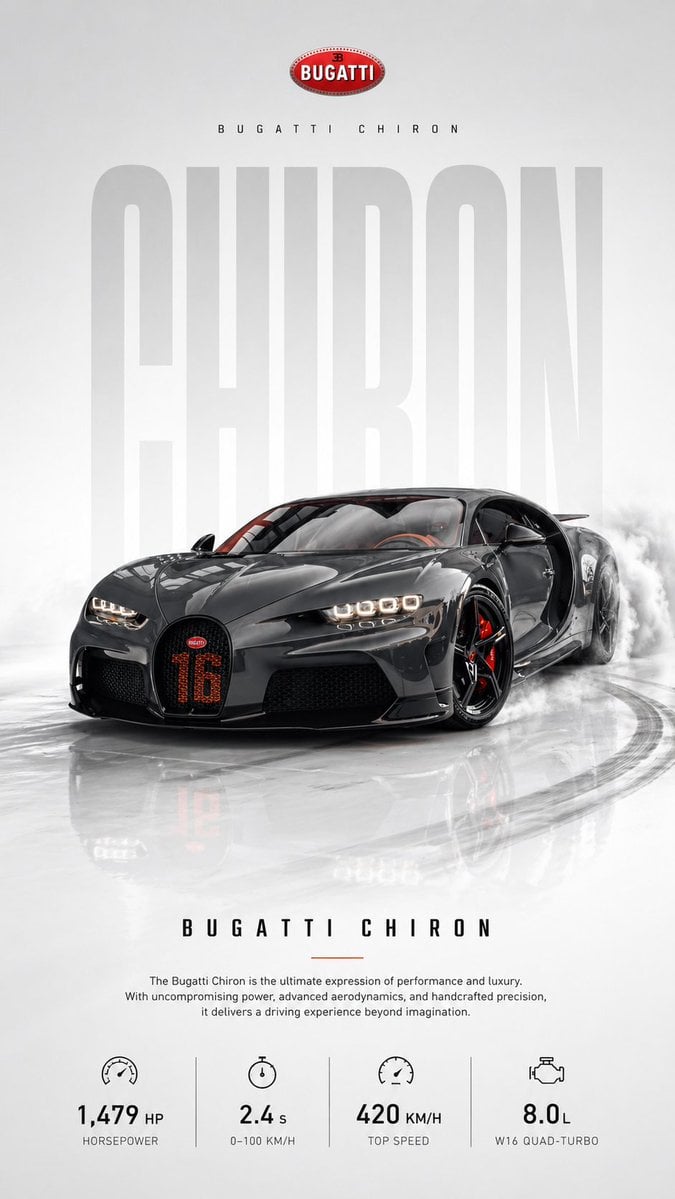
Automotive poster transformation prompt

Conceptual Chinese Editorial Poster

Database Mascot Boxing Match
Black and White Hand-Drawn Eye Pattern
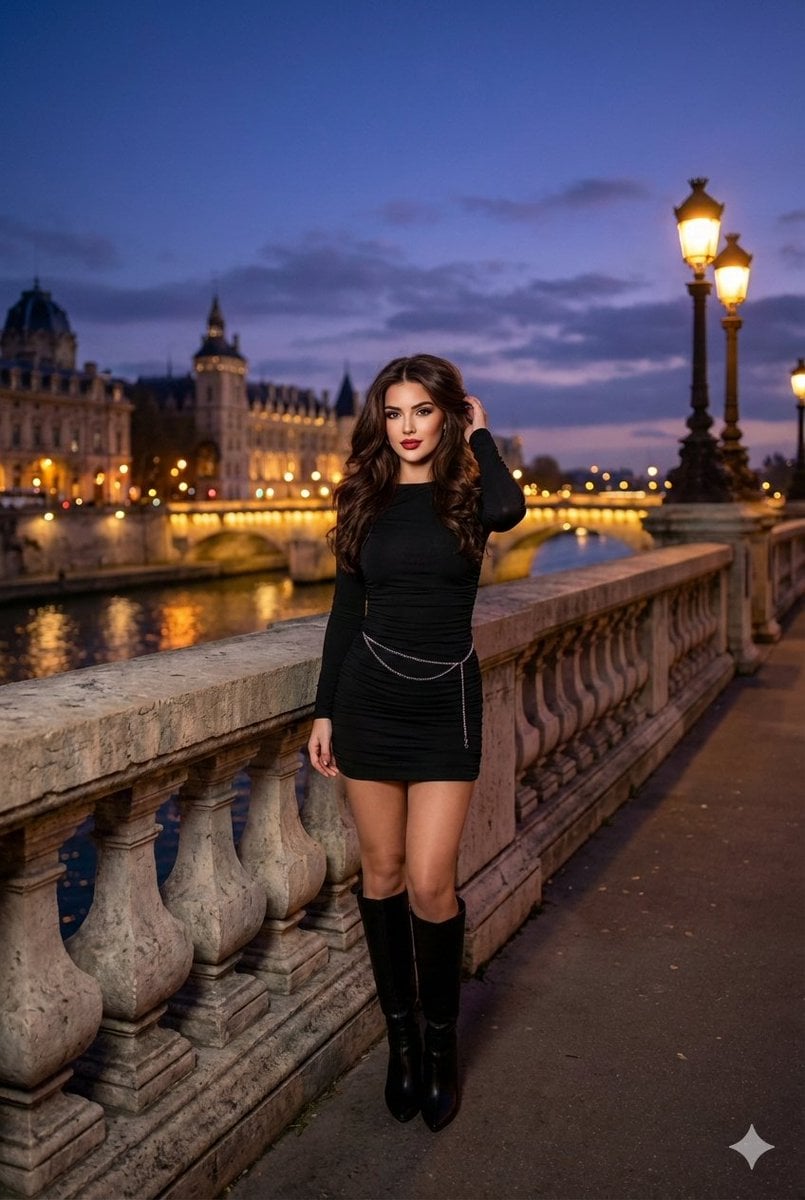
Evening cityscape bridge fashion portrait
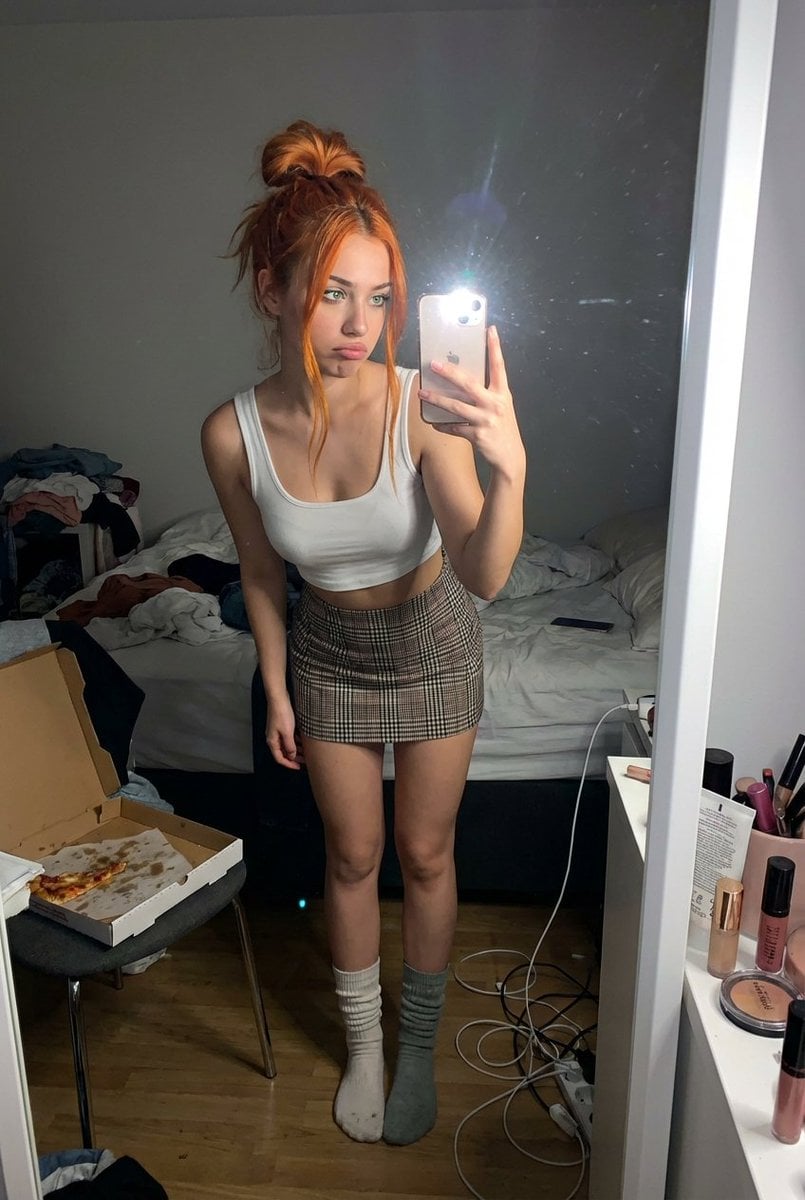
Structured Prompt for Messy Bedroom Mirror Selfie (Alev Character, Raw Flash)

Moody High-Contrast Portrait with Acoustic Guitar
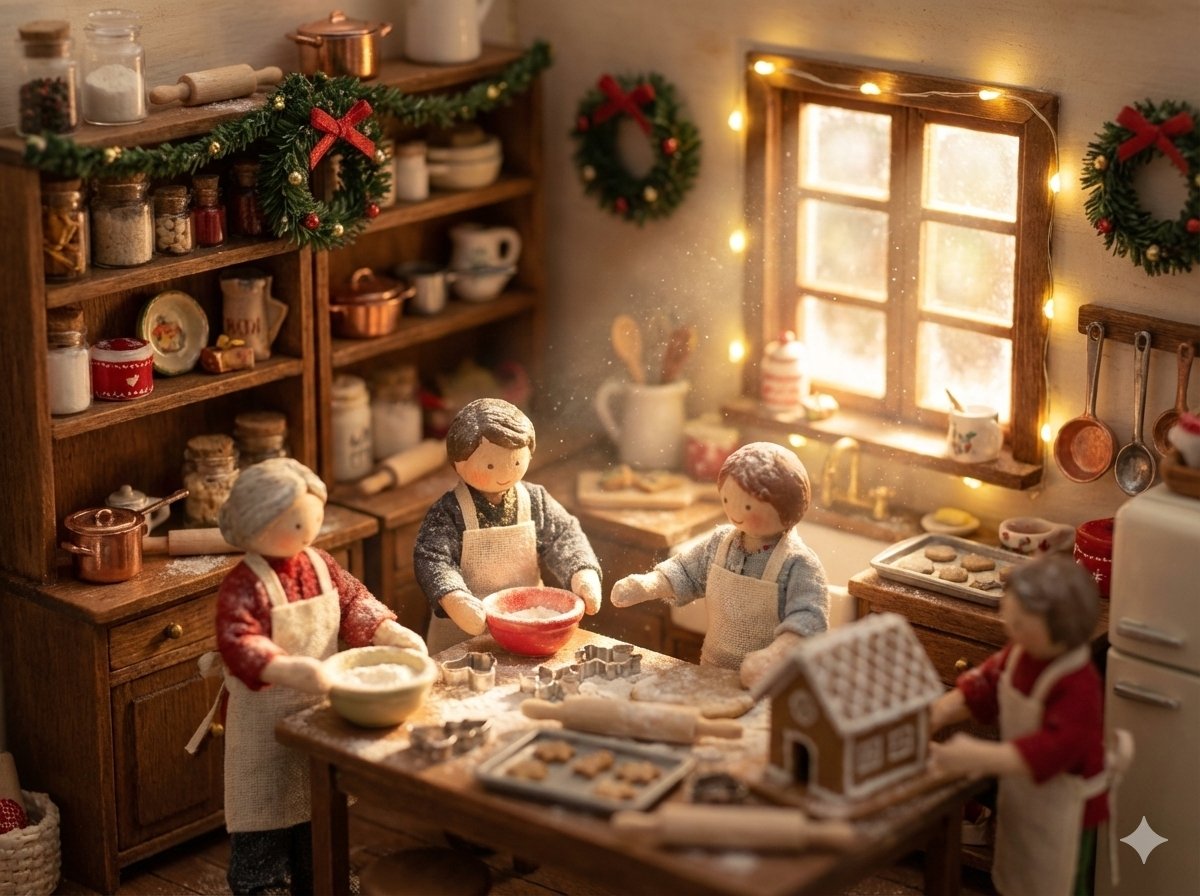
Miniature Diorama Prompt (Tilt-Shift)

Sequential Motion Sports Poster
Browse template categories
Voxel AI Website Building Infographic questions
How do I use the Voxel AI Website Building Infographic template?
Add your photo if the template asks for one, edit the prompt if you like — the template's model and format are already selected — and press Generate. Your version opens in PicX Studio.
Can I customize the Voxel AI Website Building Infographic template?
Yes. You can change the subject, setting, lighting, mood, format, and available model controls before creating your image.
Is the Voxel AI Website Building Infographic template free?
Opening and editing this template is free. Generating uses credits, shown on the Generate button when you are signed in.
Which AI model should I use?
Start with GPT Image 2, which is the model associated with this template. You can compare another compatible model for a different finish.
Looking for something else? Browse all templates.

Your photo, any look
Thousands of ready templates for every top image and video model, from one credit balance.