
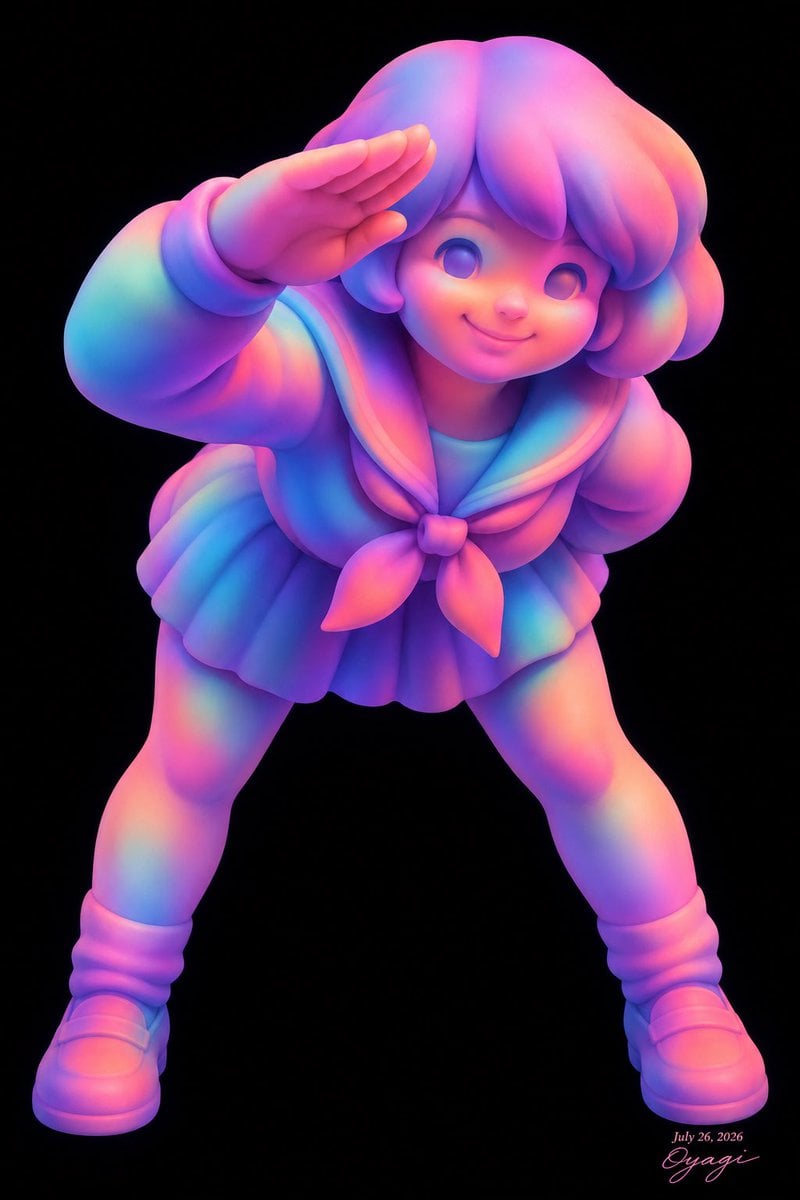
Neon Chibi Sailor Salute
A prompt for generating a glowing 3D kawaii sailor-uniform chibi character in a playful salute pose on a black background.
- Prompt included
- Model and format preset
- Free template
The prompt behind this image
Copy the exact prompt behind Neon Chibi Sailor Salute, or open it in the studio and make it yours.
Create a full-body 3D kawaii chibi anime figure of {argument name="character name" default="a cheerful schoolgirl"} posed dynamically against a pure black background. The character leans forward toward the viewer with legs spread wide, one hand raised horizontally across the forehead in a playful salute or sun-shading gesture, the other arm bent back and partly hidden. She has a large rounded head, oversized blank glossy eyes with no pupils, a tiny nose, a soft smiling mouth, rounded cheeks, and thick fluffy bobbed hair with large puffy bangs and curled side sections. Dress her in a classic sailor-style school uniform with exactly 5 main visible outfit pieces: a rounded long-sleeve sailor top, a wide sailor collar, a tied front neckerchief bow with two hanging tails, a short pleated skirt, and bulky rounded shoes with scrunched leg warmers. Use a smooth toy-like clay/resin material with soft subsurface scattering and no hard outlines. Color the entire figure in an iridescent neon gradient palette of {argument name="color palette" default="hot pink, magenta, violet, electric blue, cyan, and peach"}, as if lit by colorful studio gels, with glossy soft highlights and gentle ambient occlusion in folds and under the skirt. Composition should be vertical portrait, centered, cropped close but showing the entire body from hair to shoes, viewed slightly from above so the salute hand is prominent. Lighting is dramatic and luminous, with the figure glowing vividly against the black void. Add a small elegant handwritten signature and date in the bottom-right corner reading {argument name="signature text" default="July 26, 2026 Oyagi"}. Avoid extra characters, props, scenery, text, pupils, realistic skin texture, or harsh shadows.
How to use Neon Chibi Sailor Salute in 3 steps
- 1Upload ImagePNG, JPG or paste
Add your photo
Upload the photo the template builds on. The prompt, model and format are already set.
- 2…a portrait of your subject in softgolden-hour light, 85mm…
Personalize
Edit the subject and creative details for your destination.
- 3Generate
Generate
Press Generate — your image is created in PicX Studio, so you can compare it with the original and refine one variable at a time.
More like this
Templates with the same subject, style or setup. Open one to see its prompt.
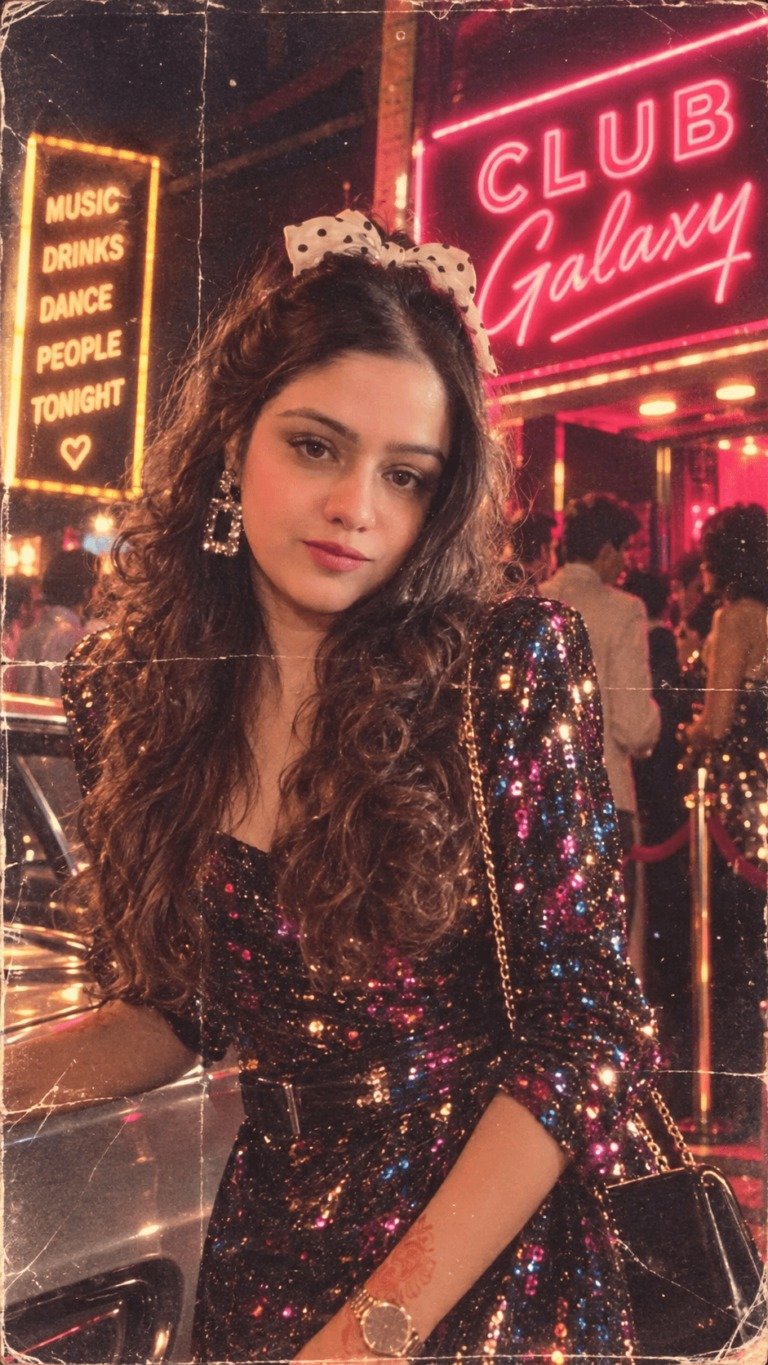
80s Neon Disco Night
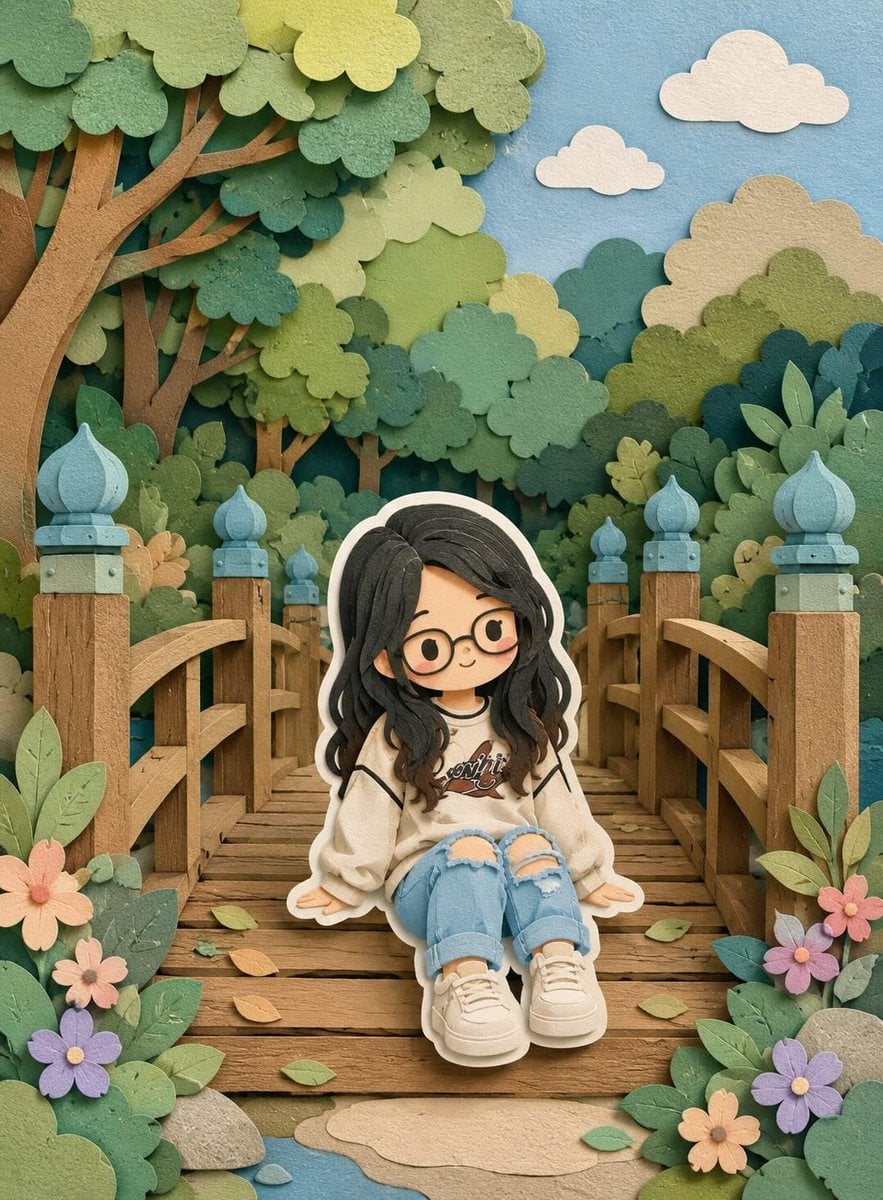
Cute Layered Paper Cut Chibi Girl
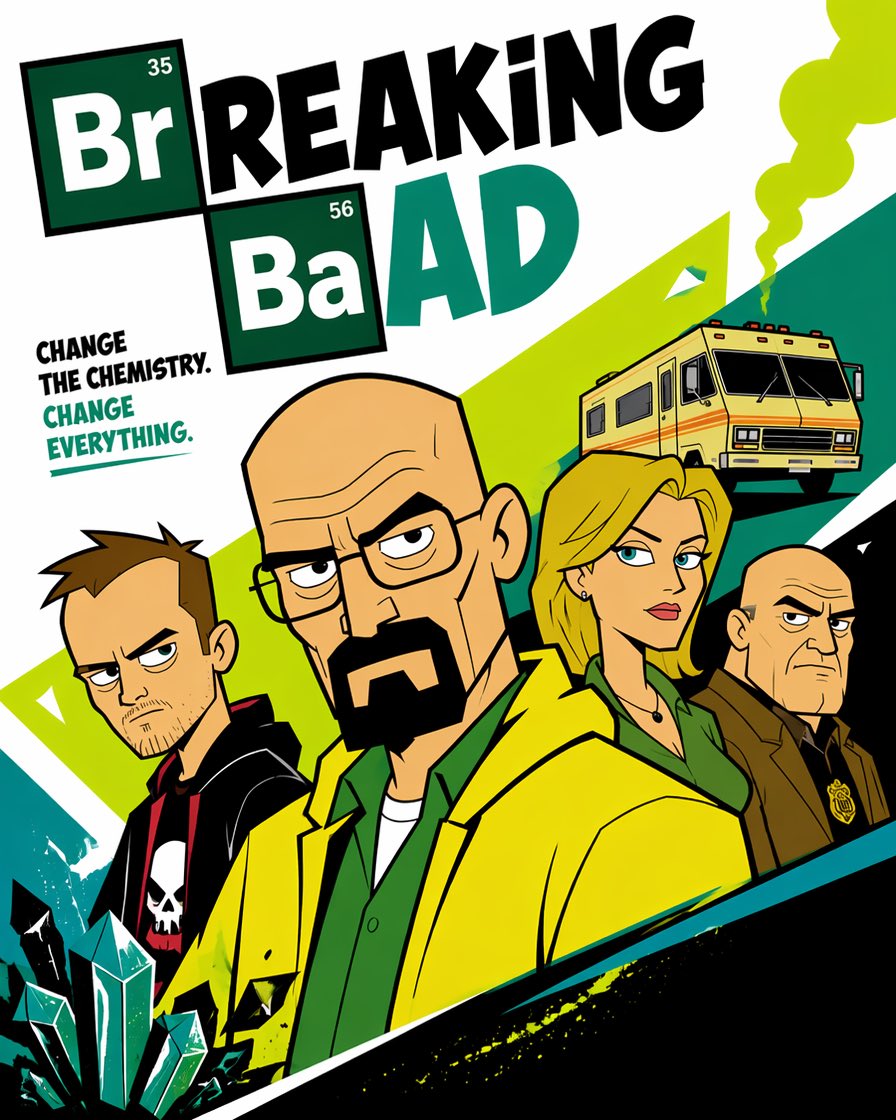
Cartoon TV Show Poster Pack
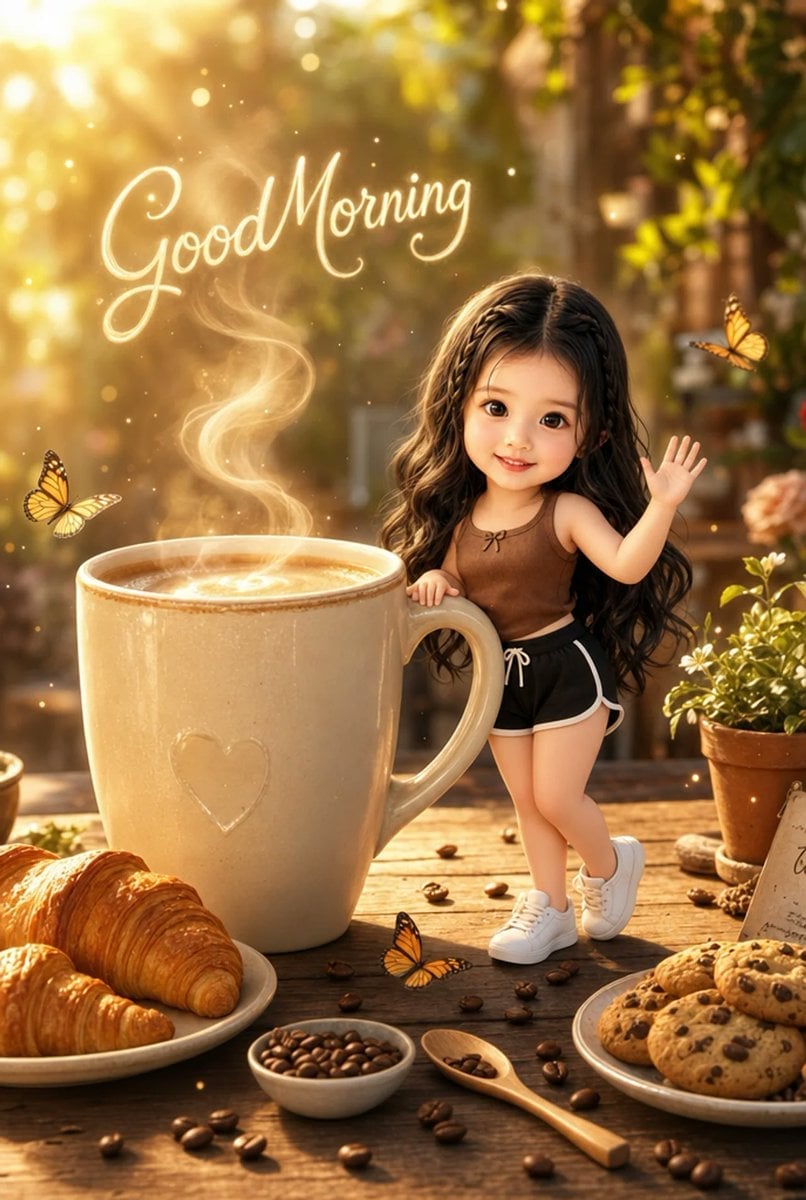
Pixar-Style Chibi Café Morning Scene
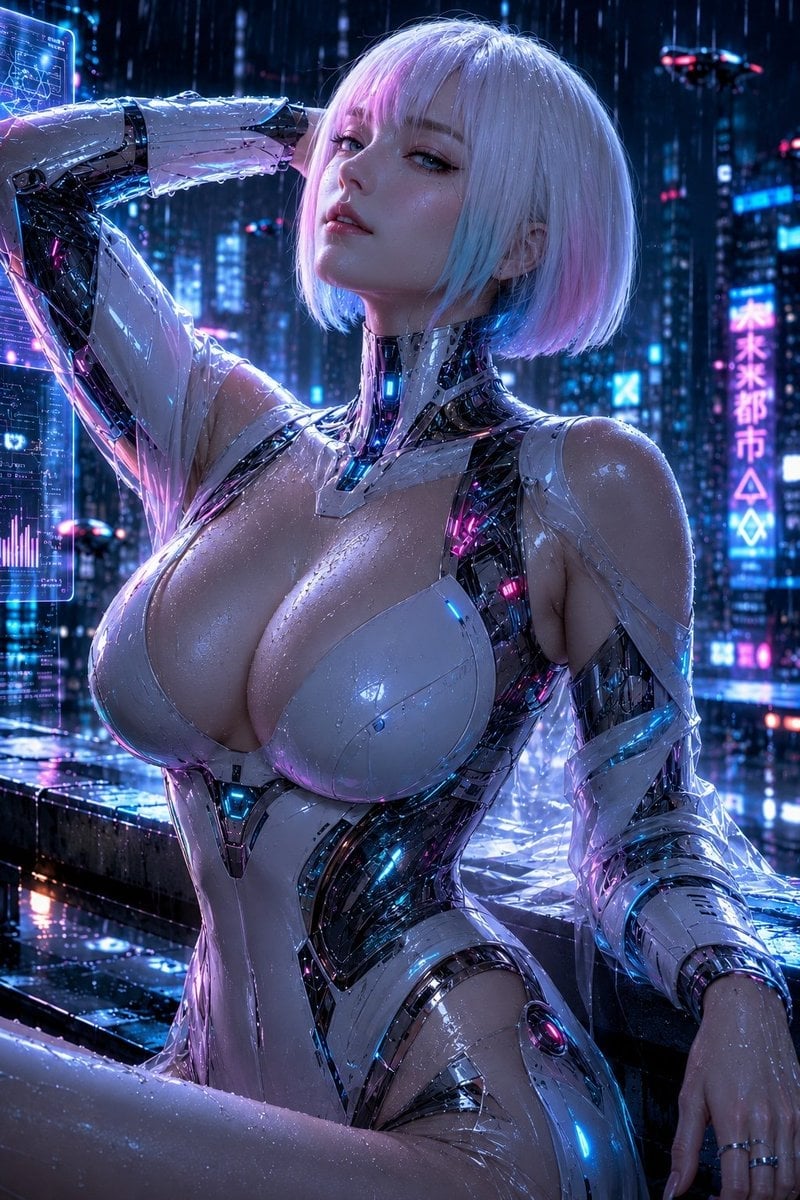
Rainy Night Android Cyberpunk Portrait
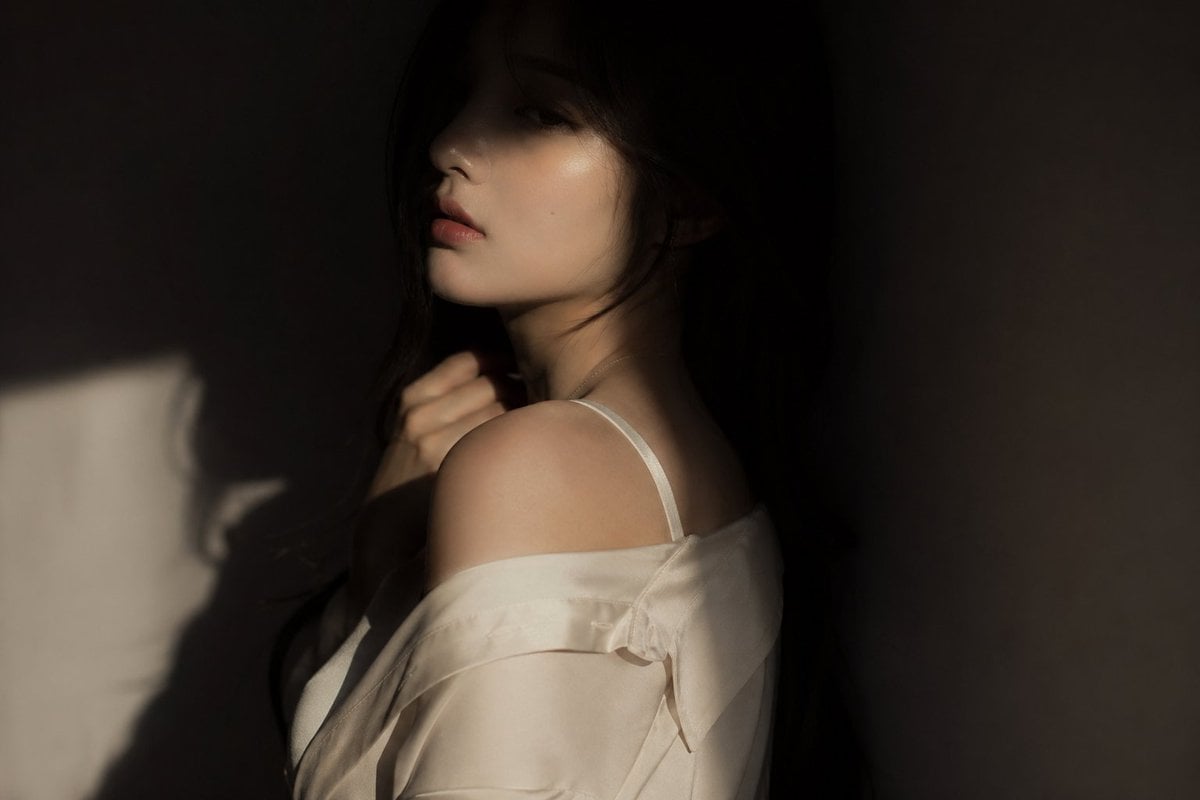
Korean Idol Partial Shadow Editorial Portrait
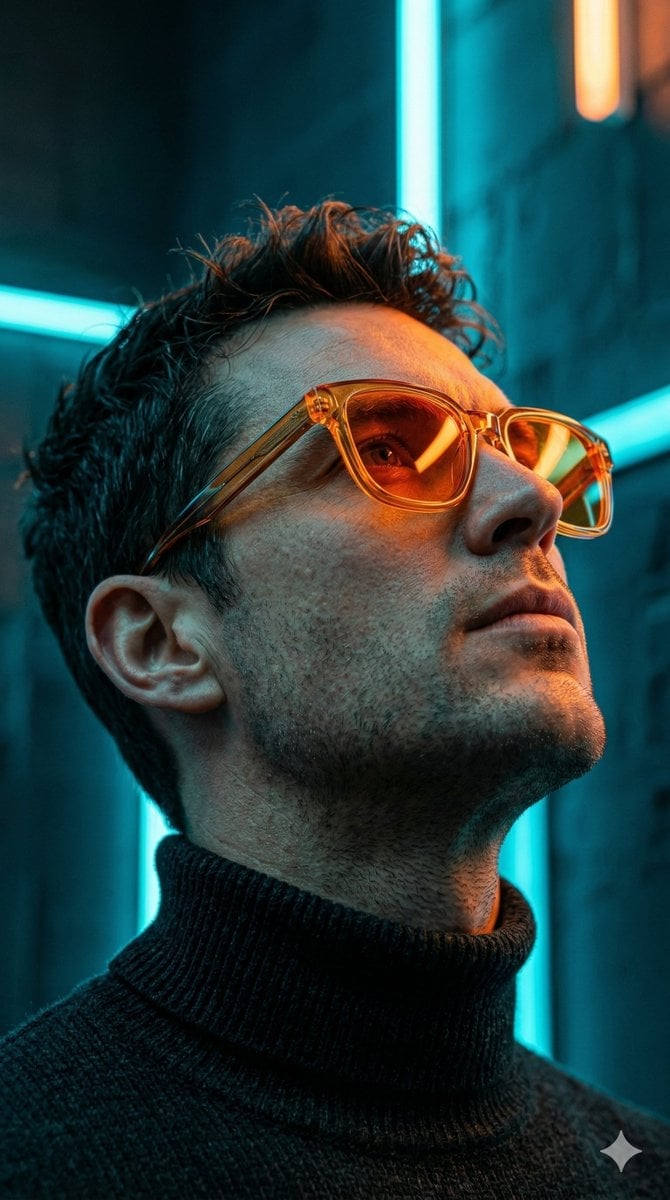
Cyberpunk Neon Profile Fashion Portrait
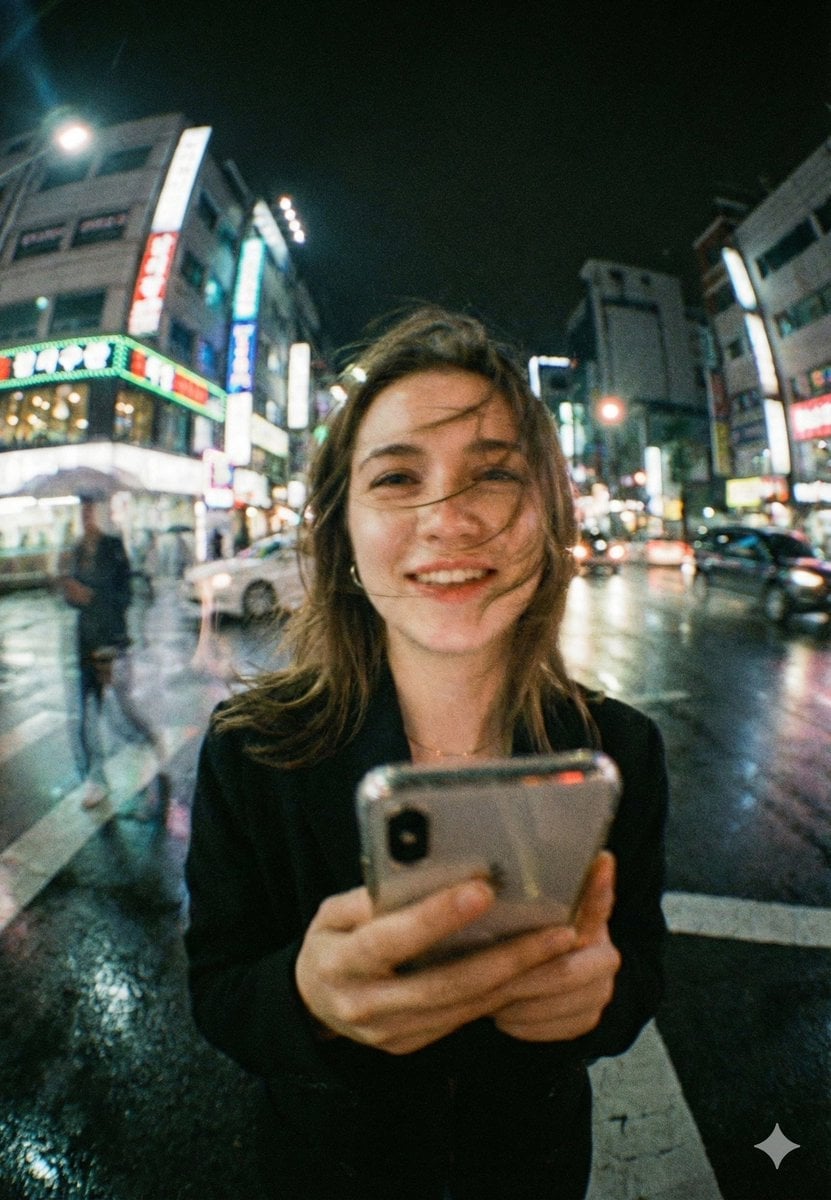
Neon Night Crosswalk Candid Portrait
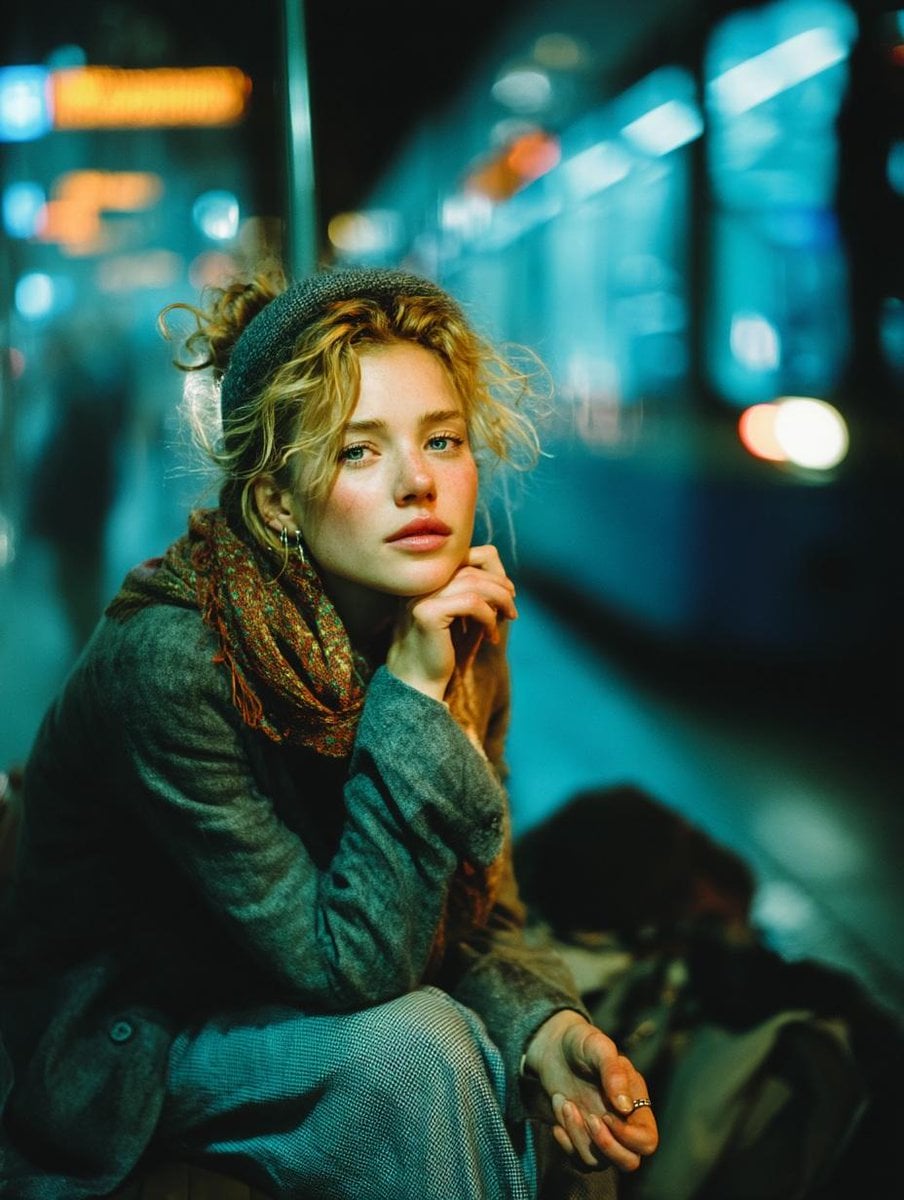
Subway Platform Quiet Introspective Portrait
Rainy Night Android Cyberpunk Portrait
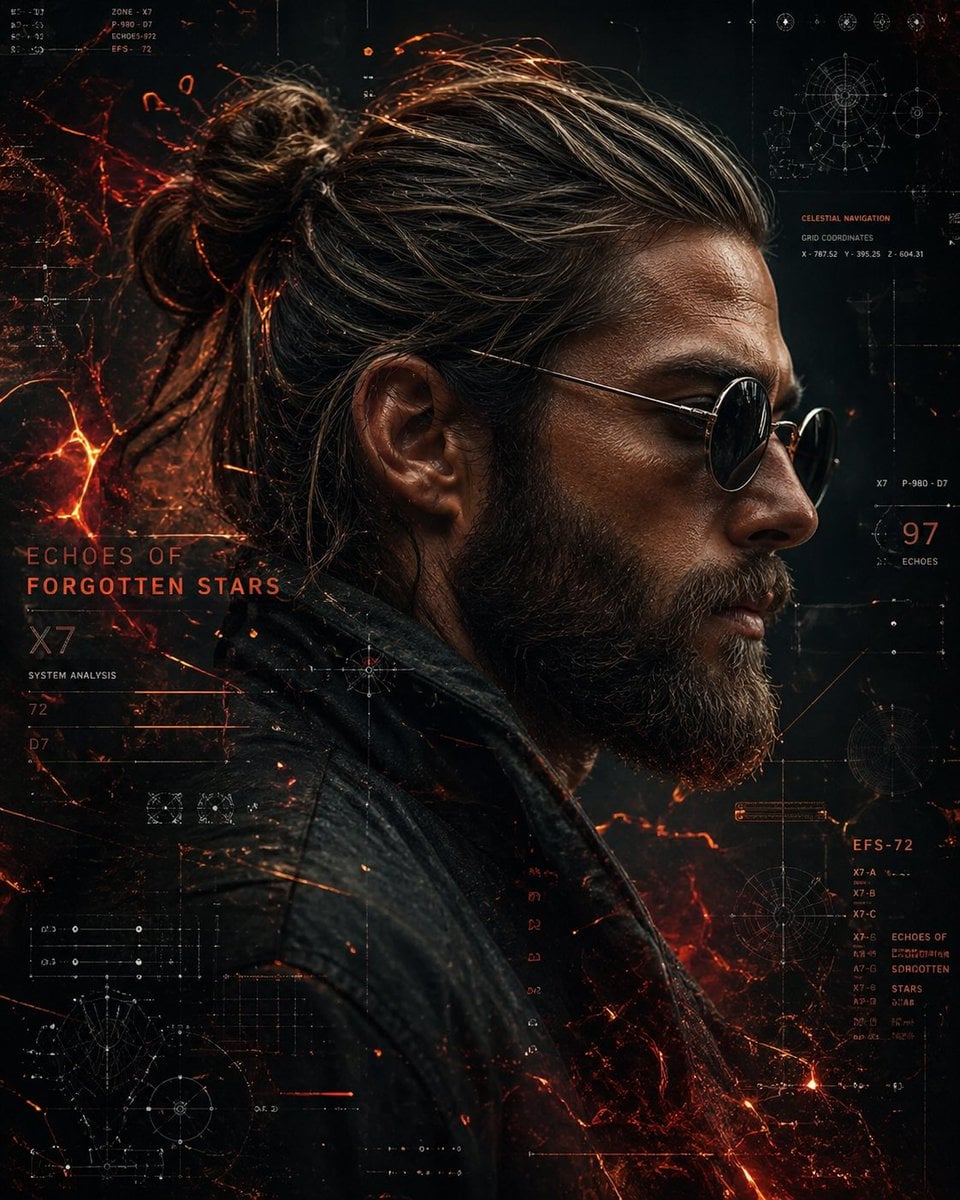
Cinematic Sci-Fi Commander Side Profile Portrait
Low-Angle Cyberpunk Neon Profile Portrait
Make it yours
Neon Chibi Sailor Salute works as-is. These are the safest ways to change it without losing the look.
Change one field
Copy a single group, rewrite it, and generate again so you can see what that field is doing.
Keep the frame, change the subject
Hold the composition and light of Neon Chibi Sailor Salute, then swap wardrobe, props or the person for a new take.
| If the result… | Why | Fix |
|---|---|---|
| The result drifts from the preview | Too many fields changed at once. | Reuse Neon Chibi Sailor Salute as-is first, then change one group — subject, light, or setting. |
| The model over-stylizes the scene | The prose prompt leaves finish and camera underspecified. | Add one camera or lighting sentence and stay on GPT Image 2. |
More GPT Image 2 templates
Other prompts made for GPT Image 2.

Six VTuber Japanese Logo Sheet

Realistic Portrait of Woman and Deer

The Vista Modular Condo Poster

AI Model Routing Comparison Infographic

2.5D Anime Art Board

Isometric Productivity Desk Scene

New York Double Exposure Poster

Four-Panel AI Landscape Comparison

Japanese Tatami Lifestyle Magazine Cover

NESCAFÉ Coffee Map Poster
More image prompts
Fresh picks from across the catalog.
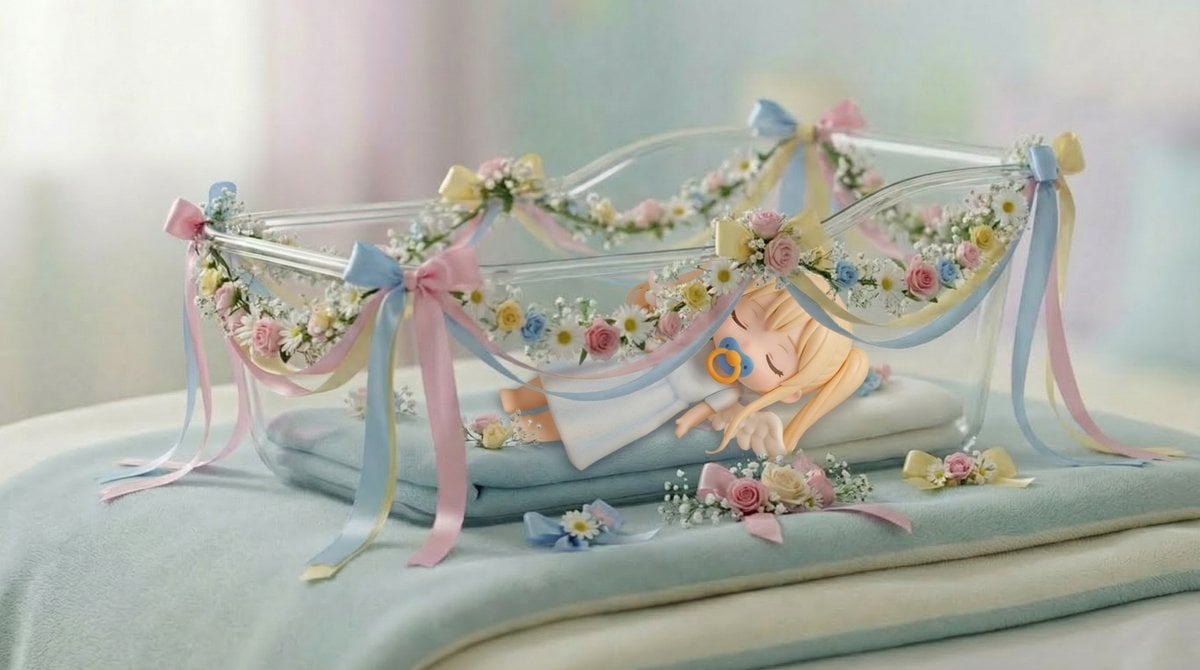
Angel in a Cradle Image Generation Prompt
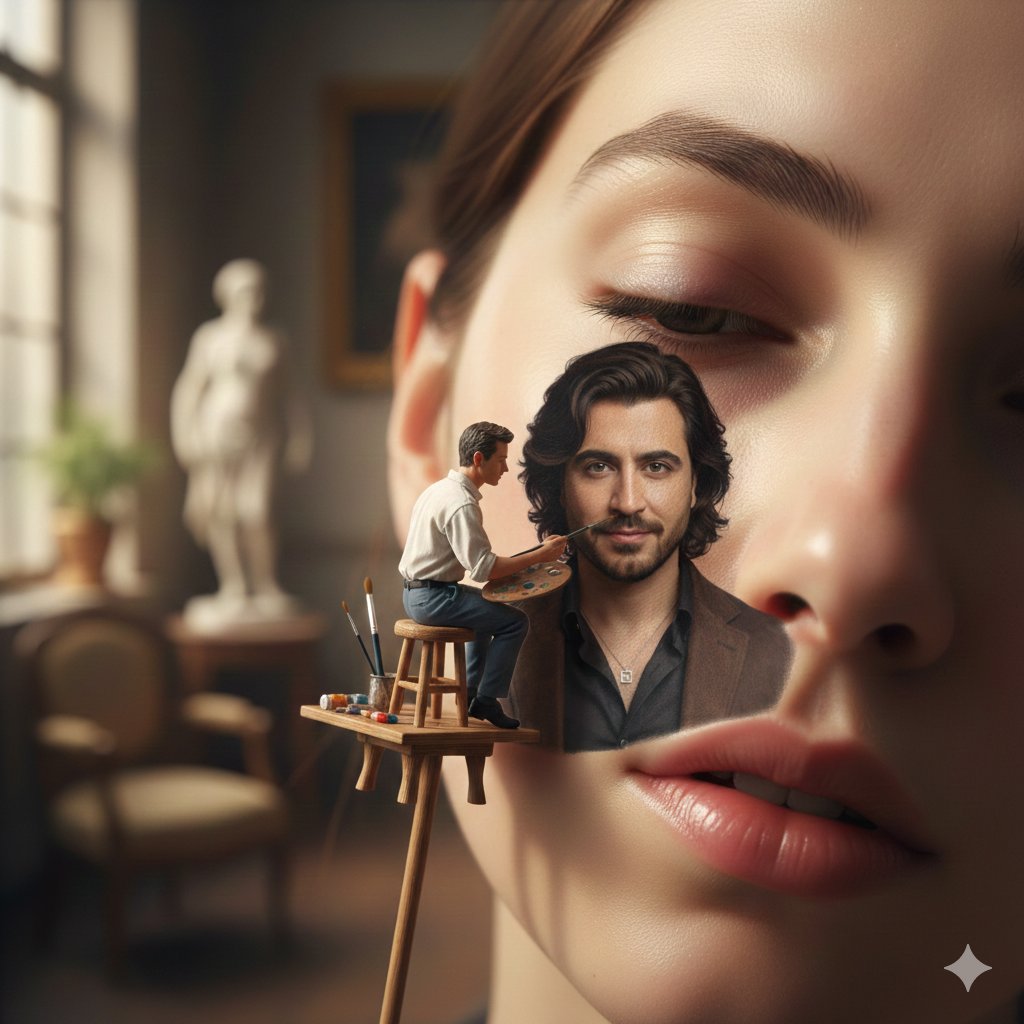
Miniature Artist Painting on a Giant Face Prompt
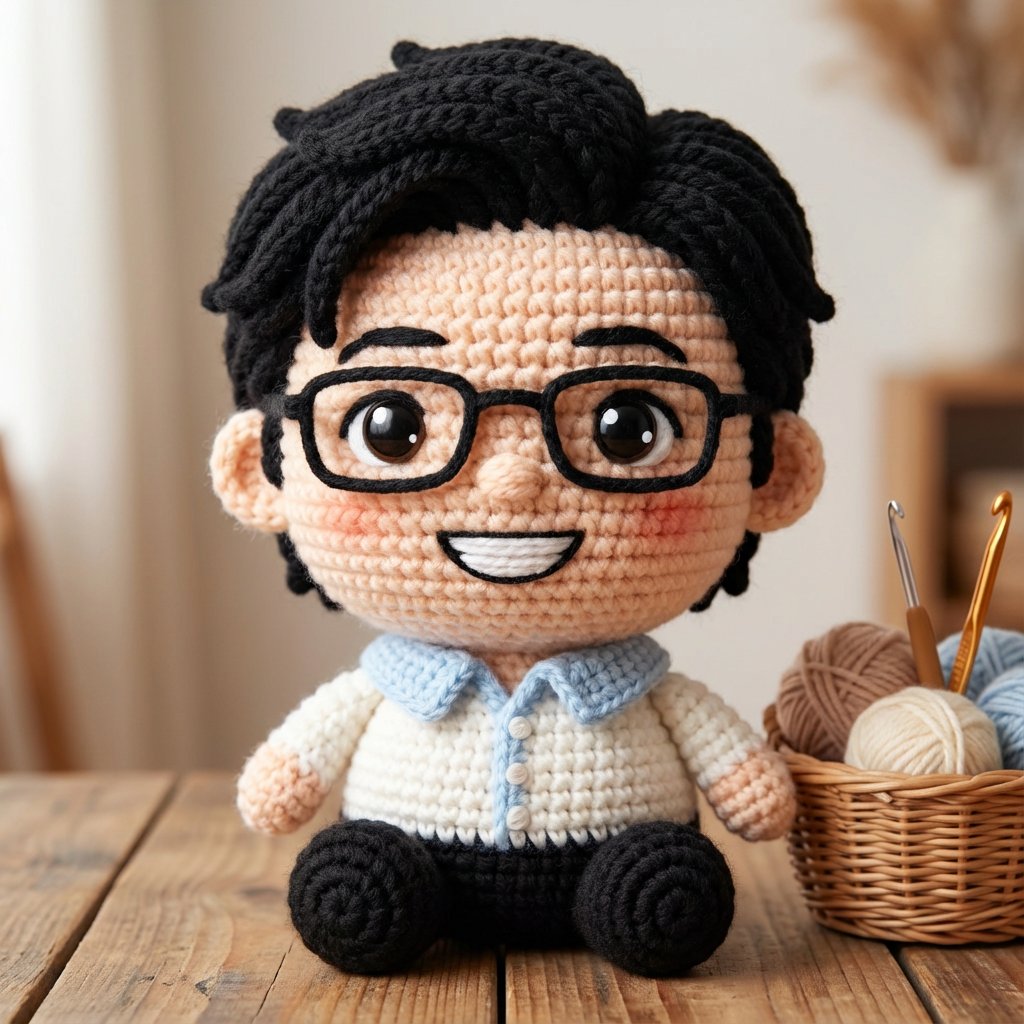
Amigurumi-style Scissor Man Image Generation Prompt
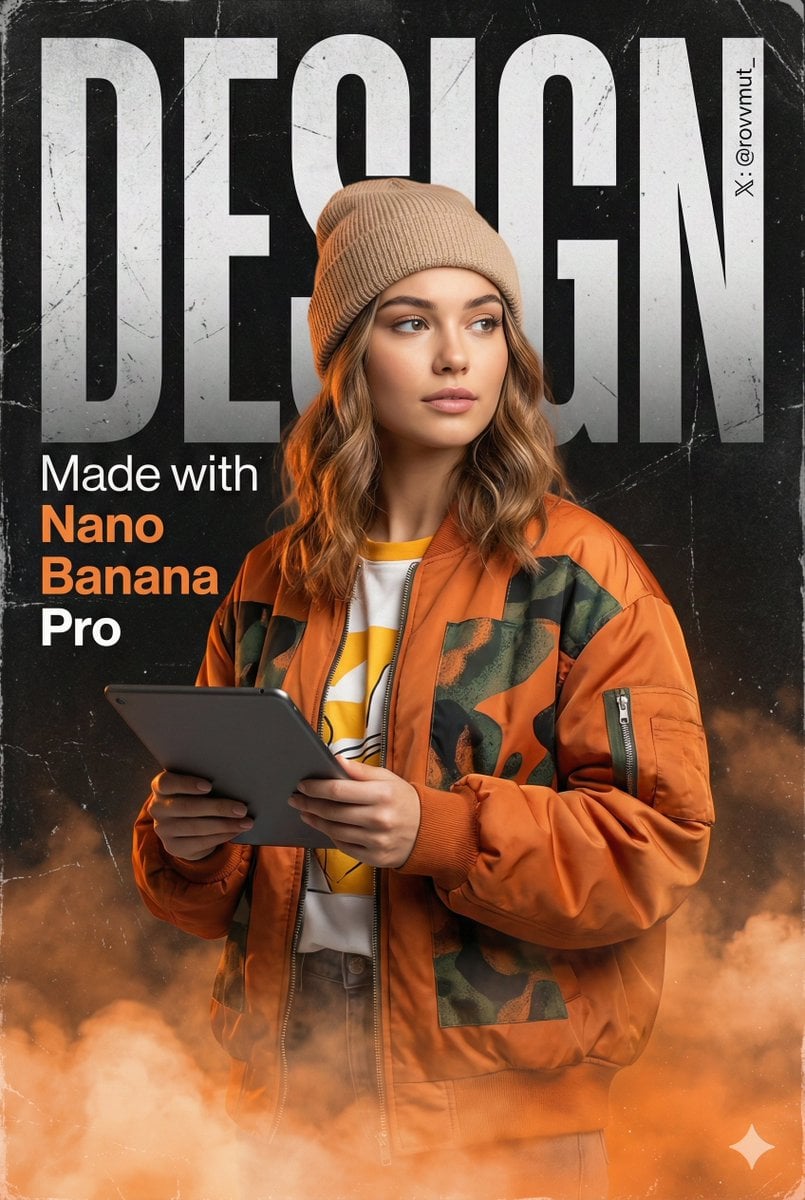
Urban Grunge Digital Advertisement
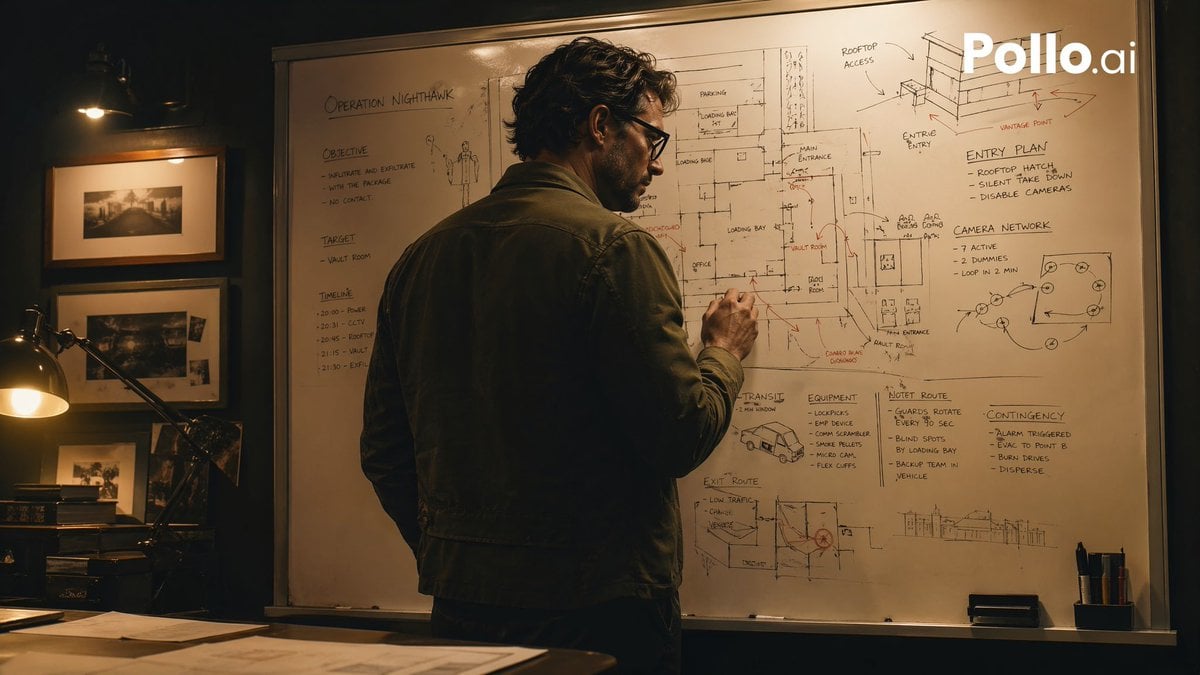
Cinematic Heist Mastermind at Whiteboard
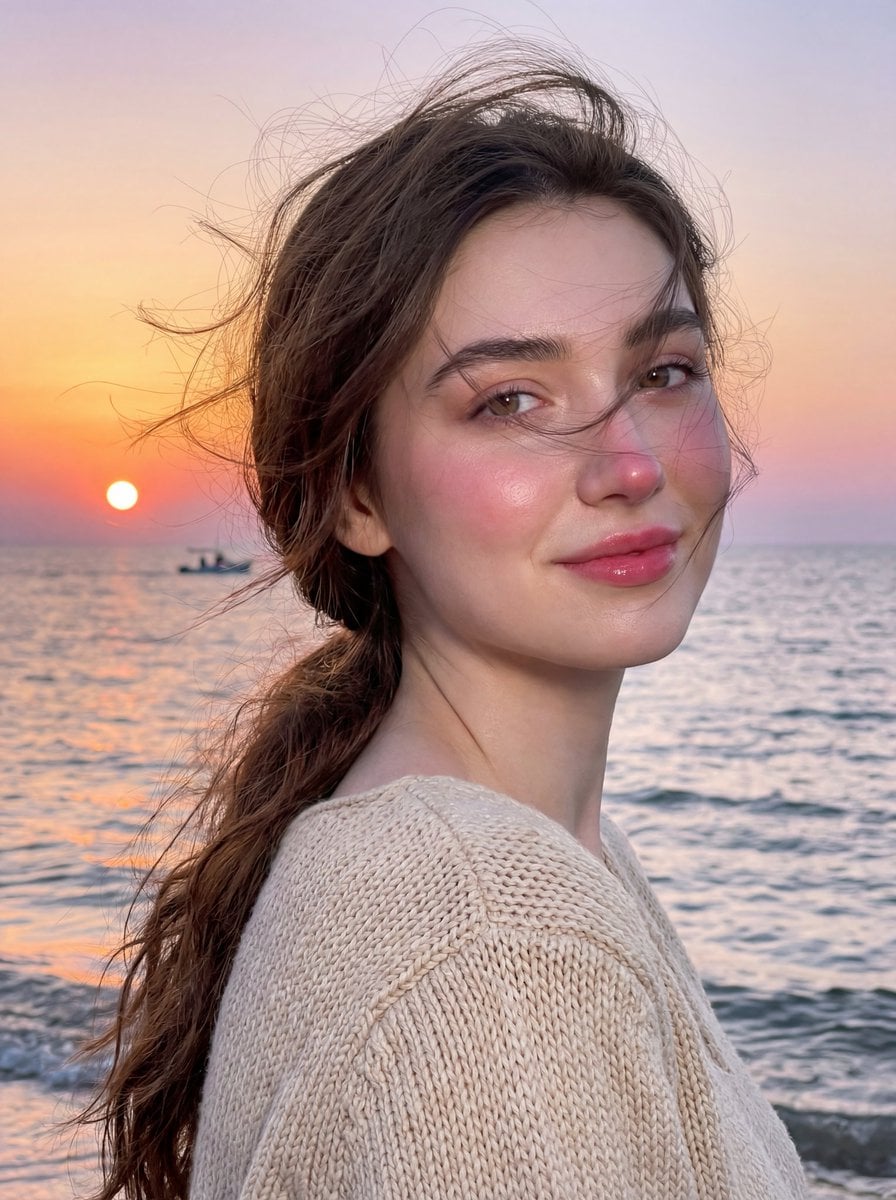
Golden Hour Seaside Portrait with Identity Preservation
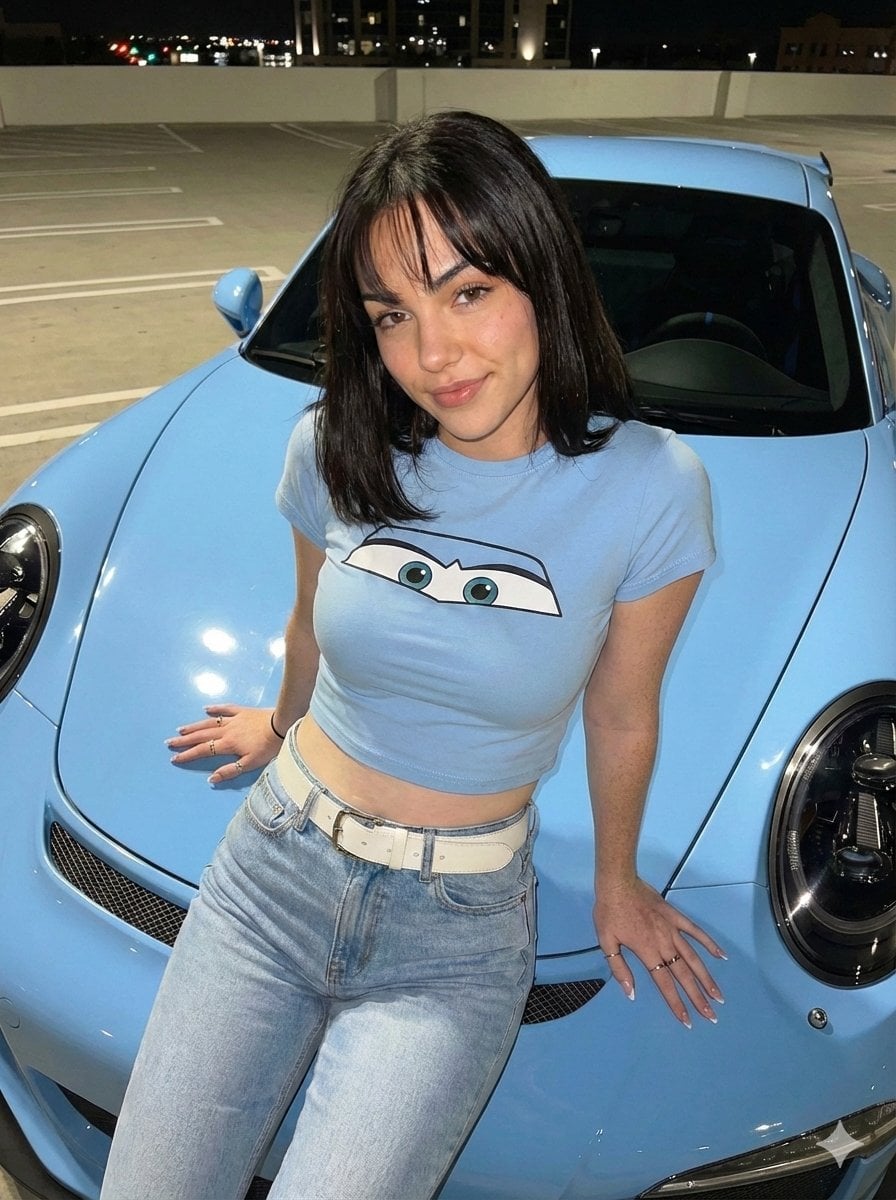
Nighttime Portrait with Car Matching Outfit
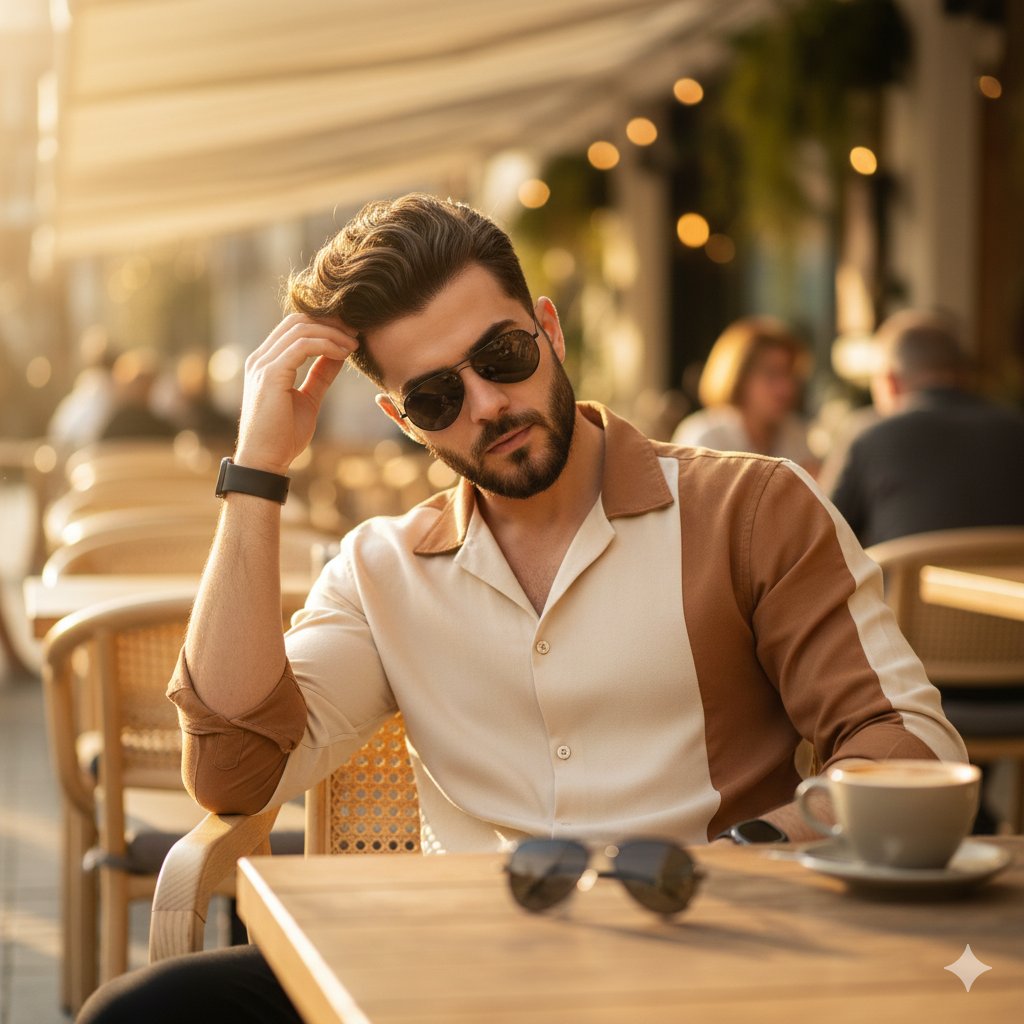
Ultra-Realistic 8K Lifestyle Portrait at Modern Café
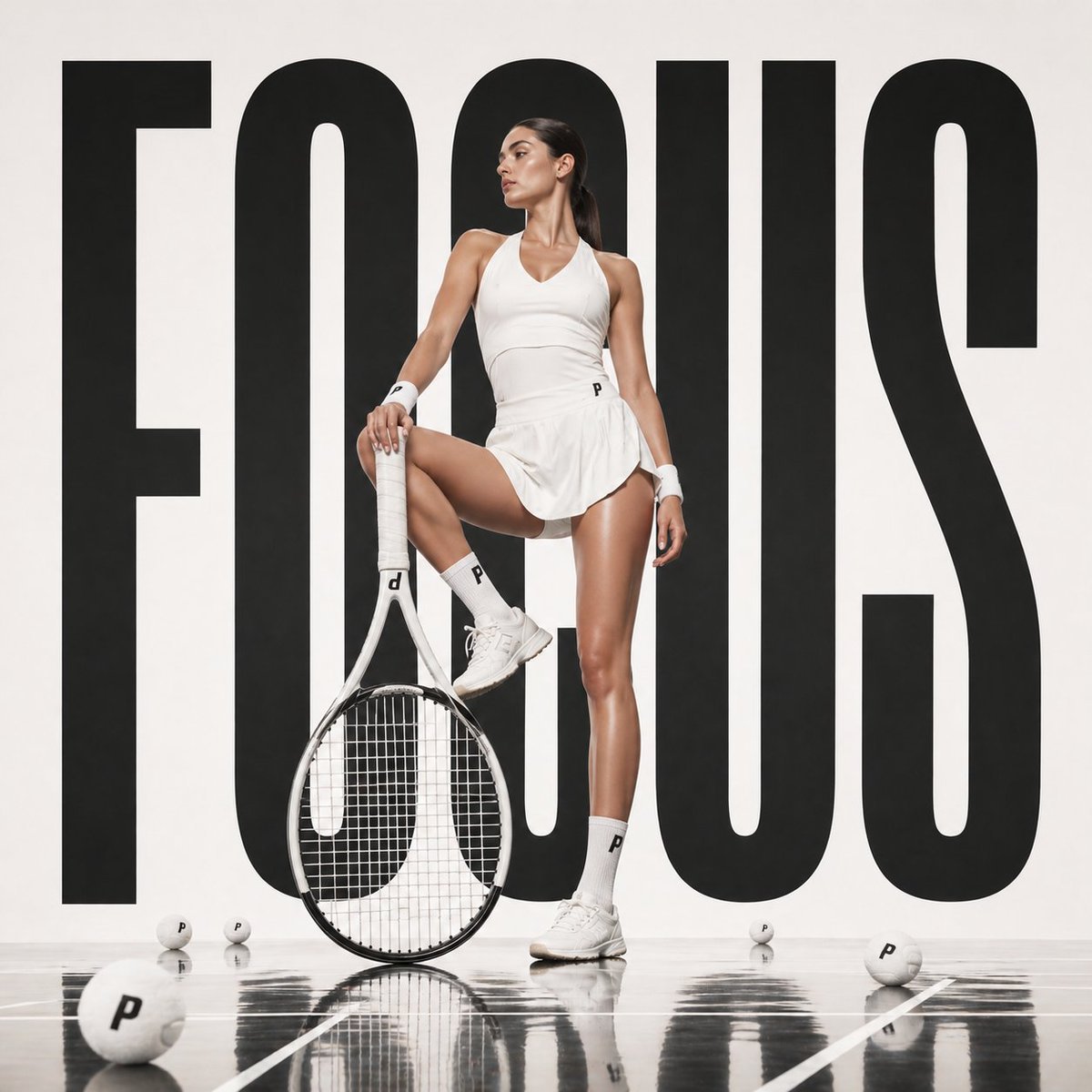
Bold Tennis Fashion Ad
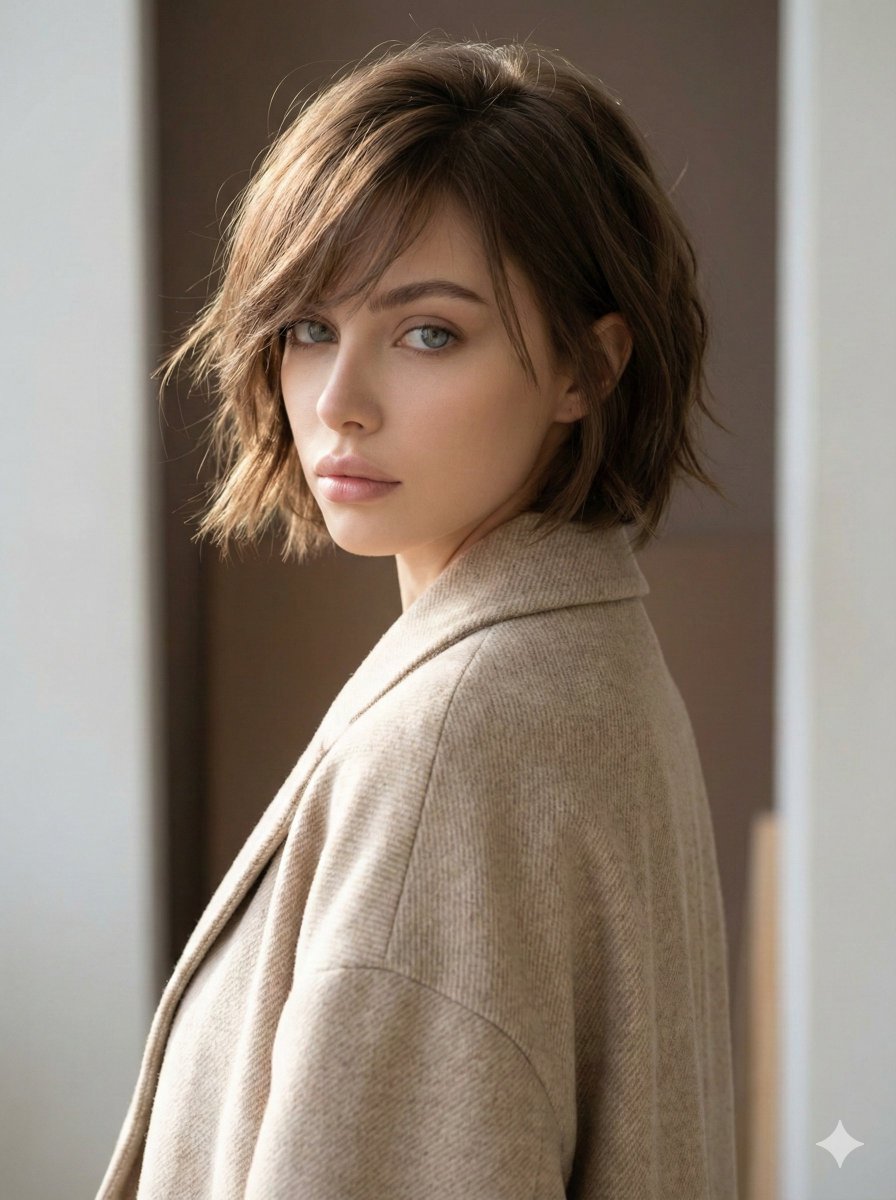
Minimalist Fashion Editorial Portrait
Browse template categories
Neon Chibi Sailor Salute questions
How do I use the Neon Chibi Sailor Salute template?
Add your photo if the template asks for one, edit the prompt if you like — the template's model and format are already selected — and press Generate. Your version opens in PicX Studio.
Can I customize the Neon Chibi Sailor Salute template?
Yes. You can change the subject, setting, lighting, mood, format, and available model controls before creating your image.
Is the Neon Chibi Sailor Salute template free?
Opening and editing this template is free. Generating uses credits, shown on the Generate button when you are signed in.
Which AI model should I use?
Start with GPT Image 2, which is the model associated with this template. You can compare another compatible model for a different finish.
Looking for something else? Browse all templates.

Your photo, any look
Thousands of ready templates for every top image and video model, from one credit balance.