How do I use the Silver-Haired Anime Character Close-Up template?
Choose the primary action to open PicX Studio with the available template settings. Review the model and format, personalize the creative direction, and generate when ready.
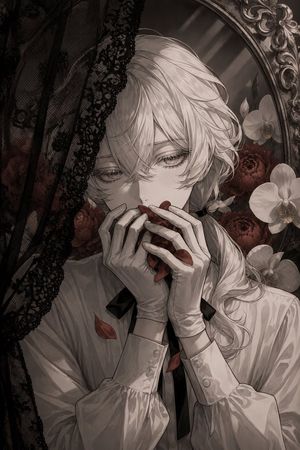
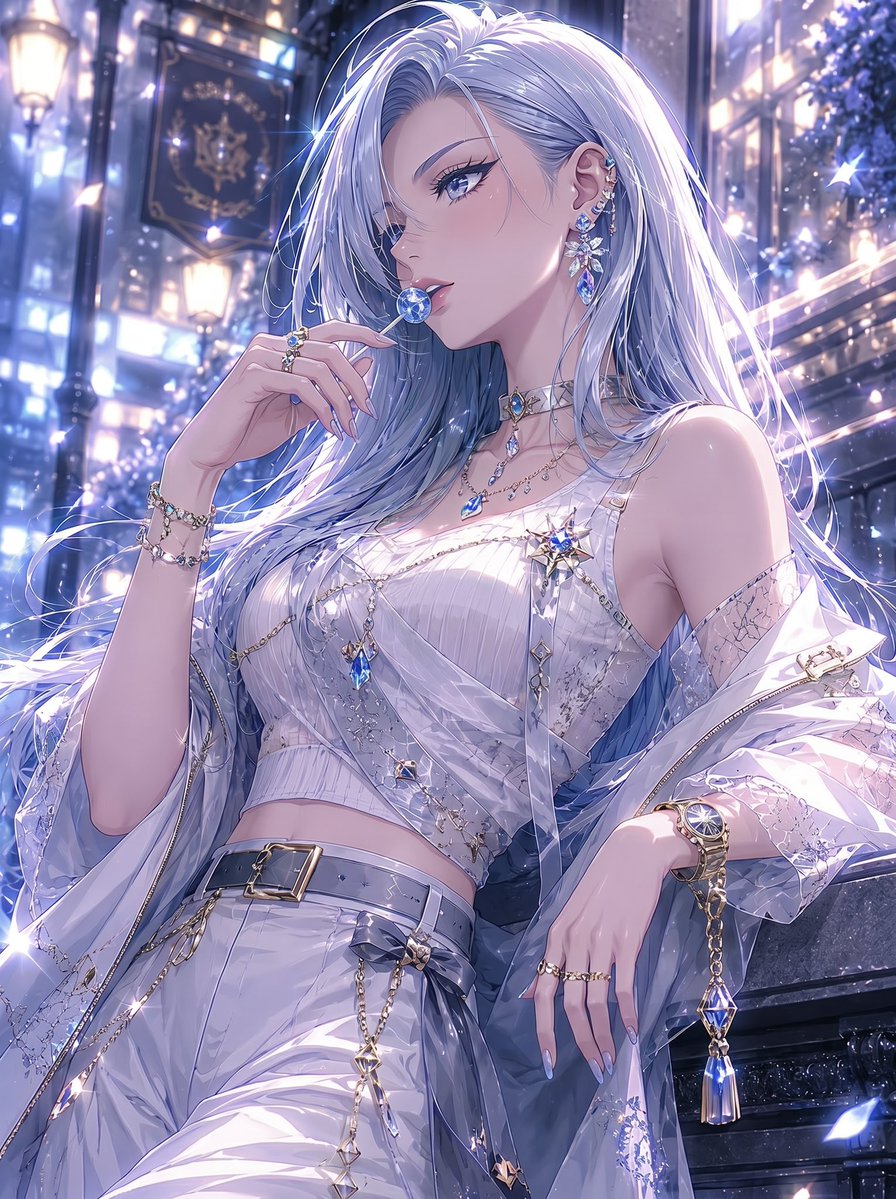
Generates a delicate vertical anime close-up of a silver-haired androgynous character in a striped shirt and tie with an obscured face.
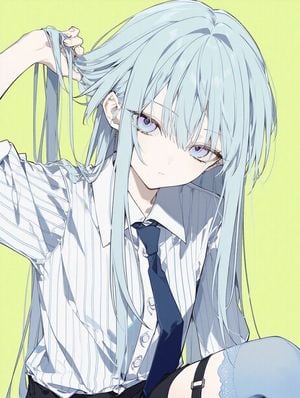
Create a vertical anime-style illustration of {argument name="character name" default="a pale androgynous demon-like original character"} in a close-up upper-body composition, cropped tightly so the head, torso, raised left arm, and one bent thigh fill the frame. The character has very long, silky {argument name="hair color" default="icy silver-blue"} hair with many thin strands, flowing over the shoulders and down the chest; one hand is lifted near the upper left, gripping and pulling a lock of hair so loose strands hang between the fingers. Place a large soft-edged opaque square privacy block over the center of the face, covering the eyes, nose, and most facial details while leaving hair, hand, shirt collar, and torso visible. The outfit has exactly 5 visible clothing/accessory elements: an oversized white button-up shirt with thin pale blue vertical stripes, a dark navy necktie hanging loosely, black shorts or a dark waistband at the bottom edge, one pale blue thigh-high stocking visible at the lower right, and one black garter strap clipped to the stocking. The shirt should look rumpled and slightly open at the collar, with visible buttons and crisp anime linework. Use a delicate bishounen/shoujo-inspired drawing style with clean fine outlines, soft cel shading, cool blue shadows, high-key lighting, and a simple {argument name="background color" default="pale lemon yellow"} background. The mood should be elegant, intimate, slightly melancholic, and ethereal; avoid text, logos, extra characters, weapons, wings, or additional props.
Choose the primary action to open PicX Studio with the available template settings. Review the model and format, personalize the creative direction, and generate when ready.
Yes. You can change the subject, setting, lighting, mood, format, and available model controls before creating your image.
This template is free to open and customize. Generation usage is shown in PicX Studio before you create.
Start with GPT Image 2, which is the model associated with this template. You can compare another compatible model for a different finish.
Follow a topic to a crawlable collection of related PicX Studio templates.