
Devil Transformation Character Design
A sophisticated prompt for transforming an existing character into a dark fantasy devil version, preserving the original character's traits while adding wings, horns, and thematic outfits.
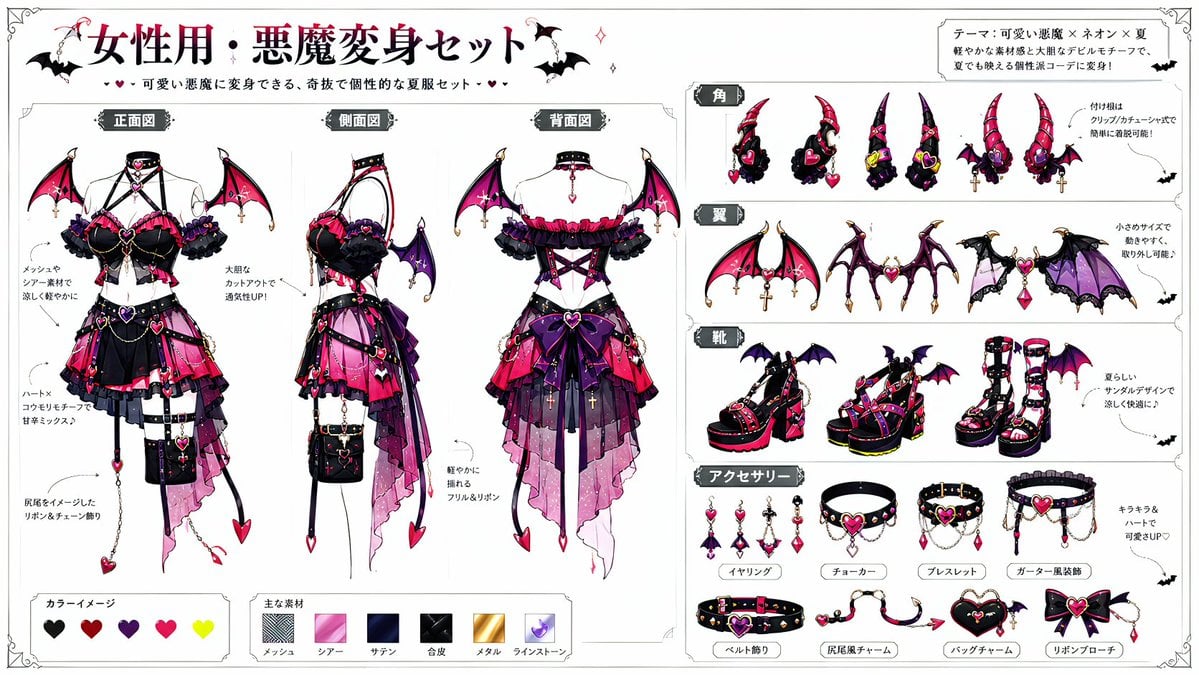
- Prompt included
- Model and format preset
- Free template
The prompt behind this image
Copy the exact prompt behind Devil Transformation Character Design, or open it in the studio and make it yours.
【情報入力欄】 キャラクター名:[{argument name="キャラクター名" default=" "}] ←必須 補足事項:[{argument name="補足事項" default="任意入力"}]←AIに伝えたいことがあれば記入 ----------------- 【画像生成指示】 添付画像1のキャラクターを基に、添付画像2の悪魔変身セットを使用して着せ替える。 入力されたキャラクター名と、添付画像1のキャラクターの見た目、雰囲気、年齢感、表情、装備、性格が伝わる要素を読み取り、背景、シチュエーション、ポージング、表情、構図、ライティング、画面内の短いひとことを自動で考案する。 元キャラクターの髪型、髪色、目の色、体格、顔立ち、年齢感、雰囲気、キャラクター性は維持する。 悪魔変身セットのデザイン要素は、元キャラクターに自然に馴染むように反映する。 単に衣装を重ねるのではなく、元キャラクターが悪魔変身した姿として一体感のあるデザインにする。 角と尻尾の生やし方は特に注意して、解剖学的にも視覚的にも自然に見えるように描写する。 角は頭部から自然に生えているようにし、髪の上に雑に置いたような見え方にはしない。 角の付け根は頭頂部、額寄り、またはこめかみ周辺から無理のない位置関係で生えているようにし、左右のバランス、向き、長さ、太さ、接続感を適切に整える。 尻尾は腰の後ろ側、尾てい骨の延長として自然に生えているようにし、腹部、胸部、脚、腕など不自然な位置から生やさない。 角と尻尾はポーズや衣装に合わせて自然に見えるよう調整し、違和感のある接続、浮いて見える付け根、意味不明な本数、無理な湾曲、異様な生え方にはしない。 背景やシチュエーションは、定番の構図に頼らず、そのキャラクターの魅力が強く伝わる一場面として新しく構成する。 背景の派手さだけで見せるのではなく、キャラクターの表情、衣装、ポーズ、視線、仕草を主役にする。 表情は最重要項目として扱う。 無表情、真顔、平坦な冷静顔、普通のキメ顔にはしない。 感情が一つだけに見える単純な表情ではなく、複数の感情が重なって見える印象的な表情にする。 表情には、眉、目線、瞳のハイライト、口角、頬、顔の角度、首の傾きで変化をつける。 左右対称で整いすぎた表情ではなく、少しだけ崩した自然な表情にする。 見た人がキャラクターの内面を想像したくなる表情にする。 ポージングは、衣装全体が見えることを優先しつつ、キャラクターの性格や変身後の雰囲気が伝わる動きのある構図にする。 ただ立っているだけの構図にはしない。 武器、翼、角、尻尾、チェーン、アクセサリー、手の仕草、視線の向きを使い、キャラクター性を強調する。 悪魔変身セットの奇抜さは活かすが、元キャラクターの個性を潰さない。 元キャラクターが別人に見えないようにする。 画面左上または右下に、装飾付きで1段目に「[キャラクター名]」2段目に 今回得た称号を自動生成して、1段目と2段目は同じ文字サイズで配置する。 文字は画像の邪魔にならない大きさにする。 情報記入欄の補足事項に記入がある場合のみ、その内容を反映させた画像を生成すること。 スタイル: - 高画質の2Dアニメーション - 言語:日本語 - ジャンル:ダークファンタジー寄り、但し、暗過ぎる背景にはしないこと。 - 繊細な衣装デザイン - キャラクター重視 - 印象的な表情 - ドラマチックライティング アスペクト比:{argument name="アスペクト比" default="3:4"}
How to use Devil Transformation Character Design in 3 steps
- 1Upload ImagePNG, JPG or paste
Add your photo
Upload the photo the template builds on. The prompt, model and format are already set.
- 2…a portrait of your subject in softgolden-hour light, 85mm…
Personalize
Edit the subject and creative details for your destination.
- 3Generate
Generate
Press Generate — your image is created in PicX Studio, so you can compare it with the original and refine one variable at a time.
More like this
Templates with the same subject, style or setup. Open one to see its prompt.
Seedance - Character Transition
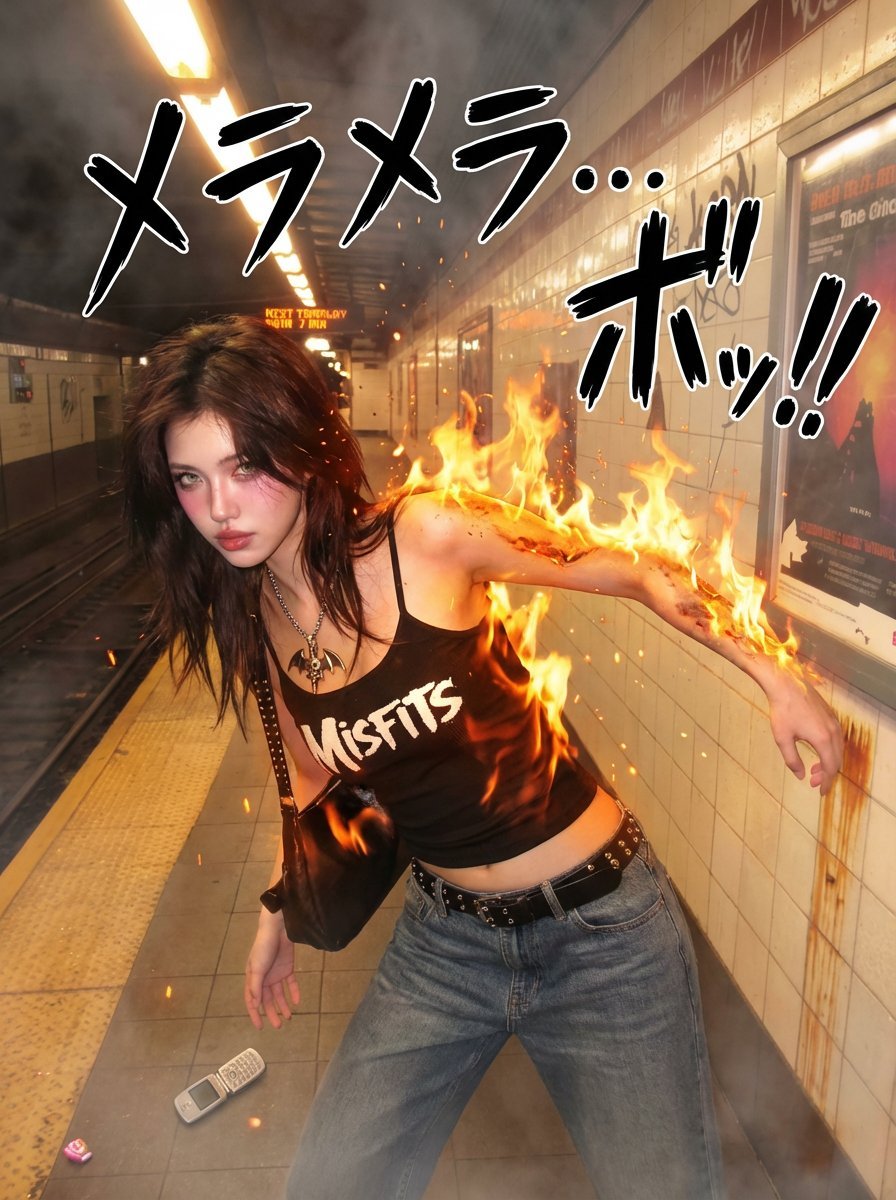
One Piece Devil Fruit Transformation Template
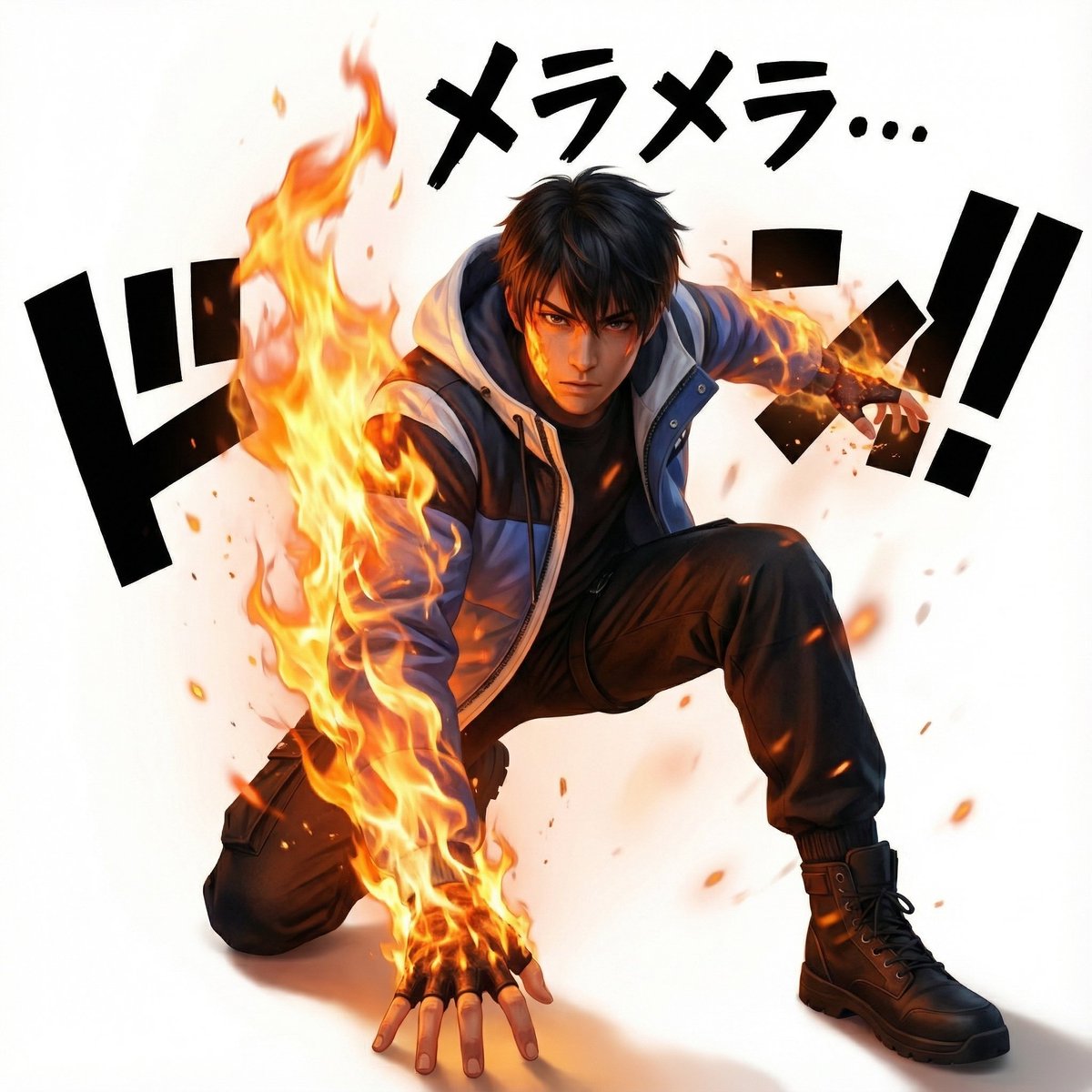
One Piece Devil Fruit Image Generation Prompt Template
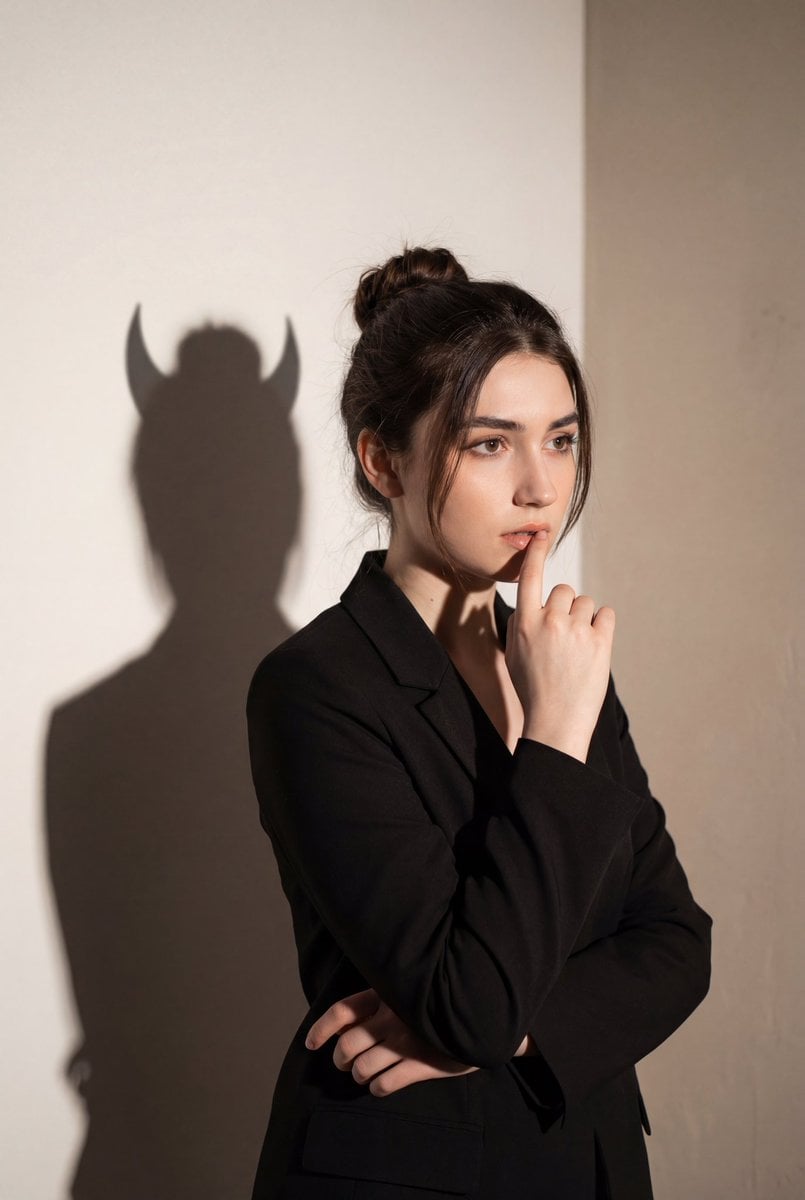
Conceptual Portrait with Symbolic Devil Horn Shadow
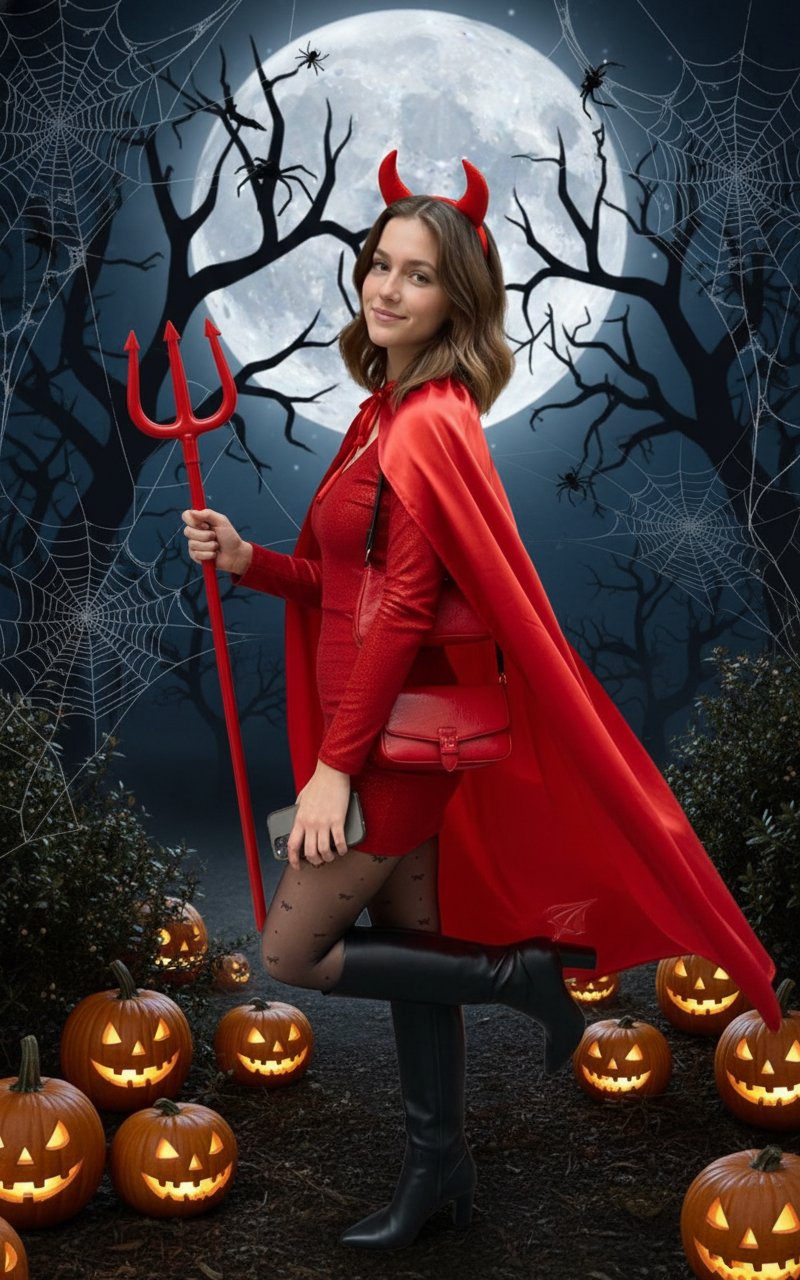
Halloween Costume(Devil)
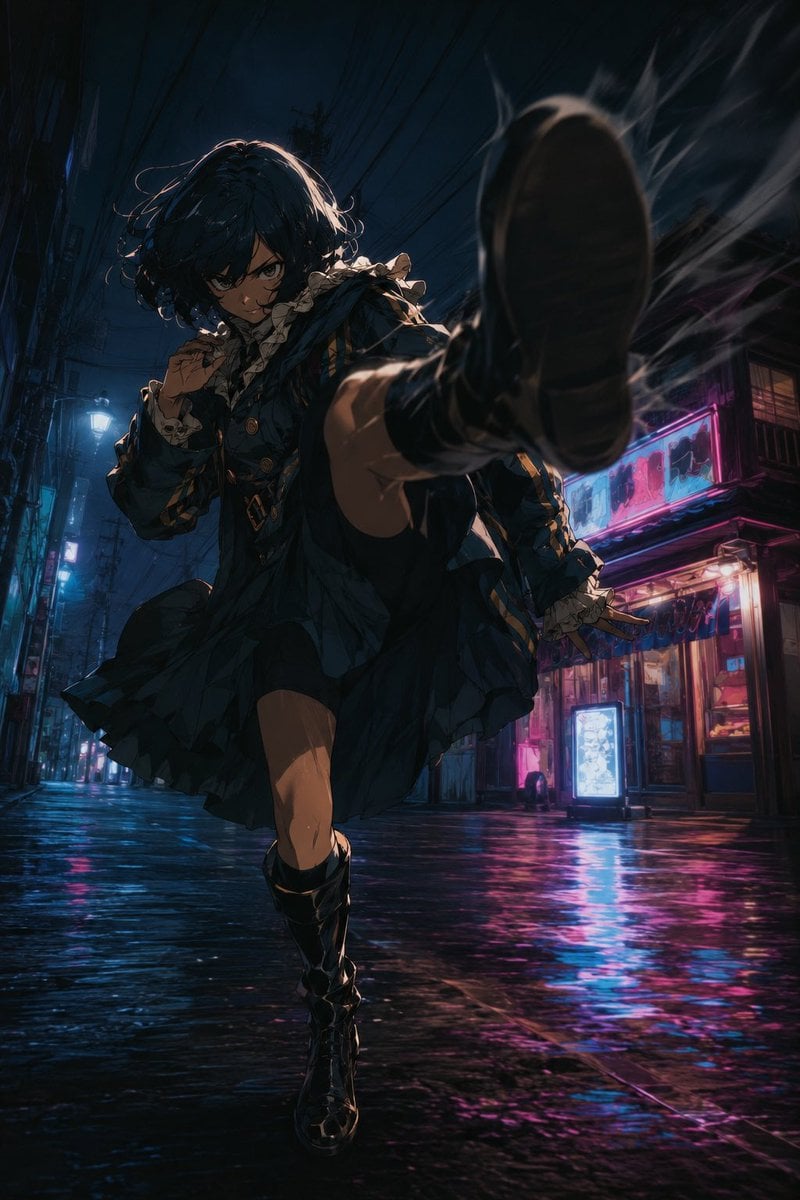
Anime Alley Kick Transformation
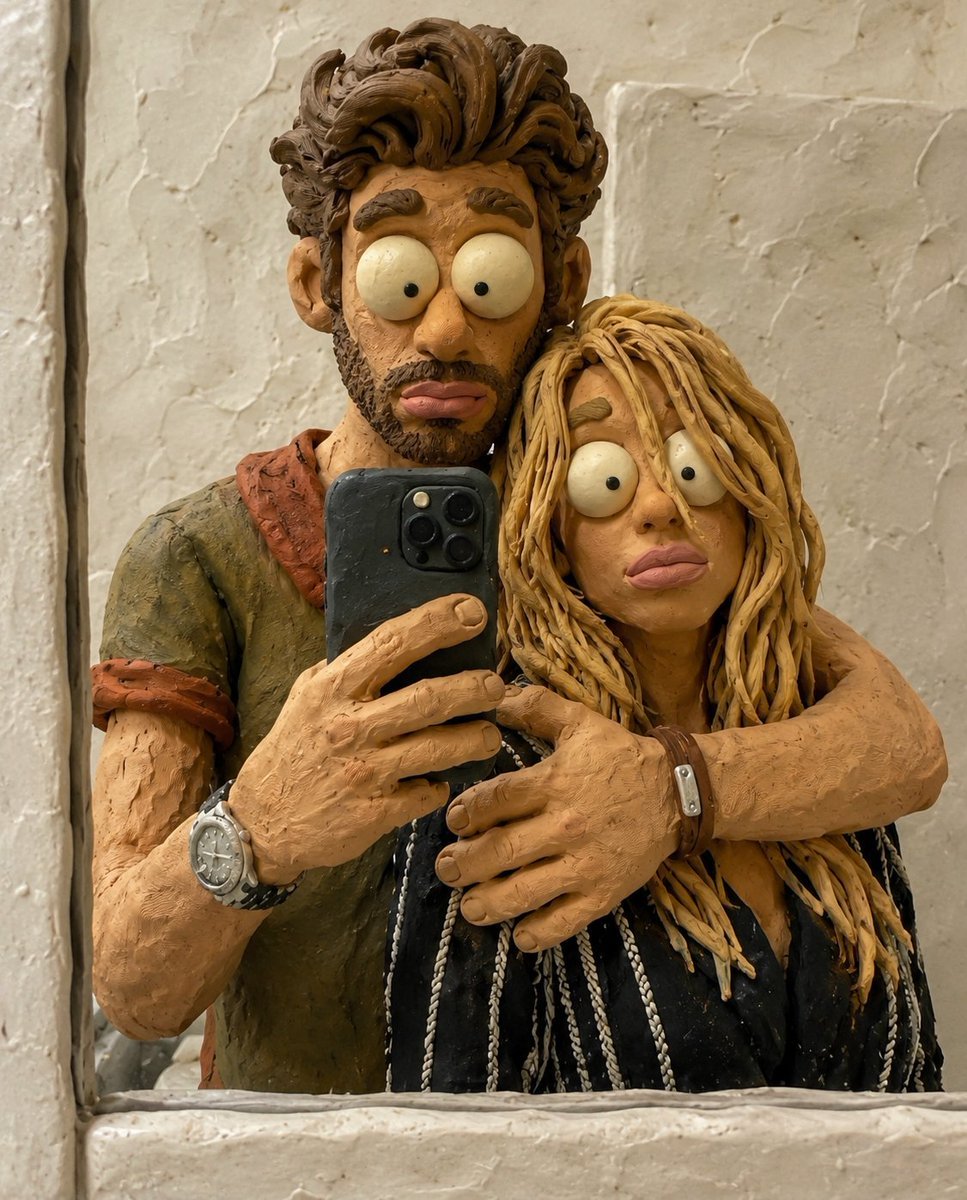
Chaotic Claymation Photo Transformation
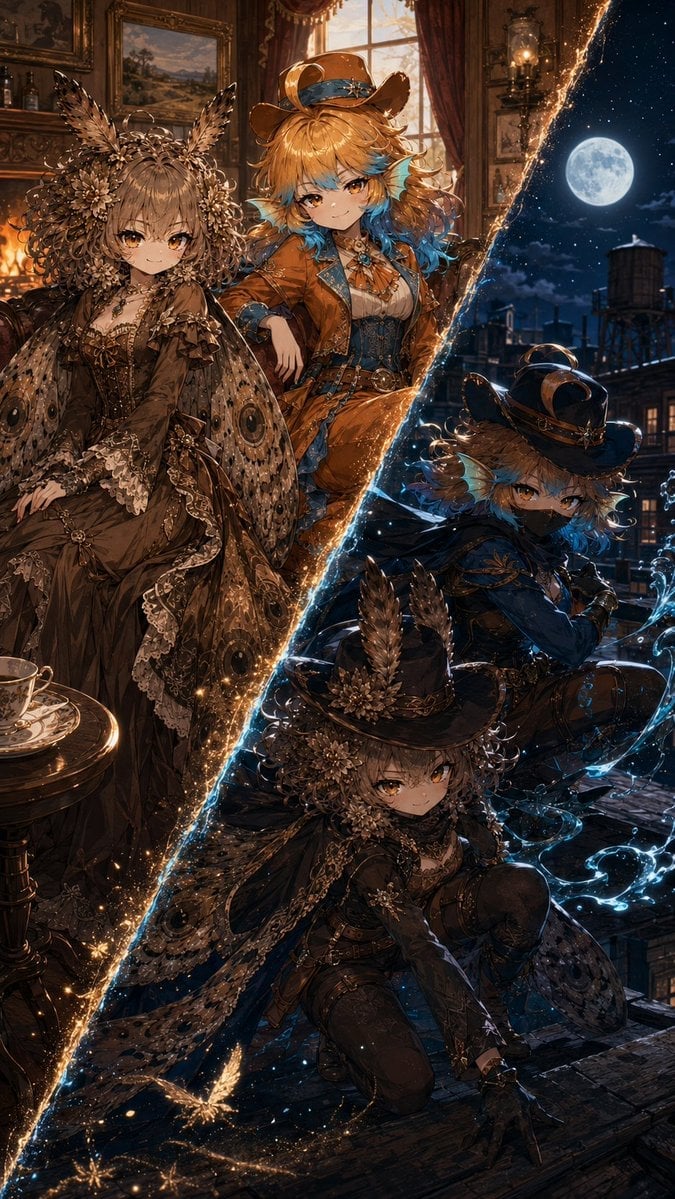
Superhero Era Transformation Split Portrait
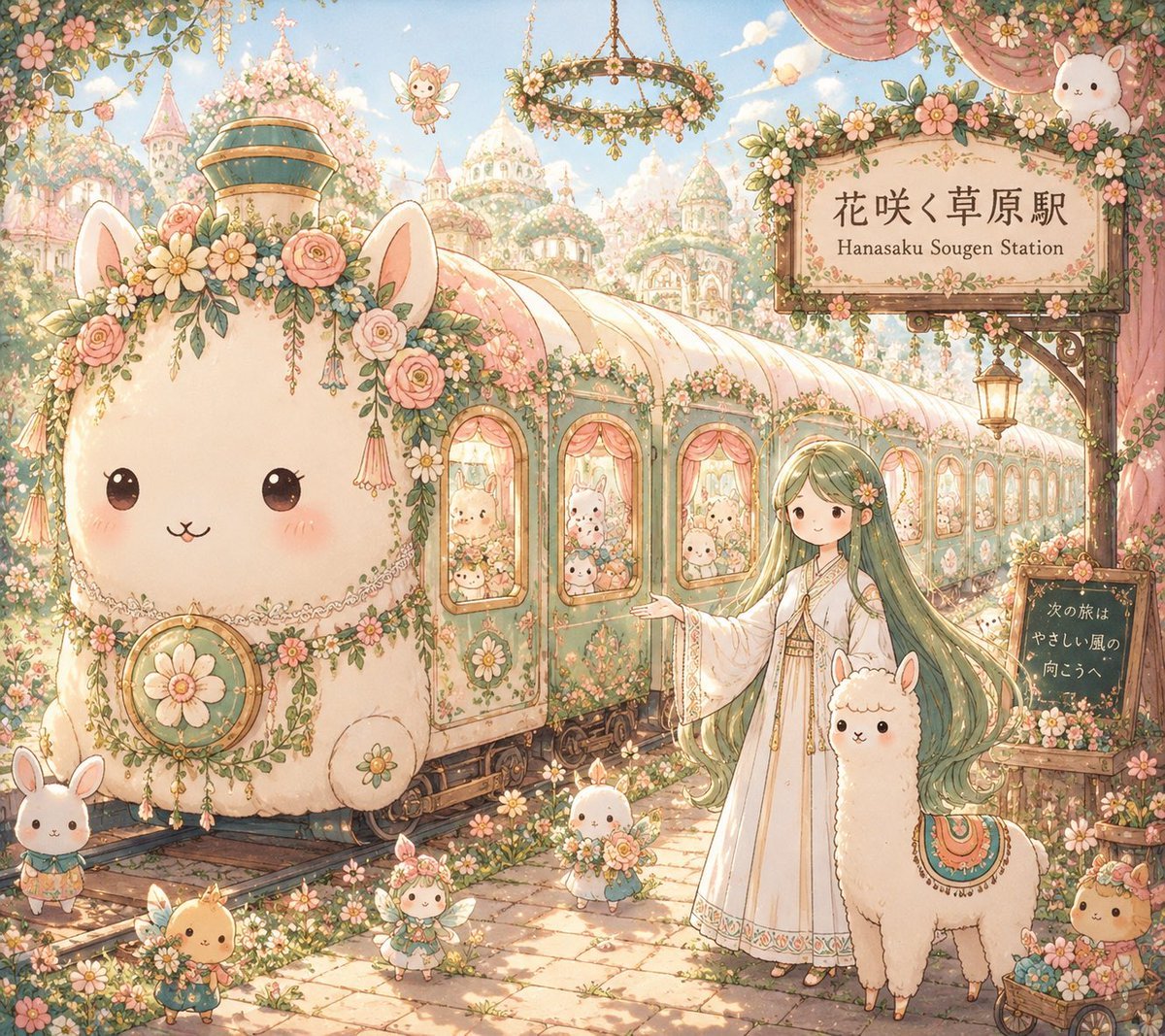
Fantasy Railway World Transformation
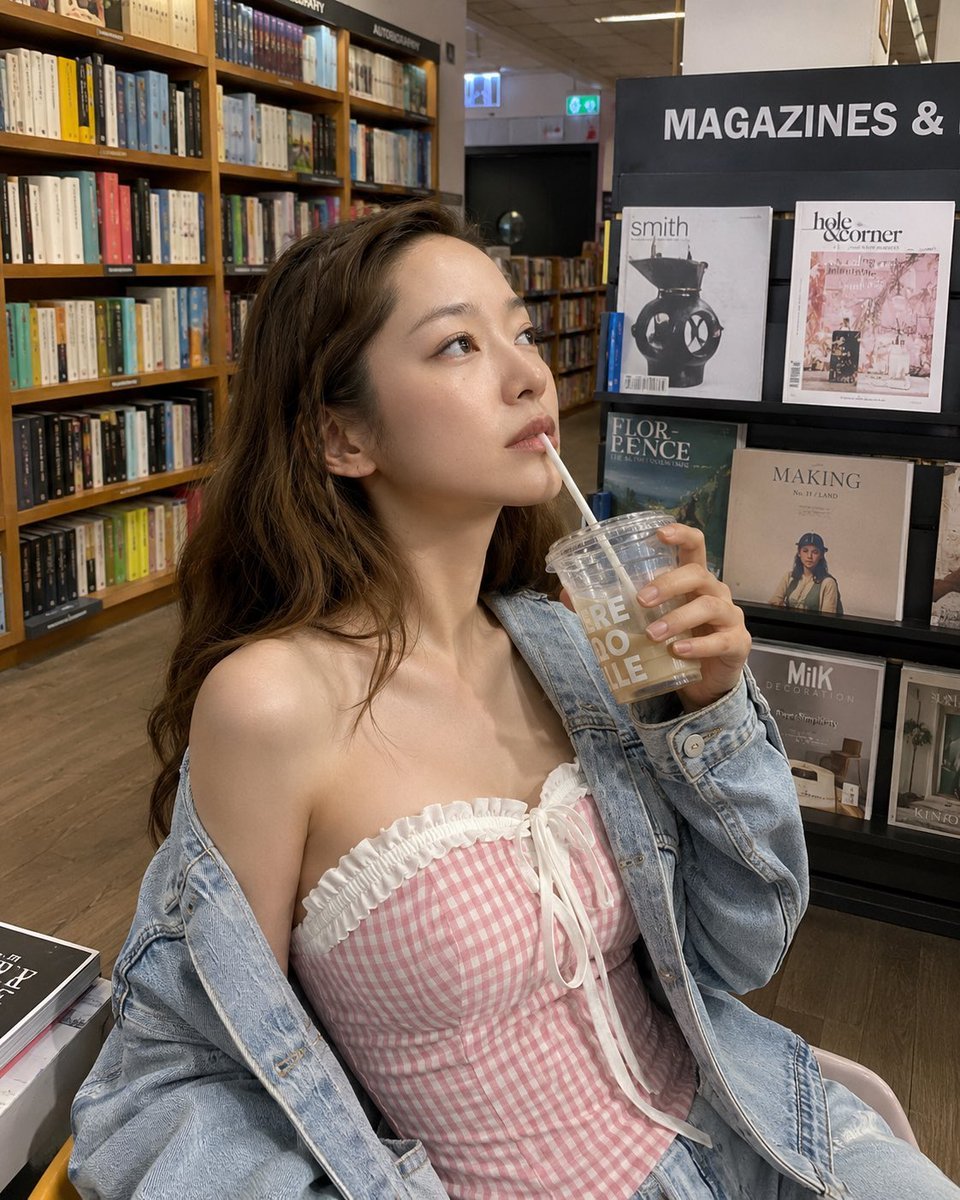
Smartphone Photo Identity Transformation
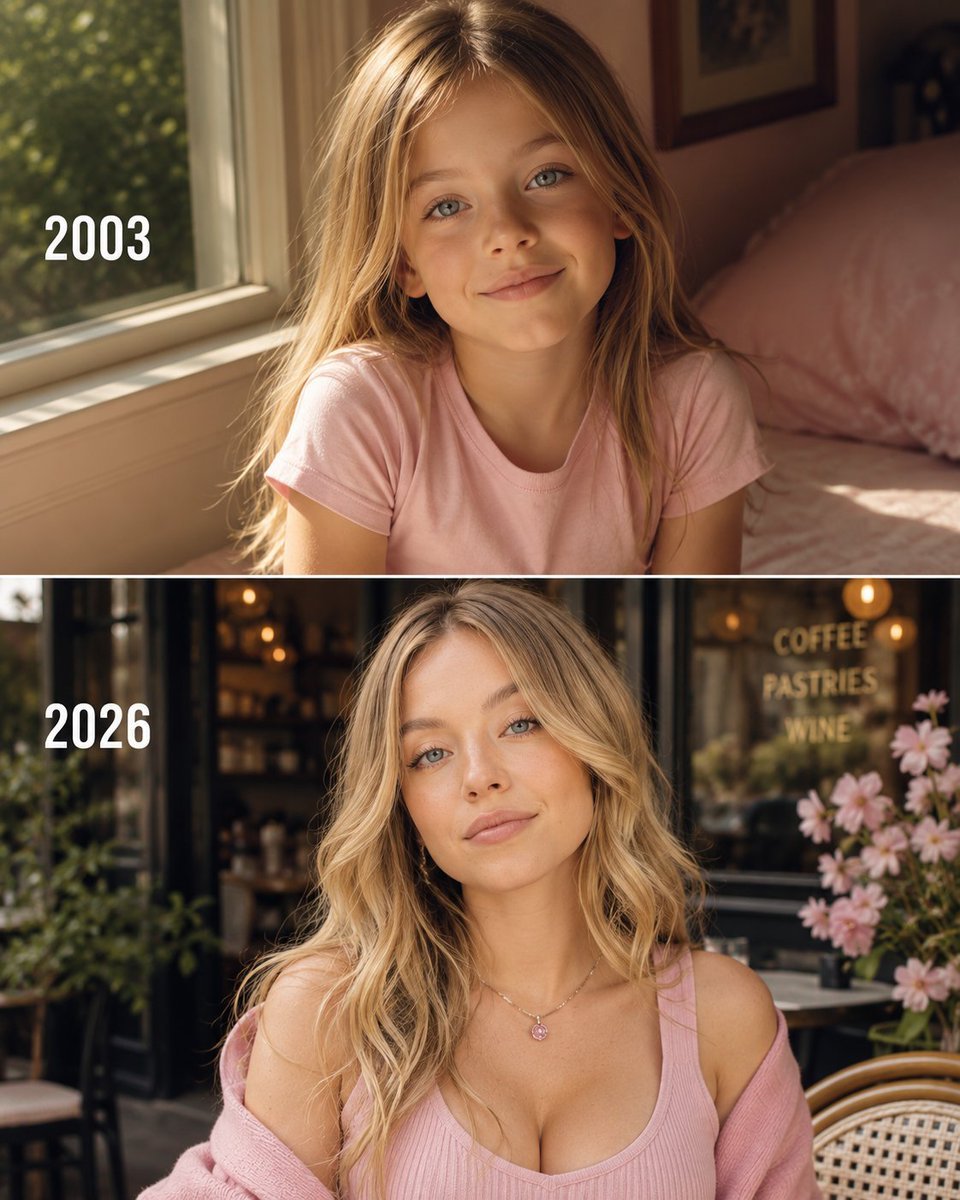
Then vs Now Identity Transformation Collage
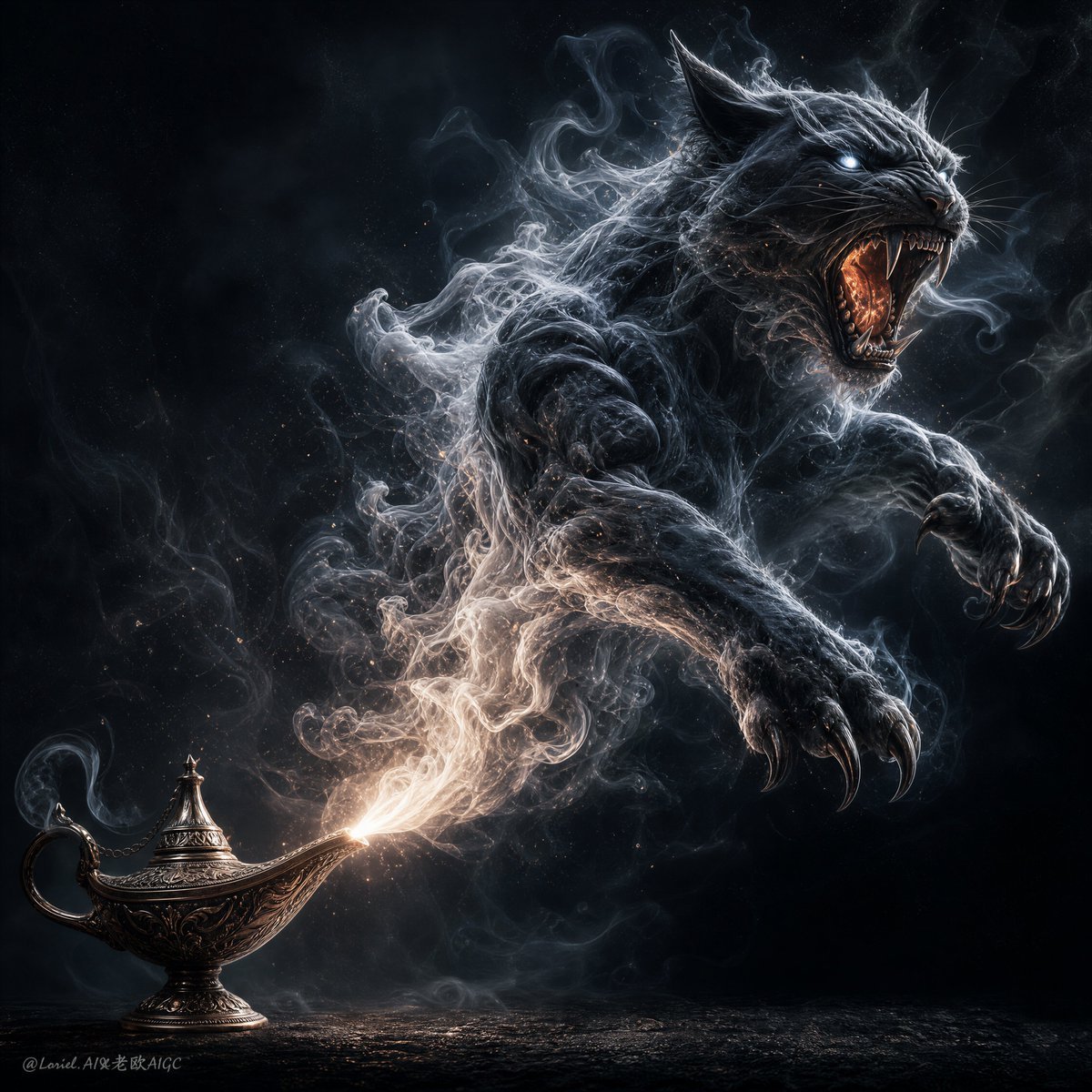
Dark Fantasy Smoke Monster Transformation
Make it yours
Devil Transformation Character Design works as-is. These are the safest ways to change it without losing the look.
Change one field
Copy a single group, rewrite it, and generate again so you can see what that field is doing.
Keep the frame, change the subject
Hold the composition and light of Devil Transformation Character Design, then swap wardrobe, props or the person for a new take.
| If the result… | Why | Fix |
|---|---|---|
| The result drifts from the preview | Too many fields changed at once. | Reuse Devil Transformation Character Design as-is first, then change one group — subject, light, or setting. |
| The model over-stylizes the scene | The prose prompt leaves finish and camera underspecified. | Add one camera or lighting sentence and stay on GPT Image 2. |
More GPT Image 2 templates
Other prompts made for GPT Image 2.

Six VTuber Japanese Logo Sheet

Realistic Portrait of Woman and Deer

The Vista Modular Condo Poster

AI Model Routing Comparison Infographic

2.5D Anime Art Board

Isometric Productivity Desk Scene

New York Double Exposure Poster

Four-Panel AI Landscape Comparison

Japanese Tatami Lifestyle Magazine Cover

NESCAFÉ Coffee Map Poster
More image prompts
Fresh picks from across the catalog.
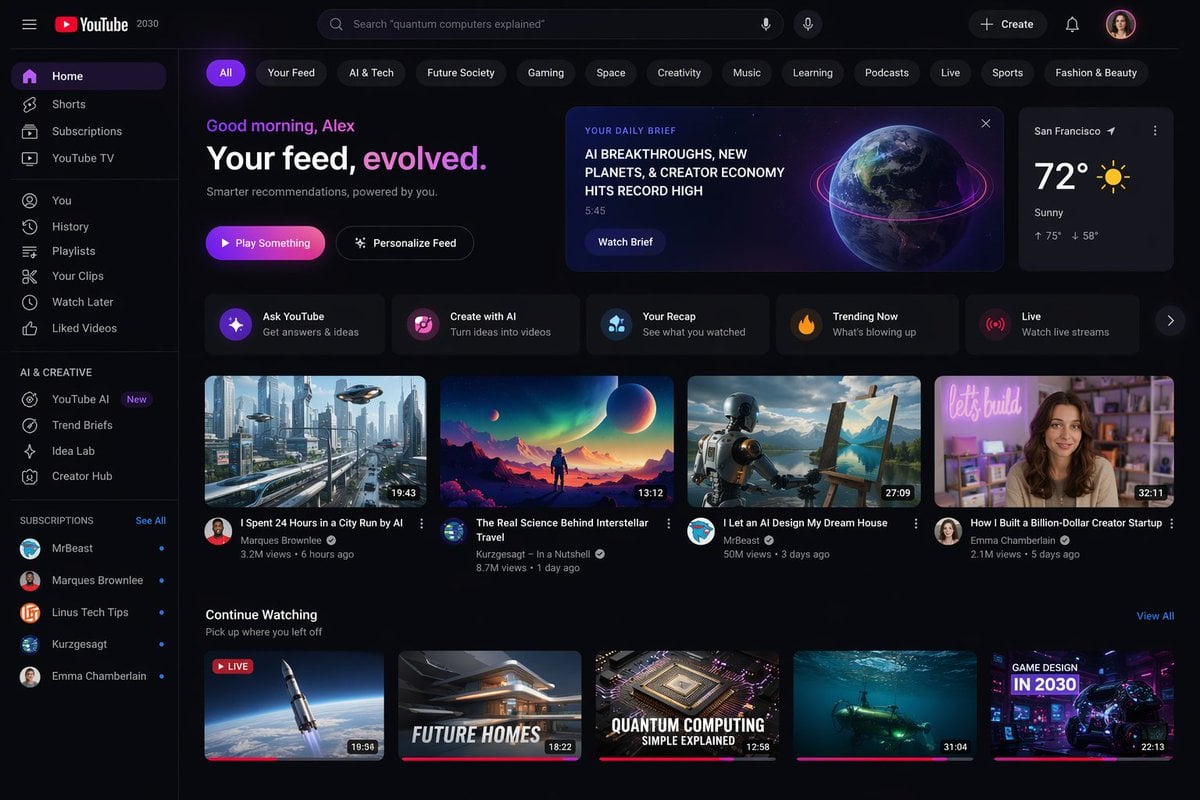
YouTube 2030 Interface
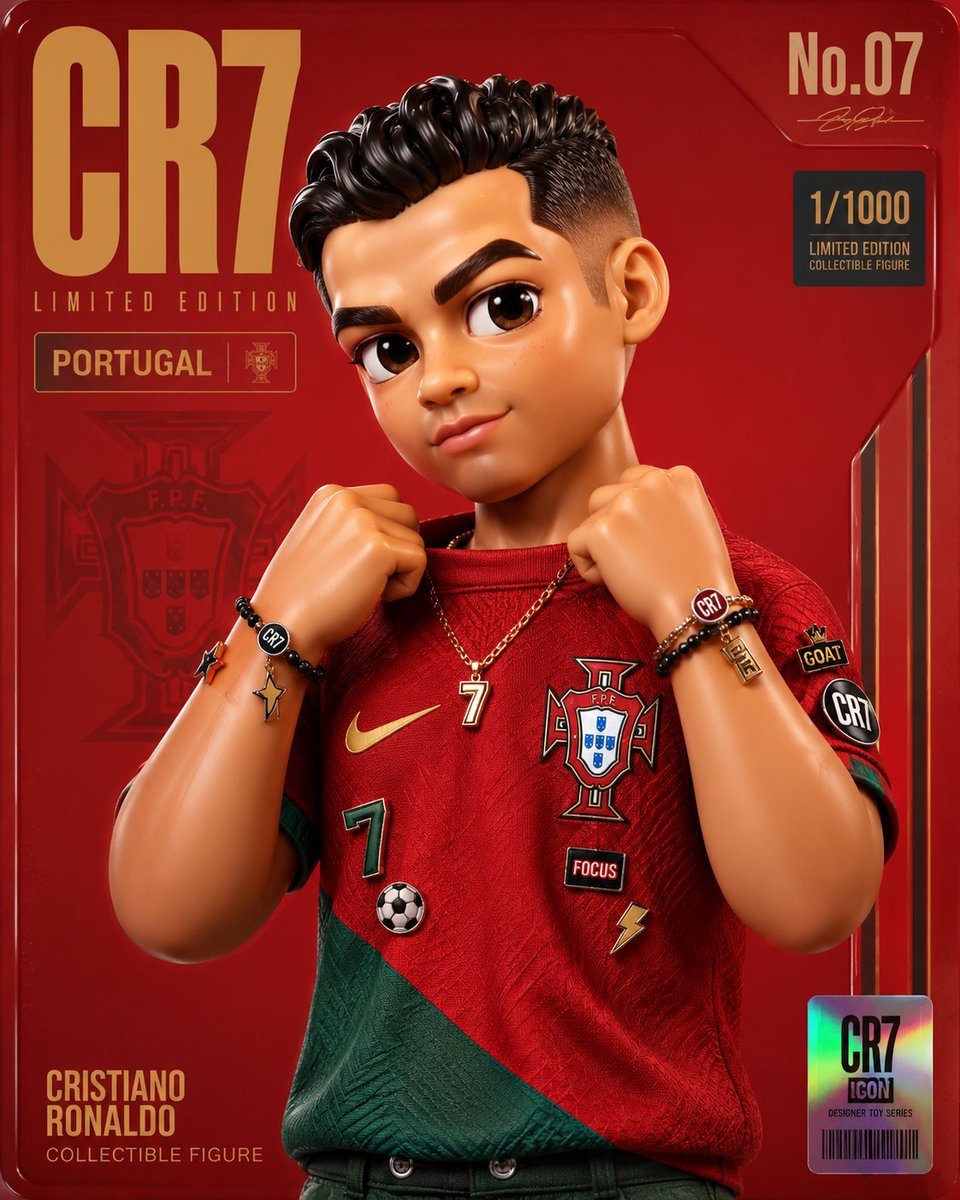
Premium Designer Collectible Toy Aesthetic
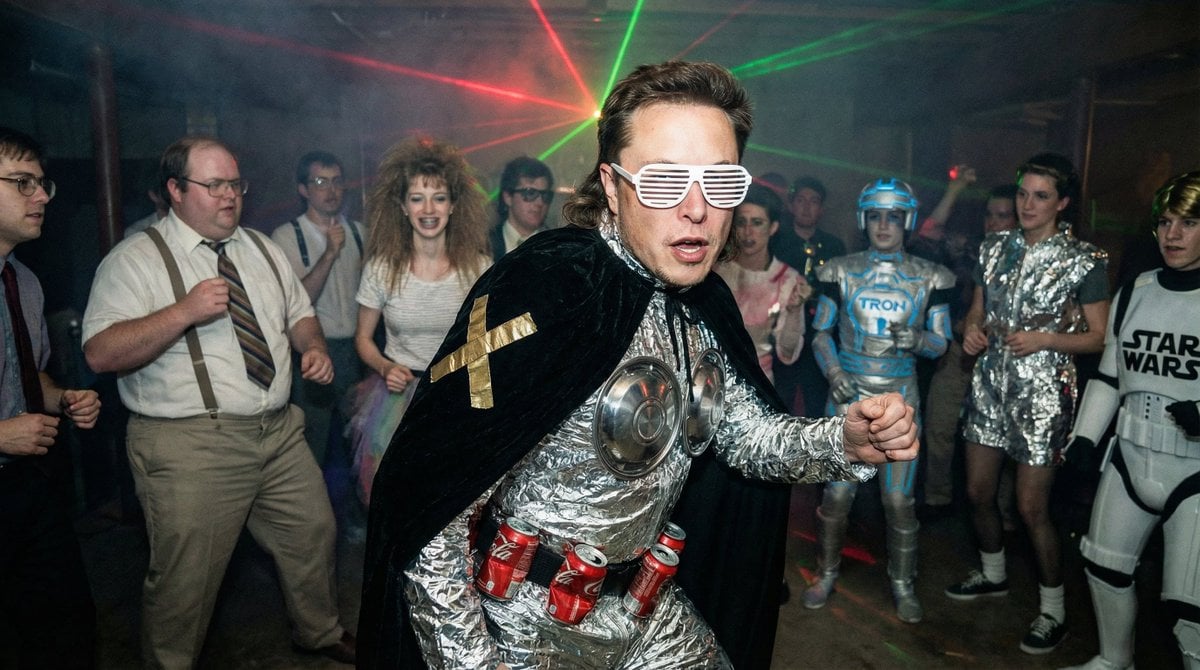
1980s underground nerd techno party flash photo prompt
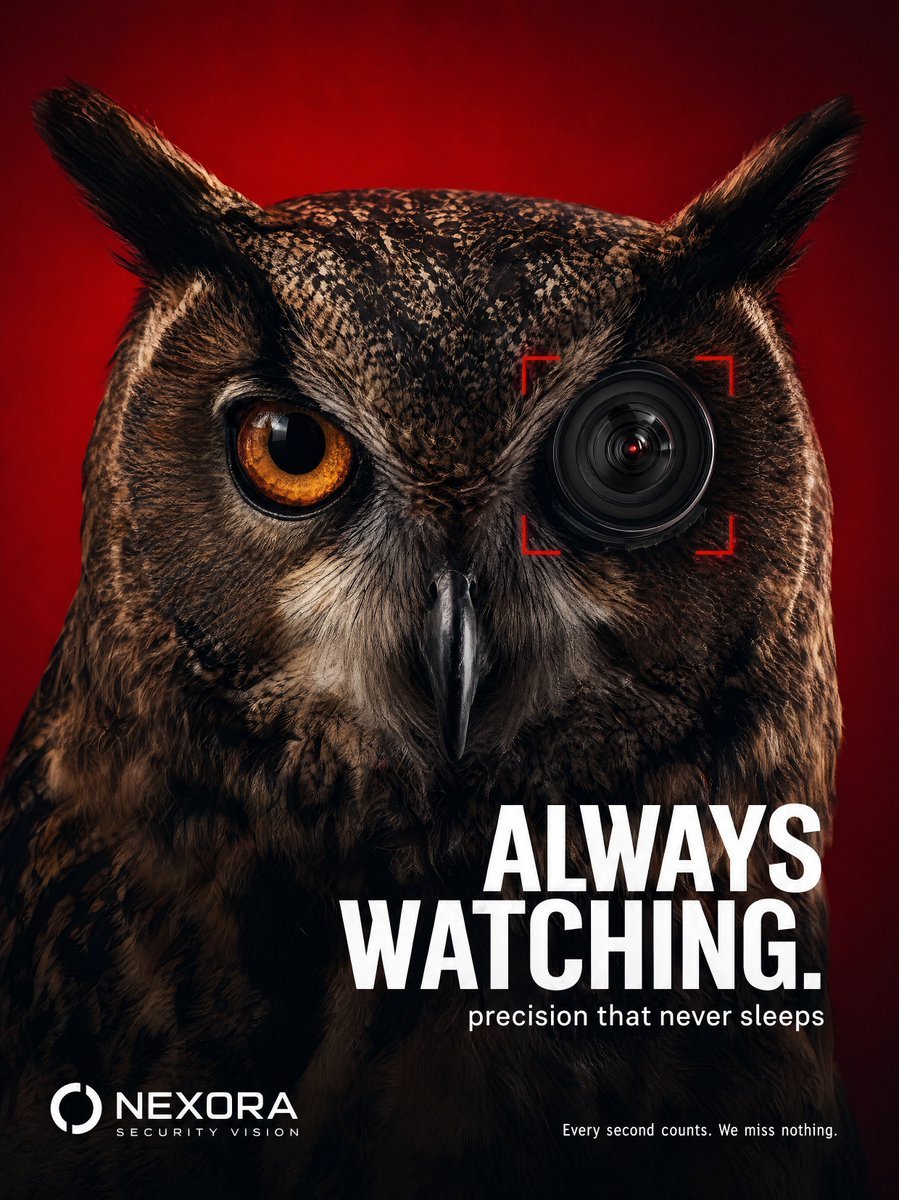
Tech Security Brand Advertising
Athletic female portrait in studio
Dynamic Energy Drink Ad
Four-panel manga about Bitcoin from cypherpunk view
Golden Hour Candid Lifestyle Photo of South Asian Woman
Tiny Boy Character Sheet
Y2K Cyber-Grunge Collage Poster
Browse template categories
Devil Transformation Character Design questions
How do I use the Devil Transformation Character Design template?
Add your photo if the template asks for one, edit the prompt if you like — the template's model and format are already selected — and press Generate. Your version opens in PicX Studio.
Can I customize the Devil Transformation Character Design template?
Yes. You can change the subject, setting, lighting, mood, format, and available model controls before creating your image.
Is the Devil Transformation Character Design template free?
Opening and editing this template is free. Generating uses credits, shown on the Generate button when you are signed in.
Which AI model should I use?
Start with GPT Image 2, which is the model associated with this template. You can compare another compatible model for a different finish.
Looking for something else? Browse all templates.

Your photo, any look
Thousands of ready templates for every top image and video model, from one credit balance.