How do I use the Dark Manga Cream Soda Cover template?
Choose the primary action to open PicX Studio with the available template settings. Review the model and format, personalize the creative direction, and generate when ready.
Creates a moody manga-style album cover by transforming a cream soda reference into a vivid foreground drink with a monochrome character backdrop.

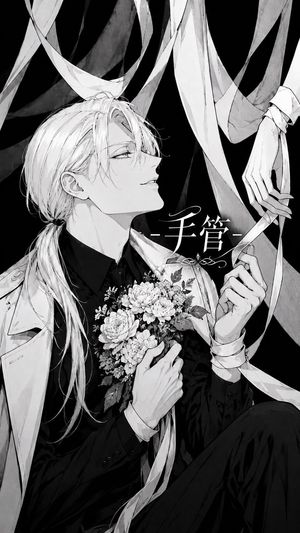
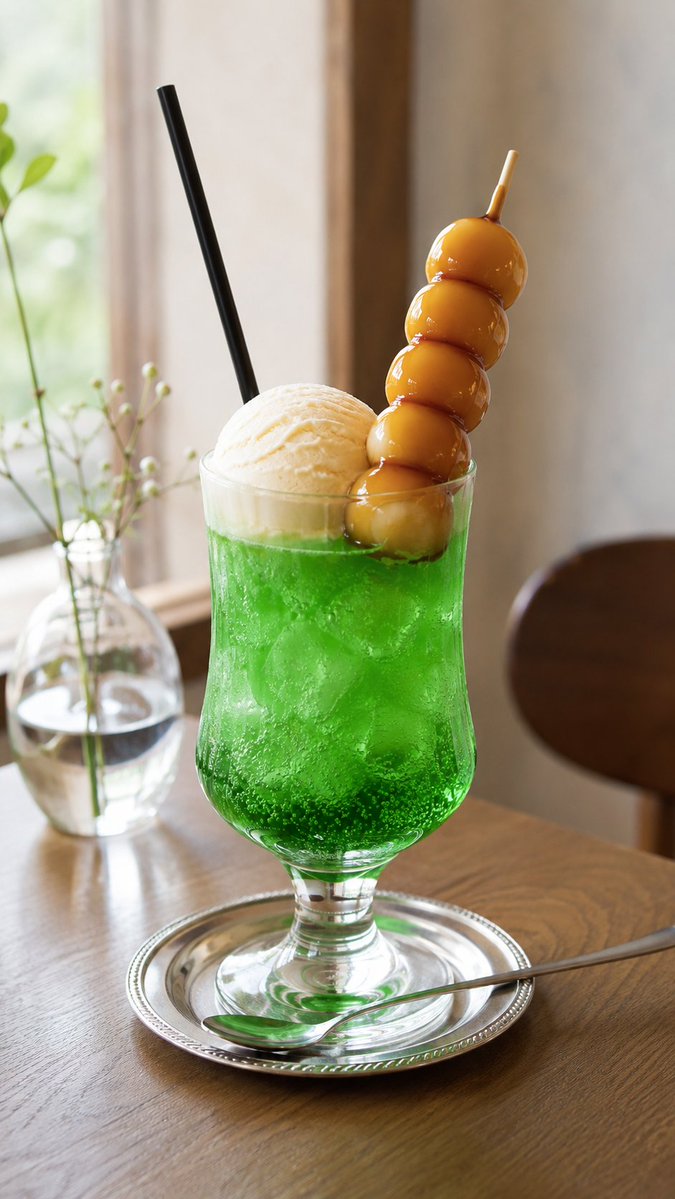
Using the provided reference image as the source for the cream soda, extract and restyle the drink into a dramatic illustrated album-cover composition. Keep the melon cream soda identifiable with its tall glass, vivid green fizz, ice, vanilla ice cream scoop, and red cherry, but render it as polished manga-style illustration rather than a bright café photo. Add a new background and subject: place the soda large in the foreground on a glossy black tabletop, with a monochrome manga-style androgynous young man behind it, leaning forward with one hand against his cheek, pale detailed line-art hair, tired expressive eyes, and a dark suit. Use a black, high-contrast, moody atmosphere with scratchy ink hatching, silver-gray highlights, and the drink as the main color accent. Composition: vertical cover art, centered glass in front, character filling the upper background, deep black negative space, reflective table surface at the bottom. Add exactly one vertical Japanese title on the glass reading {argument name="vertical glass text" default="クリームソーダ"}, with exactly 7 visible characters arranged top-to-bottom. Make the overall style {argument name="art style" default="dark monochrome manga illustration with selective vivid green color"}. Optional customization: the background character should feel like {argument name="character mood" default="melancholic and elegant"}. Avoid the original café setting, flowers, package, and bright natural-light background.
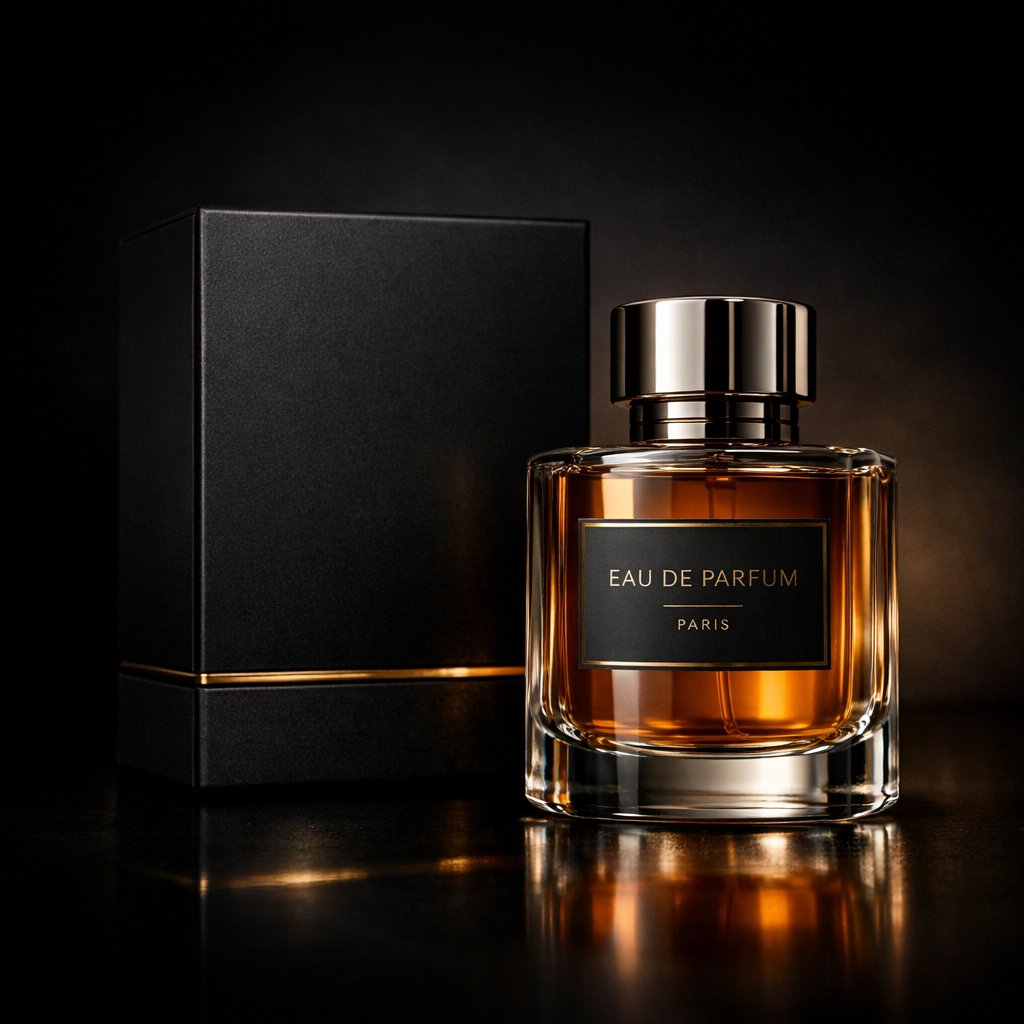
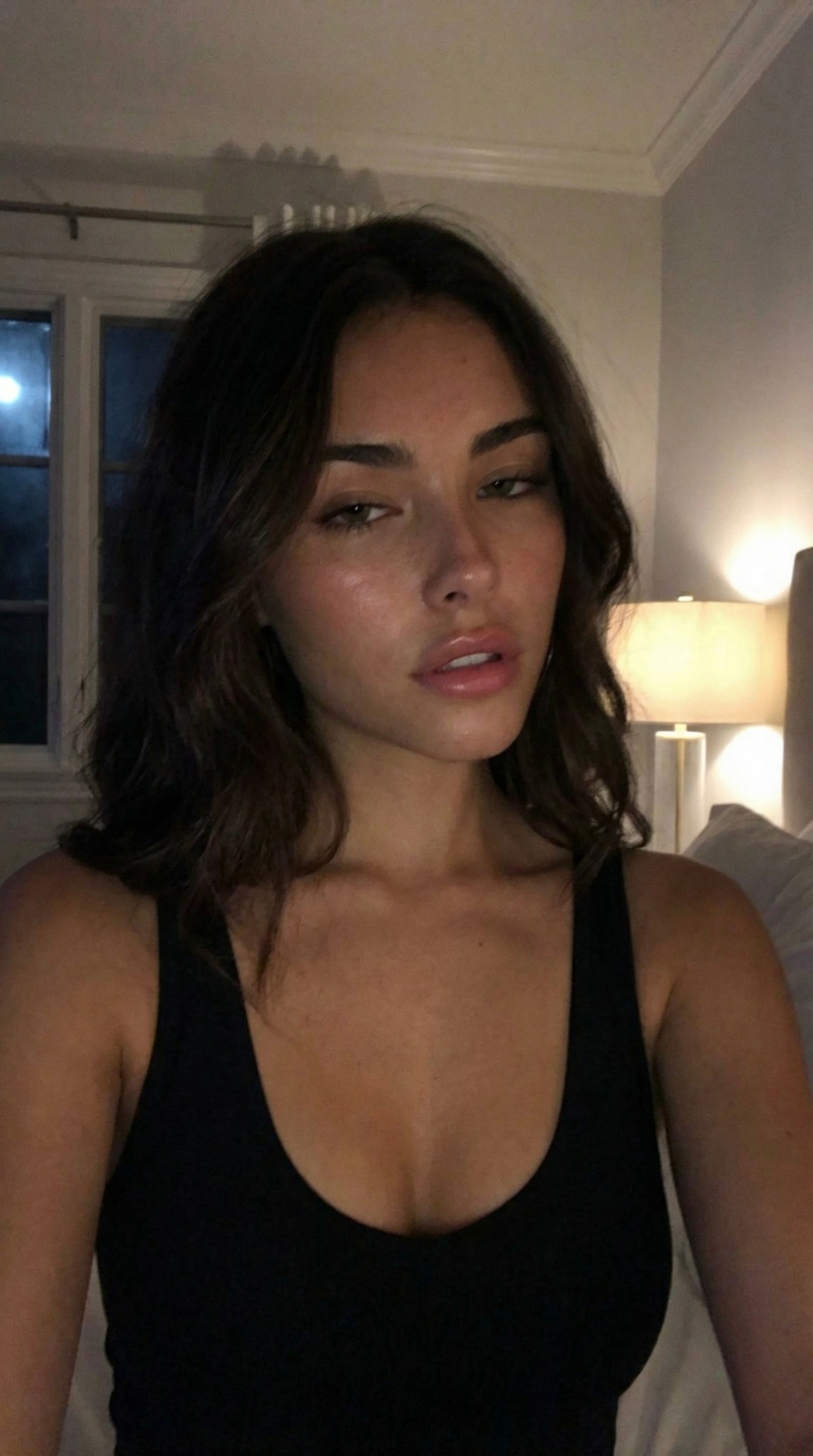
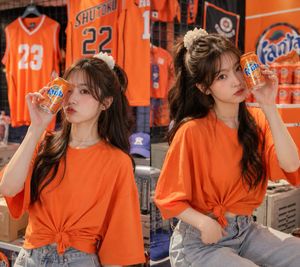
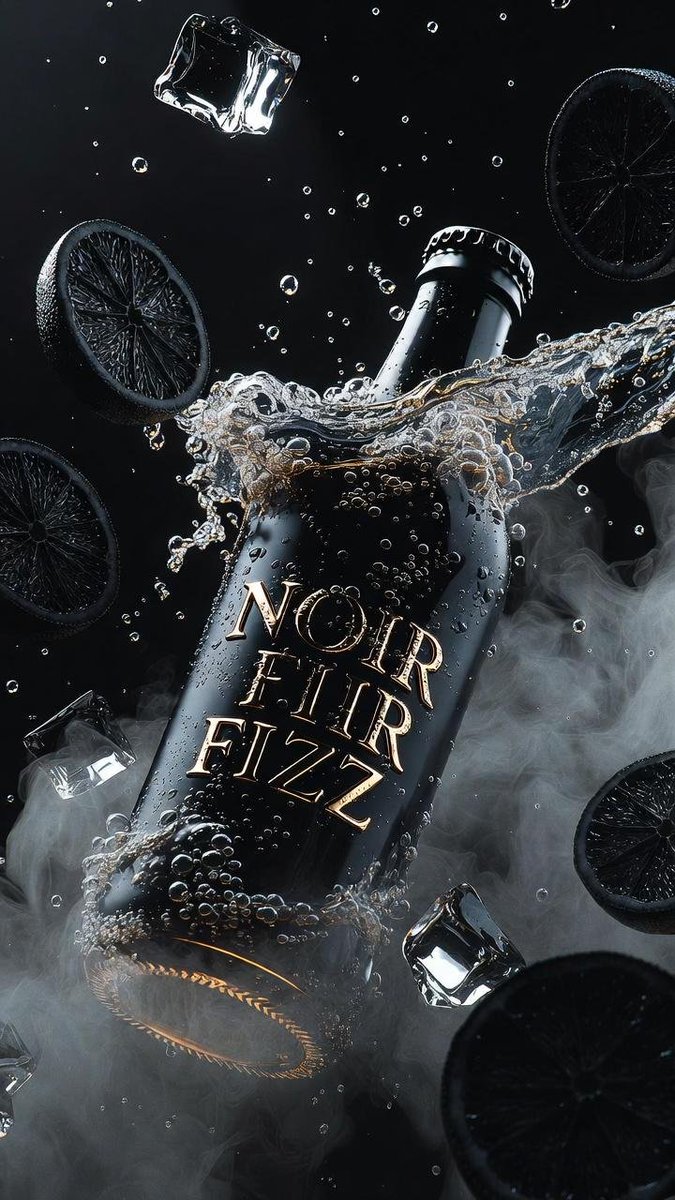
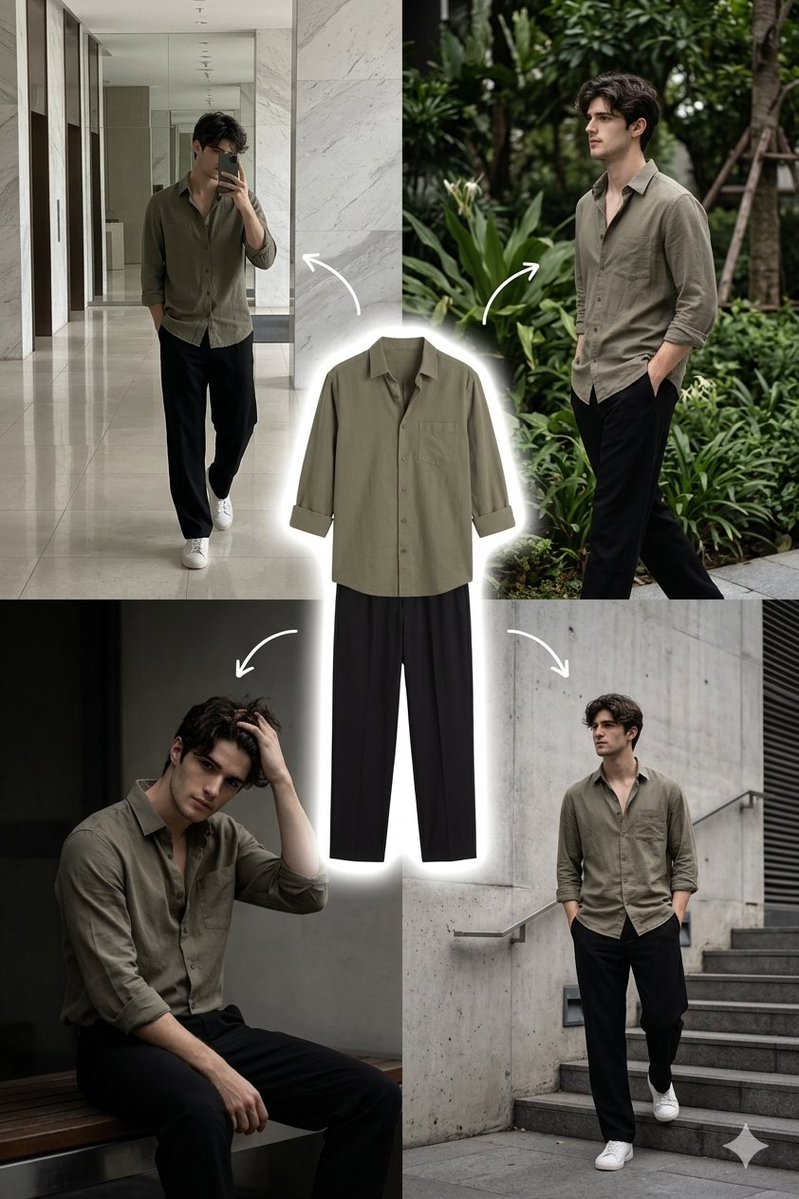
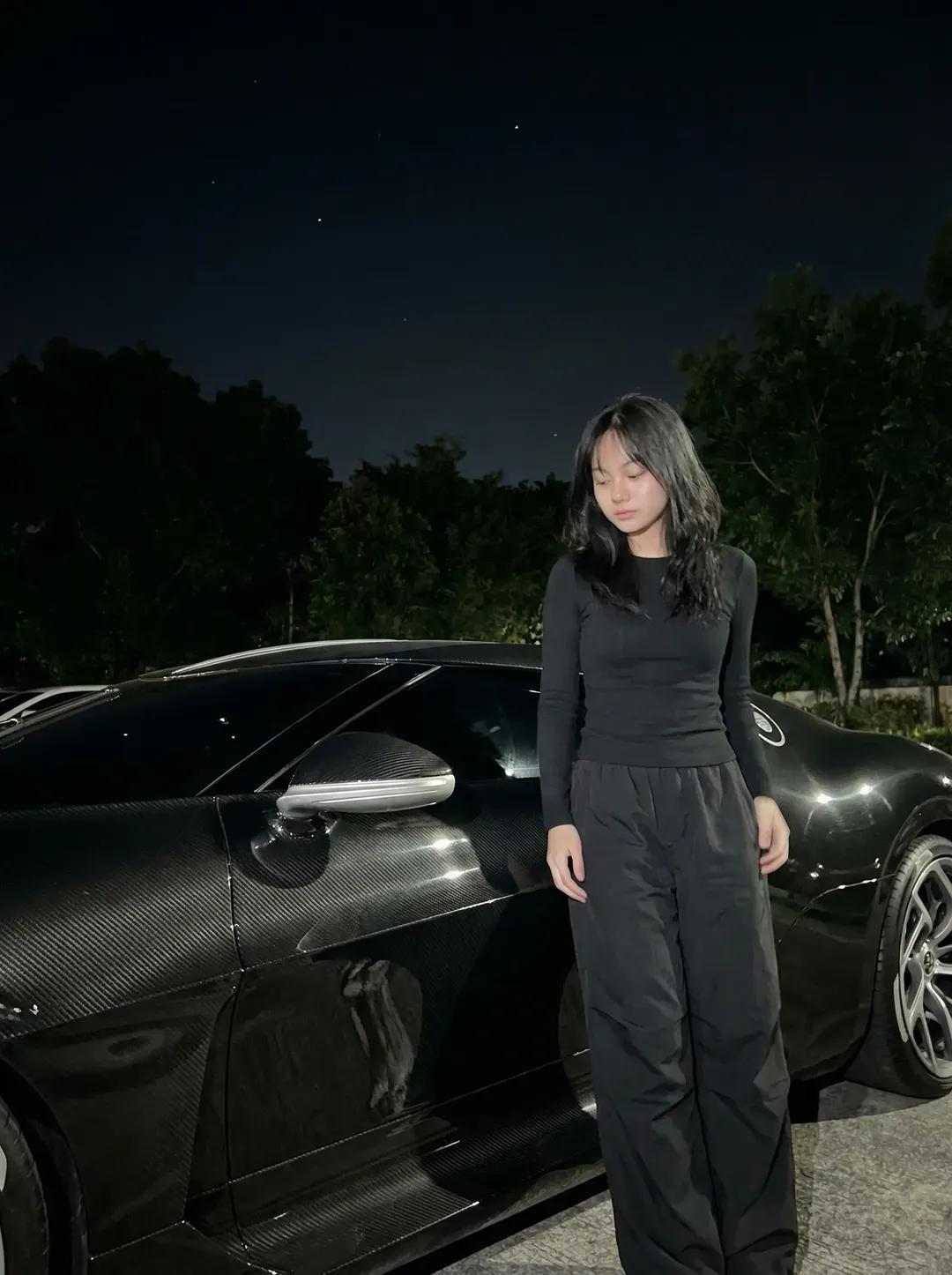
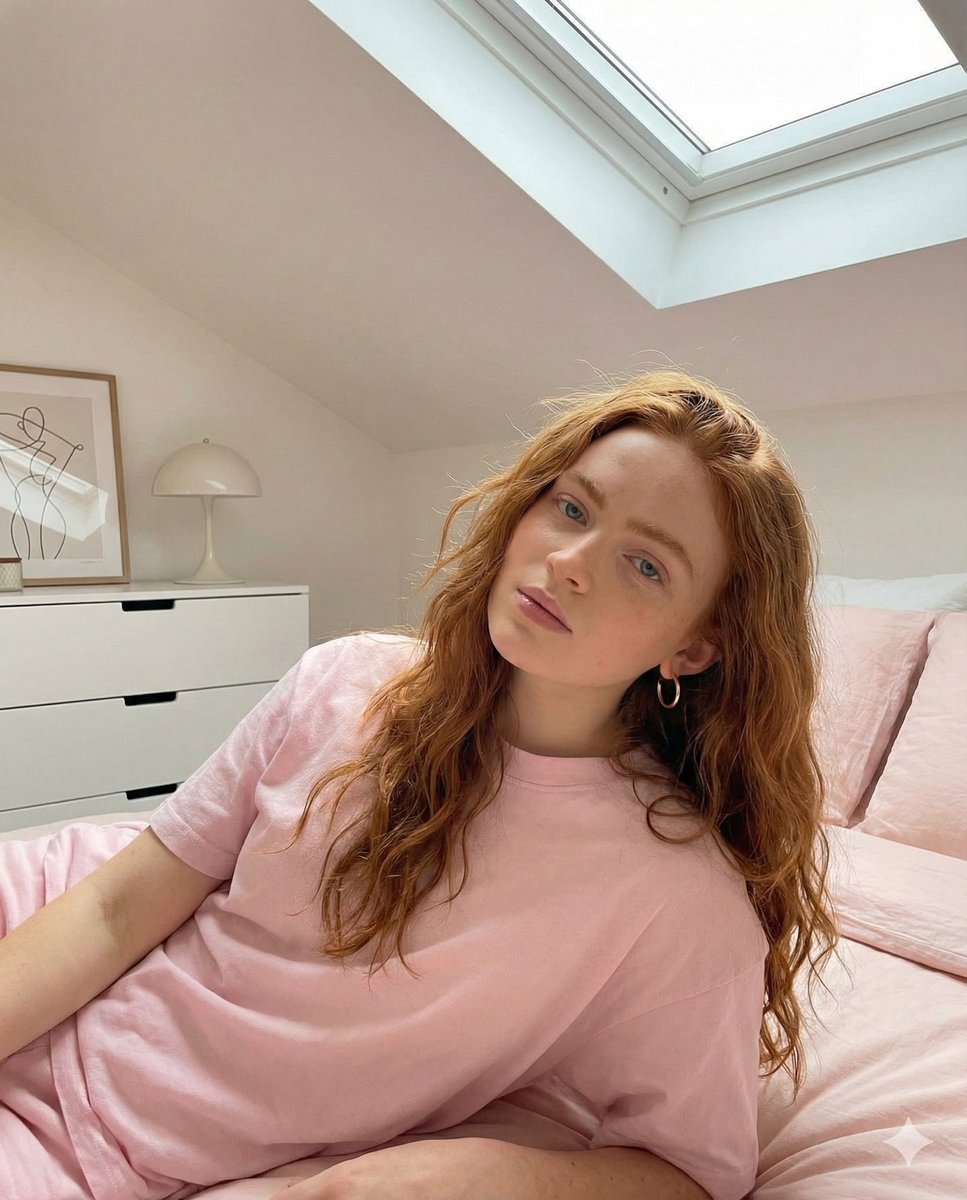
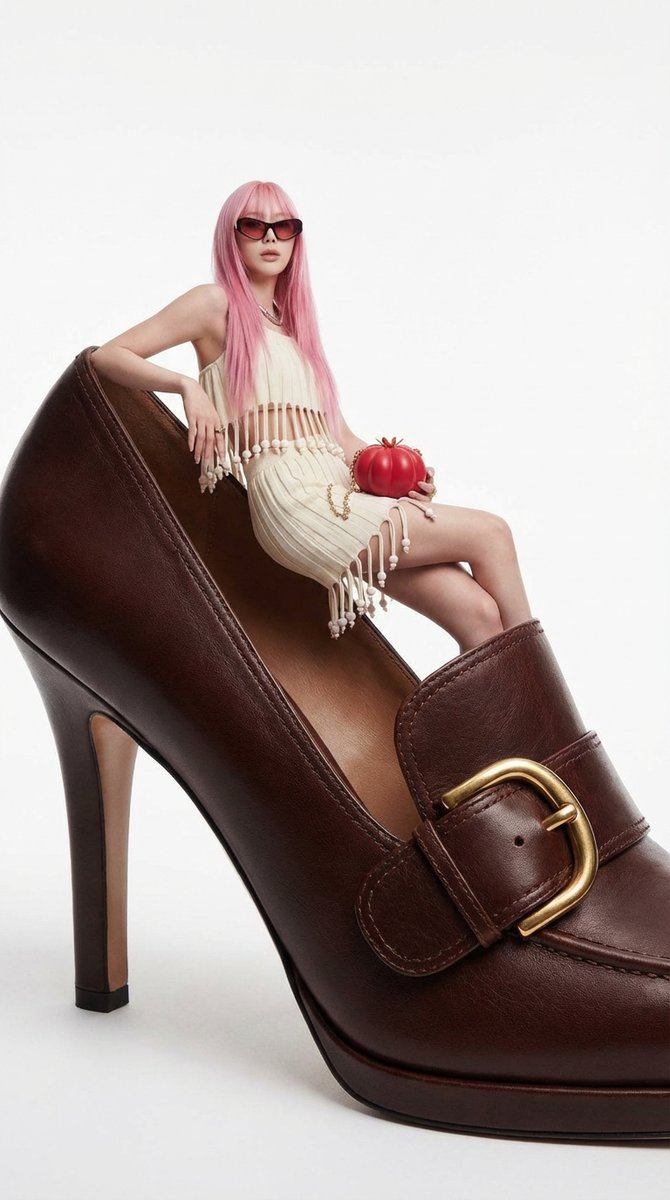
Dark Manga Cream Soda Cover needs input media to work. Open it in the studio and these load alongside the prompt — pick whichever ones your chosen model can take.
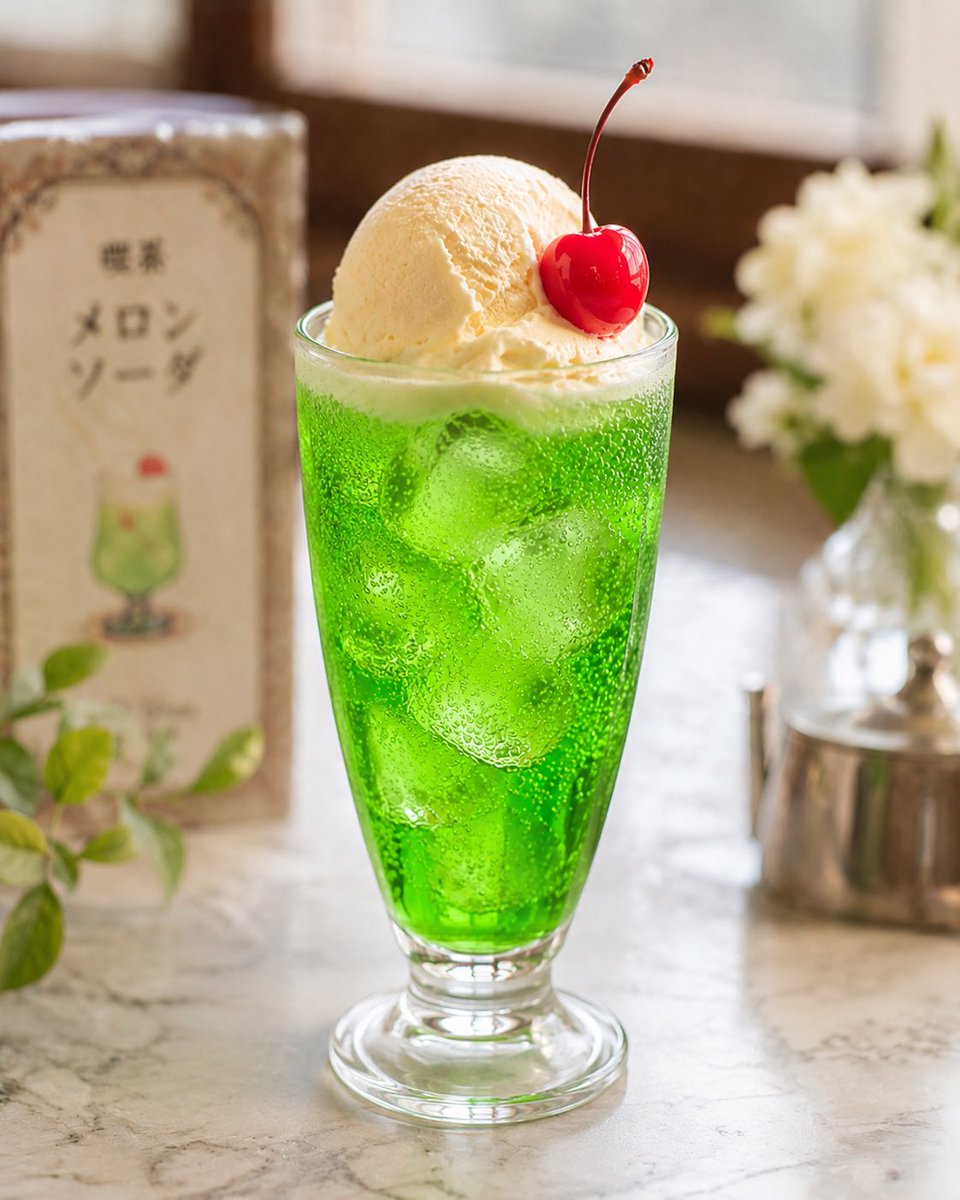
Choose the primary action to open PicX Studio with the available template settings. Review the model and format, personalize the creative direction, and generate when ready.
Yes. You can change the subject, setting, lighting, mood, format, and available model controls before creating your image.
This template is free to open and customize. Generation usage is shown in PicX Studio before you create.
Start with GPT Image 2, which is the model associated with this template. You can compare another compatible model for a different finish.
Follow a topic to a crawlable collection of related PicX Studio templates.