
Anime Wolf Mascot with Korean Text
Generates a square anime-style anthropomorphic wolf mascot avatar with goggles, red scarf, pointing pose, and bold Korean name text.
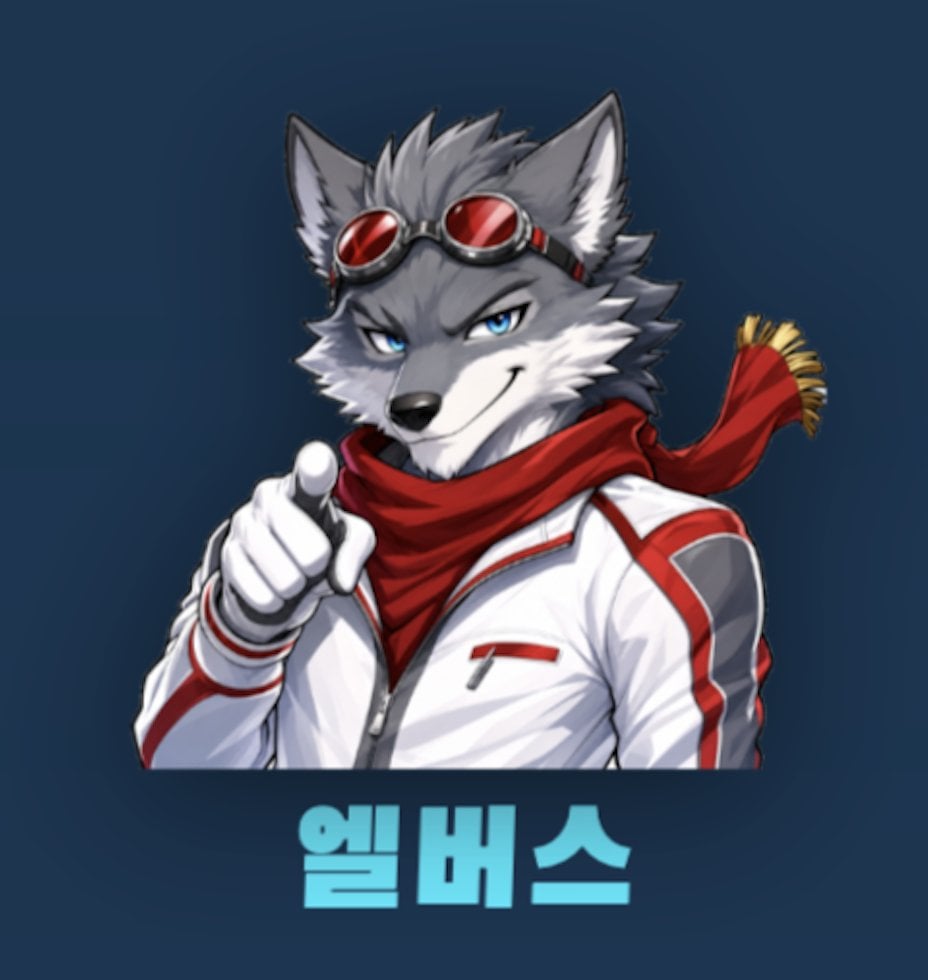
- Prompt included
- Model and format preset
- Free template
The prompt behind this image
Copy the exact prompt behind Anime Wolf Mascot with Korean Text, or open it in the studio and make it yours.
Create a square anime-style mascot portrait on a dark navy blue background. Center a confident anthropomorphic wolf character from the waist up, facing forward with a slight three-quarter angle, smirking and pointing directly at the viewer with one gloved hand. The wolf has spiky gray fur, white cheek and muzzle fur, tall pointed ears, sharp blue eyes, a black nose, and a mischievous expression. Put red-lensed steampunk goggles with a black strap on top of the head. Dress the character in a white futuristic racing jacket with red stripes and gray panel accents, plus a deep red scarf wrapped around the neck, trailing to the right with a small gold tassel fringe at the end. Use polished digital anime rendering with clean line art, soft cel shading, high contrast highlights, and a slightly glossy game-avatar look. At the bottom, add large bold Korean text reading {argument name="bottom text" default="엘베스"} in bright cyan, blocky sans-serif lettering with a subtle shadow, centered beneath the character. Keep the composition simple: exactly 1 wolf mascot, 1 pair of goggles, 1 red scarf, 1 pointing hand gesture, and 1 bottom text label. No extra characters, no watermark, no border.
How to use Anime Wolf Mascot with Korean Text in 3 steps
- 1Upload ImagePNG, JPG or paste
Add your photo
Upload the photo the template builds on. The prompt, model and format are already set.
- 2…a portrait of your subject in softgolden-hour light, 85mm…
Personalize
Edit the subject and creative details for your destination.
- 3Generate
Generate
Press Generate — your image is created in PicX Studio, so you can compare it with the original and refine one variable at a time.
More like this
Templates with the same subject, style or setup. Open one to see its prompt.
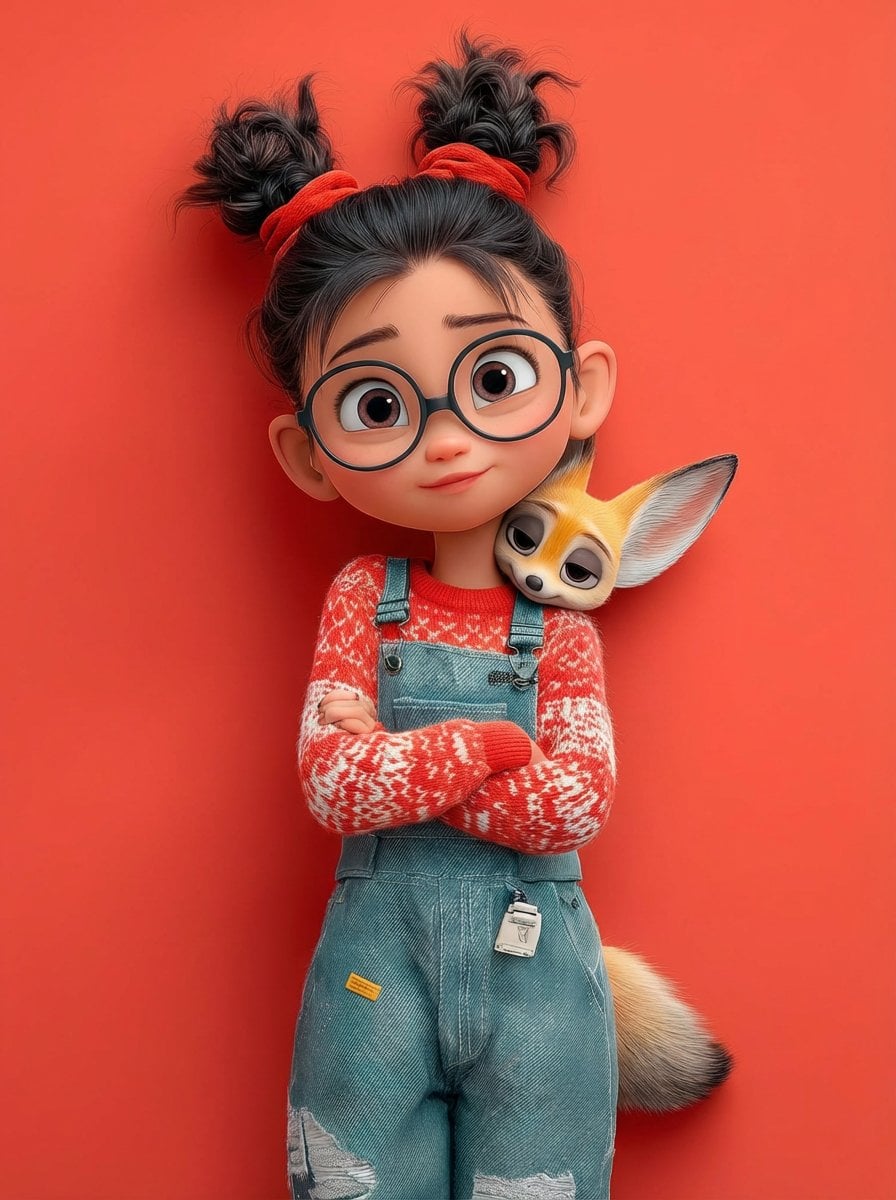
Anime Rain Poncho Parade
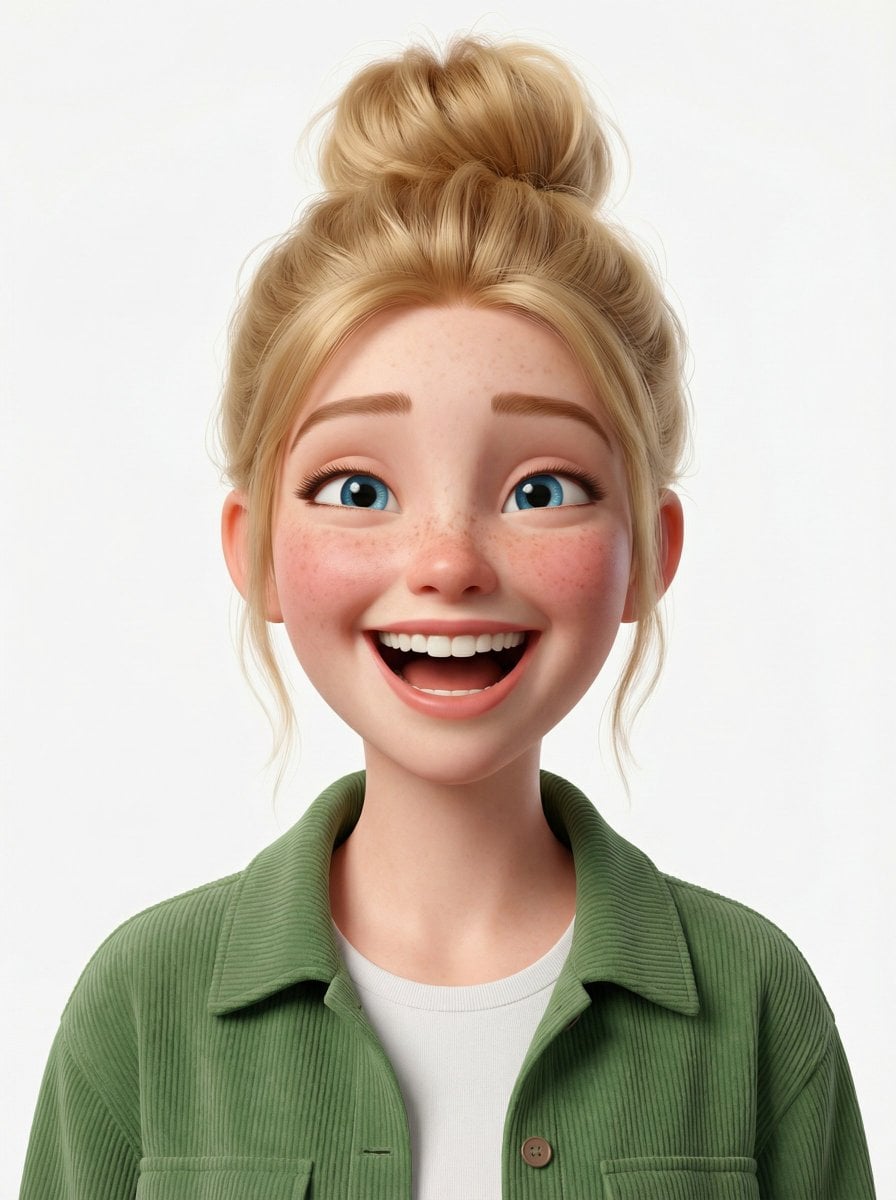
Anime Street Performer Magic
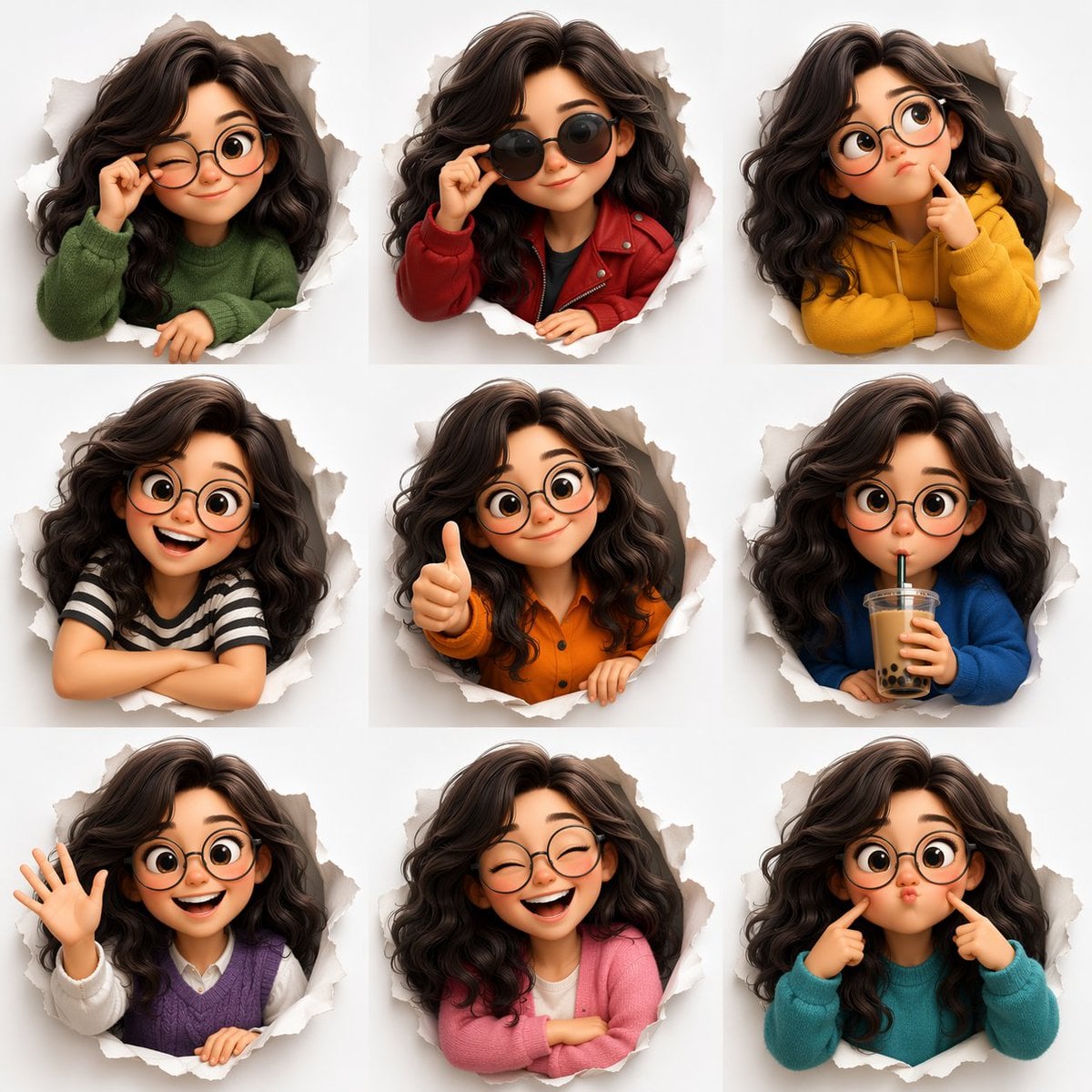
Anime Ferry Boat Arrival
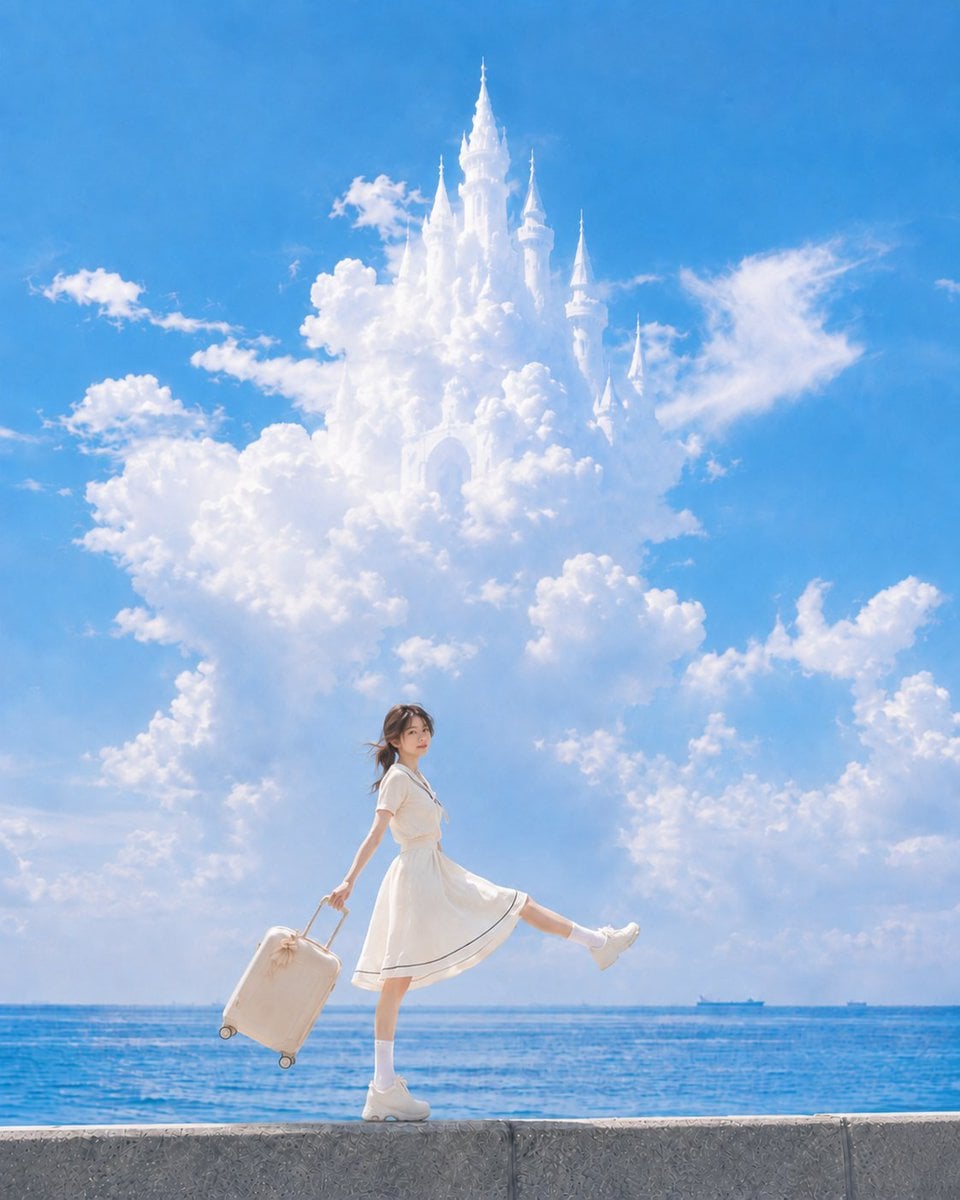
Anime Splash Mountain Drop
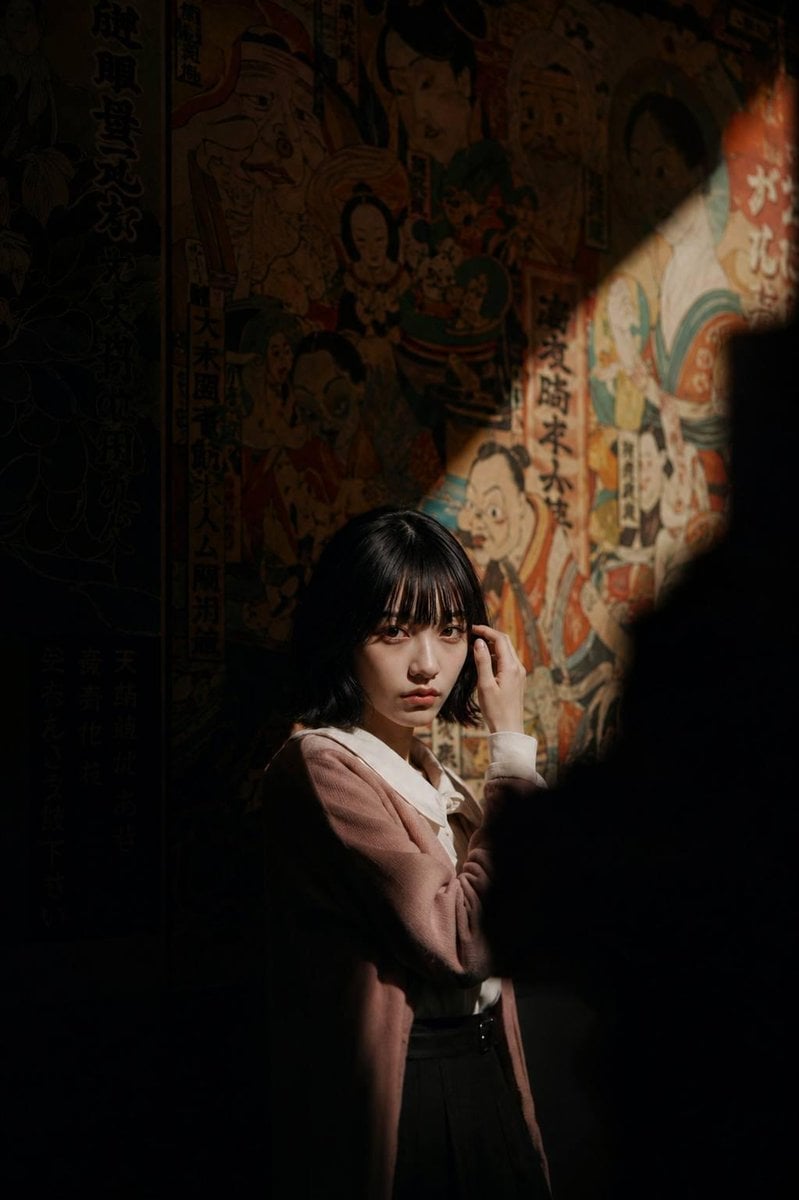
Anime Monorail Sunset
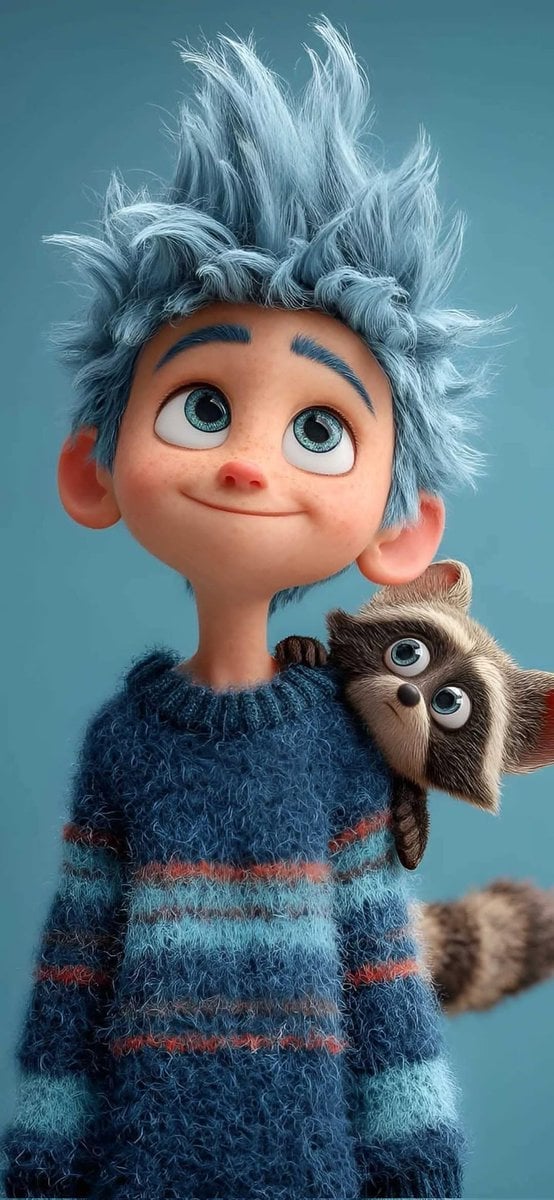
Anime Character Breakfast
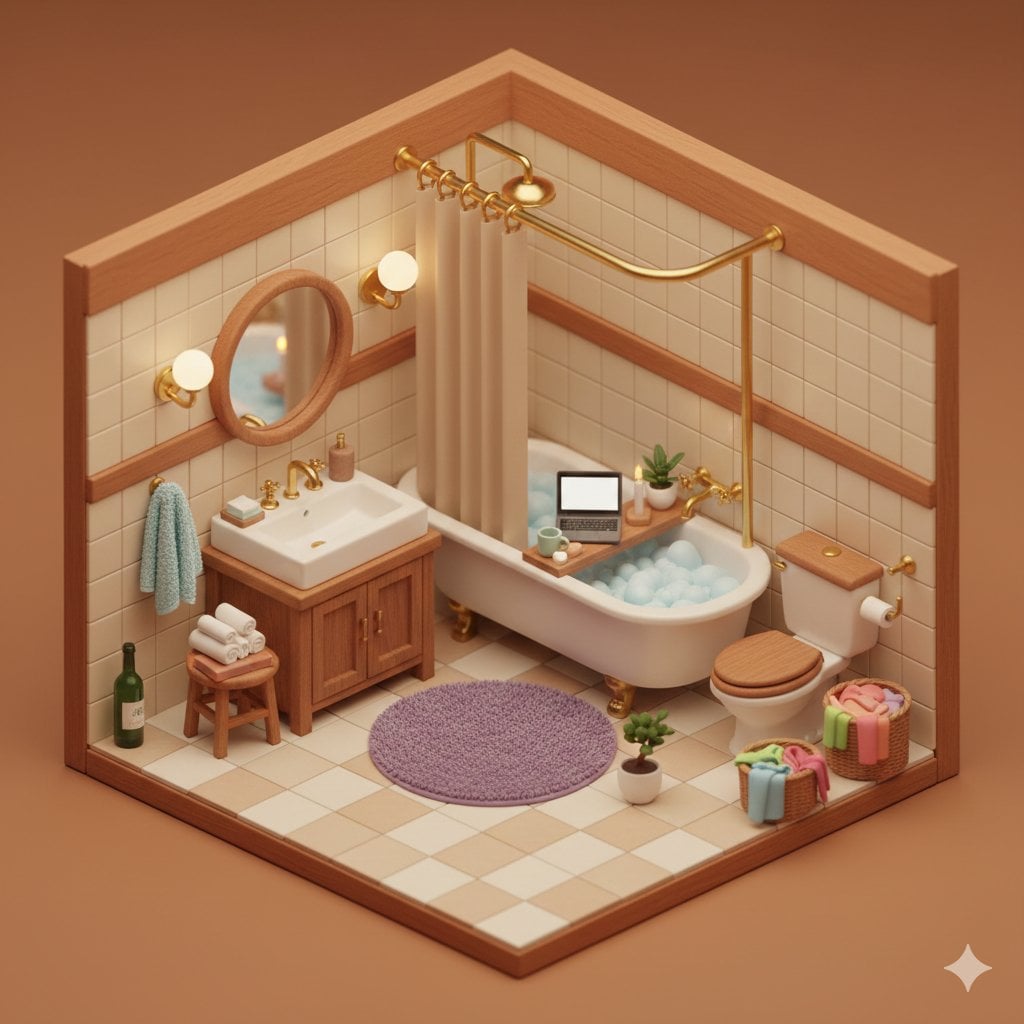
Anime Parade Float Hero
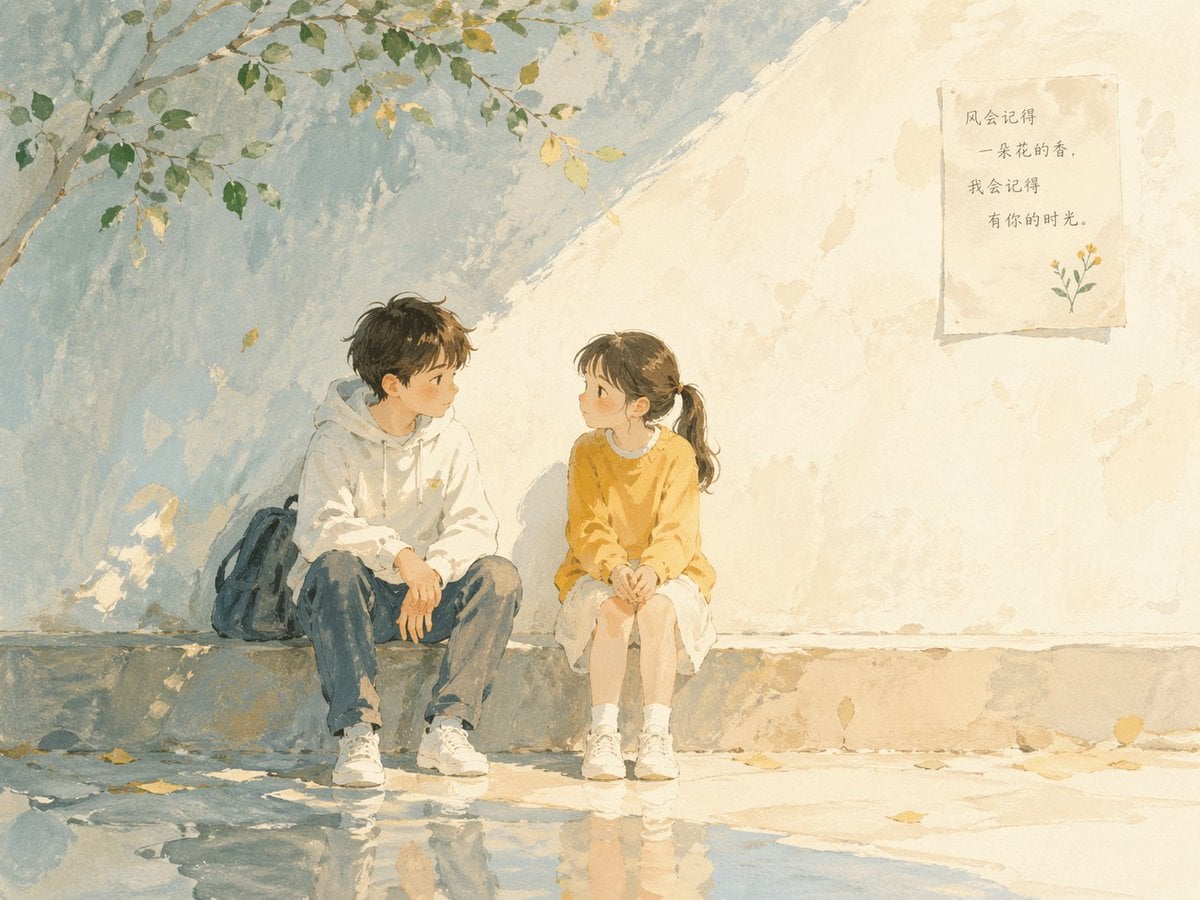
Anime Mascot Hug Parade
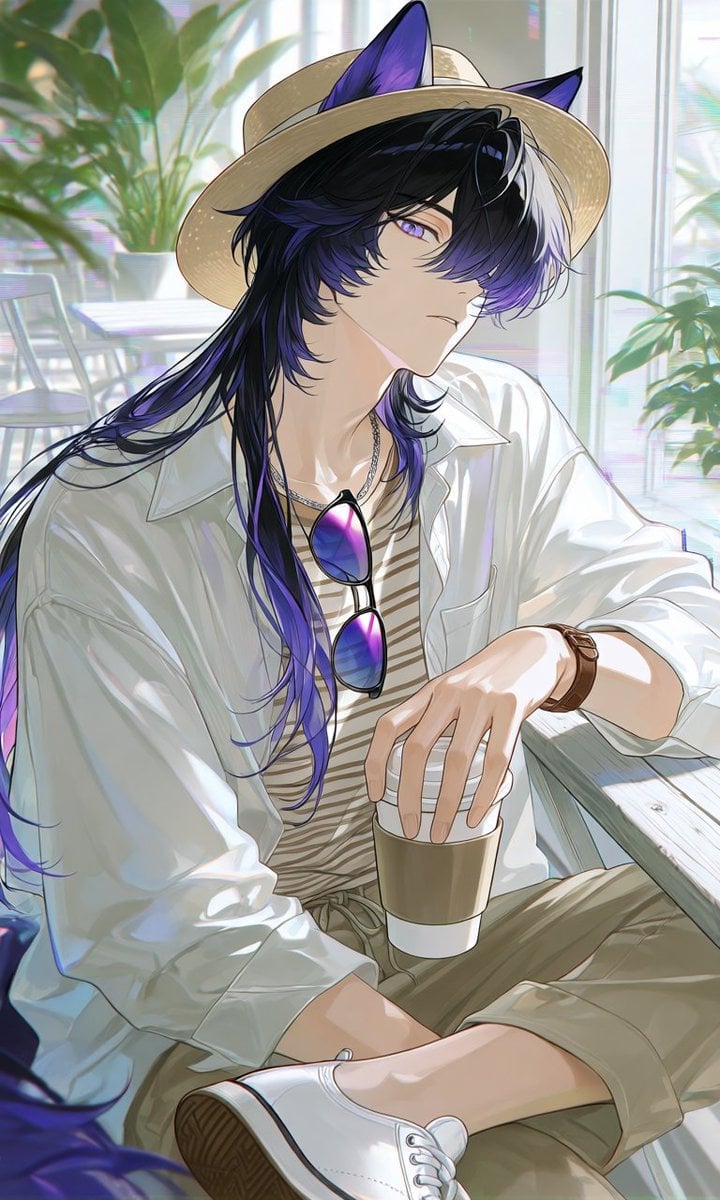
Summer Cafe Anime Wolf Boy
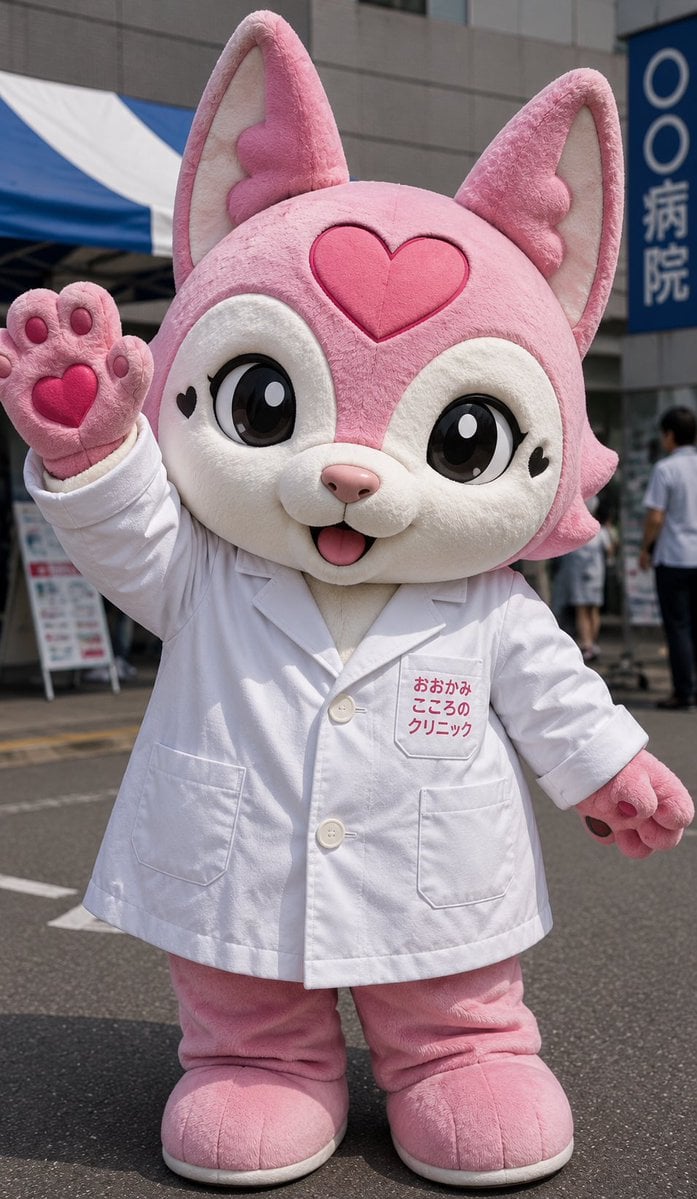
Pink Wolf Clinic Mascot Photo
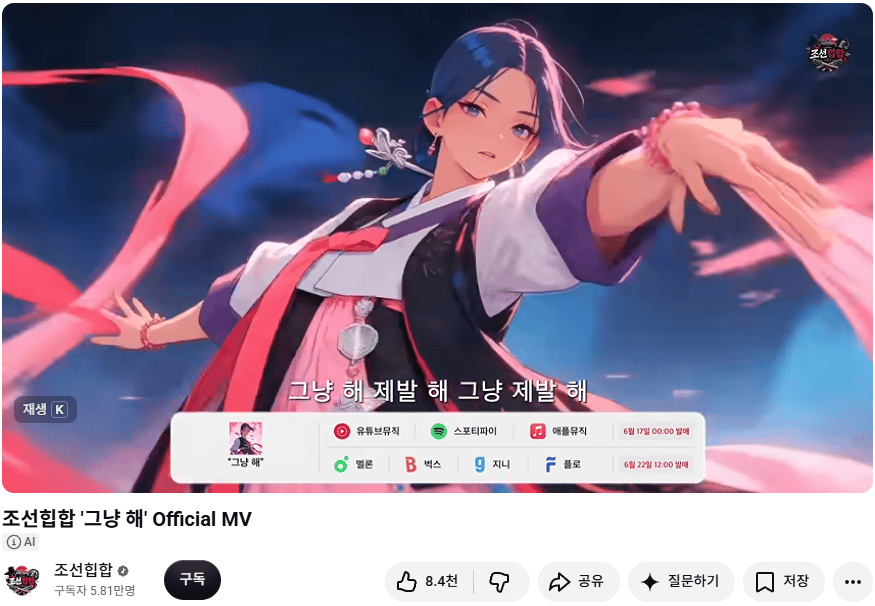
Korean Hip-Hop Anime MV Screenshot
Cel 2D Finale Fireworks
Make it yours
Anime Wolf Mascot with Korean Text works as-is. These are the safest ways to change it without losing the look.
Change one field
Copy a single group, rewrite it, and generate again so you can see what that field is doing.
Keep the frame, change the subject
Hold the composition and light of Anime Wolf Mascot with Korean Text, then swap wardrobe, props or the person for a new take.
| If the result… | Why | Fix |
|---|---|---|
| The result drifts from the preview | Too many fields changed at once. | Reuse Anime Wolf Mascot with Korean Text as-is first, then change one group — subject, light, or setting. |
| The model over-stylizes the scene | The prose prompt leaves finish and camera underspecified. | Add one camera or lighting sentence and stay on GPT Image 2. |
More GPT Image 2 templates
Other prompts made for GPT Image 2.

Six VTuber Japanese Logo Sheet

Realistic Portrait of Woman and Deer

The Vista Modular Condo Poster

AI Model Routing Comparison Infographic

2.5D Anime Art Board

Isometric Productivity Desk Scene

New York Double Exposure Poster

Four-Panel AI Landscape Comparison

Japanese Tatami Lifestyle Magazine Cover

NESCAFÉ Coffee Map Poster
More image prompts
Fresh picks from across the catalog.
Anime Silhouette Narrative Poster
Journey to the West Avatar Grid
Refined Dining Scene with Fusilli and Meatballs
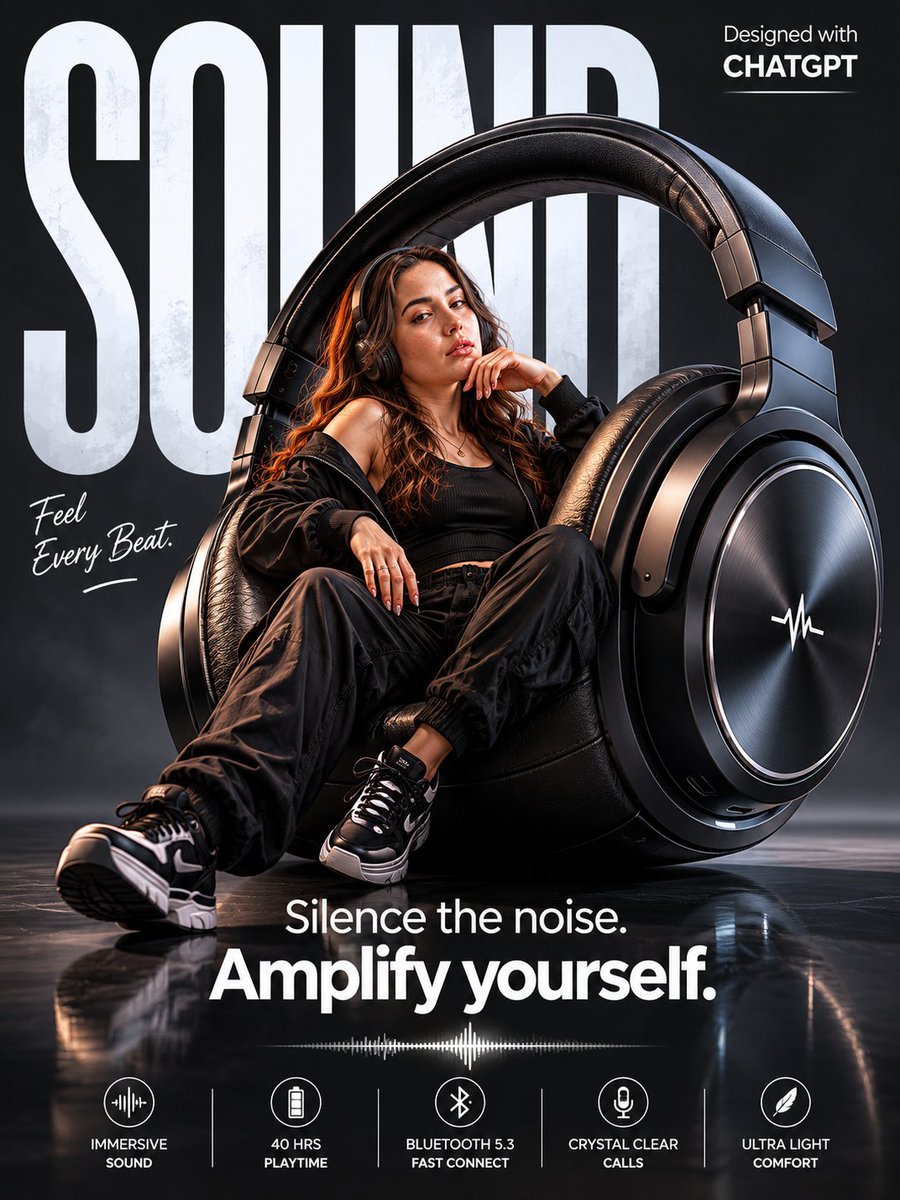
Surreal Wireless Headphones Poster
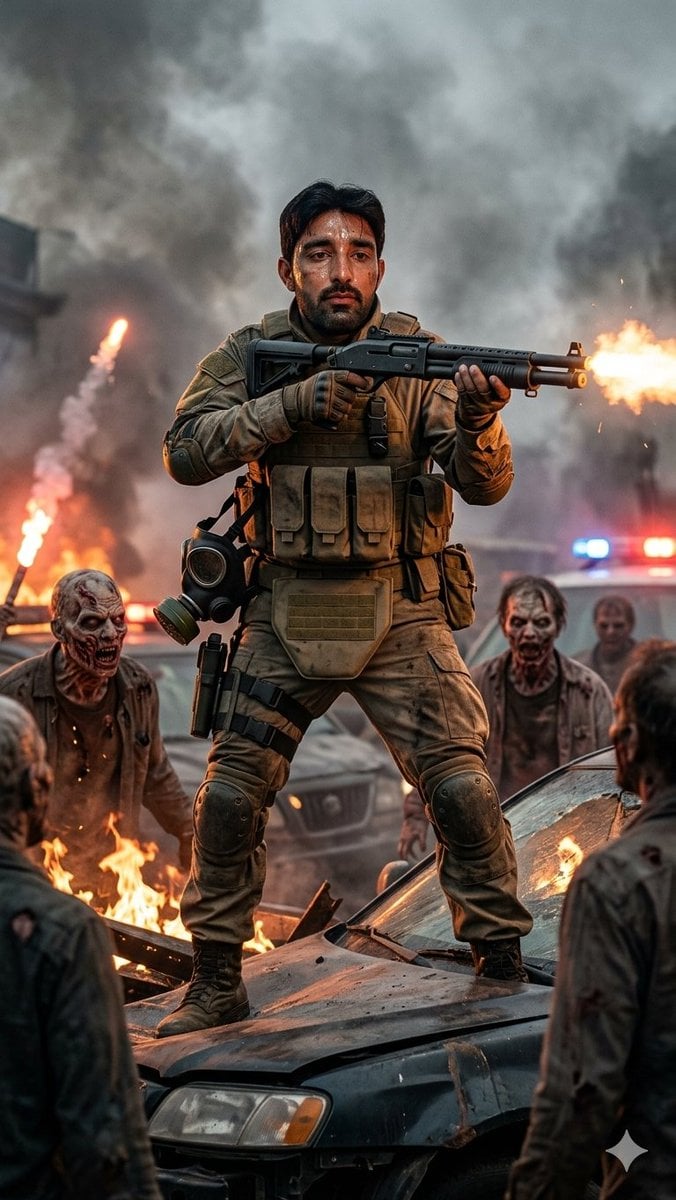
Cinematic Frontline Warrior Last Stand
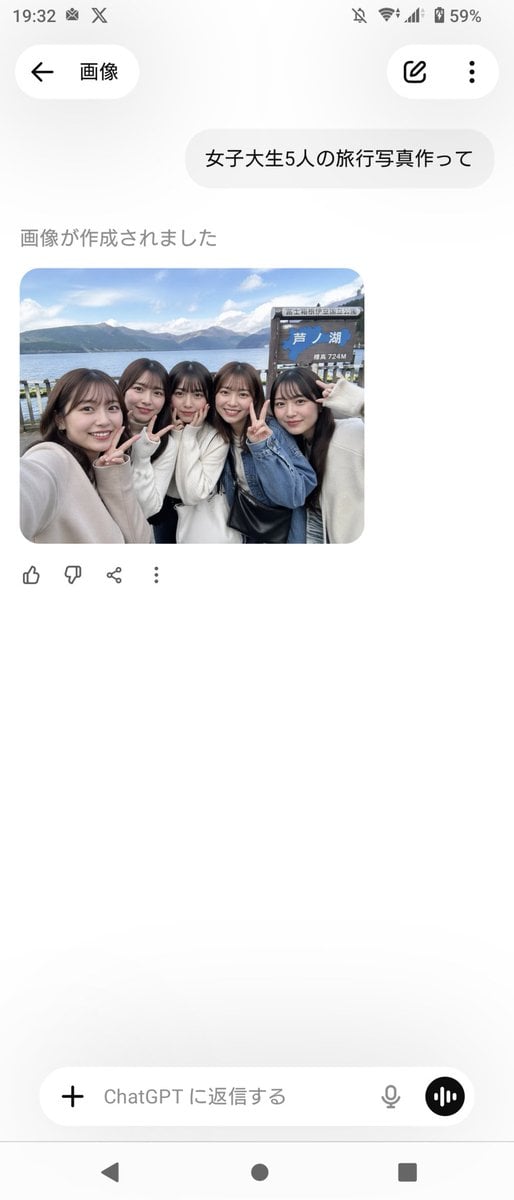
Realistic Friends Trip Selfie at Lake Ashi
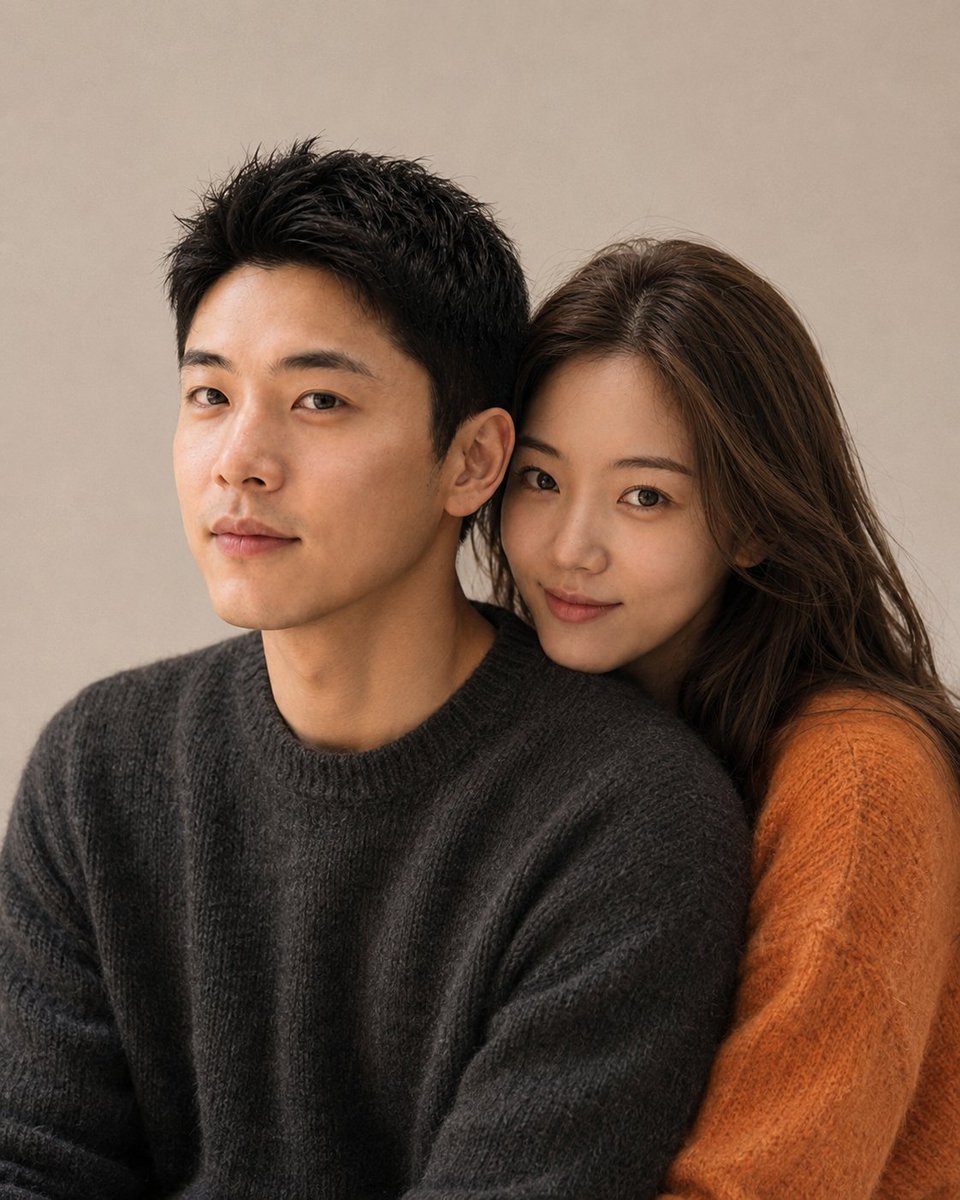
Korean Magazine Style Couple Portrait

3D Retro Futurism Space Poster
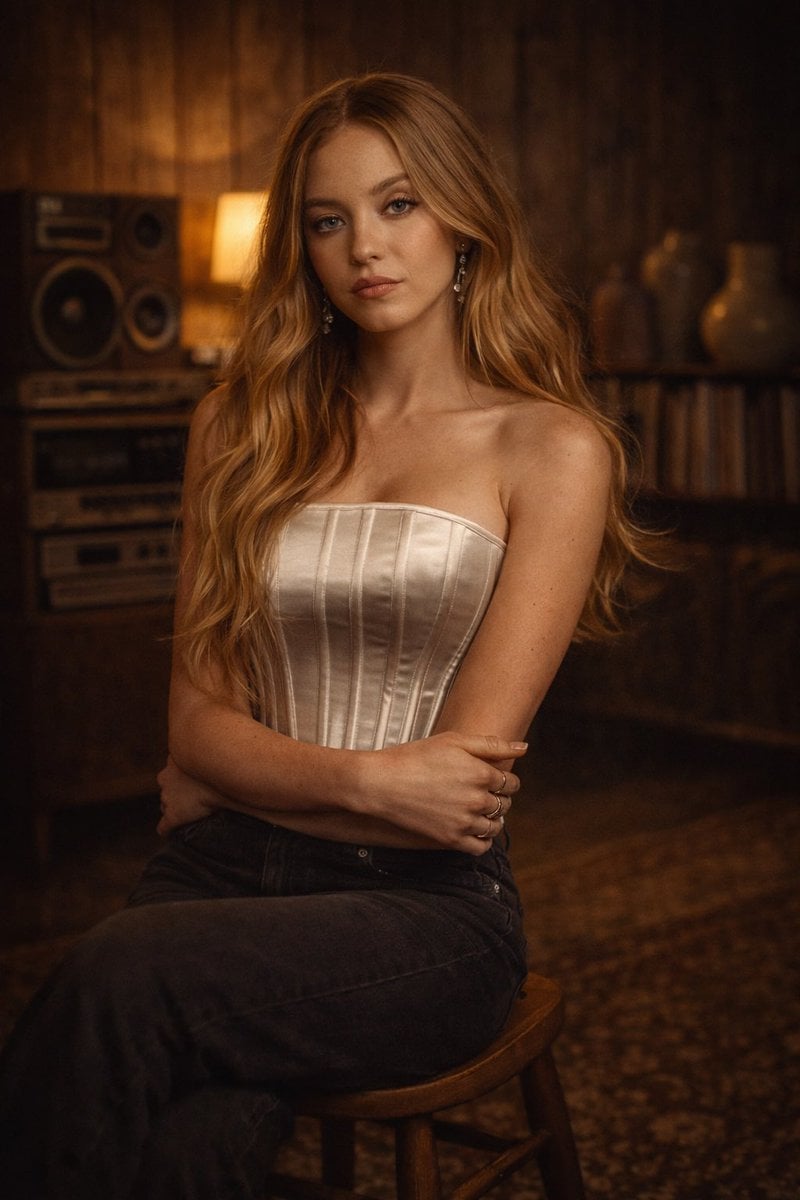
Cinematic Vintage Indoor Portrait from Photo Reference
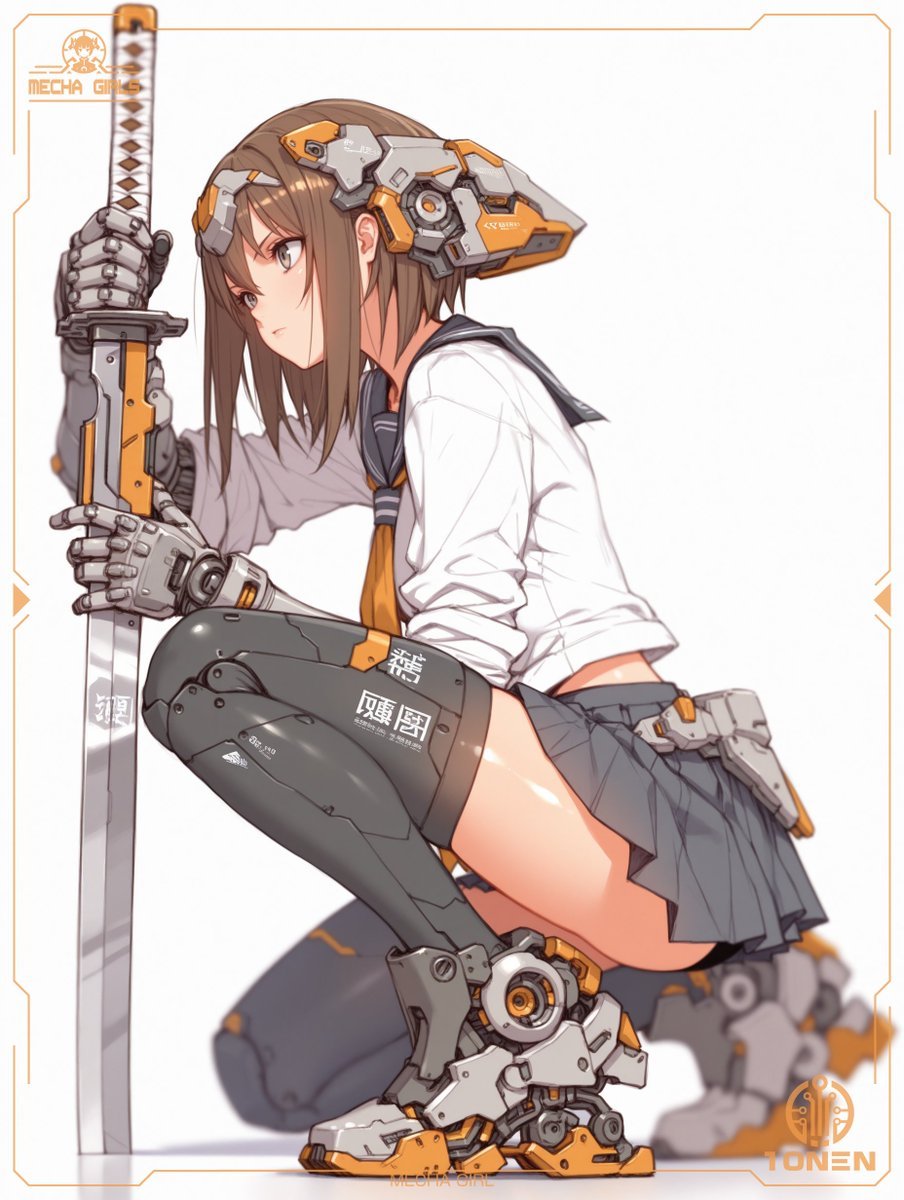
Mecha Schoolgirl Katana Action Poster
Browse template categories
Anime Wolf Mascot with Korean Text questions
How do I use the Anime Wolf Mascot with Korean Text template?
Add your photo if the template asks for one, edit the prompt if you like — the template's model and format are already selected — and press Generate. Your version opens in PicX Studio.
Can I customize the Anime Wolf Mascot with Korean Text template?
Yes. You can change the subject, setting, lighting, mood, format, and available model controls before creating your image.
Is the Anime Wolf Mascot with Korean Text template free?
Opening and editing this template is free. Generating uses credits, shown on the Generate button when you are signed in.
Which AI model should I use?
Start with GPT Image 2, which is the model associated with this template. You can compare another compatible model for a different finish.
Looking for something else? Browse all templates.

Your photo, any look
Thousands of ready templates for every top image and video model, from one credit balance.