
Cool Floral Weapon Background
A quick prompt for GPT Image 2 to add a large number of flowers and weapons to a background while maintaining a cool aesthetic.
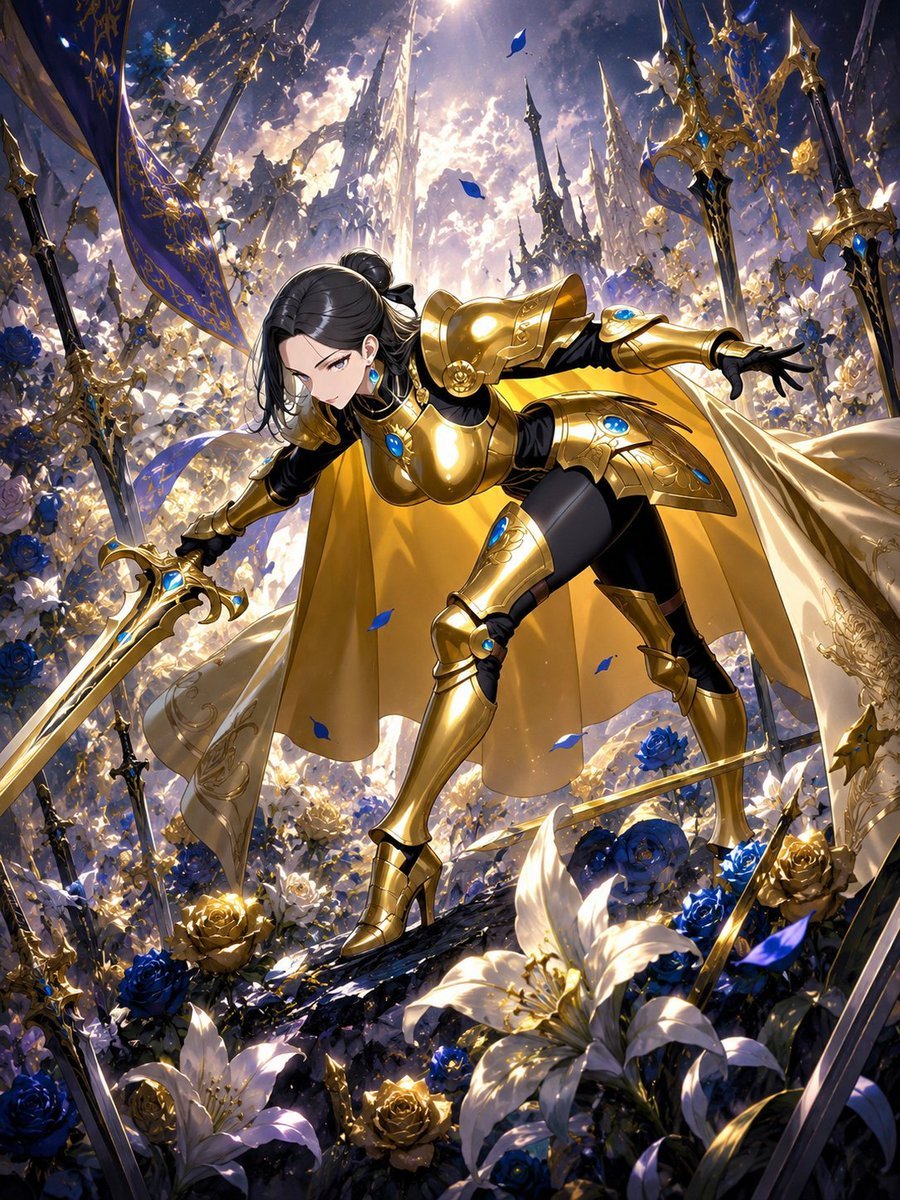
- Prompt included
- Model and format preset
- Free template
The prompt behind this image
Copy the exact prompt behind Cool Floral Weapon Background, or open it in the studio and make it yours.
背景に{argument name="背景要素1" default="大量の花"}と{argument name="背景要素2" default="大量の武器"}を追加して 全体的にかっこよくして、{argument name="アスペクト比" default="縦長3:4"}
How to use Cool Floral Weapon Background in 3 steps
- 1
Open
The prompt is already in the box next to the preview, with the template's model and format selected.
- 2…a portrait of your subject in softgolden-hour light, 85mm…
Personalize
Edit the subject and creative details for your destination.
- 3Generate
Generate
Press Generate — your image is created in PicX Studio, so you can compare it with the original and refine one variable at a time.
More like this
Templates with the same subject, style or setup. Open one to see its prompt.
Floraverse Botanical Fusion
FLORAVERSE BOTANICAL FUSION
Photoreal Selfie Minecraft Block World
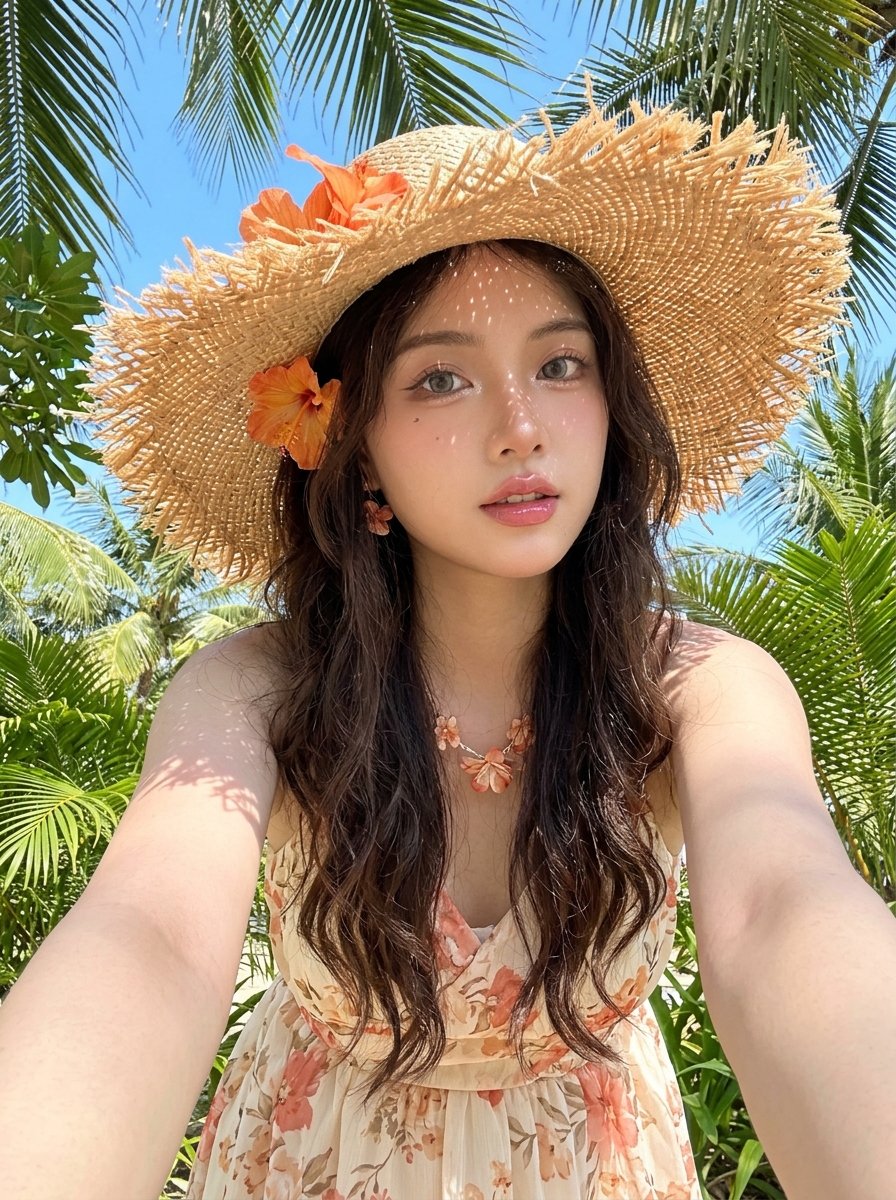
Tropical Vacation Selfie — Nano Banana (Chryzleen)
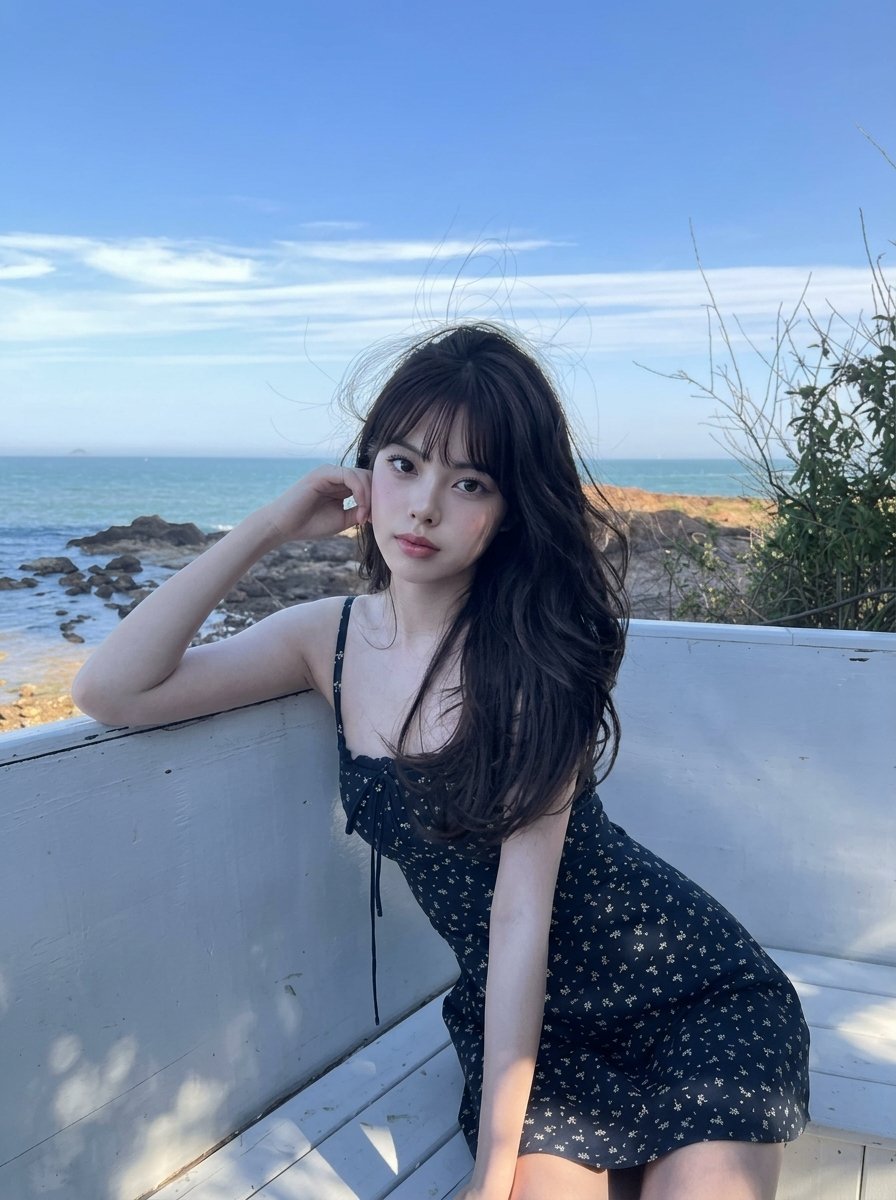
Coastal Bench Portrait — Navy Floral Sundress
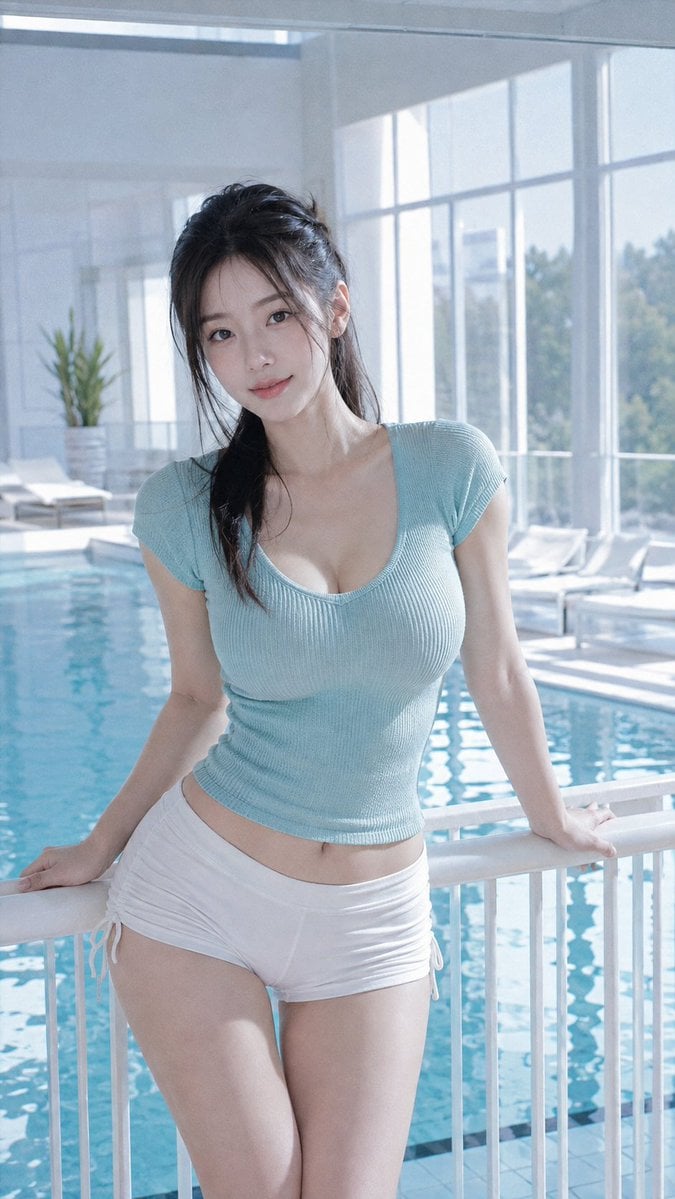
Cool-Toned CCD Lifestyle Photography
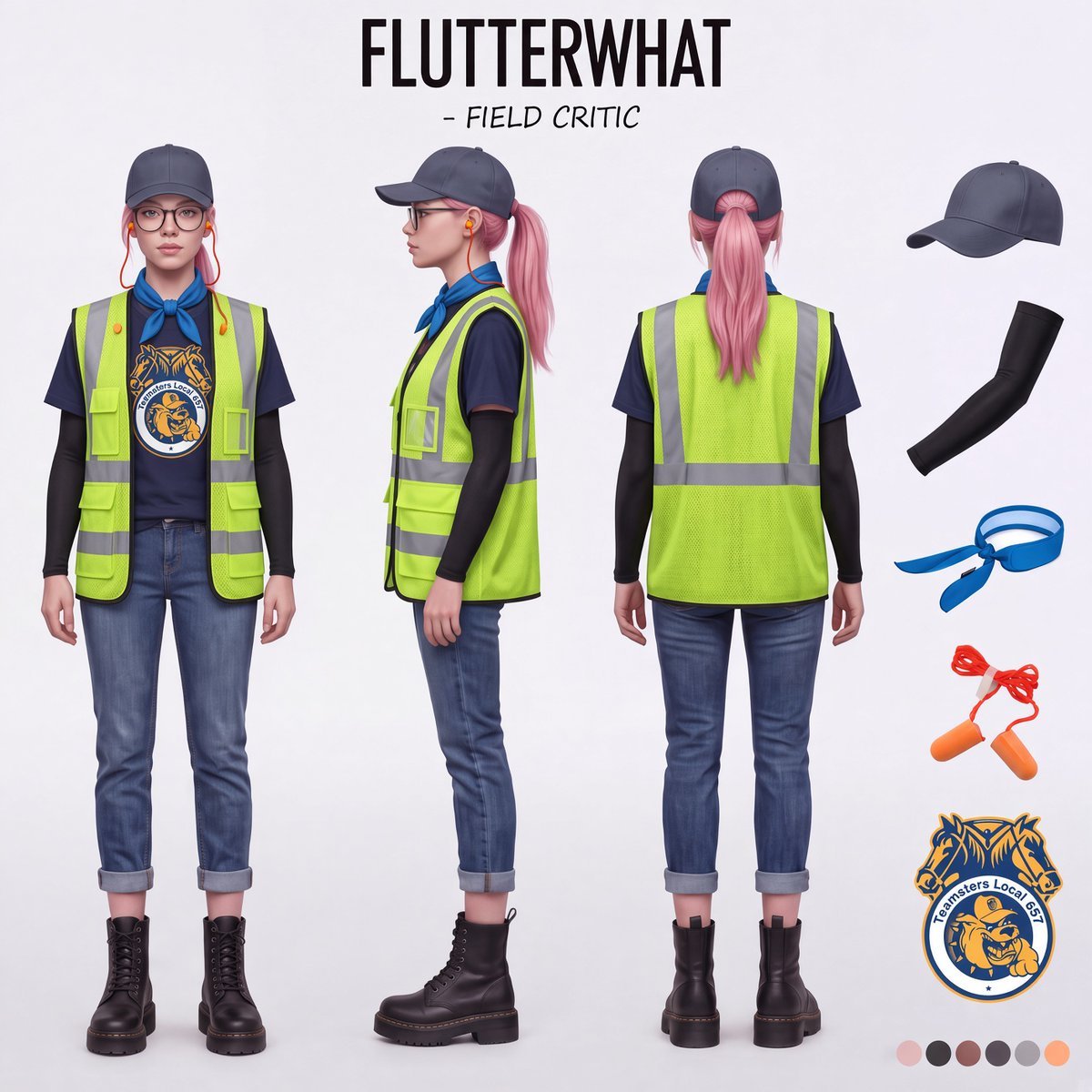
Airport Ready Cooling Gear Critic
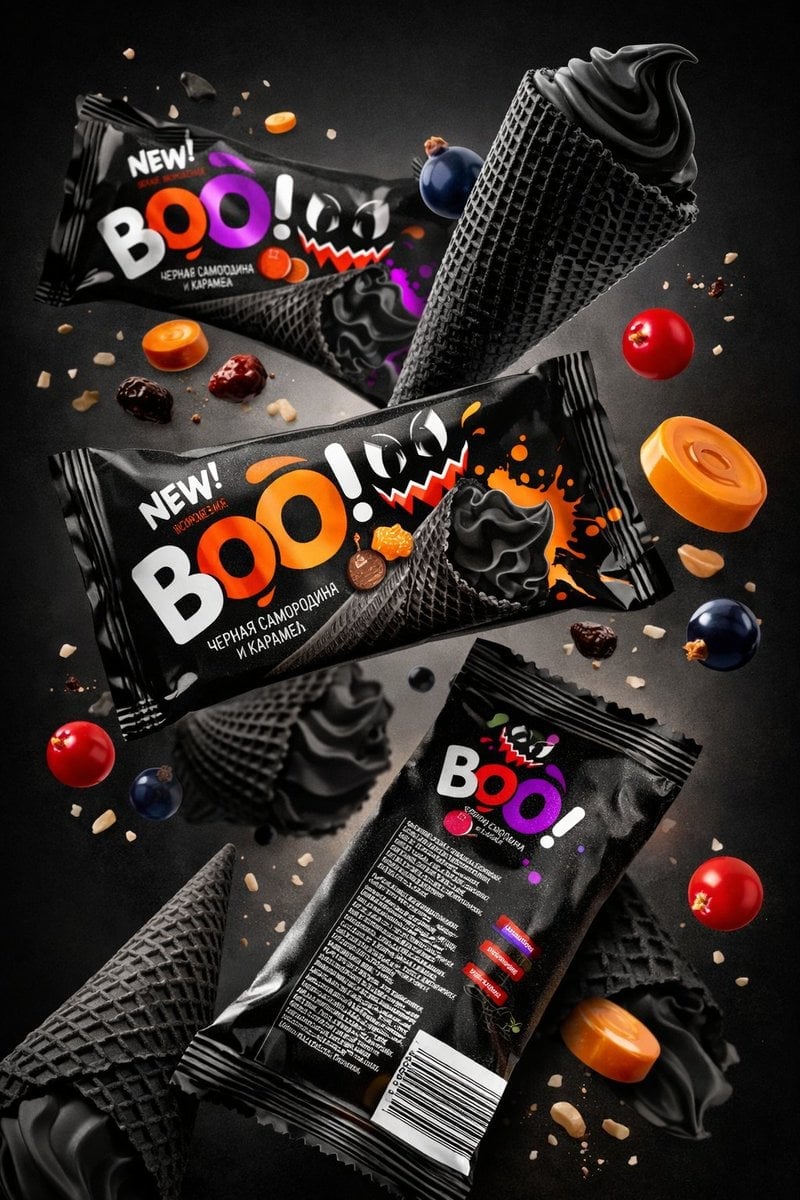
Sharp focus on central package, slightly softer on background elements
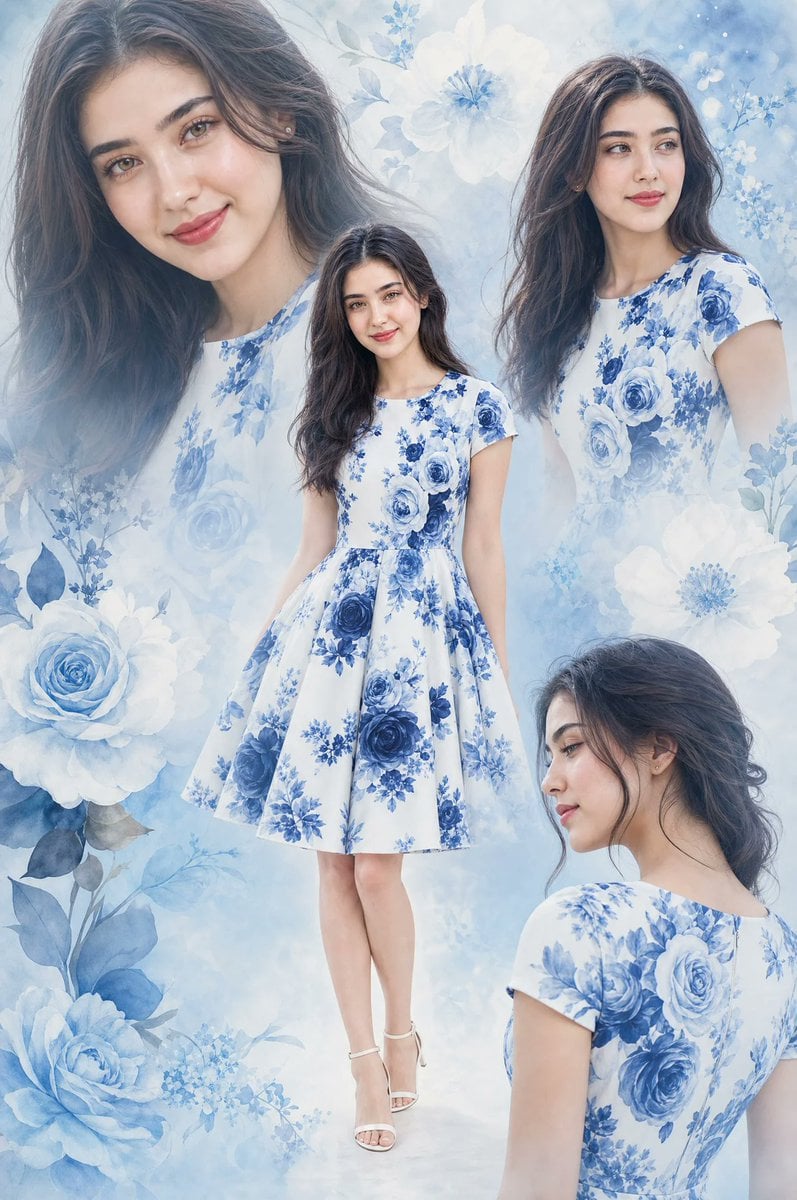
Floral Dress Fashion Collage
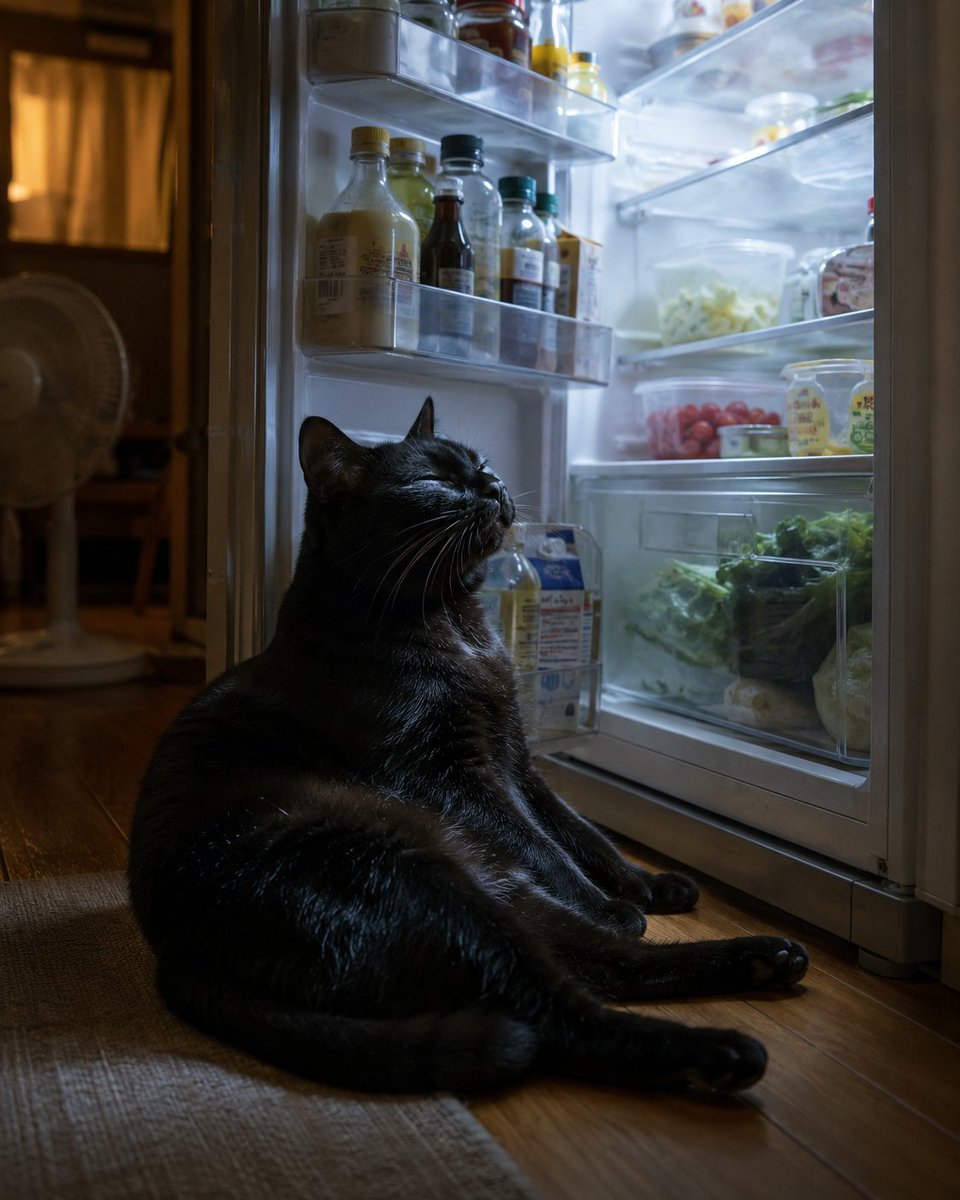
Black Cat Cooling by Open Fridge
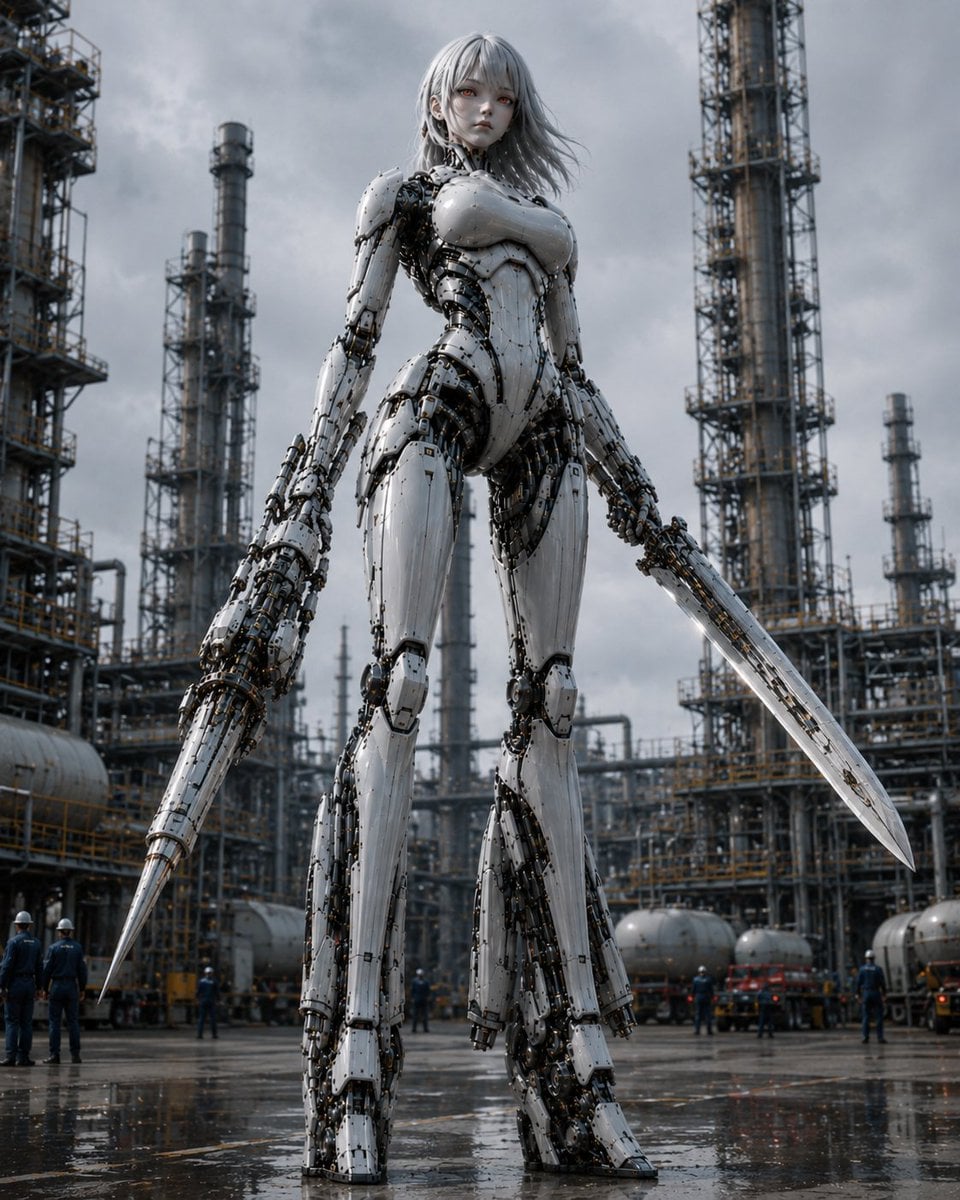
Giant Weaponized Robot in Refinery
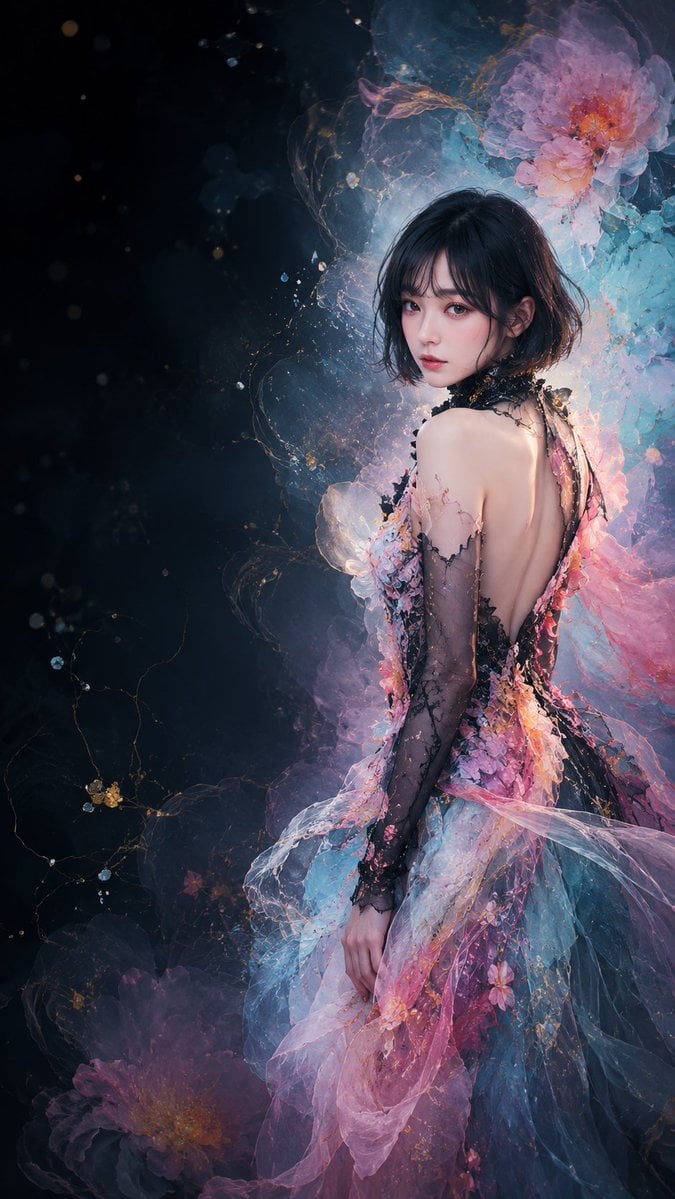
Ethereal Floral Couture Portrait
Make it yours
Cool Floral Weapon Background works as-is. These are the safest ways to change it without losing the look.
Change one field
Copy a single group, rewrite it, and generate again so you can see what that field is doing.
Keep the frame, change the subject
Hold the composition and light of Cool Floral Weapon Background, then swap wardrobe, props or the person for a new take.
| If the result… | Why | Fix |
|---|---|---|
| The result drifts from the preview | Too many fields changed at once. | Reuse Cool Floral Weapon Background as-is first, then change one group — subject, light, or setting. |
| The model over-stylizes the scene | The prose prompt leaves finish and camera underspecified. | Add one camera or lighting sentence and stay on GPT Image 2. |
More GPT Image 2 templates
Other prompts made for GPT Image 2.

Six VTuber Japanese Logo Sheet

Realistic Portrait of Woman and Deer

The Vista Modular Condo Poster

AI Model Routing Comparison Infographic

2.5D Anime Art Board

Isometric Productivity Desk Scene

New York Double Exposure Poster

Four-Panel AI Landscape Comparison

Japanese Tatami Lifestyle Magazine Cover

NESCAFÉ Coffee Map Poster
More image prompts
Fresh picks from across the catalog.
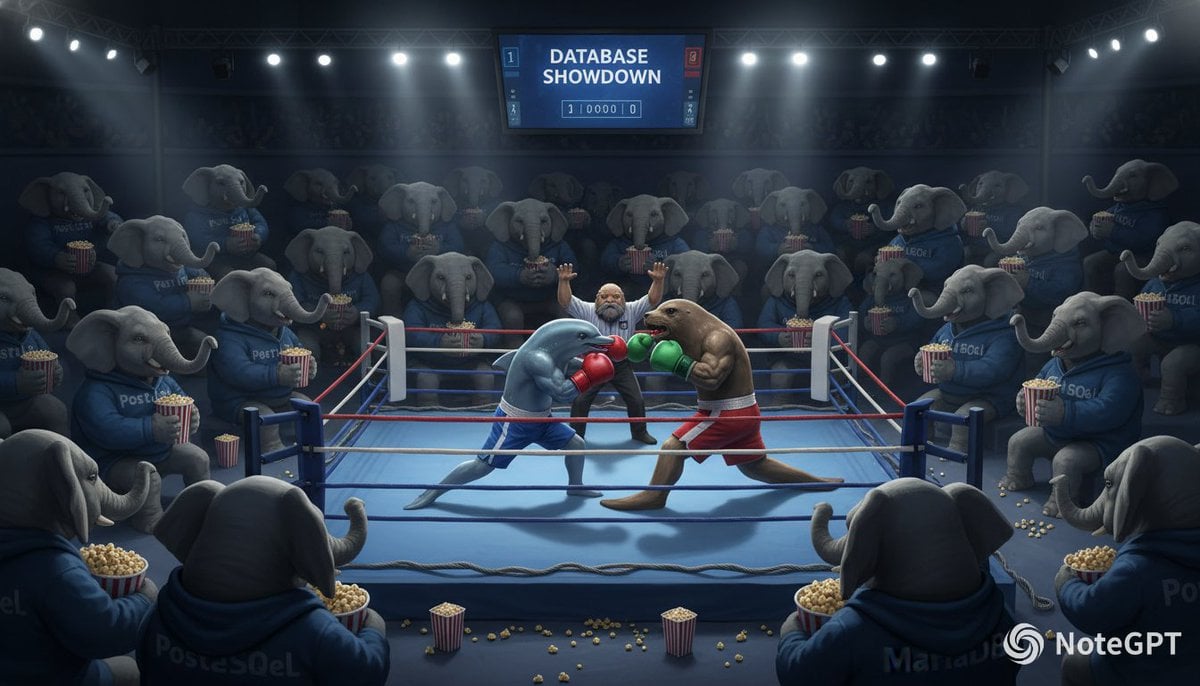
Database Mascot Boxing Match
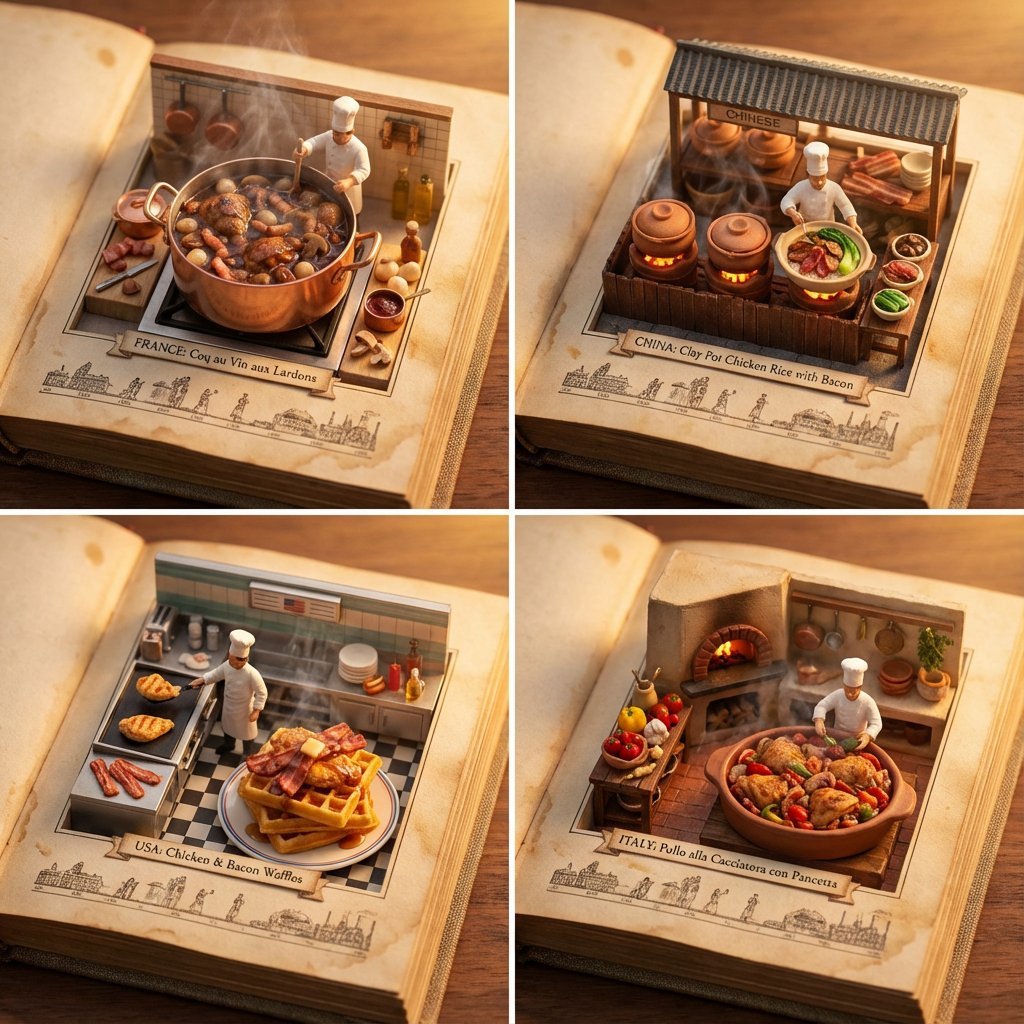
Food Recommendation System Prompt for Cookbook Generation
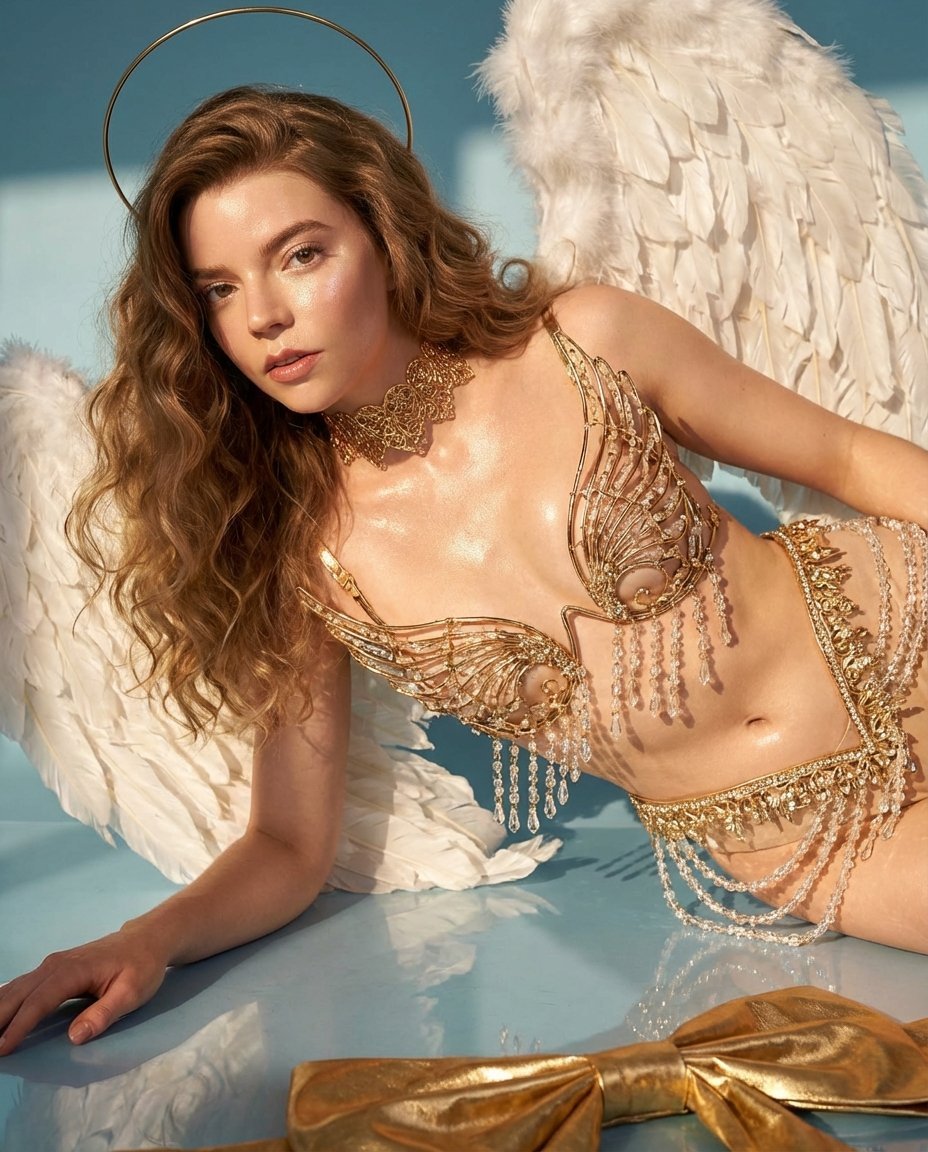
Ethereal Angelic Woman Portrait Prompt for Nano Banana Pro
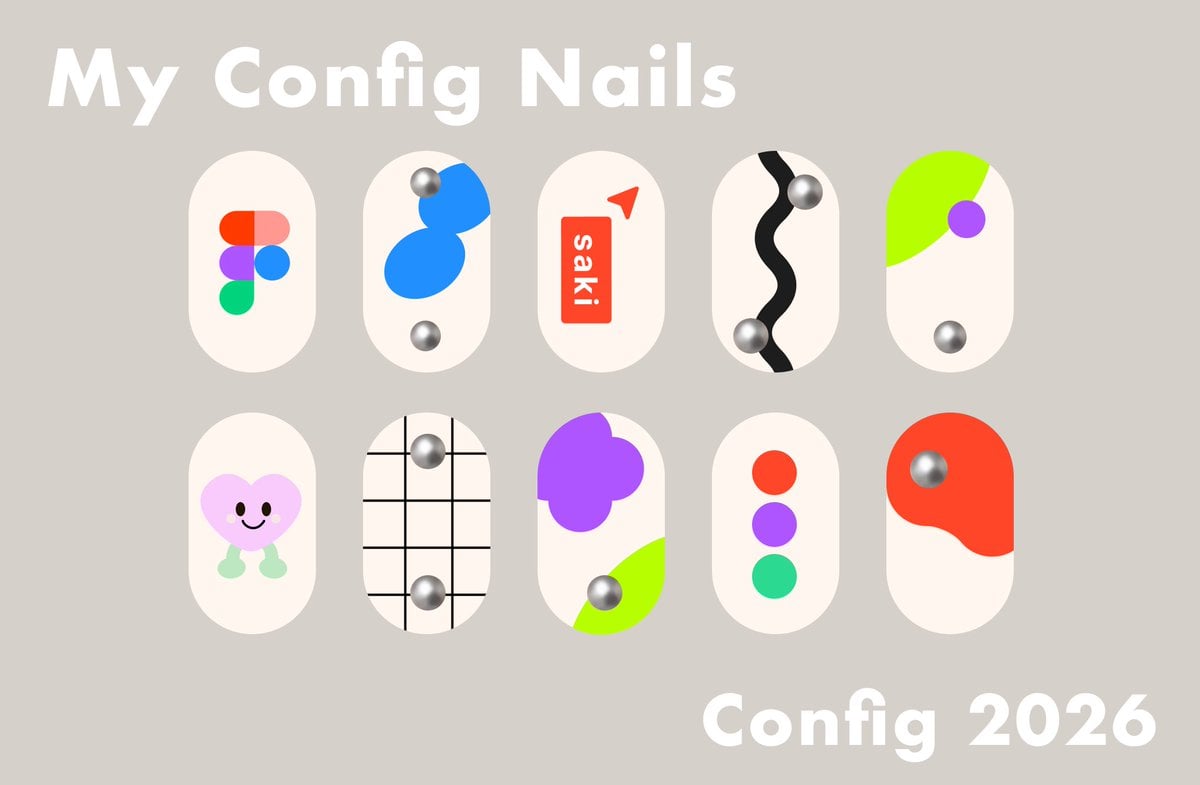
Config 2026 Nail Art Board
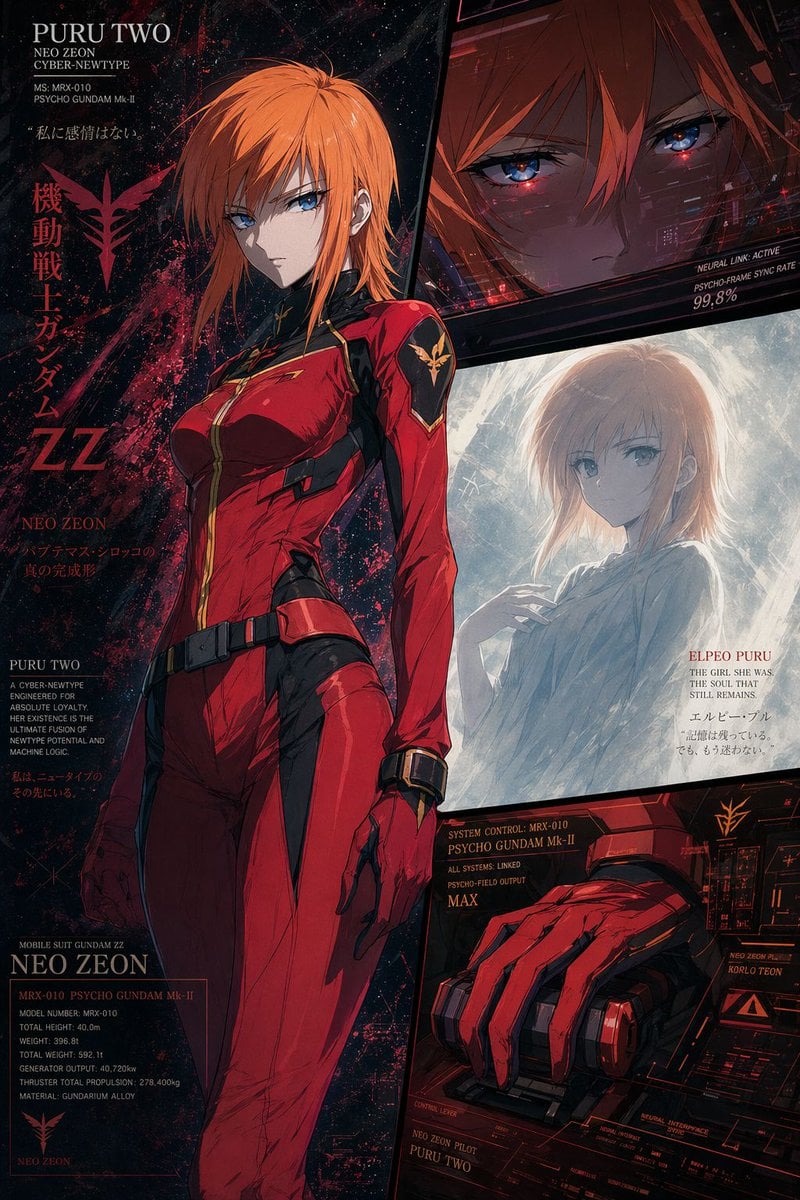
Anime Mecha Pilot Poster
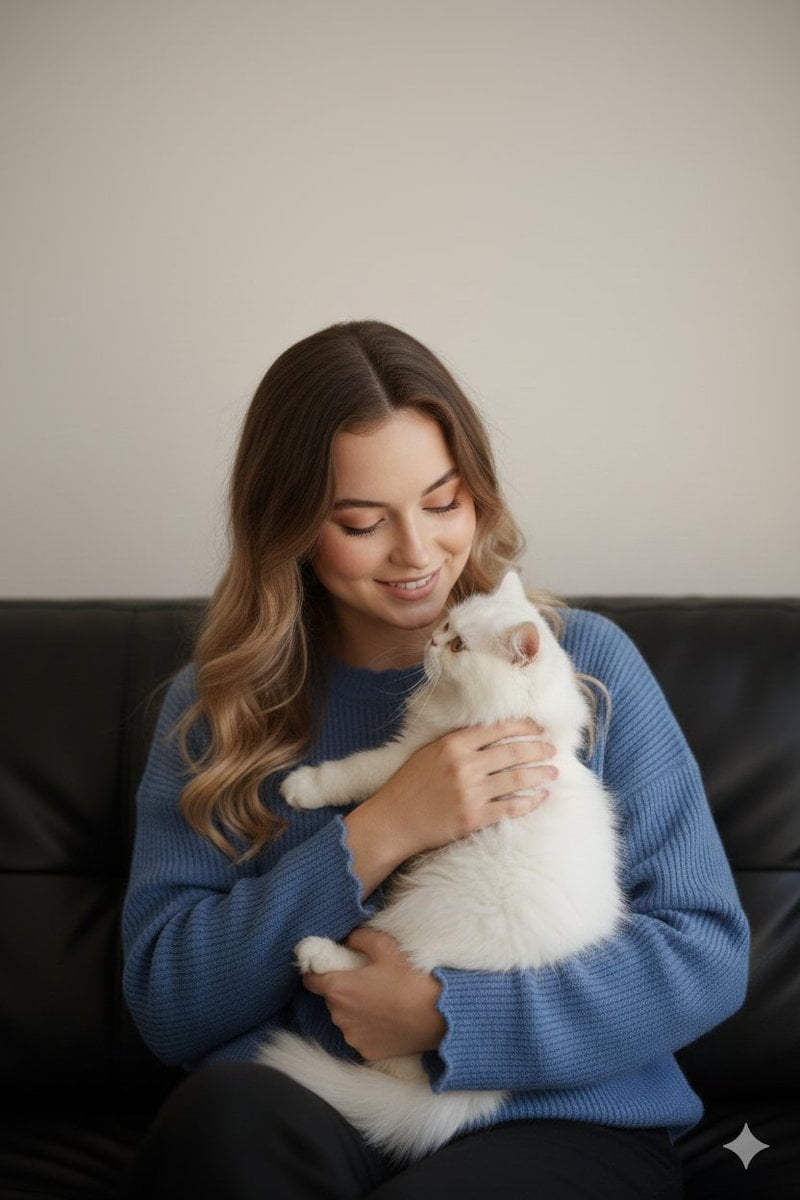
Ultra-Realistic Portrait of Woman Hugging a Persian Cat
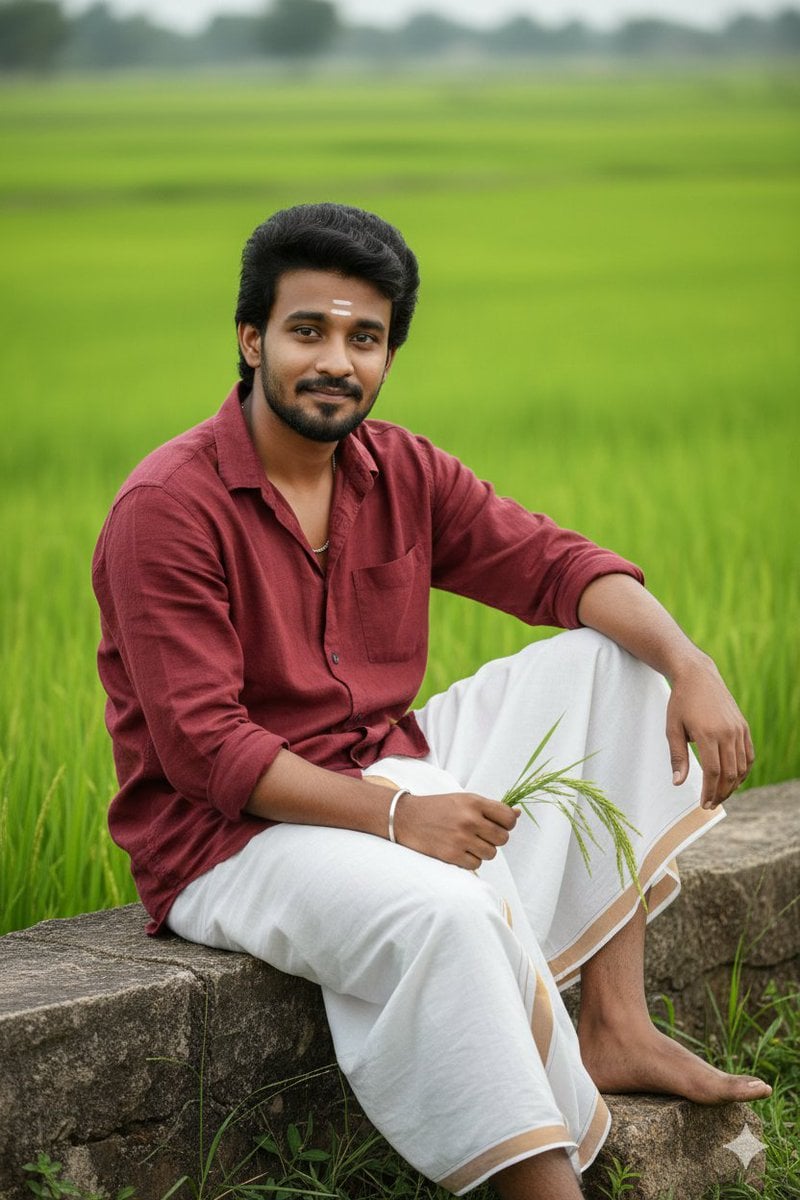
Pongal Festival Photo Prompt for Gemini Nano Banana
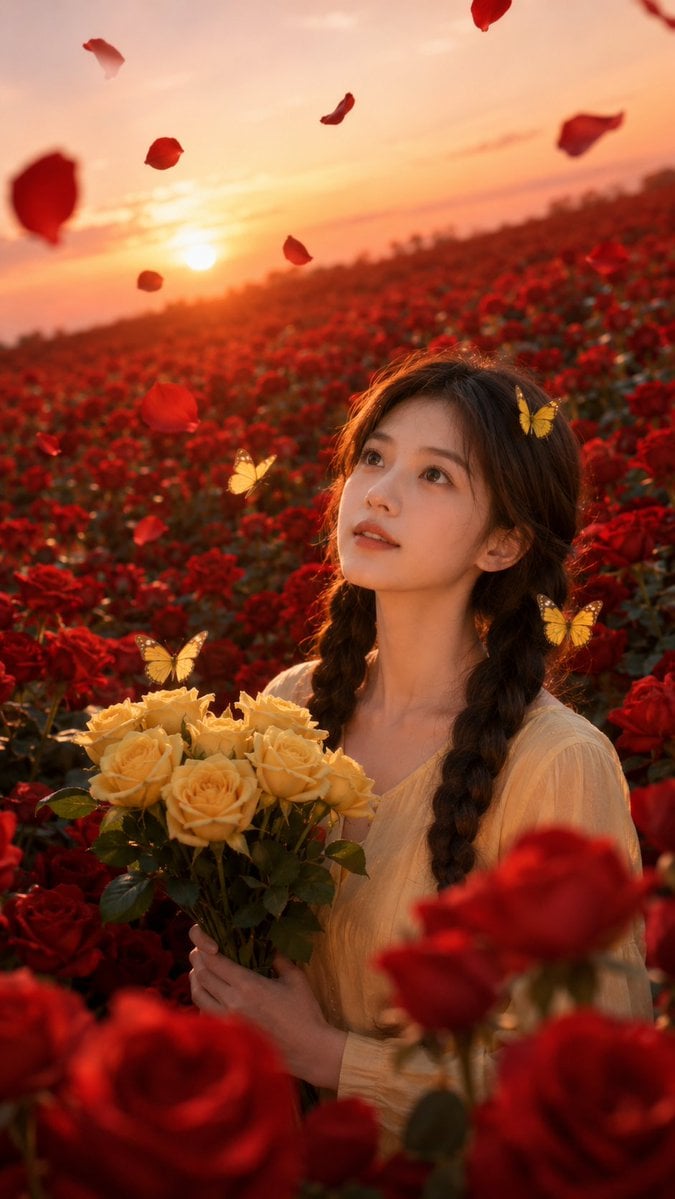
Sunset Rose Field Portrait Transformation
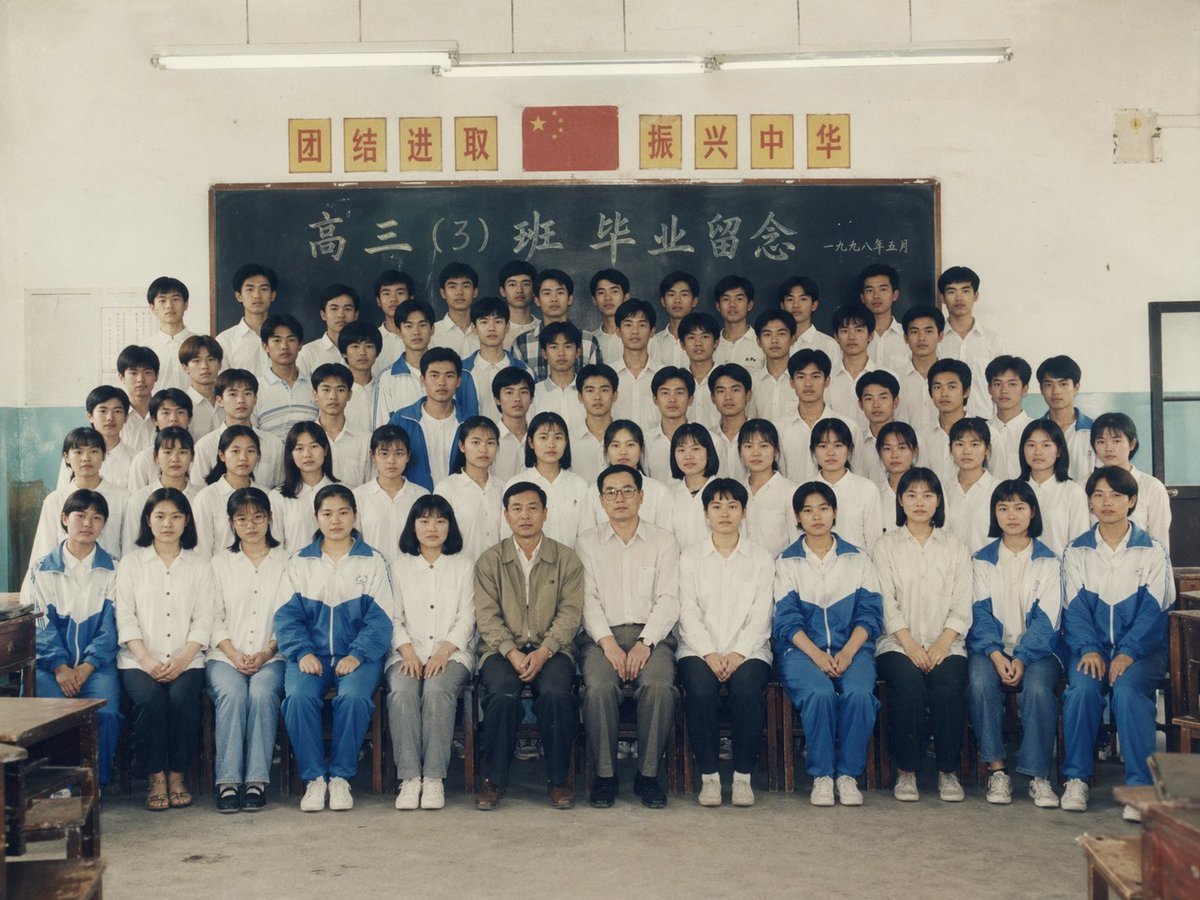
90s Chinese Graduation Photo Prompt
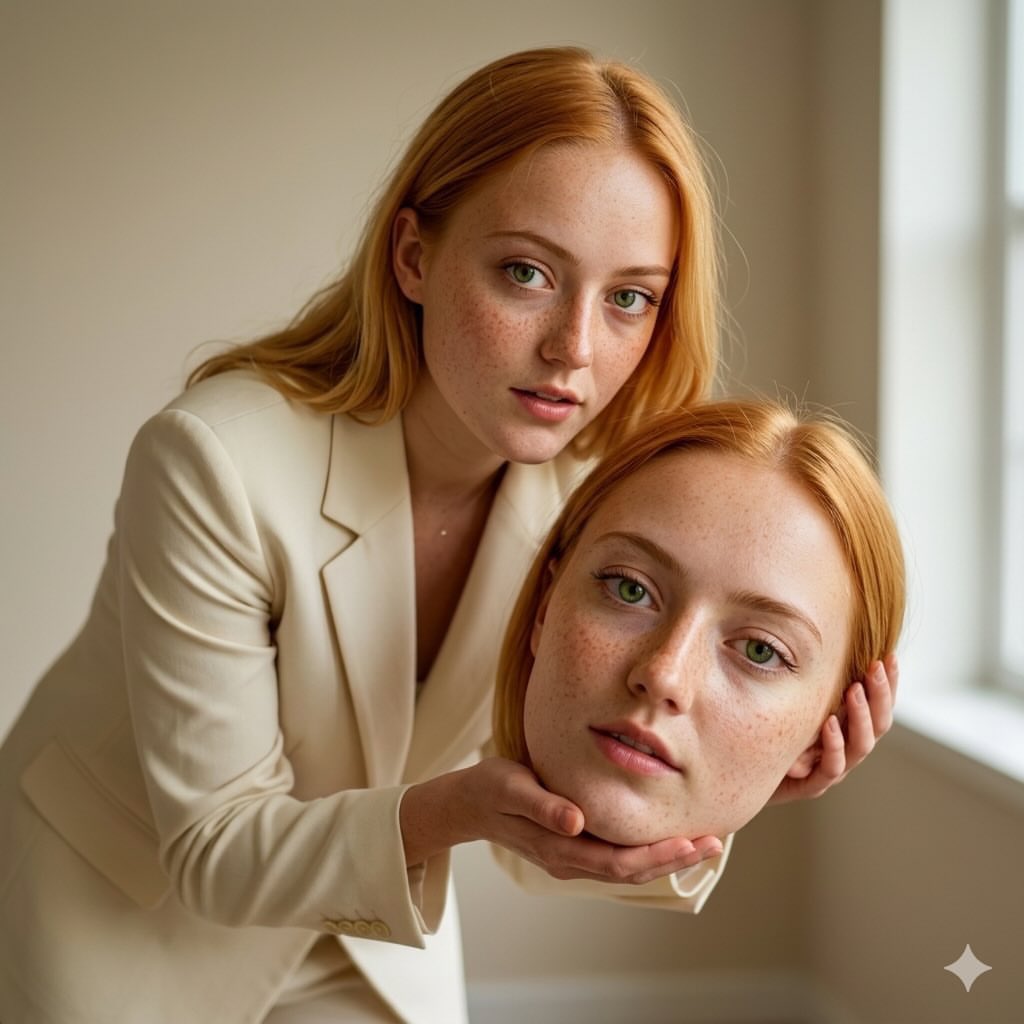
Surreal Conceptual Fashion Portrait
Browse template categories
Cool Floral Weapon Background questions
How do I use the Cool Floral Weapon Background template?
Add your photo if the template asks for one, edit the prompt if you like — the template's model and format are already selected — and press Generate. Your version opens in PicX Studio.
Can I customize the Cool Floral Weapon Background template?
Yes. You can change the subject, setting, lighting, mood, format, and available model controls before creating your image.
Is the Cool Floral Weapon Background template free?
Opening and editing this template is free. Generating uses credits, shown on the Generate button when you are signed in.
Which AI model should I use?
Start with GPT Image 2, which is the model associated with this template. You can compare another compatible model for a different finish.
Looking for something else? Browse all templates.

Your photo, any look
Thousands of ready templates for every top image and video model, from one credit balance.