
Storybook Style Photo-to-Illustration Split
Transforms a photograph into a dual-layered artwork where the top half is the original photo and the bottom half is a charming storybook-style illustration.
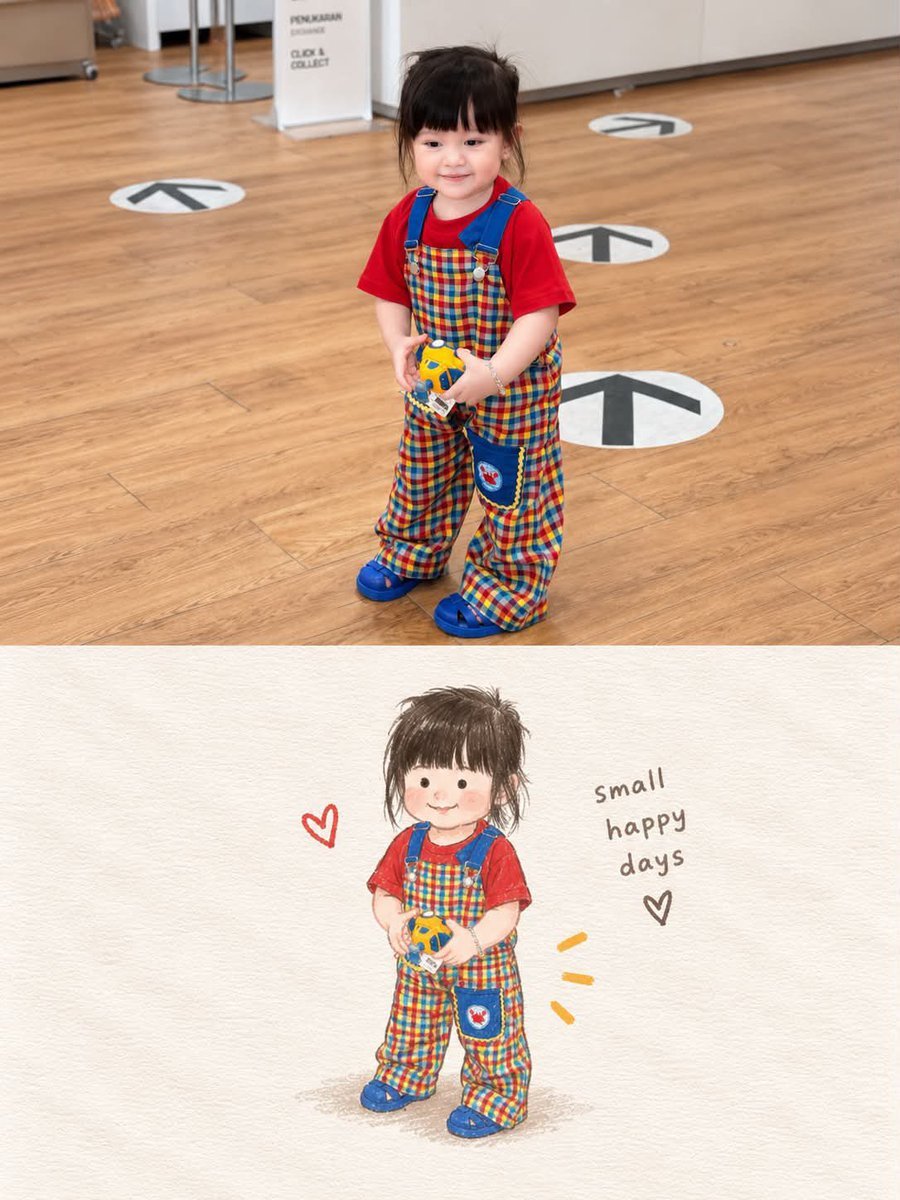
- Prompt included
- Model and format preset
- Free template
The prompt behind this image
Copy the exact prompt behind Storybook Style Photo-to-Illustration Split, or open it in the studio and make it yours.
Create a single vertical 3:4 PHOTO + HAND-DRAWN ILLUSTRATION artwork based ONLY on the uploaded photograph. Use the uploaded photograph as the ONLY visual reference. Analyze the photograph independently and reproduce the exact subject, pose, expression, clothing, hairstyle, accessories, objects, proportions, and overall moment in the illustration. Do not introduce elements from any previous image or reference. TOP — ORIGINAL PHOTOGRAPH Use approximately the upper 50% of the canvas for the original photograph. Preserve the photograph faithfully and naturally: - Keep the original subject exactly recognizable. - Preserve the face, expression, hairstyle, clothing, accessories, pose, body proportions, and visible objects. - Preserve the original environment and composition. - Do not retouch, beautify, replace, or redesign the subject. - Keep the photograph realistic with its original lighting, colors, textures, and details. BOTTOM — HAND-DRAWN ILLUSTRATION Use approximately the lower 50% for a charming handmade illustration of the SAME photograph. Transform the photographic moment into a delicate children's storybook-style hand-drawn artwork. Illustration style: - Soft watercolor and colored-pencil texture - Gentle pencil/ink outlines - Slightly imperfect handmade strokes - Warm, tactile off-white textured paper - Soft natural shading - Subtle watercolor washes - Cute, expressive, wholesome appearance - Delicate handcrafted imperfections - No glossy digital-rendered appearance - No photorealism - No 3D CGI - No anime or cartoon franchise style Most importantly, accurately preserve the subject from the photograph: - Same pose and body position - Same facial expression - Same hairstyle - Same clothing and clothing patterns - Same shoes/accessories - Same proportions - Same distinctive visual details - Same overall action or mood Simplify the background substantially. Do not recreate every background detail. Keep only a very subtle suggestion of the original environment, allowing the illustrated subject to remain the main focus. Place the illustrated subject slightly smaller than the photograph's subject, surrounded by generous negative space. MINIMAL DECORATIVE DETAILS Add a few tiny hand-drawn decorative marks around the illustration, such as: - small hearts - simple motion lines - tiny doodles - subtle stars or flowers Keep these decorations sparse and tasteful. Add a small handwritten caption near the illustration, such as: "{argument name="caption" default="little happy girl ♡"}" The caption should look naturally handwritten with a casual brown/gray pencil or ink texture.
How to use Storybook Style Photo-to-Illustration Split in 3 steps
- 1Upload ImagePNG, JPG or paste
Add your photo
Upload the photo the template builds on. The prompt, model and format are already set.
- 2…a portrait of your subject in softgolden-hour light, 85mm…
Personalize
Edit the subject and creative details for your destination.
- 3Generate
Generate
Press Generate — your image is created in PicX Studio, so you can compare it with the original and refine one variable at a time.
More like this
Templates with the same subject, style or setup. Open one to see its prompt.
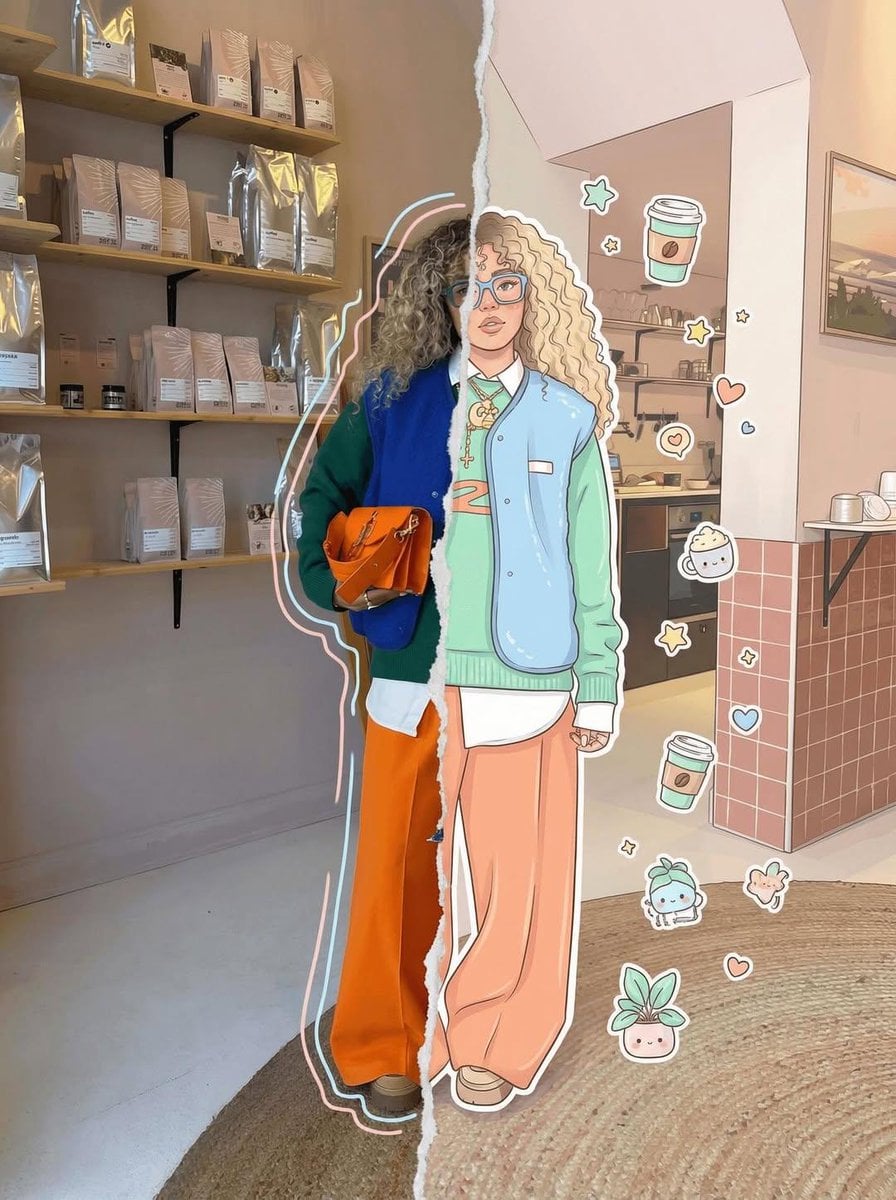
Real Illustration Split Portrait Transition
Real Illustration Split Portrait Transition
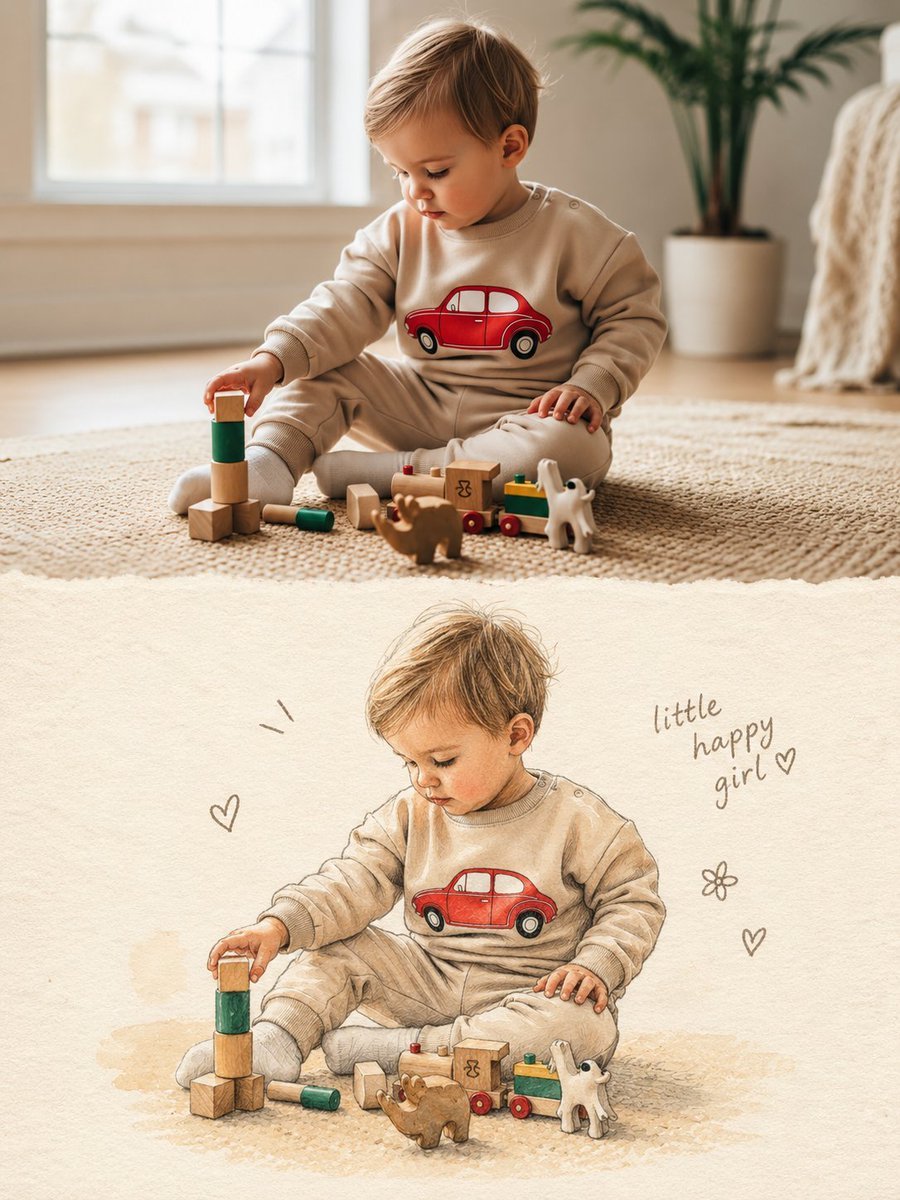
Split Photo and Storybook Illustration
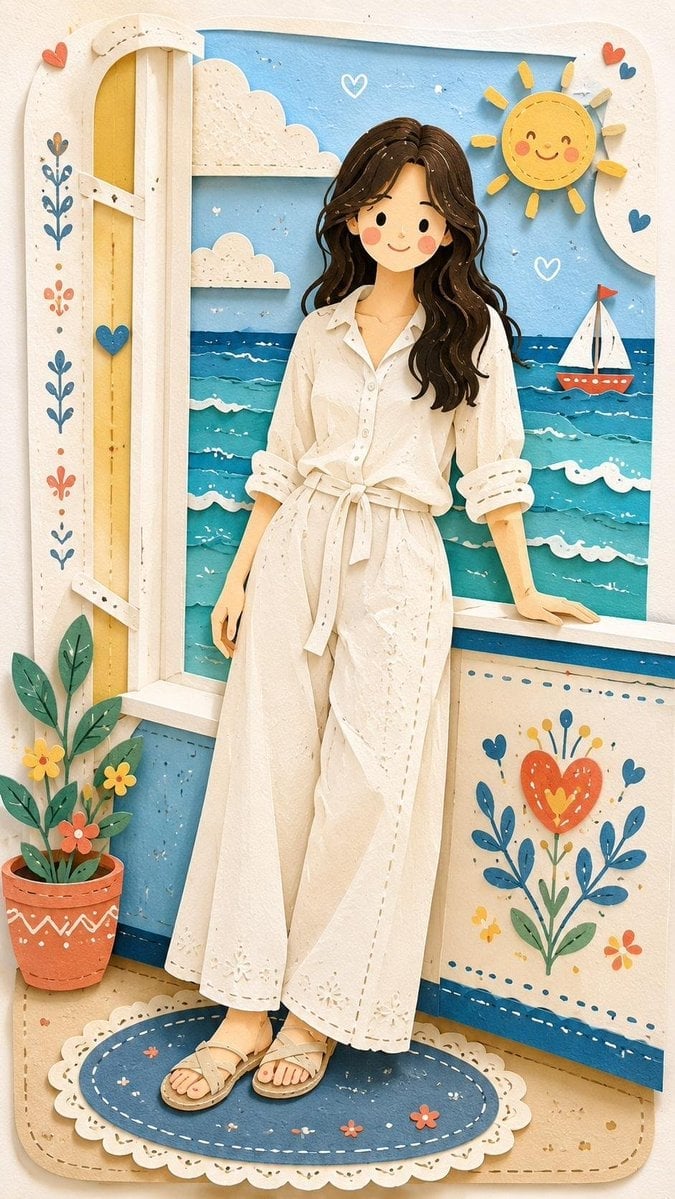
Decorative Folk Flat Paper Cut Illustration
Watercolor Anim Finale Fireworks
Watercolor Anim Garden Maze
Watercolor Anim Rooftop Concert
Watercolor Anim Bicycle Coast
Watercolor Anim Castle Gate
Watercolor Anim Kitchen Chaos
Watercolor Anim Carnival Ride
Watercolor Anim Rainy Bus Stop
Make it yours
Storybook Style Photo-to-Illustration Split works as-is. These are the safest ways to change it without losing the look.
Change one field
Copy a single group, rewrite it, and generate again so you can see what that field is doing.
Keep the frame, change the subject
Hold the composition and light of Storybook Style Photo-to-Illustration Split, then swap wardrobe, props or the person for a new take.
| If the result… | Why | Fix |
|---|---|---|
| The result drifts from the preview | Too many fields changed at once. | Reuse Storybook Style Photo-to-Illustration Split as-is first, then change one group — subject, light, or setting. |
| The model over-stylizes the scene | The prose prompt leaves finish and camera underspecified. | Add one camera or lighting sentence and stay on GPT Image 2. |
More GPT Image 2 templates
Other prompts made for GPT Image 2.

Six VTuber Japanese Logo Sheet

Realistic Portrait of Woman and Deer

The Vista Modular Condo Poster

AI Model Routing Comparison Infographic

2.5D Anime Art Board

Isometric Productivity Desk Scene

New York Double Exposure Poster

Four-Panel AI Landscape Comparison

Japanese Tatami Lifestyle Magazine Cover

NESCAFÉ Coffee Map Poster
More image prompts
Fresh picks from across the catalog.
Ancient Hand-Chiseled Stone Artifact Logo
Fashion editorial with two models in a polaroid frame
Anime Mirror Reflection of Younger Self
Atmospheric Sunset Portrait Edit Prompt with Identity Preservation
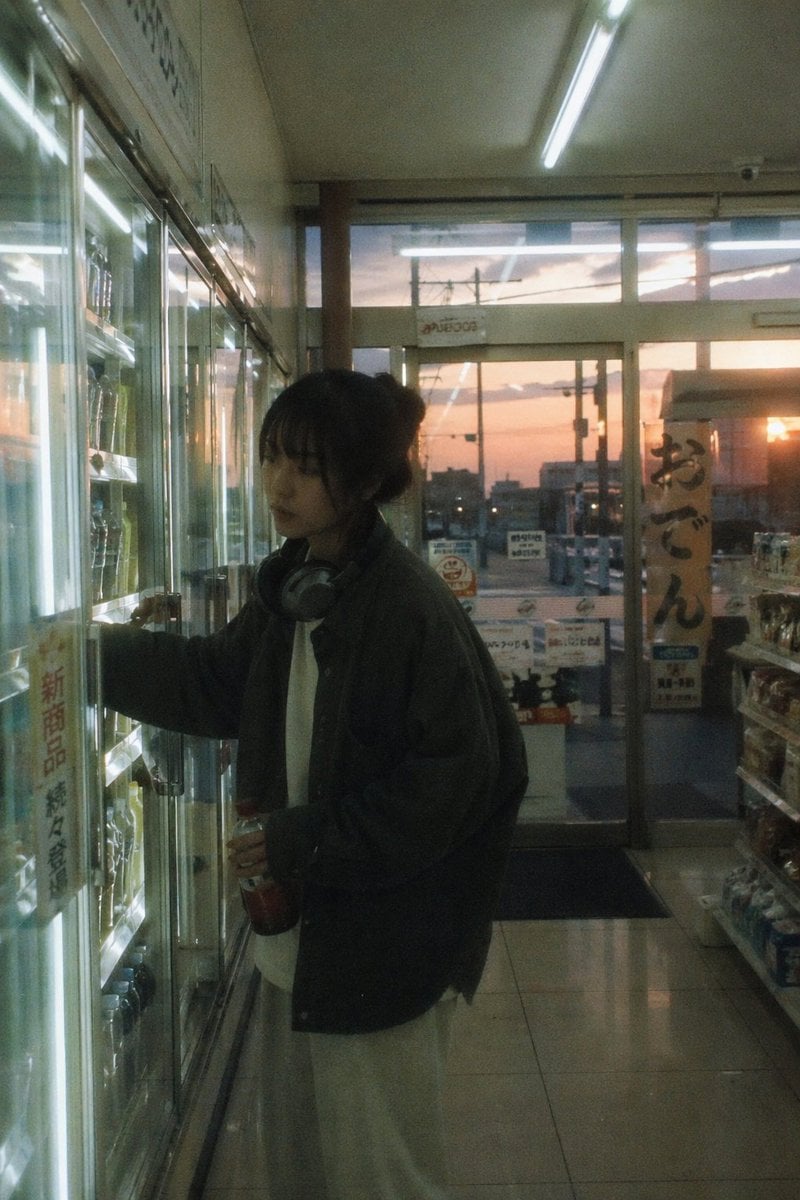
Japanese Negative Film Aesthetic

Neon Bug Text Logo
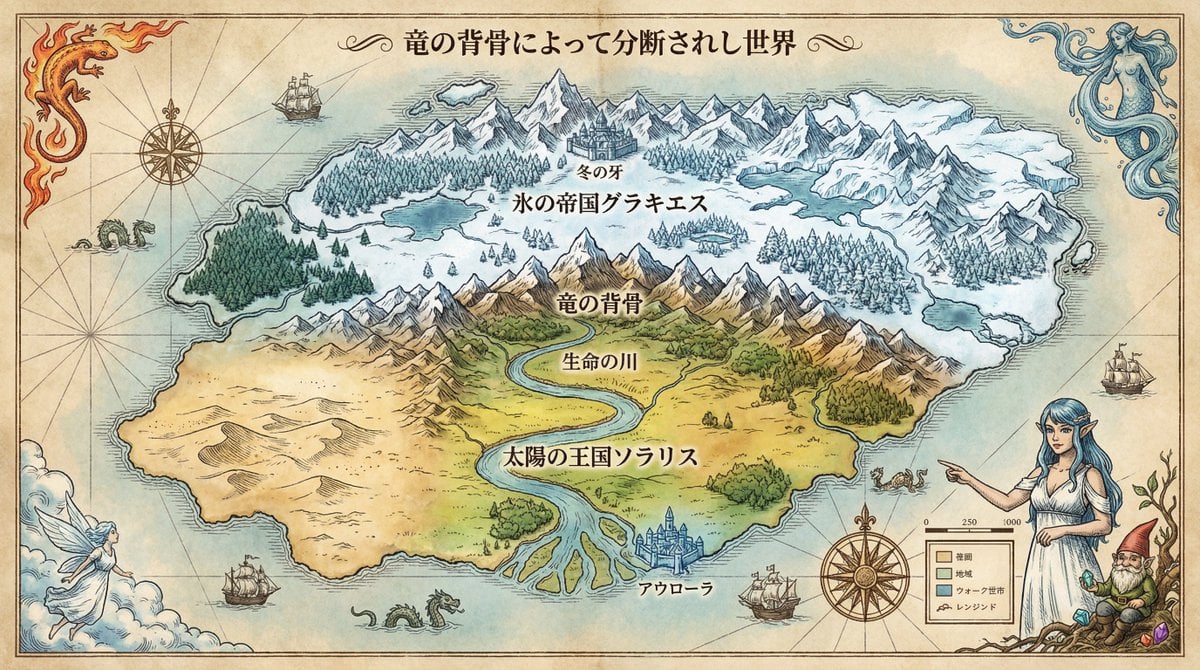
Royal Cartographer Fantasy World Map Prompt (Detailed Scenario)
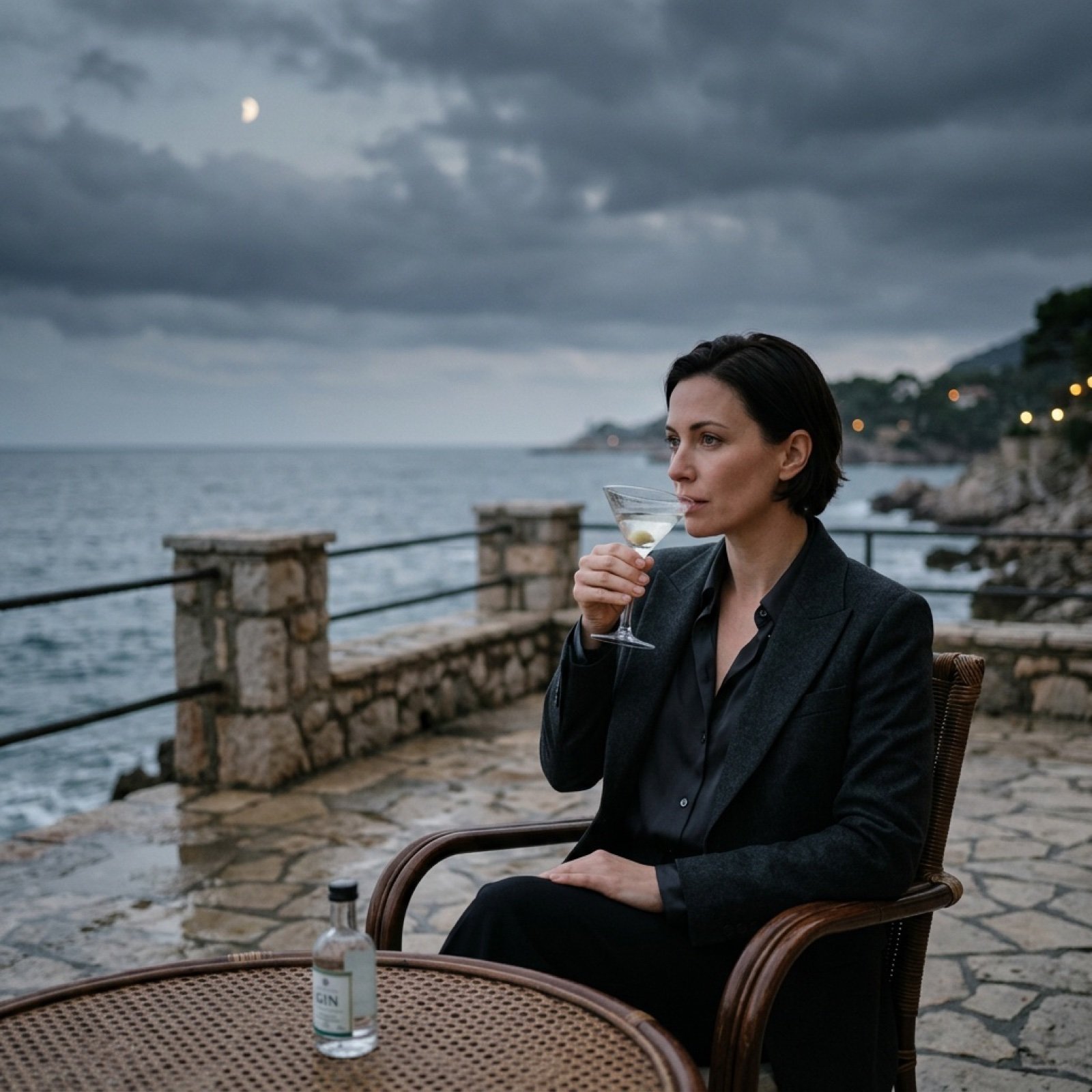
Transform Photo into Cinematic Night Scene
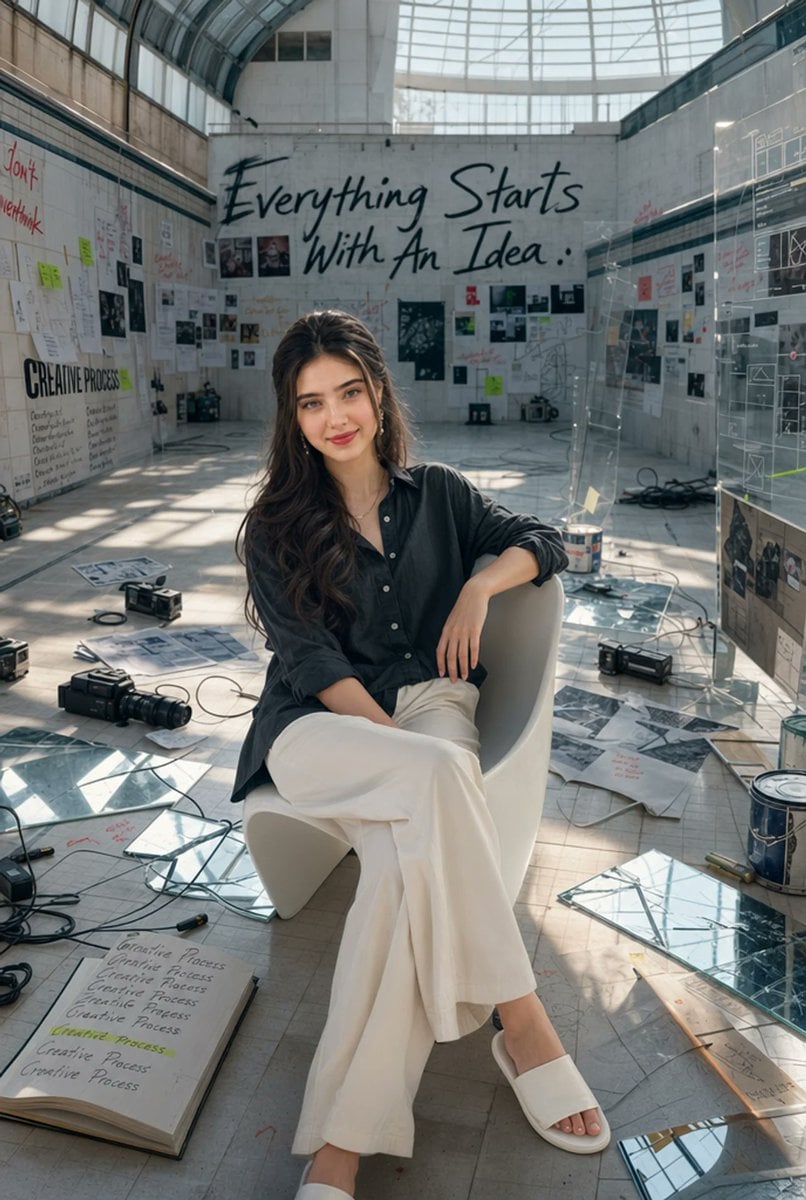
Artist in Drained Pool Studio
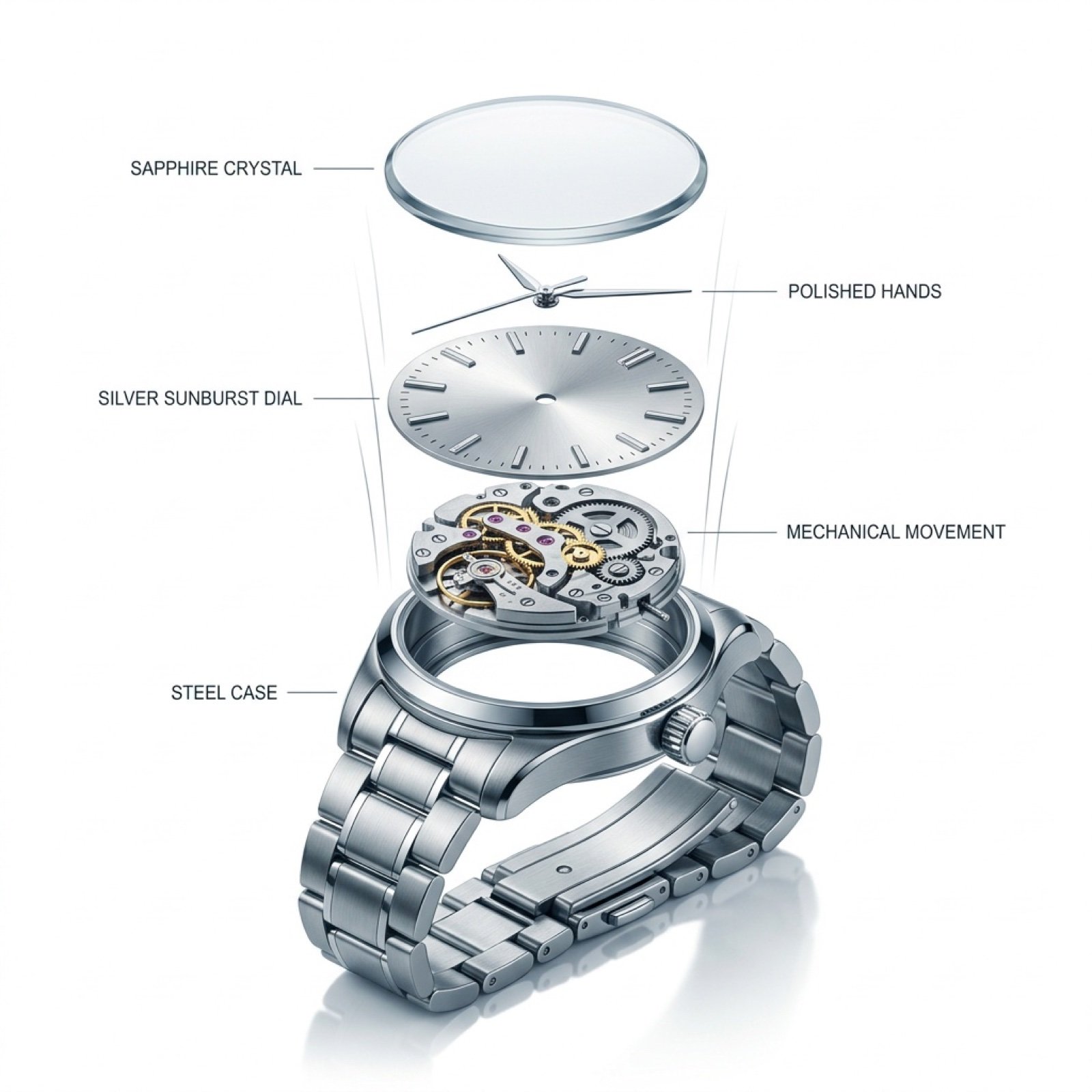
Exploded View Luxury Watch Infographic Prompt
Browse template categories
Storybook Style Photo-to-Illustration Split questions
How do I use the Storybook Style Photo-to-Illustration Split template?
Add your photo if the template asks for one, edit the prompt if you like — the template's model and format are already selected — and press Generate. Your version opens in PicX Studio.
Can I customize the Storybook Style Photo-to-Illustration Split template?
Yes. You can change the subject, setting, lighting, mood, format, and available model controls before creating your image.
Is the Storybook Style Photo-to-Illustration Split template free?
Opening and editing this template is free. Generating uses credits, shown on the Generate button when you are signed in.
Which AI model should I use?
Start with GPT Image 2, which is the model associated with this template. You can compare another compatible model for a different finish.
Looking for something else? Browse all templates.

Your photo, any look
Thousands of ready templates for every top image and video model, from one credit balance.