
ChatGPT An Lushan Infographic Screenshot
Generates a realistic ChatGPT mobile screenshot featuring a detailed Chinese educational infographic about the An Lushan Rebellion.
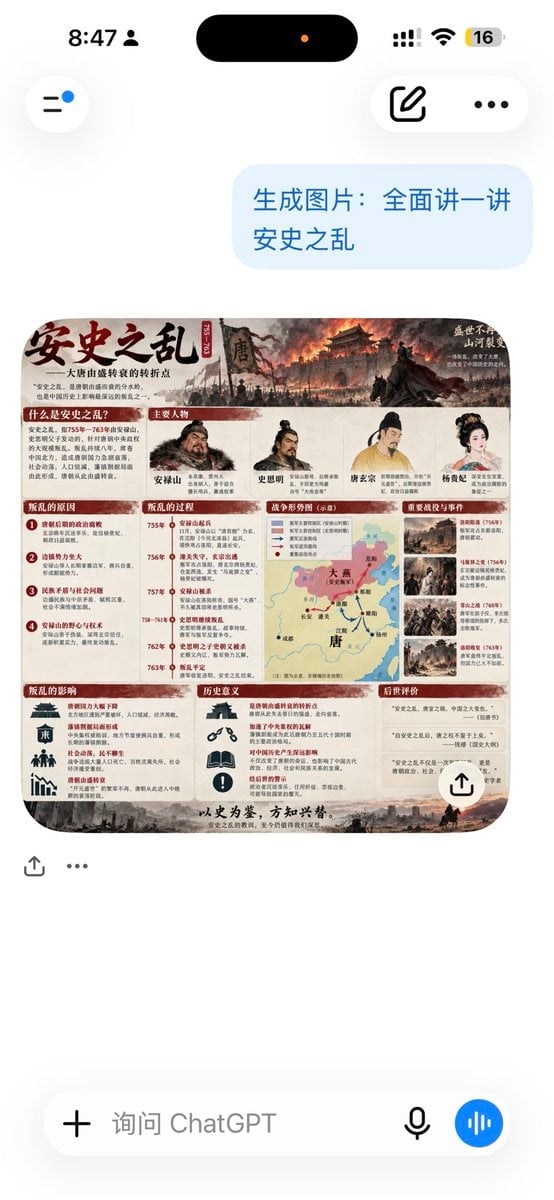
- Prompt included
- Model and format preset
- Free template
The prompt behind this image
Copy the exact prompt behind ChatGPT An Lushan Infographic Screenshot, or open it in the studio and make it yours.
Goal: Create a realistic vertical smartphone screenshot of a ChatGPT conversation showing an AI-generated Chinese history infographic about {argument name="topic" default="安史之乱"}. Canvas: 576 × 1024 portrait phone screen, clean white iOS-style interface, high-resolution screenshot look with soft shadows and rounded UI elements. Top status and navigation: Show the iPhone status bar with exactly 5 visible status items: time “8:47”, a small user/person icon, black Dynamic Island with one tiny orange dot, cellular/Wi‑Fi indicators, and a battery badge reading “16”. Below it, show exactly 3 floating navigation controls: a left circular hamburger/menu button with a small blue notification dot, a right rounded pill containing an edit/compose icon, and a three-dot menu icon. Chat layout: On the right side near the top, place one light-blue user message bubble containing exactly this Chinese text: “生成图片:全面讲一讲\n安史之乱”. Beneath it, show one generated image card with rounded corners. Add exactly 2 small action icons under the card on the left: a share/upload icon and an ellipsis icon. Add one white circular share button overlay at the lower-right corner of the generated image card. Generated image card content: The card is a dense, horizontal Chinese educational infographic poster about the An Lushan Rebellion. Use an antique parchment and ink-wash historical style with dark red section headers, beige paper background, weathered borders, and a dramatic top banner painting of a burning Tang dynasty city, smoke, soldiers, banners, and a dark horse silhouette. Large brush-calligraphy title at upper left: “安史之乱”. Include a smaller subtitle about the major turning point of the Tang dynasty from prosperity to decline. Keep all infographic text in Chinese and make it appear mostly legible. Infographic sections: Use exactly 9 visible content sections in the poster: 1) “什么是安史之乱?” explanatory text block, 2) “主要人物” row with exactly 5 illustrated portrait figures labeled An Lushan, Shi Siming, Tang Xuanzong, Tang Suzong, and Yang Guifei, 3) “叛乱的原因” list with exactly 4 numbered causes, 4) “叛乱的过程” vertical timeline with exactly 6 dated milestones, 5) a central “叛乱形势图” map of Tang China with red and black arrows showing rebel and imperial movements, 6) “重要战役与事件” column with exactly 4 thumbnail battle/event images, 7) “叛乱的影响” block with exactly 4 icon-and-text impact items, 8) “历史意义” block with exactly 3 icon-and-text meaning items, and 9) “后世评价” block with exactly 3 quote cards. Add a bottom slogan line in Chinese resembling “以史为鉴,方知兴替。” with a small grayscale battlefield silhouette along the bottom edge. Bottom input bar: At the bottom of the phone screenshot, show the ChatGPT message composer as one rounded white pill with exactly 4 elements: a plus icon, gray placeholder text “询问 ChatGPT”, a microphone icon, and a blue circular voice-wave button. Visual style: Modern ChatGPT mobile UI combined with a richly detailed Chinese history infographic. The screenshot should feel like an authentic mobile app capture, with white margins, subtle drop shadows, rounded corners, and no external watermark. Constraints: Do not add extra chat messages. Keep the infographic fully contained inside the rounded image card. Preserve the visible Chinese text where specified. Use accurate Tang dynasty historical visual motifs and avoid fantasy elements.
How to use ChatGPT An Lushan Infographic Screenshot in 3 steps
- 1Upload ImagePNG, JPG or paste
Add your photo
Upload the photo the template builds on. The prompt, model and format are already set.
- 2…a portrait of your subject in softgolden-hour light, 85mm…
Personalize
Edit the subject and creative details for your destination.
- 3Generate
Generate
Press Generate — your image is created in PicX Studio, so you can compare it with the original and refine one variable at a time.
More like this
Templates with the same subject, style or setup. Open one to see its prompt.

Minecraft Next-Gen Voxel World Screenshot

Japan Travel Brochure Poster
ChatGPT Mobile Photo Carousel Screenshot

ChatGPT Bonus Banner Screenshot
Floraverse Botanical Fusion
FLORAVERSE BOTANICAL FUSION

Isometric Process Educational Diorama
Face-Locked Train Window Lifestyle Portrait
Female Chef Chicken Biryani Luxury Kitchen
Leather Jacket Cream Trousers Fashion Sketch
Golden Hour Fedora Bar Doorway Street Style
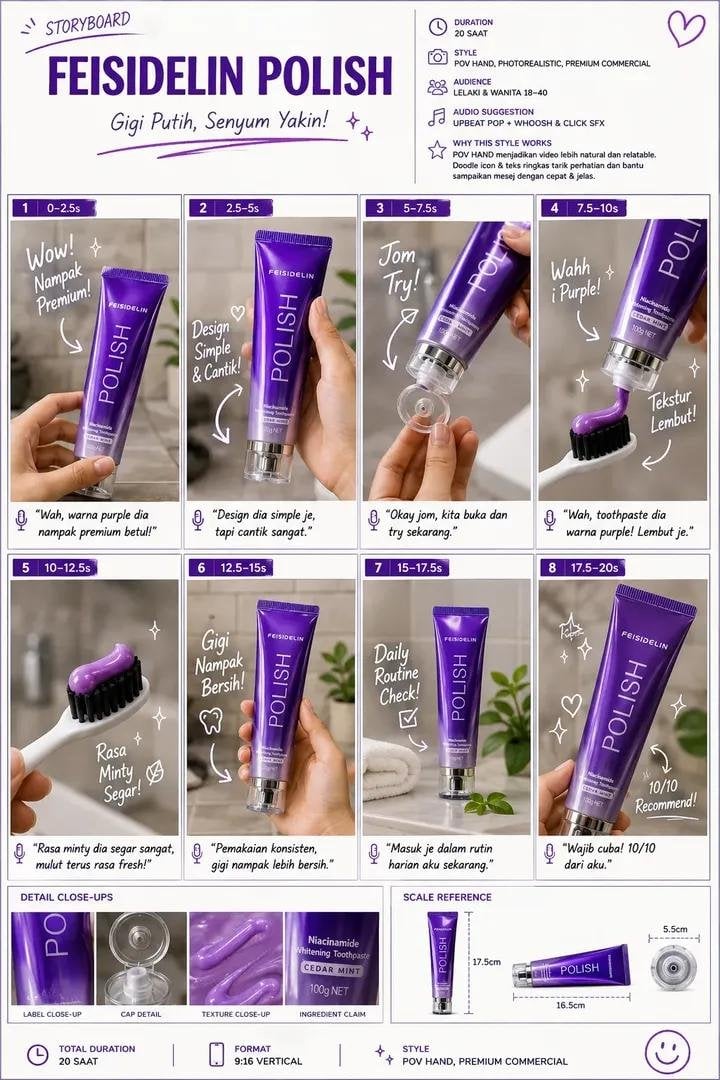
Luxury Toothpaste Commercial Storyboard
Make it yours
ChatGPT An Lushan Infographic Screenshot works as-is. These are the safest ways to change it without losing the look.
Change one field
Copy a single group, rewrite it, and generate again so you can see what that field is doing.
Keep the frame, change the subject
Hold the composition and light of ChatGPT An Lushan Infographic Screenshot, then swap wardrobe, props or the person for a new take.
| If the result… | Why | Fix |
|---|---|---|
| The result drifts from the preview | Too many fields changed at once. | Reuse ChatGPT An Lushan Infographic Screenshot as-is first, then change one group — subject, light, or setting. |
| The model over-stylizes the scene | The prose prompt leaves finish and camera underspecified. | Add one camera or lighting sentence and stay on GPT Image 2. |
More GPT Image 2 templates
Other prompts made for GPT Image 2.

Six VTuber Japanese Logo Sheet

Realistic Portrait of Woman and Deer

The Vista Modular Condo Poster

AI Model Routing Comparison Infographic

2.5D Anime Art Board

Isometric Productivity Desk Scene

New York Double Exposure Poster

Four-Panel AI Landscape Comparison

Japanese Tatami Lifestyle Magazine Cover

NESCAFÉ Coffee Map Poster
More image prompts
Fresh picks from across the catalog.

Cinematic Disintegration Portrait Prompt
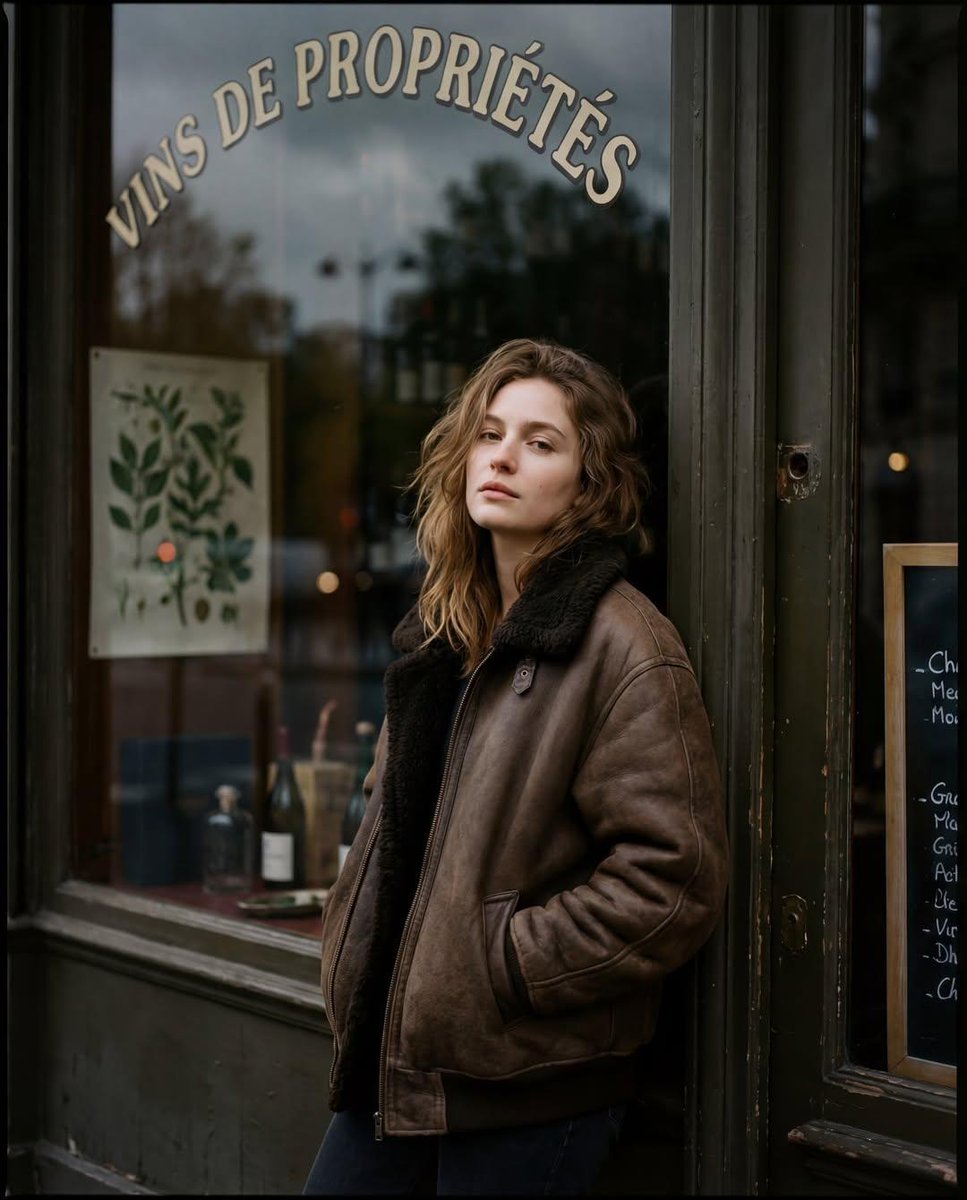
Moody Paris Street Editorial Portrait (Film Scan Aesthetic)
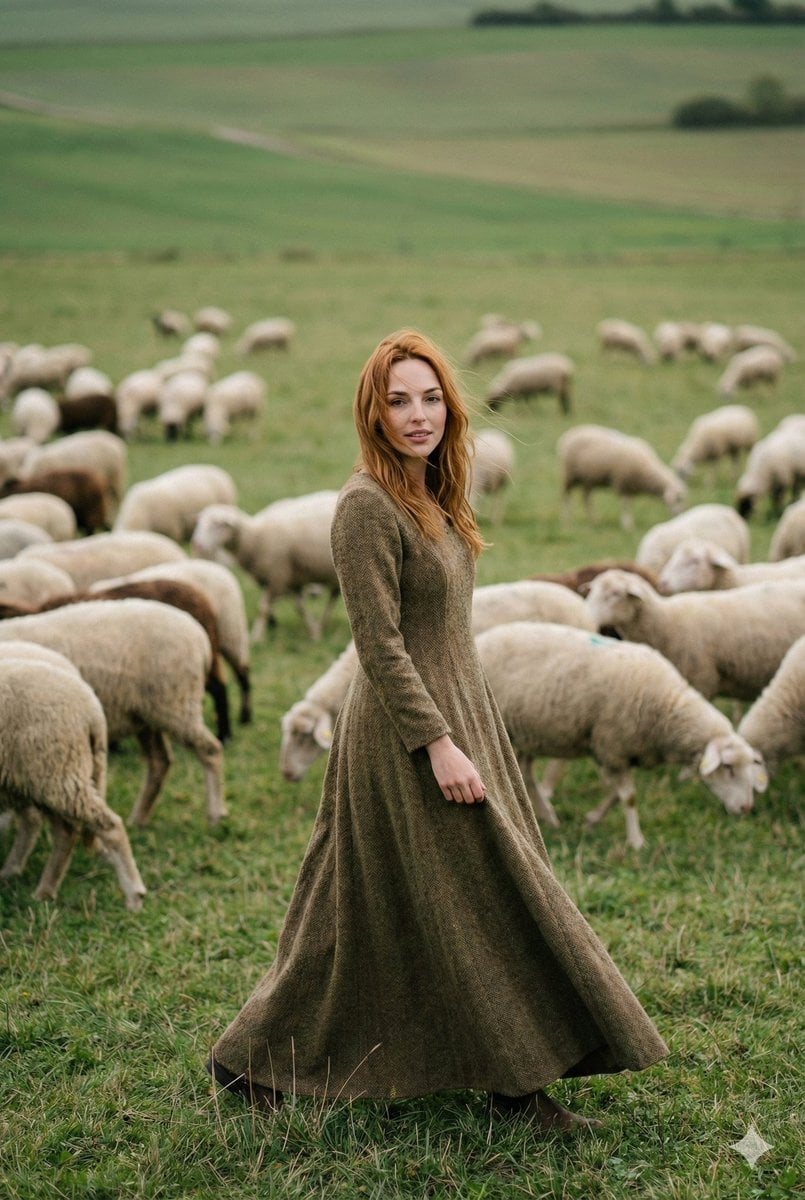
Fashion-Meets-Documentary Portrait in a Pastoral Setting
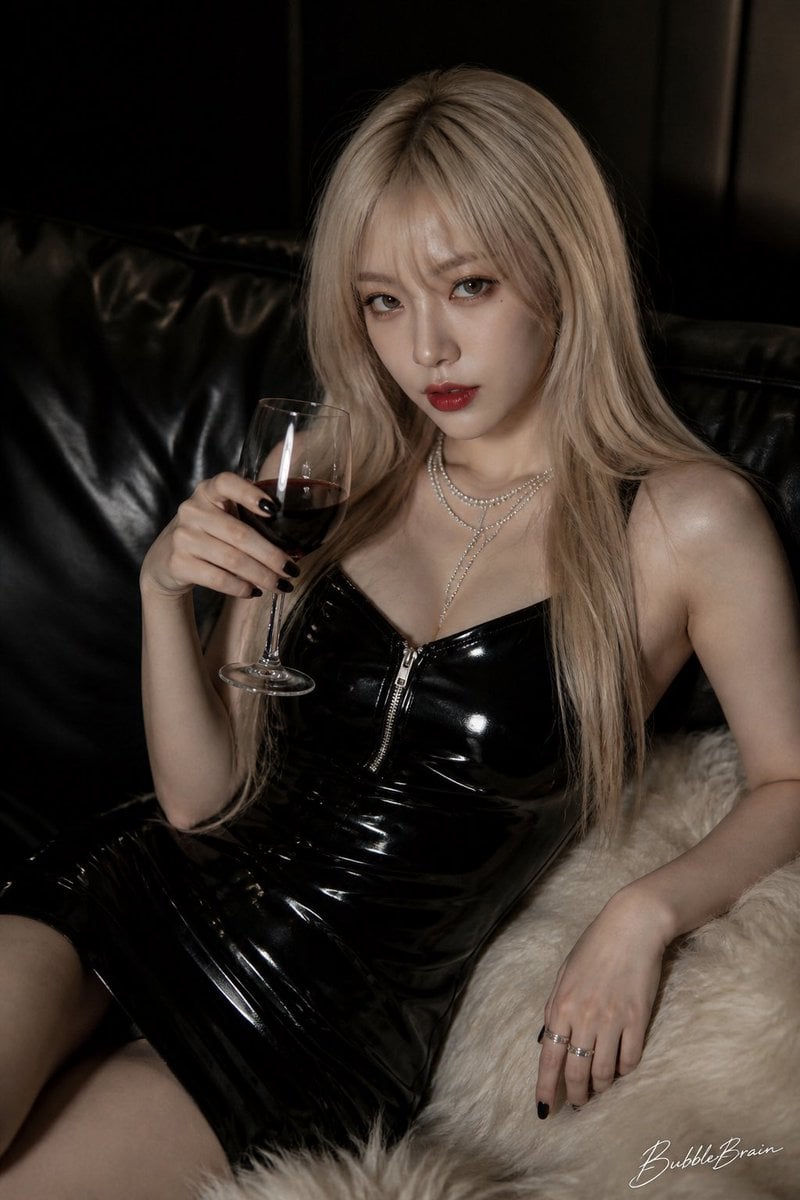
Luxury Asian Fashion Editorial
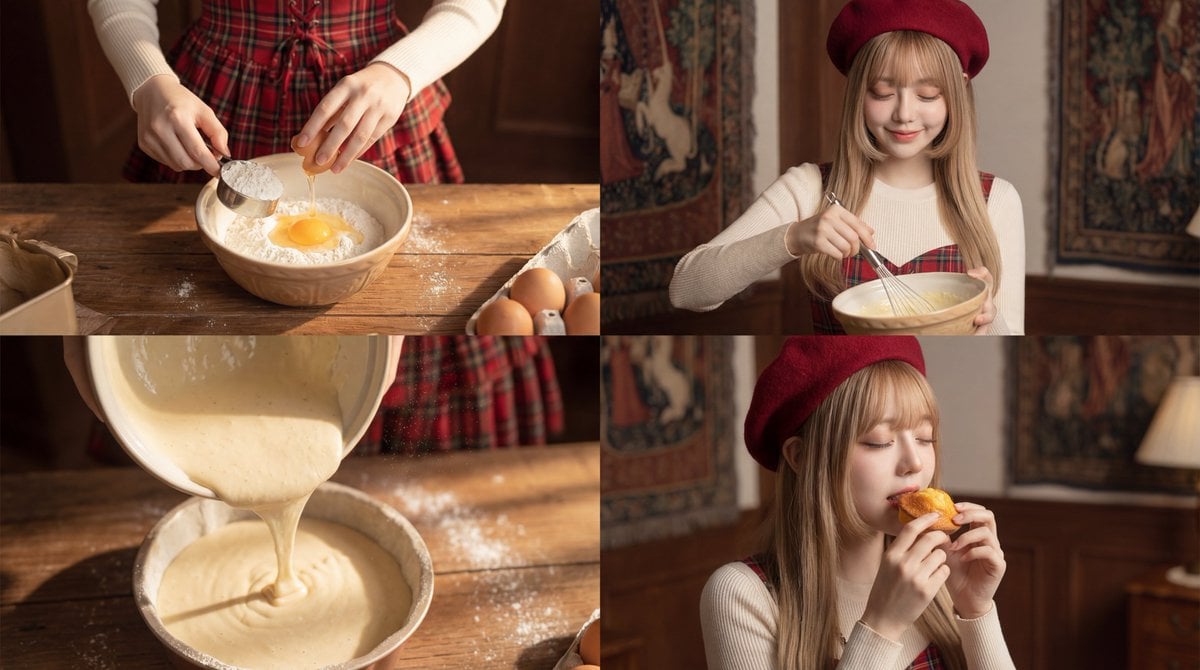
Cinematic Video Prompt for Woman Baking
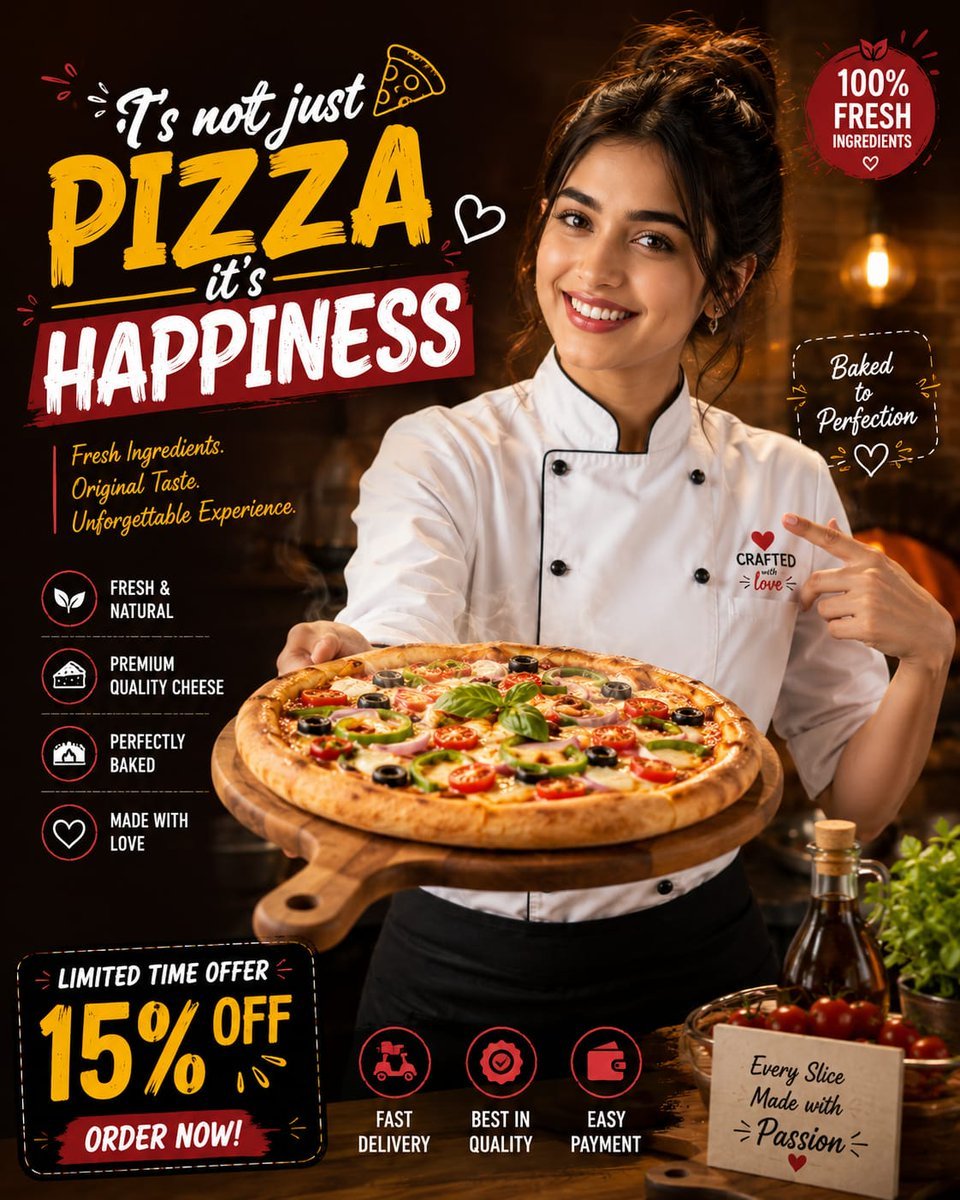
Luxury Fast Food Chef Advertisement
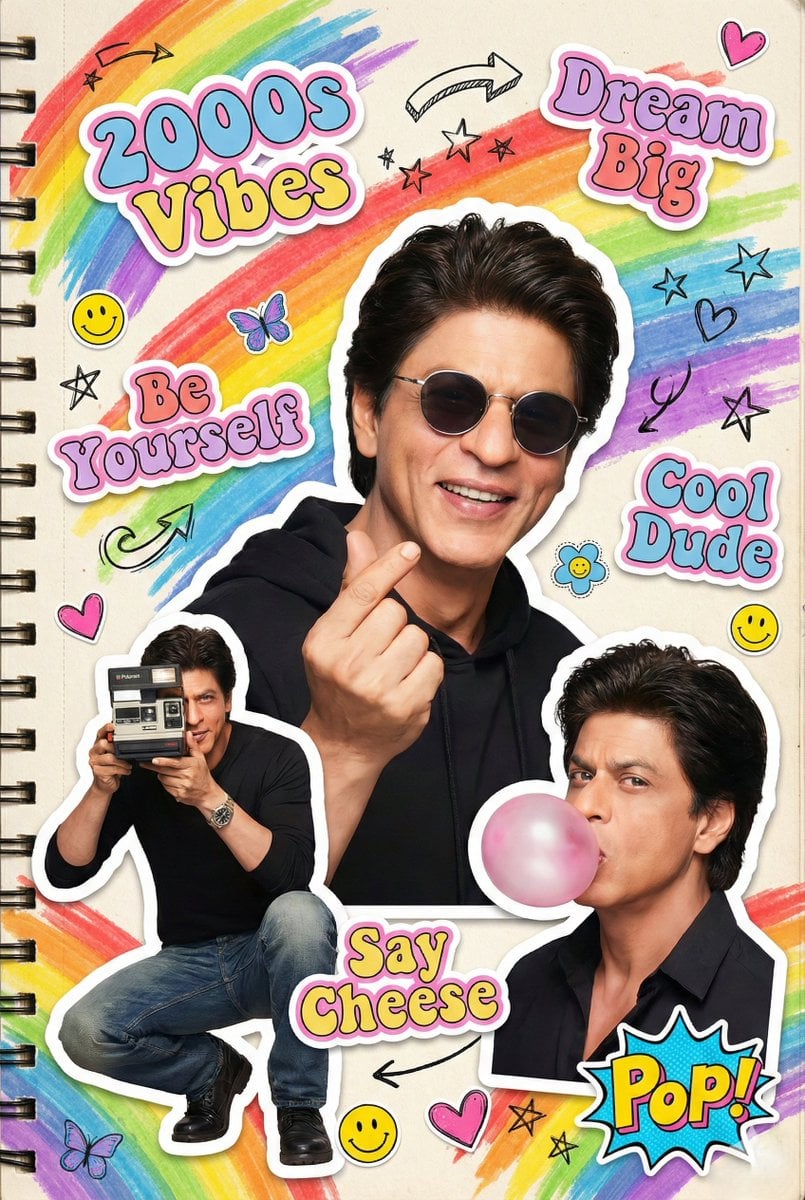
2000s Scrapbook Collage Illustration
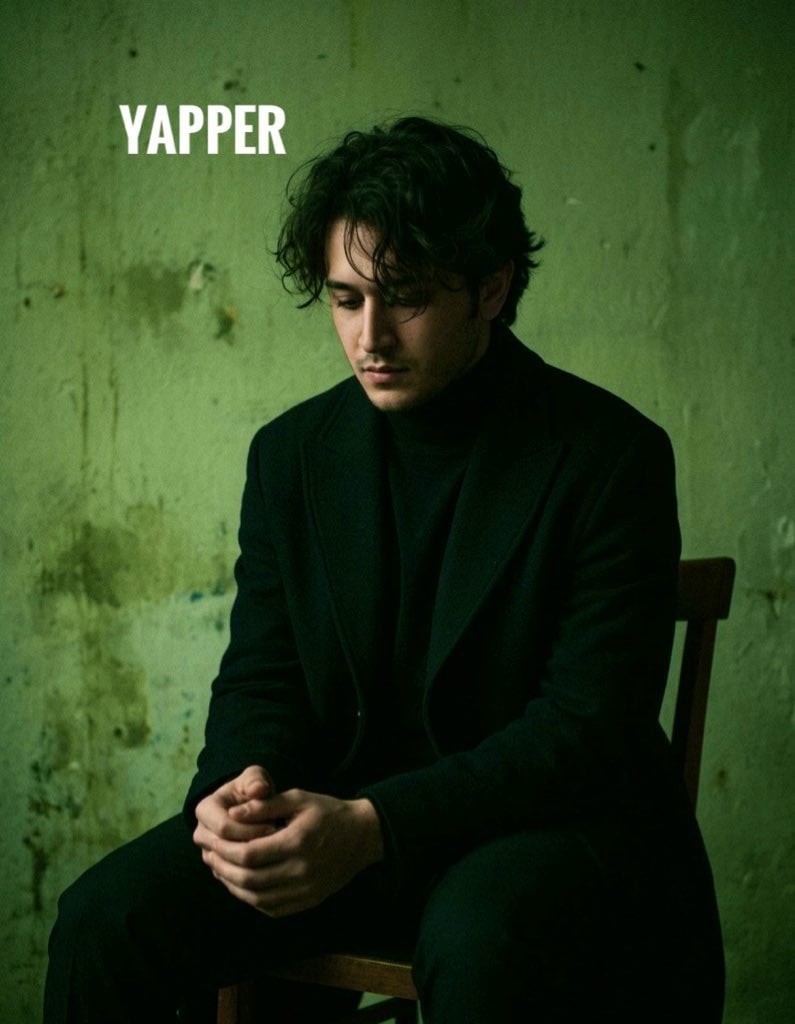
Dark, Moody, Photorealistic Portrait Prompt
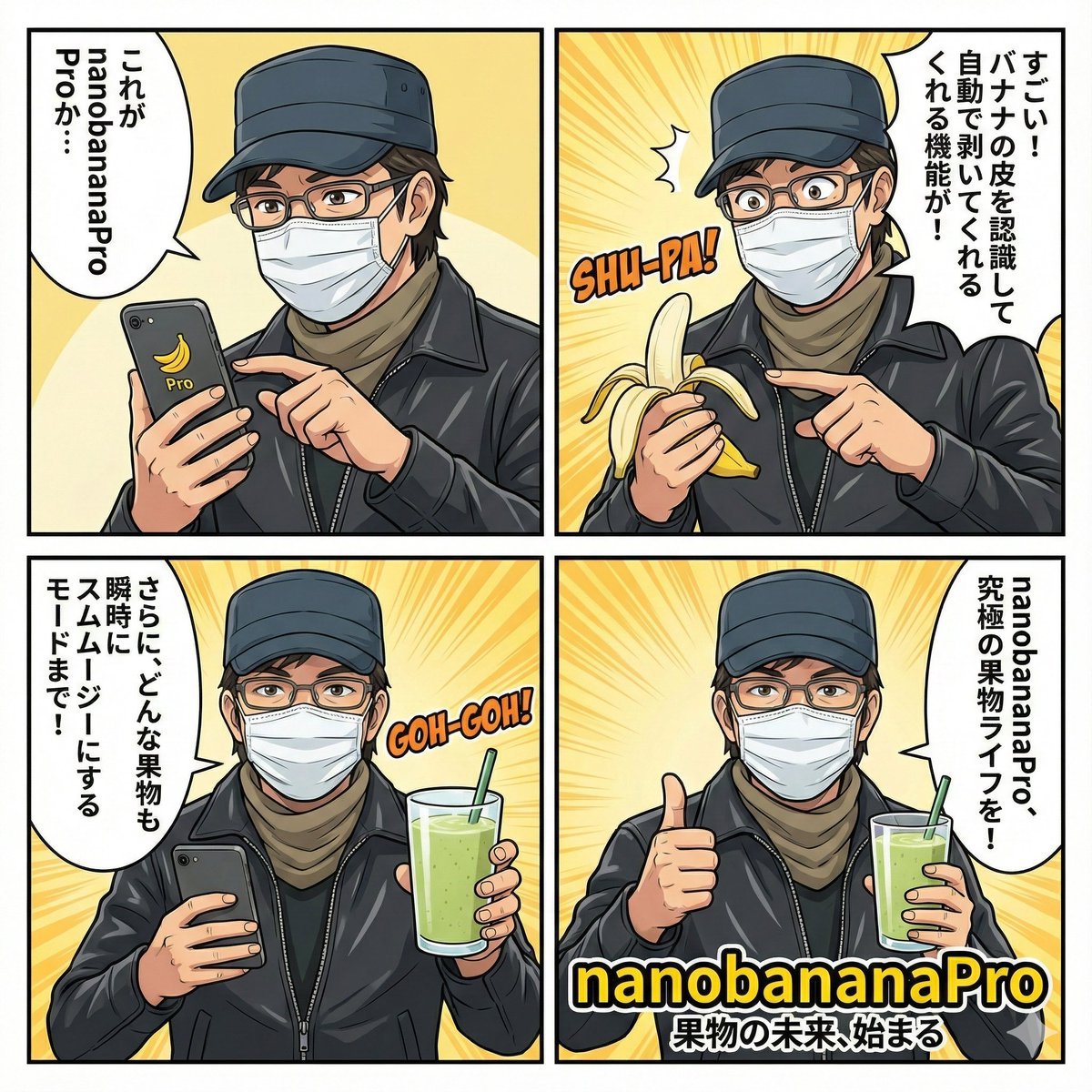
Nano Banana Pro 4-Panel Comic Explanation
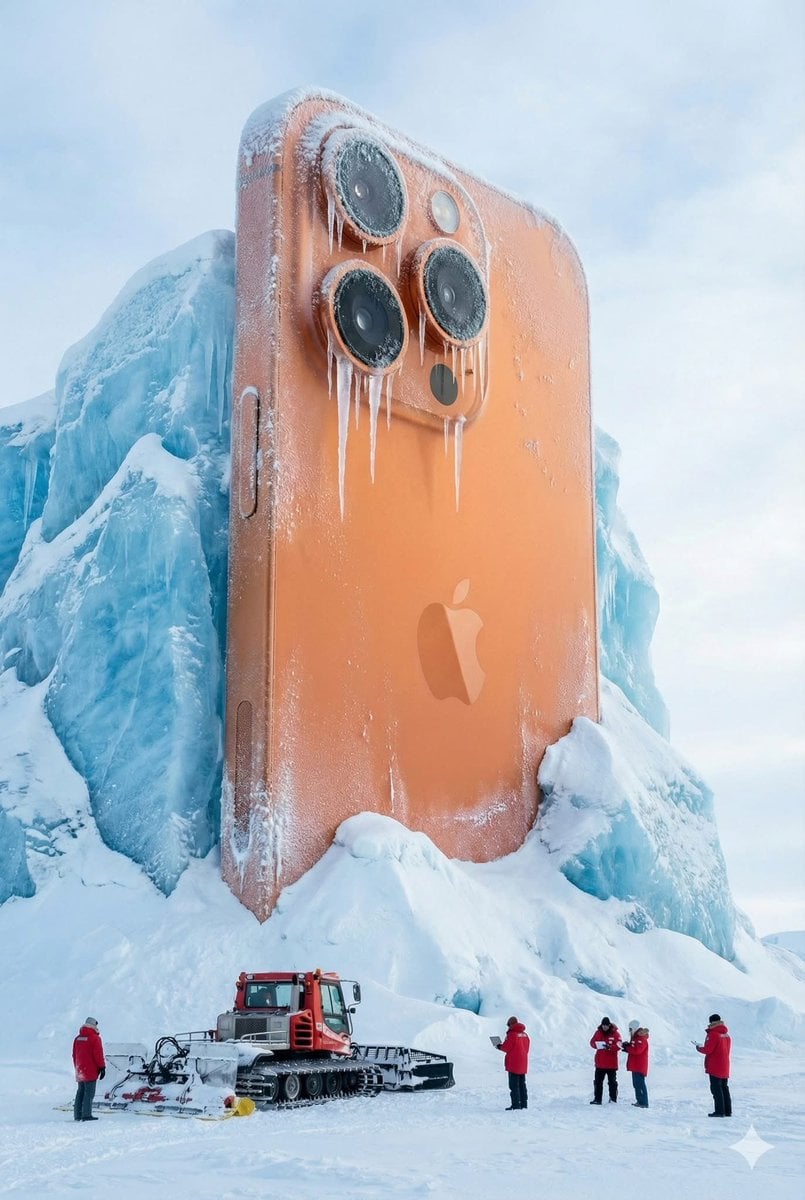
Giant Coca-Cola Can Monument in Arctic Ice
Browse template categories
ChatGPT An Lushan Infographic Screenshot questions
How do I use the ChatGPT An Lushan Infographic Screenshot template?
Add your photo if the template asks for one, edit the prompt if you like — the template's model and format are already selected — and press Generate. Your version opens in PicX Studio.
Can I customize the ChatGPT An Lushan Infographic Screenshot template?
Yes. You can change the subject, setting, lighting, mood, format, and available model controls before creating your image.
Is the ChatGPT An Lushan Infographic Screenshot template free?
Opening and editing this template is free. Generating uses credits, shown on the Generate button when you are signed in.
Which AI model should I use?
Start with GPT Image 2, which is the model associated with this template. You can compare another compatible model for a different finish.
Looking for something else? Browse all templates.

Your photo, any look
Thousands of ready templates for every top image and video model, from one credit balance.