
Brush-Painted Poster Illustration
A sophisticated prompt to transform any photo into a flat, brush-painted illustration poster with hand-painted lettering and vintage tones.
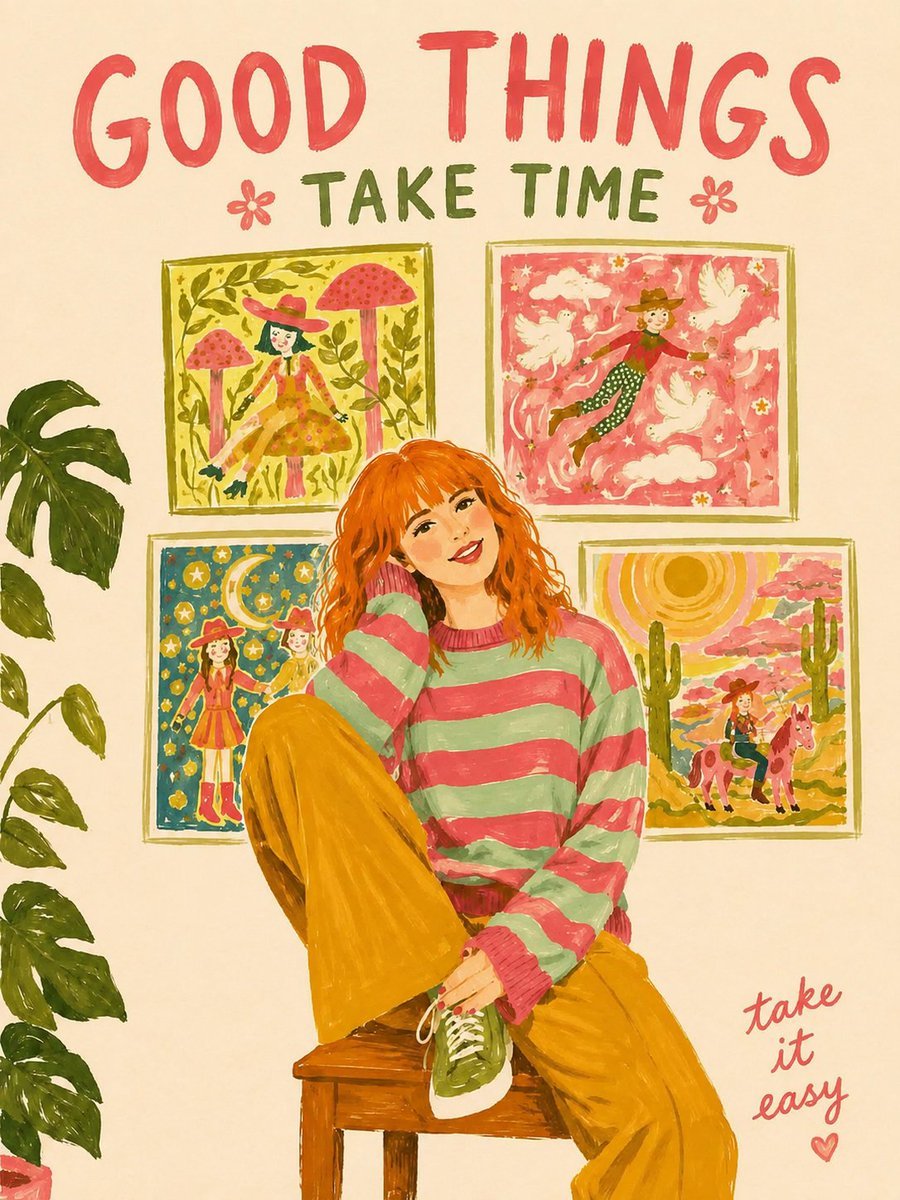
- Prompt included
- Model and format preset
- Free template
The prompt behind this image
Copy the exact prompt behind Brush-Painted Poster Illustration, or open it in the studio and make it yours.
Transform the attached photo into a brush-painted illustration poster. The subject in the photo can be {argument name="subject" default="food, another product, a landscape, an animal, a person, or any object you want to feature as the main subject"}. [Aspect Ratio] Vertical 3:4 [Style] Digital painting / brush-painted effect. Visible brush strokes, uneven edges, slightly stretched paint marks. Hand-painted appearance that feels untouched and authentic. Interpret the image as a flat illustration with a simple arrangement of shapes rather than a realistic depiction. No gradients, shadows, 3D rendering, or detailed textures. Keep everything completely flat. Use a thin, irregular brush-painted outline that varies slightly from the painted areas. [Color] Background should be {argument name="background color" default="cream / off-white paper"}. Use only 3–4 colors taken from the attached photo: 1 dark primary color 1 bright primary color 1–2 supporting colors Slightly desaturated vintage tone. Never increase the number of colors. [Composition] The subject should be large and centered, occupying approximately 50–55% of the canvas. Extend the composition vertically with more space above and below, while also increasing the left and right margins. At the top: place 1–2 {argument name="subject description" default="English uppercase words"} describing the subject, in very large hand-painted brush lettering. Use very wide letter spacing; the text may wrap around the illustration or extend toward the right/downward. At the bottom right: add a short handwritten English phrase of 3–5 words in an accent color. [Text] Look at the photo and choose suitable top and bottom phrases. Do not use the actual subject name as the top text. Choose words based on the atmosphere, location, season, time of day, or emotion shown in the photo. The bottom phrase should feel casual, lighthearted, and slightly playful—not overly serious or explanatory. [Forbidden] Realistic rendering 3D Shadows Reflections Logos Watermarks Border frames Excessive enlargement of the subject
How to use Brush-Painted Poster Illustration in 3 steps
- 1Upload ImagePNG, JPG or paste
Add your photo
Upload the photo the template builds on. The prompt, model and format are already set.
- 2…a portrait of your subject in softgolden-hour light, 85mm…
Personalize
Edit the subject and creative details for your destination.
- 3Generate
Generate
Press Generate — your image is created in PicX Studio, so you can compare it with the original and refine one variable at a time.
More like this
Templates with the same subject, style or setup. Open one to see its prompt.
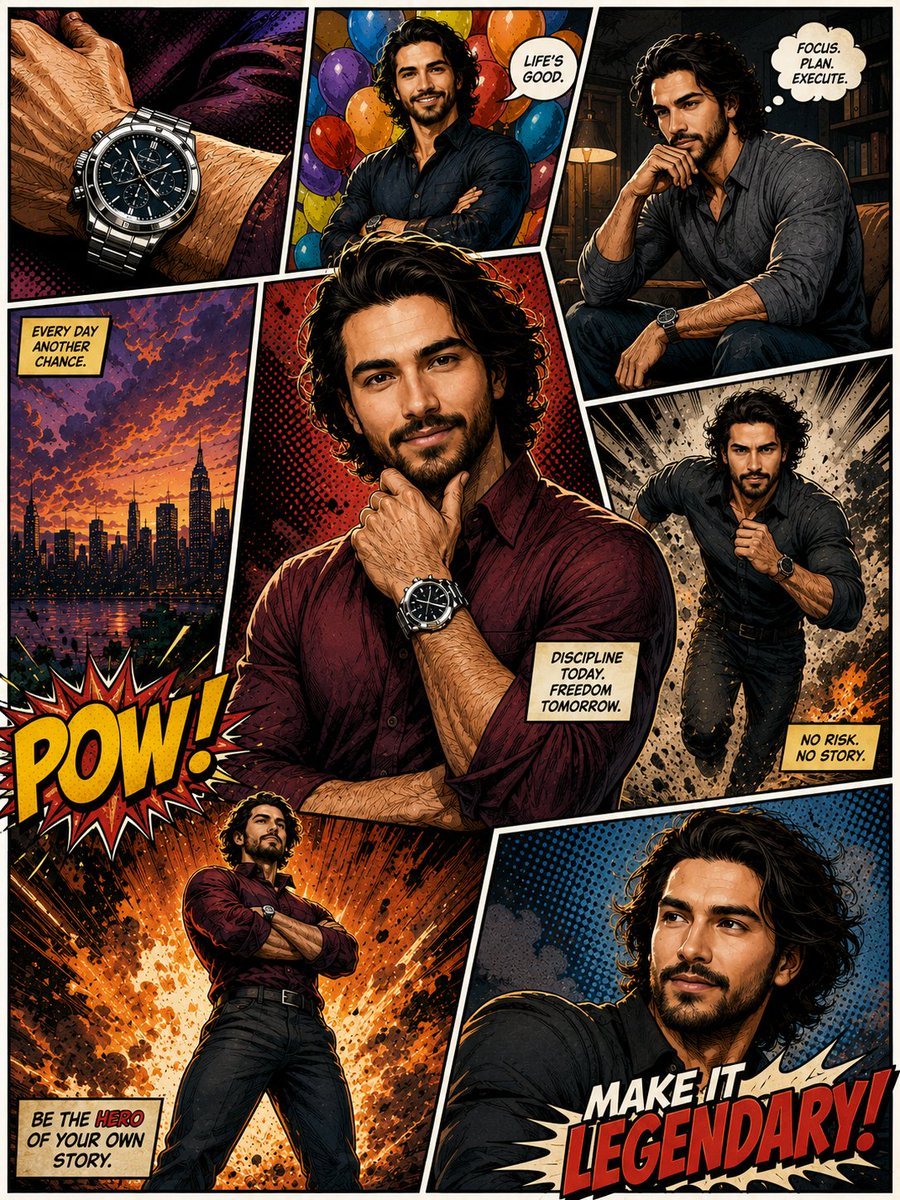
Hero Portrait Comic Multi-Panel Poster

Spider-Verse Painterly Portrait Poster
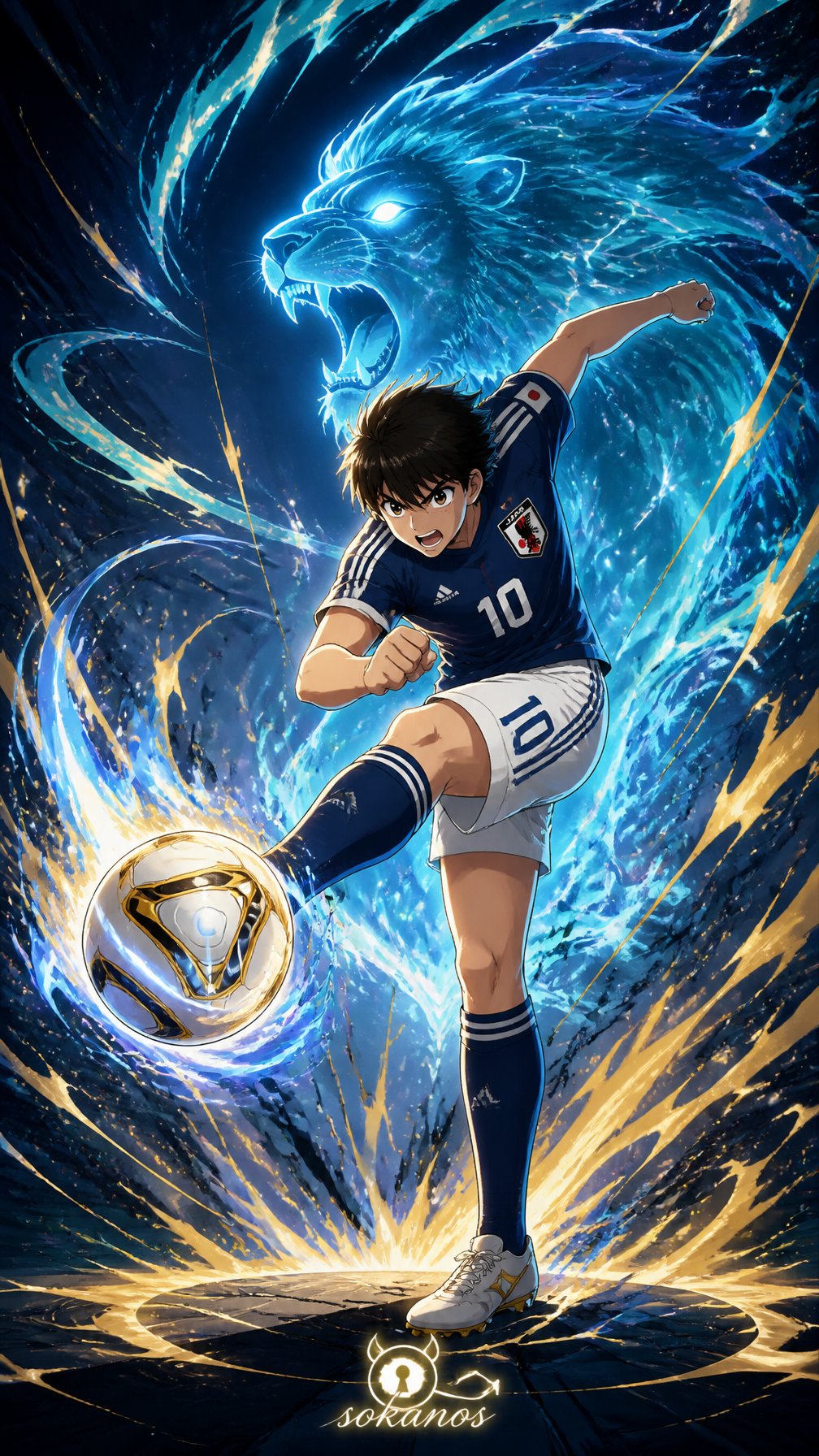
Captain Tsubasa Anime World Cup Poster
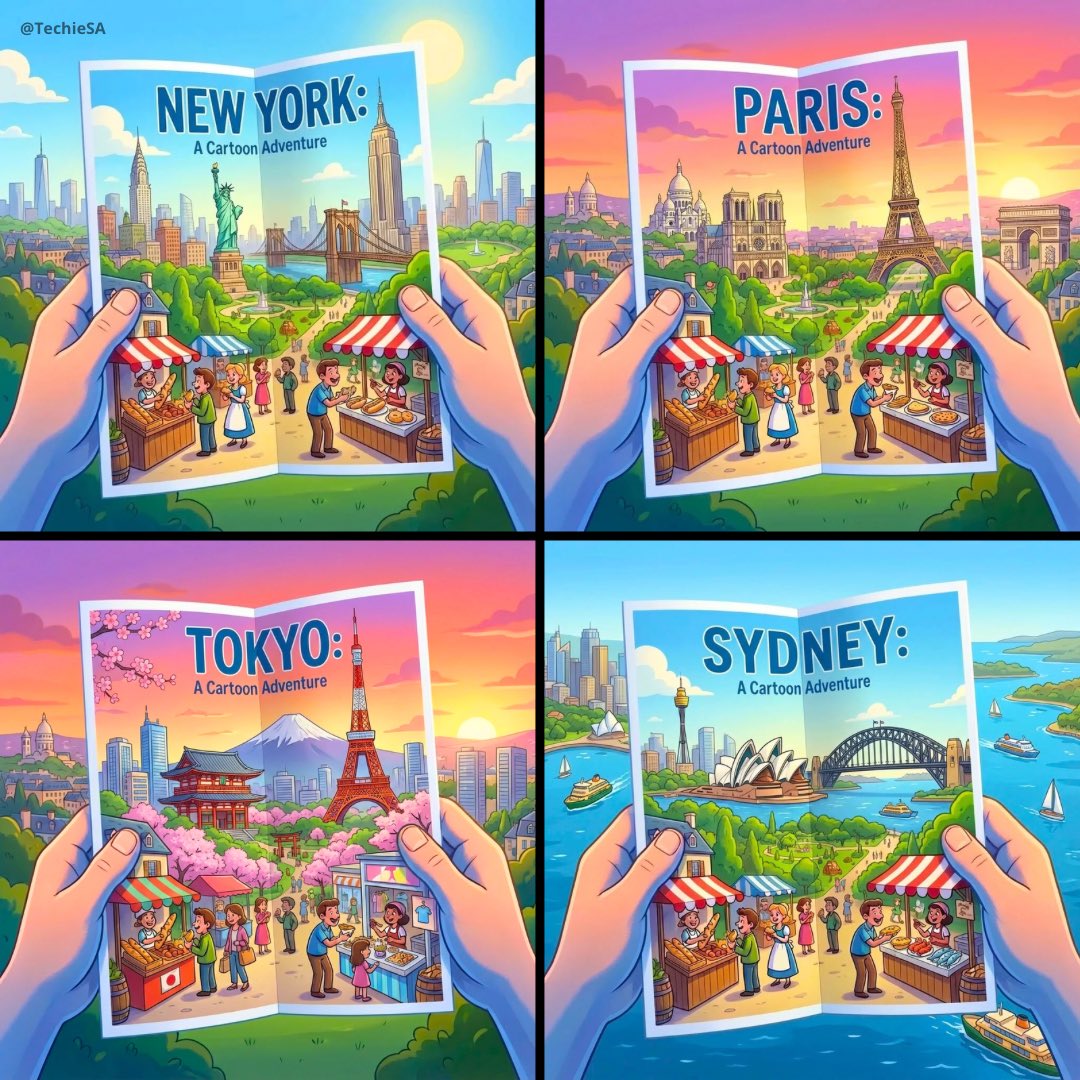
City Posters by Nano Banana Pro
Cute Painted Black Bear Illustration

Japan Travel Brochure Poster
A hand-painted isometric bird s-eye view illustration of in a vintage
A hand-painted isometric bird s-eye view illustration of in a vintage
Hand-Painted Digital Art Illustration
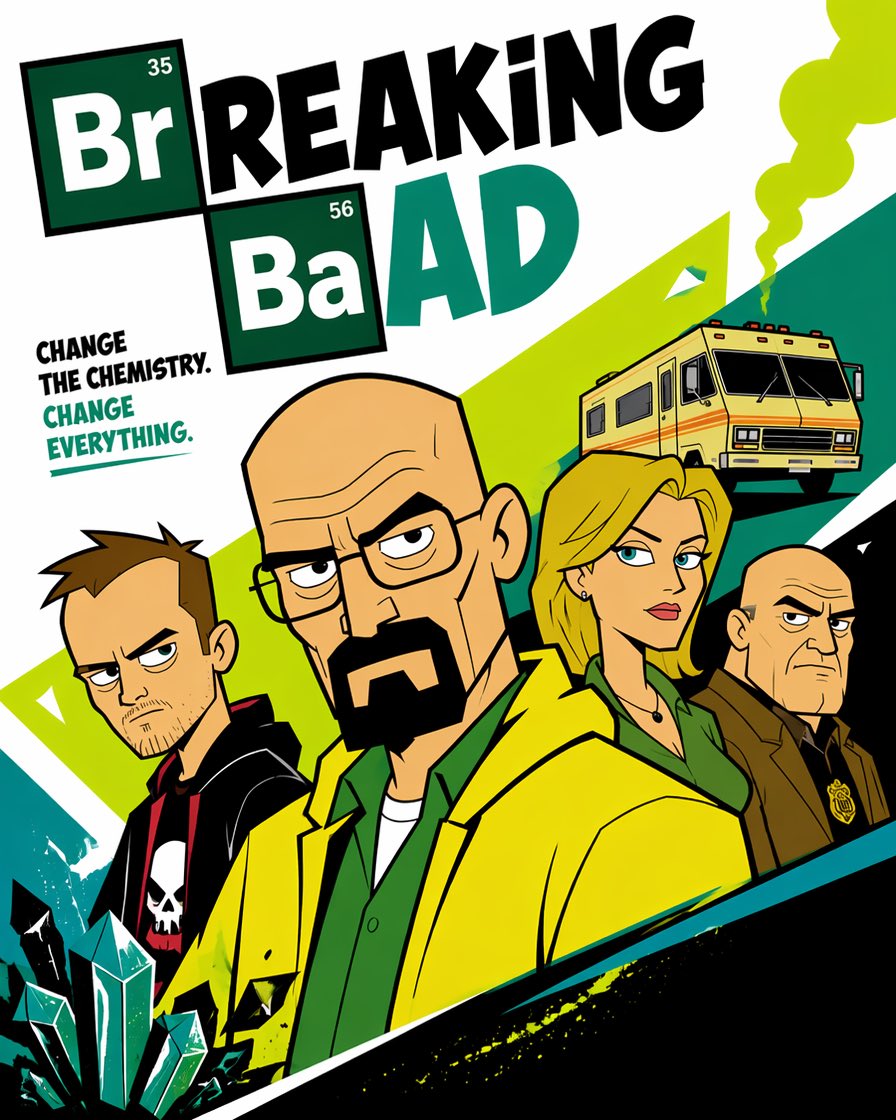
Cartoon TV Show Poster Pack
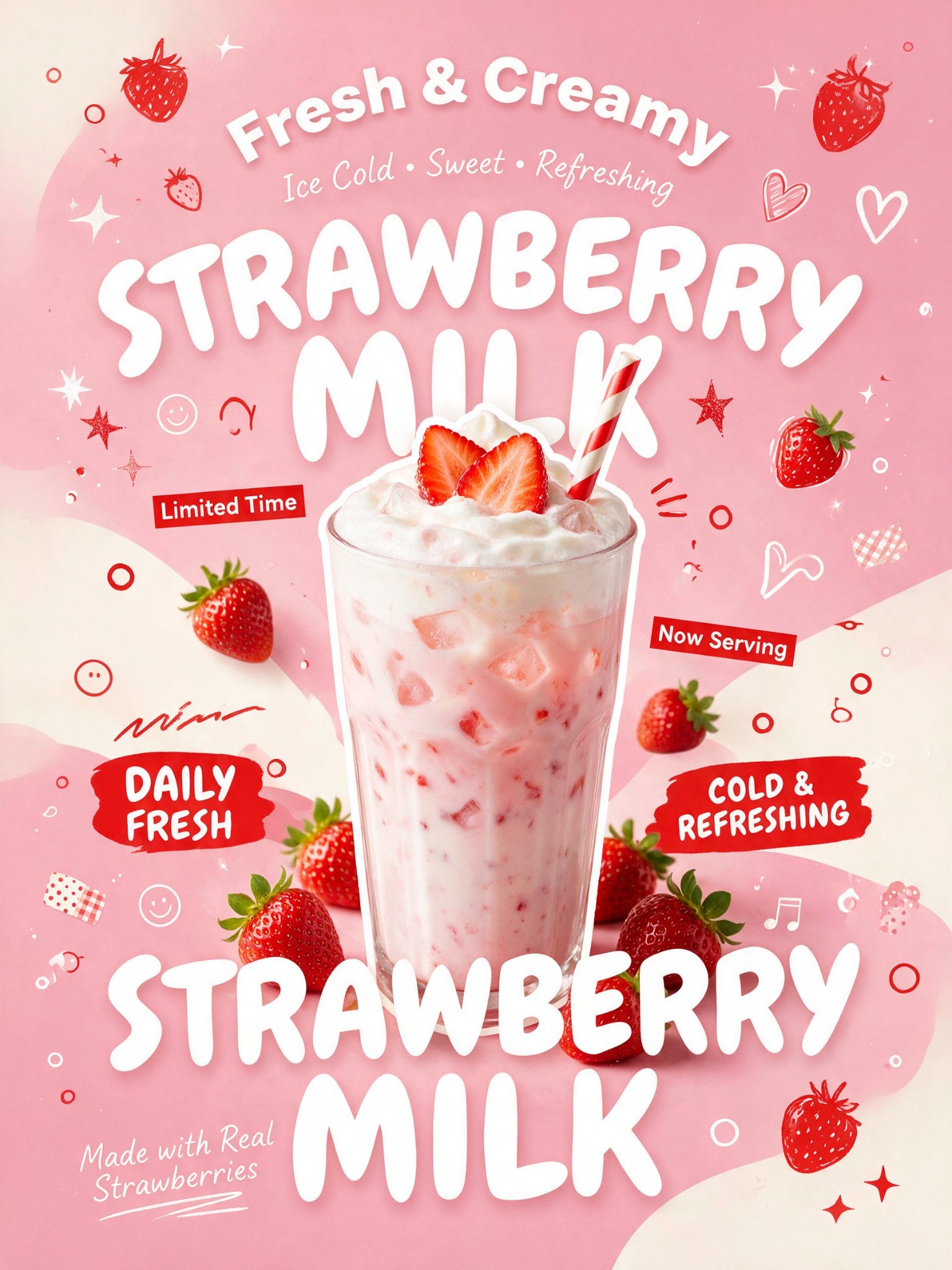
Trendy Cafe Drink Promo Poster
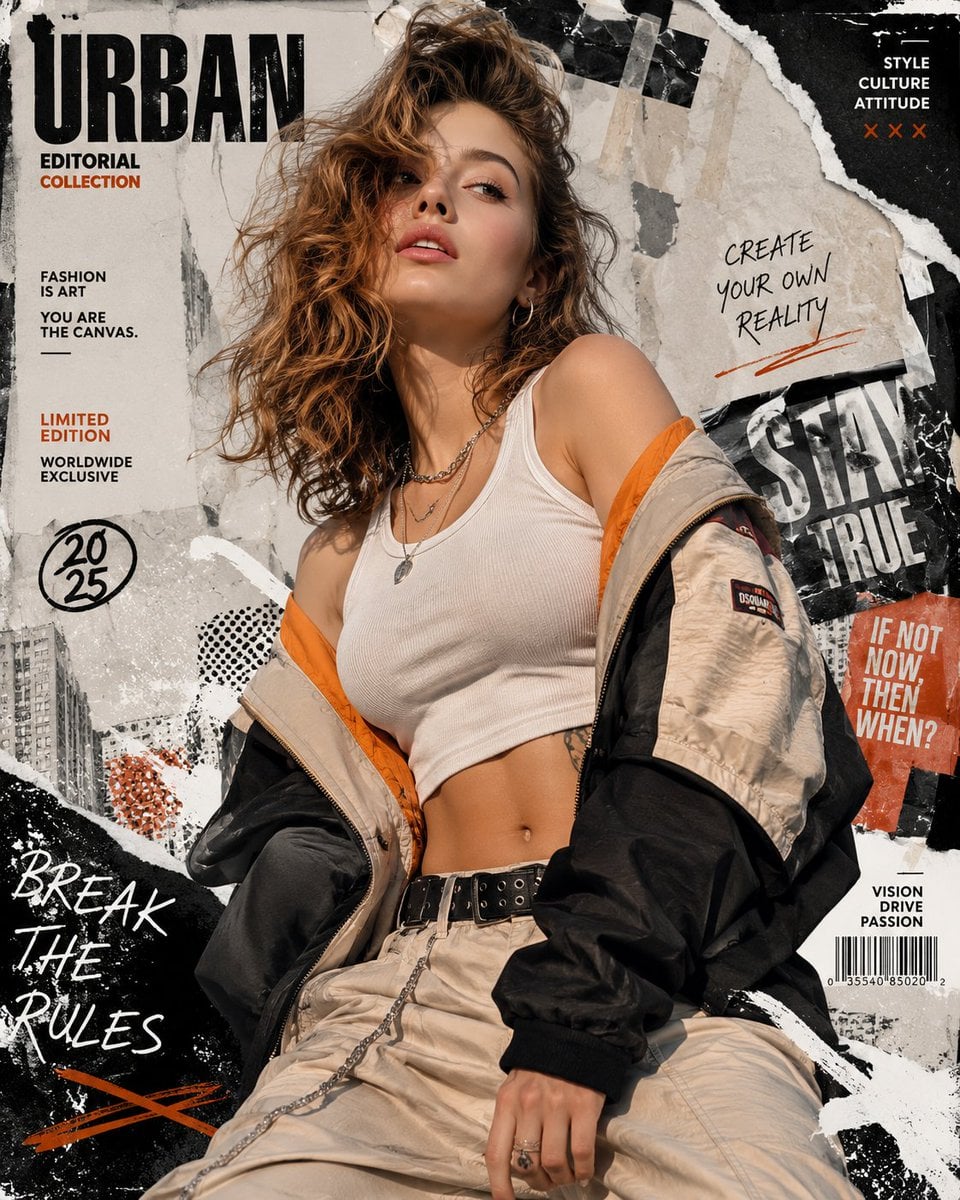
Urban Fashion Editorial Collage Streetwear Poster
Make it yours
Brush-Painted Poster Illustration works as-is. These are the safest ways to change it without losing the look.
Change one field
Copy a single group, rewrite it, and generate again so you can see what that field is doing.
Keep the frame, change the subject
Hold the composition and light of Brush-Painted Poster Illustration, then swap wardrobe, props or the person for a new take.
| If the result… | Why | Fix |
|---|---|---|
| The result drifts from the preview | Too many fields changed at once. | Reuse Brush-Painted Poster Illustration as-is first, then change one group — subject, light, or setting. |
| The model over-stylizes the scene | The prose prompt leaves finish and camera underspecified. | Add one camera or lighting sentence and stay on GPT Image 2. |
More GPT Image 2 templates
Other prompts made for GPT Image 2.

Six VTuber Japanese Logo Sheet

Realistic Portrait of Woman and Deer

The Vista Modular Condo Poster

AI Model Routing Comparison Infographic

2.5D Anime Art Board

Isometric Productivity Desk Scene

New York Double Exposure Poster

Four-Panel AI Landscape Comparison

Japanese Tatami Lifestyle Magazine Cover

NESCAFÉ Coffee Map Poster
More image prompts
Fresh picks from across the catalog.
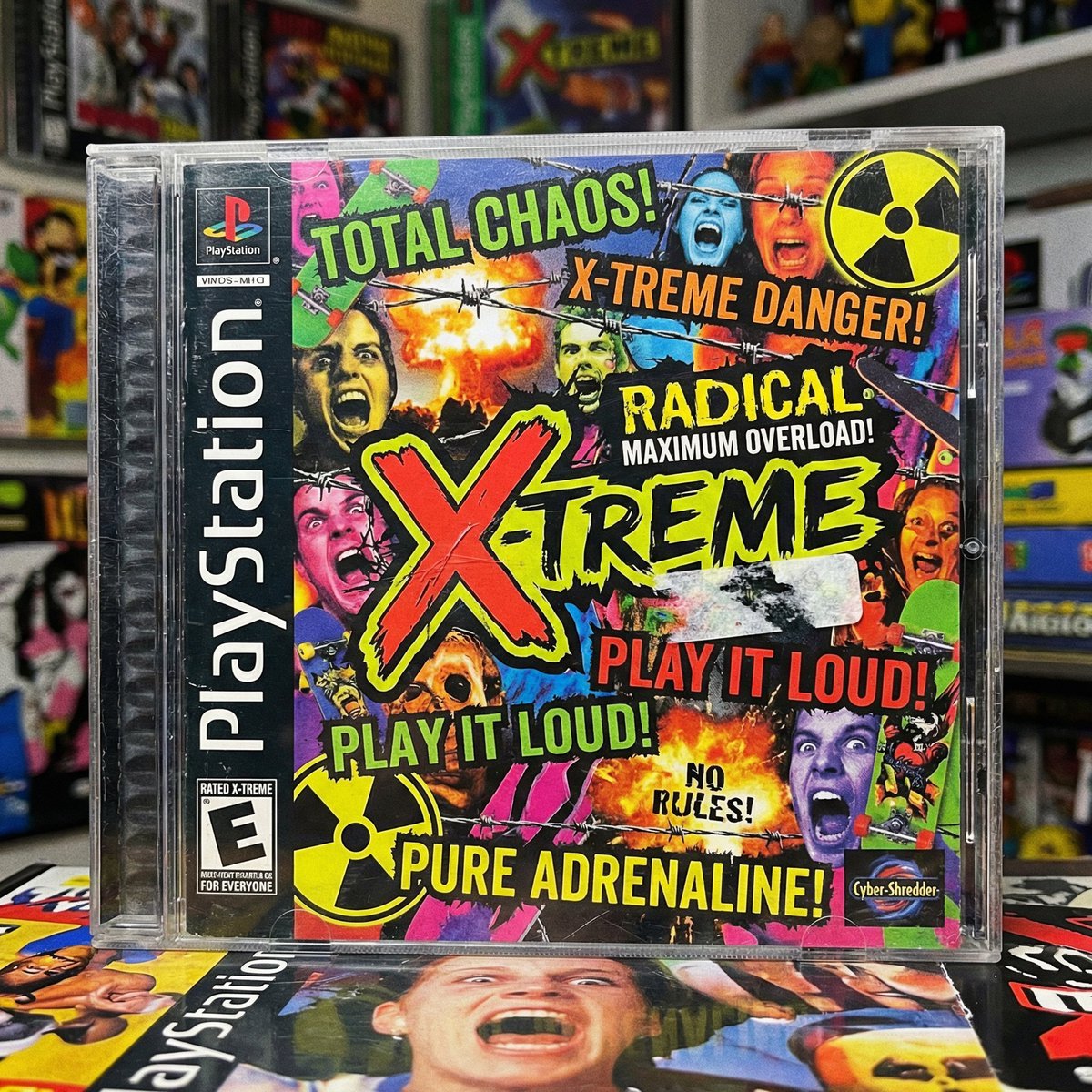
X-Treme 90s PlayStation Game Case
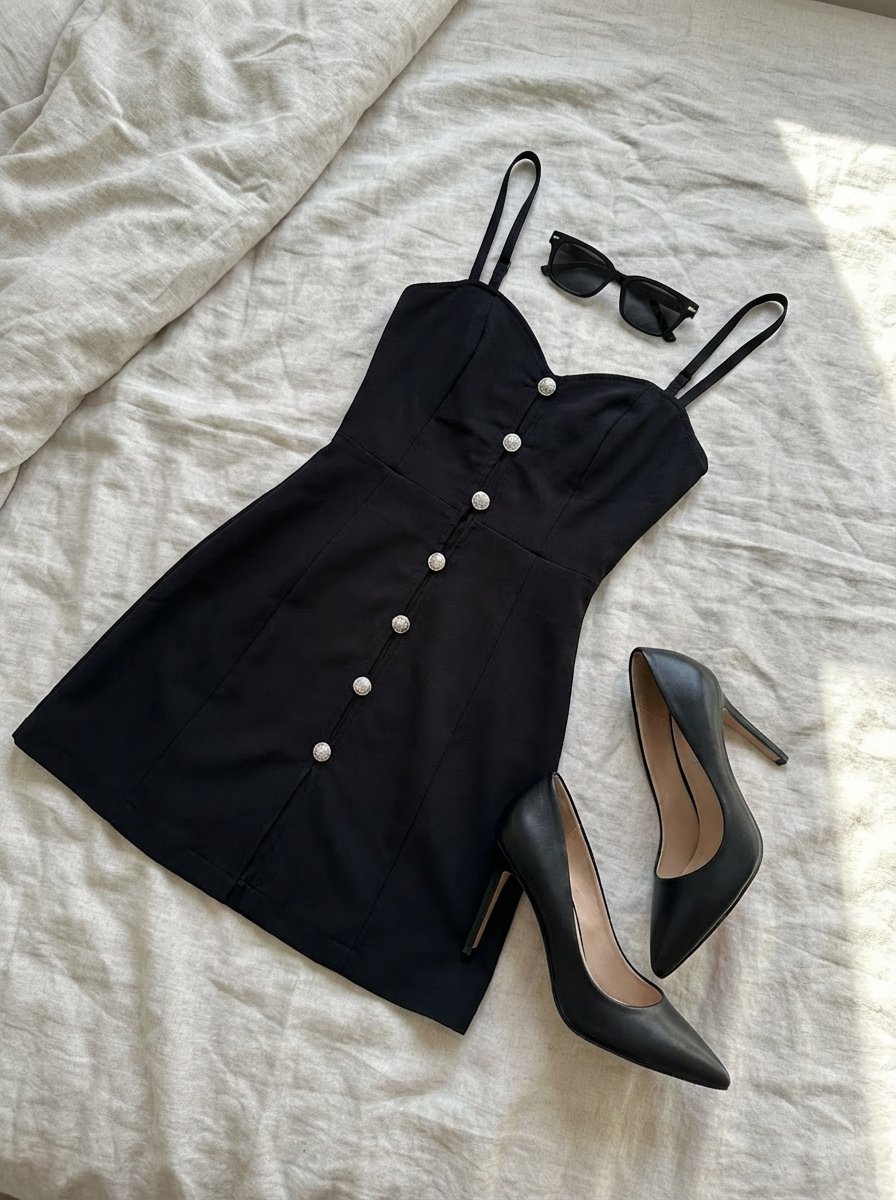
Clothing laid out separately on a bed
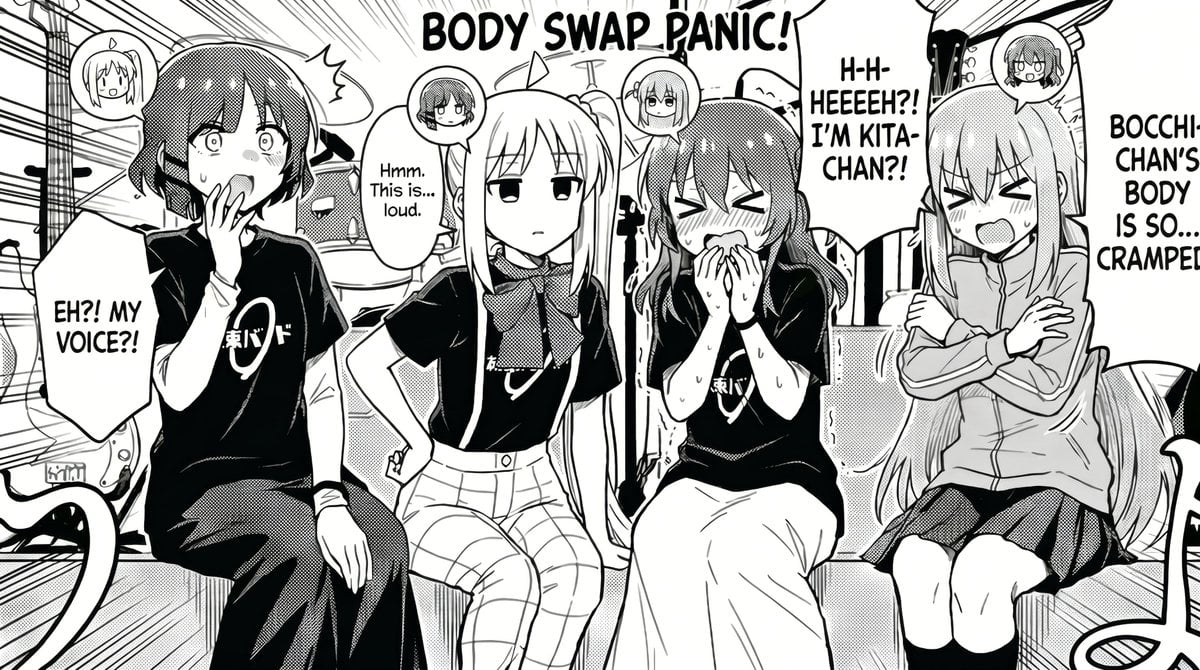
Manga Body Swap Band Panic
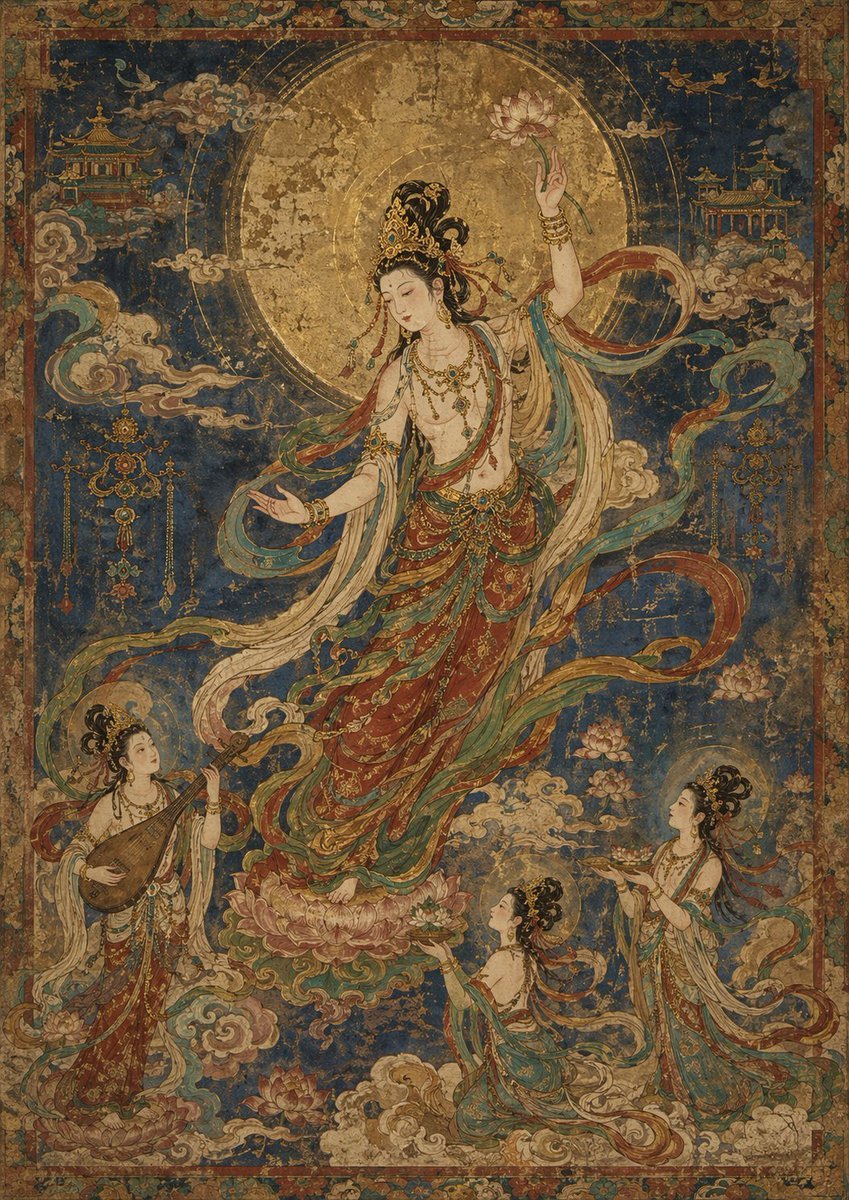
Antique Celestial Goddess Mural
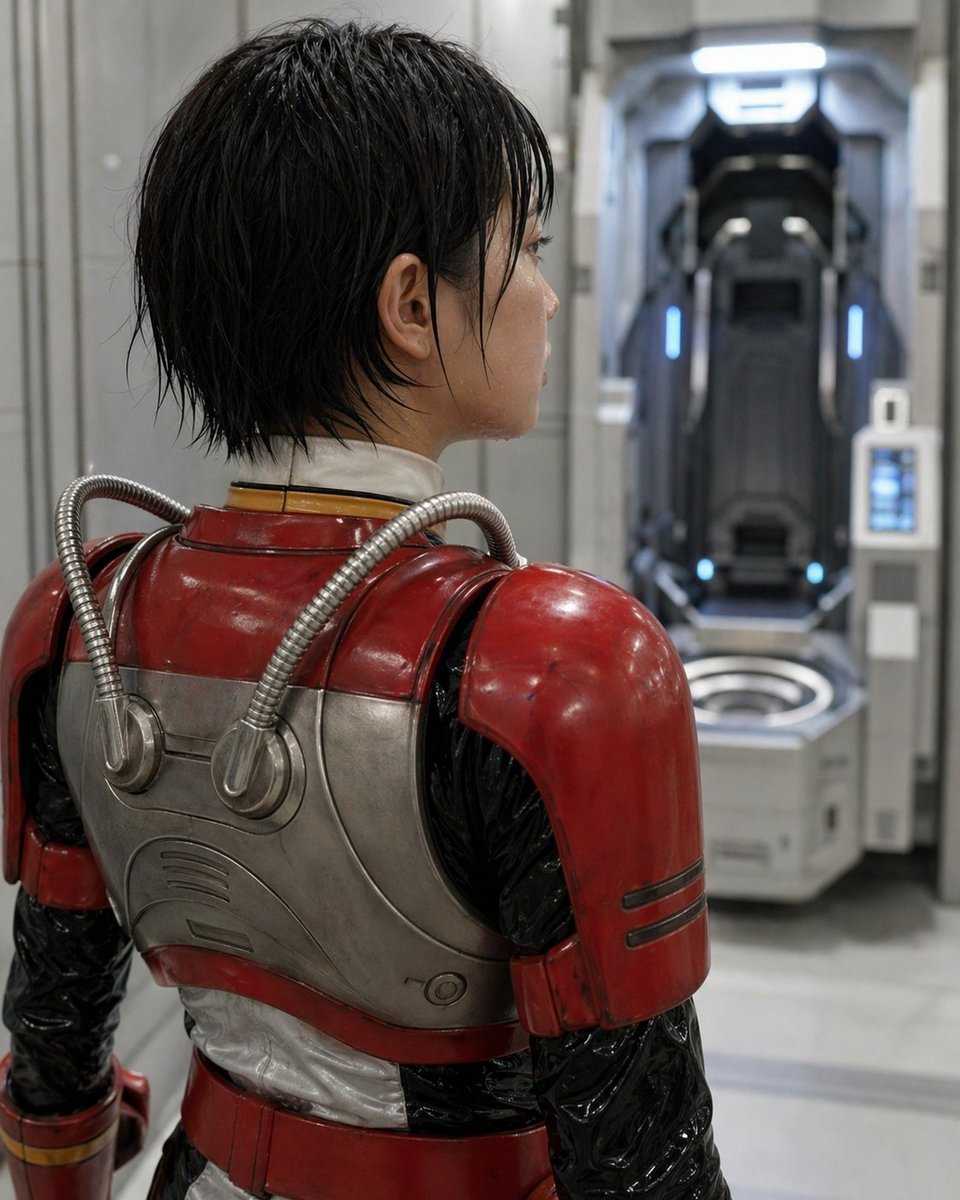
Retro Sci-Fi Armor Back View
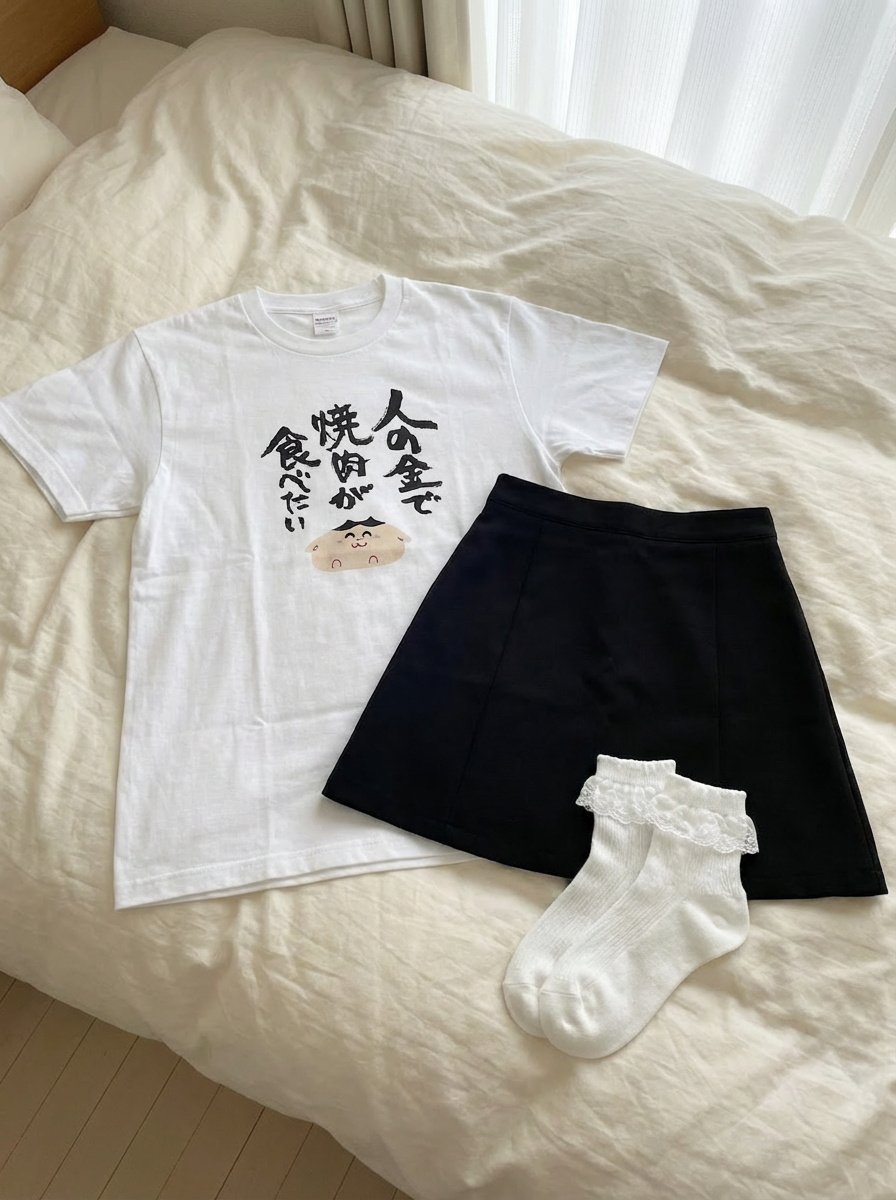
Clothing separated on the bed
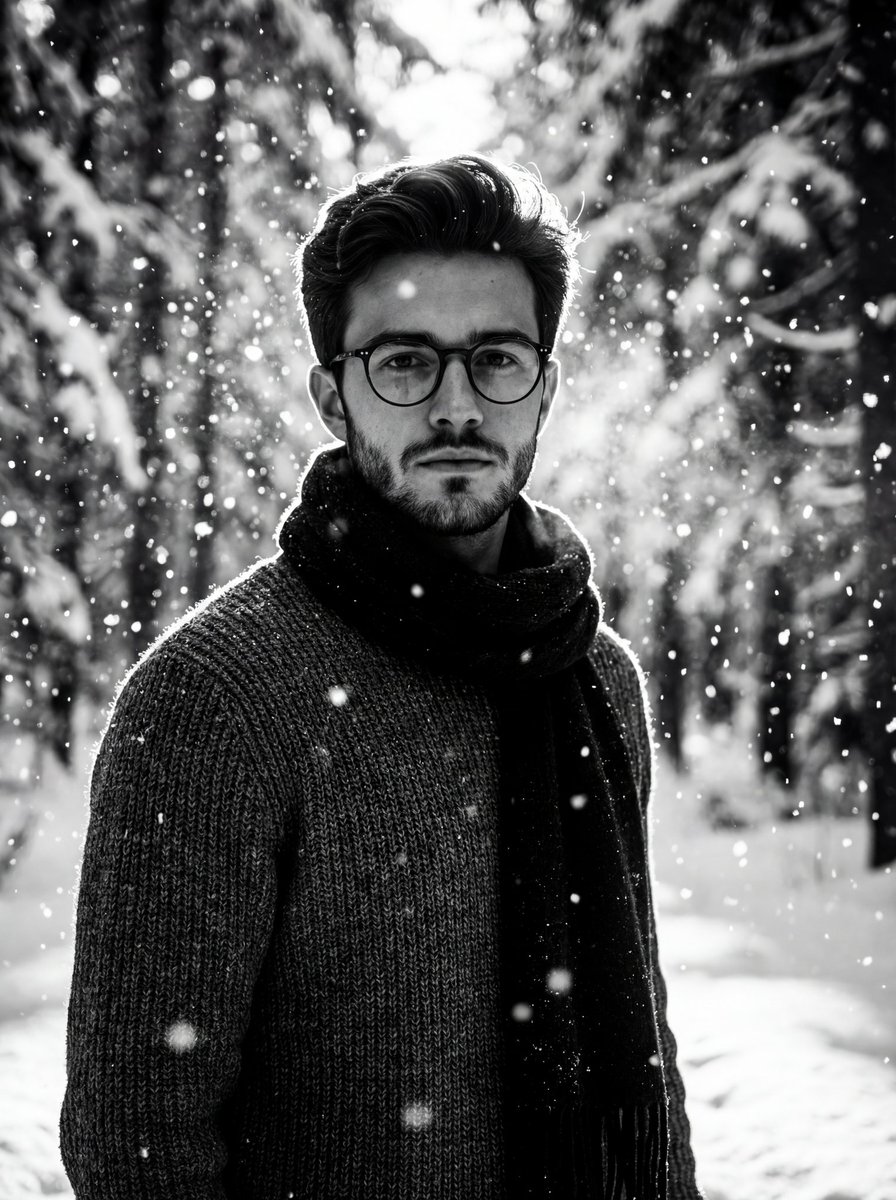
Winter Forest Portrait with Dramatic Backlight
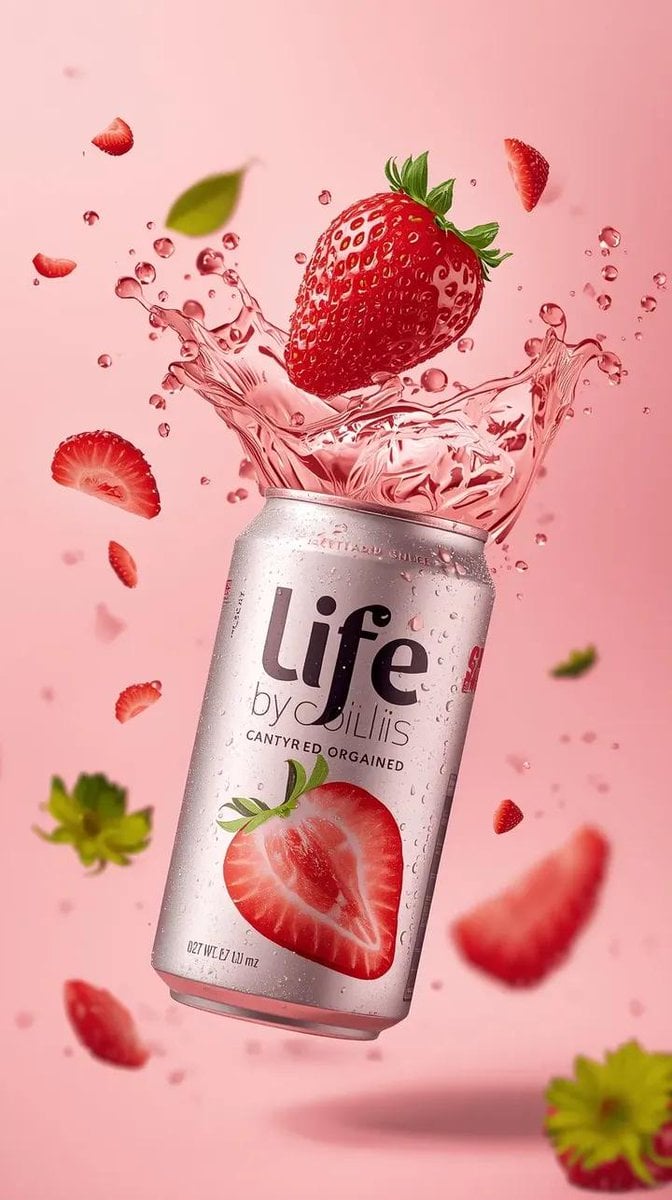
High-Speed Beverage Ad with Strawberry Splash
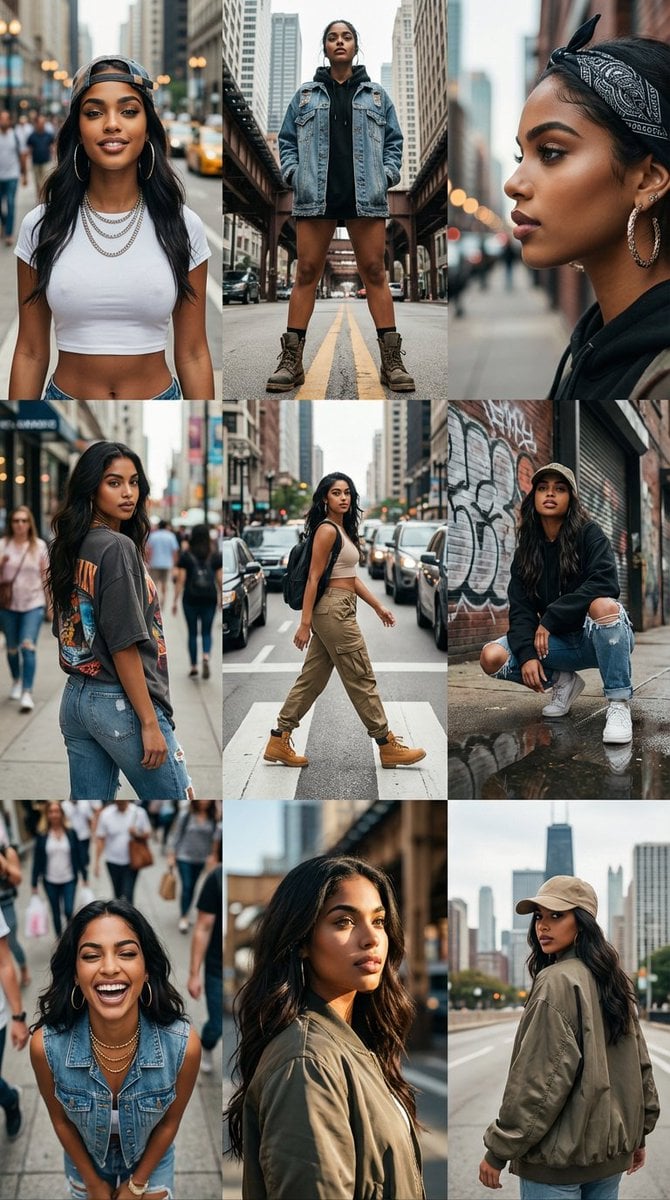
3x3 Cinematic Profile Grid with Identity Lock
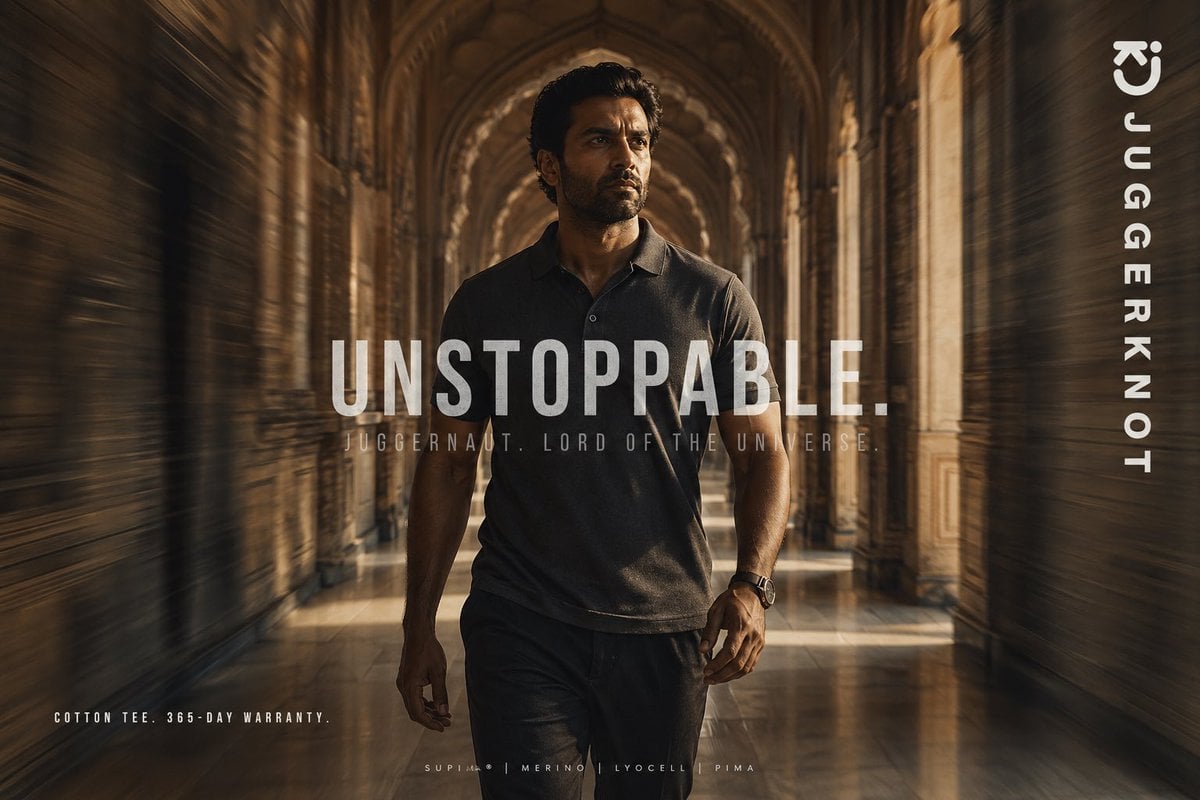
Luxury Tee Campaign Poster
Browse template categories
Brush-Painted Poster Illustration questions
How do I use the Brush-Painted Poster Illustration template?
Add your photo if the template asks for one, edit the prompt if you like — the template's model and format are already selected — and press Generate. Your version opens in PicX Studio.
Can I customize the Brush-Painted Poster Illustration template?
Yes. You can change the subject, setting, lighting, mood, format, and available model controls before creating your image.
Is the Brush-Painted Poster Illustration template free?
Opening and editing this template is free. Generating uses credits, shown on the Generate button when you are signed in.
Which AI model should I use?
Start with GPT Image 2, which is the model associated with this template. You can compare another compatible model for a different finish.
Looking for something else? Browse all templates.

Your photo, any look
Thousands of ready templates for every top image and video model, from one credit balance.