
Warrior vs Fire Dragon Fantasy Art
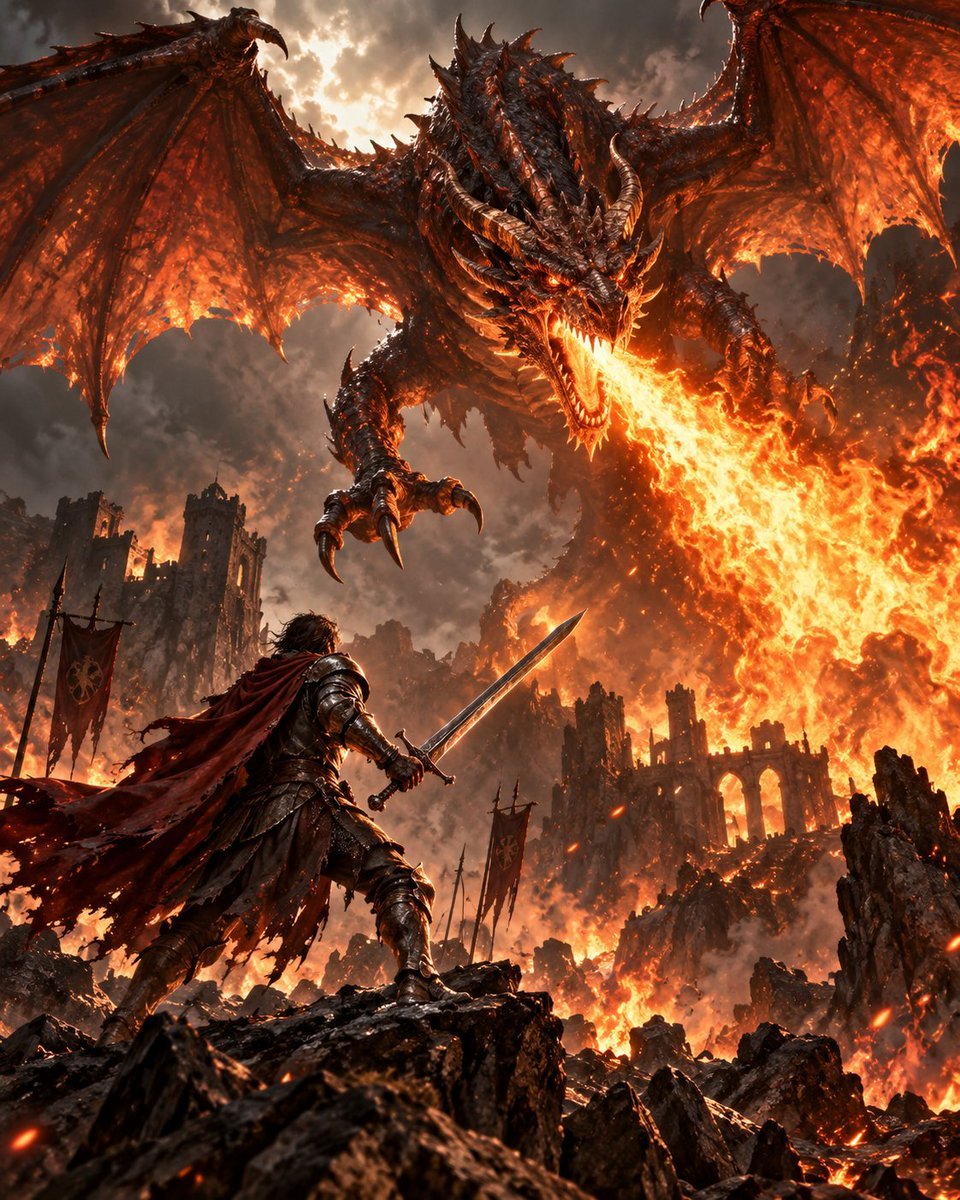
Transforms a rough sketch into cinematic fantasy game key art of a warrior facing a fire-breathing dragon in a burning ruined battlefield.
- Prompt included
- Model and format preset
- Free template
The prompt behind this image
Copy the exact prompt behind Warrior vs Fire Dragon Fantasy Art, or open it in the studio and make it yours.
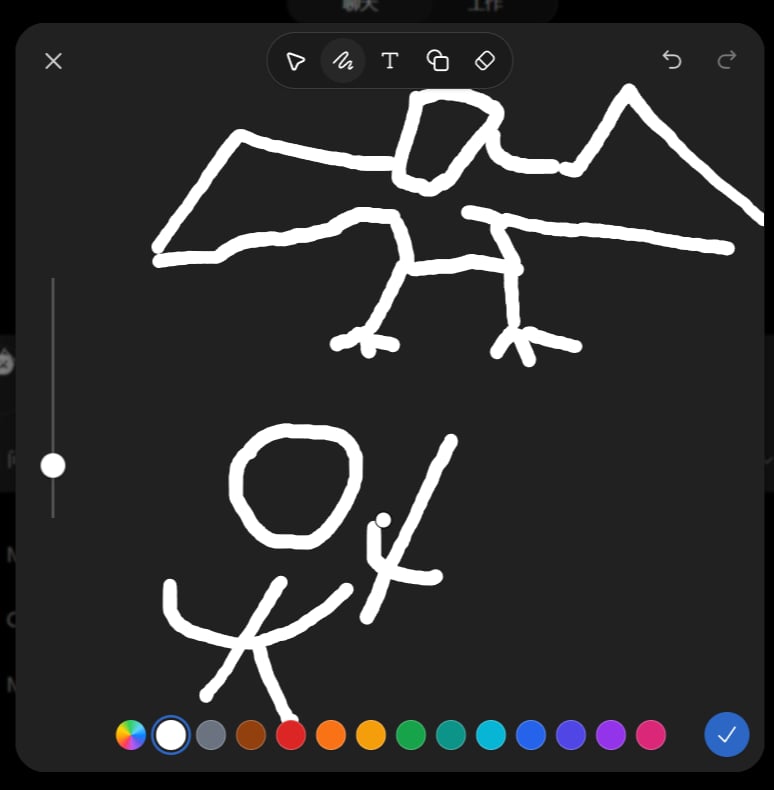
Using the provided reference sketch as the composition guide, turn it into a highly detailed cinematic dark-fantasy illustration of {argument name="scene subject" default="a warrior confronting a fire-breathing dragon"}. Keep the same basic layout: one warrior in the lower foreground facing one huge winged dragon above. Replace the simple line drawing with realistic epic concept art: the warrior wears battle-worn armor, a torn red cape, and holds a raised sword; the dragon is massive, horned, spiked, with wide leathery wings, clawed feet, glowing eyes, and a torrent of fire blasting from its mouth toward the battlefield. Add a dramatic environment not present in the sketch: burning ruined castle/city, collapsing towers, banners, smoke-filled storm clouds, flying embers, lava-like orange firelight, and jagged black rocks in the foreground. Style should be {argument name="visual style" default="ultra-detailed cinematic fantasy game key art"}, with intense contrast, dynamic perspective from behind the warrior, warm orange flames against dark gray smoke, no UI elements, no sketch lines, no text, no watermark.
Reference images included
Warrior vs Fire Dragon Fantasy Art needs input media to work. They load alongside the prompt when you open it in the studio.
How to use Warrior vs Fire Dragon Fantasy Art in 3 steps
- 1Upload ImagePNG, JPG or paste
Add your photo
Upload the photo the template builds on. The prompt, model and format are already set.
- 2…a portrait of your subject in softgolden-hour light, 85mm…
Personalize
Edit the subject and creative details for your destination.
- 3Generate
Generate
Press Generate — your image is created in PicX Studio, so you can compare it with the original and refine one variable at a time.
More like this
Templates with the same subject, style or setup. Open one to see its prompt.
Minecraft Fantasy Kingdom Voxel Landscape
Epic Fantasy Warriors: Fire and Ice Cinematic Poster
Tribal Fantasy Warrior with Guardian Owl
Heroic Fantasy Warrior Portrait
Celestial Dragon Sky Fantasy
Anime Fantasy Celestial Movie Poster
Anime Fantasy Celestial Movie Poster
Unfinished Sketch Comes Alive Portrait
Open Travel Journal Overhead Still Life
Tiny Woman Miniature Fantasy Macro Scene
Teal Dragon Knight Cathedral Fantasy
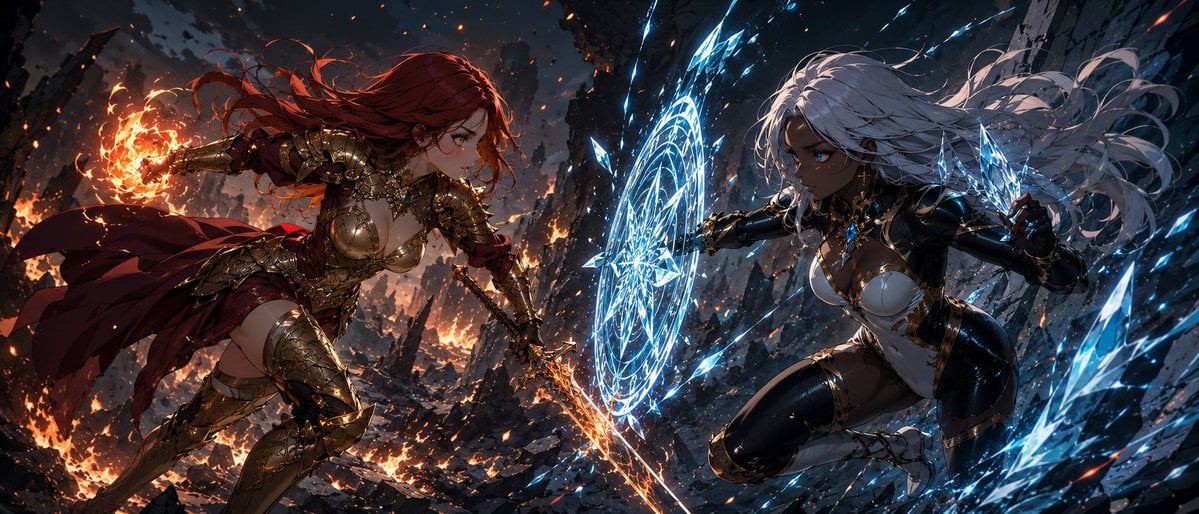
Fire Knight vs Ice Warrior Battle
Make it yours
Warrior vs Fire Dragon Fantasy Art works as-is. These are the safest ways to change it without losing the look.
Change one field
Copy a single group, rewrite it, and generate again so you can see what that field is doing.
Keep the frame, change the subject
Hold the composition and light of Warrior vs Fire Dragon Fantasy Art, then swap wardrobe, props or the person for a new take.
| If the result… | Why | Fix |
|---|---|---|
| The result drifts from the preview | Too many fields changed at once. | Reuse Warrior vs Fire Dragon Fantasy Art as-is first, then change one group — subject, light, or setting. |
| The model over-stylizes the scene | The prose prompt leaves finish and camera underspecified. | Add one camera or lighting sentence and stay on GPT Image 2. |
More GPT Image 2 templates
Other prompts made for GPT Image 2.

Six VTuber Japanese Logo Sheet

Realistic Portrait of Woman and Deer

The Vista Modular Condo Poster

AI Model Routing Comparison Infographic

2.5D Anime Art Board

Isometric Productivity Desk Scene

New York Double Exposure Poster

Four-Panel AI Landscape Comparison

Japanese Tatami Lifestyle Magazine Cover

NESCAFÉ Coffee Map Poster
More image prompts
Fresh picks from across the catalog.
Cookie Cutter Visualization Prompt
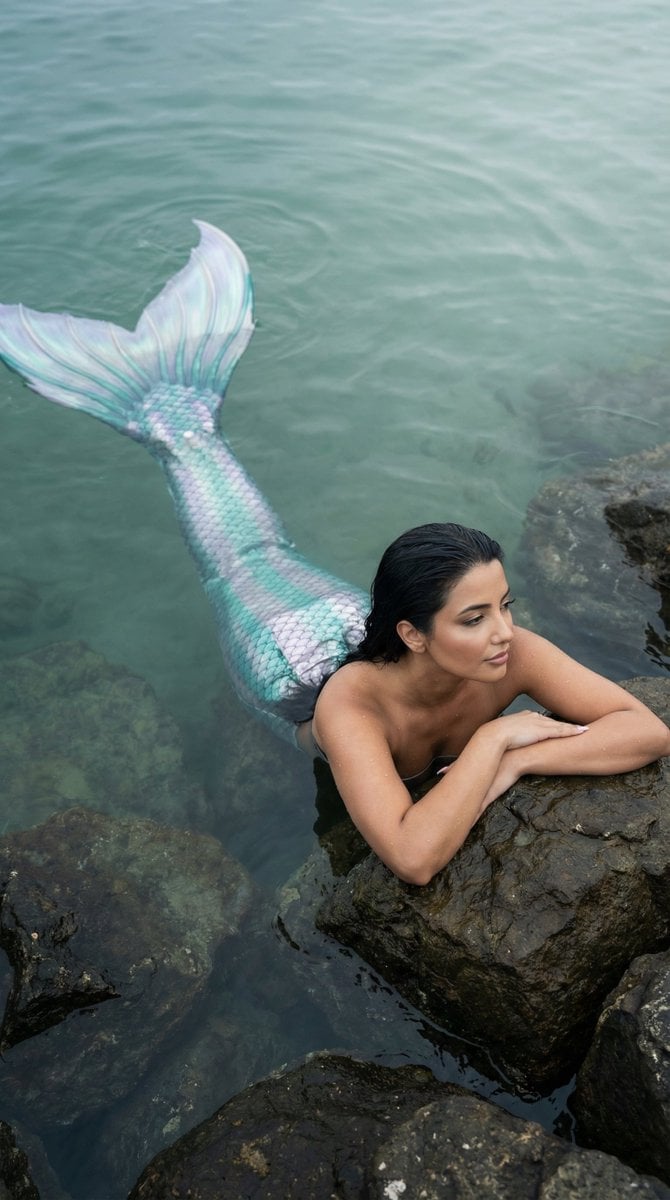
Cinematic Mermaid Portrait in Shallow Water

3x3 Grid Character Consistency Prompt
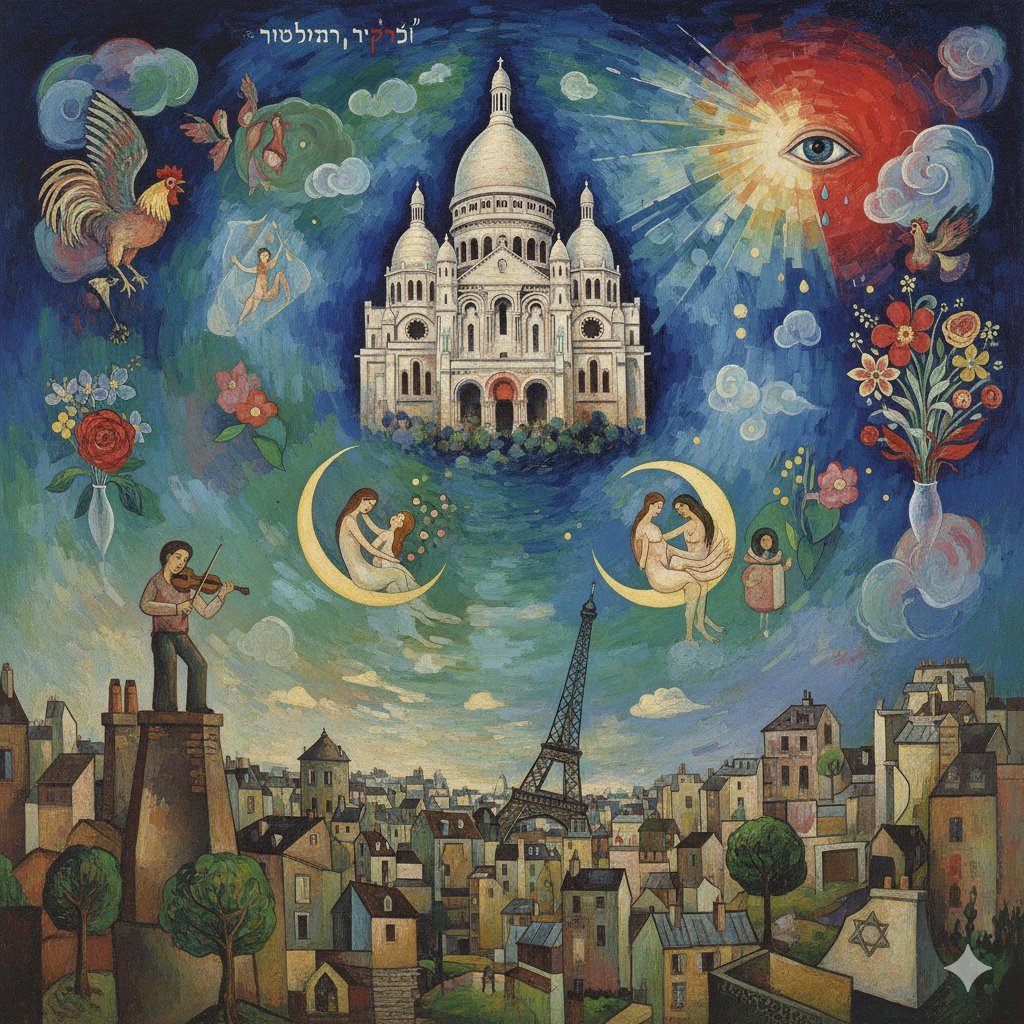
Chagall-style painting of Sacré-Cœur Basilica
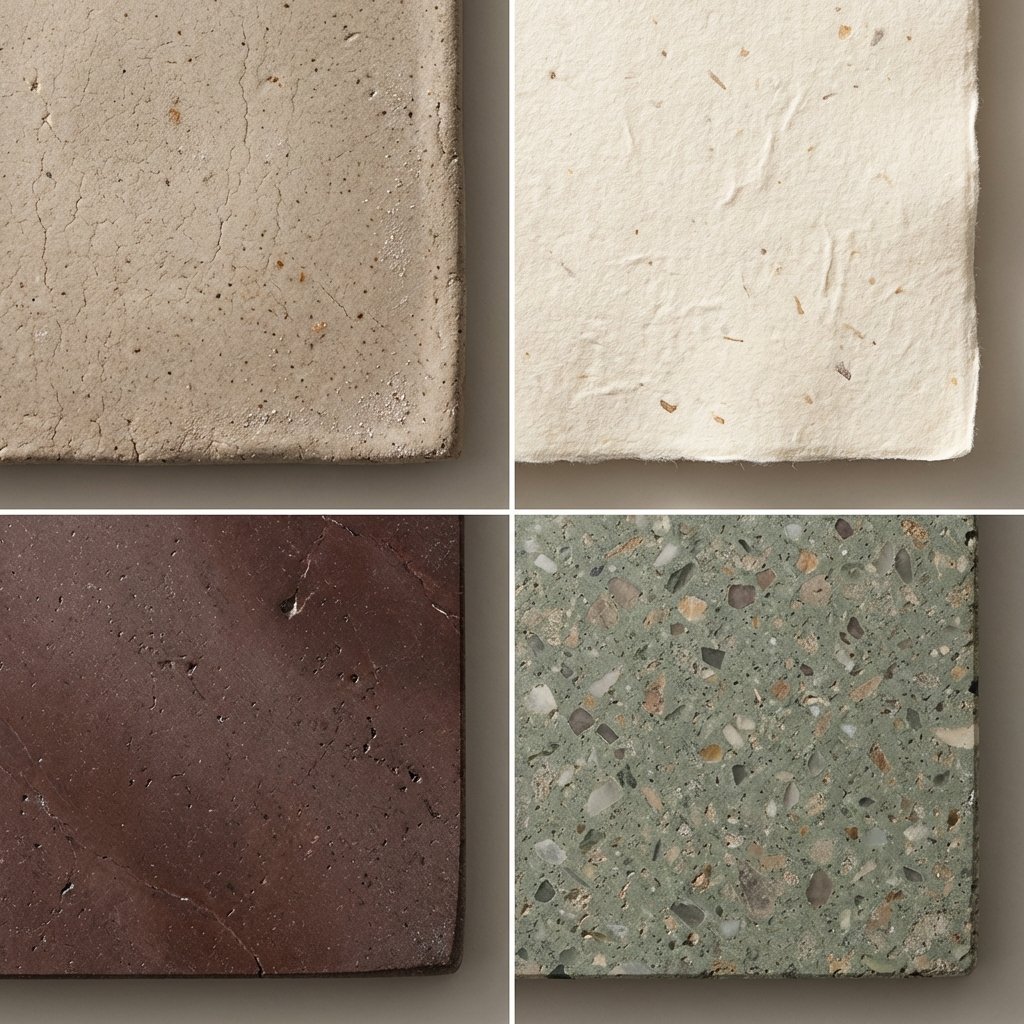
Material and Surface Study for Realism Testing
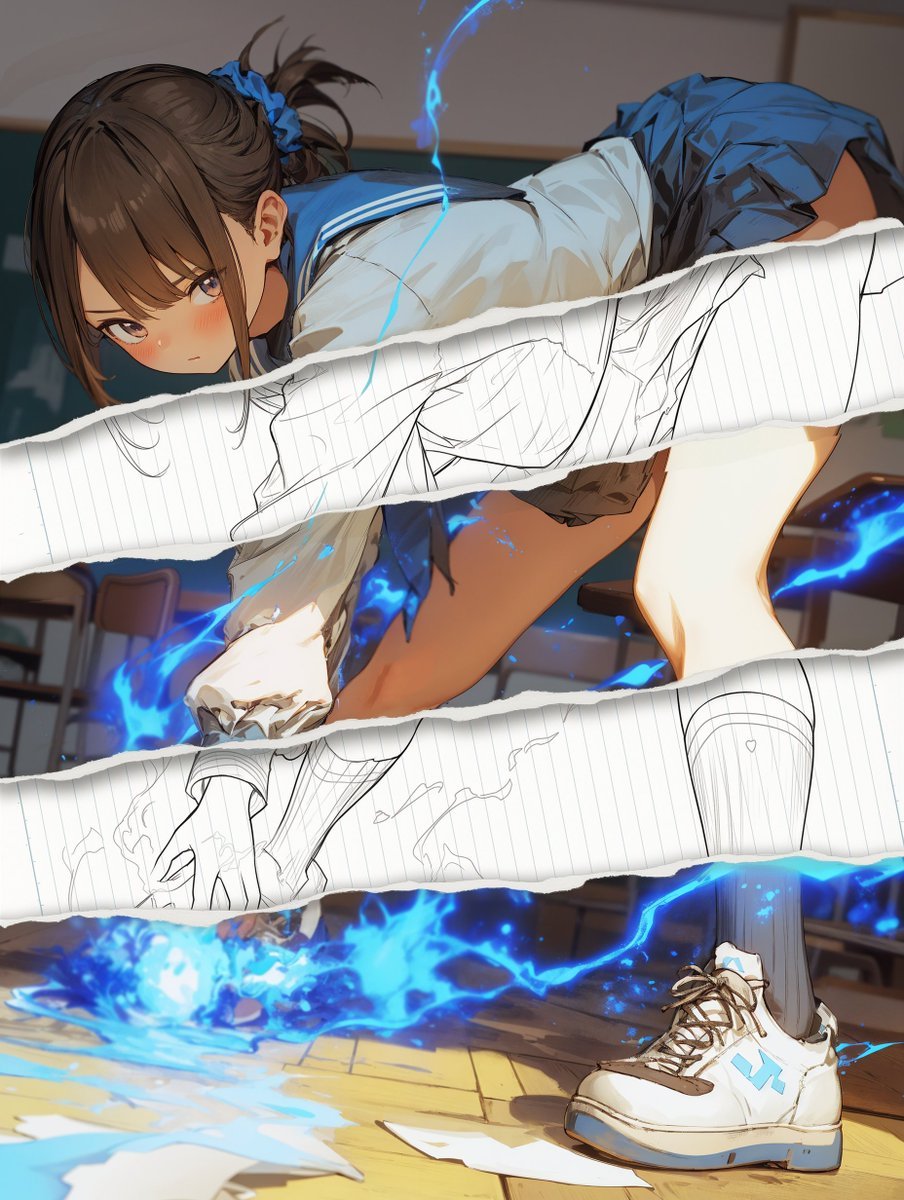
Style Change Prompt for Damaged Areas: Lost Love Girls
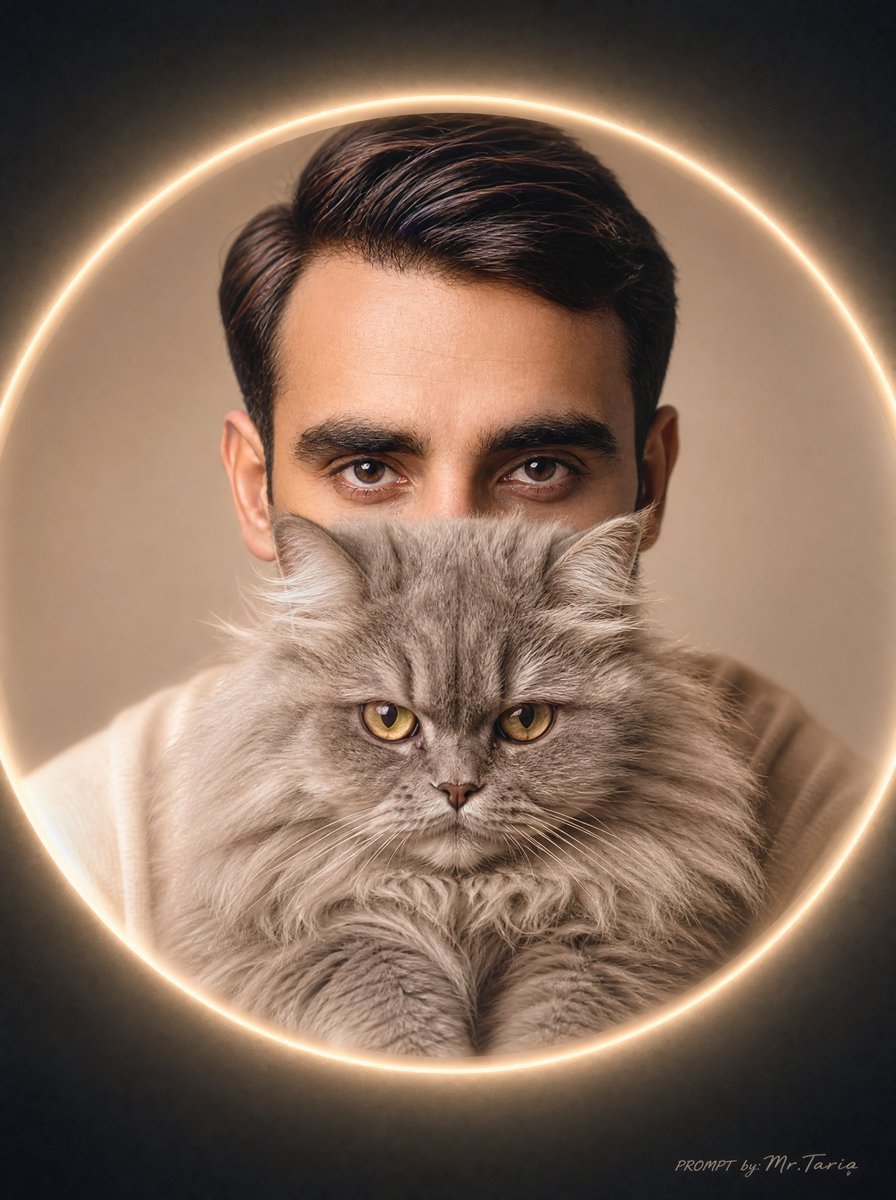
Glowing Cat Profile Portrait
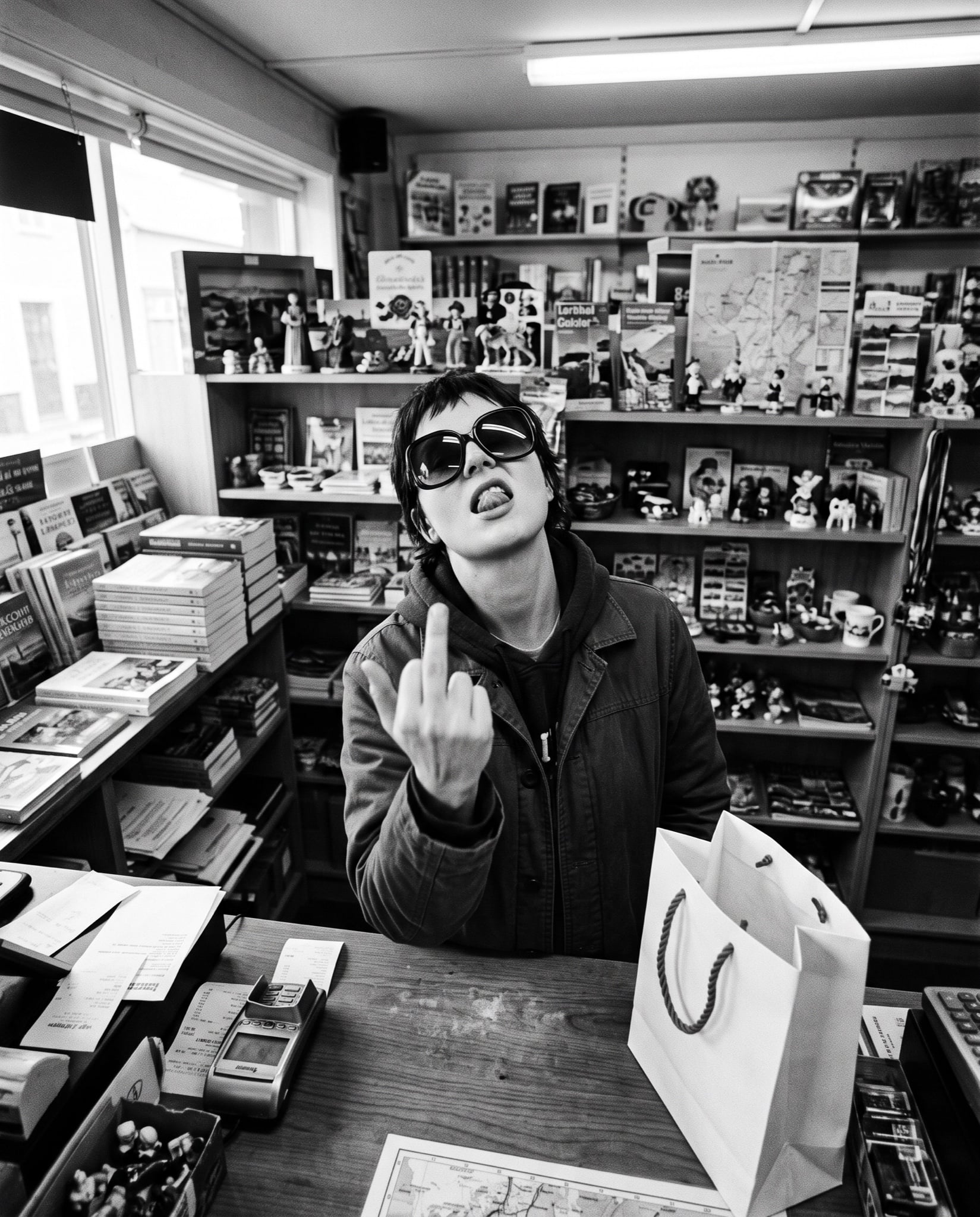
Low-Fidelity CCTV Surveillance Image
Awkward Idol Stream Situation
Misty Sunrise Heron Lake
Browse template categories
Warrior vs Fire Dragon Fantasy Art questions
How do I use the Warrior vs Fire Dragon Fantasy Art template?
Add your photo if the template asks for one, edit the prompt if you like — the template's model and format are already selected — and press Generate. Your version opens in PicX Studio.
Can I customize the Warrior vs Fire Dragon Fantasy Art template?
Yes. You can change the subject, setting, lighting, mood, format, and available model controls before creating your image.
Is the Warrior vs Fire Dragon Fantasy Art template free?
Opening and editing this template is free. Generating uses credits, shown on the Generate button when you are signed in.
Which AI model should I use?
Start with GPT Image 2, which is the model associated with this template. You can compare another compatible model for a different finish.
Looking for something else? Browse all templates.

Your photo, any look
Thousands of ready templates for every top image and video model, from one credit balance.