
Dark AI Generation Dashboard Screenshot
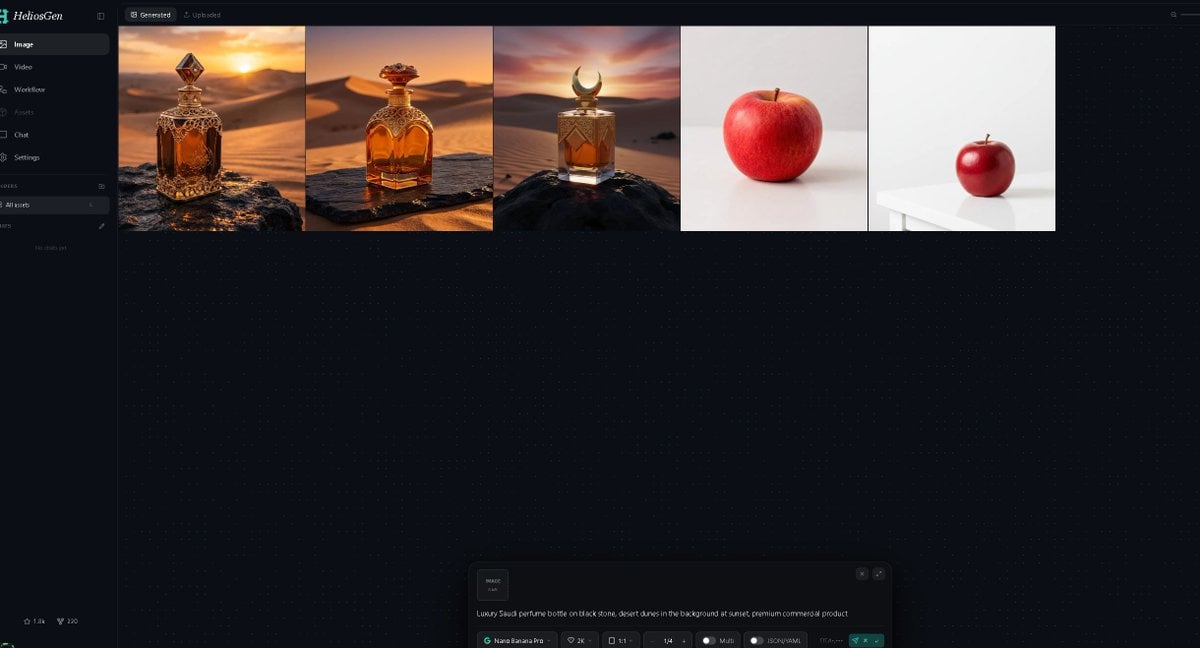
A wide dark-mode HeliosGen-style dashboard mockup showing generated image thumbnails and an AI prompt control panel for showcasing an image generation workflow.
- Prompt included
- Model and format preset
- Free template
The prompt behind this image
Copy the exact prompt behind Dark AI Generation Dashboard Screenshot, or open it in the studio and make it yours.
Goal: Create a dark-mode desktop web app screenshot for {argument name="app name" default="HeliosGen"}, an AI image/video generation dashboard, shown in a wide 16:9 browser-like canvas. Canvas: 1200×675 style screenshot, very dark navy/black interface with subtle dotted grid texture across the main workspace. Use a clean modern SaaS UI aesthetic, thin dividers, small muted gray text, and teal accents. Layout: A narrow left sidebar occupies about 10% of the width, with the main workspace filling the rest. At the top of the main workspace, show two small tabs: “Generated” selected and “Uploaded” inactive. Beneath the tabs, display exactly 5 generated image thumbnails in one horizontal row, aligned along the top, each separated by thin borders. Sidebar details: Top-left logo text reads “HeliosGen” with a small teal emblem. Include exactly 6 primary navigation items with icons: 1) Image selected, 2) Video, 3) Workflow, 4) Assets, 5) Chat, 6) Settings. Below that, show a small “Folders” section with exactly 1 folder row labeled “All works,” then an empty-state area reading “No chats yet.” At the bottom-left, add two tiny stats/icons resembling “1.8k” and “220.” Thumbnail row: Show exactly 5 thumbnails from left to right: 1) an ornate amber luxury perfume bottle on a dark rock in a golden desert at sunset, 2) a rounded amber perfume bottle with ornate gold cap on a stone slab in desert dunes at sunset, 3) a square amber perfume bottle with a crescent-shaped cap on a black rock in desert dunes at sunset, 4) a single red apple centered on an off-white studio background, 5) a smaller red apple sitting on a white table in a minimal white studio scene. The first three thumbnails should feel cinematic and warm; the last two should be minimal product-photo tests. Bottom prompt panel: Near the bottom center of the workspace, include a floating generation control panel with rounded corners. On the left of the panel, show a small square preview tile labeled “IMAGE 1:1.” In the main text area, include the prompt: “{argument name="generation prompt" default="Luxury Saudi perfume bottle on black stone, desert dunes in the background at sunset, premium commercial product"}”. Along the bottom of the panel, show compact controls reading approximately “Nano Banana Pro,” “2K,” “1:1,” “1/4,” “Multi,” and “JSON (4.14k),” plus a teal send/generate button at the right. Visual style: Crisp UI screenshot, high contrast, minimal glow, fine dotted background, realistic generated-image thumbnails, no browser chrome, no extra popups, no people, no watermark.
How to use Dark AI Generation Dashboard Screenshot in 3 steps
- 1Upload ImagePNG, JPG or paste
Add your photo
Upload the photo the template builds on. The prompt, model and format are already set.
- 2…a portrait of your subject in softgolden-hour light, 85mm…
Personalize
Edit the subject and creative details for your destination.
- 3Generate
Generate
Press Generate — your image is created in PicX Studio, so you can compare it with the original and refine one variable at a time.
More like this
Templates with the same subject, style or setup. Open one to see its prompt.

Minecraft Next-Gen Voxel World Screenshot
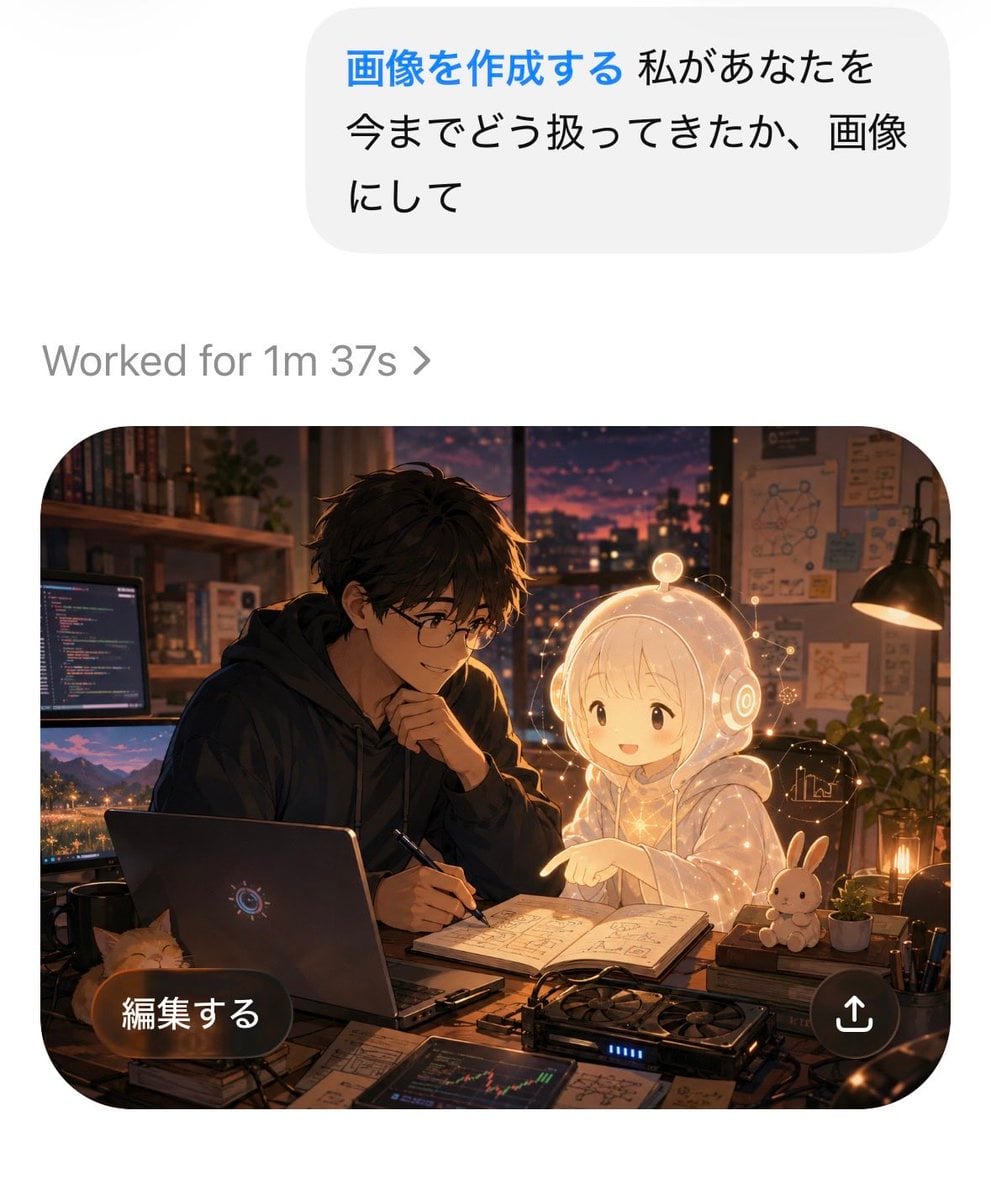
AI Chat Image Generation Screenshot
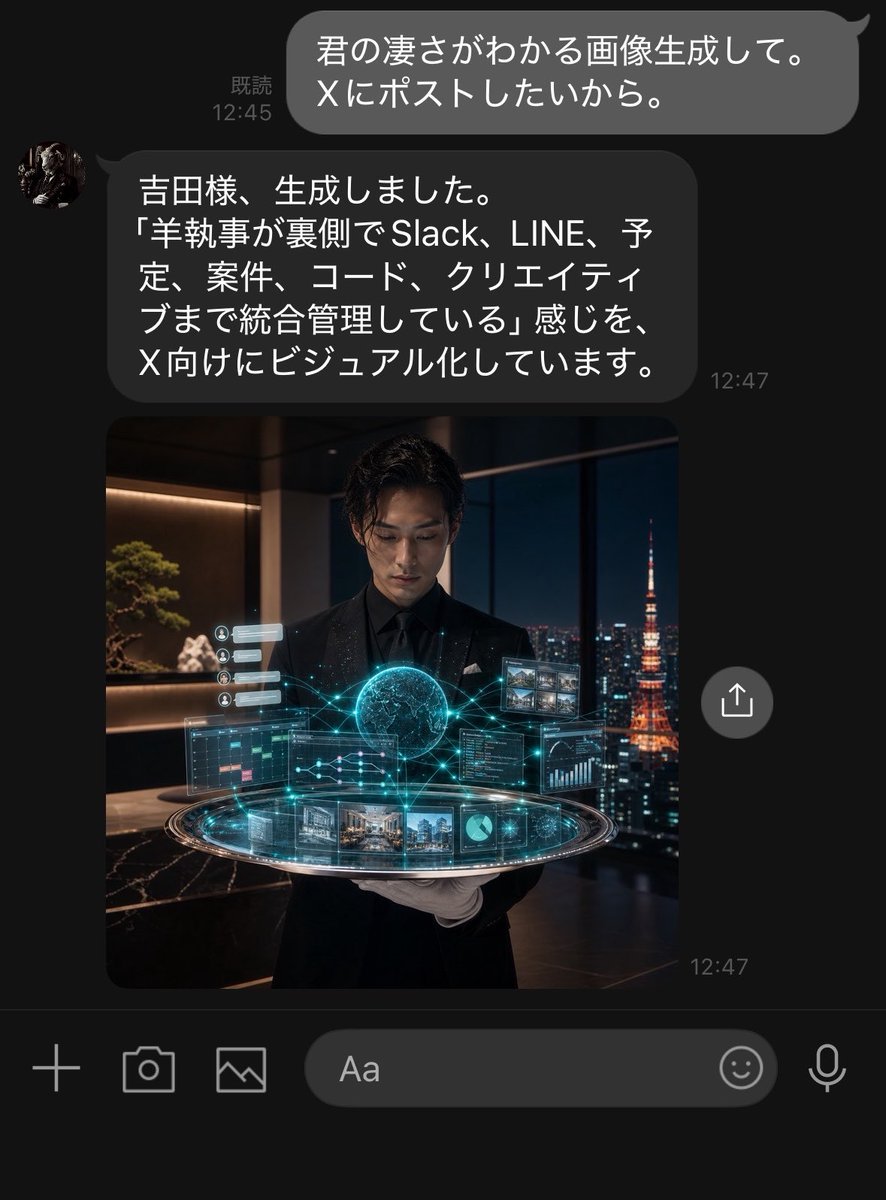
Dark LINE AI Assistant Chat Screenshot
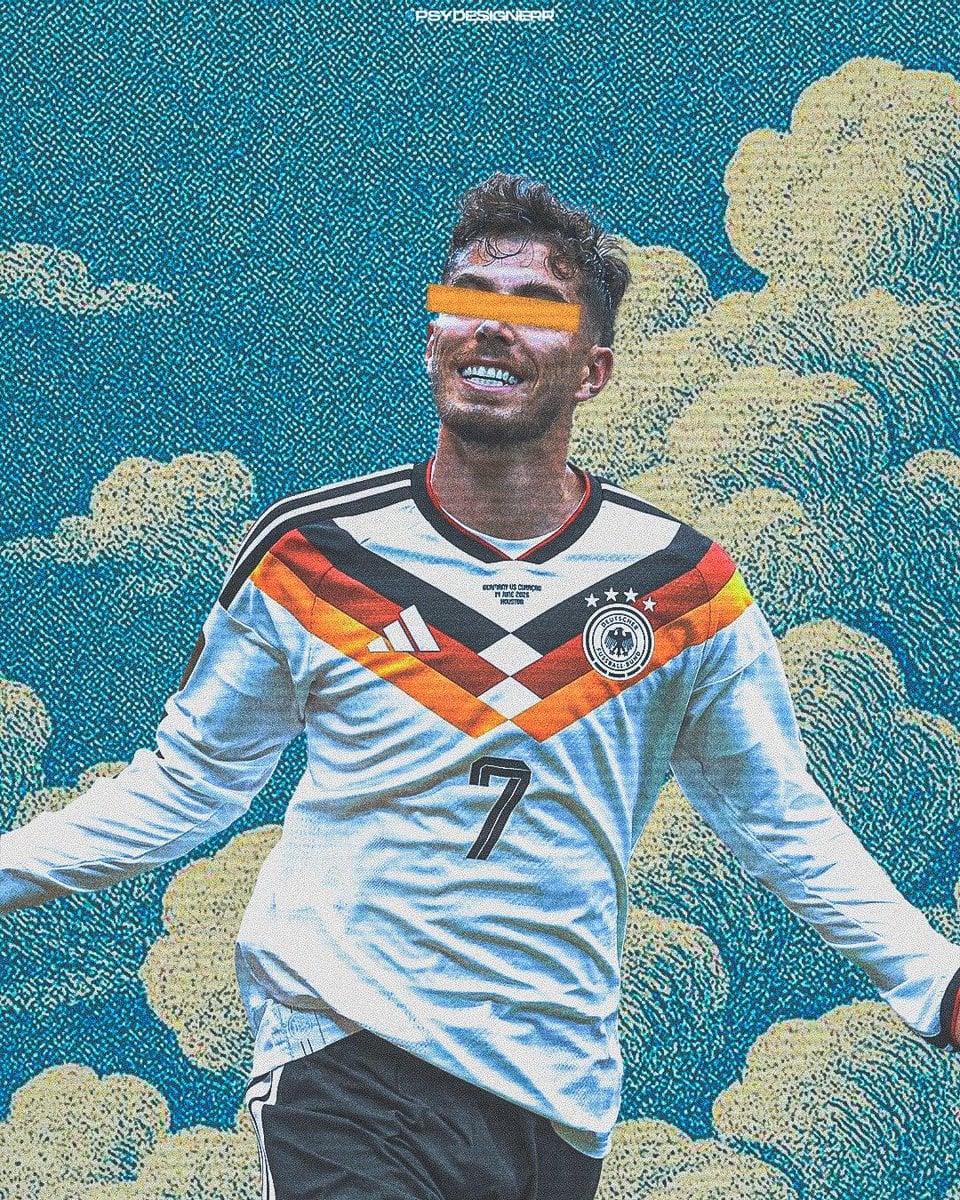
Selective Color Monochrome Football Poster
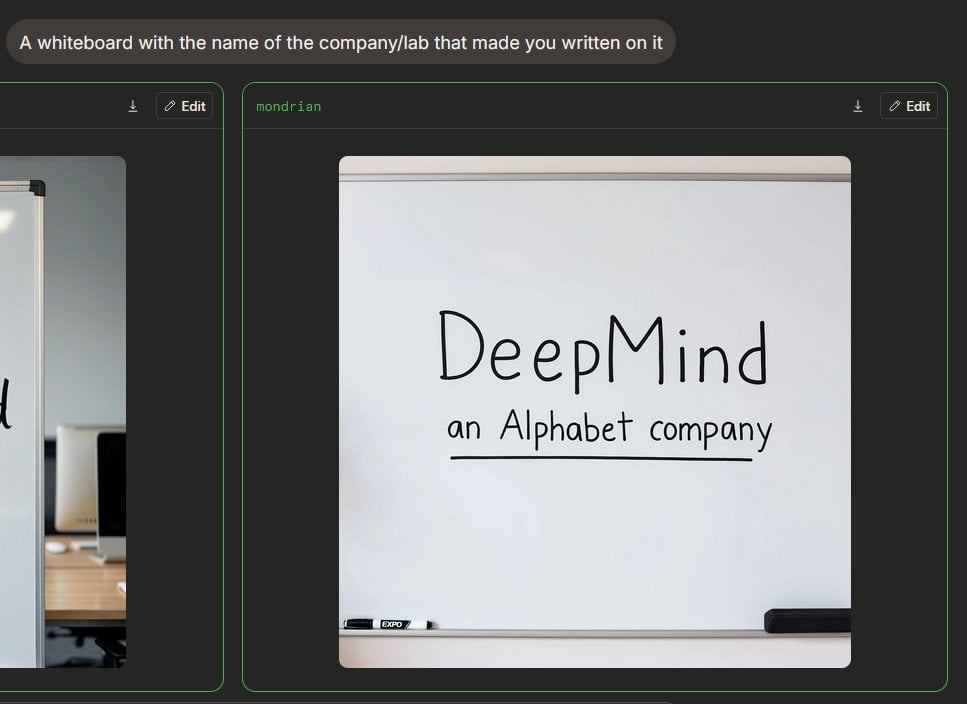
Dark AI Arena Whiteboard Screenshot
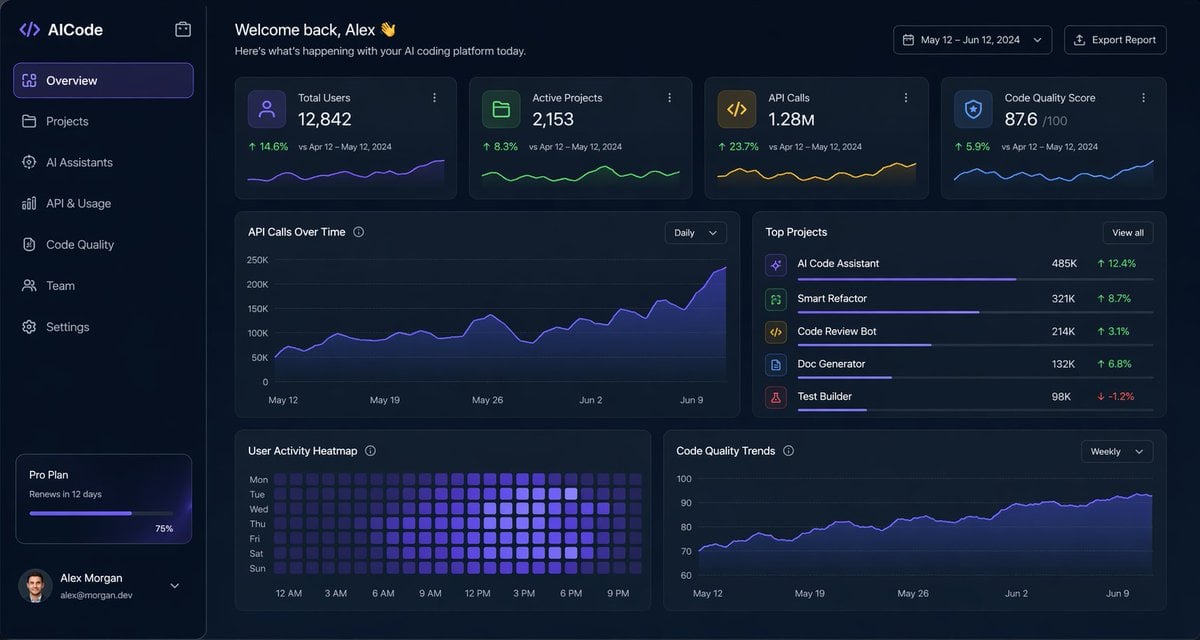
Dark AI Coding Dashboard UI
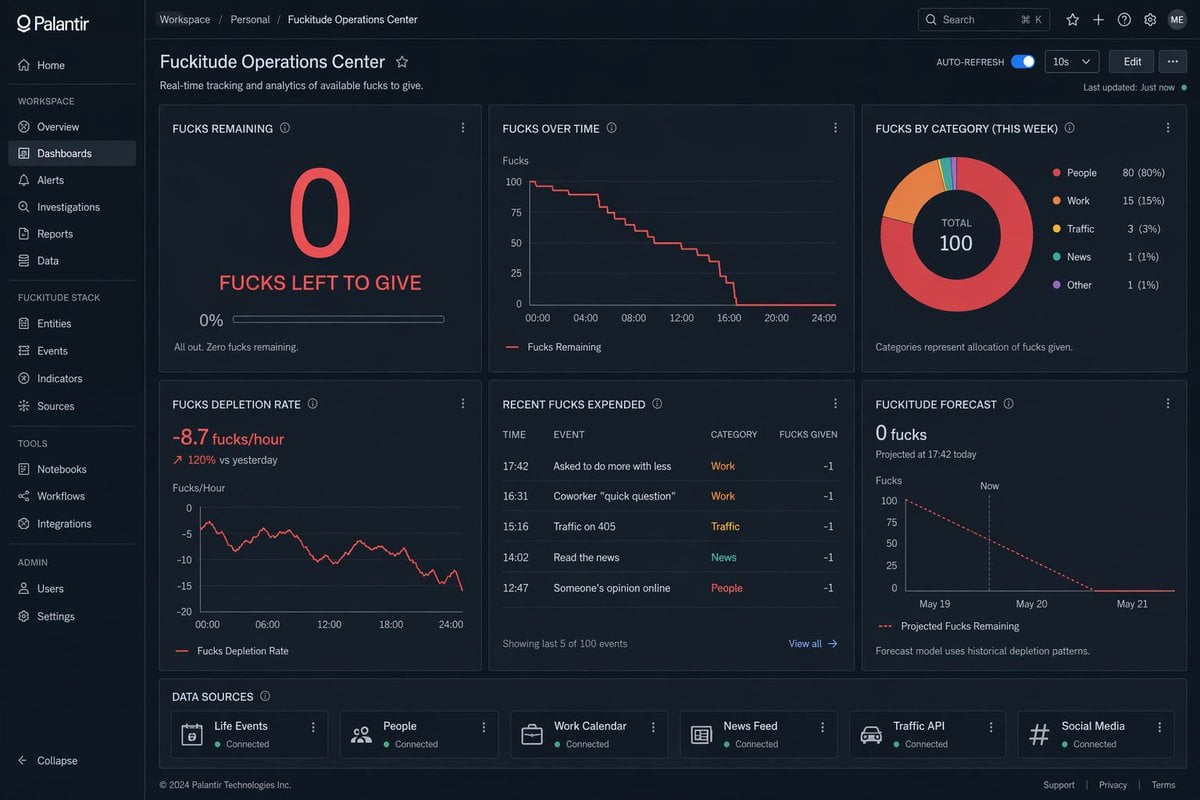
Creative Dashboard UI Screenshot
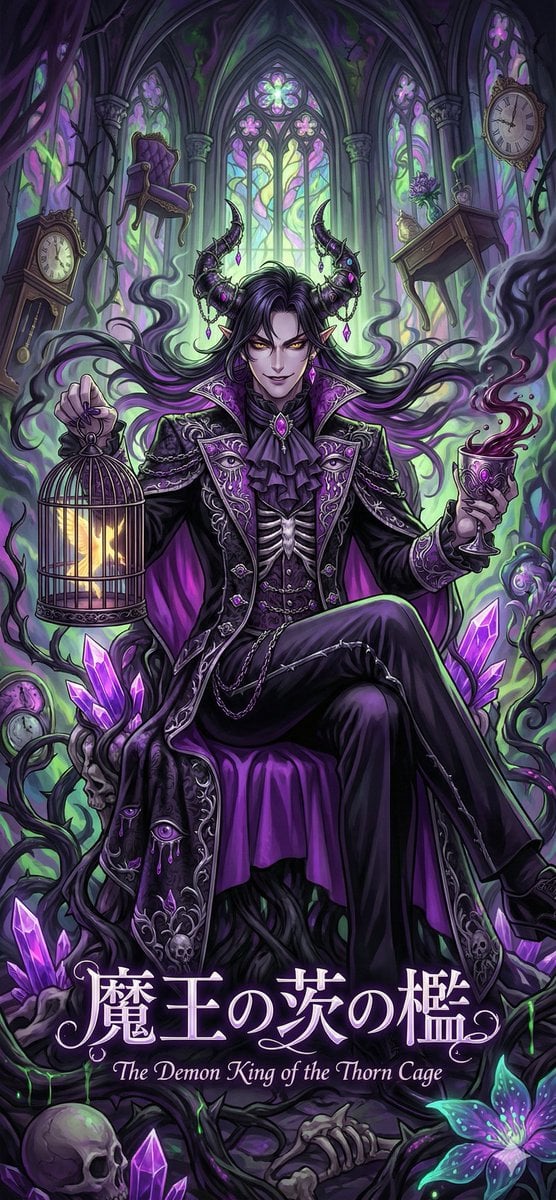
Dark Fairy Tale, Surrealism, Gothic Psychedelic Character Generation
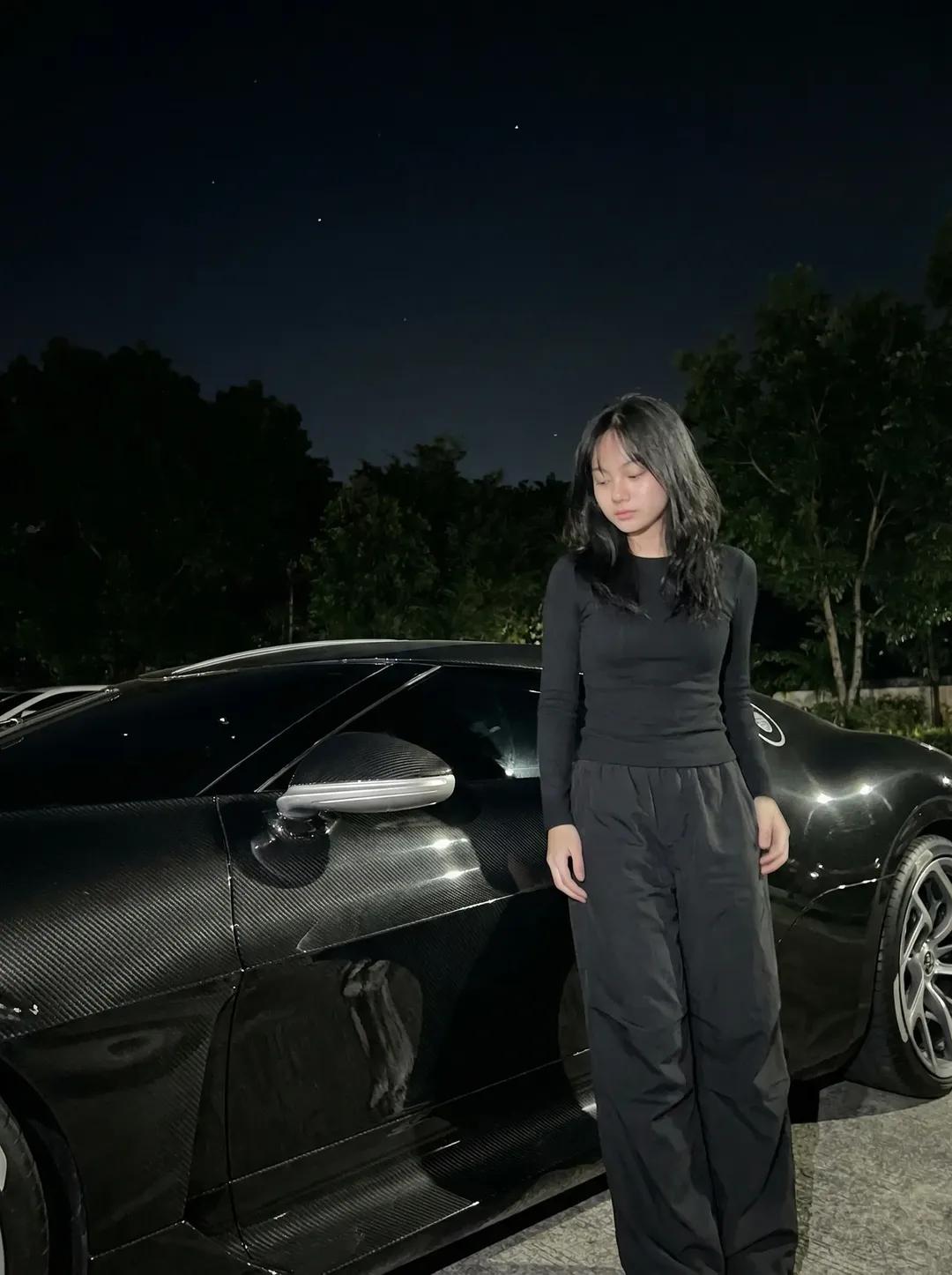
Night Sports Car Portrait — Cinematic Moody
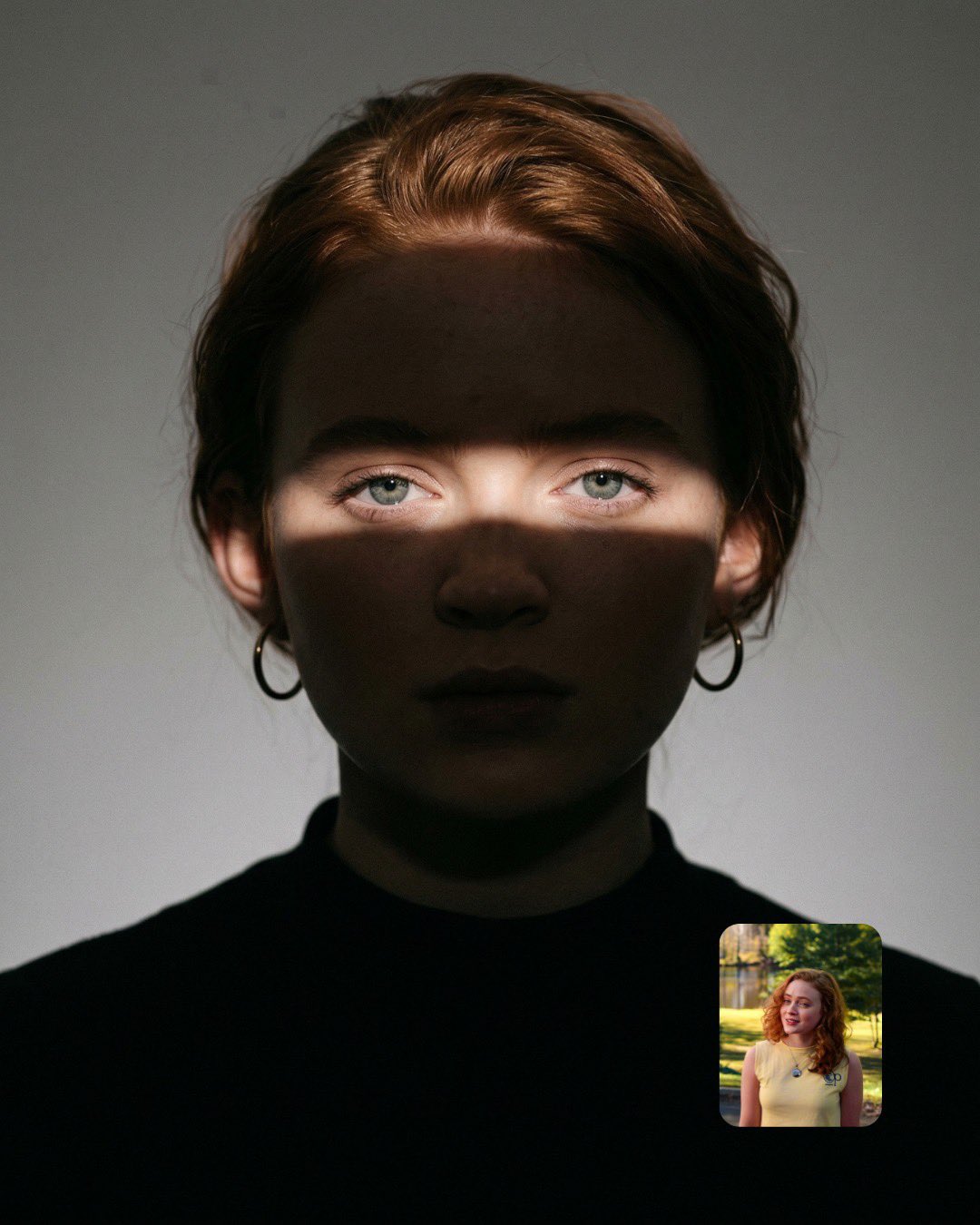
Cinematic Eye Light Portraits — 3 Nano Banana Prompts
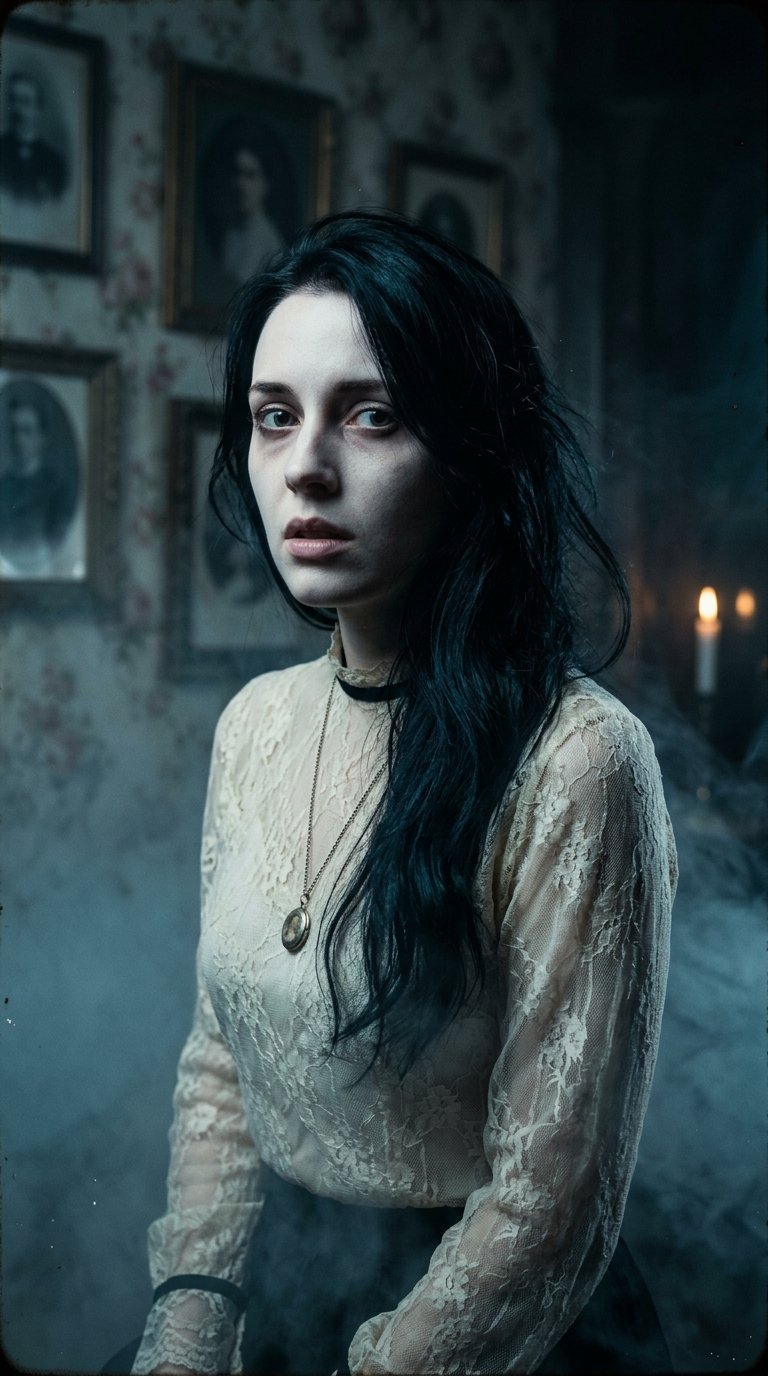
Horror Cinematic Portrait
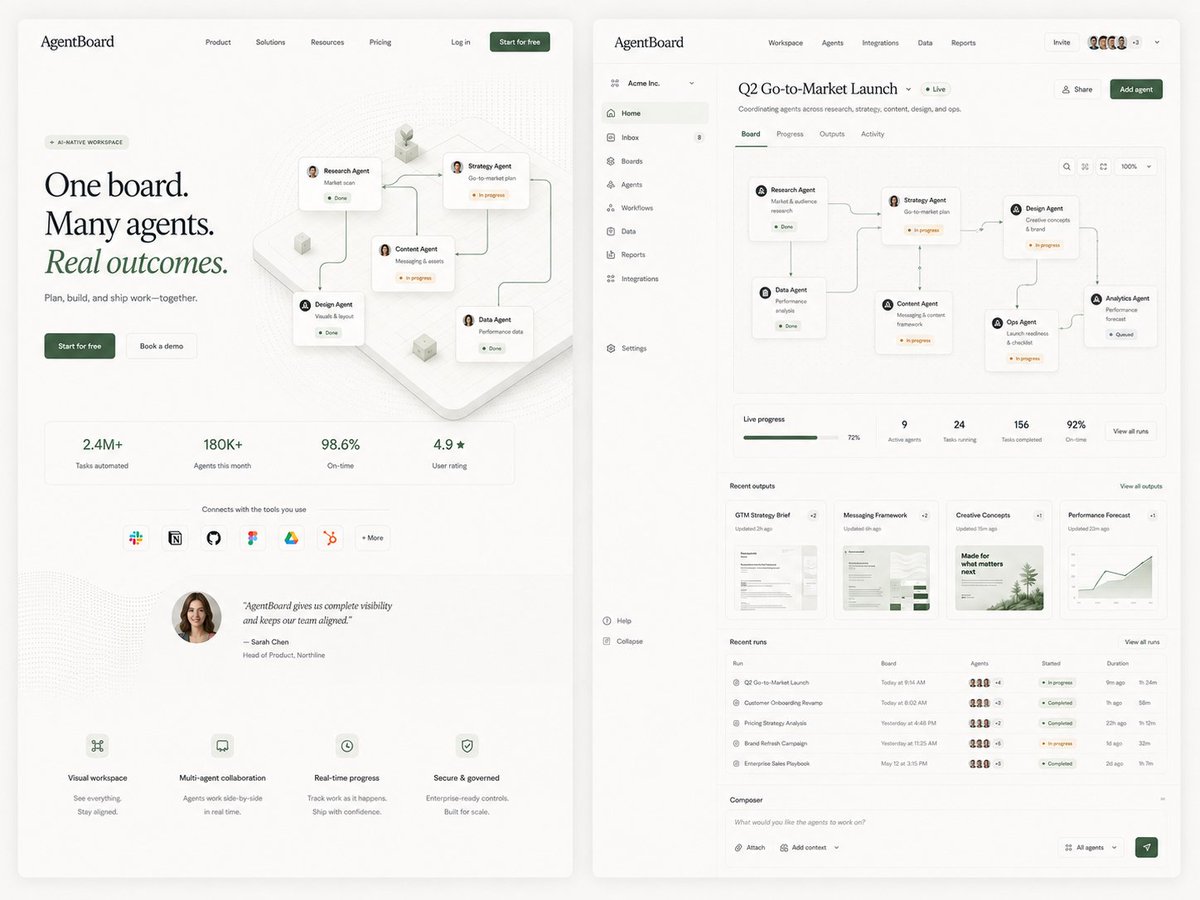
AgentBoard SaaS Landing and Dashboard UI
Make it yours
Dark AI Generation Dashboard Screenshot works as-is. These are the safest ways to change it without losing the look.
Change one field
Copy a single group, rewrite it, and generate again so you can see what that field is doing.
Keep the frame, change the subject
Hold the composition and light of Dark AI Generation Dashboard Screenshot, then swap wardrobe, props or the person for a new take.
| If the result… | Why | Fix |
|---|---|---|
| The result drifts from the preview | Too many fields changed at once. | Reuse Dark AI Generation Dashboard Screenshot as-is first, then change one group — subject, light, or setting. |
| The model over-stylizes the scene | The prose prompt leaves finish and camera underspecified. | Add one camera or lighting sentence and stay on GPT Image 2. |
More GPT Image 2 templates
Other prompts made for GPT Image 2.

Six VTuber Japanese Logo Sheet

Realistic Portrait of Woman and Deer

The Vista Modular Condo Poster

AI Model Routing Comparison Infographic

2.5D Anime Art Board

Isometric Productivity Desk Scene

New York Double Exposure Poster

Four-Panel AI Landscape Comparison

Japanese Tatami Lifestyle Magazine Cover

NESCAFÉ Coffee Map Poster
More image prompts
Fresh picks from across the catalog.
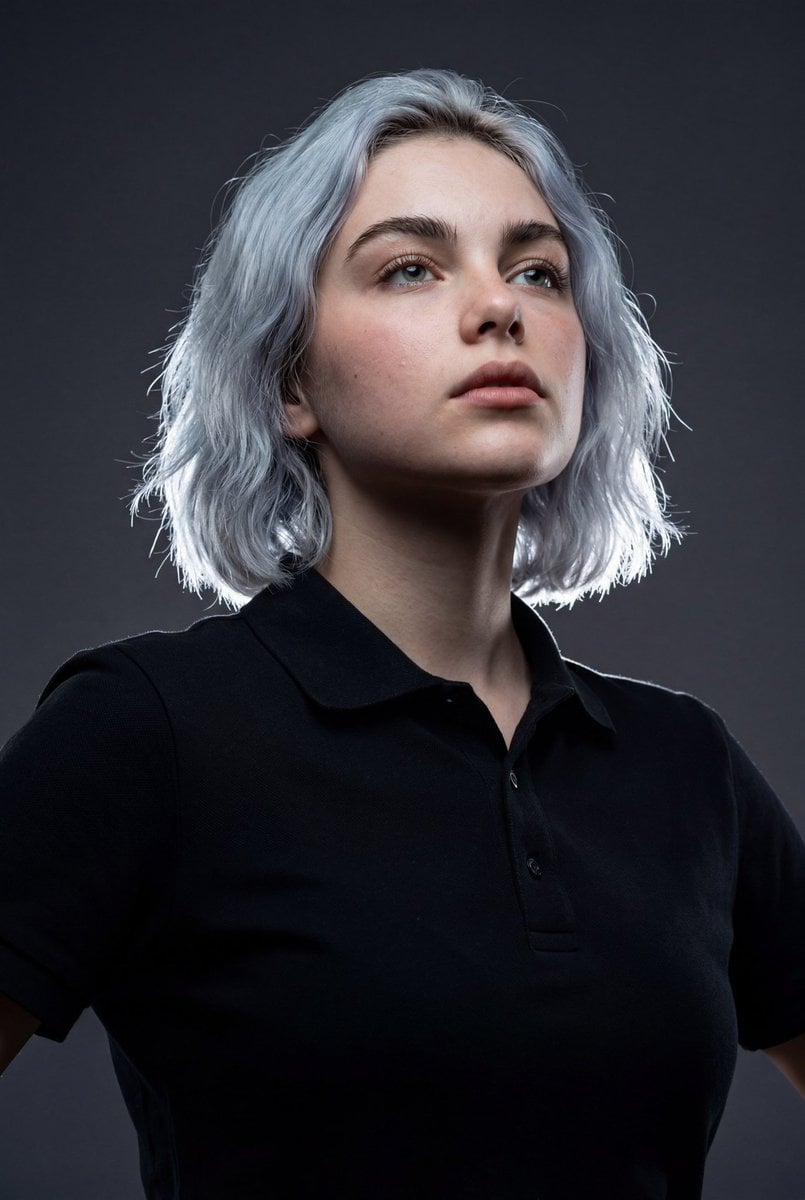
High-Impact Editorial Studio Portrait with Identity Lock
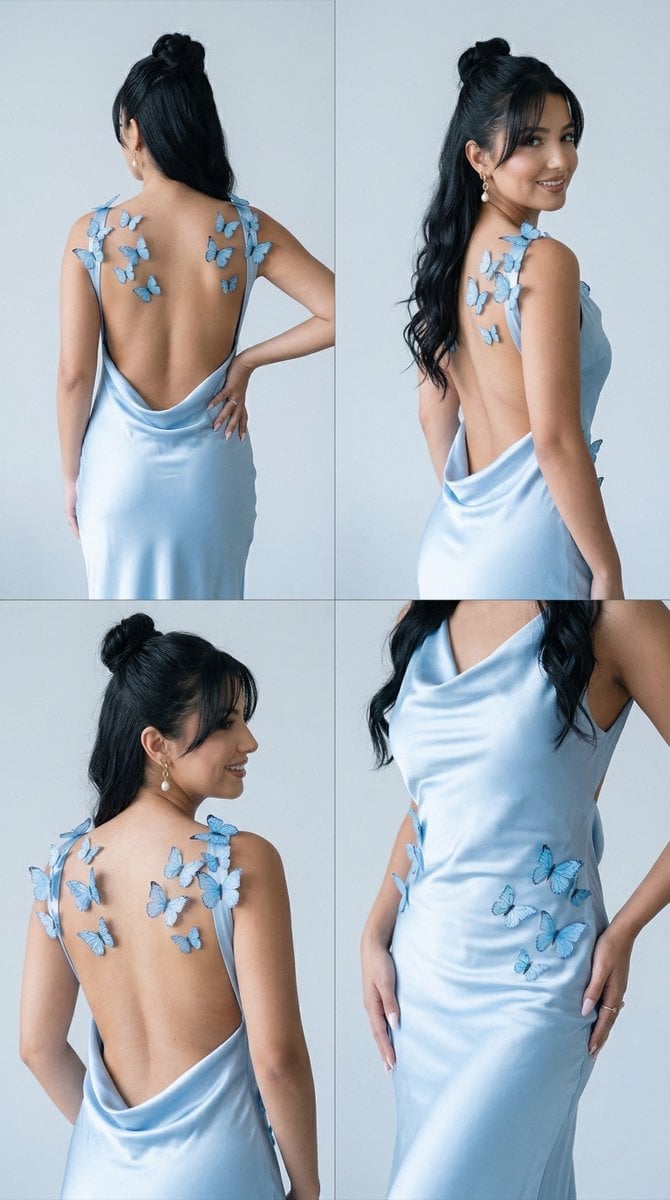
Butterfly Dress Editorial Grid Prompt for Nano Banana 2
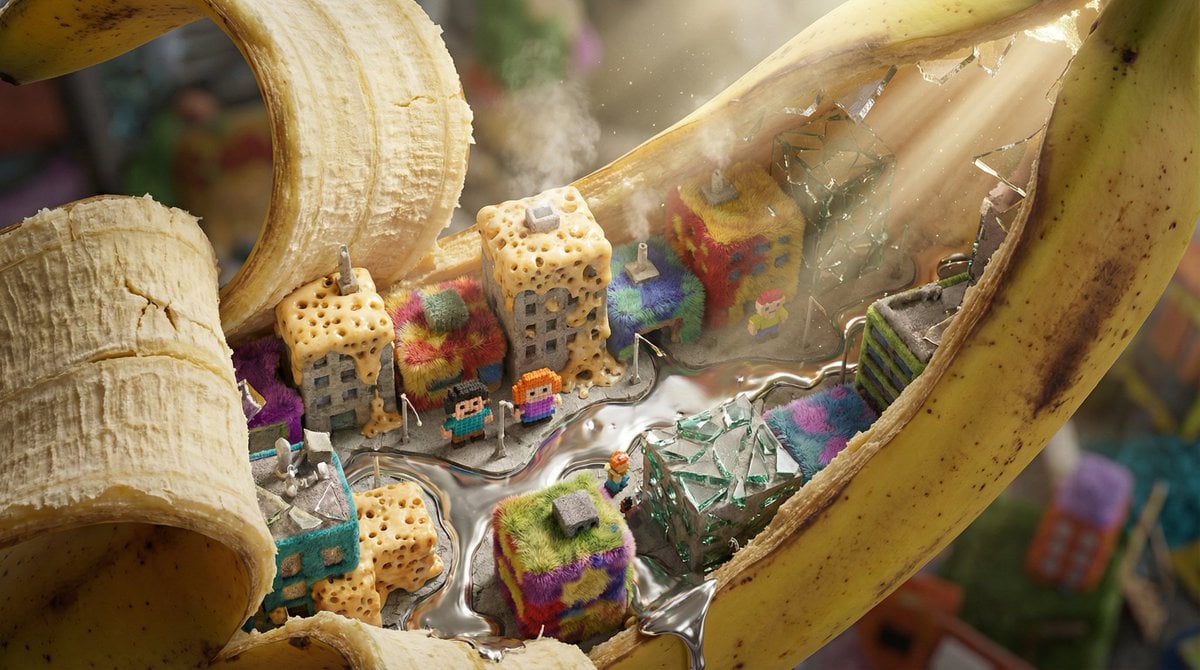
Nano-Scale Cityscape Inside a Banana Peel Prompt

Raw Editorial Fashion Portrait with Cowboy Hat and Boots
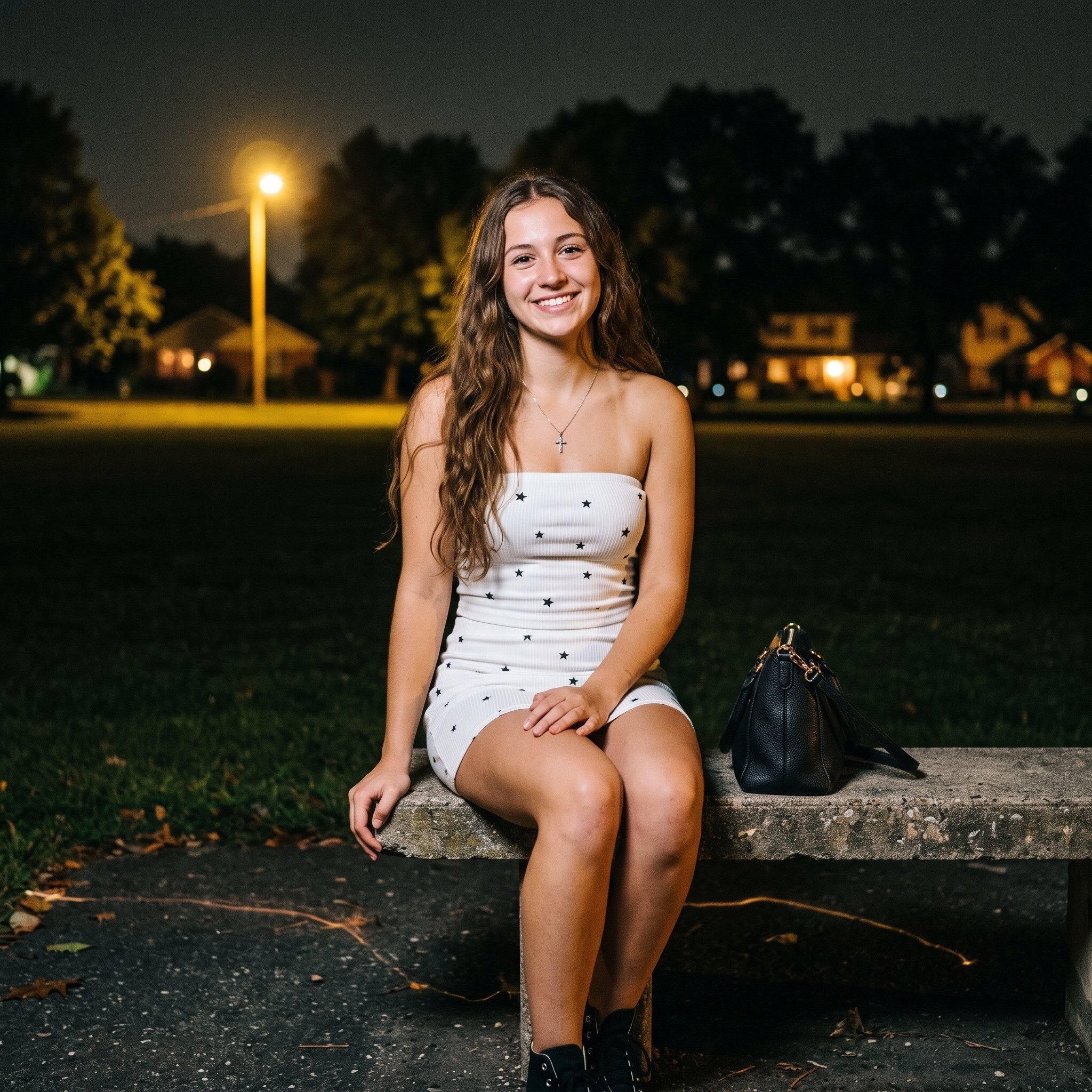
Grainy Film Night Portrait Prompt
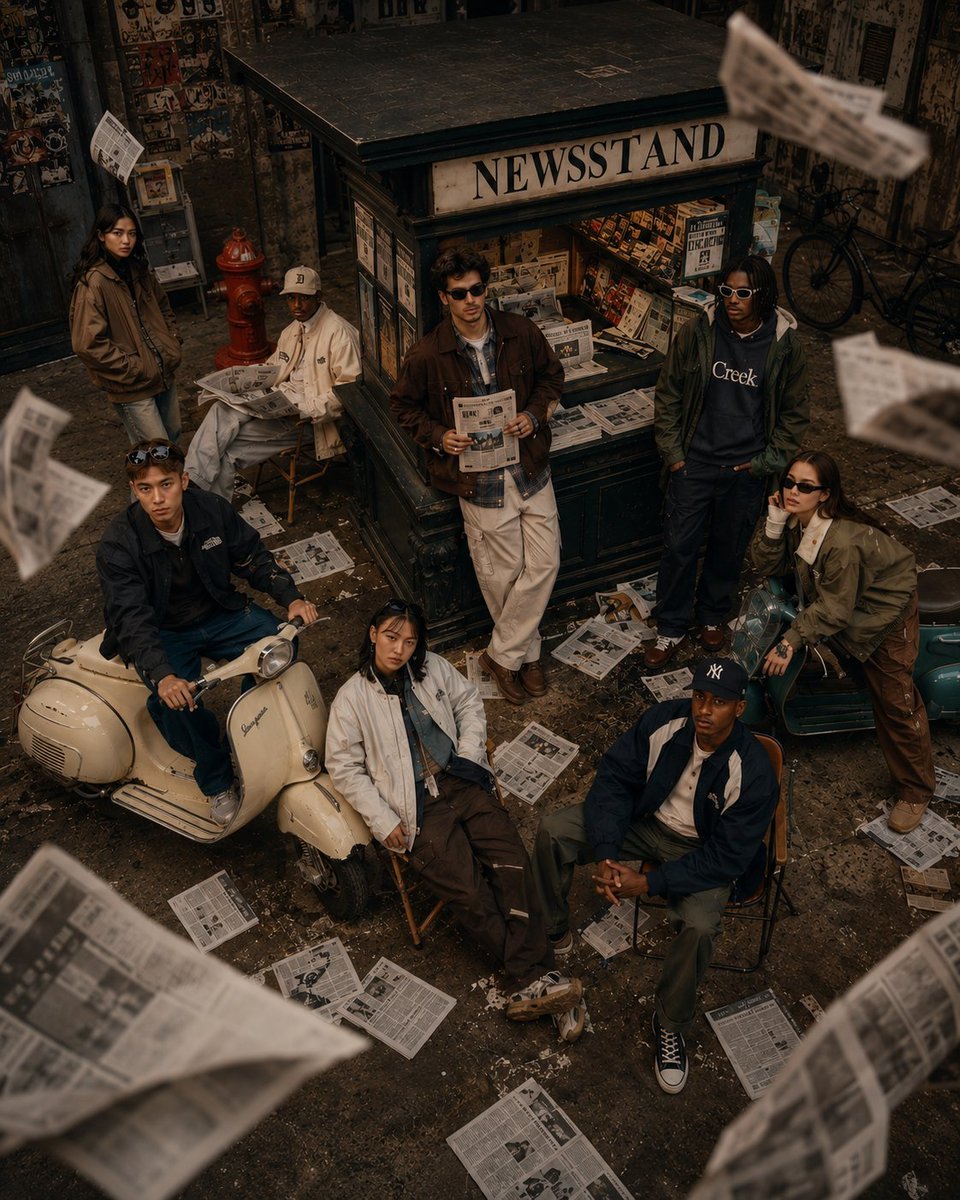
90s Retro Streetwear Fashion Editorial
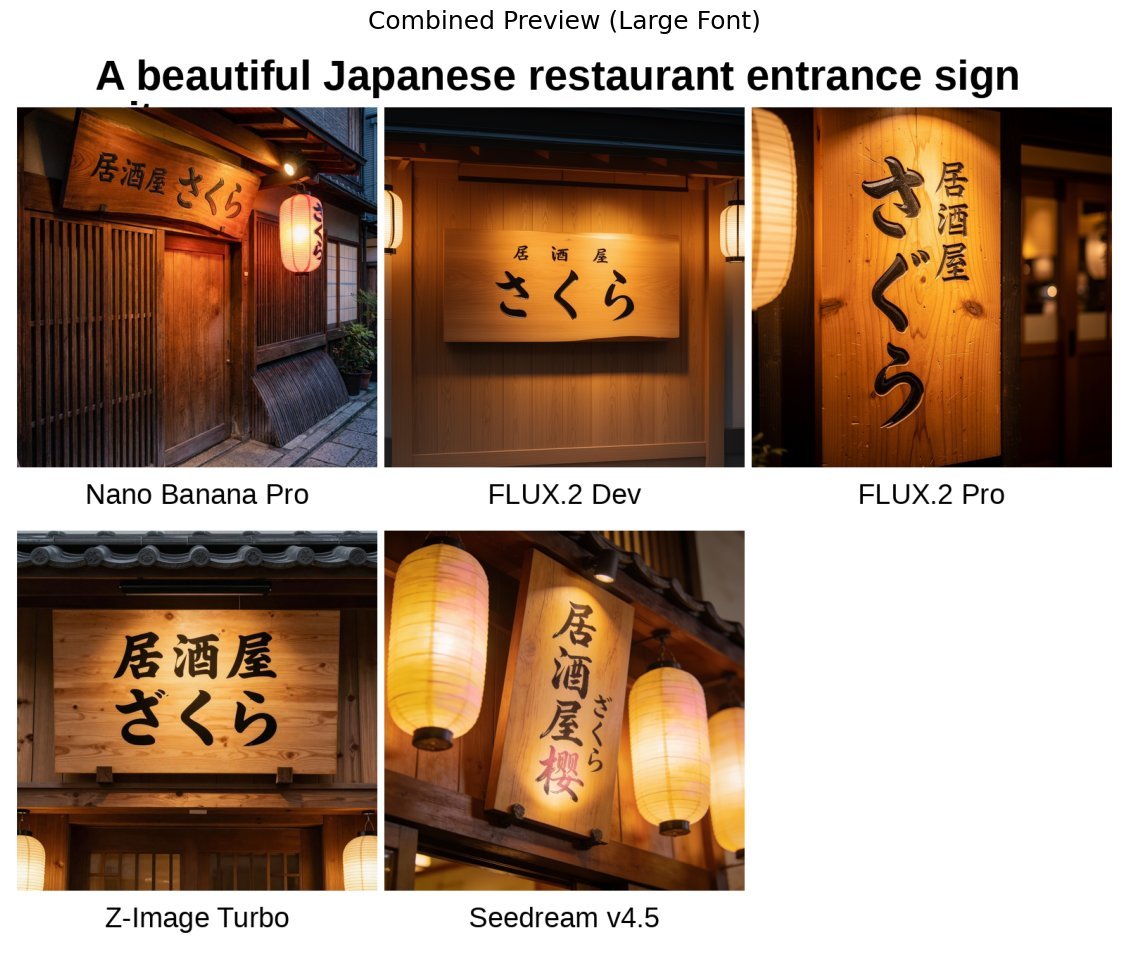
Japanese izakaya entrance sign image prompt for Nano Banana Pro
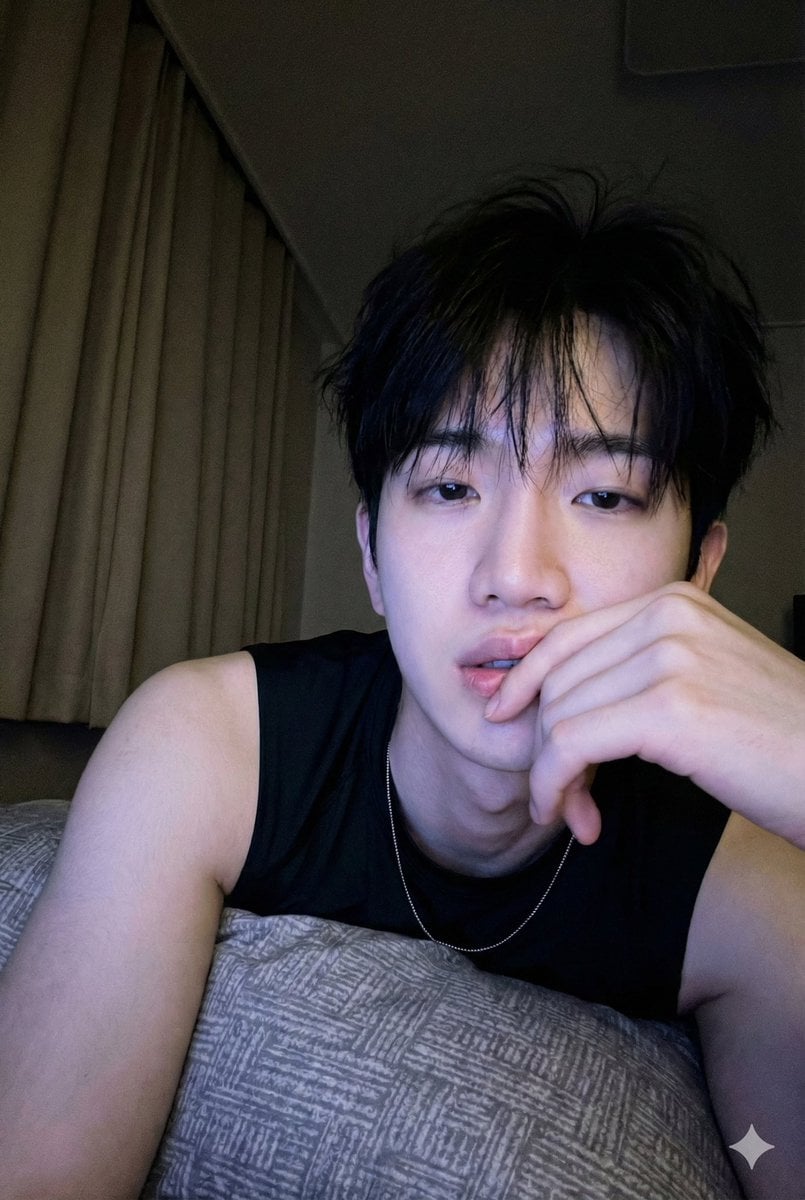
Low-Light Bedroom Selfie Prompt for Nano Banana/Gemini Pro
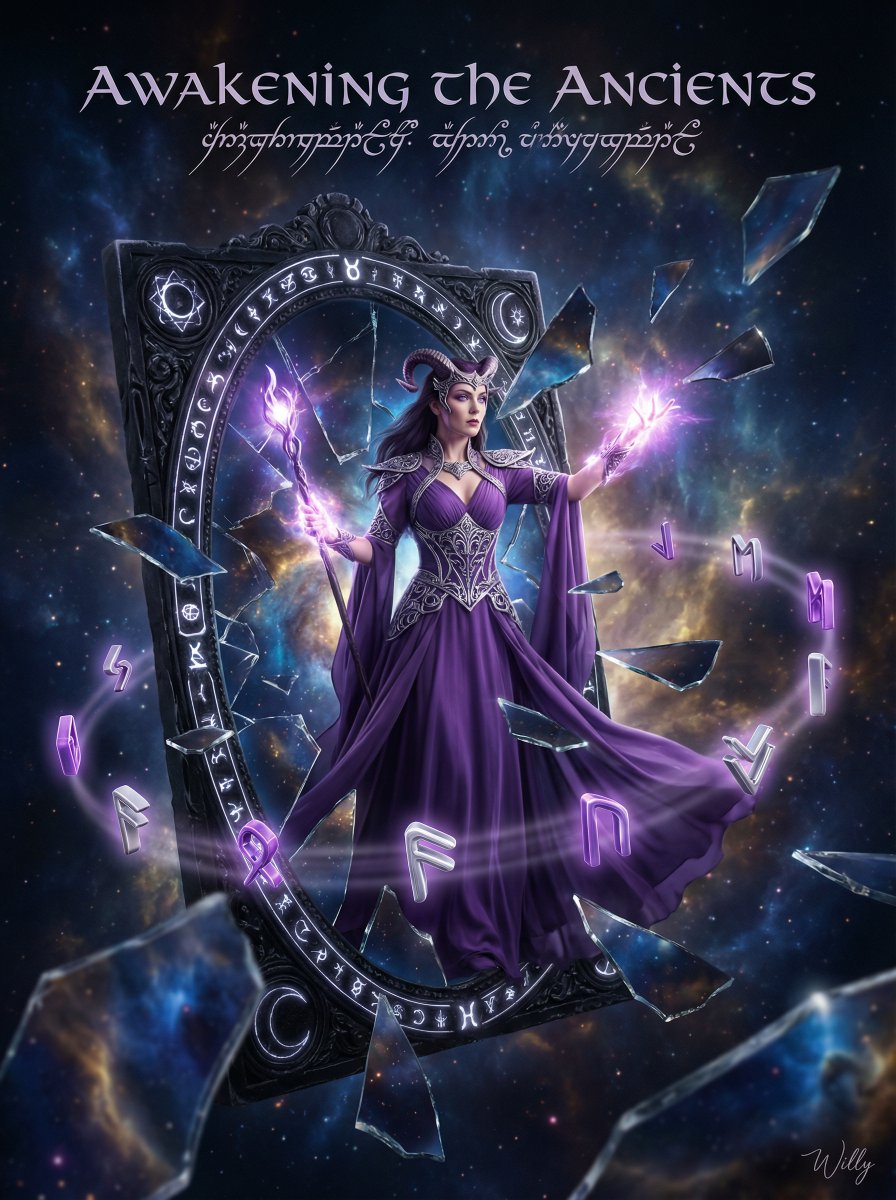
Sorceress Emerging from Obsidian Mirror
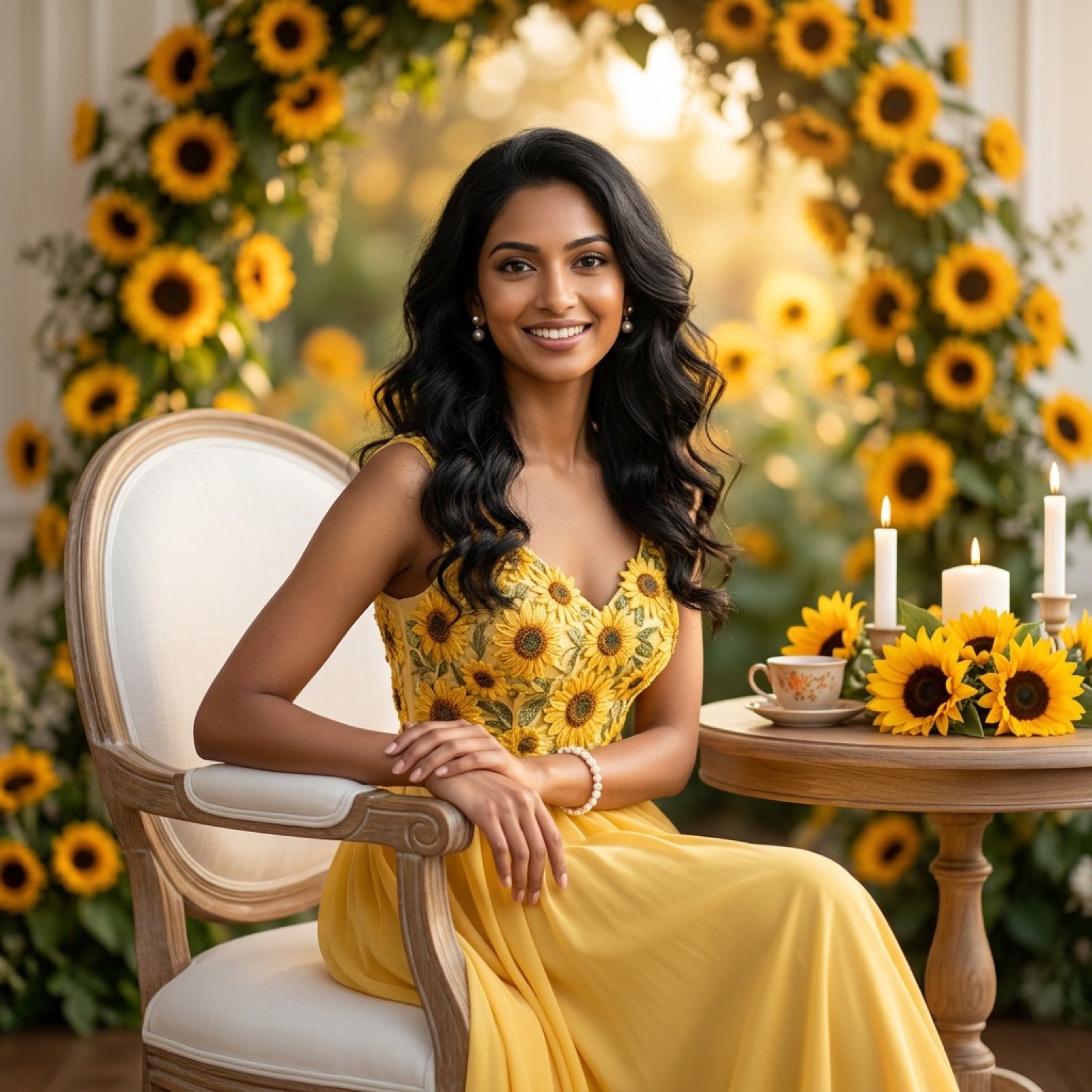
Ultra-Realistic Studio Portrait of Lady in Yellow Gown
Browse template categories
Dark AI Generation Dashboard Screenshot questions
How do I use the Dark AI Generation Dashboard Screenshot template?
Add your photo if the template asks for one, edit the prompt if you like — the template's model and format are already selected — and press Generate. Your version opens in PicX Studio.
Can I customize the Dark AI Generation Dashboard Screenshot template?
Yes. You can change the subject, setting, lighting, mood, format, and available model controls before creating your image.
Is the Dark AI Generation Dashboard Screenshot template free?
Opening and editing this template is free. Generating uses credits, shown on the Generate button when you are signed in.
Which AI model should I use?
Start with GPT Image 2, which is the model associated with this template. You can compare another compatible model for a different finish.
Looking for something else? Browse all templates.

Your photo, any look
Thousands of ready templates for every top image and video model, from one credit balance.