
Hamster Autumn Leaf Doorway
A cozy paper-cut autumn diorama featuring a tiny hamster entering a glowing forest through a doorway made of giant maple leaves.
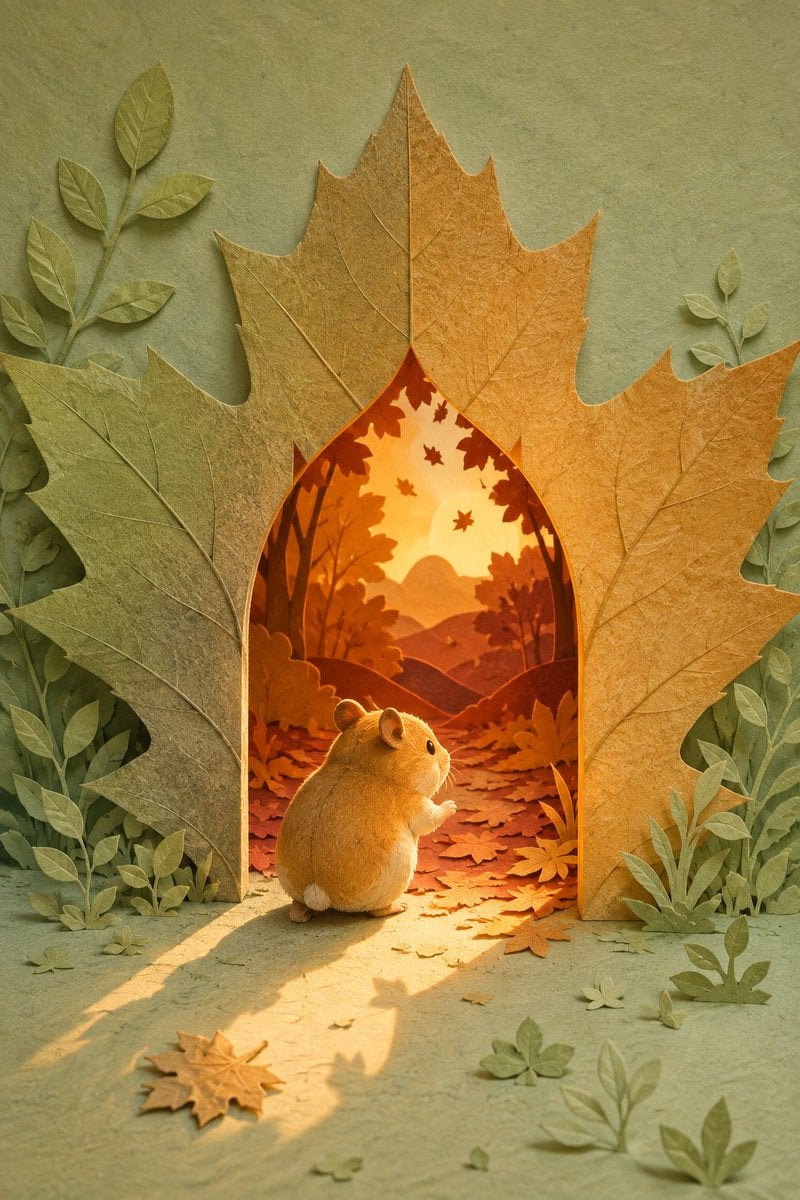
- Prompt included
- Model and format preset
- Free template
The prompt behind this image
Copy the exact prompt behind Hamster Autumn Leaf Doorway, or open it in the studio and make it yours.
Create a vertical storybook paper-cut diorama illustration in warm autumn light: a tiny golden-brown hamster stands at the threshold of an arched doorway made from exactly 3 oversized maple leaves, counted as 1 muted green left leaf, 1 tall ochre center leaf forming the peak, and 1 golden-orange right leaf. The hamster, {argument name="character name" default="a small fluffy hamster"}, is seen from behind in three-quarter view, with round ears, black bead eye, tiny paws lifted, soft fur, and a small white tail, gazing into a glowing miniature autumn forest. Inside the leaf arch, show exactly 1 winding leaf-covered path, 2 dark tree trunks framing the sides, layered orange hills in the distance, and several falling maple leaves silhouetted against a bright sunset sky. Outside the doorway, use a matte sage-green paper-textured background and floor, with botanical cut-paper decorations around the frame: exactly 2 tall leafy sprigs on the left side and exactly 2 tall leafy sprigs on the right side, plus scattered flat autumn leaves on the ground. The whole scene should feel handmade from textured paper, with visible leaf veins, embossed fibers, soft shadows, warm golden light streaming out of the doorway, and a long cast shadow from the hamster across the foreground. Use a cozy seasonal palette of {argument name="autumn palette" default="sage green, ochre, amber, burnt orange, and soft gold"}. No text, no watermark, no photorealistic plastic look; keep it whimsical, tactile, softly cinematic, and centered.
How to use Hamster Autumn Leaf Doorway in 3 steps
- 1Upload ImagePNG, JPG or paste
Add your photo
Upload the photo the template builds on. The prompt, model and format are already set.
- 2…a portrait of your subject in softgolden-hour light, 85mm…
Personalize
Edit the subject and creative details for your destination.
- 3Generate
Generate
Press Generate — your image is created in PicX Studio, so you can compare it with the original and refine one variable at a time.
More like this
Templates with the same subject, style or setup. Open one to see its prompt.

Minimalist Scandinavian Editorial Fashion Portrait Series
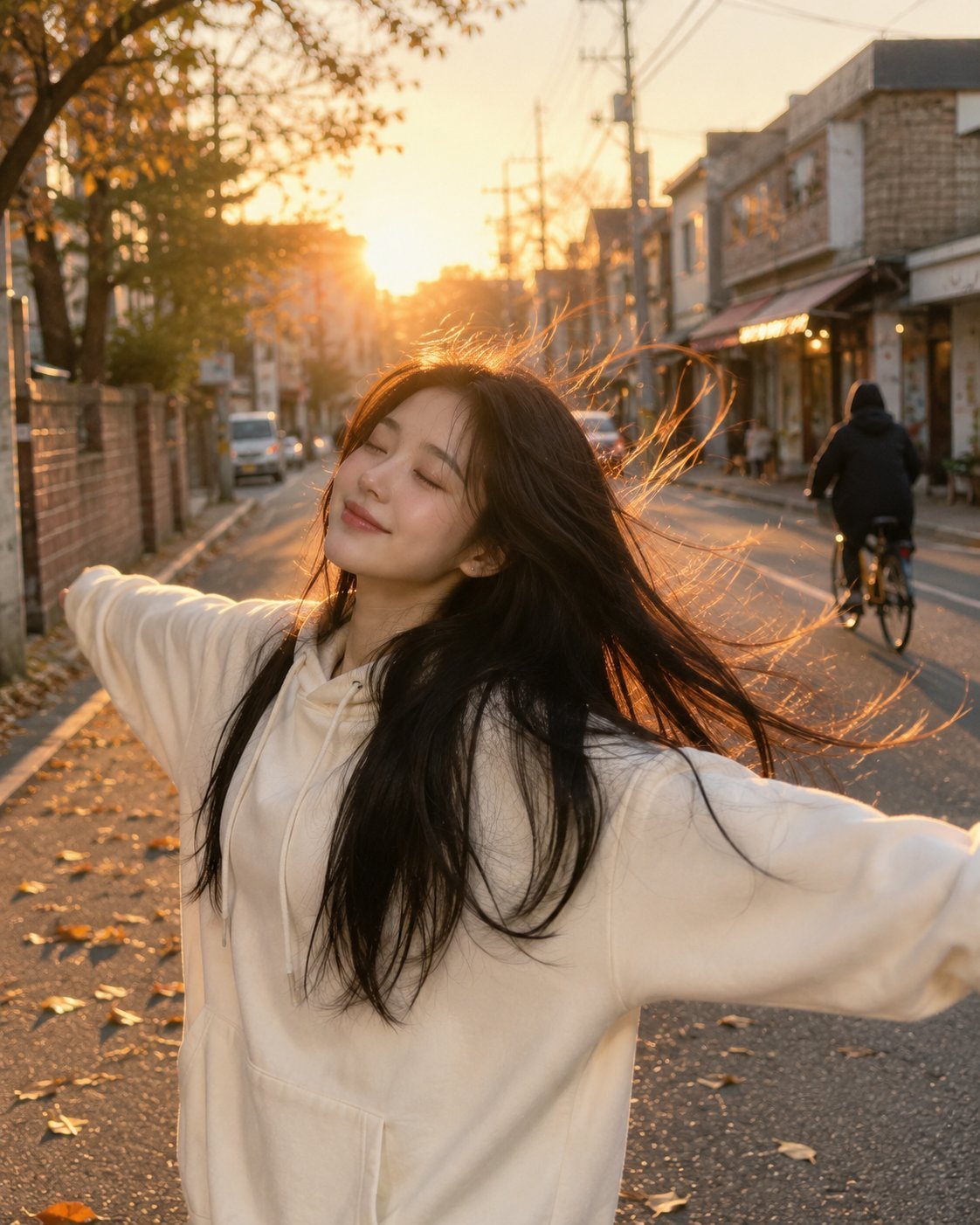
Golden Hour Street Hoodie Lifestyle Portrait
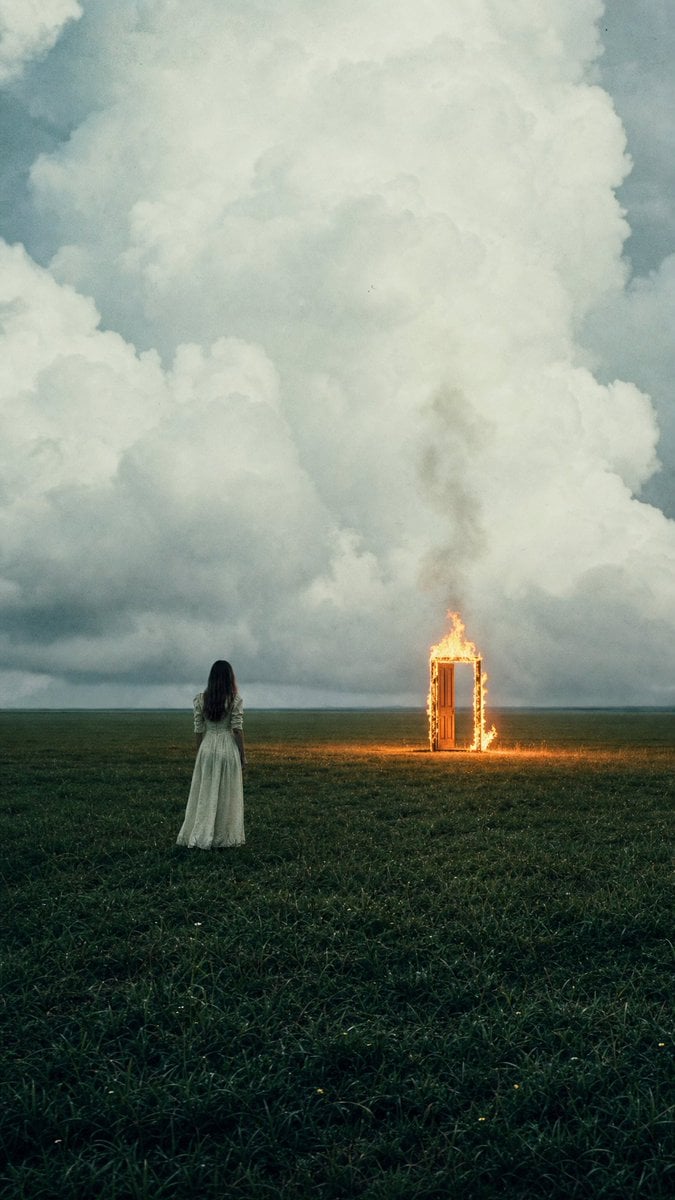
Woman Facing Burning Doorway
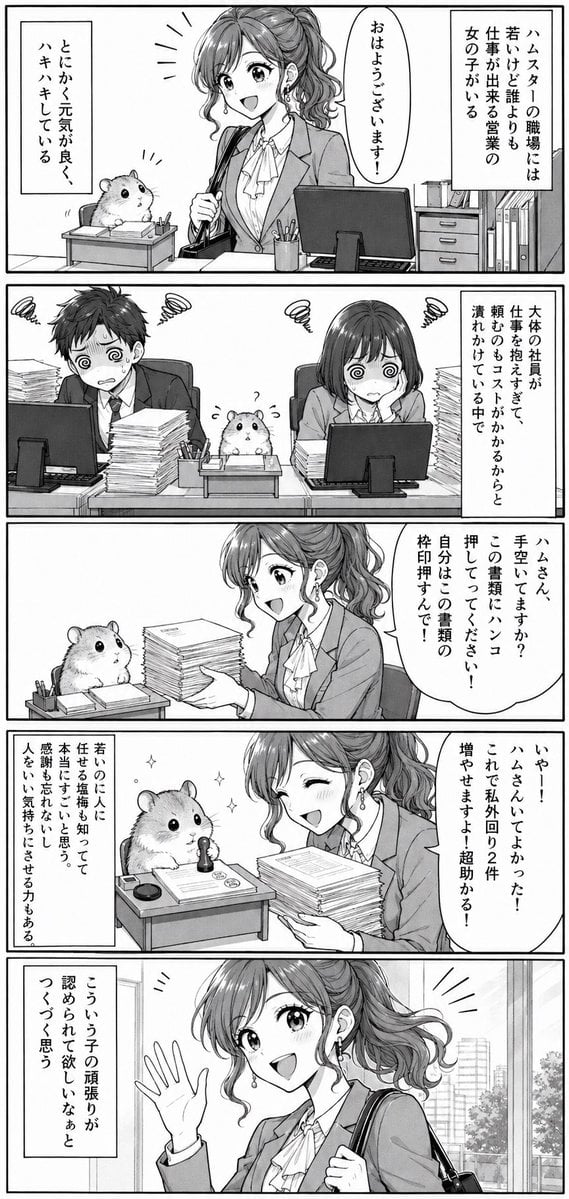
Office Hamster Manga Diary

Mitarashi Calico Cat and Hamster
Happiest Hamster Portrait
Hamster Sunflower Cannon Game UI
Quiet Hamster Manga Page
Monochrome Summer Hamster Manga Page

Fluffy Hamster Holding Japanese Sign

Hamster Taiko Festival Manga Scene
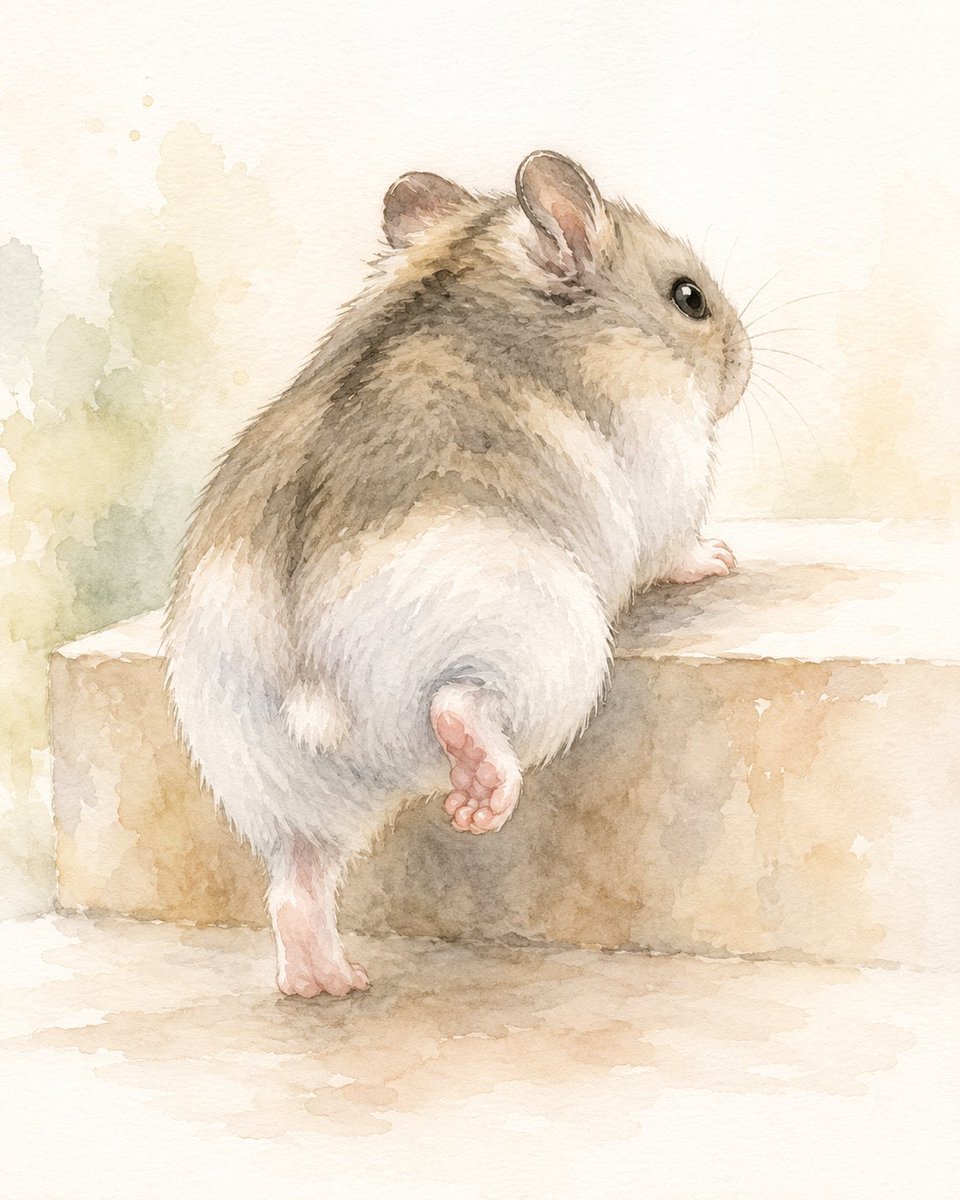
Watercolor Hamster Climbing Step
Make it yours
Hamster Autumn Leaf Doorway works as-is. These are the safest ways to change it without losing the look.
Change one field
Copy a single group, rewrite it, and generate again so you can see what that field is doing.
Keep the frame, change the subject
Hold the composition and light of Hamster Autumn Leaf Doorway, then swap wardrobe, props or the person for a new take.
| If the result… | Why | Fix |
|---|---|---|
| The result drifts from the preview | Too many fields changed at once. | Reuse Hamster Autumn Leaf Doorway as-is first, then change one group — subject, light, or setting. |
| The model over-stylizes the scene | The prose prompt leaves finish and camera underspecified. | Add one camera or lighting sentence and stay on GPT Image 2. |
More GPT Image 2 templates
Other prompts made for GPT Image 2.

Six VTuber Japanese Logo Sheet

Realistic Portrait of Woman and Deer

The Vista Modular Condo Poster

AI Model Routing Comparison Infographic

2.5D Anime Art Board

Isometric Productivity Desk Scene

New York Double Exposure Poster

Four-Panel AI Landscape Comparison

Japanese Tatami Lifestyle Magazine Cover

NESCAFÉ Coffee Map Poster
More image prompts
Fresh picks from across the catalog.

Ultrarealistic Artistic Portrait with Contradictory Lighting

Generating Images from Song Titles: Japanese Constitution

Photorealistic Concert Embrace Scene

Realistic Selfie with Cartoon Characters

Glassmorphism SaaS-style PPT design prompt for Nano Banana Pro
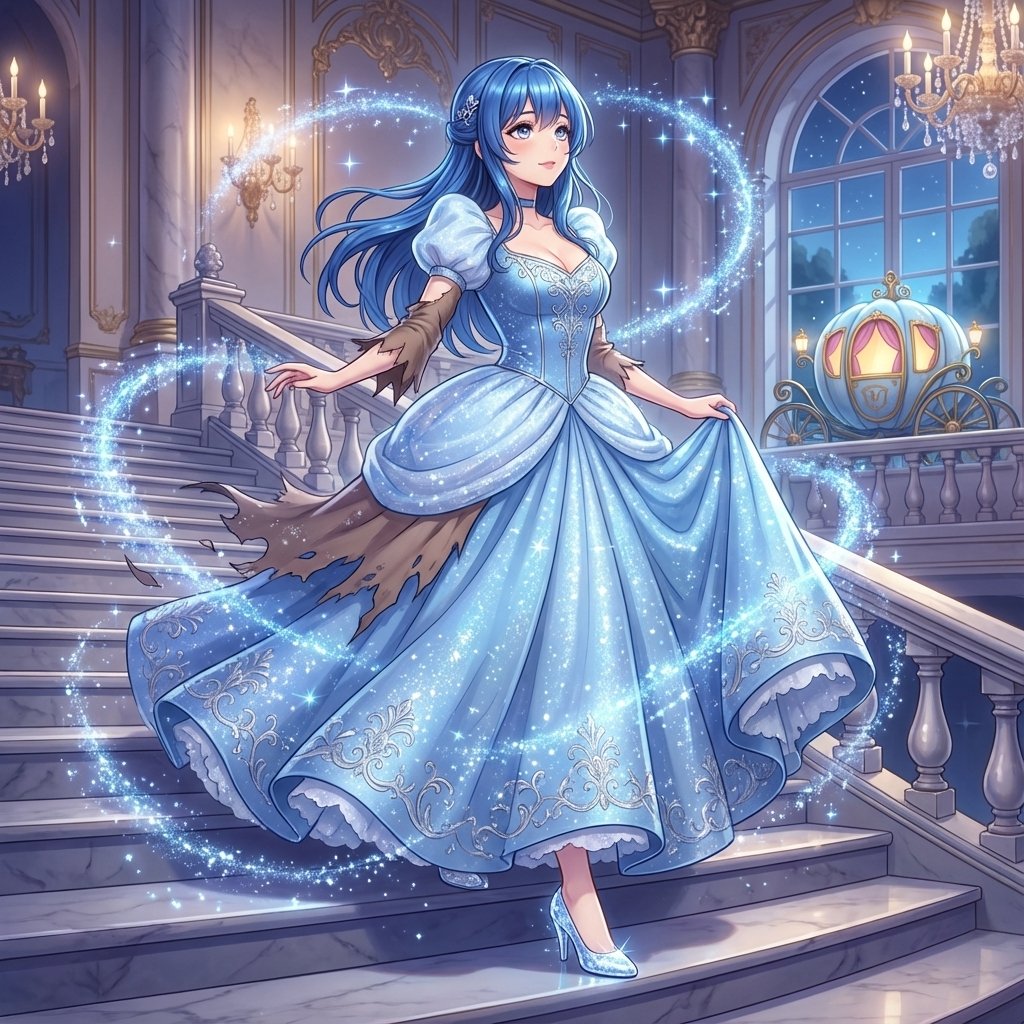
Cinderella Transformation AI Image Prompt

Sweet dreams image prompt for Nano Banana Pro

Anime Doctor Summoning Divine Banana
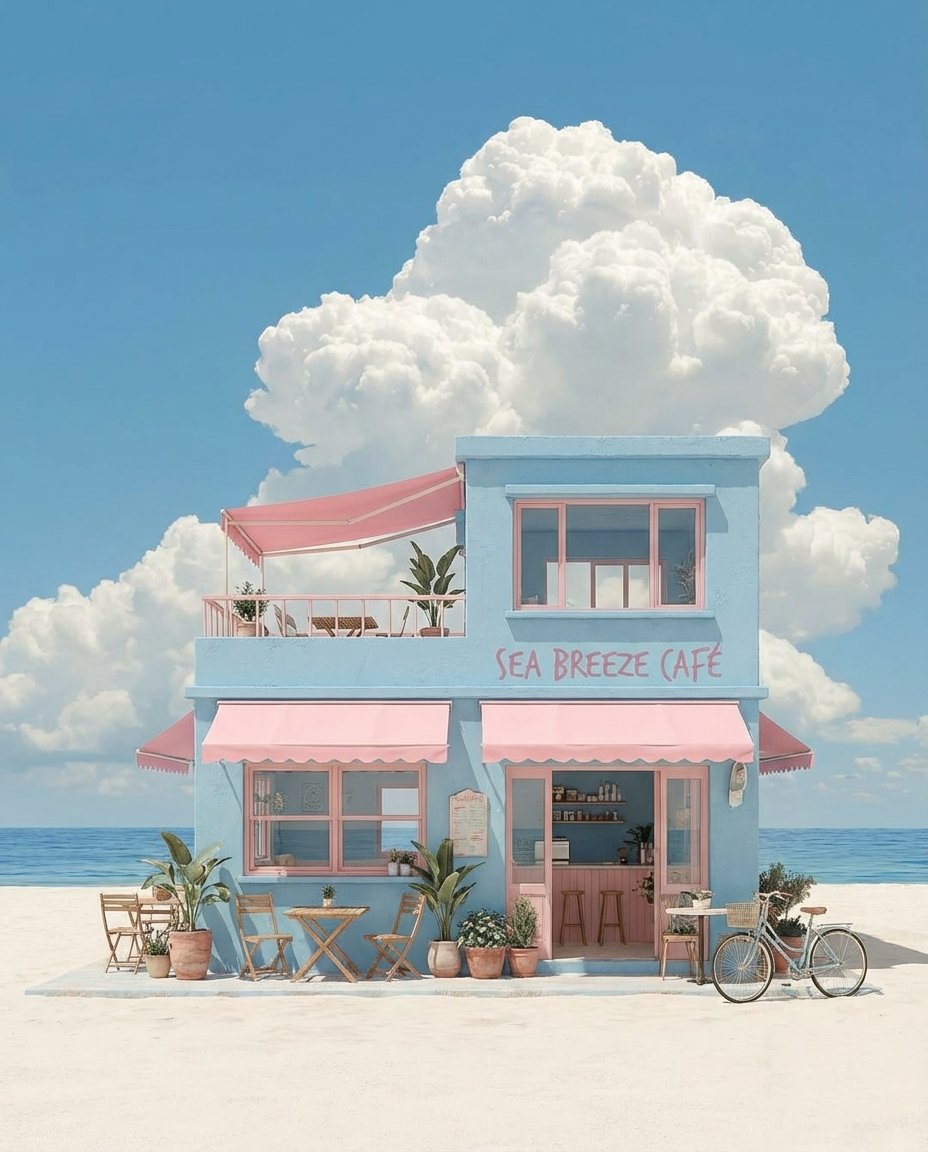
Pastel Coastal Building with Dramatic Cumulus Cloud Prompt

Ink-Wash Style Illustration Prompt
Browse template categories
Hamster Autumn Leaf Doorway questions
How do I use the Hamster Autumn Leaf Doorway template?
Add your photo if the template asks for one, edit the prompt if you like — the template's model and format are already selected — and press Generate. Your version opens in PicX Studio.
Can I customize the Hamster Autumn Leaf Doorway template?
Yes. You can change the subject, setting, lighting, mood, format, and available model controls before creating your image.
Is the Hamster Autumn Leaf Doorway template free?
Opening and editing this template is free. Generating uses credits, shown on the Generate button when you are signed in.
Which AI model should I use?
Start with GPT Image 2, which is the model associated with this template. You can compare another compatible model for a different finish.
Looking for something else? Browse all templates.

Your photo, any look
Thousands of ready templates for every top image and video model, from one credit balance.