How do I use the Watercolor Paper Floral Portrait template?
Choose the primary action to open PicX Studio with the available template settings. Review the model and format, personalize the creative direction, and generate when ready.
Generates an elegant anime-inspired female portrait surrounded by layered blue and white watercolor paper flowers for decorative art or character illustration.
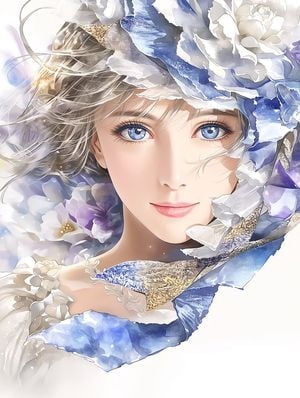
Create a delicate vertical watercolor paper-art portrait of a beautiful young woman with {argument name="hair color" default="soft ash brown and silver-gray"} wind-swept hair, luminous {argument name="eye color" default="sapphire blue"} eyes, long eyelashes, porcelain skin, rosy cheeks, and glossy pink lips, facing forward with a gentle serene smile. Frame her face tightly in the center-right with ornate layered paper-cut flowers and torn watercolor-paper petals surrounding her like a hat and collar. Use a palette of {argument name="color palette" default="icy blue, white, lavender, pearl gray, and touches of champagne gold"}. Include exactly 6 prominent flower clusters: one large blue-and-white flower crown across the top right, one white rose at the upper right, one lavender flower cluster at the right edge, one soft purple-and-white flower cluster behind the left shoulder, one small white floral cluster on the lower left shoulder, and one pale flower cluster partly hidden near the upper left. Add curled translucent paper ribbons and torn petal strips with visible deckled edges, layered shadows, embossed paper grain, speckled watercolor pigments, white paint splatter, and small glowing dust motes. The composition should feel like three-dimensional sculpted watercolor paper rather than flat illustration, with semi-transparent washes, crisp ink-like facial detail, soft high-key lighting, a clean white background, airy negative space, and no text or watermark. Render in an elegant Japanese anime-inspired fashion illustration style with ultra-fine linework and luxurious floral paper-craft texture.
Choose the primary action to open PicX Studio with the available template settings. Review the model and format, personalize the creative direction, and generate when ready.
Yes. You can change the subject, setting, lighting, mood, format, and available model controls before creating your image.
This template is free to open and customize. Generation usage is shown in PicX Studio before you create.
Start with GPT Image 2, which is the model associated with this template. You can compare another compatible model for a different finish.
Follow a topic to a crawlable collection of related PicX Studio templates.