How do I use the Girl in Blue Floral Kimono template?
Choose the primary action to open PicX Studio with the available template settings. Review the model and format, personalize the creative direction, and generate when ready.
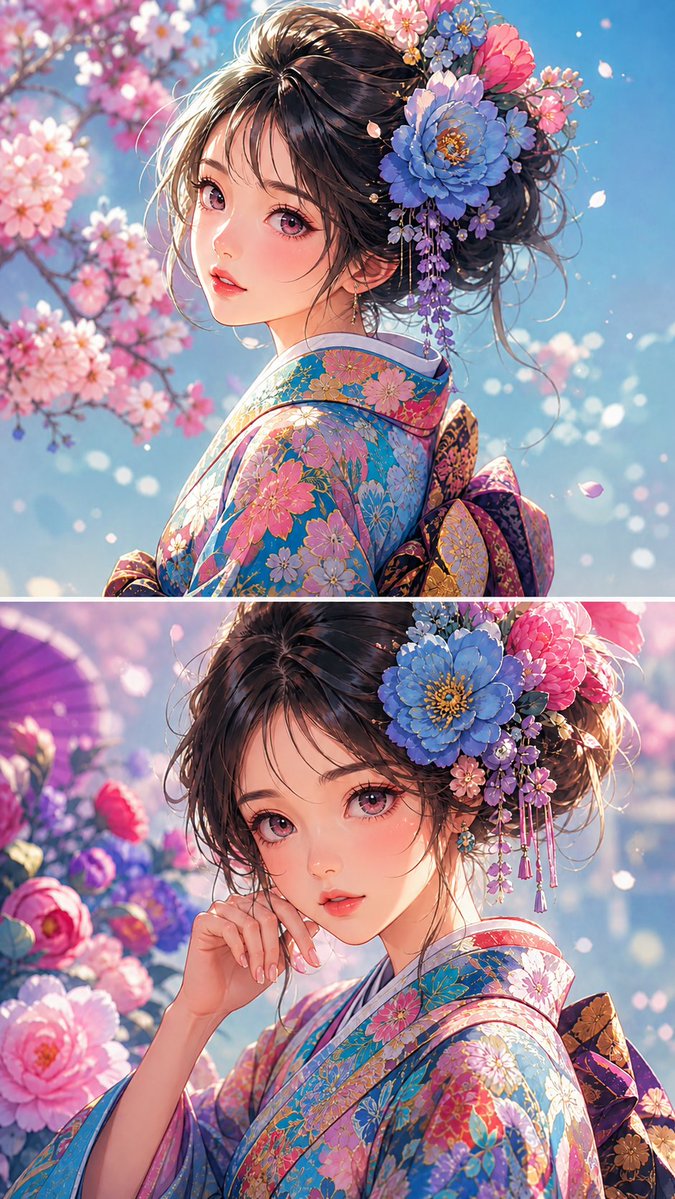
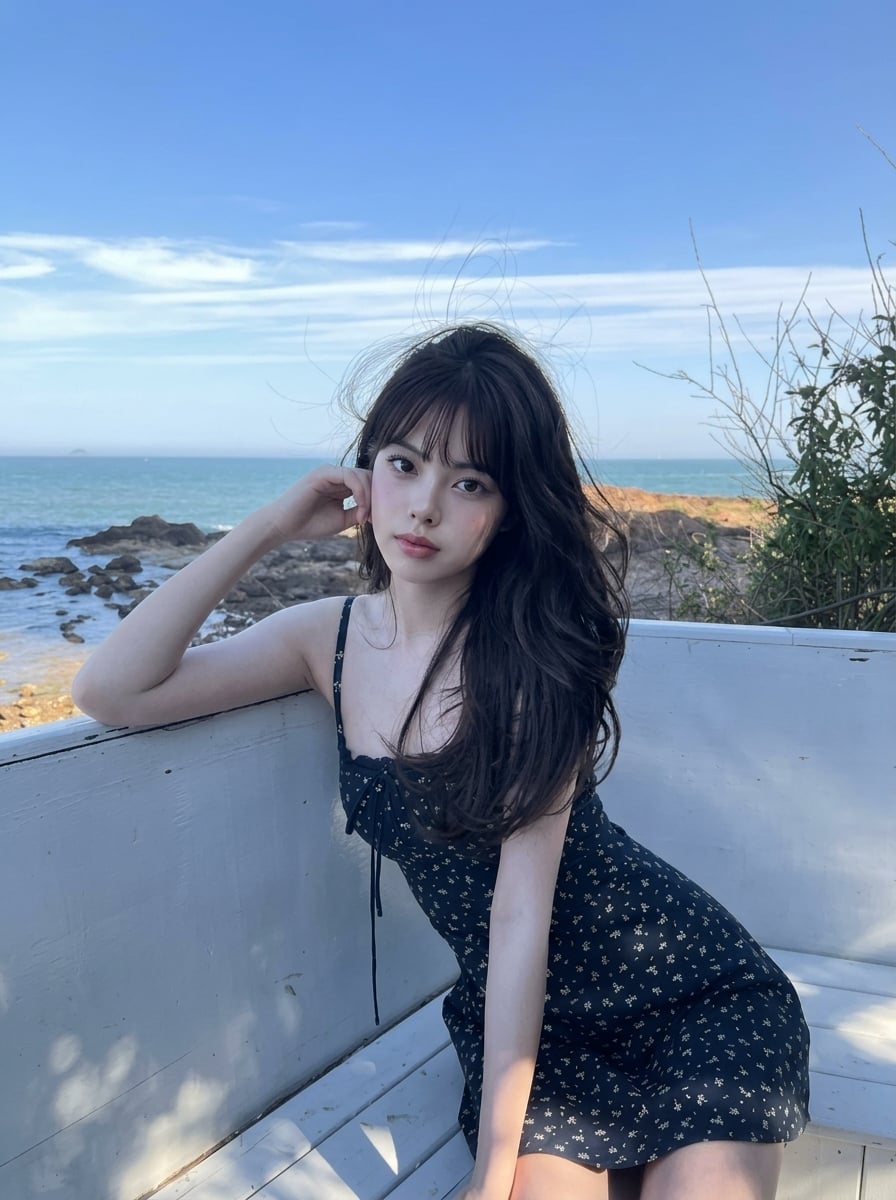
A photorealistic vertical portrait of a serene young East Asian girl in a pale blue floral kimono, ideal for elegant character or fashion imagery.
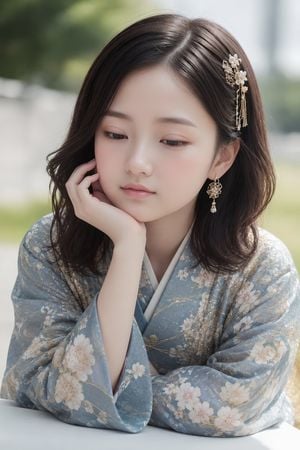
Create a highly detailed photorealistic vertical portrait of a young East Asian girl wearing a pale blue floral kimono, seated at a white table outdoors in soft daylight. She has {argument name="hair color" default="dark brown"} shoulder-length softly wavy hair parted to the side, smooth porcelain skin, delicate youthful features, subtle pink makeup, and a calm introspective expression as she looks downward slightly. Her left cheek rests gently on her left hand, with her elbow on the table; her other arm is folded in front of her inside the kimono sleeve. Add exactly 2 visible gold-and-pearl accessories: an ornate floral hairpin with dangling chains on the right side of her hair, and a matching dangling floral earring on her right ear. The kimono should be {argument name="kimono color" default="dusty pale blue"} with a white inner collar and an elegant pattern of cream and blush cherry blossoms with fine gold branches across the sleeves and bodice. Use a shallow depth of field with a softly blurred green-and-white outdoor background, creamy bokeh, natural window-like sunlight, gentle highlights on the hair and fabric, realistic skin texture, crisp facial detail, and a serene refined atmosphere. Frame as a close medium portrait from chest to head, vertical 2:3 composition, centered subject, no text, no watermark, no extra people.
Choose the primary action to open PicX Studio with the available template settings. Review the model and format, personalize the creative direction, and generate when ready.
Yes. You can change the subject, setting, lighting, mood, format, and available model controls before creating your image.
This template is free to open and customize. Generation usage is shown in PicX Studio before you create.
Start with GPT Image 2, which is the model associated with this template. You can compare another compatible model for a different finish.
Follow a topic to a crawlable collection of related PicX Studio templates.