How do I use the Rooftop Mountain Portrait template?
Choose the primary action to open PicX Studio with the available template settings. Review the model and format, personalize the creative direction, and generate when ready.
A photorealistic vertical portrait prompt for creating a serene rooftop fashion scene with a mountain village backdrop.
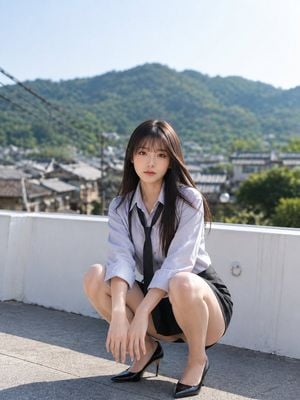
Create a photorealistic outdoor portrait of {argument name="character description" default="an adult East Asian woman in her early 20s with long straight dark brown hair and soft bangs"} crouching on a sunlit rooftop terrace, centered in the frame and looking directly at the camera with a calm, neutral expression. She wears exactly 5 visible outfit pieces: a pale lavender-white button-up shirt with sleeves rolled to the forearms, a loosely hanging black necktie, a short black pleated skirt, glossy black pointed high heels, and no visible jewelry. Her hands hang relaxed between her knees, her posture is compact and balanced, and her hair falls naturally over both shoulders with a few wind-touched strands. The setting is a bright rooftop with a low white concrete parapet, gray tiled floor, and a softly blurred background of traditional village rooftops, utility wires on the left, green wooded mountains, and a pale blue sky. Use {argument name="lighting style" default="clear midday sunlight with soft natural shadows"}, shallow depth of field, realistic skin texture, natural colors, 50mm portrait lens perspective, high-resolution editorial photography, gentle bokeh, and a serene cinematic atmosphere. Keep the composition vertical, with the subject occupying the lower center and the mountain landscape filling the upper background.
Choose the primary action to open PicX Studio with the available template settings. Review the model and format, personalize the creative direction, and generate when ready.
Yes. You can change the subject, setting, lighting, mood, format, and available model controls before creating your image.
This template is free to open and customize. Generation usage is shown in PicX Studio before you create.
Start with GPT Image 2, which is the model associated with this template. You can compare another compatible model for a different finish.
Follow a topic to a crawlable collection of related PicX Studio templates.