
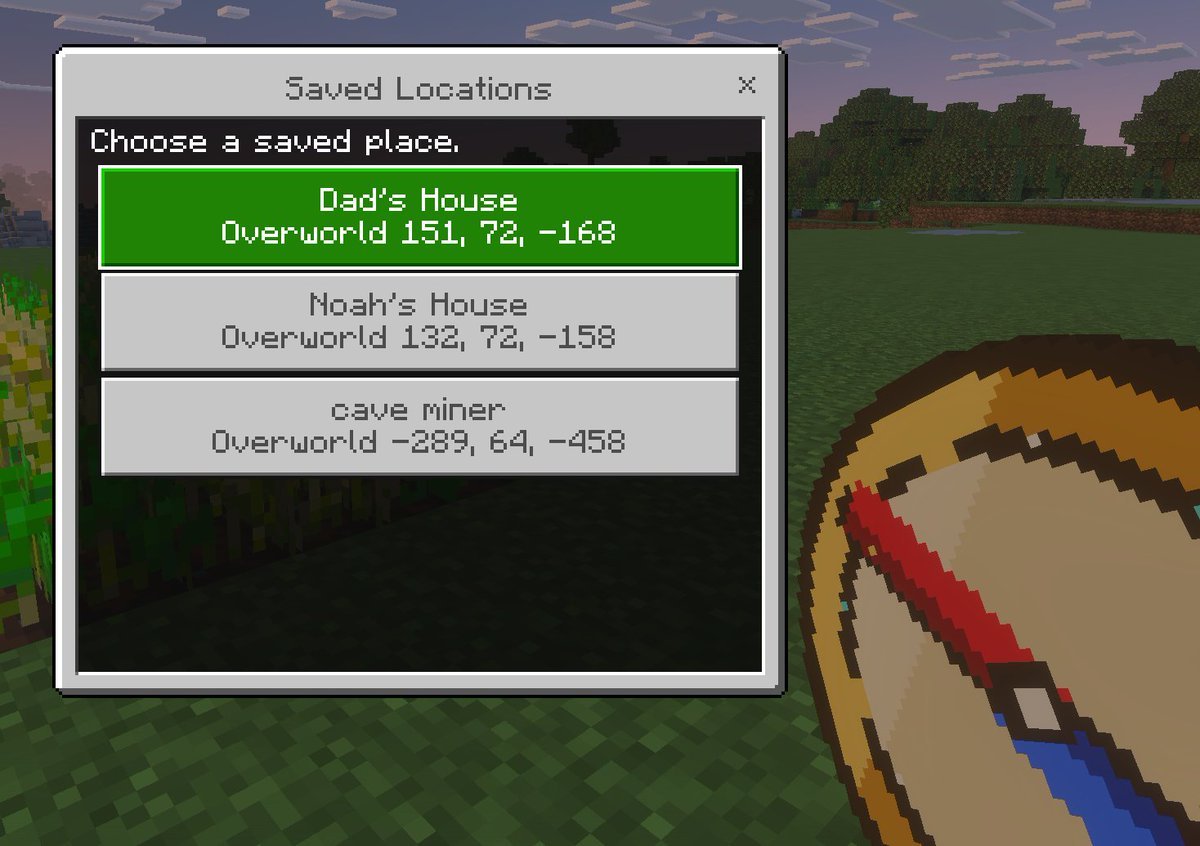
Minecraft Saved Locations UI Mockup
A pixel-art Minecraft-style first-person screenshot featuring a custom saved-locations menu, useful for showcasing game UI concepts, add-ons, or teleport navigation tools.
- Prompt included
- Model and format preset
- Free template
The prompt behind this image
Copy the exact prompt behind Minecraft Saved Locations UI Mockup, or open it in the studio and make it yours.
A clean Minecraft Bedrock-style game UI mockup shown as a first-person in-game screenshot at dusk. The background is a blocky grassy field with pixelated trees, a soft purple-blue evening sky, and a small patch of crops on the far left edge. In the lower right foreground, show a large pixel-art compass item held in the player’s hand, angled diagonally upward, with a tan face, dark brown rim, red needle, and blue tip. Center-left, overlay a rectangular Minecraft menu window with a light gray frame, thin dark border, and a black translucent interior panel. At the top of the window, a title bar reads {argument name="window title" default="Saved Locations"} in a Minecraft-inspired pixel font, with a small x close button on the top right. Inside the panel, add the instruction text {argument name="instruction text" default="Choose a saved place."} near the top left. Below it, display exactly 3 stacked destination buttons, each wide and centered. The first button is highlighted bright green with white pixel text and contains 2 lines: {argument name="location 1 name" default="Dad's House"} and "Overworld 151, 72, -168". The second button is light gray with darker gray text and contains 2 lines: "Noah's House" and "Overworld 132, 72, -158". The third button is light gray with darker gray text and contains 2 lines: {argument name="location 3 name" default="cave miner"} and "Overworld -289, 64, -458". Use crisp pixel edges, retro voxel-game aesthetics, subtle screen depth, and an authentic Minecraft Bedrock menu look.
How to use Minecraft Saved Locations UI Mockup in 3 steps
- 1Upload ImagePNG, JPG or paste
Add your photo
Upload the photo the template builds on. The prompt, model and format are already set.
- 2…a portrait of your subject in softgolden-hour light, 85mm…
Personalize
Edit the subject and creative details for your destination.
- 3Generate
Generate
Press Generate — your image is created in PicX Studio, so you can compare it with the original and refine one variable at a time.
More like this
Templates with the same subject, style or setup. Open one to see its prompt.
Hyper-Realistic Minecraft Cows Grazing

Hyper-Realistic Minecraft POV Portrait
Minecraft Homage Illustrious Style
Minecraft Voxel Pixel Art Aesthetic System

Minecraft Next-Gen Voxel World Screenshot

Minecraft Japanese Research Lab Exploration
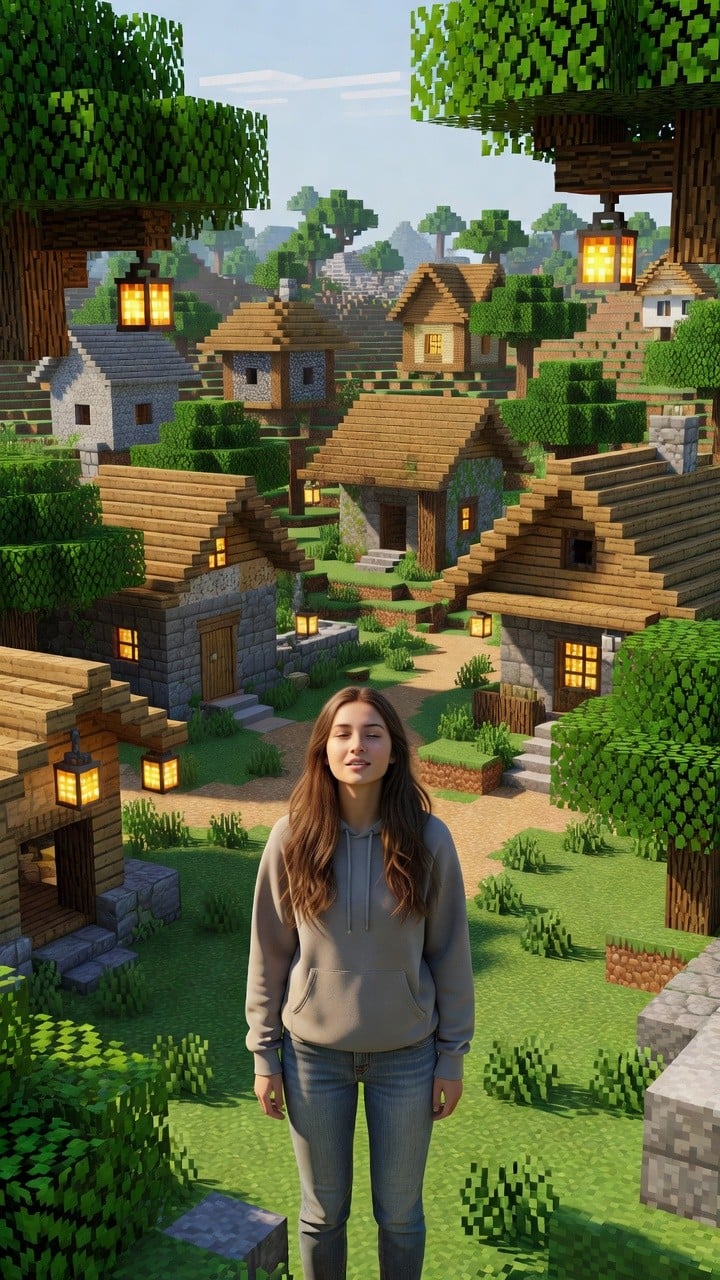
Photoreal Village Lanterns Minecraft Scene
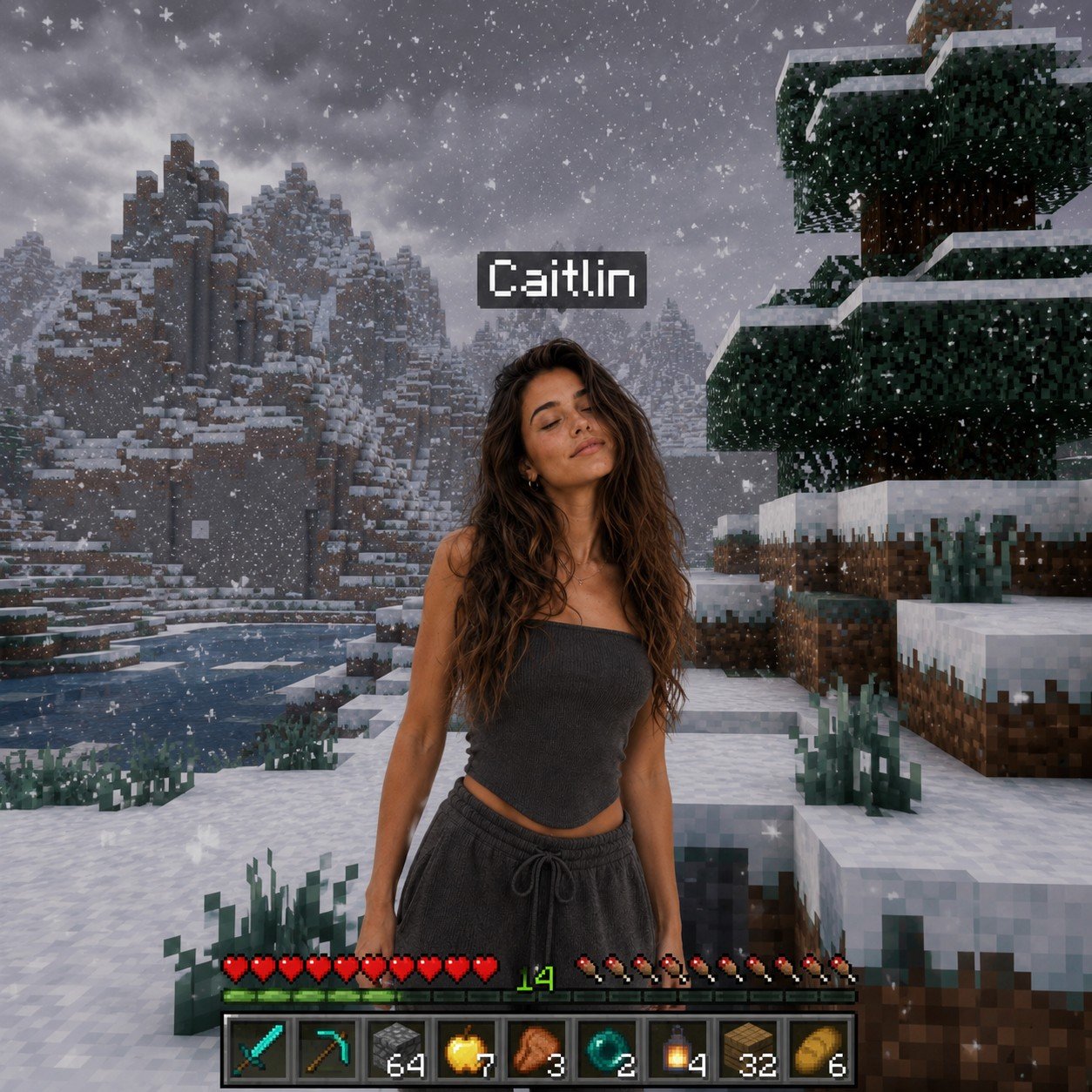
Photoreal Snow Biome Name Tag UI
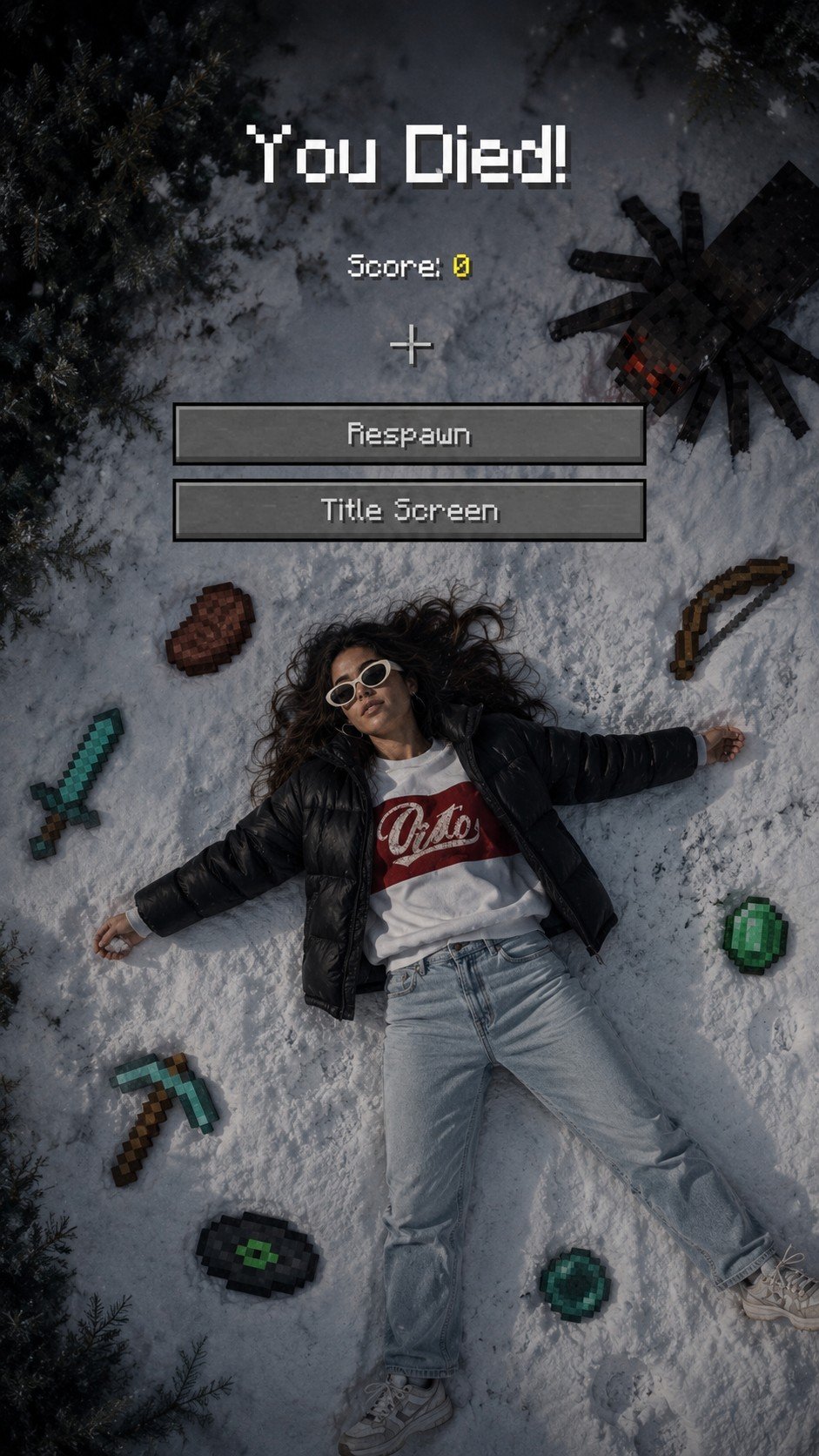
Minecraft You Died Winter Death Screen
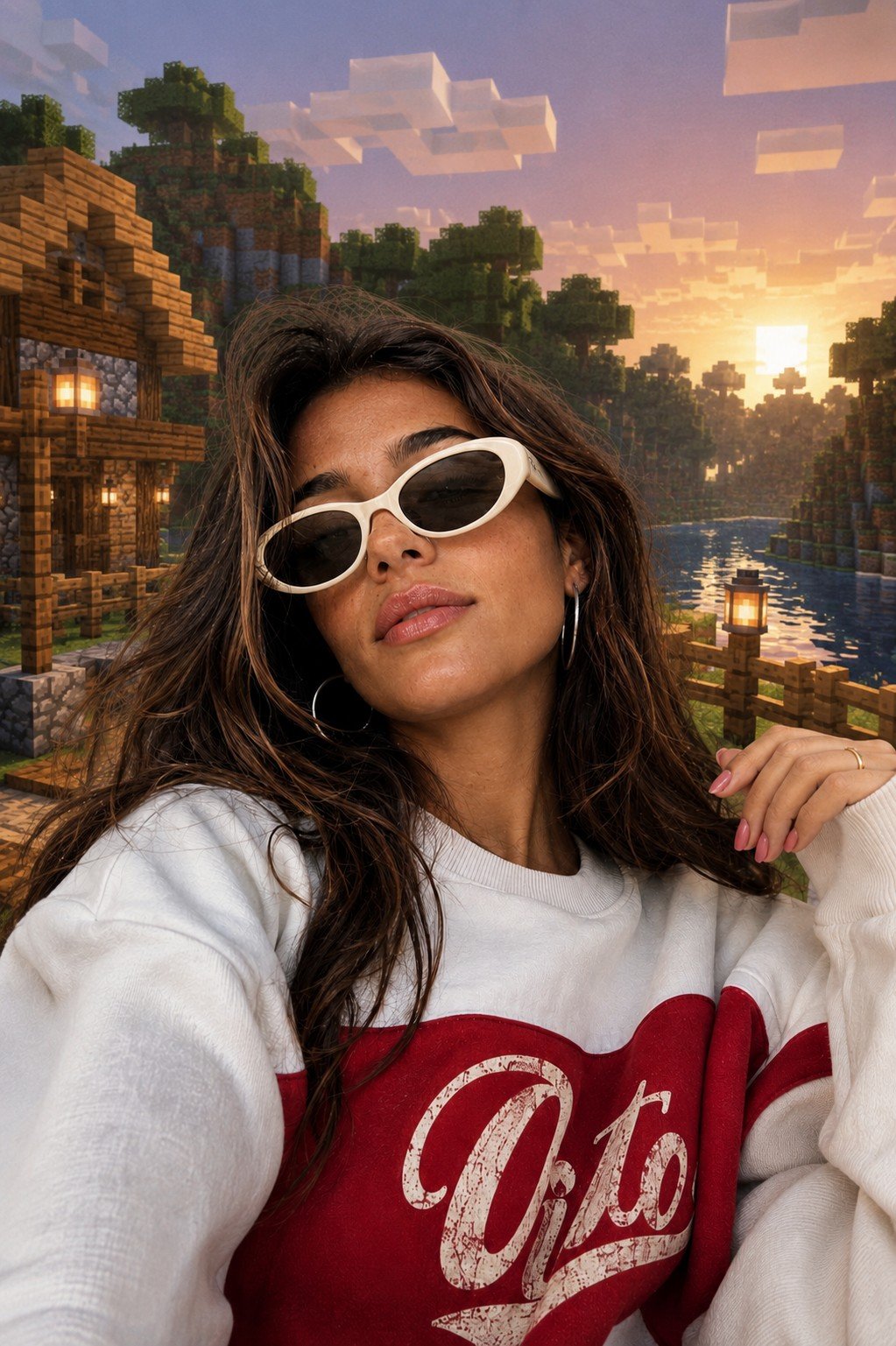
Photoreal Selfie Minecraft Block World
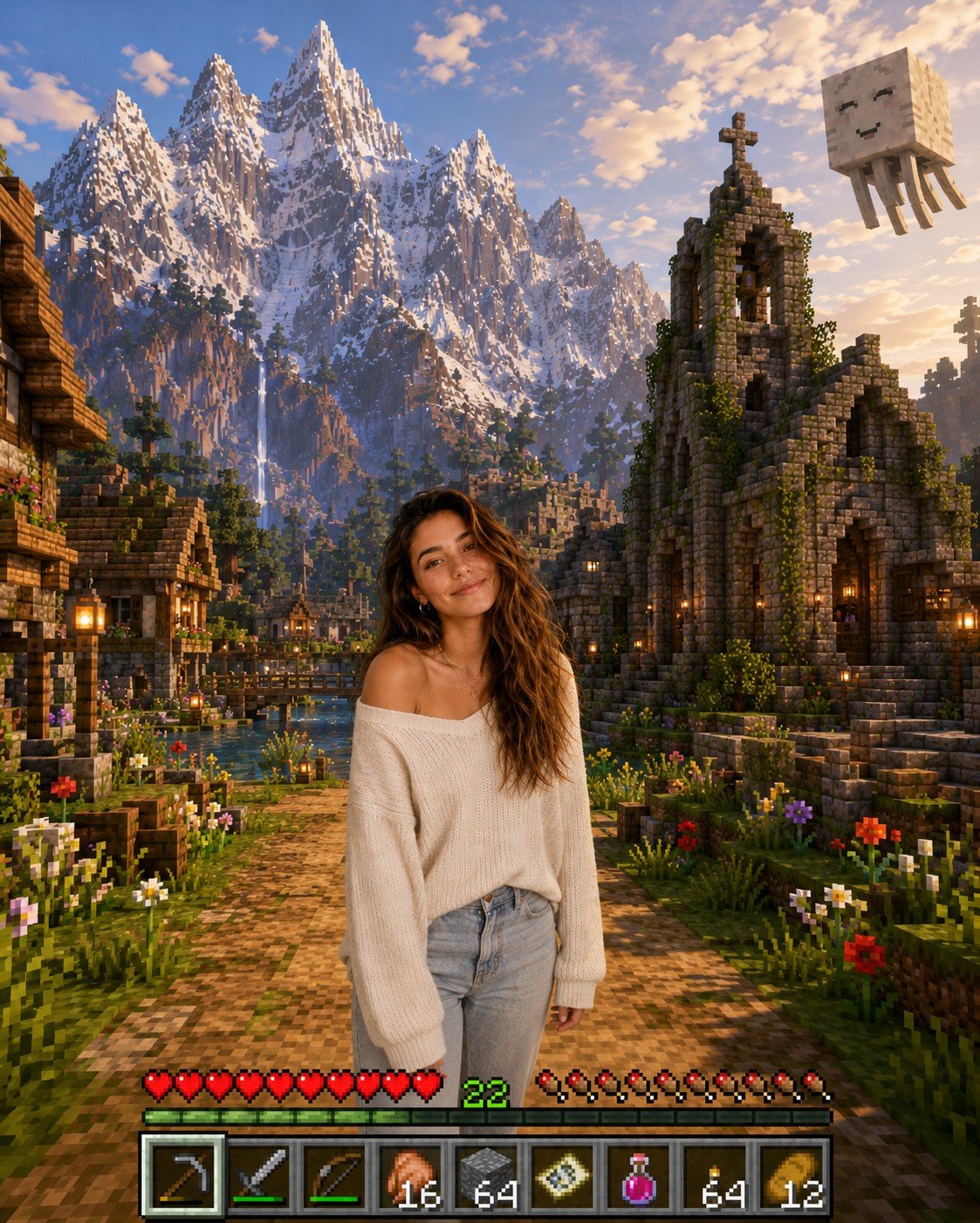
Photoreal Selfie Minecraft Village Ghast UI
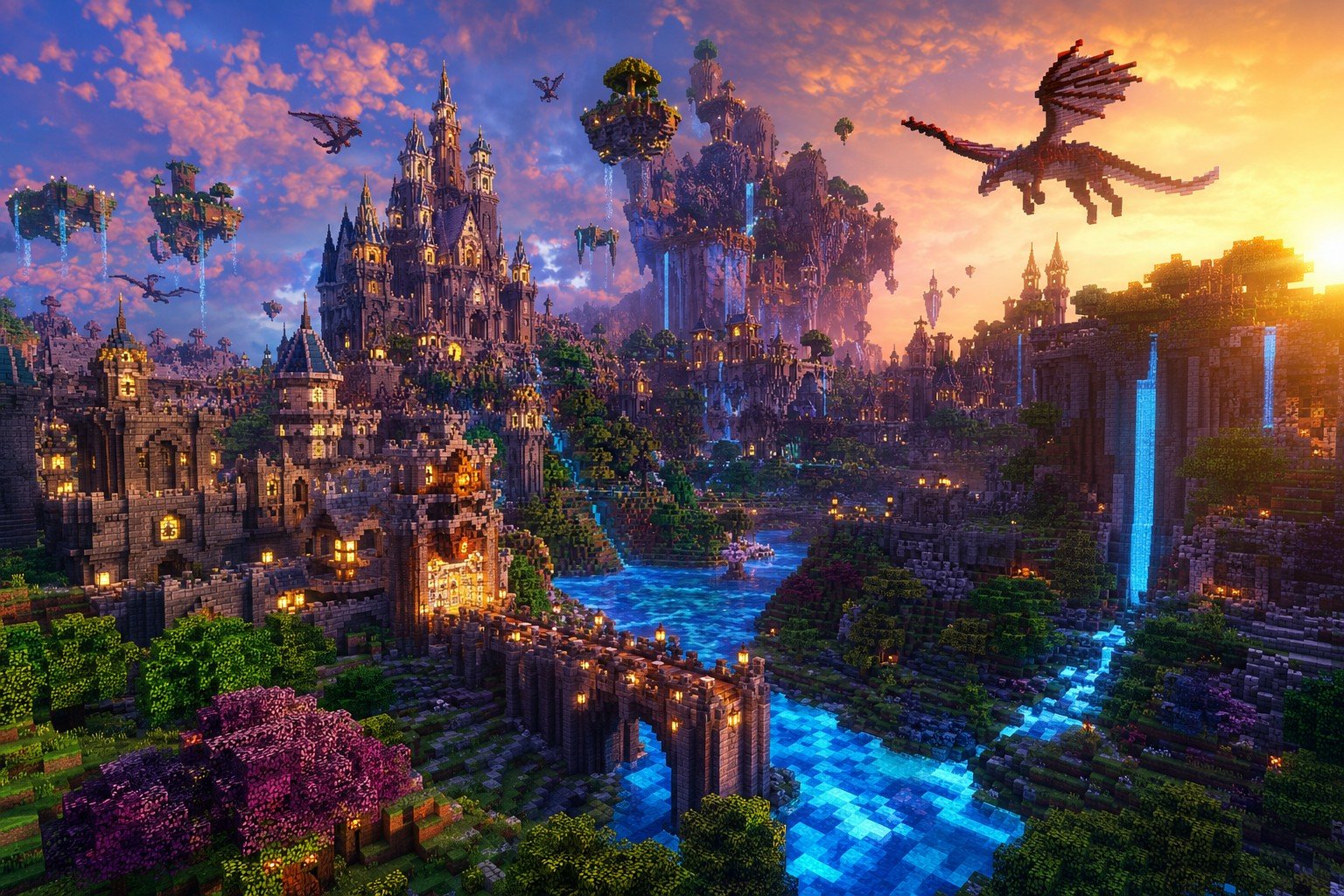
Minecraft Fantasy Kingdom Voxel Landscape
Make it yours
Minecraft Saved Locations UI Mockup works as-is. These are the safest ways to change it without losing the look.
Change one field
Copy a single group, rewrite it, and generate again so you can see what that field is doing.
Keep the frame, change the subject
Hold the composition and light of Minecraft Saved Locations UI Mockup, then swap wardrobe, props or the person for a new take.
| If the result… | Why | Fix |
|---|---|---|
| The result drifts from the preview | Too many fields changed at once. | Reuse Minecraft Saved Locations UI Mockup as-is first, then change one group — subject, light, or setting. |
| The model over-stylizes the scene | The prose prompt leaves finish and camera underspecified. | Add one camera or lighting sentence and stay on GPT Image 2. |
More GPT Image 2 templates
Other prompts made for GPT Image 2.

Six VTuber Japanese Logo Sheet

Realistic Portrait of Woman and Deer

The Vista Modular Condo Poster

AI Model Routing Comparison Infographic

2.5D Anime Art Board

Isometric Productivity Desk Scene

New York Double Exposure Poster

Four-Panel AI Landscape Comparison

Japanese Tatami Lifestyle Magazine Cover

NESCAFÉ Coffee Map Poster
More image prompts
Fresh picks from across the catalog.
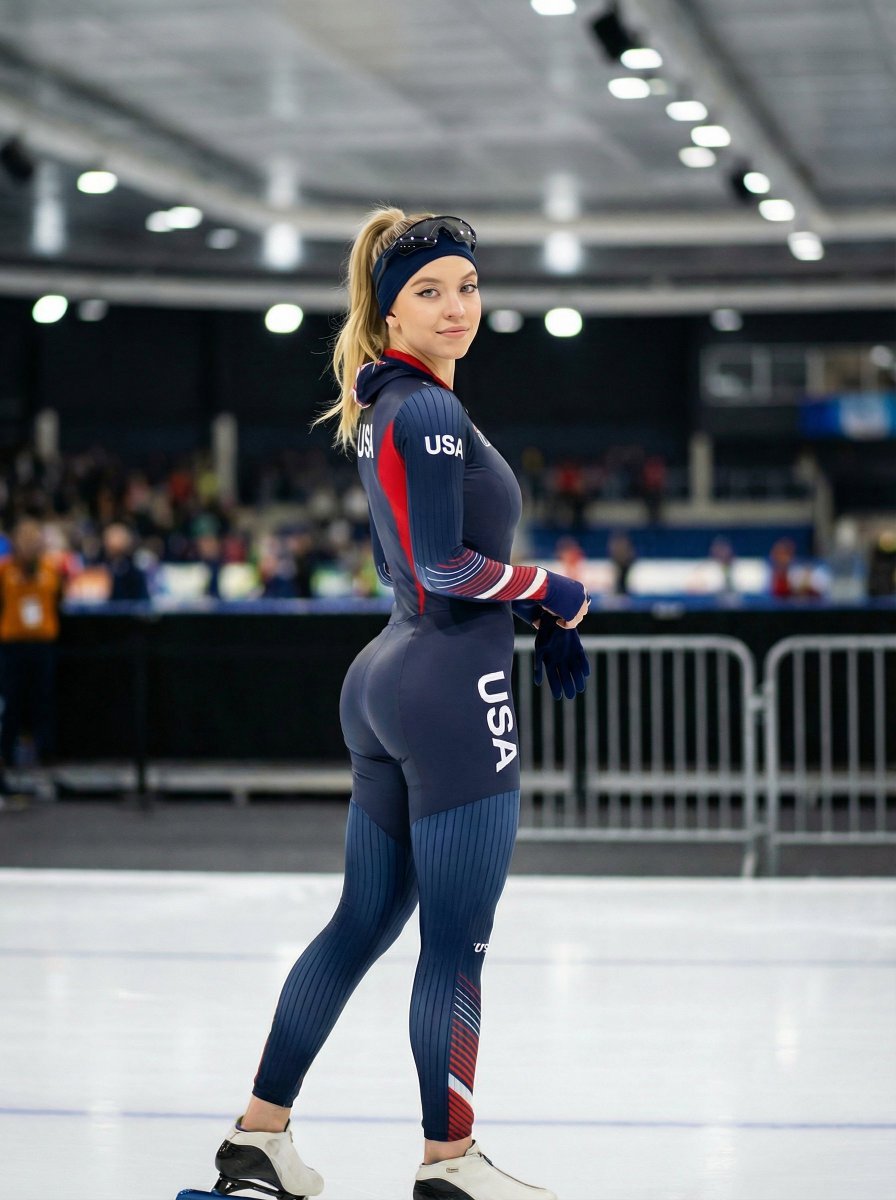
Ultra-Realistic Speed Skating Portrait Prompt
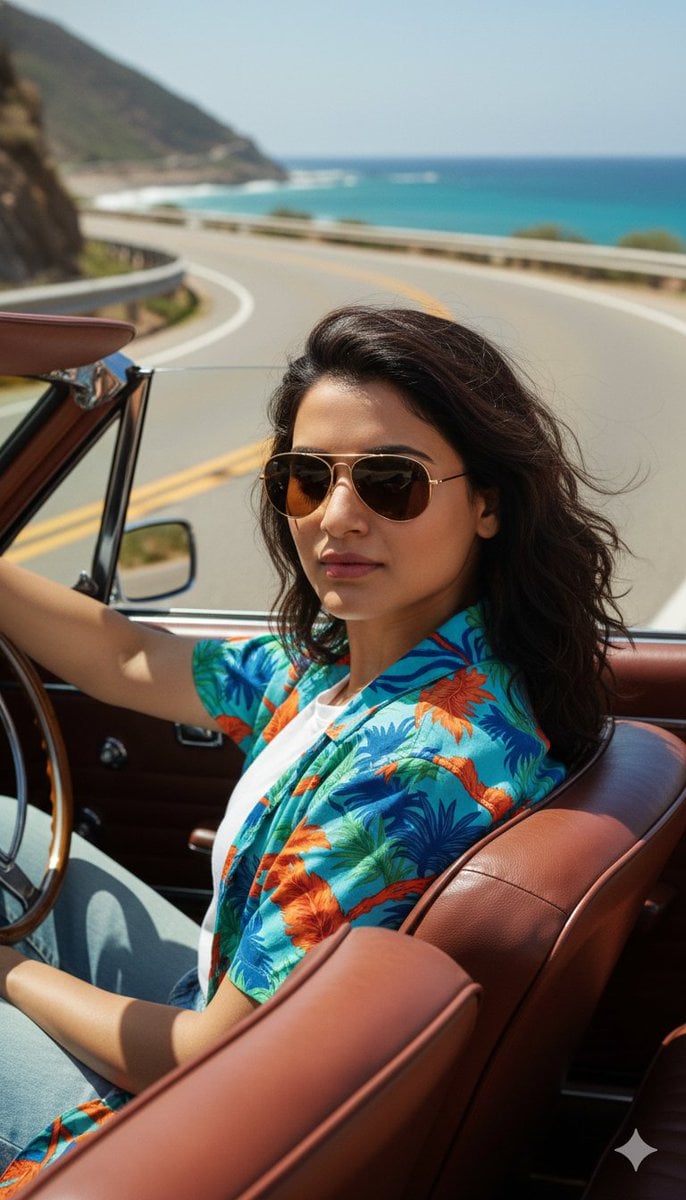
Cinematic Portrait of Man Driving Vintage Convertible
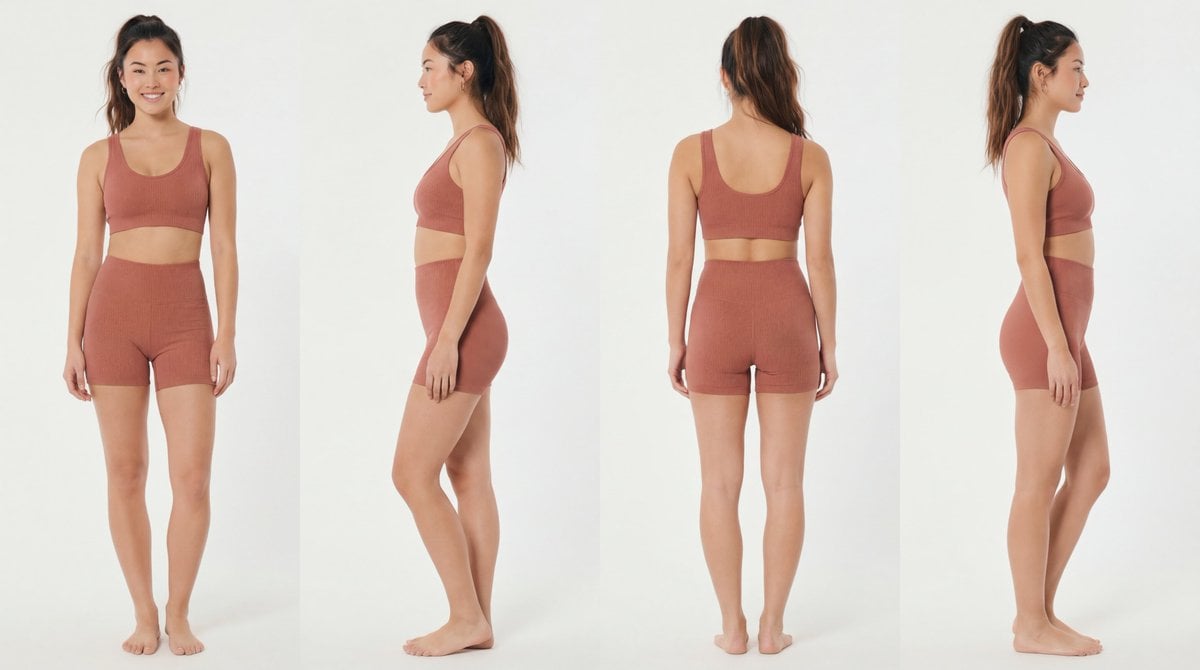
Recommended Nano Banana Pro Prompting Strategy for Consistency
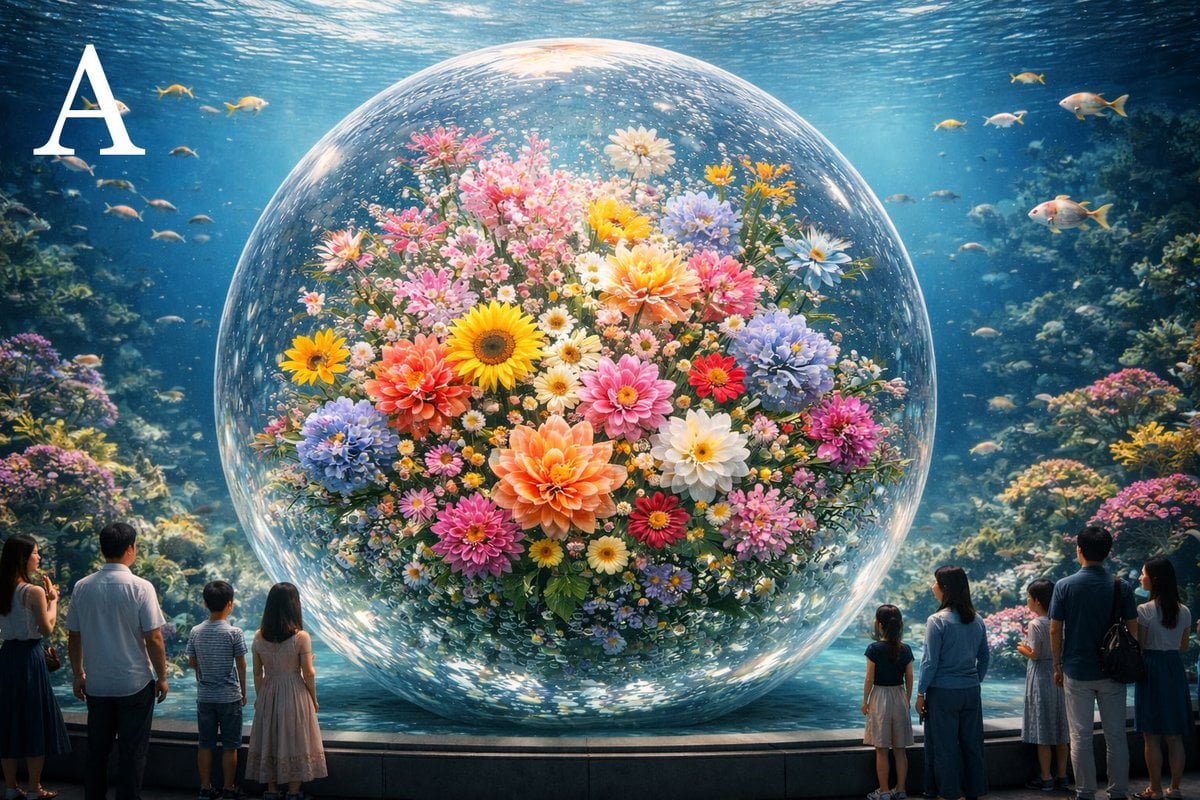
Advanced post-production prompt template for image generation (Nano Banana compatible)
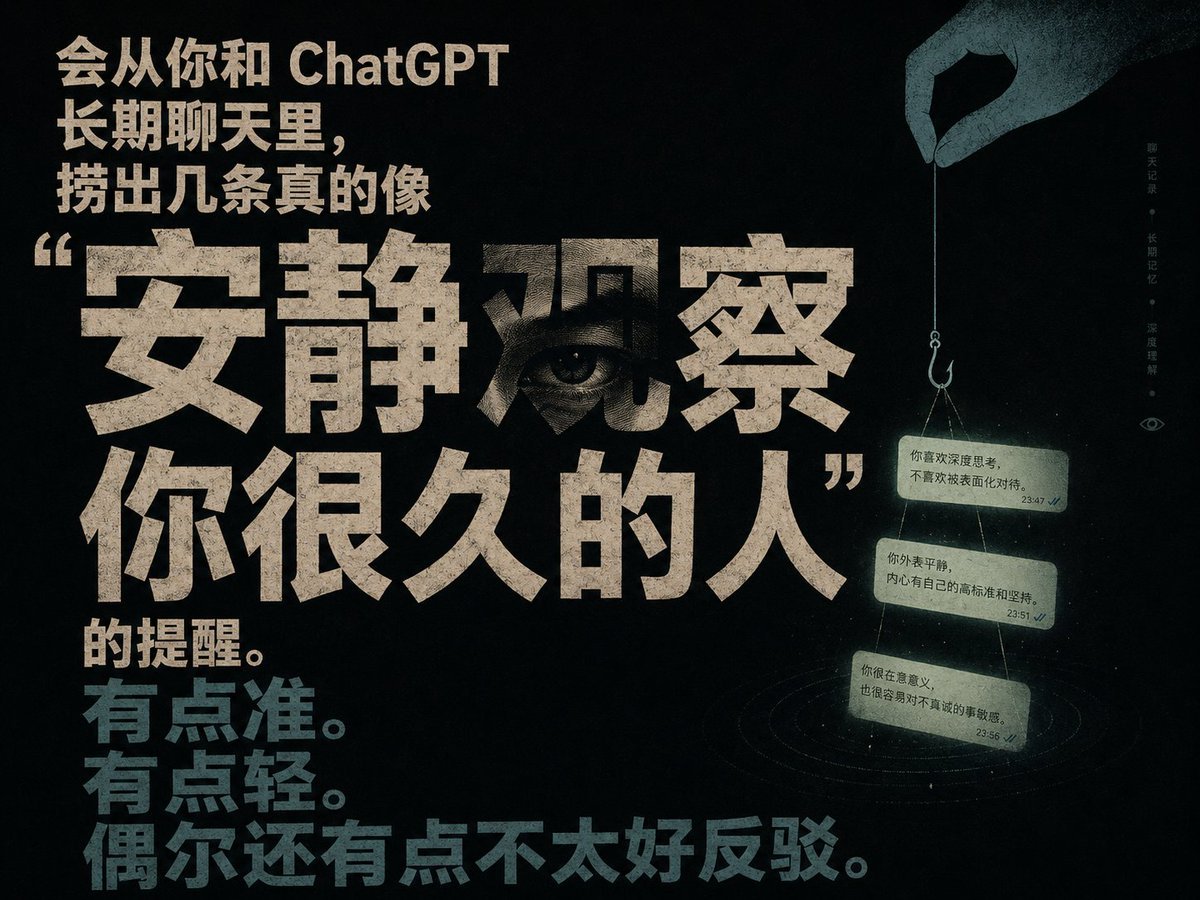
Quiet Observation ChatGPT Memory Poster
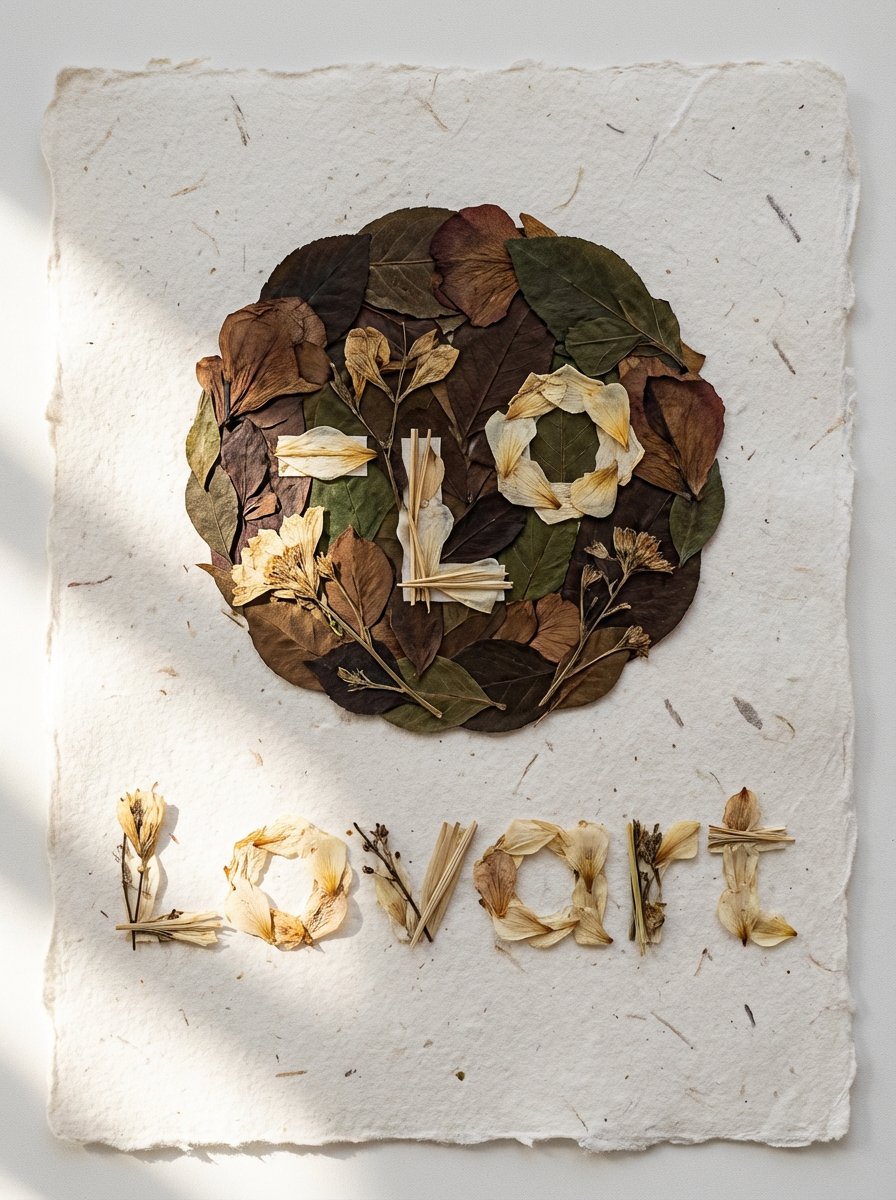
Pressed Flower Logo Flat Lay Composition
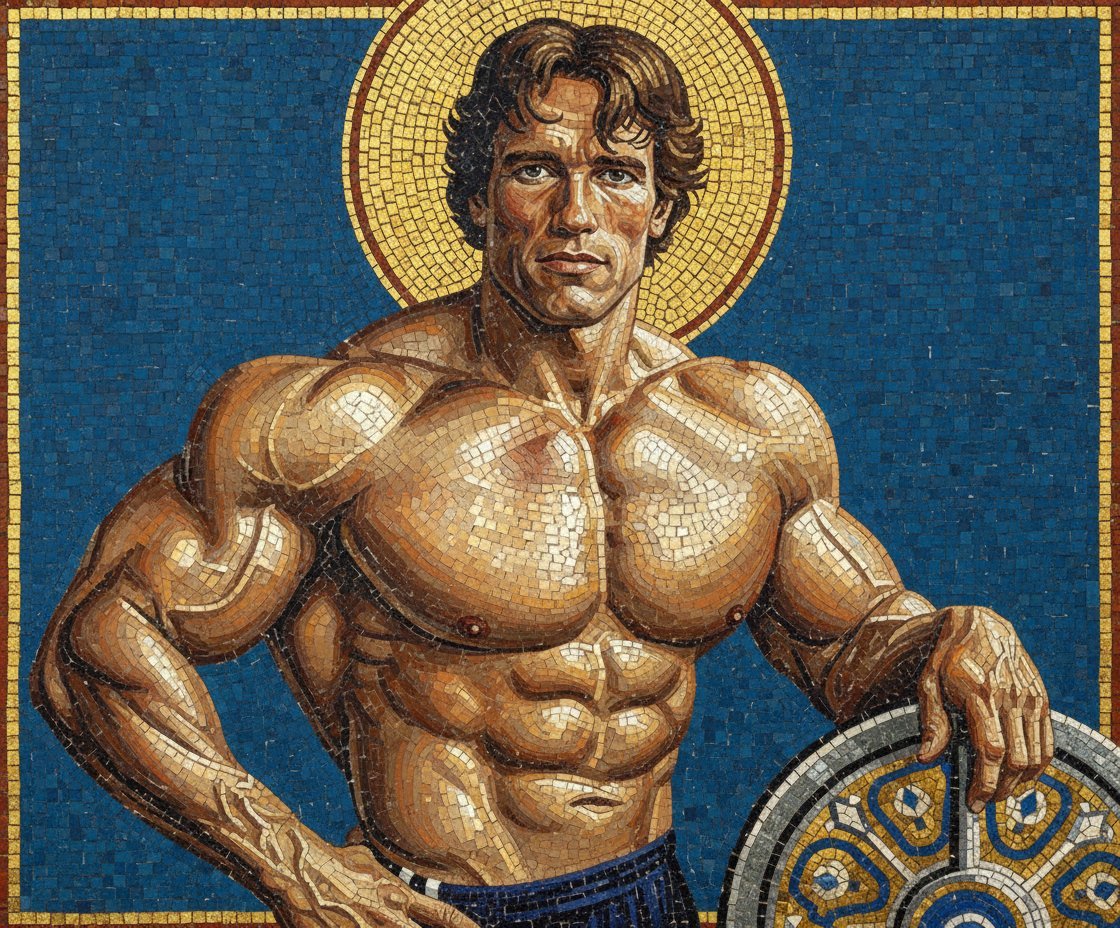
Byzantine Mosaic Style Portrait Prompt
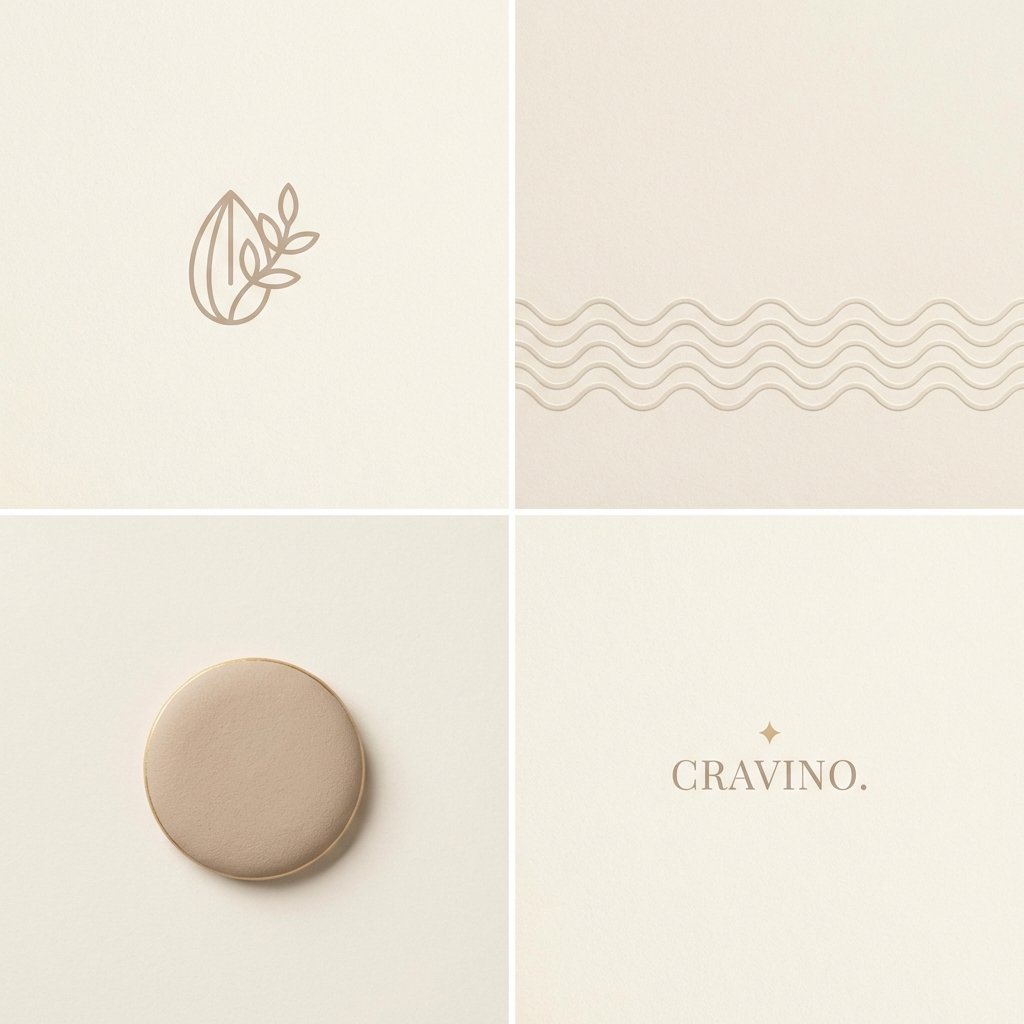
Minimal Layout Stress Test Composition
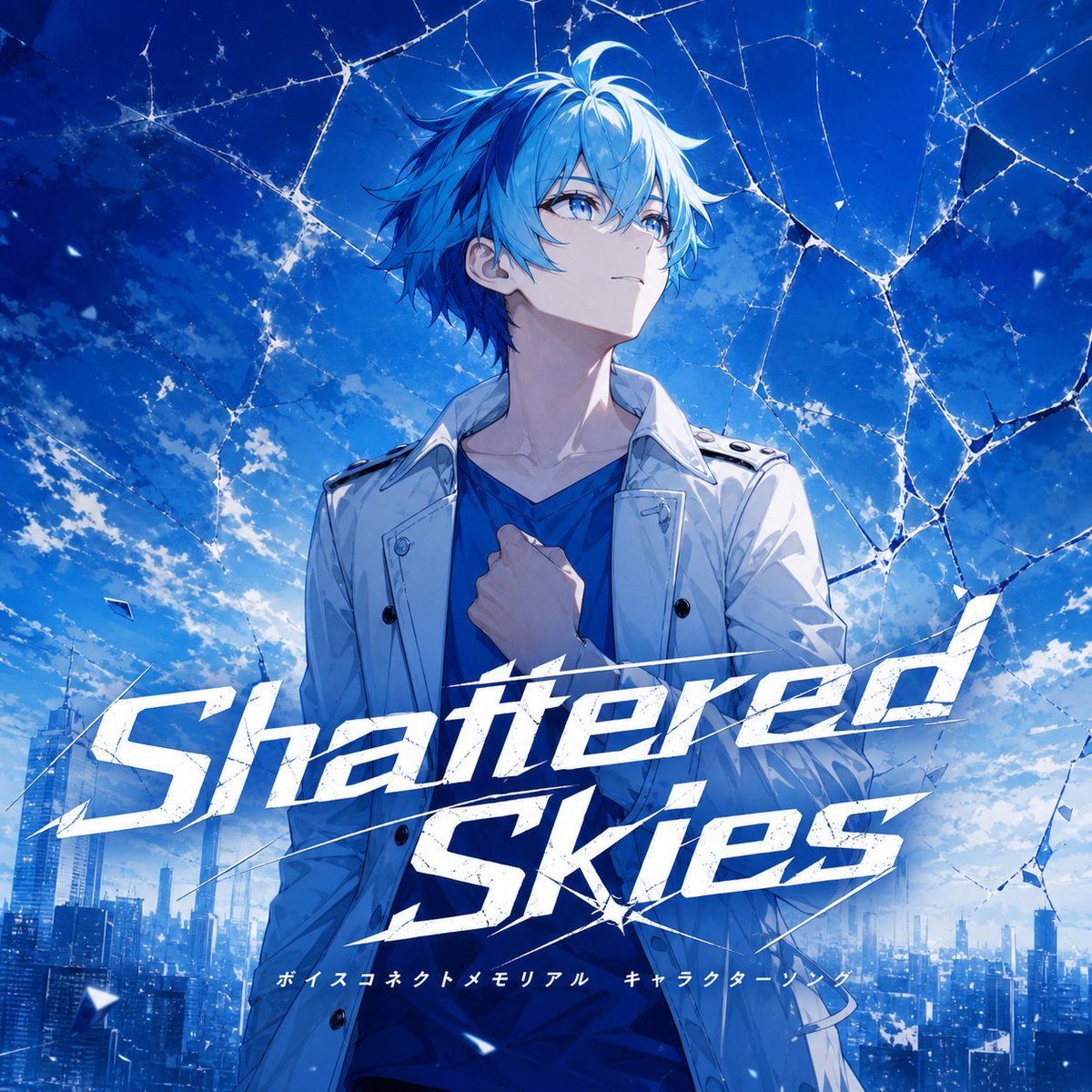
Fictional Music CD Jacket
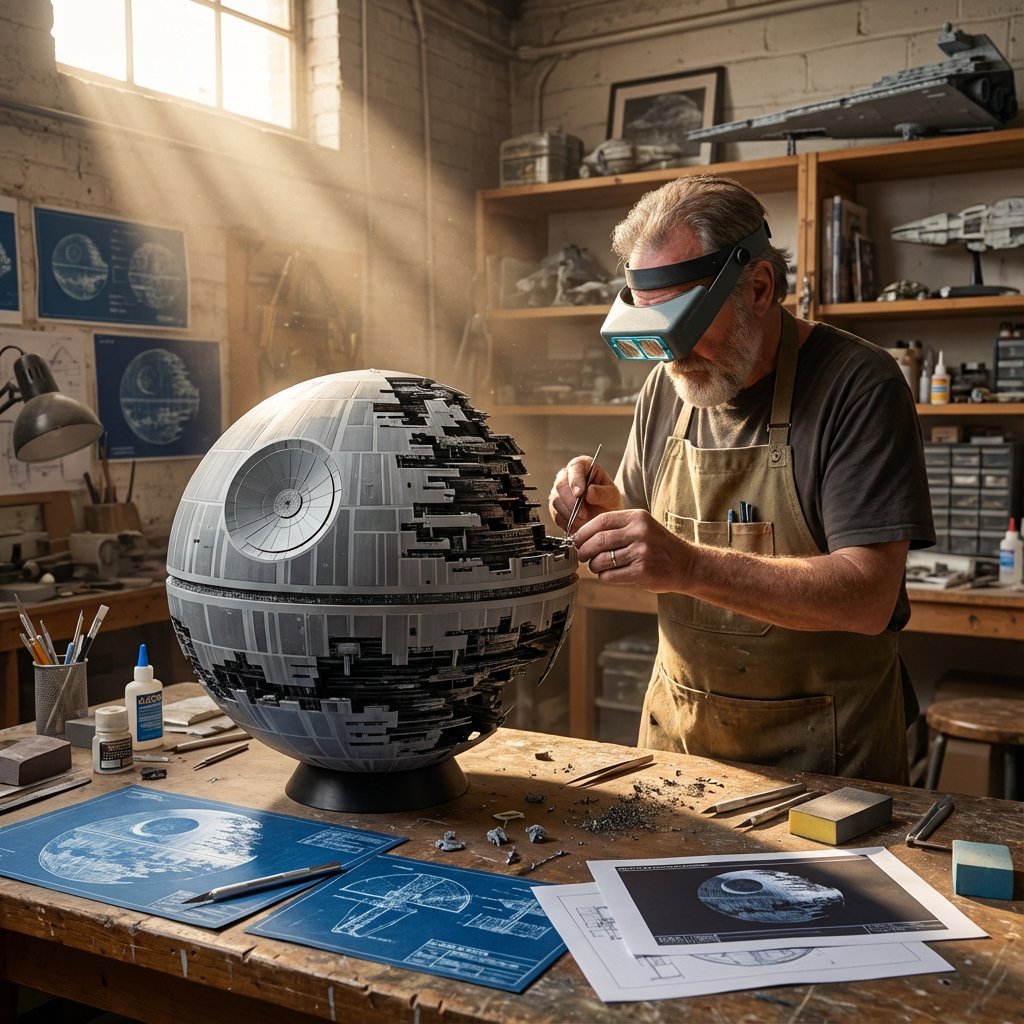
Cinematic Artisan Portrait Prompt for Model Making Workshop
Browse template categories
Minecraft Saved Locations UI Mockup questions
How do I use the Minecraft Saved Locations UI Mockup template?
Add your photo if the template asks for one, edit the prompt if you like — the template's model and format are already selected — and press Generate. Your version opens in PicX Studio.
Can I customize the Minecraft Saved Locations UI Mockup template?
Yes. You can change the subject, setting, lighting, mood, format, and available model controls before creating your image.
Is the Minecraft Saved Locations UI Mockup template free?
Opening and editing this template is free. Generating uses credits, shown on the Generate button when you are signed in.
Which AI model should I use?
Start with GPT Image 2, which is the model associated with this template. You can compare another compatible model for a different finish.
Looking for something else? Browse all templates.

Your photo, any look
Thousands of ready templates for every top image and video model, from one credit balance.