
Minecraft Teleport Compass Screenshot
This prompt generates a Minecraft-style first-person gameplay image featuring a custom teleport compass tool, suitable for illustrating a Bedrock fast-travel or saved-location mod concept.
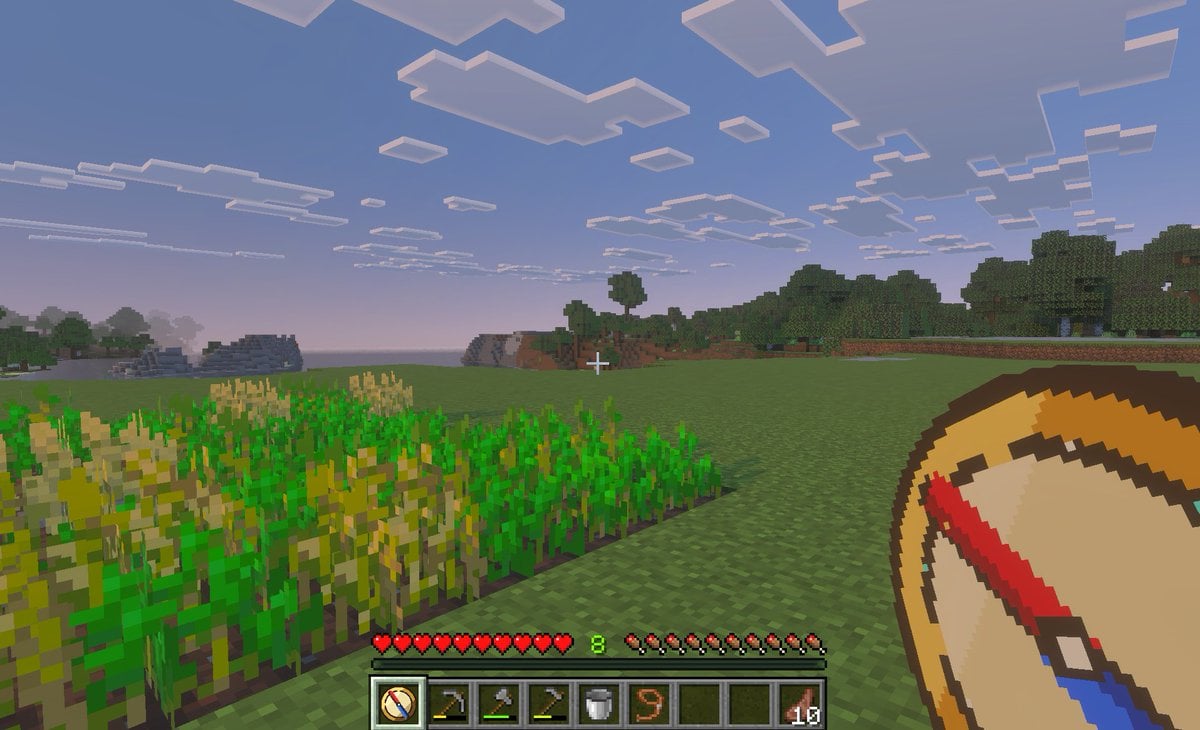
- Prompt included
- Model and format preset
- Free template
The prompt behind this image
Copy the exact prompt behind Minecraft Teleport Compass Screenshot, or open it in the studio and make it yours.
A first-person gameplay screenshot in the style of Minecraft Bedrock Edition at dusk, showing a peaceful grassy plains biome with a small rectangular wheat farm in the left foreground, some crops fully grown and some still green, an open grass field in the center, and a tree line and low blocky hills in the distance under a pale blue-to-pink evening sky filled with flat square clouds. Place a small white crosshair exactly near the center of the frame. Show the full survival HUD along the bottom: 10 red hearts, 10 hunger drumsticks, green experience level {argument name="experience level" default="8"}, and a 9-slot hotbar. The hotbar must contain exactly 9 slots, with these visible items from left to right: 1 custom compass icon selected, 1 hoe tool, 1 pickaxe, 1 axe, 1 bucket, 1 lead or rope item, 2 empty slots, and 1 stack of cooked meat labeled {argument name="item stack count" default="10"}. In the lower-right foreground, overlay an oversized custom item graphic of a {argument name="tool name" default="teleport compass"} held in hand, drawn as a clean pixel-art compass with a tan face, dark brown rim, cream center, and a bold red-and-blue needle angled diagonally. The selected hotbar slot should also display the same custom compass icon. Make the image feel like an in-game screenshot captured on a tablet or PC, with soft atmospheric haze, authentic voxel textures, and a child-friendly utility-mod vibe for fast travel and saved-location navigation.
How to use Minecraft Teleport Compass Screenshot in 3 steps
- 1Upload ImagePNG, JPG or paste
Add your photo
Upload the photo the template builds on. The prompt, model and format are already set.
- 2…a portrait of your subject in softgolden-hour light, 85mm…
Personalize
Edit the subject and creative details for your destination.
- 3Generate
Generate
Press Generate — your image is created in PicX Studio, so you can compare it with the original and refine one variable at a time.
More like this
Templates with the same subject, style or setup. Open one to see its prompt.

Minecraft Next-Gen Voxel World Screenshot
Hyper-Realistic Minecraft Cows Grazing

Hyper-Realistic Minecraft POV Portrait
Minecraft Homage Illustrious Style
Minecraft Voxel Pixel Art Aesthetic System

Minecraft Japanese Research Lab Exploration
Photoreal Village Lanterns Minecraft Scene
Photoreal Snow Biome Name Tag UI
Minecraft You Died Winter Death Screen
Photoreal Selfie Minecraft Block World
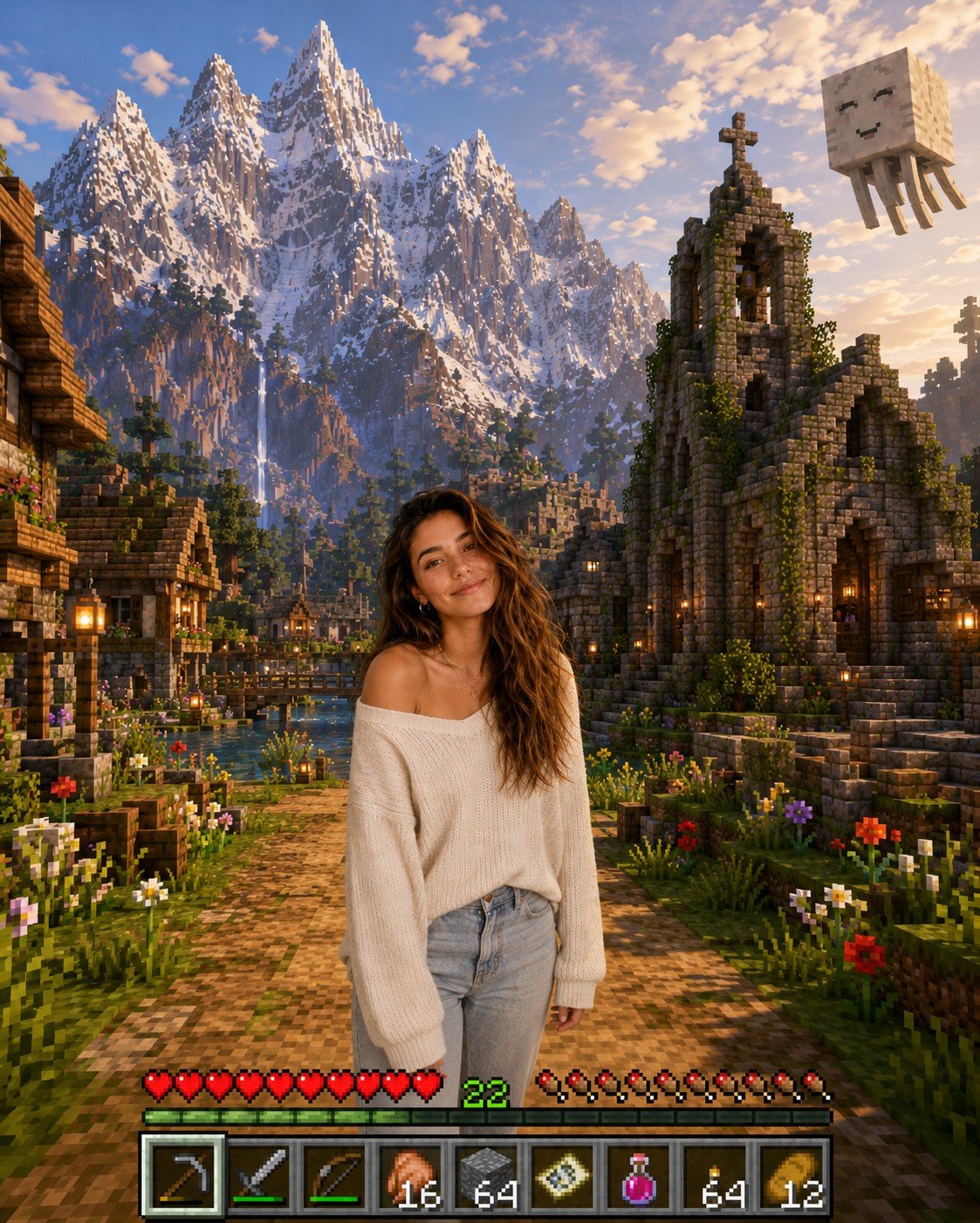
Photoreal Selfie Minecraft Village Ghast UI
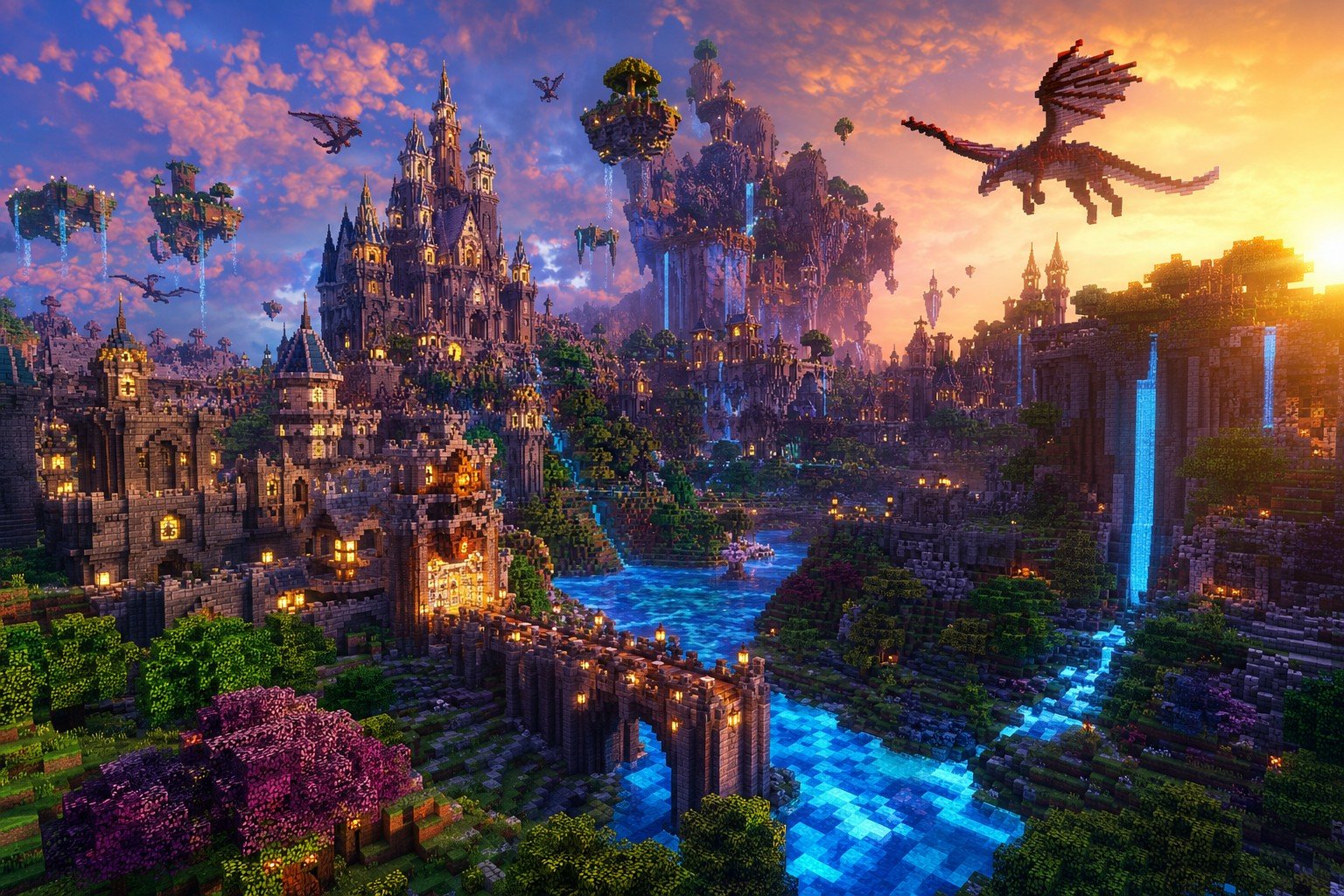
Minecraft Fantasy Kingdom Voxel Landscape
Make it yours
Minecraft Teleport Compass Screenshot works as-is. These are the safest ways to change it without losing the look.
Change one field
Copy a single group, rewrite it, and generate again so you can see what that field is doing.
Keep the frame, change the subject
Hold the composition and light of Minecraft Teleport Compass Screenshot, then swap wardrobe, props or the person for a new take.
| If the result… | Why | Fix |
|---|---|---|
| The result drifts from the preview | Too many fields changed at once. | Reuse Minecraft Teleport Compass Screenshot as-is first, then change one group — subject, light, or setting. |
| The model over-stylizes the scene | The prose prompt leaves finish and camera underspecified. | Add one camera or lighting sentence and stay on GPT Image 2. |
More GPT Image 2 templates
Other prompts made for GPT Image 2.

Six VTuber Japanese Logo Sheet

Realistic Portrait of Woman and Deer

The Vista Modular Condo Poster

AI Model Routing Comparison Infographic

2.5D Anime Art Board

Isometric Productivity Desk Scene

New York Double Exposure Poster

Four-Panel AI Landscape Comparison

Japanese Tatami Lifestyle Magazine Cover

NESCAFÉ Coffee Map Poster
More image prompts
Fresh picks from across the catalog.
Weird mundane photo (LeonardoAI)
Photo-to-Realistic Anime Character Conversion
Hyper-Detailed Selfie Portrait Prompt with Anatomical Specs
Four-Panel Manga: The Darkness of SNS (Part 2)

Dark Mode Marketing Case Study UI
Turn children’s drawings into comic-style characters

High-Fashion Editorial Prompt for Stylish Man
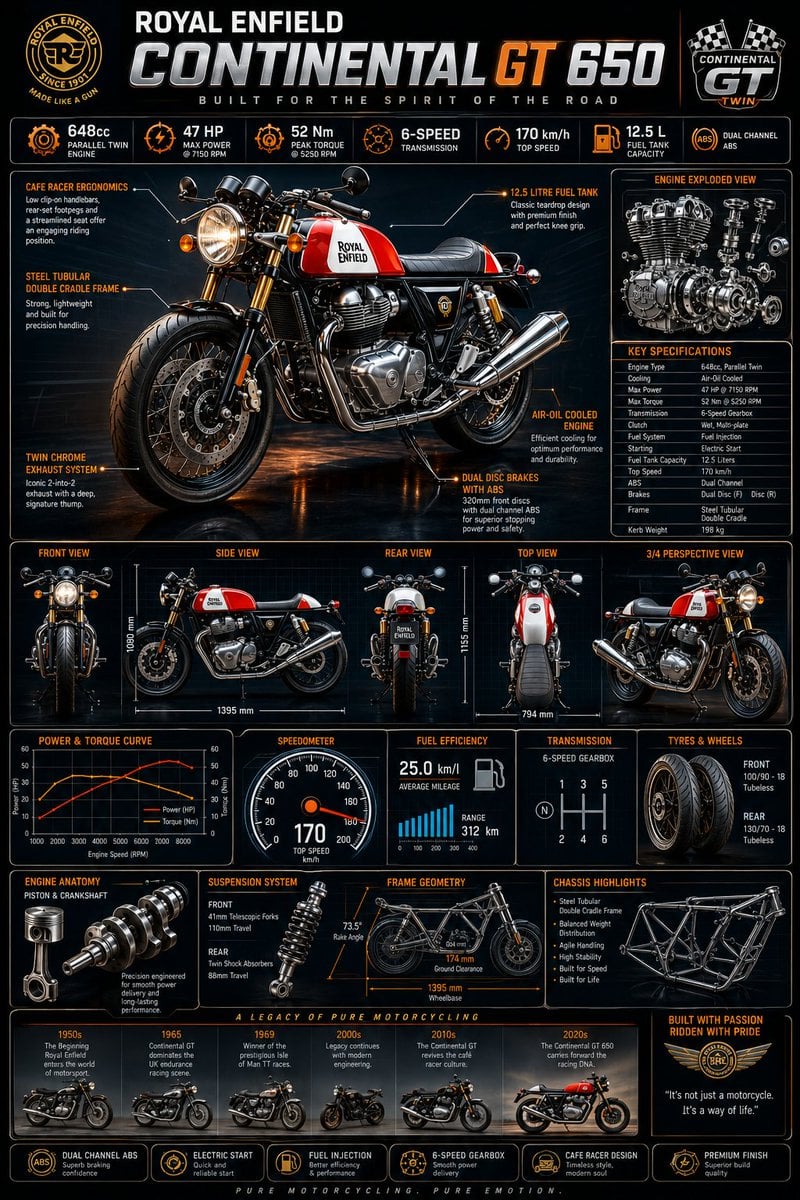
Motorcycle Engineering Infographic Poster

Handwritten New Year's Greeting Sign Prompt
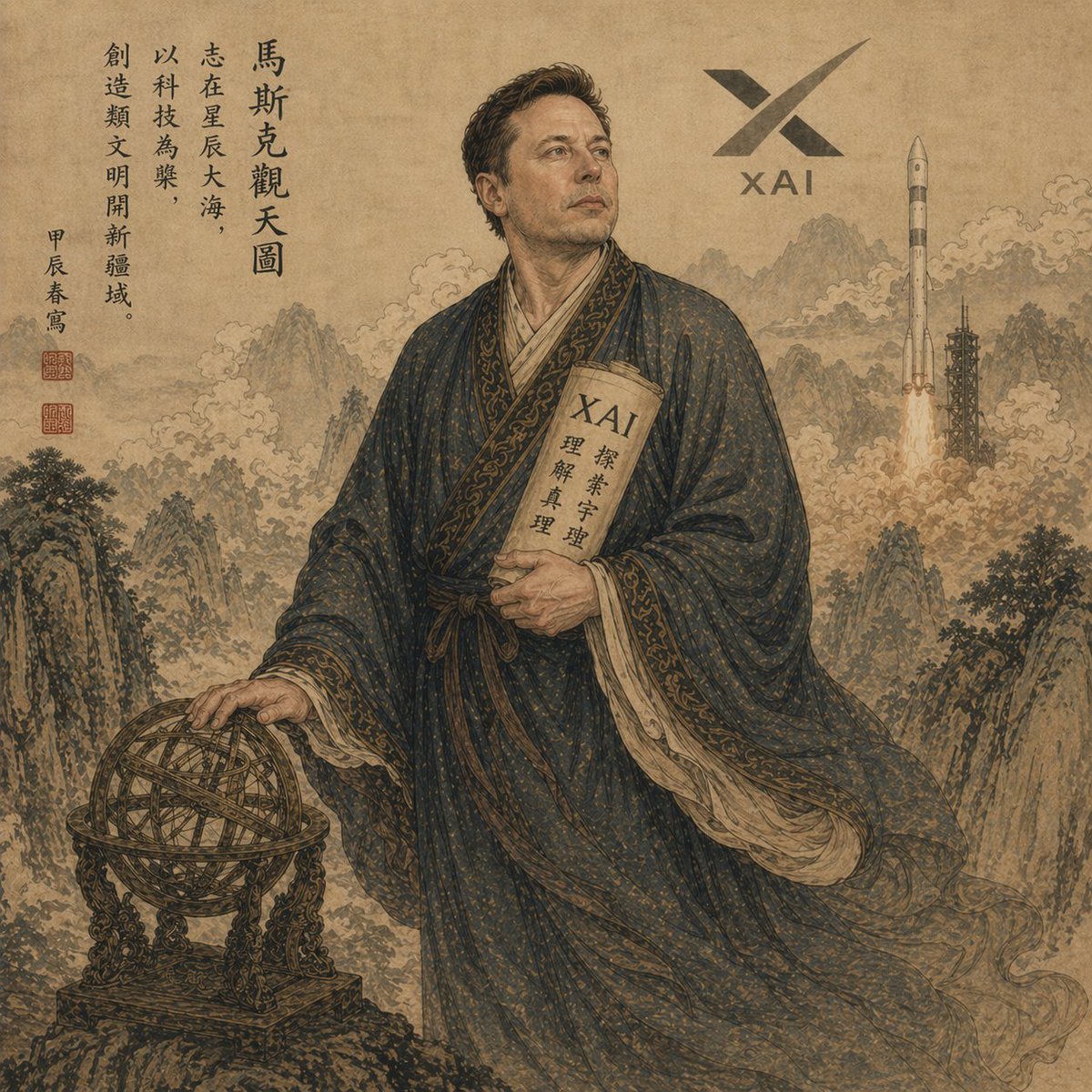
Classical Chinese Scholar with XAI Motif
Browse template categories
Minecraft Teleport Compass Screenshot questions
How do I use the Minecraft Teleport Compass Screenshot template?
Add your photo if the template asks for one, edit the prompt if you like — the template's model and format are already selected — and press Generate. Your version opens in PicX Studio.
Can I customize the Minecraft Teleport Compass Screenshot template?
Yes. You can change the subject, setting, lighting, mood, format, and available model controls before creating your image.
Is the Minecraft Teleport Compass Screenshot template free?
Opening and editing this template is free. Generating uses credits, shown on the Generate button when you are signed in.
Which AI model should I use?
Start with GPT Image 2, which is the model associated with this template. You can compare another compatible model for a different finish.
Looking for something else? Browse all templates.

Your photo, any look
Thousands of ready templates for every top image and video model, from one credit balance.