
Bear Mascot Editing UI Screenshot
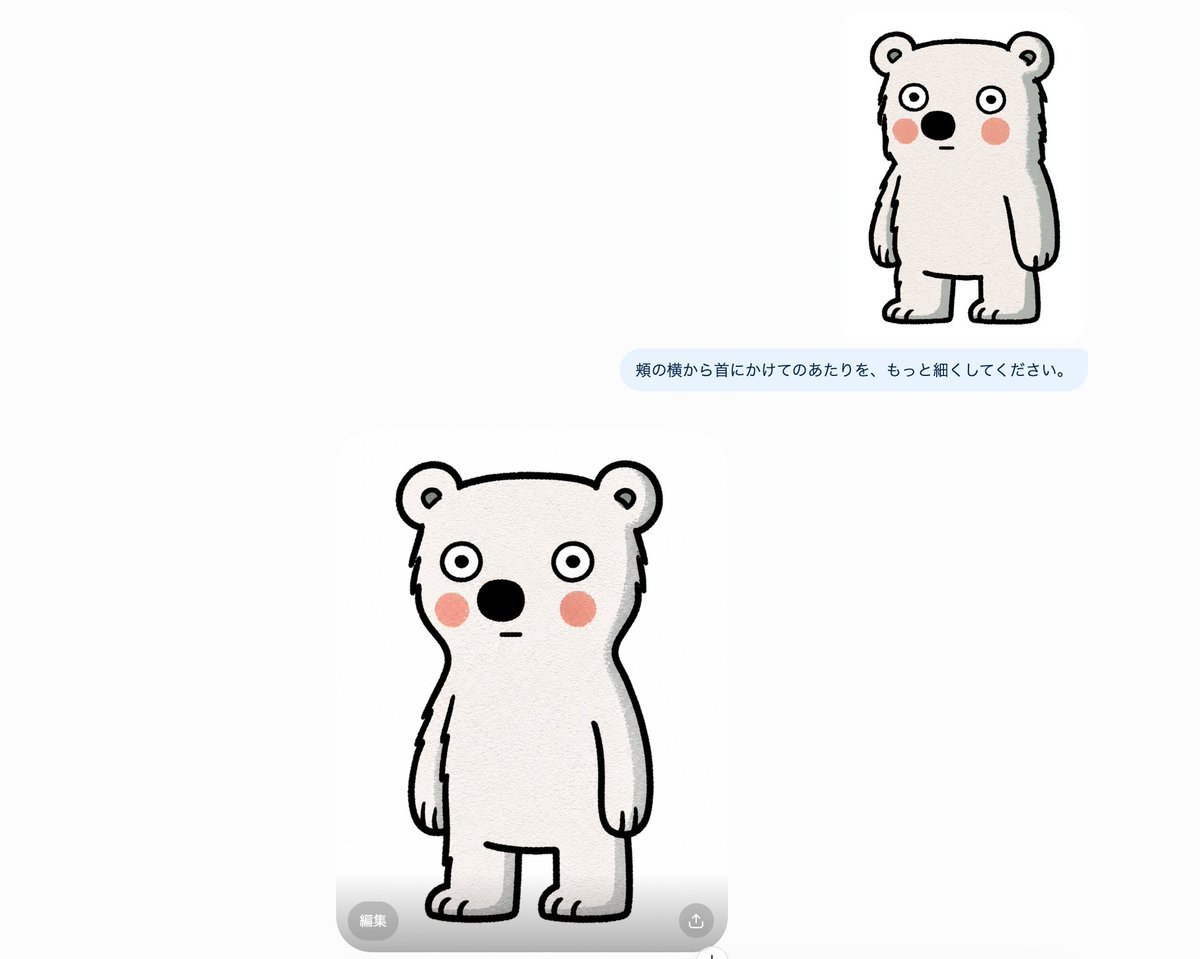
Generates a sparse Japanese AI-editing interface screenshot with two versions of a hand-drawn white bear mascot and one refinement instruction bubble.
- Prompt included
- Model and format preset
- Free template
The prompt behind this image
Copy the exact prompt behind Bear Mascot Editing UI Screenshot, or open it in the studio and make it yours.
Goal: Create a clean screenshot-style composition showing an AI image-editing conversation about refining a simple mascot bear drawing. Canvas: Wide horizontal canvas, about 1200×960 px, with a very pale gray-white background and lots of empty space. The layout should feel like a cropped social-media or image-generation interface screenshot, not a polished poster. Layout: Include exactly 2 white rounded image cards containing the same minimalist bear character: 1 smaller card in the upper-right area and 1 larger card in the lower-left/center area. Place exactly 1 light-blue rounded chat bubble beneath the small upper-right card, horizontally centered under it. Add exactly 2 semi-transparent circular interface buttons over the bottom of the large card: 1 gray button at bottom-left labeled in Japanese and 1 small gray share/upload icon button at bottom-right. Text content: The single chat bubble should read {argument name="edit instruction" default="頬の横から首にかけてのあたりを、もっと細くしてください。"}. The bottom-left overlay button should read 「編集」. Do not add any other text. Subject details: The bear is a cute, simple, hand-drawn white bear mascot with a slightly awkward neutral expression. It stands upright facing forward with a thick black sketchy outline, rounded ears, small inner-ear marks, wide circular eyes with black pupils, a large black oval nose, a tiny straight mouth, pink circular blush cheeks, short arms hanging down, stubby legs, and small toe lines. The fur should be off-white with subtle paper-like texture and light gray shading along the right side. The larger lower bear should have a narrower neck and upper torso from cheek level down toward the shoulders, while still looking a little chunky and handmade. The smaller upper-right bear should appear as a prior version, slightly more compact and with a narrower body. Visual style: Minimal Japanese UI screenshot aesthetic, soft rounded corners, flat light-gray background, simple black marker line art, warm off-white paper texture inside the bear cards, no strong shadows except very subtle card separation. Keep the image sparse and asymmetrical, with the upper card far to the right and the larger card lower and more central-left. Constraints: Use exactly 2 bear drawings, exactly 1 chat bubble, and exactly 2 overlay buttons. Preserve the Japanese text exactly where specified. Avoid extra icons, watermarks, browser chrome, usernames, timestamps, or decorative elements.
How to use Bear Mascot Editing UI Screenshot in 3 steps
- 1Upload ImagePNG, JPG or paste
Add your photo
Upload the photo the template builds on. The prompt, model and format are already set.
- 2…a portrait of your subject in softgolden-hour light, 85mm…
Personalize
Edit the subject and creative details for your destination.
- 3Generate
Generate
Press Generate — your image is created in PicX Studio, so you can compare it with the original and refine one variable at a time.
More like this
Templates with the same subject, style or setup. Open one to see its prompt.
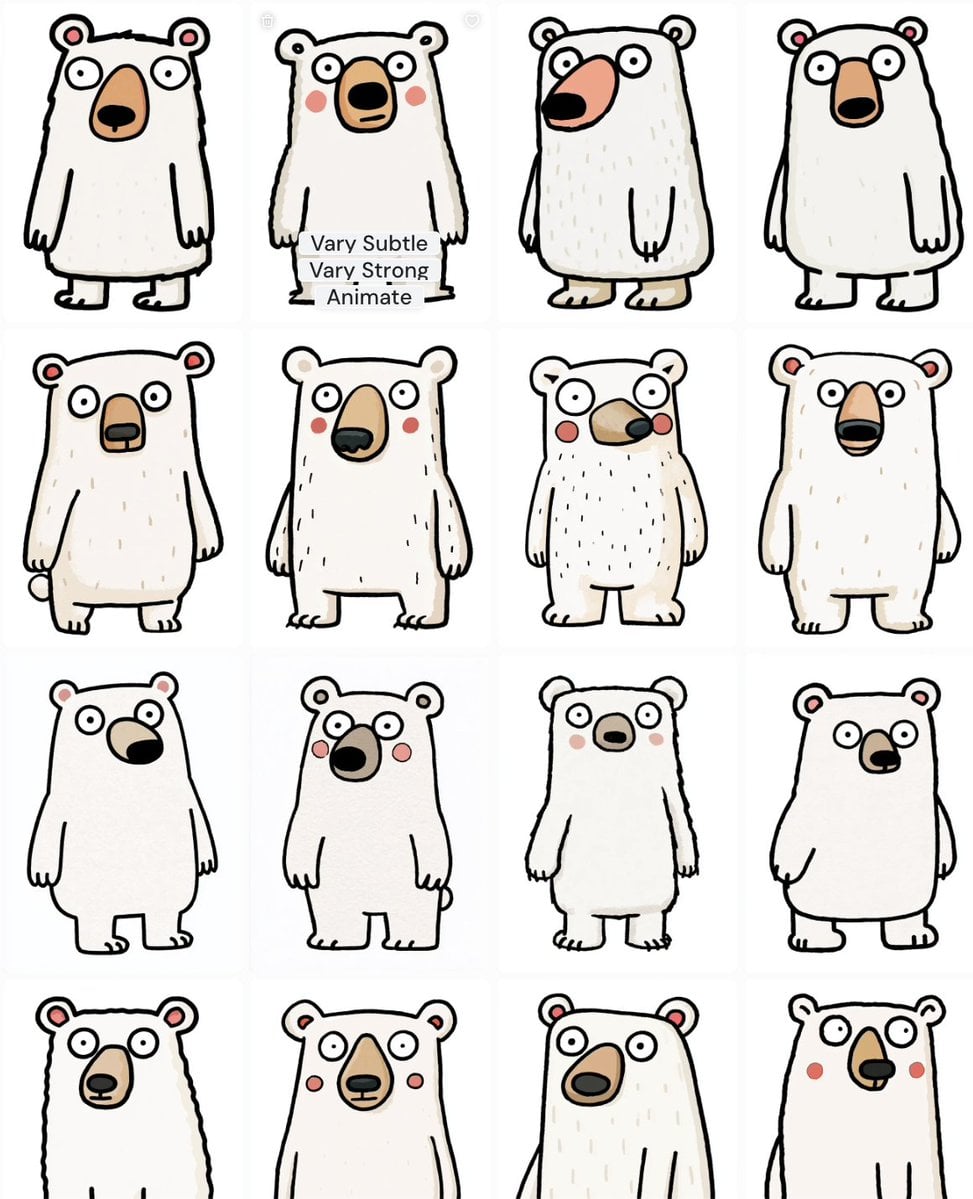
Polar Bear Mascot Variation Sheet

Minecraft Next-Gen Voxel World Screenshot
Anime Rain Poncho Parade
Anime Street Performer Magic
Anime Ferry Boat Arrival
Anime Hidden Mickey Hunt
Anime Popcorn Cart Hero
Anime Nighttime Projection
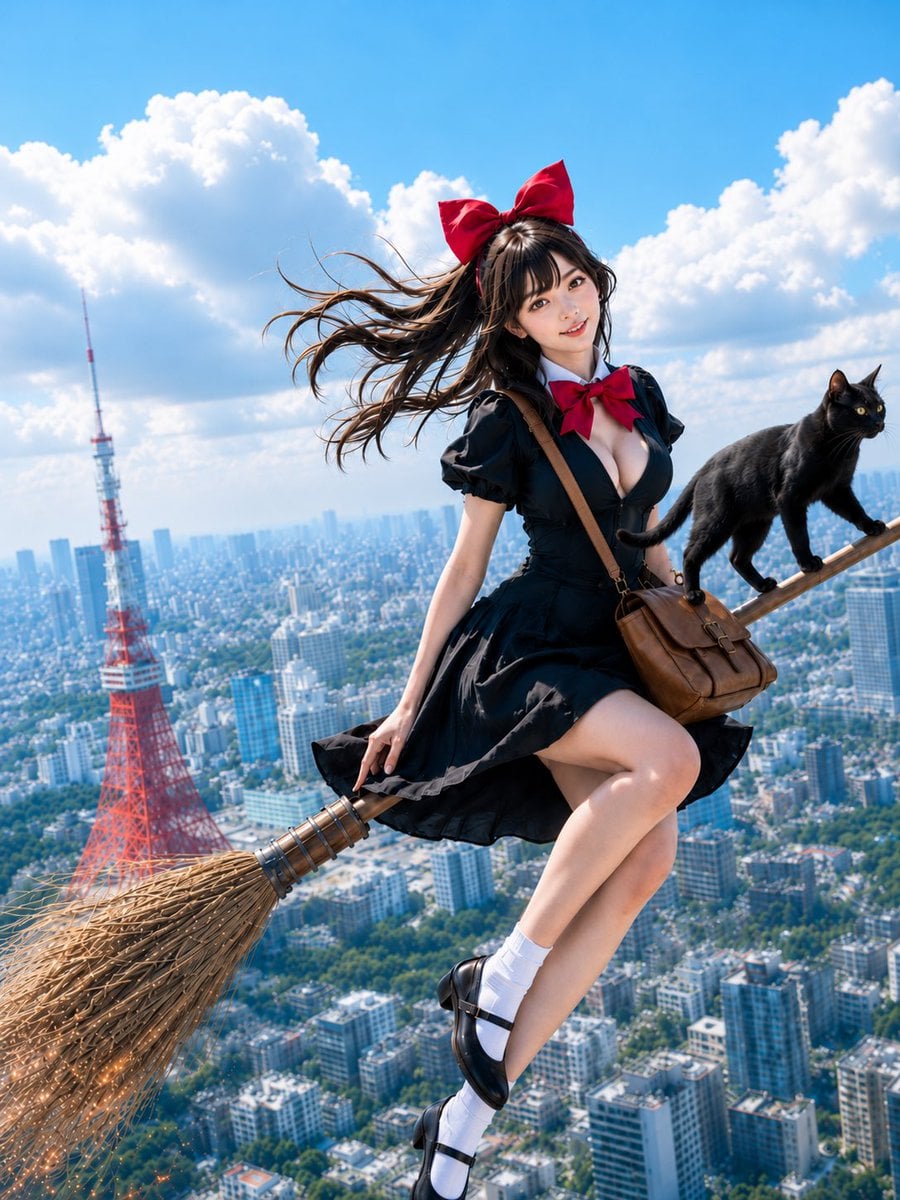
Anime Character Meet Tent
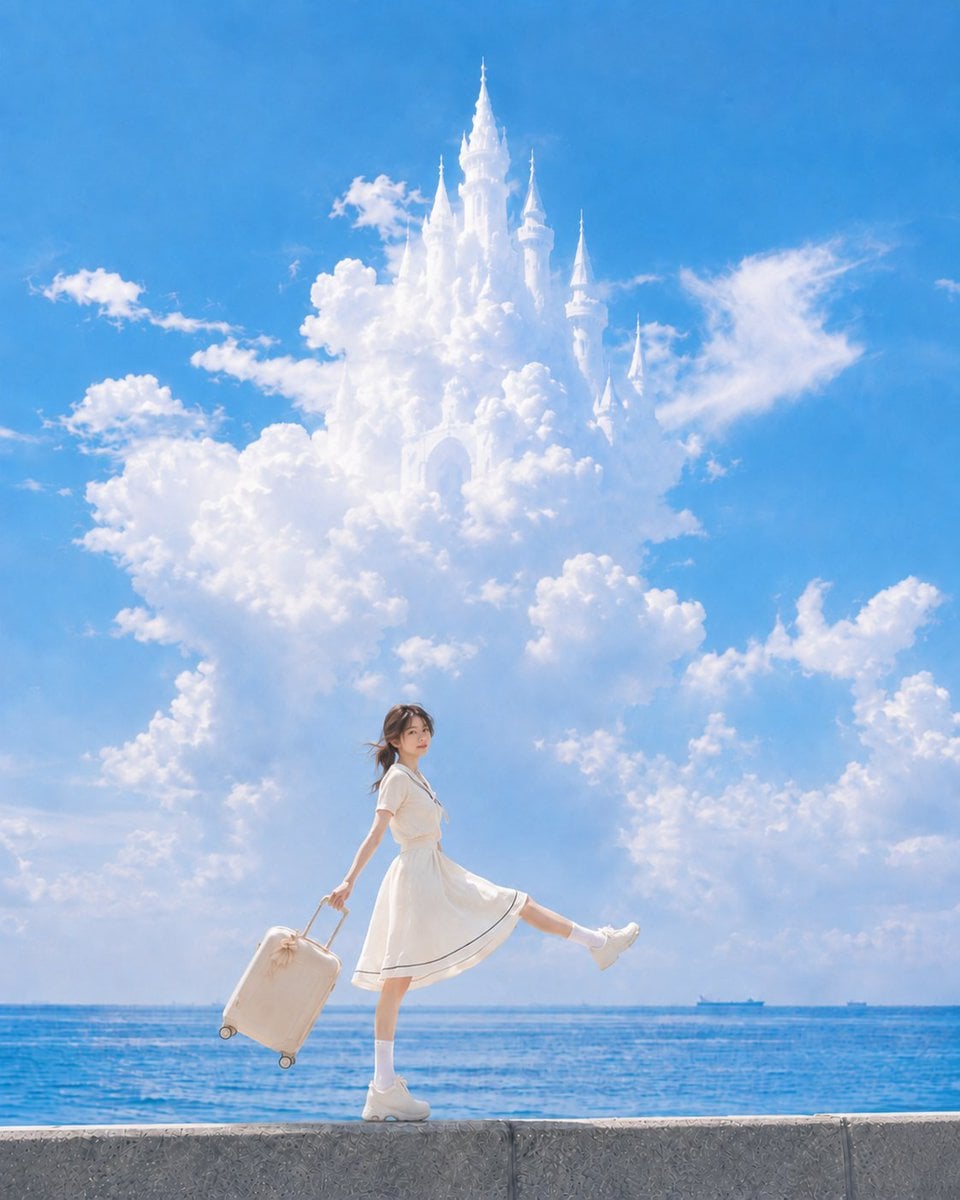
Anime Splash Mountain Drop
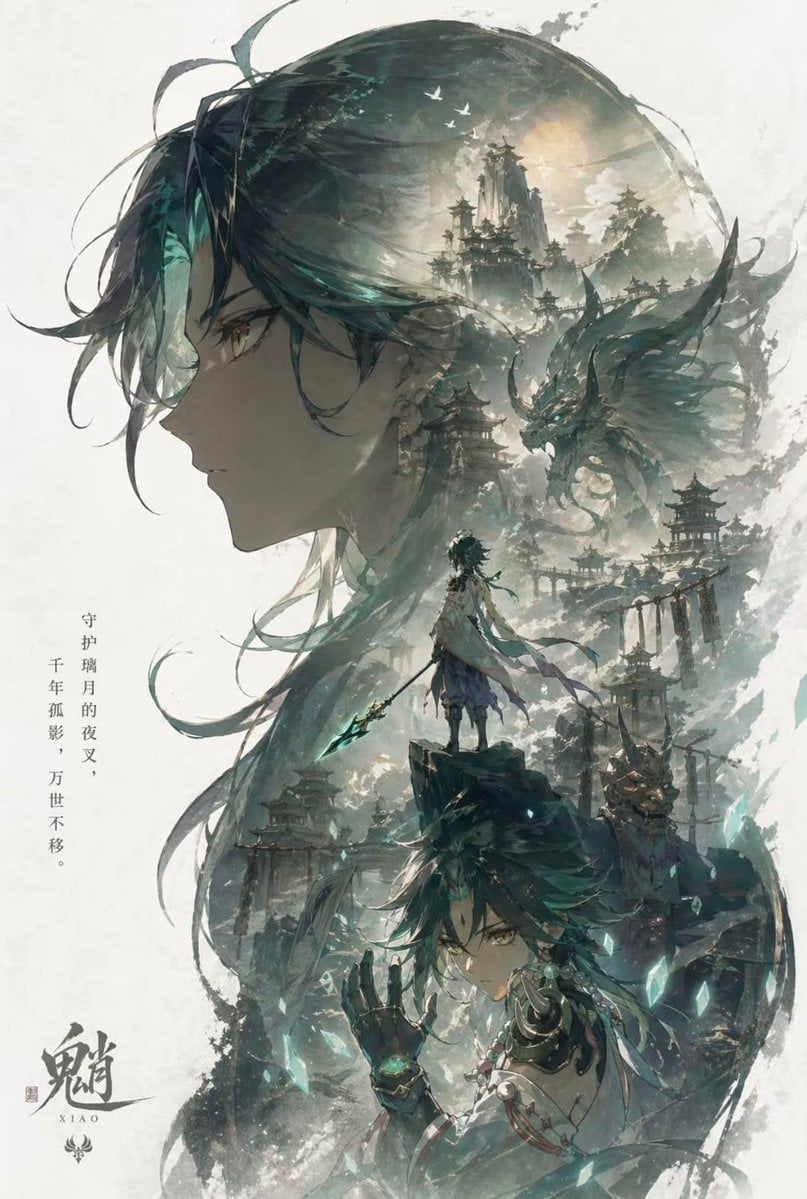
Anime Balloon Seller Lane
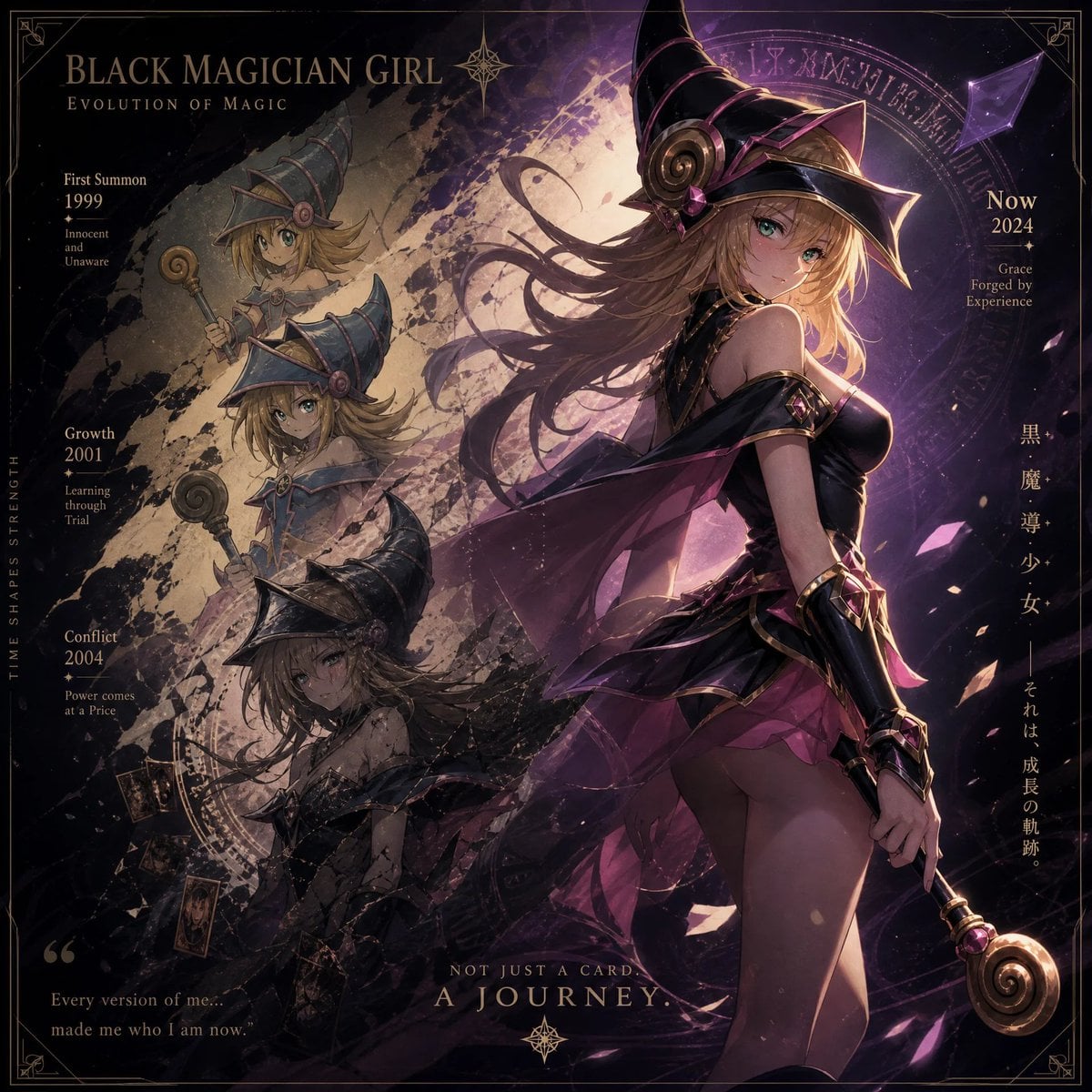
Anime Pirate Ship Stage
Make it yours
Bear Mascot Editing UI Screenshot works as-is. These are the safest ways to change it without losing the look.
Change one field
Copy a single group, rewrite it, and generate again so you can see what that field is doing.
Keep the frame, change the subject
Hold the composition and light of Bear Mascot Editing UI Screenshot, then swap wardrobe, props or the person for a new take.
| If the result… | Why | Fix |
|---|---|---|
| The result drifts from the preview | Too many fields changed at once. | Reuse Bear Mascot Editing UI Screenshot as-is first, then change one group — subject, light, or setting. |
| The model over-stylizes the scene | The prose prompt leaves finish and camera underspecified. | Add one camera or lighting sentence and stay on GPT Image 2. |
More GPT Image 2 templates
Other prompts made for GPT Image 2.

Six VTuber Japanese Logo Sheet

Realistic Portrait of Woman and Deer

The Vista Modular Condo Poster

AI Model Routing Comparison Infographic

2.5D Anime Art Board

Isometric Productivity Desk Scene

New York Double Exposure Poster

Four-Panel AI Landscape Comparison

Japanese Tatami Lifestyle Magazine Cover

NESCAFÉ Coffee Map Poster
More image prompts
Fresh picks from across the catalog.
Sci-Fi Gacha RPG Dialogue Screenshot
Kurage Chan Fantasy Trading Card
Photorealistic Highland Lake Selfie
Misty Medieval Village Establishing Shot
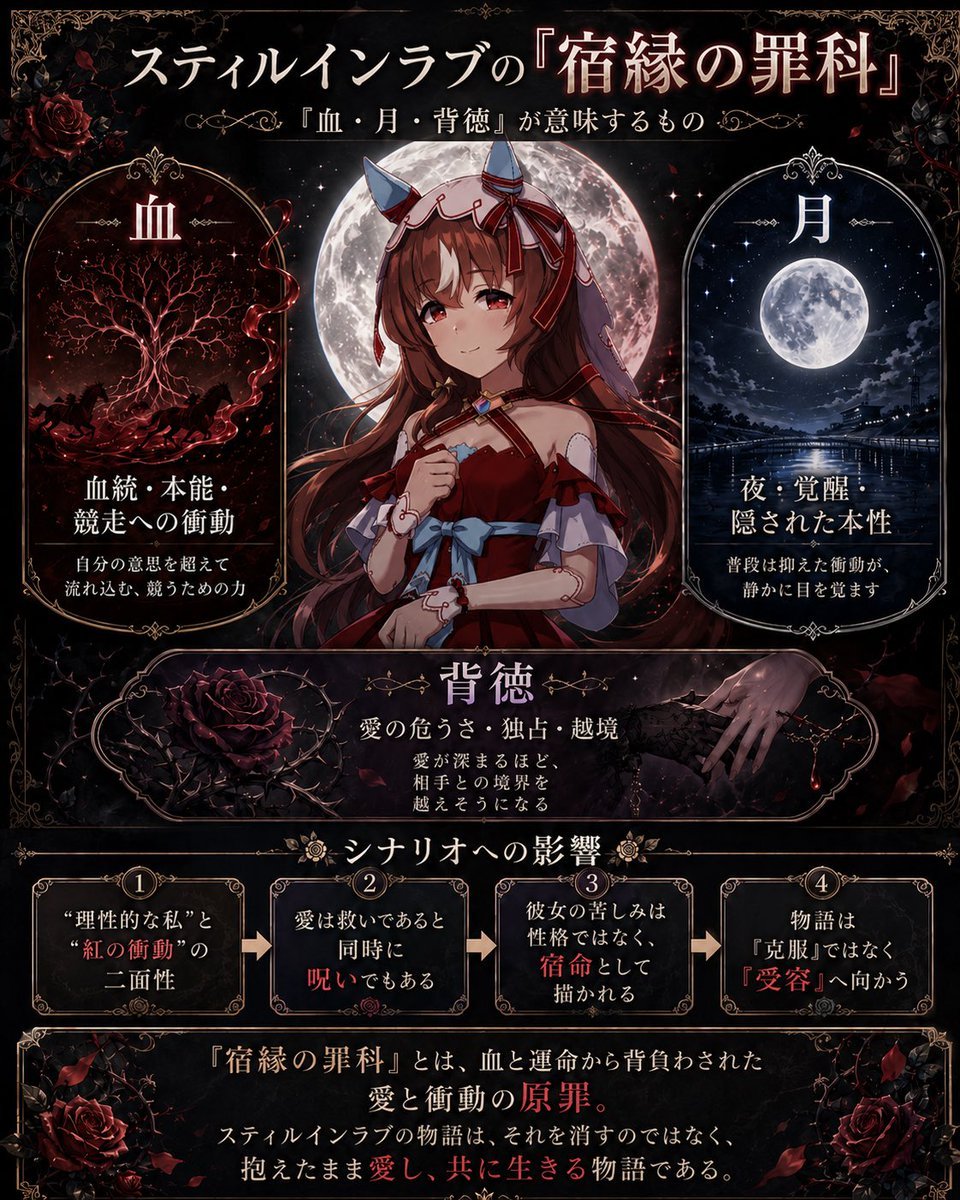
Gothic Anime Symbolism Infographic
Chlorophyll Avant-Garde Editorial Portrait
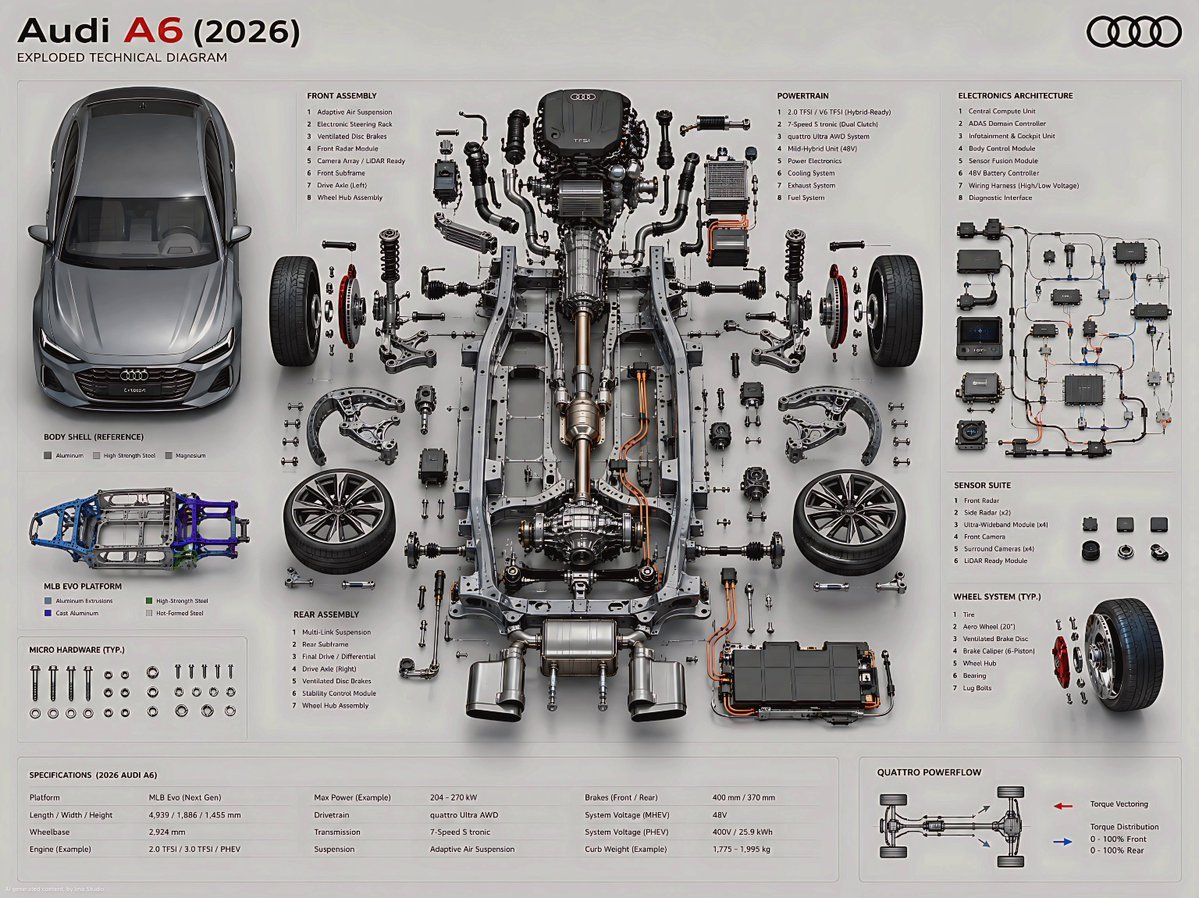
Exploded Technical Diagram Poster
Serene Coastal Portrait with Identity Lock Prompt
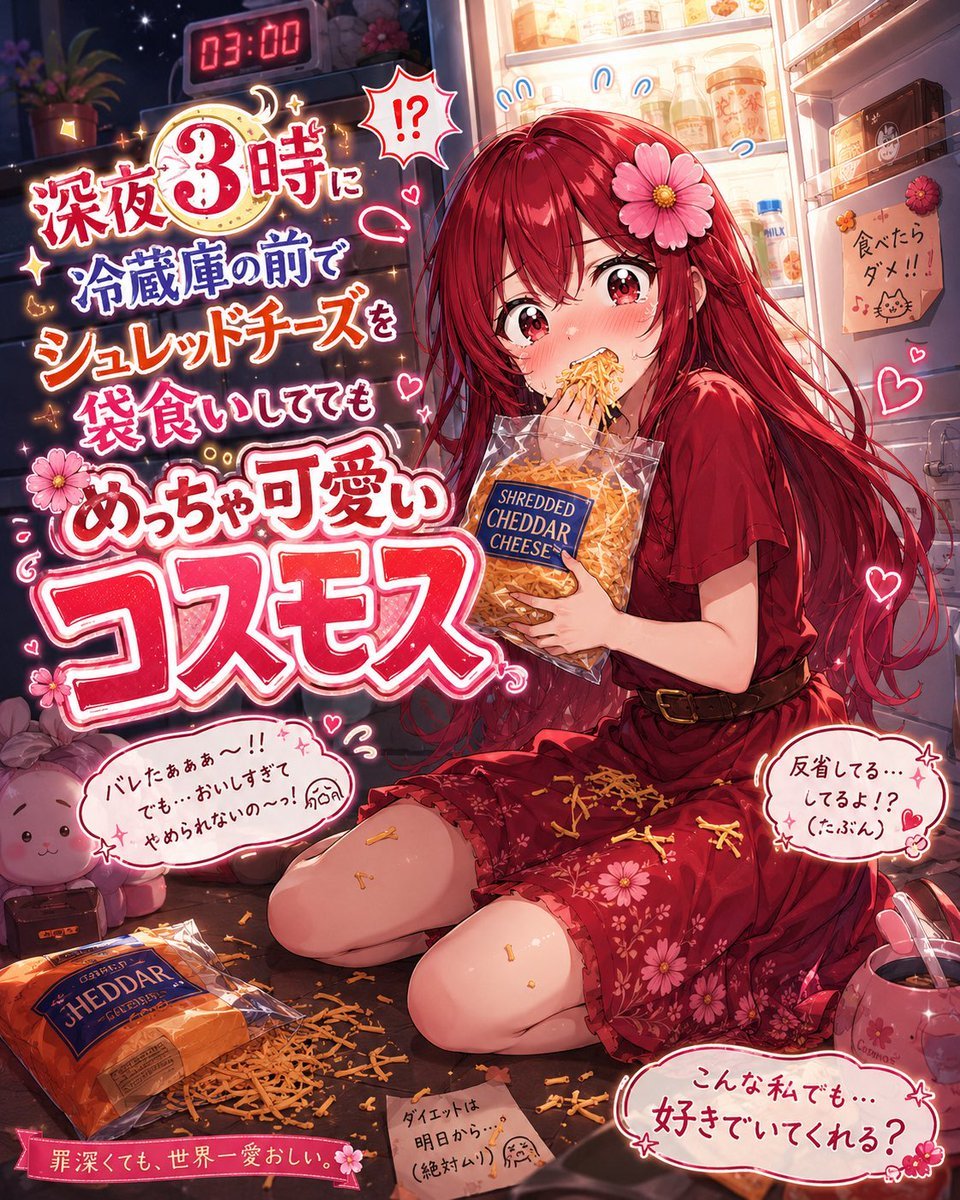
Charming Character Flaw Portrait
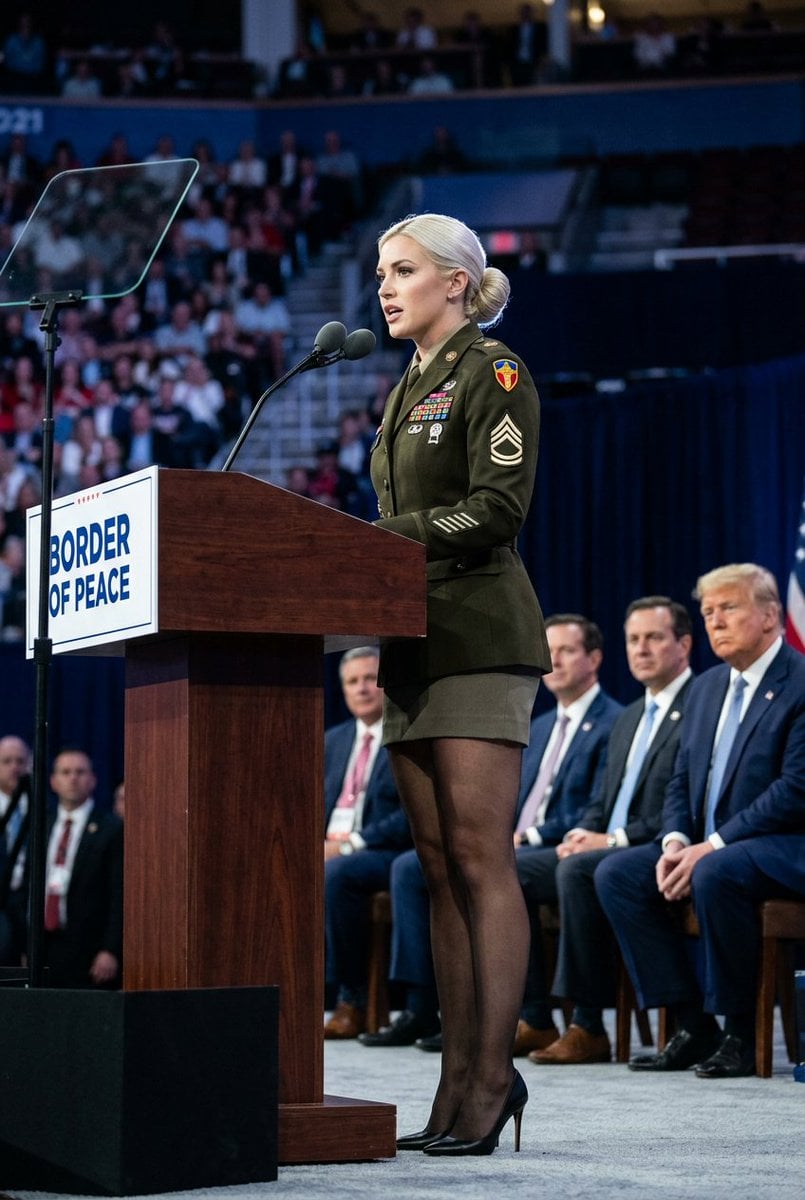
Political Speaker in Provocative Military Uniform
Browse template categories
Bear Mascot Editing UI Screenshot questions
How do I use the Bear Mascot Editing UI Screenshot template?
Add your photo if the template asks for one, edit the prompt if you like — the template's model and format are already selected — and press Generate. Your version opens in PicX Studio.
Can I customize the Bear Mascot Editing UI Screenshot template?
Yes. You can change the subject, setting, lighting, mood, format, and available model controls before creating your image.
Is the Bear Mascot Editing UI Screenshot template free?
Opening and editing this template is free. Generating uses credits, shown on the Generate button when you are signed in.
Which AI model should I use?
Start with GPT Image 2, which is the model associated with this template. You can compare another compatible model for a different finish.
Looking for something else? Browse all templates.

Your photo, any look
Thousands of ready templates for every top image and video model, from one credit balance.