
Chibi Painter in Monochrome Plaza
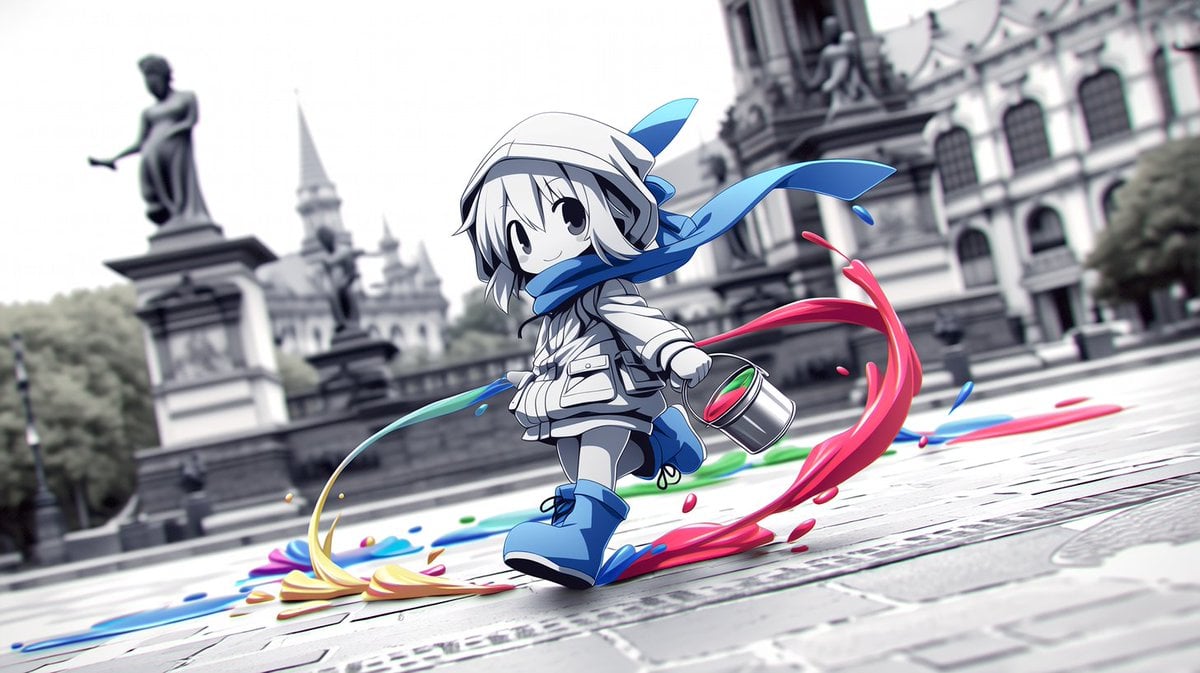
A dynamic anime scene of a cute chibi painter splashing colorful paint through a grayscale European city square.
- Prompt included
- Model and format preset
- Free template
The prompt behind this image
Copy the exact prompt behind Chibi Painter in Monochrome Plaza, or open it in the studio and make it yours.
Create a cinematic anime illustration of a small chibi street painter running through a European-style city plaza, splashing bright paint across an otherwise monochrome scene. The character is centered slightly left, full body, with oversized cute proportions, pale skin, short {argument name="hair color" default="white"} hair, large black oval eyes, and a cheerful subtle smile. They wear a white hooded jacket, a white cap or hood, shorts, a long flowing {argument name="scarf color" default="bright blue"} scarf whipping dramatically to the right, matching blue boots, and a small backpack. In the character’s right hand is one metal paint bucket with visible red and green paint inside, tilted as if swinging while running. Show exactly four main paint trails: a large vivid red arc curling around the character on the right, a blue splash path under the feet and trailing to the right, a yellow-orange sweep across the foreground left, and a green streak behind the bucket near the ground; add small scattered droplets in red, blue, green, and yellow around these trails. The background is a blurred grayscale historic square with stone paving, an old ornate European building on the right, a statue on a pedestal on the left, distant spires, trees, and soft overcast daylight. Use shallow depth of field, low ground-level perspective, dynamic diagonal composition, motion blur in the background, crisp detailed anime linework on the character, glossy liquid paint highlights, high contrast between the black-and-white architecture and saturated paint colors. No text, no watermark, no extra characters.
How to use Chibi Painter in Monochrome Plaza in 3 steps
- 1Upload ImagePNG, JPG or paste
Add your photo
Upload the photo the template builds on. The prompt, model and format are already set.
- 2…a portrait of your subject in softgolden-hour light, 85mm…
Personalize
Edit the subject and creative details for your destination.
- 3Generate
Generate
Press Generate — your image is created in PicX Studio, so you can compare it with the original and refine one variable at a time.
More like this
Templates with the same subject, style or setup. Open one to see its prompt.
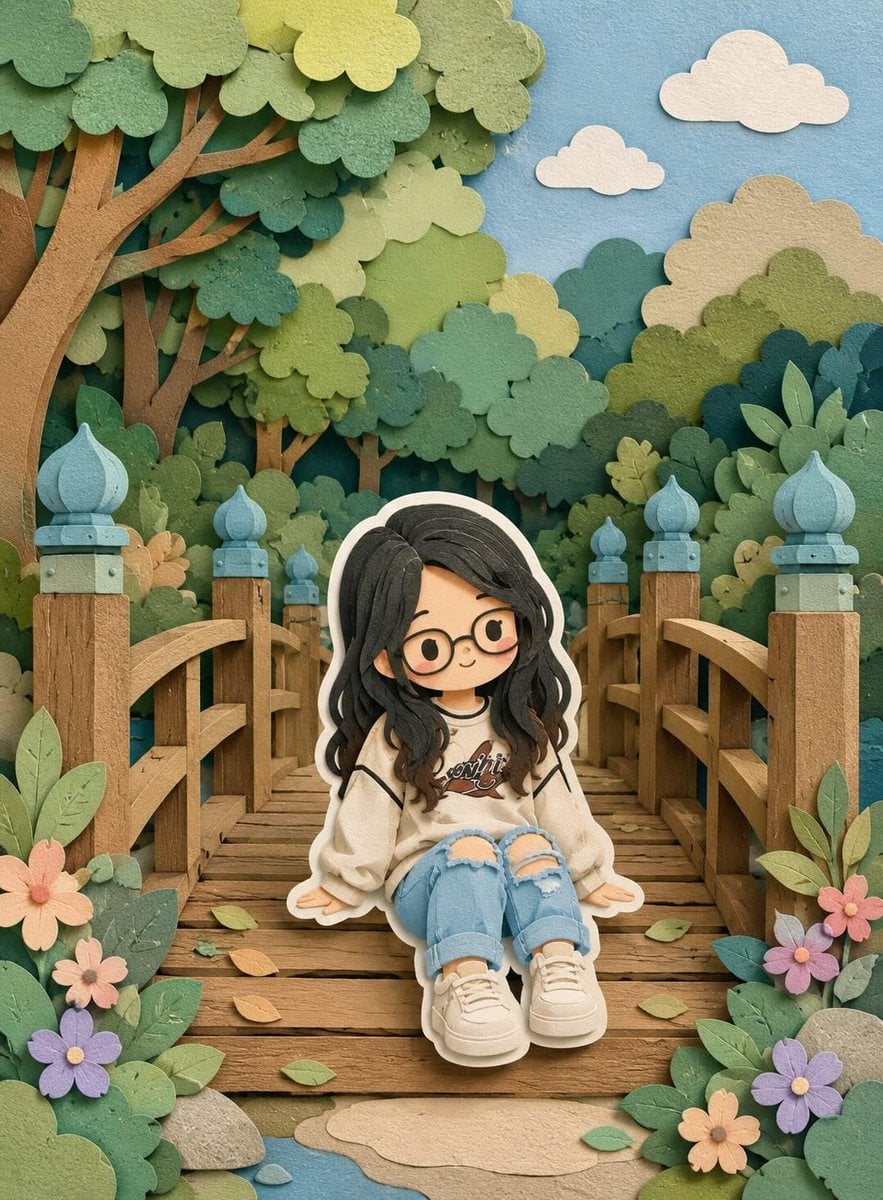
Cute Layered Paper Cut Chibi Girl
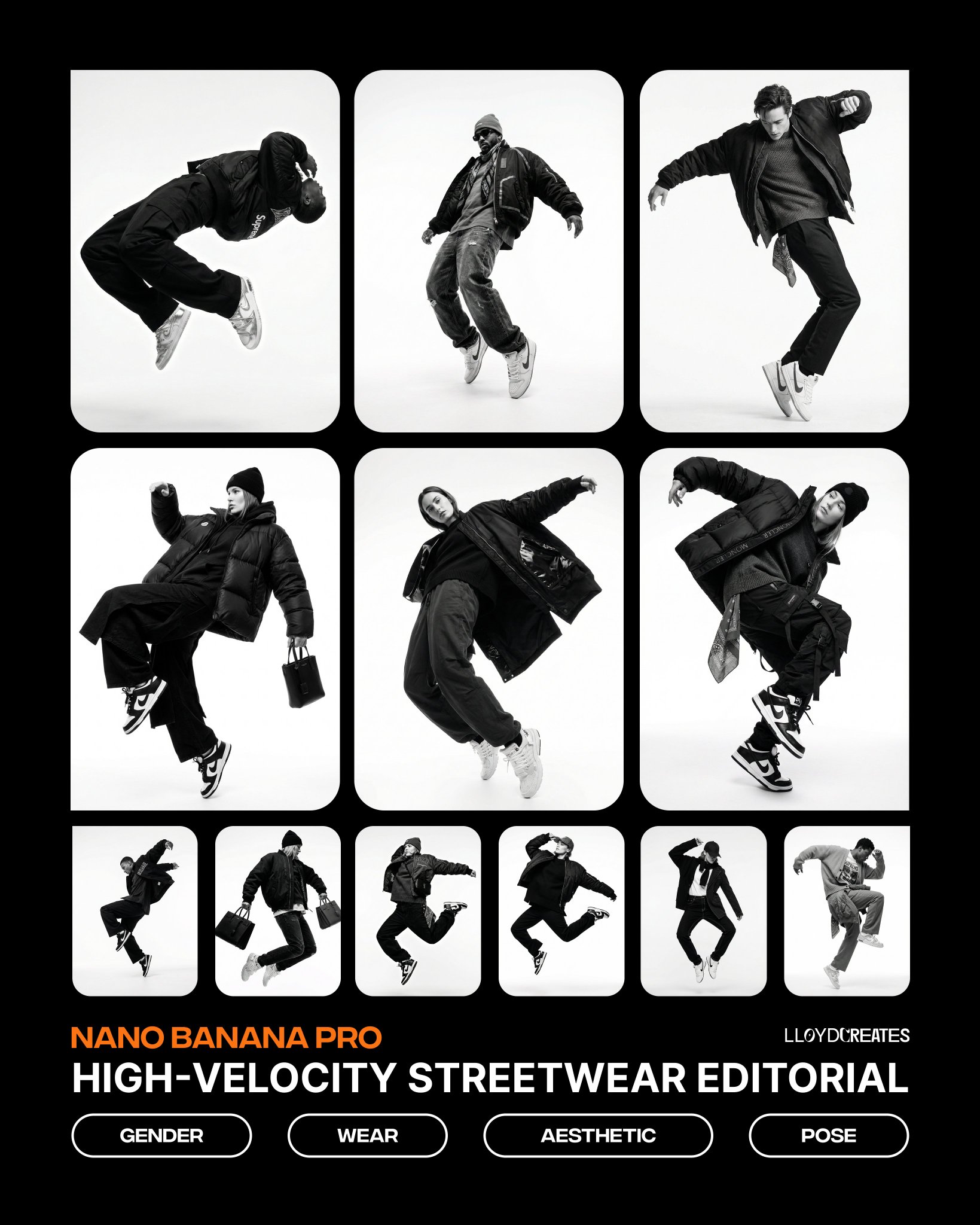
Monochrome Hypebeast Street Fashion Editorial Motion
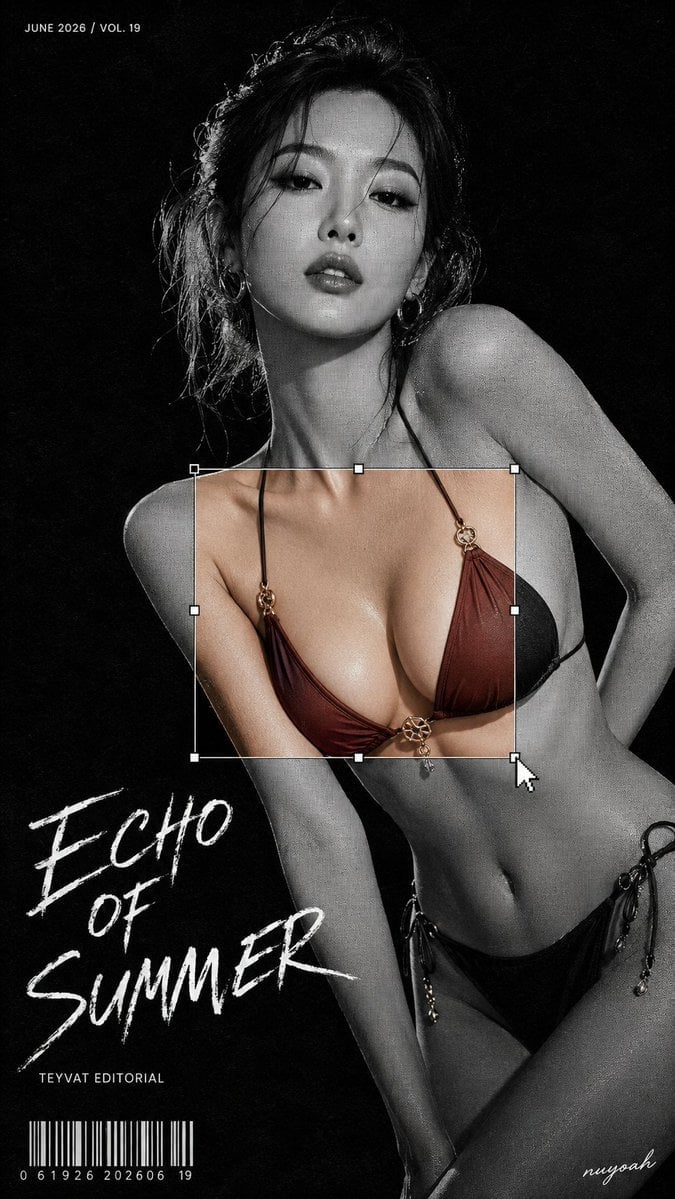
Monochrome Halftone Editorial Fashion Poster
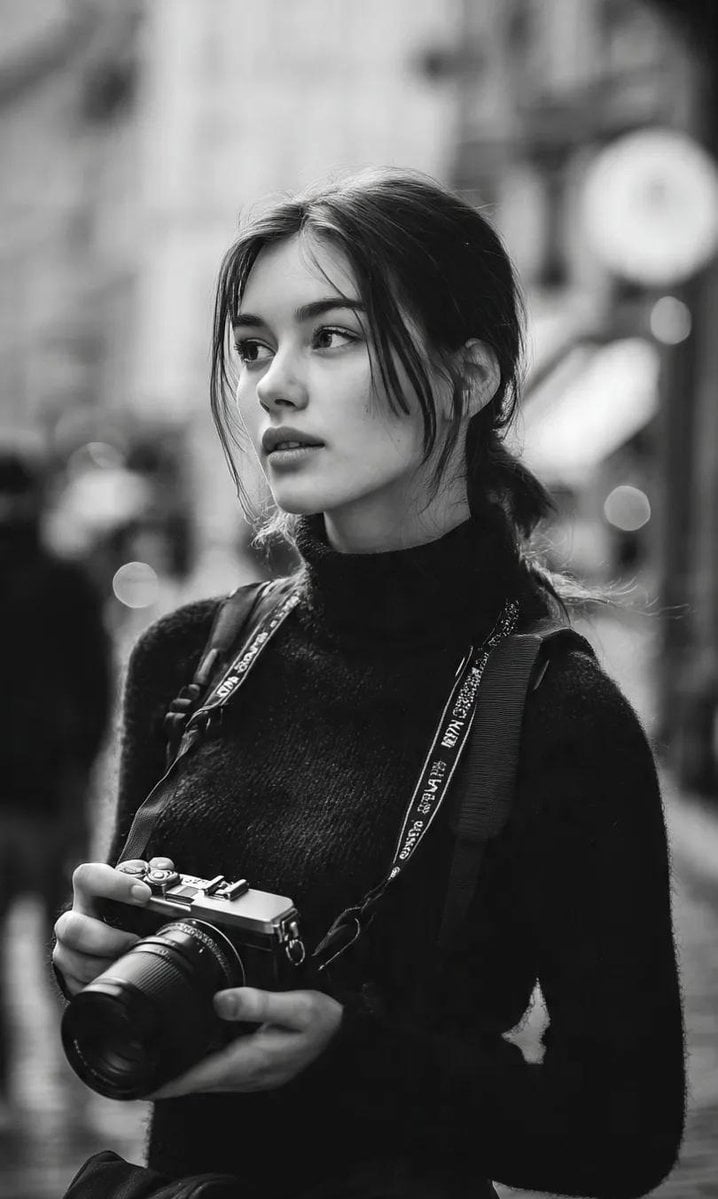
Cinematic Street Fashion Photographer Portrait
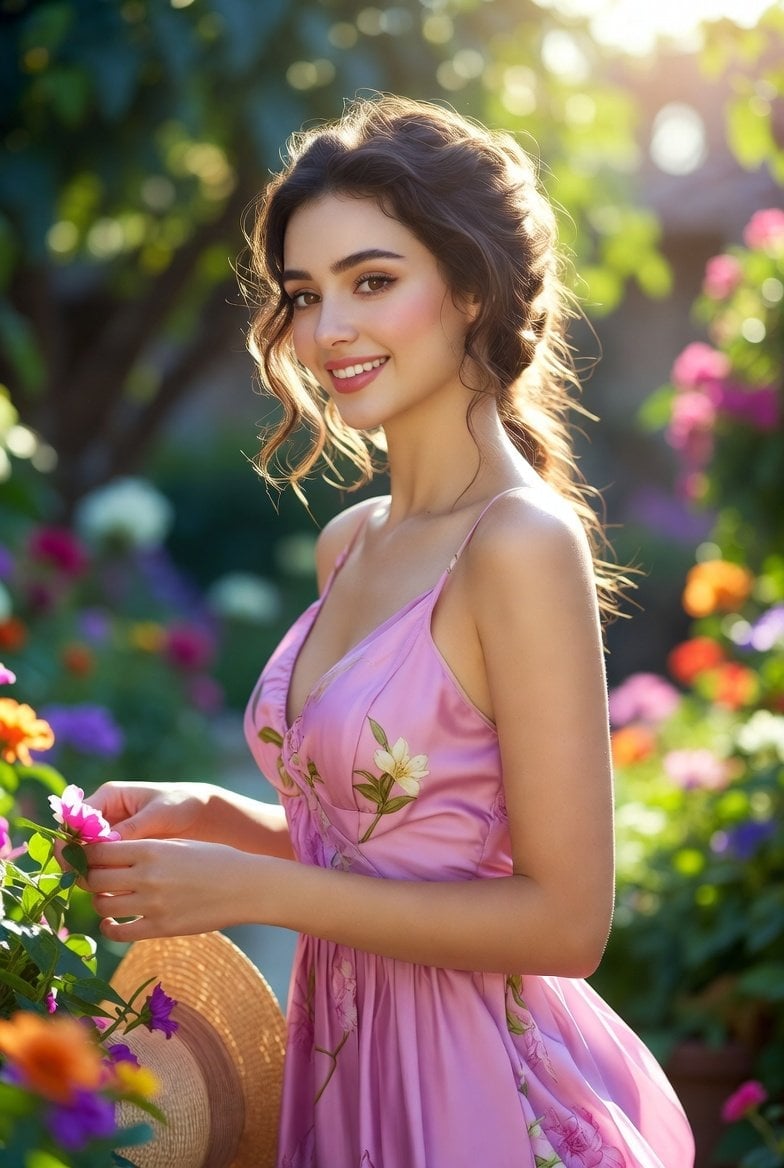
Quiet Luxury Black and White Fashion Editorial Portrait
Monochrome Hypebeast Street Fashion Editorial Motion
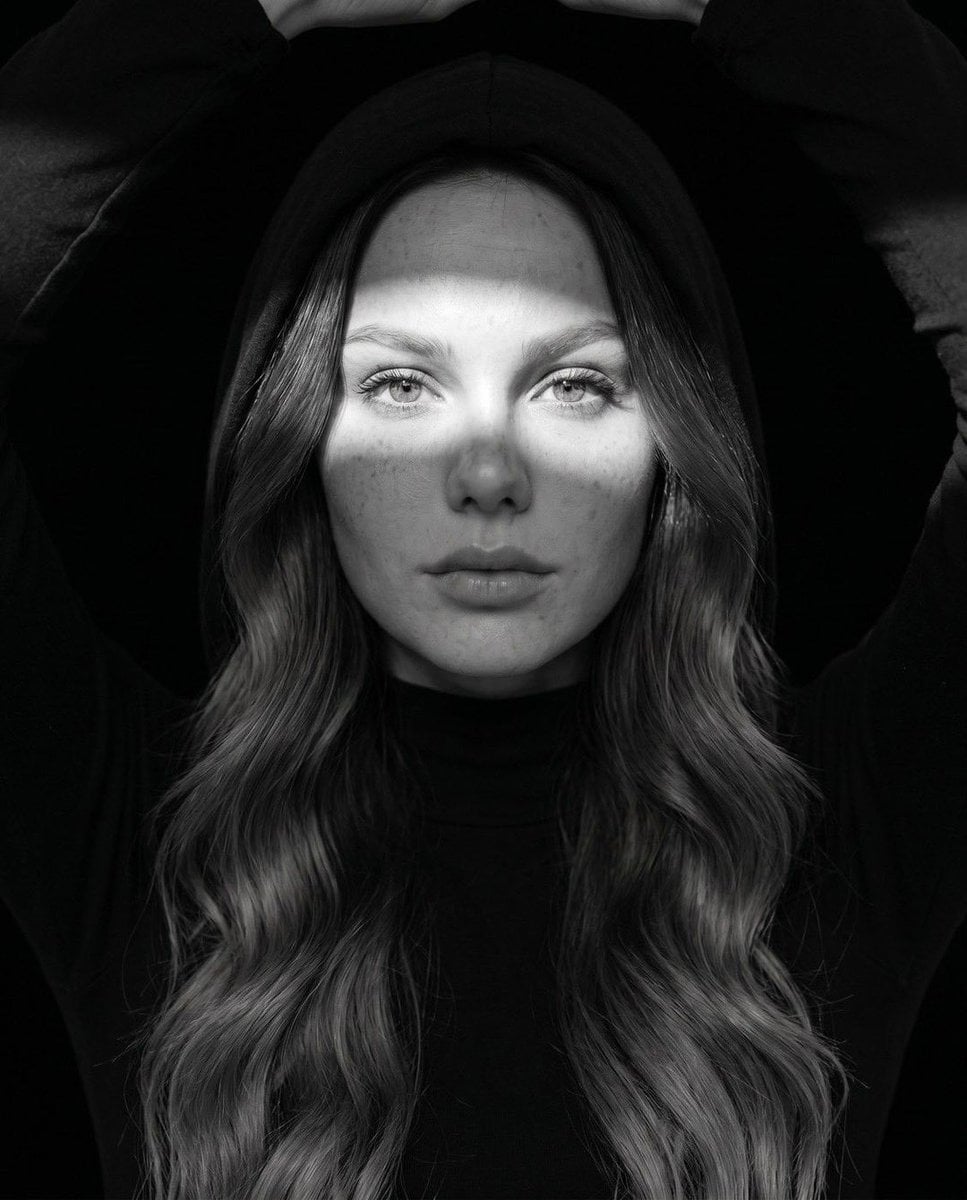
Fine Art Monochrome Fashion Portrait
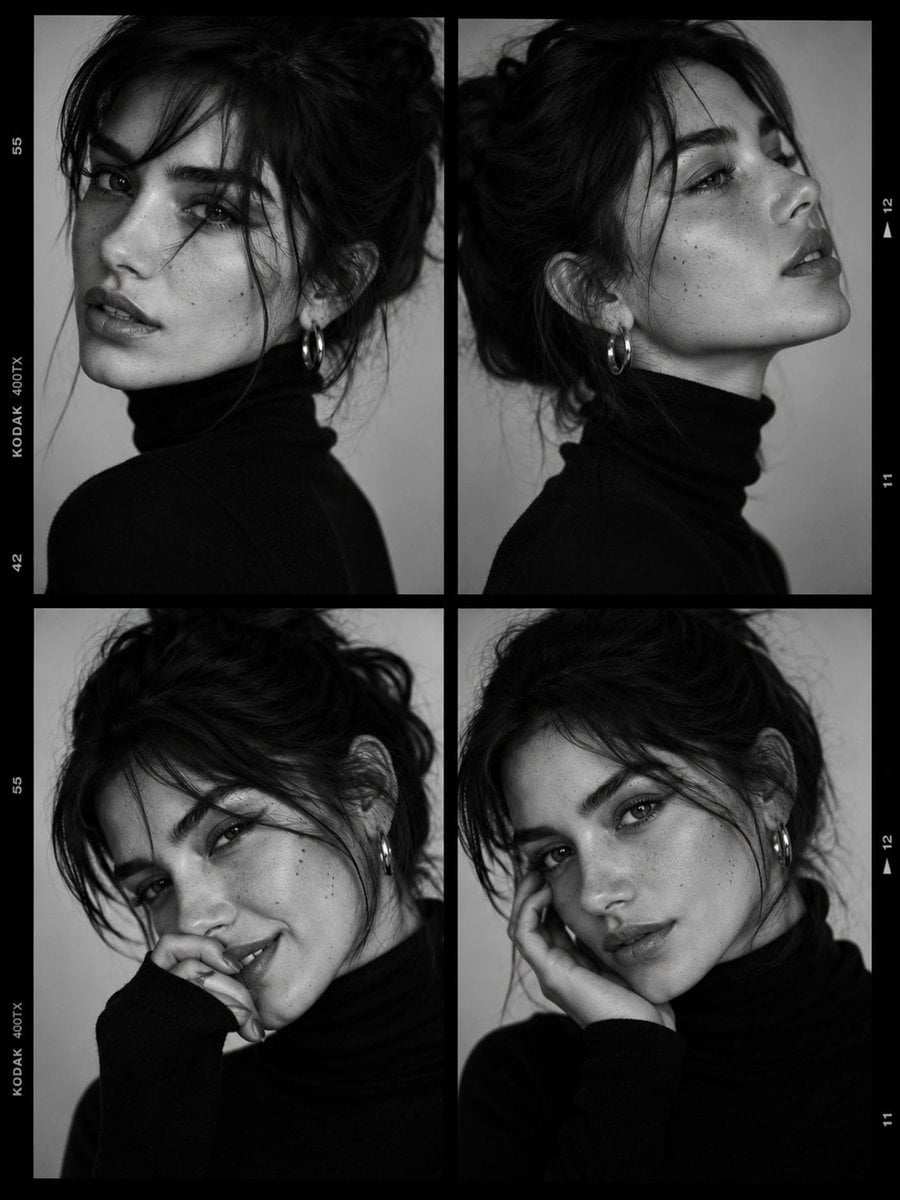
Luxury Black-and-White Fashion Contact Sheet
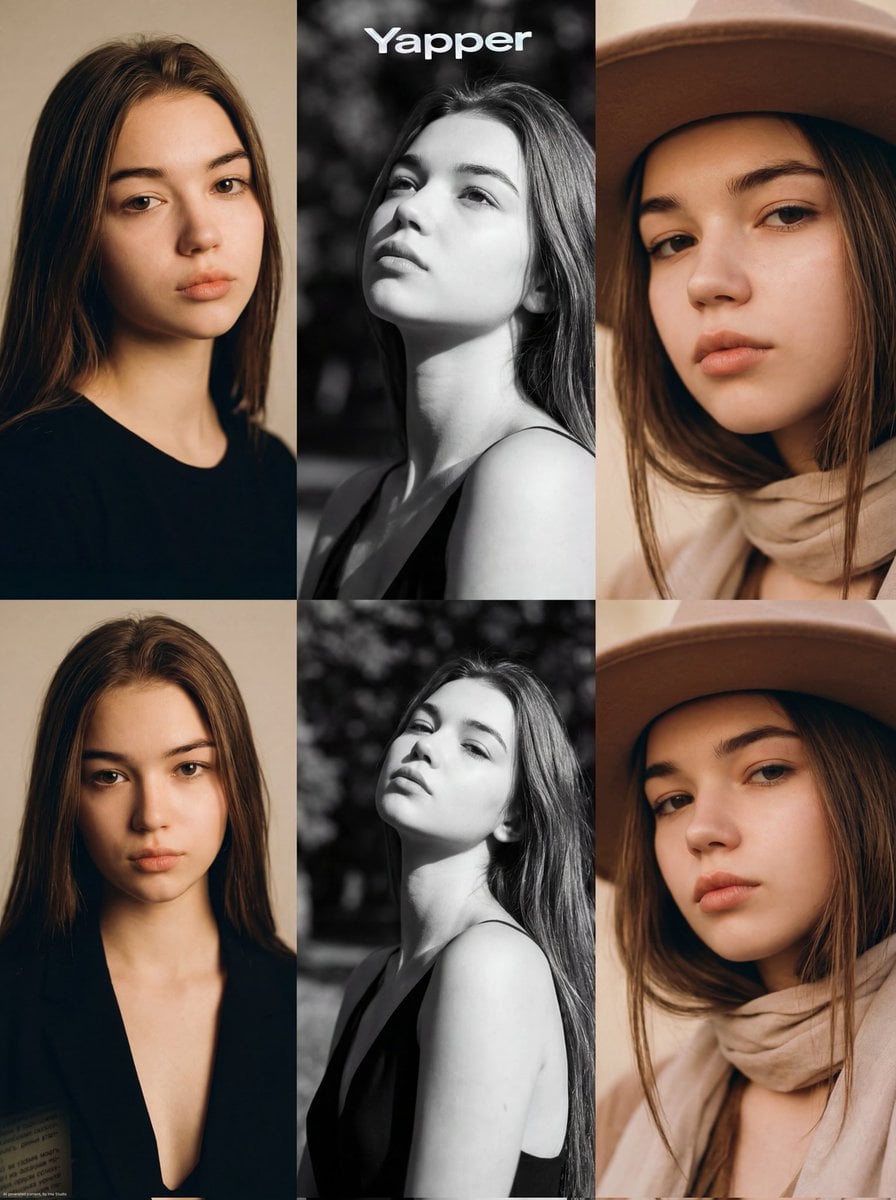
Ultra-Realistic Vogue-Style Editorial Fashion Grid

Pixar-Style Chibi Café Morning Scene
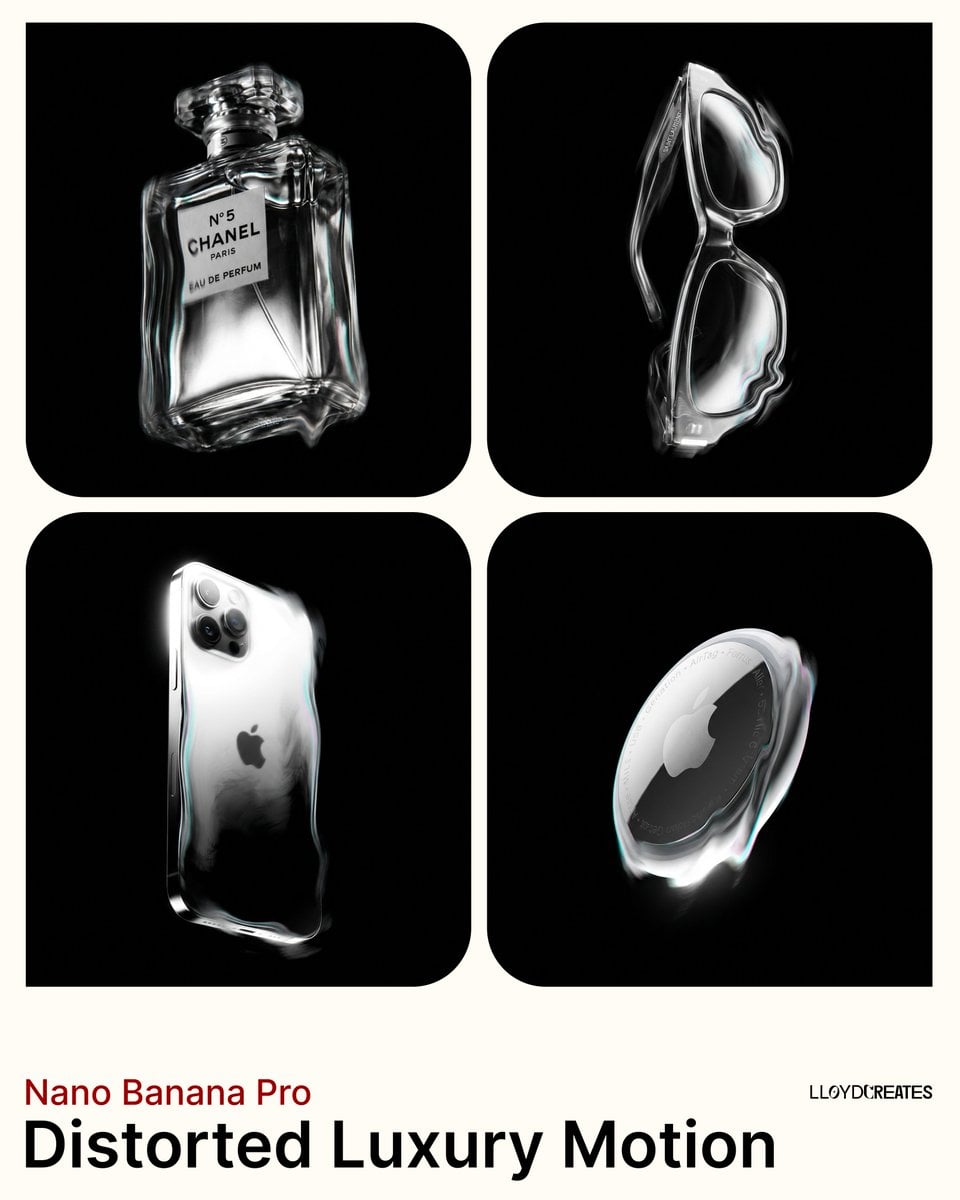
Avant-Garde Distortion Luxury Product Portrait
Avant-Garde Distortion Luxury Product Portrait
Make it yours
Chibi Painter in Monochrome Plaza works as-is. These are the safest ways to change it without losing the look.
Change one field
Copy a single group, rewrite it, and generate again so you can see what that field is doing.
Keep the frame, change the subject
Hold the composition and light of Chibi Painter in Monochrome Plaza, then swap wardrobe, props or the person for a new take.
| If the result… | Why | Fix |
|---|---|---|
| The result drifts from the preview | Too many fields changed at once. | Reuse Chibi Painter in Monochrome Plaza as-is first, then change one group — subject, light, or setting. |
| The model over-stylizes the scene | The prose prompt leaves finish and camera underspecified. | Add one camera or lighting sentence and stay on GPT Image 2. |
More GPT Image 2 templates
Other prompts made for GPT Image 2.

Six VTuber Japanese Logo Sheet

Realistic Portrait of Woman and Deer

The Vista Modular Condo Poster

AI Model Routing Comparison Infographic

2.5D Anime Art Board

Isometric Productivity Desk Scene

New York Double Exposure Poster

Four-Panel AI Landscape Comparison

Japanese Tatami Lifestyle Magazine Cover

NESCAFÉ Coffee Map Poster
More image prompts
Fresh picks from across the catalog.
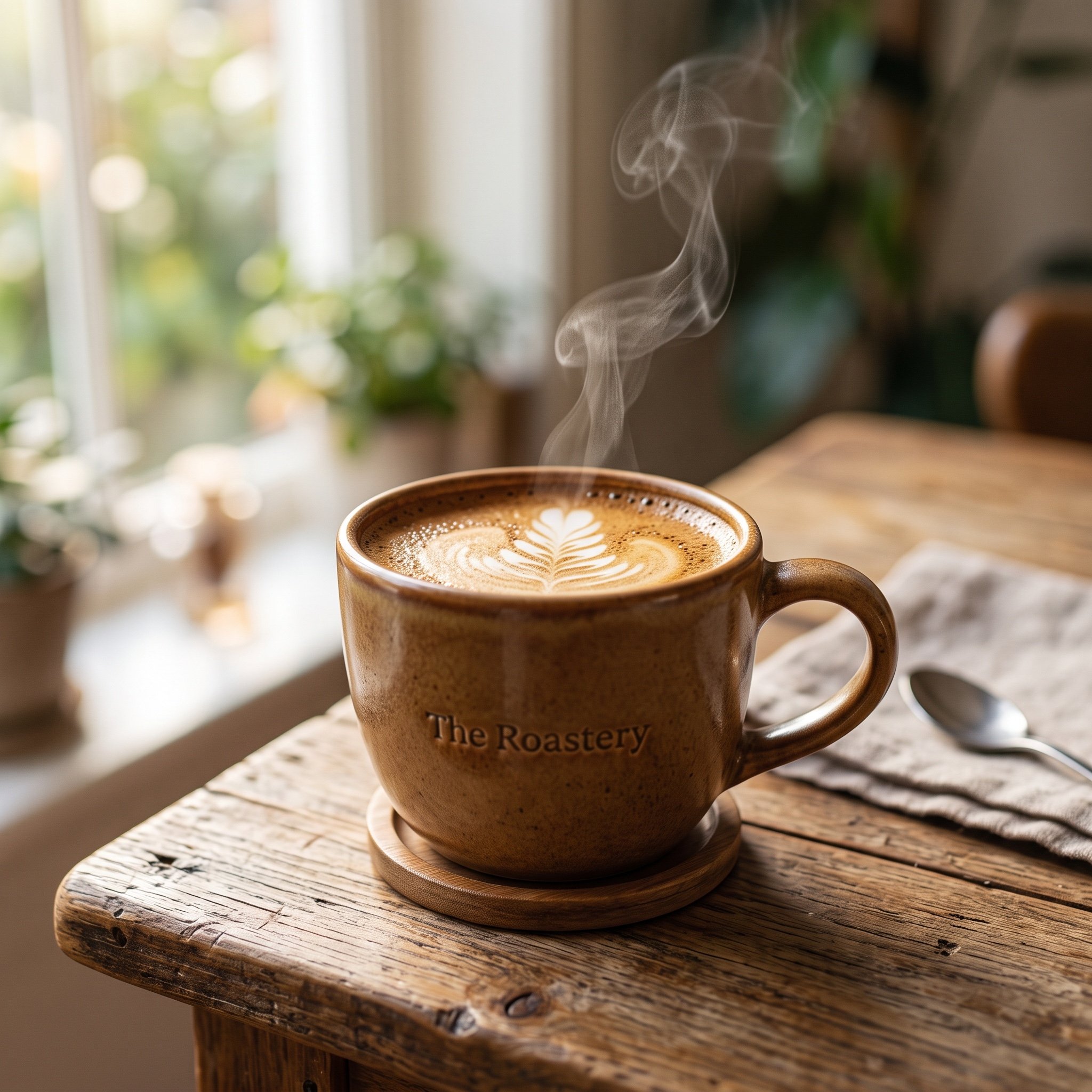
Photorealistic 4K Coffee Image Prompt
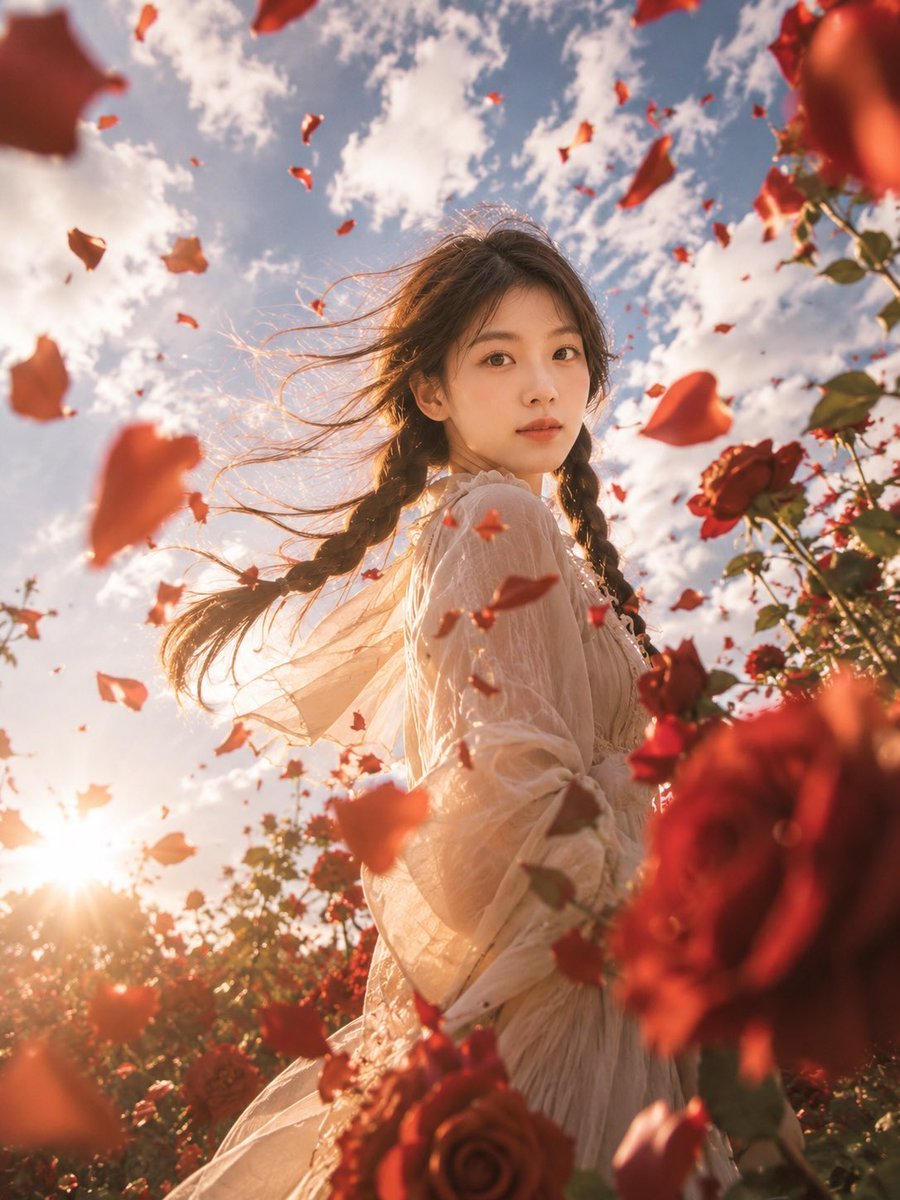
Windblown Rose Garden Portrait
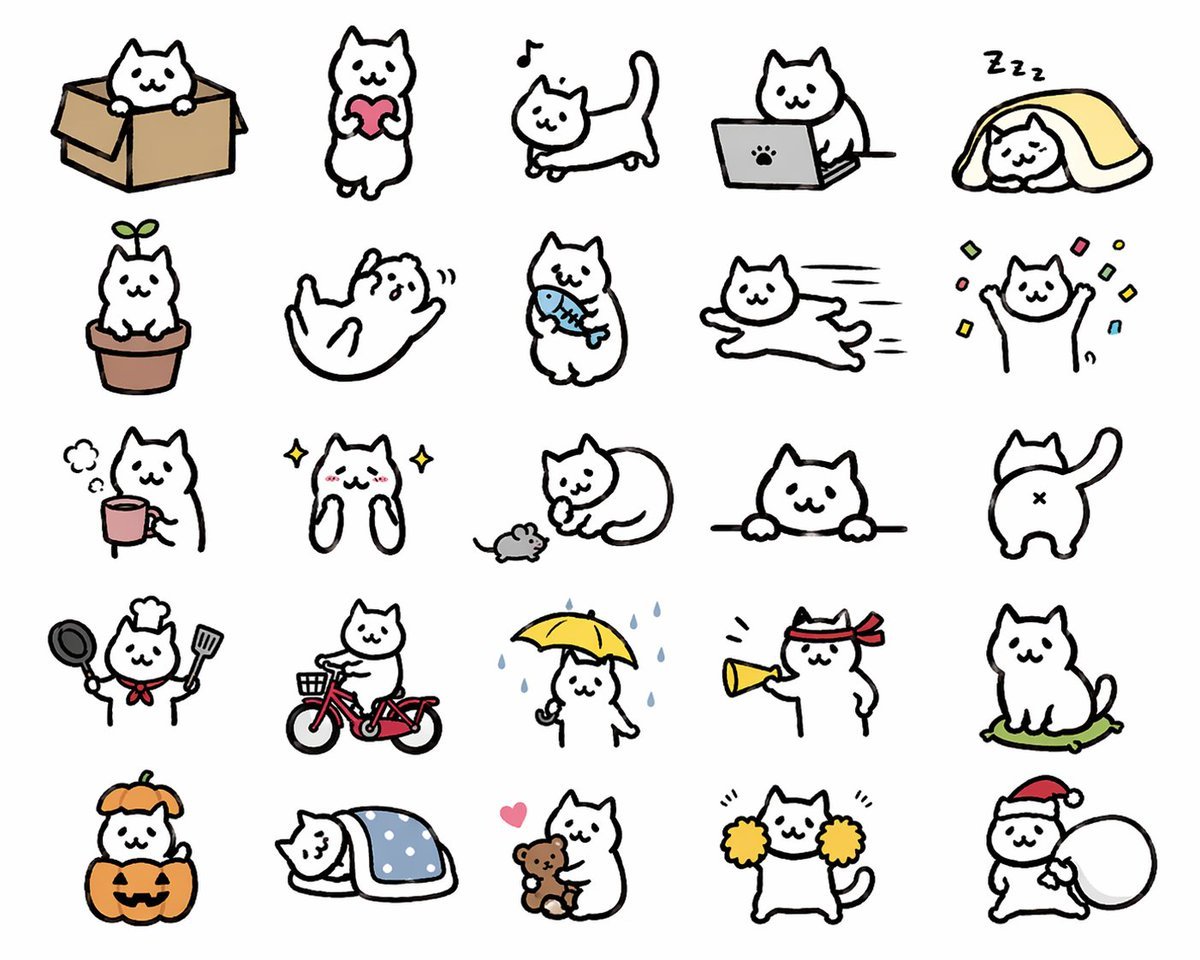
Kawaii Cat Sticker Sheet
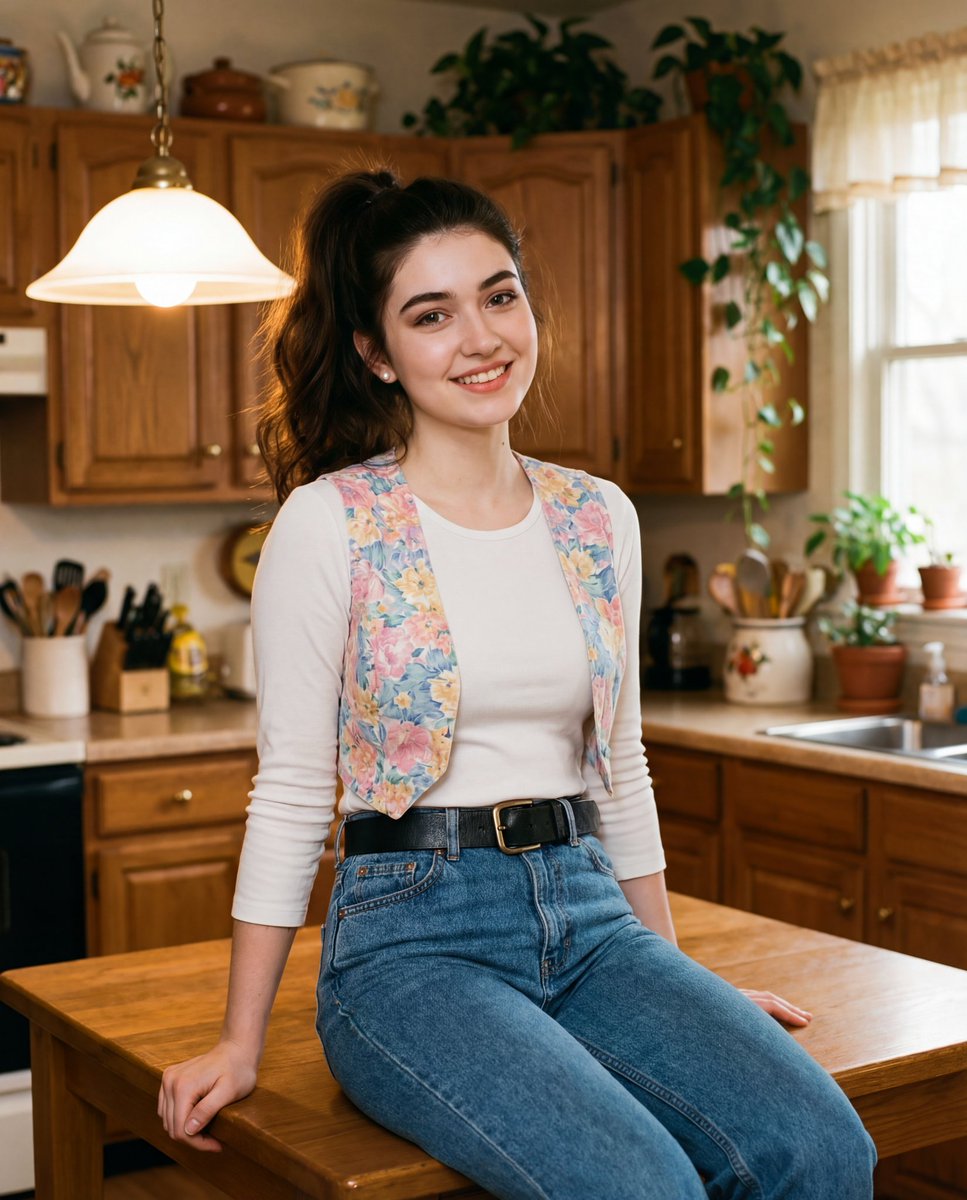
Ultra-realistic cinematic early-1990s indoor film still generation prompt
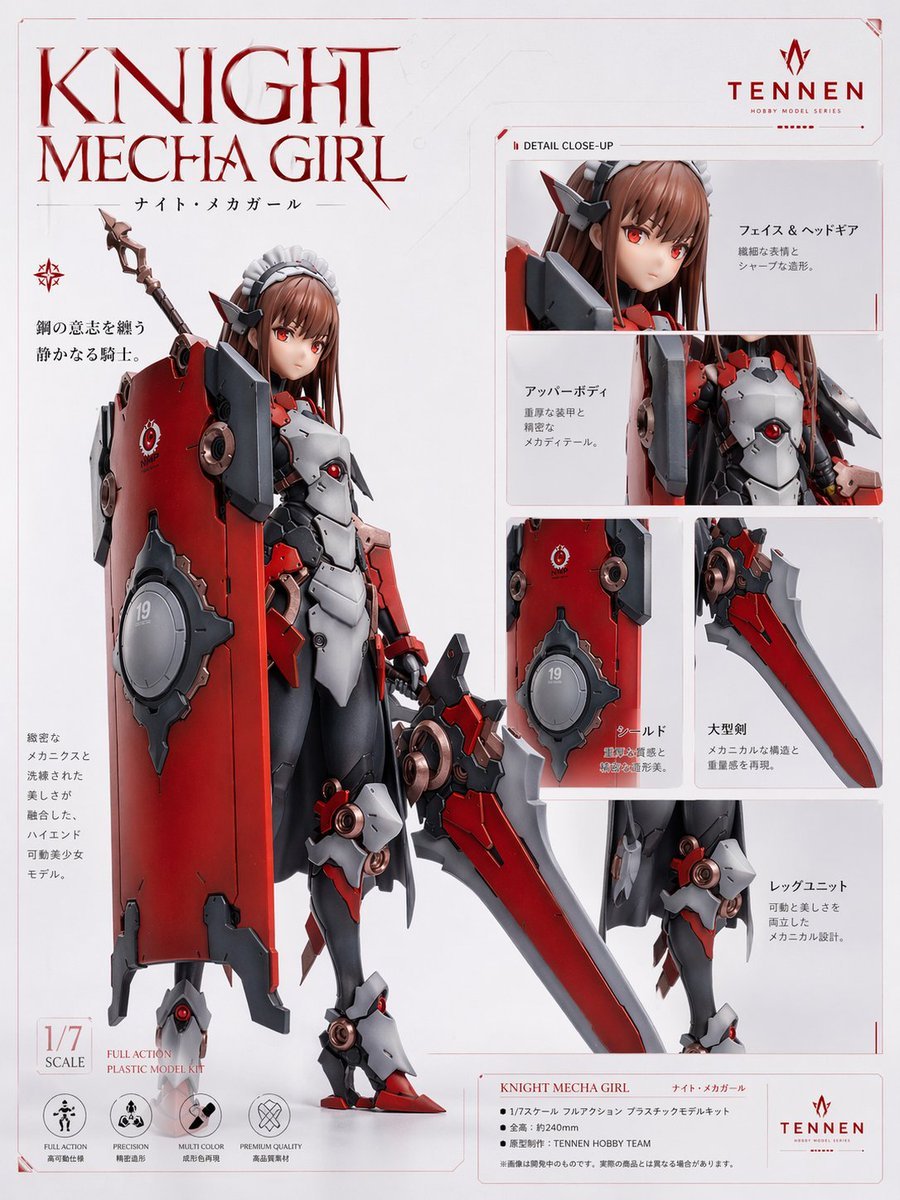
Knight Mecha Girl Model Kit Poster
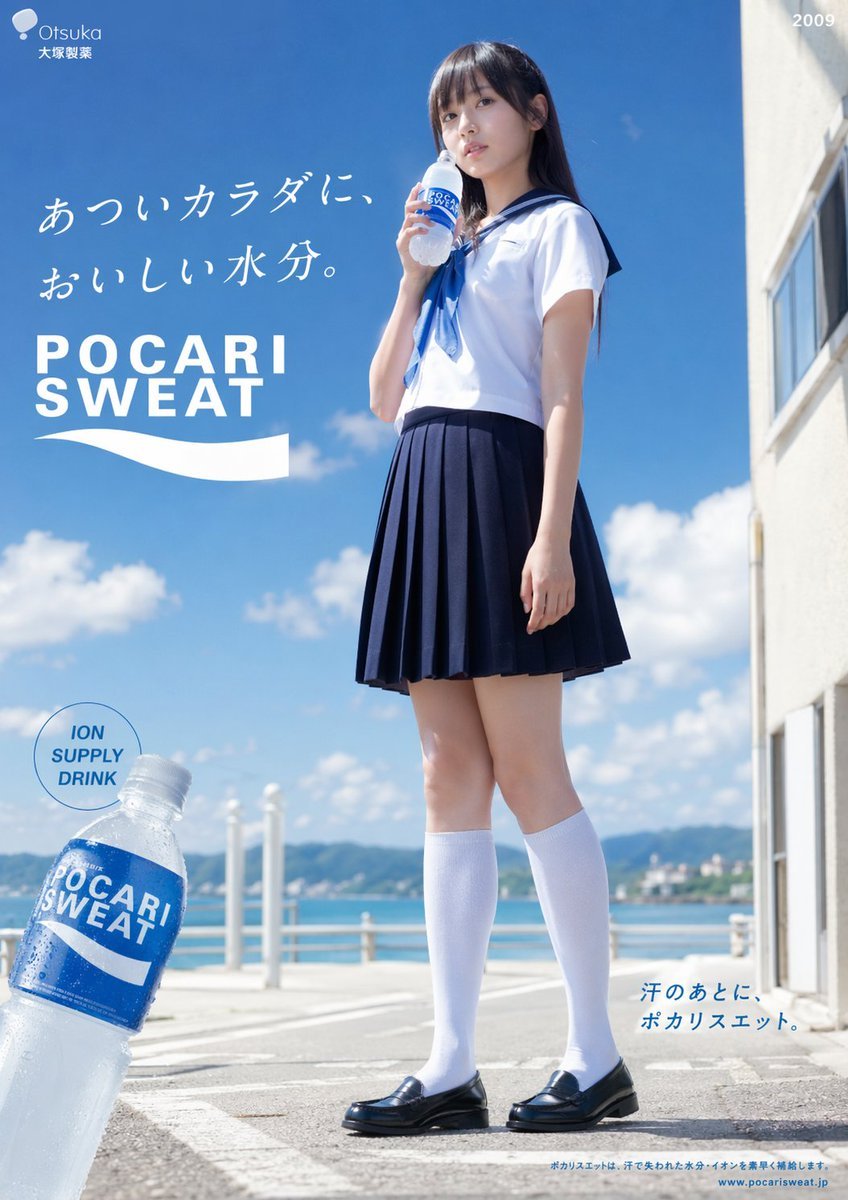
Seaside Pocari Sweat Schoolgirl Ad
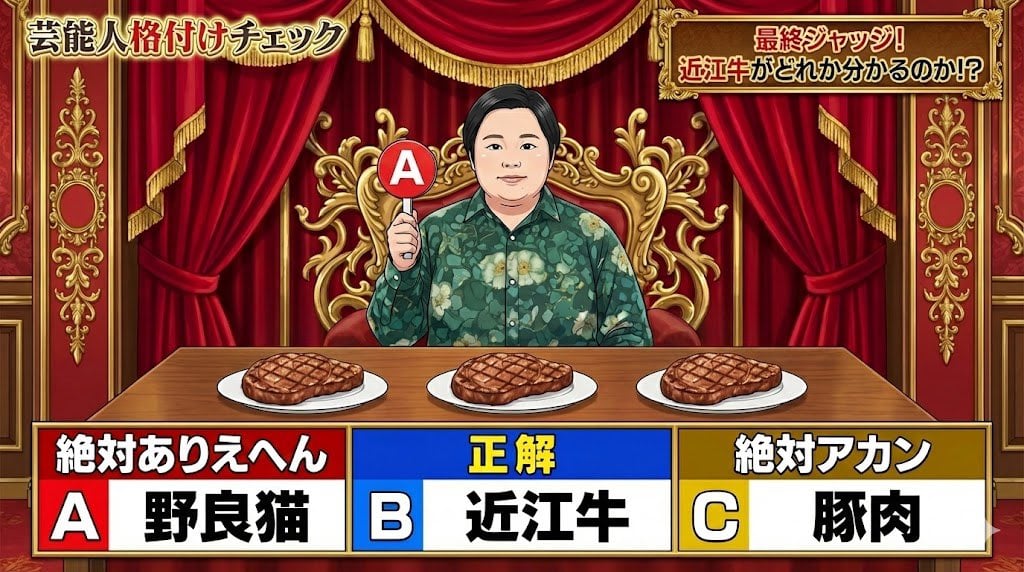
Japanese TV Parody Image Generation Prompt
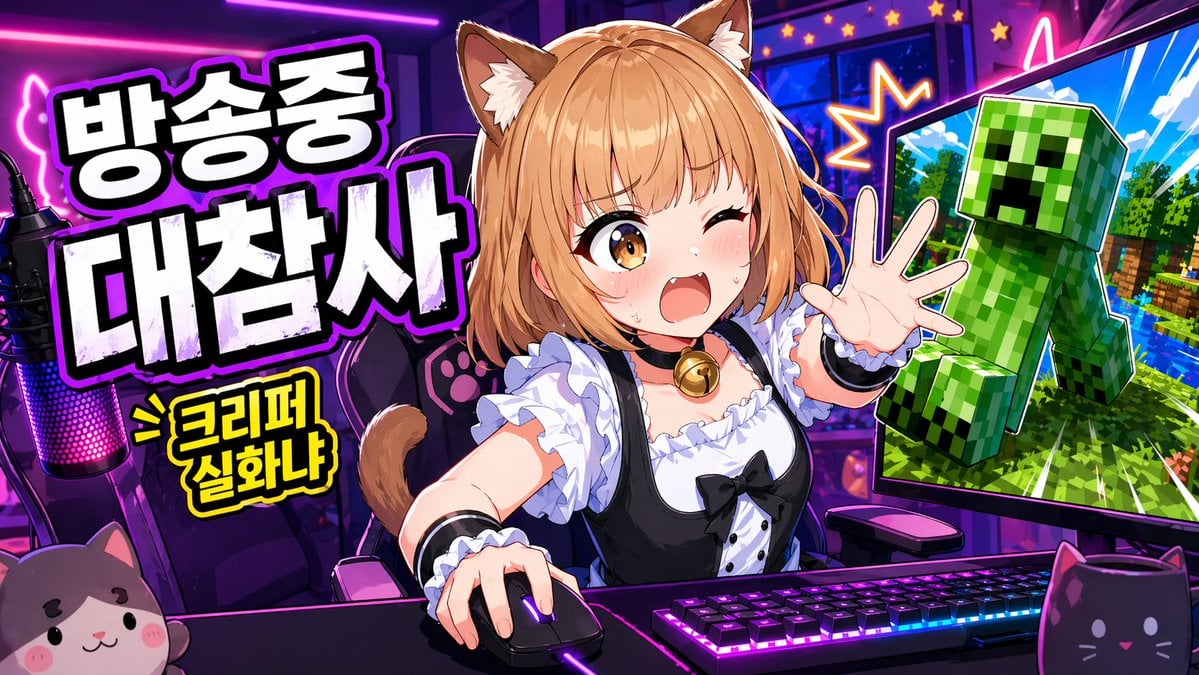
Anime VTuber Minecraft Stream Thumbnail
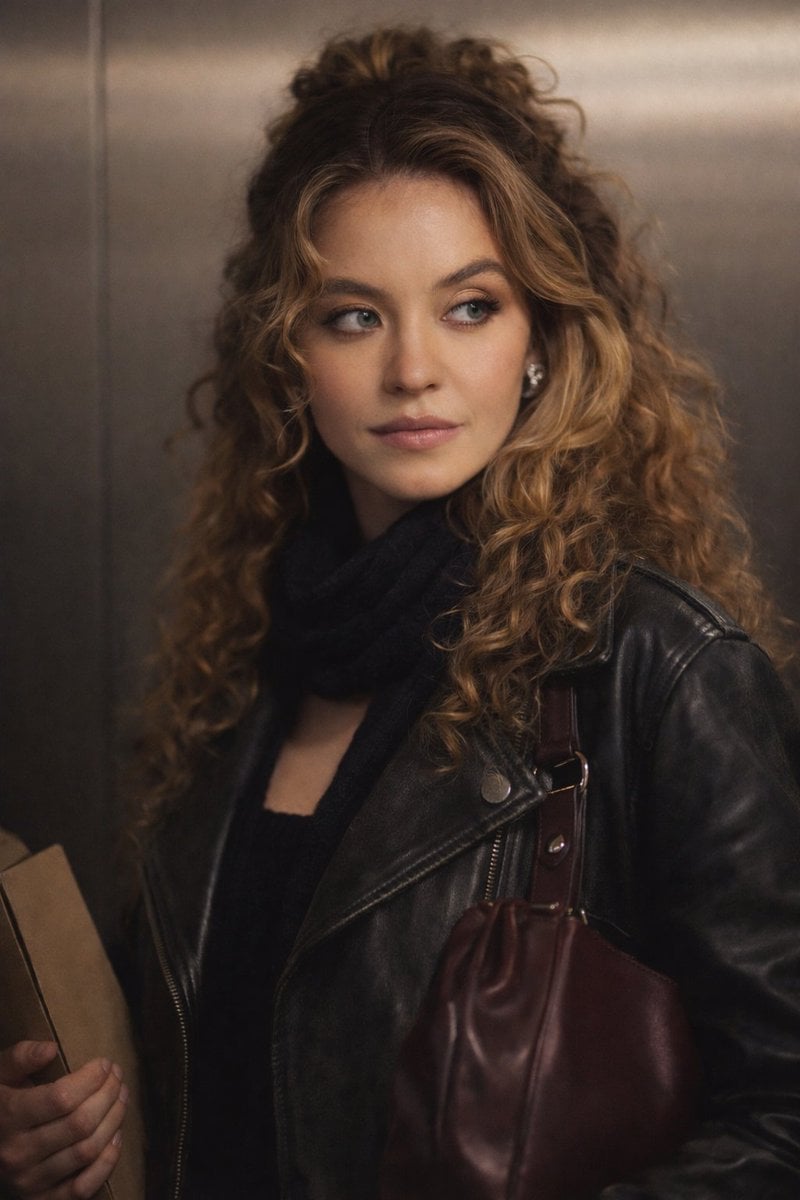
Cinematic Indoor Portrait Prompt for Gemini Nano Banana Pro

Clean Authenticator Onboarding UI
Browse template categories
Chibi Painter in Monochrome Plaza questions
How do I use the Chibi Painter in Monochrome Plaza template?
Add your photo if the template asks for one, edit the prompt if you like — the template's model and format are already selected — and press Generate. Your version opens in PicX Studio.
Can I customize the Chibi Painter in Monochrome Plaza template?
Yes. You can change the subject, setting, lighting, mood, format, and available model controls before creating your image.
Is the Chibi Painter in Monochrome Plaza template free?
Opening and editing this template is free. Generating uses credits, shown on the Generate button when you are signed in.
Which AI model should I use?
Start with GPT Image 2, which is the model associated with this template. You can compare another compatible model for a different finish.
Looking for something else? Browse all templates.

Your photo, any look
Thousands of ready templates for every top image and video model, from one credit balance.