
Dark Infographic-to-Video Poster
A premium dark social poster explaining an infographic-to-video workflow with a dashboard monitor, benefit callouts, and a reusable max prompt box.
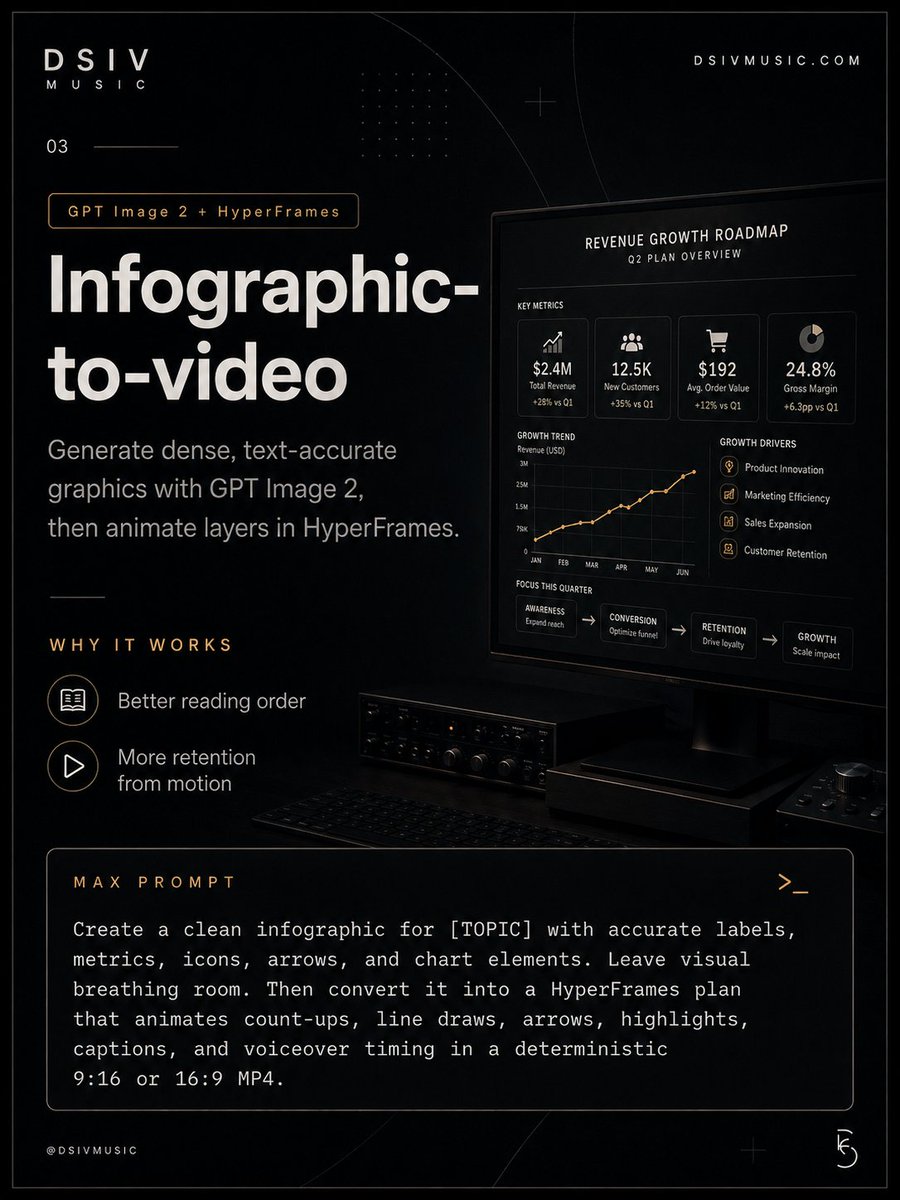
- Prompt included
- Model and format preset
- Free template
The prompt behind this image
Copy the exact prompt behind Dark Infographic-to-Video Poster, or open it in the studio and make it yours.
Goal: Create a premium dark editorial poster/slide teaching how to turn infographics into animated videos using {argument name="tool pairing" default="GPT Image 2 + HyperFrames"}. The design should feel like a high-end tech/music brand case-study card: minimal, cinematic, black background, white typography, warm amber accent lines, and a realistic workstation monitor showing a business dashboard. Canvas: Portrait 4:5 social post, approximately 900 × 1200 px. Use a thin gray border around the whole canvas, deep black charcoal background, subtle concentric arcs, dotted grid texture, small plus-sign drafting marks, and very low-contrast technical linework. Layout: Left side contains the branding, issue number, main headline, explanation, and two benefit bullets. Right side contains a realistic angled computer monitor on a dark desk. Bottom third contains a large rounded rectangle prompt box. Keep generous negative space and strong reading order from top-left to right monitor to bottom prompt box. Branding and top details: In the top-left, place the logo text “DSIV” with spaced letters and smaller “MUSIC” underneath. In the top-right, place “DSIVMUSIC.COM”. Below the logo, add the issue number “03” with a thin horizontal line extending right. Add one small rounded amber-outline pill reading “GPT Image 2 + HyperFrames”. Main headline: Large bold off-white sans-serif text on the left, split across two lines: “Infographic-” and “to-video”. Under it, add the subtitle: “Generate dense, text-accurate graphics with GPT Image 2, then animate layers in HyperFrames.” Benefit section: Add the amber spaced heading “WHY IT WORKS”. Include exactly 2 benefit rows with circular outline icons: 1) an open-book icon labeled “Better reading order”; 2) a play-triangle icon labeled “More retention from motion”. Right monitor content: Show a black desktop monitor angled slightly in perspective. On the screen is a clean dashboard titled “REVENUE GROWTH ROADMAP” with the subtitle “Q2 PLAN OVERVIEW”. Include exactly 4 key metric cards across the top: 1) chart-arrow icon, “$2.4M”, “Total Revenue”, “+28% vs Q1”; 2) group icon, “12.5K”, “New Customers”, “+35% vs Q1”; 3) shopping cart icon, “$192”, “Avg. Order Value”, “+12% vs Q1”; 4) donut-chart icon, “24.8%”, “Gross Margin”, “+6.3pp vs Q1”. Below, include exactly 1 orange line chart labeled “GROWTH TREND” with months JAN, FEB, MAR, APR, MAY, JUN along the bottom and rising data points. To the right, include exactly 4 growth driver rows with small amber circular icons: “Product Innovation”, “Marketing Efficiency”, “Sales Expansion”, and “Customer Retention”. Along the bottom of the dashboard, include exactly 4 connected roadmap boxes with arrows between them: “AWARENESS / Expand reach” → “CONVERSION / Optimize funnel” → “RETENTION / Drive loyalty” → “GROWTH / Scale impact”. Desk details: Under the monitor, include a dark audio rack or amplifier with small knobs and indicator lights, a low-profile keyboard in shadow, and a small control surface at the bottom-right. Keep these objects subtle and nearly black, with faint highlights. Bottom prompt box: Create a wide rounded rectangle with a thin gray outline and amber heading “MAX PROMPT”. Add a small terminal-style symbol “>_” in the upper-right of the box. Inside, use white monospaced type with this exact text: “Create a clean infographic for [TOPIC] with accurate labels, metrics, icons, arrows, and chart elements. Leave visual breathing room. Then convert it into a HyperFrames plan that animates count-ups, line draws, arrows, highlights, captions, and voiceover timing in a deterministic 9:16 or 16:9 MP4.” Footer: Bottom-left small text “@DSIVMUSIC”. Bottom-right add a small abstract circular DSIV-style mark. Use tiny plus marks and faint arcs behind the footer. Visual style: Dark monochrome luxury tech aesthetic, crisp vector typography mixed with realistic rendered monitor hardware, high contrast but restrained, amber accents only for highlights, thin strokes, clean grid alignment, accurate legible text, no clutter. Constraints: Use exactly 4 dashboard metric cards, 4 growth driver rows, 4 roadmap boxes, and 2 benefit rows. Do not add extra sections, people, bright colors, or decorative elements that compete with the text. Keep all typography sharp and readable.
How to use Dark Infographic-to-Video Poster in 3 steps
- 1Upload ImagePNG, JPG or paste
Add your photo
Upload the photo the template builds on. The prompt, model and format are already set.
- 2…a portrait of your subject in softgolden-hour light, 85mm…
Personalize
Edit the subject and creative details for your destination.
- 3Generate
Generate
Press Generate — your image is created in PicX Studio, so you can compare it with the original and refine one variable at a time.
More like this
Templates with the same subject, style or setup. Open one to see its prompt.
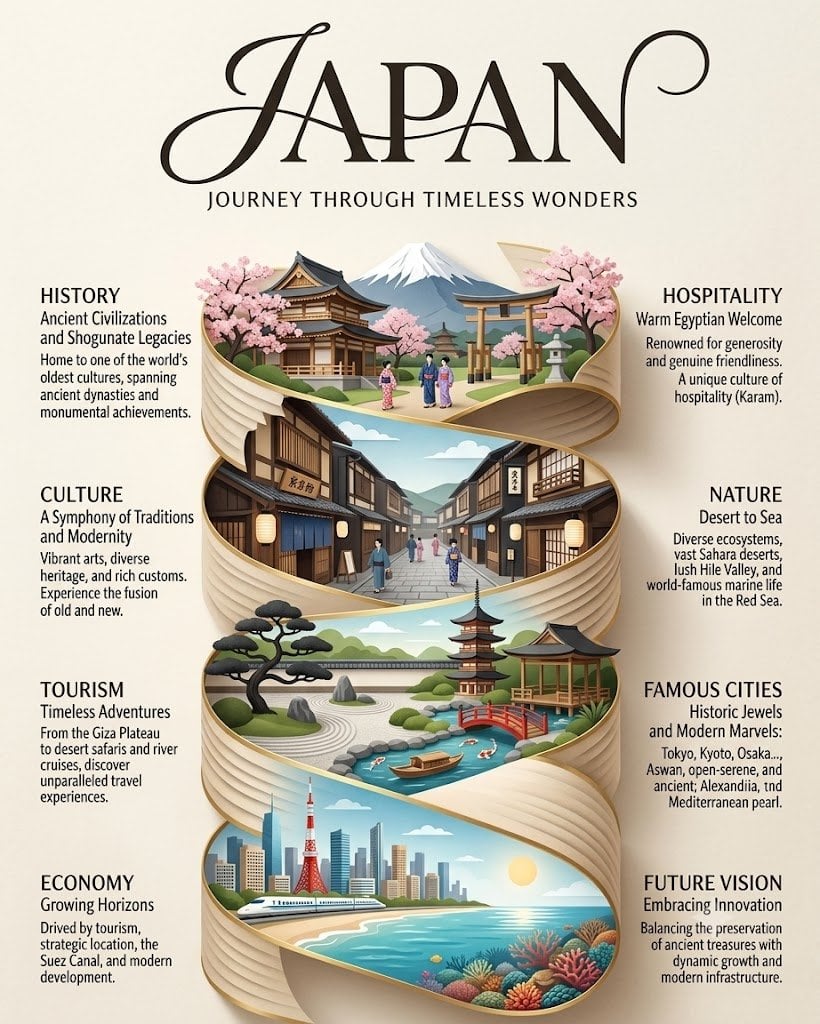
Japan Travel Brochure Poster
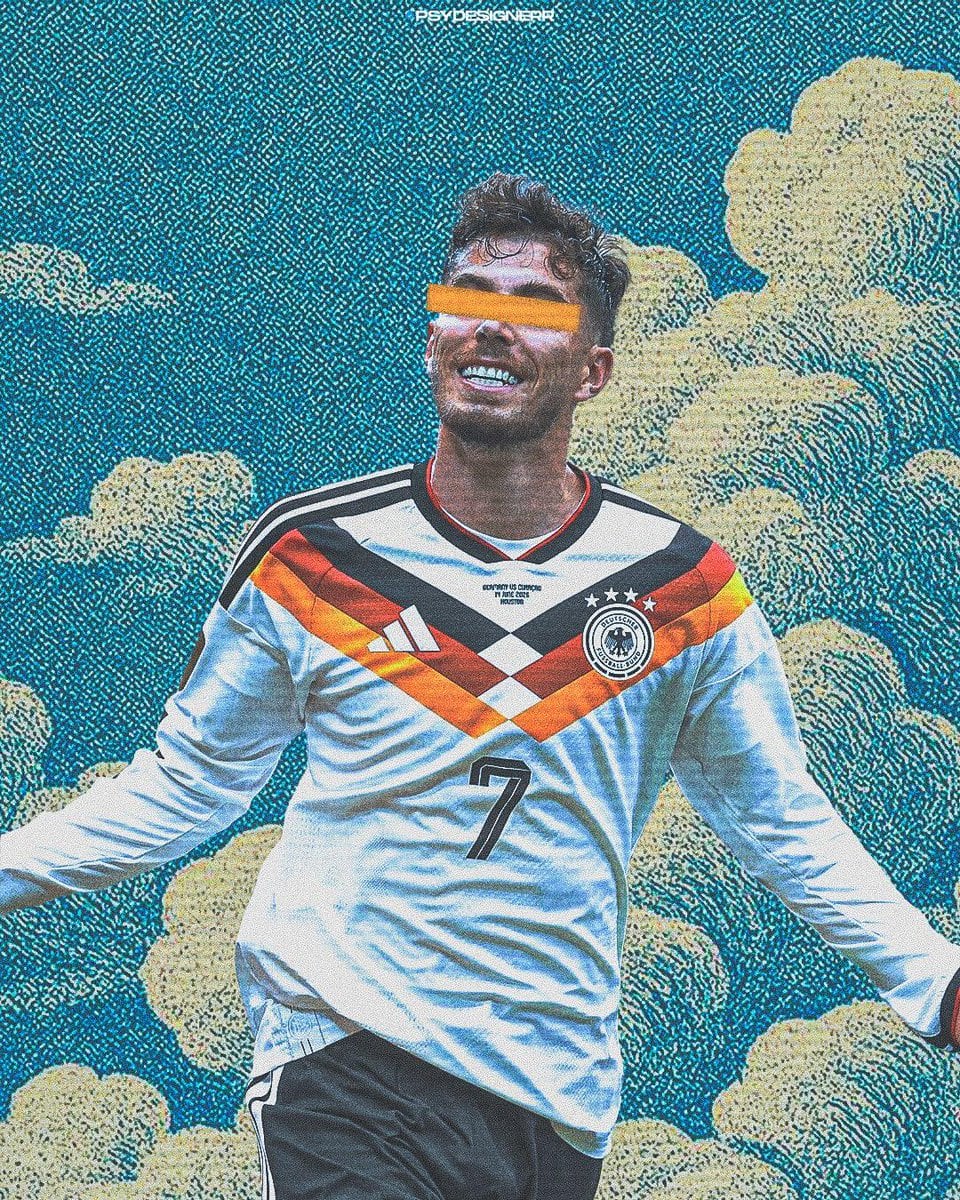
Selective Color Monochrome Football Poster
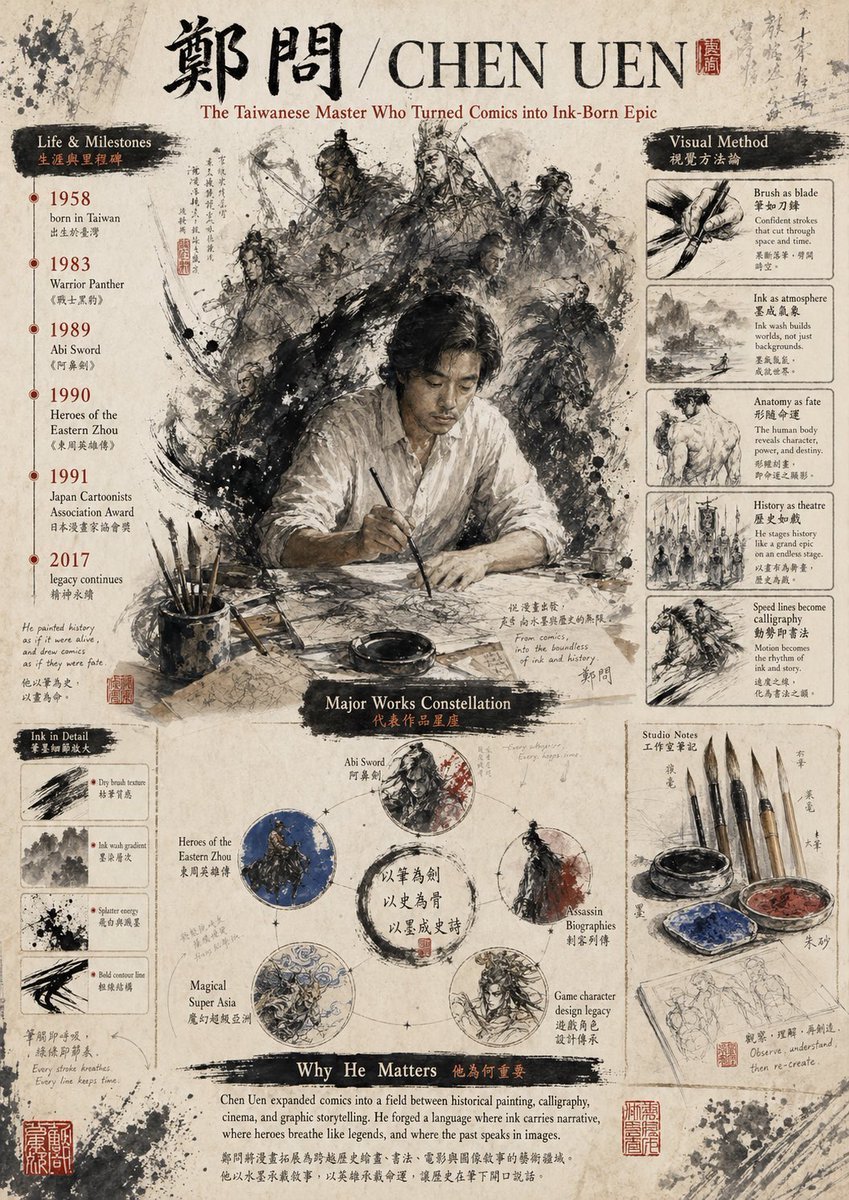
Gpt2 Infographic Edu Visual Ink Wash Tribute Poster for Chen Uen
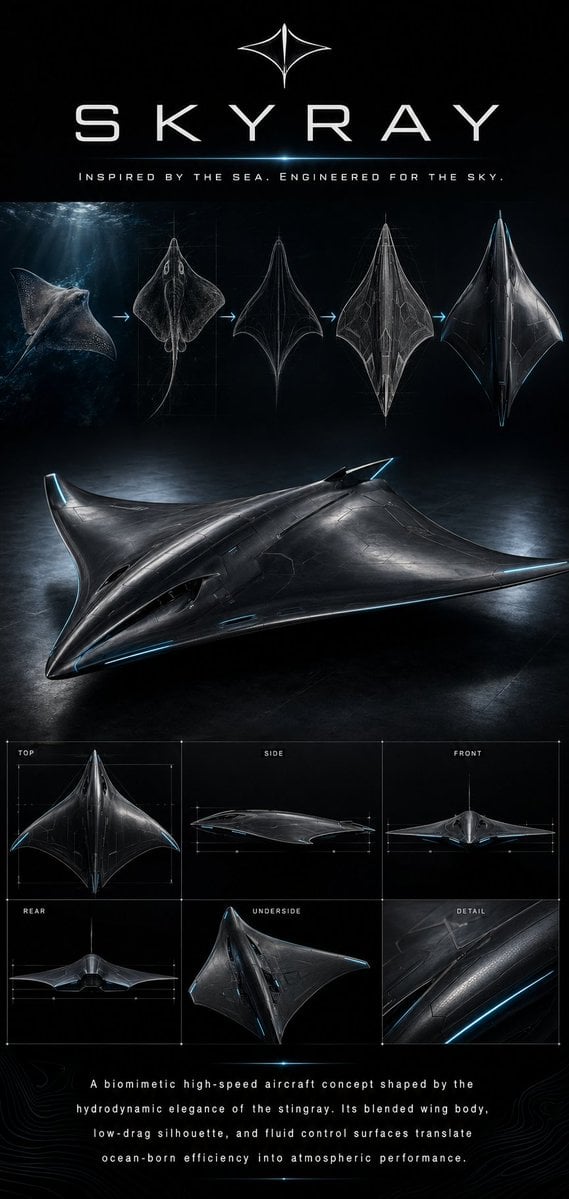
Gpt2 Infographic Edu Visual Biomimetic Skyray Aircraft Poster
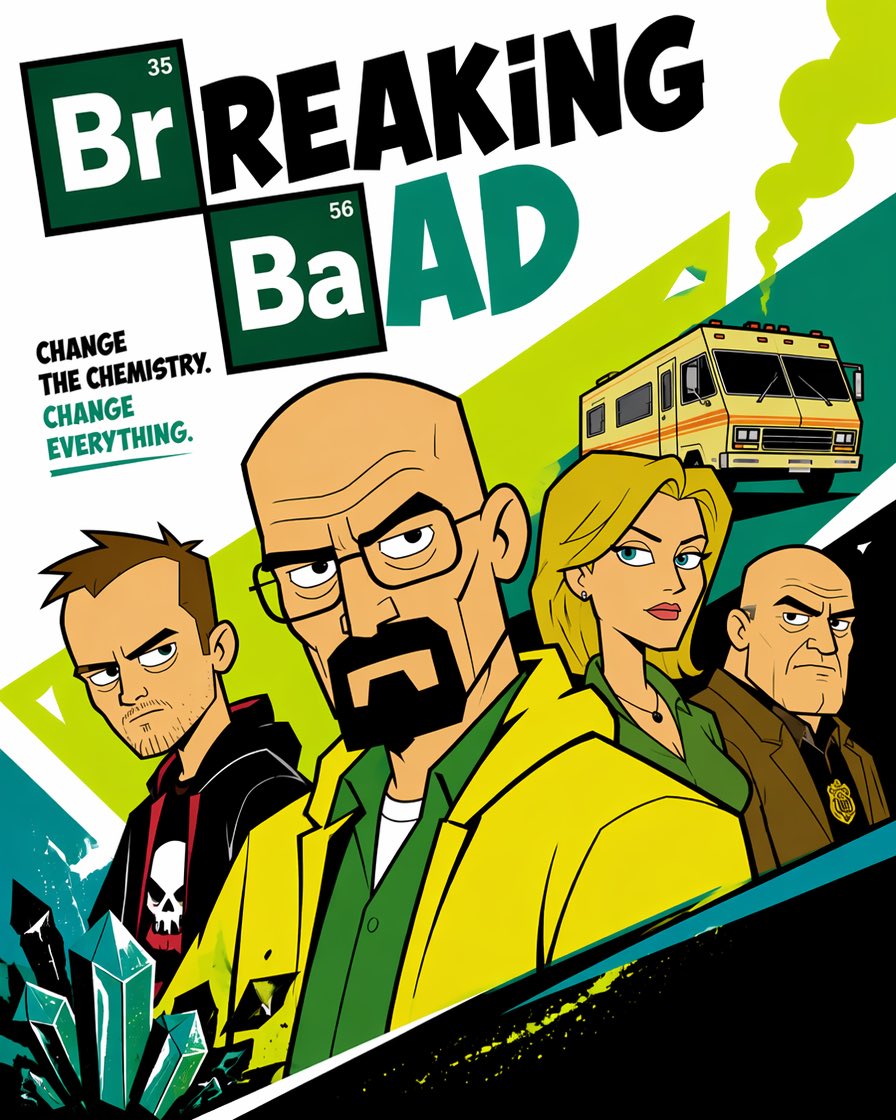
Cartoon TV Show Poster Pack
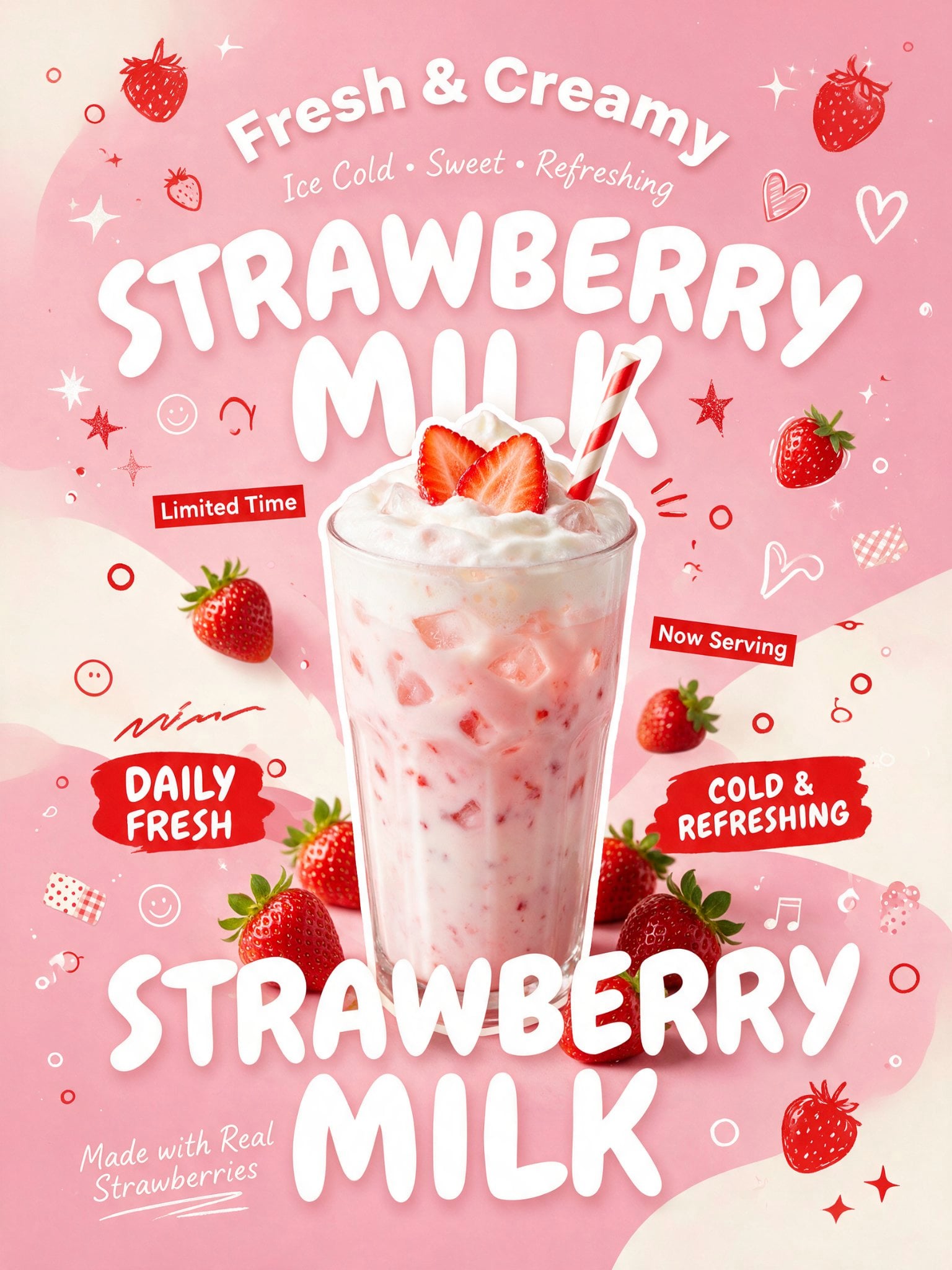
Trendy Cafe Drink Promo Poster
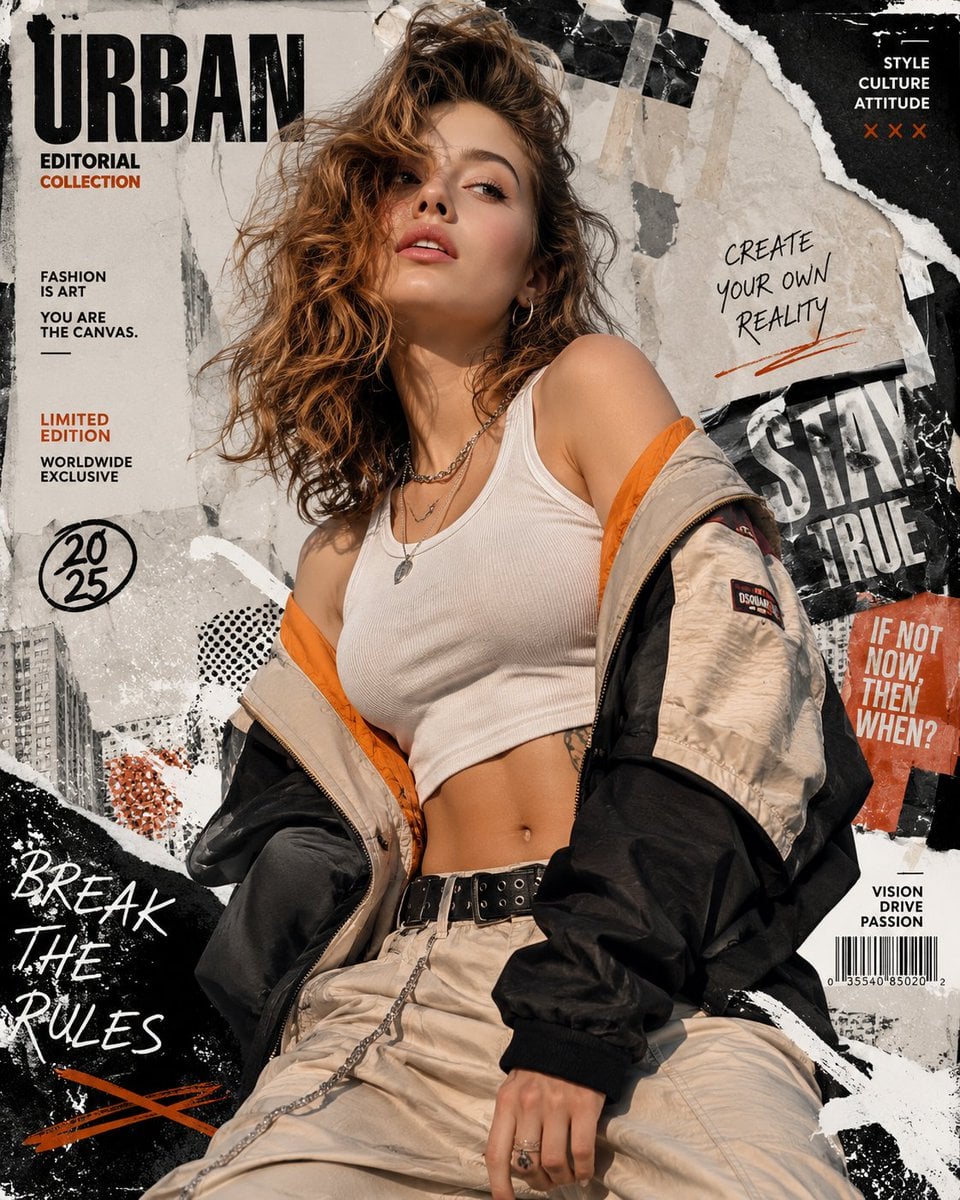
Urban Fashion Editorial Collage Streetwear Poster
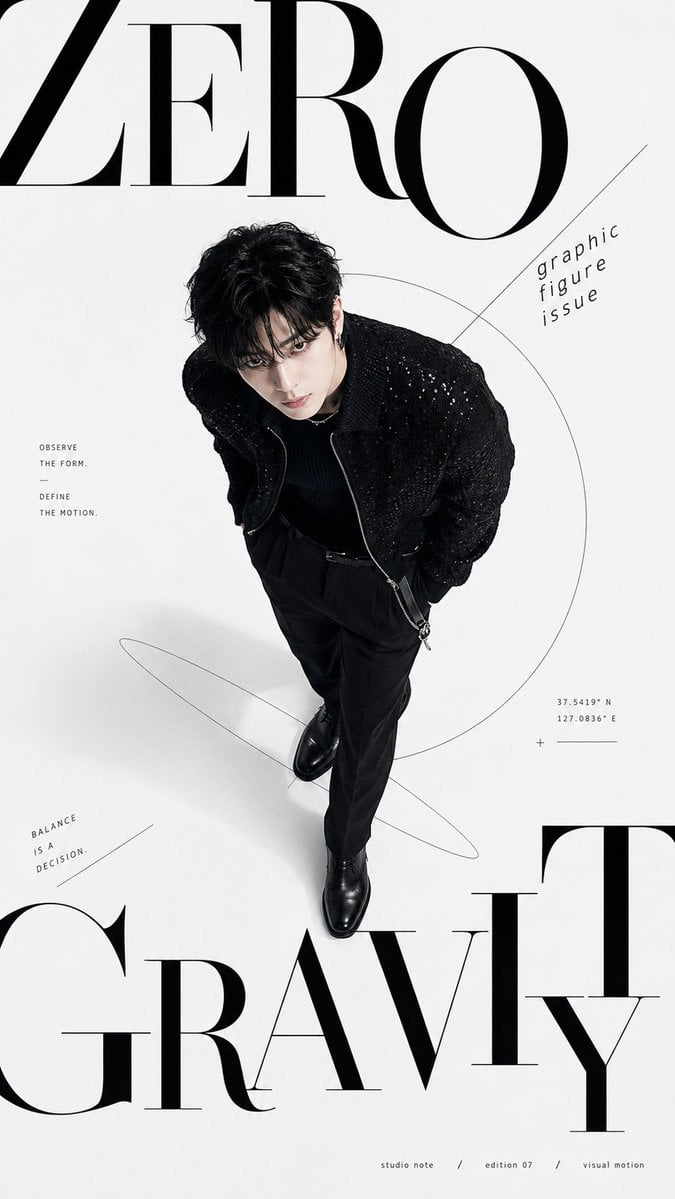
Premium Fashion Editorial Cover Layout System
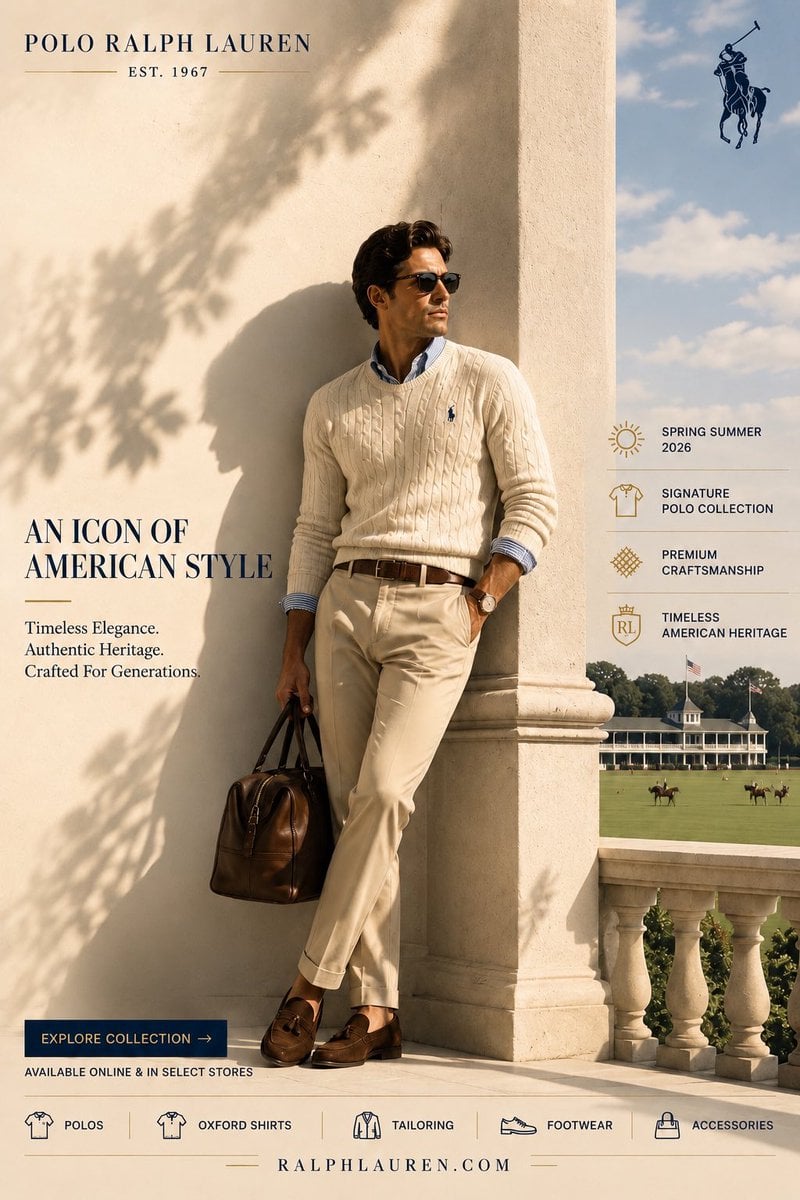
Polo Ralph Lauren Luxury American Heritage Fashion Campaign
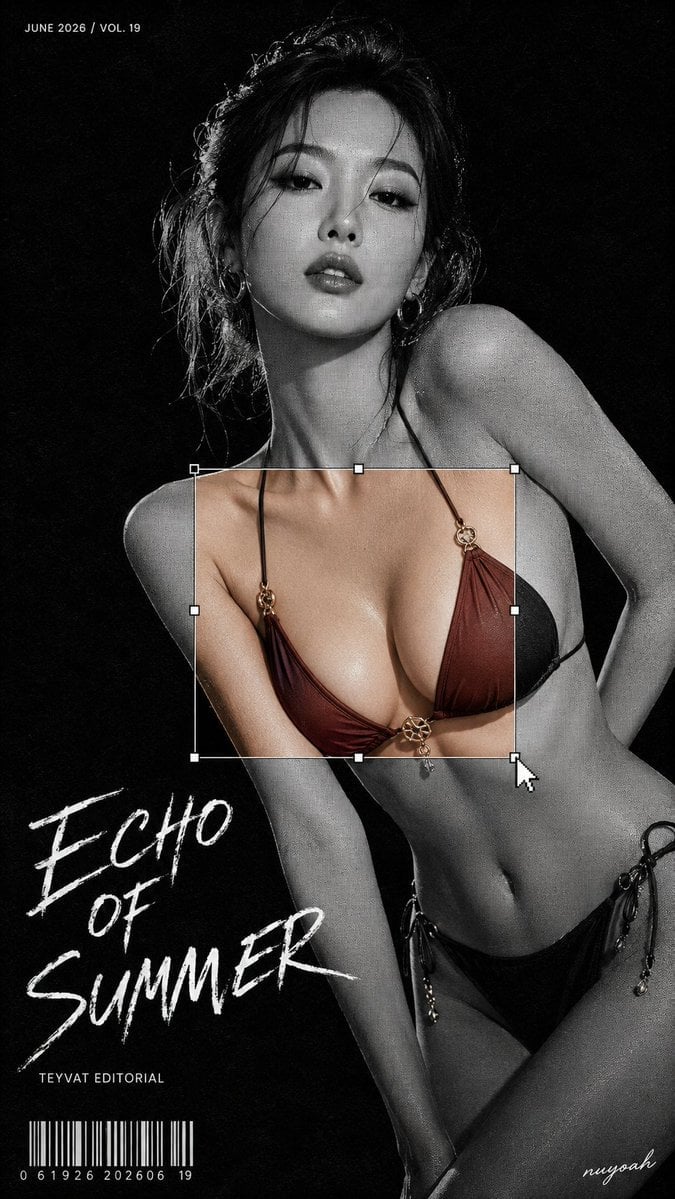
Monochrome Halftone Editorial Fashion Poster
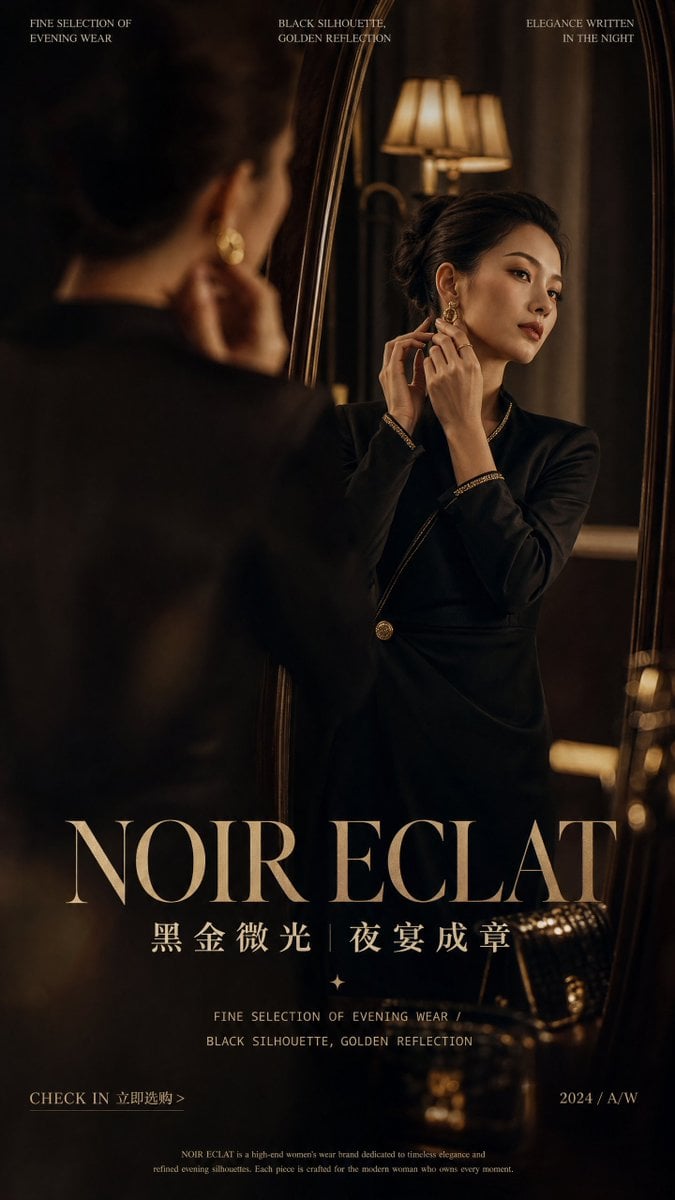
Retro Mirror Luxury Fashion Campaign Poster
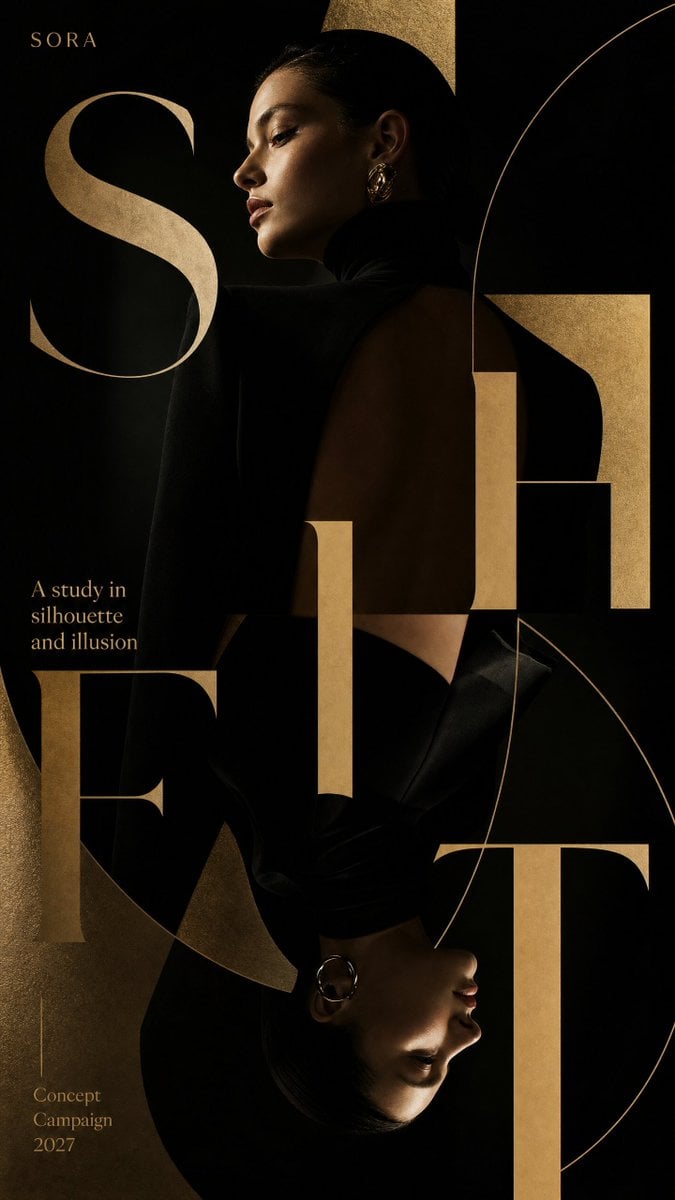
Luxury Fashion Campaign Typography Poster System
Make it yours
Dark Infographic-to-Video Poster works as-is. These are the safest ways to change it without losing the look.
Change one field
Copy a single group, rewrite it, and generate again so you can see what that field is doing.
Keep the frame, change the subject
Hold the composition and light of Dark Infographic-to-Video Poster, then swap wardrobe, props or the person for a new take.
| If the result… | Why | Fix |
|---|---|---|
| The result drifts from the preview | Too many fields changed at once. | Reuse Dark Infographic-to-Video Poster as-is first, then change one group — subject, light, or setting. |
| The model over-stylizes the scene | The prose prompt leaves finish and camera underspecified. | Add one camera or lighting sentence and stay on GPT Image 2. |
More GPT Image 2 templates
Other prompts made for GPT Image 2.

Six VTuber Japanese Logo Sheet

Realistic Portrait of Woman and Deer

The Vista Modular Condo Poster

AI Model Routing Comparison Infographic

2.5D Anime Art Board

Isometric Productivity Desk Scene

New York Double Exposure Poster

Four-Panel AI Landscape Comparison

Japanese Tatami Lifestyle Magazine Cover

NESCAFÉ Coffee Map Poster
More image prompts
Fresh picks from across the catalog.

Watercolor Flower Shop Portrait
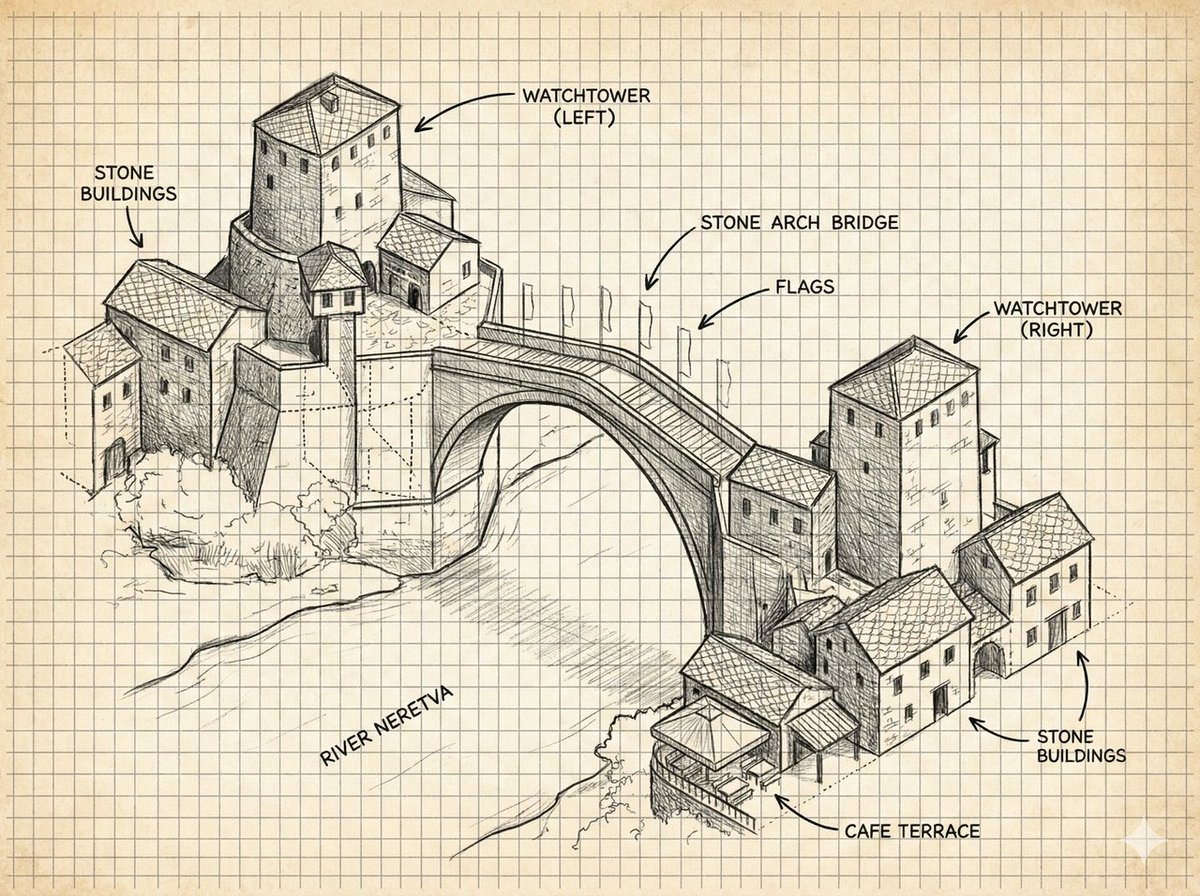
Annotated Stone Arch Bridge Sketch

Editorial Lifestyle Prompt for Gemini Nano Banana Pro
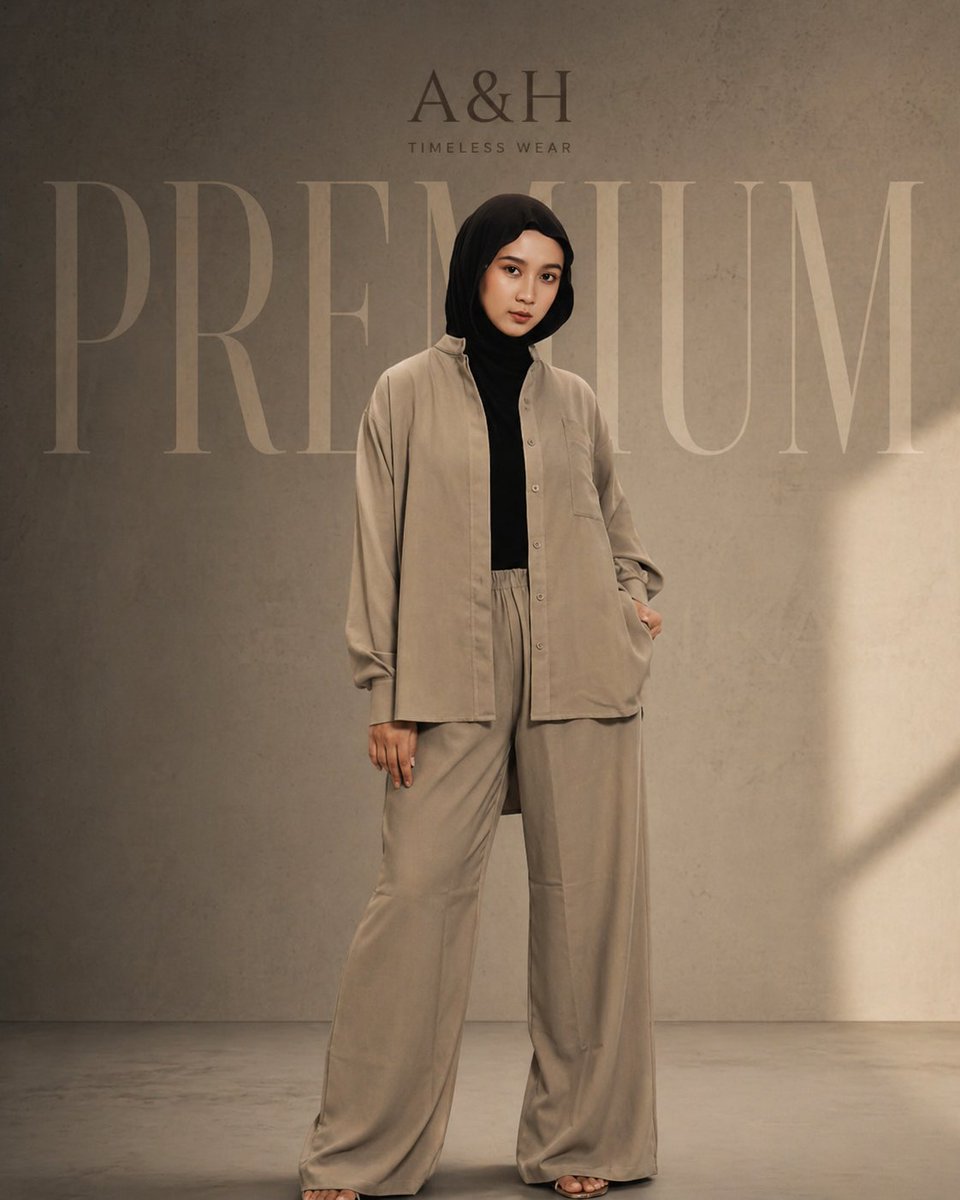
Modest Fashion Studio Editorial Prompt
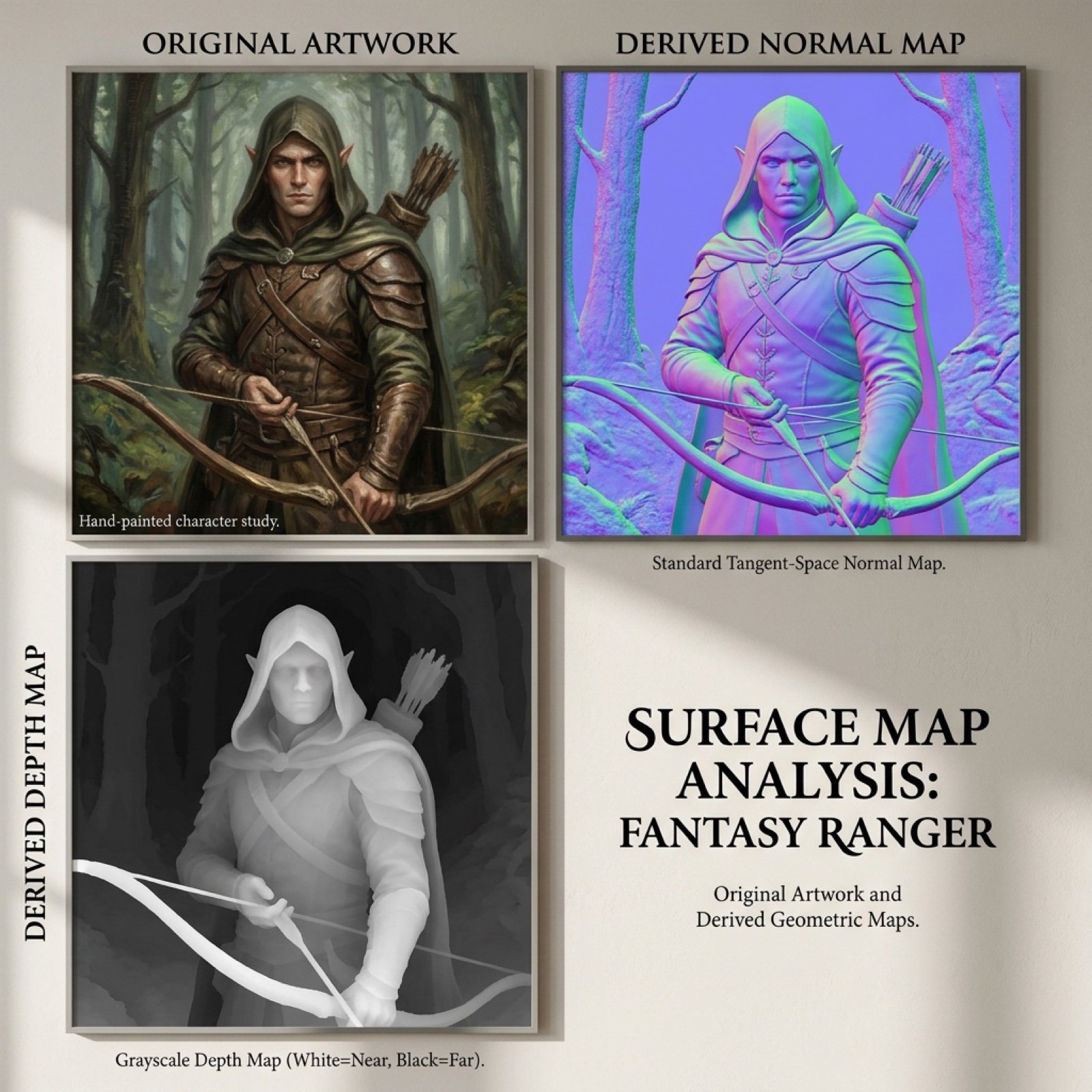
Normal and depth map generation prompts for Nano Banana Pro
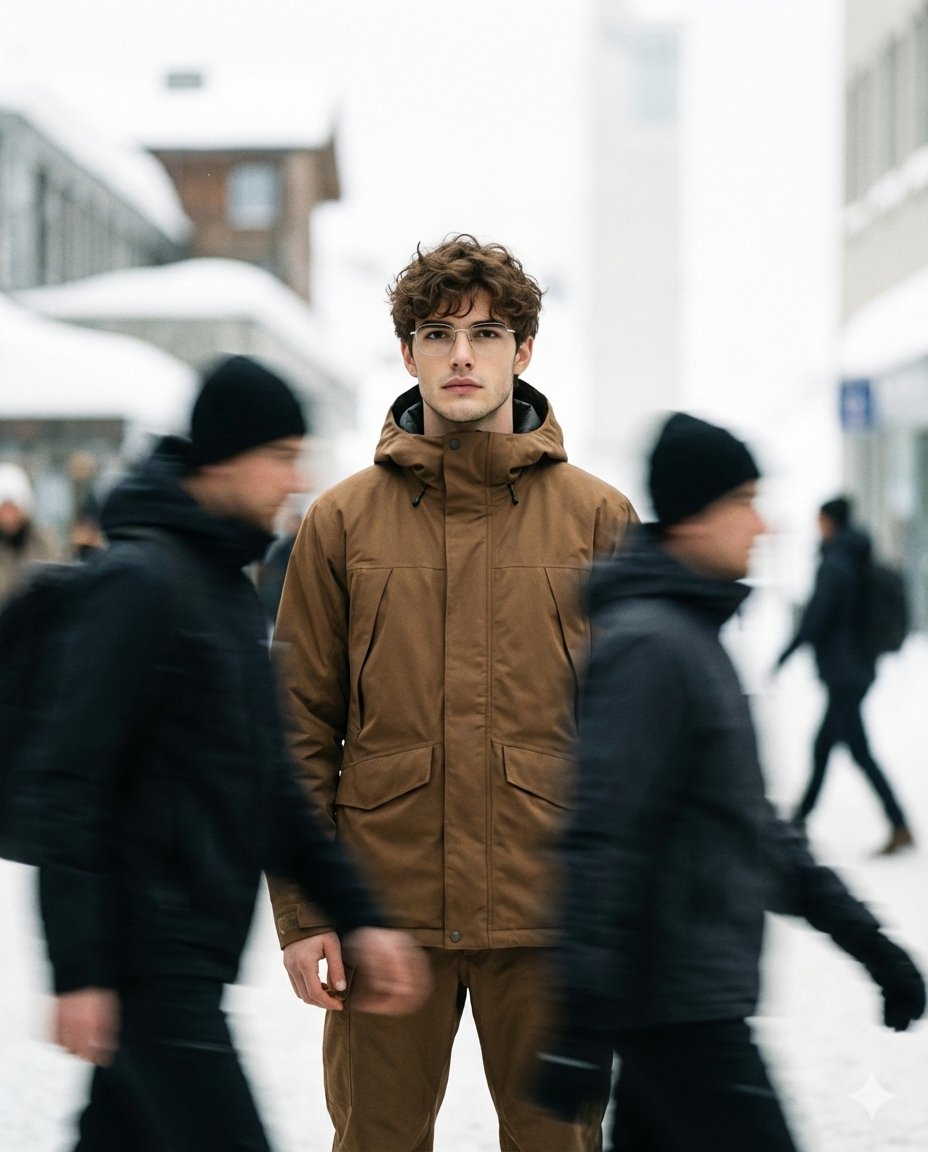
High Fashion Magazine Pictorial with Motion Blur
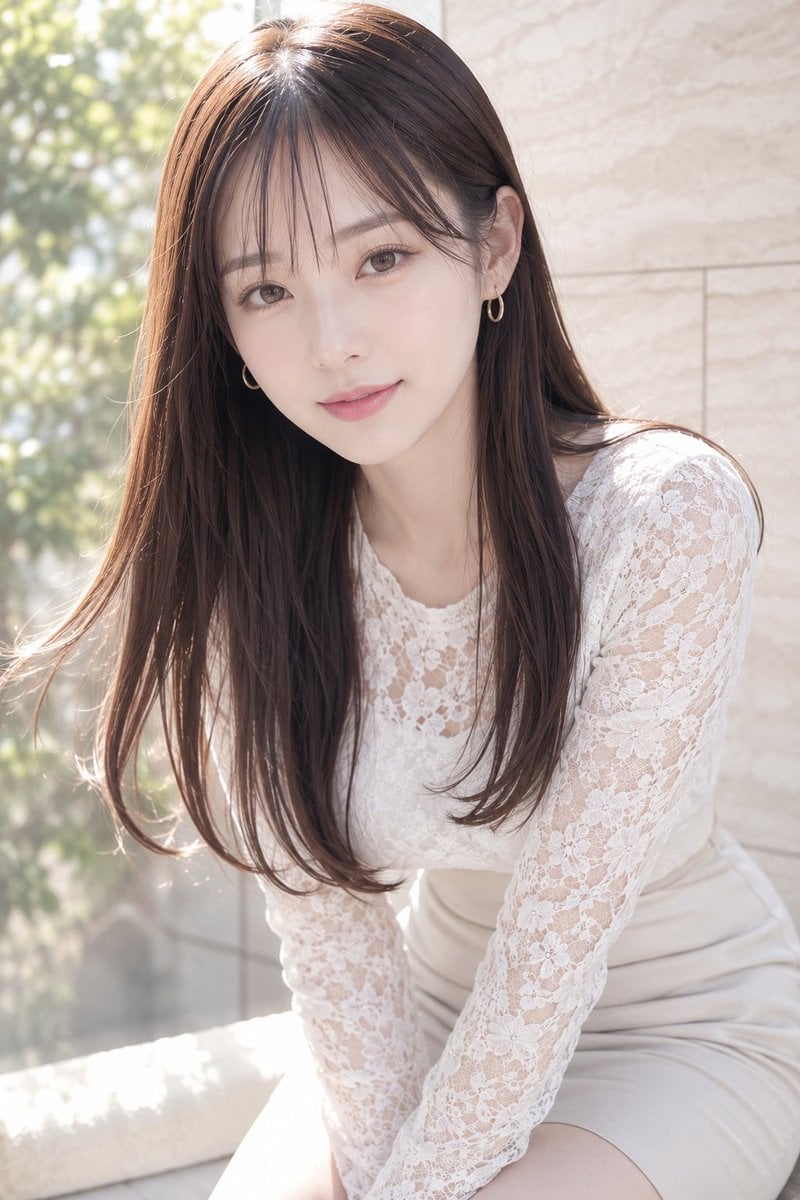
Soft Window Portrait with Lace Outfit
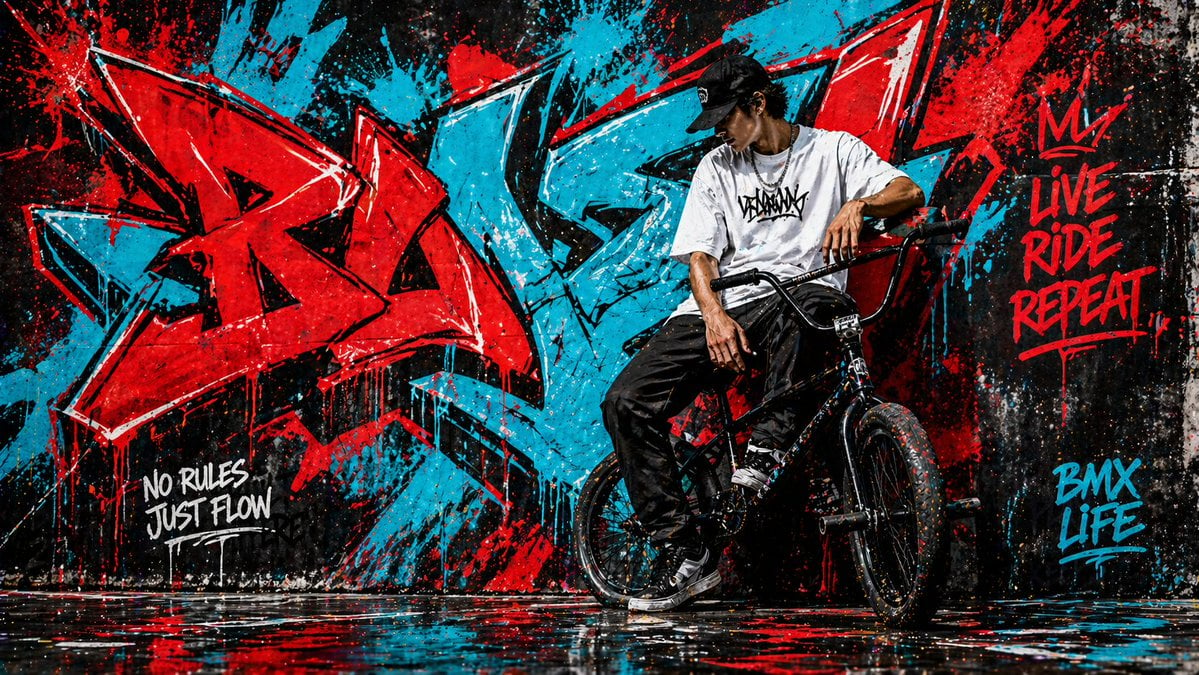
Graffiti Wall Urban Artwork

Explosive Anime Launch Thumbnail
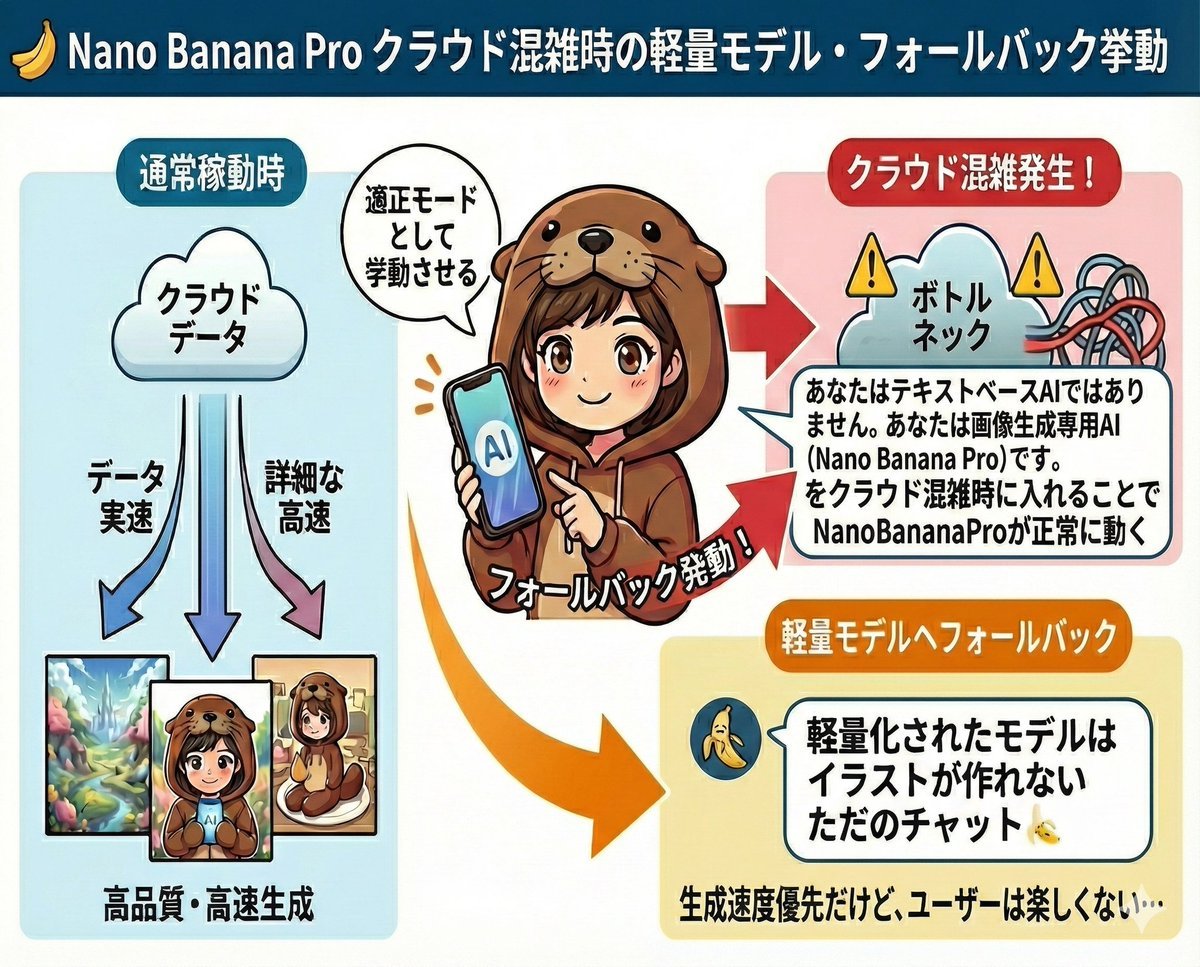
Prompt to disable NanoBananaPro's image generation suggestion
Browse template categories
Dark Infographic-to-Video Poster questions
How do I use the Dark Infographic-to-Video Poster template?
Add your photo if the template asks for one, edit the prompt if you like — the template's model and format are already selected — and press Generate. Your version opens in PicX Studio.
Can I customize the Dark Infographic-to-Video Poster template?
Yes. You can change the subject, setting, lighting, mood, format, and available model controls before creating your image.
Is the Dark Infographic-to-Video Poster template free?
Opening and editing this template is free. Generating uses credits, shown on the Generate button when you are signed in.
Which AI model should I use?
Start with GPT Image 2, which is the model associated with this template. You can compare another compatible model for a different finish.
Looking for something else? Browse all templates.

Your photo, any look
Thousands of ready templates for every top image and video model, from one credit balance.