
Dark Tech Carousel-to-Video Slide
A premium vertical marketing slide showing how to turn social media carousels into short-form videos using GPT Image 2 and HyperFrames.

- Prompt included
- Model and format preset
- Free template
The prompt behind this image
Copy the exact prompt behind Dark Tech Carousel-to-Video Slide, or open it in the studio and make it yours.
Goal: Create a dark, premium tech carousel slide promoting {argument name="headline text" default="Social media carousels as video"}, branded as DSIV Music, with a cinematic desktop-production setup and instructional marketing copy. Canvas: Vertical 3:4 poster, about 900 × 1200 px, black charcoal background with subtle grain, thin gray border, faint geometric arcs, crosshair marks, dotted grid accents, and warm amber highlight lines. Layout: Use a left-heavy editorial layout with a product mockup on the right. Top left shows the brand text “DSIV” with “MUSIC” beneath it; top right shows “DSIVMUSIC.COM”. Under the brand, place the slide number “04” with a thin horizontal rule. Below that, add a small outlined amber pill label reading {argument name="tool label" default="GPT Image 2 + HyperFrames"}. The main headline occupies the left center in very large bold white sans-serif type across four lines. Beneath it, add the subheading: {argument name="subheading text" default="Turn matching image slides into TikToks, Reels, and Shorts with motion, captions, and timing."} Right visual: Show a realistic dark monitor angled slightly in perspective on a desk, with a keyboard and small audio/control device in shadow. On the monitor, display a carousel-to-video editing interface: exactly 5 vertical slide cards across the top, numbered 01, 02, 03, 04, and 05. Card 01 reads “3 Codex prompts” with smaller text “music producers can actually use”; card 02 reads “Most AI prompts are too broad.”; card 03 reads “Generate better MIDI variations”; card 04 reads “Build a session roadmap”; card 05 is partially cropped and begins with “Turn...” as if continuing offscreen. Below the cards, show exactly 3 labeled timeline rows: “CAPTIONS”, “MUSIC / VO”, and “TRANSITIONS”, with beige caption blocks, an orange audio waveform, and small purple/gray transition blocks. Middle-left section: Add a small amber divider line, then the spaced uppercase label “WHY IT WORKS”. Under it list exactly 2 benefits, each preceded by a circled plus icon: “One idea, many formats” and “Fast repurposing”. Bottom section: Add a large rounded rectangle prompt box outlined in amber. Header text inside the box says “MAX PROMPT”. Body text uses a monospaced typewriter style and reads: “Generate 5–8 matching carousel slides for [TOPIC] with consistent typography, spacing, and visuals. Then create a HyperFrames sequence with slide timing, transition ideas, kinetic captions, music/VO timing, and deterministic render settings for a vertical short-form video.” End with a small terminal-style “>_”. Bottom left footer reads “@DSIVMUSIC”; bottom right has a small abstract circular DSIV-style mark. Visual style: Sleek black-and-white SaaS/creator-economy aesthetic, high contrast typography, warm amber accents, subtle photographic realism on the monitor and desk, clean modern Swiss grid composition, cinematic lighting, crisp legible text, no extra logos beyond DSIV branding.
How to use Dark Tech Carousel-to-Video Slide in 3 steps
- 1Upload ImagePNG, JPG or paste
Add your photo
Upload the photo the template builds on. The prompt, model and format are already set.
- 2…a portrait of your subject in softgolden-hour light, 85mm…
Personalize
Edit the subject and creative details for your destination.
- 3Generate
Generate
Press Generate — your image is created in PicX Studio, so you can compare it with the original and refine one variable at a time.
More like this
Templates with the same subject, style or setup. Open one to see its prompt.

Dark Tech Marketing Slide Collage

Selective Color Monochrome Football Poster
Dark Neon Carousel Cover

AI Email Prompts Carousel Slide
Night Sports Car Portrait — Cinematic Moody
Cinematic Eye Light Portraits — 3 Nano Banana Prompts
Horror Cinematic Portrait

High-converting carousel image for Grüns greens gummies

Premium 4 3 presentation cover slide introducing Chronicle
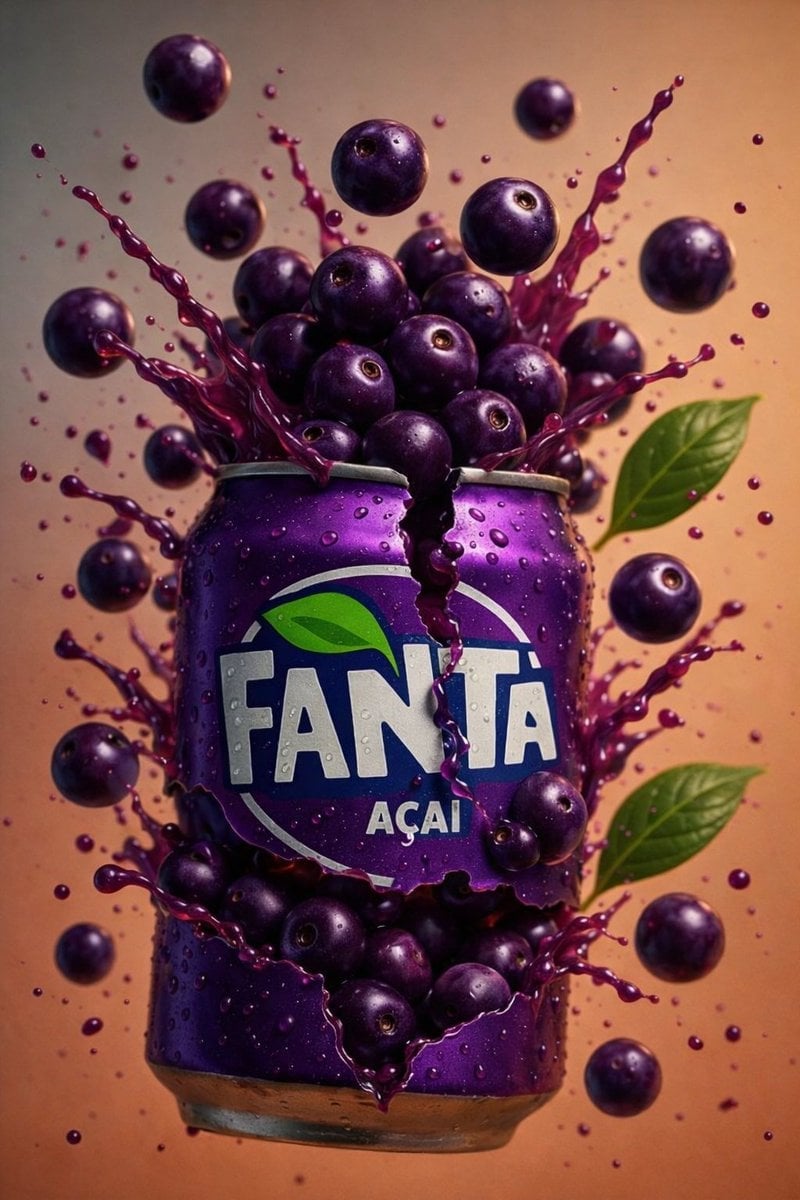
Multiple dark purple berries erupting from inside the can

Japanese Corporate Price Index Slide
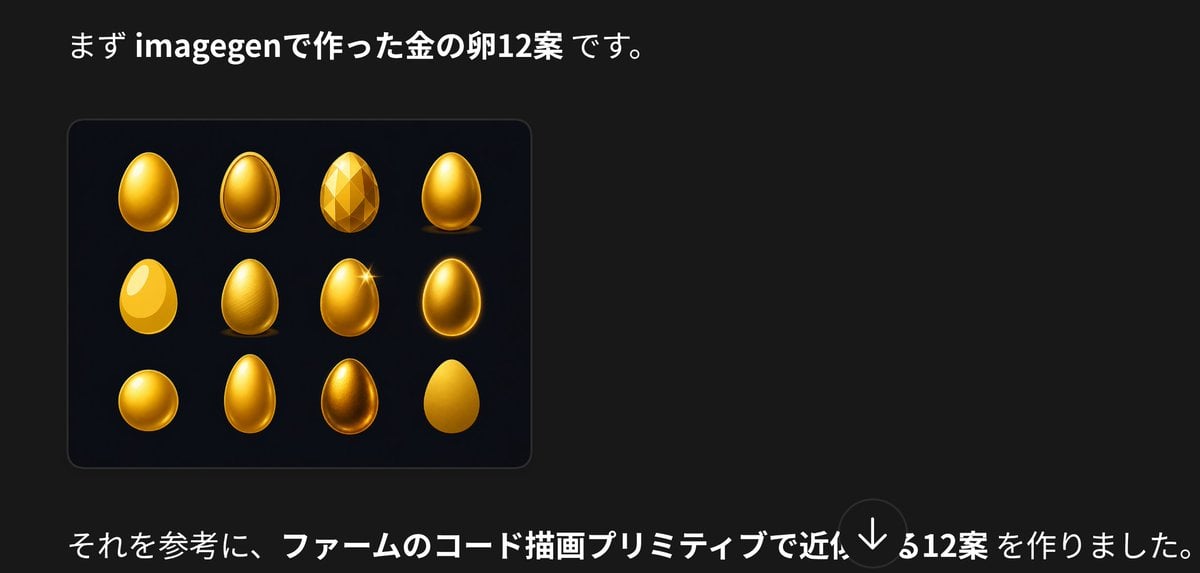
Japanese Golden Egg Design Slide
Make it yours
Dark Tech Carousel-to-Video Slide works as-is. These are the safest ways to change it without losing the look.
Change one field
Copy a single group, rewrite it, and generate again so you can see what that field is doing.
Keep the frame, change the subject
Hold the composition and light of Dark Tech Carousel-to-Video Slide, then swap wardrobe, props or the person for a new take.
| If the result… | Why | Fix |
|---|---|---|
| The result drifts from the preview | Too many fields changed at once. | Reuse Dark Tech Carousel-to-Video Slide as-is first, then change one group — subject, light, or setting. |
| The model over-stylizes the scene | The prose prompt leaves finish and camera underspecified. | Add one camera or lighting sentence and stay on GPT Image 2. |
More GPT Image 2 templates
Other prompts made for GPT Image 2.

Six VTuber Japanese Logo Sheet

Realistic Portrait of Woman and Deer

The Vista Modular Condo Poster

AI Model Routing Comparison Infographic

2.5D Anime Art Board

Isometric Productivity Desk Scene

New York Double Exposure Poster

Four-Panel AI Landscape Comparison

Japanese Tatami Lifestyle Magazine Cover

NESCAFÉ Coffee Map Poster
More image prompts
Fresh picks from across the catalog.

Japanese Katsudon Diet Thumbnail

AI Chat Screenshot with Ad Design Grids

Cute Futuristic Platformer Scene
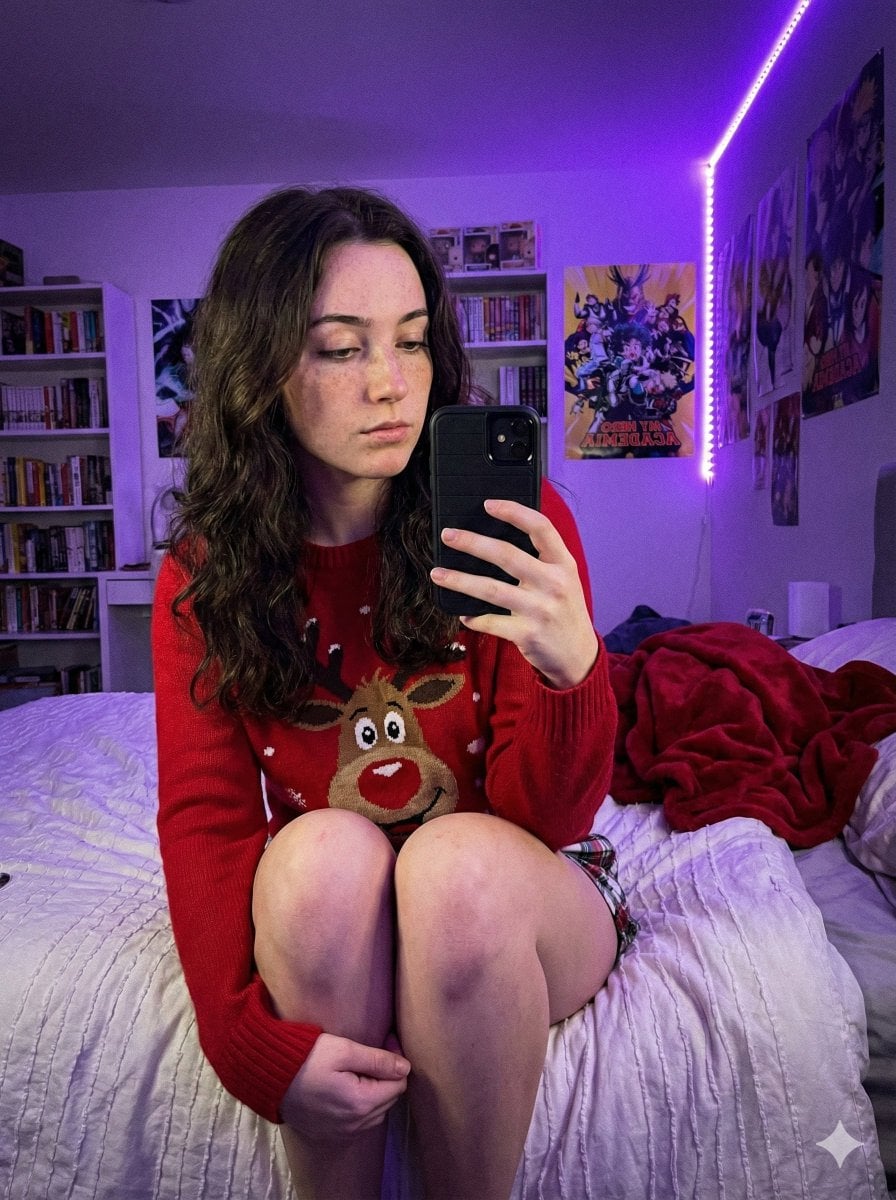
Low-Light Smartphone Selfie in Gen Z Bedroom
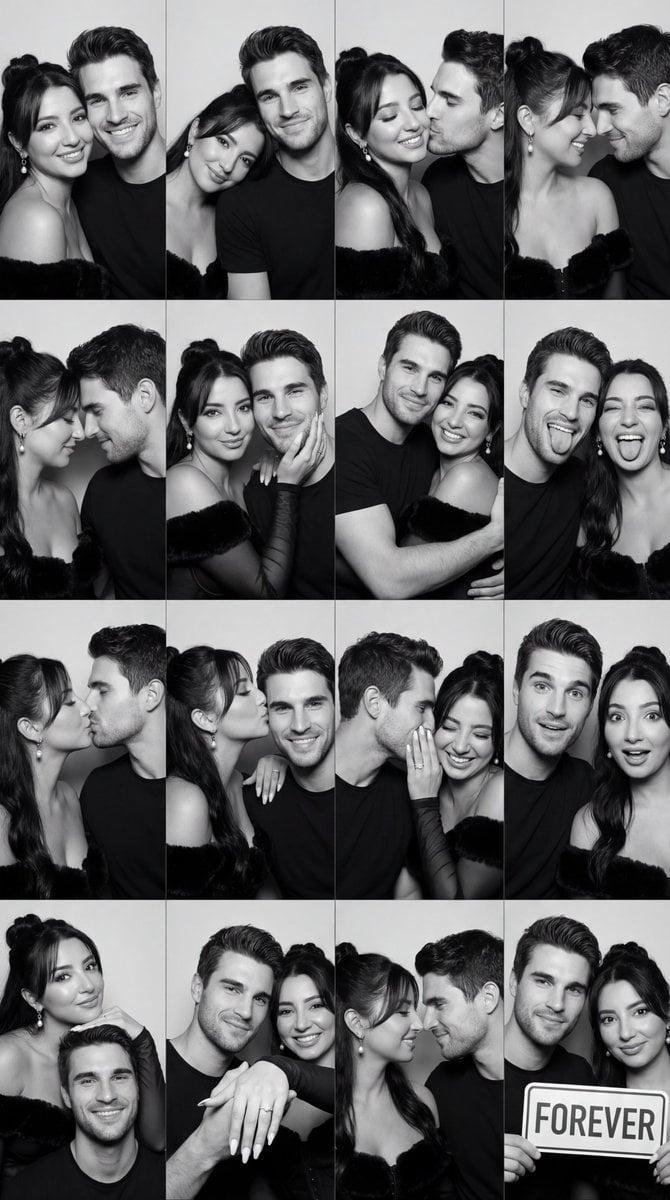
Black and White Photobooth Couple Grid Prompt (16 Panels)
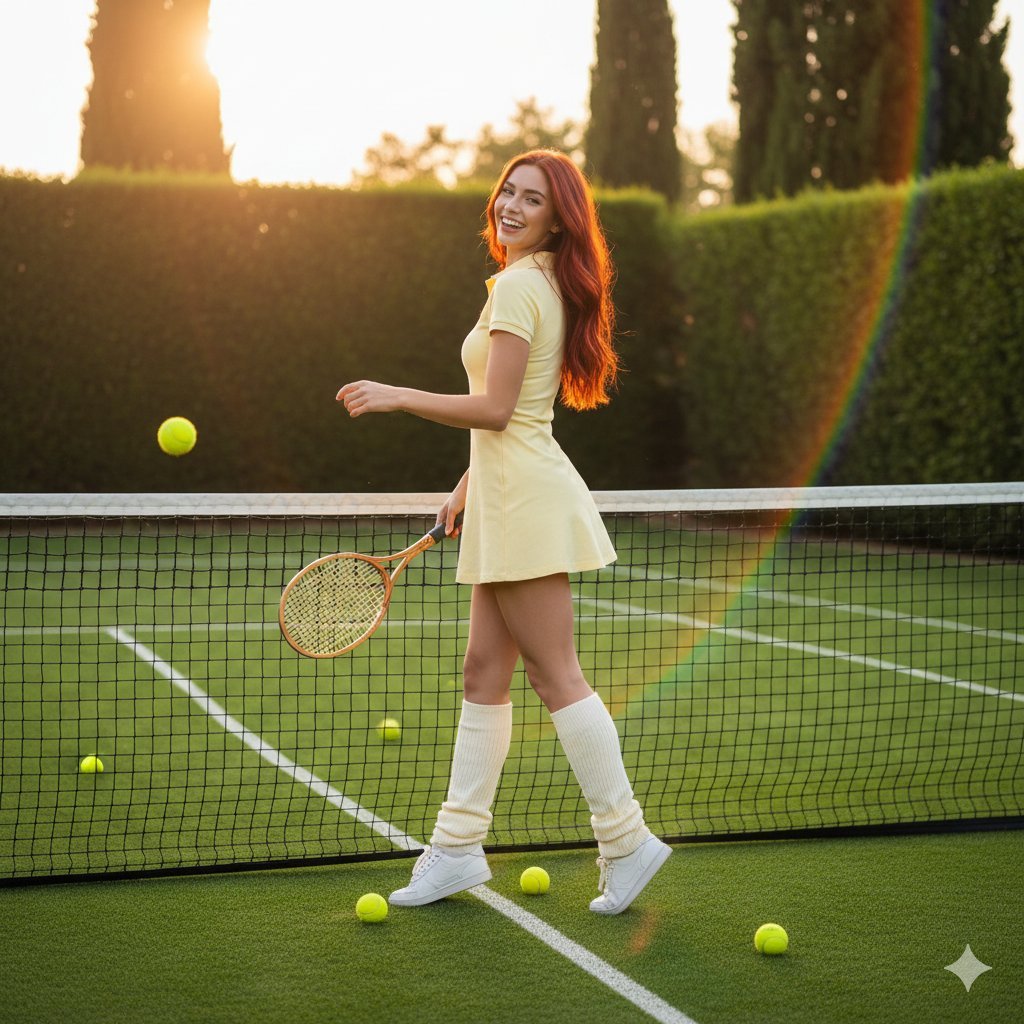
Golden Hour Tennis Lifestyle Photo Prompt

Manga Style Project Management Intro
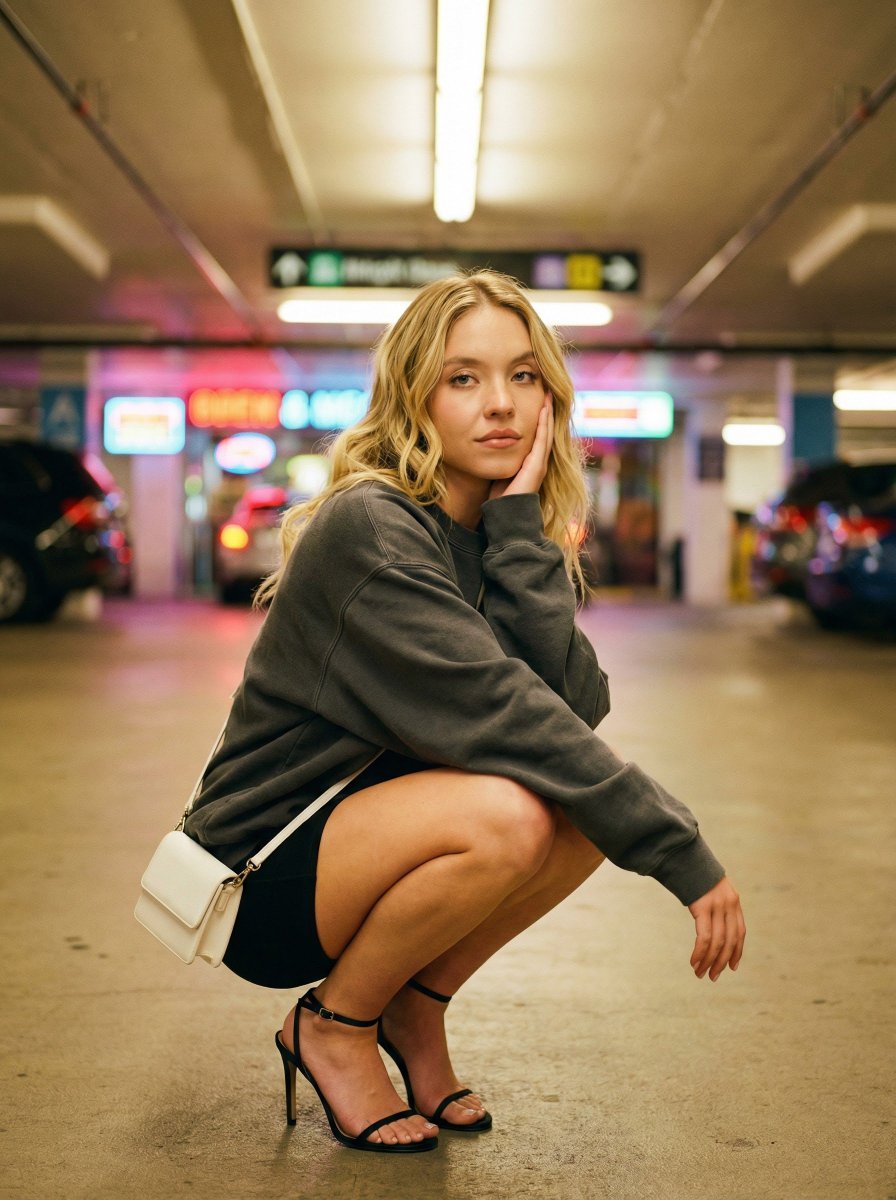
Urban Fashion Editorial in Parking Lot Prompt
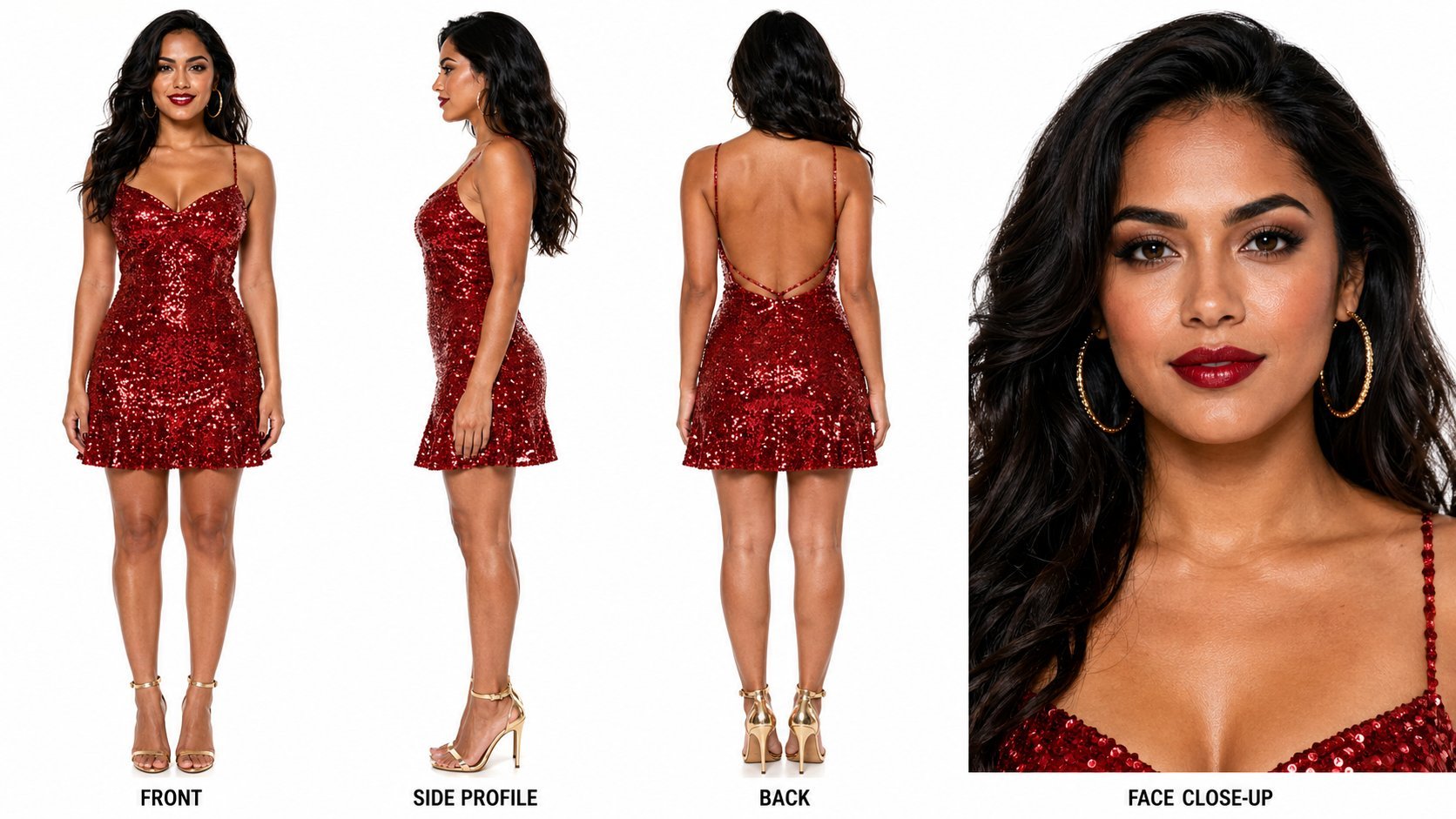
Dancer Character - Four View Reference Sheet
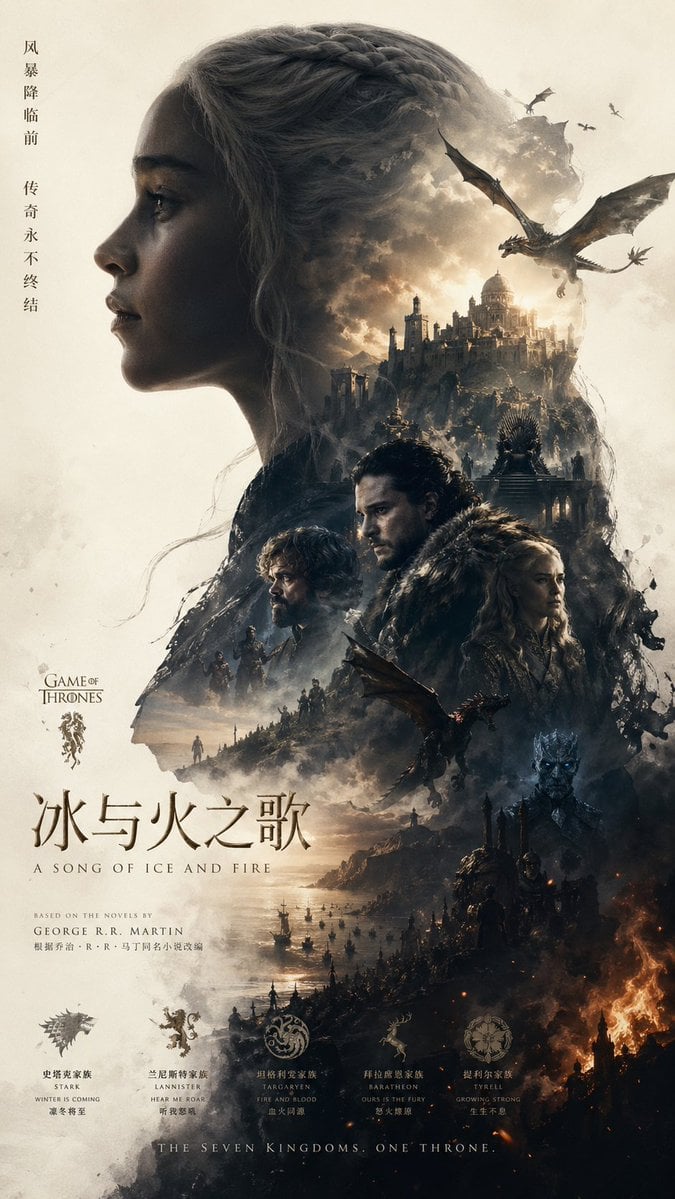
Epic Fantasy Double-Exposure Poster
Browse template categories
Dark Tech Carousel-to-Video Slide questions
How do I use the Dark Tech Carousel-to-Video Slide template?
Add your photo if the template asks for one, edit the prompt if you like — the template's model and format are already selected — and press Generate. Your version opens in PicX Studio.
Can I customize the Dark Tech Carousel-to-Video Slide template?
Yes. You can change the subject, setting, lighting, mood, format, and available model controls before creating your image.
Is the Dark Tech Carousel-to-Video Slide template free?
Opening and editing this template is free. Generating uses credits, shown on the Generate button when you are signed in.
Which AI model should I use?
Start with GPT Image 2, which is the model associated with this template. You can compare another compatible model for a different finish.
Looking for something else? Browse all templates.

Your photo, any look
Thousands of ready templates for every top image and video model, from one credit balance.