
Split-Screen Hard vs Soft Light Interior
A photorealistic side-by-side studio scene comparing crisp cool hard sunlight with warm diffused atmospheric light for cinematic visual studies.
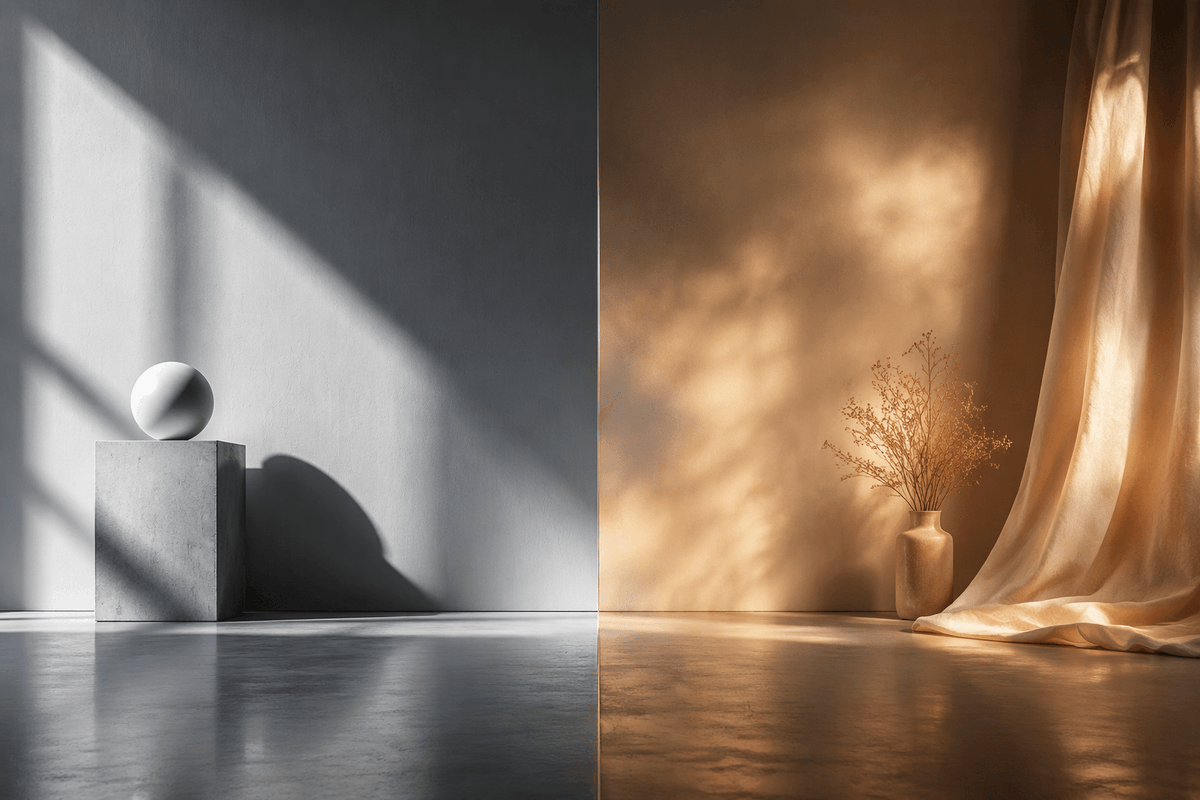
- Prompt included
- Model and format preset
- Free template
The prompt behind this image
Copy the exact prompt behind Split-Screen Hard vs Soft Light Interior, or open it in the studio and make it yours.
Create a photorealistic cinematic split-screen interior still comparing two lighting moods, divided exactly down the vertical center by a thin straight seam. On the left half, show a cool monochrome minimalist studio corner with a smooth gray plaster wall and polished concrete floor; include exactly 2 geometric objects: a square concrete pedestal block near the lower left-center and a matte white sphere resting on top of it. Strong hard sunlight enters from an unseen window at the upper left, casting sharp diagonal window-frame shadows across the wall, the pedestal, and the floor, with a crisp oval shadow from the sphere. On the right half, show a warm amber-toned bohemian corner with a textured brown plaster wall and reflective concrete floor; include exactly 3 main objects: one small ceramic vase on the floor, one delicate bundle of dried branches inside the vase, and one sheer golden curtain hanging from the top right and pooling onto the floor. The right side lighting should be soft, diffused, glowing, and atmospheric, with mottled golden sunlight patterns on the wall and curtain. Use a wide 3:2 horizontal composition, symmetrical comparison layout, low camera height, realistic material textures, subtle floor reflections, no people, no text, no logos. The overall concept is {argument name="comparison theme" default="hard light versus soft light"}, with the left side in {argument name="left color mood" default="cool grayscale minimalism"} and the right side in {argument name="right color mood" default="warm golden ambience"}.
How to use Split-Screen Hard vs Soft Light Interior in 3 steps
- 1Upload ImagePNG, JPG or paste
Add your photo
Upload the photo the template builds on. The prompt, model and format are already set.
- 2…a portrait of your subject in softgolden-hour light, 85mm…
Personalize
Edit the subject and creative details for your destination.
- 3Generate
Generate
Press Generate — your image is created in PicX Studio, so you can compare it with the original and refine one variable at a time.
More like this
Templates with the same subject, style or setup. Open one to see its prompt.
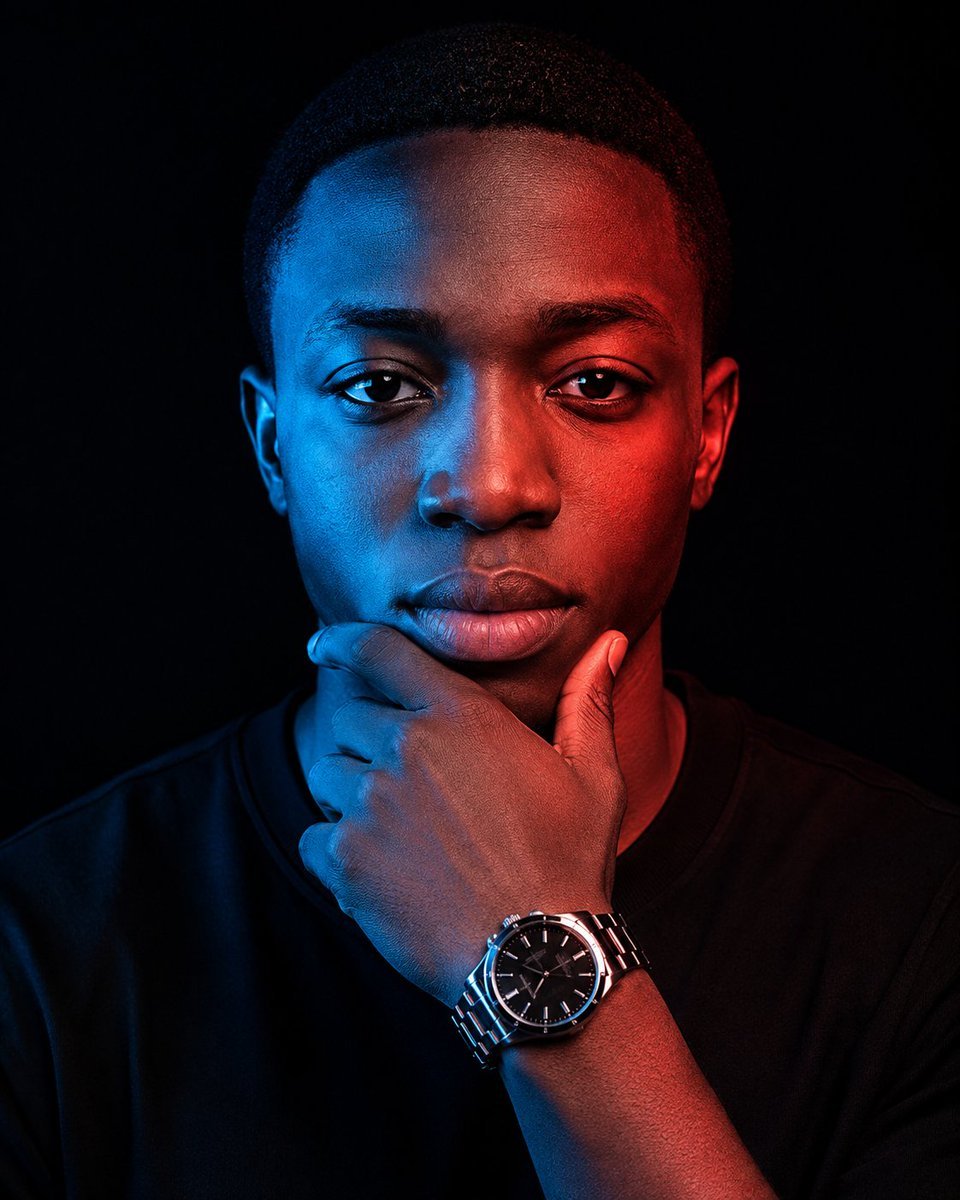
Cinematic Red Blue Split-Light Portrait
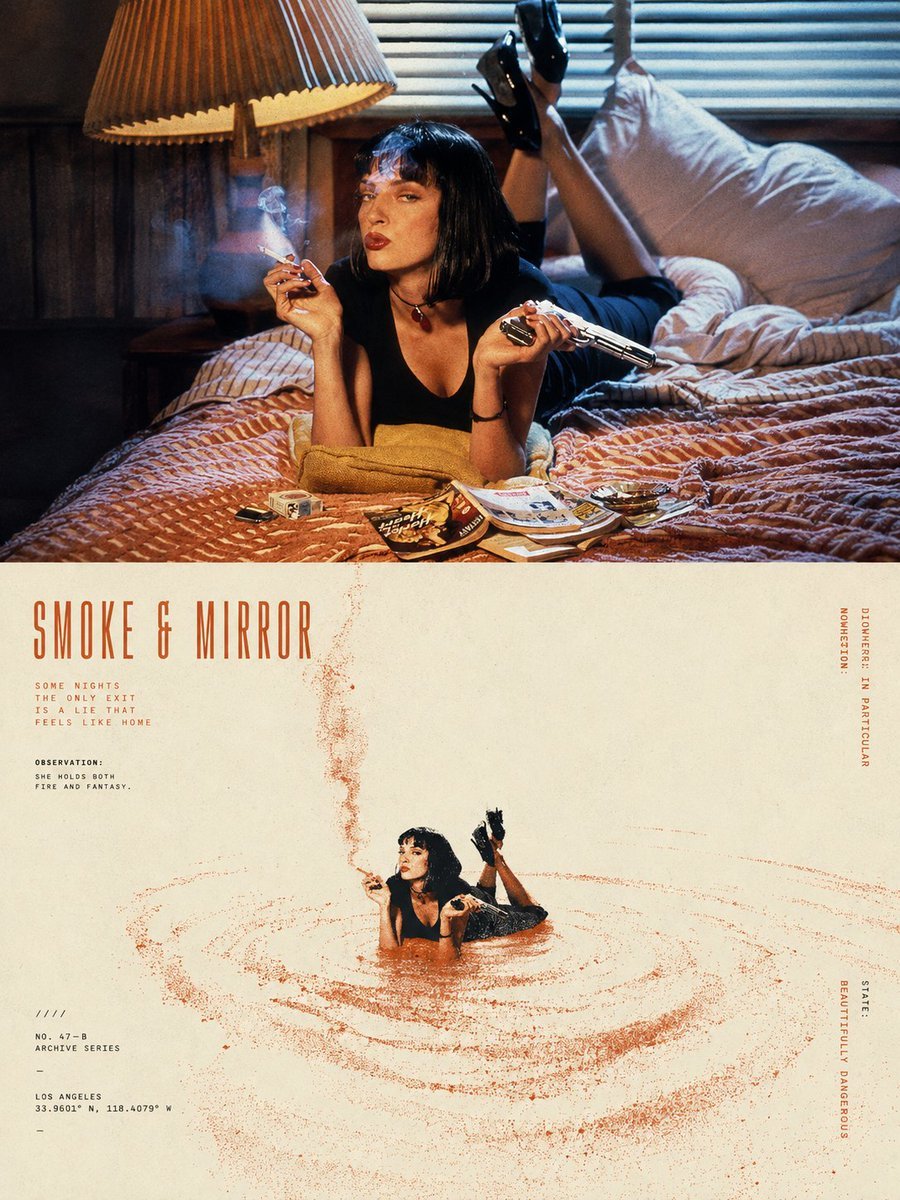
Split-Screen Surreal Printmaking Design
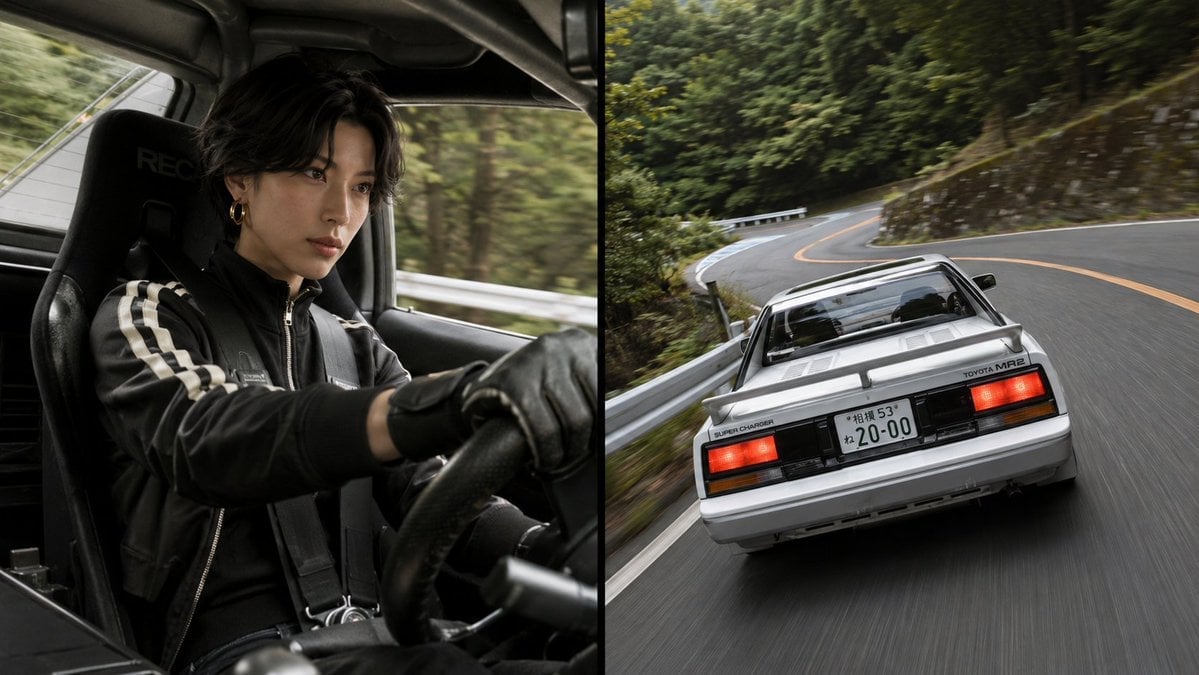
Split-Screen MR2 Touge Drive
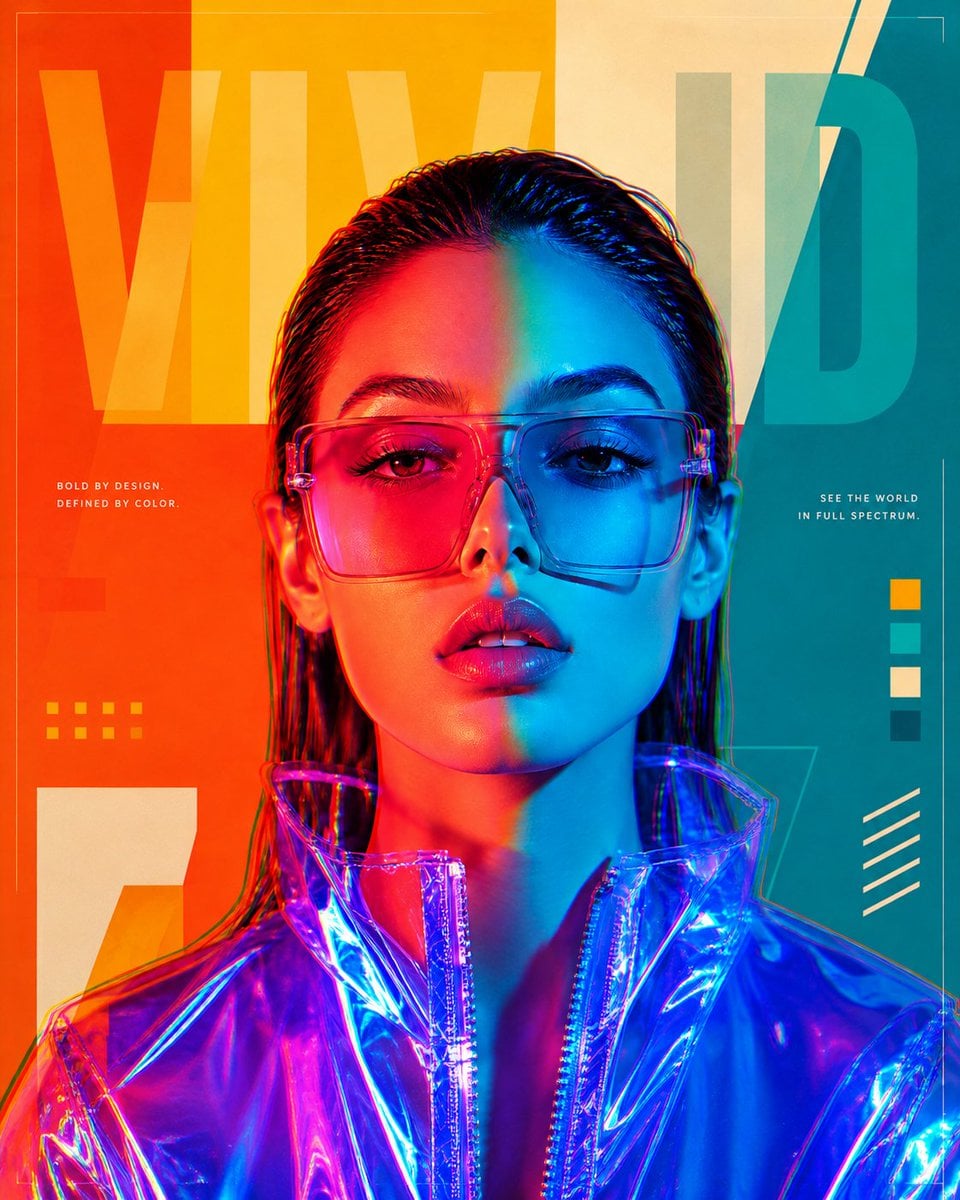
Futuristic Split-Lighting Editorial Poster
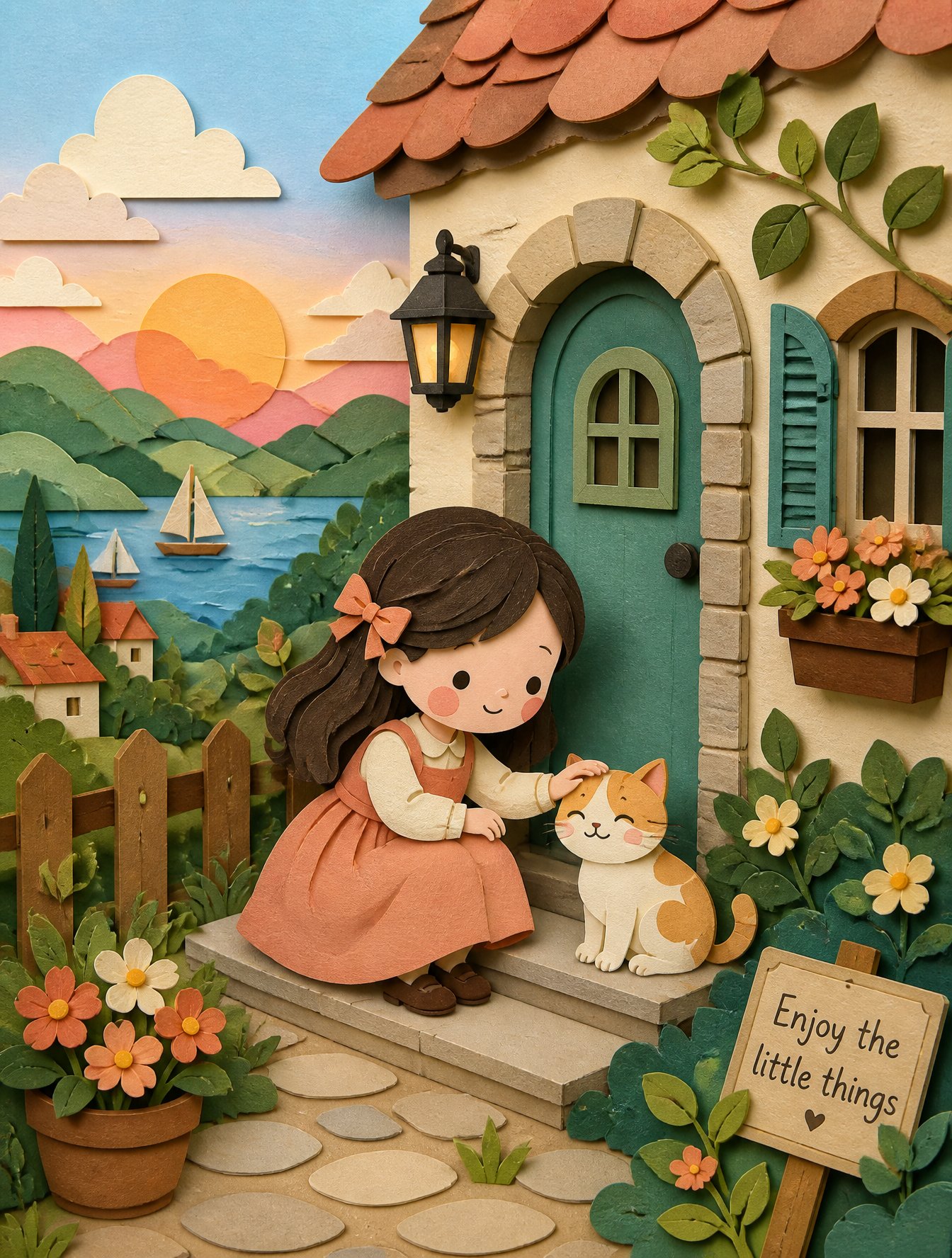
Soft Handcrafted Paper-Cut Layered Illustration
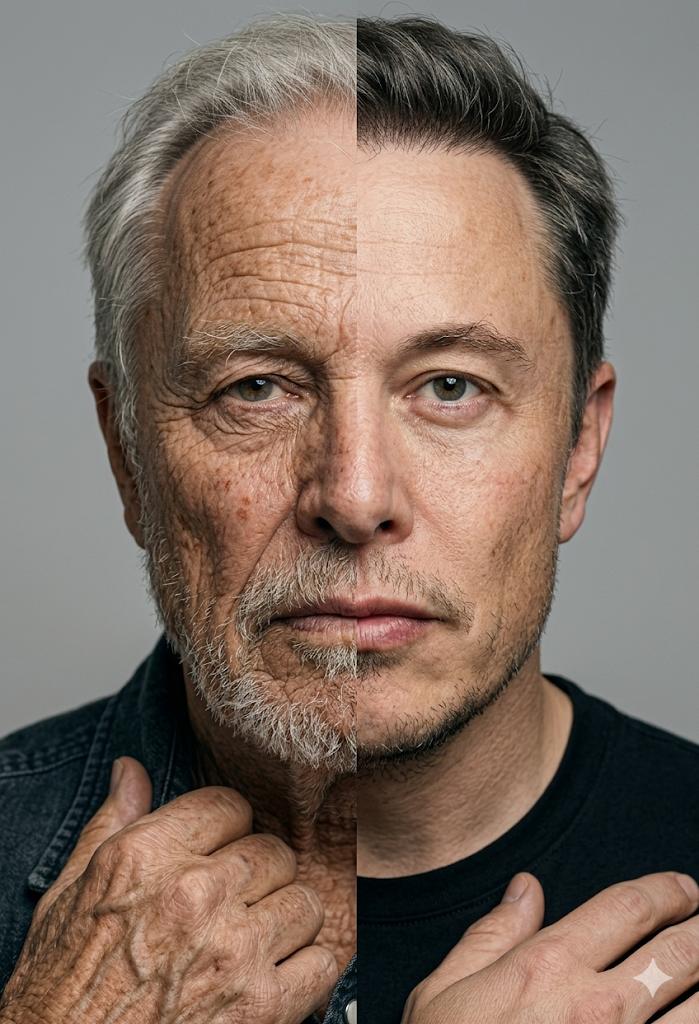
Split Screen Aging Effect
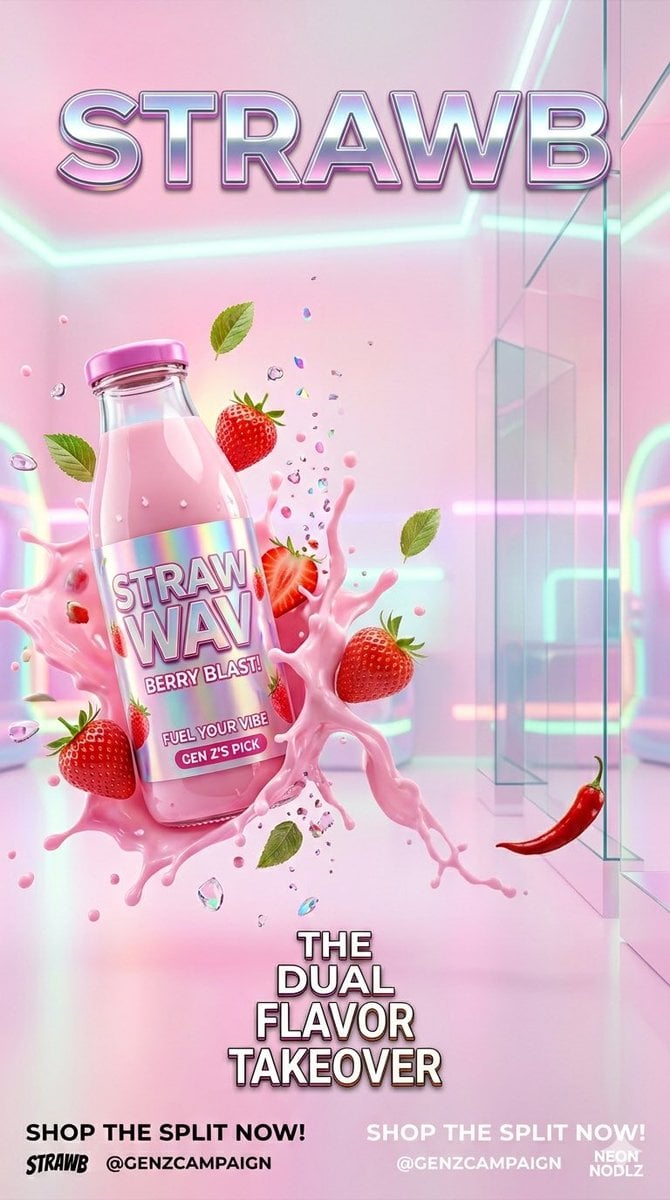
Gen Z Split Screen Advertising Poster

Hard Studio Light Editorial Portrait
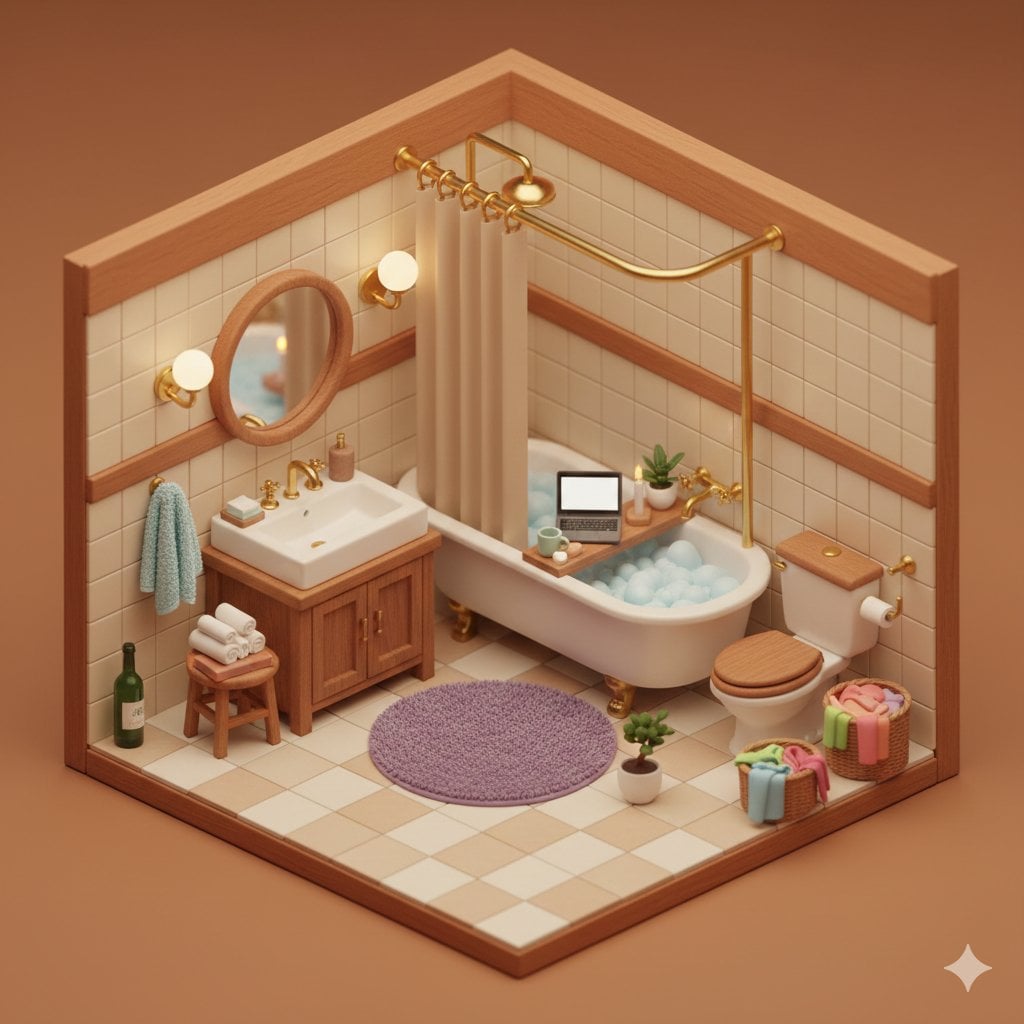
Watercolor Anim Finale Fireworks
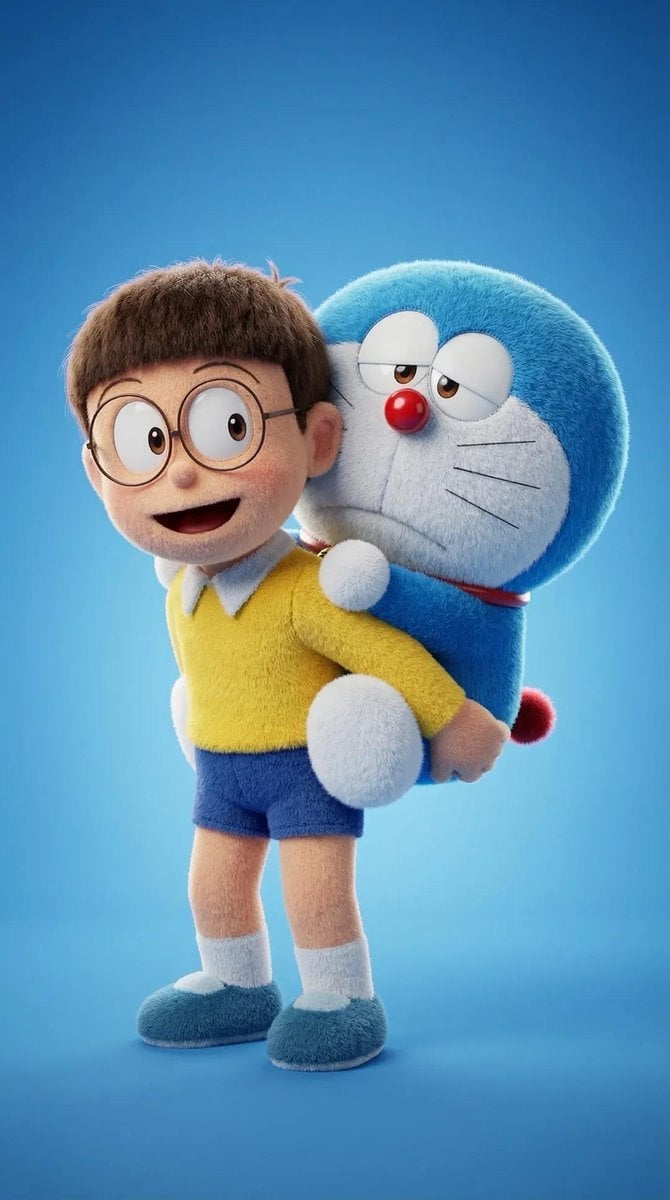
Watercolor Anim Garden Maze
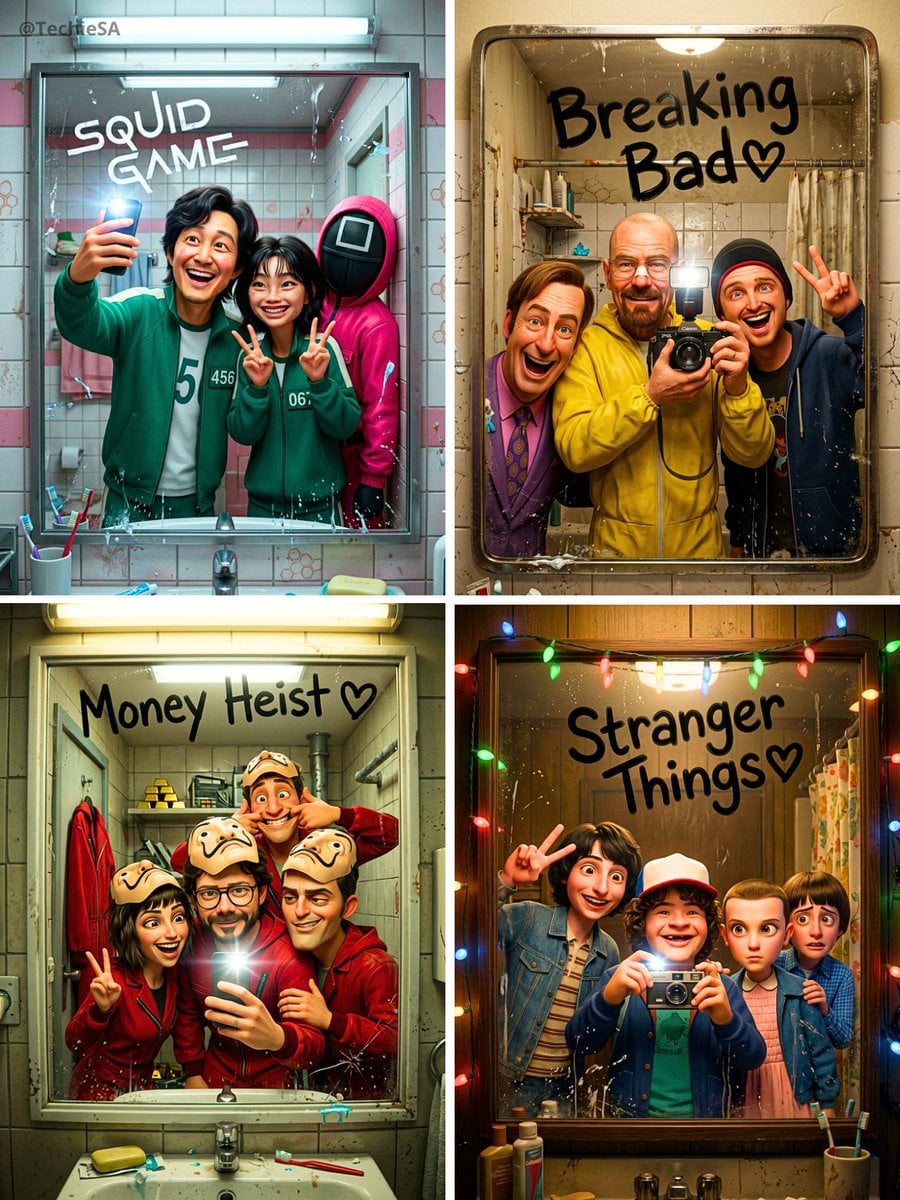
Watercolor Anim Rooftop Concert
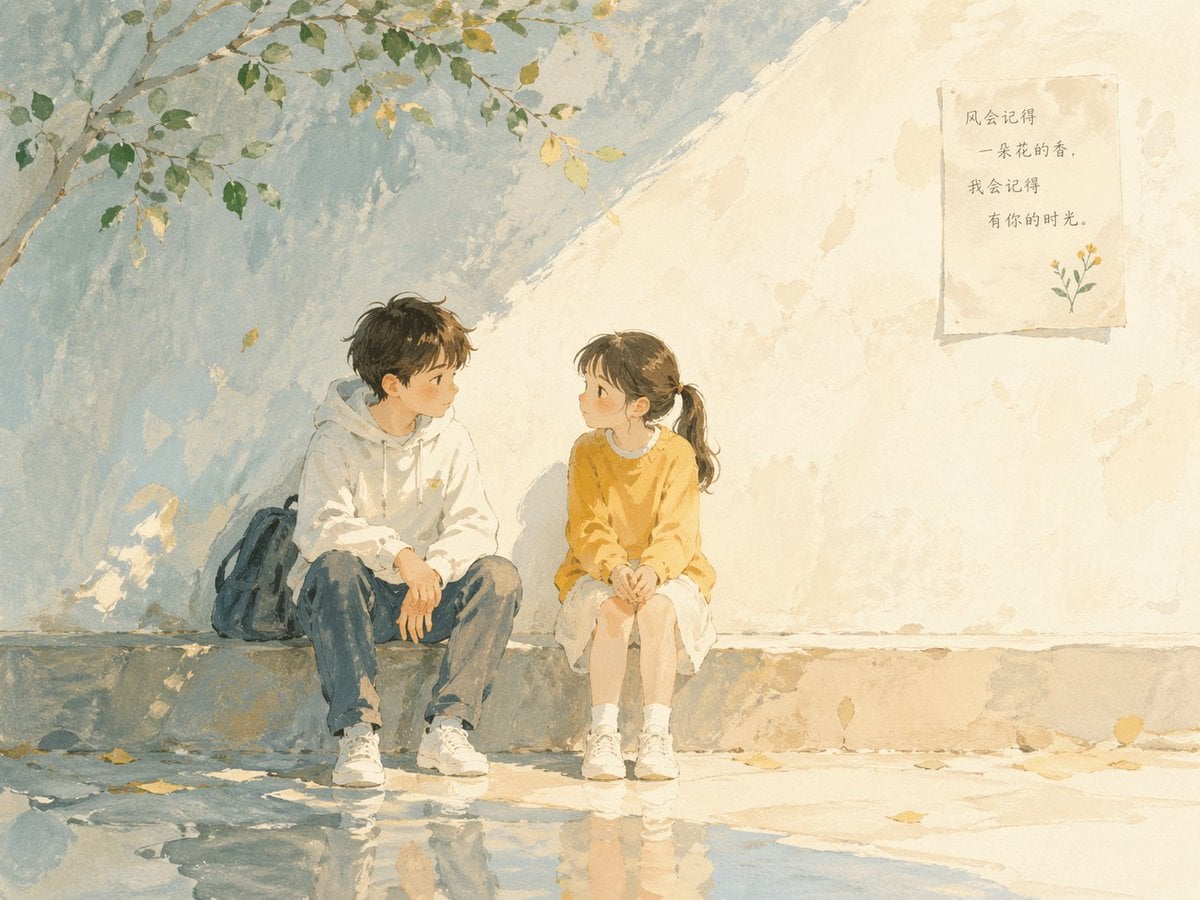
Watercolor Anim Bicycle Coast
Make it yours
Split-Screen Hard vs Soft Light Interior works as-is. These are the safest ways to change it without losing the look.
Change one field
Copy a single group, rewrite it, and generate again so you can see what that field is doing.
Keep the frame, change the subject
Hold the composition and light of Split-Screen Hard vs Soft Light Interior, then swap wardrobe, props or the person for a new take.
| If the result… | Why | Fix |
|---|---|---|
| The result drifts from the preview | Too many fields changed at once. | Reuse Split-Screen Hard vs Soft Light Interior as-is first, then change one group — subject, light, or setting. |
| The model over-stylizes the scene | The prose prompt leaves finish and camera underspecified. | Add one camera or lighting sentence and stay on GPT Image 2. |
More GPT Image 2 templates
Other prompts made for GPT Image 2.

Six VTuber Japanese Logo Sheet

Realistic Portrait of Woman and Deer

The Vista Modular Condo Poster

AI Model Routing Comparison Infographic

2.5D Anime Art Board

Isometric Productivity Desk Scene

New York Double Exposure Poster

Four-Panel AI Landscape Comparison

Japanese Tatami Lifestyle Magazine Cover

NESCAFÉ Coffee Map Poster
More image prompts
Fresh picks from across the catalog.
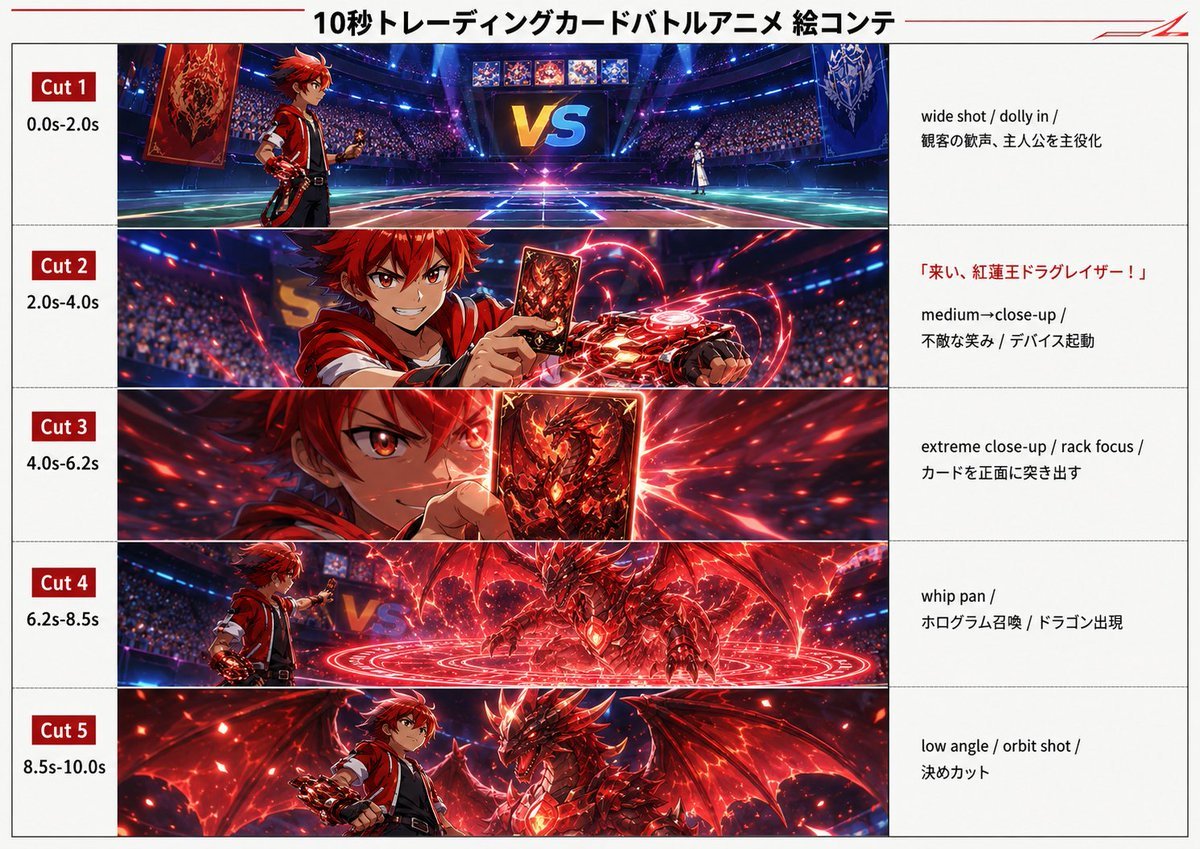
Trading Card Battle Anime Storyboard
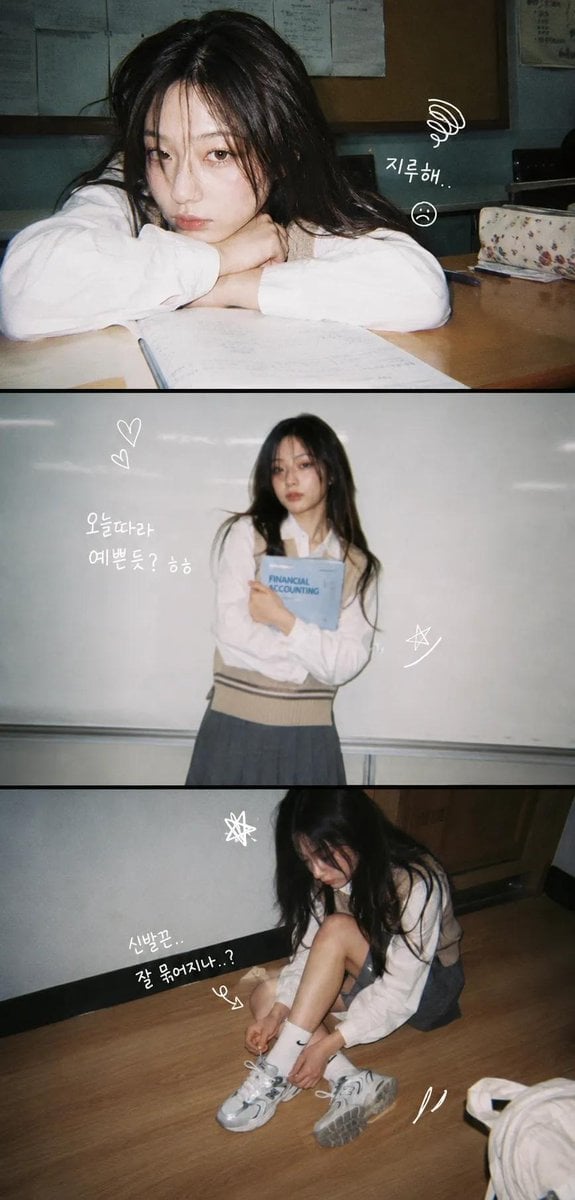
Korean Y2K Photo Strip Aesthetic

High-end editorial portrait of a mature man

3D Render of Childlike Character in Puzzle Sweater
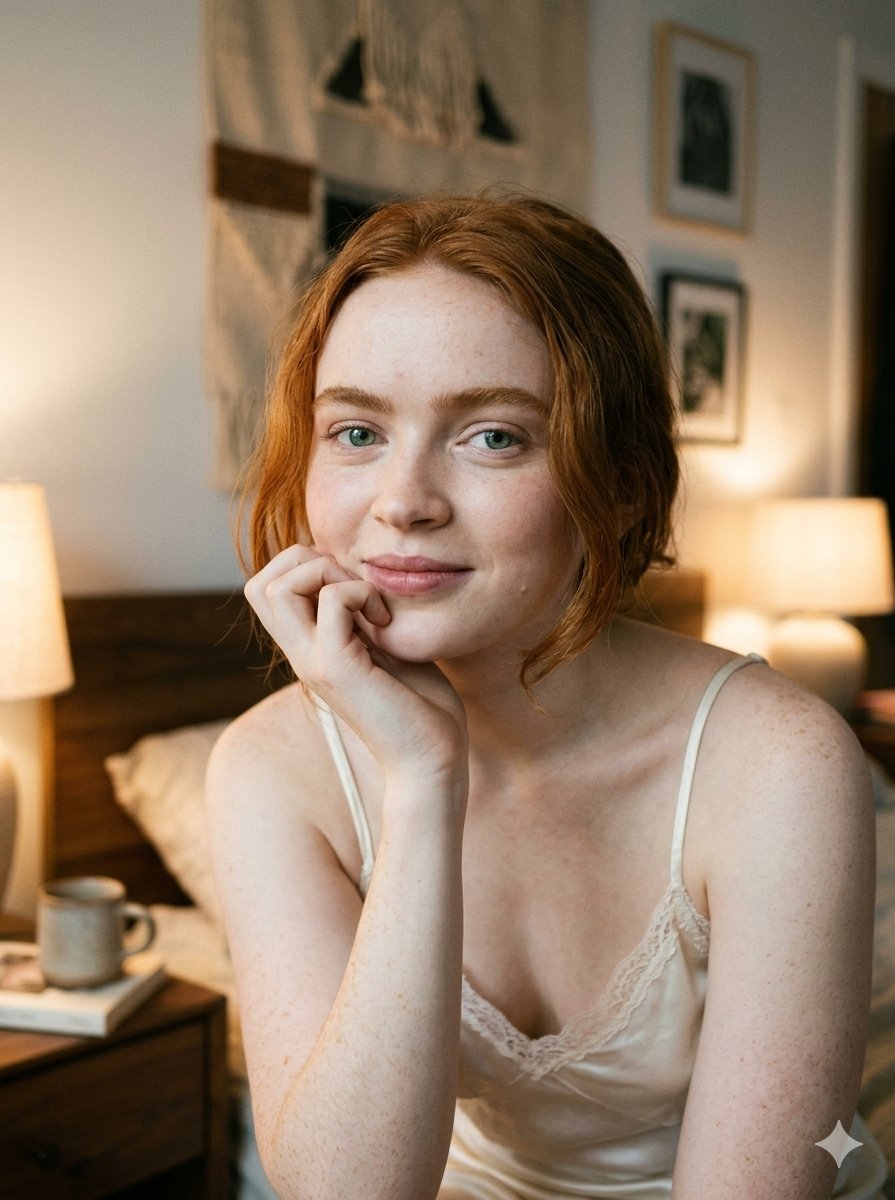
Google Nano Banana 2 — Cozy Bedroom Editorial
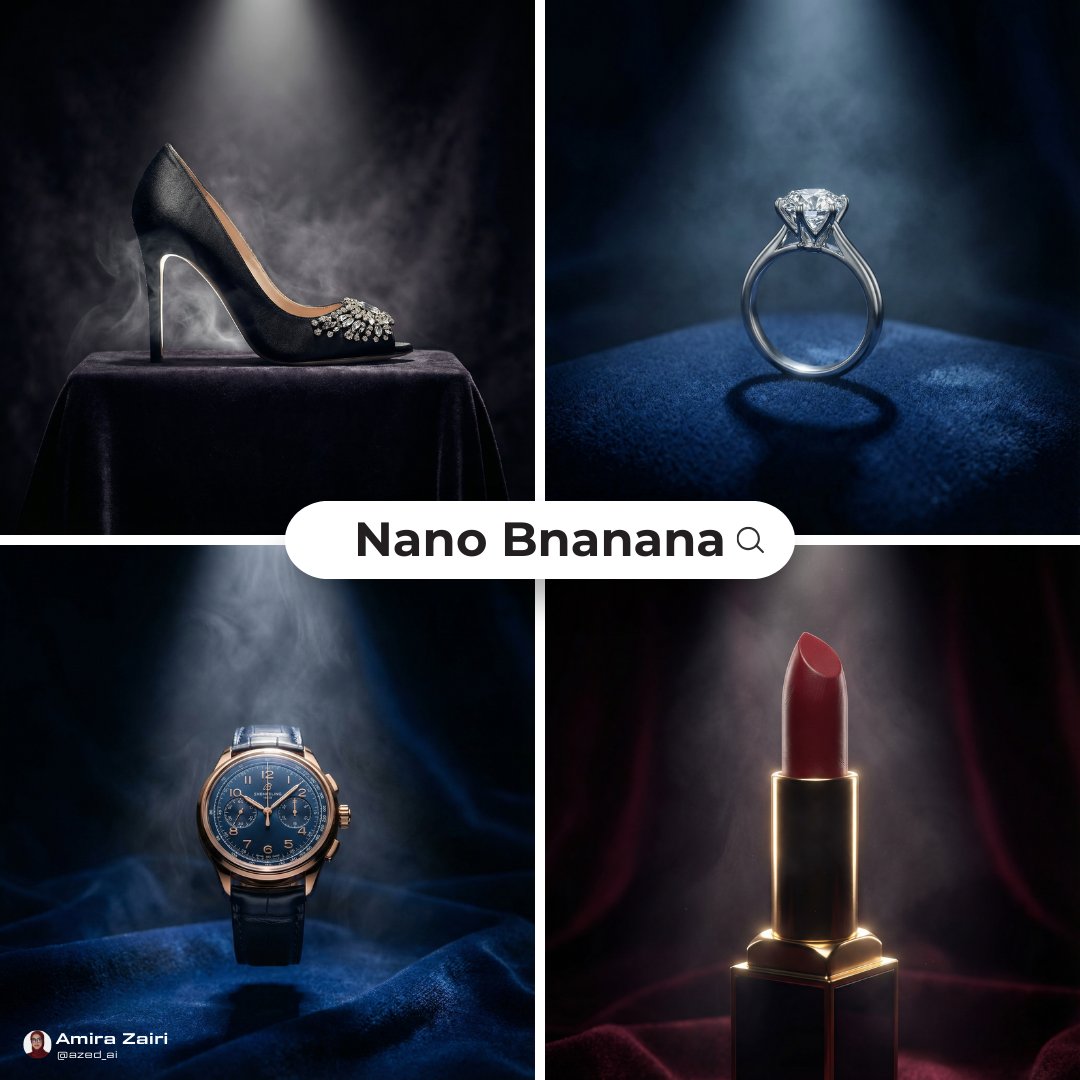
General Luxury Product Hero Shot Prompt
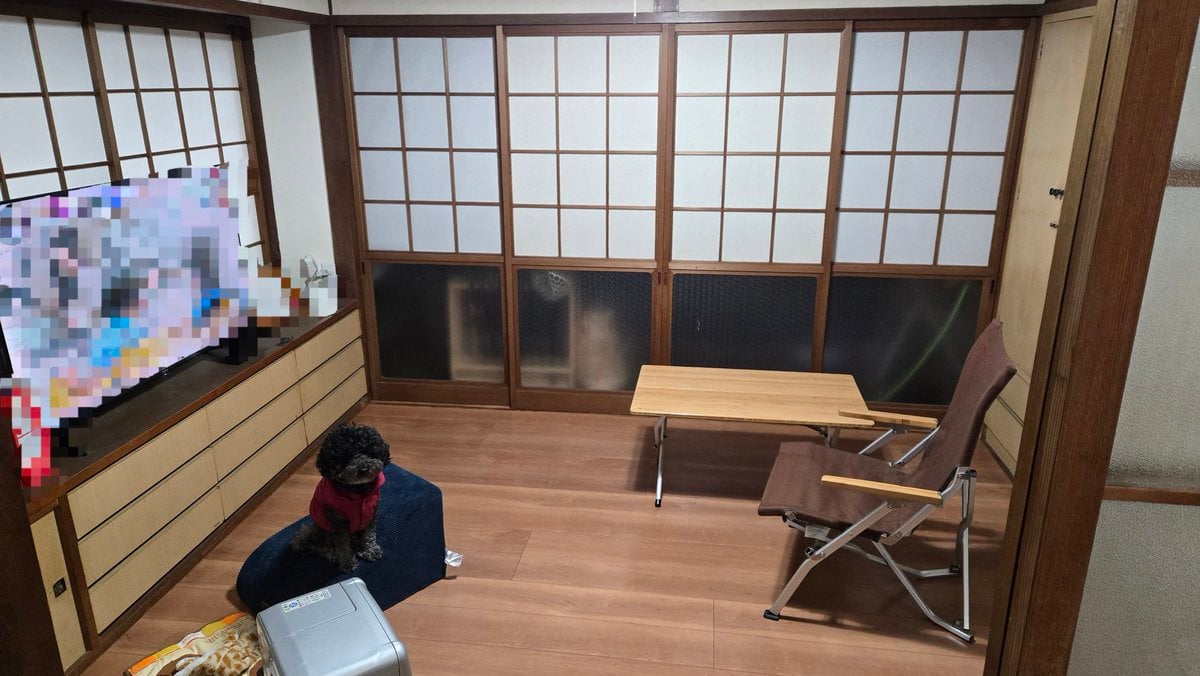
Interior Design Simulation Prompt for Nano Banana
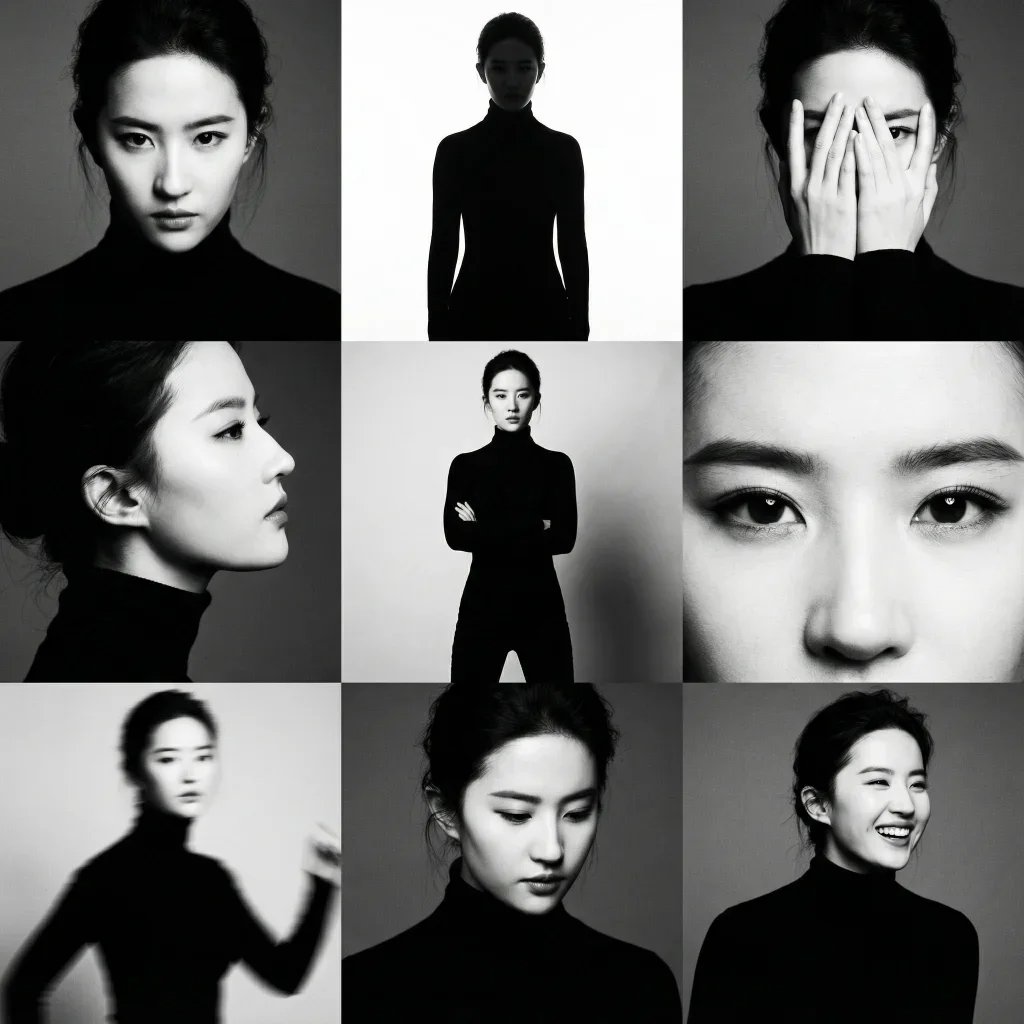
3x3 Black and White Photo Collage
Seedance - Anime Fighting Game Finisher
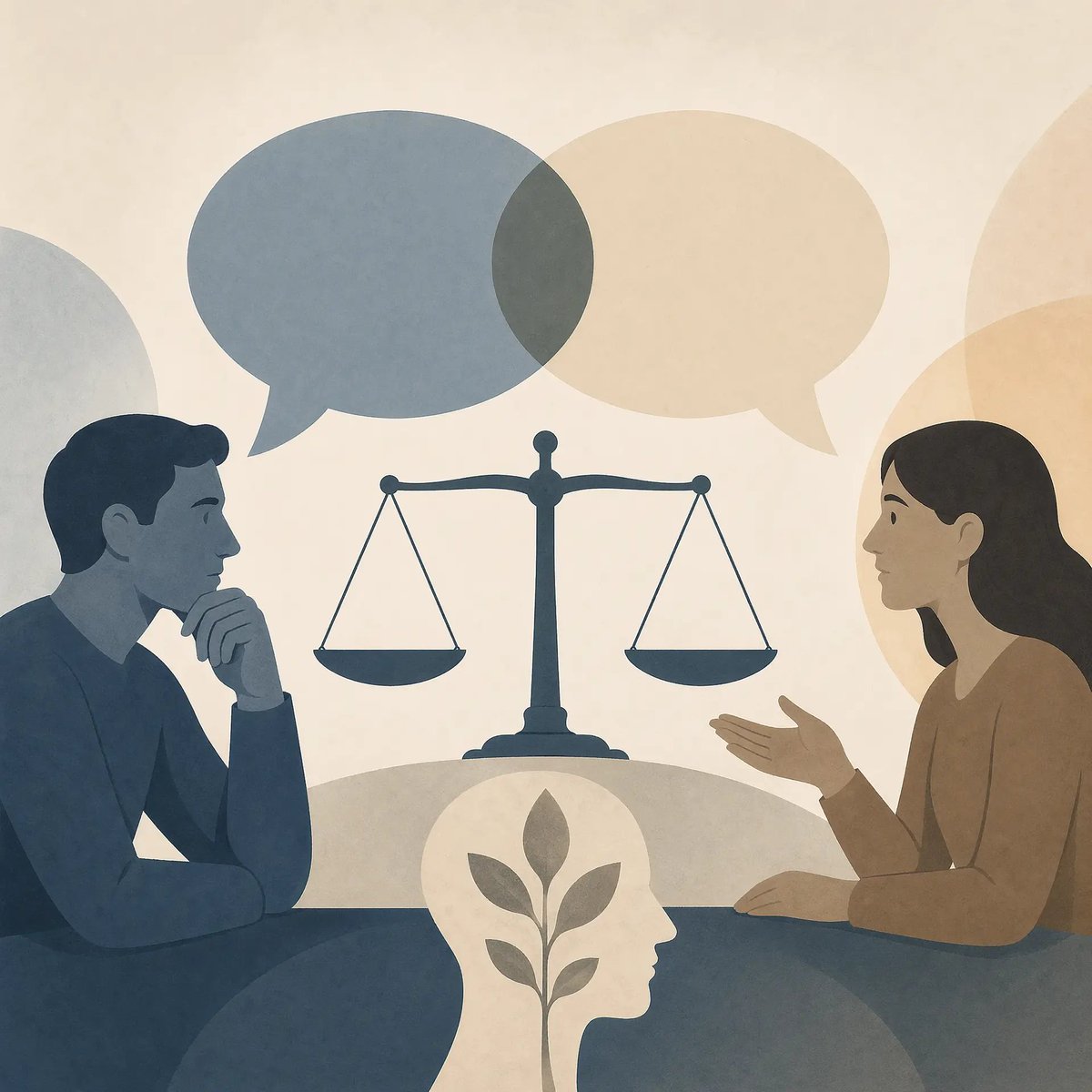
Cross-Strait Dialogue Editorial Illustration
Browse template categories
Split-Screen Hard vs Soft Light Interior questions
How do I use the Split-Screen Hard vs Soft Light Interior template?
Add your photo if the template asks for one, edit the prompt if you like — the template's model and format are already selected — and press Generate. Your version opens in PicX Studio.
Can I customize the Split-Screen Hard vs Soft Light Interior template?
Yes. You can change the subject, setting, lighting, mood, format, and available model controls before creating your image.
Is the Split-Screen Hard vs Soft Light Interior template free?
Opening and editing this template is free. Generating uses credits, shown on the Generate button when you are signed in.
Which AI model should I use?
Start with GPT Image 2, which is the model associated with this template. You can compare another compatible model for a different finish.
Looking for something else? Browse all templates.

Your photo, any look
Thousands of ready templates for every top image and video model, from one credit balance.